

This document explains how to configure the Microsoft Azure Event Hubs v2.0.0 plugin with the Log Shipper module of the Netskope Cloud Exchange platform. This plugin supports ingestion of Alerts (DLP, Malware, Policy, Compromised Credential, Malsite, Quarantine, Remediation, Security Assessment, Watchlist, UBA, CTEP, Device, Content), Events (Page, Application, Audit, Infrastructure, Network, Incident, Endpoint, Client Status) and WebTx [via Netskope LogStreaming] data. The data will be sent to the Microsoft Azure Event Hubs. This plugin supports ingestion in both CEF and JSON format.
Prerequisites
To complete this configuration, you need:
- A Netskope tenant (or multiple, for example, production and development/test instances).
- A Netskope Cloud Exchange tenant with the Tenant plugin and Log Shipper plugin already configured.
- A Netskope Cloud Exchange tenant with the AWS Netskope Log Streaming or Azure Netskope Log Streaming plugin already configured.
- Standard tier subscription which have Event Hubs service.
- For more information about Event Hubs service, go here.
- For information about Azure Event Hubs for apache kafka, go here.
- Connectivity to the following host: https://portal.azure.com/.
Microsoft Azure Event Hubs Plugin Support
This plugin supports ingestion of Alerts (Compromised Credential, Policy, Malsite, Malware, DLP, Security Assessment, Watchlist, Quarantine, Remediation, UBA, CTEP, Device, Content), Events (Page, Application, Audit, Infrastructure, Network, Incident, Endpoint, Client Status) and WebTx (via Netskope Log Streaming) data. The data will be sent to the Microsoft Azure Event Hubs. This plugin supports ingestion in both CEF and JSON format.
| Data Type | Support |
|---|---|
| Alerts | Yes (Compromised Credential, Policy, Malsite, Malware, DLP, Security Assessment, Watchlist, Quarantine, Remediation, UBA, CTEP, Device, Content) |
| Events | Yes (Page, Application, Audit, Infrastructure, Network, Incident, Endpoint, Client Status) |
| WebTx | Yes (via Netskope Log Streaming) |
| CE Logs | Not Supported |
Note
- CLS WebTX based on Google Pub Sub Lite is deprecated. Please refer to Netskope Product EOL/EOS Announcements – Netskope Knowledge Portal
- For ingesting WebTX logs to your Log delivery destinations like SIEM, SOAR, XDR, Data Lake, use the AWS Netskope LogStreaming or Azure Netskope LogStreaming plugin.
Permissions
While adding SAS Policy, make sure below mentioned permissions are checked:
- Send
- Listen
API Details
List of APIs Used
This plugin uses kafka-python-ng libraries to create kafka producer and consumer to ingest data to azure event hubs.
Library: kafka-python-ng
Usage: kafka-python-ng client for the Apache Kafka distributed stream processing system. kafka-python-ng is designed to function much like the official java client, with a sprinkling of pythonic interfaces (e.g., consumer iterators). kafka-python-ng is best used with newer brokers (0.9+), but is backwards-compatible with older versions (to 0.8.0). Some features will only be enabled on newer brokers.
bootstrap.servers=NAMESPACENAME.servicebus.windows.net:9093
security.protocol=SASL_SSL
sasl.mechanism=PLAIN
sasl.jaas.config=org.apache.kafka.common.security.plain.PlainLoginModule required username="$ConnectionString" password="{YOUR.EVENTHUBS.CONNECTION.STRING}";
Create the Consumer
consumer = KafkaConsumer(
                event_hub_name,
                bootstrap_servers=bootstrap_server,
                security_protocol=”SASL_SSL,
                sasl_mechanism="PLAIN",
                sasl_plain_username="$ConnectionString",
                sasl_plain_password=connection_string,
                request_timeout_ms=TIMEOUT_MS,
                reconnect_backoff_ms=TIMEOUT_MS,
                client_id=self._add_user_agent(),
)
List the Event Hubs present in the configured Event Hub Namespace
available_event_hubs = consumer.topics()
Create the Producer
producer = KafkaProducer(
                bootstrap_servers=bootstrap_server,
                security_protocol=”SASL_SSL”,
                sasl_mechanism="PLAIN",
                sasl_plain_username="$ConnectionString",
                sasl_plain_password=connection_string,
                batch_size=BATCH_SIZE,
                acks=ACKS,
                retries=retries,
                linger_ms=LINGER_MS,
                request_timeout_ms=TIMEOUT_MS,
                reconnect_backoff_ms=TIMEOUT_MS,
                value_serializer=lambda x: x.encode("utf-8"),
                client_id=self._add_user_agent(),
            )
Send Data to an Azure Event Hub
producer.send(
    topic=event_hub_name,
           value=(
                data
                     if not isinstance(data, dict)
                     else json.dumps(data)
                ),
        )
Performance Matrix
This performance reading was conducted on a Large Cloud Exchange Stack with these VM specifications. These readings are from ingesting around 2000k (2 Million) logs to Azure Event Hub in a batch of 10k.
| Description | Specification |
|---|---|
| Stack details | Size: Large RAM: 32 GB CPU: 16 Cores |
| Time taken to ingest a batch of Alerts/Events | ~55 seconds |
Note
The Microsoft Azure Event Hub configuration used for the above readings had 5 partitions and 5 throughput units.
User Agent
netskope-ce-6.0.0-cls-microsoft-azure-event-hubs-v2.0.0
Workflow
- Configure Microsoft Azure Event Hubs.
- Configure the Microsoft Azure Event Hubs Plugin.
- Configure a Log Shipper Business Rule for Microsoft Azure Event.
- Configure Log Shipper Log Delivery for Microsoft Azure Event.
- Validate the plugin.
Watch a Video
Click play to watch a video:
Create a Namespace for Event Hub
- Log in to the Microsoft Azure Platform.

- Search for Event Hubs.


- Click Create to create a Namespace.

- Provide all the details and click Review + create. (For a Pricing tier, you can refer to the Prerequisites)
Create an Event Hub in Namespace
- Go to the recently created Namespace, and click + Event Hub to create a new Event Hub in the Namespace.

- Enter all the required information and click Review + create.

Generate a Connection String for the Event Hub
- For the Event Hubs Namespace Connection String, go to Namespace > Settings > Shared access policies.

- Click Add to create a new Connection String. Enter a Policy Name and check these permissions:
- Send
- Listen

- After the policy is created, click on the policy and copy the primary connection string.

Configure the Microsoft Azure Event Hubs Plugin
- Go to Settings > Plugin Store. Search for and select the Microsoft Azure Event Hubs v2.0.0 (CLS) plugin.

- Enter a plugin configuration name, and make sure you have the Microsoft Azure Event Hubs Default Mapping file is selected. If you want to share the data in JSON format, change the Format setting to JSON.

- Click Next, and enter the Configuration Parameters:
- Namesspace Name: Your Microsoft Azure Event Hubs Namespace Name.
- Port: Your Microsoft Azure Event Hubs Port. The default port is 9093 for Event hubs TLS handshake, or provide the custom port based on your configuration.
- Event Hubs Namespace Connection String: Your Microsoft Azure Event Hubs Namespace Connection String. Like: Endpoint=sb://<namespace_name>.servicebus.windows.net/;SharedAccessKeyName=RootManageSharedAccessKey;SharedAccessKey=<shared_access_key>. To get the connection string, go to Microsoft Azure Event Hubs Namespace > Shared Access Policies > Primary connection string.
- Event Hub Name: Your Microsoft Azure Event Hub Name.
- Log Source Identifier: This will be added as a prefix to all the logs. (The log source identifier should not contain whitespaces).
- Exclude Timestamp Field: Select Yes to ingest the data without the timestamp field. This option is only applicable to JSON-formatted data.
- Exclude Log Source Identifier Field: Select ‘Yes’ to ingest the data without the Log Source Identifier field. This option is only applicable to JSON-formatted data.
- Producer Batch Size (in KB): Maximum size (in KB) of a batch of messages that the producer will attempt to send to Event Hubs in a single request. Larger batch sizes can improve throughput but may increase memory usage. Allowed range: 16–1024 KB.
- Buffer Memory (in MB): Total memory (in MB) allocated for buffering unsent messages. If the buffer fills up, further send requests may be blocked or fail until space becomes available. Increasing this value can help handle bursts of log data. Allowed range: 32–128 MB.
- Max Block Time (in seconds): Maximum time (in seconds) a send operation will block if the buffer is full before raising an exception. This prevents indefinite blocking and helps control application responsiveness under heavy load. Allowed range: 10–60 seconds.
- Batch Linger Time (in milliseconds): Time (in milliseconds) the producer will wait for additional messages before sending a batch if the batch size is not reached. Higher values can increase batching efficiency but may add latency. Allowed range: 50–1000 ms.
- Data Chunk Size: Number of logs to group together into a single data chunk before sending to Event Hubs. Adjust this to control the granularity of data transmission and optimize performance for your workload. Allowed range: 1000–10000.
- Flush Timeout (in seconds): Maximum time (in seconds) allowed for flushing all buffered records to Event Hubs before timing out. Ensures that data is not delayed indefinitely in the buffer during shutdown or manual flush operations. Allowed range: 10–300 seconds.
Note
- Exclude Timestamp Field and Exclude Log Source Identifier Field are mandatory fields for JSON formatted data.
- If you encounter errors related to memory allocation then you can increase the buffer memory and decrease the chunk size according to your Event Hubs configuration.
- If you encounter a timeout error then users can increase flush timeout and decrease the chunk size according to their Event Hubs configuration.
- If ingestion is taking much time then users need to increase the Event Hubs Configuration.
- For a large stack, it is suggested to have 10 or more partitions and 20 or more throughput units.
- For a medium stack, it is suggested to have 7 or more partitions and 10 or more throughput units.
- For a small stack, it is suggested to have 5 or more partitions and 5 or more throughput units.


- Click Save. Your new plugin configuration will be available on the Log Shipper > Plugins page.
Configure a Business Rule for Microsoft Azure Event Hubs
- In Log Shipper, go to Business Rules.
- By default, there is a business rule that filters all alerts and events. If you want to filter out any specific type of alert or event, click Create New Rule and configure a new business rule by adding the rule name and filter(s).
- Click Save.

Configure a Log Shipper Log Delivery for Microsoft Azure Event Hubs
- In Log Shipper, go to the Log Delivery and click Add Log Delivery Configuration.
- Select the Source plugin (AWS Log Streaming or Azure Log Streaming), Destination plugin (Microsoft Azure Event Hubs), a business rule, and then click Save.
- After the Log Delivery configuration is added, the data will start to be pulled from the Netskope tenant, transformed, and ingested into the Microsoft Azure Event Hubs platform.
Validate the Microsoft Azure Event Hubs Plugin
Validate the Pull
- In Cloud Exchange, go to the Logging and search for the pulled logs.


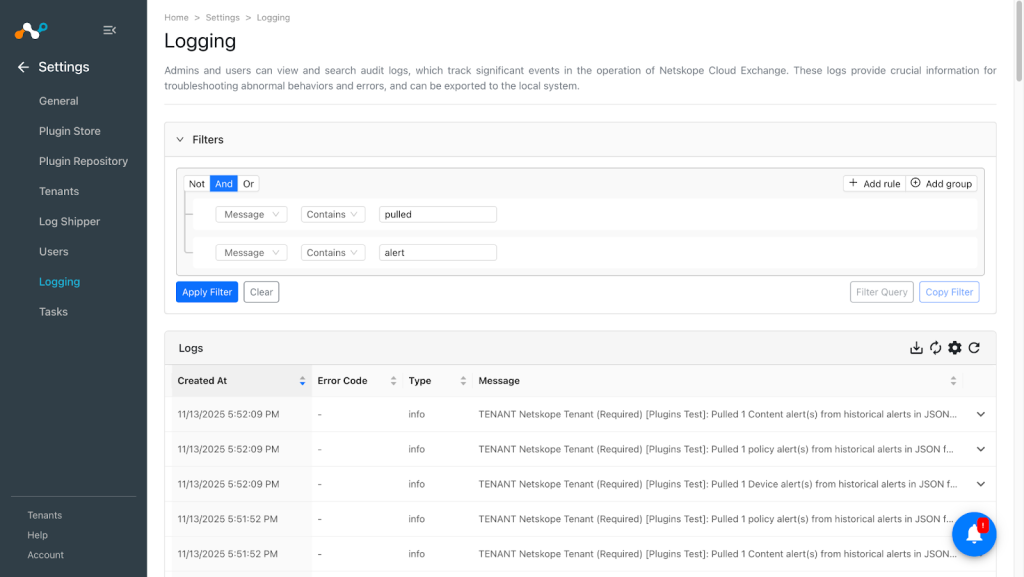
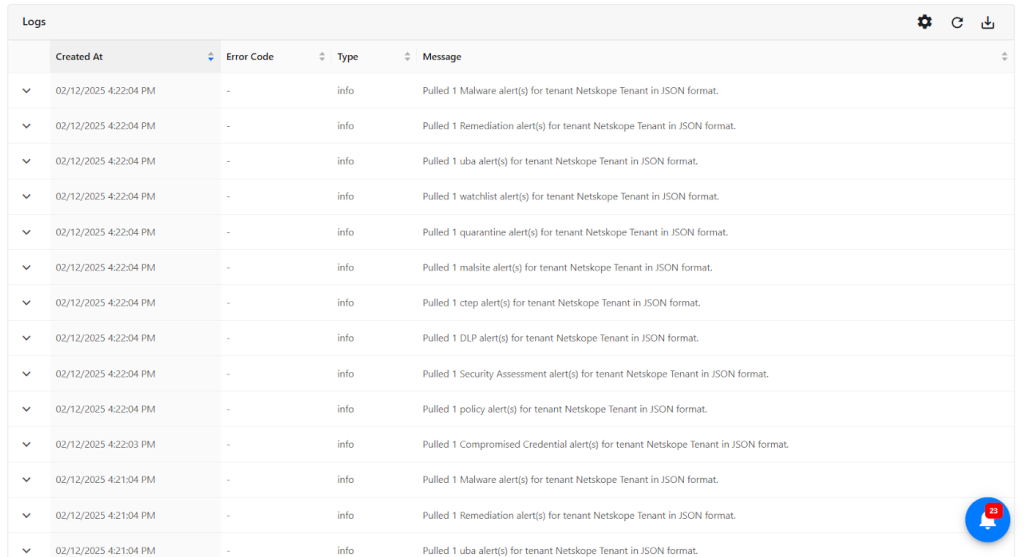


Validate the Push
To validate the plugin workflow in Cloud Exchange:
Go to Logging and search for ingested Events and Alerts With the filter message contains ingested. The ingested logs will be filtered.


To validate the push on the Microsoft Azure Event Hubs:
- Log in to Microsoft Azure Platform.
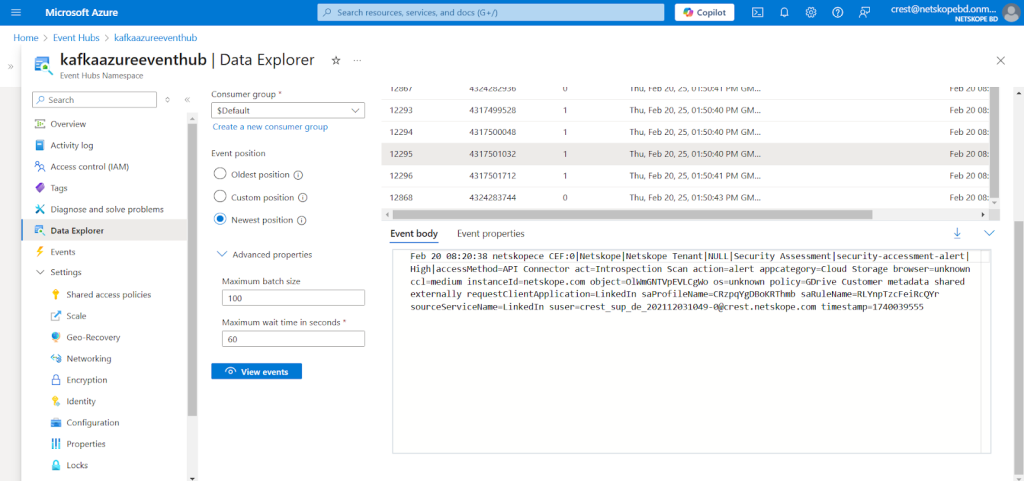
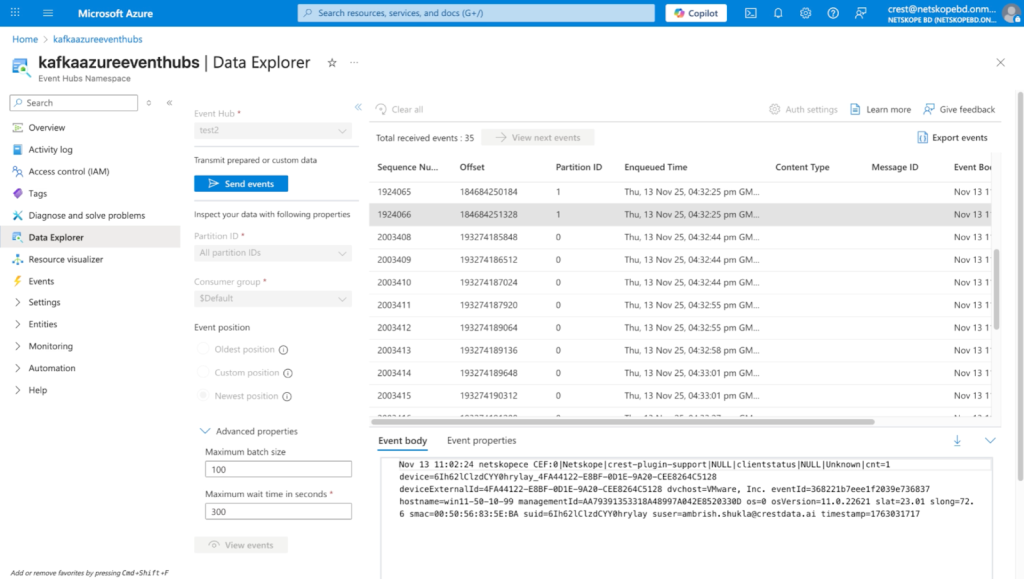
- Go to Event Hubs > {Namespace} > Data Explorer.
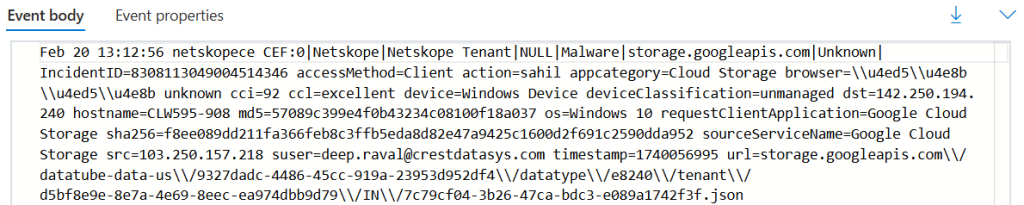
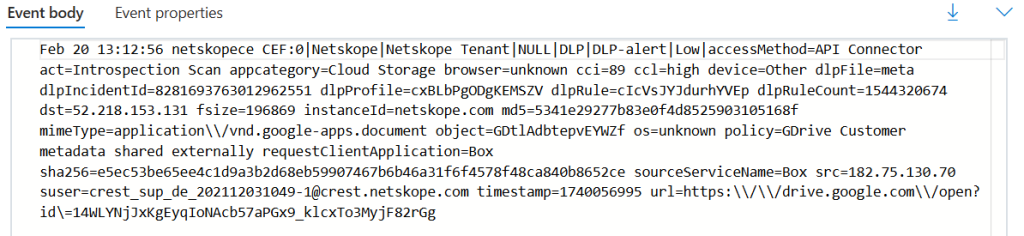
- Select the Event Hub, Partition ID, and Event position, and then click View Events. By selecting the Newest Position, you can get the live events ingested by the plugin. By selecting the Oldest Position, you can get the oldest events ingested as per the message retention time. And by selecting Custom Position, you can find a set of events from a custom filter.
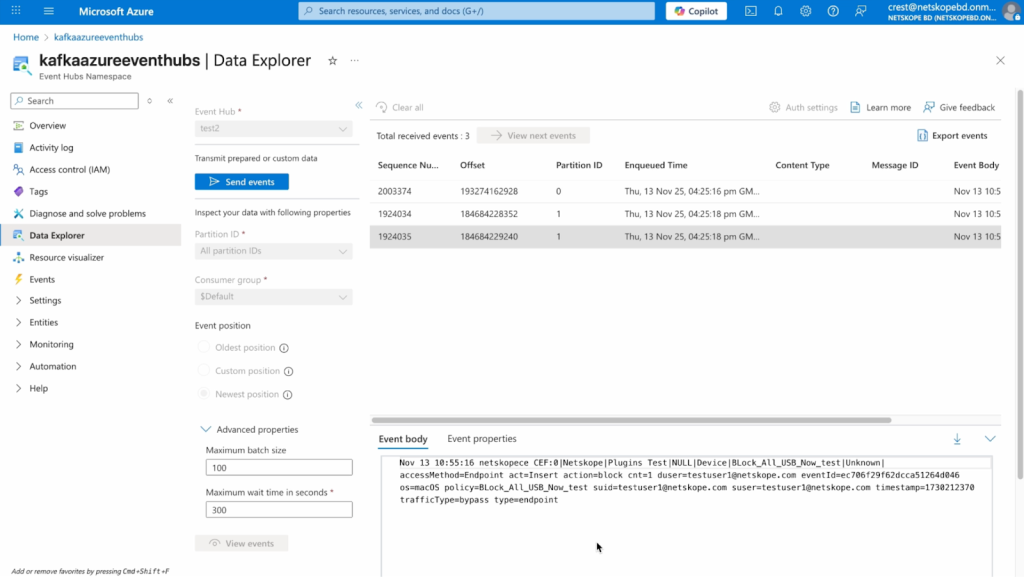
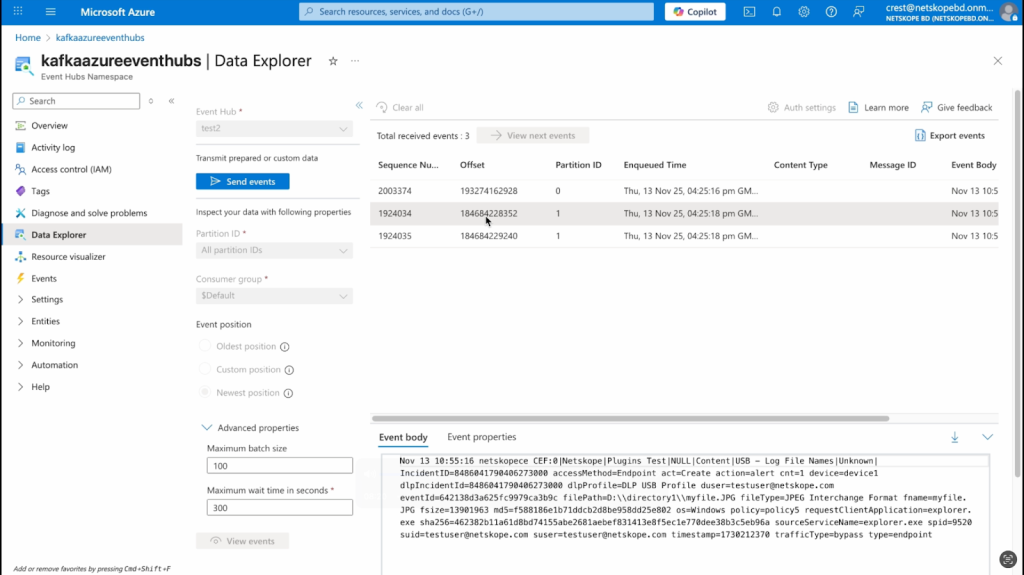






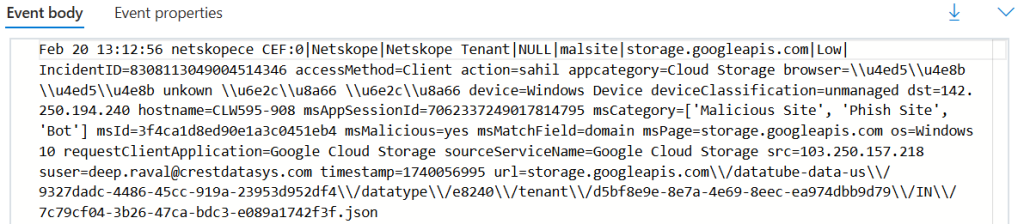
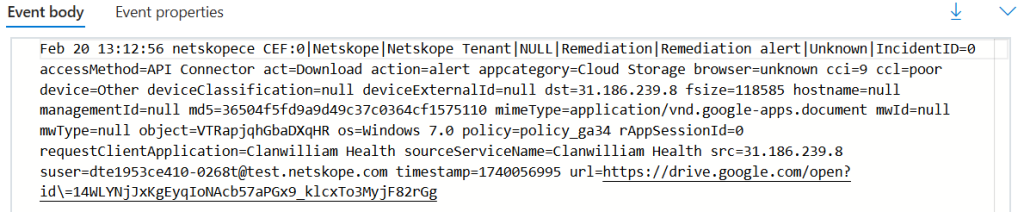
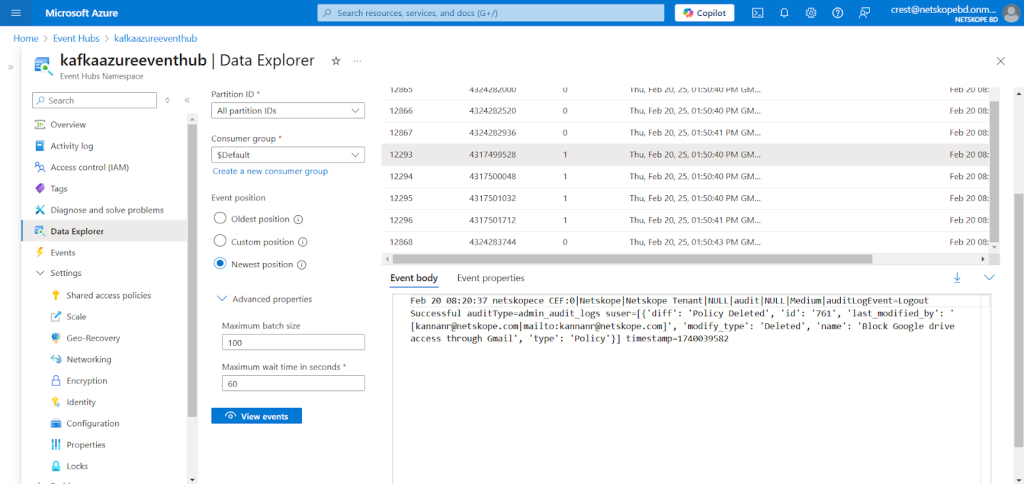
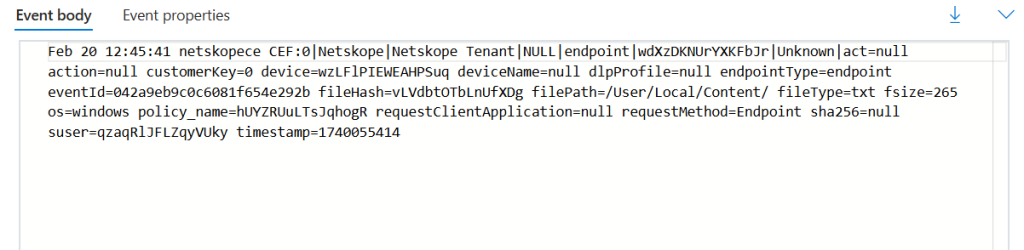





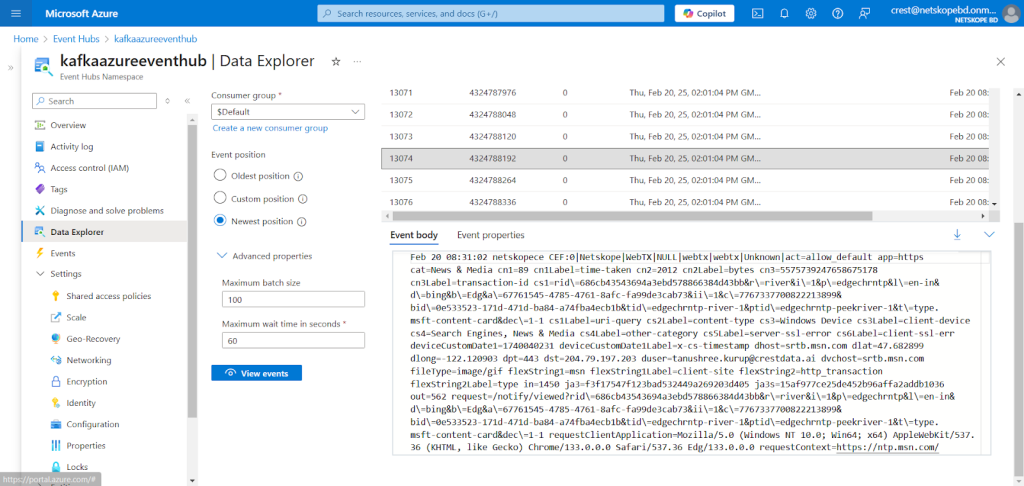


Here is how the data will look if ingested in JSON format:


Here is how the data will look if ingested in JSON format without Timestamp and Log source identifier fields:


Troubleshooting the Microsoft Azure Event Hubs Plugin
Difficulties in saving the Microsoft Azure Event Hubs plugin
Despite entering all parameters and clicking the Save button, an error may occur, possibly due to the configuration differs from the specified settings.


What to do:
It could be because of incorrect configuration parameters, just follow the steps in the Configure the Microsoft Azure Event Hub section.
Not able to see the events on the Microsoft Azure Event Hubs
Even after successful ingestion of the events, not able to see the events ingested from the plugin. This could be due to the following reasons:
- Selected the wrong configuration to see the events on Event Hub.
- No events are ingested in the time of view events wait time.
- Or the data you are looking for is outside of the retention period.
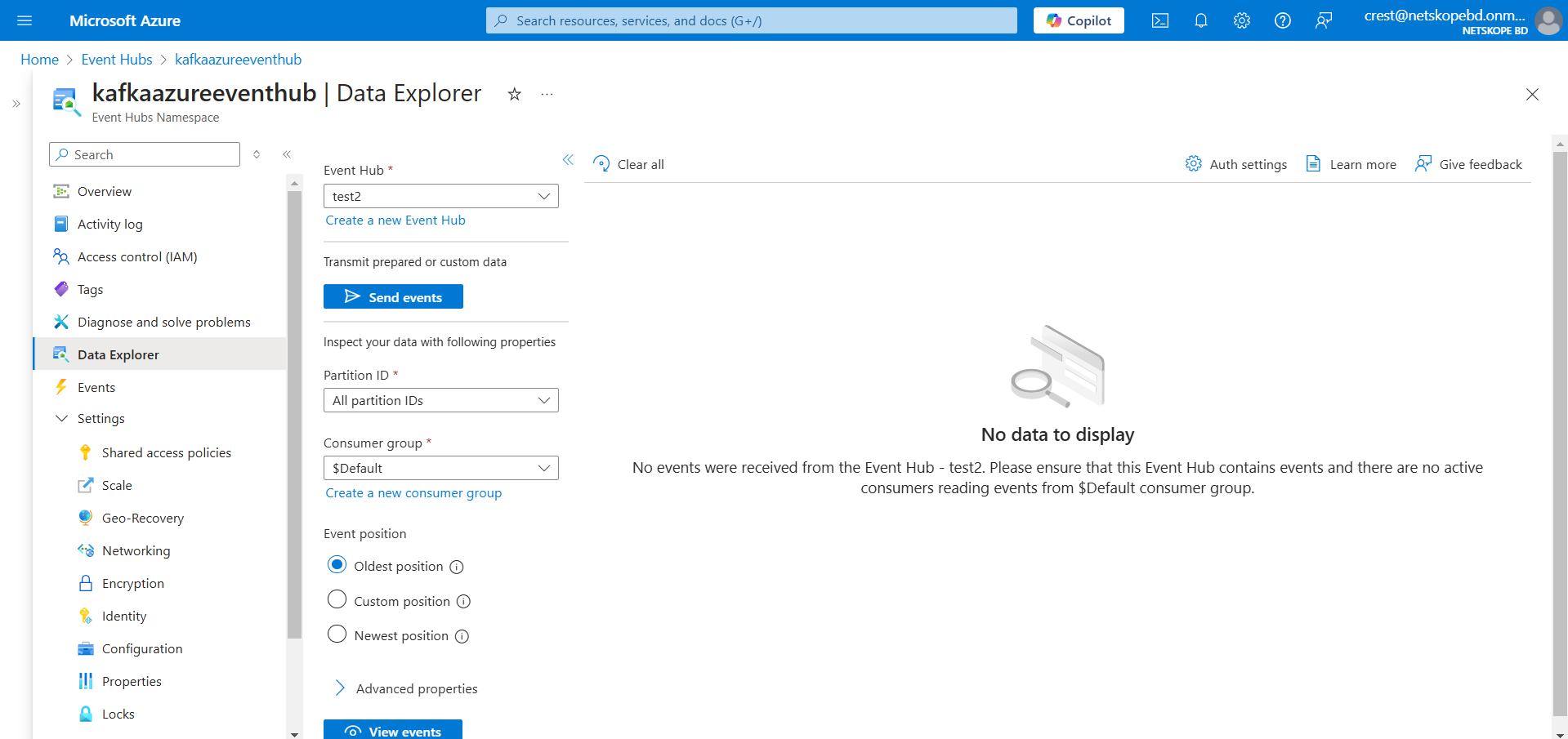
What to do:
- Check if you have selected the Newest Position to see the live ingested events.
- Check for the logs on the Cloud Exchange for the ingested events.
- For checking the retention period of the Event Hub, go to the Overview page of the Namespace, and under that you can find the Message retention. And by editing the Event Hub, you can change the retention time of the Event Hub. Refer to the Create an Event Hub in Namespace section.
Unable to enable the plugin after plugin upgrade
When plugin is added to ingest the JSON formatted data and upgraded, if you use the Skip button, then you will encounter an error for the Exclude Timestamp Field and Exclude Log Source Identifier Field while enabling the plugin configuration after the plugin upgrade:

What to do:
Since the Exclude Timestamp Field and Exclude Log Source Identifier Field are mandatory fields for JSON formatted data, you need to select yes/no in both the fields as per your requirement.
Note
If you have configured an older plugin version with CEF formatted data and then you upgrade the plugin and while upgrading if you use the Skip button then by default you will be able to use that plugin configuration with CEF format and the newly added 2 fields(i.e. Exclude Timestamp Field and Exclude Log Source Identifier Field) will be empty.Unable to Configure Plugin/Queue/Disable Plugin
If you are not able to save the plugin/configure queue/disable the Microsoft Azure Event Hubs plugin, it might be due to an SSL certificate verification failure.
What to do:
If you are running Cloud Exchange on your on-premises device and receiving the “[SSL: CERTIFICATE_VERIFY_FAILED] certificate verification failed: unable to get local issuer certificate” error, contact your organization IT Team. This issue can be resolved by using cloud platforms such as EC2 or Azure.
Timeout error while ingesting data to Microsoft Azure Event Hubs
Users might encounter the below timeout error due to flush timeout and the chunk size set in the plugin configuration.

What to do:
- Increase flush timeout and decrease the chunk size according to your Event Hubs configuration.
Note:
- If you encounter errors related to memory allocation then you can increase the buffer memory and decrease the chunk size according to your Event Hubs configuration.
- If you encounter a timeout error then users can increase flush timeout and decrease the chunk size according to their Event Hubs configuration.
- If ingestion is taking much time then users need to increase the Event Hubs Configuration.
- For a large stack, it is suggested to have 10 or more partitions and 20 or more throughput units.
- For a medium stack, it is suggested to have 7 or more partitions and 10 or more throughput units.
- For a small stack, it is suggested to have 5 or more partitions and 5 or more throughput units.
Known Behavior of the Microsoft Azure Event Hubs Plugin
- Users might not be able to ingest BWAN events, Events of type Client Status, Alerts of types Device and Content as this plugin does not support ingestion of BWAN events, Events of type Client Status, Alerts of types Device and Content.
- Users may encounter escape characters in the ingested data due to several factors, such as accented characters (in English), characters of languages other than English, non-breaking spaces, newline characters, and other special formatting symbols.
Example:<14>Apr 07 09:32:56 alltypes CEF:0|Netskope|Mock Netskope Tenant|NULL|application|NULL|Unknown|act=Download appcategory=Cloud Storage applicationType=nspolicy browser=unknown \\u4ed5\\u4e8b cci=89 ccl=high device=Other dst=ef82::1a12:1234:1b12 os=unknown requestClientApplication=Box sourceServiceName=Box src=ef82::1a12:1234:1b12 suser=support@netskope.com timestamp=1743736484
Here two Japanese characters that were ingested, which looked like “\\u4ed5\\u4e8b” in the above log.
- Users may observe empty configuration parameters after plugin upgrade.
