

This document will provide the technical documentation that will be required to configure the Microsoft Defender for Endpoint v1.0.2 plugin with the Cloud Risk Exchange module of the Netskope Cloud Exchange platform. This plugin fetches device data from Assets > Devices, and users from Assets > Devices > Select device > Overview > Logged on users page of the Microsoft Defender for Endpoint platform. This plugin supports performing these actions: Isolate device, Undo isolation, Restrict app execution, Remove app restriction, Run antivirus scan, plus Offboard device and Collect investigation package actions on the devices. This plugin doesn’t support any action on the users.
Netskope normalization score calculation => RiskLevel Low: 875, RiskLevel Medium: 625, RiskLevel High: 375.
For Risk Levels None and Informational, the normalization score value will be blank.
Prerequisites
To complete this integration, you need:
- A Netskope tenant (or multiple, for example, production and development/test instances).
- A Netskope Cloud Exchange tenant with the Tenant plugin and Risk Exchange plugin already configured.
- Connectivity to Microsoft Defender platform:
Microsoft Defender Plugin Support
This plugin fetches device data from Assets > Devices, and users from Assets > Devices > Select device > Overview > Logged on users page of the Microsoft Defender for Endpoint platform. This plugin supports performing these actions: Isolate device, Undo isolation, Restrict app execution, Remove app restriction, Run antivirus scan, plus Offboard device and Collect investigation package actions on the devices. This plugin doesn’t support any action on the users.
| Type of Data Pulled | Actions Supported |
|---|---|
|
|
Mappings
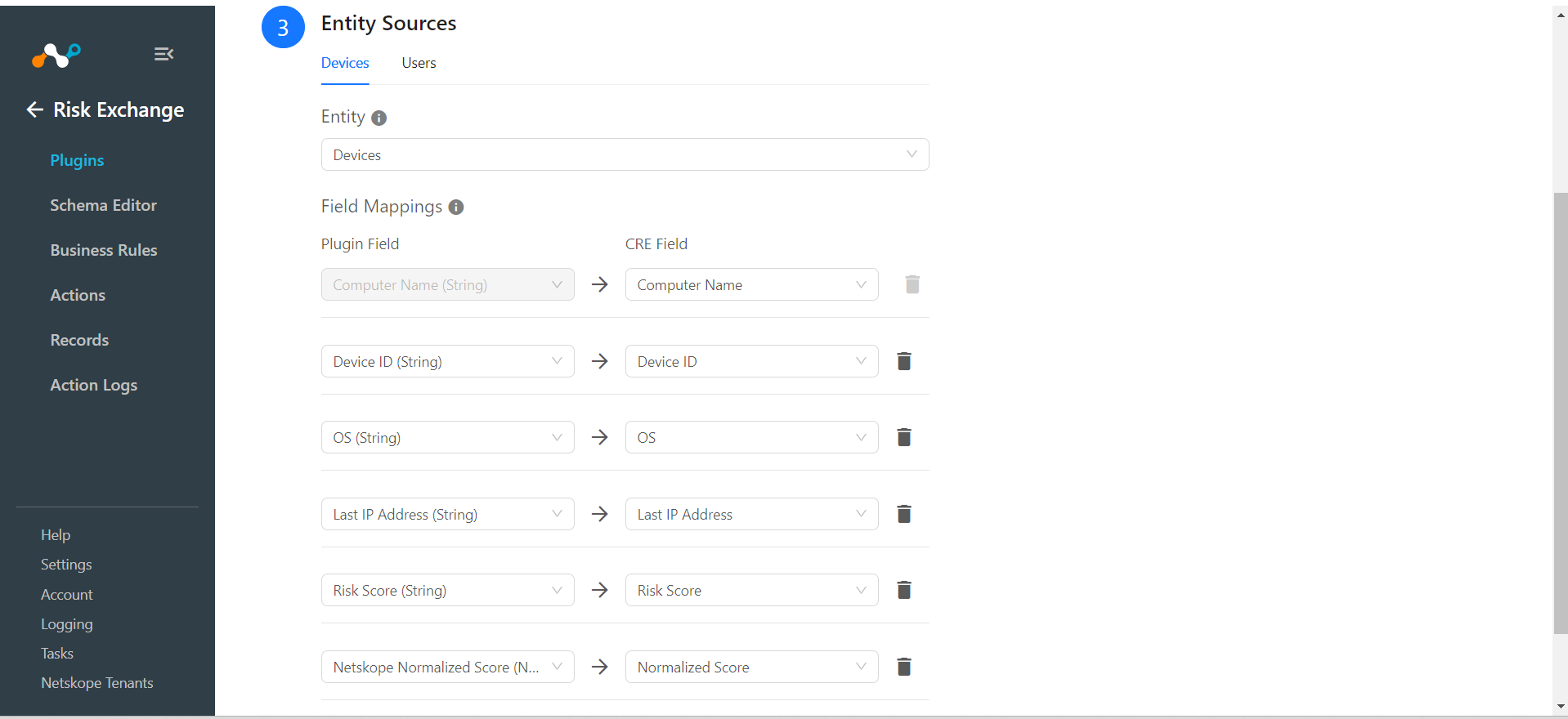
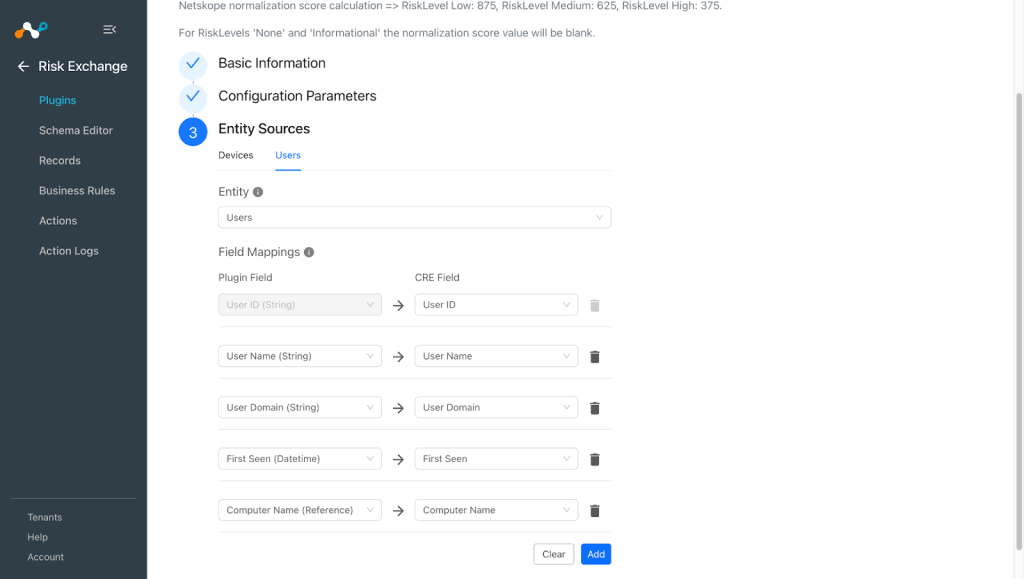
Mapping will be used to view the pulled Users, and Devices and their respective details. Mapped fields during plugin configuration will be visible on the Records page once the data is pulled. Below is the suggested mapping that should be used while configuring the plugin.
Pull Mappings for Users
| Plugin Field Label | Expected Data Type | Suggested Field Label | Aggregate Strategy |
|---|---|---|---|
| User ID | String | User ID | Unique |
| User Name | String | User Name | Overwrite |
| User Domain | String | User Domain | Overwrite |
| First Seen | Date | First Seen | Overwrite |
| Computer Name | Reference | Computer Name | Overwrite |
Note
Keep separate Users entities for Microsoft Defender for Endpoint plugin and CRE Netskope Risk Exchange plugin.
Pull Mappings for Devices
| Plugin Field Label | Expected Data Type | Suggested Field Label | Aggregate Strategy |
|---|---|---|---|
| Computer Name | String | Computer Name | Unique |
| User Email | String | User Email | Unique (keep this as Overwrite if you want to merge record with Netskope Risk Exchnage plugin) |
| Device ID | String | Device ID | Unique (keep this as Overwrite if you want to merge record with Netskope Risk Exchnage plugin) |
| Device User Email | Reference | Device User Email | Overwrite |
| OS | String | OS | Overwrite |
| Last IP Address | String | Last IP Address | Overwrite |
| Risk Score | String | Risk Score | Overwrite |
| Netskope Normalized Score | Number | Netskope Normalized Score | Overwrite |
Note
The Netskope Normalized score will be calculated on the basis of Risk Score value pulled from the platform. The Normalized score will be added for the records only if the Risk Score has values as “high, low or medium”.
Score Mappings
| Defender Risk Score | Netskope Normalized Score |
|---|---|
| low | 875 |
| medium | 625 |
| high | 375 |
| Other Risk Score Levels (None, Informational) | None |
Permissions
Here are the required permissions needed for the plugin:
- Machine.CollectForensics
- Machine.Isolate
- Machine.RestrictExecution
- Machine.Scan
- Machine.Offboard
- Machine.Read.All
- User.Read.All
- Alert.Read.All
API Details
List of APIs Used
| API Endpoint | Method | Use case |
|---|---|---|
| /api/machines | GET | Fetch devices and Update records |
| /api/machines/{deviceID}/isolate | POST | Isolate machine from network. |
| /api/machines/{deviceID}/unisolate | POST | Release machine from Isolation. |
| /api/machines/{deviceID}/restrictCodeExecution | POST | Restrict application execution. |
| /api/machines/{deviceID}/unrestrictCodeExecution | POST | Remove application execution restrictions. |
| /api/machines/{deviceID}/runAntiVirusScan | POST | Run an Antivirus scan using Windows Defender. |
| /api/machines/{deviceID}/offboard | POST | Offboard machine from Microsoft Defender for Endpoint. |
| /api/machines/{deviceID}/collectInvestigationPackage | POST | Collect an investigation package from a machine. |
| /api/machines/{deviceID}/logonusers | GET | Fetch device logon users |
| /api/alerts | GET | Fetch the user email of the device from the alert evidences user entity |
Authentication
This plugin uses the Python library to generate authentication tokens for .
- Library: Microsoft Authentication Library for Python (msal).
- Usage: Microsoft Authentication Library for Python (msal) to get authentication token for Microsoft Defender APIs.
Create a new session with credentials
scope = ["https://api.securitycenter.microsoft.com/.default"]
authority = "https://login.microsoftonline.com/{tenantID}

app = msal.ConfidentialClientApplication(
           client_id={clientID}, authority=authority, client_credential={clientSecret}, proxies=proxy
)
auth_json = app.acquire_token_for_client(scopes=scope)
auth_token = auth_json.get("access_token", "")
Fetch Devices and Update Records
API Endpoint: <Base URL>/api/machines
Method: GET
Headers
| Key | Value |
|---|---|
| Authorization | Bearer <auth_token> |
| Content-Type | application/json |
| Accept | */* |
| User-Agent | netskope-ce-6.0.1-cre-microsoft-defender-for-endpoint-v1.0.2 |
Parameters
| Key | Value |
|---|---|
| $top | 1 |
| $skip | 1 |
Sample API Response
{
    "@odata.context": "https://api.security.microsoft.com/api/$metadata#Machines",
    "value": [
        {
            "id": "1e5bc9d7e413ddd7902c2932e418702b84d0cc07",
            "computerDnsName": "mymachine1.contoso.com",
            "firstSeen": "2018-08-02T14:55:03.7791856Z",
            "lastSeen": "2018-08-02T14:55:03.7791856Z",
            "osPlatform": "Windows10" "Windows11",
            "version": "1709",
            "osProcessor": "x64",
            "lastIpAddress": "172.17.230.209",
            "lastExternalIpAddress": "167.220.196.71",
            "osBuild": 18209,
            "healthStatus": "Active",
            "rbacGroupId": 140,
            "rbacGroupName": "The-A-Team",
            "riskScore": "Low",
            "exposureLevel": "Medium",
            "isAadJoined": true,
            "aadDeviceId": "80fe8ff8-2624-418e-9591-41f0491218f9",
            "machineTags": [ "test tag 1", "test tag 2" ]
        }
        ...
    ]
}
Isolate a Machine
API Endpoint: <Base URL>/api/machines/{deviceID}/isolate
Method: POST
Headers
| Key | Value |
|---|---|
| Authorization | Bearer <auth_token> |
| Content-Type | application/json |
| Accept | */* |
| User-Agent | netskope-ce-6.0.1-cre-microsoft-defender-for-endpoint-v1.0.2 |
Body
{
      "Comment": "Comment to associate with the action",
      "IsolationType": 'Full' or 'Selective'
}
Sample API Response (Status Code: 201)
{
        "id": "5382f7ea-7557-4ab7-9782-d50480024a4e",
        "type": "Isolate",
        "scope": "Selective",
        "requestor": "Analyst@TestPrd.onmicrosoft.com",
        "requestorComment": "test for docs",
        "status": "Succeeded",
        "machineId": "7b1f4967d9728e5aa3c06a9e617a22a4a5a17378",
        "computerDnsName": "desktop-test",
        "creationDateTimeUtc": "2019-01-02T14:39:38.2262283Z",
        "lastUpdateDateTimeUtc": "2019-01-02T14:40:44.6596267Z",
        "relatedFileInfo": null
}
Release a Machine from Isolation
API endpoint: <Base URL>/api/machines/{deviceID}/unisolate
Method: POST
Headers
| Key | Value |
|---|---|
| Authorization | Bearer <auth_token> |
| Content-Type | application/json |
| Accept | */* |
| User-Agent | netskope-ce-6.0.1-cre-microsoft-defender-for-endpoint-v1.0.2 |
Body
{
      "Comment": "Comment to associate with the action",
}
Sample API Response (Status Code: 201)
{
        "id": "5382f7ea-7557-4ab7-9782-d50480024a4e",
        "type": "Unisolate",
        "scope": "Selective",
        "requestor": "Analyst@TestPrd.onmicrosoft.com",
        "requestorComment": "test for docs",
        "status": "Succeeded",
        "machineId": "7b1f4967d9728e5aa3c06a9e617a22a4a5a17378",
        "computerDnsName": "desktop-test",
        "creationDateTimeUtc": "2019-01-02T14:39:38.2262283Z",
        "lastUpdateDateTimeUtc": "2019-01-02T14:40:44.6596267Z",
        "relatedFileInfo": null
}
Restrict App Execution
API Endpoint: <Base URL>/api/machines/{deviceID}/restrictCodeExecution
Method: POST
Headers
| Key | Value |
|---|---|
| Authorization | Bearer <auth_token> |
| Content-Type | application/json |
| Accept | */* |
| User-Agent | netskope-ce-6.0.1-cre-microsoft-defender-for-endpoint-v1.0.2 |
Body
{
      "Comment": "Comment to associate with the action",
}
Sample API Response (Status Code: 201)
{
        "id": "5382f7ea-7557-4ab7-9782-d50480024a4e",
        "type": "RestrictCodeExecution",
        "requestor": "Analyst@TestPrd.onmicrosoft.com",
        "requestorComment": "test for docs",
        "status": "Succeeded",
        "machineId": "7b1f4967d9728e5aa3c06a9e617a22a4a5a17378",
        "computerDnsName": "desktop-test",
        "creationDateTimeUtc": "2019-01-02T14:39:38.2262283Z",
        "lastUpdateDateTimeUtc": "2019-01-02T14:40:44.6596267Z",
        "relatedFileInfo": null
}
Remove App Restriction
API Endpoint: <Base URL>/api/machines/{deviceID}/unrestrictCodeExecution
Method: POST
Headers
| Key | Value |
|---|---|
| Authorization | Bearer <auth_token> |
| Content-Type | application/json |
| Accept | */* |
| User-Agent | netskope-ce-6.0.1-cre-microsoft-defender-for-endpoint-v1.0.2 |
Body
{
      "Comment": "Comment to associate with the action",
}
Sample API Response (Status Code: 201)
{
        "id": "5382f7ea-7557-4ab7-9782-d50480024a4e",
        "type": "UnrestrictCodeExecution",
        "requestor": "Analyst@TestPrd.onmicrosoft.com",
        "requestorComment": "test for docs",
        "status": "Succeeded",
        "machineId": "7b1f4967d9728e5aa3c06a9e617a22a4a5a17378",
        "computerDnsName": "desktop-test",
        "creationDateTimeUtc": "2019-01-02T14:39:38.2262283Z",
        "lastUpdateDateTimeUtc": "2019-01-02T14:40:44.6596267Z",
        "relatedFileInfo": null
}
Run an Antivirus Scan
API Endpoint: <Base URL>/api/machines/{deviceID}/runAntiVirusScan
Method: POST
Headers
| Key | Value |
|---|---|
| Authorization | Bearer <auth_token> |
| Content-Type | application/json |
| Accept | */* |
| User-Agent | netskope-ce-6.0.1-cre-microsoft-defender-for-endpoint-v1.0.2 |
Body
{
     "Comment": "Comment to associate with the action",
     "ScanType": "Full" or "Quick"
}
Sample API Response (Status Code: 201)
{
        "id": "5382f7ea-7557-4ab7-9782-d50480024a4e",
        "type": "RunAntiVirusScan",
        "scope": "Quick",
        "requestor": "Analyst@TestPrd.onmicrosoft.com",
        "requestorComment": "test for docs",
        "status": "Succeeded",
        "machineId": "7b1f4967d9728e5aa3c06a9e617a22a4a5a17378",
        "computerDnsName": "desktop-test",
        "creationDateTimeUtc": "2019-01-02T14:39:38.2262283Z",
        "lastUpdateDateTimeUtc": "2019-01-02T14:40:44.6596267Z",
        "relatedFileInfo": null
}
Offboard a Machine
API endpoint: <Base URL>/api/machines/{deviceID}/offboard
Method: POST
Headers
| Key | Value |
|---|---|
| Authorization | Bearer <auth_token> |
| Content-Type | application/json |
| Accept | */* |
| User-Agent | netskope-ce-6.0.1-cre-microsoft-defender-for-endpoint-v1.0.2 |
Body
{
      "Comment": "Comment to associate with the action",
}
Sample API Response (Status Code: 201)
{
        "id": "5382f7ea-7557-4ab7-9782-d50480024a4e",
        "type": "Offboard",
        "requestor": "Analyst@TestPrd.onmicrosoft.com",
        "requestorComment": "test for docs",
        "status": "Succeeded",
        "machineId": "7b1f4967d9728e5aa3c06a9e617a22a4a5a17378",
        "computerDnsName": "desktop-test",
        "creationDateTimeUtc": "2019-01-02T14:39:38.2262283Z",
        "lastUpdateDateTimeUtc": "2019-01-02T14:40:44.6596267Z",
        "relatedFileInfo": null
}
Collect an Investigation Package
API endpoint: <Base URL>/api/machines/{deviceID}/collectInvestigationPackage
Method: POST
Headers
| Key | Value |
|---|---|
| Authorization | Bearer <auth_token> |
| Content-Type | application/json |
| Accept | */* |
| User-Agent | netskope-ce-6.0.1-cre-microsoft-defender-for-endpoint-v1.0.2 |
Body
{
      "Comment": "Comment to associate with the action",
}
Sample API Response (Status Code: 201)
{
        "id": "5382f7ea-7557-4ab7-9782-d50480024a4e",
        "type": "CollectInvestigationPackage",
        "requestor": "Analyst@TestPrd.onmicrosoft.com",
        "requestorComment": "test for docs",
        "status": "Succeeded",
        "machineId": "7b1f4967d9728e5aa3c06a9e617a22a4a5a17378",
        "computerDnsName": "desktop-test",
        "creationDateTimeUtc": "2019-01-02T14:39:38.2262283Z",
        "lastUpdateDateTimeUtc": "2019-01-02T14:40:44.6596267Z",
        "relatedFileInfo": null
}
Fetch Devices Logon Users
API Endpoint: <Base URL>/api/machines/{deviceID}/logonusers
Method: GET
Headers
| Key | Value |
|---|---|
| Authorization | Bearer <auth_token> |
| Content-Type | application/json |
| Accept | */* |
| User-Agent | netskope-ce-6.0.1-cre-microsoft-defender-for-endpoint-v1.0.2 |
Sample API Response
{
    "@odata.context": "https://api.securitycenter.microsoft.com/api/$metadata#Users",
    "value": [
        {
            "id": "contoso\\user1",
            "accountName": "user1,
            "accountDomain": "contoso",
            "firstSeen": "2019-12-18T08:02:54Z",
            "lastSeen": "2020-01-06T08:01:48Z",
            "logonTypes": "Interactive",
            "isDomainAdmin": true,
            "isOnlyNetworkUser": false
        },
        ...
    ]
}
Fetch user email associated with the devices from alert evidences
API Endpoint: <Base URL>/api/alerts
Method: GET
Headers
| Key | Value |
|---|---|
| $top | 10000 |
| $expand | evidence |
| $skip | 0 |
| User-Agent | netskope-ce-6.0.1-cre-microsoft-defender-for-endpoint-v1.0.2 |
Params
| Key | Value |
|---|---|
| Authorization | Bearer <auth_token> |
| Content-Type | application/json |
| Accept | */* |
Sample API Response
{
    "@odata.context": "https://api.security.microsoft.com/api/$metadata#Alerts",
    "value": [
        {
            "id": "da637472900382838869_1364969609",
            "incidentId": 1126093,
            "investigationId": null,
            "assignedTo": null,
            "severity": "Low",
            "status": "New",
            "classification": null,
            "determination": null,
            "investigationState": "Queued",
            "detectionSource": "WindowsDefenderAtp",
            "detectorId": "17e10bbc-3a68-474a-8aad-faef14d43952",
            "category": "Execution",
            "threatFamilyName": null,
            "title": "Low-reputation arbitrary code executed by signed executable",
            "description": "Binaries signed by Microsoft can be used to run low-reputation arbitrary code. This technique hides the execution of malicious code within a trusted process. As a result, the trusted process might exhibit suspicious behaviors, such as opening a listening port or connecting to a command-and-control (C&C) server.",
            "alertCreationTime": "2021-01-26T20:33:57.7220239Z",
            "firstEventTime": "2021-01-26T20:31:32.9562661Z",
            "lastEventTime": "2021-01-26T20:31:33.0577322Z",
            "lastUpdateTime": "2021-01-26T20:33:59.2Z",
            "resolvedTime": null,
            "machineId": "111e6dd8c833c8a052ea231ec1b19adaf497b625",
            "computerDnsName": "temp123.middleeast.corp.microsoft.com",
            "rbacGroupName": "A",
            "aadTenantId": "a839b112-1253-6432-9bf6-94542403f21c",
            "threatName": null,
            "mitreTechniques": [
                "T1064",
                "T1085",
                "T1220"
            ],
            "relatedUser": {
                "userName": "temp123",
                "domainName": "DOMAIN"
            },
            "comments": [
                {
                    "comment": "test comment for docs",
                    "createdBy": "secop123@contoso.com",
                    "createdTime": "2021-01-26T01:00:37.8404534Z"
                }
            ],
            "evidence": [
                {
                    "entityType": "User",
                    "evidenceCreationTime": "2021-01-26T20:33:58.42Z",
                    "sha1": null,
                    "sha256": null,
                    "fileName": null,
                    "filePath": null,
                    "processId": null,
                    "processCommandLine": null,
                    "processCreationTime": null,
                    "parentProcessId": null,
                    "parentProcessCreationTime": null,
                    "parentProcessFileName": null,
                    "parentProcessFilePath": null,
                    "ipAddress": null,
                    "url": null,
                    "registryKey": null,
                    "registryHive": null,
                    "registryValueType": null,
                    "registryValue": null,
                    "accountName": "name",
                    "domainName": "DOMAIN",
                    "userSid": "S-1-5-21-11111607-1111760036-109187956-75141",
                    "aadUserId": "11118379-2a59-1111-ac3c-a51eb4a3c627",
                    "userPrincipalName": "temp123@microsoft.com",
                    "detectionStatus": null
                },
                {
                    "entityType": "Process",
                    "evidenceCreationTime": "2021-01-26T20:33:58.6133333Z",
                    "sha1": "ff836cfb1af40252bd2a2ea843032e99a5b262ed",
                    "sha256": "a4752c71d81afd3d5865d24ddb11a6b0c615062fcc448d24050c2172d2cbccd6",
                    "fileName": "rundll32.exe",
                    "filePath": "C:\\Windows\\SysWOW64",
                    "processId": 3276,
                    "processCommandLine": "rundll32.exe  c:\\temp\\suspicious.dll,RepeatAfterMe",
                    "processCreationTime": "2021-01-26T20:31:32.9581596Z",
                    "parentProcessId": 8420,
                    "parentProcessCreationTime": "2021-01-26T20:31:32.9004163Z",
                    "parentProcessFileName": "rundll32.exe",
                    "parentProcessFilePath": "C:\\Windows\\System32",
                    "ipAddress": null,
                    "url": null,
                    "registryKey": null,
                    "registryHive": null,
                    "registryValueType": null,
                    "registryValue": null,
                    "accountName": null,
                    "domainName": null,
                    "userSid": null,
                    "aadUserId": null,
                    "userPrincipalName": null,
                    "detectionStatus": "Detected"
                },
                {
                    "entityType": "File",
                    "evidenceCreationTime": "2021-01-26T20:33:58.42Z",
                    "sha1": "8563f95b2f8a284fc99da44500cd51a77c1ff36c",
                    "sha256": "dc0ade0c95d6db98882bc8fa6707e64353cd6f7767ff48d6a81a6c2aef21c608",
                    "fileName": "suspicious.dll",
                    "filePath": "c:\\temp",
                    "processId": null,
                    "processCommandLine": null,
                    "processCreationTime": null,
                    "parentProcessId": null,
                    "parentProcessCreationTime": null,
                    "parentProcessFileName": null,
                    "parentProcessFilePath": null,
                    "ipAddress": null,
                    "url": null,
                    "registryKey": null,
                    "registryHive": null,
                    "registryValueType": null,
                    "registryValue": null,
                    "accountName": null,
                    "domainName": null,
                    "userSid": null,
                    "aadUserId": null,
                    "userPrincipalName": null,
                    "detectionStatus": "Detected"
                }
            ]
        },
        ...
    ]
}
Performance Matrix
Below performance readings are conducted on a Large CE Stack with below-mentioned VM specifications by pulling 500K Devices and Users record each from Microsoft Defender Endpoint plugin.
| Description | Specification |
|---|---|
| Stack details | Size: Large RAM: 32 GB CPU: 16 Cores |
| Time take to store the pulled and updated Device records | ~55 minutes |
| Time take to store the pulled Users records | ~1000 per hour |
User Agent
netskope-ce-6.0.1-cre-microsoft-defender-for-endpoint-v1.0.2
Workflow
- Get your Tenant ID and Application (Client) ID.
- Get your Client Secret and add permissions.
- Configure the Microsoft Defender for Endpoint plugin.
- Add a Business Rule.
- Add Actions.
- Validate the plugin.
Watch a Video
Click play to watch a video:
Configure Microsoft Defender
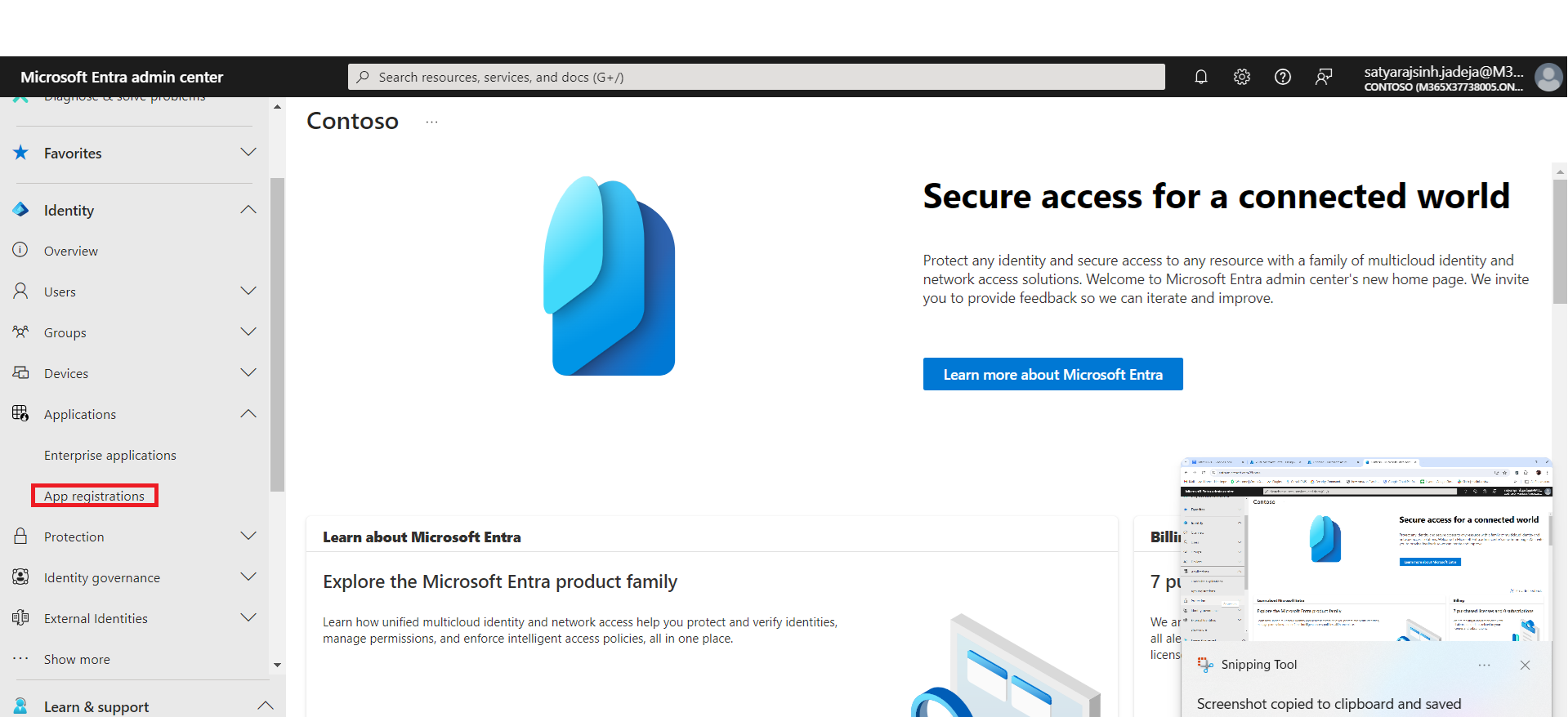
- Go to https://entra.microsoft.com/ and log in with your credentials
- Expand the Applications tab on the left side and click App registrations.
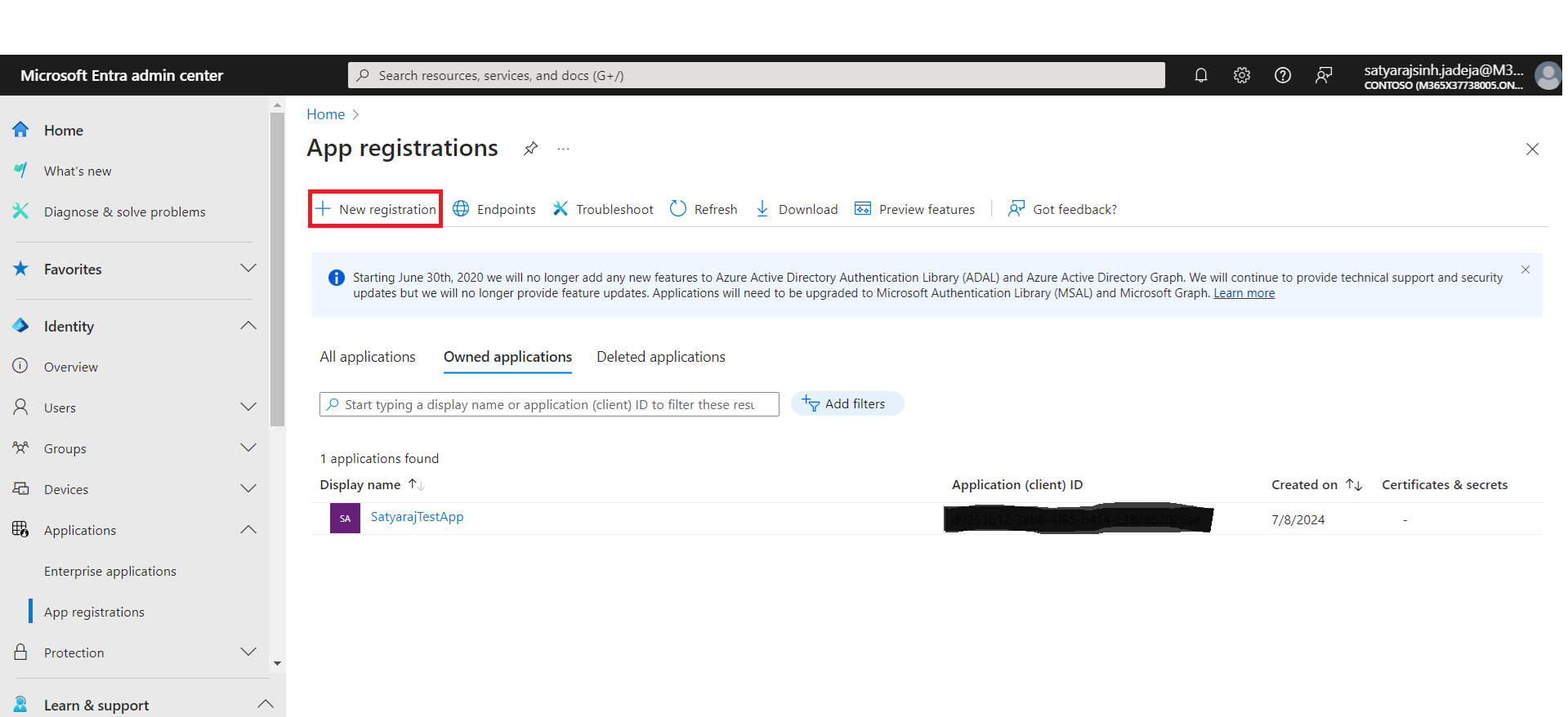
- Click New Registration.
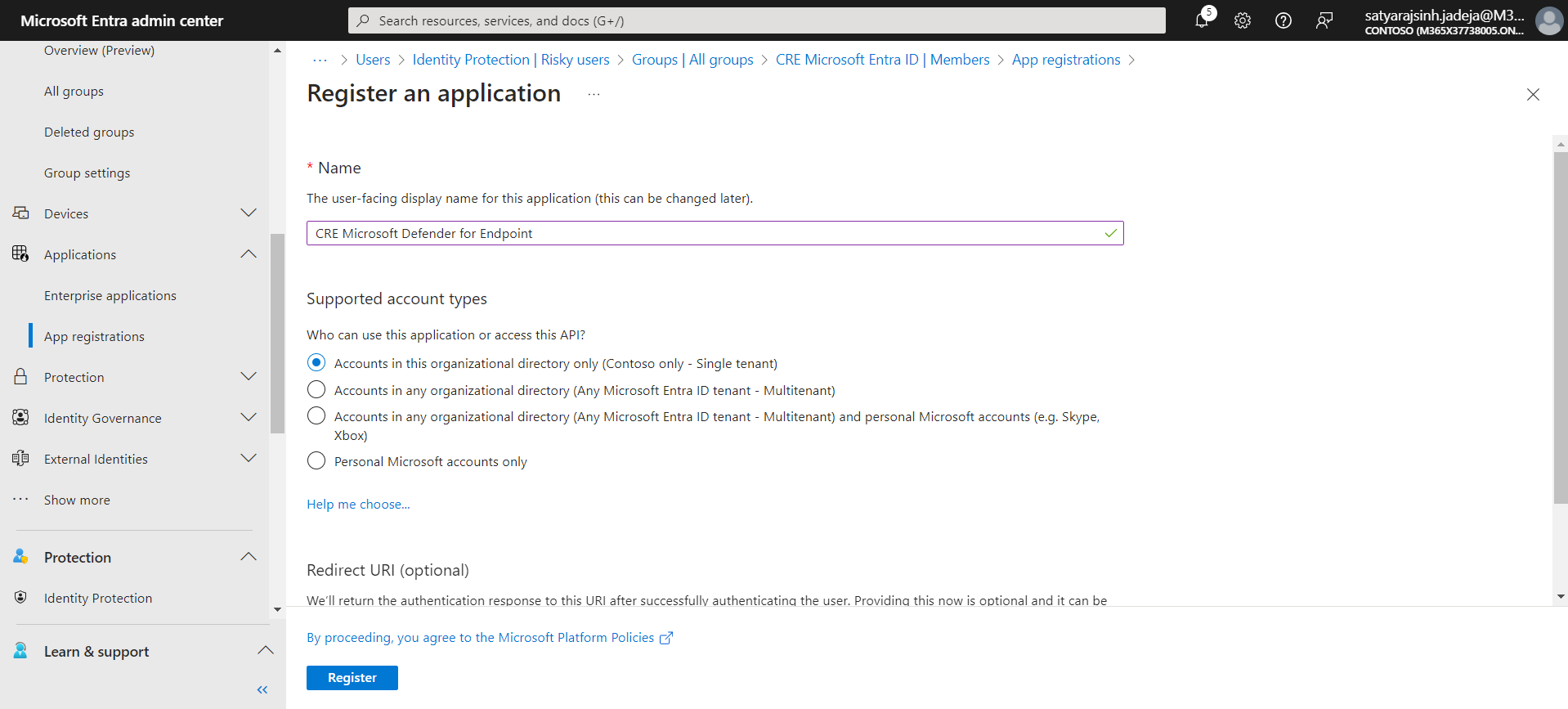
- Provide the name for the application and click Register.
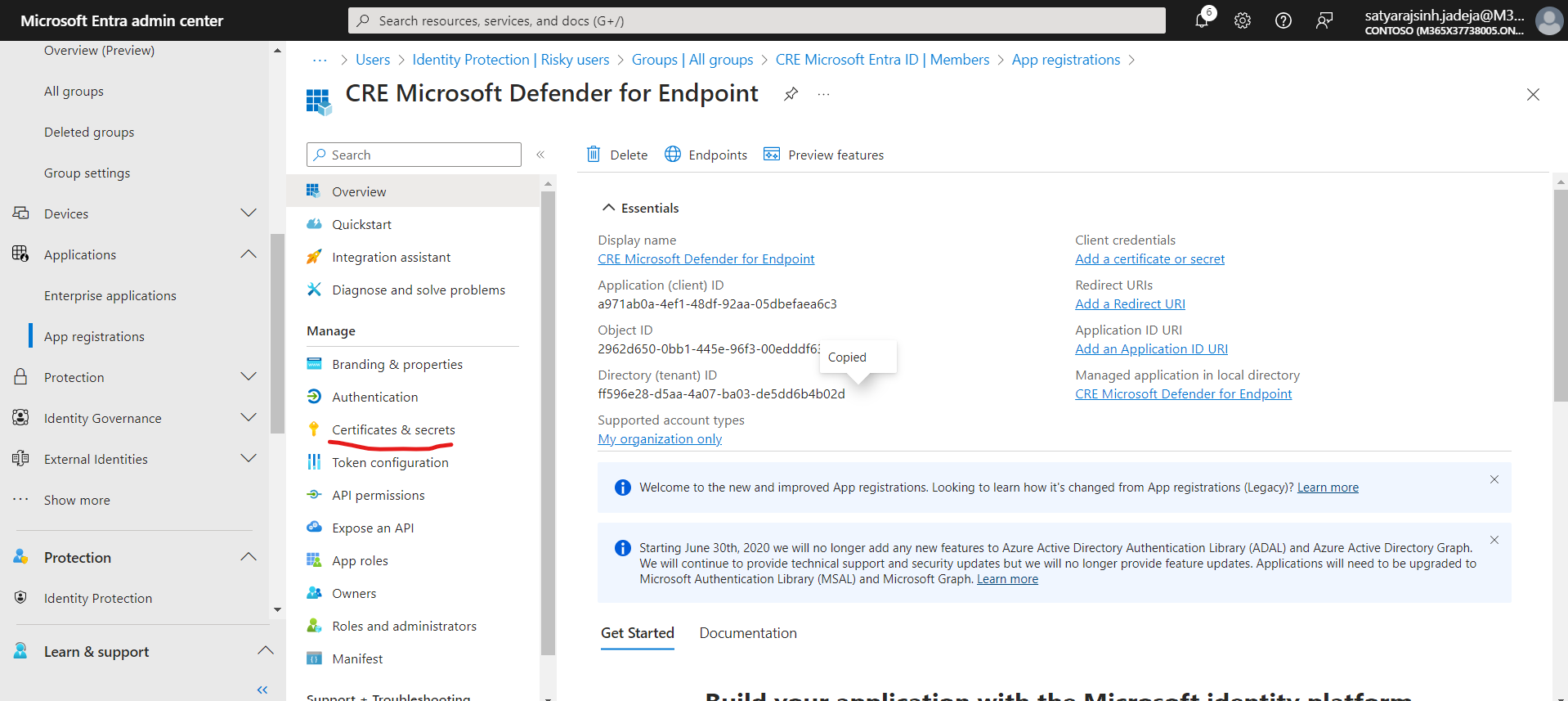
- Copy the Application (Client ID), which is the Client (Application) ID in Netskope, and the Directory (tenant) ID, which is tenant ID in Netskope. Click Certificates & Secrets.
- Click New client secret. Add a description and click Save.
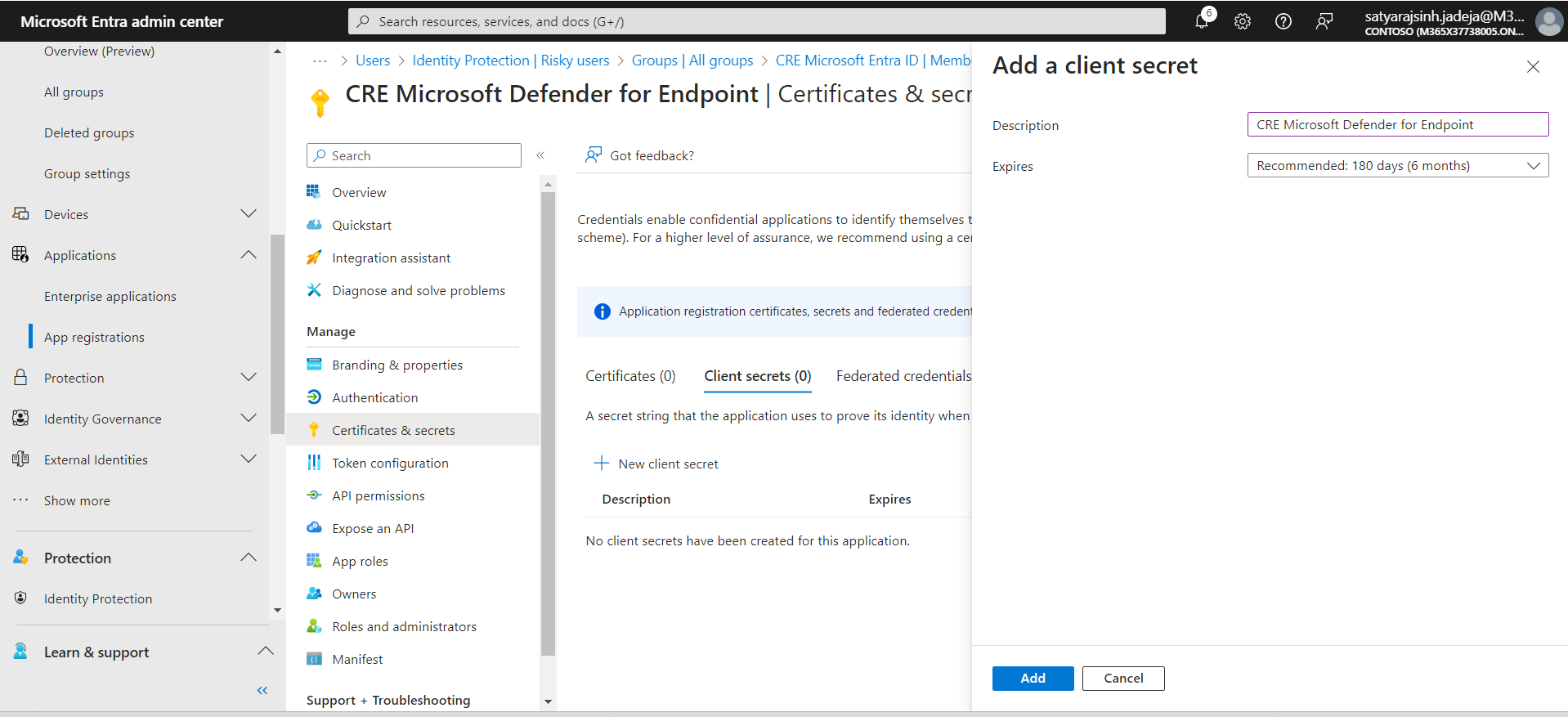
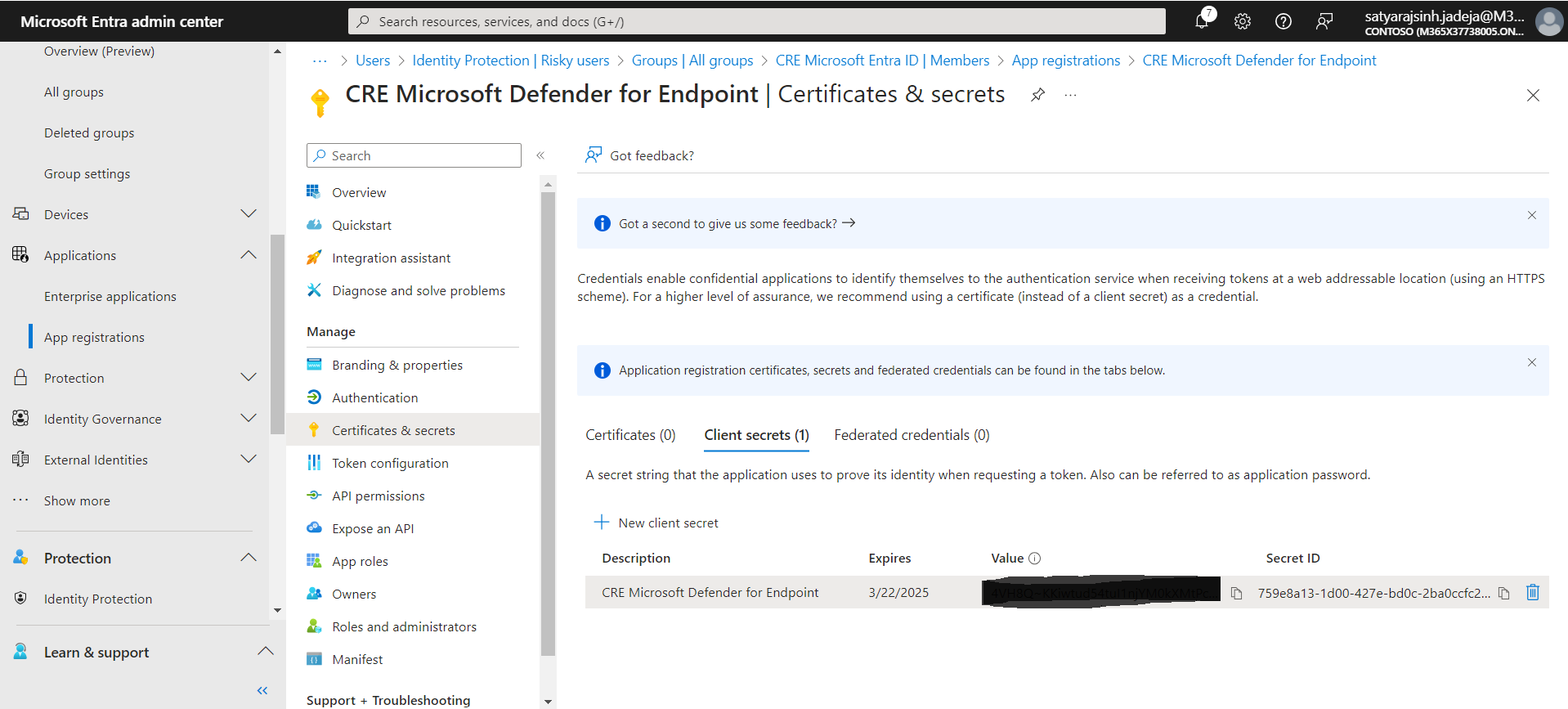
- Copy the Client Secret, as this is needed for the plugin configuration.
Adding Permissions to the configuration parameter
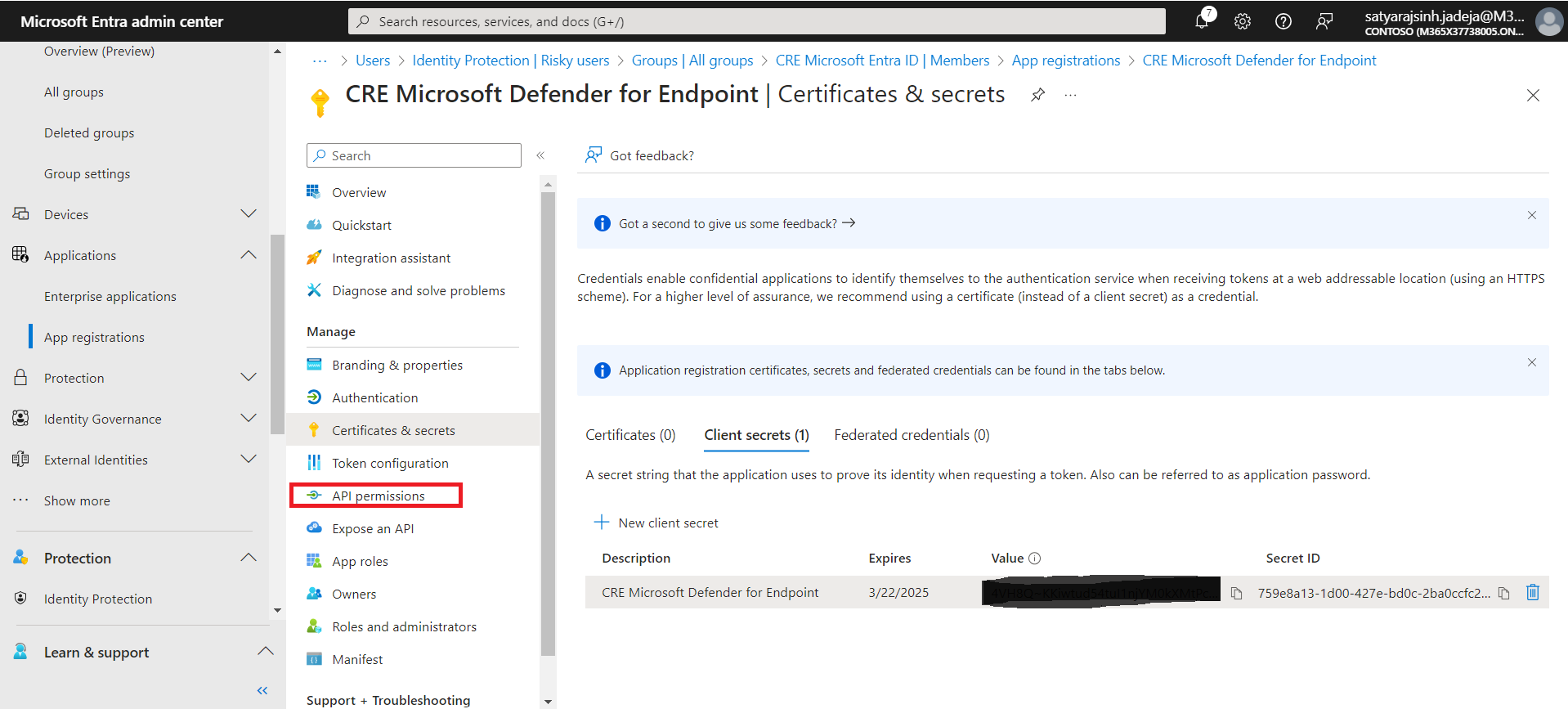
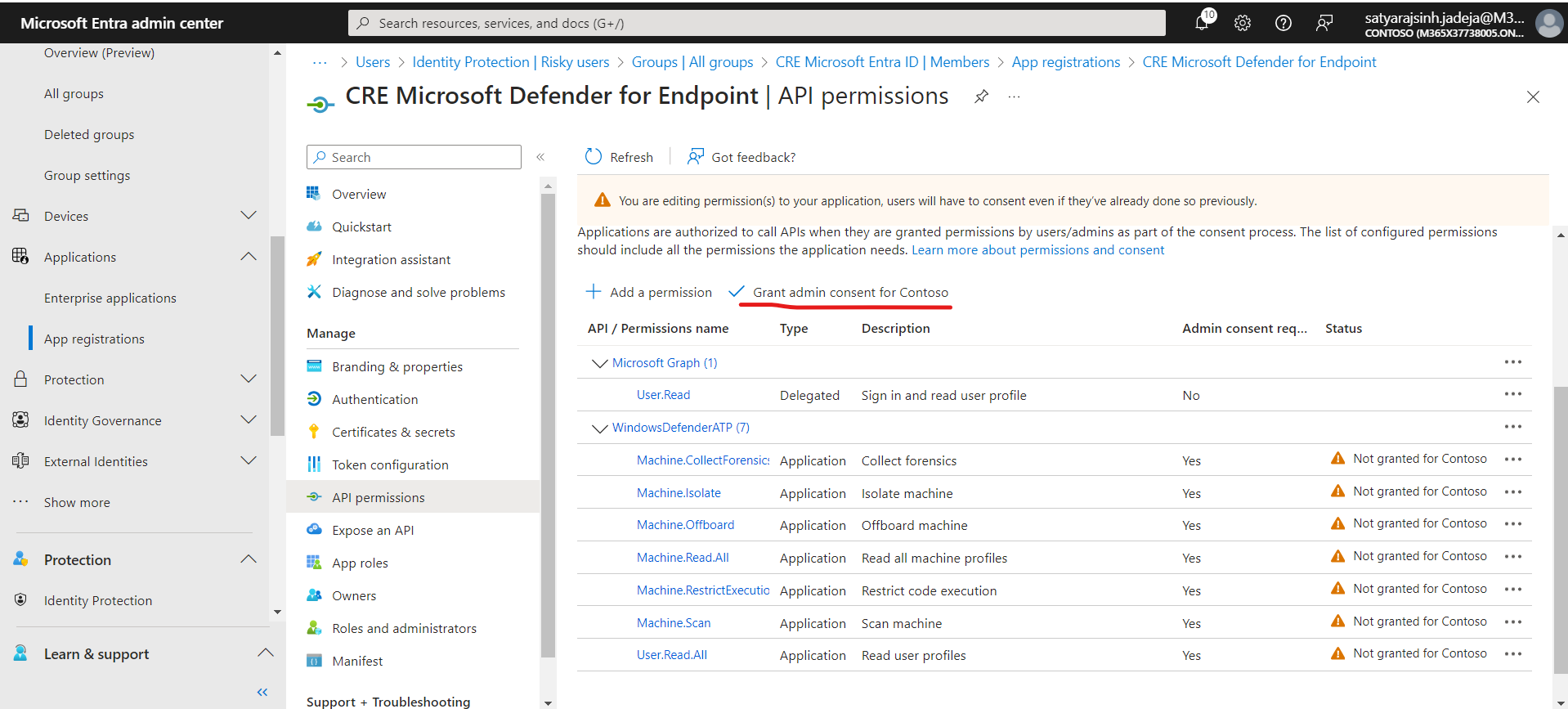
- On the left side, click API permissions.
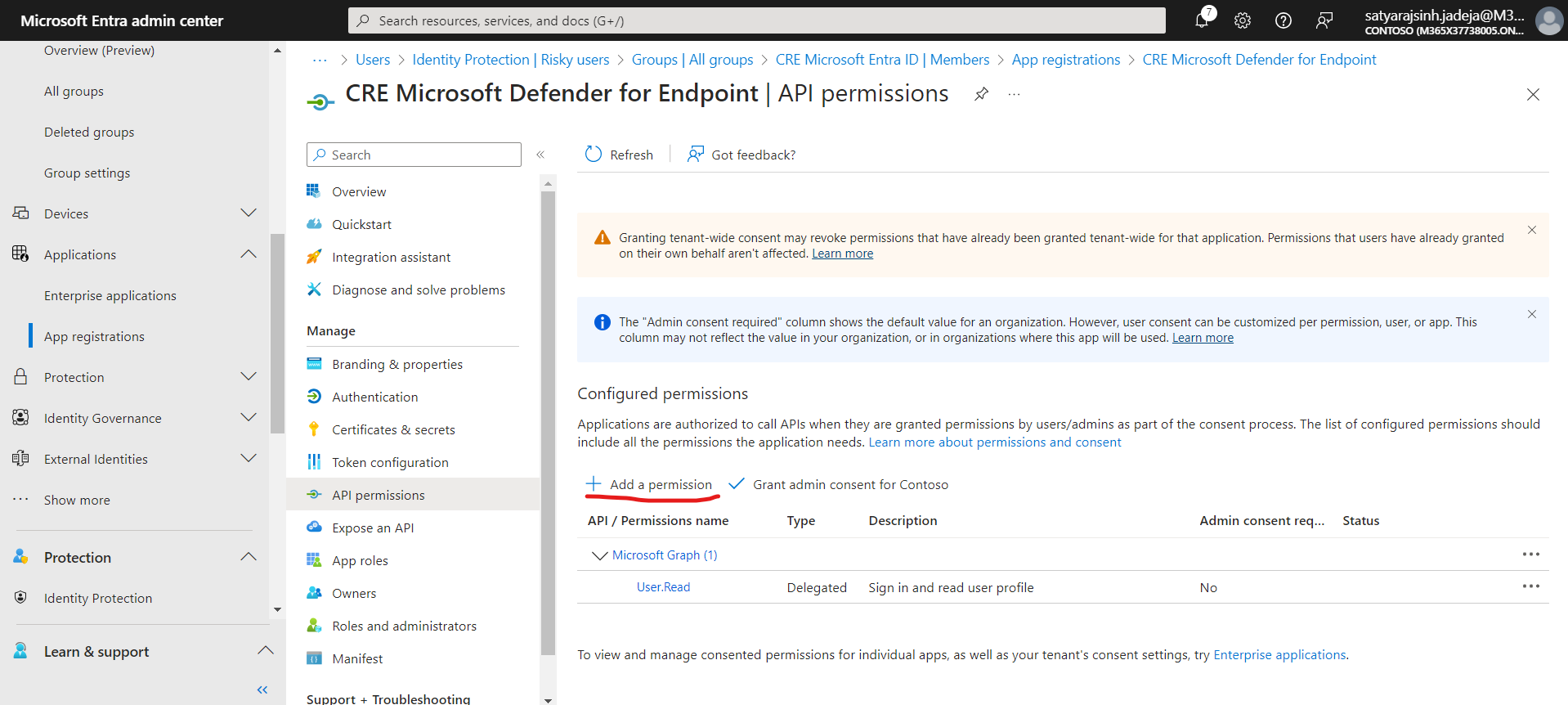
- Click Add a permission.
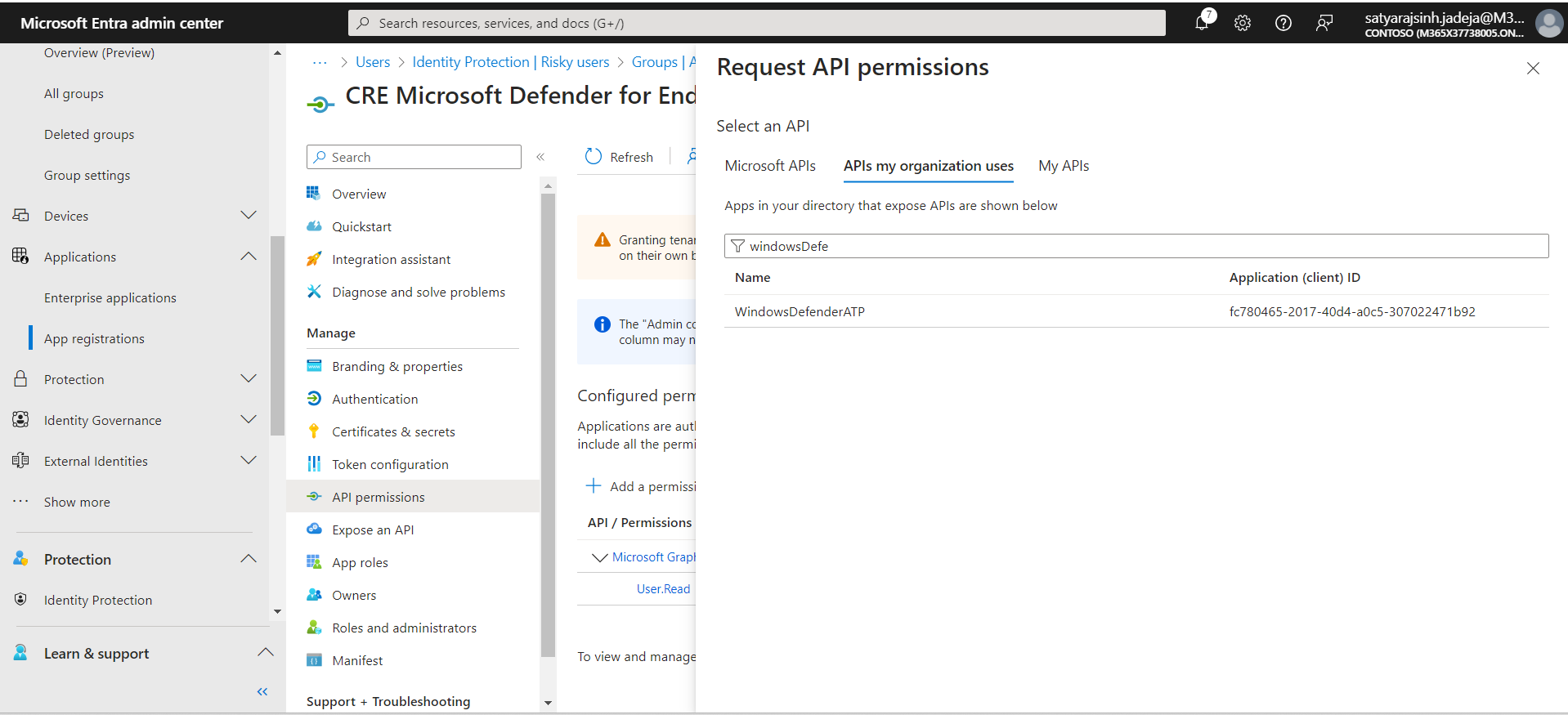
- Click APIs my organization uses, and then click WindowsDefenderATP.
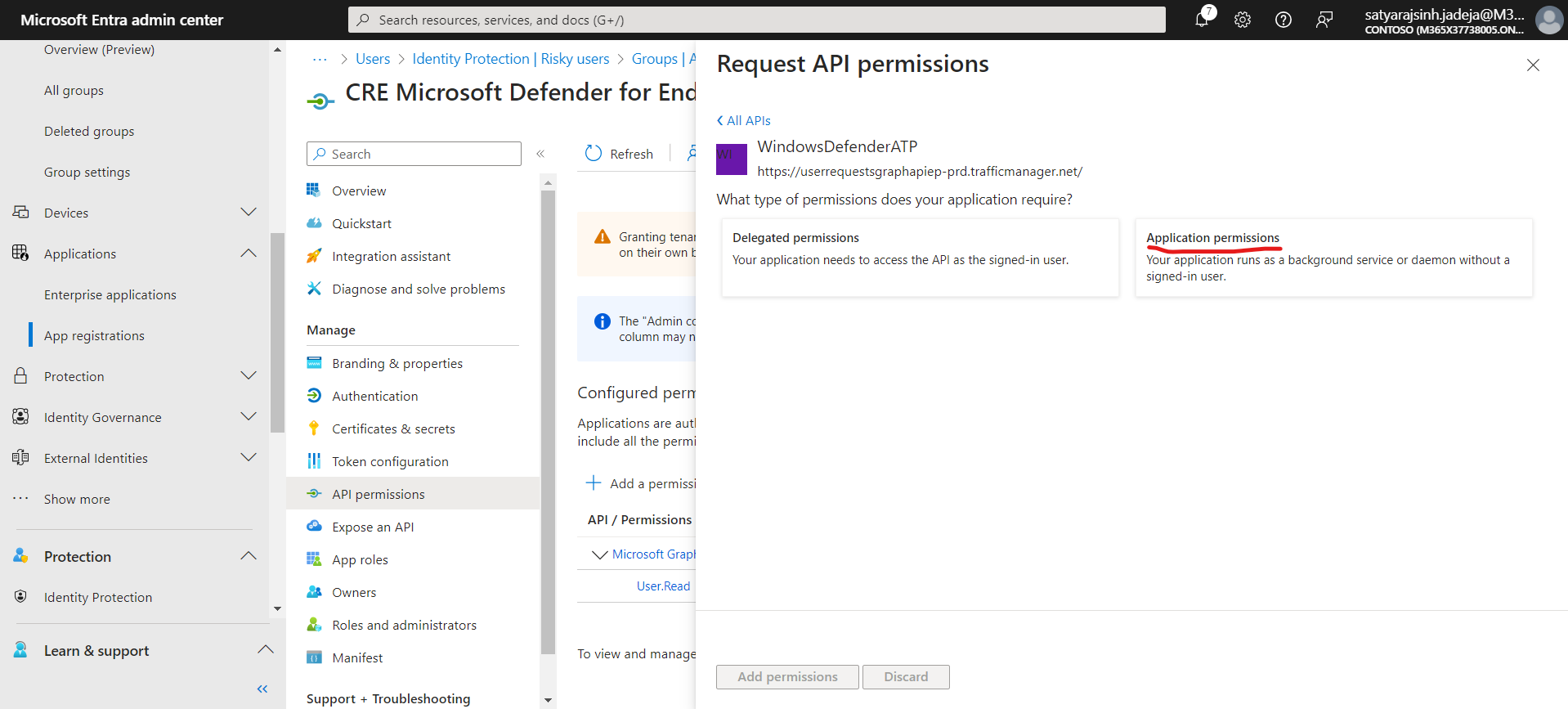
- Click Application permissions.
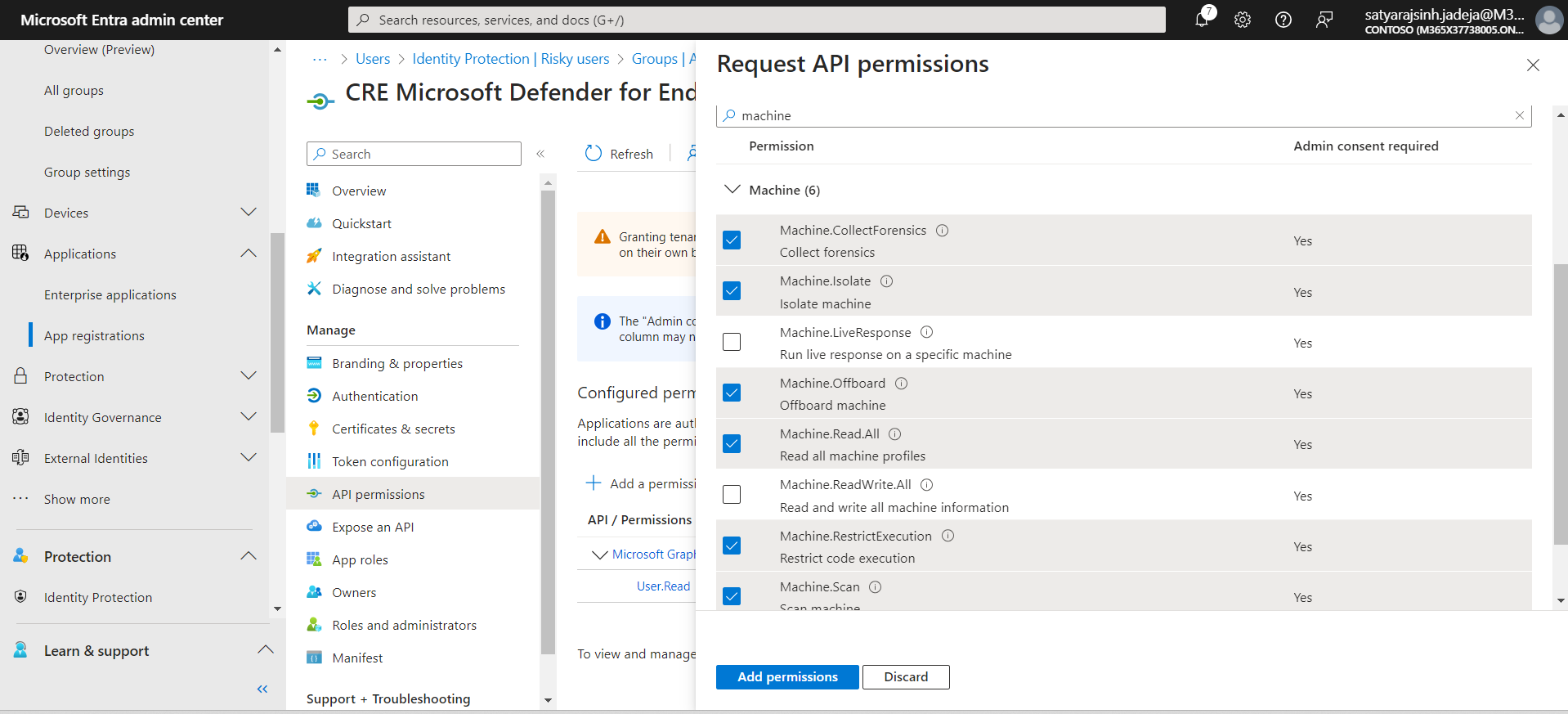
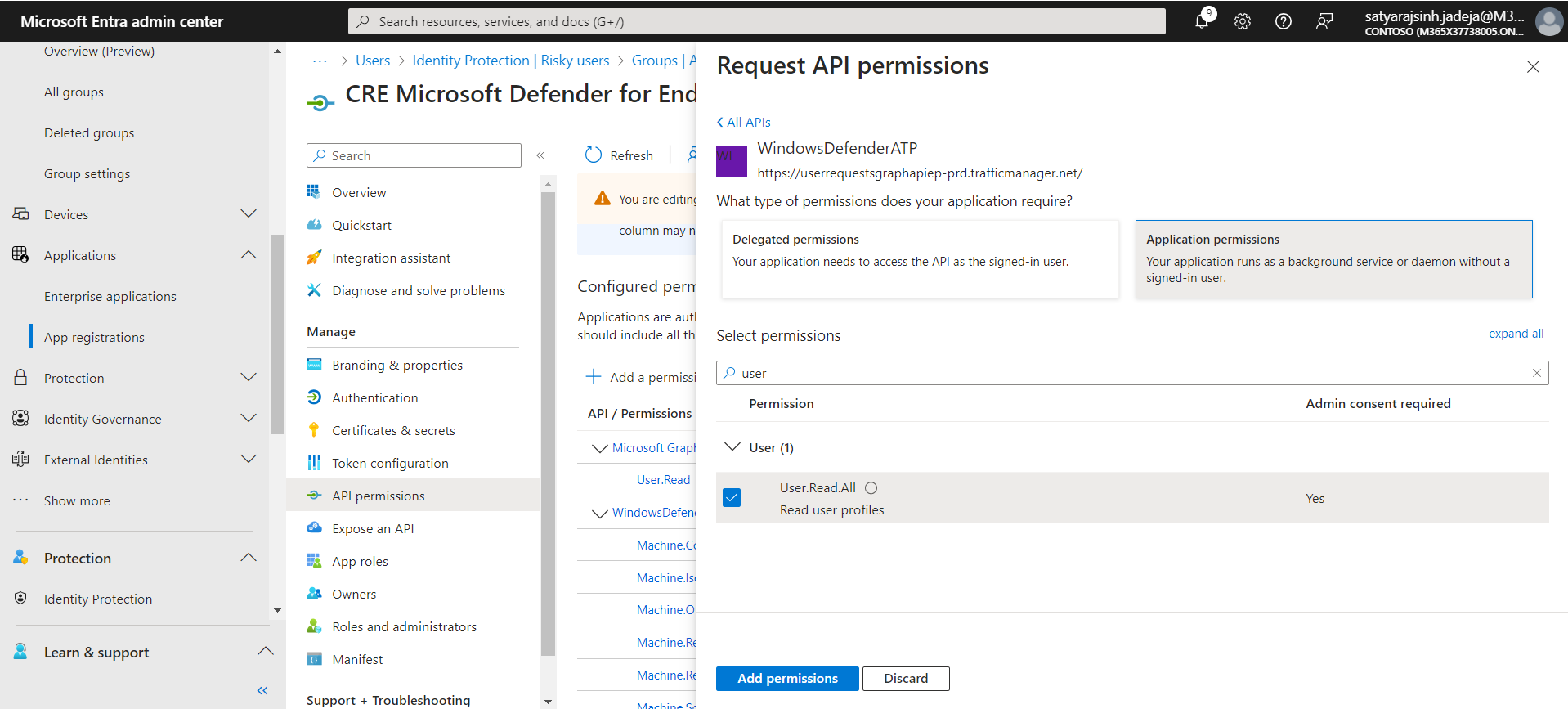
- Select these permissions, and then click Add permissions.
- Machine.CollectForensics
- Machine.Isolate
- Machine.RestrictExecution
- Machine.Scan
- Machine.Offboard
- Machine.Read.All
- User.Read.All
- Alert.Read.All
- Click Grant admin consent for Contoso.
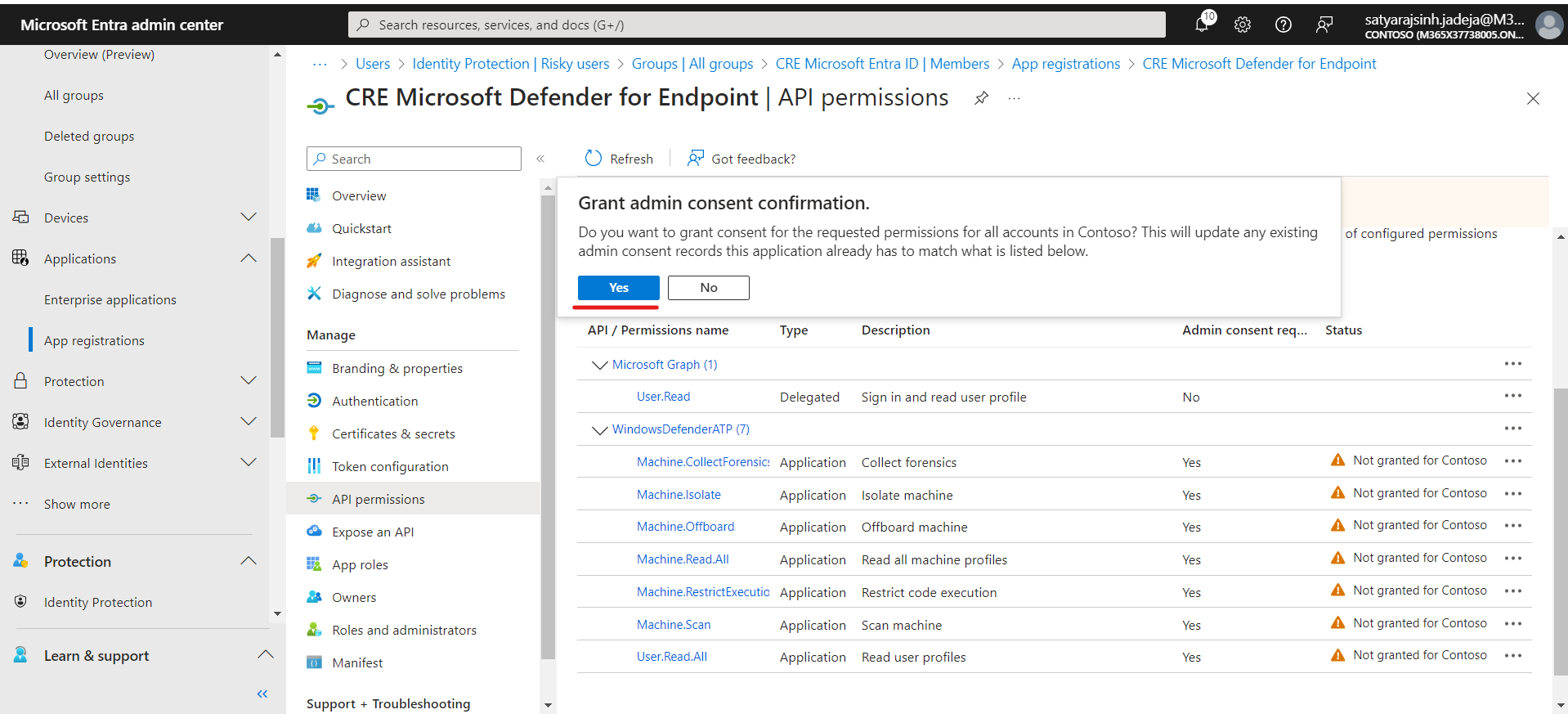
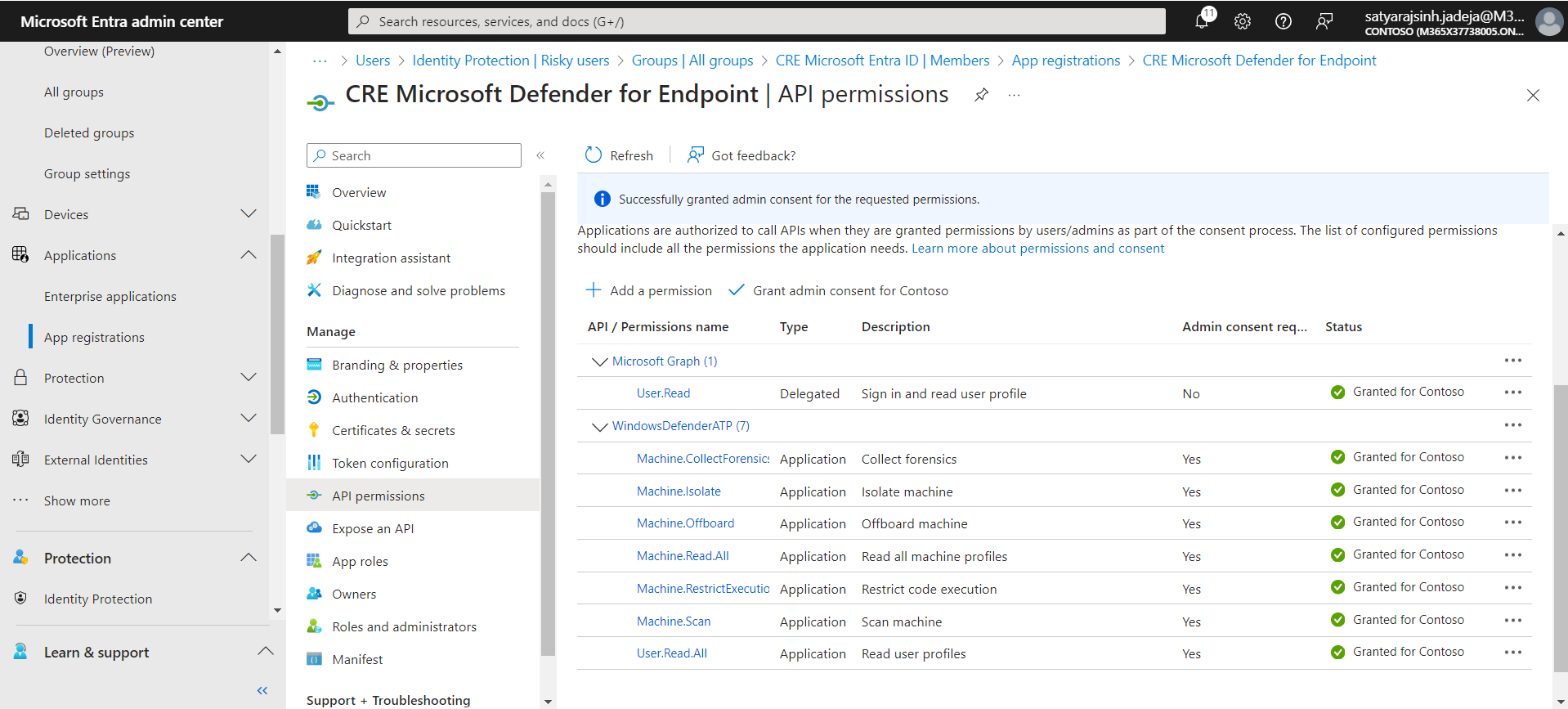
- Click Yes.
Configure the Microsoft Defender for Endpoint Plugin
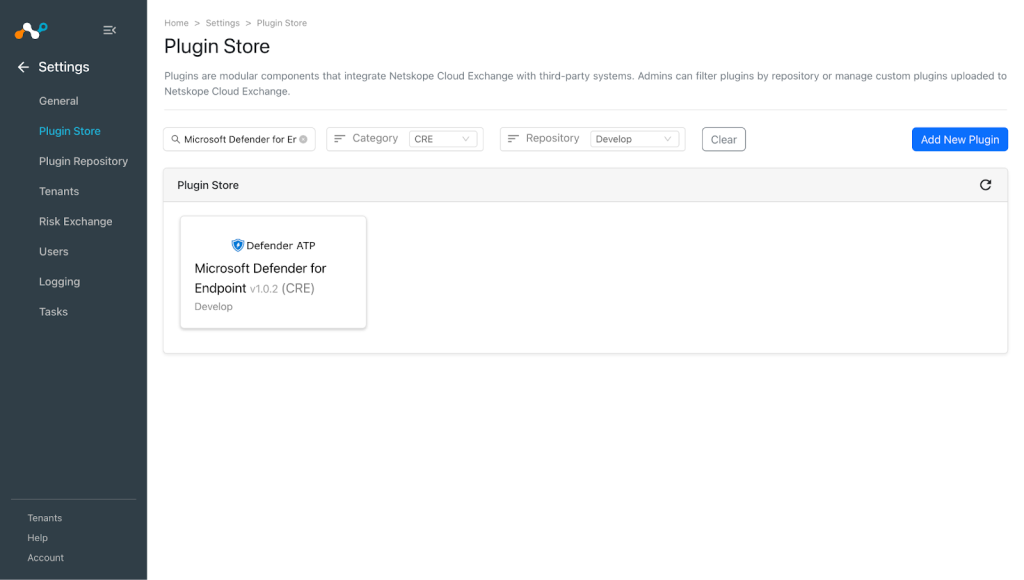
- In Cloud Exchange, go to Settings > Plugins. Search for and select the Microsoft Defender for Endpoint v1.0.2 (CRE) plugin box.
- Add a plugin configuration name and change the sync interval if needed.
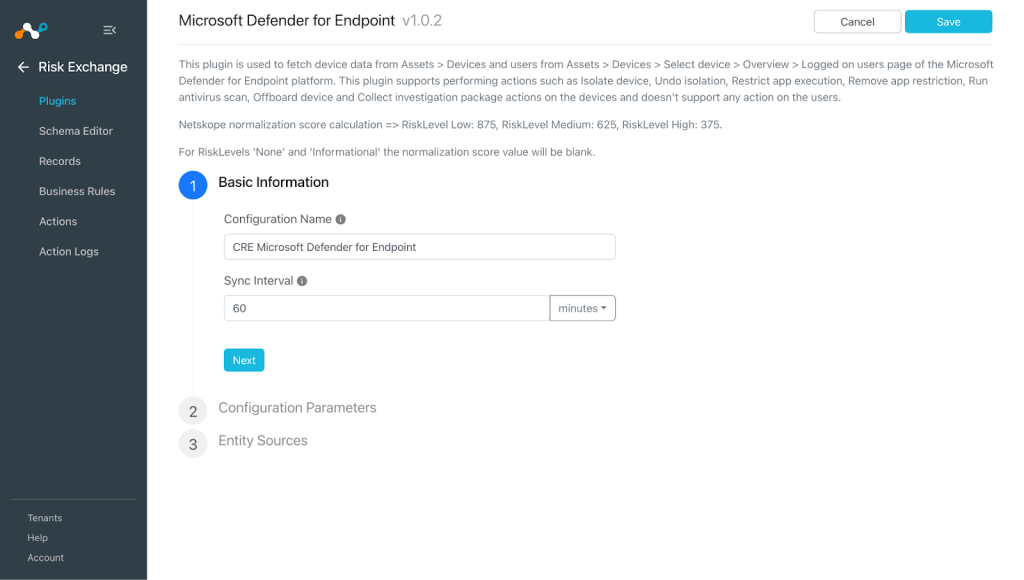
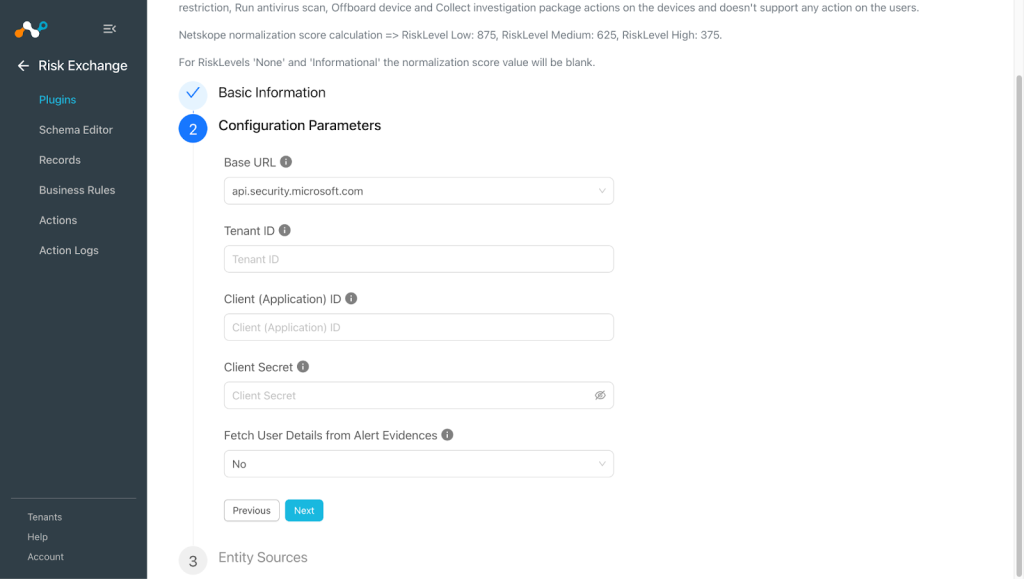
- Click Next. Enter the configuration parameters:
- Base URL: Base URL for Defender for Endpoint.
- Tenant ID: Tenant ID of your Microsoft Account
- Client (Application) ID: Application ID for Microsoft Defender
- Client Secret: Secret value of Client (Application) ID for Microsoft Defender
- Fetch User Details from Alert Evidences: Fetch user details from alert evidence.
Note
If ‘Yes’ is selected in Fetch User Details from Alert Evidences, additional API calls will be made to ‘/api/alerts’ endpoint to fetch device user details. If this field is set ‘Yes’ but the user has not mapped Device User Email and Device User Email Reference field then the plugin will make the API calls but will not store any User Emails.
- Click Next. Click on the Devices tab in Entity Sources. Select the Entity from the Entity dropdown, and provide the field mappings per your requirements.
Note
- Computer Name, Device ID and Device User Email fields will be required to pull devices.
- The Computer Name field in the Users entity should reference the Computer Name field from the Device entity.
- Click on the Users tab in Entity Sources. Select the Entity from the Entity dropdown, and provide the field mappings per your requirements.
Note
- The User ID field is required to pull users.
- The Computer Name field in the Users entity should reference the Computer Name field from the Device entity.
- Click Save.


Add a Risk Exchange Business Rule for Microsoft Defender for Endpoint
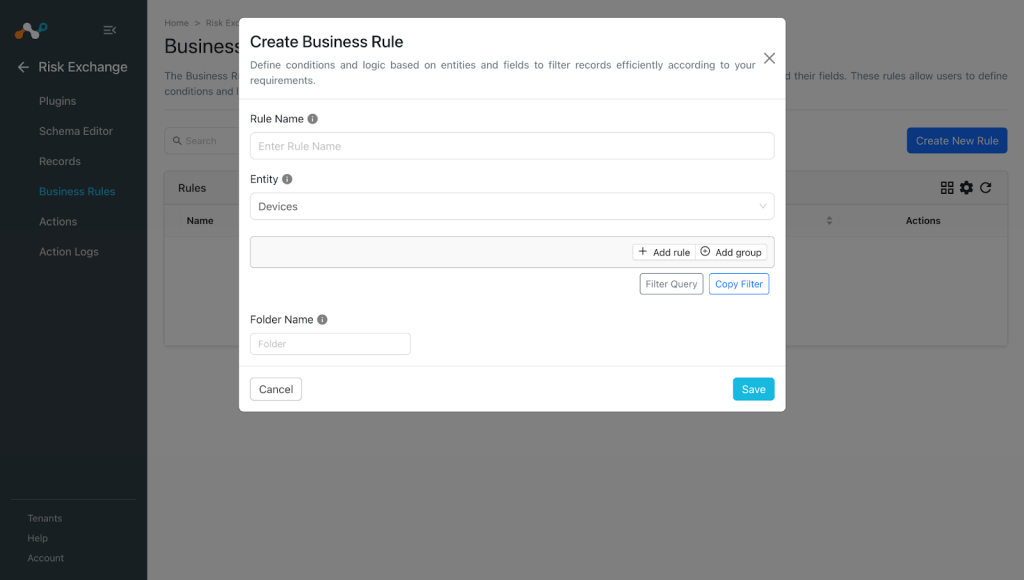
- In Risk Exchange, go to Business Rules and click Create New Rule.
- Enter the Rule Name. Select the Entity for the Fields you configured for the Microsoft Defender for Endpoint plugin, and configure the query based on your requirements. This example fetches all the devices fetched from the Microsoft Defender for Endpoint plugin.
- Click Save.

Add Risk Exchange Actions for Microsoft Defender for Endpoint
The Microsoft Defender for Endpoint plugin supports the following actions for Devices:
| Action | Description | Permission | Comments |
|---|---|---|---|
| Isolate device Unisolate | Isolates a device from accessing an external network. Release a device from isolation. Requirements – Machine ID – IsolationType | Machine.Isolate | Selective isolation for Windows 10 >= v1709, Windows 11. Full isolation is available in public preview for all supported Microsoft Defender for Endpoint on Linux listed inSystem requirements. |
| Restrict app execution Remove app restriction | Restrict execution of all applications on the device except a predefined set. Enable execution of any application on the device. Requirements Machine ID | Machine.RestrictExecution | Only Windows 10 >= v1709, Windows 11 Prerequisites available if organization uses Microsoft Defender Antivirus |
| Run antivirus scan | Initiate Microsoft Defender Antivirus scan on a device. Requirements – Machine ID – ScanType (Quick or Full) | Machine.Scan | Windows devices Windows 10 >= v1709, Windows 11 |
| Offboard machine | Offboard device from Defender for Endpoint. Requirements Machine ID | Machine.Offboard | Supported on Windows 11, Windows 10 >= v1703 , on Windows Server 2019 and later, on Windows Server 2012 R2, Windows Server 2016 Not supported on macOS or Linux devices |
| Collect investigation package | Collect an investigation package from a device. Requirements Machine ID | Machine.CollectForensics | Available for Windows 10 >= v1703, Windows 11. |
The Microsoft Defender for Endpoint plugin supports the following actions for Users:
- “No Action” will not perform any action on Users .
To configure these actions, follow these steps in the appropriate section below.
Note
You will be able to perform actions on the fields mapped with the fields of Microsoft Defender for Endpoint plugin.
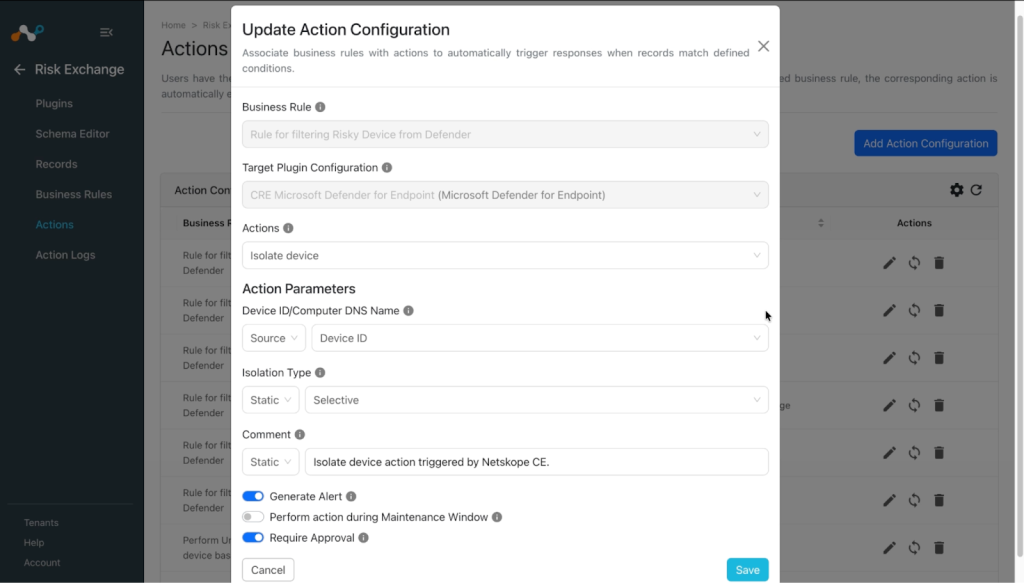
Isolate a Device
- In Risk Exchange, go to Actions and click Add Action Configuration.
- Select a Business rule and your configured plugin from the dropdowns.
- For Actions, select Isolate Device.
- For Action Parameters, select the option for Device ID or Computer DNS Name, if you need to filter out devices using business rules, or provide a static value.
- For Isolation Type, select the options accordingly.
- For Comment, add a description.
- Enable the Require Approval toggle if Approval is needed before performing action on the users.
- Click Save.

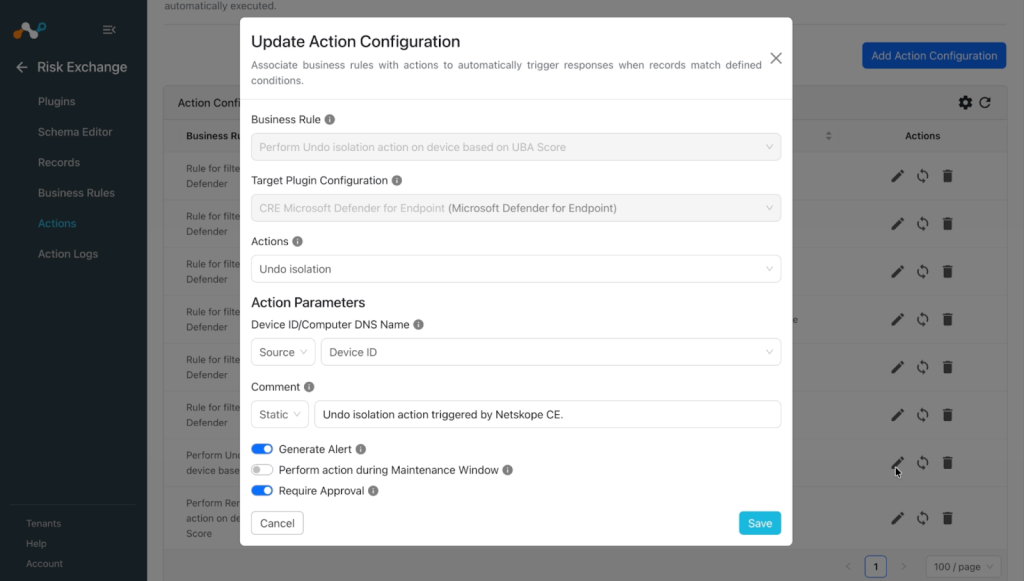
Undo Isolation
- In Risk Exchange, go to Actions and click Add Action Configuration.
- Select a Business rule and your configured plugin from the dropdowns.
- For Actions, select Undo Isolation.
- For Action Parameters, select the option for Device ID or Computer DNS Name, if you need to filter out devices using business rules, or provide a static value.
- For Comment, add a description.
- Enable the Require Approval toggle if Approval is needed before performing action on the users.
- Click Save.

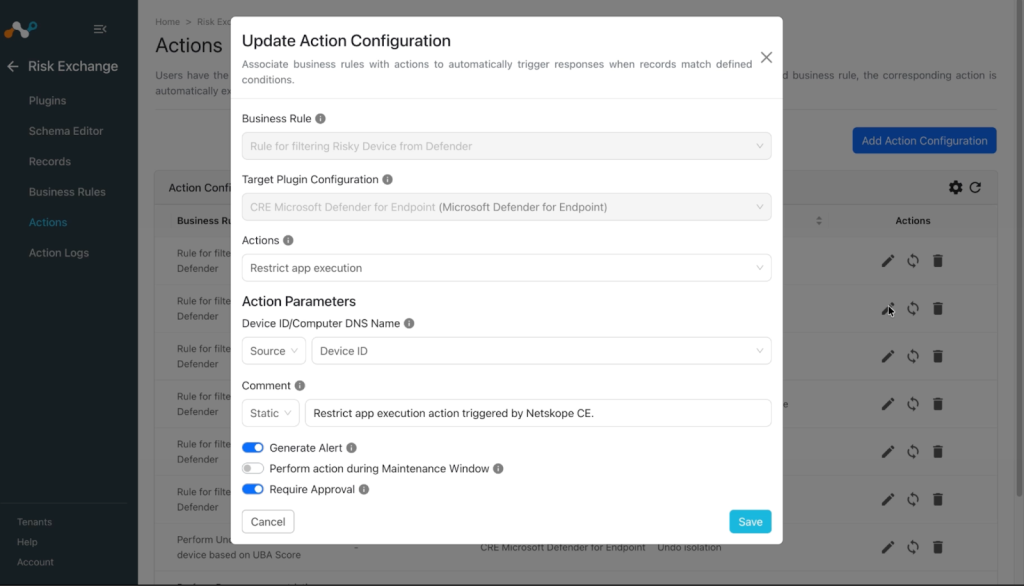
Restrict App Execution
- In Risk Exchange, go to Actions and click Add Action Configuration.
- Select a Business rule and your configured plugin from the dropdowns.
- For Actions, select Restrict App Execution.
- For Action Parameters, select the option for Device ID or Computer DNS Name, if you need to filter out devices using business rules, or provide a static value.
- For Comment, add a description.
- Enable the Require Approval toggle if Approval is needed before performing action on the users.
- Click Save.

Run Antivirus Scan
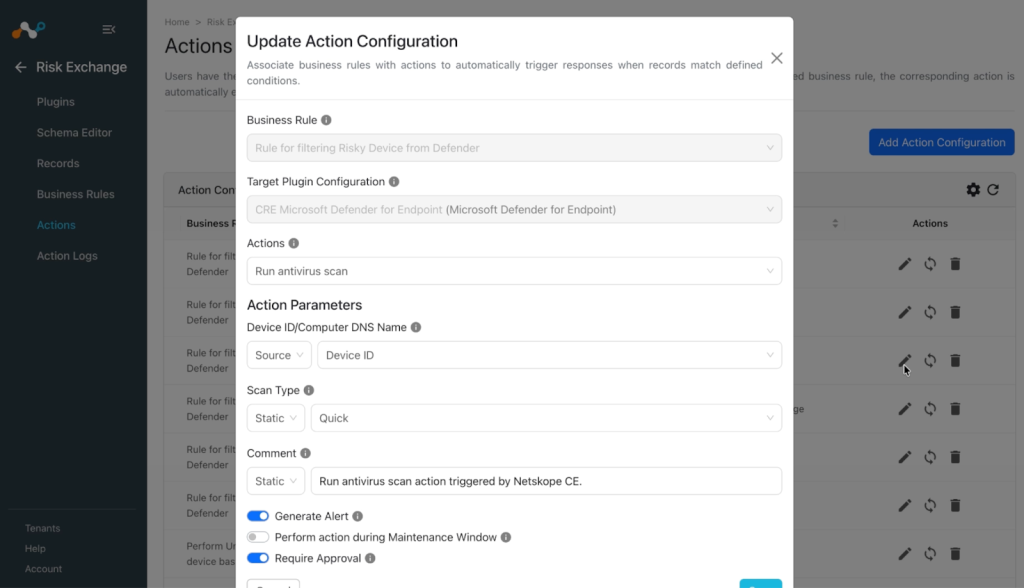
- In Risk Exchange, go to Actions and click Add Action Configuration.
- Select a Business rule and your configured plugin from the dropdowns.
- For Actions, select Run Antivirus Scan.
- For Action Parameters, select the option for Device ID or Computer DNS Name, if you need to filter out devices using business rules, or provide a static value.
- In the Scan Type, select the options accordingly.
- For Comment, add a description.
- Enable the Require Approval toggle if Approval is needed before performing action on the users.
- Click Save.

Offboard a Device
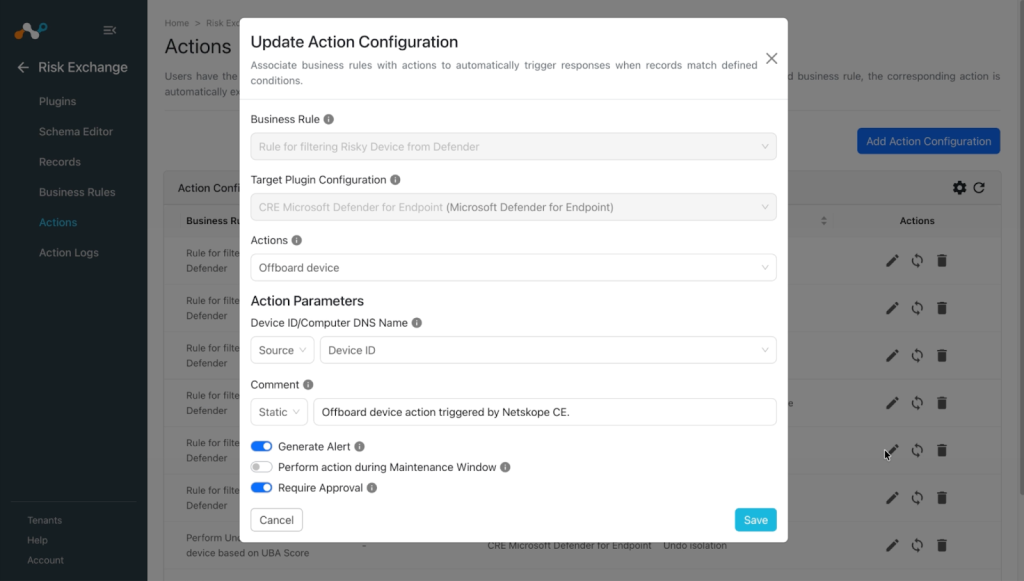
- In Risk Exchange, go to Actions and click Add Action Configuration.
- Select a Business rule and your configured plugin from the dropdowns.
- For Actions, select Offboard Device.
- For Action Parameters, select the option for Device ID or Computer DNS Name, if you need to filter out devices using business rules, or provide a static value.
- For Comment, add a description.
- Enable the Require Approval toggle if Approval is needed before performing action on the users.
- Click Save.

Remove App Restriction
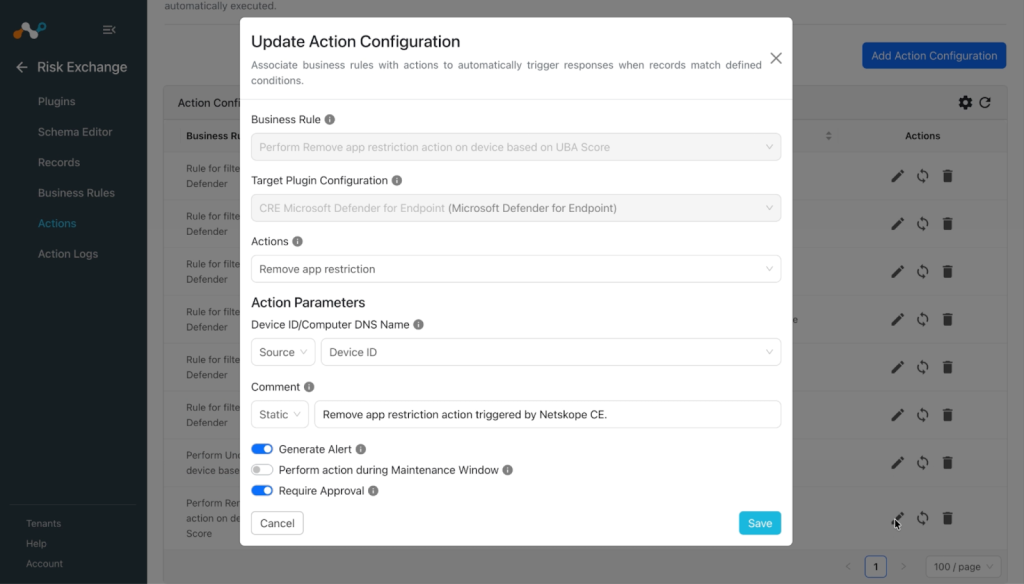
- In Risk Exchange, go to Actions and click Add Action Configuration.
- Select a Business rule and your configured plugin from the dropdowns.
- For Actions, select Remove App Restriction.
- For Action Parameters, select the option for Device ID or Computer DNS Name, if you need to filter out devices using business rules, or provide a static value.
- For Comment, add a description.
- Enable the Require Approval toggle if Approval is needed before performing action on the users.
- Click Save.

Collect Investigation Package
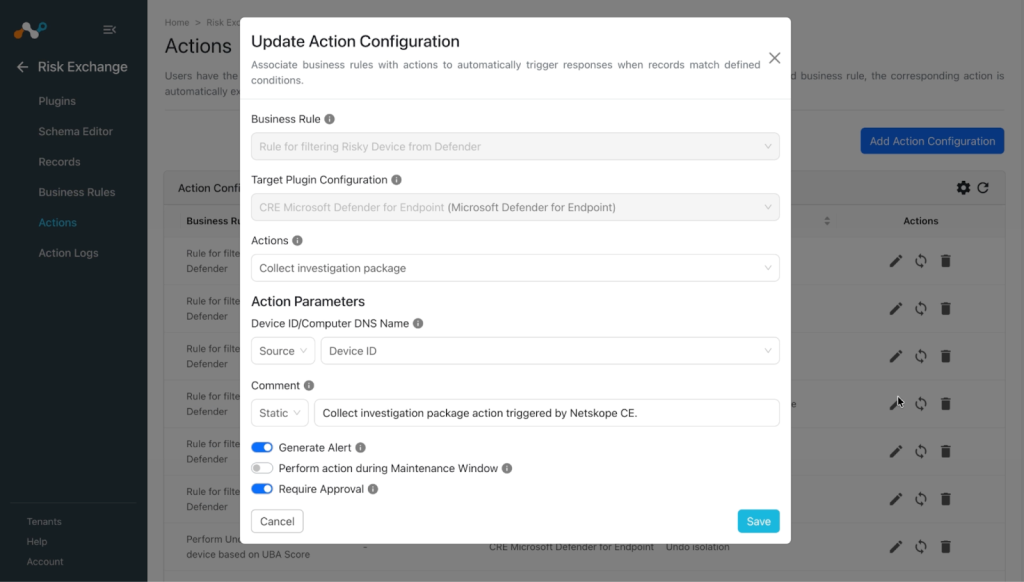
- In Risk Exchange, go to Actions and click Add Action Configuration.
- Select a Business rule and your configured plugin from the dropdowns.
- For Actions, select Collect Investigation Package.
- For Action Parameters, select the option for Device ID or Computer DNS Name, if you need to filter out devices using business rules, or provide a static value.
- For Comment, add a description.
- Enable the Require Approval toggle if Approval is needed before performing action on the users.
- Click Save.
Note
Using the records pulled via Microsoft Defender for Endpoint plugin, you can perform multiple actions on Netskope Tenant via the Risk Exchange plugin. Refer to the plugin guide for more details.

Validate the Microsoft Defender for Endpoints Plugin
Validate in Cloud Exchange
To validate the pulling, follow the below steps.
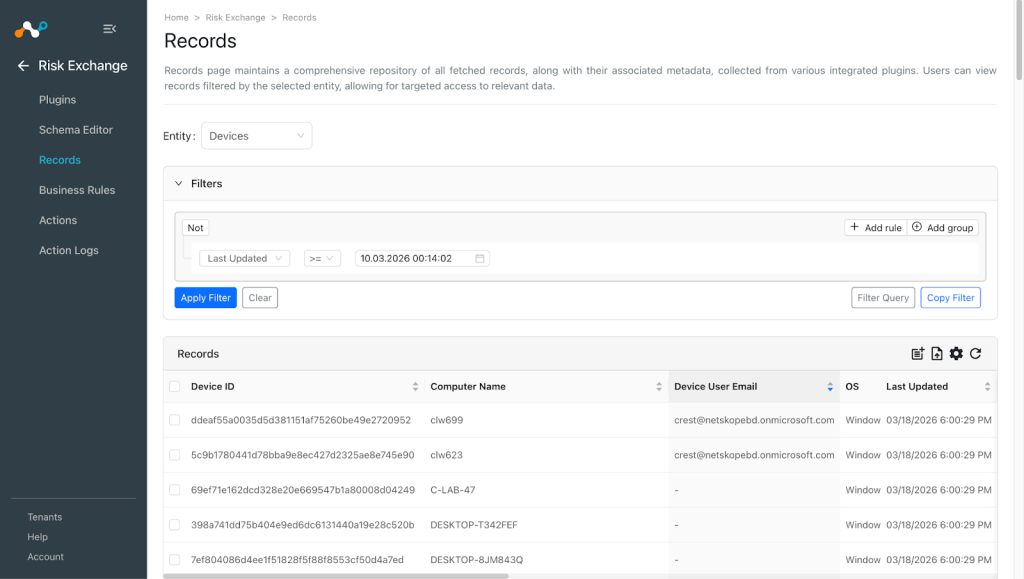
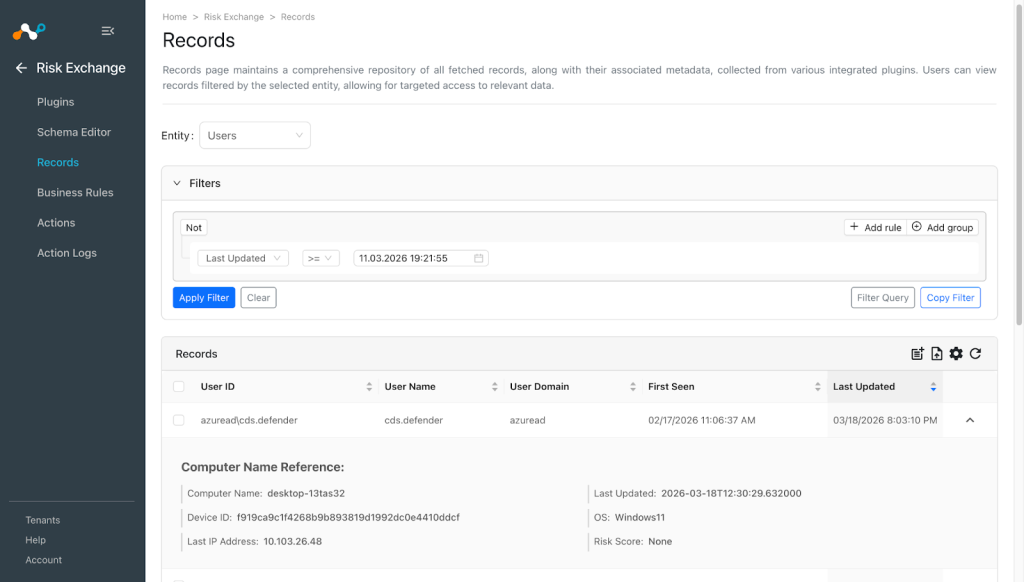
- In Risk Exchange, go to Records. Select the Entity that was selected while configuring the field mapping for Devices to view the pulled Devices.
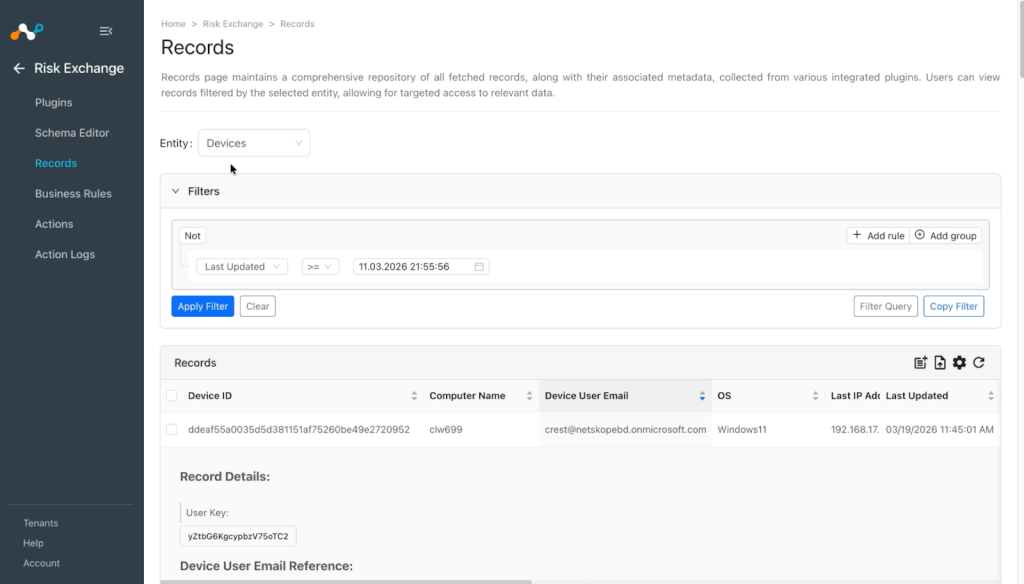
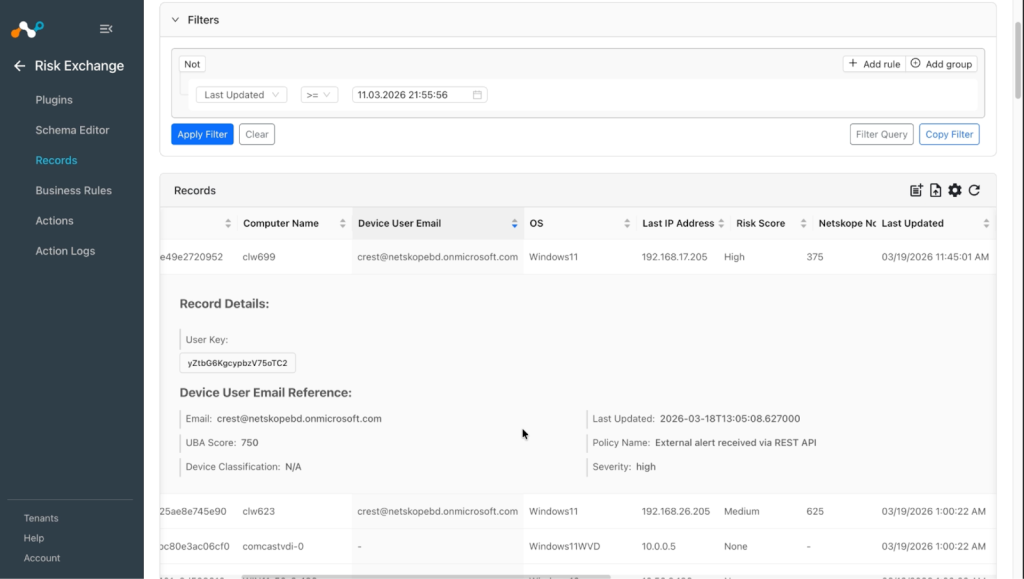
- In Records, select the Entity that is selected while configuring the field mapping for Users to view the pulled Users.
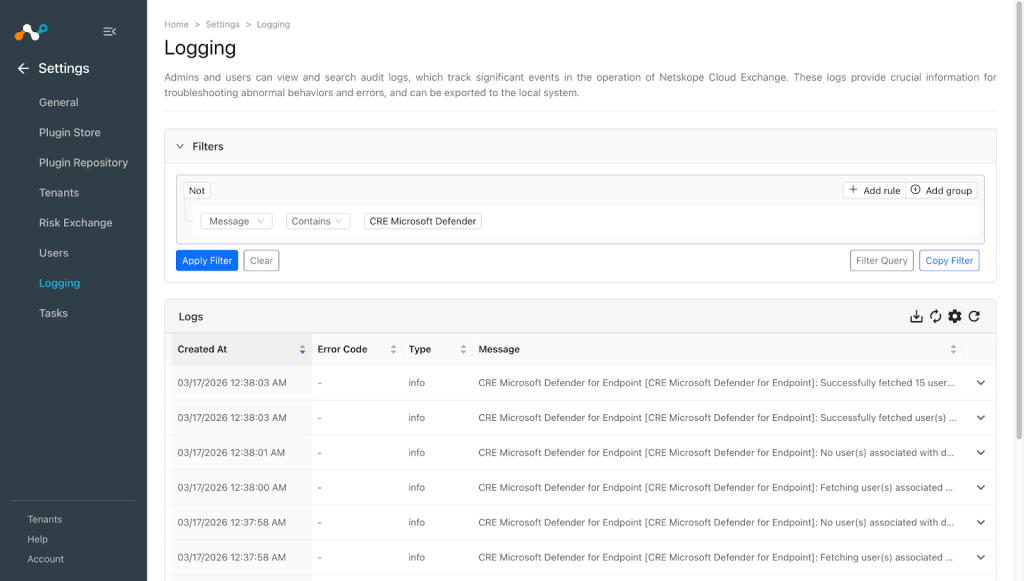
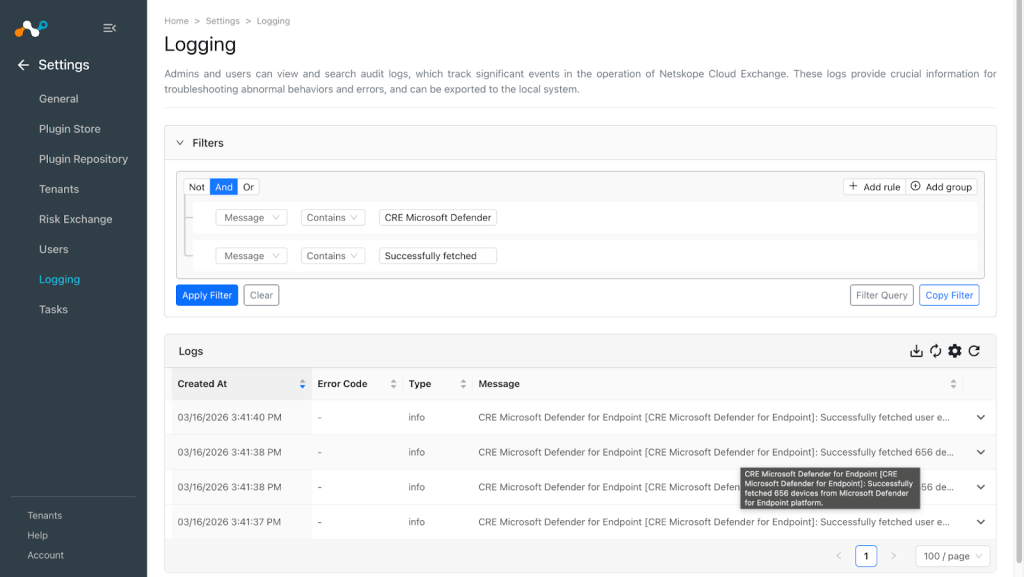
- Go to Logging and search for the logs of the plugin.
Example: message contains CRE Microsoft Defender.
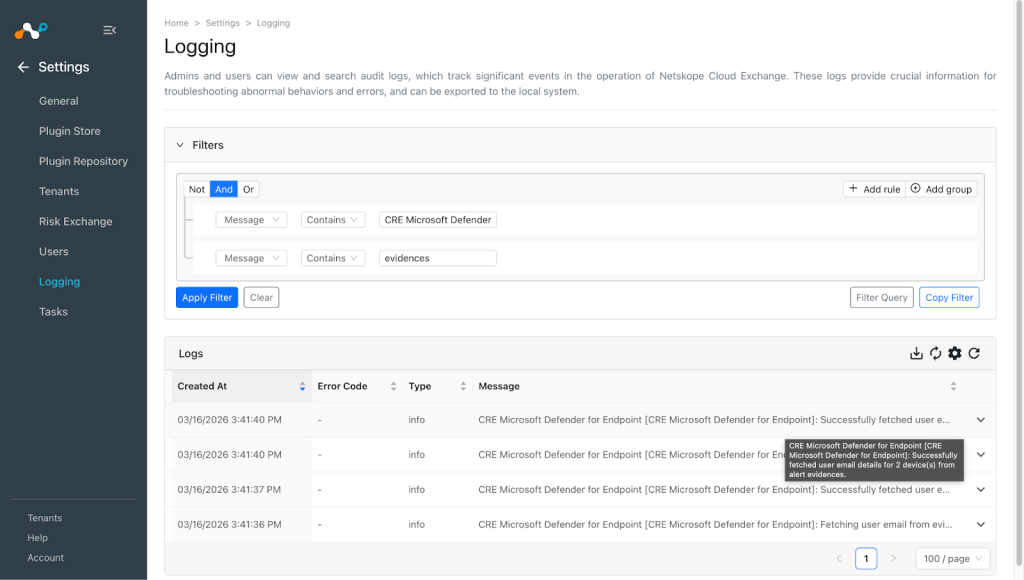
For logs related to Fetch User Details from Alert Evidences, apply a filter with message contains CRE Microsoft Defender and message contains evidences.
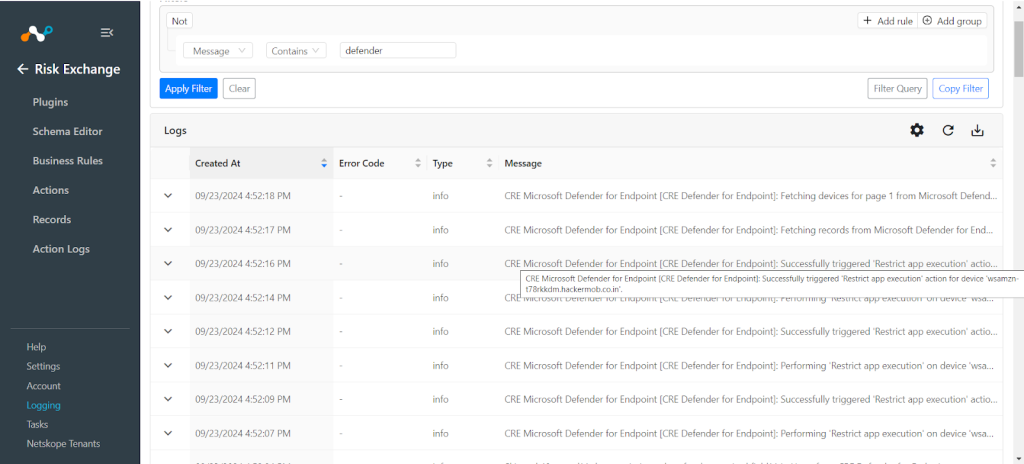
- Go to Logging to verify the the Restrict app execution action was performed for a device.
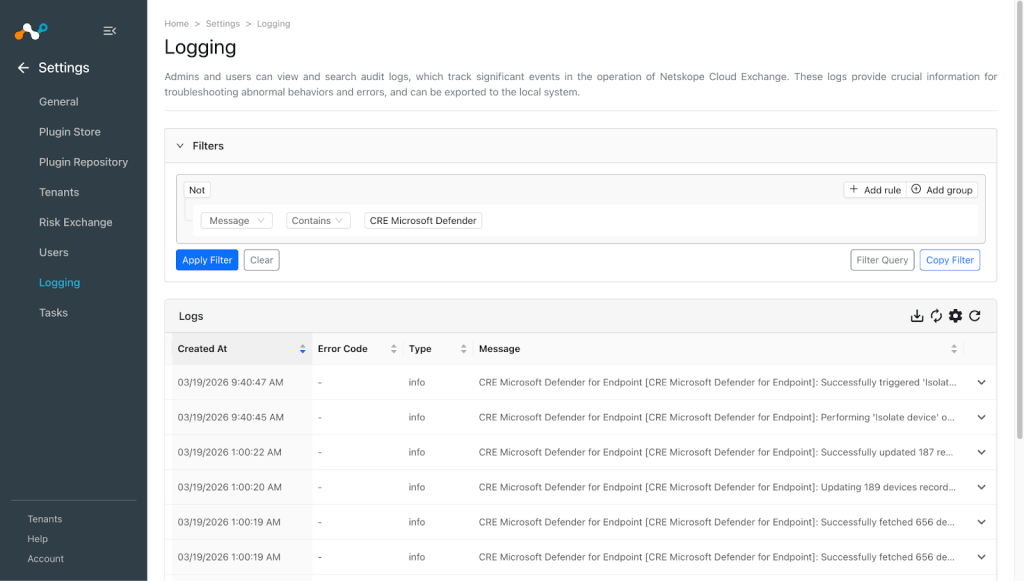
- Go to Logging to verify the Isolate device action was performed for a device.
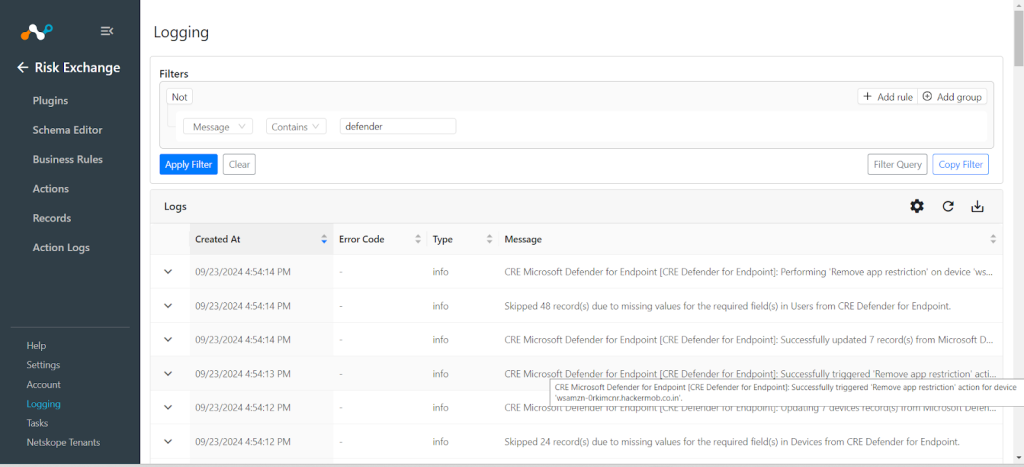
- Go to Logging to verify the Remove app restriction action was performed for a device.
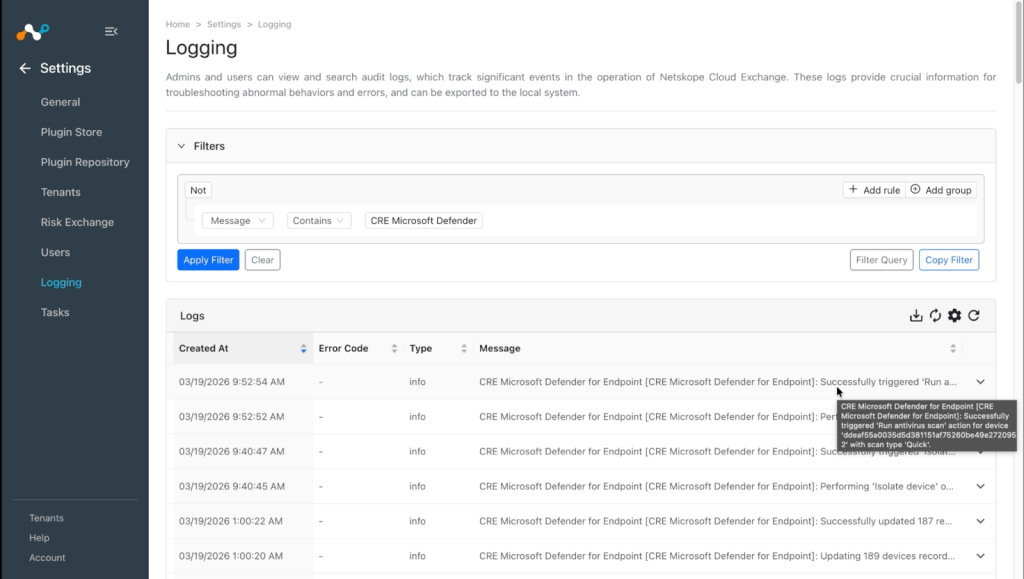
- Go to Logging to verify the Run antivirus scan action was performed for a device.
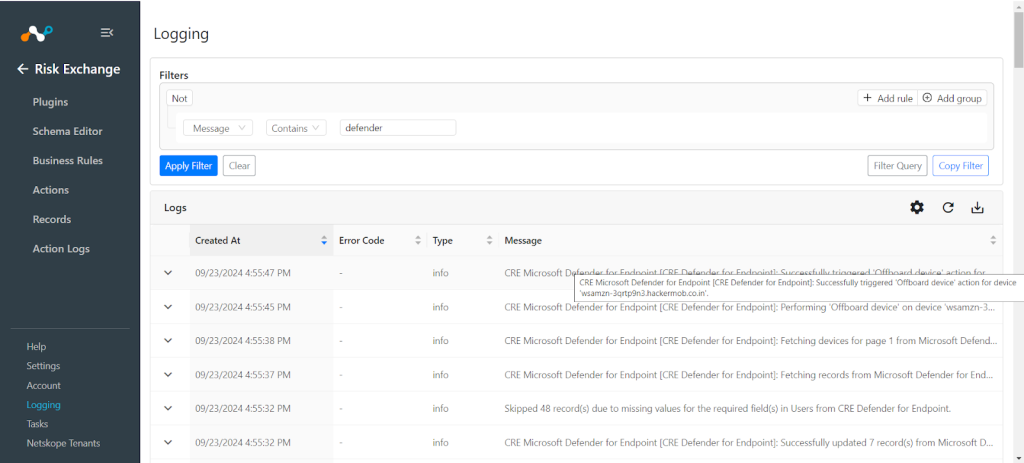
- Go to Logging to verify the Offboard device action was performed for a device.
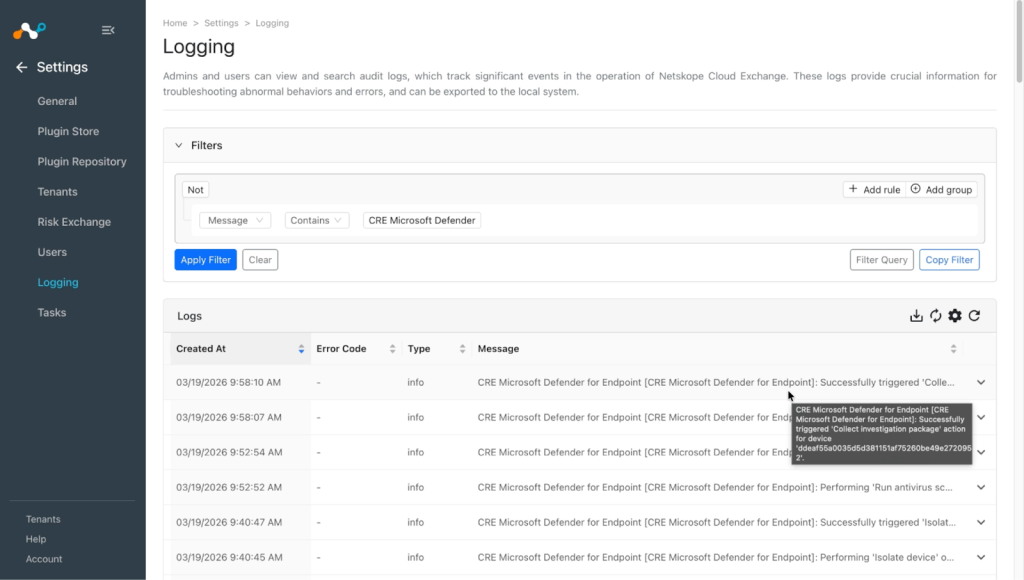
- Go to Logging to verify the Collect investigation package action was performed for a device.
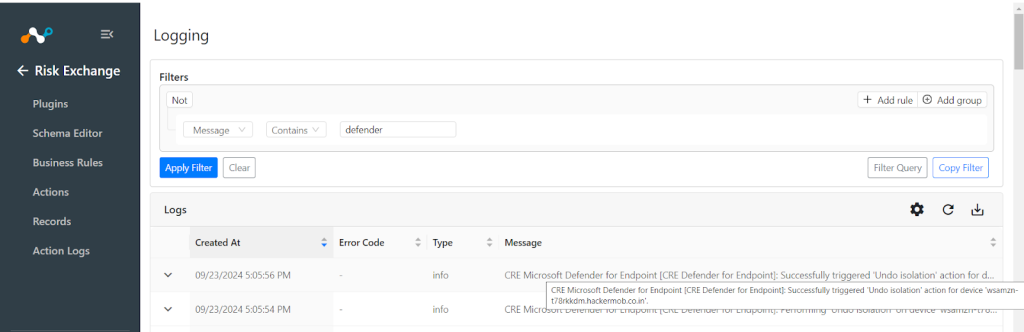
- Go to Logging to verify the Undo isolation action was performed for a device.


Validation on Microsoft Defender for Endpoint
The Devices are pulled from the Assets > Devices page in the Defender platform.

The Users are pulled from the Assets > Devices > Select device > Overview > Logged on users page in the Defender platform.

To verify the action performed on the devices, Click on the 2 dot icon and go to Action Center.

Here are logs for actions Collect Investigation Package, Run Antivirus Scan, and Undo Isolate on Defender.

These images show the logs for the action Restrict App Execution and Remove App Restriction.


This image shows the log for the action Isolate Device.

Troubleshooting the Microsoft Defender for Endpoint plugin
Unable to configure the CRE Microsoft Defender for Endpoint plugin.
If you are unable to configure the Microsoft Defender for Endpoint plugin, it could be due to one of these reasons:
- Provided Incorrect credentials.
- Provided credentials don’t have sufficient permissions.
What to do:
- To get the Credentials follow the steps mentioned in Obtaining configuration parameter.
- To provide proper permissions to the configuration parameter, follow the steps mentioned in Adding Permissions to the configuration parameter.
Unable to pull Devices
If you are unable to pull Devices from the Microsoft Defender for Endpoint plugin, it could be due to one of these reasons:
- No Devices present on the Defender platform.
- An error is received while pulling Devices from the platform.
- Mapping is not added while configuring the plugin in the entity source page.
What to do:
- Receiving 403 error: The plugin configuration parameter does not have sufficient permissions or the credentials no longer exist. Verify the permissions.
- If there is no error in the logs, it might be the case that the Devices are not available on the Platform to pull. Check if the Device is available on Defender and confirm the same.
- Make sure that the mapping is added and that the id and computerDnsName fields were mapped while configuring the plugin.
Unable to pull Users
If you are unable to pull Users from the Microsoft Defender for Endpoint plugin, it could be due to one of these reasons:
- No Users present on the Defender platform.
- An error is received while pulling Users from the platform.
- Mapping is not added while configuring the plugin in the entity source page.
What to do:
- Receiving 403 error: The plugin configuration parameter does not have sufficient permissions or the credentials no longer exist. Verify the permission.
- If there is no error in the logs, it might be the case that the Users are not available on the Platform to pull. Check if the Users are available on Defender and confirm the same.
- Make sure that the mapping is added and the id field is mapped while configuring the plugin.
Unable to view Devices details on the Record
If you are unable to view Devices details on the record table, it could be due to one of these reasons:
- Mapping for all the Defender fields for devices is not provided while configuring the CRE Defender plugin.
- Pulled Devices are displayed in a row with comma separated values.
What to do:
- Make sure to provide the needed mappings while configuring the plugin.
- Make sure that the fields created in an entity are according to the Mapping.
Unable to view Users details on the Record
If you are unable to view Users details on the record table, it could be due to one of these reasons:
- Mapping for all the Defender fields for users is not provided while configuring the Defender plugin.
- Pulled Users are displayed in a row with comma-separated values.
What to do:
- Make sure to provide the needed mappings while configuring the plugin.
- Make sure that the fields created in an entity are according to the Mapping.
Unable to perform action on the Devices
If you are unable to perform action on the Devices, it could be due to one of these reasons:
- Insufficient permission was provided for the action.
- Receiving error while performing an action.
- Require Approval toggle button is enabled while configuring the Action, and the request is not approved.
- Error received while performing the Isolate device action.
- Error received while performing the Undo isolation action.
- The device is not active or not connected to the network.
- Comment is mapped to a Cloud Exchange record field and that field is empty or none.
What to do:
- Insufficient permission was provided for the action. Verify the permission is provided.
- Go to the Action Logs page, select the logs that you want to approve the requests for and click on the approve icon, or disable the Require Approval toggle button from the configured action and perform the action again.
- If error is received while performing the Isolate device action, make sure any other action related to device isolation is not in progress.
- If error is received while performing the Undo isolation action, make sure any action related to device isolation or unisolation is not in progress.
- Make sure the Device on which you are trying to perform action is active and connected to the network.
- If a comment is mapped to a Cloud Exchange record field while configuring the Action, and that particular field is empty or none for that record, then the action will fail. To execute this action, you need to provide the comment field of the Action parameters as a static value.
Note
In order to perform the action successfully on Defender, make sure the device on which the action is to be performed is not on sleep/hibernate mode or and is connected to the internet.Also note that, sometimes the performed action might take some hours to get executed on the Microsoft Defender platform.
Mismatch in device count for pulled devices
If you observe that the device count in the logs is different than actually stored devices in Netskope Cloud Exchange, then it might be due to an empty Computer Name or Device ID field.
What to do: Keep the Device ID field as unique to avoid data override in case of an empty Computer Name field. Refer to the Mappings section. If both unique fields are empty for multiple records, the data will be overwritten.
Netskope Normalized score not calculated or device records are not fetched after plugin upgrade
This may be due to required fields not mapped under the device entity. In older plugin versions, the computer name was the only required field, but the Microsoft Defender for Endpoint v1.0.2 has 2 new required fields.
What to do: You need to map all required fields. For reference you can refer to the suggested mappings.
Unable to fetch User emails after plugin upgrade
It may be due to insufficient permissions, or older version of this plugin had different permissions.
What to do: Update the permissions for your existing credentials, or create new credentials after referring to the Permissions section.
Known Behaviors
- For Microsoft Defender for Endpoint v1.0.2, when a plugin is configured with Fetch User Details from Alert Evidences as Yes, then you will not be able to change it back to No. To change it back to No, either clear all the mappings first, then save the plugin, and edit the plugin again. Change Fetch User Details from Alert Evidences and map the fields again. Save the plugin, or configure a new plugin with Fetch User Details from Alert Evidences as No.
- The Defender API for pulling users has a rate limit of 1500 calls per hour. Also, note that when the plugin encounters rate limit, then it will not have any error logs.