

Release Notes
1.1.0
Added
- Added support for configurable delimiters, including custom values with validation.
- Added support for remove quotes from the CSV file.
Changed
- Updated loggers and tooltips.
1.0.1
Fixed
- Fixed plugin validation with respect to CSV path.
- Fixed Sanity Step level validation.
1.0.0
Added
- Initial release.
This document explains how to configure the Microsoft File Share EDM v1.1.0 plugin with the Exact Data Match module of the Netskope Cloud Exchange platform. This plugin fetches CSV files from a Microsoft Windows server using either SMB or SFTP protocols, and generates Exact Data Match (EDM) hashes according to the defined plugin configurations.
The plugin supports dual protocol connectivity: SMB (Server Message Block) for native Microsoft file sharing, and SFTP (SSH File Transfer Protocol) for secure file transfer. This flexibility allows organizations to choose the most appropriate protocol based on their security requirements and infrastructure setup.
Prerequisites
To complete this configuration, you need:
- A Netskope tenant (or multiple, for example, production and development/test instances).
- A Netskope Cloud Exchange tenant with the Tenant plugin and Exact Data Match plugin already configured.
- A Microsoft Windows server with network file sharing capabilities.
- CSV files stored on the Microsoft server containing the data to be processed for EDM hash generation.
- Appropriate user credentials with read permissions for the CSV files on the Microsoft server.
For the SMB Protocol
- Microsoft server with network sharing enabled (SMB/CIFS service running).
- Shared folder configured with appropriate permissions.
- Network connectivity to the Microsoft server on SMB ports (typically 445).
For the SFTP Protocol
- Microsoft server with OpenSSH service enabled and configured.
- SSH service running and accessible from Cloud Exchange.
- Network connectivity to the Microsoft server via SFTP protocol (typically port 22).
Microsoft File Share Plugin Support
This plugin fetches CSV files from a Microsoft Windows server using either SMB or SFTP protocols and generates Exact Data Match (EDM) hashes according to the defined plugin configurations. The plugin supports dual protocol connectivity for maximum flexibility and compatibility with different network environments.
| Feature | Support |
|---|---|
| Pull | Yes |
| Push | No |
Permissions and Mappings
Microsoft Server Permissions
| Permission Type | SMB Protocol | SFTP Protocol |
|---|---|---|
| File Read Access | Required | Required |
| Network Share Access | Required | Not Required |
| SSH Access | Not Required | Required |
| Port Access | 445 (SMB) | 22 (SSH) |
Required Permissions
These permissions are needed for the plugin configuration:
For the SMB Protocol
- Microsoft Server User should have read access to the shared folder and CSV file.
- Network connectivity to the Microsoft server on port 445.
- SMB/CIFS service enabled on the Microsoft server.
For the SFTP Protocol
- SSH user must have read permissions for the specified CSV file.
- Network connectivity to the Microsoft server on the configured port (default: 22).
- OpenSSH service enabled and running on the Microsoft server.
API Details
List of Libraries Used
This plugin uses Python libraries to establish connections to Microsoft Windows servers and transfer CSV files via SMB or SFTP protocols.
For the SMB Protocol
- Library: pysmb – Pure Python SMB/CIFS library
- Usage: pysmb is a pure Python implementation of the SMB/CIFS protocol that allows Python applications to access and transfer files to/from SMB/CIFS shared folders. The plugin uses pysmb to connect to Windows shared folders, authenticate with the server, and download CSV files securely over the SMB protocol.
For the SFTP Protocol
- Library: Paramiko – SSH2 protocol library for Python
- Usage: Paramiko is a pure-Python implementation of the SSHv2 protocol, providing both client and server functionality. The plugin uses Paramiko to create secure SFTP connections, authenticate with the Windows server, and transfer CSV files securely when OpenSSH is enabled on Windows.
SMB Protocol Implementation
Create a SMB Connection
from ..lib.smb.SMBConnection import SMBConnection
connection = SMBConnection(
    username=configuration.get("smb_username"),
    password=configuration.get("smb_password"),
    my_name="netskope_machine",
    remote_name=configuration.get("smb_machine_name"),
)

# Connect to the server
connection_result = connection.connect(
    ip=configuration.get("smb_server_ip"),
)
Download a CSV File via SMB
with open(csv_file_path, "wb") as file_object:
    if record_count:
	   # Partial file retrieval (for sample data)
        smb_connection.retrieveFileFromOffset(
            shared_directory_name,
            remote_file_path,
            file_obj=file_object,
            offset=0,
            max_length=record_count * 5 * 1024,
        )
    else:
        # Full file retrieval
        smb_connection.retrieveFile(
            shared_directory_name,
            remote_file_path,
            file_obj=file_object,
        )
Close and SMB Connection
smb_connection.close()
SFTP Protocol Implementation
Create an SSH Client Connection
from ..lib import paramiko
ssh_connection = paramiko.SSHClient()
ssh_connection.set_missing_host_key_policy(paramiko.AutoAddPolicy())
ssh_connection.connect(
    hostname=configuration.get("sftp_server_ip"),
    username=configuration.get("sftp_username"),
    password=configuration.get("sftp_password"),
    port=configuration.get("sftp_port"),
)
Create an SFTP Client
with ssh_connection.open_sftp() as sftp_session:
    # SFTP operations here
    pass
Download a CSV File via SFTP
with ssh_connection.open_sftp() as sftp_session:
    if record_count:
        # Partial file retrieval (for sample data)
        file_content = []
        with sftp_session.file(
            remote_file_path, "r"
        ) as remote_file:
            for _ in range(record_count + 1):
                record = remote_file.readline()
                if not record:
                    break
                file_content.append(record)
        with open(
            csv_file_path, "w", encoding="utf-8", newline="\n"
        ) as local_file:
            local_file.writelines(file_content)
    else:
        # Full file retrieval
        sftp_session.get(remote_file_path, csv_file_path)
Close SFTP Connections
ssh_connection.close()
Protocol Parameters
SMB Protocol Parameters
| Parameter | Value |
|---|---|
| Protocol | SMB/CIFS (Server Message Block) |
| Default Port | 445 |
| Authentication | Username/Password |
| Connection Type | Network File Sharing |
| Supported Versions | SMB 2.0, SMB 3.0 |
SFTP Protocol Parameters
| Parameter | Value |
|---|---|
| Protocol | SFTP (SSH File Transfer Protocol) |
| Default Port | 22 |
| Authentication | Username/Password |
| Connection Type | Secure Shell (SSH) |
| Encryption | SSH-2 Protocol |
Performance Matrix
Here is the performance reading conducted for fetching and sanitizing ~1M Rows (25 columns, per column ~50 characters long string, 1.3 GB size, Avg Column Uniqueness: ~96%, Avg Row Uniqueness: ~96%) CSV file on a Large CE instance with these specifications:
| Description | Specification |
|---|---|
| Stack details | Size: Large RAM: 32 GB CPU: 16 Cores |
| CSV data fetched from Microsoft File Share Without Sanitization | ~7.4K rows/sec |
Note
- This performance reading is done with SMB protocol configured on a Windows instance.
- For CE instance disk space, refer to this documentation.
Performance Comparison
- SFTP protocol shows approximately 50% better performance compared to SMB.
- Sanitization reduces processing speed by approximately 55-65% for both protocols.
- SFTP is recommended for better performance and security.
Workflow
- Configure the Microsoft Windows server (SMB or SFTP).
- Configure the Microsoft File Share EDM Plugin.
- Configure sharing between the Microsoft File Share EDM Plugin and the Netskope EDM Plugin.
- Validate the Microsoft File Share EDM Plugin.
Watch a Video
Click play to watch a video.
Configure the Microsoft Windows Server
For the SMB File Sharing
- Find or create the folder you want to share.
- Right-click on the folder and select Properties.
- Go to the Sharing tab and click Advanced Sharing.
- Check Share this folder.
- Give the share a name if needed.
- Optionally, modify the Share Name and click Permissions to set access control.
- In the Permissions window, choose the users or groups you want to give access to:
- If the required user is not listed under the Group or user names section, click Add. Select Advanced, click Find Now, and choose the user from the list.
- Once added, confirm that the user appears in the Permissions dialog box, and ensure they have Read permission for the folder.
- Set the level of access (Read, Change, or Full Control).
- Click Apply and OK.
- Save the changes and check that the folder name shows right after the computer name in the Network Path.
Steps to Enable OpenSSH on a Windows Server for SFTP
Follow these steps to enable the OpenSSH service on the Windows server:
https://learn.microsoft.com/en-us/windows-server/administration/openssh/openssh_install_firstuse?tabs=gui
Configure the Microsoft File Share EDM Plugin
-
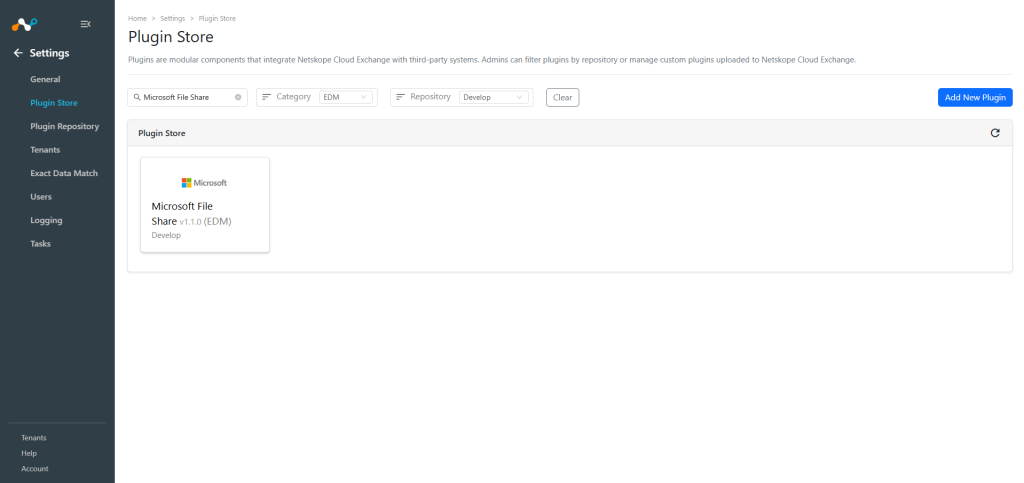
In Cloud Exchange, go to Settings > Plugin Store.
-
Search for and select the Microsoft File Share EDM v1.1.0 plugin box.
-
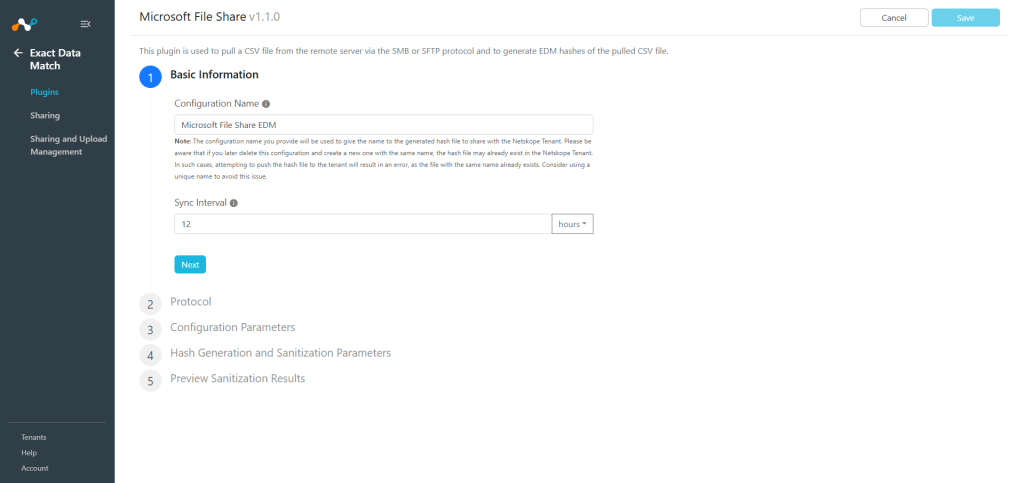
Enter the Basic Information:
-
Configuration Name: Enter a name appropriate for your integration.
The configuration name you provide will be used to give the name to the generated hash file to share with the Netskope tenant. Be aware that if you later delete this configuration and create a new one with the same name, the hash file may already exist in the Netskope tenant. In such cases, attempting to push the hash file to the tenant will result in an error, as the file with the same name already exists. Consider using a unique name to avoid this issue. -
Sync Interval: Adjust Sync Interval as per your requirement. (Default: 12 hours)
-
-
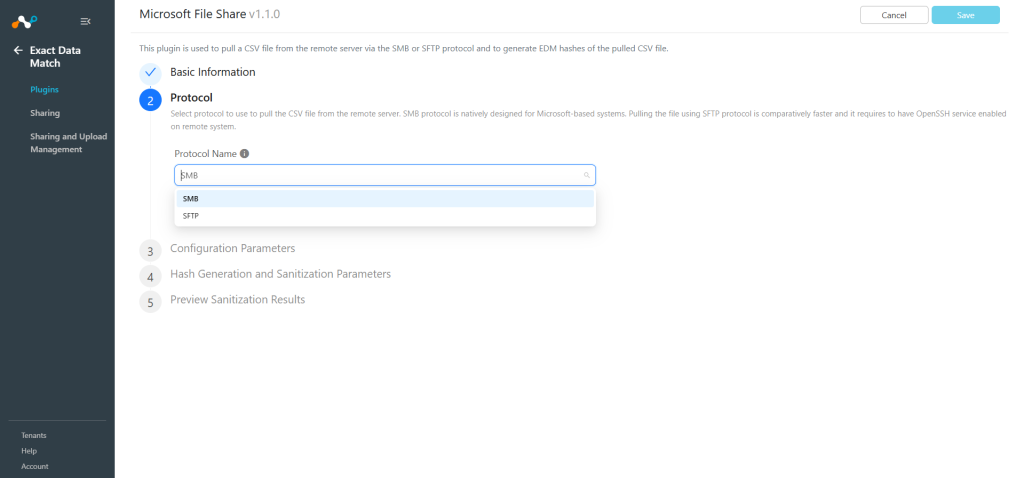
Protocol Selection: Choose the protocol to connect to the Microsoft server:
- SMB: Protocol natively designed for Microsoft-based systems. Best for internal networks.
- SFTP: Secure file transfer protocol. Comparatively faster and more secure. Requires OpenSSH service on Windows.
-
Click Next and enter the Configuration Parameters:
-
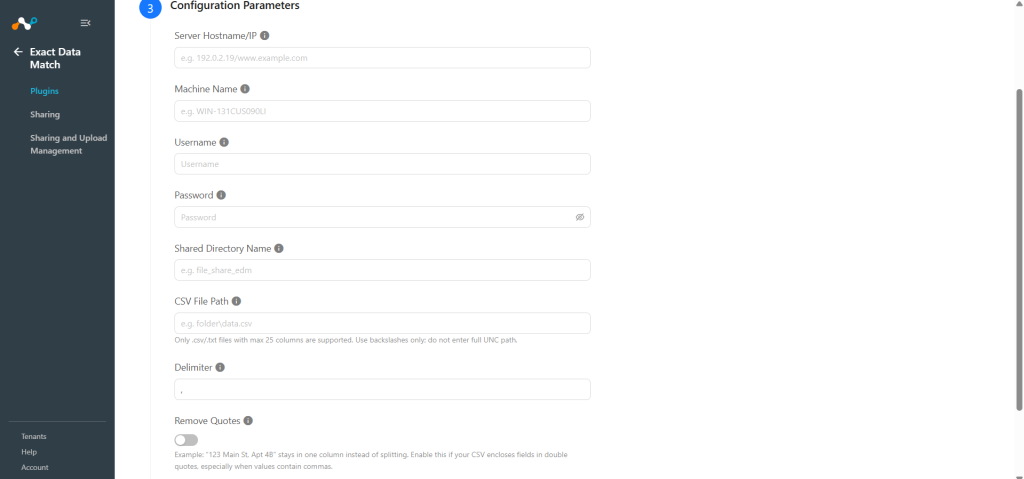
Configuration Parameters For SMB:
-
Server IP/Hostname: IP address or hostname of the Windows server.
-
Machine Name: NetBIOS machine name of the Windows server.
-
Username: Username with read access to the shared directory.
-
Password: Password associated with the username.
-
Shared Directory Name: Name of the shared directory.
-
CSV File Path: Path to the CSV file relative to the shared directory.
-
Delimiter: Single character delimiter used in the CSV/TXT file (e.g. comma, pipe, semicolon).
-
Remove Quotes: Mark as checked if your CSV encloses fields in double quotes, especially when values contain commas. Quoted fields will be parsed as single columns. Improper quote placement may cause rows to be skipped.
-
-
Configuration Parameters For SFTP:
-
Server IP/Hostname: IP address or hostname of the Windows server.
-
Username: Username with read access to the CSV file.
-
Password: Password associated with the username.
-
Port: Port to connect with OpenSSH service (Default: 22).
-
CSV File Path: Full path to the CSV file on the server.
-
Delimiter: Single character delimiter used in the CSV/TXT file (e.g. comma, pipe, semicolon).
-
Remove Quotes: Mark as checked if your CSV encloses fields in double quotes, especially when values contain commas. Quoted fields will be parsed as single columns. Improper quote placement may cause rows to be skipped.
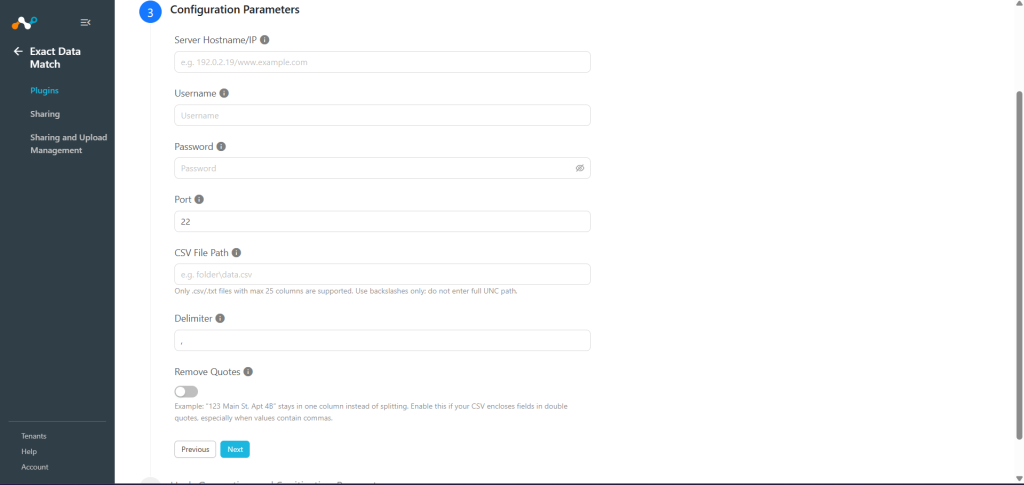 By default, quotes are treated as literal text. Enable Remove Quotes toggle if your CSV uses double quotes to encapsulate fields that contain commas (like
"123 ABC Street, Suite 100"). This ensures the field is treated as a single column. Note that this mode requires strict CSV formatting. If a field starts with a quote, any character, including a space, following the closing quote but preceding the comma (like"Word",) will cause the row to be skipped. -
-
-
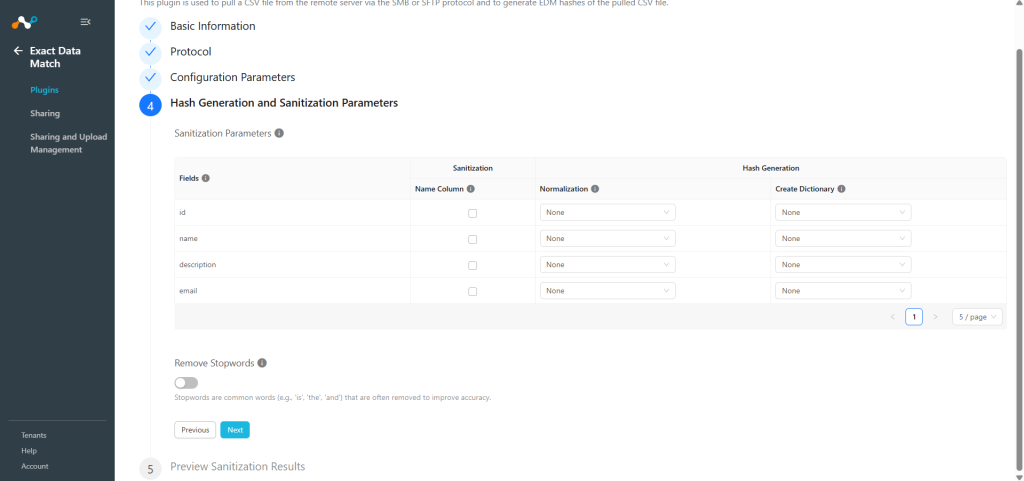
Click Next and enter the Hash Generation and Sanitization Parameters:
-
Select the appropriate options for sanitization and hash generation operations:
- Sanitization (Name Column): Sanitize the content by checking the Name Column checkbox. (Default: Unchecked). The Sanitization Process performs the following actions:
- One character: The cell will be marked as invalid if it contains only one character.
- Digits: Cells containing digits will be marked as invalid.
- Stopwords: Cells that match a stopword from the list will be marked as invalid (This works only if the Remove stopwords checkbox is checked).
- Non-alphanumeric characters: Remove all special characters to validate the cell.
- Hash Generation is divided into two parts:
- Normalization: Select the value from dropdown to normalize the data value. (Default: None)
- Create Dictionary: Select value from dropdown to create dictionary of unique values for selected field that can be used in DLP rule in netskope tenant. (Default: None)
- Sanitization (Name Column): Sanitize the content by checking the Name Column checkbox. (Default: Unchecked). The Sanitization Process performs the following actions:
-
Remove Stopwords: Mark as checked if you want to remove certain stopwords as part of the sanitization process.(Default:Unchecked) Ensure that Name Column is checked for the applicable field to reflect the changes.
Note
- Use Normalization parameter to normalize the fetched results. For example, a number such as 123-45-6789 or 123 45 6789 will be treated as 123456789. Number normalizations ignore characters such as dots, dashes and spaces. A string normalization ignores the case sensitivity of the letters.
- Use the Create Dictionary option only when necessary, as this operation is resource-intensive and may impact system performance. Choose this option thoughtfully for optimal efficiency.
-
-
Click Next. Preview the sanitization sample output by clicking Preview Good File or Preview Bad File.
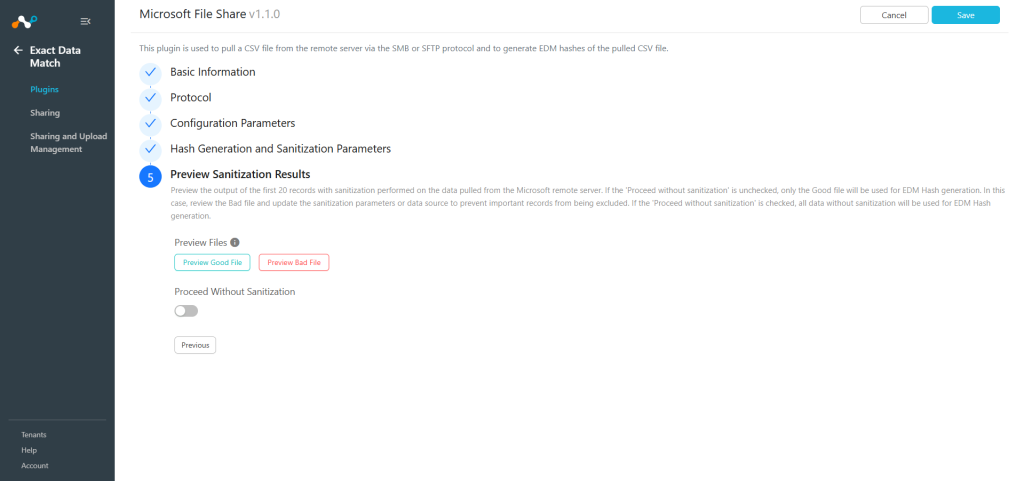 If you are using the plugin with sanitization On, then the performance may be differ due to extra processing.
 -
Proceed without sanitization: Uncheck this option to proceed with sanitization. (Default: Checked)
All the data will be under consideration for hash generation if this option is Unchecked; otherwise, only the Good File content will be part of the hash generation. -
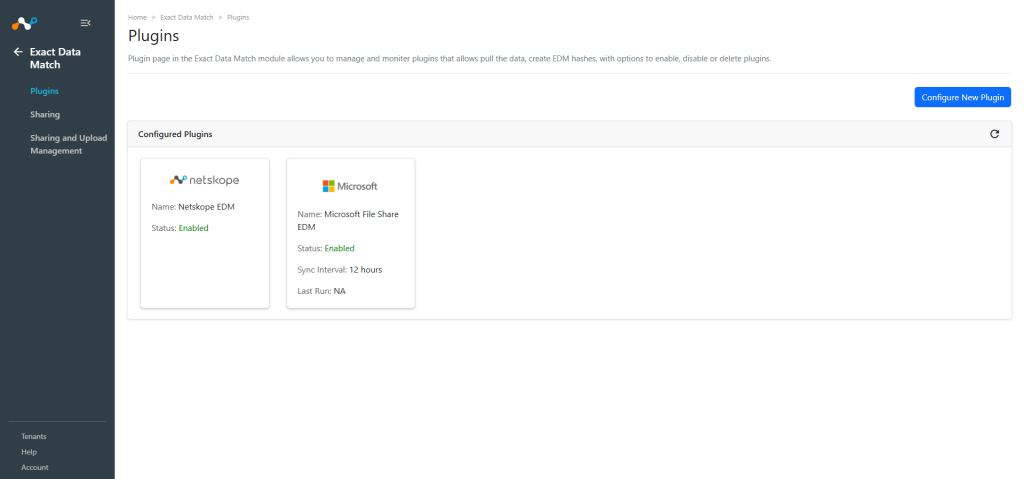
Click Save. You will be redirected to Exact Data Match > Plugins page where you can see your configured plugin.


Configure Sharing for Microsoft File Share
A sharing configuration is used to share the generated EDM hashes with the destination platform. To share EDM hashes with Netskope Tenant, create a sharing configuration using these steps:
-
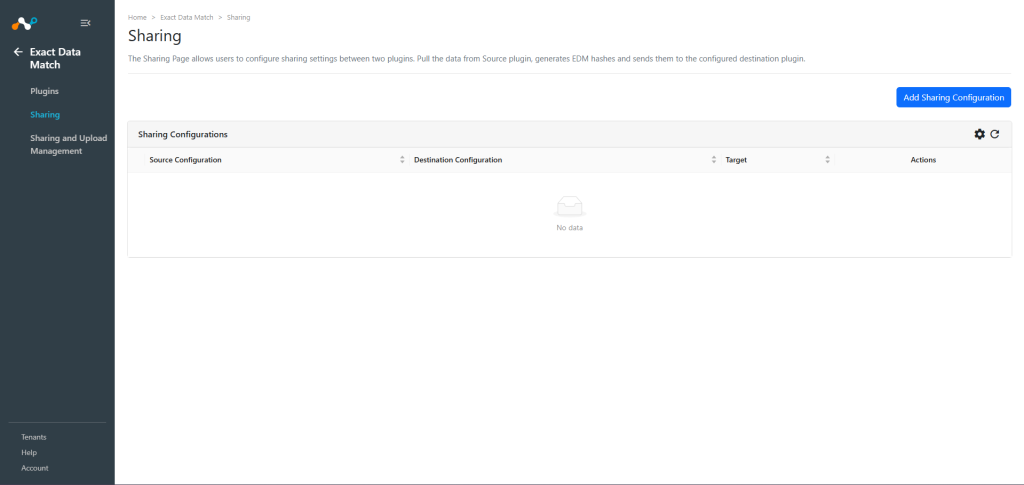
Go to Exact Data Match > Sharing and click Add Sharing Configuration.
-
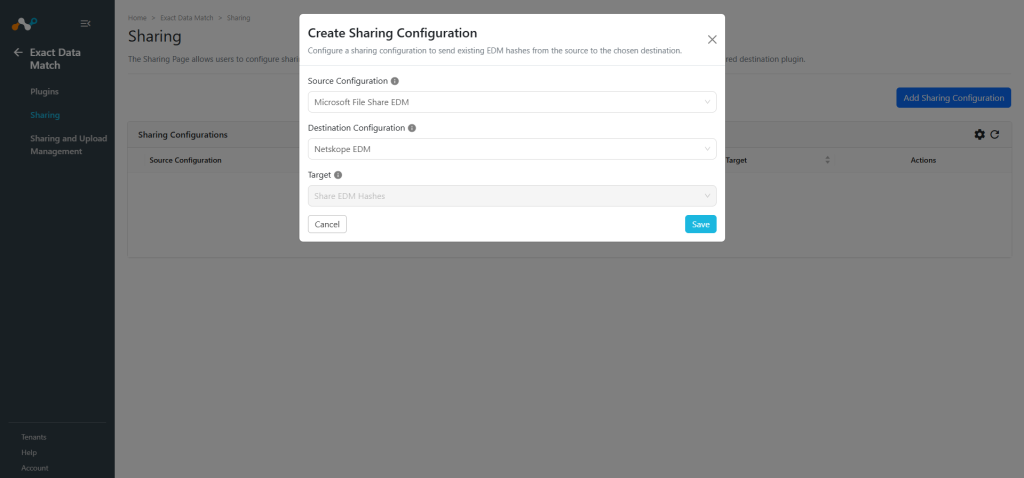
Configure the sharing parameters:
- Source Configuration: Select the configured Microsoft File Share EDM plugin.
- Destination Configuration: Select a destination where EDM Hash will be shared.
- Target: The value is automatically set according to the selected Destination Configuration.
-
Click Save.


Validate the Microsoft File Share EDM Plugin
Validate in Cloud Exchange
To validate the pulling of the configured plugin in Cloud Exchange, go to Settings > Logging and search for the Microsoft File Share EDM plugin logs.
You can verify the plugin operation from the logs available at Logging in Cloud Exchange:

The status values are as follows:
- Scheduled: Indicates that the sharing has been configured, and the pull and push operations are waiting in the queue for processing.
- Generating Hash: Indicates that the hash generation process has started. This stage includes fetching > validating > sanitization (if enabled) > generating hash.
- Uploading Hash: Indicates that uploading the hash to the destination configuration has started.
- Upload Completed: Indicates that hashes are uploaded to the destination configuration.
- Checking Apply Status: Checking the apply status of hashes to the destination configuration.
- Apply In Progress: The hash process has started and is in progress on the destination.
- Completed: Indicates that the hash file has been pushed successfully to the destination configuration.
- Failed: Indicates that the final result of the action has failed to execute. The actions are Generating Hash/Uploading Hash/Checking Apply Status.
Shared EDM hashes can be verified from the logs available at Logging in Cloud Exchange:

Validate in the Netskope Tenant
To ensure the push of EDM hashes on the Netskope Tenant from the cloud exchange:
-
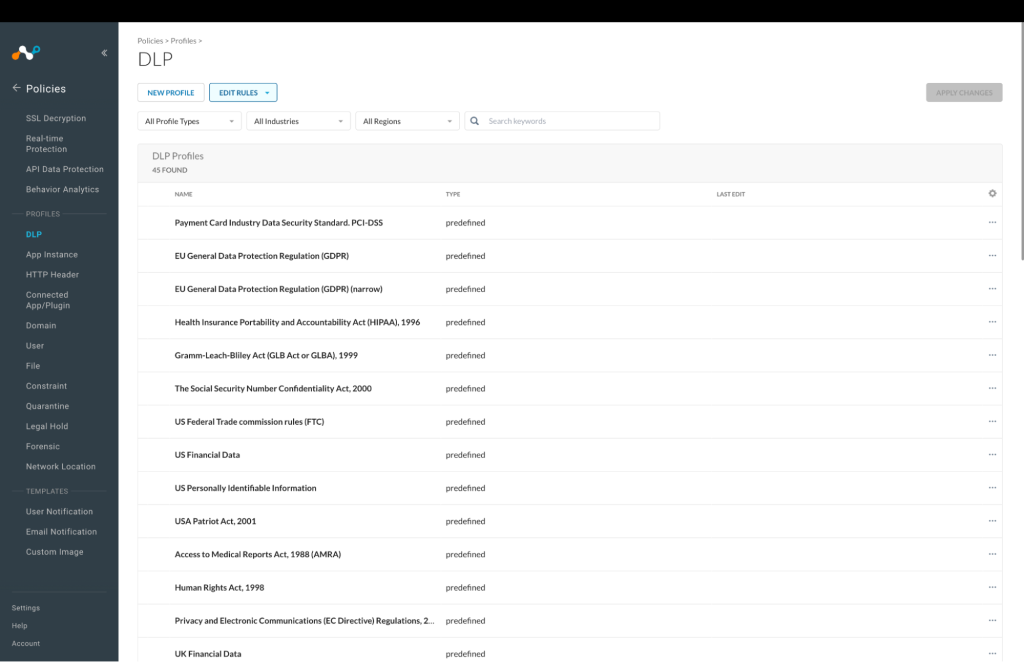
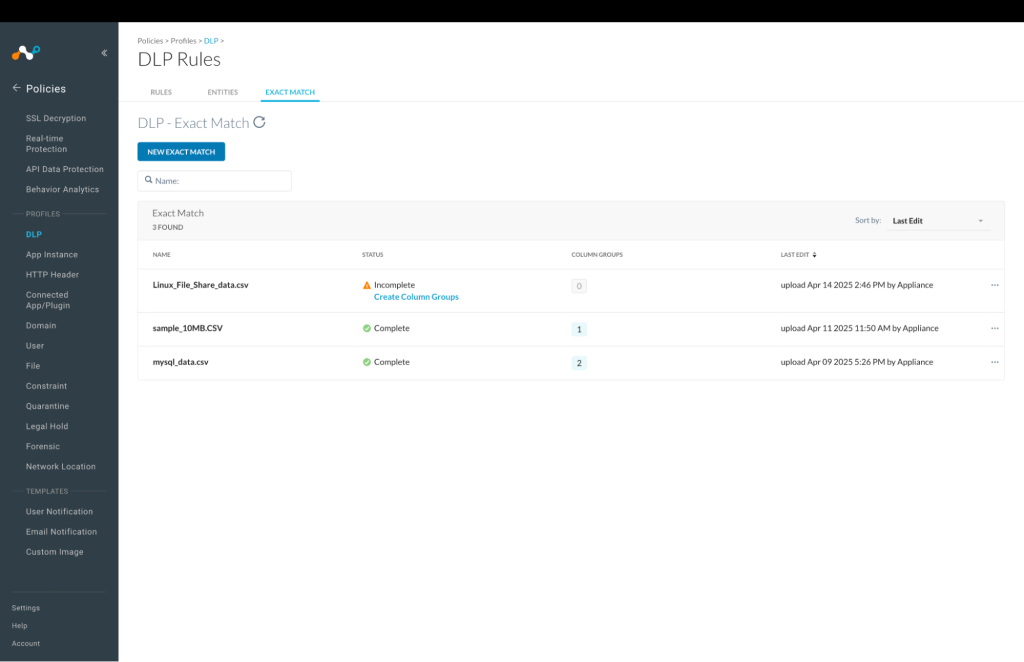
Log in to your Netskope Tenant, go to Policies > DLP.
-
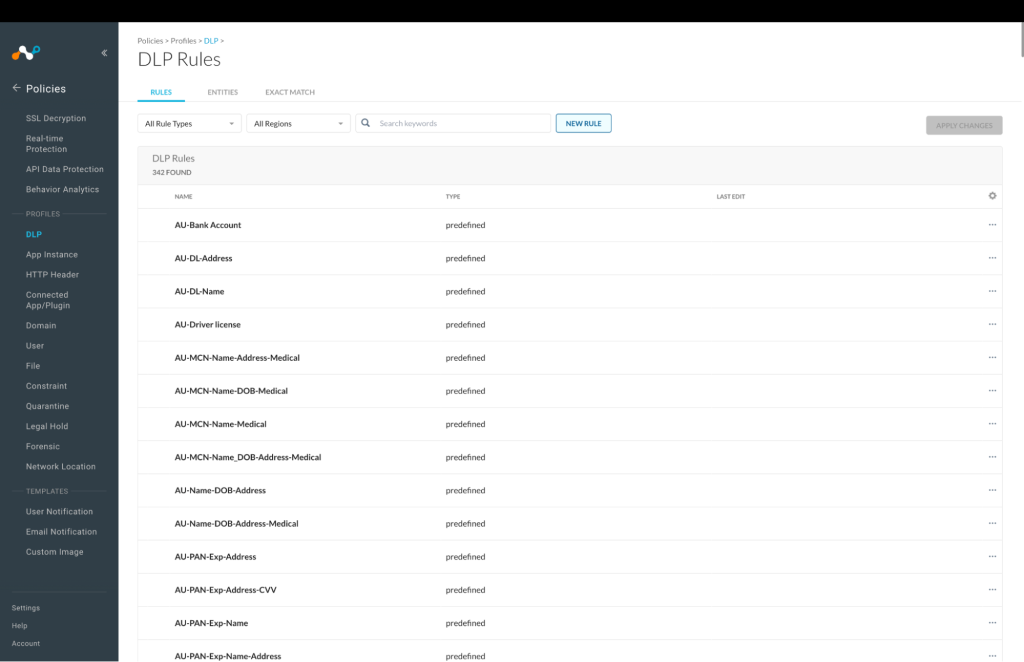
Click Edit Rules and select Data Loss Prevention.
-
On the Exact Match tab, a list of files is shown.


Troubleshooting the EDM Microsoft File Share Plugin
Unable to configure the Microsoft File Sharing Plugin
If you are unable to configure the Microsoft File Share EDM plugin, it could be due to one of the following reasons:
For the SMB Protocol
- Incorrect SMB credentials provided.
- SMB/CIFS service not running on Windows server.
- Network connectivity issues to port 445.
- Shared folder not properly configured.
- User doesn’t have read permissions to the shared directory.
For the SFTP Protocol
- Incorrect SSH credentials provided.
- OpenSSH service not running on Windows server.
- Network connectivity issues to port 22.
- SSH service not properly configured.
- User doesn’t have read permissions for the CSV file.
What to do:
For SMB Protocol:
-
Verify SMB credentials and shared folder access:
cmd net use \\\\server_ip\\shared_folder /user:username password -
Check SMB service status on Windows server:
Get-Service -Name LanmanServer -
Test network connectivity:
telnet server_ip 445
For SFTP Protocol:
-
Verify SSH credentials:
bash ssh username@server_ip -p port_number -
Check OpenSSH service status:
Get-Service -Name sshd -
Test network connectivity:
telnet server_ip 22
Protocol-specific Connection Issues
SMB Connection Failures
If SMB connections fail:
What to do:
- Enable SMB on Windows server if disabled:
Enable-WindowsOptionalFeature -Online -FeatureName SMB1Protocol - Configure Windows Firewall for SMB:
New-NetFirewallRule -DisplayName "SMB-In" -Direction Inbound -Protocol TCP -LocalPort 445 - Verify shared folder permissions and ensure the user has read access.
SFTP Connection Failures
If SFTP connections fail:
What to do:
- Install OpenSSH Server if not installed:
Add-WindowsCapability -Online -Name OpenSSH.Server~~~~0.0.1.0 - Start and configure SSH service:
Start-Service sshd Set-Service -Name sshd -StartupType 'Automatic' - Configure Windows Firewall for SSH:
New-NetFirewallRule -Name sshd -DisplayName 'OpenSSH Server (sshd)' -Enabled True -Direction Inbound -Protocol TCP -Action Allow -LocalPort 22
CSV file not found or access denied
If you receive errors about file not found or access denied.
What to do:
- Verify the CSV file path is correct and the file exists.
- Ensure the user has read permissions for the file.
- Check if the file is not locked by another process.
- For SMB: Ensure the path is relative to the shared directory.
- For SFTP: Ensure the path is the full absolute path on the server.
Hash generation fails or takes too long
If hash generation fails or performance is poor.
What to do:
- Check available disk space on Cloud Exchange (ensure at least 2x CSV file size).
- Consider using SFTP protocol for better performance.
- Reduce CSV file size or split into smaller files.
- Disable sanitization if not required to improve performance.
- Monitor system resources during processing.
Sharing configuration fails
If sharing EDM hashes to Netskope Tenant fails.
What to do:
- Verify the destination configuration is properly set up.
- Check network connectivity to the Netskope tenant.
- Ensure the hash file name doesn’t already exist in the tenant.
- Review logs for specific error messages.
Known Behaviors
- Large CSV files may require significant processing time and system resources.
- Sanitization can reduce processing speed by approximately 65% but improves data quality.
- Dictionary creation is resource-intensive and should only be used when necessary.
- The plugin creates temporary files during processing that are automatically cleaned up.
- SSH connection timeouts may occur with very large files; consider increasing timeout values.
- Memory usage scales with CSV file size; monitor system resources during large file processing.
- Windows Firewall rules may need to be configured for both SMB and SFTP protocols.
Limitations
Each Netskope tenant has a limit of handling up to 5 staging files. If this maximum limit is reached, you may encounter the following error while sharing hashes:
EDM Netskope Exact Data Match [EDM Netskope] Received exit code 400, Error occurred while uploading EDM hashes of configuration Linux EDM to the configuration EDM Netskope.
To resolve this error, you have to delete the existing files from staging.