

This document explains how to configure the Microsoft Intune v1.1.0 plugin with the Risk Exchange module of the Netskope Cloud Exchange platform. This plugin fetches Devices data from the Devices > All Devices page, Device Health Scores from the Reports > Analytics > Endpoint Analytics page, and Group Tags from the Devices > Device Onboarding > Enrollment > Windows Autopilot > Devices page in Microsoft Intune. This plugin supports Reboot Device, Sync Device, Run Windows Defender Scan, and Update Windows Defender Signatures actions in Microsoft Intune.
Prerequisites
To complete this integration, you need:
- A Netskope tenant (or multiple, for example, production and development/test instances).
- A Netskope Cloud Exchange tenant with the Tenant plugin and Risk Exchange plugin already configured.
- An Entra ID application with the required permissions.
- Connectivity to the following hosts:
Microsoft Intune Plugin Support
This plugin fetches Devices data from the Devices > All Devices page, Device Health Scores from the Reports > Analytics > Endpoint Analytics page, and Group Tags from the Devices > Device Onboarding > Enrollment > Windows Autopilot > Devices page in Microsoft Intune. This plugin supports Reboot Device, Sync Device, Run Windows Defender Scan, and Update Windows Defender Signatures actions in Microsoft Intune.
| Type of Data Pulled | Actions Supported |
|---|---|
| Devices |
|
Mappings
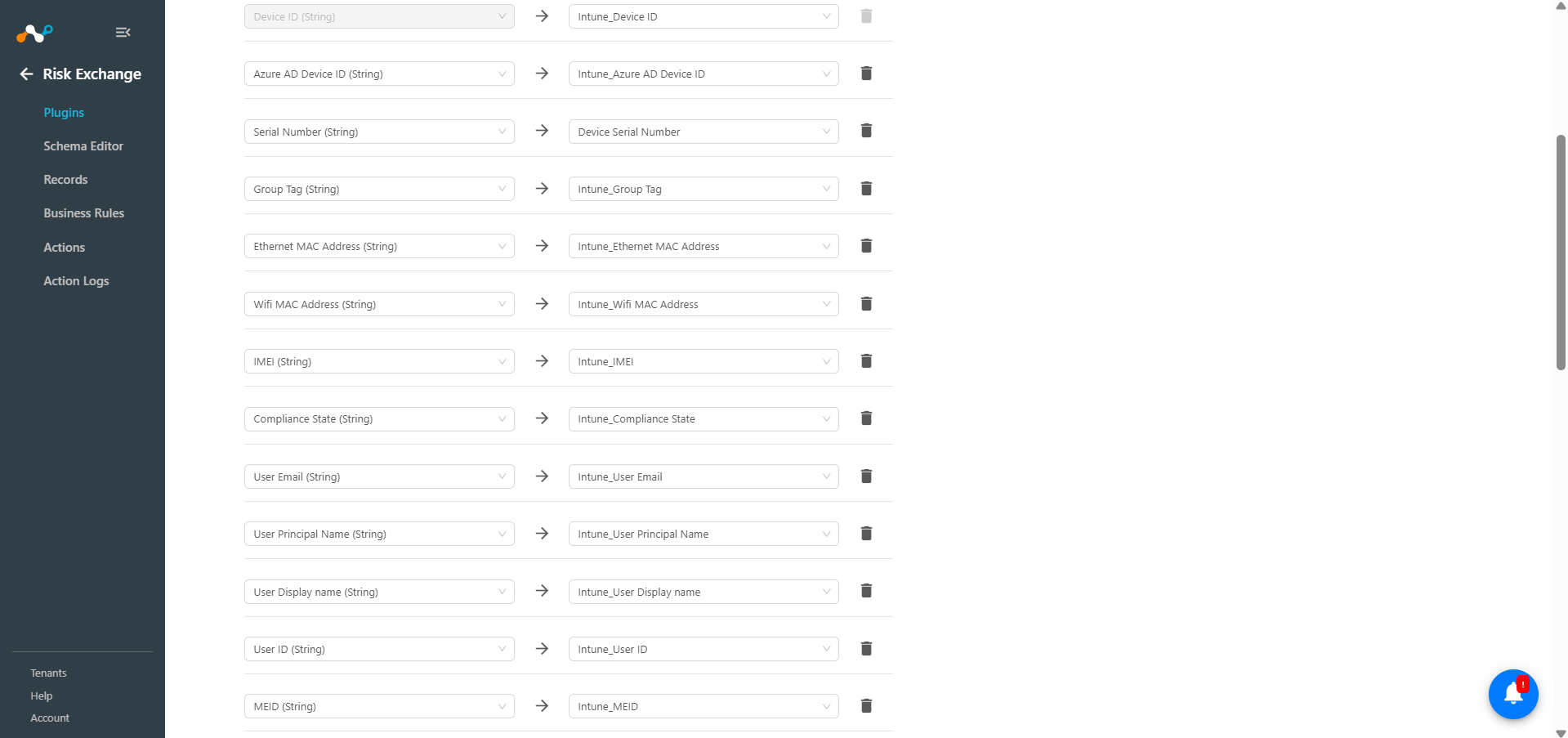
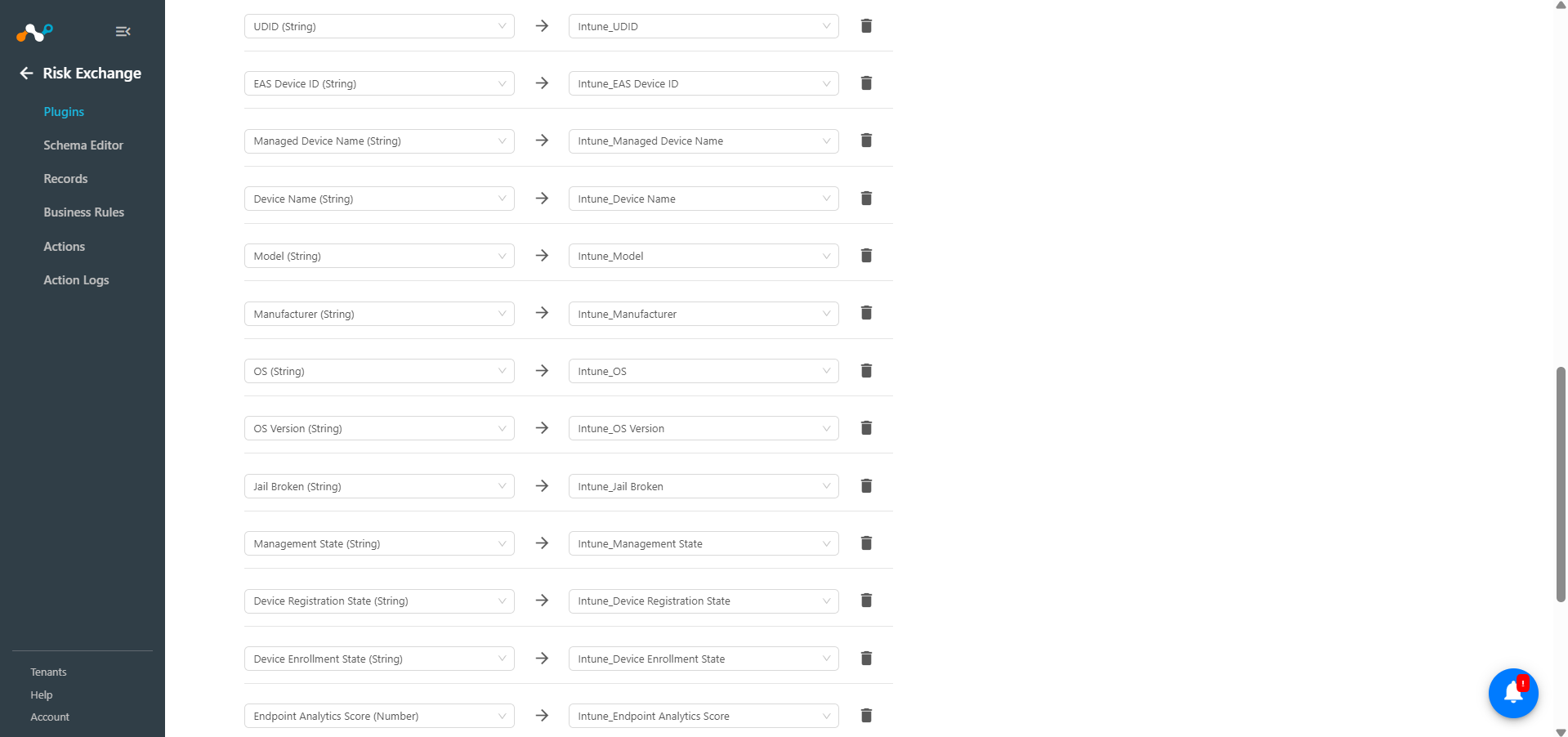
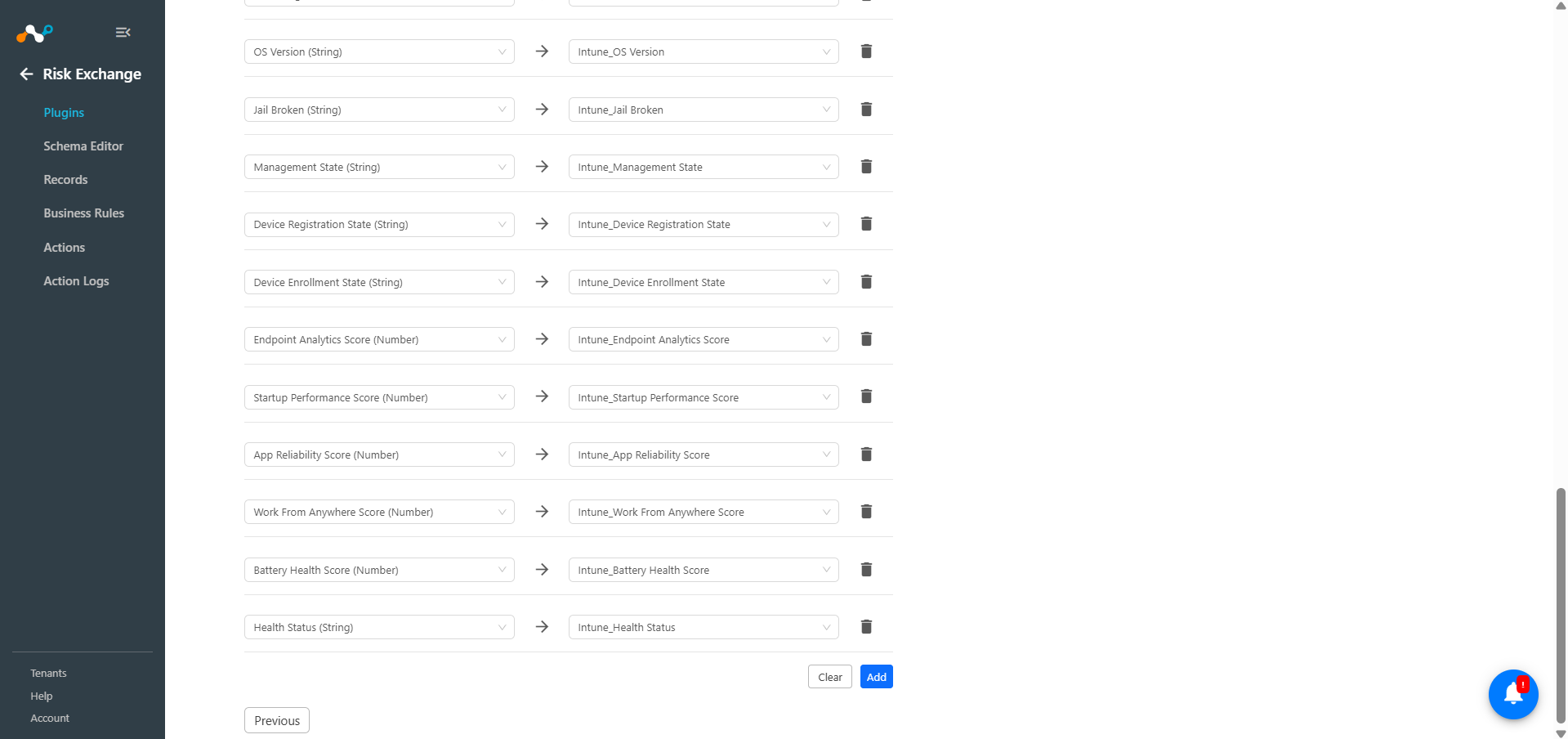
Mapping will be used to view the pulled Devices and their respective details. Mapped fields during plugin configuration will be visible on the Records page once the data is pulled. Below is the suggested mapping that can be used while configuring the plugin.
Pull Mapping for Devices
| Plugin Field Label | Expected Data Type | Suggested Field Label | Suggested Aggregate Strategy |
|---|---|---|---|
| Device ID | String | Device ID | Unique |
| Azure AD Device ID | String | Azure AD Device ID | Overwrite |
| Serial Number | String | Serial Number | Overwrite |
| Ethernet MAC Address | String | Ethernet MAC Address | Overwrite |
| Wifi MAC Address | String | Wifi MAC Address | Overwrite |
| IMEI | String | IMEI | Overwrite |
| Compliance State | String | Compliance State | Overwrite |
| User Email | String | User Email | Overwrite |
| User Principal Name | String | User Principal Name | Overwrite |
| User Display name | String | User Display name | Overwrite |
| User ID | String | User ID | Overwrite |
| MEID | String | MEID | Overwrite |
| UDID | String | UDID | Overwrite |
| EAS Device ID | String | EAS Device ID | Overwrite |
| Managed Device Name | String | Managed Device Name | Overwrite |
| Device Name | String | Device Name | Overwrite |
| Model | String | Model | Overwrite |
| Manufacturer | String | Manufacturer | Overwrite |
| OS | String | OS | Overwrite |
| OS Version | String | OS Version | Overwrite |
| Jail Broken | String | Jail Broken | Overwrite |
| Management State | String | Management State | Overwrite |
| Device Registration State | String | Device Registration State | Overwrite |
| Device Enrollment State | String | Device Enrollment State | Overwrite |
| Endpoint Analytics Score | Number | Endpoint Analytics Score | Overwrite |
| Startup Performance Score | Number | Startup Performance Score | Overwrite |
| App Reliability Score | Number | App Reliability Score | Overwrite |
| Work From Anywhere Score | Number | Work From Anywhere Score | Overwrite |
| Battery Health Score | Number | Battery Health Score | Overwrite |
| Health Status | String | Health Status | Overwrite |
Note
- To merge records from multiple plugins you need to choose some unique and common fields between all the plugins.
- For Example: To merge records from the Risk Exchange, Microsoft Intune, and CrowdStrike plugins under a single entity, you can make the Device Serial Number/Serial Number a unique field that is common in all three plugins.
Permissions
The Microsoft Entra ID application (formerly Azure Active Directory) must have these permissions:
- DeviceManagementManagedDevices.Read.All
- DeviceManagementManagedDevices.ReadWrite.All
- DeviceManagementManagedDevices.PrivilegedOperations.All
- DeviceManagementServiceConfig.ReadWrite.All
- DeviceManagementConfiguration.ReadWrite.All
API Details
List of APIs Used
| API Endpoint | Method | Use Case |
|---|---|---|
| /<tenant_id>/oauth2/v2.0/token | POST | Generate access token |
| /deviceManagement/managedDevices | GET | Fetch devices |
| /deviceManagement/userExperienceAnalyticsDeviceScores | GET | Fetch device health scores |
| /deviceManagement/managedDevices/<device_id>/rebootNow | POST | Reboot Device |
| /deviceManagement/managedDevices/<device_id>/syncDevice | POST | Sync Device |
| /deviceManagement/managedDevices/<device_id>/windowsDefenderScan | POST | Run windows defender scan |
| /deviceManagement/managedDevices/<device_id>/windowsDefenderUpdateSignatures | POST | Update windows defender signatures |
| /$batch | POST | Batched API Endpoint |
| /deviceManagement/windowsAutopilotDeviceIdentities | GET | Fetch device group tags |
Generate Access token
Endpoint: https://login.microsoftonline.com/<tenant_id>/oauth2/v2.0/token
Method: POST
Headers
| Key | Value |
|---|---|
| User-Agent | netskope-ce-6.0.1-cre-microsoft-intune-v1.1.0 |
| Content-Type | application/x-www-form-urlencoded |
Request Body
| Key | Value |
|---|---|
| grant_type | client_credentials |
| client_id | <client_id> |
| client_secret | <client_secret> |
| scope | https://graph.microsoft.com/.default |
Sample Response
{
    "token_type": "Bearer",
    "expires_in": 3599,
    "ext_expires_in": 3599,
    "access_token": "eyJ0eXAiOiJKV1QiLCJub25jZ.ASKajYnNghrgyqzO-H2Pns"
}
API URL for all the below endpoints is: https://graph.microsoft.com/v1.0
Fetch Devices
Endpoint: /deviceManagement/managedDevices
Method: GET
Headers
| Key | Value |
|---|---|
| User-Agent | netskope-ce-6.0.1-cre-microsoft-intune-v1.1.0 |
| Authorization | Bearer <access_token> |
Query Parameters
| Key | Value | Description |
|---|---|---|
| $top | 500 | Number of devices to get in the API response |
| $filter | lastSyncDateTime ge <datetime> | Filter API response |
| $skiptoken | <skip_token> | Next page token |
Sample Response
{
    "@odata.context": "https://graph.microsoft.com/v1.0/$metadata#deviceManagement/managedDevices",
    "@odata.count": 1,
    "value": [
        {
            "id": "97a16538-13de-4fb0-b522-4f42da4958b3",
            "userId": "e4ae0b3b-7d23-41fb-b3e7-ca2ab72ed952",
            "deviceName": "WIN11-50-10-99",
            "managedDeviceOwnerType": "company",
            "managementState": "managed",
            "enrolledDateTime": "2025-09-24T09:36:14Z",
            "lastSyncDateTime": "2025-10-28T11:54:19Z",
            "operatingSystem": "Windows",
            "complianceState": "compliant",
            "jailBroken": "Unknown",
            "managementAgent": "mdm",
            "osVersion": "10.0.22621.4317",
            "easActivated": true,
            "easDeviceId": "B2AA3AEF93D9972DF31470B343BFB661",
            "easActivationDateTime": "0001-01-01T00:00:00Z",
            "azureADRegistered": true,
            "deviceEnrollmentType": "windowsAutoEnrollment",
            "activationLockBypassCode": null,
            "emailAddress": "netskope@netskope.onmicrosoft.com",
            "azureADDeviceId": "65c126aa-b1da-44a3-ae14-dfe367da5987",
            "deviceRegistrationState": "registered",
            "deviceCategoryDisplayName": "NetskopeCE",
            "isSupervised": false,
            "exchangeLastSuccessfulSyncDateTime": "0001-01-01T00:00:00Z",
            "exchangeAccessState": "none",
            "exchangeAccessStateReason": "none",
            "remoteAssistanceSessionUrl": null,
            "remoteAssistanceSessionErrorDetails": null,
            "isEncrypted": false,
            "userPrincipalName": "netskope@netskope.onmicrosoft.com",
            "model": "VMware7,1",
            "manufacturer": "VMware, Inc.",
            "imei": "",
            "complianceGracePeriodExpirationDateTime": "9999-12-31T23:59:59Z",
            "serialNumber": "VMware-42030d0e92ed5c36-c1a09bc4b6be3254",
            "phoneNumber": "",
            "androidSecurityPatchLevel": "",
            "userDisplayName": "netskope",
            "configurationManagerClientEnabledFeatures": null,
            "wiFiMacAddress": "aa:bb:cc:dd:ee:ff",
            "deviceHealthAttestationState": null,
            "subscriberCarrier": "",
            "meid": "",
            "totalStorageSpaceInBytes": 52855570432,
            "freeStorageSpaceInBytes": 314572800,
            "managedDeviceName": "WindowsVM",
            "partnerReportedThreatState": "unknown",
            "requireUserEnrollmentApproval": null,
            "managementCertificateExpirationDate": "2026-05-04T15:01:05Z",
            "iccid": null,
            "udid": null,
            "notes": null,
            "ethernetMacAddress": “aa:bb:cc:dd:ee:ff”,
            "physicalMemoryInBytes": 0,
            "enrollmentProfileName": null,
            "deviceActionResults": []
        }
    ]
}
Fetch Device Health Score
Endpoint: /deviceManagement/userExperienceAnalyticsDeviceScores
Method: GET
Headers
| Key | Value |
|---|---|
| User-Agent | netskope-ce-6.0.1-cre-microsoft-intune-v1.1.0 |
| Authorization | Bearer <access_token> |
Query Parameters
| Key | Value | Description |
|---|---|---|
| $top | 500 | Number of devices to get in the API response |
| $filter | lastSyncDateTime ge <datetime> | Filter API response |
| $skiptoken | <skip_token> | Next page token |
Sample Response
{
  "value": [
    {
      "@odata.type": "#microsoft.graph.userExperienceAnalyticsDeviceScores",
      "id": "0dd9f6cf-f6cf-0dd9-cff6-d90dcff6d90d",
      "deviceName": "Device Name value",
      "model": "Model value",
      "manufacturer": "Manufacturer value",
      "endpointAnalyticsScore": 7.333333333333333,
      "startupPerformanceScore": 7.666666666666667,
      "appReliabilityScore": 6.333333333333333,
      "workFromAnywhereScore": 7.0,
      "batteryHealthScore": 6.0,
      "healthStatus": "insufficientData"
    }
  ]
}
Reboot Device
Endpoint: /deviceManagement/managedDevices/<device_id>/rebootNow
Method: POST
Headers
| Key | Value |
|---|---|
| User-Agent | netskope-ce-6.0.1-cre-microsoft-intune-v1.1.0 |
| Authorization | Bearer <access_token> |
Path Parameters
| Key | Value | Description |
|---|---|---|
| device_id | 0dd9f6cf-f6cf-0dd9-cff6-d90dcff6d90d | ID of device to be rebooted |
Sample Response
204 No Content
Sync Device
Endpoint: /deviceManagement/managedDevices/<device_id>/syncDevice
Method: POST
Headers
| Key | Value |
|---|---|
| User-Agent | netskope-ce-6.0.1-cre-microsoft-intune-v1.1.0 |
| Authorization | Bearer <access_token> |
Path Parameters
| Key | Value | Description |
|---|---|---|
| device_id | 0dd9f6cf-f6cf-0dd9-cff6-d90dcff6d90d | ID of device to be synced |
Sample Response
204 No Content
Run Windows Defender Scan
Endpoint: /deviceManagement/managedDevices/<device_id>/windowsDefenderScan
Method: POST
Headers
| Key | Value |
|---|---|
| User-Agent | netskope-ce-6.0.1-cre-microsoft-intune-v1.1.0 |
| Authorization | Bearer <access_token> |
Path Parameters
| Key | Value | Description |
|---|---|---|
| device_id | 0dd9f6cf-f6cf-0dd9-cff6-d90dcff6d90d | ID of device on which windows defender scan will run |
Request Body
{
    "quickScan": True or False
}
Sample Response
204 No Content
Update Windows Defender Signatures
Endpoint: /deviceManagement/managedDevices/<device_id>/windowsDefenderUpdateSignatures
Method: POST
Headers
| Key | Value |
|---|---|
| User-Agent | netskope-ce-6.0.1-cre-microsoft-intune-v1.1.0 |
| Authorization | Bearer <access_token> |
Path Parameters
| Key | Value | Description |
|---|---|---|
| device_id | 0dd9f6cf-f6cf-0dd9-cff6-d90dcff6d90d | ID of device for which windows defender signatures are to be updated |
Sample Response
204 No Content
Batched API Endpoint
Endpoint: /$batch
Method: POST
Headers
| Key | Value |
|---|---|
| User-Agent | netskope-ce-6.0.1-cre-microsoft-intune-v1.1.0 |
| Authorization | Bearer <access_token> |
Request Body
{
    "requests": [
        {
            "id": "690b1aad-190e-40d2-9bc2-39132a2d3680",
            "url": "/deviceManagement/managedDevices/690b1aad-190e-40d2-9bc2-39132a2d3680/rebootNow",
            "method": "POST",
            "headers": {
                "Content-Type": "application/json"
            },
            "body": {}
        },
        {
            "id": "690b1aad-23db-4fb0-b922-4f42da2958b3",
            "url": "/deviceManagement/managedDevices/690b1aad-23db-4fb0-b922-4f42da2958b3/syncDevice",
            "method": "POST",
            "headers": {
                "Content-Type": "application/json"
            },
            "body": {}
        },
        {
            "id": "690b1aad-1935-4eae-b8d8-d13f2803f671",
            "url": "/deviceManagement/managedDevices/690b1aad-1935-4eae-b8d8-d13f2803f671/windowsDefenderScan",
            "method": "POST",
            "headers": {
                "Content-Type": "application/json"
            },
            "body": {
                "quickScan": true
            }
        },
        {
            "id": "690b1aad-09b7-4c38-8e93-23aef667af01",
            "url": "/deviceManagement/managedDevices/690b1aad-09b7-4c38-8e93-23aef667af01/windowsDefenderUpdateSignatures",
            "method": "POST",
            "headers": {
                "Content-Type": "application/json"
            },
            "body": {}
        }
    ]
}
Sample Response
{
    "responses": [
        {
            "id": "690b1aad-190e-40d2-9bc2-39132a2d3680",
            "status": 204,
            "body": null
        },
        {
            "id": "690b1aad-23db-4fb0-b922-4f42da2958b3",
            "status": 204,
            "body": null
        },
        {
            "id": "690b1aad-1935-4eae-b8d8-d13f2803f671",
            "status": 204,
            "body": null
        },
        {
            "id": "690b1aad-09b7-4c38-8e93-23aef667af01",
            "status": 204,
            "body": null
        }
    ]
}
Fetch Device Group Tags
Endpoint: /deviceManagement/windowsAutopilotDeviceIdentities
Method: GET
Headers
| Key | Value |
|---|---|
| User-Agent | netskope-ce-6.0.1-cre-microsoft-intune-v1.1.0 |
| Authorization | Bearer <access_token> |
Query Parameters
| Key | Value | Description |
|---|---|---|
| $top | 500 | Number of devices to get in the API response |
| $skiptoken | <skip_token> | Next page token |
Sample Response
{
    "@odata.context": "https://graph.microsoft.com/v1.0/$metadata#deviceManagement/windowsAutopilotDeviceIdentities",
    "@odata.count": 1,
    "@odata.nextLink": "https://graph.microsoft.com/v1.0/deviceManagement/windowsAutopilotDeviceIdentities?$top=1&$skiptoken=LastSerialNumber%3d%MP4193E7FAX%27",
    "value": [
        {
            "id": "19ed68e5-871e-4f49-8003-3363c06c2fe3",
            "groupTag": "LocalMachine-E",
            "purchaseOrderIdentifier": "",
            "serialNumber": "MP4193E7FAX",
            "productKey": "58fddc96-c392-871e-ad39-3363c06c2fe3",
            "manufacturer": "LENOVO",
            "model": "20VE",
            "enrollmentState": "enrolled",
            "lastContactedDateTime": "2026-01-30T09:19:13Z",
            "addressableUserName": "",
            "userPrincipalName": "",
            "resourceName": "",
            "skuNumber": "LENOVO_MT_20VE_BU_idea_FM_ThinkBook 15 G2 ITL",
            "systemFamily": "ThinkBook 15 G2 ITL",
            "azureActiveDirectoryDeviceId": "fe8503ff-f9bb-40b6-b652-3363c06c2fe3",
            "managedDeviceId": "c89ab55d-b652-4e79-f9bb-8675caaf73e0",
            "displayName": "NetskopeLaptop-1"
        }
    ]
}
Performance Matrix
Here is the performance matrix conducted on a Large Cloud Exchange Stack with these specifications by pulling 500k Devices.
| Description | Specification |
|---|---|
| Stack Size | Large RAM: 32 GB Core: 16 |
| Time taken to store the pulled and updated 500k Device records | ~20 mins |
Note
The plugin has been validated with Windows and Mac devices.
User Agent
netskope-ce-6.0.1-cre-microsoft-intune-v1.1.0
Workflow
- Get your Client ID, Client Secret and Tenant ID from Microsoft Intune
- Configure the Microsoft Intune plugin
- Add a Business Rule for Microsoft Intune
- Add an Action for Microsoft Intune
- Validation
Watch a Video
Click play to watch a video.
Get the Client ID, Client Secret, and Tenant ID from Microsoft Intune
- Log in into the Azure platform and go to App Registrations > All applications.
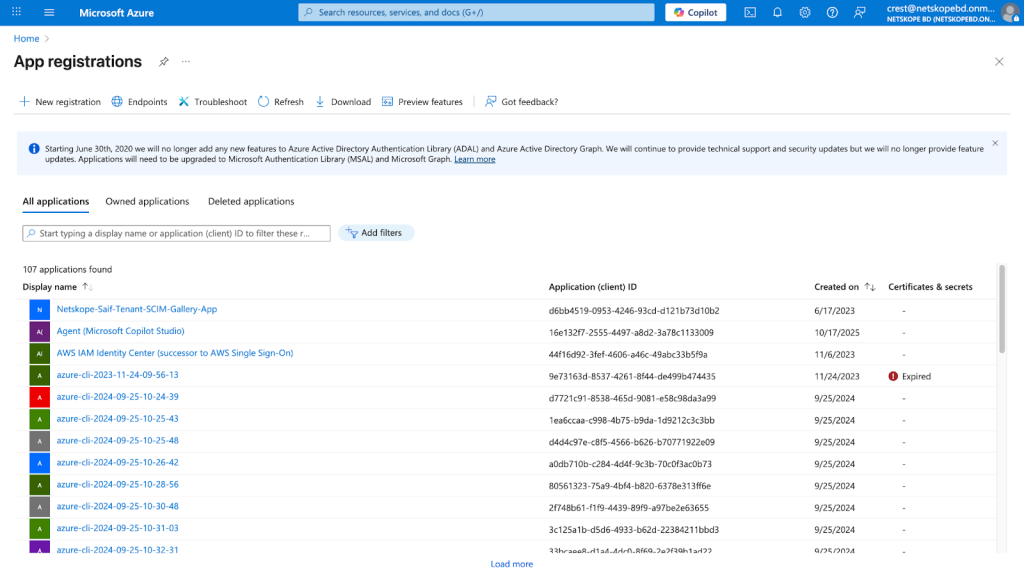

- Search for your App and select it.
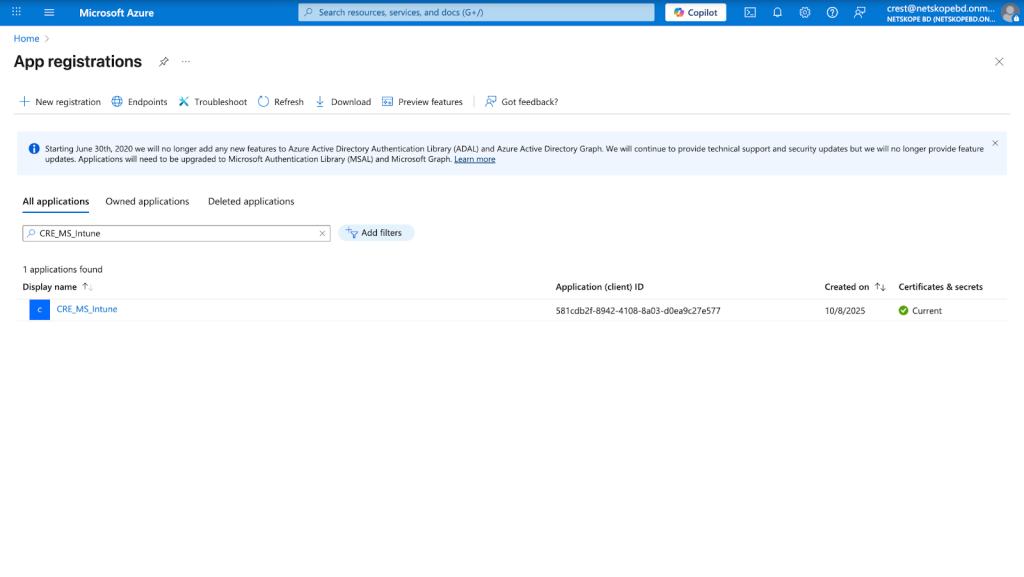

- Copy the Client ID and Tenant ID listed under Essentials.
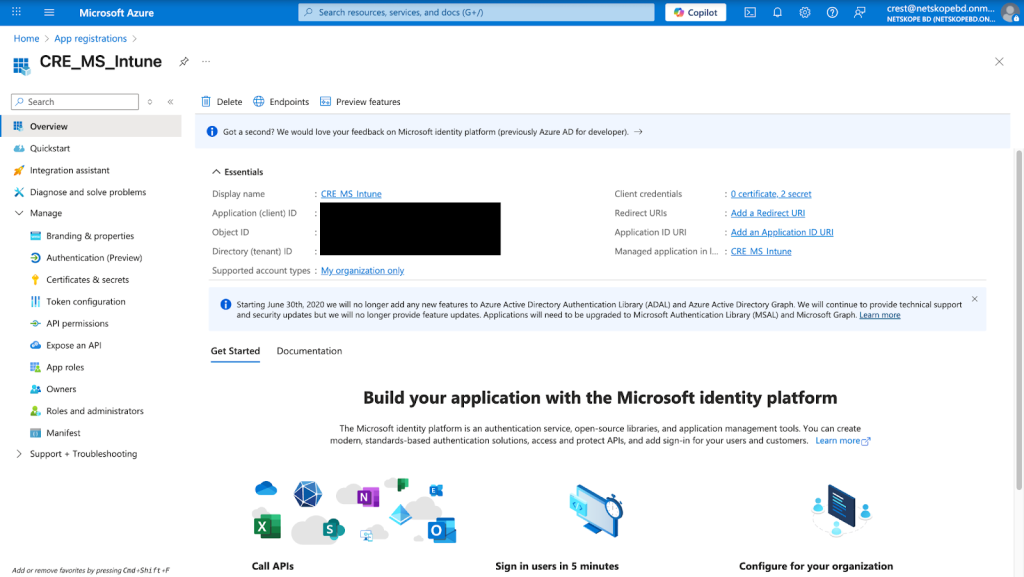

- For the Client Secret, go to Manage > Certificates & secrets.
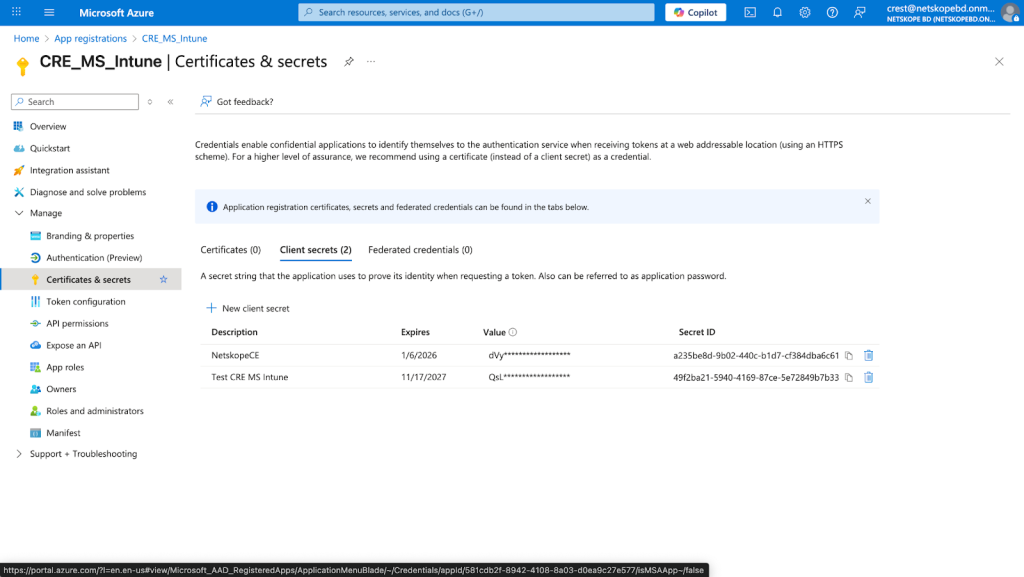

- Click New client secret, and then enter a Description and Expiry per your requirements.
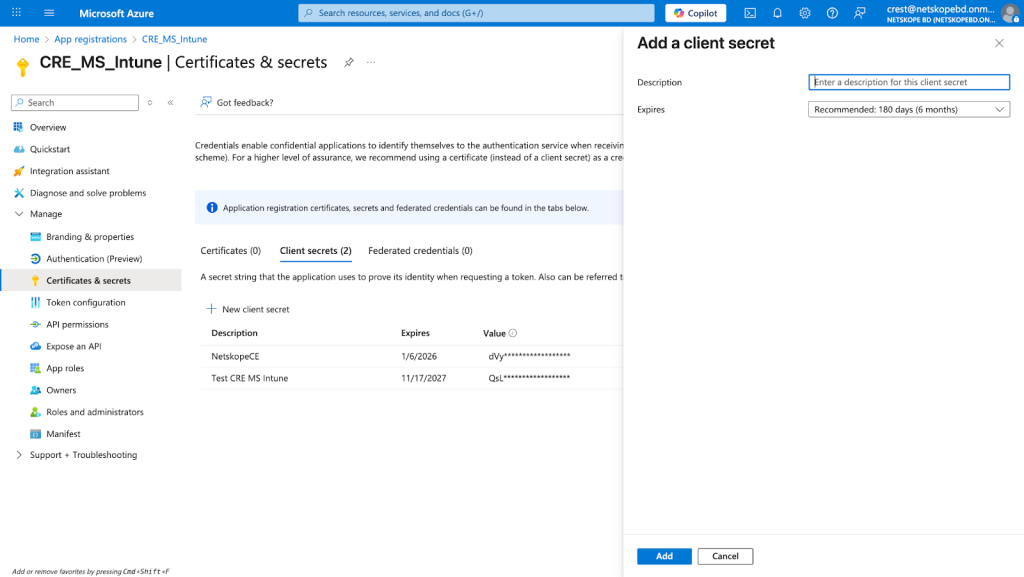

- Copy the Client secret.
Note
Make sure to copy the Client Secret value and not the Secret ID.
Configure the Microsoft Intune Plugin
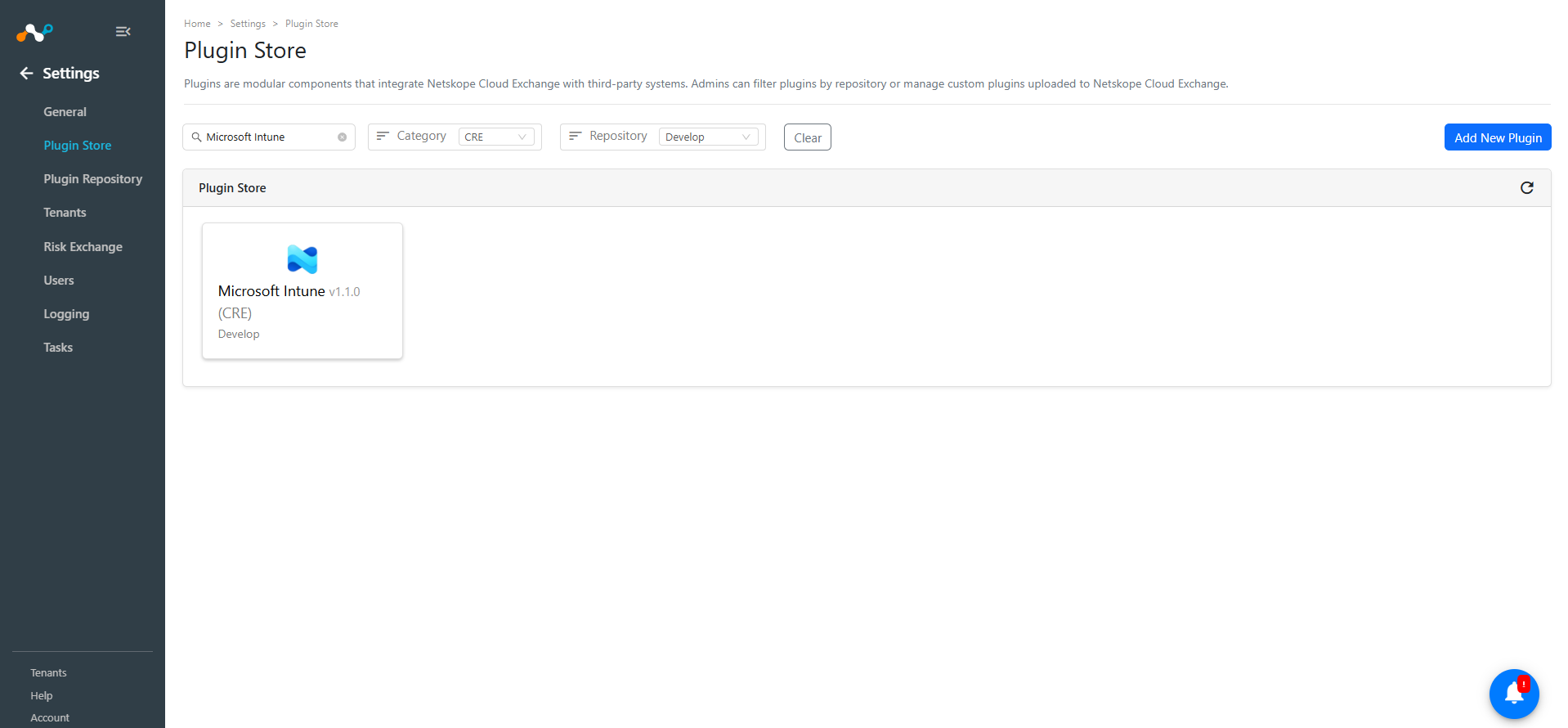
- In Cloud Exchange, go to Settings > Plugin Store. Search for and select the Microsoft Intune v1.1.0 (CRE) plugin box.
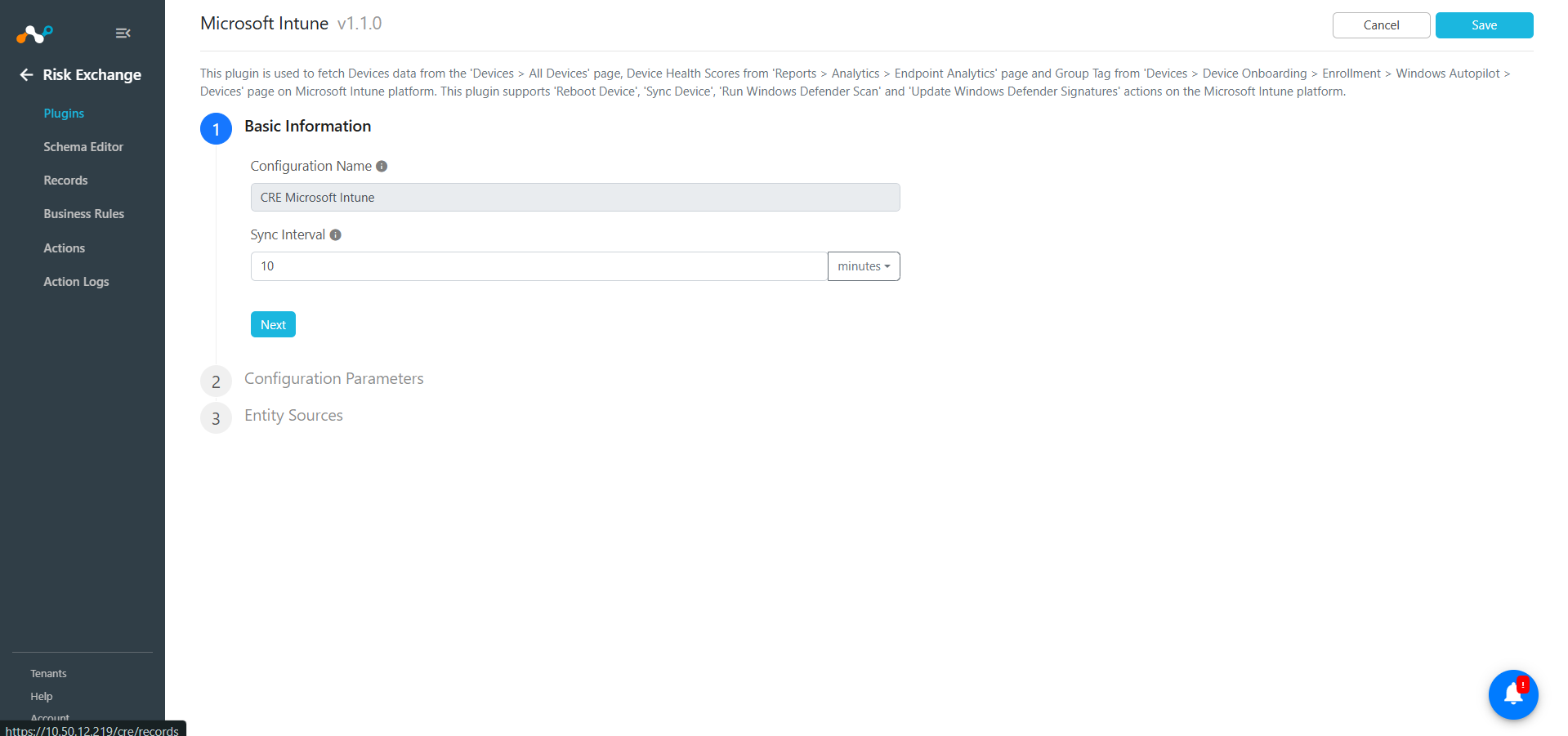
- Add a plugin configuration name and change the sync interval if needed.
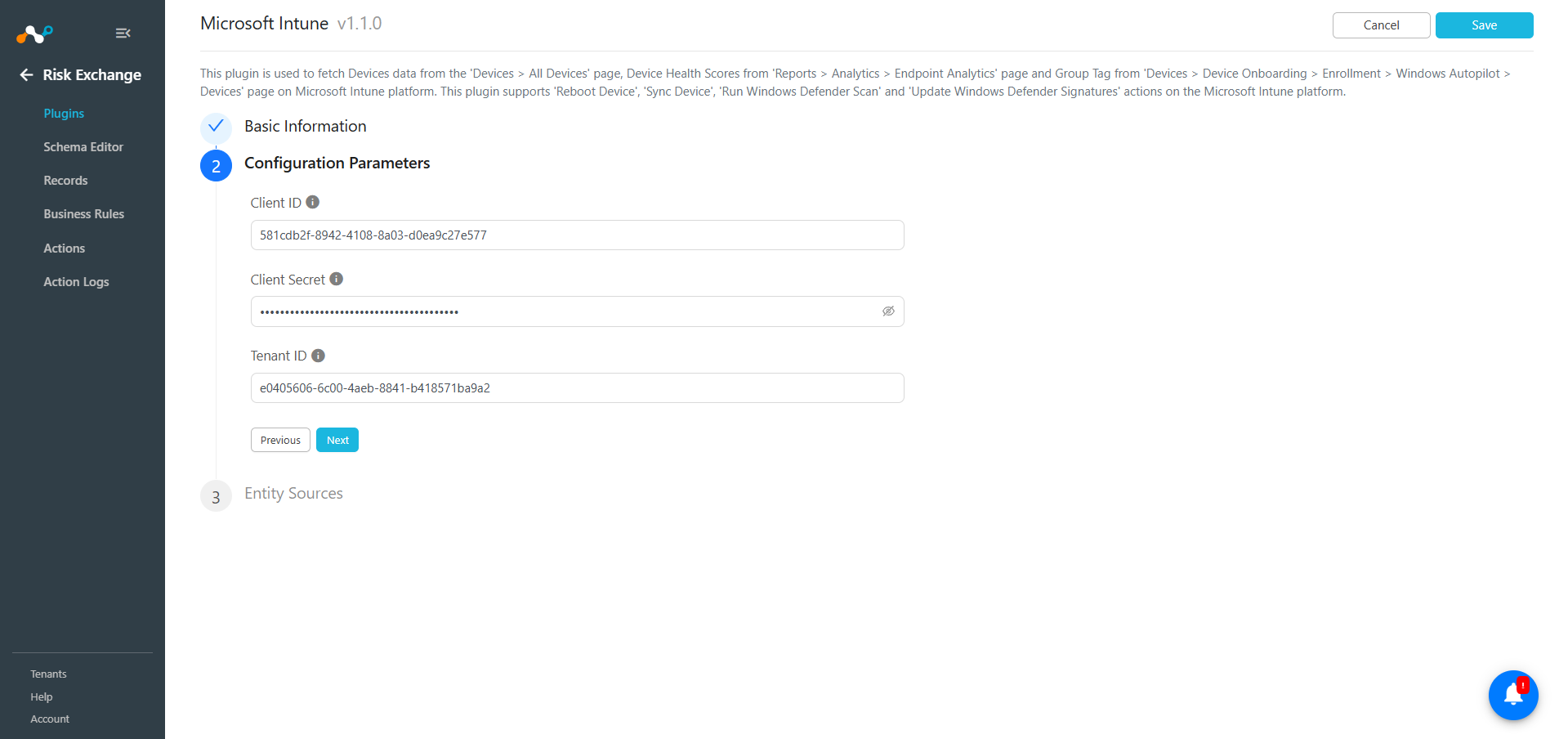
- Click Next and enter the Configuration Parameters:
- Client ID: Client ID for the Microsoft Azure Application. On your Microsoft Azure portal navigate to ‘Azure Entra ID > App registrations > Your Application > Overview page and get the Client ID.
- Client Secret: Client Secret for Microsoft Azure Application. On your Microsoft Azure portal navigate to ‘Azure Entra ID > App registrations > Your Application > Certificates & Secrets’ page and get the Client Secret. Note: Make sure to copy the client secret value and not the Secret ID.
- Tenant ID: Tenant ID for the Microsoft Azure Application. On your Microsoft Azure portal navigate to ‘Azure Entra ID > App registrations > Your Application > Overview page and get the Tenant ID.
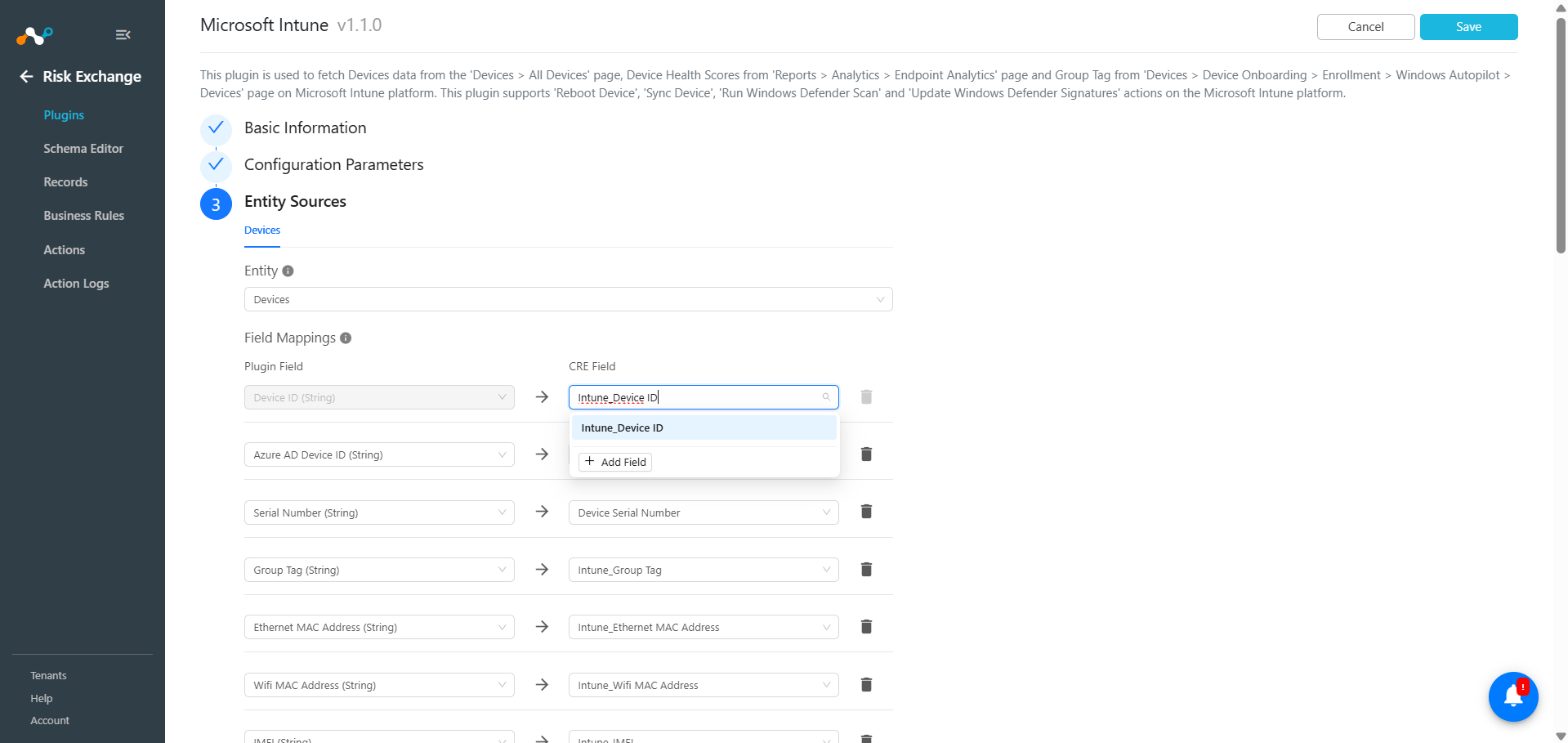
- Click Next, select the Entity from the Entity dropdown, and provide the field mapping per the requirements. To create a new field under any entity, click + Add field.
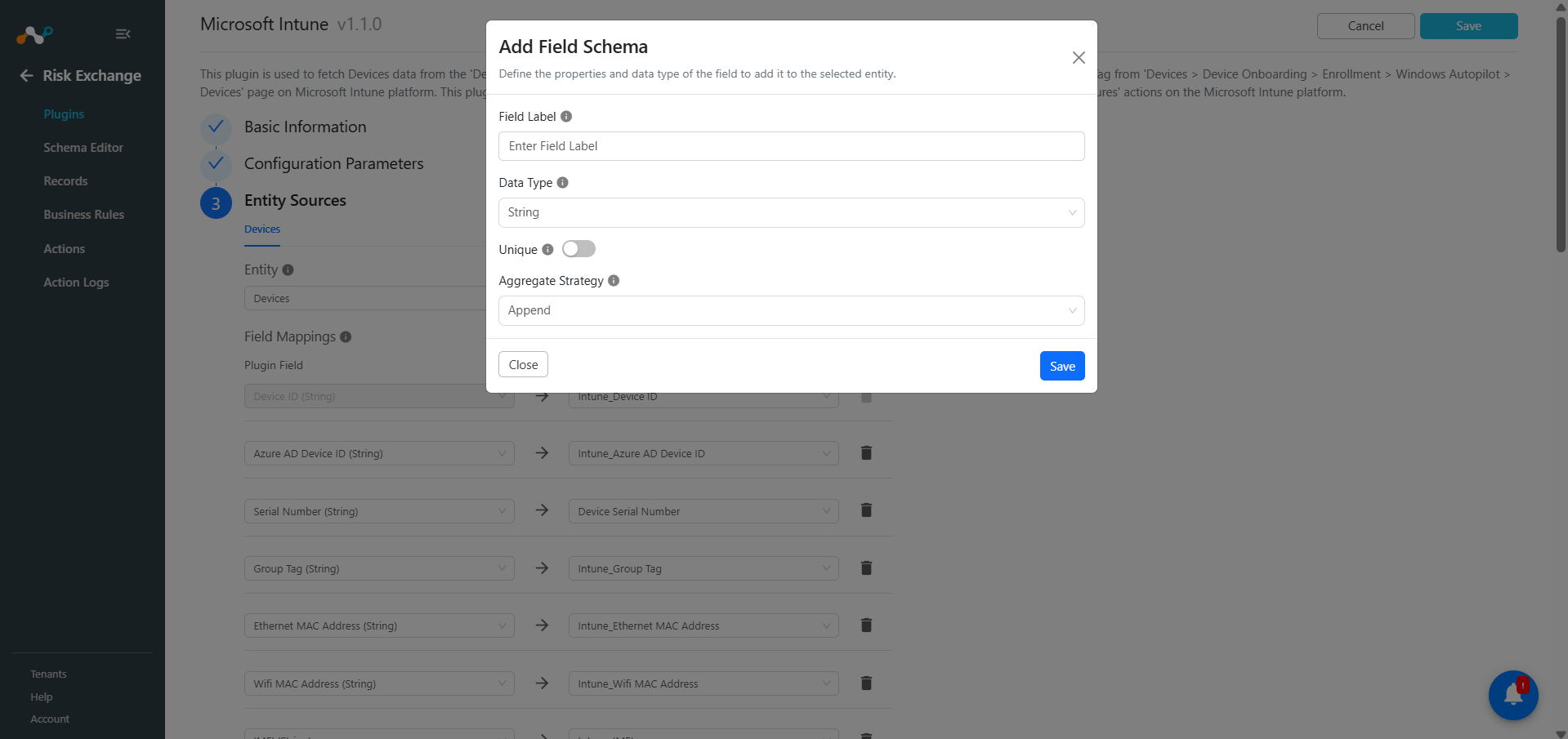
- Enter a Field Label, Data type, set Unique (or not), and select the aggregate strategy.
Suggested mappings:
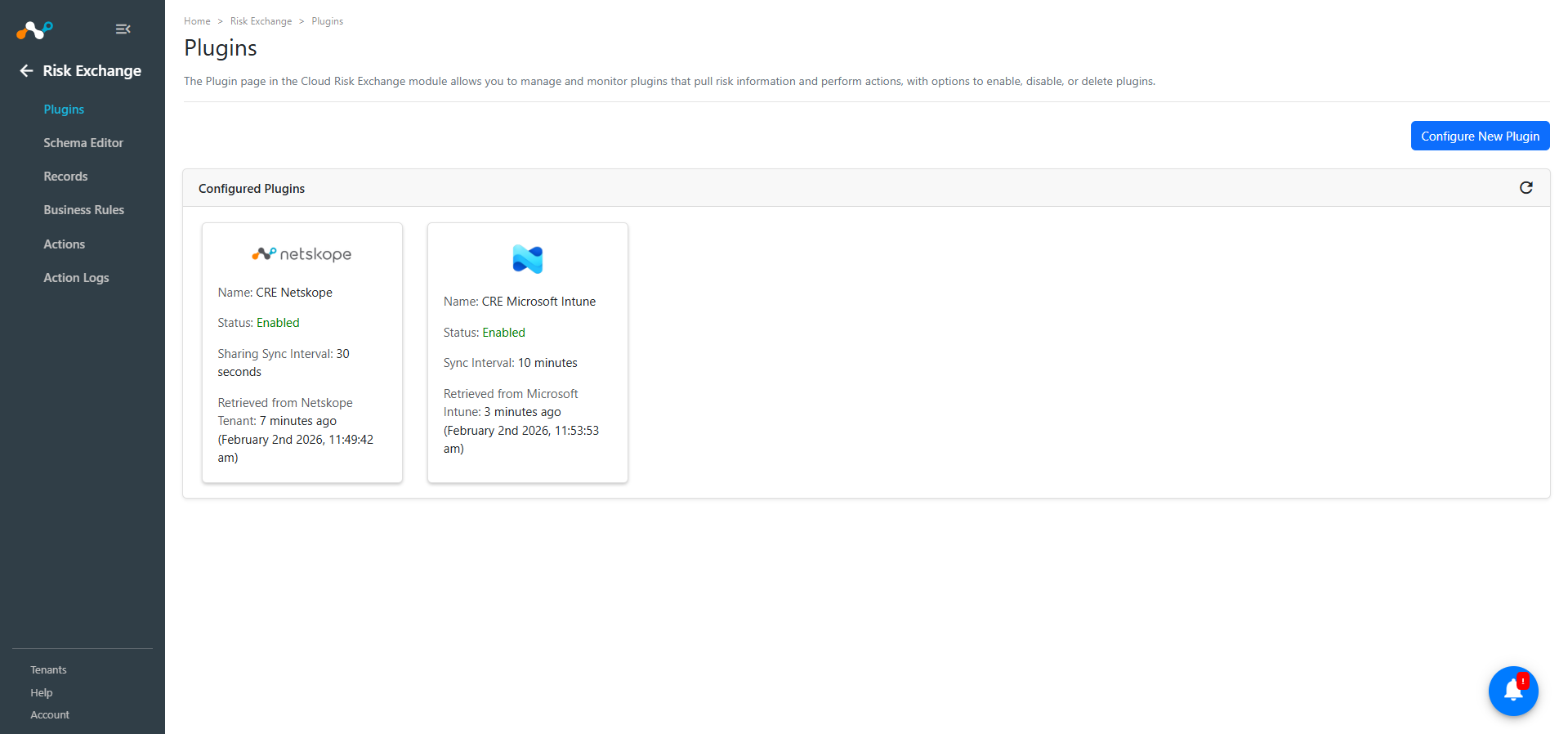
- Click Save.
Add a Risk Exchange Business Rule for Microsoft Intune
- In Risk Exchange, go to Business Rules.
- Click Create New Rule.
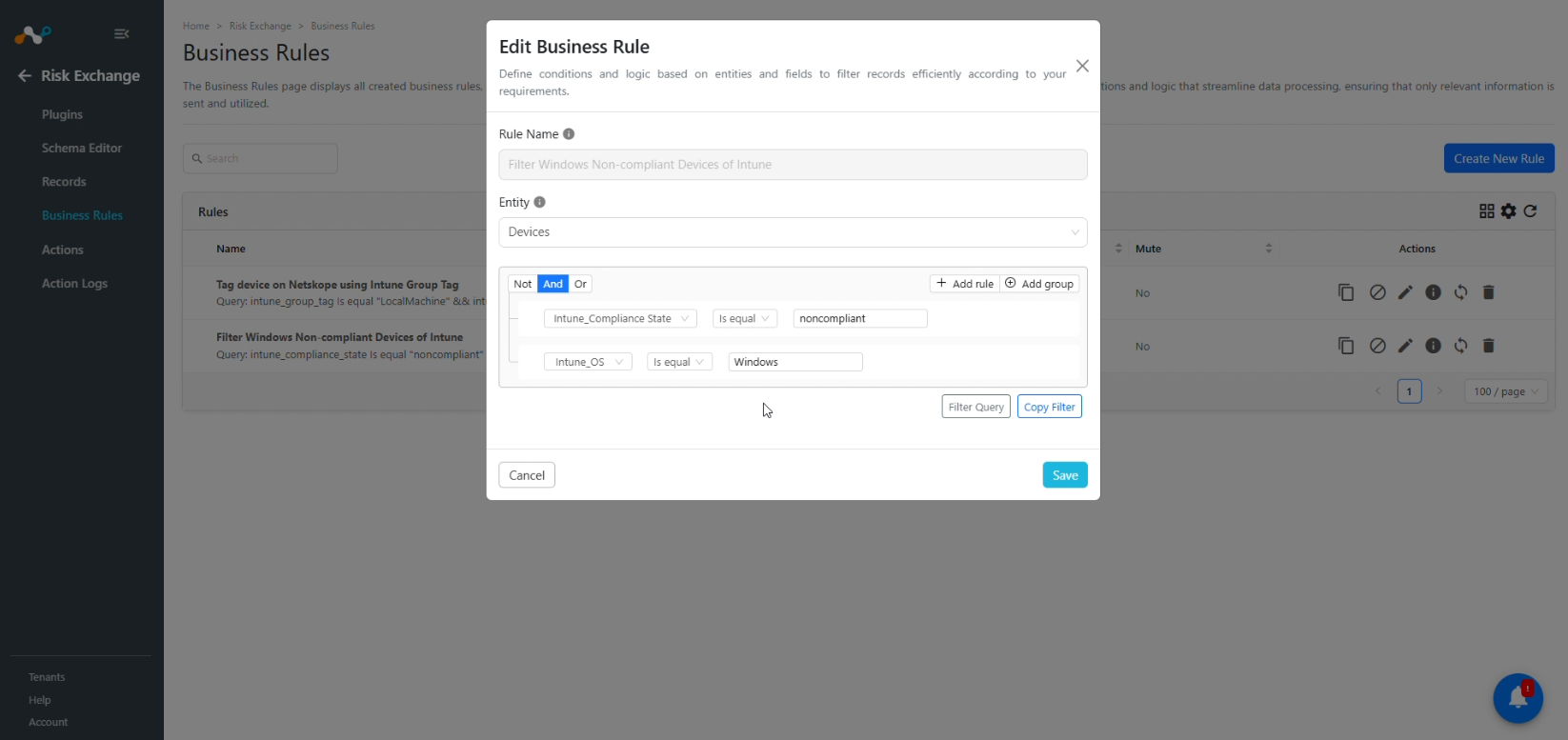
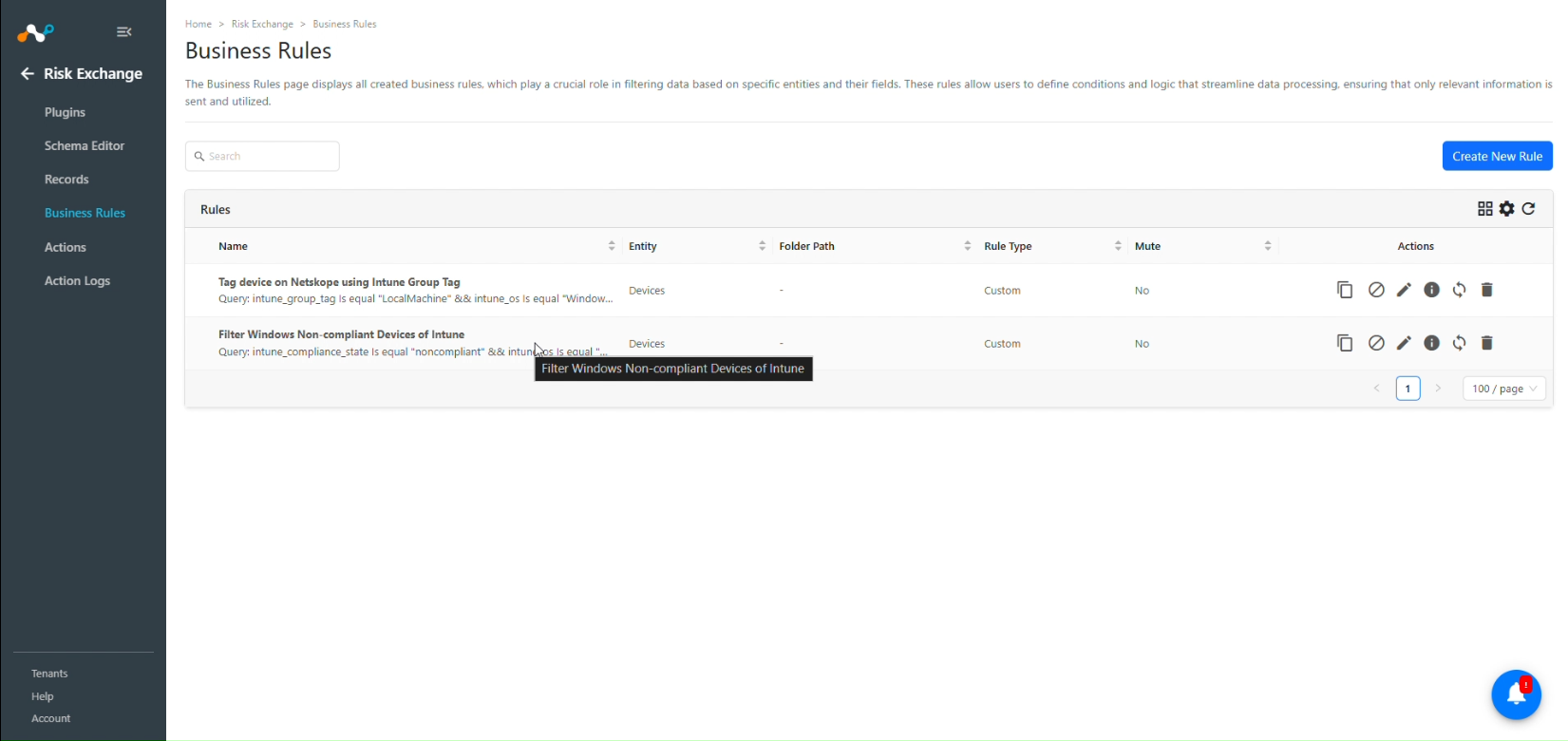
- Enter a Rule Name. Select the Entity for the Fields configured for the Microsoft Intune plugin, and configure the query based on your requirements. This example filters the noncompliant devices from the Intune plugin.
- Click Save.
Add Actions
The Microsoft Intune plugin supports the following action types:
- Reboot Device: Reboot/Restart the devices on Microsoft Intune using this action.
- Update Windows Defender Signatures: Update Windows Defender Signatures or Update Windows Defender security intelligence for the devices on Microsoft Intune using this action. This action is only supported for Windows devices.
- Run Windows Defender Scan: Run Windows Defender Scan on the devices on Microsoft Intune using this action. This action is only supported for Windows devices.
- Sync Device: Sync the devices on Microsoft Intune using this action.
- No Action: No action will be performed for this action. Users can generate UBA alerts in Ticket Orchestrator by using this action and enabling the Generate Alerts toggle.
Note
You can perform the actions on the Netskope Tenant and CrowdStrike platform for the device pulled from Microsoft Intune platform. For performing actions, refer to the Risk Exchange plugin guide and the CrowdStrike plugin guide.
Reboot Device
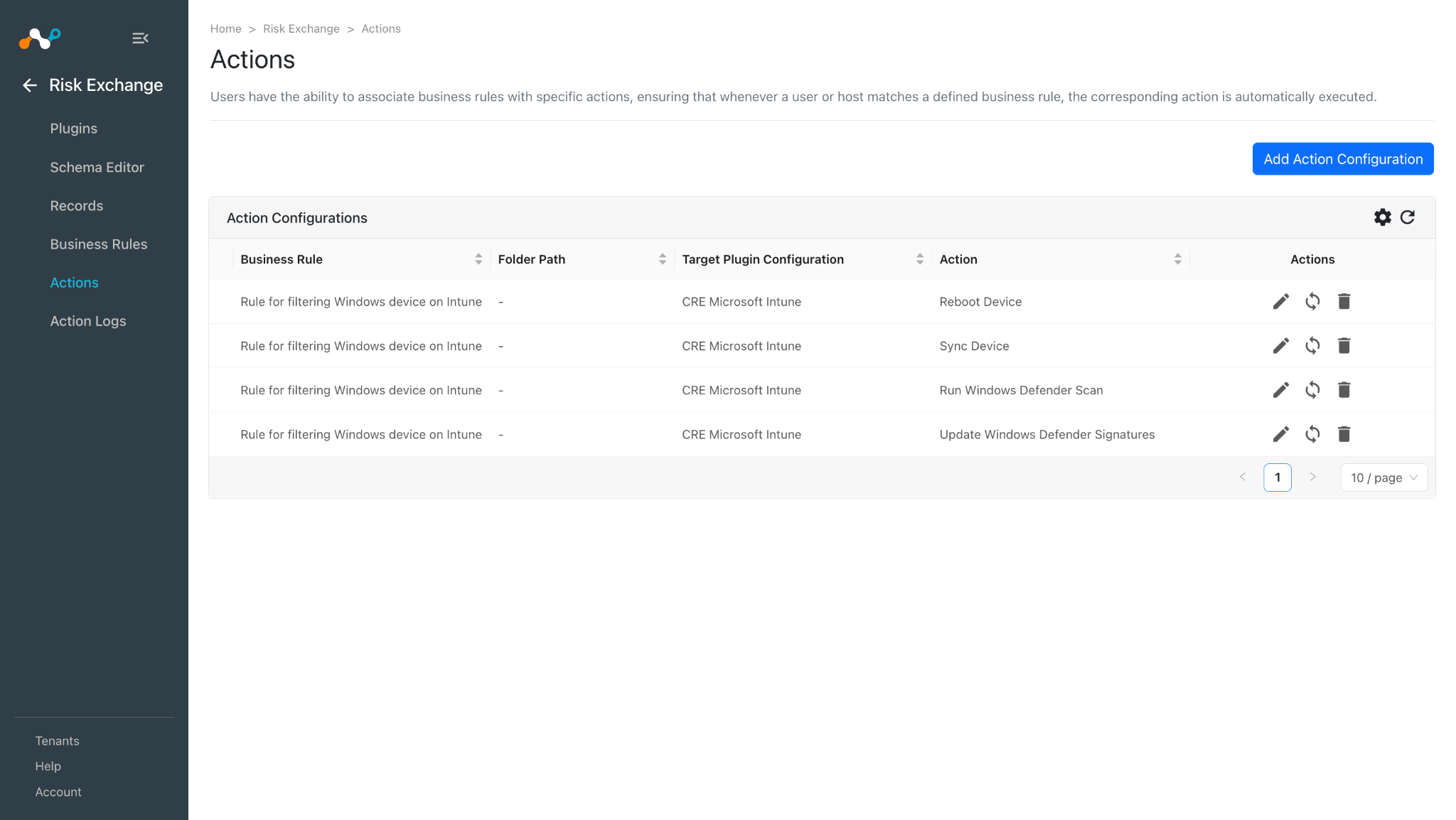
- In Risk Exchange, go to Actions and click Add Action Configuration.
- Select a Business Rule, Configuration, and Action from their respective dropdowns.
- For Device ID, enter the ID of device to be rebooted.
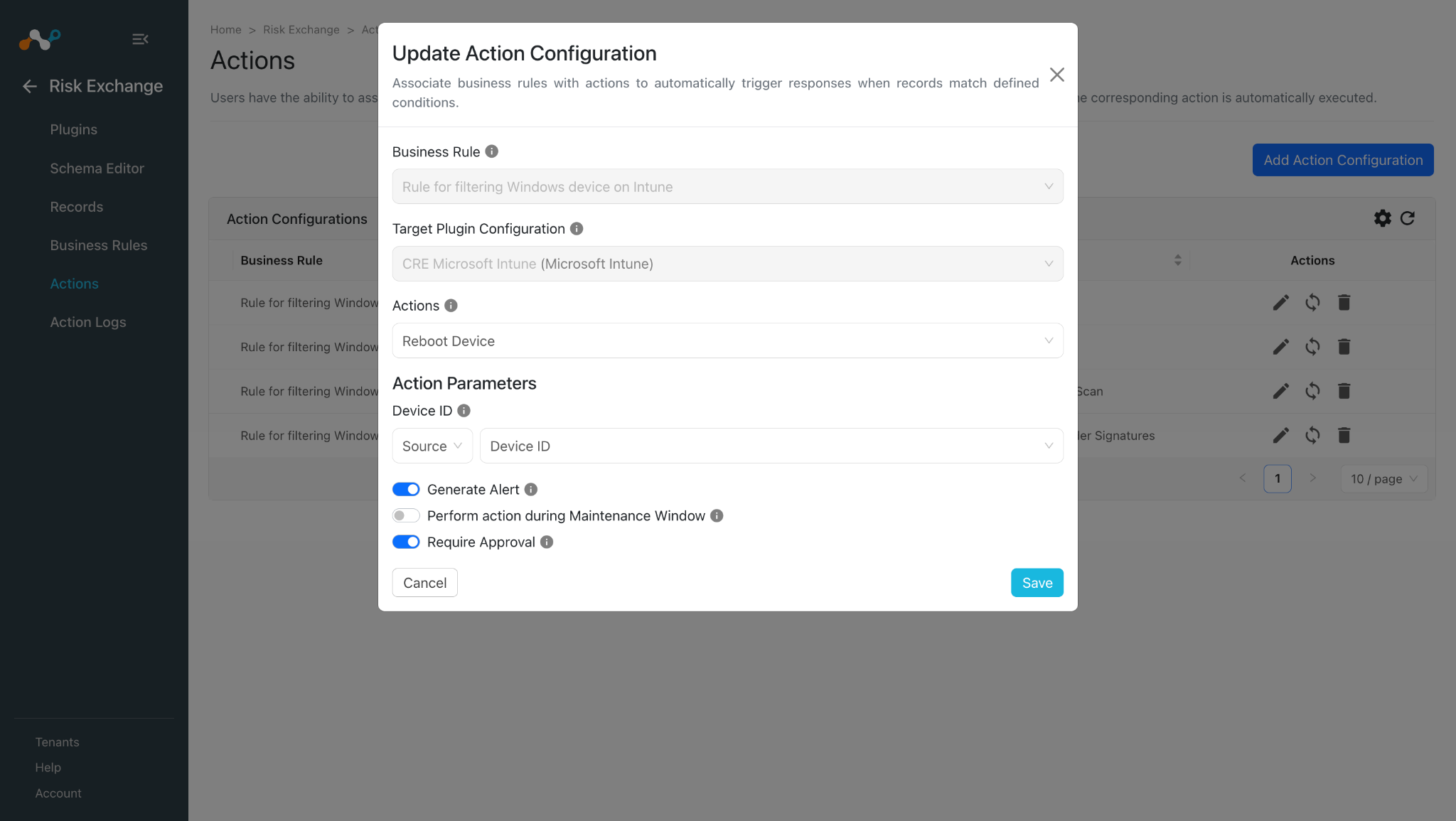
- Enable the Require Approval toggle if Approval is needed before performing action on the Devices.
- Click Save.
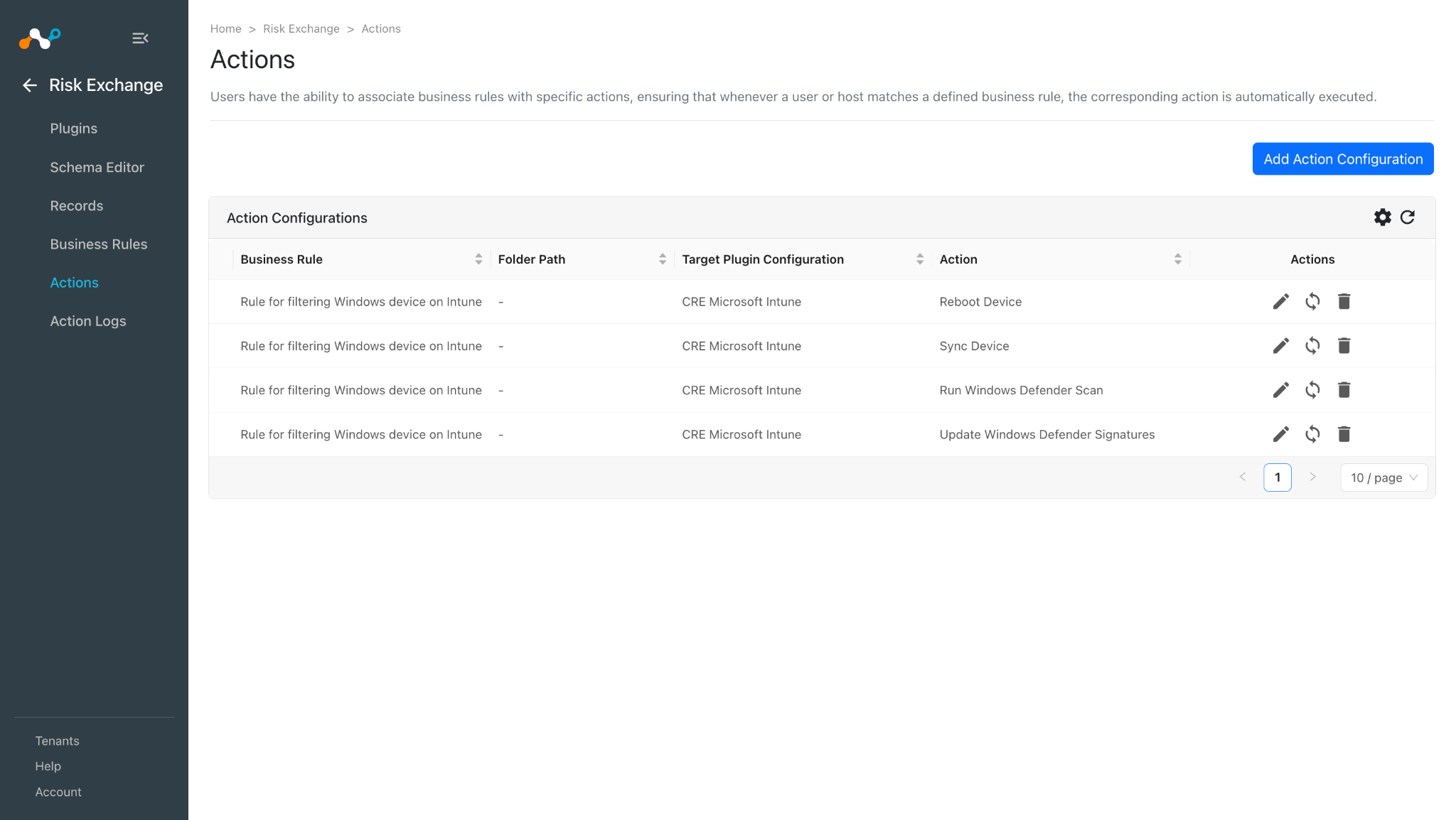
Update Windows Defender Signatures
- In Risk Exchange, go to Actions and click Add Action Configuration.
- Select a Business Rule, Configuration, and Action from their respective dropdowns.
- For Device ID, enter the ID of device to be rebooted.
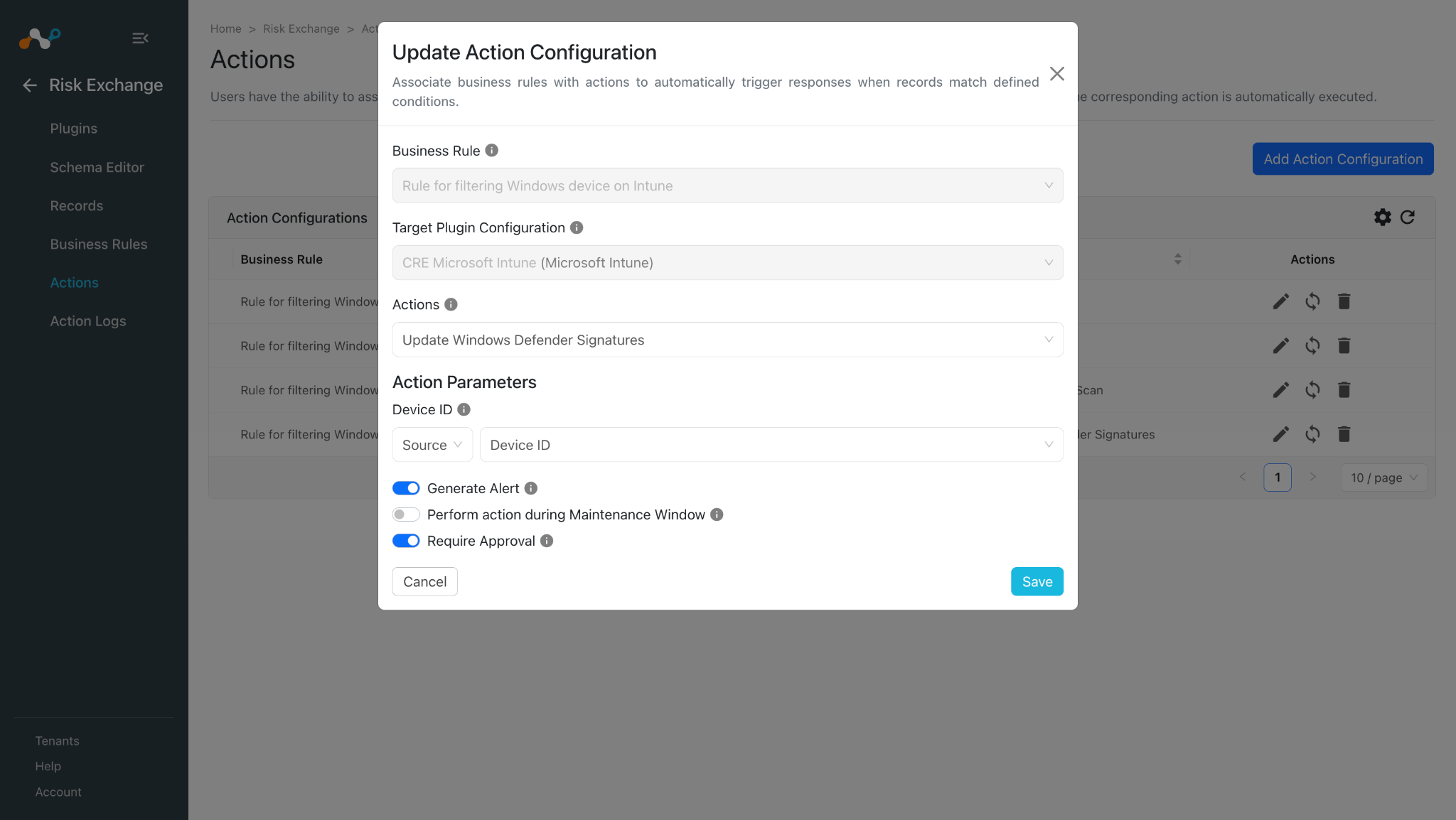
- Enable the Require Approval toggle if Approval is needed before performing action on the Devices.
- Click Save.
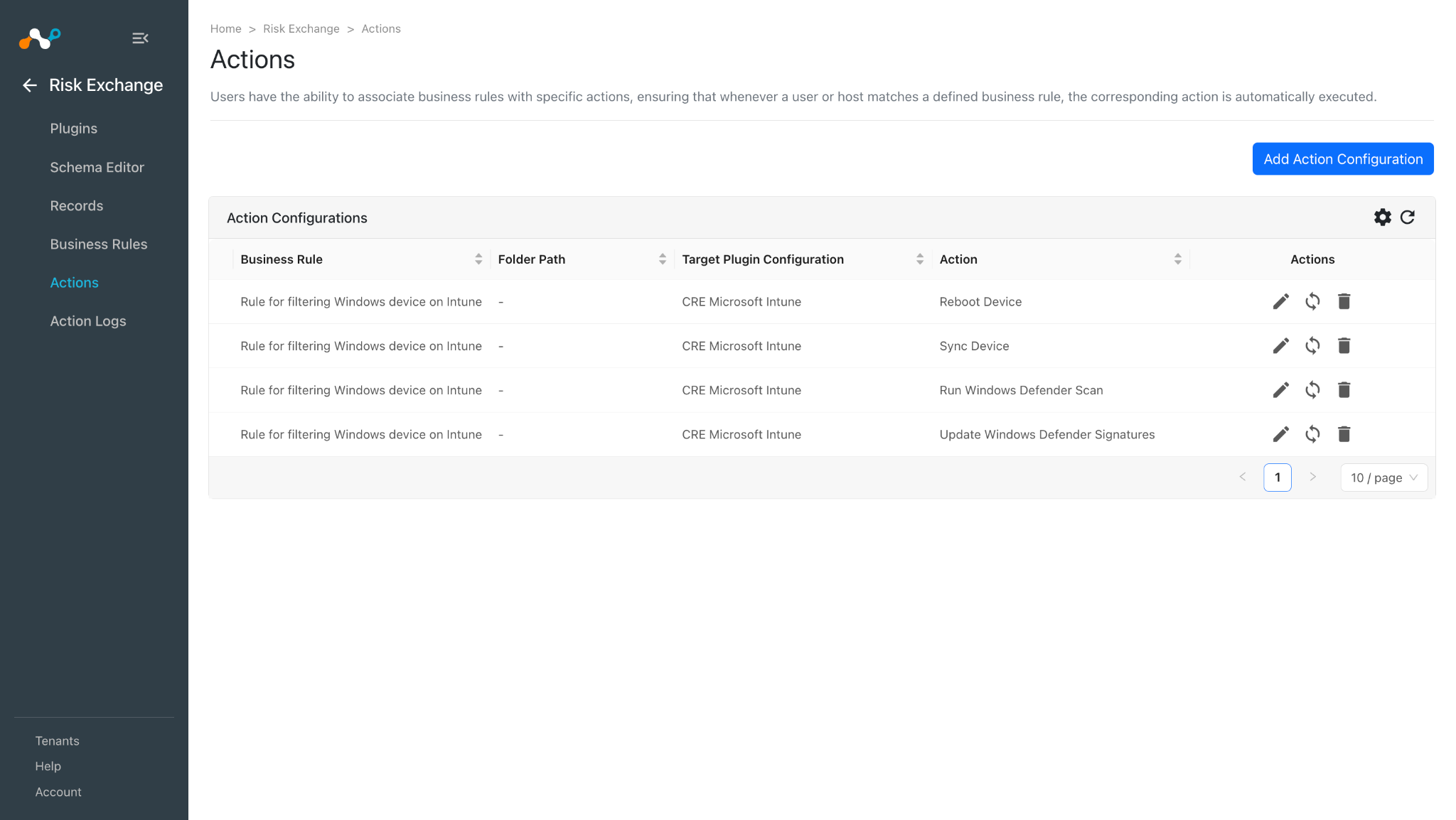
Run Windows Defender Scan
- In Risk Exchange, go to Actions and click Add Action Configuration.
- Select a Business Rule, Configuration, and Action from their respective dropdowns.
- For Device ID, enter the ID of device to be rebooted.
- For Scan Type: Choose to run a quick scan or a full scan.
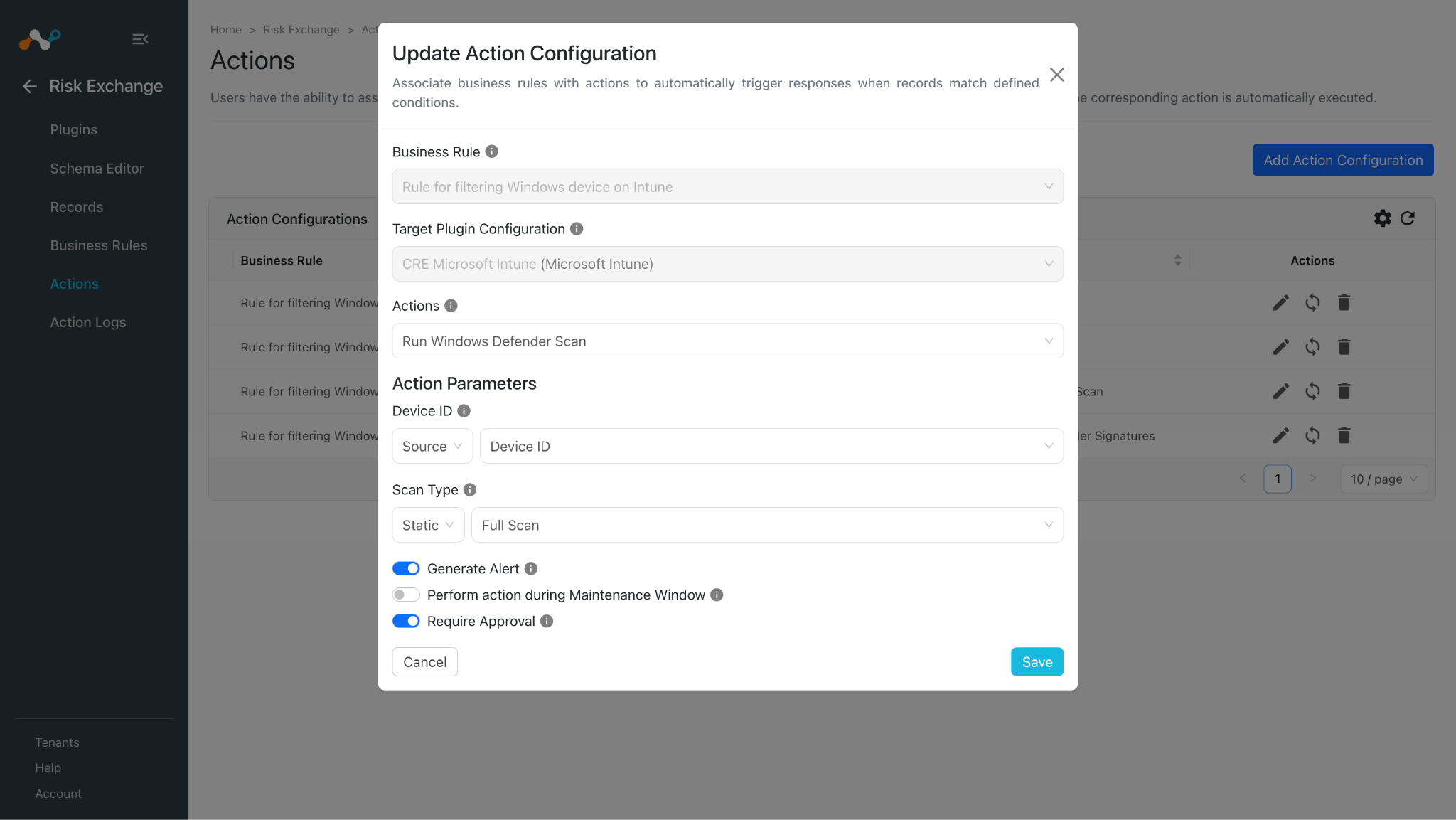
- Enable the Require Approval toggle if Approval is needed before performing action on the Devices.
- Click Save.
Sync Device
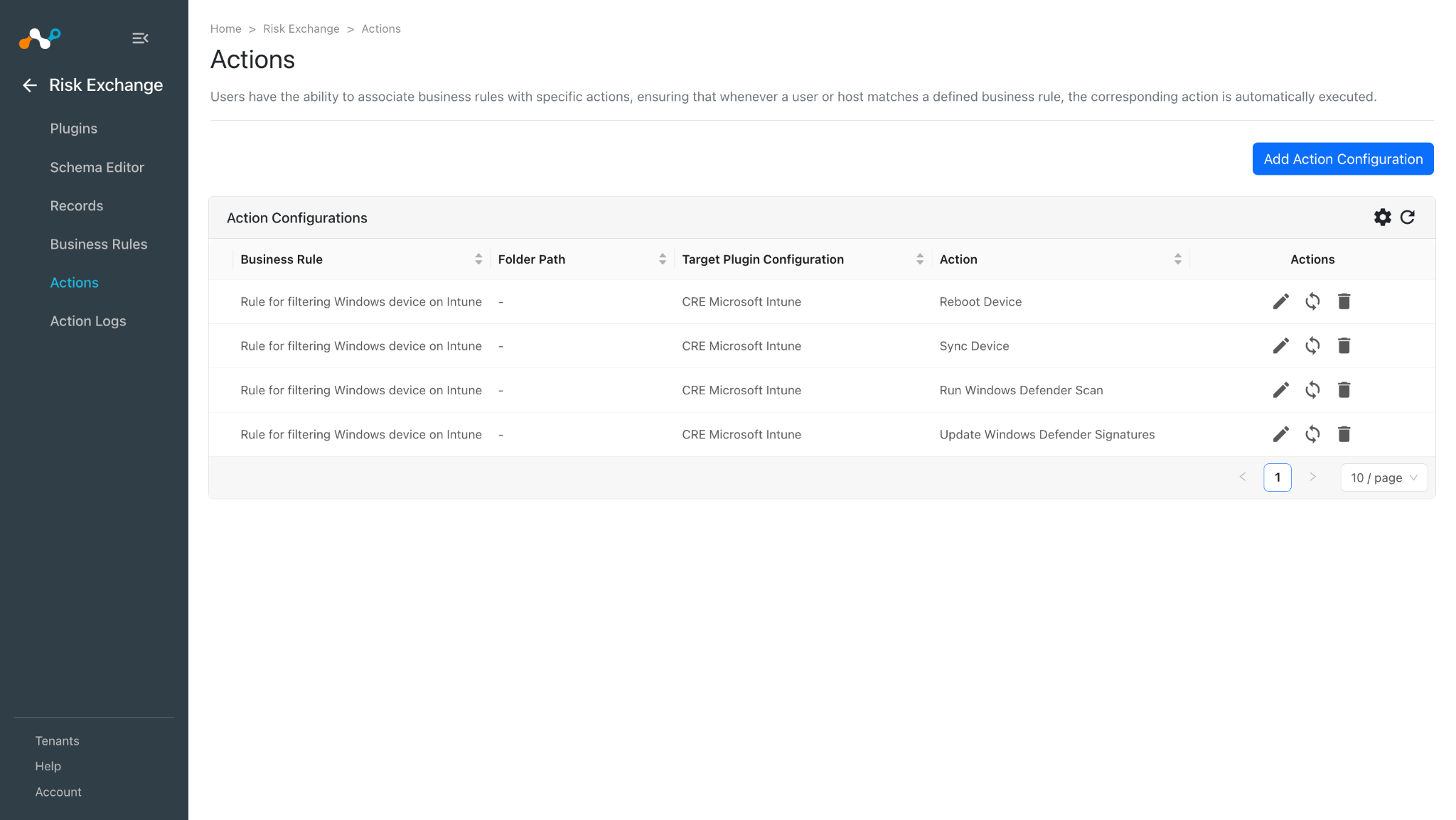
- In Risk Exchange, go to Actions and click Add Action Configuration.
- Select a Business Rule, Configuration, and Action from their respective dropdowns.
- For Device ID, enter the ID of device to be rebooted.
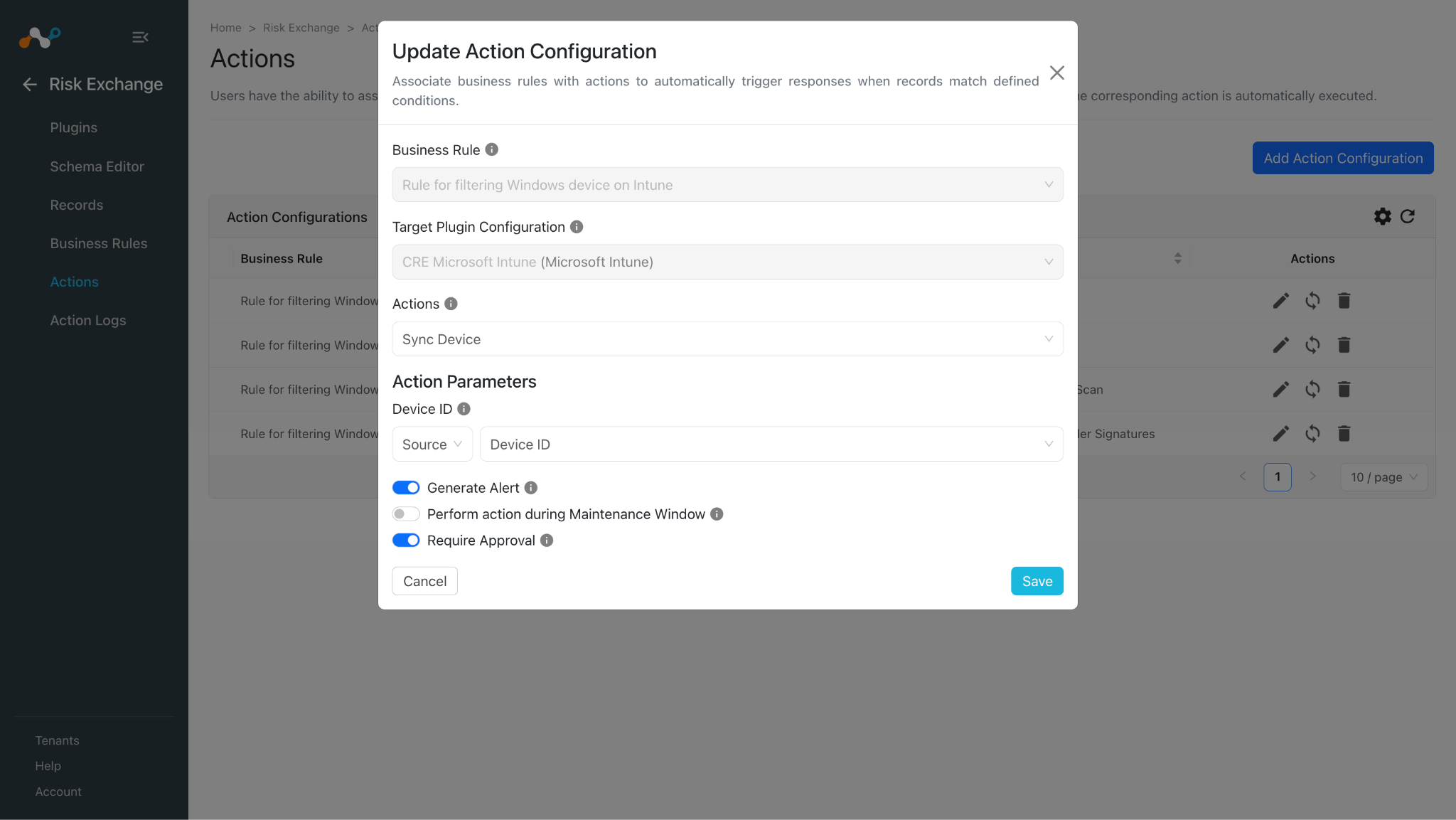
- Enable the Require Approval toggle if Approval is needed before performing action on the Devices.
- Click Save.
No Action
- In Risk Exchange, go to Actions and click Add Action Configuration.
- Select a Business Rule, Configuration, and Action from their respective dropdowns.
- Select No actions from the dropdown, and enable the Generate Alert toggle to generate alerts in the Ticket Orchestrator module.
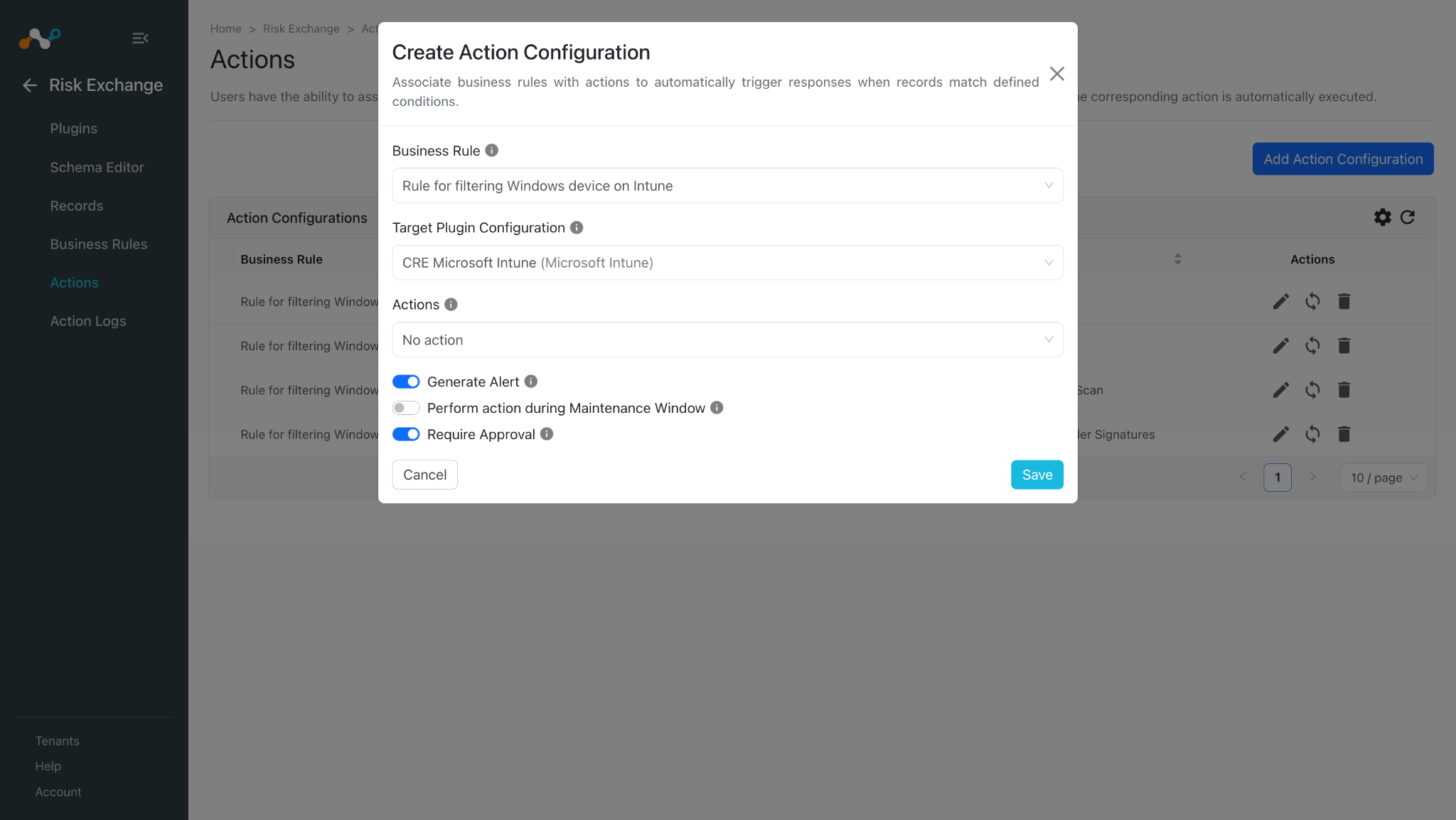
- Enable the Require Approval toggle if Approval is needed before performing action on the Devices.
- Click Save.
Validate the Microsoft Intune Plugin
Validate in Cloud Exchange
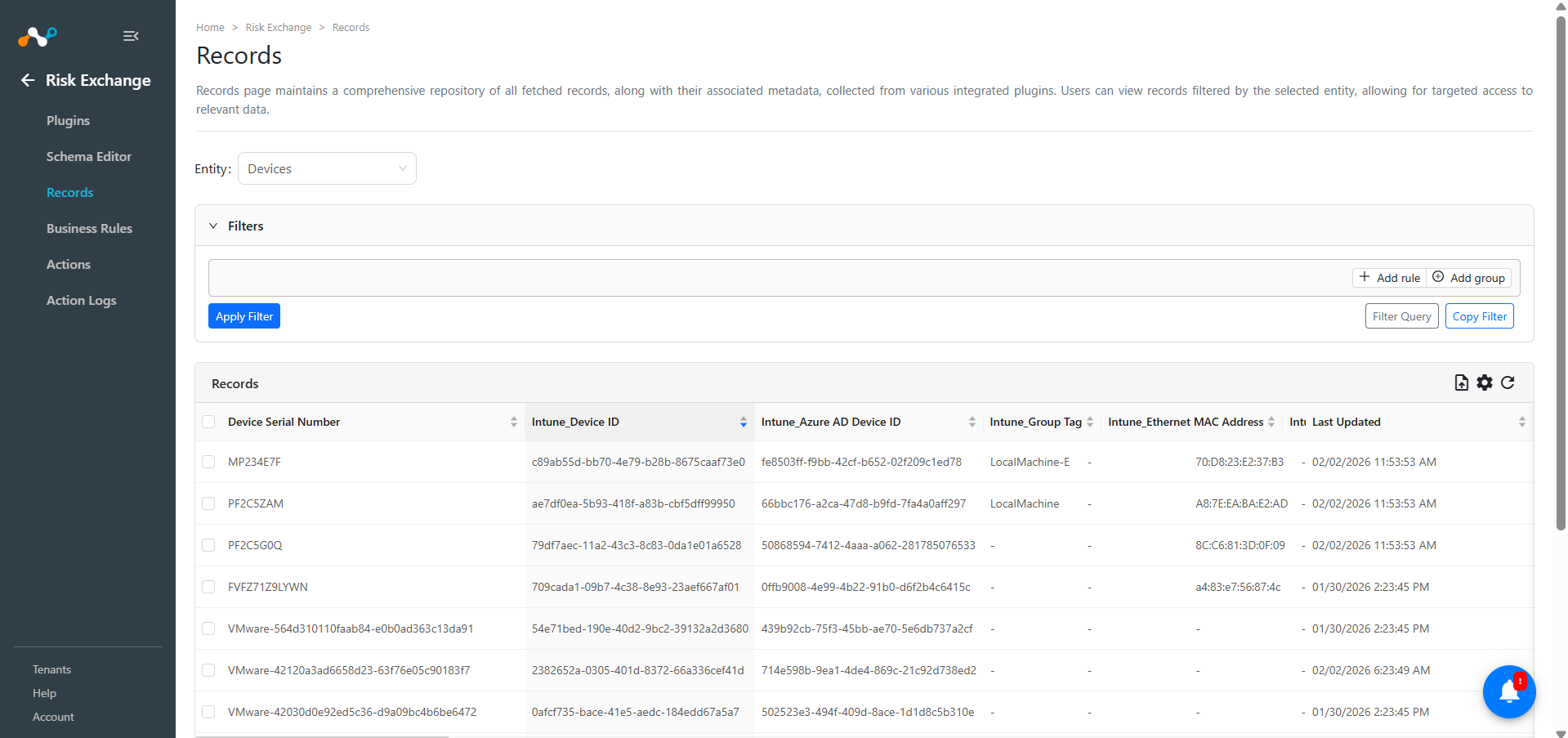
- In Risk Exchange, go to Records. Select the Entity that was selected while configuring the field mapping for Devices to view the pulled records.
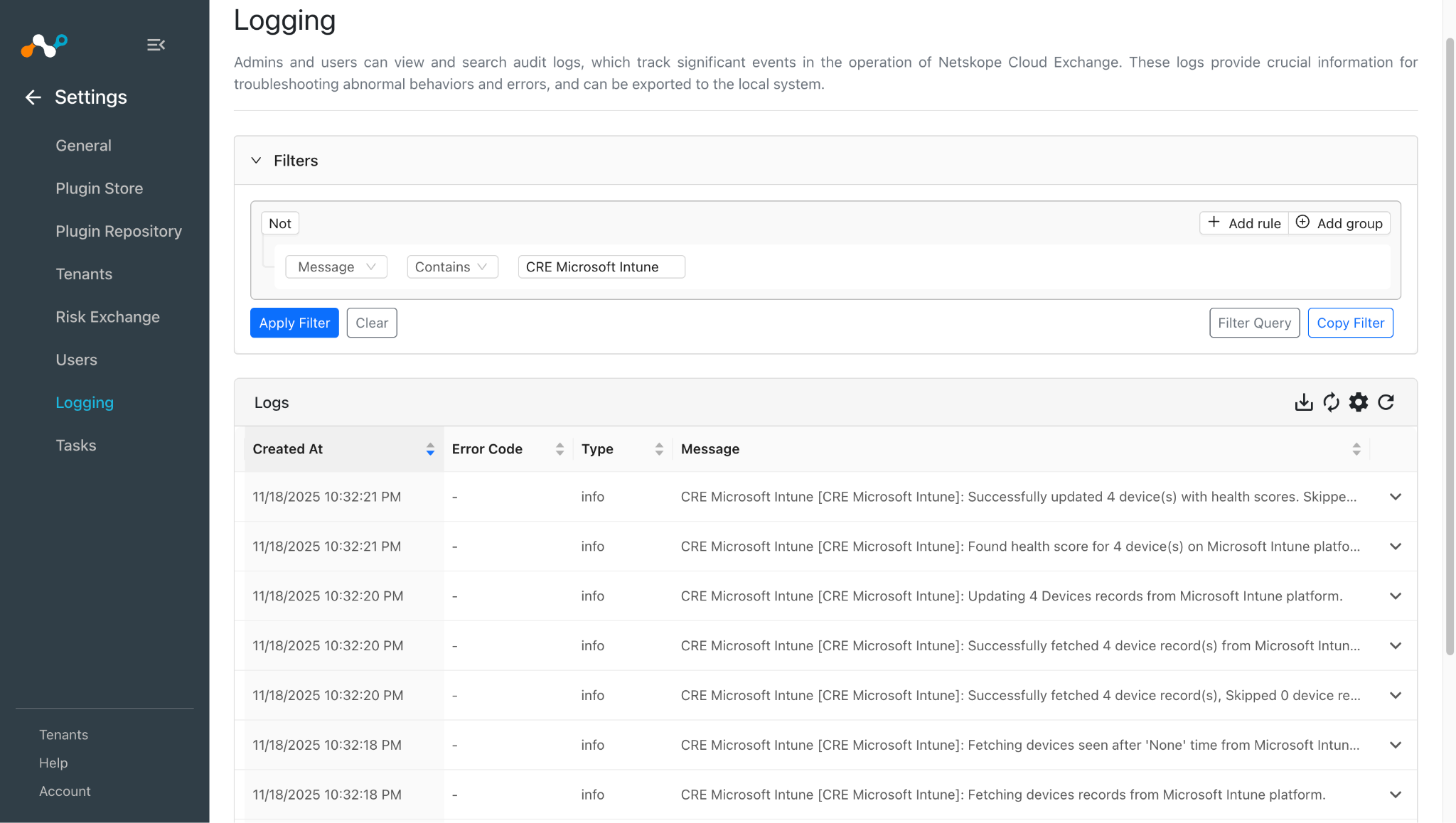
- Go to Logging and search for the logs of the plugin using the plugin name.
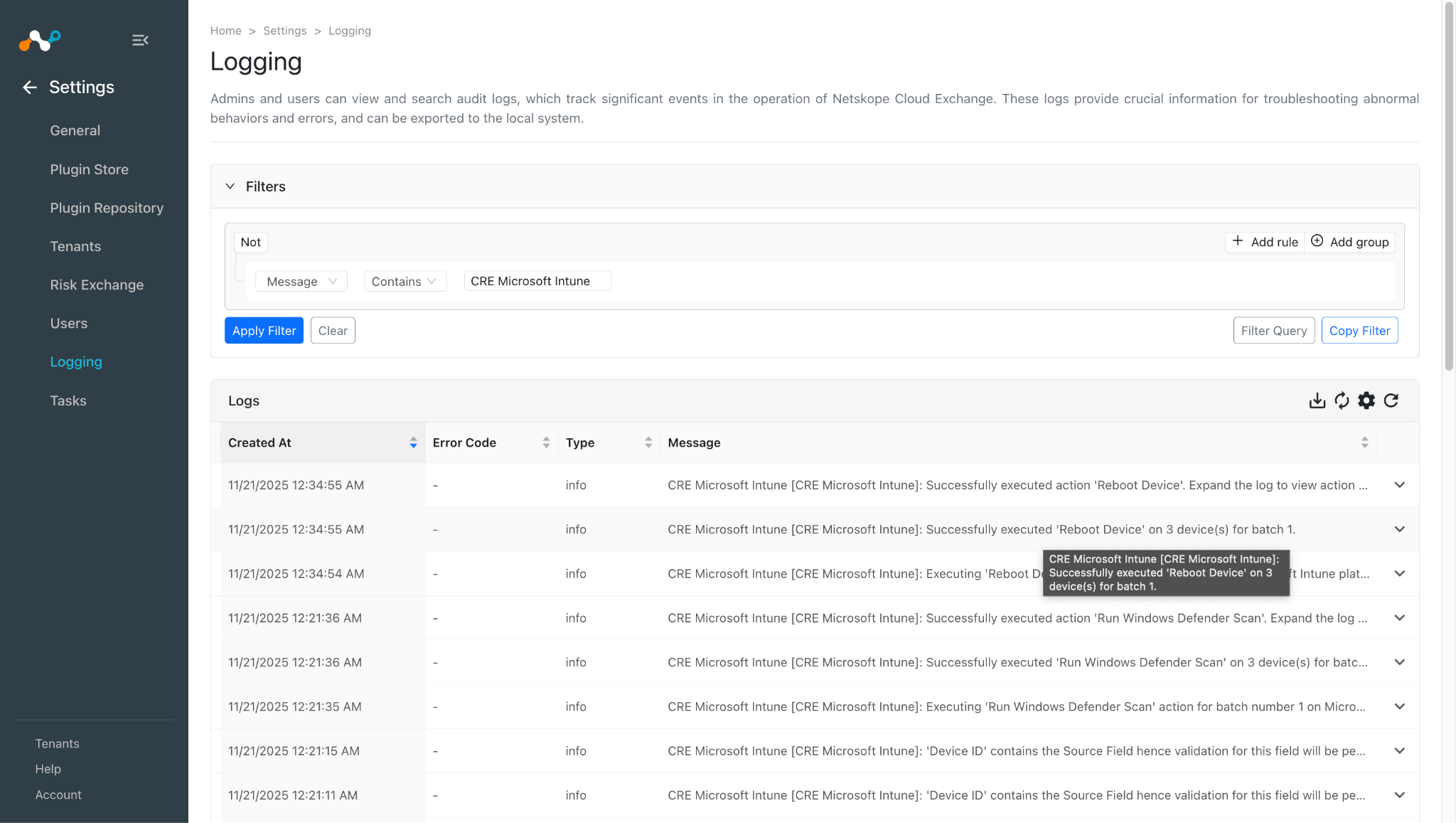
- In Logging, verify the action performed for a host. You can apply the filter with the plugin name or plugin configuration name.
Logs for Reboot Device action:
Logs for Run Windows Defender Scan action:
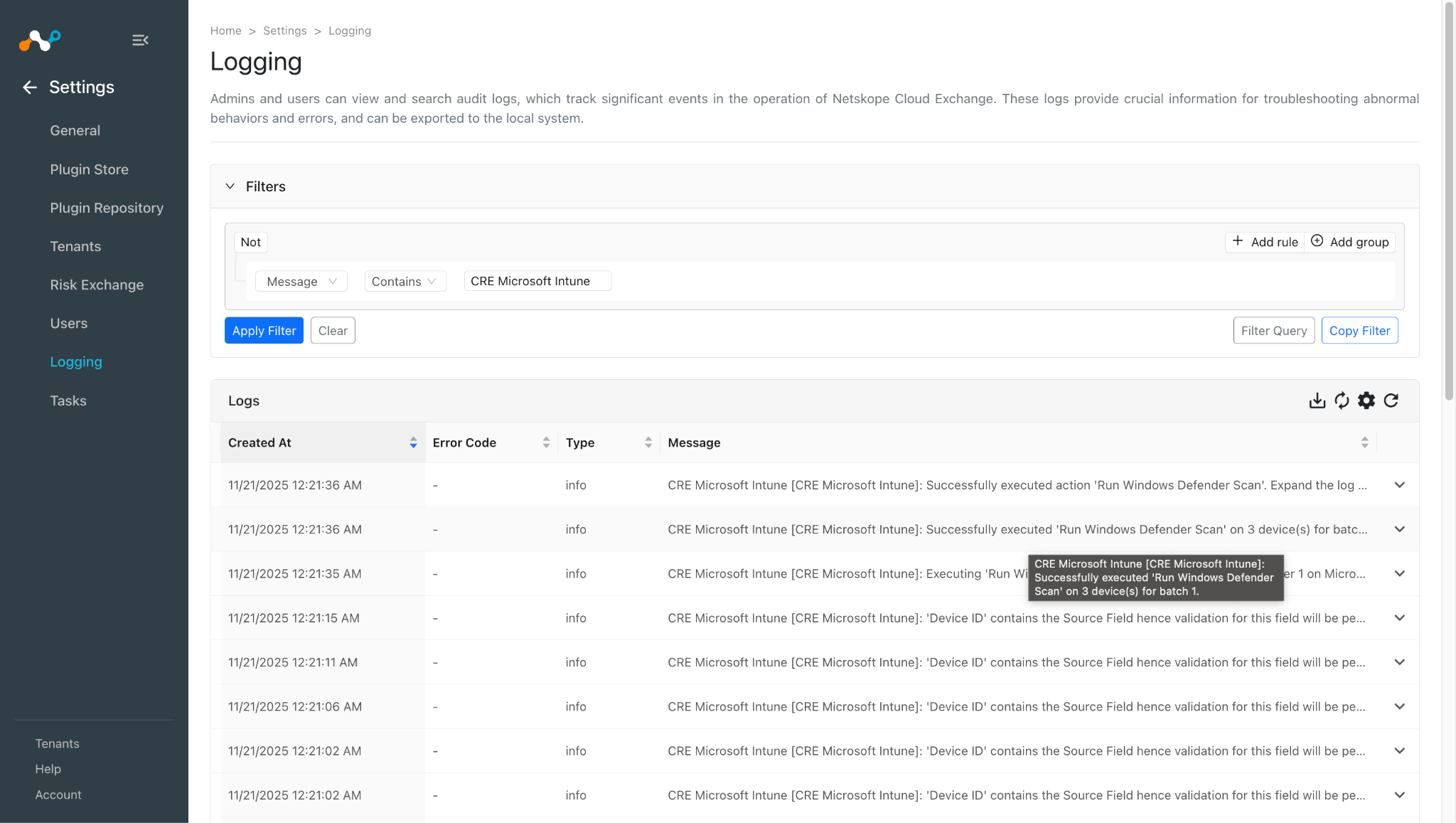
Logs for Update Windows Defender Signatures/Update Windows Defender security intelligence action:
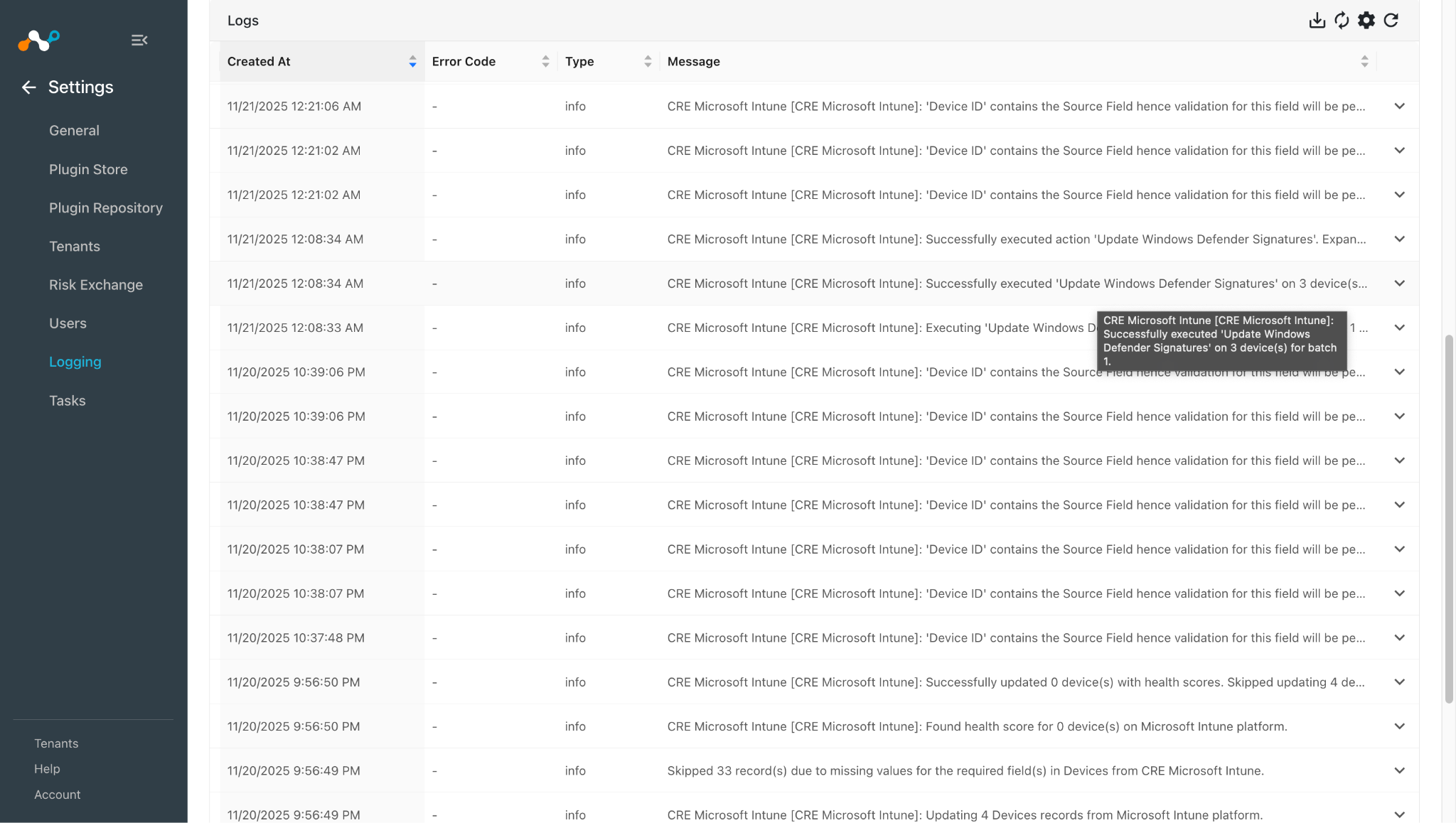
Logs for Sync Device action:
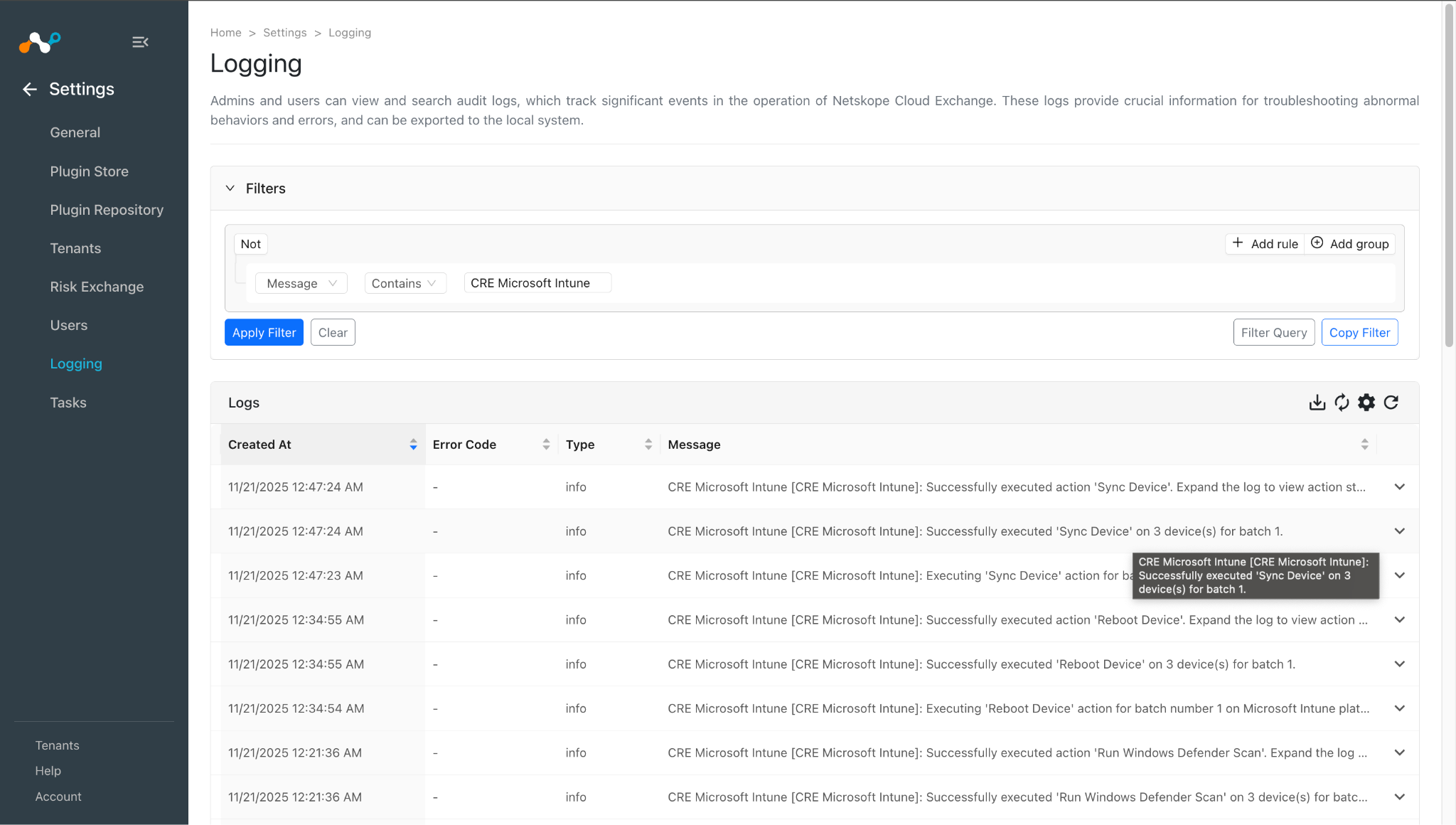
Logs for No Action action:
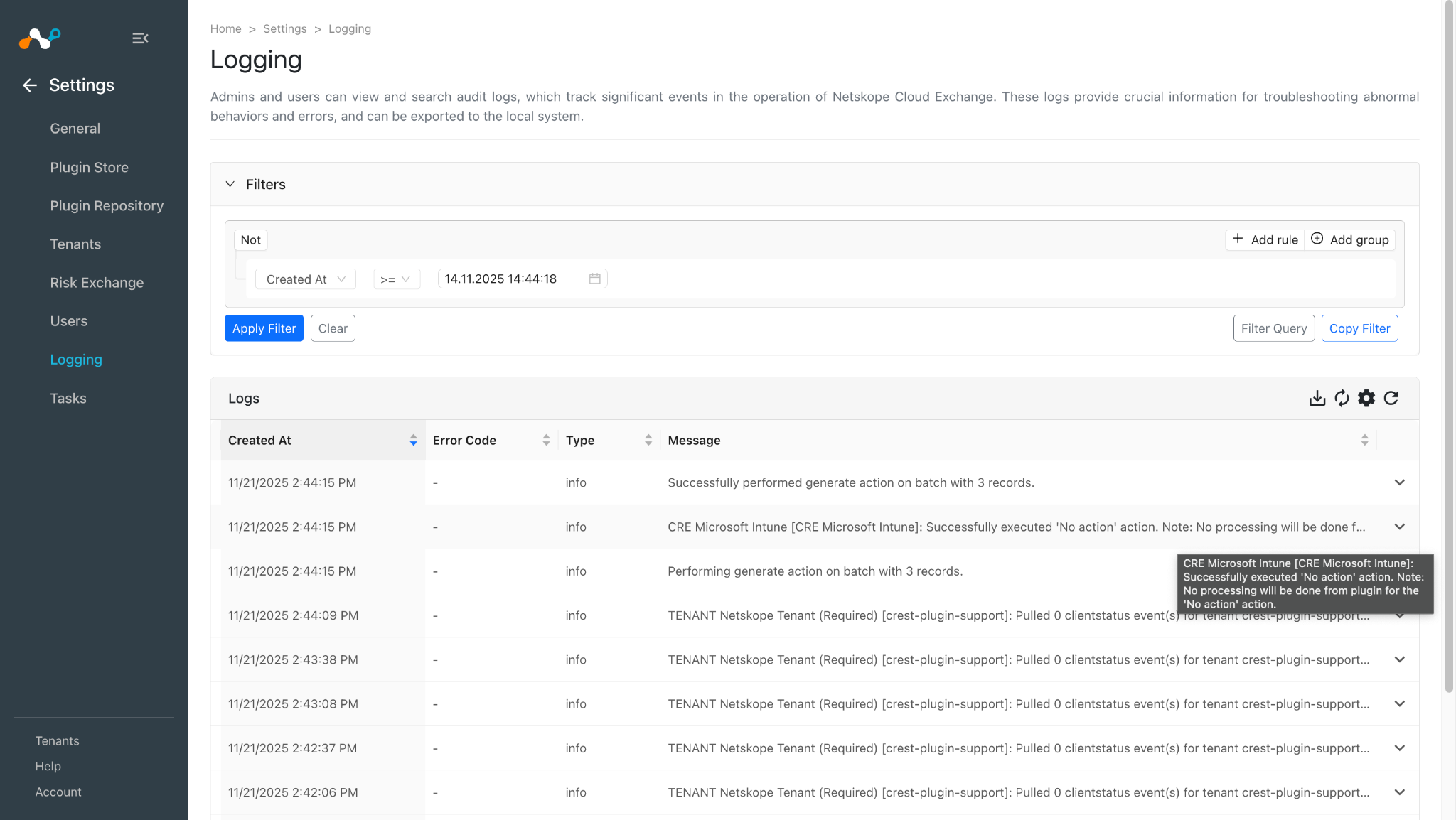
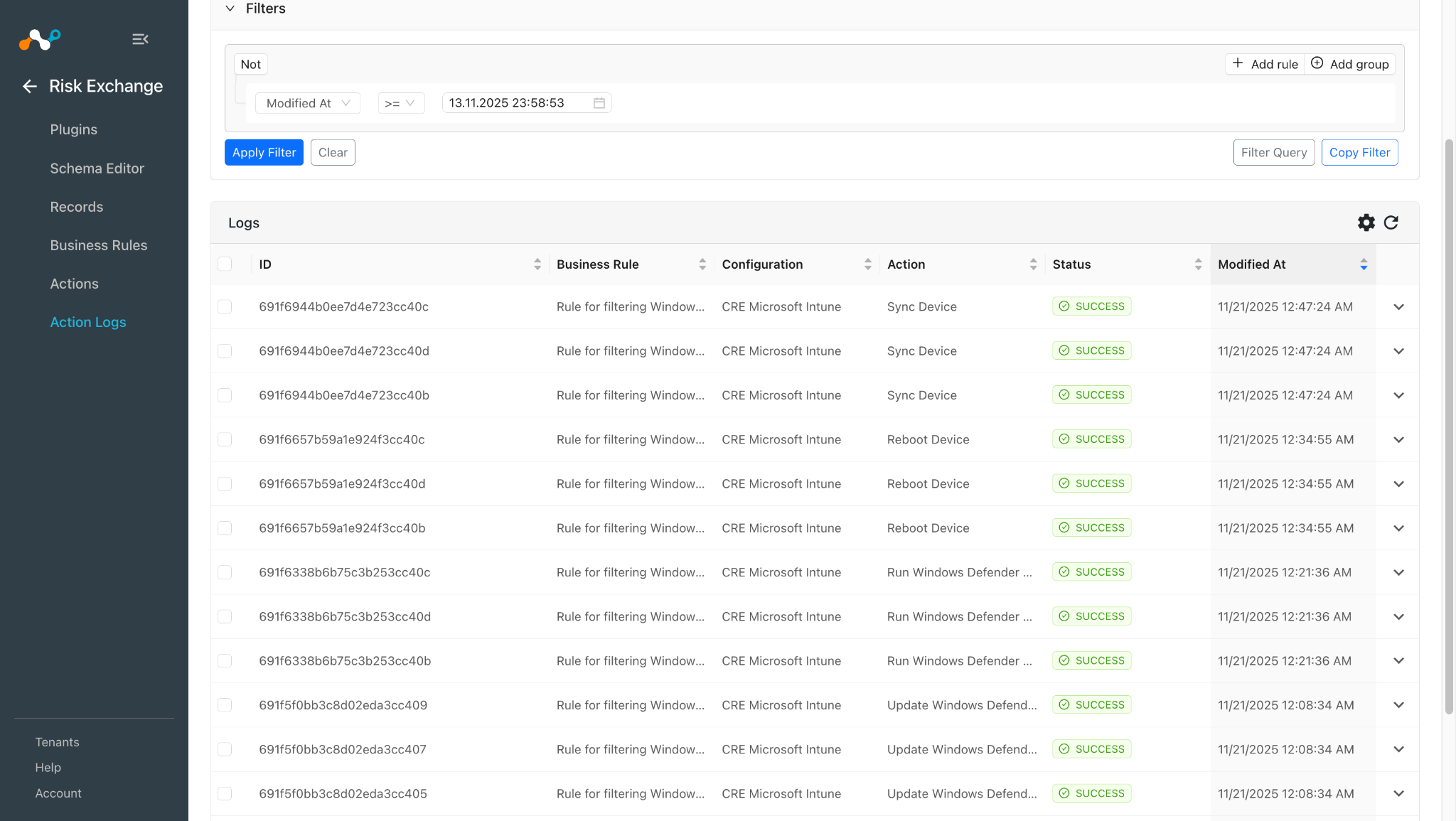
When a user matches one of the configured business rules, the configured action will be performed on the user. This can be seen at Risk Exchange > Action Logs.
Validate in Microsoft Intune
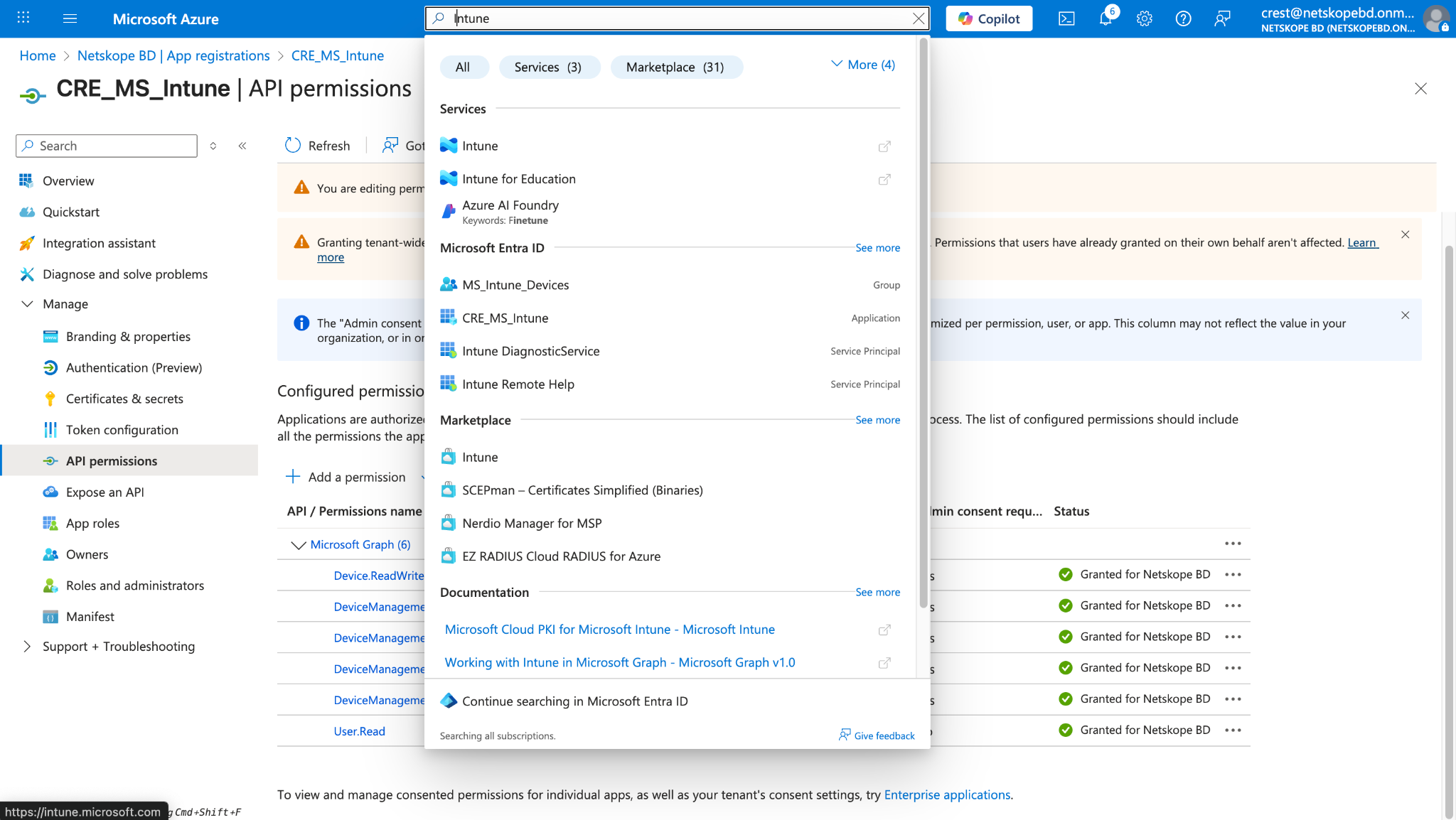
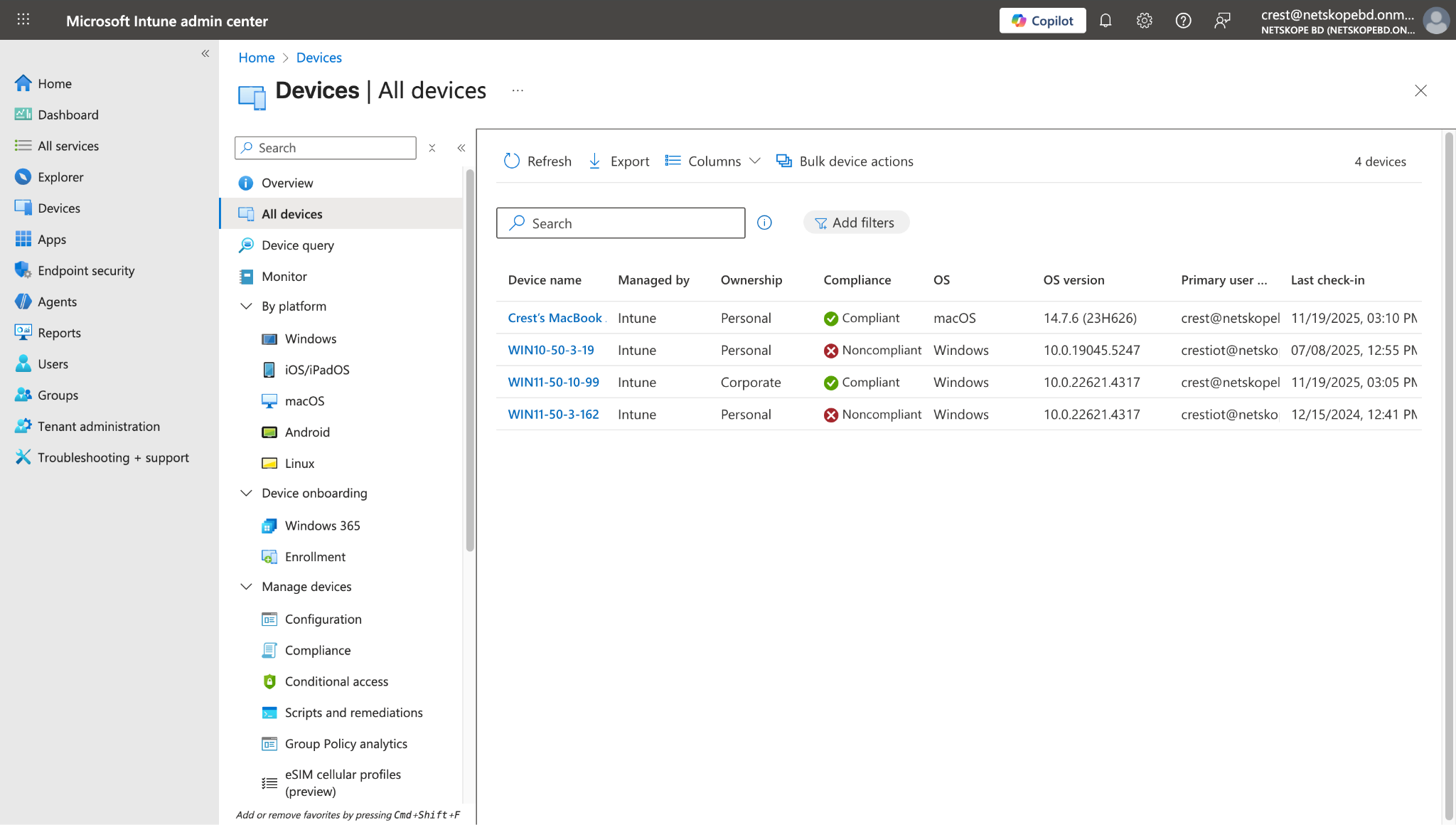
To view the available devices on Microsoft Intune, log in to your Azure instance and go to Intune > Devices > All Devices.
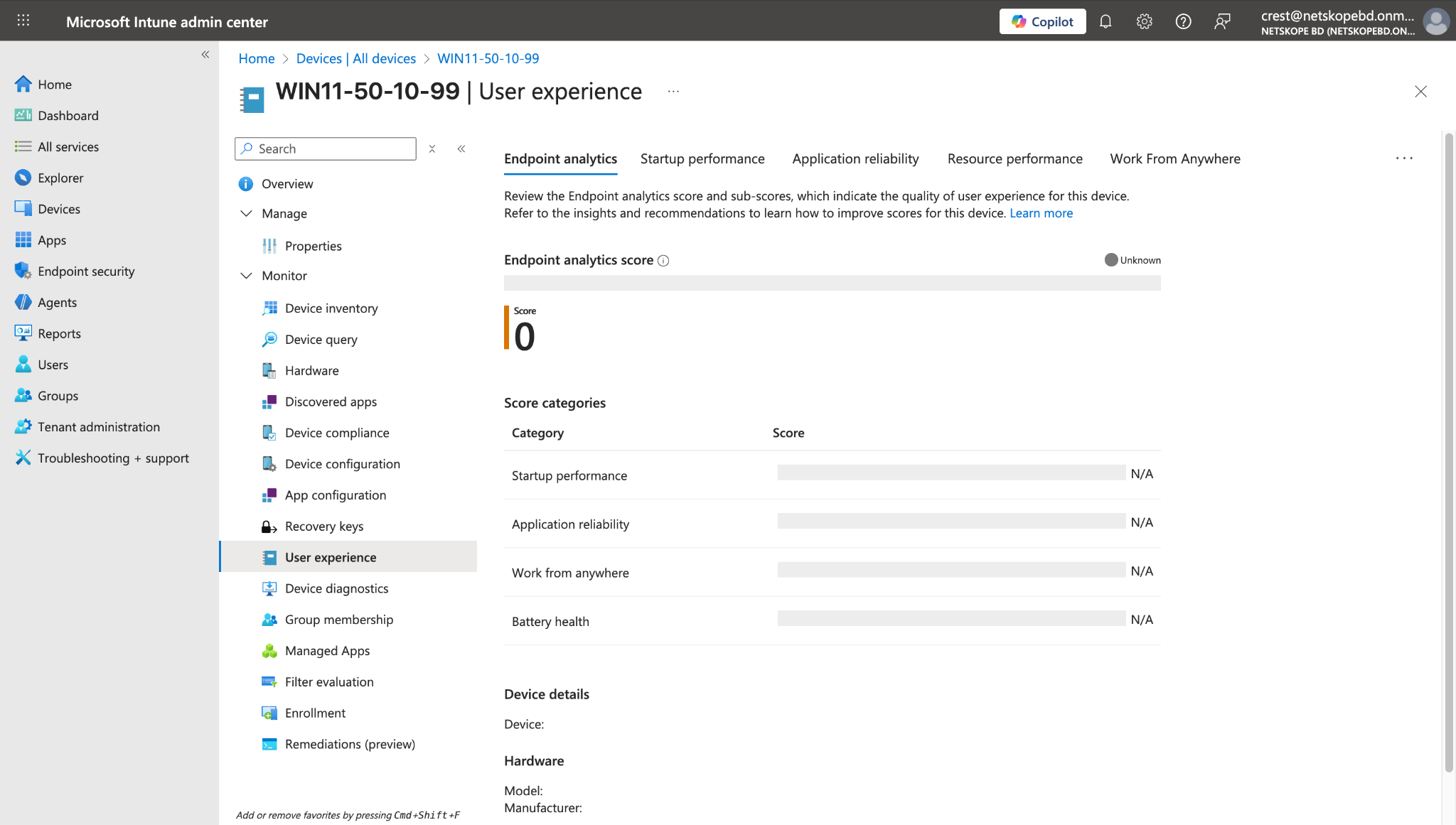
To view scores related to the particular device, click on the Device Name and go to the user experience page.
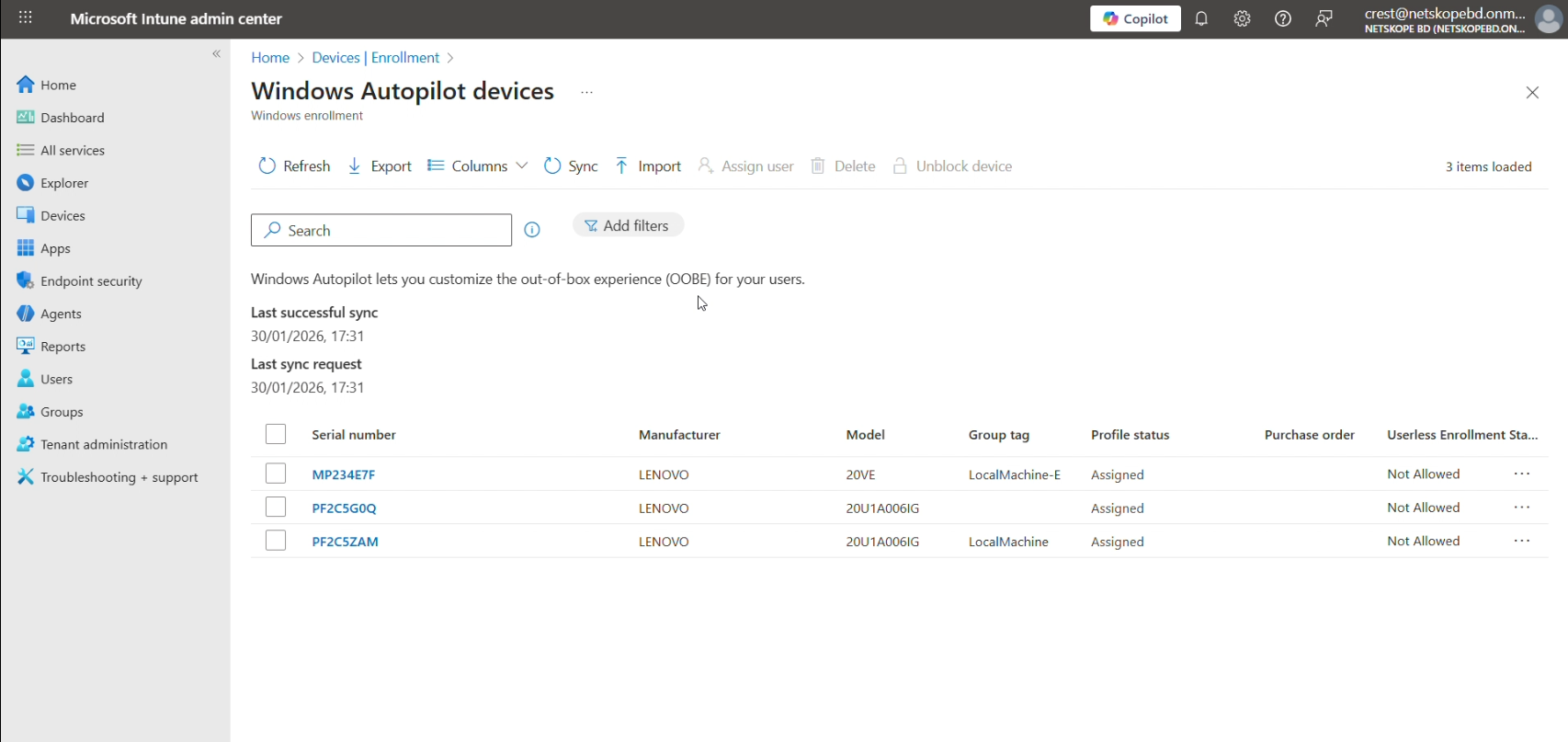
To verify Group Tag related to devices, go to Device Onboarding > Enrollment > Windows Autopilot > Devices.
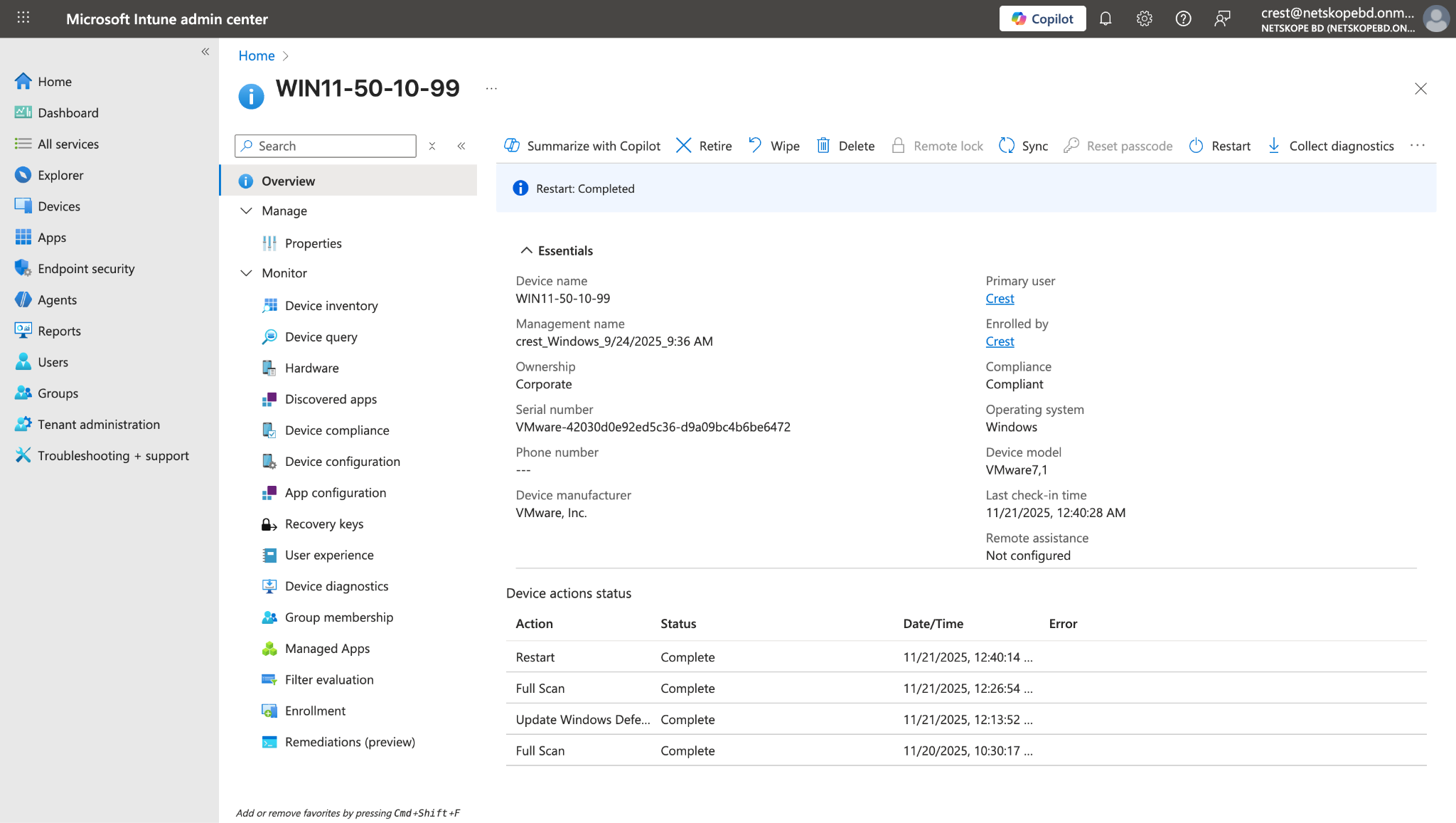
For the Reboot Device action:
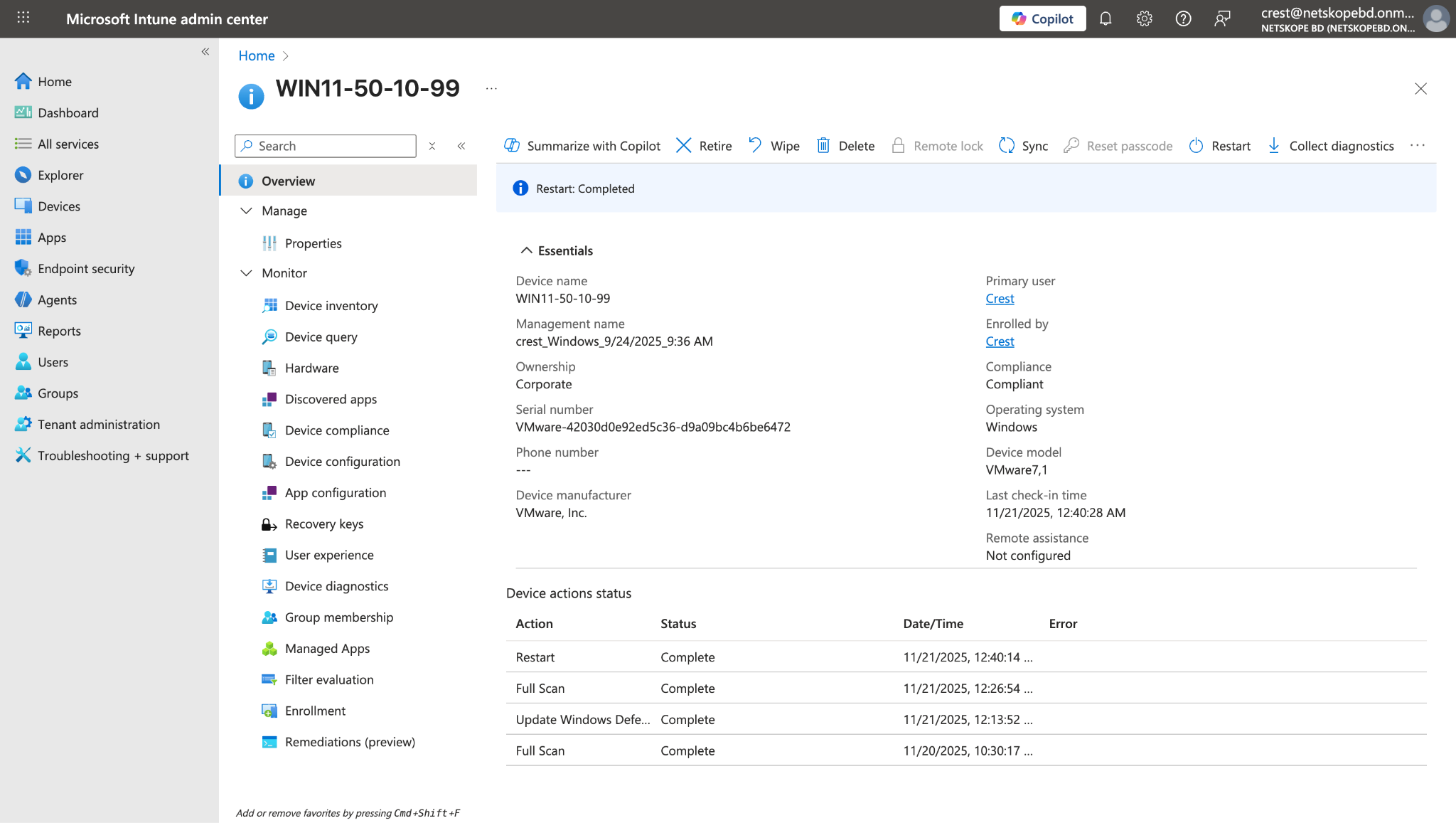
For the Run Windows Defender Scan action:
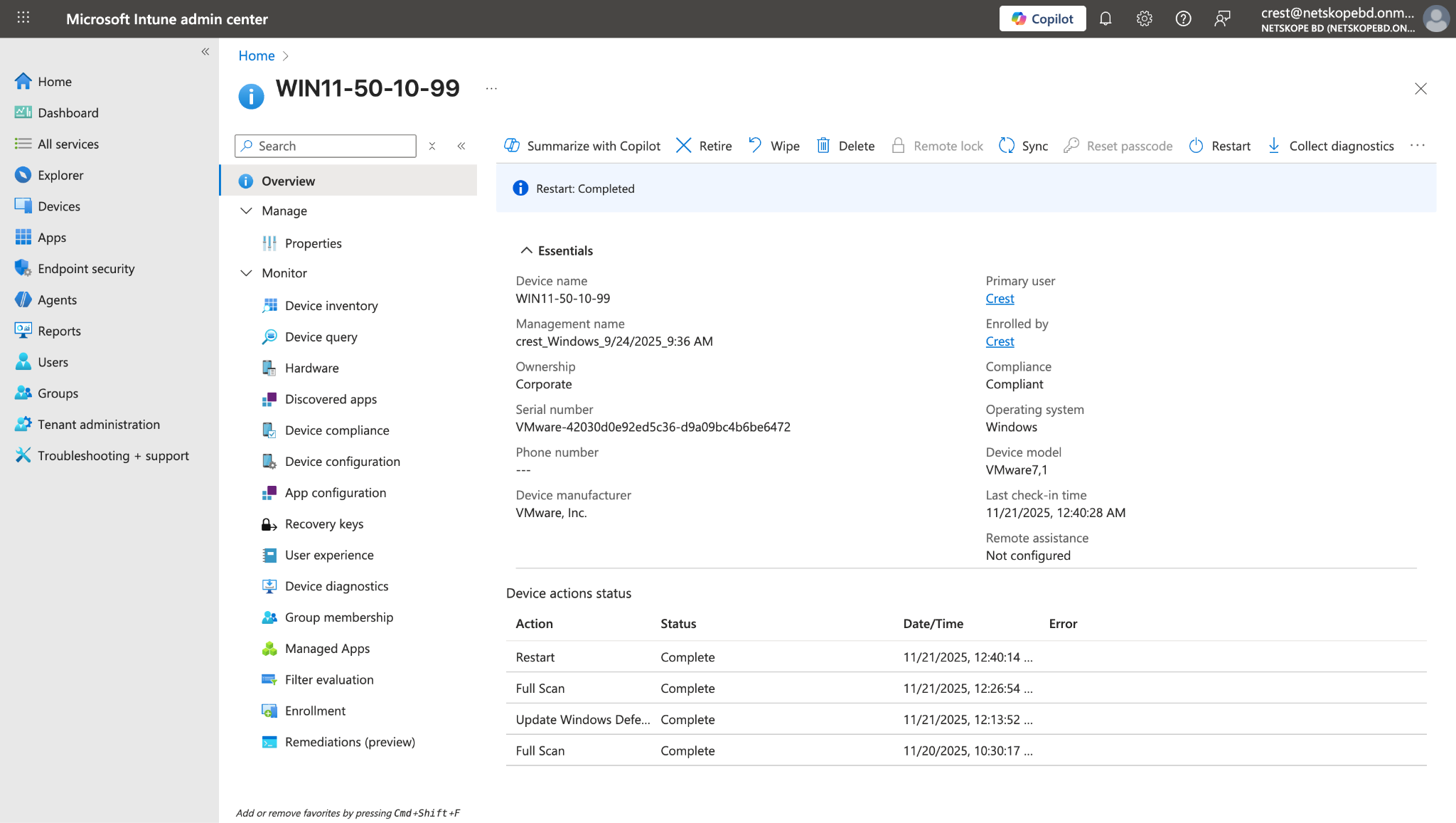
For the Update Windows Defender Signatures action:
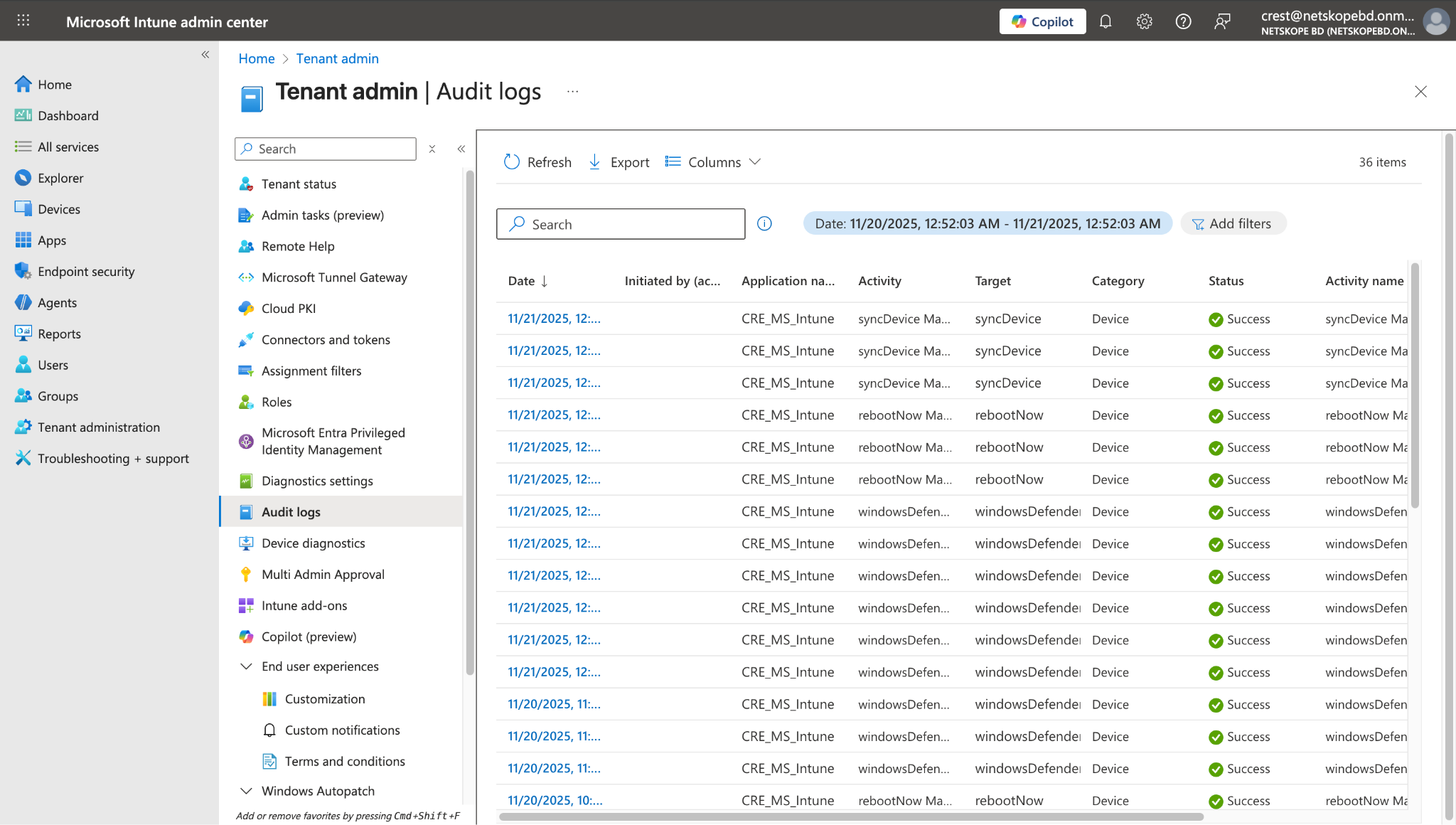
For the Sync Device Action, go to Tenant Administration > Audit Logs.
Troubleshooting the Microsoft Intune Plugin
Unable to configure the Microsoft Intune plugin
If you are unable to configure the Microsoft Intune plugin, it could be due to one of these reasons:
- Provided Incorrect Client ID, Client Secret, or Tenant ID.
- Provided Credentials that don’t have sufficient permissions.
What to do:
- To get the Client ID, Client Secret, and Tenant ID, follow the steps mentioned in Get the Client ID, Client Secret and Tenant ID from Microsoft Intune .
- To provide proper permissions to the configuration parameter, refer to the Permissions section.
Unable to pull Devices
If you are unable to pull Devices from the Microsoft Intune plugin, it could be due to one of these reasons:
- No Devices are present on the Microsoft Intune platform.
- An error is received while pulling Devices from the platform.
- Mapping was not added while configuring the plugin in the Entity source page.
What to do:
- Check on the Microsoft Intune platform to see if the Devices exist or not.
- Receiving 500 error: The server might be down, wait for a while and check later.
- Receiving 403 error: The plugin configuration parameter does not have sufficient permissions, or the credentials no longer exist. Verify the permissions for the Client ID, Client Secret, and Tenant ID.
- Make sure that the mappings were added while configuring the plugin.
Unable to View Devices details on the Records page
If you are unable to view Devices details on the Records page, it could be due to the mappings for all the Microsoft Intune fields were not provided while configuring the Microsoft Intune plugin.
What to do: Make sure to provide the needed mappings while configuring the plugin.
Unable to perform action on the Device
If you are unable to perform action on the Device, it could be due to one of these reasons:
- Insufficient permission was provided for the action.
- Receiving error while performing an action.
- Device is not present on the Microsoft Intune Platform.
- The Require Approval toggle was enabled while configuring the Action, and request is not approved.
What to do:
- Insufficient permission was provided for the action. Verify if the required permissions are provided to Intune.
- If the machine is down or does not exist, the plugin won’t be able to successfully perform the action. Verify that the device is accessible.
- Go to the Microsoft Intune Platform, and verify if the device for which an action needs to be performed is present or not.
- Go to the Action Logs page, select the logs that you want to approve the requests for, and click on the approve icon. Or disable the Require Approval toggle in the configured action, and perform the action again.
Unable to pull Group Tag after upgrading the plugin
If you are unable to pull Group Tag after upgrading the plugin to latest version, it could be due to this reason: As the Group Tag field is introduced in the plugin from v1.1.0, Group Tag is not mapped in the plugin after upgrading from v1.0.0.
What to do: Update the plugin and add the Group Tag field as mentioned in Mappings.
Limitation
Operating systems such as Windows, macOS, iOS, and Android are designed to allow only one active Mobile Device Management (MDM) authority at a time. Microsoft Intune is a MDM solution, and so is Omnissa Workspace One UEM. So if you want to enroll your devices on multiple platforms, make sure it is not an MDM solution. Otherwise you will receive the below error. This behavior is noticed when trying to enroll the device available on Omnissa to Intune.
