

Microsoft Purview Information Protection (MPIP) was formerly known as Microsoft Information Protection (MIP).
Microsoft Purview Information Protection currently works with CASB Inline, API Data Protection, Endpoint DLP and IaaS.
The feature set includes the following:
Ability to read:
Netskope allows reading of labels for identifying sensitive content and providing the ability to take action based on the sensitivity label as well as content.
There is no setup required for MPIP decryption. It is done by default once the MIP instance is granted in Sensitivity Label Integration page.
Below use cases are supported:
- Read MPIP Labels from unencrypted documents, webmail
- Read MPIP Labels from encrypted documents, webmail
- Read content from encrypted and unencrypted documents, webmail
- Detect if there is encrypted content passing through traffic
Ability to Write:
- Classify content(files with existing label) based on sensitivity of the content
- Ex: Scan for a file to identify the sensitivity of the content within the file. Based on the sensitivity, a certain label shall be applied such that the file is updated with the correct label
- Classify content(files with no label) based on sensitivity of the content
- Scan for a file to identify the sensitivity of the content within the file. Based on the sensitivity, a certain label shall be applied to the file such that the file which had no label now has the correct label. This is extremely useful as customers will have a large amount of files which are not classified and as part of compliance, need to ensure that every file in the organization has a label.
Note: If the label that is applied to the file is configured in Microsoft to apply encryption, then the same will be adhered to based on the label that is applied.
Sensitivity Label Integration
See Microsoft Documentation for more information.

Upon granting access, Netskope will fetch your pre-defined sensitivity labels as defined in vendor portal. For example, MPIP labels are fetched from Microsoft Compliance page.
The way permissions work in Azure/Office 365 is that Netskope requires an administrator to grant enough privileges for Netskope to perform specific actions. Note that the Netskope app does not receive global admin permissions. It only receives permissions for the scope Netskope requests.
In order to grant access and fetch your configurations:
-
Go to Settings > Manage > Sensitivity Label Integration.
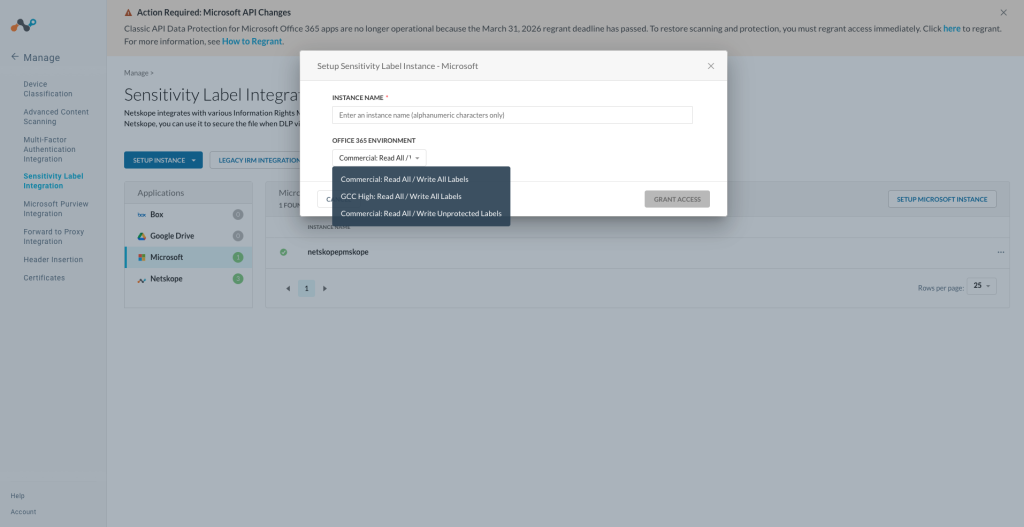
Click Setup Instance, click Microsoft, enter the Instance Name, select between Commercial: Read All/Write All Labels, GCC High: Read All/Write All Labels, and Commercial: Read All/Write Unprotected Label and click Grant Access.
The recommended setting is Write All Labels to ensure you can use all capabilities of the Sensitivity Label Integration as modifying the environment post grant is not supported. Selecting Write Unprotected Labels will disable the capability to write encrypted labels.

These permissions are required for:
- Read all unified policies – This is required to read all purview labels.
- Create protected content – This is required for writing encrypted (protected) label.
- Read all protected content – This is required for decrypting files having an encrypted (protected) label applied.
- Read user profile – This is required to get the email address of the admin performing the grant.
The new app editions have one reduced permission, Create protected content. This allows you to give Netskope access without allowing Netskope to apply encrypted labels on content.

Click … on the right-side of your newly setup instance and click View.


Sensitivity Label is the label defined in the Microsoft compliance page. A parent label can have multiple sublabels.
Order is the priority of the labels as defined in the Microsoft Purview Information Protection instance.
Scope defines the objects that the label will be applicable to.
These labels will be available for referencing when creating/editing a DLP File Profile.
Sync Labels:
Netskope provides the ability to sync labels on demand for any change that has been made to the label in the Microsoft compliance page. The same can be achieved by using the option, Sync sensitivity labels in either of these options.
Click the … icon, and then select Sync Sensitivity Labels.

After clicking View in the … dropdown shown above, click Sync Sensitivity Labels.

Email (.eml) File Scanning Support
Decryption of emails is supported.
Limitations
Decryption will not work if the plain text option is used. This is due to a limitation in the MIP SDK.
For more information, see Real-time Protection Policies and View DLP Incidents related to SMTP Proxy.
DLP Integration
Netskope can read the files’ label with a DLP profile by creating a File Profile like below:

