

Release Notes
2.1.0 (Requires Cloud Exchange v6.1.0 or later)
Added
- Added revert support for the “Add to Group” and “Remove from Group” actions.
- Added resolutions for error logs.
- Added a “API Base URL” configuration parameter.
Changed
- Updated Tooltip and Description as per the mimecast UI change.
- Updated the “Awareness Training” package validation to “Engage Core” package.
2.0.0
Changed
- Updated APIs from Mimecast API 1.0 to Mimecast API 2.0.
Added
- Added support for bulk actions starting from CE v5.1.1.
1.0.0
Added
- Initial release.
This document explains how to configure the Mimecast v2.1.0 plugin with the Risk Exchange module in the Netskope Cloud Exchange platform. This plugin fetches users from the Engage > Reporting and Insights > Training Reports page of the Mimecast platform. This plugin supports performing actions such as Add to Group, Remove from Group, and No Action on Mimecast users.
Netskope normalization score calculation for users: Grade A: 800, Grade B: 600, Grade C: 400, Grade D: 200, Grade F: 1.
Prerequisites
To complete this integration, you need:
- A Netskope tenant (or multiple, for example, production and development/test instances).
- A Netskope Cloud Exchange tenant with the Tenant plugin and Risk Exchange plugin already configured.
- Mimecast platform credentials.
- A Mimecast administrator with at least the Awareness Training | Dashboard | Read permission, the Directories | Groups | Edit permission, and the Accounts | Dashboard | Read permission.
- A Mimecast platform with access administrator and Engage Core overview access. Refer to the following documents for more details:
- Connectivity to the following host: https://login.mimecast.com/.
Mimecast Plugin Support
This plugin fetches users from the Engage > Reporting and Insights > Training Reports page of the Mimecast platform. This plugin supports performing actions such as Add to Group, Remove from Group, and No Action on Mimecast users.
| Type of Data Pulled | Type of Actions Supported |
|---|---|
| Users | Add to Group Remove from Group No Action |
Mappings
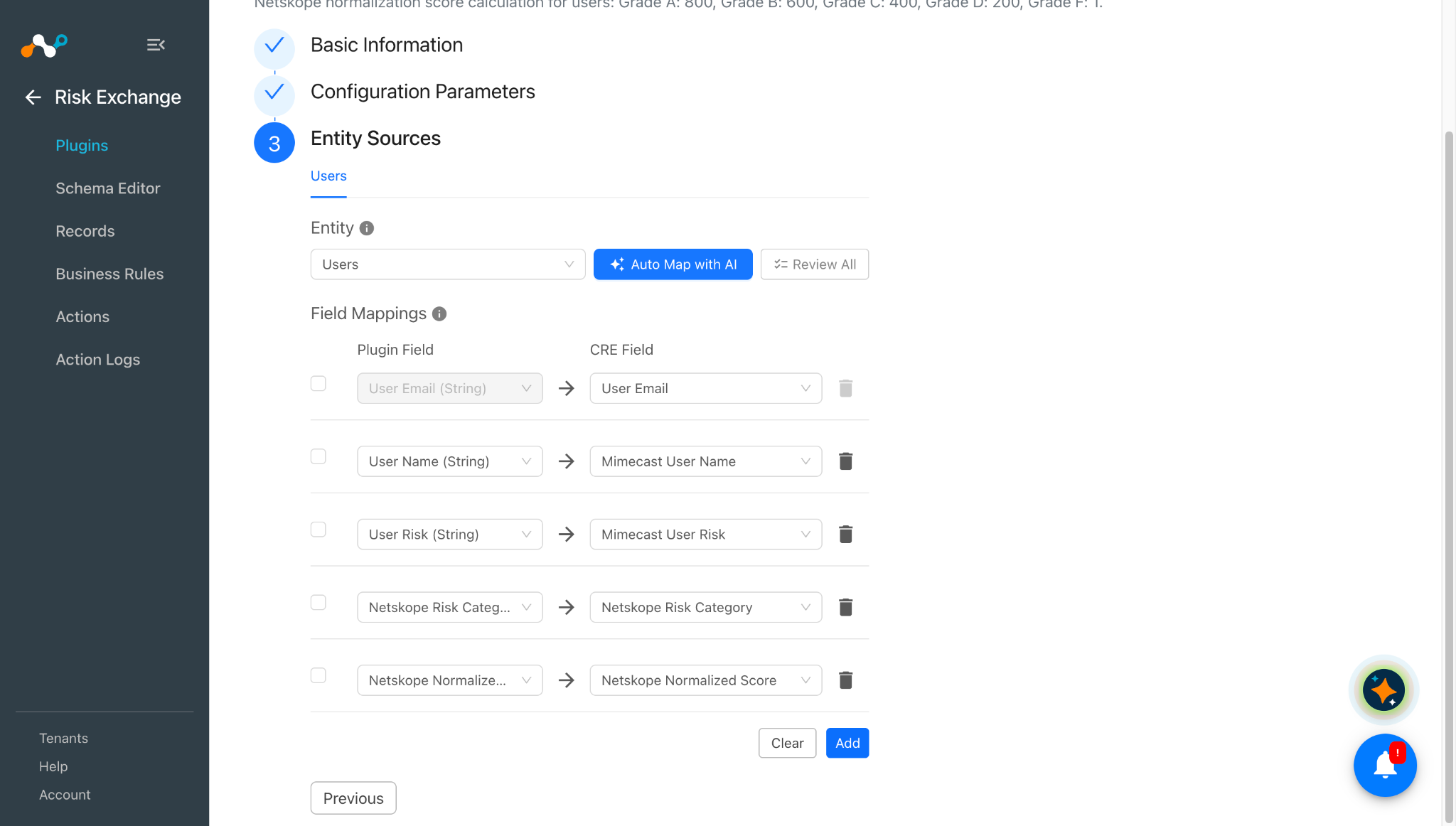
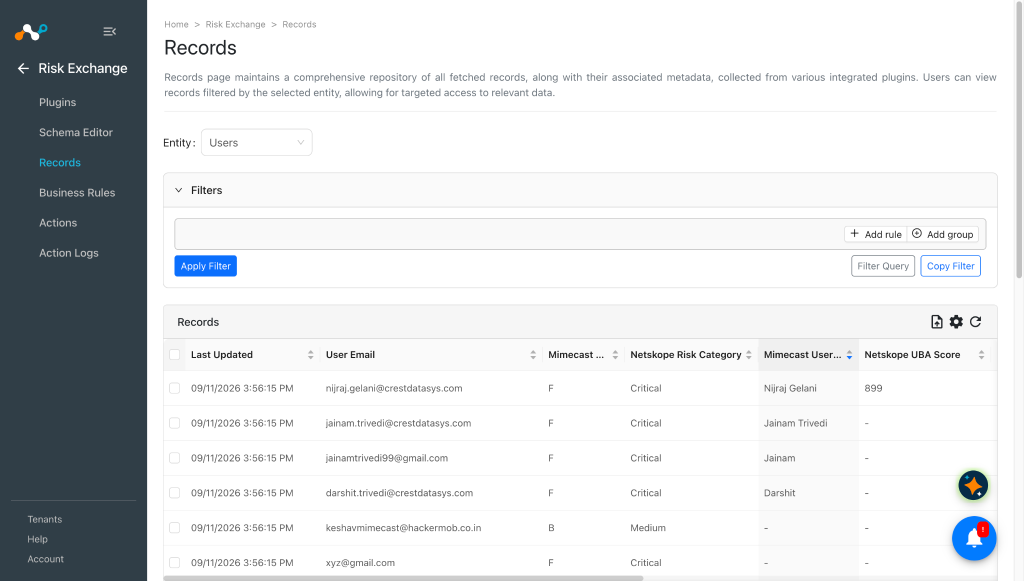
Mappings are used to view the pulled Users and their respective details. Fields mapped during plugin configuration will be visible on the Records page after the data is pulled. Here are the suggested mappings to use while configuring the plugin.
Pull Mapping
| Plugin Field Label | Expected Data Type | Suggested Field Label | Aggregate Strategy | Example |
|---|---|---|---|---|
| User Email | String | User Email | Unique | jake@netskope.com |
| User Name | String | Mimecast User Name | Overwrite | jake |
| User Risk | String | Mimecast User Risk | Overwrite | A |
| Netskope Risk Category | String | Netskope Risk Category | Overwrite | Low |
| Netskope Normalized Score | Number | Netskope Normalized Score | Overwrite | 800 |
Score Mapping
Score mapping for risky users differs from other plugins. Mimecast reports scores as a grade, and each grade is mapped to a numeric score and a risk category in Cloud Exchange, as shown below.
| Netskope Normalized Score | Mimecast Score | Netskope Risk Category |
|---|---|---|
| 800 | A | Low |
| 600 | B | Medium |
| 400 | C | High |
| 200 | D | Critical |
| 1 | F | Critical |
Permissions
- Administration Console access.
- Permission to create a user.
- Permission to add a created user to the Basic Administrator role.
API Details
List of APIs Used
| API Endpoint | Method | Use Case |
|---|---|---|
/oauth/token | POST | Obtains an access token. The token is valid for 15 minutes, and the same endpoint is called again on expiry. |
/api/account/get-account | POST | Returns the summary details for an account in Mimecast. |
/api/directory/find-groups | POST | Finds the groups that exist on a Mimecast tenant. |
/api/directory/create-group | POST | Creates new profile groups. |
/api/directory/add-group-member | POST | Adds user email addresses or domains to a profile group. |
/api/directory/remove-group-member | POST | Removes group members from Mimecast profile groups. |
/api/awareness-training/company/get-safe-score-details | POST | Gets user-level Mime|OS SAFE score details and grades, including User Risk. |
Get a Bearer Token
API Endpoint: https://<API Base URL>/oauth/token
Method: POST
Request Headers
| Key | Value |
|---|---|
grant_type | client_credentials |
client_id | Mimecast Client ID |
client_secret | Mimecast Client Secret |
User-Agent | netskope-ce-7.0.0-cre-mimecast-v2.1.0 |
Sample API Response
{
    "access_token": "V9RteK0pwTxPscMCCd6xs20f05Ob",
    "token_type": "Bearer",
    "expires_in": 1799,
    "scope": ""
}
Validate Credentials
API Endpoint: https://<API Base URL>/api/account/get-account
Method: POST
Request Headers
| Key | Value |
|---|---|
Authorization | Bearer <Bearer Token> |
User-Agent | netskope-ce-7.0.0-cre-mimecast-v2.1.0 |
Sample API Response
{
    "meta": {
        "status": 200
    },
    "data": [
        {
            "region": "us",
            "archive": false,
            "gateway": true,
            "passphrase": "",
            "supportCode": "5656",
            "maxRetention": 30,
            "maxRetentionConfirmed": true,
            "minRetentionEnabled": false,
            "automatedSegmentPurge": true,
            "type": "full",
            "policyInheritance": false,
            "databaseCode": "test",
            "searchReason": false,
            "contentAdministratorDefaultView": "",
            "adminSessionTimeout": 720,
            "exportApi": false,
            "exgestAllowQuery": false,
            "exgestAllowExtraction": true,
            "expressAccount": false,
            "cybergraphV2Enabled": true,
            "accountCode": "",
            "accountName": "",
            "adminEmail": "",
            "contactEmail": "testuser@gmail.com",
            "domain": "",
            "userCount": 10,
            "umbrellaAccounts": [
                "CU2A110,CUSA131A2,CUSA133A2,CUSA42A10,CUS"
            ],
            "mimecastId": "01-1234-123",
            "contactName": "test user",
            "telephone": "123-123-123",
            "packages": [
                "Auto Responders (Site) [1005]",
                "Impersonation Protection [1060]",
                "Engage Core [1124]"
            ]
        }
    ],
    "fail": []
}
Fetch Users and Scores
API Endpoint: https://<API Base URL>/api/awareness-training/company/get-safe-score-details
Method: POST
Request Headers
| Key | Value |
|---|---|
Authorization | Bearer <Bearer Token> |
User-Agent | netskope-ce-7.0.0-cre-mimecast-v2.1.0 |
Request Body
{
    "meta":
    {
        "pagination": {
            "pageSize": 100,
            "pageToken": ""
        }
    }
}
Sample API Response
{
 "meta": {
        "pagination": {
            "pageSize": 19,
            "totalCount": 19
        },
        "status": 200
    },,
 "data": [
  {
   "humanError": "String",
   "emailAddress": "String",
   "name": "String",
   "sentiment": "String",
   "department": "String",
   "engagement": "A",
   "knowledge": "A",
   "risk": "A"
  }
 ],
    "fail": []
}
Pull Available Groups
API Endpoint: https://<API Base URL>/api/directory/find-groups
Method: POST
Request Headers
| Key | Value |
|---|---|
Authorization | Bearer <Bearer Token> |
User-Agent | netskope-ce-7.0.0-cre-mimecast-v2.1.0 |
Request Body
{
    "meta":
    {
        "pagination": {
            "pageSize": 100,
            "pageToken": ""
        }
    }
}
Sample API Response
{
    "meta": {
        "pagination": {
            "pageSize": 100,
            "totalCount": 120,
            "next": ""
        },
        "status": 200
    },
"data": [
        {
            "source": "cloud",
            "folders": [
                {
                    "id": "string",
                    "description": "demo",
                    "source": "cloud",
                    "parentId": "string",
                    "userCount": 2,
                    "folderCount": 0
                },
],
    "fail": []
}
Add a User to a Group
API Endpoint: https://<API Base URL>/api/directory/add-group-member
Method: POST
Request Headers
| Key | Value |
|---|---|
Authorization | Bearer <Bearer Token> |
User-Agent | netskope-ce-7.0.0-cre-mimecast-v2.1.0 |
Request Body
{
    "data":[
        {
            "id": "string",
            "emailAddress":"abc@test.com"
        },
        {
            "id": "string",
            "emailAddress":"test@gmail.com"
        }
    ]
}
Sample API Response
{
    "fail": [],
    "meta": {
        "status": 200
    },
    "data": [
        {
            "folderId": "String",
            "emailAddress": "String",
            "id": "String",
            "internal": true
        }
    ]
}
Remove a User from a Group
API Endpoint: https://<API Base URL>/api/directory/remove-group-member
Method: POST
Request Headers
| Key | Value |
|---|---|
Authorization | Bearer <Bearer Token> |
User-Agent | netskope-ce-7.0.0-cre-mimecast-v2.1.0 |
Request Body
{
    "data":[
        {
            "id": "string",
            "emailAddress":"abc@test.com"
        },
        {
            "id": "string",
            "emailAddress":"test@gmail.com"
        }
    ]
}
Sample API Response
{
    "fail": [],
    "meta": {
        "status": 200
    },
    "data": [
        {
            "folderId": "String",
            "emailAddress": "String",
            "id": "String",
            "internal": true
        }
    ]
}
Create a Group
API Endpoint: https://<API Base URL>/api/directory/create-group
Method: POST
Request Headers
| Key | Value |
|---|---|
Authorization | Bearer <Bearer Token> |
User-Agent | netskope-ce-7.0.0-cre-mimecast-v2.1.0 |
Request Body
{
    "data": [
        {
        "description": "Created Group"
        }
    ]
}
Sample API Response
{
    "meta": {
        "status": 200
    },
    "data": [
        {
            "id": "string",
            "description": "Created Group",
            "source": "cloud",
            "userCount": 0,
            "folderCount": 0
        }
    ],
    "fail": []
}
Performance Matrix
The following performance matrix was measured on a Large Cloud Exchange stack while pulling 500K users.
| Description | Specification |
|---|---|
| Stack Size | Size: Large, RAM: 32 GB, Core: 16 |
| Time taken to store the pulled and updated user records | ~17 minutes |
User Agent
netskope-ce-7.0.0-cre-mimecast-v2.1.0
Workflow
- Create a new user and add the user to an Administrative role.
- Create an API application to get the Client ID and Client Secret.
- Configure the Mimecast plugin.
- Configure a Business Rule.
- Configure Actions.
- Validate the plugin.
Watch a Video
Click play to watch a video.
Create a New User and Assign a Role
-
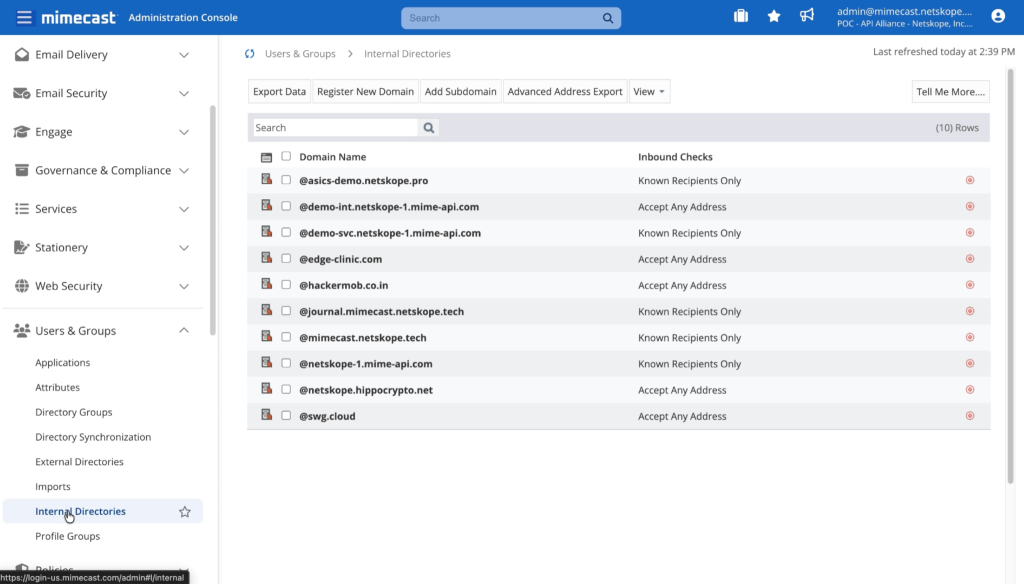
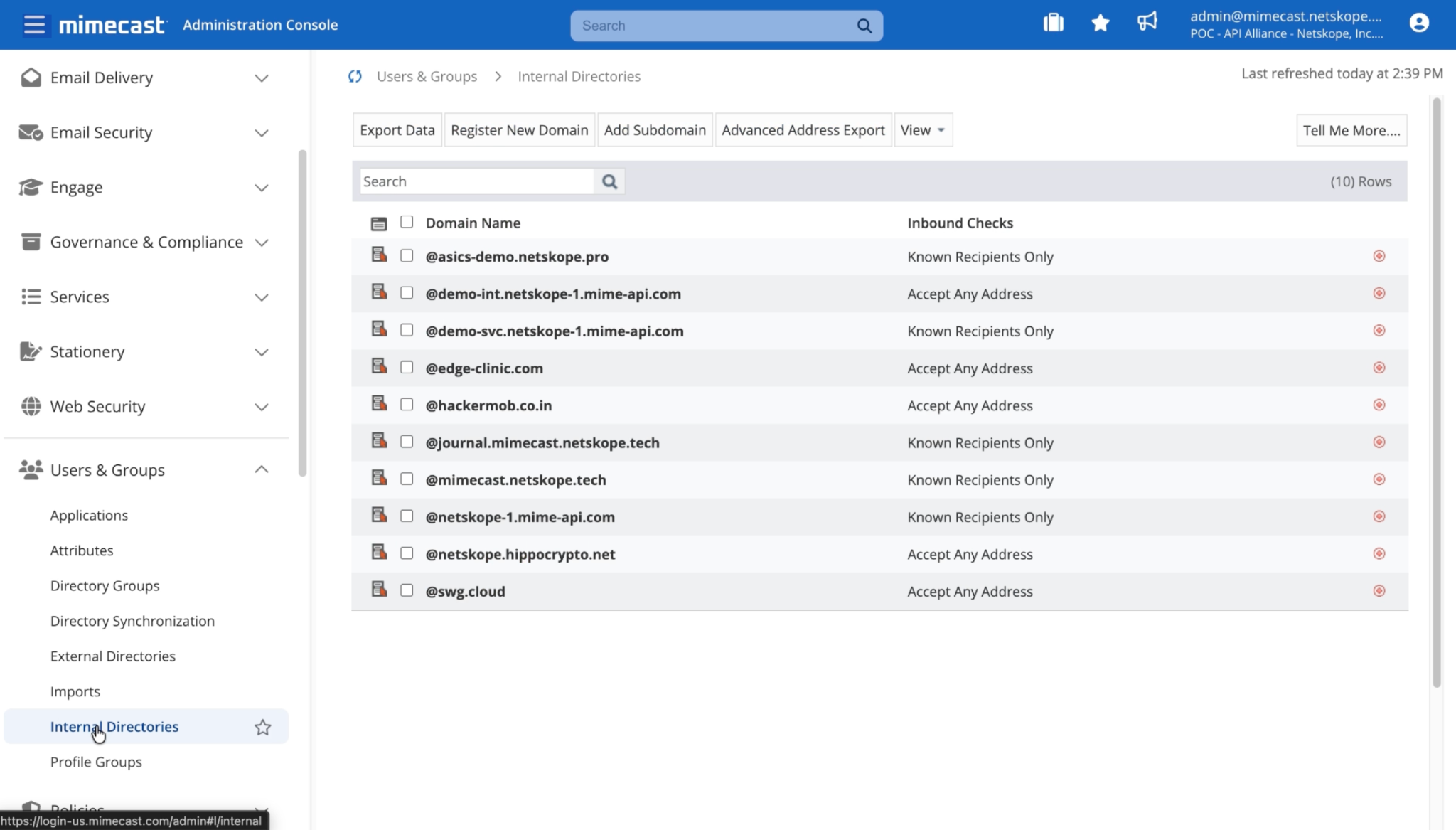
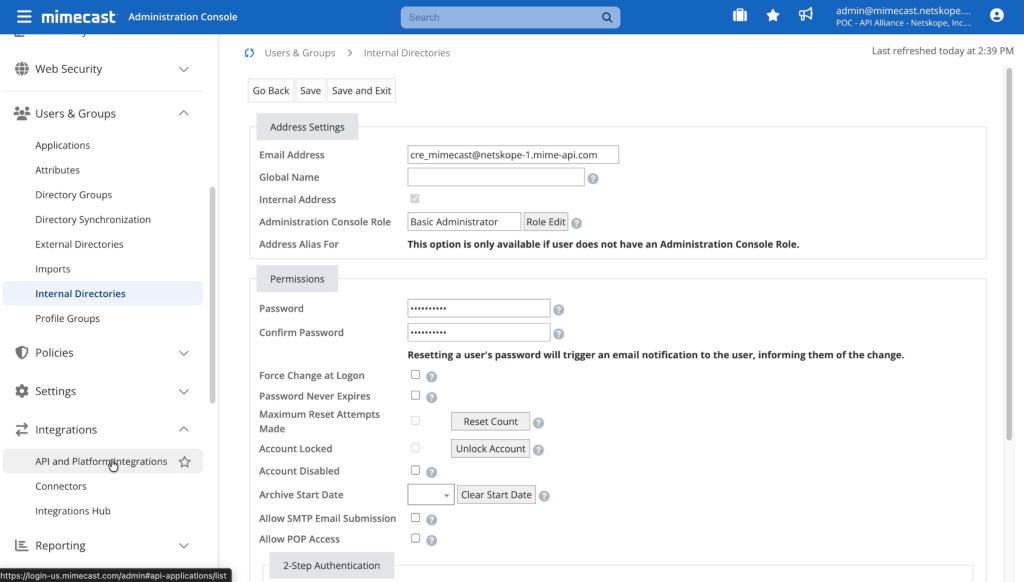
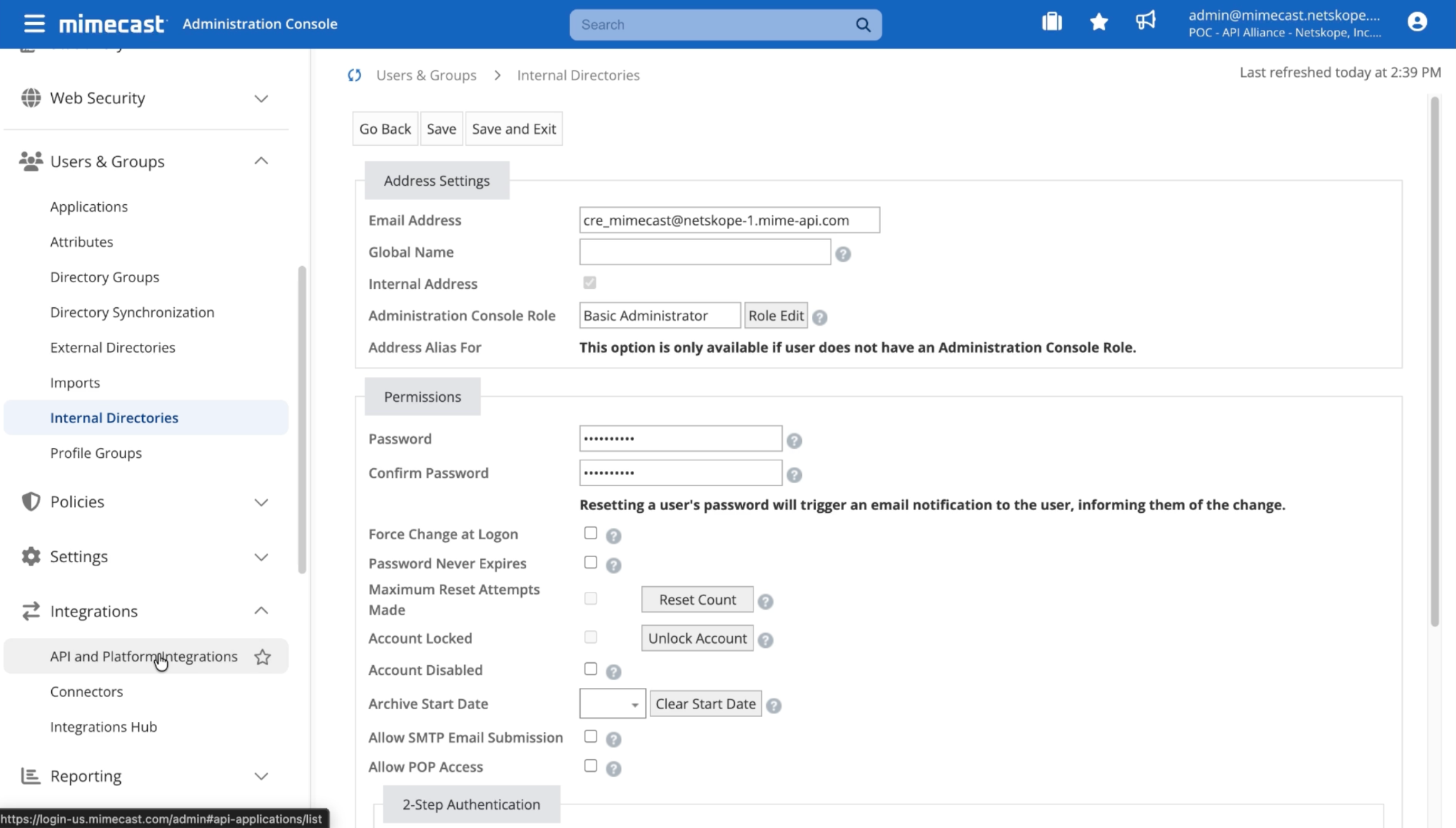
Log in to Mimecast and go to Users and Groups > Internal Directories.
-
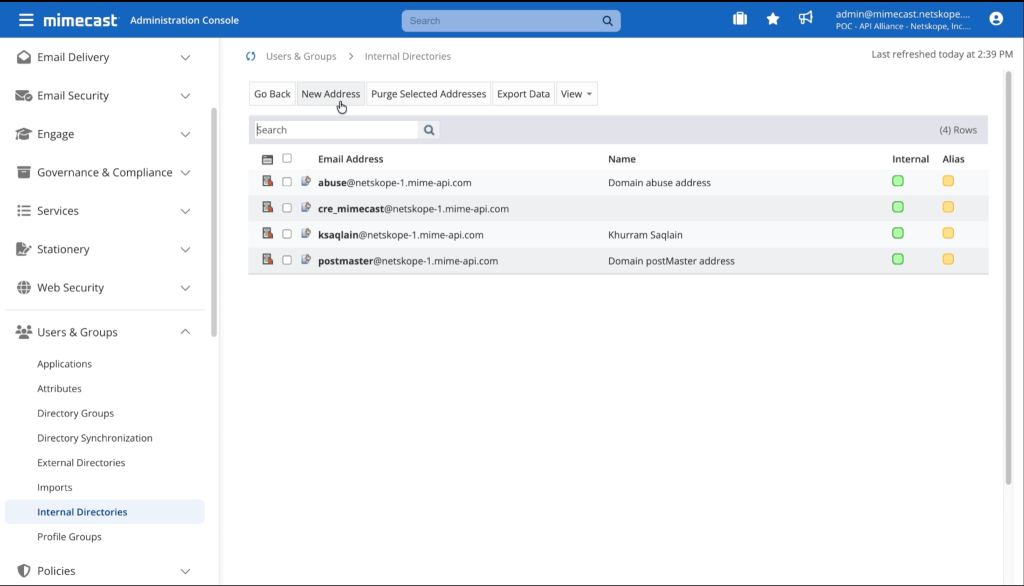
Select the internal directory where you want to create the new user.
-
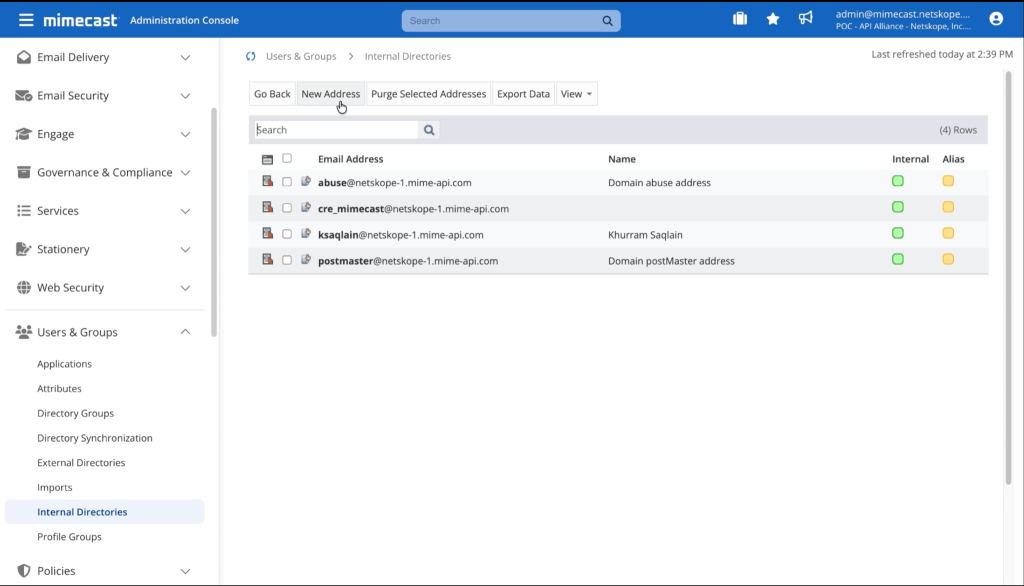
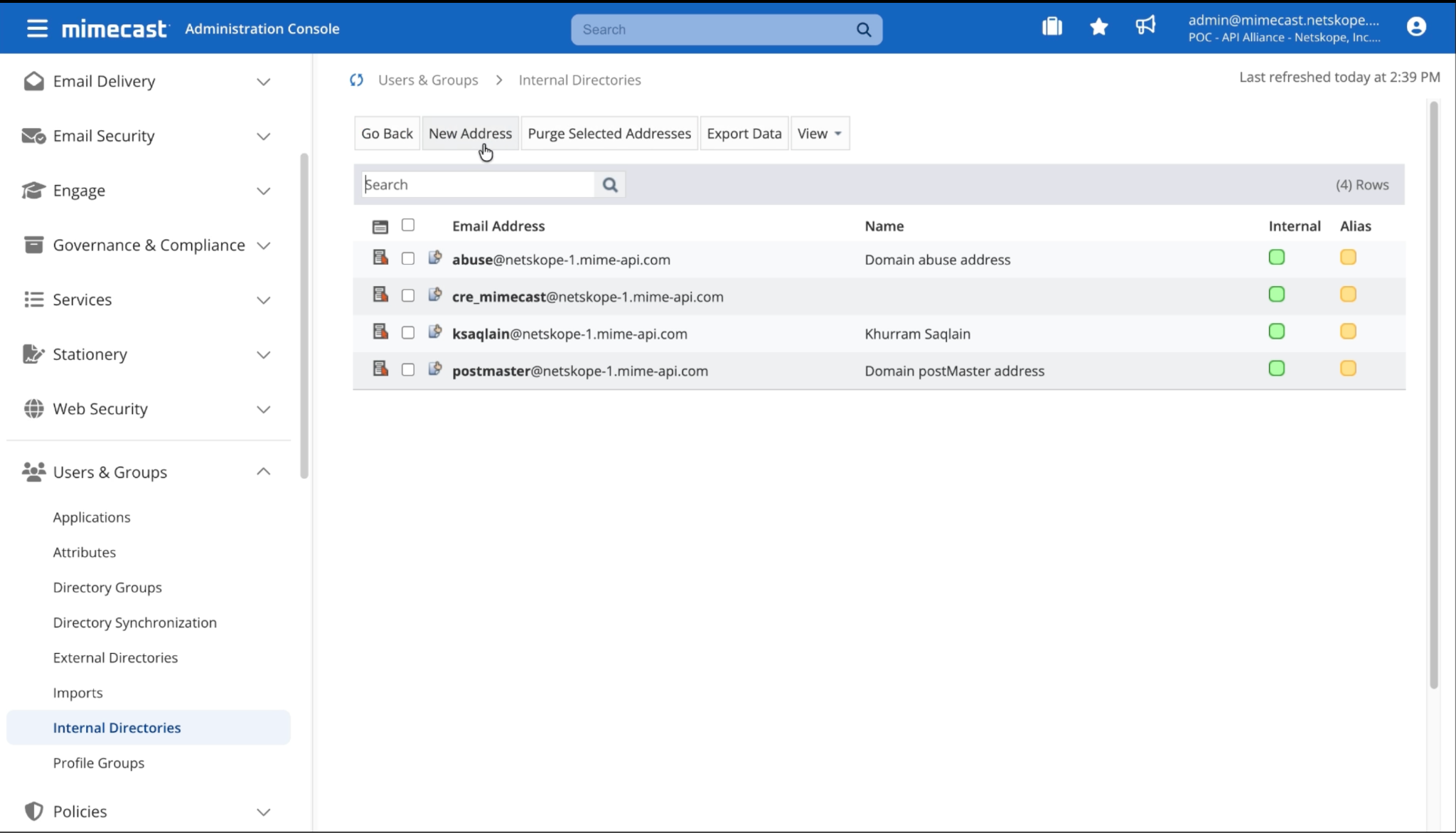
Click New Address on the menu bar.
-
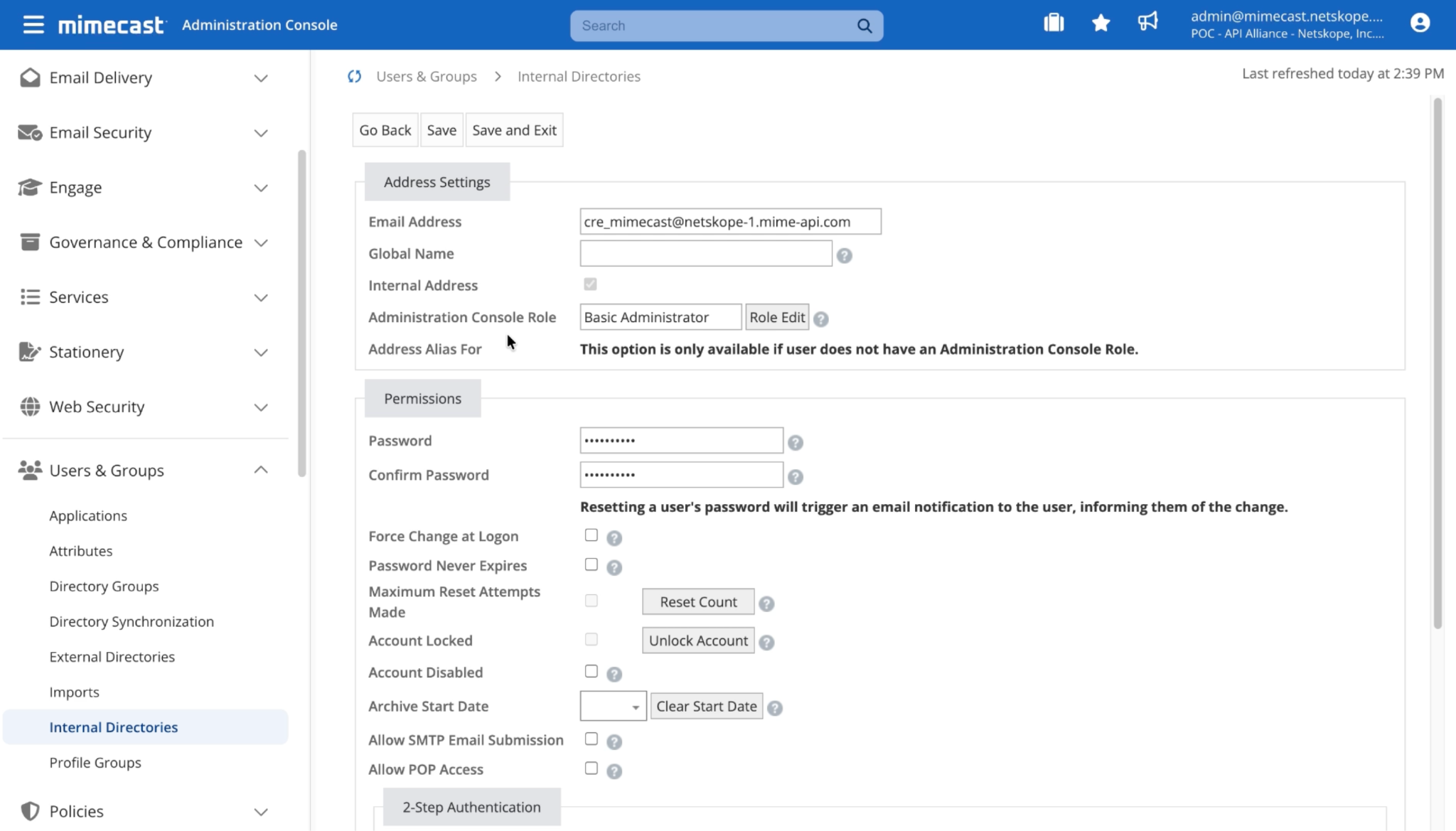
Complete the new address form with a new email address, the Basic Administrator role, a password, and a phone number (required for 2FA), and then click Save and Exit.
Keep a note of the password you set. You use it to get your authentication tokens at a later stage.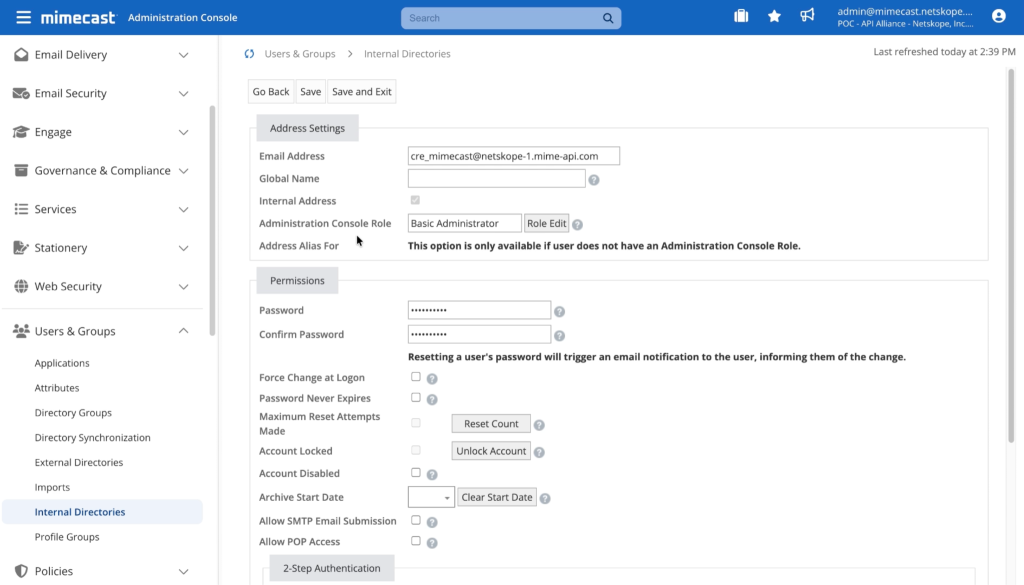
Create a New API Application
-
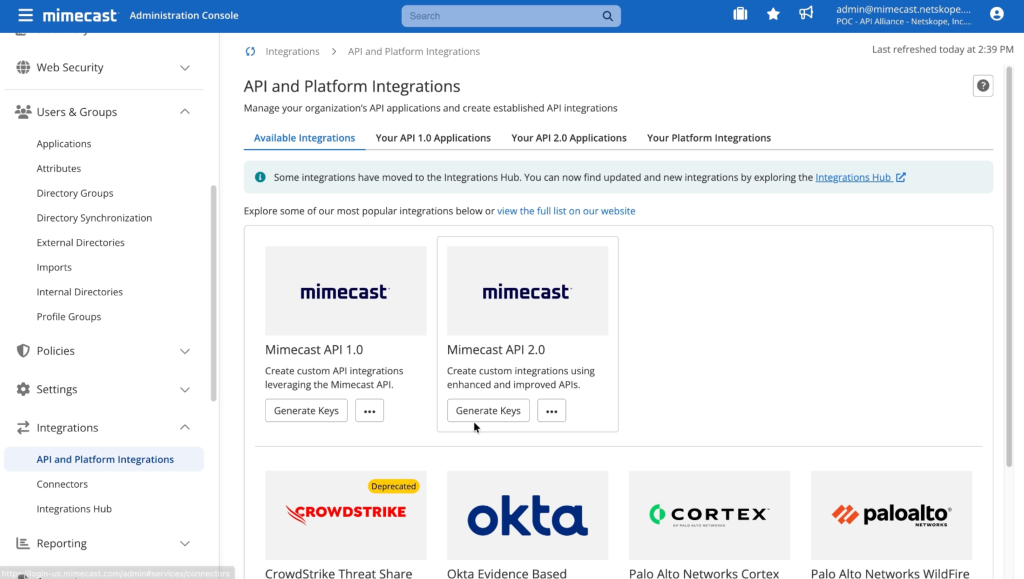
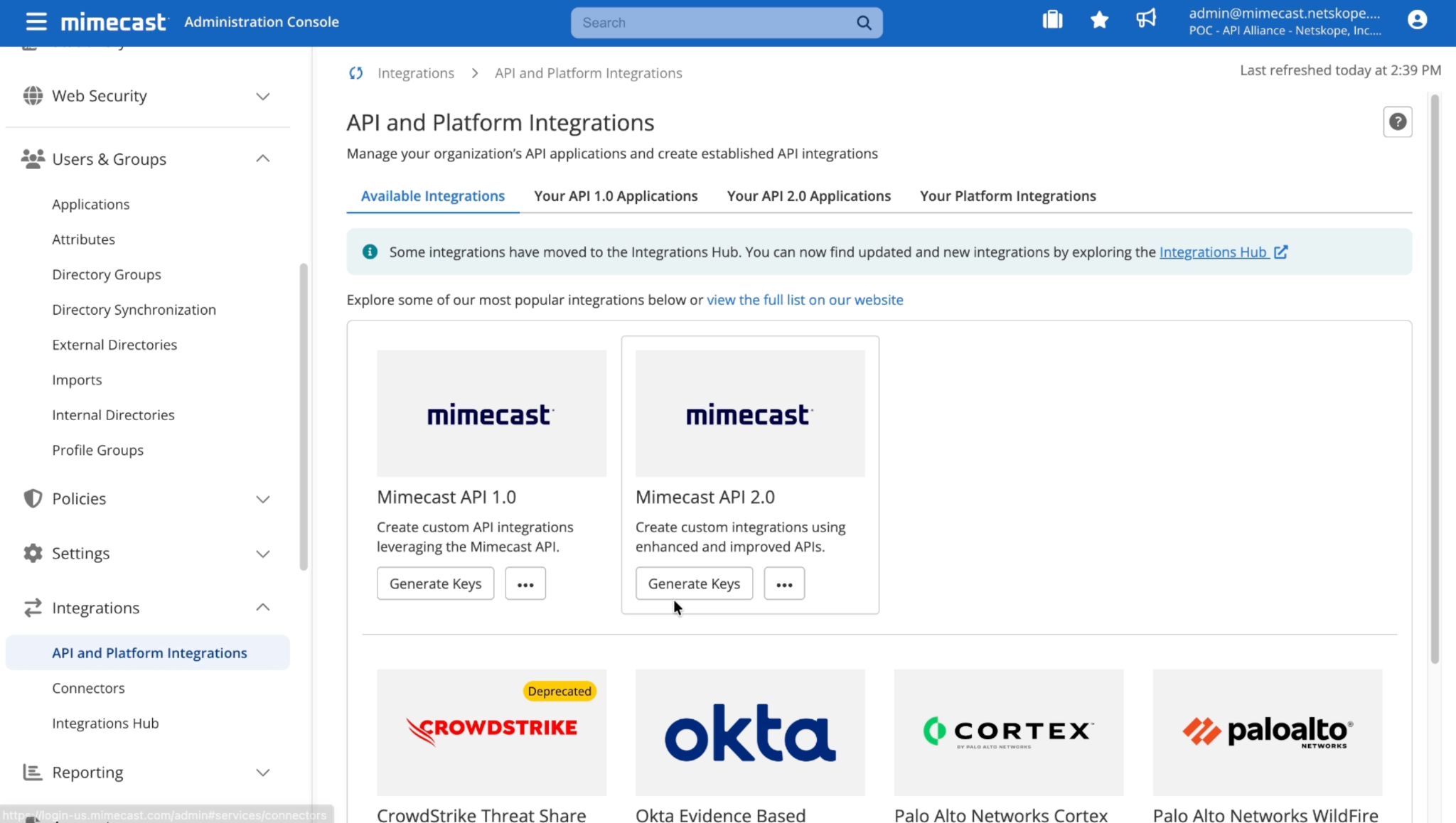
Go to Integrations > API and Platform Integrations to display the available API applications.
-
Click Mimecast API 2.0 > Generate Keys.
-
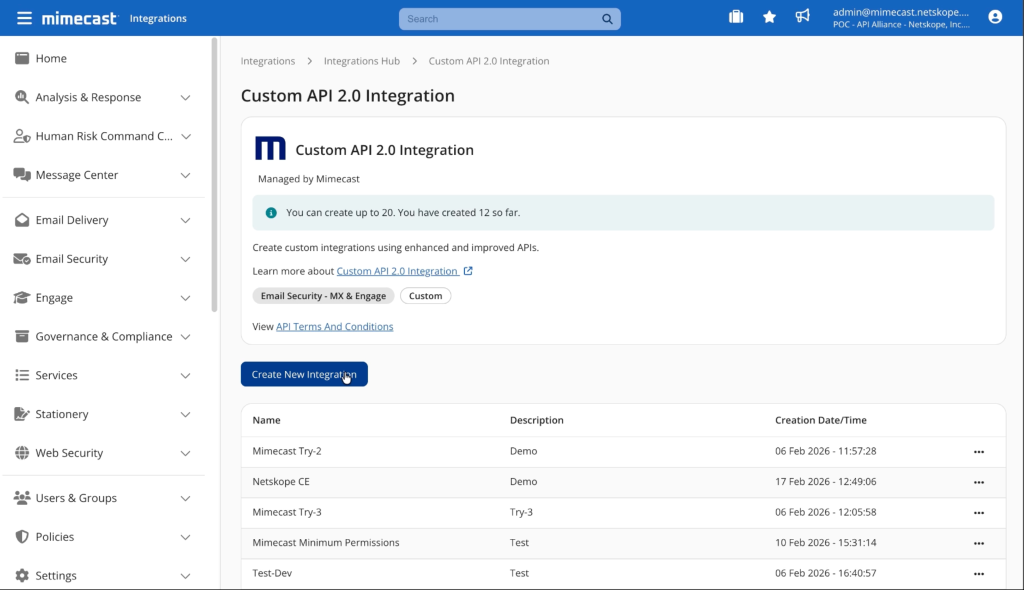
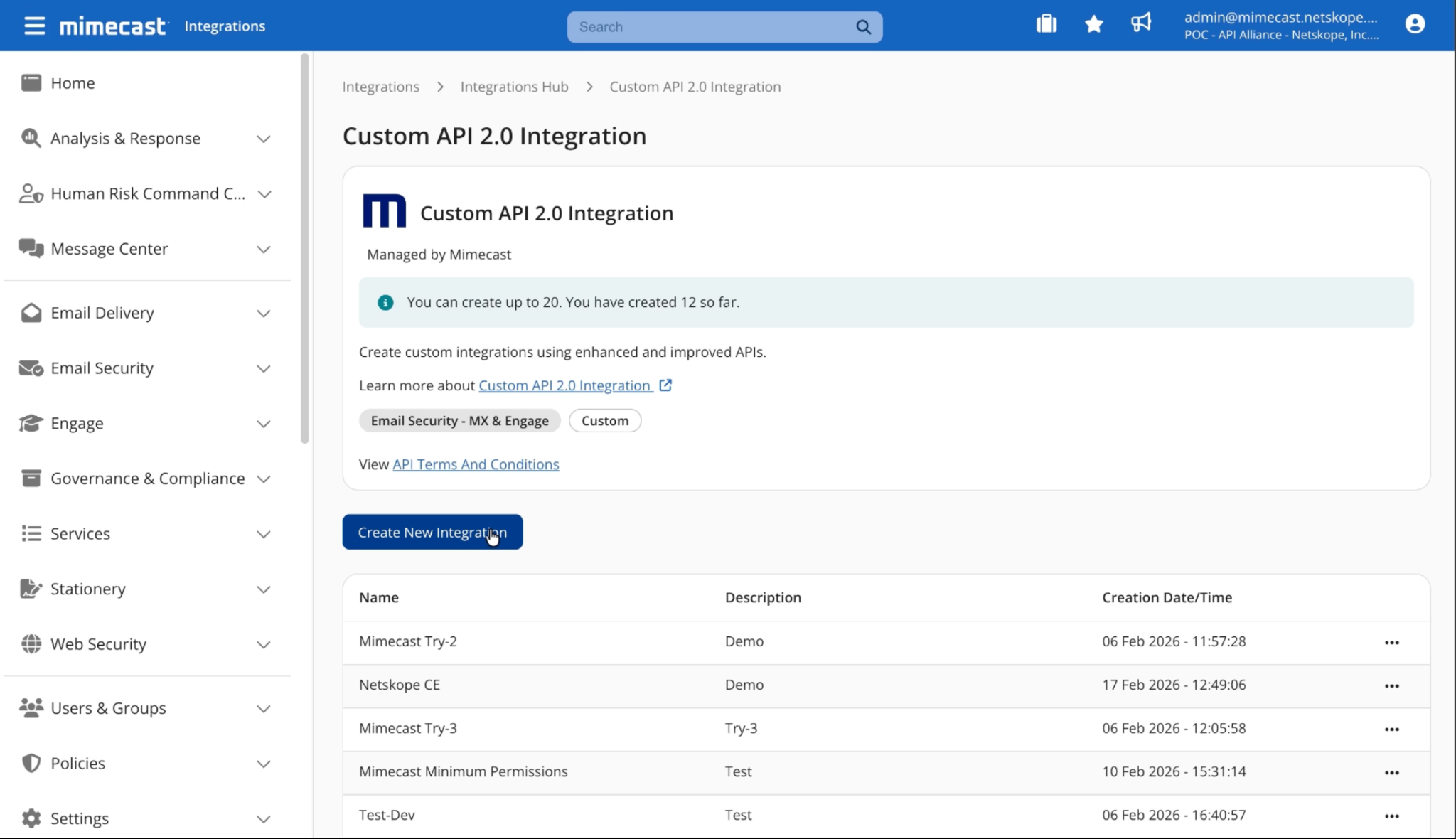
Click Create New Integration.
-
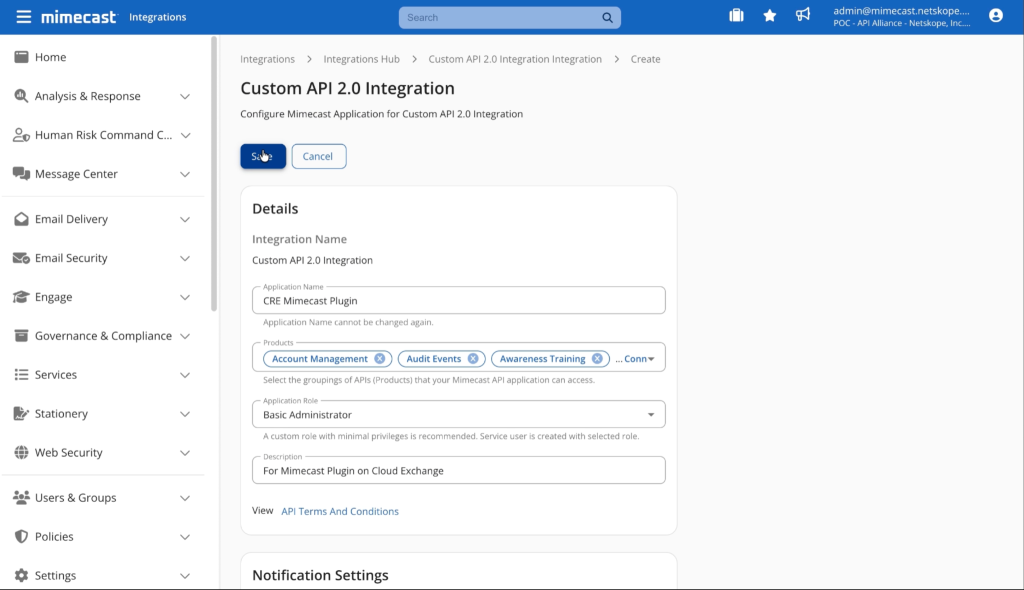
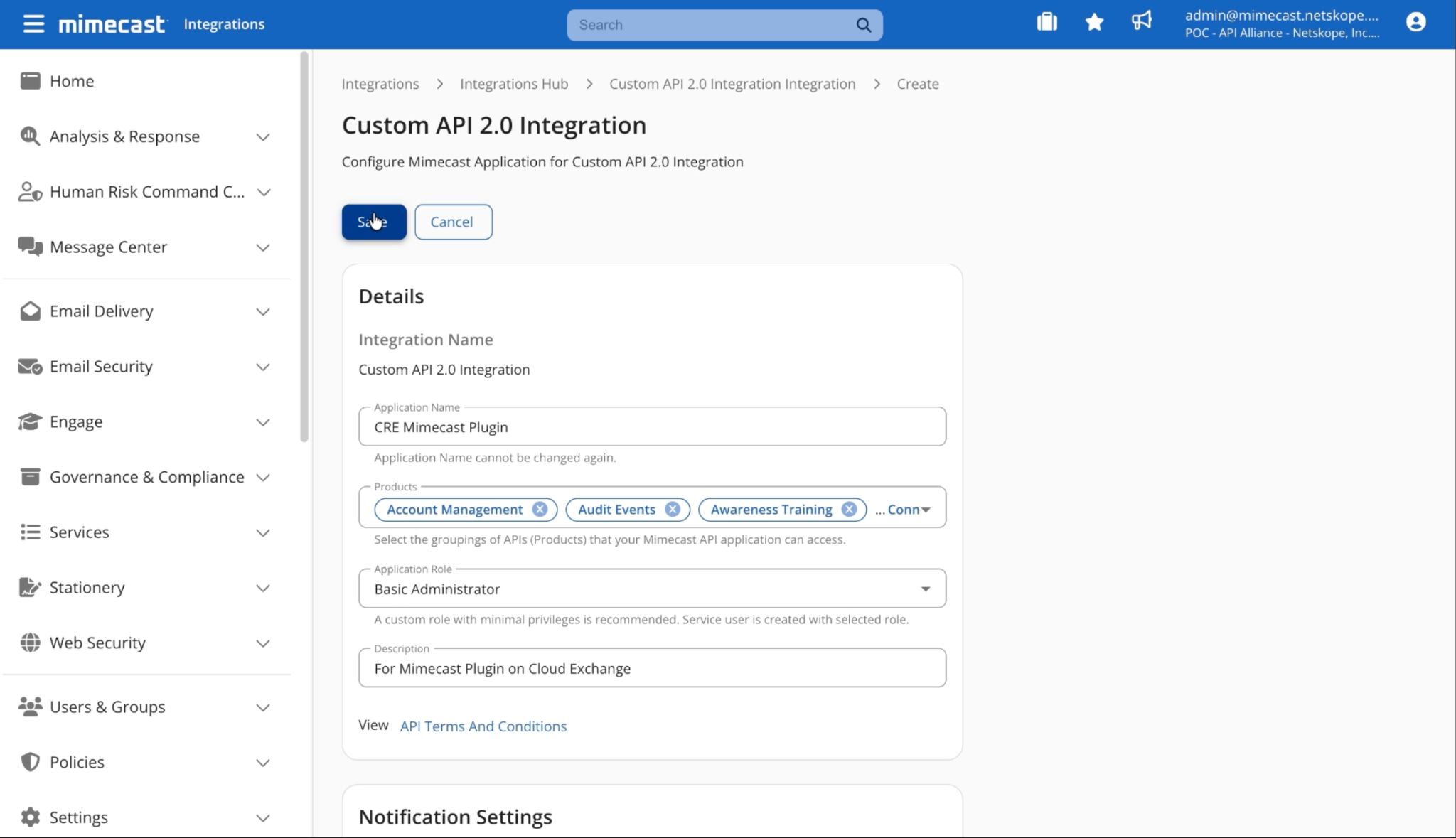
Enter an Application Name, select all the products, set the role to Basic Administrator, and enter a description.
-
Under Notifications, enter a Developer Name and the email address of the user you created previously. This links the user’s application and profile settings to the API application.
-
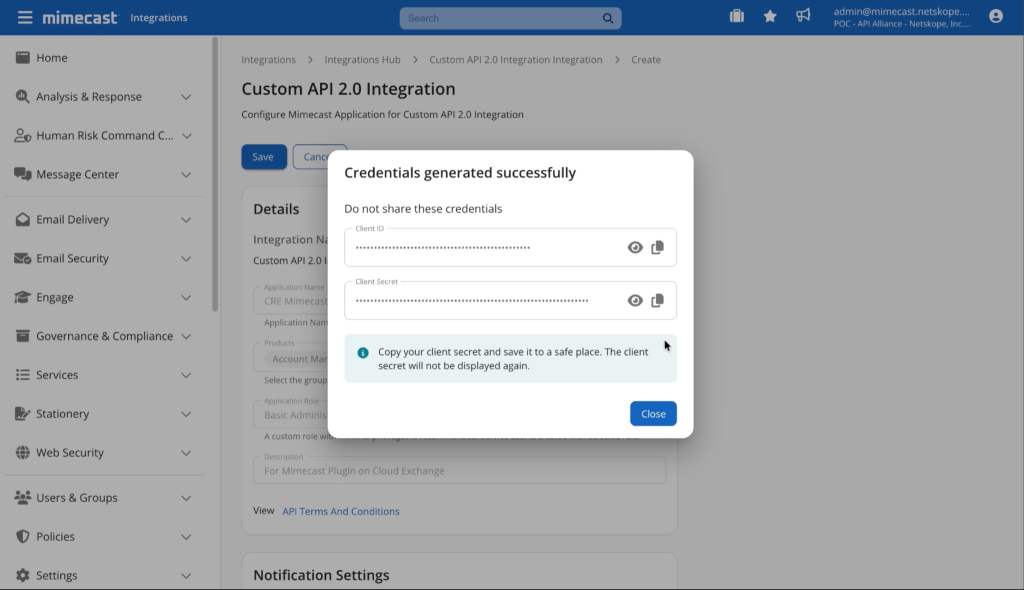
Review the configuration parameters, edit them if required, and then click Save.
-
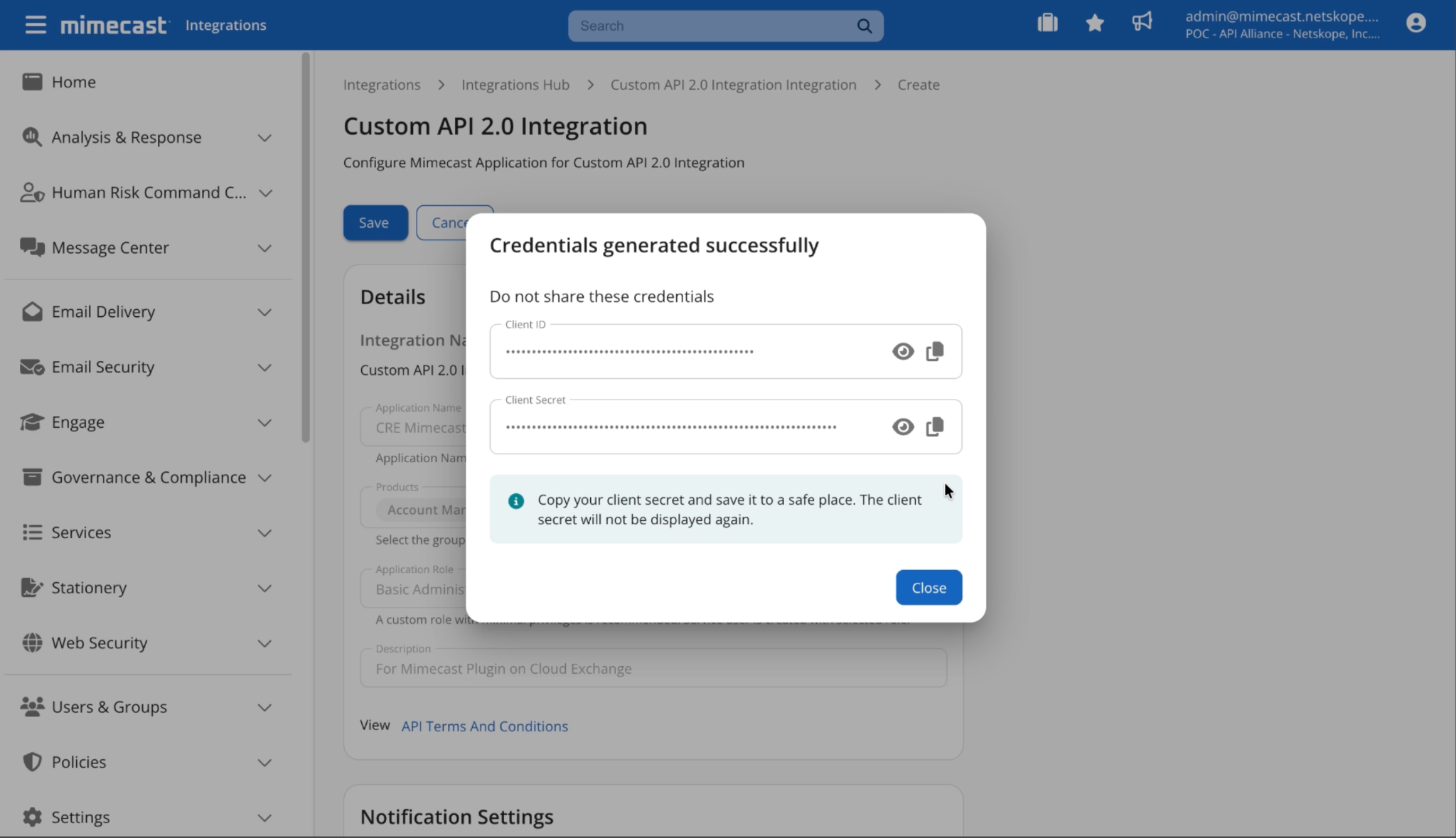
Copy the Client ID and Client Secret shown on the application details page. You use them to configure the Mimecast plugin on Cloud Exchange.
Configure the Mimecast Plugin
-
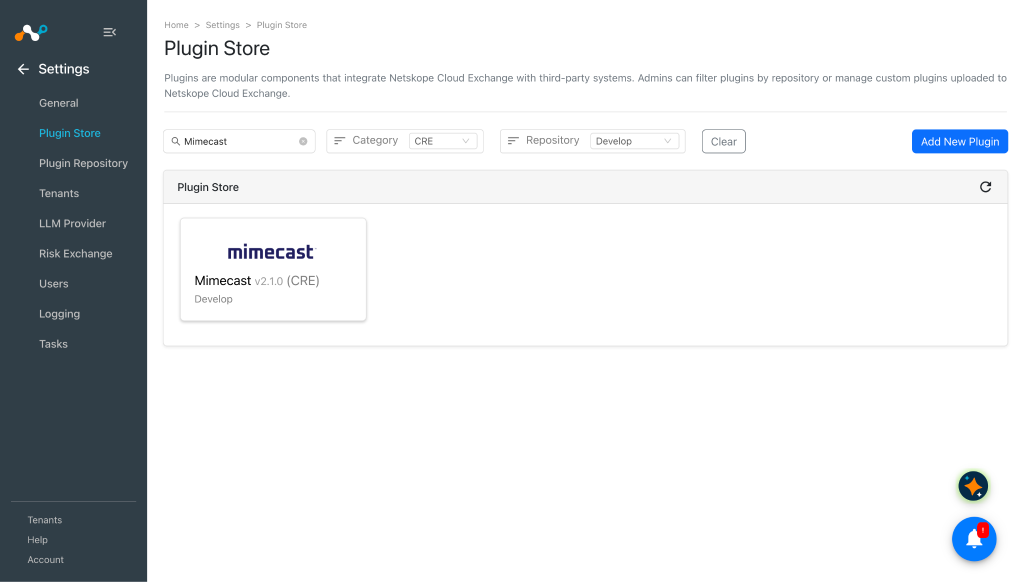
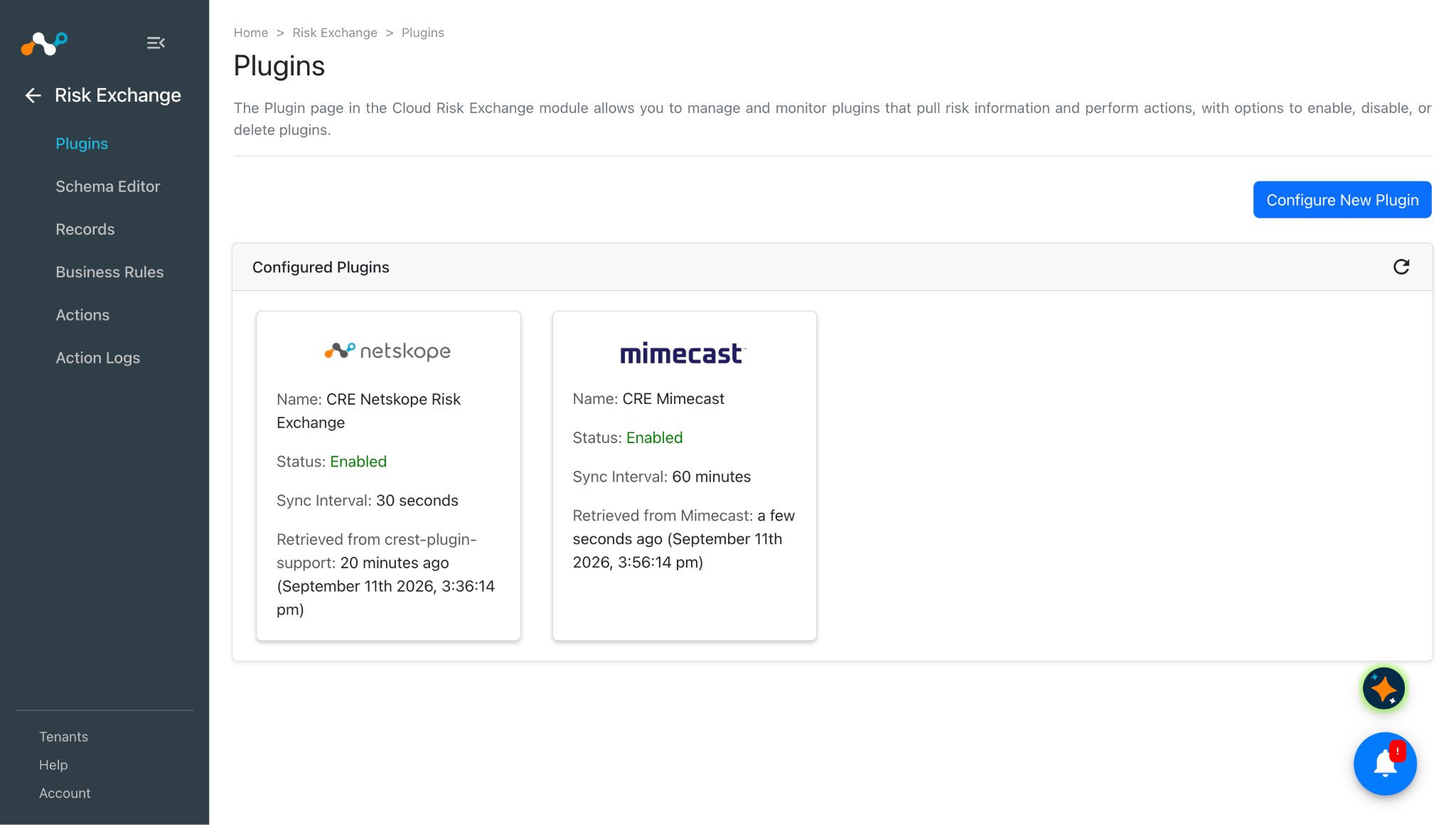
In Cloud Exchange, go to Settings > Plugin Store. Search for and select the Mimecast v2.1.0 (CRE) plugin. box.
-
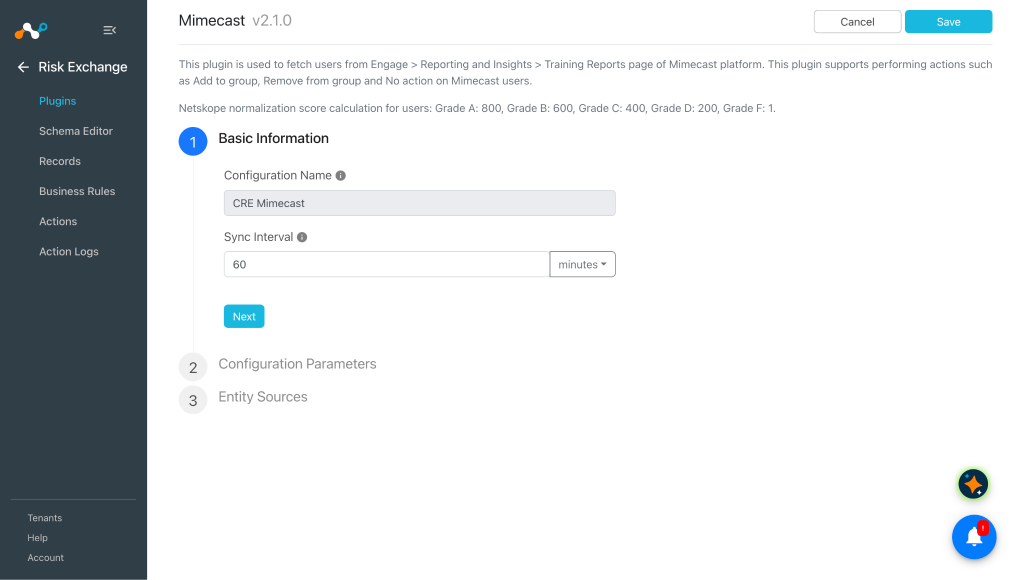
Enter a Configuration Name, and set the Sync Interval per your requirement.
-
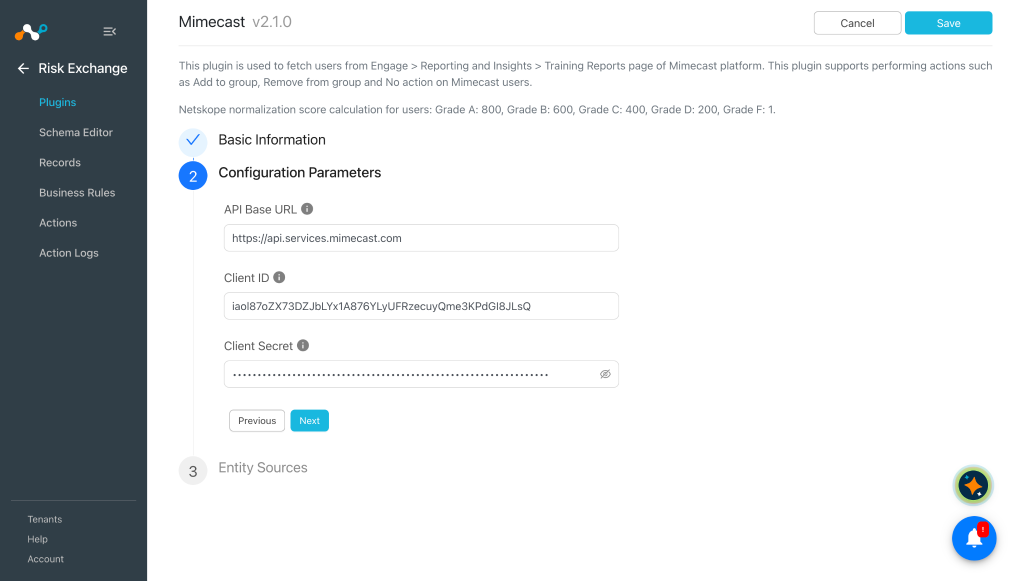
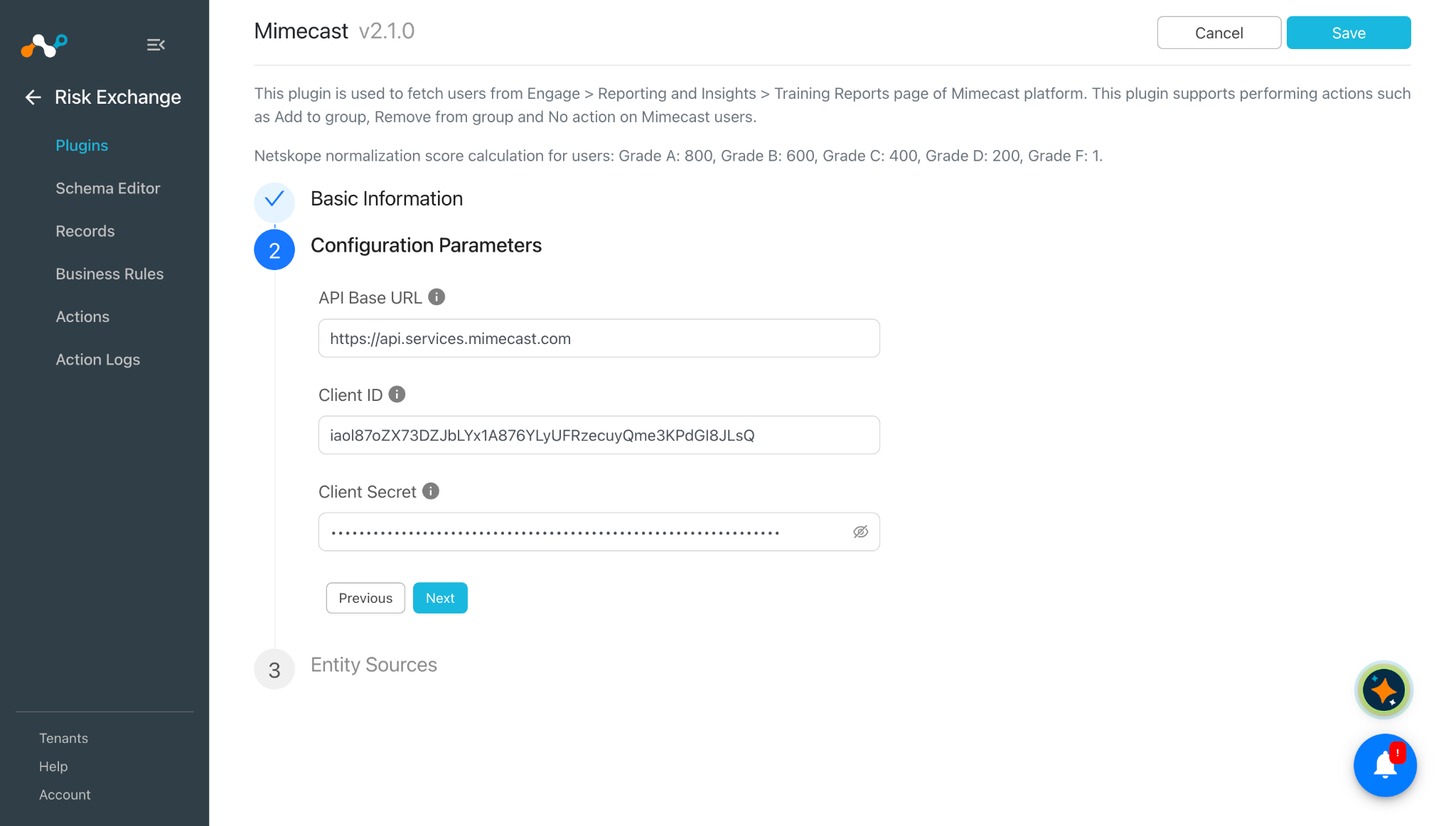
Click Next and enter the Configuration Parameters:
- API Base URL: The API base URL of the Mimecast platform, for example
https://api.services.mimecast.com. - Client ID: Mimecast API Client ID obtained previously.
- Client Secret: Mimecast API Client Secret obtained previously.
- API Base URL: The API base URL of the Mimecast platform, for example
-
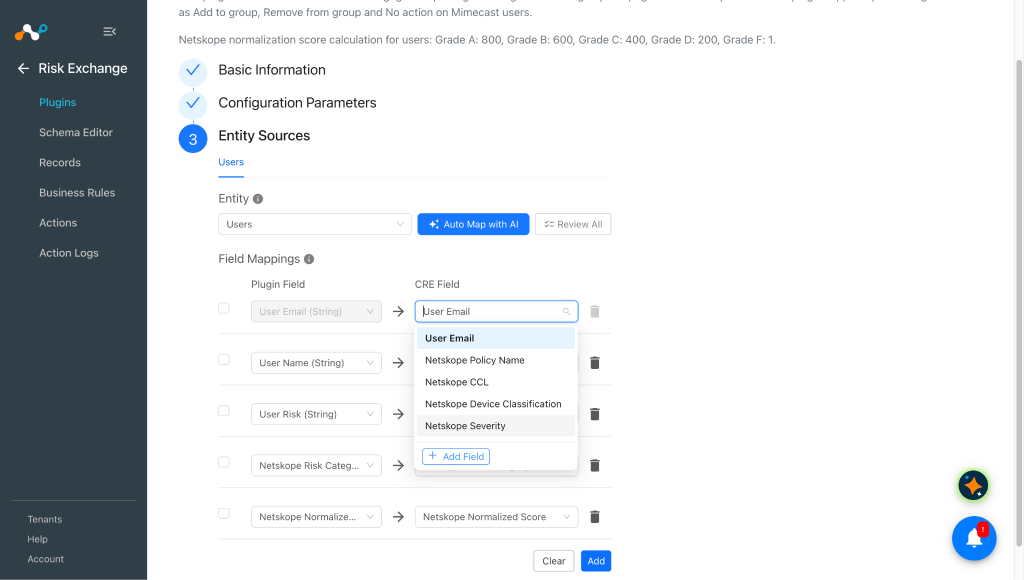
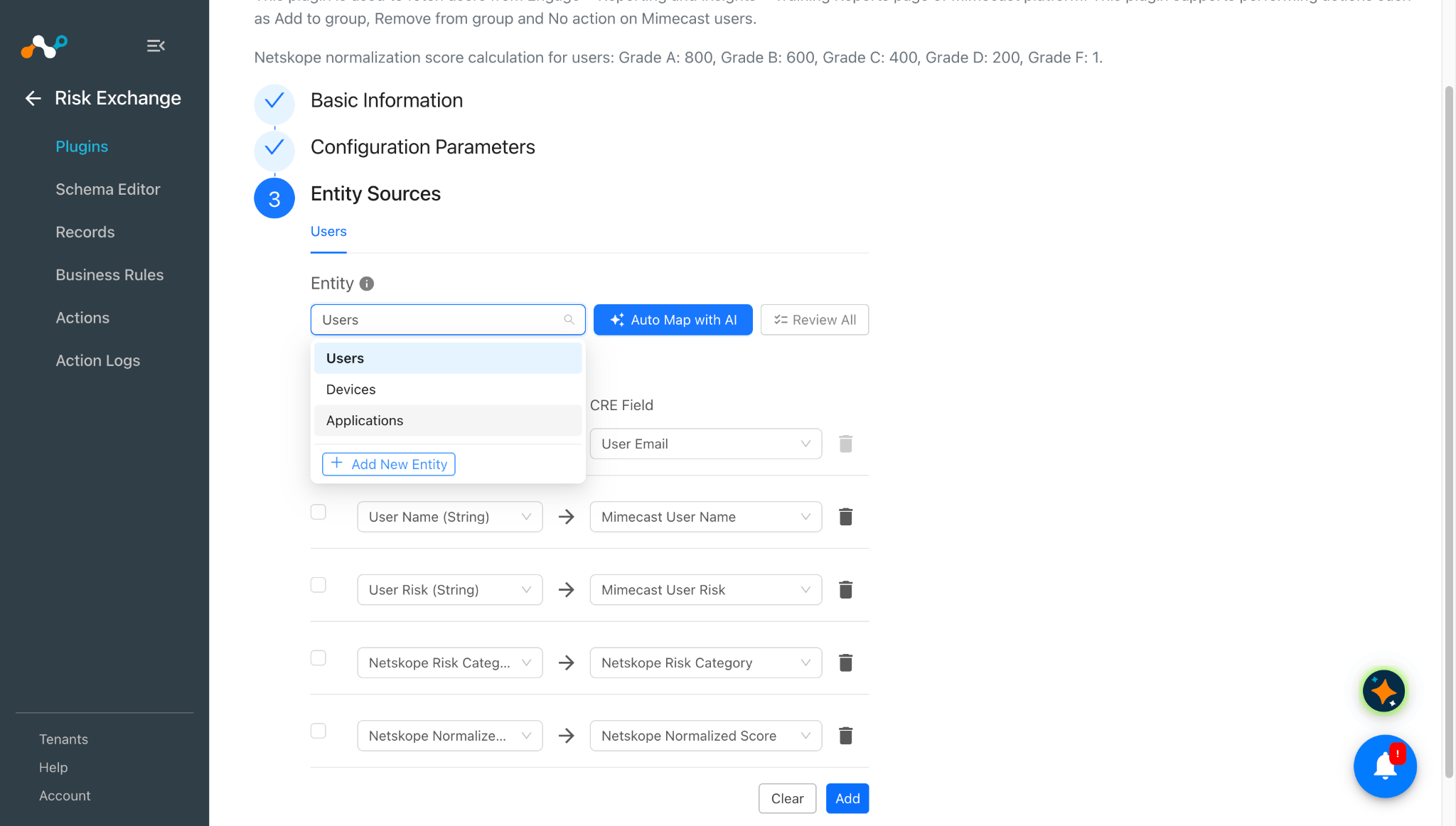
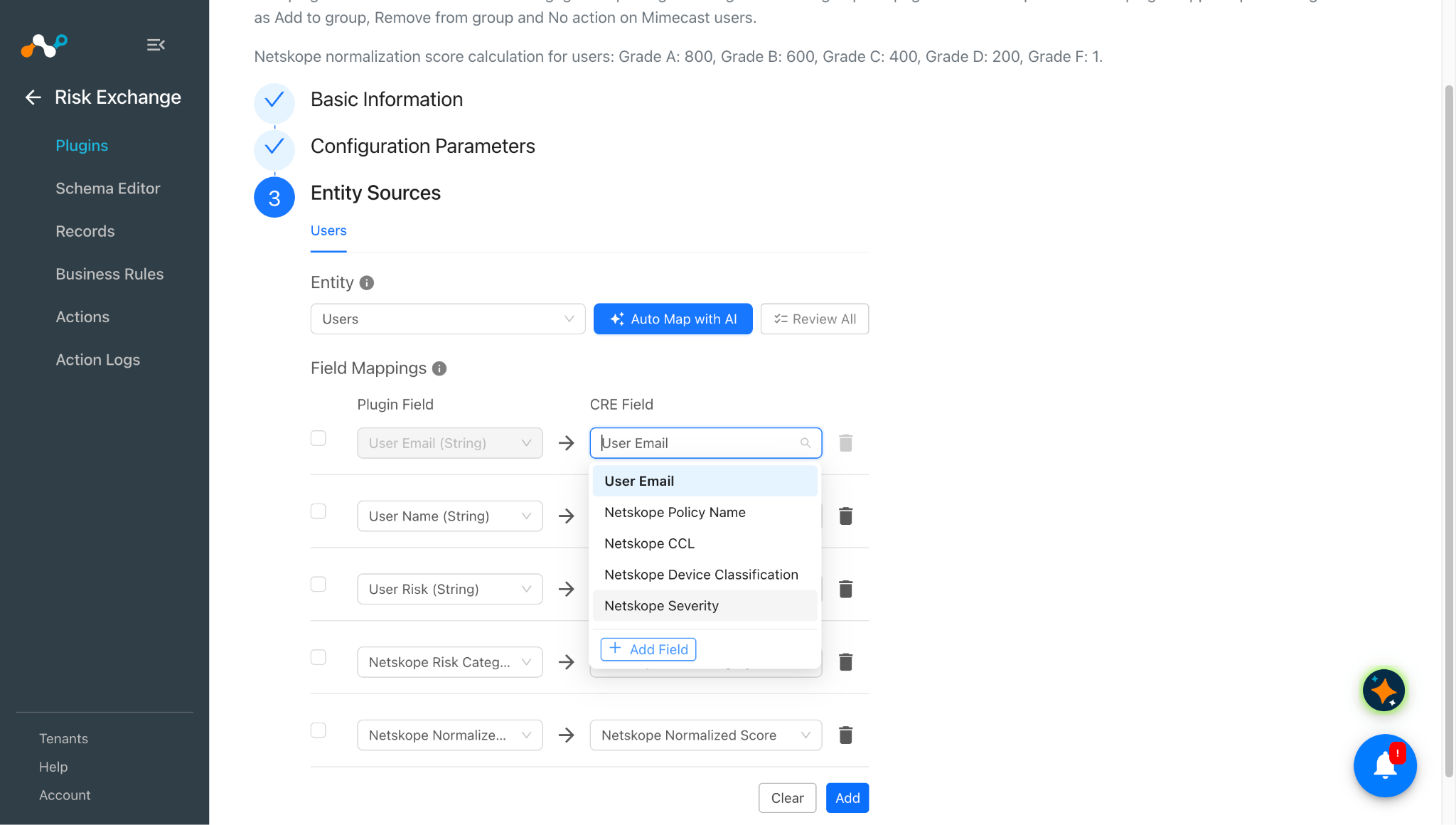
Click Next, and select the Entity from the Entity dropdown. Create an entity from the Schema Editor page, or by selecting + Add New Entity from the Entity dropdown. To create a new field under an entity, click + Add Field in the CRE Field dropdown.
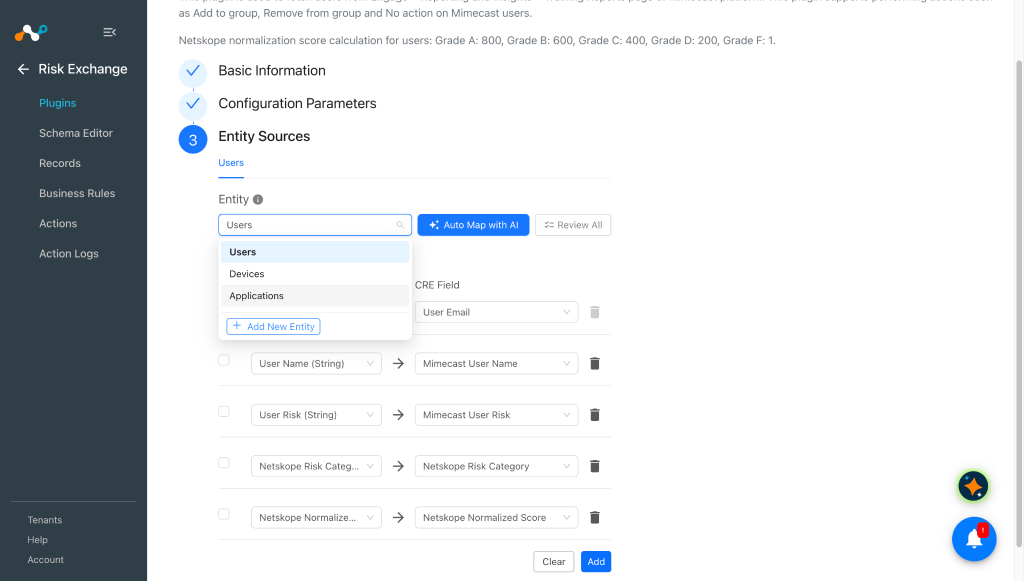
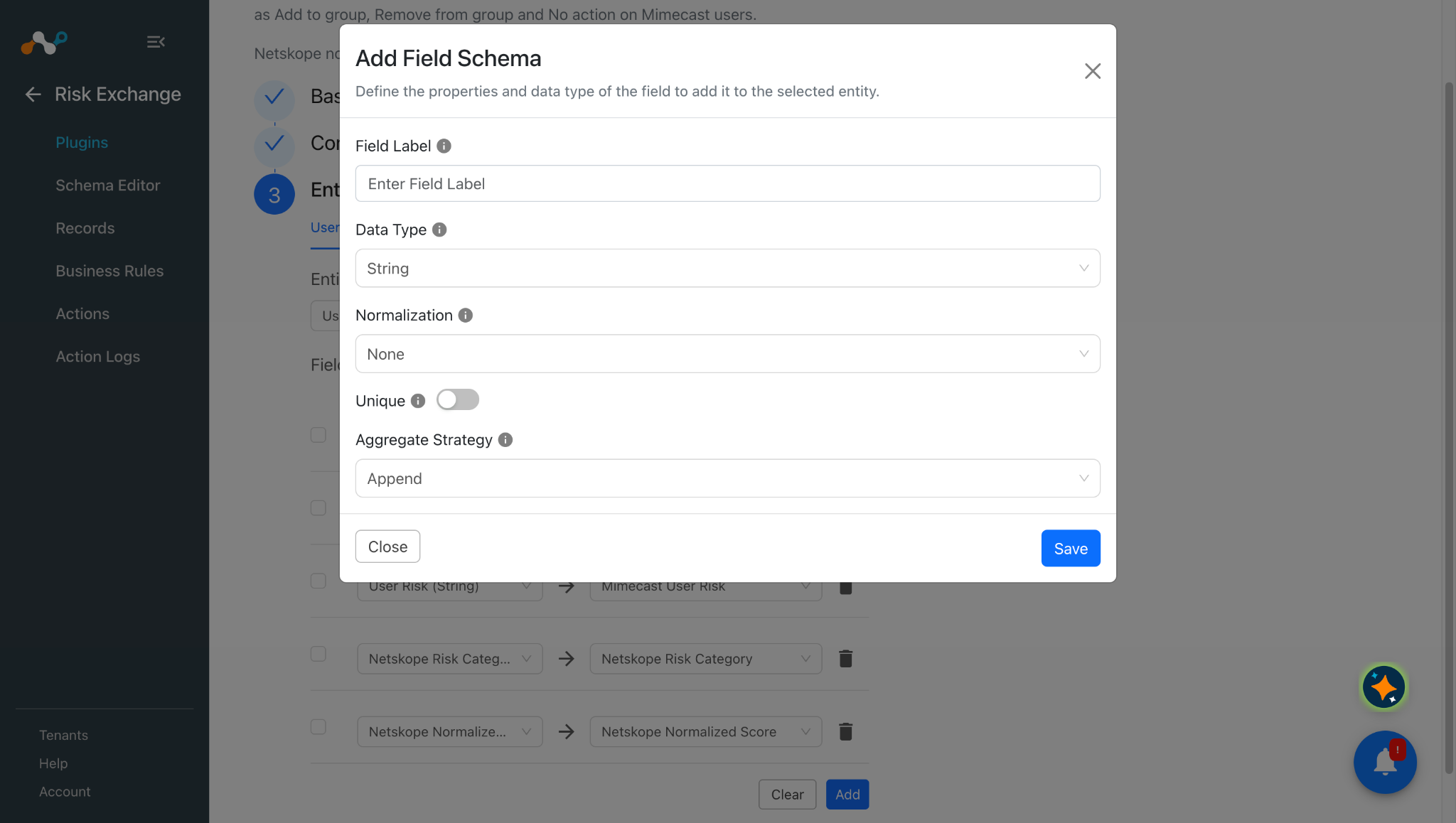
To create a new field click on the Add field button from the CRE Field dropdown.
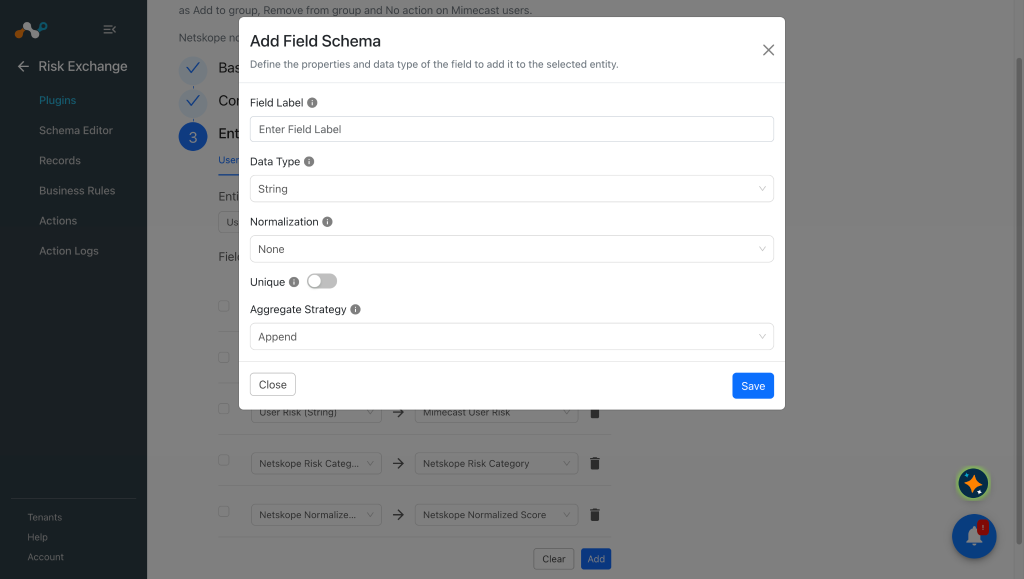
Provide the Field Label, Data type, Normalization, Aggregate Strategy as per your requirement.
Provide the field mapping. For the suggested mapping please refer to the Mappings section.User Email field will be required to pull the Users and to perform action on the pulled Users.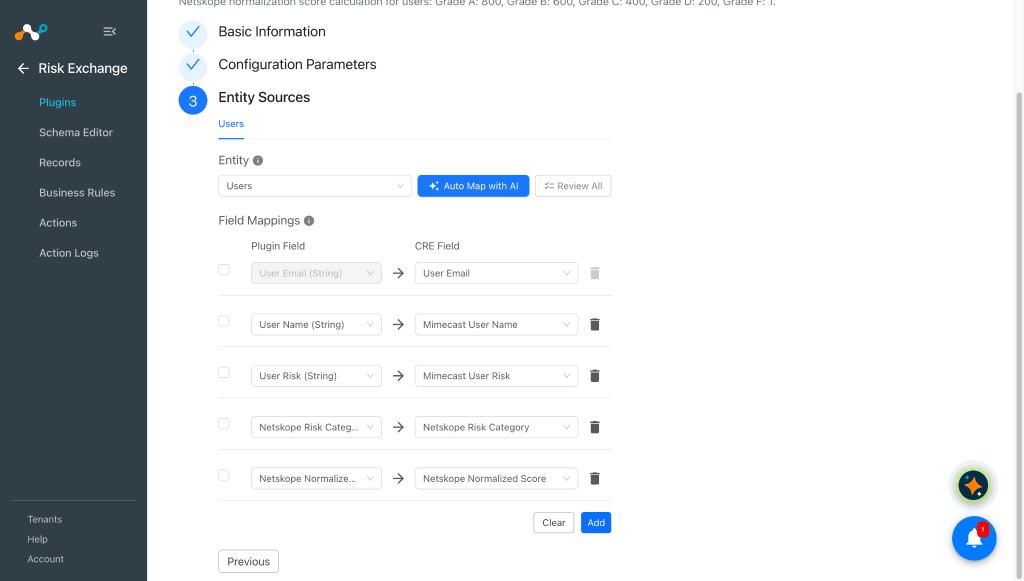
-
Click Save.
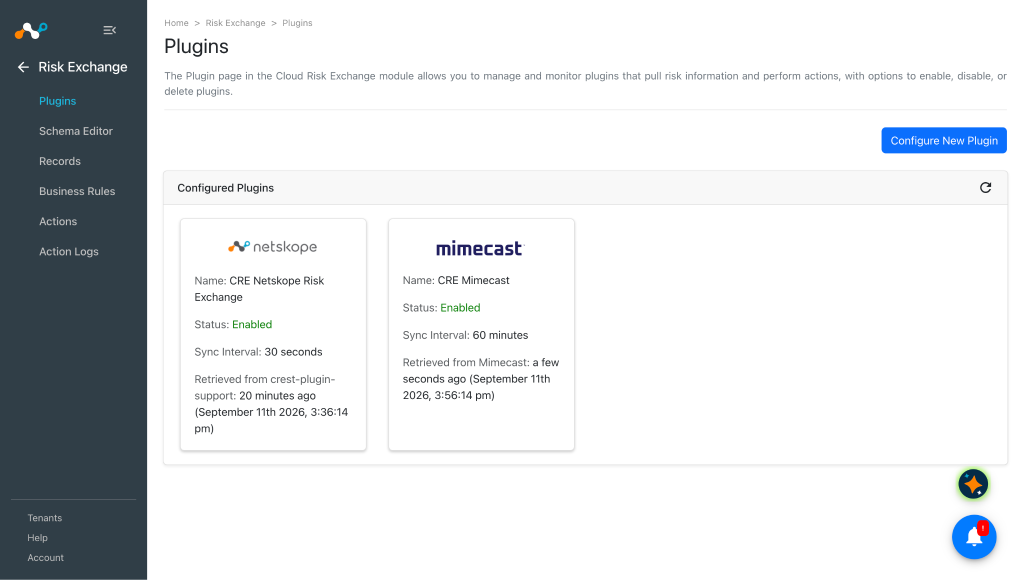
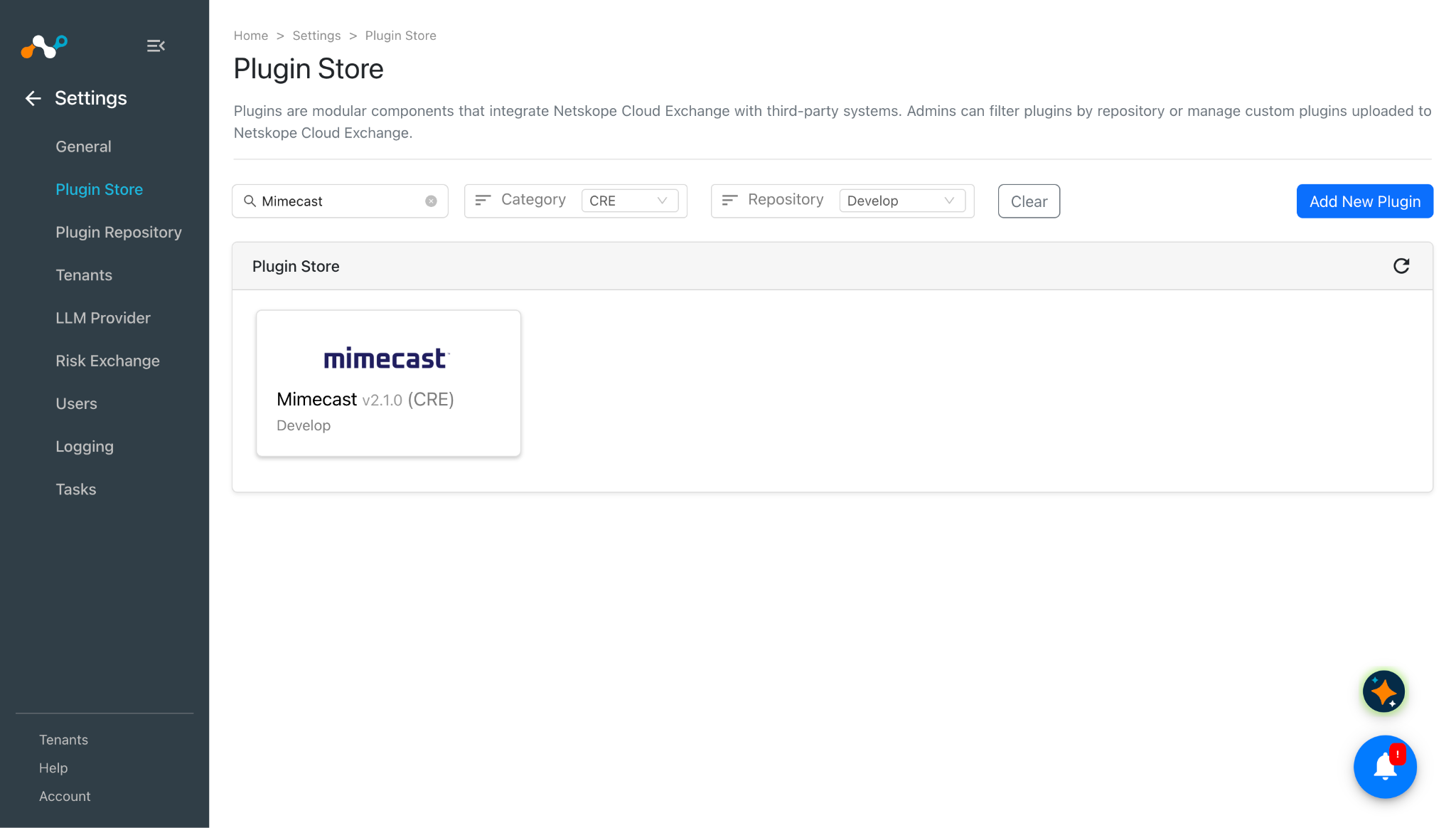
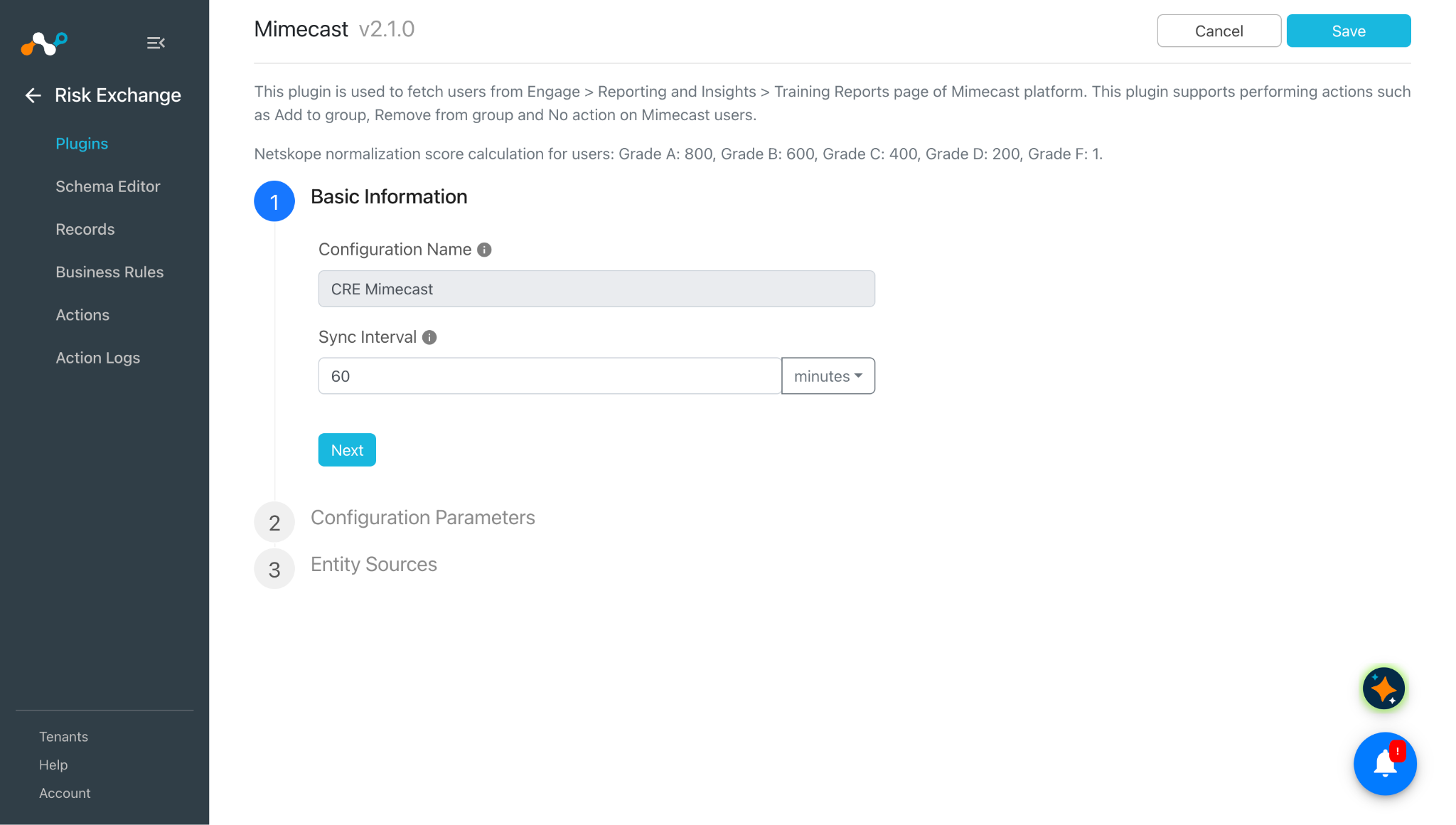
Configure a Risk Exchange Business Rule for Mimecast
-
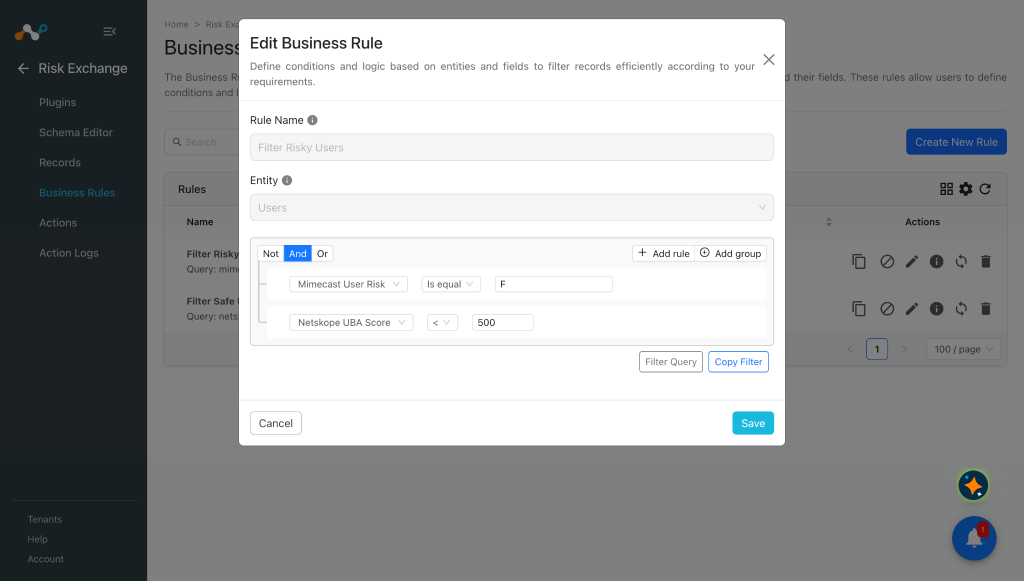
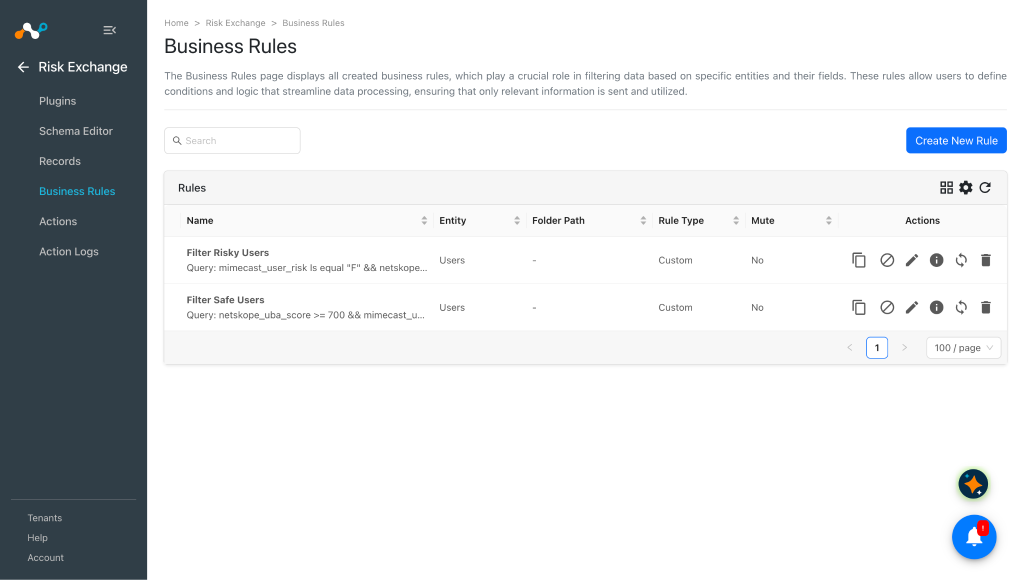
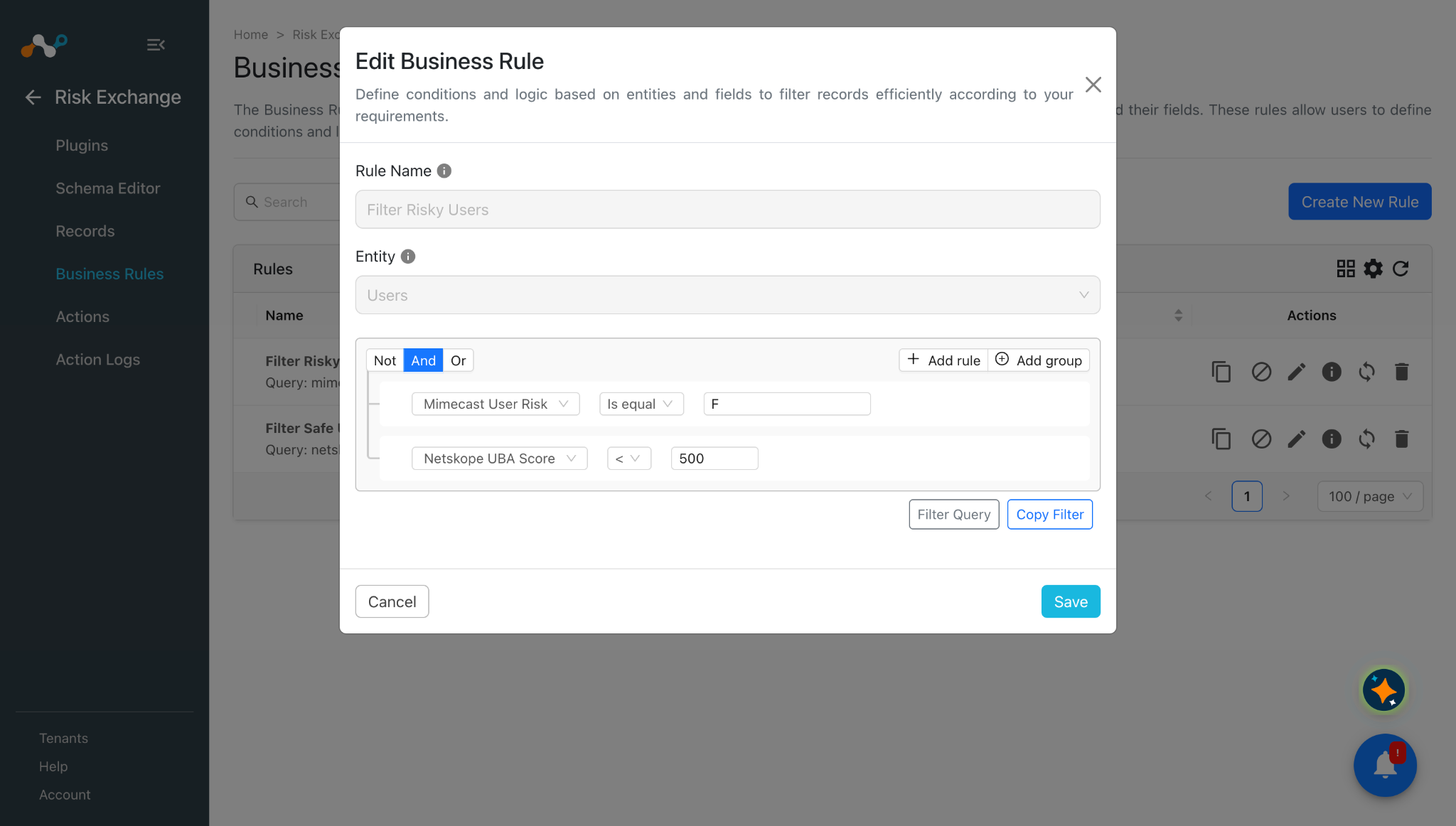
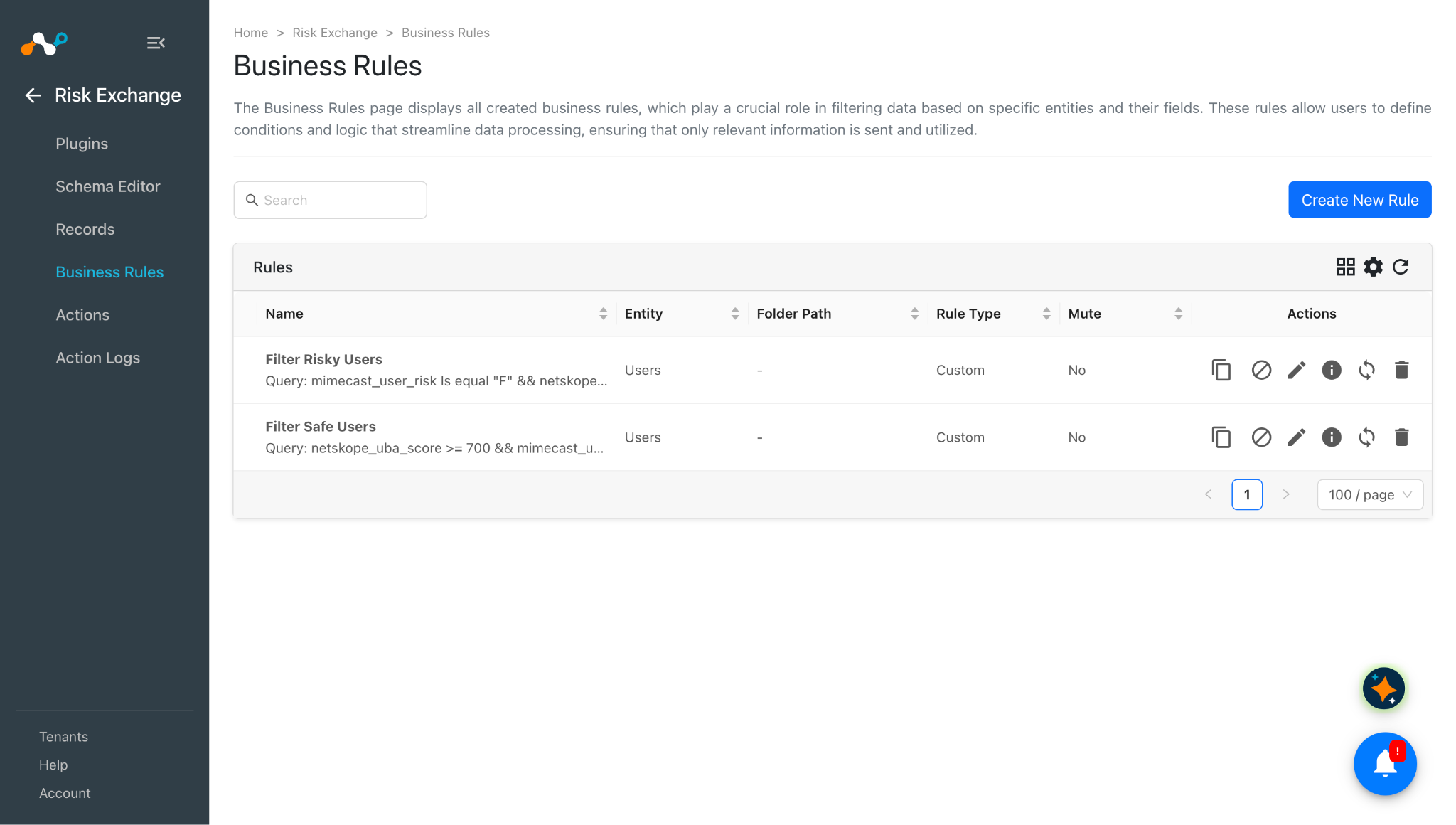
In Risk Exchange, go to Business Rule and click Create New Rule.
-
Enter a Rule Name, select the entity in which fields are configured for the Mimecast plugin, and configure the query per your requirements.
-
Click Save.
Add Risk Exchange Actions for Mimecast
Mimecast supports the following action types:
- Add to Group: Adds users to the group specified in the action configuration.
- Remove from Group: Removes users from the group specified in the action configuration.
- No Action: Performs no action on Mimecast. Enable the generate alerts toggle on this action to generate alerts in Ticket Orchestrator.
Add to Group
-
In Risk Exchange, go to Actions and click Add Action Configuration.
-
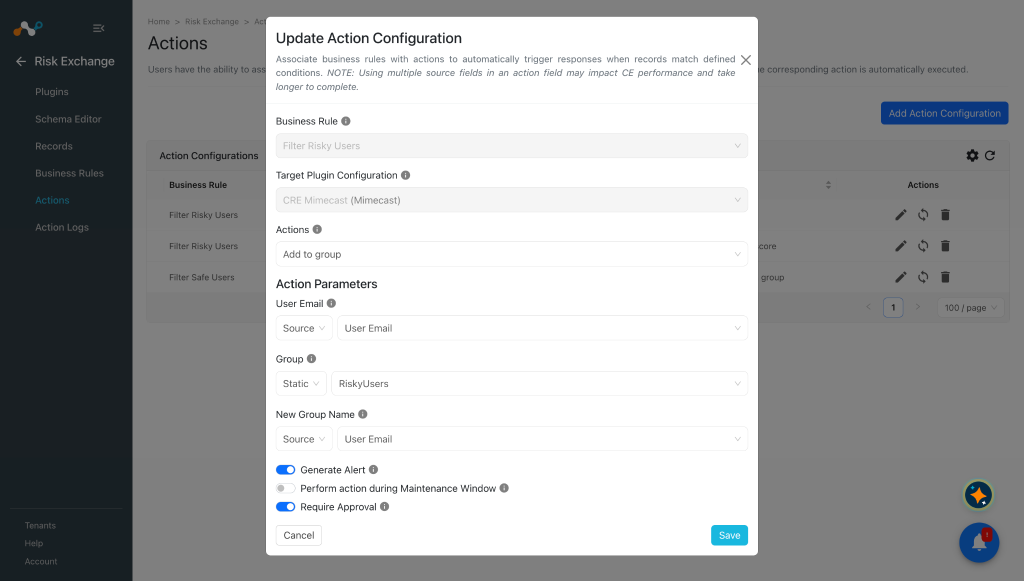
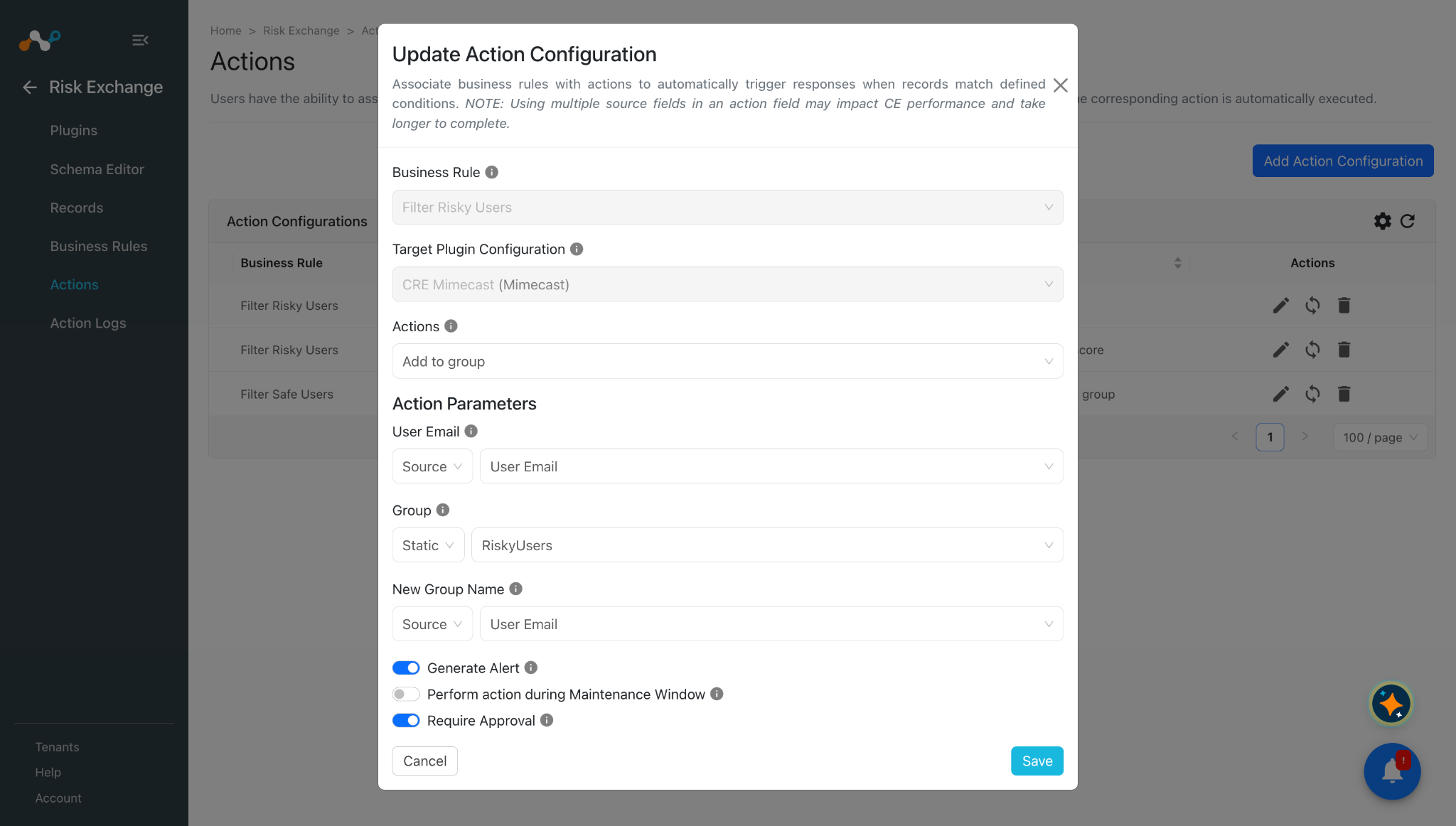
Select a Business Rule and the Mimecast plugin configuration, and select Add to Group for Action.
-
Enter the action parameters:
- User Email: The email address of the user to perform the action on. Map a source field containing an email address, or provide a static value.
- Group: Select an existing group, or select Create New Group to create one and add the user to it. Select Group from the Static field dropdown only.
- New Group Name: The name of the group to create. Required only when Create New Group is selected for Group. Provide this value in the Static field.
-
Enable Require Approval if the action needs approval before it runs on the hosts.
-
Click Save.
This action does not support creating a sub-group on Mimecast.
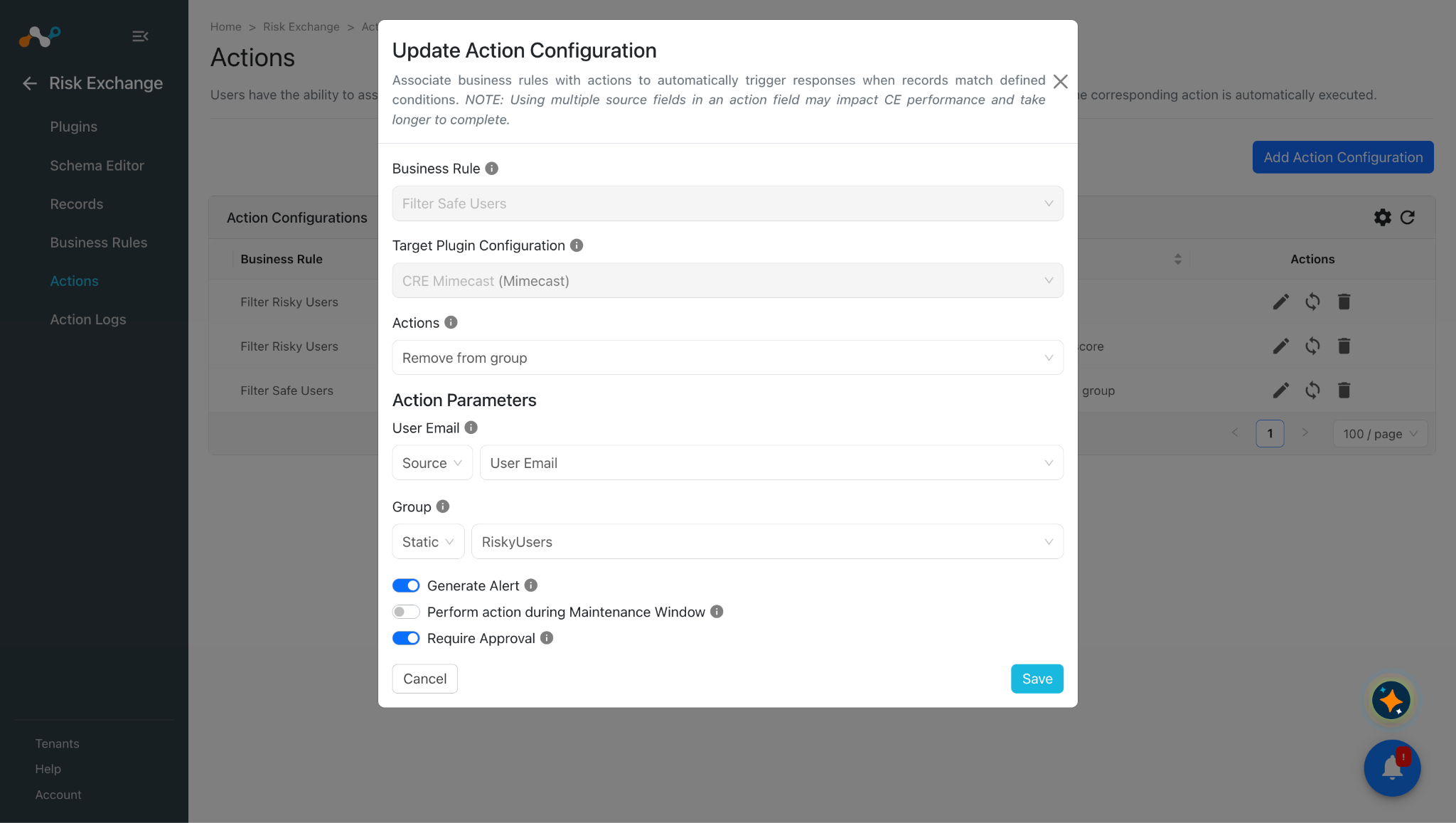
Remove from Group
-
In Risk Exchange, go to Actions and click Add Action Configuration.
-
Select a Business Rule and the Mimecast plugin configuration, and select Remove from Group for Action.
-
Enter the action parameters:
- User Email: The email address of the user to perform the action on. Map a source field containing an email address, or provide a static value.
- Group: The group to remove the user from. Select Group from the Static field dropdown only.
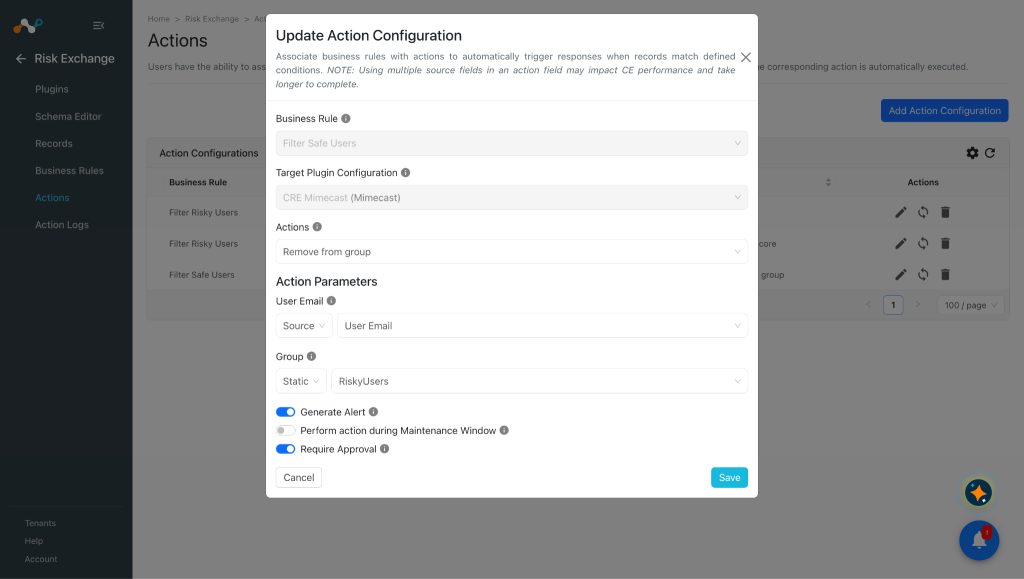
-
Enable Require Approval if the action needs approval before it runs on the hosts.
-
Click Save.
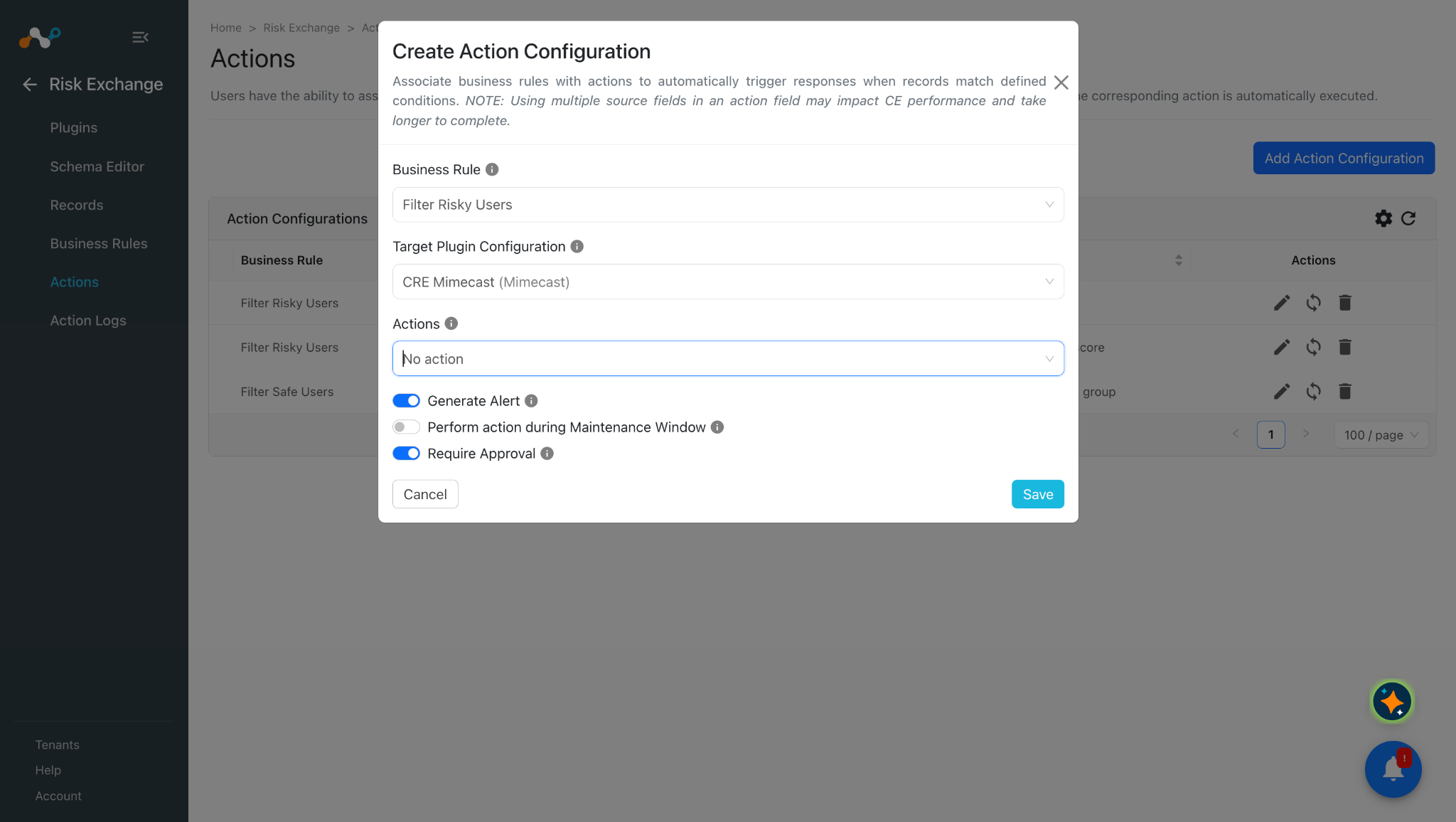
No Action
This action generates alerts in the Ticket Orchestrator module of Cloud Exchange.
-
In Risk Exchange, go to Actions and click Add Action Configuration.
-
Select a Business Rule and the Mimecast plugin configuration, and select No Action for Action.
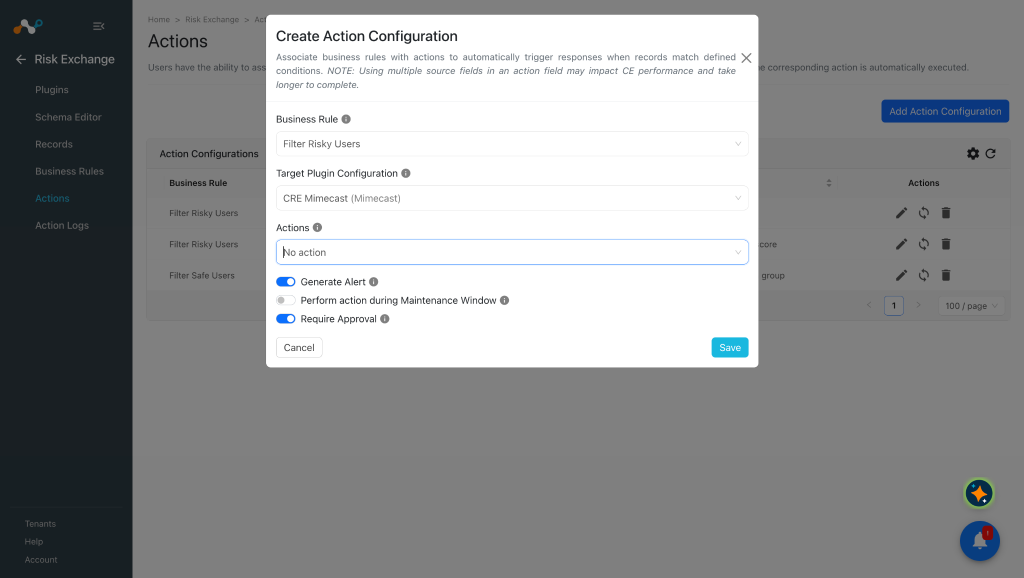
-
Enable Require Approval if the action needs approval before it runs on the hosts.
-
Click Save.
Validate the Mimecast Plugin
Validate in Cloud Exchange
-
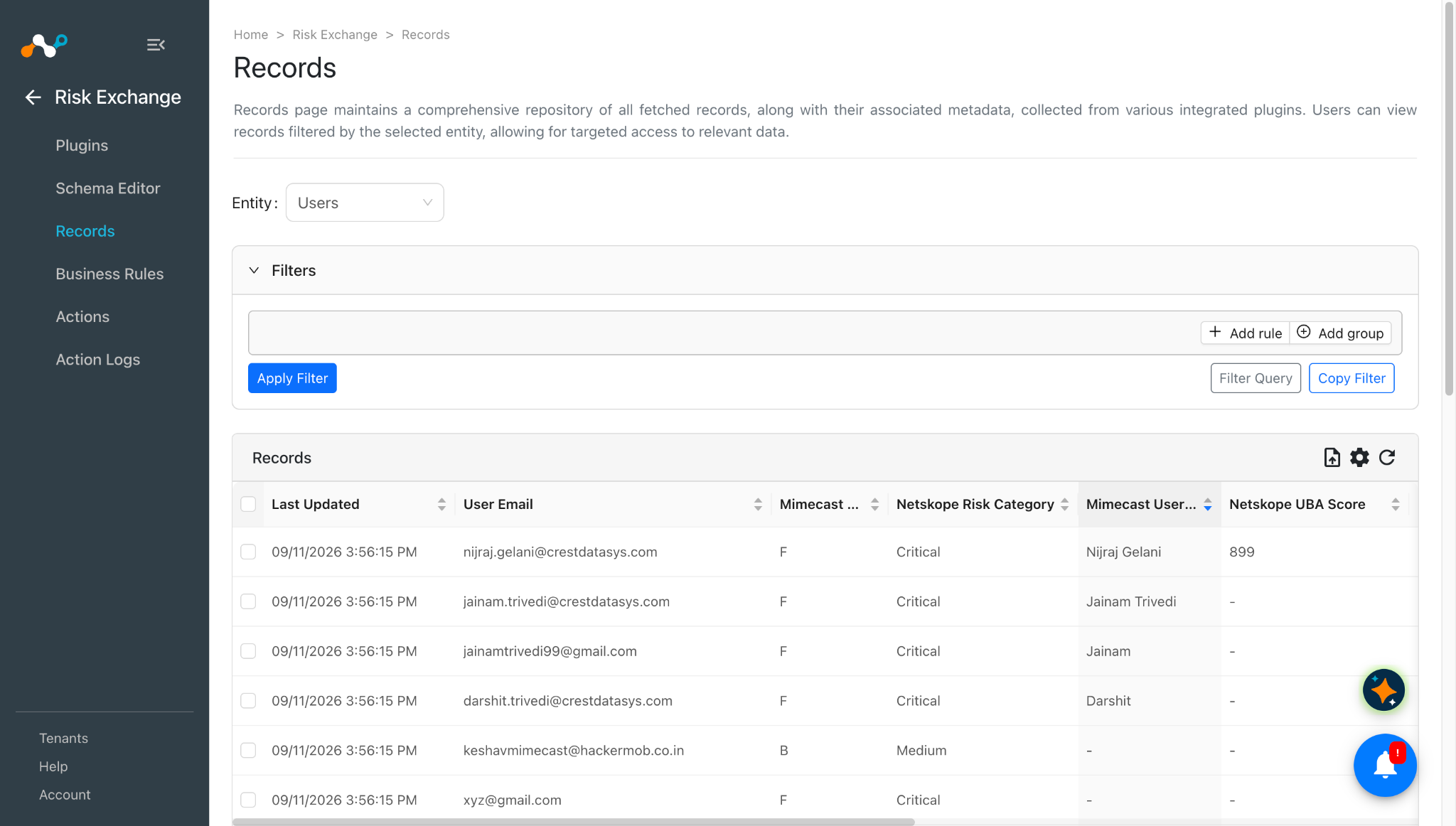
In Risk Exchange, go to Records, and select the entity you configured the field mapping for to view the pulled users.
-
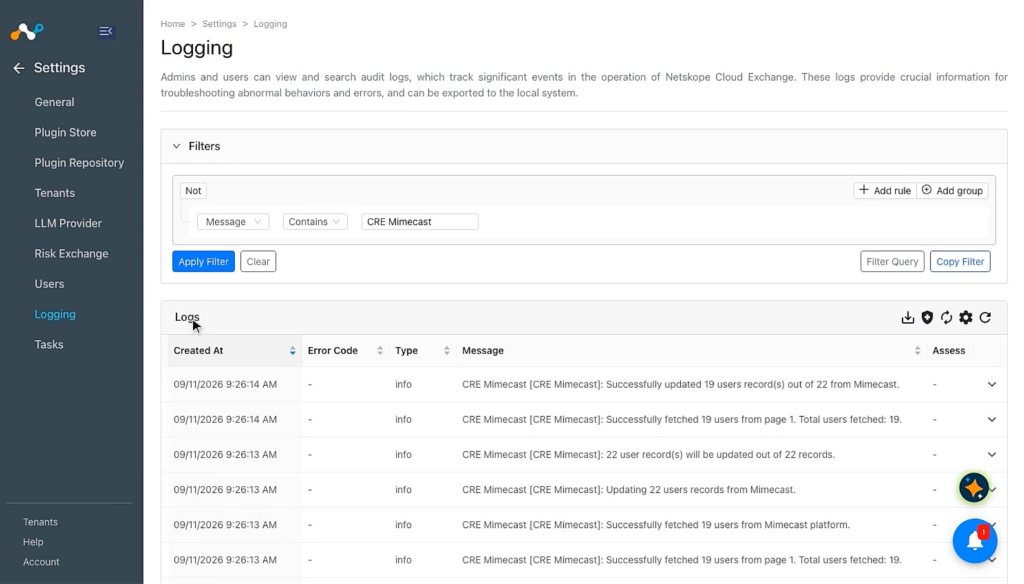
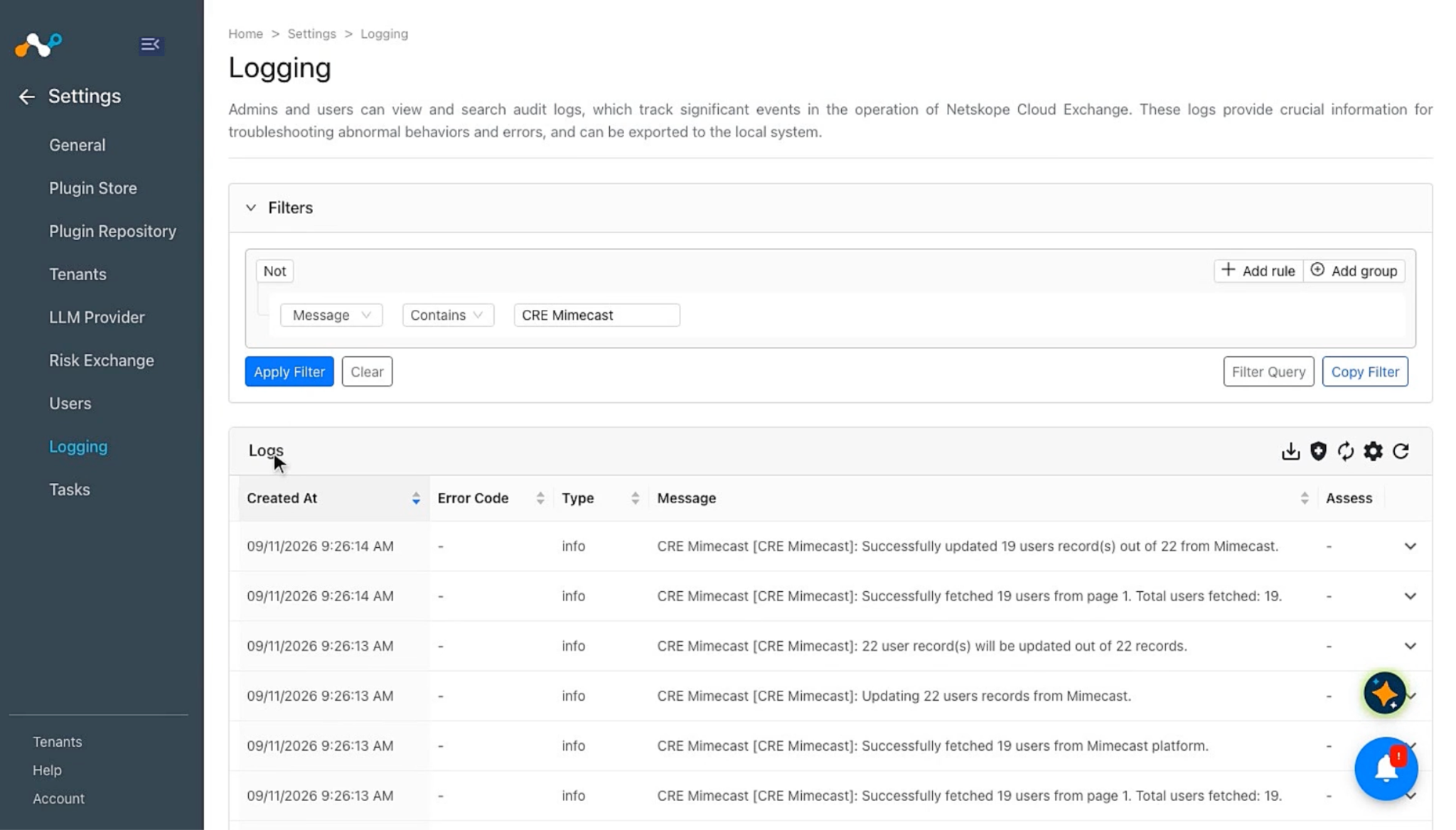
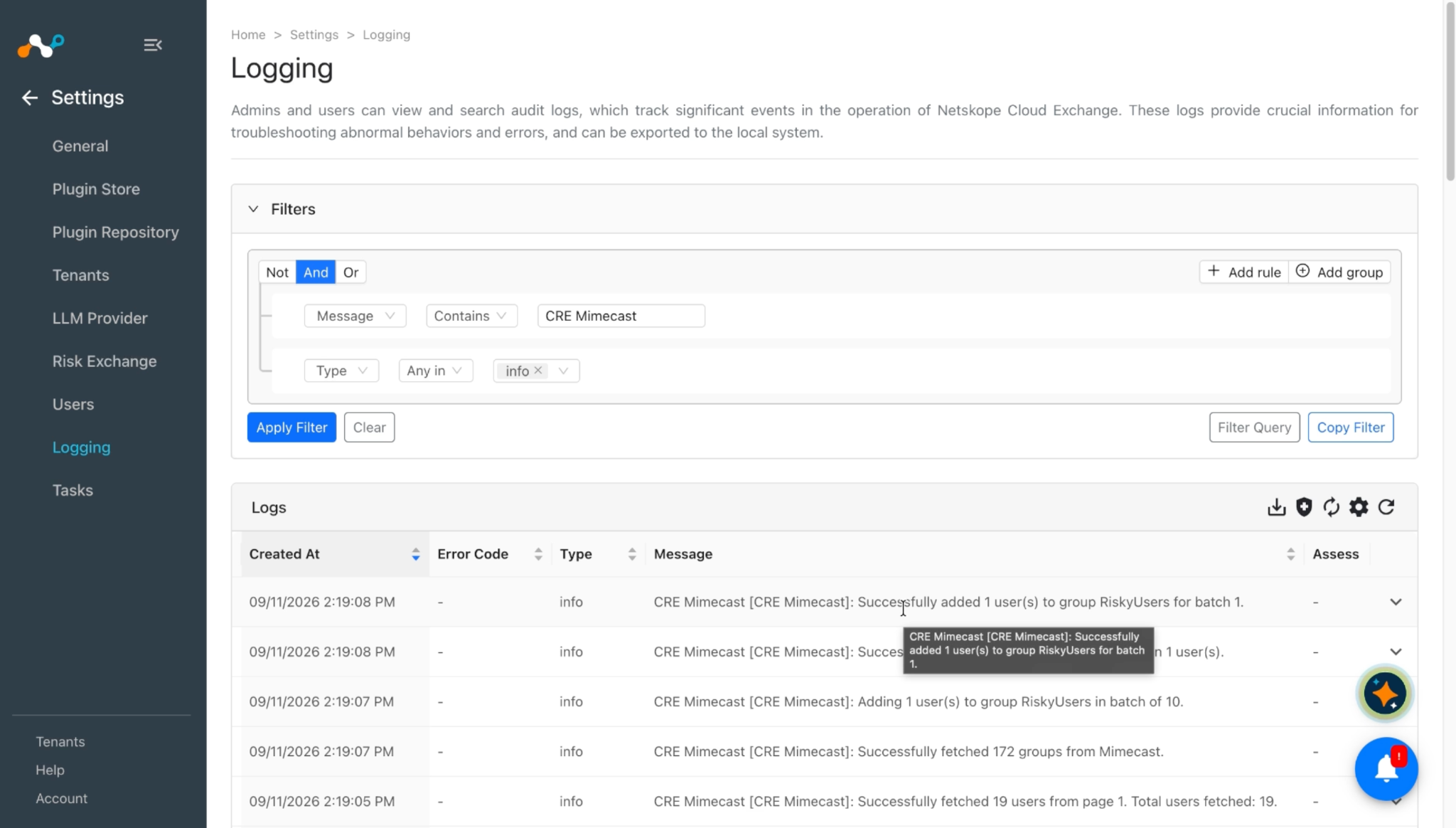
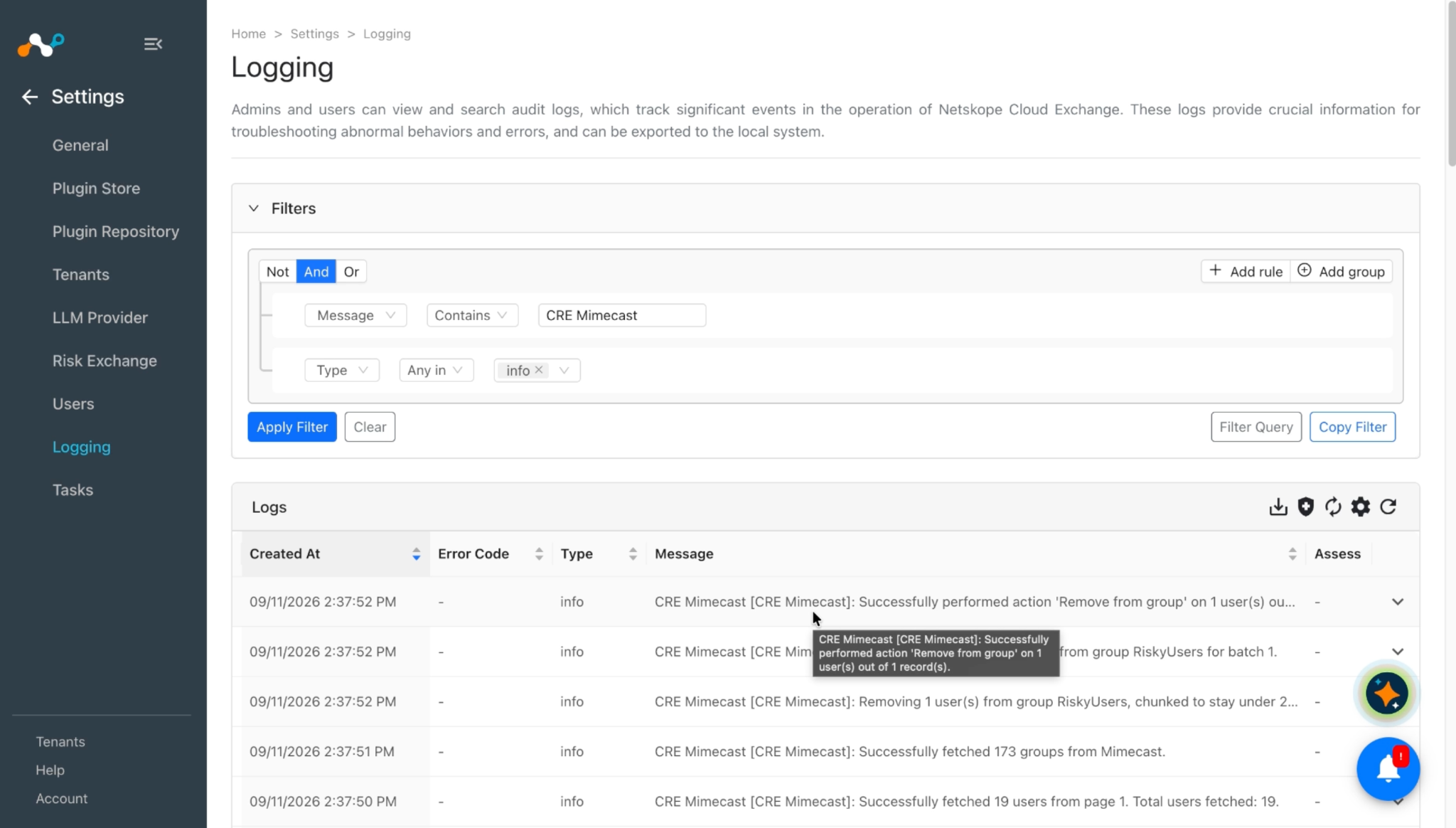
Go to Logging, and search for the plugin logs.
-
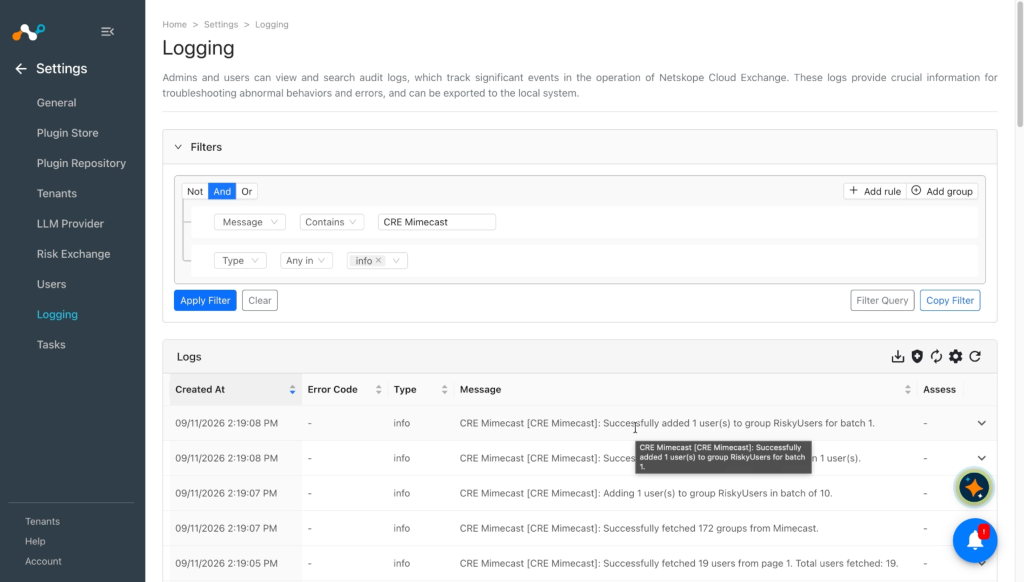
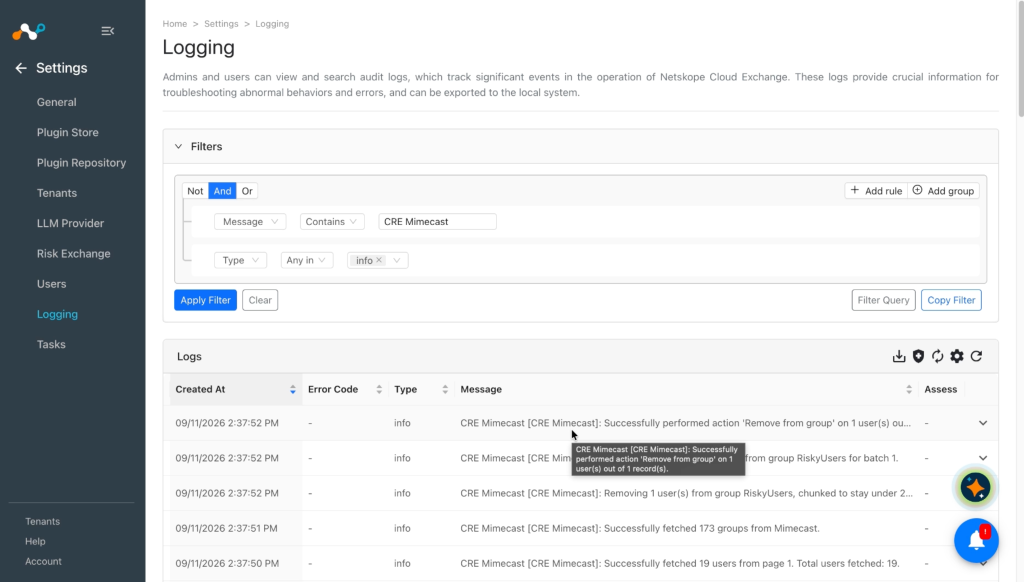
Check the logs to verify that the action ran for a user.
-
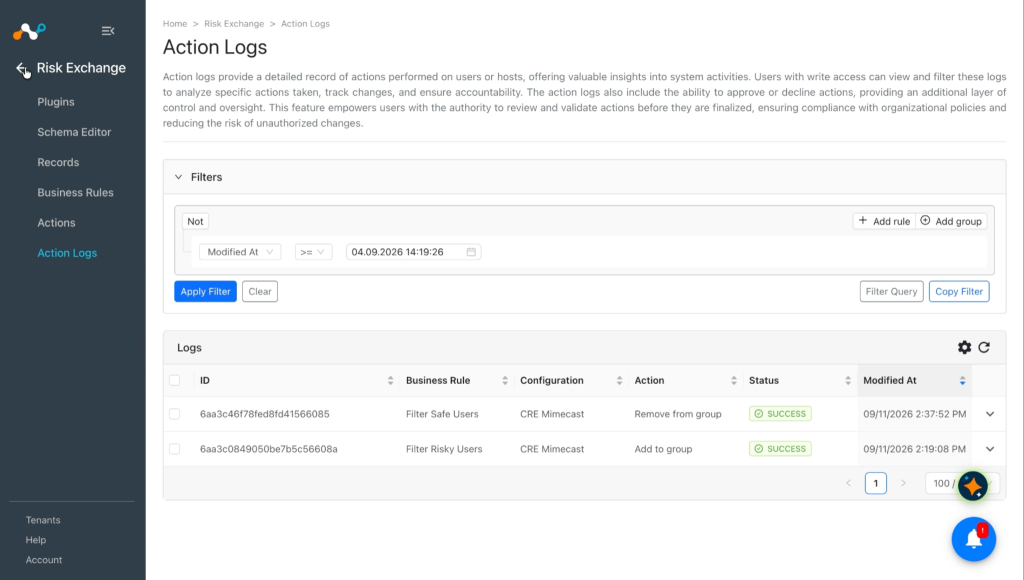
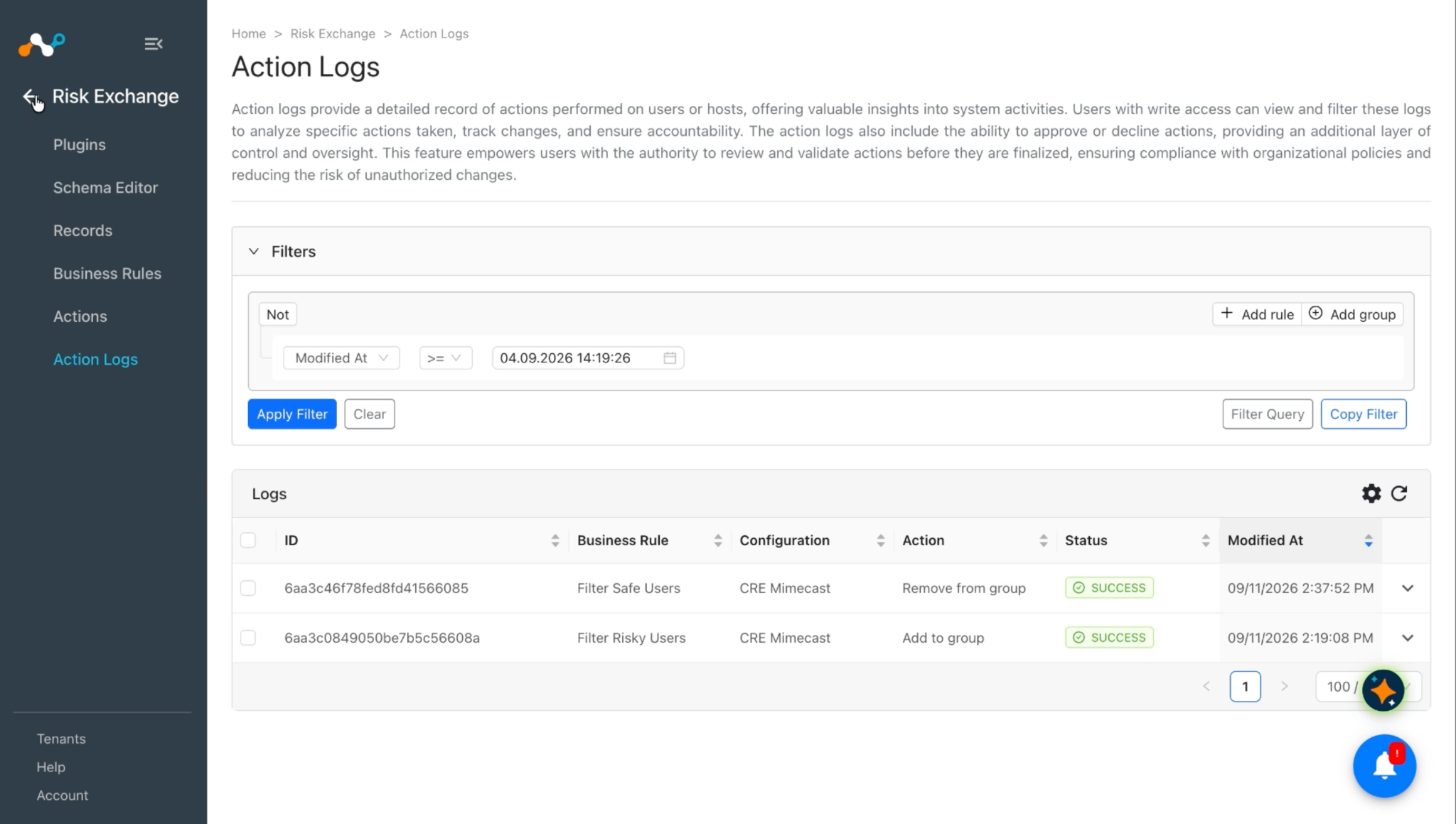
Go to Action Logs in Risk Exchange, and check the logs for the recently performed action.
Validate on Mimecast
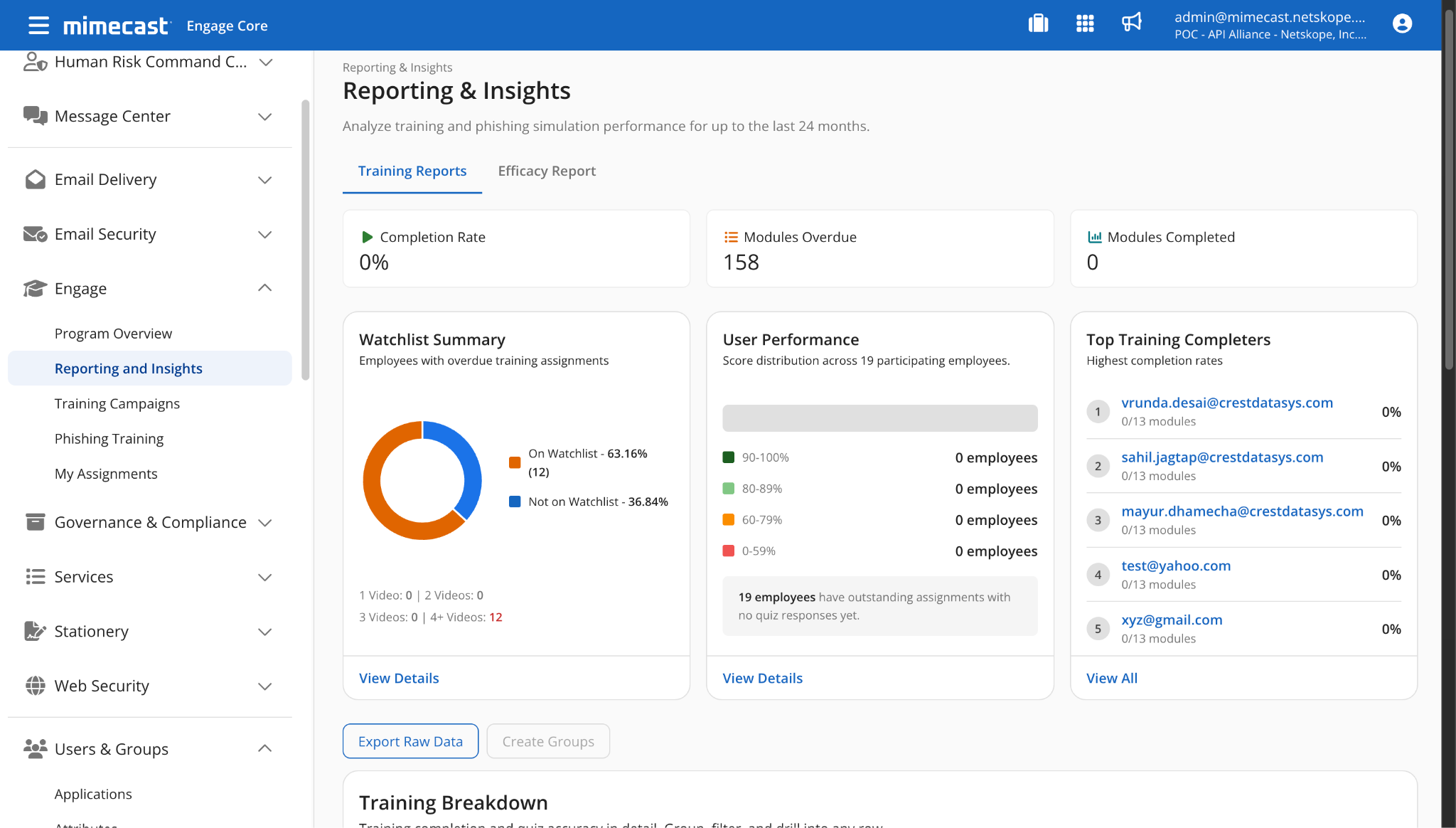
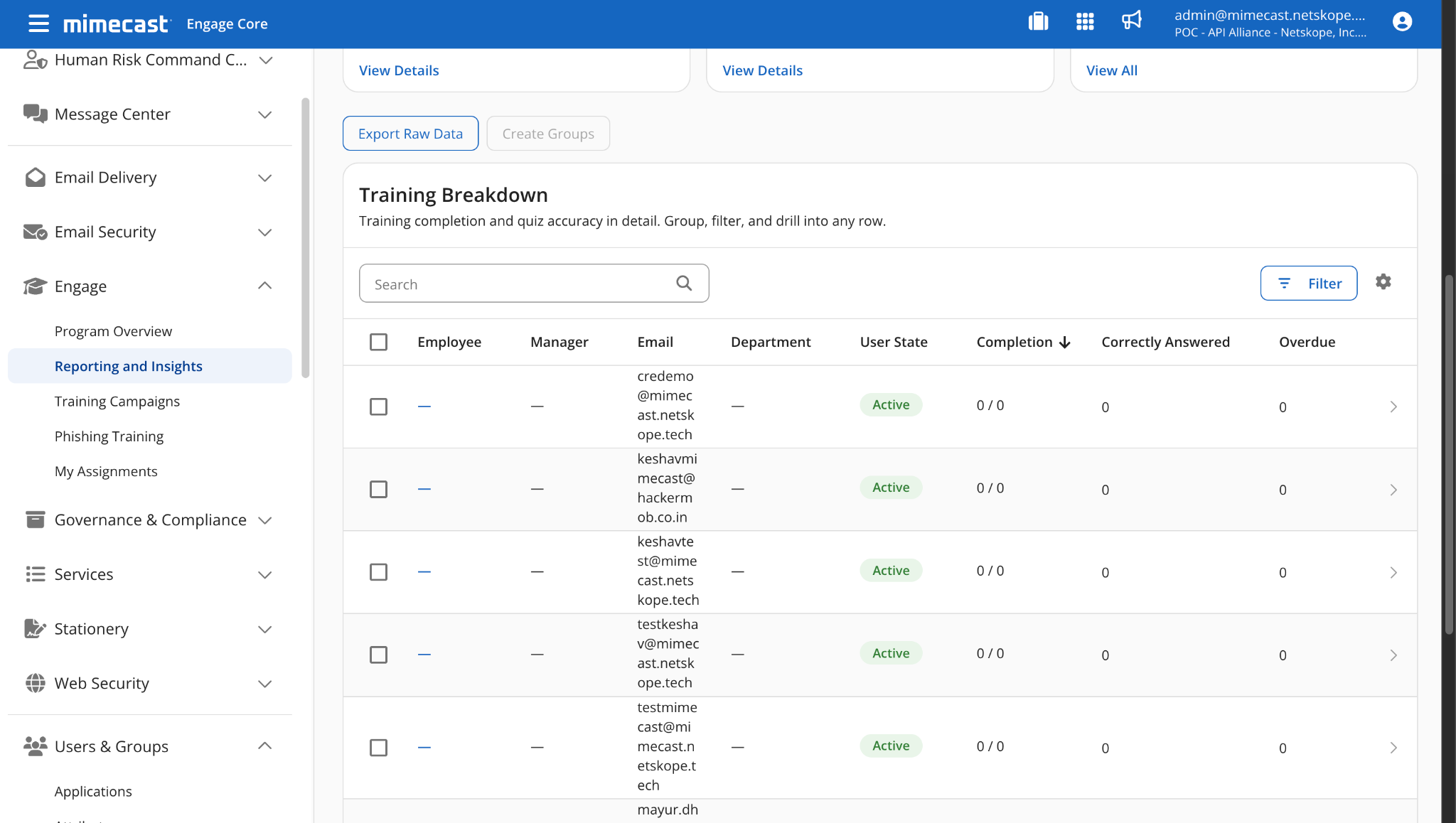
This plugin pulls users from the Engage > Reporting and Insights > Training Reports page on Mimecast. To validate the pull, go to that page.
Validate a Performed Action on Mimecast
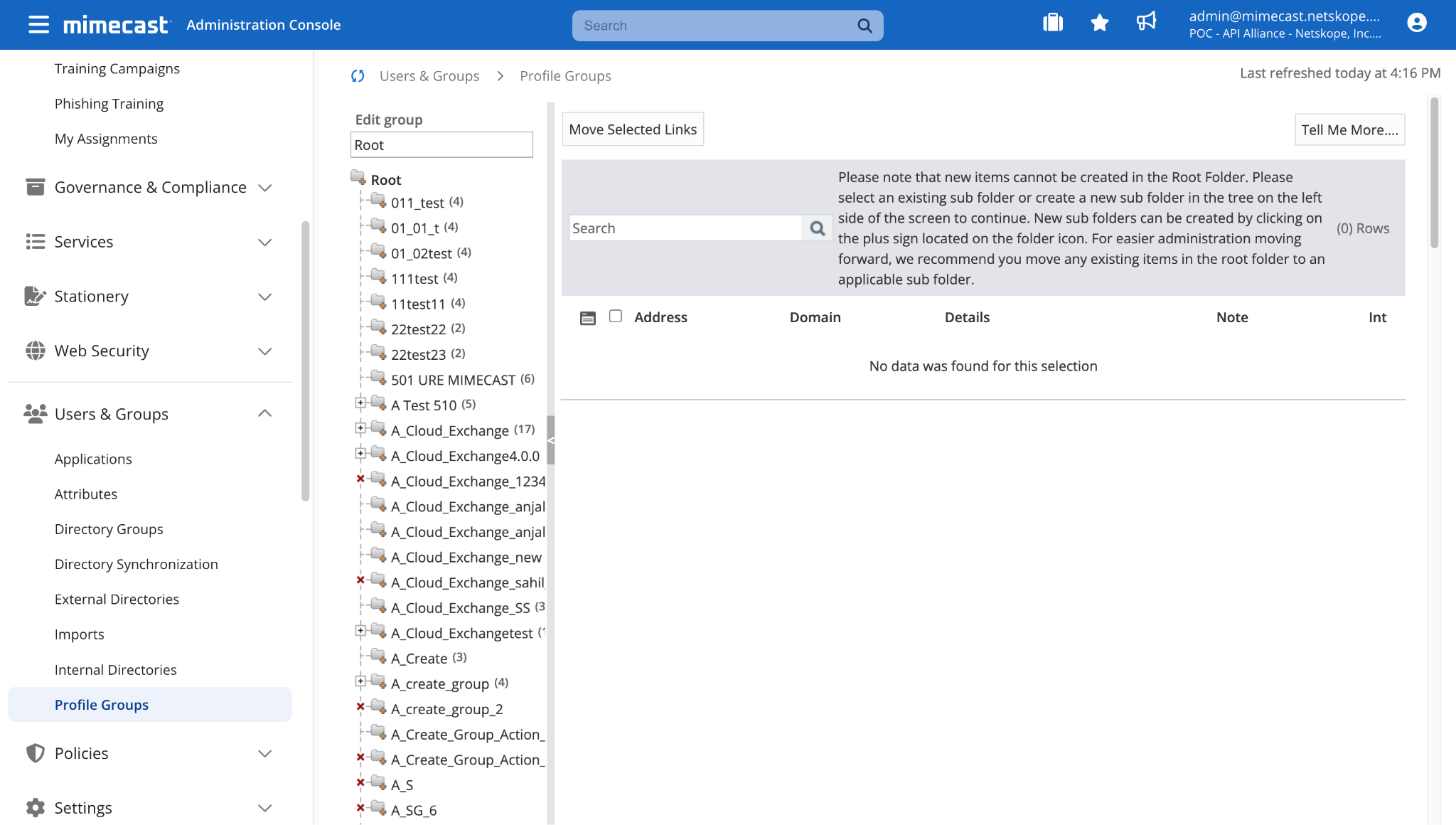
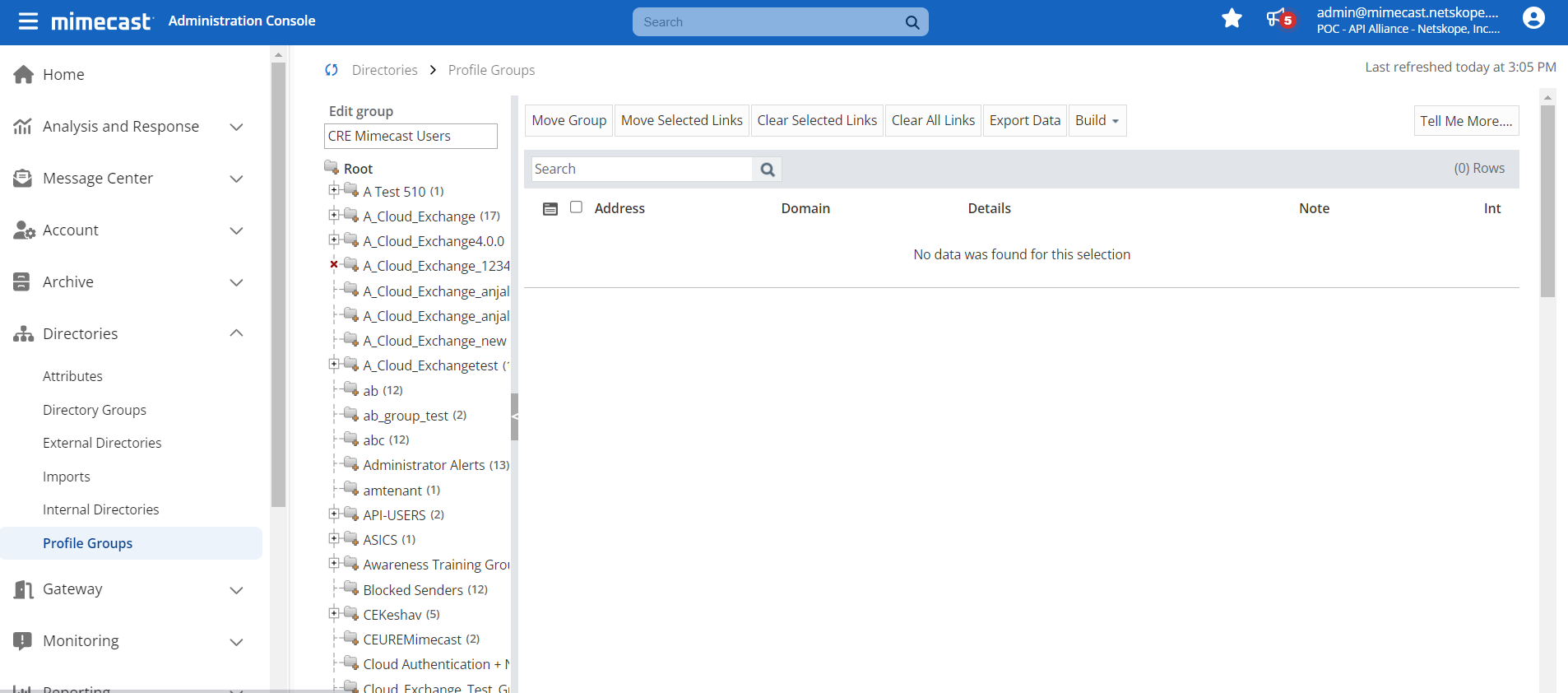
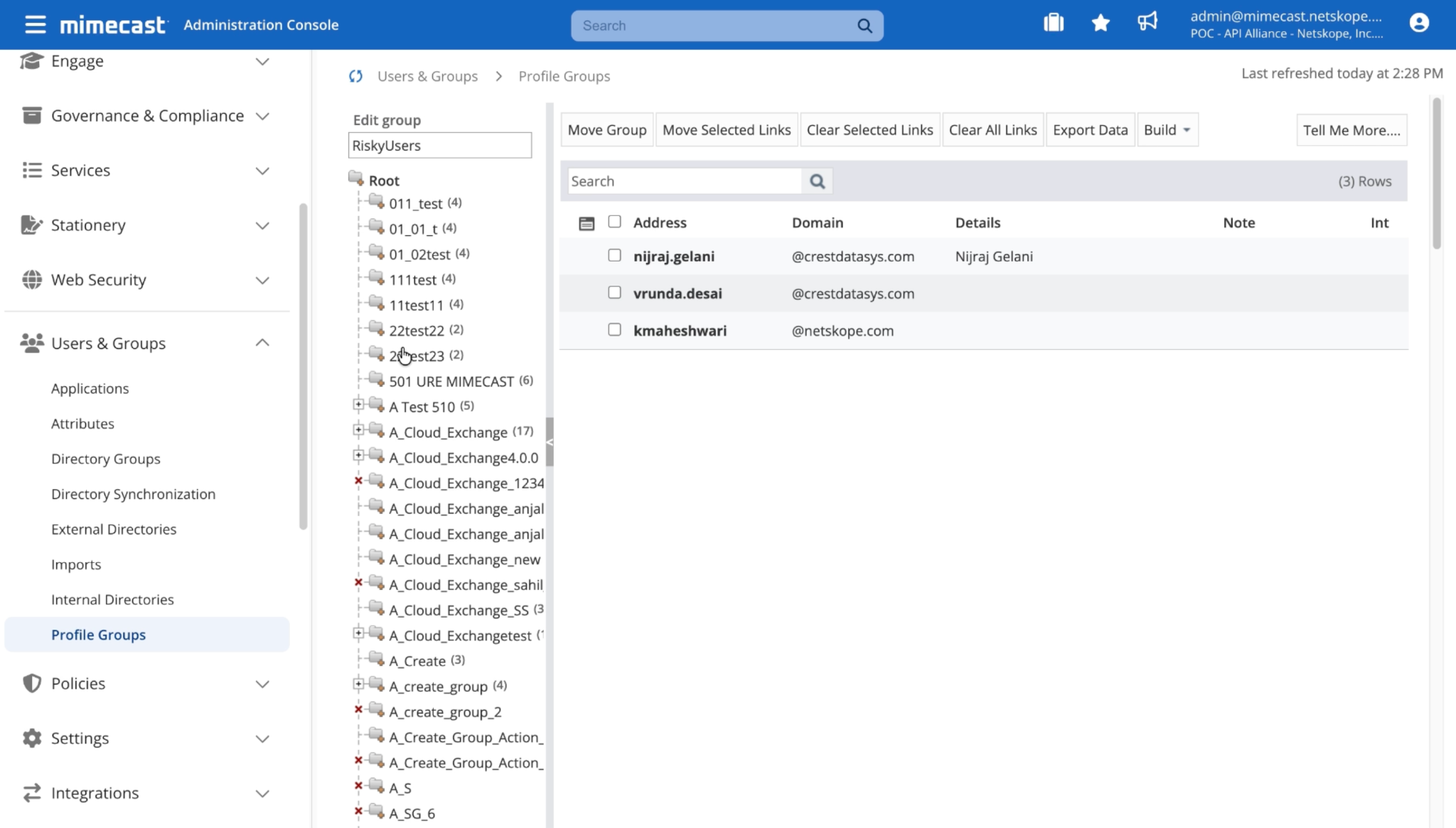
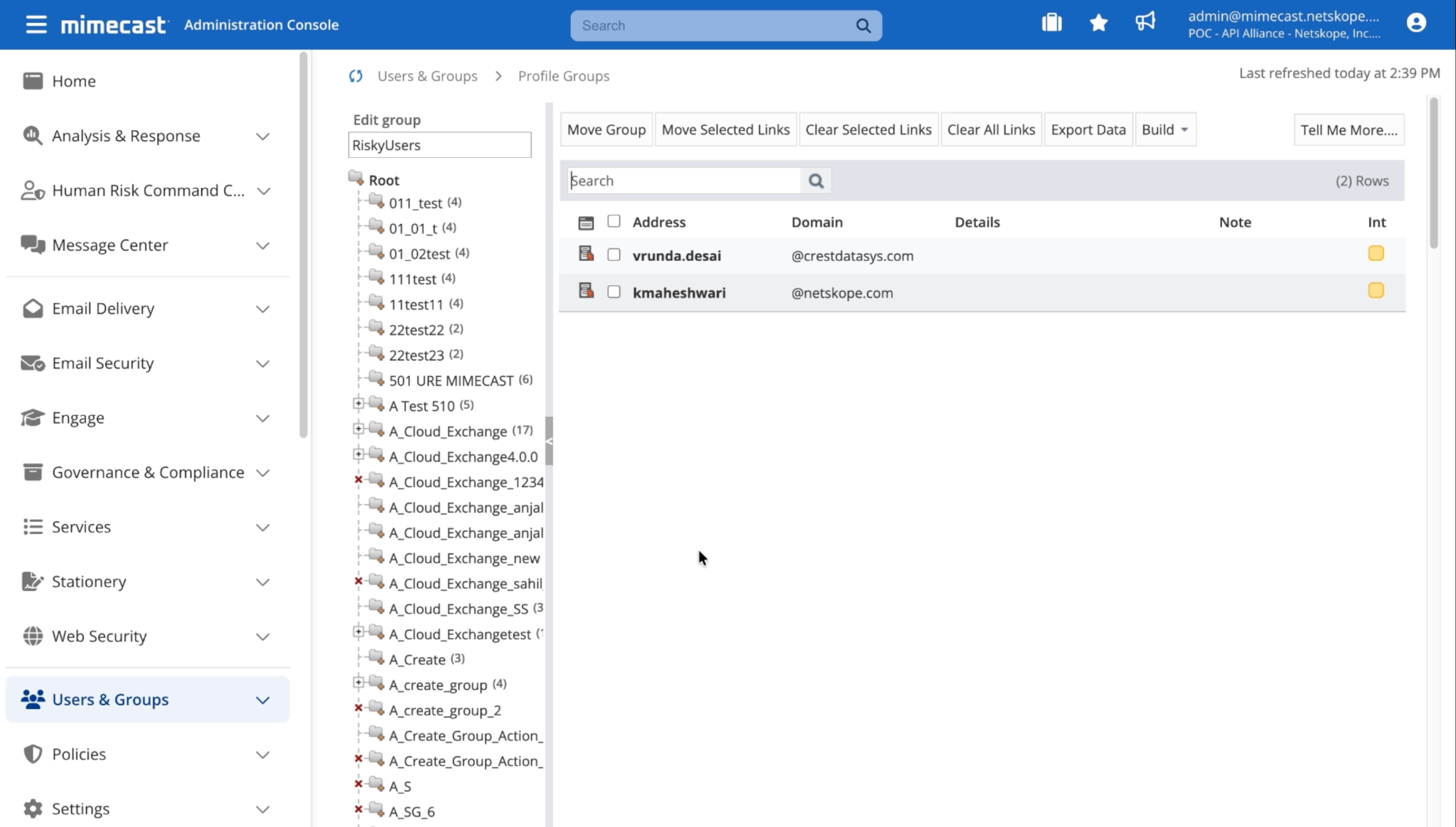
Go to Users and Groups > Profile Groups from the left panel to view the list of groups. The Mimecast plugin adds and removes users from the groups on this page.
Troubleshooting the Mimecast Plugin
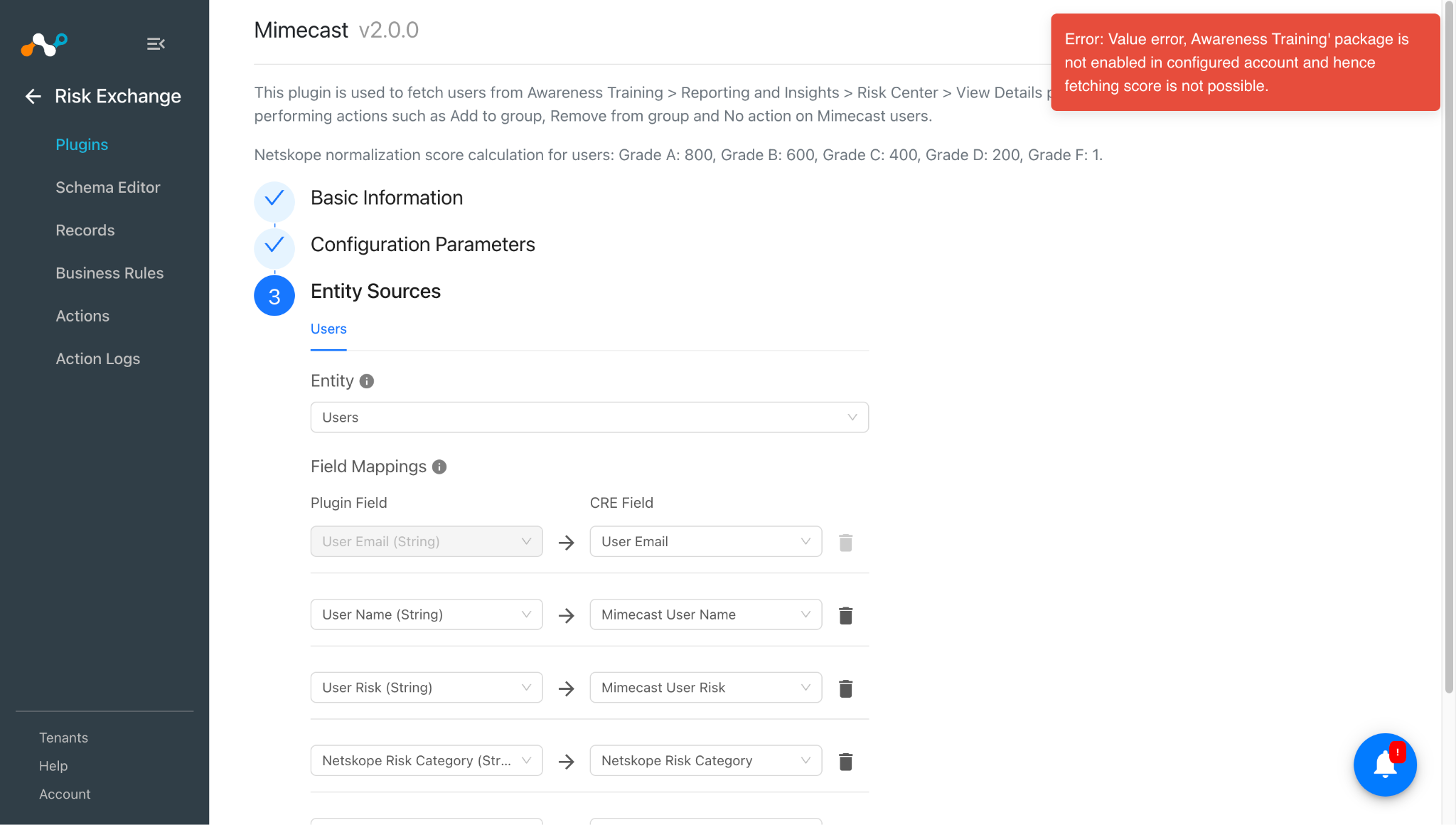
Getting the Awareness Training package is not enabled in the configured account error
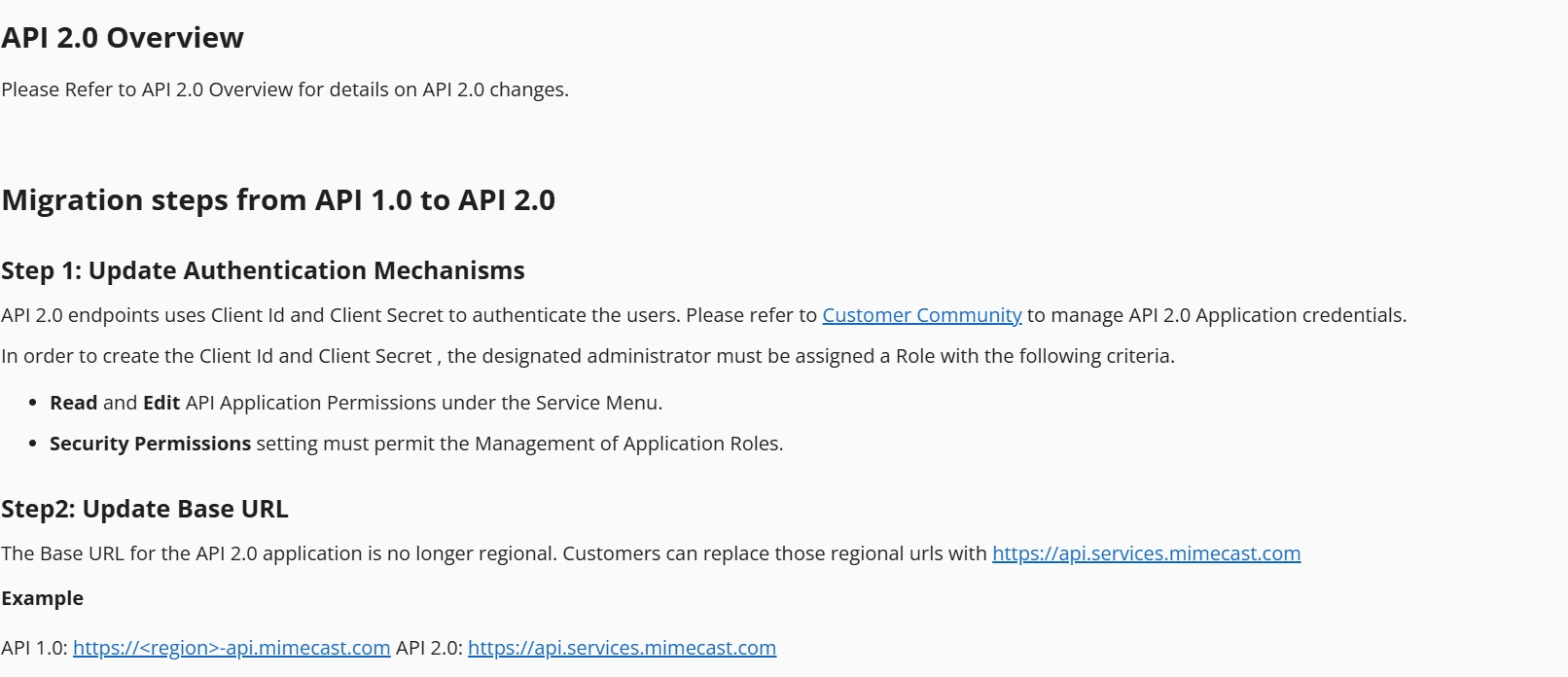
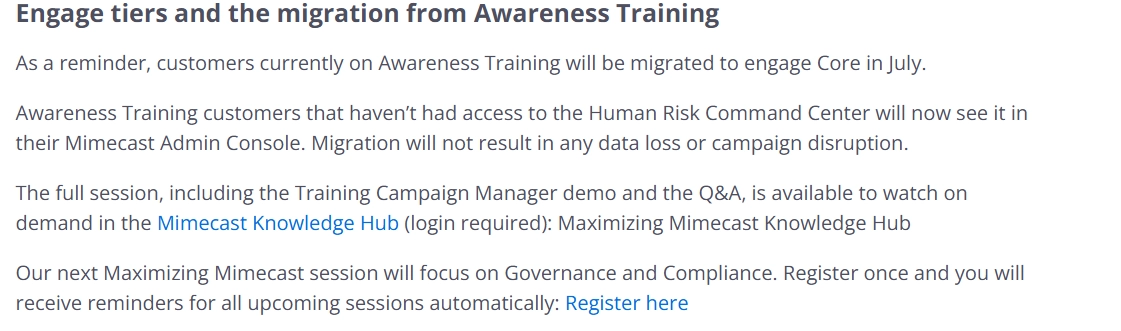
You may see this error while editing an already configured plugin or configuring a new one, because Mimecast removed the Awareness Training module and introduced a new module named Engage. For details, refer to the Mimecast Migration Guide and the Engage Core documentation on the Mimecast Knowledge Hub.
What to do:
Upgrade the plugin to Mimecast v2.1.0, which validates against the Engage Core package instead of Awareness Training.
Plugin configuration not working after the plugin upgrade
You do not see any logs related to the configured plugin after upgrading the plugin.
What to do:
Disable the plugin configuration, and then enable it again.
Unable to configure the Mimecast plugin
The plugin is not configured. The credentials might be incorrect or deleted, or the user role might be insufficient.
What to do:
Check the credentials generated, and check that sufficient roles are added.
Unable to pull the users or their risk scores
You are unable to pull users or scores in Cloud Exchange. This can happen for one of these reasons:
- No users are available on the platform to pull.
- The user scores are not pulled in Cloud Exchange.
- No mapping was added while configuring the plugin on the entity source page.
What to do:
- If no users are fetched from the plugin, check that you have users and scores to pull from Mimecast.
- Make sure the mapping is added and the User Email field is mapped while configuring the plugin.
Unable to perform the action on a user
You are not able to perform an action, and you receive an error. This can happen for one of these reasons:
- The user the action is performed on is already added to or removed from the group.
- The user the action is performed on is not present on Mimecast.
- The group the user is added to or removed from does not exist on the platform.
What to do:
- Confirm that the user and the group exist on Mimecast.
- If both exist, check whether the user is already in the group for an Add to Group action, or already removed for a Remove from Group action. The plugin throws an error if the user is already in the expected state.
Unable to view user details on the record
You are unable to view user details on the record table. This can happen for one of these reasons:
- Mapping for all the Mimecast fields was not provided while configuring the plugin.
- Pulled users are displayed in a row with comma-separated values.
What to do:
- Make sure to provide the needed mapping while configuring the plugin.
- Make sure the fields created in an entity match the Mappings section.
Receiving error: proxy server or Mimecast server is not reachable
You see this error while configuring the plugin, or at any point after the plugin is configured. The plugin cannot connect to the Mimecast platform, or, if Cloud Exchange uses a proxy, the proxy server is not reachable.
What to do: If Mimecast is not reachable, wait and retry, or contact your Mimecast support team. If the proxy server is not reachable, contact your IT team to find the root cause.