

Multiple Identity Provider (IdP) support for Single Sign-On (SSO) is a feature that allows an organization to integrate with and use multiple identity providers for user authentication and authorization.
Netskope integrates with any SAML 2.0 IdP to provide a wide range of solutions. Admins can configure SSO through the Netskope Admin console to connect to these applications for authentication and you can configure multiple IdPs simultaneously.
Using the SSO enabled feature in the Netskope Admin console, you can set up forced authentication when connecting to third-party applications, e.g. Okta.
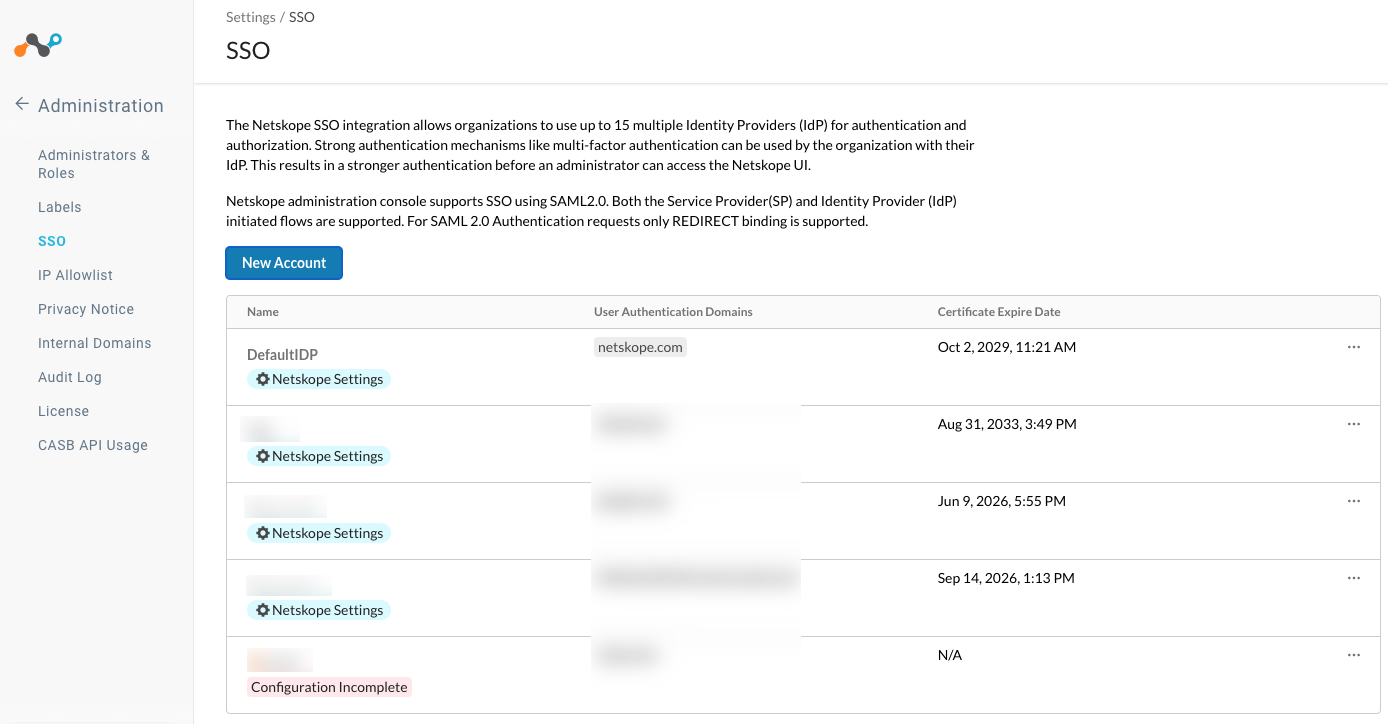
Navigate to Settings > Administration > SSO
Use Cases
1. Enhanced Security: Using multiple IdPs can add an extra layer of security. For example, an organization can use one IdP for internal users and another for external users, allowing for different authentication and access control policies.
2. Diverse User Bases: Organizations often have diverse user bases, including employees, partners, and customers. These users may already have accounts with different identity providers. Multiple IdP support enables these users to use their existing credentials to access the organization’s resources.
3. Integration Flexibility: Different services or applications might have their own preferred identity providers. Multiple IdP support allows an organization to integrate with various IdPs seamlessly, making it easier to use a variety of services while maintaining a consistent SSO experience.
4. Vendor Compatibility: When an organization uses a mix of cloud-based and on-premises services, those services may have varying support for SSO and different IdPs. Supporting multiple IdPs ensures that users can access all these services through a unified SSO interface.
5. Compliance: Some industries and regions have specific compliance requirements related to identity and access management. Multiple IdP support can help organizations meet these requirements by allowing them to use IdPs that conform to the necessary standards.
6. Mergers and Acquisitions: onboard the new companies using IdP and grant access to the admins you need with the set of permissions you require.
Setting Up an SSO Account
Prerequisite
You must add your internal domains.
Navigate to Settings > Administration > Internal Domains

- Click Edit in the Admin Account Domains section.
You must add the domains for which you will create new accounts later through the SSO page.

Optionally, you use the ‘Import from Internal Domains’ to either add to or replace the current list of internal domains.

Optionally, you can enter domains separated on new lines. Wildcard matches are allowed, examples shown below.

2. Add your domains and click Save.
Creating a New Account
Navigate to Settings > Administration > SSO

- Click New Account.

2. In the Account Name field, add a name that you can identify quickly.
3. In the User Authentication Domains section, click in the Domains = field to view the selectable menu. Select the domain(s) for which you’re setting up the integration.
4. Optionally, enter the name of SAML attributes that provide the email format. Netskope looks at the ‘NameID’ field in the SAML assertion to get the user identity. IMPORTANT: You must define the alternate userID attribute if the SAML assertion response of the NameID field is in a non-email format. Before proceeding review the migration workflow topic.
5. Click Save and continue.
6. In the Netskope Settings (wizard step 2) you will see your Netskope service provider information. The ‘Entity ID’ and subsequent URLs will show an ID that is generated only for this integration, generating a unique ID per IdP configuration.

7. Optionally in Netskope Settings, you can define roles for this integration. Best practice for security is to lock down the roles.

8. In the Create Account (wizard step 3) confirm the required fields such as IdP SSO URL, IdP entity ID, and certificate and click Finish. Note, the required fields are available in your IdP UI.

Once your integration is complete, you will see your integration listed in the SSO home page.

If you can exit the configuration before it is completed. You will see the configuration is pending completion in the SSO home page.

Click the ellipses at the end of the list to complete your setup for your integration. This will re-open the wizard window.

You can verify the multiple IdP integration by accessing your account, you will see the following log in page.

Troubleshooting
Navigate to Settings > Administration > Audit Log to view information about your integration.
