

Netskope Agents are designed to analyze Netskope incidents/alerts and Microsoft Purview alerts. It creates investigation plans, overview reports, and correlates both logs and finds solid analysis.
Prerequisites
Netskope Service
Create an API key using this documentation.
The Role Netskope Cloud Exchange should be used.
Microsoft Purview
Microsoft Purview and Microsoft Security Copilot need to be on the same tenant to fetch alerts for the Netskope DLP Analysis Agent.
Get the Netskope Agent
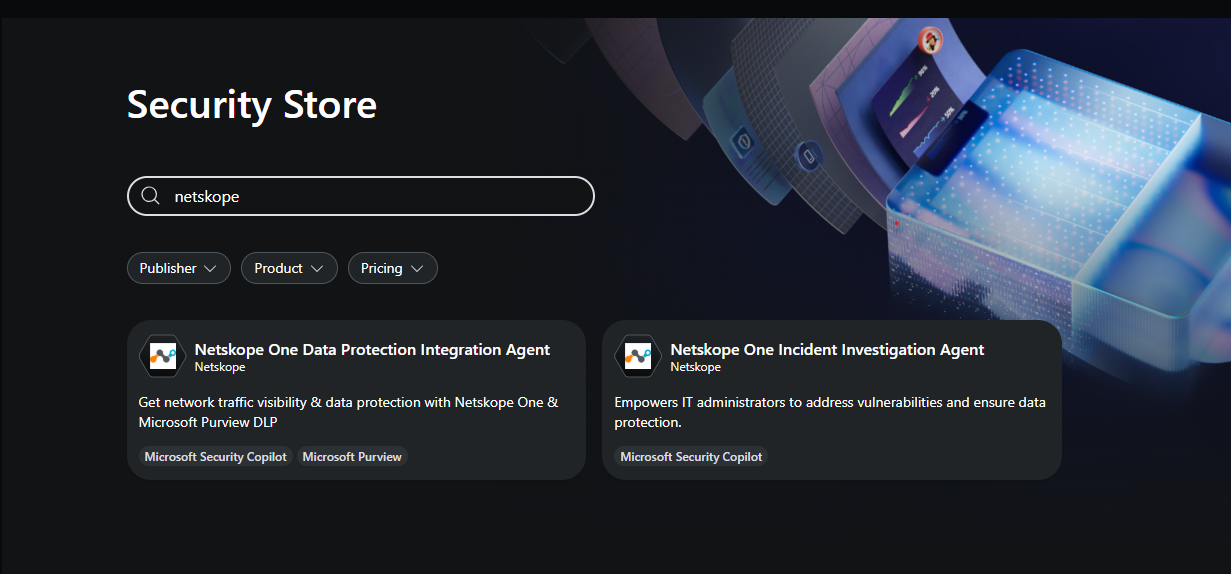
Search for the Netskope Agent in the Microsoft Security Store.
Configure the Agent
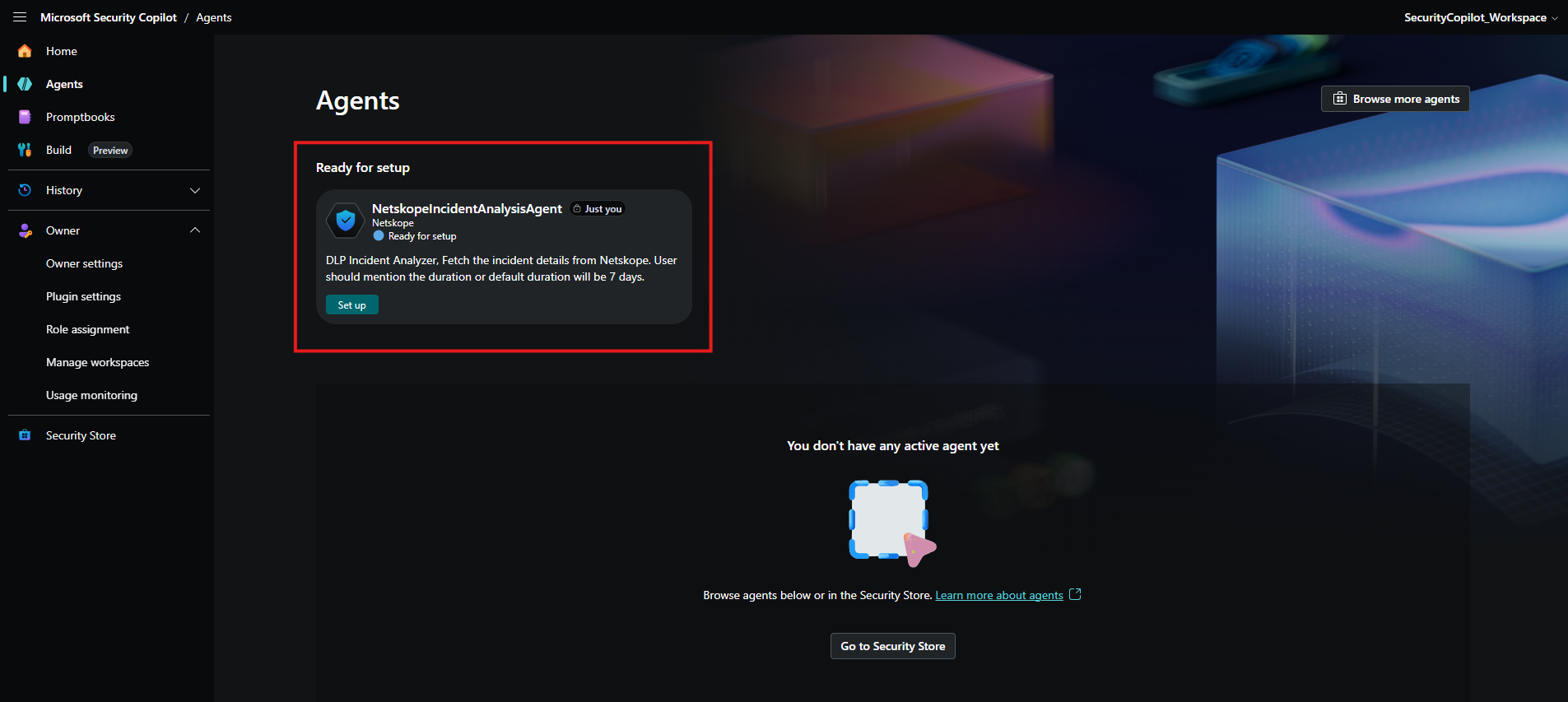
- Find the Netskope Incident Analysis Agent application in the Agents section.
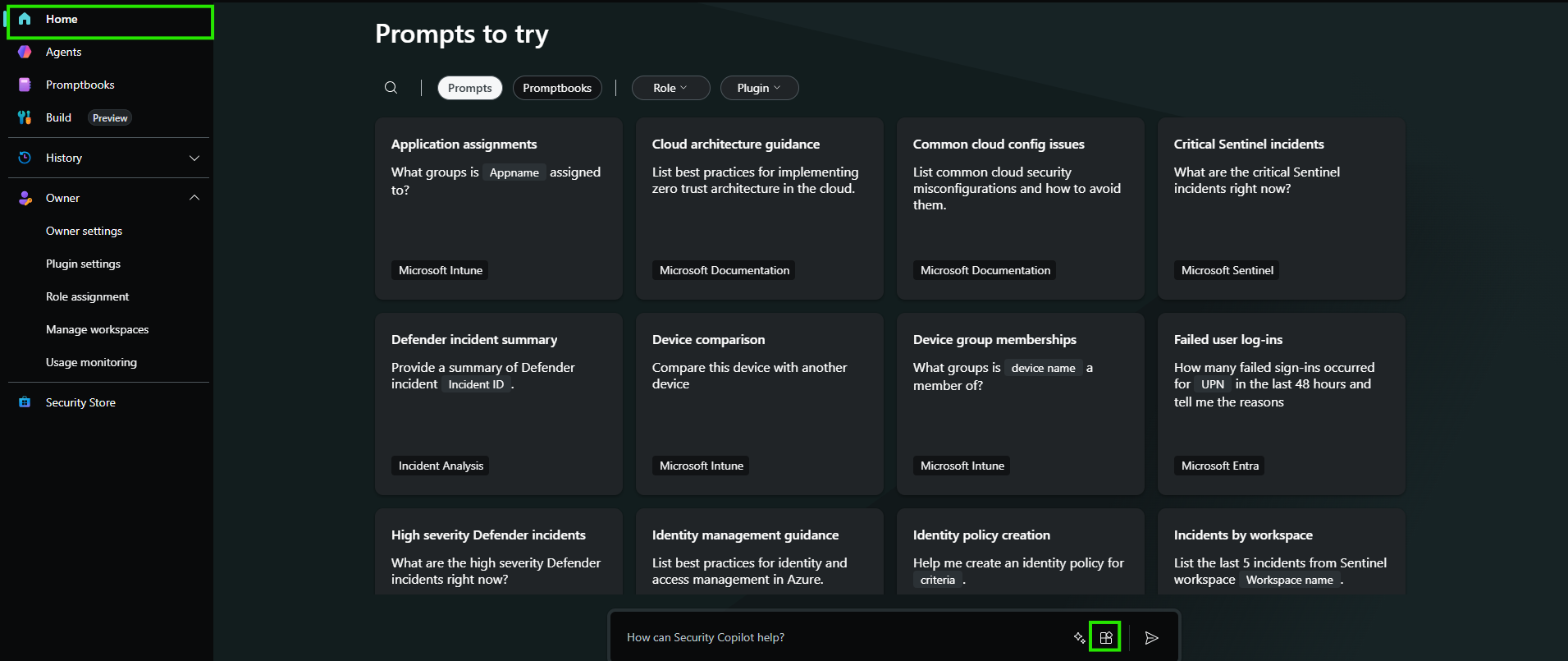
- Go to Home and select a manage source.
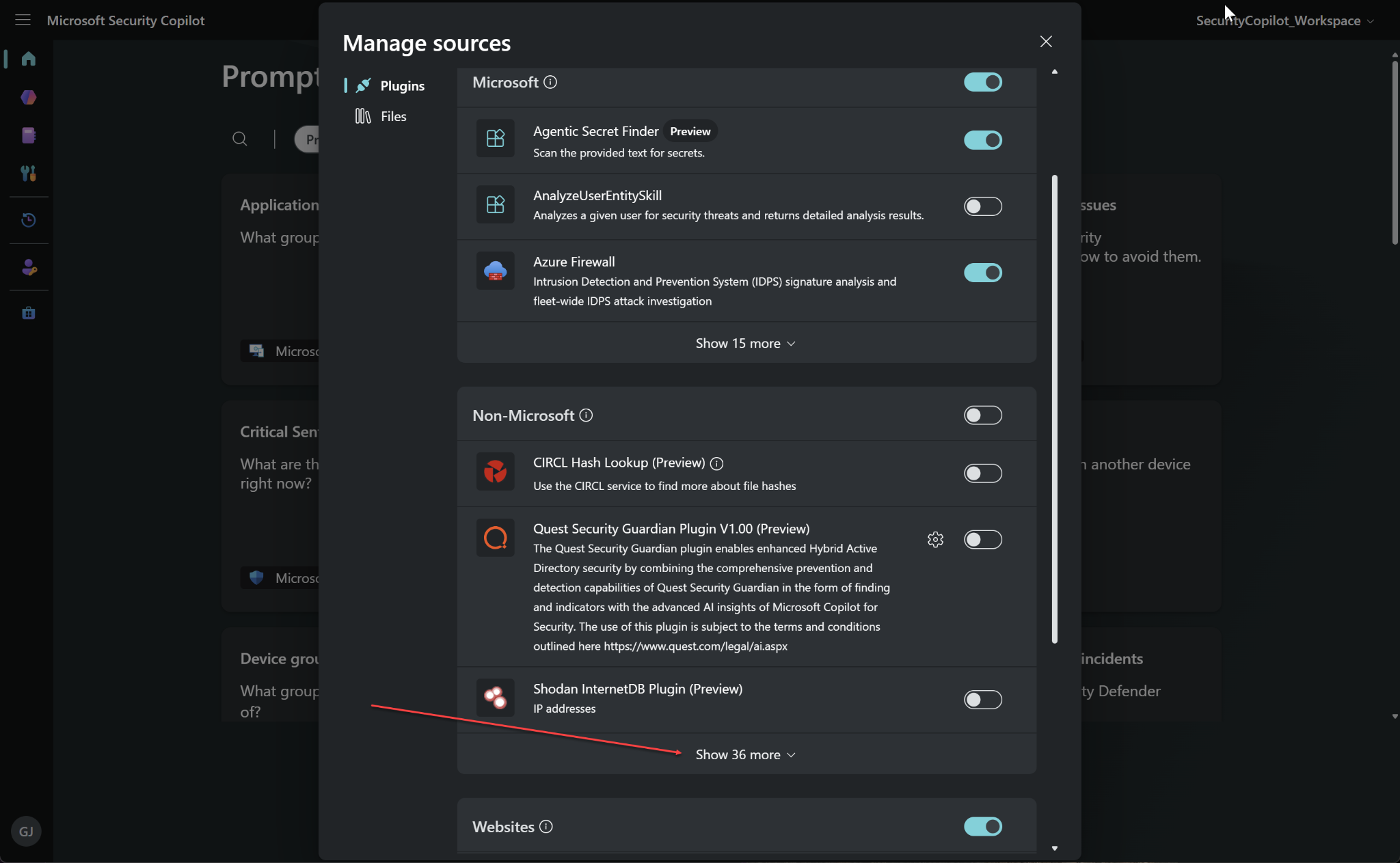
- Under Non-Microsoft, click Show More.
 Or, go to the Custom plugins section and click Set up.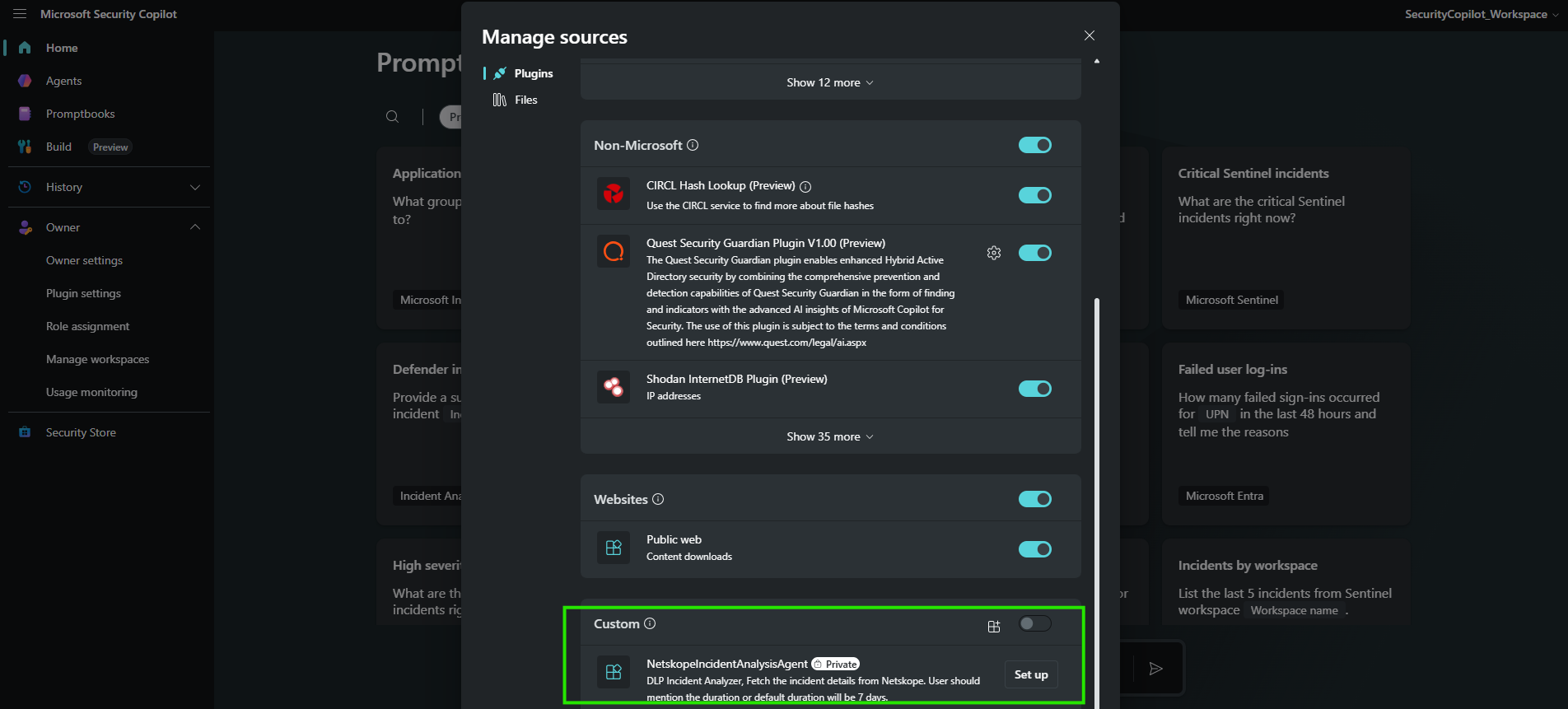
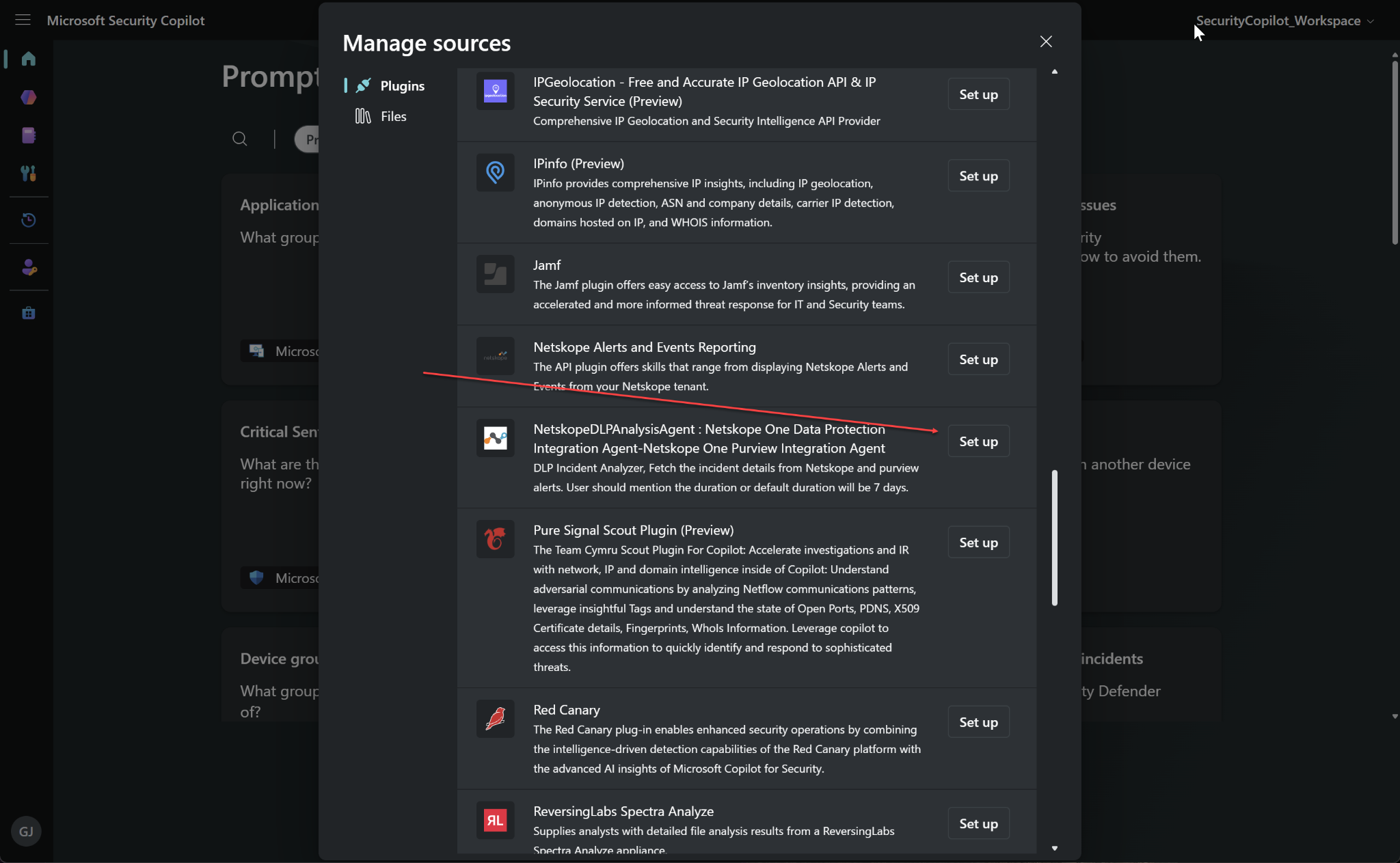
- Click Set up for the Netskope DLP Analysis Agent.
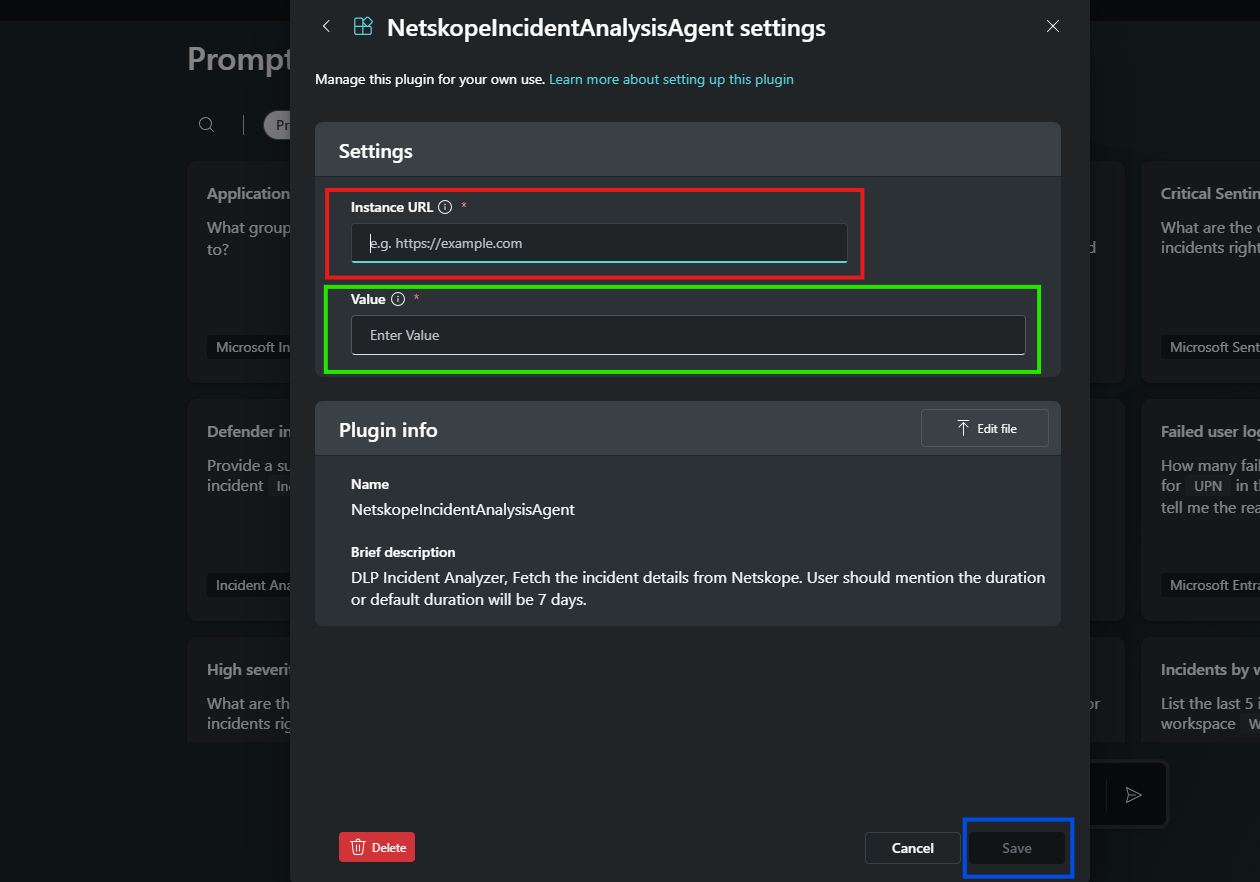
- Add your tenant base path for the Instance URL, add your Netskope API key for the Value, and then click Save.
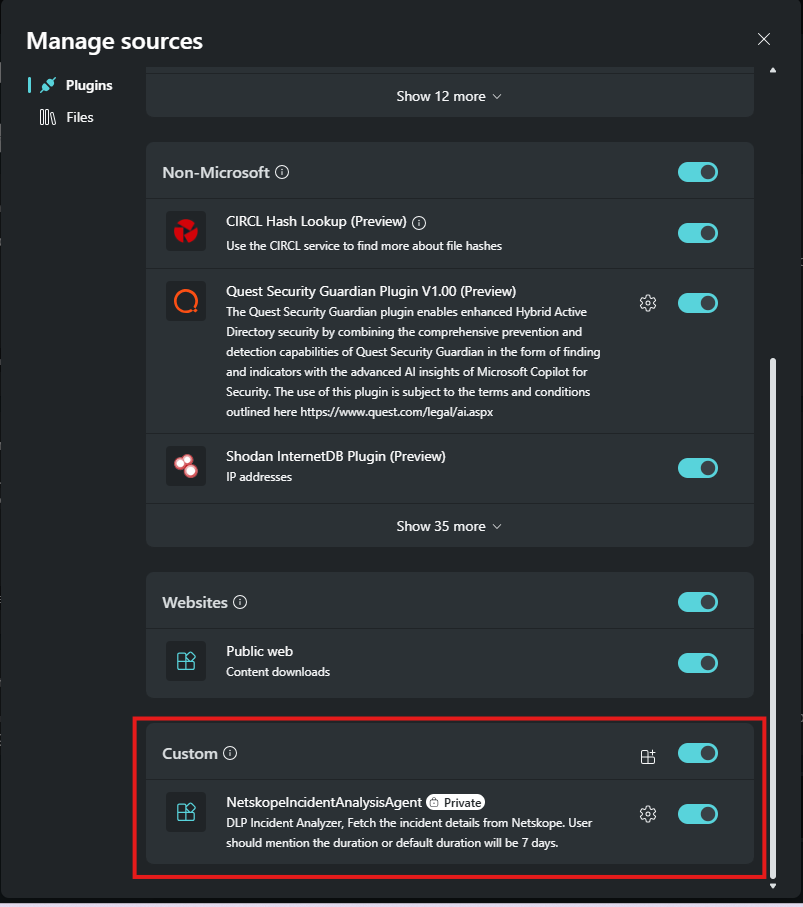
You can see the configured plugin here.
Set Up the Agent
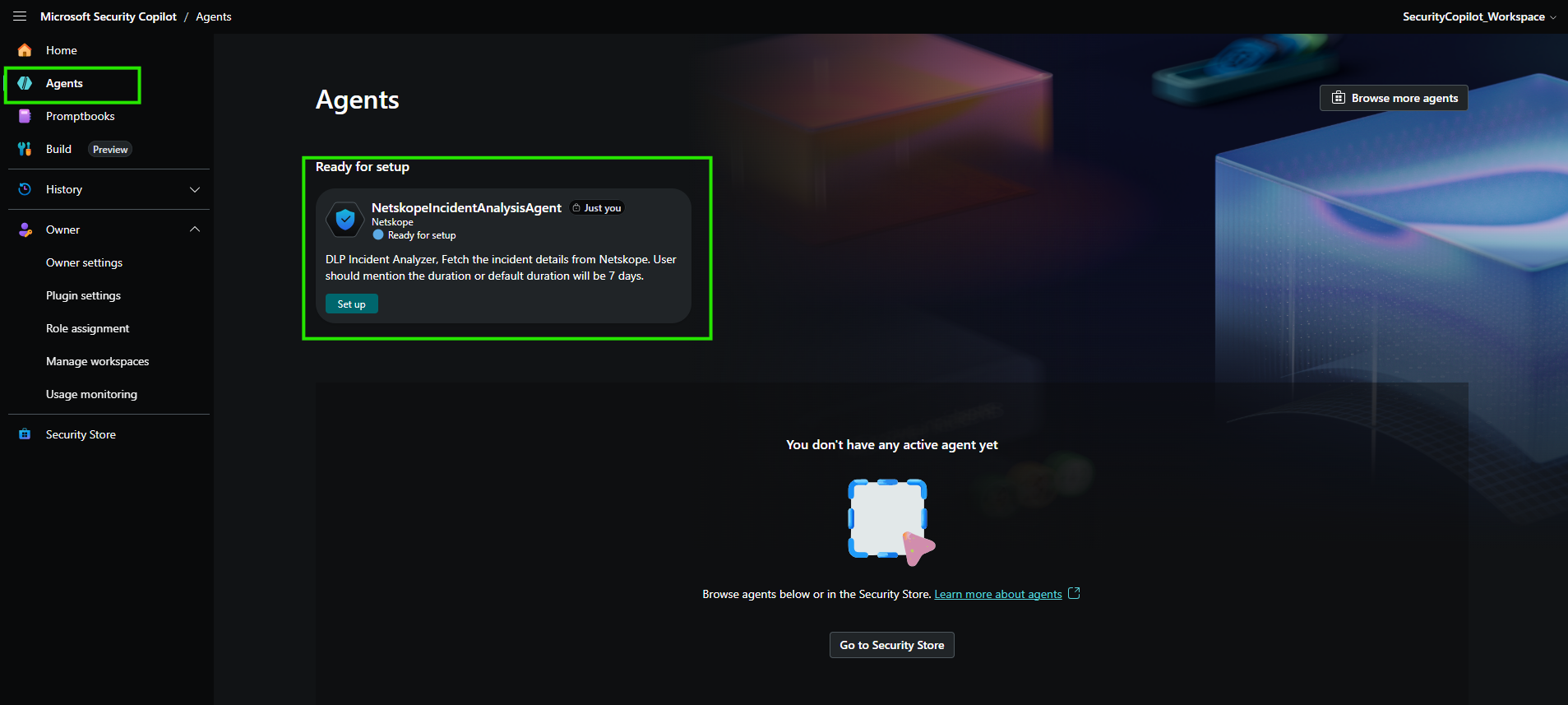
- Go to Agents, look for your Netskope Agent, and click Set up.
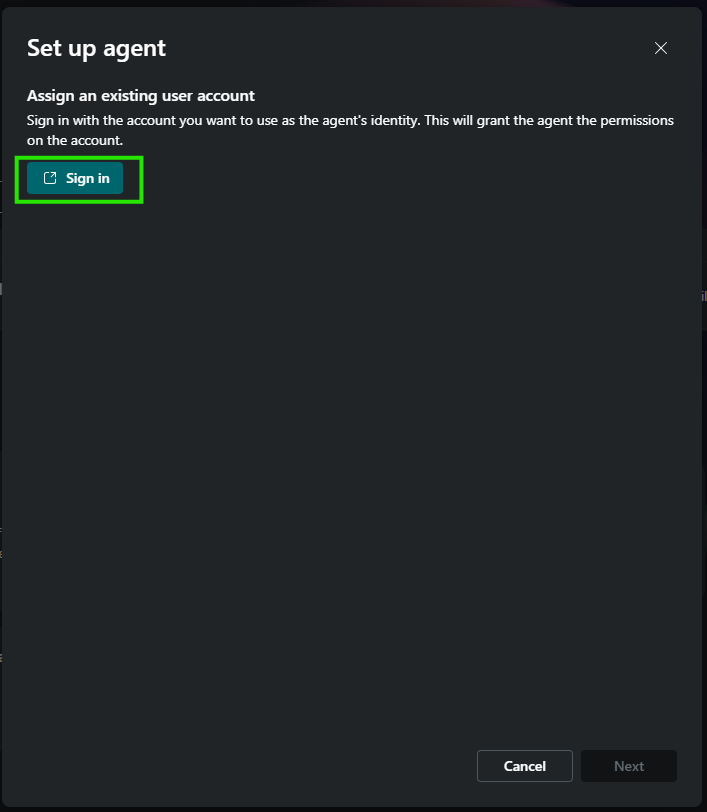
- Sign in to your Microsoft account and click Next.
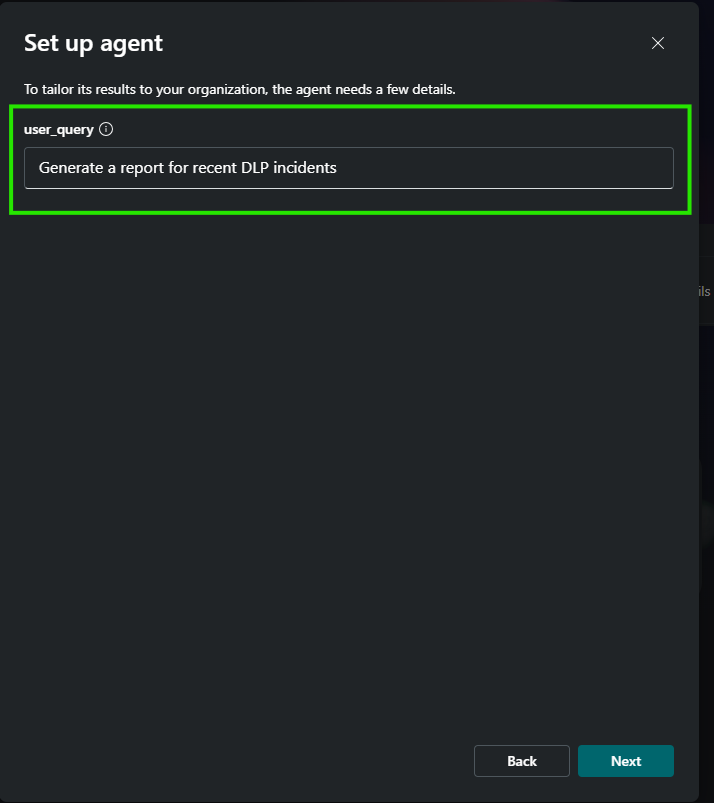
- Add a user query as a default query, and then click Next and Finish.
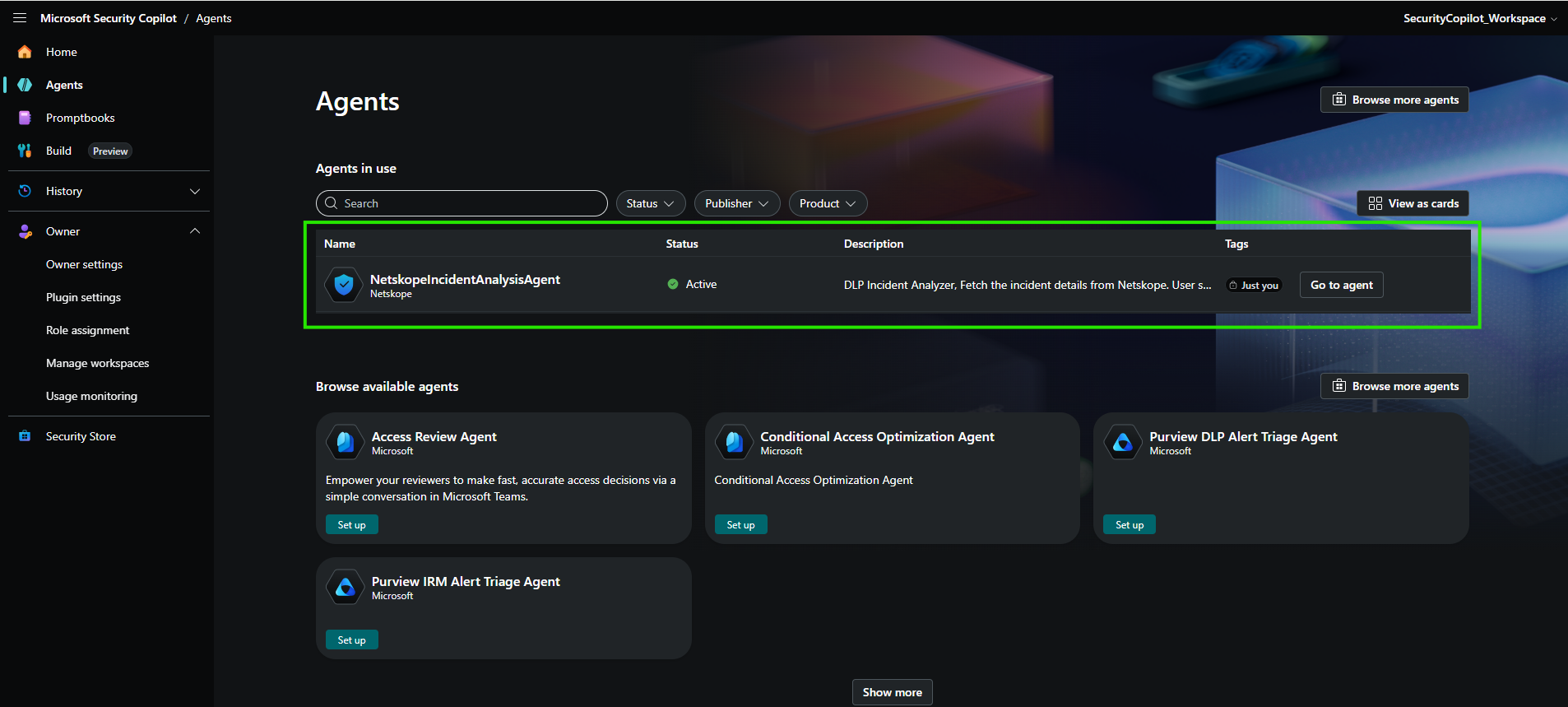
Generate Reports
- Go to your Netskope Agent.
- Go to Run and select One time.
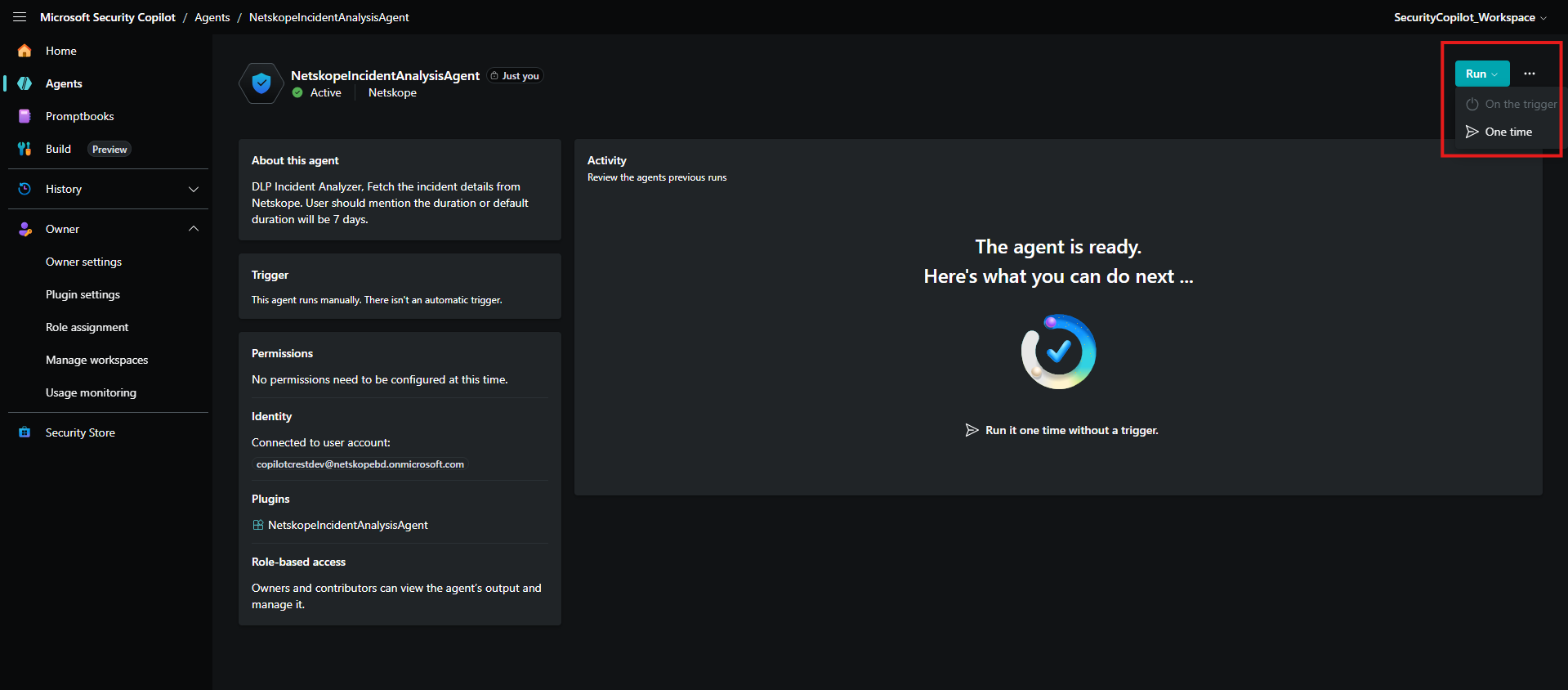
- Add an appropriate query and click Submit.
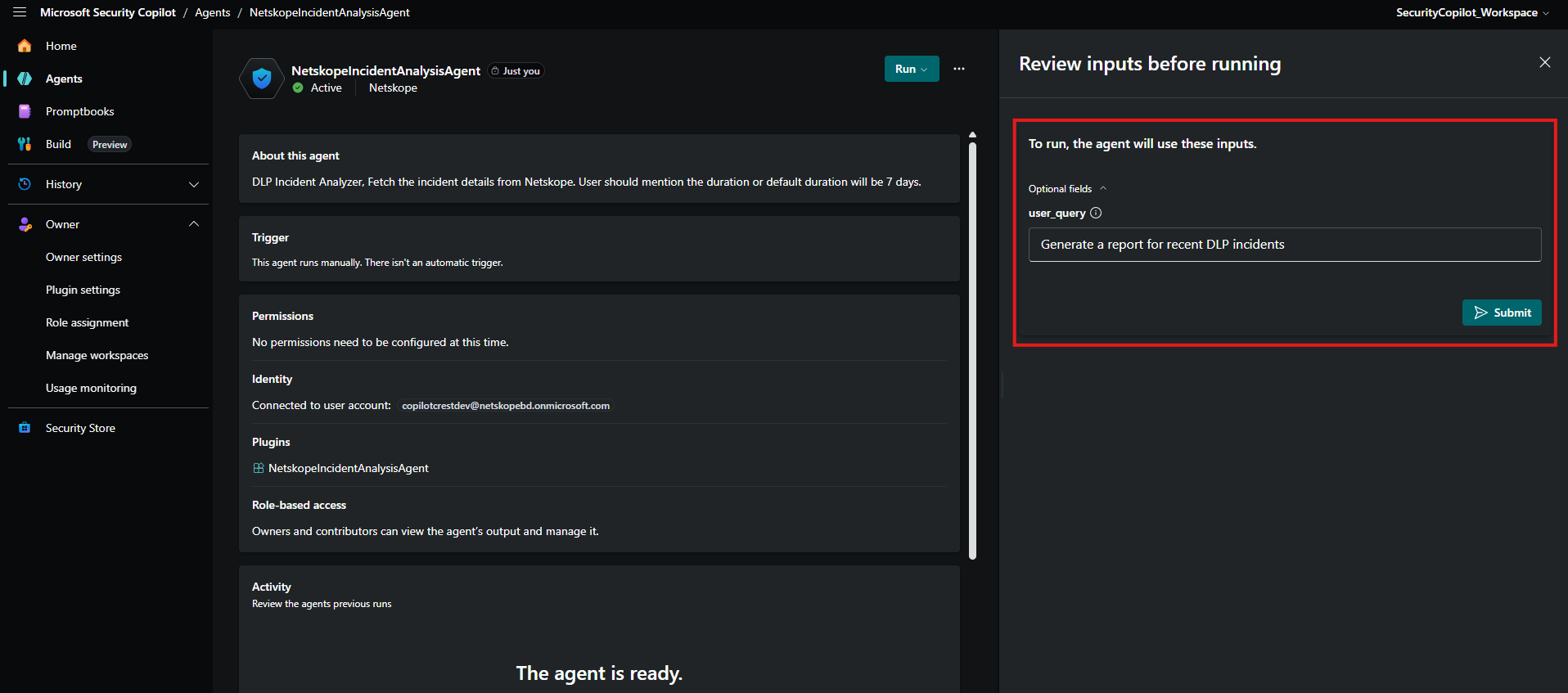
You can see a running session for that agent in the Activity section.
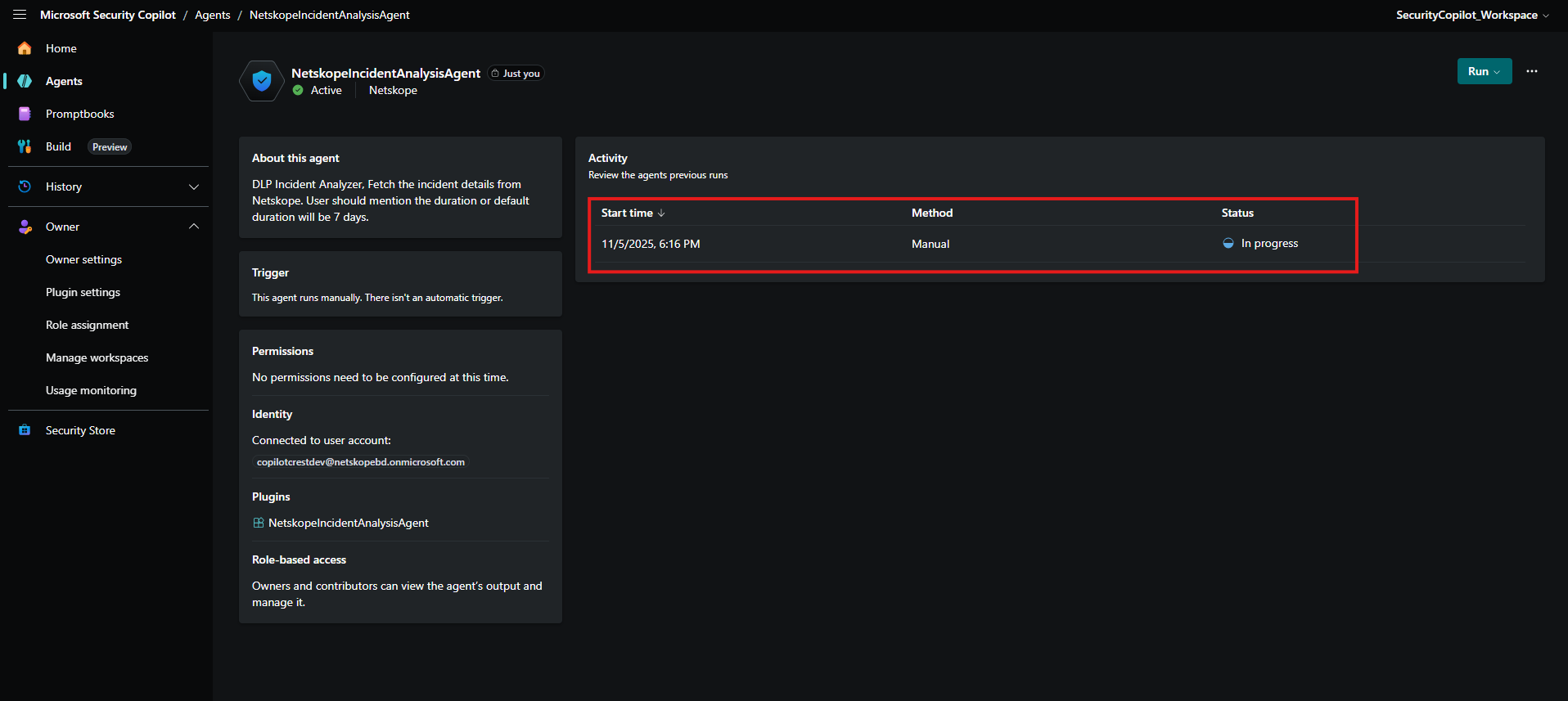
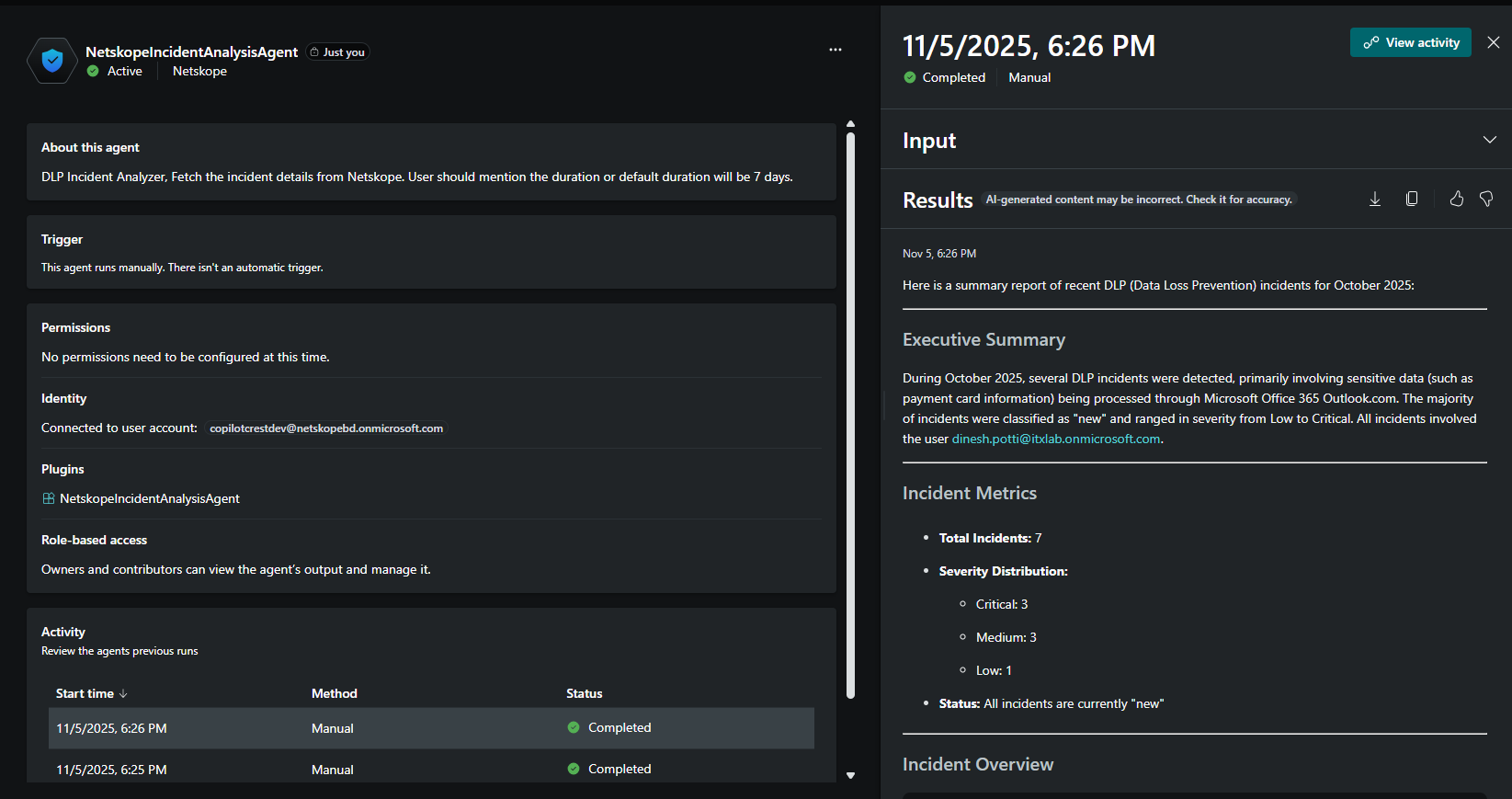
You can open that activity and wait for the Agent to execute the report generation.
Troubleshooting Netskope Agent with Microsoft Security Copilot
Agent response shows some error occurred while requesting Netskope events
You may face issues if no logs are found due to Netskope API endpoints were not requested properly.
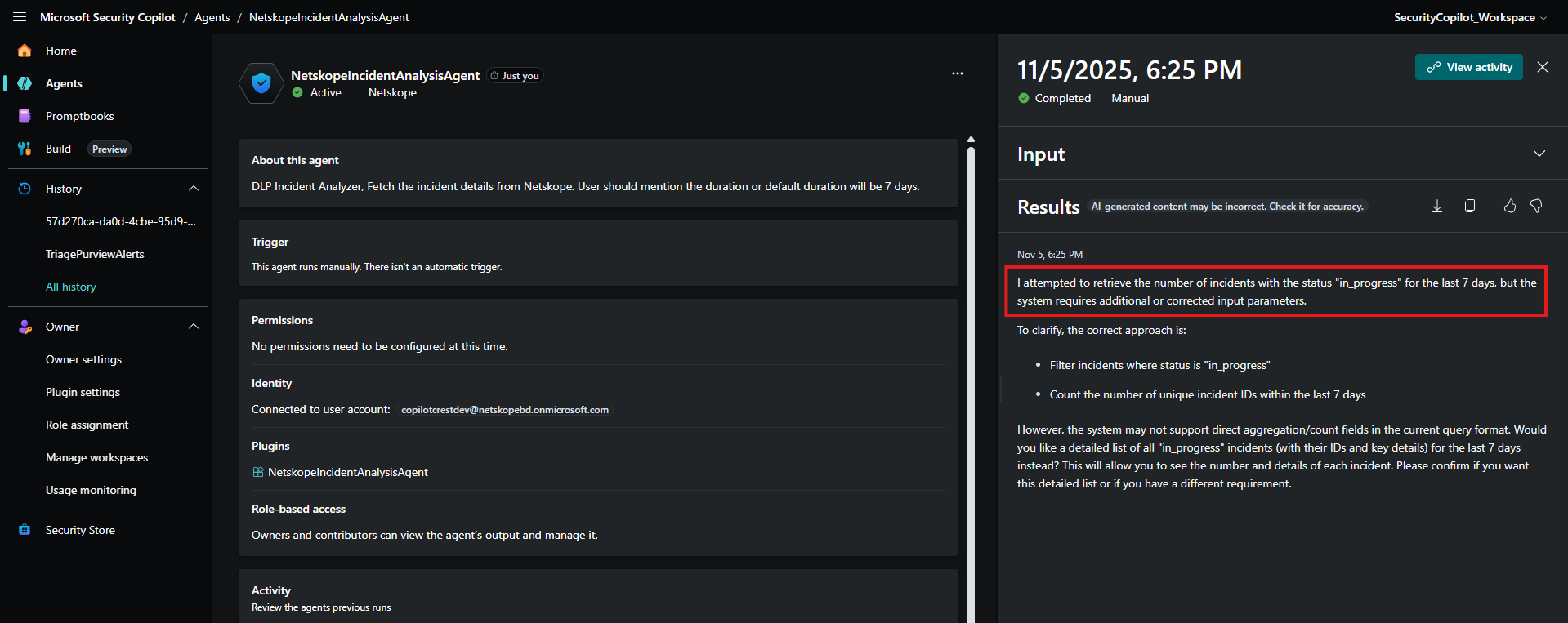
- Go to View Activity and click Go to session.
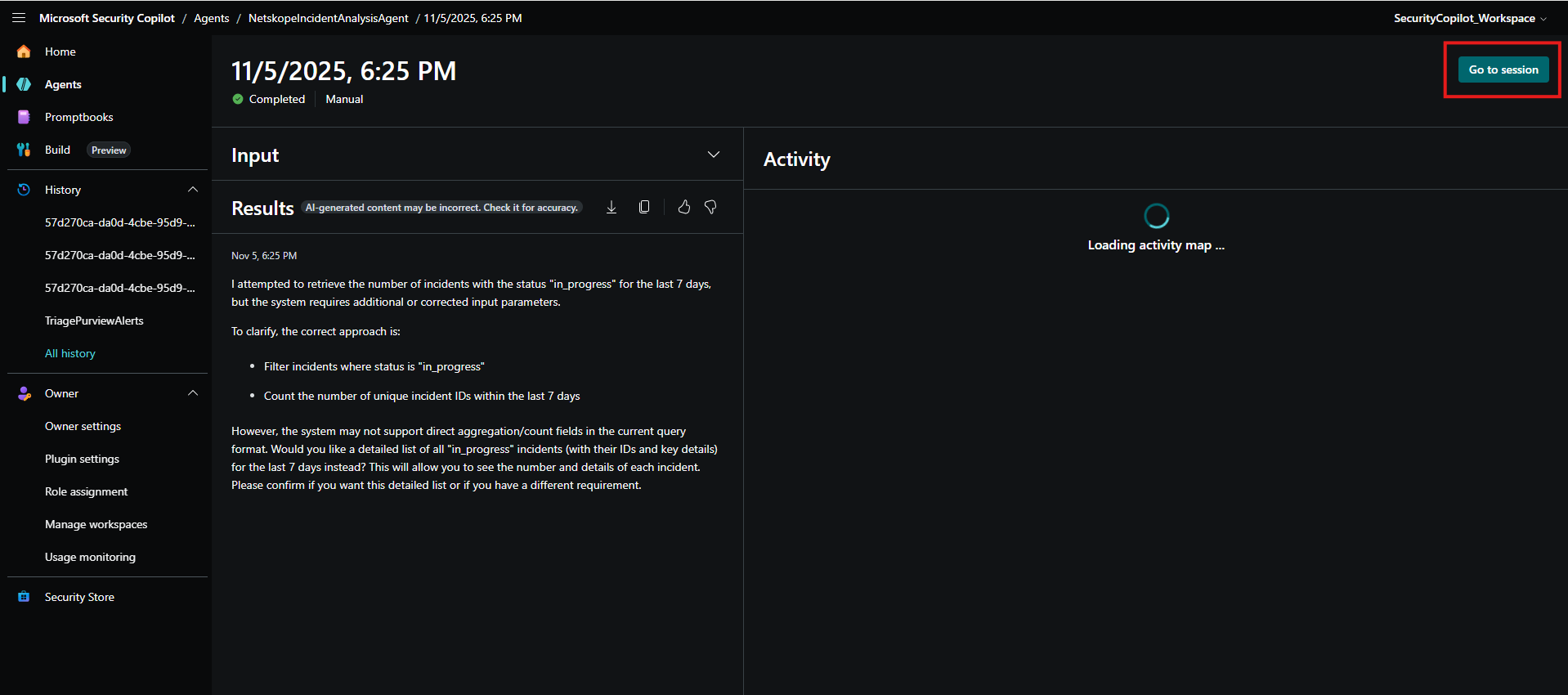
- Check the response of Netskope DLP Agent.
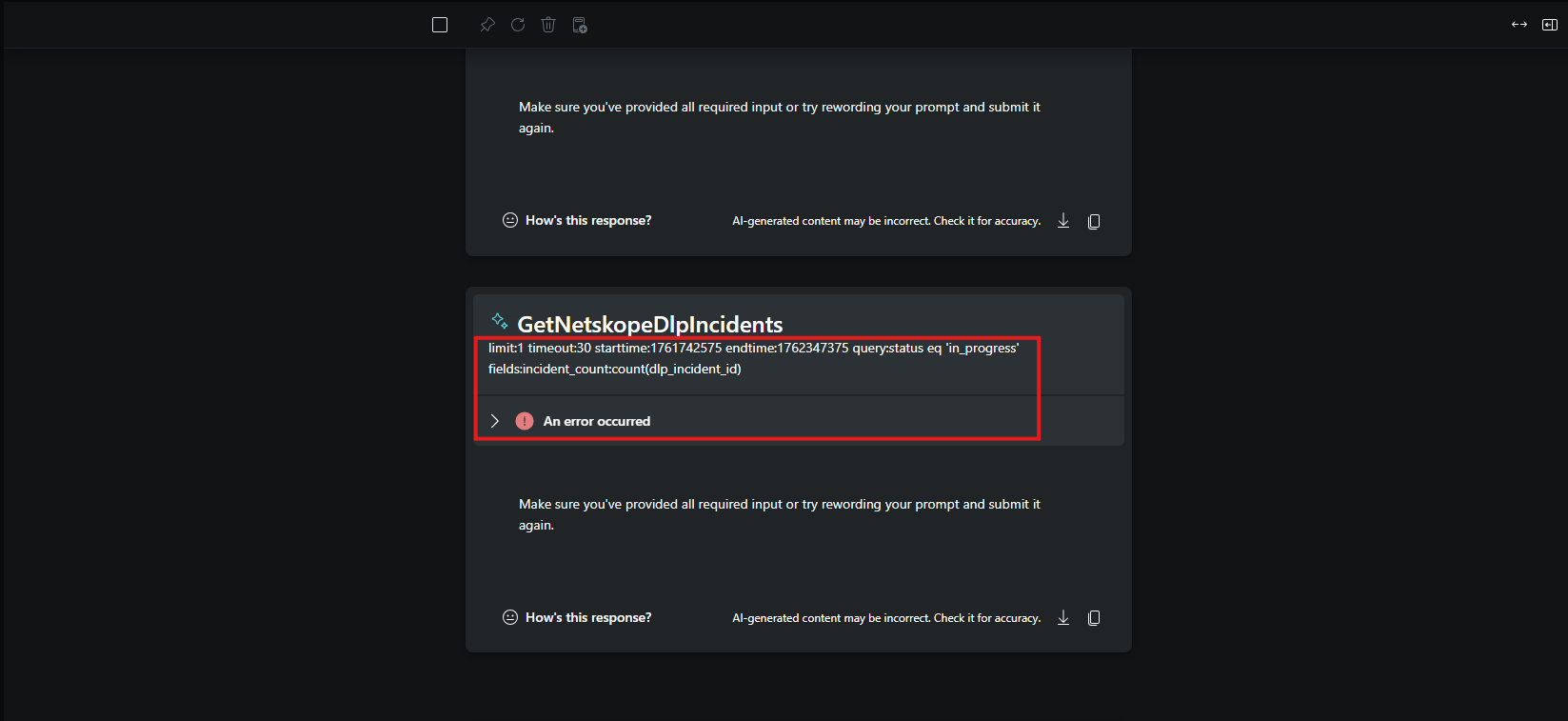
Here the API endpoint parameters are not passed properly, so you need to change the input prompt and rerun the Agent.