

This document explains how to configure the Borderless WAN 1.1.0 plugin with the Log Shipper module of the Netskope Cloud Exchange platform. This plugin is used to fetch Events (Audit, Authentication, Client, Gateway, System) from the Monitor > Events page of Netskope Borderless WAN Tenant. The plugin fetches the data in JSON format.
Prerequisites
To complete this configuration, you need:
- A Borderless WAN Tenant (or multiple, for example, production and development/test instances).
- A Netskope Cloud Exchange tenant with the Tenant plugin and Log Shipper plugin already configured.
- A 3rd-party plugin (like Syslog) already configured.
- Minimum CE version required 5.1.1 for the plugin configuration.
- Connectivity to the Borderless WAN Tenant host.
Example: https://infiot.api.stage1.infiot.net
Borderless WAN Plugin Support
The Borderless WAN plugin is used to pull Events of types Audit, Authentication, Client, Gateway, System from Borderless WAN tenant.
| Alerts Support | Not Supported |
| Event Support | Yes (Audit, Authentication, Client, Gateway, System) |
| WebTx Support | Not Supported |
| CE Logs | Not Supported |
Permissions
You need to have these permissions in the Auth Token:
[
   {
      "rap_privs":[
         "privAuditRecordRead"
      ],
      "rap_resource":"*"
   }
]
API Details
List of APIs used
| API Endpoint | Method | Use Case |
|---|---|---|
| /v2/auditevents | GET | Fetch Events from Borderless WAN Tenant. |
Note that all the API calls for a source plugin are made from the Tenant plugin, so the user agent will be of the tenant plugin.
Fetch Events
API Endpoint: <BASE URL>v2/auditevents
Method: GET
Request Headers
| Key | Value |
|---|---|
| Authorization | Bearer <API TOKEN> |
| User-Agent | netskope-ce-5.1.1-tenant-netskope_borderless_wan-v1.1.0 |
| grant_type | client_credentials |
Request Parameters
| Key | Value |
|---|---|
| first | 100 |
| after | end_cursor (end cursor from previous response) |
| filter | event_time>="<START TIME>" AND event_time<="END TIME" AND (class: <EVENT TYPE>)For example: event_time>="2025-01-29T12:20:42.124910Z" AND event_time<="2025-01-29T12:58:01.122Z" AND (class: AUDIT OR class:AUTHENTICATION OR class:SYSTEM OR class:CLIENT OR class:GATEWAY) |
Sample API Response
{
    "page_info": {
        "end_cursor": "WyIyMDI1LTAxLTI5VDEyOjQzOjIyLjAzNVoiLCI2NzlhMjI2YTIyNmUyYTBmYzU2YzJjOGIiXQ",
        "has_next": true,
        "total_count": 4
    },
    "data": [
        {
            "id": "679a226a226e2a0fc56c2c8b",
            "actor_nrn": "nrn:bwan:authn:us:5dadf8a91602d141e060c93e:token:6245b39c611790724910338f",
            "target_nrn": "nrn:bwan:site:us:5dadf8a91602d141e060c93e:site:673757abb51faf57f043a36a",
            "type": "AUDIT",
            "subtype": "AUDIT_GATEWAY",
            "activity": "SITE_UPDATED",
            "note": "",
            "event_time": "2025-01-29T12:43:22Z"
        },
        {
            "id": "679a24c905aa7377e0924ab0",
            "actor_nrn": "nrn:bwan:authn:us:5dadf8a91602d141e060c93e:user:656e127fd8a92afdc8447576",
            "target_nrn": "nrn:bwan:authn:us:5dadf8a91602d141e060c93e:user:656e127fd8a92afdc8447576",
            "type": "AUTHENTICATION",
            "subtype": "AUTHENTICATION_USER",
            "activity": "USER_LOGIN",
            "note": "",
            "event_time": "2025-01-29T12:53:29Z"
        },
        {
            "id": "679a20d105aa7377e0924931",
            "actor_nrn": "nrn:bwan:authn:us:5dadf8a91602d141e060c93e:token:675145c90f1ebb6e8c59983b",
            "target_nrn": "nrn:bwan:site:us:5dadf8a91602d141e060c93e:site:675145b90f1ebb6e8c59982a",
            "type": "CLIENT",
            "subtype": "CLIENT_SYSTEM",
            "activity": "SITE_CLIENT_DEVICE_ENROLL_STARTED",
            "note": "",
            "event_time": "2025-01-29T12:36:34Z"
        },
        {
            "id": "679a259d05aa7377e0924afa",
            "actor_nrn": "nrn:bwan:authn:us:5dadf8a91602d141e060c93e:token:67343709ca023562f3b8f02e",
            "target_nrn": "nrn:bwan:site:us:5dadf8a91602d141e060c93e:site:6734367c1f66fecb2dff8554",
            "type": "GATEWAY",
            "subtype": "GATEWAY_UNDERLAY",
            "activity": "SITE_LINK_UP",
            "note": "wlp0s0",
            "event_time": "2025-01-29T12:57:00Z"
        },
        {
            "id": "679a25b439a4bd42a70bb934",
            "actor_nrn": "nrn:bwan:authn:us:5dadf8a91602d141e060c93e:token:6245b39c611790724910338f",
            "target_nrn": "nrn:bwan:tenant:us:5dadf8a91602d141e060c93e:tenant:5dadf8a91602d141e060c93e",
            "type": "SYSTEM",
            "subtype": "SYSTEM_SSE_TUNNEL",
            "activity": "SITE_NS_TUNNEL_ERROR",
            "note": "https://tunnel-test.goskope.com (accountId: 62b3a3e3b7f108a3b8b74815): get tunnels: status: 401 -> Unauthorized\naccountId: 62b3a3e3b7f108a3b8b74815",
            "event_time": "2025-01-29T12:57:24Z"
        }
    ]
}
Performance Matrix
This performance reading is conducted on a Large Stack CE with the below-mentioned VM specifications.
| Stack details | Size: Large RAM: 32 GB CPU: 16 Cores |
| Events pulled from Borderless WAN | ~2.4k EPM |
User Agent
netskope-ce-5.1.1-tenant-netskope_borderless_wan-v1.1.0
All the API calls for a source plugin are made from the Borderless WAN tenant plugin, so the user agent will be that of the tenant plugin.
Workflow
- Configure the Borderless WAN Plugin for Log Shipper.
- Add a Business Rule.
- Add a SIEM Mapping.
- Validate the Borderless WAN plugin.
Click play to watch a video.
Configure the Borderless WAN Plugin
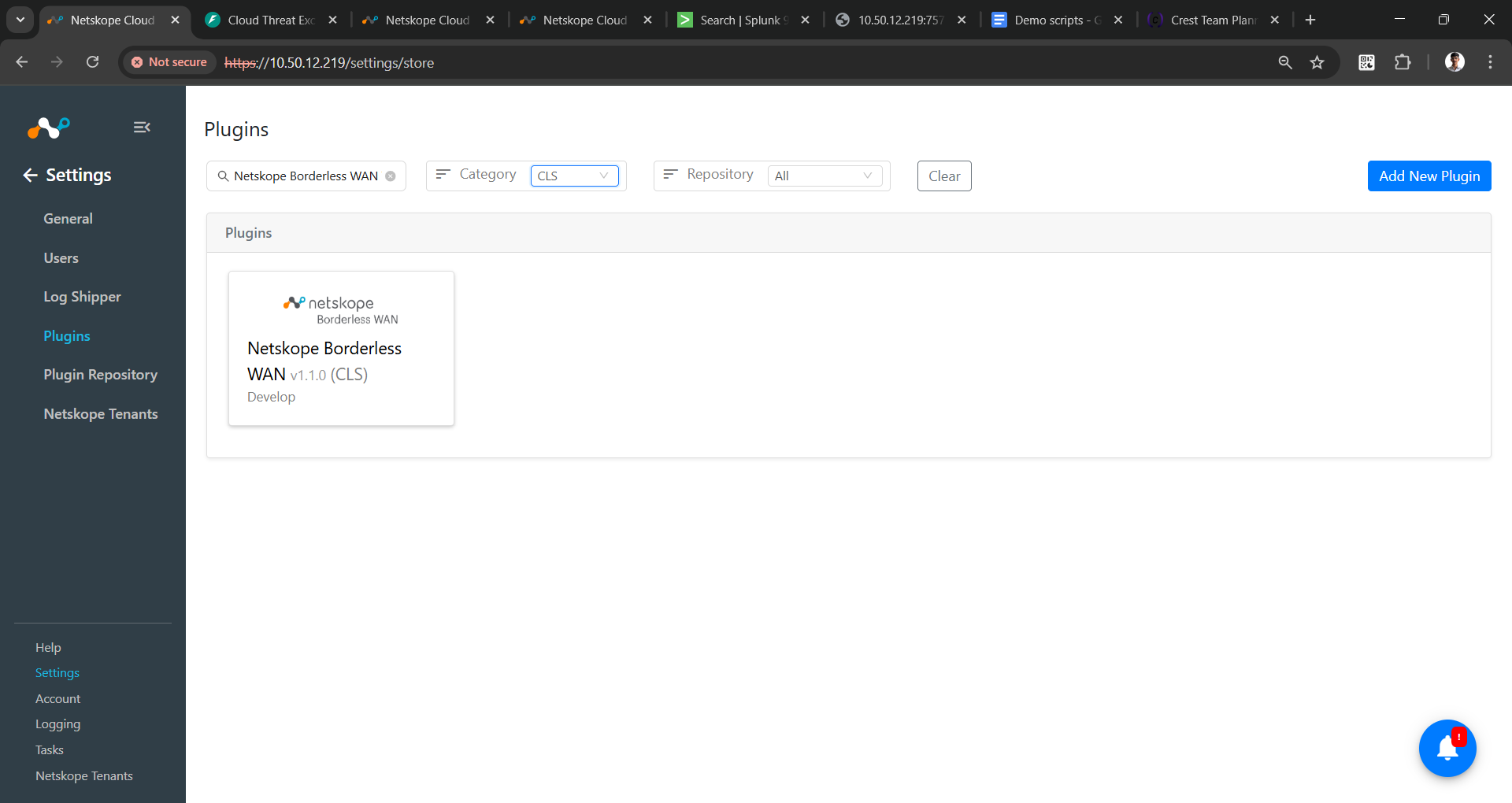
- In Cloud Exchange, go to Settings > Plugins. Search for and select the Netskope Borderless WAN v1.1.0 (CLS) plugin box.
- Add the plugin configuration name and select your configured BWAN tenant.
- Configuration Name: Plugin configuration name.
- Tenant: Tenant to pull alerts from. Select your Borderless WAN tenant.
Ensure that you select the BWAN tenant and not the Netskope tenant, as selecting the wrong tenant will prevent data from being fetched successfully.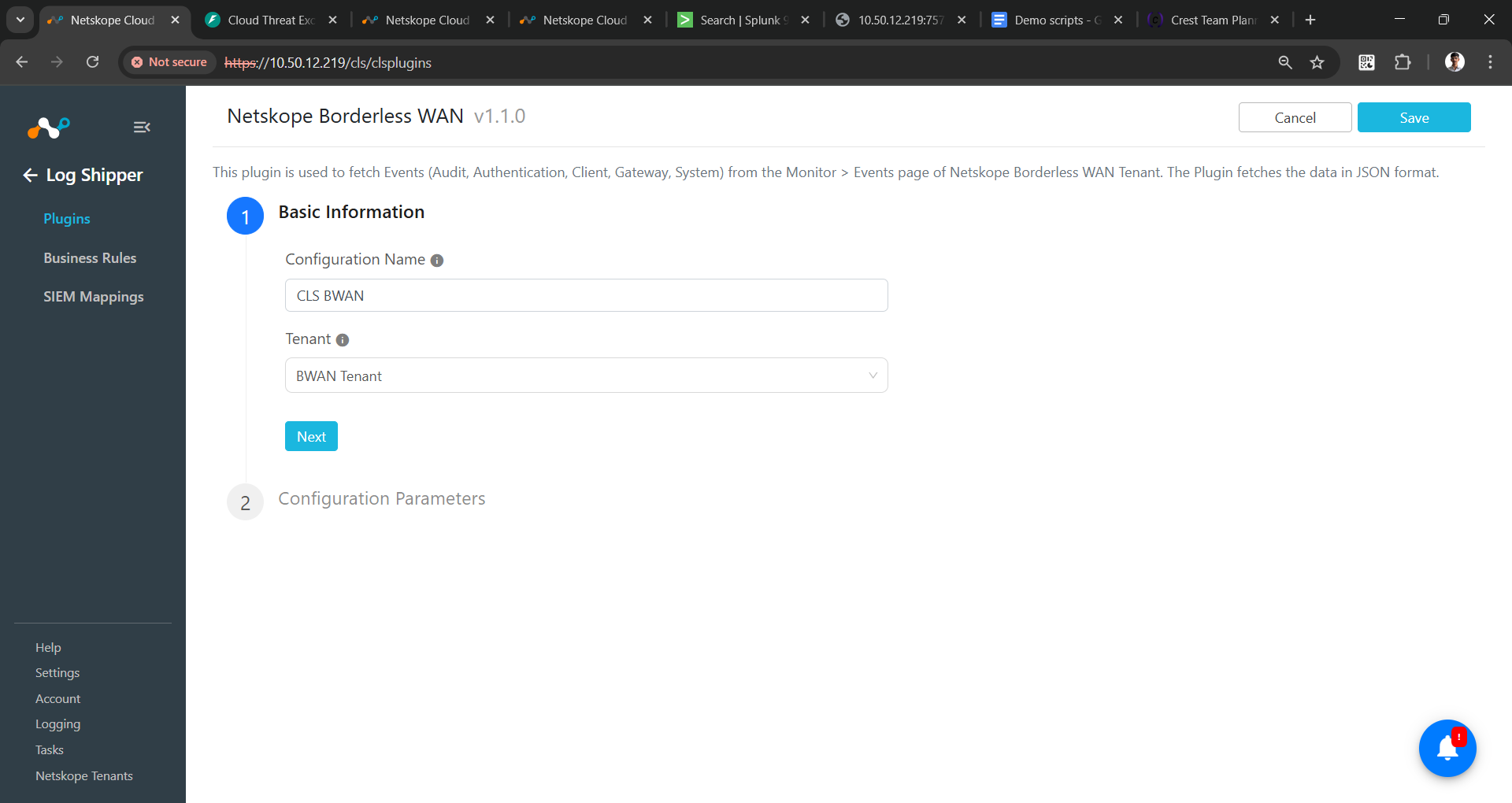
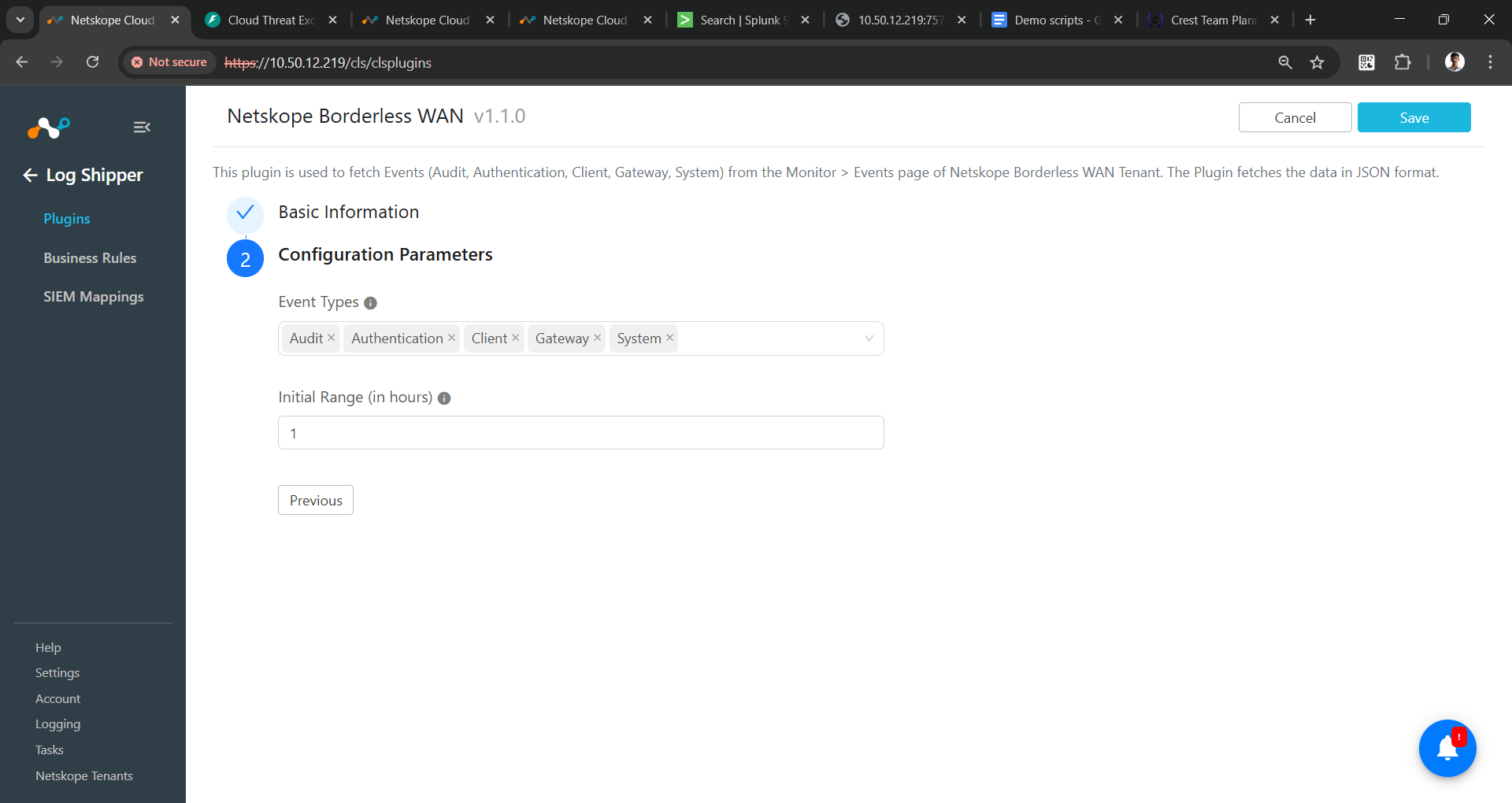
- Click Next and enter values for these parameters:
- Event Types: Selected types of events will be fetched.
- Initial Range: Number of hours to pull the event data for the initial run.
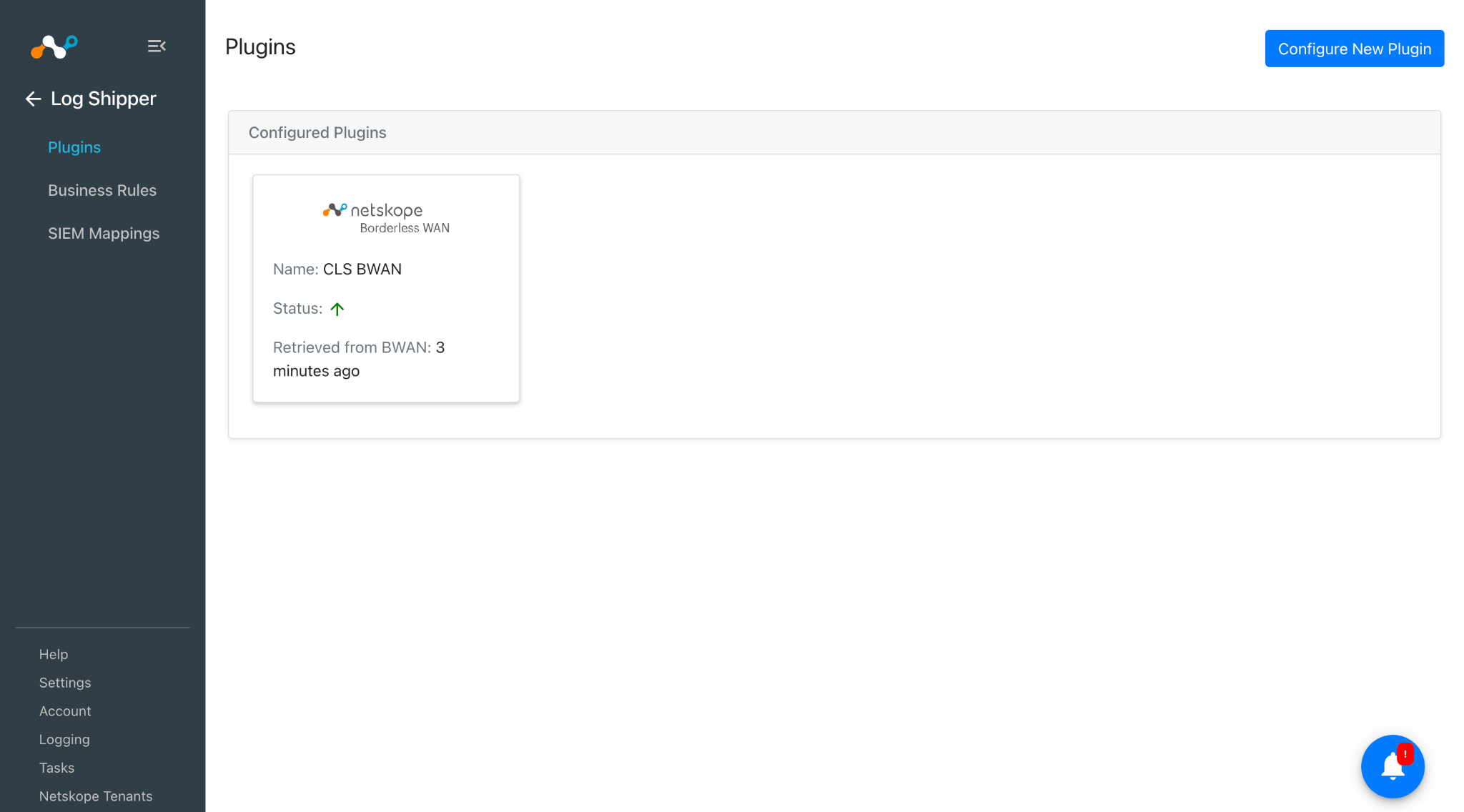
- Click Save. The plugin configuration will be available on the Log Shipper > Plugins page.
To support Borderless WAN events, you need to create a new mapping by cloning an existing one and adding Borderless WAN events to it, or creating a new file by using the Add Mapping option. Make sure to use this file while creating the 3rd-party (like the Syslog plugin). Follow these steps to create and configure the mapping.
Steps to Create a New Mapping for Borderless WAN Events
- Go to the Settings > Log Shipper > Mappings.
- Click Add Mapping.
- Enter a name and select View as Editor.
- Add this mapping file in it.
{ "delimiter":"|", "bwan_map_version":"1.0.0", "cef_version":"0", "validator":"valid_extensions.csv", "taxonomy":{ "events":{ "bwan_audit":{ "header":{ }, "extension":{ } } }, "json":{ "events":{ "bwan_audit":[ ], "bwan_authentication":[ ], "bwan_client":[ ], "bwan_gateway":[ ], "bwan_system":[ ] } } } } - Click Save.
Configure a Log Shipper Business Rule for the Borderless WAN Plugin
- In Log Shipper, go to Business Rules.
- By default,there is a business rule that filters all alerts and events. If you want to filter out any specific type of alert or event, click Create New Rule, and configure a new business rule by adding the rule name and filter.
If you want to only filter the Borderless WAN Events, create a new rule and select the Borderless WAN types from the following options: bwan_audit, bwan_authentication, bwan_system, bwan_gateway, and bwan_client.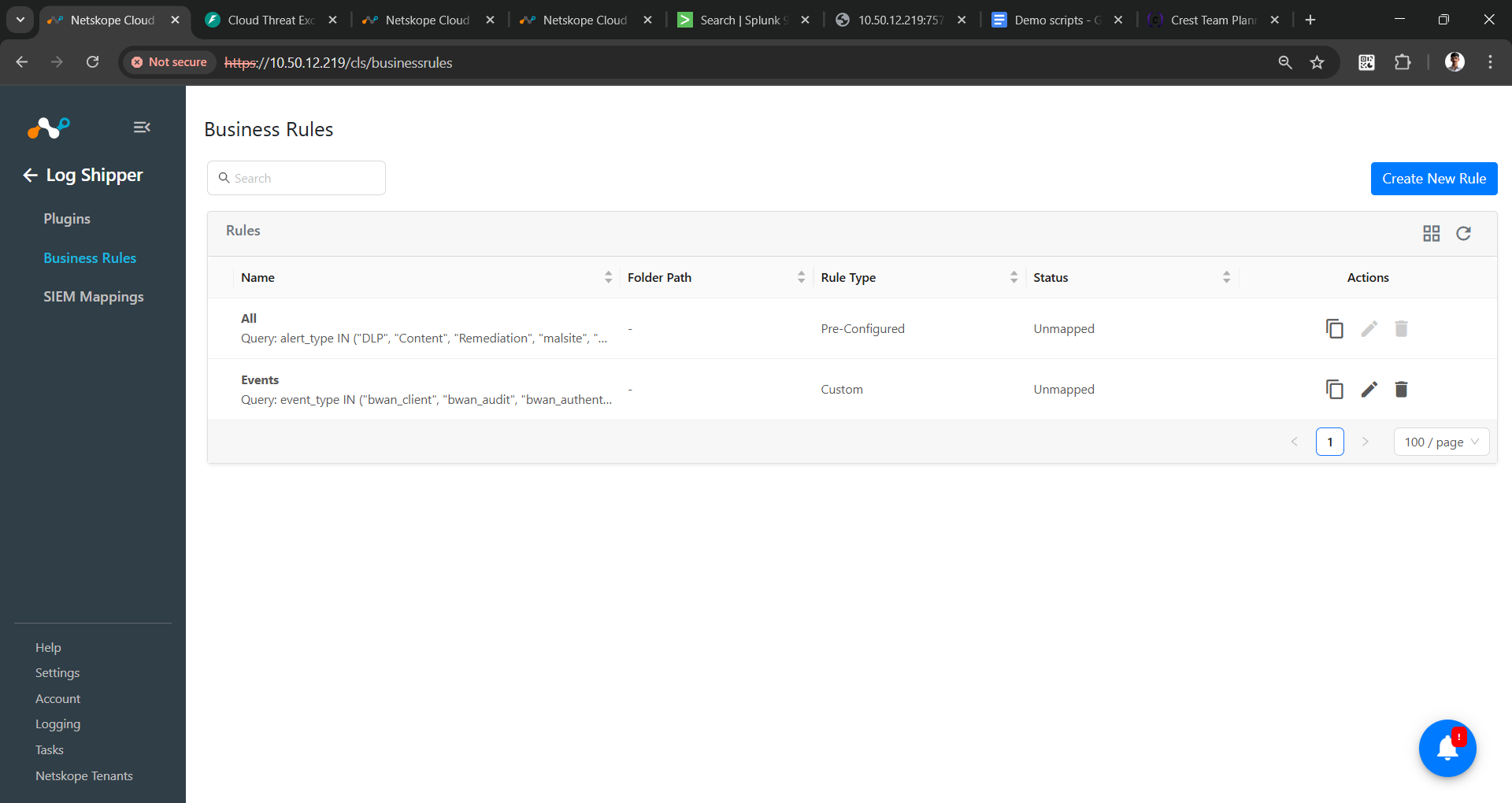
- Click Save.
Configure a Log Shipper SIEM Mapping for the Borderless WAN Plugin
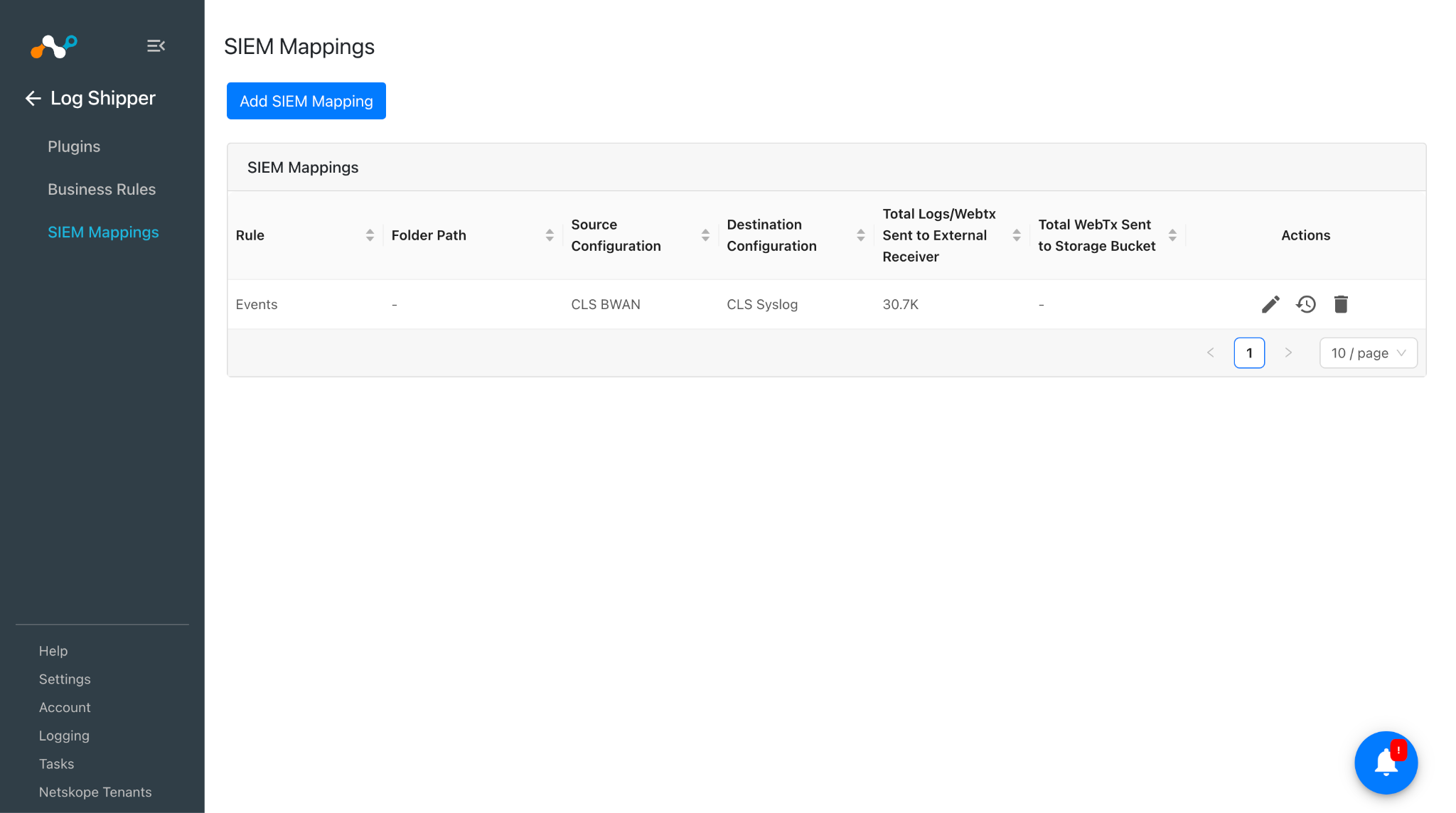
- In Log Shipper, go to SIEM Mappings and click Add SIEM Mapping.
- Select the Source plugin (CLS BWAN), the Destination plugin (Syslog, or as per your requirement), and a Business Rule, and then click Save.
- After the SIEM mapping is added, the data will start being pulled from the Borderless WAN tenant, transformed, and ingested into the Destination platform.
Validate the Borderless WAN Plugin
Validate the Pull
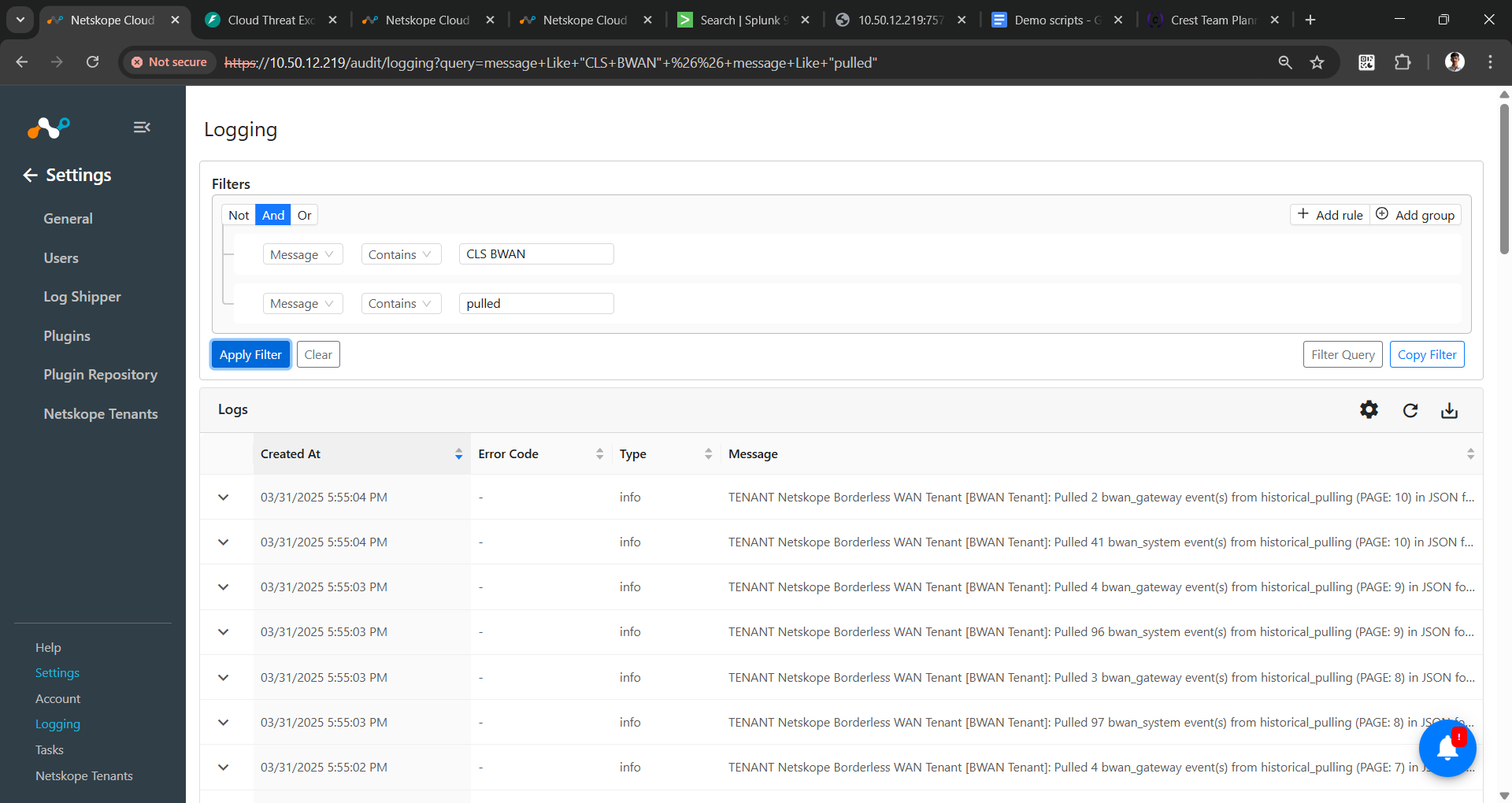
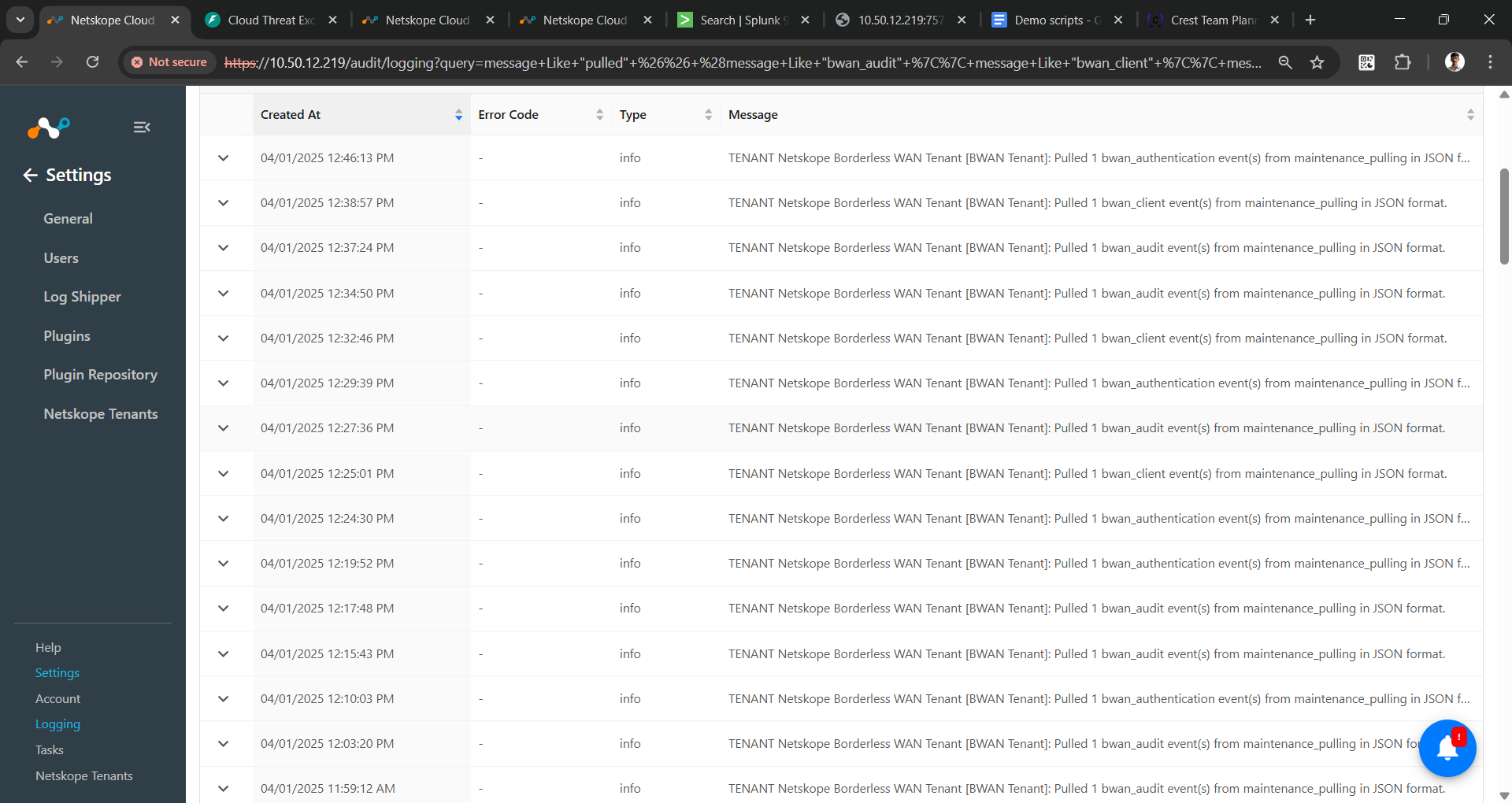
- Go to the Logging in Cloud Exchange. Search for the pulled logs.
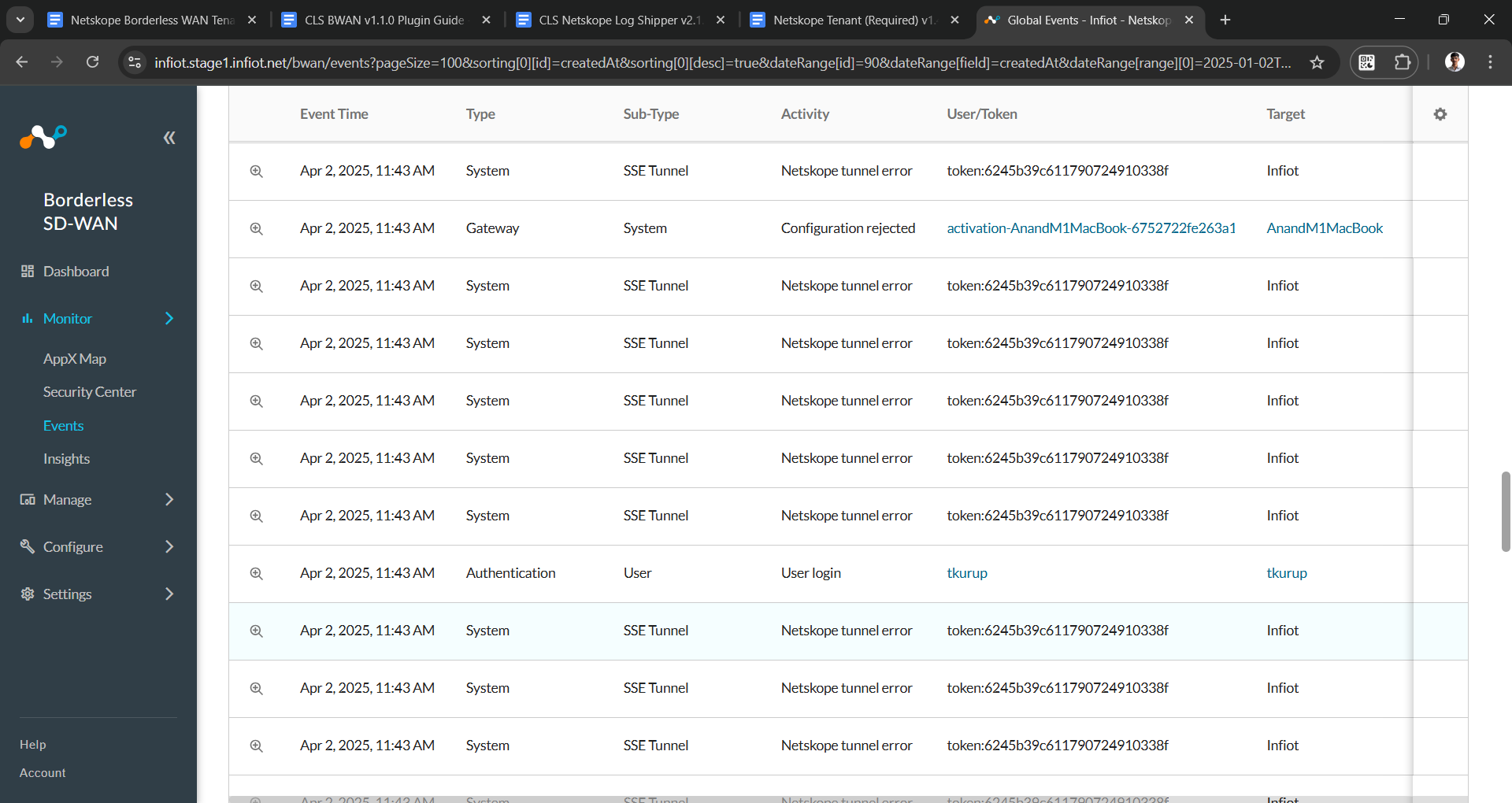
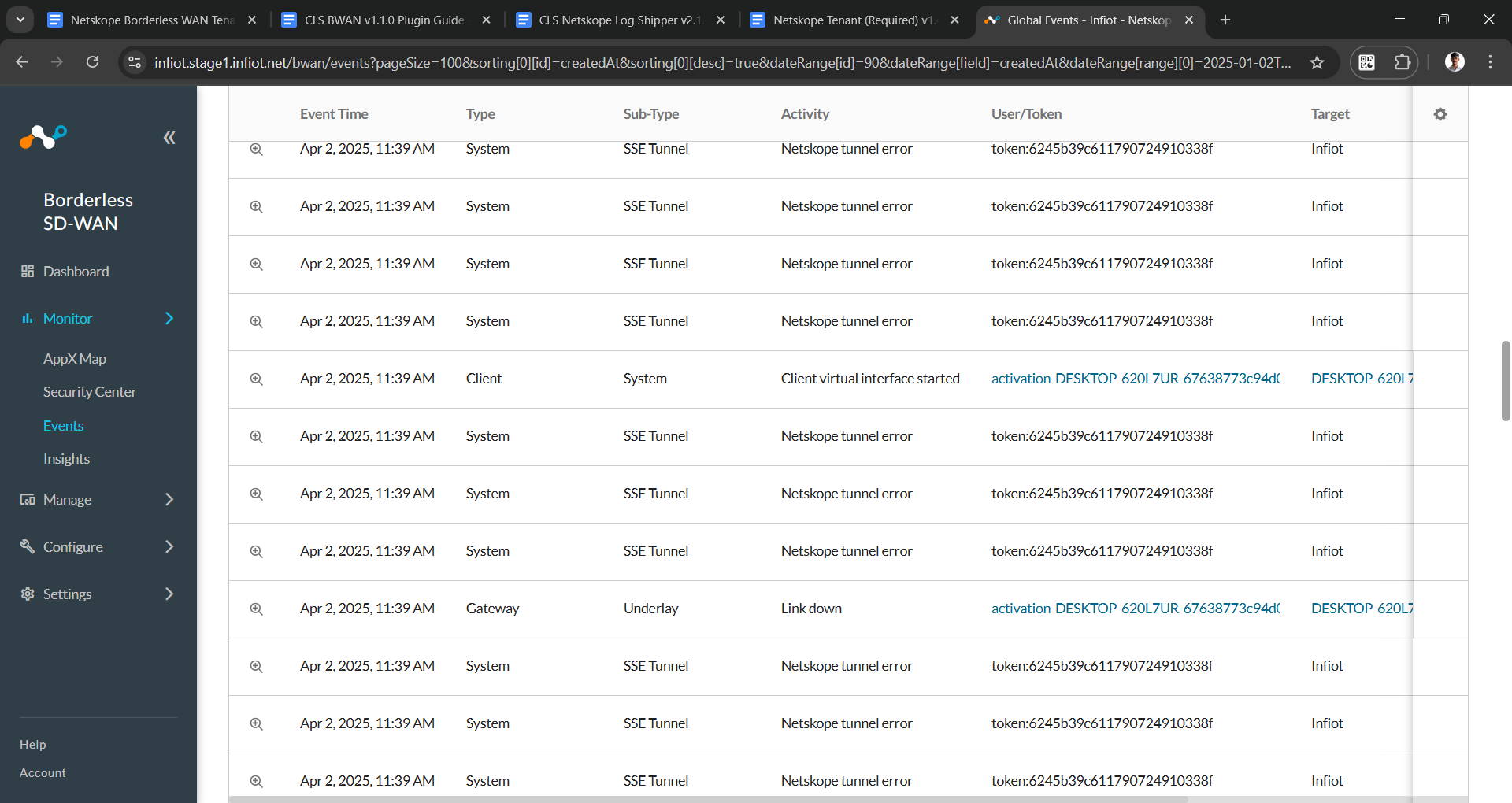
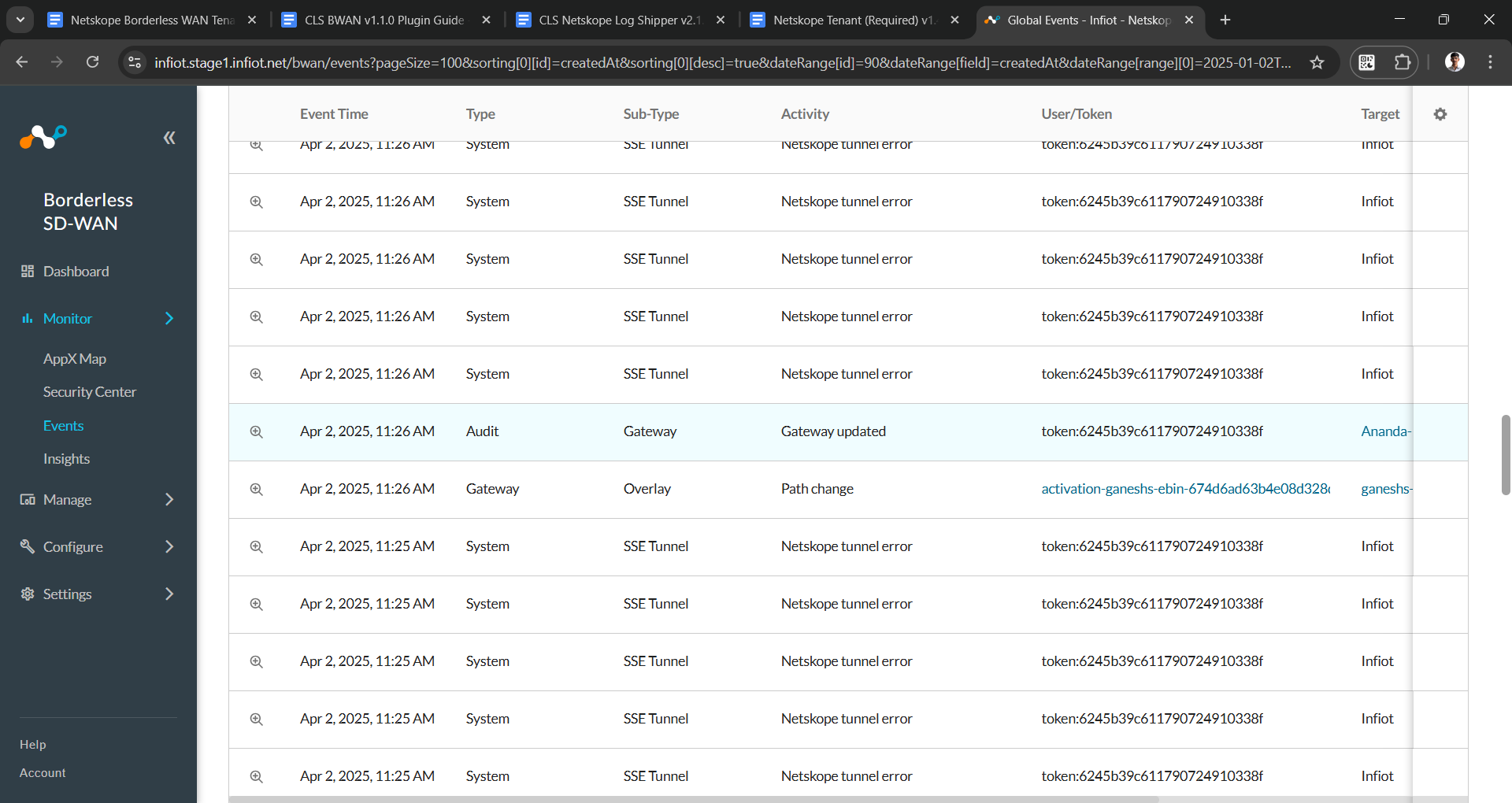
Validate the Events present on Borderless WAN Tenant
- Log in to your Borderless WAN tenant.
- Go to Monitor > Events page.
Troubleshooting the Borderless WAN Plugin
No events are pulled even though the plugin is enabled.
What to do:
- Verify whether you have configured the Borderless WAN tenant correctly. Refer to the Borderless WAN tenant guide.
- Log in to your Borderless WAN tenant and navigate to Monitor > Events page then verify whether the events for the same time frame are present or not.
Known Behaviors
1. You may encounter below error in the logs:
| 02/03/2025 11:15:01 AM | CLS_1014 | error | Historical alerts pulling failed for CLS BWAN to CLS Syslog, rule Events. |
What to do:
Since we only support pulling Events from BWAN, CE will display this error in the logs.
2. You may encounter below error in the logs:
| 02/05/2025 12:06:59 PM | – | error | Error occurred while sharing analytics using User-Agent with Netskope |
What to do:
Since you are using Borderless WAN Tenant, instead of a Netskope tenant, it will not recognize the User-Agent of Netskope, so it will display this error log.
Limitation
Borderless WAN API Limitations: We have observed inconsistencies in the data returned by BWAN APIs, which may lead to discrepancies in the event counts displayed on the platform versus those received and sent from CE. This is because the BWAN APIs are currently facing the “late breaking events” issue.