This document mainly describes the instructions to deploy Netskope Client in a VDI environment. It also covers the configurations, limitations, and best practices that apply to the different types of VDI deployments used in your organization.
Supported VDI Environments
Hyper-V Local Guest Workspace
Hyper-V running locally on an end-user device use a different deployment model than the VDI environments. In Hyper-V, the guest is not a remote-hosted virtual desktop, but a virtual machine running on the end-user’s own endpoint. The Netskope Client is installed independently on both the host and guest using the same tenant and user identity.
-
Supported OS: Windows 11
-
Supported Client version: 138 or above
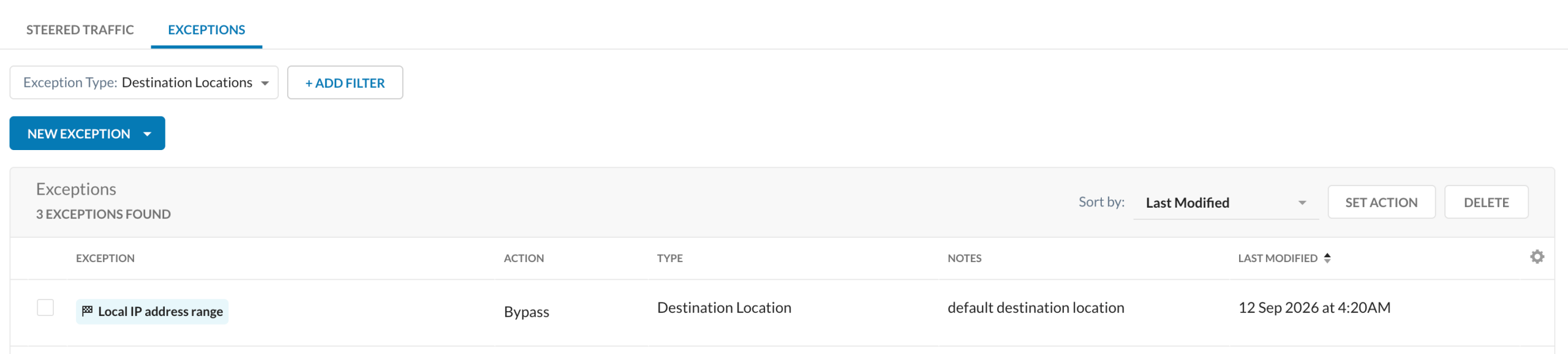
In Hyper-V, ensure to keep the Local IP exception range steering exception in the host steering profile to prevent the host tunnel from re-intercepting the guest VM’s Netskope tunneled traffic. Without this exception, guest web steering traffic may get intercepted in the host tunnel, impacting independent guest traffic steering and policy segregation.
Persistent vs Non-Persistent VDI
Persistent and Non-persistent VDIs offer primarily two types of VDI solutions that provide various advantages and use-cases for organizations.
Persistent VDI
A persistent VDI, commonly referred to as Stateful VDI, is an approach where each user is assigned a dedicated virtual machine. It saves all configurations, and other settings that the user updates, and persists from one session, thereby providing the same experience as a physical desktop.
The following section describes the different methods in which Netskope Client is deployed in a persistent VDI environment:
MDM Deployment Method
In Persistent VDI, there is no need to install Netskope Client in advance on the master image (golden image). MDM can instrument the deployment of Netskope Client and manage the VDI machine.
Administrators can deploy Netskope Client through MDMs in two ways depending on the chosen Client enrollment method described here.
Master Image (Golden Image) Pre-installation
Regardless of the VDI solutions, the administrator must install Netskope Client on the master image before creating the snapshot used in the VDI environment.
To deploy Netskope Client using a master image in a persistent VDI environment:
-
Download Netskope Client MSI from Netskope Support.
-
Copy MSI to the master or golden image.
Refer Microsoft Azure and Citrix Virtual Apps documentation to create a golden image. -
The administrator can now install Netskope Client using CLI (cmd or Powershell).
Administrators can deploy Netskope Client through golden image in two ways, depending on the chosen Client enrollment method described here.
Non-Persistent VDI
Administrators manage virtual desktops by allowing users to share a single desktop, and the system removes all installed applications and settings after the user closes the VDI session.
Master Image (Golden Image)
Administrators cannot use MDM method to deploy Netskope Client in a non-persistent VDI. The only deployment method to install the Netskope Client is using the Golden Image.
To deploy Netskope Client using a master image in a non-persistent VDI environment:
-
Download Netskope Client MSI from Netskope Support.
-
Copy MSI to the master or golden image.
Refer Microsoft Azure and Citrix Virtual Apps documentation to create a golden image. -
The administrator can now install Netskope Client using CLI (cmd or Powershell).
Administrators can deploy Netskope Client through golden image in two ways, depending on the chosen Client enrollment method described here.
Netskope Client Enrollment Method
Choose UPN enrollment method if the VDI machines are domain-joined (either AD or Entra)
Use the following parameters to deploy Netskope Client in a multi-user environment using UPN:
msiexec /I NSClient.msi host=addon-<tenant-FQDN> token=<OrgID> mode=peruserconfig [enrollauthtoken=<enrollment-token> enrollencryptiontoken=<encryption-token> prelogonuser=<prelogon-user> npavdimode=on userconfiglocation=<path> fail-close=<disable|no-npa> autoupdate=<on|off> /l*v <path>] /qn
IDP is another user enrollment method where a user needs to authenticate against the configured IDP each time a user logs into the machine. To learn more, view User Authentication and Provisioning.
After the user authenticates, the Netskope Client in a persistent VDI enrolls using the authenticated user credentials. As long the user profile exists on the VDI machine, the system does not prompt the user to enroll again.
In a non-persistent environment, the administrator must ensure that the profile is non-persistent; otherwise the system always prompts the user for authentication at every session.
Use the following parameters to deploy Netskope Client in a multi-user environment using IDP:
msiexec /I NSClient.msi installmode=idp tenant=<tenant-name> domain=<tenant-domain> mode=peruserconfig [enrollauthtoken=<enrollment-token> enrollencryptiontoken=<encryption-token> prelogonuser=<prelogon-user> npavdimode=on userconfiglocation=<path> fail-close=<disable|no-npa> autoupdate=<on|off> /l*v <path>] /qn
Client Deployment Parameters
| Parameter | Description |
|---|---|
| host=addon-<tenant-name>.[region.]<tenant-domain> | (Mandatory parameter) Required when enrolling users using UPN. Do not use it when enrolling users using IDP. This is the addon hostname of your tenant. For example,
|
| token=<Organization ID> | (Mandatory parameter) Required when enrolling users using UPN. Do not use it when enrolling users using IdP. To find your organization ID:
|
| enrollauthtoken=<Authentication Token> | Required when enrolling users using UPN with Secure Enrollment Authentication Token that is enabled and enforced. Required when using Private Access Prelogon (UPN and IdP enrollment) with Secure Enrollment Authentication Token that is enabled and enforced. |
| enrollencryptiontoken=<Encryption Token> | Required when enrolling users using UPN or IdP with Secure Enrollment Encryption token enabled and enforced. |
| mode=peruserconfig | (Mandatory parameter) Use when installing on a multi-user system. With this parameter set, each user needs to enroll Netskope Client independently. With this parameter set, each user needs to enroll Netskope Client independently and same steering configuration is applied for all users. The Client Configuration is applied based on the priorities. This parameter is mandatory for VDI environments (if different users login concurrently or separately into the same VDI machine, they are identified correctly by their UPN). |
| npavdimode=on | Use when installing on a multi-user Windows desktop with concurrent users logged on at the same time, such as some Citrix VDI or Azure Virtual Desktop Environments. This parameter is applicable only Netskope Private Access (NPA). |
| userconfiglocation=<path> | Overrides the default path for storing the user configuration. It is recommended to leave this parameter out (allow the default path) unless users' home directories are hosted on external file servers or network shares. And this parameter is recommended to be used only for multi-user systems (when mode=peruserconfig is included in the parameters). The default path: %AppData%\Netskope\STAgent The custom path could be an absolute path, a network share, or a path having environment variables. Environment variables need to be properly escaped depending on how the MSIEXEC command is run: If running from a command prompt, append ^ before each % Example: >msiexec /I NSClient.msi mode=peruserconfig userconfiglocation=C:\Users\^%USERNAME^%\NetskopeIf running from a batch script, append % before each % Example: >msiexec /I NSClient.msi mode=peruserconfig userconfiglocation=C:\Users\%%USERNAME%%\NetskopeIf running from SCCM (or other mass deployment tool), append ^ before each % and prefix with cmd /c Example: >>cmd /c msiexec /I NSClient.msi mode=peruserconfig userconfiglocation=C:\Users\^%USERNAME^%\Netskope |
| fail-close=disable|no-npa | This overrides the Fail Close settings in the Client Configuration.
|
| prelogonuser=<prelogon username>@prelogon.netskope.com | Use when deploying Private Access Prelogon. For more information, view Prelogon. |
| autoupdate=on|off |
|
| /l*v | Sets the MSIEXEC installation log file path. For Example: /l*v %PUBLIC%nscinstall.log |
| /qn | Use this option for silent installation. |
Support for Multi-User Environment in VDI
The following sections describe the best practices that you can consider in a multi-user VDI environment.
Persistent vs Non-Persistent Comparison In a Multi-User Environment
Refer to the following table to understand the considerations taken for Steering Configuration, Client Configuration, OTP, and Master Password:
| Configuration Type | Persistent VDI | Non-Persistent VDI | Additional information |
|---|---|---|---|
| Client Configuration | Client Configurations with highest priority* takes precedence | Client Configurations with highest priority takes precedence | - |
| Steering Configuration | Applies the first logged in user Steering Configuration downloaded by the Netskope Client. | Applies the first logged in user Steering Configuration downloaded by the Netskope Client. | For consistent behavior in a multi-user environment, ensure every user shares the same Steering Configuration. |
| One-Time Disablement Password | Applies to the Client Configuration with the highest priority. | Applies to the Client Configuration with the highest priority. | User A disabling Internet Security using OTP does not disable the Client services of User B. |
| Master Password | Applies to the Client Configuration with the highest priority. | Applies to the Client Configuration with the highest priority | User A disabling Clients services using Master Password does not disable the Client services of User B. |
*Priority is the order of configuration. The higher the profile in the list, the higher the priority.
Additional Info
-
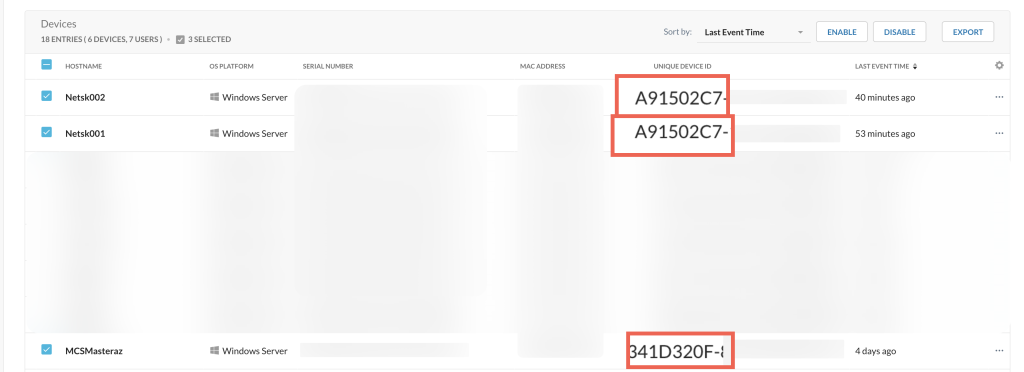
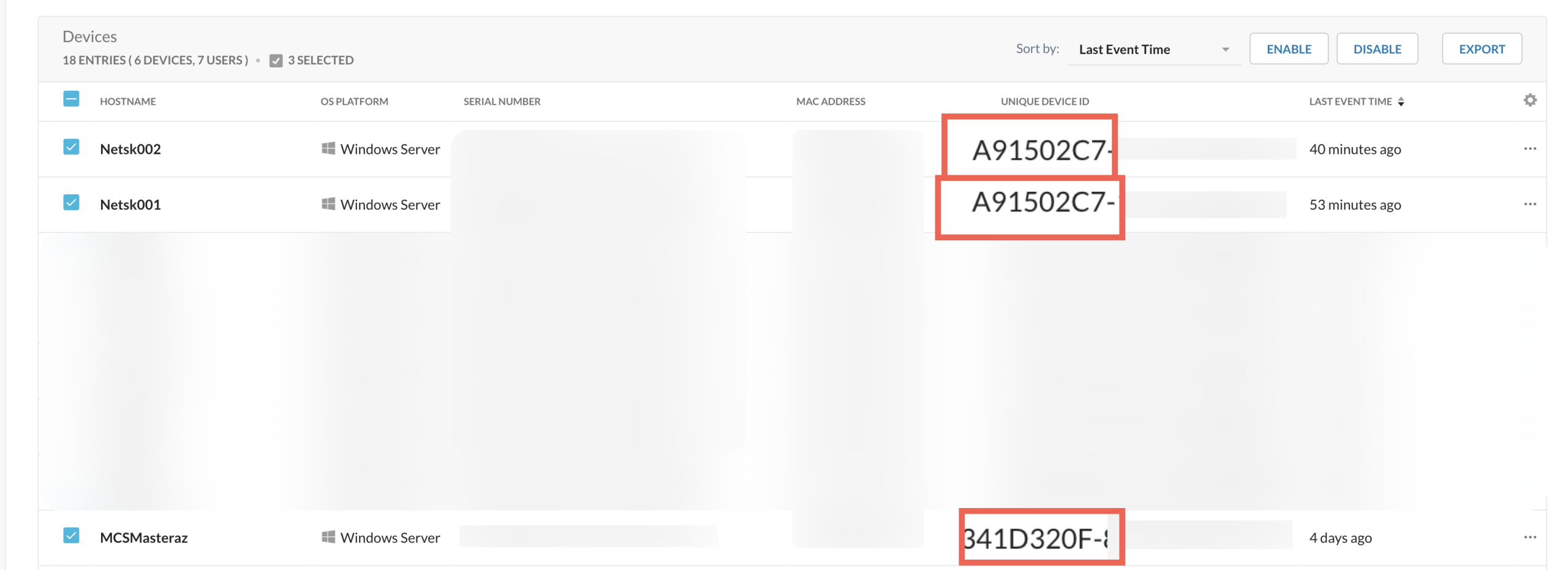
Delete nsdeviceuid and nsdeviceuidnew keys to avoid duplicate unique ID between master image and cloned VM. If multiple VMs are cloned from the same infrastructure (for example, VMware EXSi), they get the same unique device ID for the Cloned VMs.
-
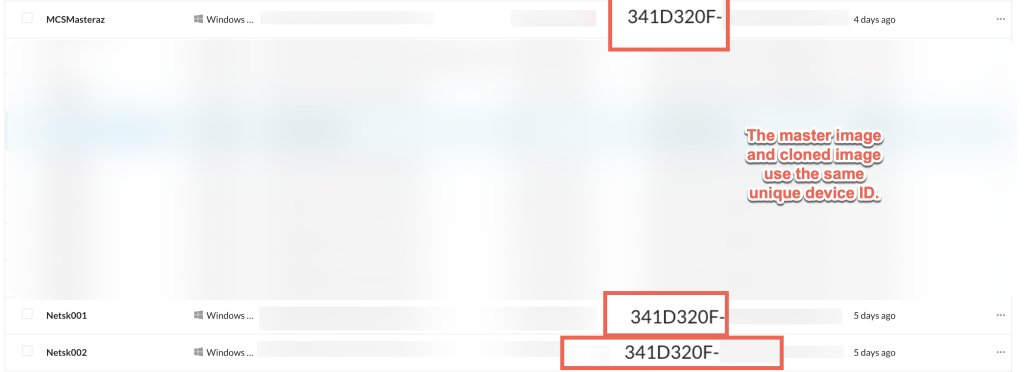
If the administrator does not delete registry keys of the device UID, the master image and cloned image will use the same unique device ID.
-
The following folders are created after the Netskope Client installation and the administrator can check if the master image includes the following folders:
-
C:\Program Files (x86)\Netskope
-
C:\Program Files\Netskope
-
C:\ProgramData\netskope
-

Limitation
The Netskope Client in a multi-session environment exhibits the following limitations:
-
NPA Policies for applications that use “session 0” to communicate (like AD or SMB) must be assigned to the “session 0” VDI user specified on the Client Configuration, and all the traffic for those applications, no matter the actual user initiating it, will be identified and managed by the “session 0” VDI user policy.
-
eDLP (Endpoint DLP) is not supported in multi-session environments running a Windows Desktop OS. Adminstrators must consider disabling eDLP in those environments.
-
eDLP (Endpoint DLP) is not enabled in multi-session environments running a Windows Server OS.
-
When the Netskope Client is deployed/upgraded/reconfigured from single user mode to multi-user mode using IdP enrollment on a Windows device, the stAgent process fails to initialize for users who transition from an inactive or locked state back to an active session.
For example, Two users User A, and User B use a Windows system.
-
User B is active on the system and User A who is logged in but inactive.
-
Netskope Client gets installed/upgraded/reconfigured from single user mode to multi user mode and the session for User B is created successfully.
-
User B locks the screen, which moves the session into an inactive state.
-
User A unlocks the screen but the Netskope Client doesn’t initialize for User A and there is no stAgentUI process for User A. This disrupts the traffic steering for User A and keeps the Client inactive.
To restore stAgentUI process and ensure proper traffic steering for User A, Netskope recommends performing log off and login for user A to eliminate any inactive Netskope Client issue.
-
Define Client Configuration
In a multi-user environment, each Client Configuration includes a priority value. The configuration with the highest priority remains active up to 24 hours after it is downloaded. If another user logs in with a configuration of equal or higher priority, then the latter configuration is applied immediately. However, if the priority for the new configuration is lower, it will not be applied while the current configuration is still within its 24-hour window. For example, consider the following scenarios:
-
Scenario 1: User A is part of the Client Configuration A (with higher priority), while User B is part of Client Configuration B (with lower priority). The Client Configuration with the highest priority is always applied during both user session logins.
-
Scenario 2: If User B logs in first and applies Client Configuration B (with lower priority). When User A (with higher priority) subsequently logs into the multi-session, both users receive Client Configuration A due to its higher priority.
Scenario 3: Consider User A logs in and logs out in a span of a few minutes. User B logs in after 24 Hours of User A logging out. User B uses the lower priority Client Configuration B due to the higher priority of the User A configuration expired after 24 hours.User B receives the lowest priority Client Configuration and it remains as it is even when there are any Client configuration updates.
Scenario 4: Consider Client Configuration A (higher priority) is applied to User A and User B. The tenant administrator modifies the Client Configuration B. This does not change the Client Configuration applied from A to B due to the higher priority of Configuration A. However, if the tenant administrator modifies the Client Configuration A; the new modifications are applied to User A and User B.
Scenario 5: If User B, belonging to Client Configuration Group B, logs into the VDI first, with no other users currently logged into the VDI session. In this case, the Netskope Client will apply the settings from Client Configuration Group B to User B. Any edits or modifications made to other client configuration groups will not affect User B’s session. Changes will only take effect if an administrator updates the settings for Client Configuration Group B.
Define Steering Configuration
In a multi-user VDI environment, it applies the first logged in user steering configuration that the Netskope Client downloads. Traffic from session 0 (the service session) is steered through the logged-in user’s tunnel that contains the smallest session ID. For example, consider the following scenarios:
-
Scenario 1: User A (with Steering Configuration A) logs into the session, followed by User B a few minutes later. User A and User B receive the same steering configuration profile (Steering Configuration A). Now, if User C (with Steering Configuration C) logs in, User C also receives the same Steering Configuration of User A.
-
Scenario 2: User A logs in followed by User B. Steering configuration A is applied to both users. Now, if the If the tenant admin modifies the settings in Steering Configuration B and updates the Client Configuration.The logged in users now contains the modified Steering Configuration B.
-
Scenario 3: If only User B logs in and no other users have accessed the VDI session, the Steering configuration for User B will be applied to User B’s client UI. Any modifications made to other Steering configurations will not affect User B’s client UI. Changes to the Steering configuration will only take effect when the admin modifies User B’s specific steering settings. This behavior is similar to that of a single-user session.
Define One-Time Disablement Password
In a multi-user environment, Client Configuration with the highest priority takes precedence.
For example, consider the following scenario where User A logs in and performs the following:
-
Click the Disable Internet Security option in the Client UI.
-
This prompts a dialog box with the option to enter the one-time password.
-
Enter the password and verify if the Internet Security option is disabled.
Next, User B logs in and gets the same Client Configuration as User A. User B can verify if the Internet Security option is enabled in the Client UI.
Define Master Password
In a multi-user environment, Client Configuration with the highest priority takes precedence.
For example, consider the following scenario, User A logs in and performs the following:
-
Click the DisableAll Client Services option in the Client UI.
-
This prompts a dialog box with the option to enter the master password.
-
Enter the password and verify if the All Client Services option is disabled.
Next, User B logs in and gets the same Client Configuration as User A. User B can verify if the All Client Services option is enabled in the Client UI.
Define Fail Close
In a multi-user environment, Client Configuration with the highest priority takes precedence.
-
Scenario 1: When Netskope Client is not reachable, it goes into the Fail Close state for VDI sessions. If User A logs in and accesses the Steering app, the Client blocks access. If User A accesses the defined exception apps; the Client must bypass the app traffic.
-
Scenario 2: When the device is in fail-close status, it should bypass the MP APIs (such as client config, auto-upgrade, client status, etc.).
-
Scenario 3: When both User A and User B log in to the VDI session while the Client is in fail-close, both users are blocked from accessing the Steering app, and the defined exception apps are bypassed.
-
Scenario 4: When User C, a non-provisioned user (not managed by the Netskope tenant/guest user), logs into the VDI session while other provisioned users are active, and the Netskope client is enabled, verify that User C’s Client status shows as fail-close. User C’s access to the steering apps is blocked, while the defined exception apps are bypassed.
Known Issue: User migration
If existing users are migrating from UPN enrollment to IDP enrollment or vice-versa in the master image for non-persistent VDI, they can encounter issues due to stale data in their user profile saved on the Fslogix/Shared network path. As a workaround, administrators must delete the user profile from the roaming profile path that includes FSLogix or home directories located on external file servers or network shares.
User Notification for the Published App
This section provides guidance about the user notification behavior for published apps through XenApp with Netskope Client.
User notification templates enable the administrator to block a user action and/or send an alert to the user. These templates can be customized to provide specific information and options in an alert or block notification. Administrators can provide a justification dropdown list for the users and also display a description box to provide a justification (Optional). To learn more, view User Notification Template.
Consider the following scenarios where the Netskope Client prevents application access by blocking or alerting users according to the real-time protection policies for data loss prevention (DLP) and threat protection. It enforces actions such as file upload or download and user login or logout to maintain robust security. For example,
-
If the user is logged into the Microsoft Teams application in XenApp and tries to sign out; Netskope Client blocks the user action and sends an alert to the user.

-
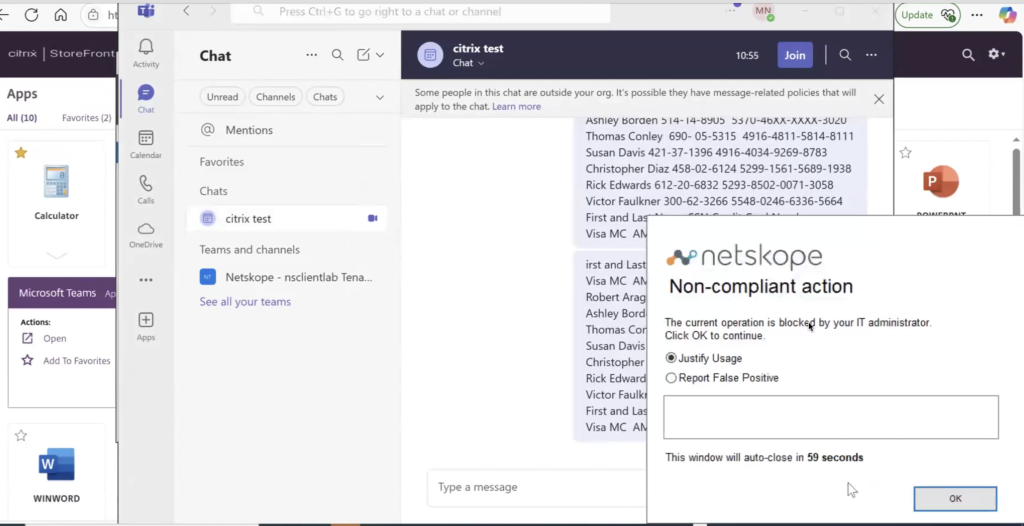
Netskope Client prevents file download or content posting in the published Cloud application. For example, if the user is logged into the Microsoft Teams application in XenApp and tries to download a confidential file from the Teams chat, Netskope Client blocks the user action and sends an alert to the user.
-
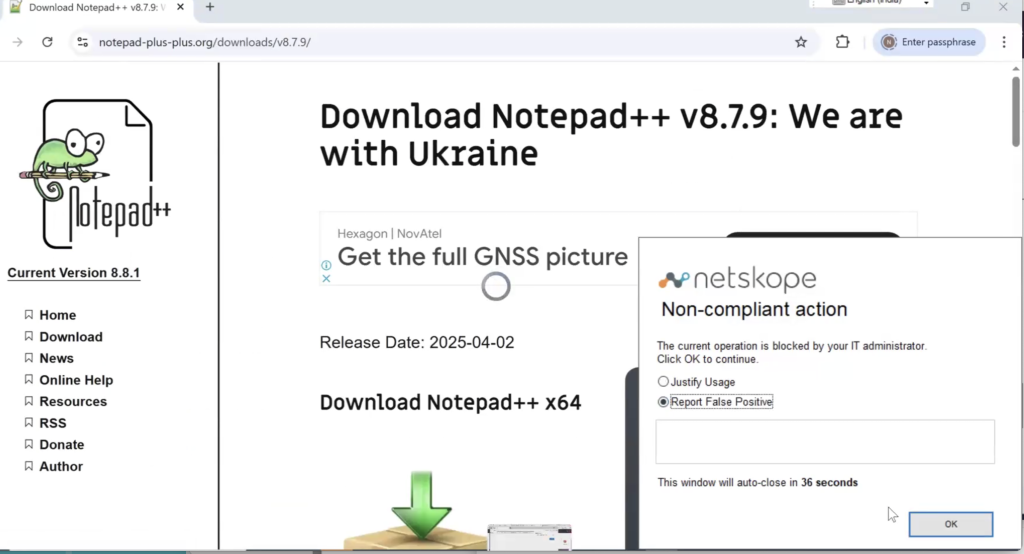
Netskope Client prevents web traffic activities such as Upload or Download through a browser. For example, if the user tries to download Notepad++ application through the Microsoft Edge or Google Chrome browser. Netskope Client blocks the user action and sends an alert to the user.
-
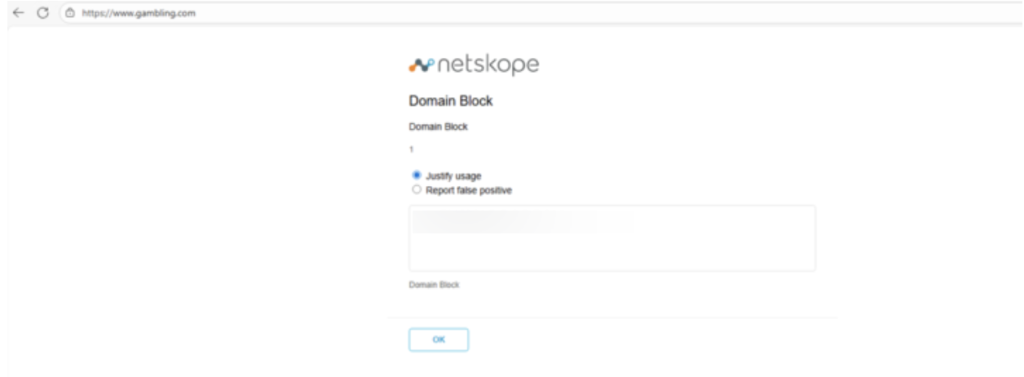
Netskope Client prevents web traffic activities such as accessing an unauthorized domains through a browser. For example, if the user tries to access a domain such www.gambling.com through the Microsoft Edge or Google Chrome browser. Block message is seen on the browser where the user enters the domain name on the browser URL.