To configure Atlassian Organization for the Netskope SaaS Security Posture Management, follow the instructions below.
Prerequisites
- An Atlassian organization. You create and manage Atlassian organizations at admin.atlassian.com.
- An Atlassian organization administrator account with access to admin.atlassian.com. Only organization administrators can create organization-level API keys.
Step 1: Create an Atlassian Organization Admin API Key
Create an API key with the required scopes in the Atlassian Admin Console. You use this key to authorize Netskope in Step 2.
-
Log in to the Atlassian Admin Console (admin.atlassian.com) as an organization administrator.
-
Go to Organisation Settings > API keys.
-
Click Create API key.
-
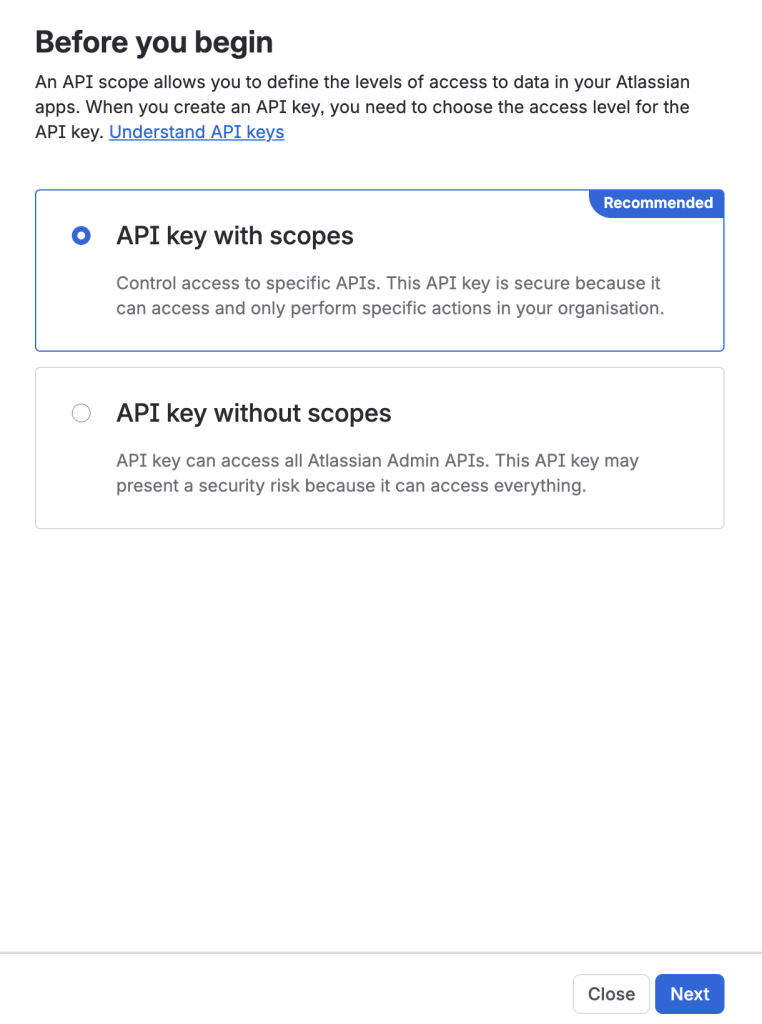
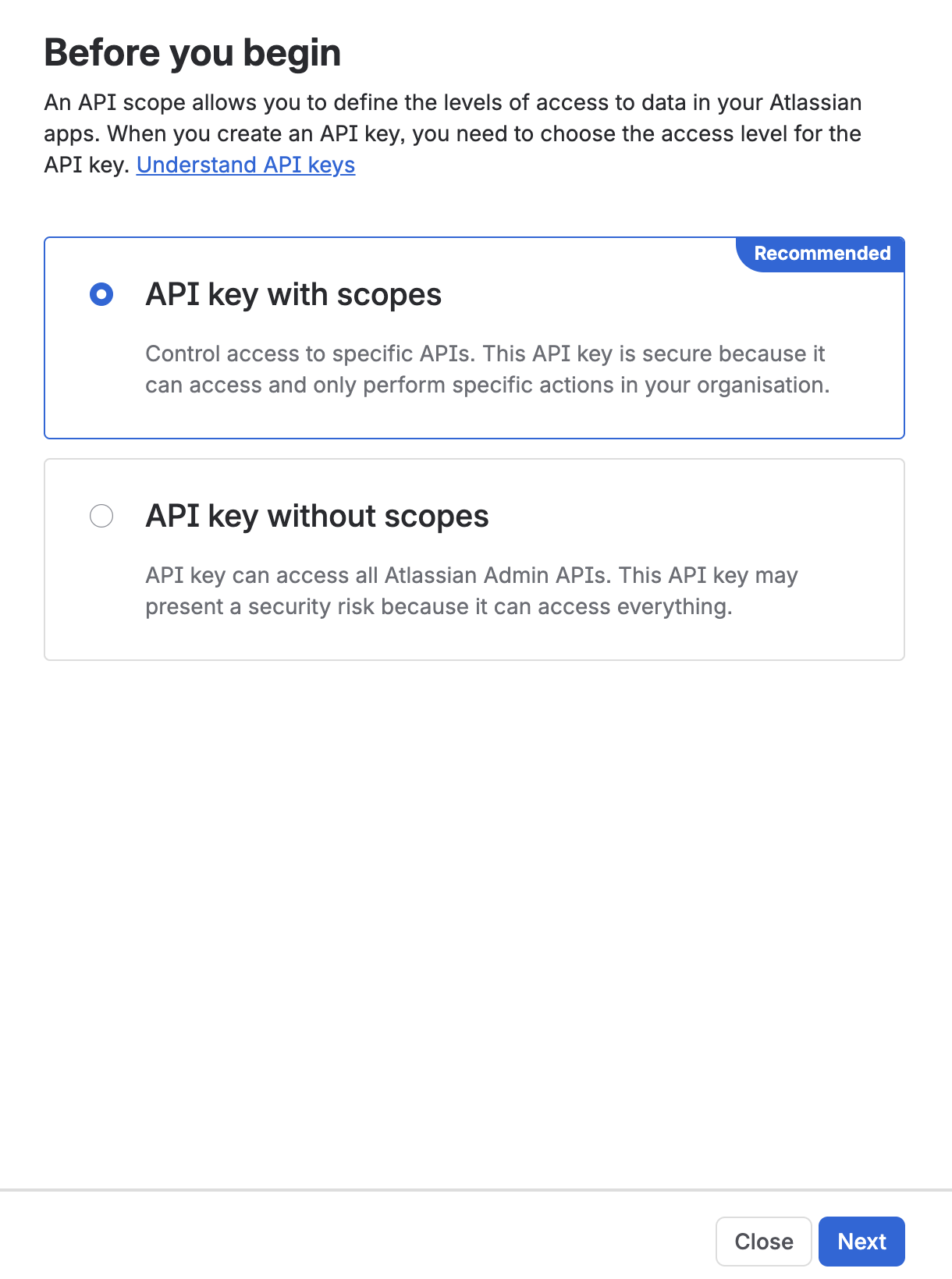
Select API key with scopes.
-
Click Next.
-
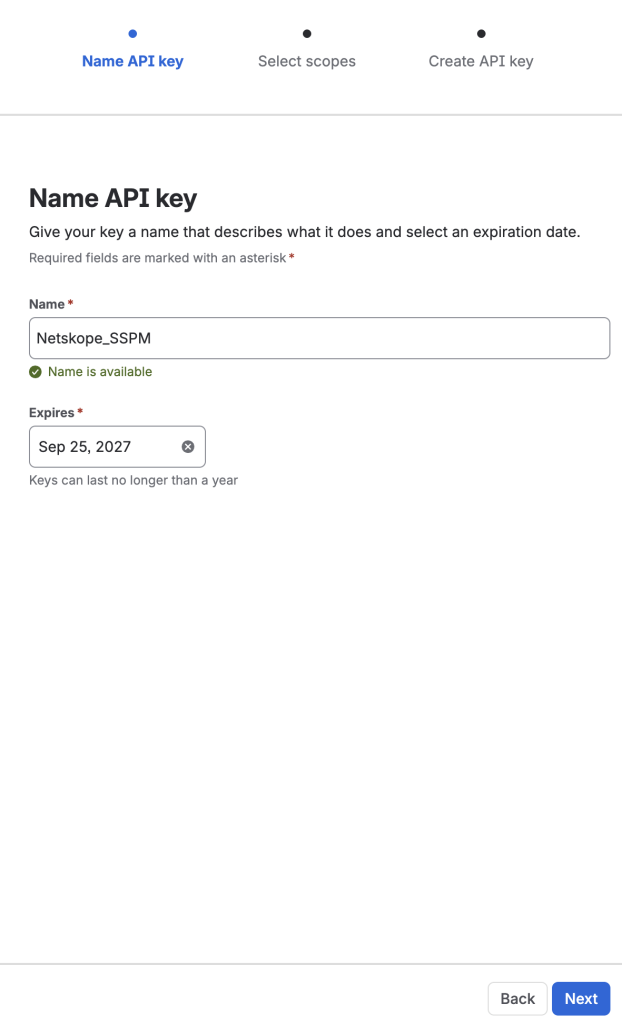
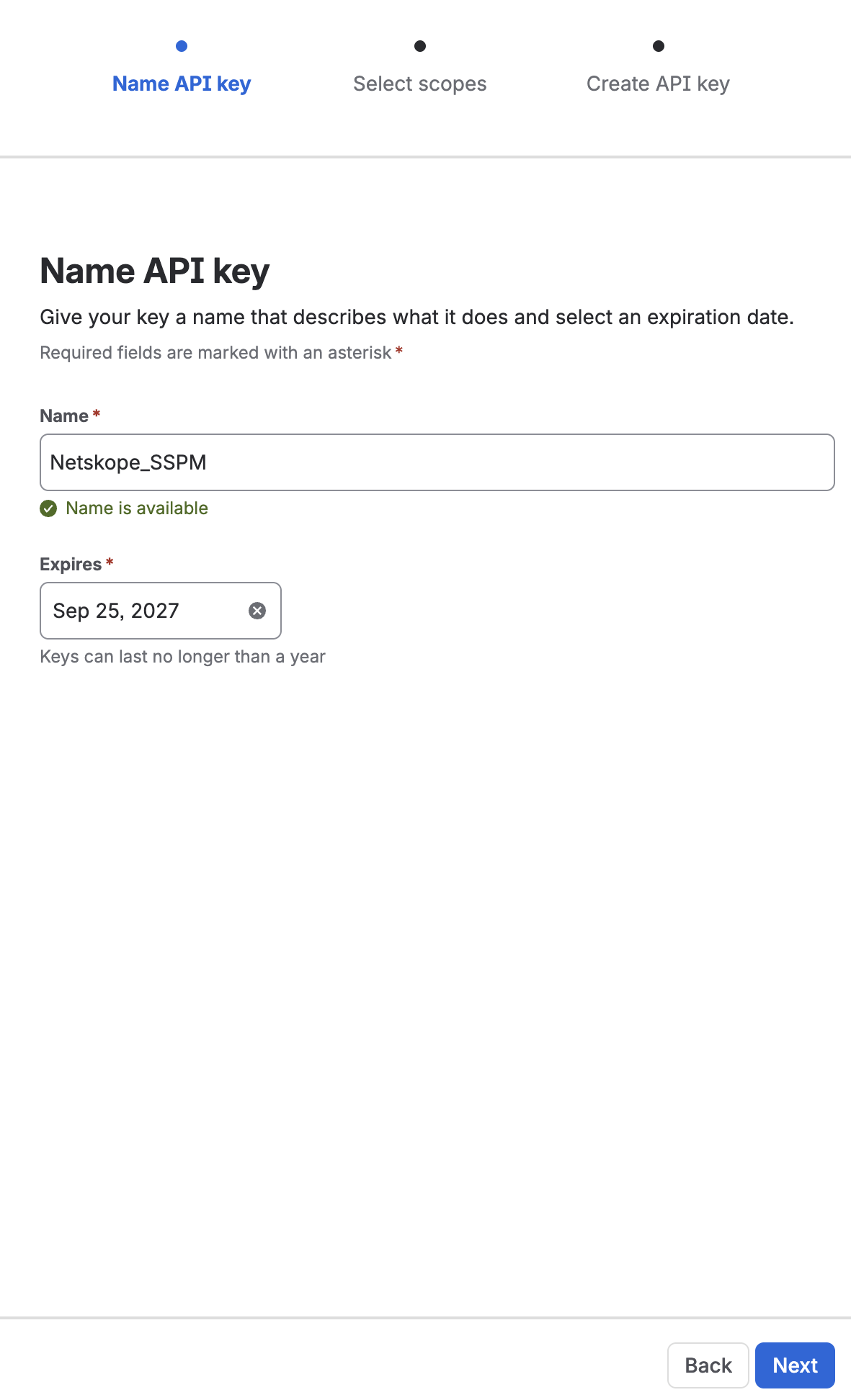
In the Name API key
-
Enter a Name for the key, for example Netskope_SSPM.
-
Set Expires to the maximum of one year. Atlassian keys can last no longer than one year, and Netskope needs the key to remain valid between scans, so set the longest expiry available.
-
Click Next.
 If the API key expires, the app instance shows as Inactive in the Netskope UI. Re-grant access to the Atlassian app instance to restore it.
-
-
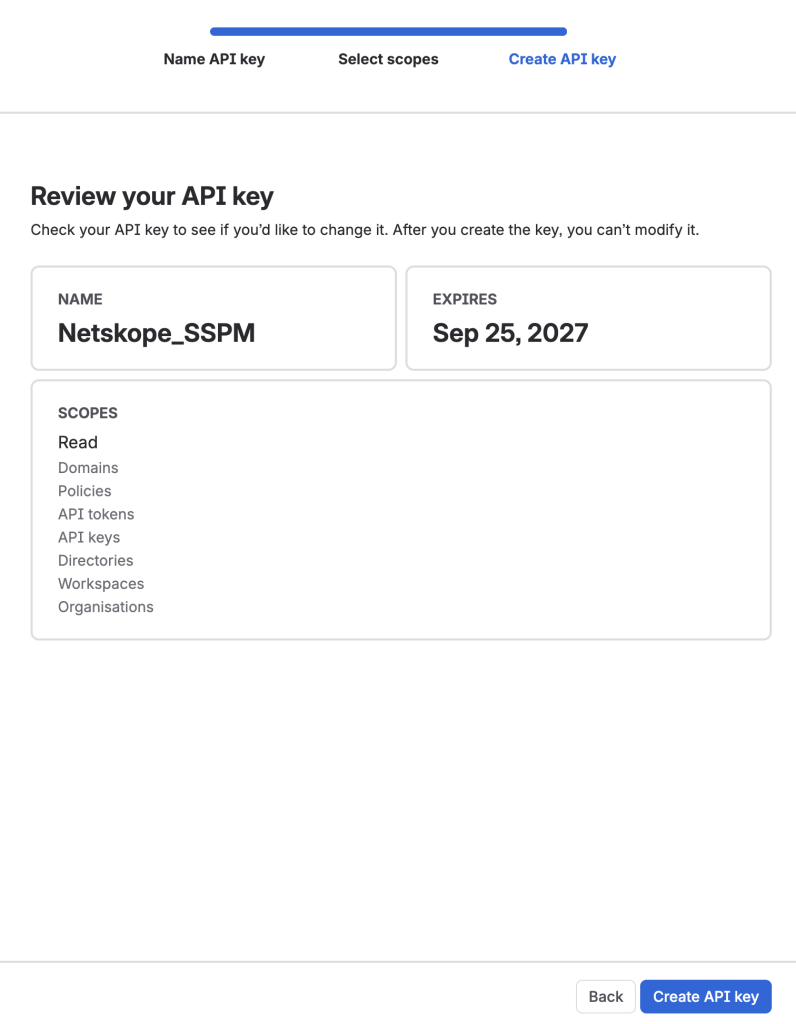
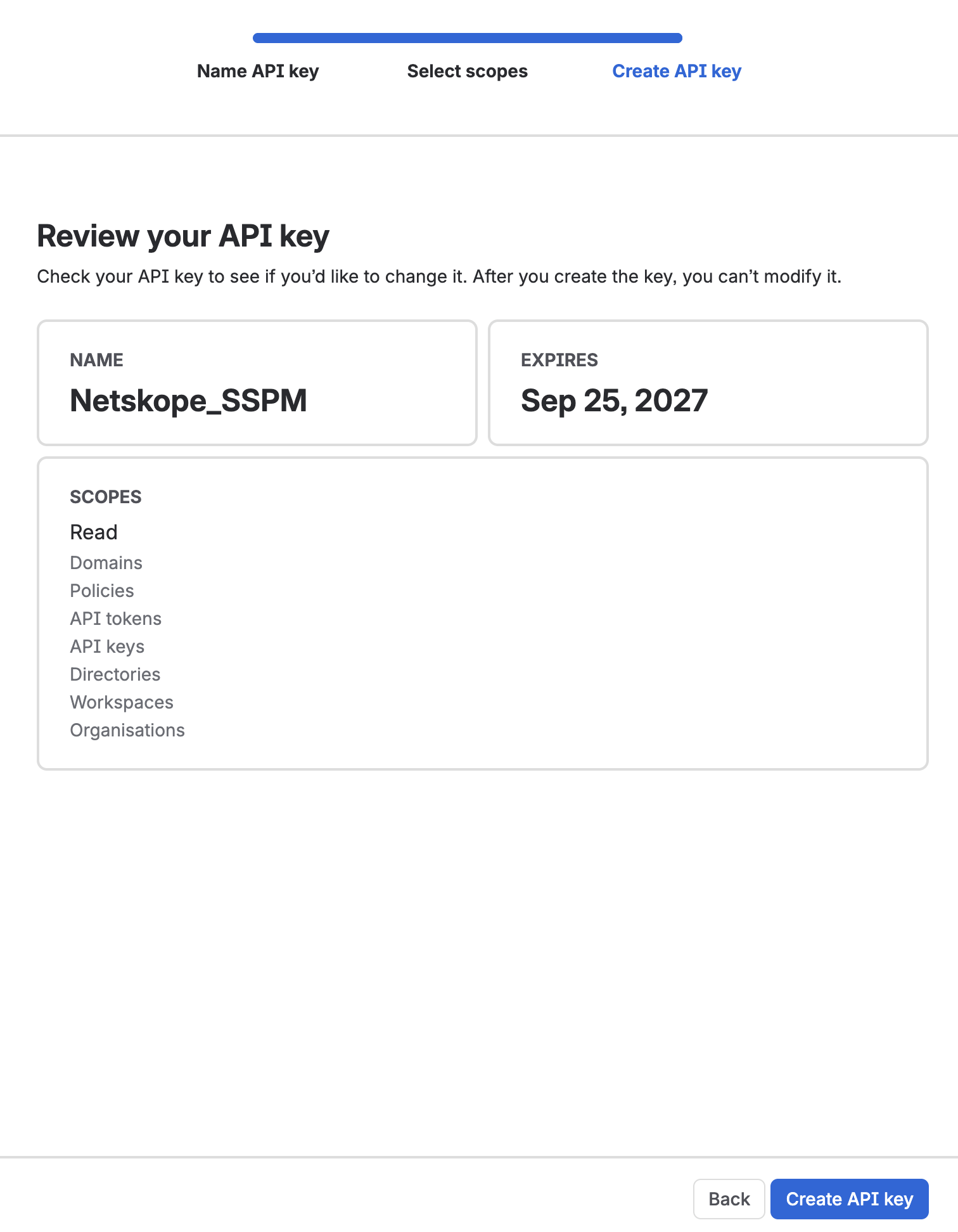
In Select scopes, select all of the following scopes. Netskope requires every one of them:
- Read:orgs:admin
- Read:domains:admin
- Read:policies:admin
- Read:directories:admin
- Read:workspaces:admin
- Read:tokens:admin
- Read:keys:admin
Atlassian does not allow the scopes of an existing API key to be changed. If you skip a scope, you must create a replacement key with the full scope set and reconnect your Netskope instance. Grant all of them now.
For a description and purpose of each scope, see Permissions Required for Atlassian Organization. -
In the Create API key, review the key details. After you create the key, you can’t modify it.
-
Click Create API key.
-
Copy the key. The key is shown only once, and you can’t retrieve it later.
-
Make a note of your Organization ID. It appears in the address bar of the same page: admin.atlassian.com/o/<organization-id>/api-keys.
Step 2: Configure Netskope to Access Your Atlassian Organization
To authorize Netskope to access your Atlassian organization, follow the steps below:
-
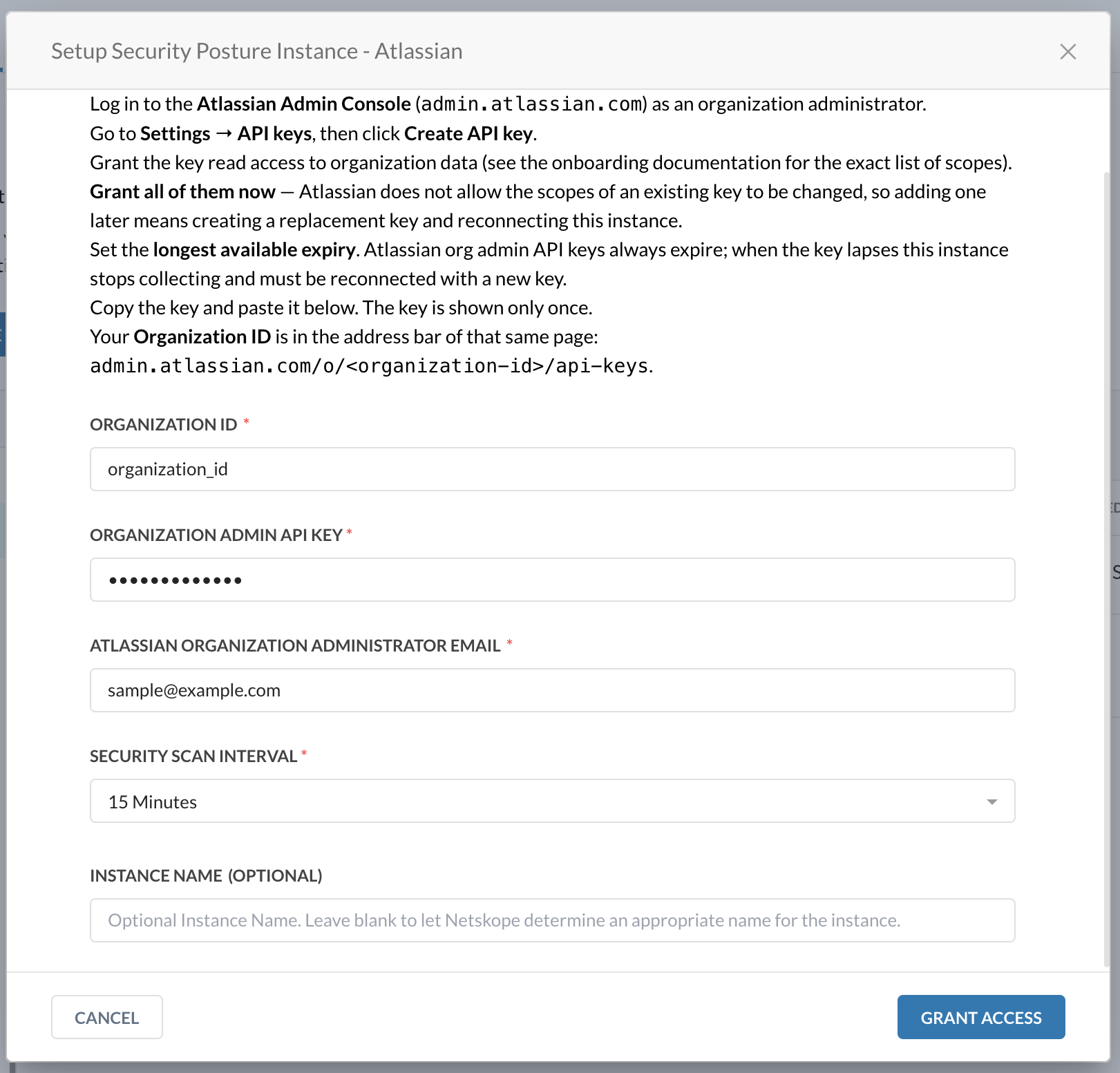
Log in to the Netskope tenant UI and go to Settings > Configure App Access > Next Gen > SECURITY POSTURE.
-
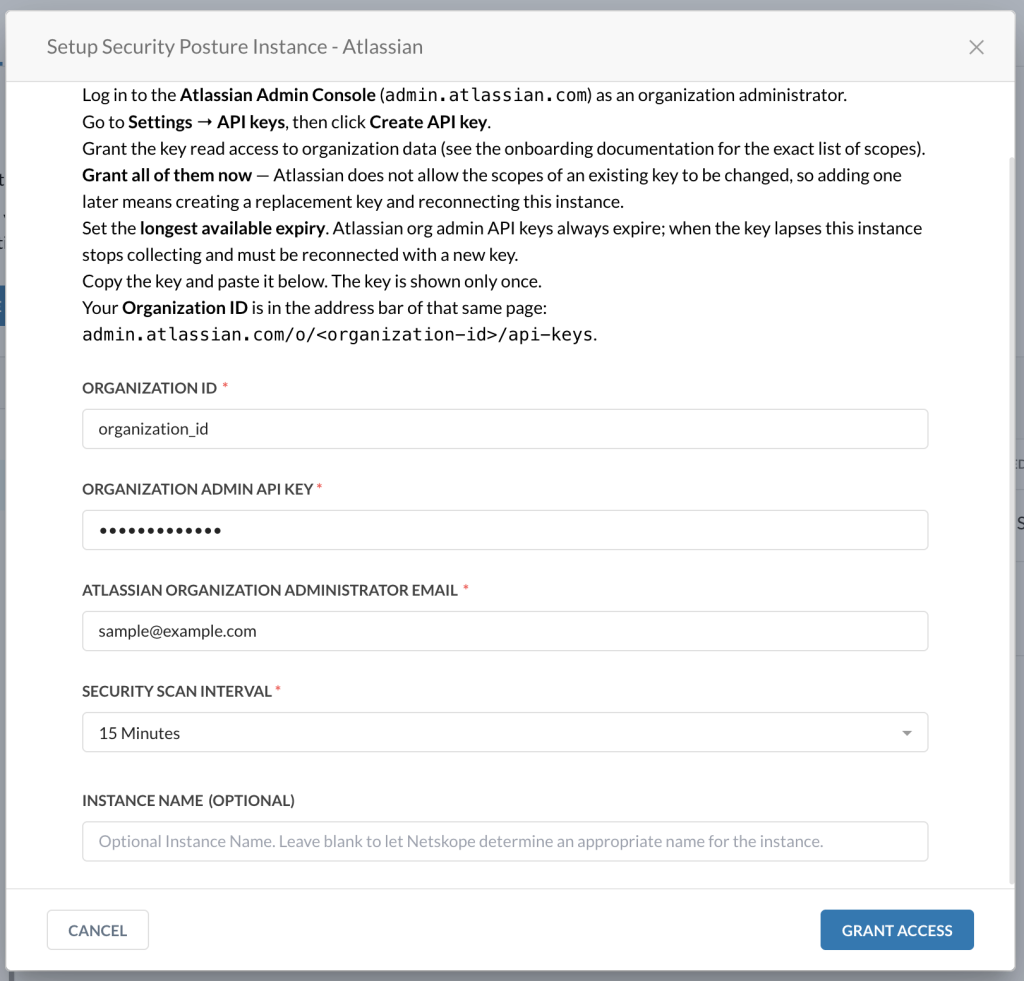
Under Apps, select Atlassian and click Setup Security Posture Instance. The Setup Instance window opens.
-
Under Organization ID, enter your Atlassian organization ID from the Admin Console URL (admin.atlassian.com/o/<organization-id>/api-keys). This is not your site name (for example, mycompany.atlassian.net).
-
Under the Organization Admin API Key, enter the key you created in Step 1.
-
Under Atlassian Organization Administrator Email, enter the contact email for sharing posture findings. Findings are tied to security posture policies.
-
Under Security Scan Interval, select the required scan interval.
-
Click Grant Access. This app has no OAuth consent screen. Netskope validates the API key and organization ID directly with Atlassian.
-
Click Close on the configuration results page.
-
Refresh your browser to see the new instance in the instance list.