

Overview
This guide will help you onboard Azure Subscriptions and Tenants as Infrastructure Connections in Netskope DSPM (also known as Netskope One DSPM). This allows DSPM to discover, scan, and classify your Data Stores.
Instructions
Follow the steps below to onboard Azure Infrastructure into Netskope DSPM instances manually:
1. Register Netskope DSPM App
To register Netskope DSPM App in Azure, follow these steps:
In your Azure portal:
-
Search Azure Active Directory > Click App registrations > New registration.

-
Type a Name for your App > Choose the supported account types > Click Register.
-
We recommended including Netskope DSPM in the name to make it easier to identify, but in the example we use Dasera App.

-
-
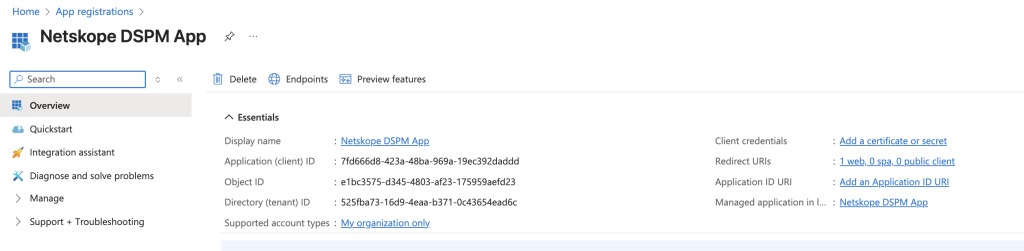
Go to the Netskope DSPM app‘s Overview > find the Application (client) ID and Directory (tenant) ID.

2. Create Client Secret
Once you’ve registered the DSPM App, continue with these steps to create a Client Secret:
In your Azure portal:
-
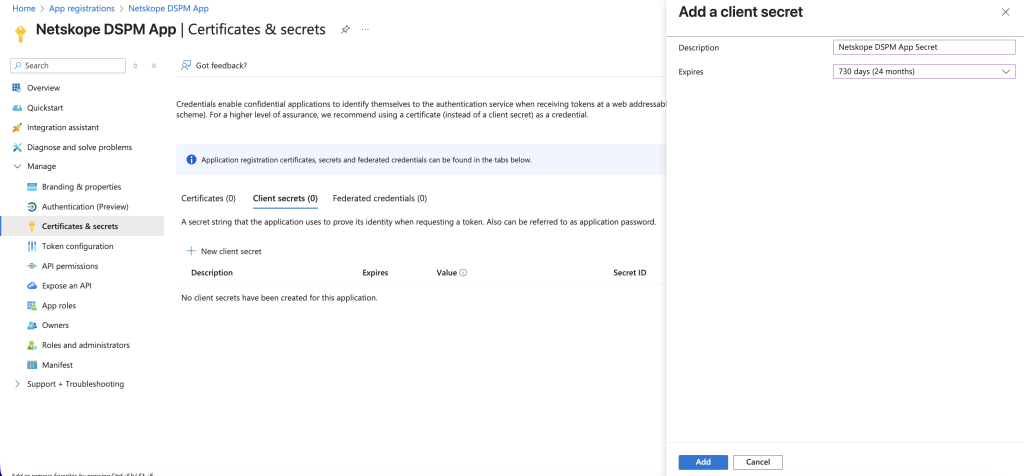
From the Netskope DSPM app’s Overview > Go to Certificate & secrets > Click New client secret.
-
Type a Description > Choose an expiration time.
-
Click Add > Copy and save the Secret Value immediately (you won’t be able to see it again later).


3. Add The Netskope DSPM Role
Now that you’ve created the client secret, you must define the permissions required for DSPM to operate.
All permission details documented here apply equally to:
- Manual configuration through the Azure portal
- Terraform deployments
- Troubleshooting and debugging any deployment method
In your Azure portal:
-
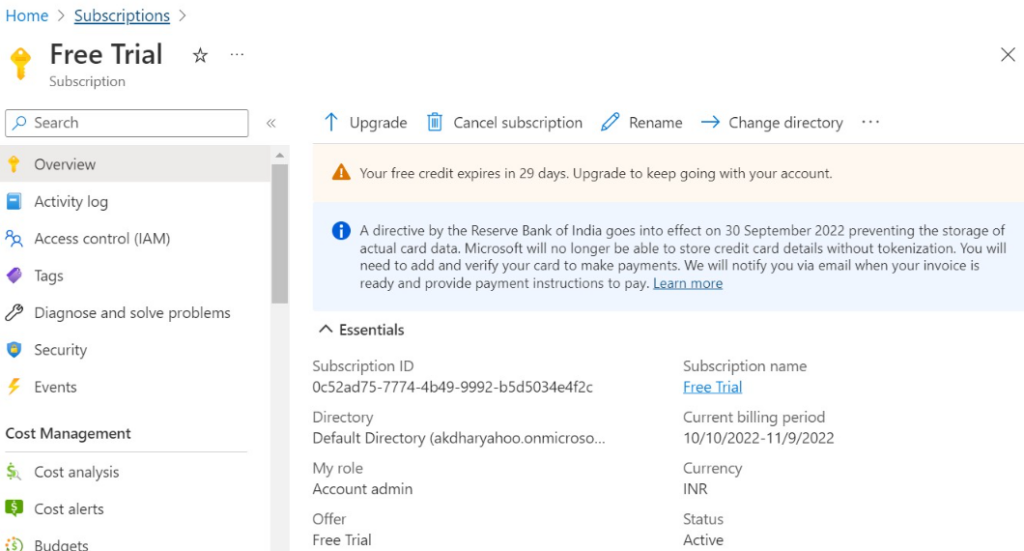
Go to Subscriptions > Copy the Subscription ID.
-
Go to Access control (IAM) > Click Add > Add custom role.

-
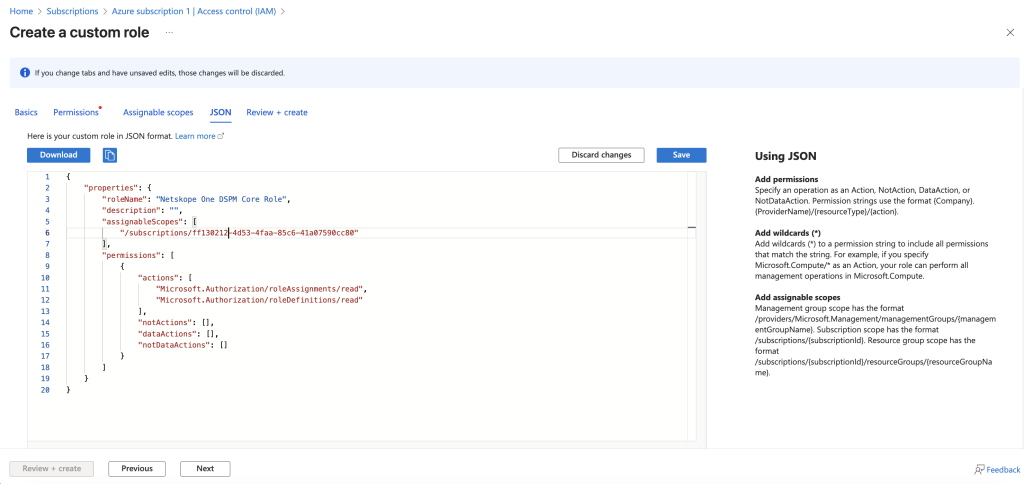
Go the JSON tab > Click Edit.
-
Replace the default JSON text with the specific role definitions below. You must add the Core Role and then any Optional Roles based on the features you want to enable.
A. Core Permissions. (Required)
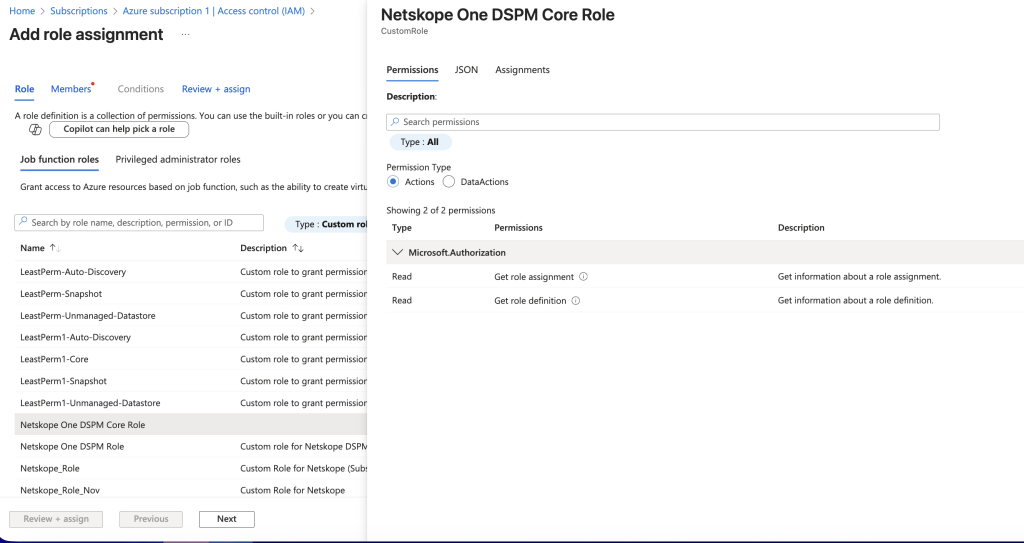
This role helps DSPM validate assigned permissions and requested permissions for the App. It is mandatory for the integration to function.
{
    "properties": {
        "roleName": "Netskope One DSPM Core Role",
        "description": "",
        "assignableScopes": [
            "/subscriptions/<AZURE SUBSCRIPTION ID>"
        ],
        "permissions": [
            {
                "actions": [
                    "Microsoft.Authorization/roleAssignments/read",
                    "Microsoft.Authorization/roleDefinitions/read"
                ],
                "notActions": [],
                "dataActions": [],
                "notDataActions": []
            }
        ]
    }
}
B. Authorize & Auto-Discover Data Stores. (Optional)
This role authorizes DSPM to automatically discover data stores in the environment.
Actions and Purpose
Action Purpose Microsoft.Resources/subscriptions/resourceGroups/read To discover all the resource groups in a subscription and data stores within them. Microsoft.Sql/servers/read To discover and connect to SQL servers to scan databases. Microsoft.DBforPostgreSQL/flexibleServers/read
Microsoft.DBforPostgreSQL/flexibleServers/databases/readTo discover and connect to PostgreSQL servers to scan databases. Microsoft.DBforMySQL/flexibleServers/read
Microsoft.DBforMySQL/flexibleServers/databases/readTo discover and connect to MySQL servers to scan databases. Microsoft.Synapse/workspaces/read To discover and connect to Synapse workspaces. Microsoft.Databricks/workspaces/read To discover and connect to Databricks workspaces. Microsoft.Storage/storageAccounts/listkeys/action
Microsoft.Storage/storageAccounts/read
Microsoft.Storage/storageAccounts/blobServices/containers/read
Microsoft.Storage/storageAccounts/fileServices/read
Microsoft.Storage/storageAccounts/fileServices/shares/readTo discover all Blob storage containers and File shares present in storage accounts and scan files. Microsoft.Compute/disks/read To discover all the managed disks for snapshot scan. Role Definition
{
    "properties": {
        "roleName": "Netskope One DSPM Auto-Discovery Role",
        "description": "",
        "assignableScopes": [
            "/subscriptions/<AZURE SUBSCRIPTION ID>"
        ],
        "permissions": [
            {
                "actions": [
                    "Microsoft.Resources/subscriptions/resourceGroups/read",
                    "Microsoft.Sql/servers/read",
                    "Microsoft.DBforPostgreSQL/flexibleServers/read",
                    "Microsoft.DBforPostgreSQL/flexibleServers/databases/read",
                    "Microsoft.DBforMySQL/flexibleServers/read",
                    "Microsoft.DBforMySQL/flexibleServers/databases/read",
                    "Microsoft.Synapse/workspaces/read",
                    "Microsoft.Databricks/workspaces/read",
                    "Microsoft.Storage/storageAccounts/listkeys/action",
                    "Microsoft.Storage/storageAccounts/read",
                    "Microsoft.Storage/storageAccounts/blobServices/containers/read",
                    "Microsoft.Storage/storageAccounts/fileServices/read",
                    "Microsoft.Storage/storageAccounts/fileServices/shares/read",
                    "Microsoft.Compute/disks/read"
                ],
                "notActions": [],
                "dataActions": [],
                "notDataActions": []
            }
        ]
    }
}
C. Authorize Data Store Snapshot Access & Unmanaged Data Store Discovery. (Optional)
Add this role to enable snapshot-based scanning and discovery of unmanaged data stores.
Important: To enable unmanaged data store discovery on managed disks, you must enable this capability or manually add the corresponding role permissions below.Actions and Purpose
Actions Purpose Microsoft.Resources/subscriptions/resourceGroups/read To discover all the resource groups in a subscription and Managed disks within them. Microsoft.Resources/subscriptions/resourcegroups/write To create a resource group for creating temporary resources required for scanning of Managed disks for detecting unmanaged data stores. Microsoft.Sql/servers/read
Microsoft.Sql/servers/write
Microsoft.Sql/servers/delete
Microsoft.Sql/servers/firewallRules/write
To connect SQL servers and create a temporary SQL server for snapshot scan. Microsoft.Sql/servers/databases/read
Microsoft.Sql/servers/databases/writeTo discover all the databases on a server and create temporary cloned DBs to attach them to SQL server for snapshot scan. Microsoft.Compute/disks/read To discover all the Managed disks. Microsoft.Compute/disks/write
Microsoft.Compute/disks/delete
Microsoft.Compute/disks/beginGetAccess/actionTo create Managed disks for launching VM for scanning of Managed disks. Microsoft.Compute/virtualMachines/read
Microsoft.Compute/virtualMachines/write
Microsoft.Compute/virtualMachines/delete
Microsoft.Compute/virtualMachines/generalize/action
Microsoft.Compute/virtualMachines/start/action
Microsoft.Compute/virtualMachines/deallocate/action
Microsoft.Compute/virtualMachines/powerOff/actionTo create VM with sidecar image for scanning of Managed disks and terminate VM after scanning. Microsoft.Compute/snapshots/read
Microsoft.Compute/snapshots/write
Microsoft.Compute/snapshots/deleteTo create snapshots of Managed disks for scanning and delete after scanning. Microsoft.Compute/galleries/images/read
Microsoft.Compute/galleries/images/versions/readTo read image gallery definitions and versions used to launch the VM for scanning Managed disks. Microsoft.Network/networkInterfaces/read
Microsoft.Network/networkInterfaces/write
Microsoft.Network/networkInterfaces/delete
Microsoft.Network/networkInterfaces/join/action
Microsoft.Network/publicIPAddresses/read
Microsoft.Network/publicIPAddresses/write
Microsoft.Network/publicIPAddresses/delete
Microsoft.Network/publicIPAddresses/join/action
Microsoft.Network/networkSecurityGroups/read
Microsoft.Network/networkSecurityGroups/write
Microsoft.Network/networkSecurityGroups/join/action
Microsoft.Network/virtualNetworks/read
Microsoft.Network/virtualNetworks/write
Microsoft.Network/virtualNetworks/subnets/join/actionTo create networking components for launching VM for scanning of Managed disks and allow Netskope One DSPM IPs to access VM for snapshot scan. Role Definition
{ "properties": { "roleName": "Netskope One DSPM Data Store Snapshot Role", "description": "", "assignableScopes": [ "/subscriptions/<AZURE SUBSCRIPTION ID>" ], "permissions": [ { "actions": [ "Microsoft.Resources/subscriptions/resourceGroups/read", "Microsoft.Resources/subscriptions/resourcegroups/write", "Microsoft.Sql/servers/read", "Microsoft.Sql/servers/write", "Microsoft.Sql/servers/delete", "Microsoft.Sql/servers/databases/read", "Microsoft.Sql/servers/databases/write", "Microsoft.Sql/servers/firewallRules/write", "Microsoft.Compute/disks/read", "Microsoft.Compute/disks/write", "Microsoft.Compute/disks/delete", "Microsoft.Compute/disks/beginGetAccess/action", "Microsoft.Compute/virtualMachines/read", "Microsoft.Compute/virtualMachines/write", "Microsoft.Compute/virtualMachines/delete", "Microsoft.Compute/virtualMachines/generalize/action", "Microsoft.Compute/virtualMachines/start/action", "Microsoft.Compute/virtualMachines/deallocate/action", "Microsoft.Compute/virtualMachines/powerOff/action", "Microsoft.Compute/snapshots/read", "Microsoft.Compute/snapshots/write", "Microsoft.Compute/snapshots/delete", "Microsoft.Compute/galleries/images/read", "Microsoft.Compute/galleries/images/versions/read", "Microsoft.Network/networkInterfaces/read", "Microsoft.Network/networkInterfaces/write", "Microsoft.Network/networkInterfaces/delete", "Microsoft.Network/networkInterfaces/join/action", "Microsoft.Network/publicIPAddresses/read", "Microsoft.Network/publicIPAddresses/write", "Microsoft.Network/publicIPAddresses/delete", "Microsoft.Network/publicIPAddresses/join/action", "Microsoft.Network/networkSecurityGroups/read", "Microsoft.Network/networkSecurityGroups/write", "Microsoft.Network/networkSecurityGroups/join/action", "Microsoft.Network/virtualNetworks/read", "Microsoft.Network/virtualNetworks/write", "Microsoft.Network/virtualNetworks/subnets/join/action" ], "notActions": [], "dataActions": [], "notDataActions": [] } ] } } -
Click Save > Review + create > Create > Ok.


4. Assign The Netskope DSPM App Role
Now that you’ve added the required roles, follow these steps to assign them to the Netskope DSPM App.
In your Azure portal:
-
Go to Access control (IAM) > Click Add > Select Add role assignment.

-
Go to the Role tab > Search the Netskope DSPM role you just created > Click Next.
-
Go to the Members tab > Click Select members.
-
Search the Netskope DSPM app you just created in step 1 > Click Select > Next.
-
Go to the Review + assign tab > Click Review + Assign.
- Repeat this process for every custom role you created (Core + any Optional roles).

5. Grant Permission for validation of assigned permissions to App
This permission is required for reading the role assigned to the App/service principal for validation. Follow these steps to assign it:
- In your Azure portal:
-
Go to App registrations > Open the Netskope One DSPM app.
-
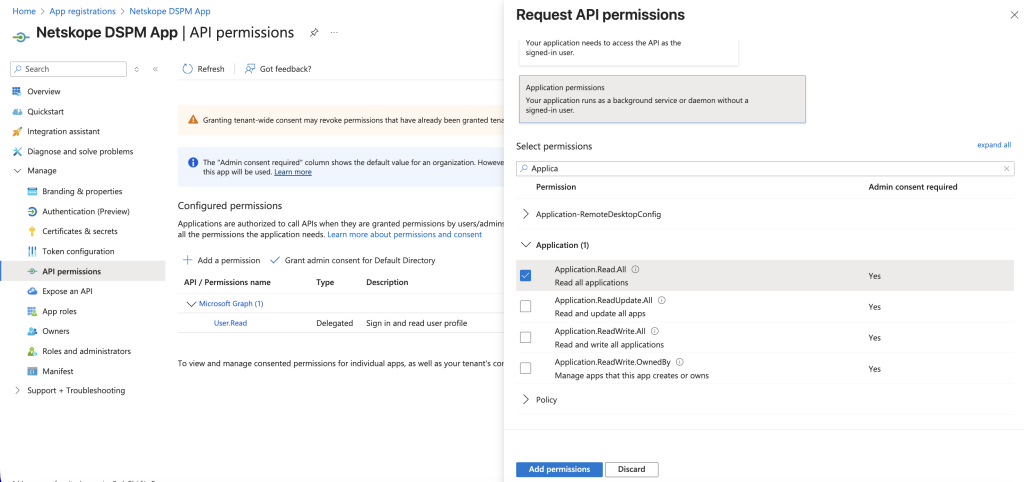
Go to API permissions > Select Microsoft Graph.
-
Go to Application (1) > Mark the Application.Read.All permission > Click Update permissions.
-
Select Grant admin consent for Default Directory to remove the warning.


6. Create The Netskope DSPM Infrastructure Connection
Now that you’ve registered the Netskope DSPM app, created the Client Secret, added the Netskope role and assigned the Netskope DSPM role, follow these steps to create the DSPM Infrastructure Connection:
-
Log into Netskope DSPM console.
-
Go to Administration > Infrastructure Connections > Azure tab.
-
Click Add Infrastructure and fill in the following fields:
Field Value Account Name Any value (this is used to identify your infrastructure connection within the Netskope DSPM UI). Tenant ID Enter the Tenant ID captured in step 3 of
"Register Netskope DSPM App" section.Application ID Enter the Application ID captured in step 3 of
"Register Netskope DSPM App" section.Application Secret Enter the Application Secret (value) captured in step 3 of
"Create Client Secret" section.Subscription ID Enter the Subscription ID captured in step 1 of
"Add The Nestkope DSPM Role" section.(Tenant Onboarding Only) Auto-Discover New Subscriptions:
If you are onboarding at the Tenant level (leaving the Subscription ID optional or providing a Root Management Group), Netskope DSPM enables Auto-Discover New Subscriptions. This capability automatically detects and onboards new subscriptions as they are added to your Azure Tenant, applying the permissions you configured in Step 3. -
Click Acknowledge.
Netskope DSPM will then verify the connection, onboard your project(s), and begin discovering data stores.
Troubleshooting Permission Issues
If you encounter errors during discovery or scanning, verify your role assignments against the definitions above.
- “Cannot discover and scan data store snapshots due to missing permissions.”
- Fix: Ensure the Netskope One DSPM Data Store Snapshot Role is correctly assigned to the service account.
- “Netskope encountered an error while scanning data warehouse ‘XYZ’: Missing required Azure permissions: Microsoft.Sql/servers/databases/delete”
- Fix: The specific action is missing from your custom role. Update the JSON to include the missing action.
- “Insufficient privileges to complete the operation. Ensure Application.Read.All graph permission is assigned to client in Azure AD.”
- Fix: Go to Azure AD > App Registrations > API Permissions and grant admin consent for
Application.Read.All.
- Fix: Go to Azure AD > App Registrations > API Permissions and grant admin consent for