This document explains how to configure the Palo Alto Networks Cortex XDR v1.0.0 plugin with the Risk Exchange module of the Netskope Cloud Exchange platform. This plugin fetches Endpoints and Users data from Palo Alto Networks Cortex XDR platform. This plugin retrieves the endpoints from the Endpoint > All Endpoints page. This plugin also supports Isolate Endpoint, Un-Isolate Endpoint, Run Scan on Endpoint, Cancel Running Scan on Endpoint actions in the Palo Alto Networks Cortex XDR platform.
Netskope normalization score calculation for Endpoints and Users => 1000 * (1 – RiskScore/100)
Prerequisites
To complete this integration, you need:
- A Netskope tenant (or multiple, for example, production and development/test instances).
- A Netskope Cloud Exchange tenant with the Tenant plugin and Risk Exchange plugin already configured.
- Connectivity to Palo Alto Networks Cortex XDR platform.
- Subscriptions for these licenses with respective purposes:
| License | Purpose |
|---|---|
|
Identity Threat Module | For fetching risky users and hosts |
| Cortex XDR Prevent | For fetching endpoints and all 4 actions |
| Cortex XDR Pro per Endpoint | For fetching endpoints and all 4 actions |
| Cortex XDR Pro per GB | For scan and cancel scan actions |
- Access to generate API Base URL, API Key ID, API Key and pull Users, Endpoints and Hosts.
- Connectivity to the following host: https://api-**.xdr.**.paloaltonetworks.com.
Palo Alto Networks Cortex XDR Plugin Support
This plugin fetches Endpoints and Users data from Palo Alto Networks Cortex XDR platform. It retrieves the Endpoints from the Endpoint > All Endpoints page. This plugin also supports Isolate Endpoint, Un-Isolate Endpoint, Run Scan on Endpoint, Cancel Running Scan on Endpoint actions on Palo Alto Networks Cortex XDR platform.
| Types of Data Pulled | Actions Supported |
|---|---|
|
|
Mappings
Mappings are used to view the pulled Users and Endpoints and their respective details. Fields mapped during plugin configuration will be visible on the Records page after the data is pulled. Here are the suggested mappings to use while configuring the plugin.
Pull Mappings for Users
| Plugin Field | Expected Datatype | Suggested Field Name | Suggested Field Aggregate Strategy |
|---|---|---|---|
| User ID | String | User ID | Unique |
| Risk Score | Number | Risk Score | Unique |
| String | Overwrite | ||
| Risk Level | String | Risk Level | Overwrite |
| Netskope Normalized Risk Score | Number | Netskope Normalized Risk Score | Overwrite |
| Normalized Risk Score |
Number | Normalized Risk Score | Overwrite |
Pull Mappings for Endpoints
| Plugin Field | Expected Datatype | Suggested Field Name | Suggested Field Aggregate Strategy |
|---|---|---|---|
| Endpoint ID | String | Endpoint ID | Unique |
| Endpoint name | String | Endpoint name | Unique |
| Risk Score | Number | Risk Score | Unique |
| Endpoint Type | String | Endpoint Type | Overwrite |
| Endpoint Status | String | Endpoint Status | Overwrite |
| Operating System Type | String | Operating System Type | Overwrite |
| Operating System name |
String | Operating System name | Overwrite |
| Operating System version | String | Operating System version | Overwrite |
| IPv4 Address | List | IPv4 Address |
Overwrite |
| IPv6 Address | List | IPv6 Address | Overwrite |
| Public IP Address | String | Public IP Address | Overwrite |
| Users | List | Users | Overwrite |
| Domain | String | Domain | Overwrite |
| MAC Address | List | MAC Address | Overwrite |
| Server Tags | List | Server Tags | Overwrite |
| Endpoint Tags | List | Endpoint Tags | Overwrite |
| Risk Level | String | Risk Level | Overwrite |
| Netskope Normalized Risk Score | Number | Netskope Normalized Risk Score | Overwrite |
| Normalised Risk Score | Number | Normalised Risk Score | Overwrite |
| Isolation Status | String | Isolation Status | Overwrite |
| Operational Status | String | Operational Status | Overwrite |
| Scan Status | String | Scan Status | Overwrite |
| Group Name | List | Group Name | Overwrite |
Permissions
For fetching Users and Endpoints and performing actions using the plugin the user will need is role: Privileged Responder Role.
API Details
List of APIs Used
| API Endpoint | Method | Use Case |
|---|---|---|
| /api_keys/validate/ | POST | Validate connectivity using the provided configuration parameters |
| /public_api/v1/get_risky_users | POST | Fetch users and their risk score |
| /public_api/v1/endpoints/get_endpoint | POST | Fetch endpoints (devices) data |
| /public_api/v1/get_risky_hosts | POST | Fetch risk score for endpoints (devices) |
| /public_api/v1/endpoints/isolate | POST | Isolate endpoint |
| /public_api/v1/endpoints/unisolate | POST | Un-isolate endpoint |
| /public_api/v1/endpoints/scan | POST | Run scan on endpoint |
| /public_api/v1/endpoints/abort_scan | POST | Cancel running scan on endpoint |
Authorization
API Endpoint: /api_keys/validate/
Method: POST
Headers (Authentication Method: Standard)
| Key | Value |
|---|---|
| User-Agent | netskope-ce-5.1.1-cre-palo-alto-networks-cortex-xdr-v1.0.0 |
| x-xdr-auth-id | <api_key_id> |
| Authorization | <api_key> |
Headers (Authentication Method: Advanced)
| Key | Value | Description |
|---|---|---|
| User-Agent | netskope-ce-5.1.1-cre-palo-alto-networks-cortex-xdr-v1.0.0 | User Agent |
| x-xdr-nonce | <nonce> | Randomly generated 64 character long alpha numeric string |
| x-xdr-timestamp | <timestamp> | Current unix timestamp in millisecond |
| x-xdr-auth-id | <api_key_id> | API key ID |
| Authorization | <api_key_hash> | Hash of API key + Nonce + Timestamp string |
Sample API Response
true
Fetch Users
API Endpoint: /oauth2/authorize/central/api
Method: POST
Headers (Authentication Method: Standard)
| Key | Value |
|---|---|
| User-Agent | netskope-ce-5.1.1-cre-palo-alto-networks-cortex-xdr-v1.0.0 |
| x-xdr-auth-id | <api_key_id> |
| Authorization | <api_key> |
Headers (Authentication Method: Advanced)
| Key | Value | Description |
|---|---|---|
| User-Agent | netskope-ce-5.1.1-cre-palo-alto-networks-cortex-xdr-v1.0.0 | User Agent |
| x-xdr-nonce | <nonce> | Randomly generated 64 character long alpha numeric string |
| x-xdr-timestamp | <timestamp> | Current unix timestamp in millisecond |
| x-xdr-auth-id | <api_key_id> | API key ID |
| Authorization | <api_key_hash> | Hash of API key + Nonce + Timestamp string |
Sample API Response
{
    "reply": [
        {
            "type": "user",
            "id": "xyz\\abc",
            "score": 0,
            "norm_risk_score": 0,
            "risk_level": "LOW",
            "reasons": [],
            "email": "string"
        }
    ]
}
Fetch Endpoints
API Endpoint: /public_api/v1/endpoints/get_endpoint
Method: POST
Headers (Authentication Method: Standard)
| Key | Value |
|---|---|
| User-Agent | netskope-ce-5.1.1-cre-palo-alto-networks-cortex-xdr-v1.0.0 |
| x-xdr-auth-id | <api_key_id> |
| Authorization | <api_key> |
Headers (Authentication Method: Advanced)
| Key | Value | Description |
|---|---|---|
| User-Agent | netskope-ce-5.1.1-cre-palo-alto-networks-cortex-xdr-v1.0.0 | User Agent |
| x-xdr-nonce | <nonce> | Randomly generated 64 character long alpha numeric string |
| x-xdr-timestamp | <timestamp> | Current unix timestamp in millisecond |
| x-xdr-auth-id |
<api_key_id> | API key ID |
| Authorization | <api_key_hash> | Hash of API key + Nonce + Timestamp string |
Body Parameters
|
Key |
Value |
Description |
|
search_from |
Integer |
Pagination offset |
|
search_to |
Integer |
Pagination limit |
Sample Request Body
{
  "request_data": {
    "search_from": 0,
    "search_to": 100
  }
}
Sample API Response
{
    "reply": {
        "total_count": 4,
        "result_count": 1,
        "endpoints": [
            {
                "endpoint_id": "9713c1f5e2f8487e8d6783ee9e0987b8",
                "endpoint_name": "Win2k16-7-148",
                "endpoint_type": "AGENT_TYPE_SERVER",
                "endpoint_status": "CONNECTED",
                "os_type": "AGENT_OS_WINDOWS",
                "os_version": "10.0.14393",
                "ip": [
                    "10.50.7.148"
                ],
                "ipv6": [
                    "fda7:e6ee:2e09:0:809c:1627:e7e4:adcb"
                ],
                "public_ip": "140.246.76.125",
                "users": [
                    "xyz\\abc"
                ],
                "domain": "xyz.com",
                "alias": "",
                "first_seen": 1743498903224,
                "last_seen": 1743507983054,
                "content_version": "1730-14274",
                "installation_package": "",
                "active_directory": [],
                "install_date": 1743498903234,
                "endpoint_version": "8.7.0.7735",
                "is_isolated": "AGENT_UNISOLATED",
                "isolated_date": null,
                "group_name": [],
                "operational_status": "PROTECTED",
                "operational_status_description": "[]",
                "operational_status_details": [],
                "scan_status": "SCAN_STATUS_NONE",
                "content_release_timestamp": 1743502658000,
                "last_content_update_time": 1743503174008,
                "operating_system": "Windows Server 2016",
                "mac_address": [
                    "00:50:56:81:fc:fc"
                ],
                "assigned_prevention_policy": "Windows Default",
                "assigned_extensions_policy": "Windows Default",
                "token_hash": "",
                "tags": {
                    "server_tags": [],
                    "endpoint_tags": []
                },
                "content_status": "UP_TO_DATE"
            }
        ]
    }
}
Fetch Risk Score for Endpoints
API Endpoint: /public_api/v1/get_risky_hosts
Method: POST
Headers (Authentication Method: Standard)
| Key | Value |
|---|---|
| User-Agent | netskope-ce-5.1.1-cre-palo-alto-networks-cortex-xdr-v1.0.0 |
| x-xdr-auth-id | <api_key_id> |
| Authorization | <api_key> |
Headers (Authentication Method: Advanced)
| Key | Value | Description |
|---|---|---|
| User-Agent | netskope-ce-5.1.1-cre-palo-alto-networks-cortex-xdr-v1.0.0 | User Agent |
| x-xdr-nonce | <nonce> | Randomly generated 64 character long alpha numeric string |
| x-xdr-timestamp | <timestamp> | Current unix timestamp in millisecond |
| x-xdr-auth-id | <api_key_id> | API key ID |
|
Authorization | <api_key_hash> | Hash of API key + Nonce + Timestamp string |
Sample API Response
{
    "reply": [
        {
            "type": "host",
            "id": "Win2k16-7-148",
            "score": 0,
            "norm_risk_score": 0,
            "risk_level": "LOW",
            "reasons": []
        }
    ]
}
Isolate an Endpoint
API Endpoint: /public_api/v1/endpoints/isolate
Method: POST
Headers (Authentication Method: Standard)
| Key | Value |
|---|---|
| User-Agent | netskope-ce-5.1.1-cre-palo-alto-networks-cortex-xdr-v1.0.0 |
| x-xdr-auth-id | <api_key_id> |
| Authorization | <api_key> |
Headers (Authentication Method: Advanced)
| Key | Value | Description |
|---|---|---|
|
User-Agent |
netskope-ce-5.1.1-cre-palo-alto-networks-cortex-xdr-v1.0.0 | User Agent |
|
x-xdr-nonce |
<nonce> |
Randomly generated 64 character long alpha numeric string |
|
x-xdr-timestamp |
<timestamp> |
Current unix timestamp in millisecond |
|
x-xdr-auth-id |
<api_key_id> |
API key ID |
|
Authorization |
<api_key_hash> |
Hash of API key + Nonce + Timestamp string |
Body Parameters:
|
Key |
Value |
Description |
|
value |
<endpoint_id_list> |
List of endpoint IDs to be isolated |
|
incident_id |
<incident_id> |
(Optional) When included in the request, the Scan Endpoints action will appear in the Cortex XDR Incident View Timeline tab. |
Sample Request Body
{
            "request_data": {
                "filters": [
                    {
                        "field": "endpoint_id_list",
                        "operator": "in",
                        "value": endpoint_id_list,
                    }
                ],
                "incident_id": incident_id,
            }
        }
Un-Isolate an Endpoint
API Endpoint: /public_api/v1/endpoints/unisolate
Method: POST
Headers (Authentication Method: Standard)
| Key | Value |
|---|---|
| User-Agent | netskope-ce-5.1.1-cre-palo-alto-networks-cortex-xdr-v1.0.0 |
| x-xdr-auth-id | <api_key_id> |
| Authorization | <api_key> |
Headers (Authentication Method: Advanced)
| Key | Value | Description |
|---|---|---|
| User-Agent | netskope-ce-5.1.1-cre-palo-alto-networks-cortex-xdr-v1.0.0 | User Agent |
| x-xdr-nonce | <nonce> | Randomly generated 64 character long alpha numeric string |
| x-xdr-timestamp | <timestamp> | Current unix timestamp in millisecond |
| x-xdr-auth-id | <api_key_id> | API key ID |
| Authorization | <api_key_hash> | Hash of API key + Nonce + Timestamp string |
Body Parameters
|
Key |
Value |
Description |
|
value |
<endpoint_id_list> |
List of endpoint IDs to be isolated |
|
incident_id |
<incident_id> |
(Optional) When included in the request, the Scan Endpoints action will appear in the Cortex XDR Incident View Timeline tab. |
Sample Request Body
{
            "request_data": {
                "filters": [
                    {
                        "field": "endpoint_id_list",
                        "operator": "in",
                        "value": endpoint_id_list,
                    }
                ],
                "incident_id": incident_id,
            }
        }
Run a Scan on an Endpoint
API Endpoint: /public_api/v1/endpoints/scan
Method: POST
Headers (Authentication Method: Standard)
| Key | Value |
|---|---|
| User-Agent | netskope-ce-5.1.1-cre-palo-alto-networks-cortex-xdr-v1.0.0 |
| x-xdr-auth-id | <api_key_id> |
| Authorization | <api_key> |
Headers (Authentication Method: Advanced)
| Key | Value | Description |
|---|---|---|
|
User-Agent |
netskope-ce-5.1.1-cre-palo-alto-networks-cortex-xdr-v1.0.0 | User Agent |
|
x-xdr-nonce |
<nonce> |
Randomly generated 64 character long alpha numeric string |
|
x-xdr-timestamp |
<timestamp> |
Current unix timestamp in millisecond |
|
x-xdr-auth-id |
<api_key_id> |
API key ID |
|
Authorization |
<api_key_hash> |
Hash of API key + Nonce + Timestamp string |
Body Parameters
| Key | Value | Description | |||
|---|---|---|---|---|---|
| value | <endpoint_id_list> | List of endpoint IDs to be isolated | incident_id | <incident_id> | (Optional) When included in the request, the Scan Endpoints action will appear in the Cortex XDR Incident View Timeline tab. |
Sample Request Body
{
            "request_data": {
                "filters": [
                    {
                        "field": "endpoint_id_list",
                        "operator": "in",
                        "value": endpoint_id_list,
                    }
                ],
                "incident_id": incident_id,
            }
        }
Cancel Running a Scan on an Endpoint
API Endpoint: /public_api/v1/endpoints/abort_scan
Method: POST
Headers (Authentication Method: Standard)
| Key | Value |
|---|---|
| User-Agent | netskope-ce-5.1.1-cre-palo-alto-networks-cortex-xdr-v1.0.0 |
| x-xdr-auth-id | <api_key_id> |
| Authorization | <api_key> |
Headers (Authentication Method: Advanced)
| Key | Value | Description |
|---|---|---|
| User-Agent | netskope-ce-5.1.1-cre-palo-alto-networks-cortex-xdr-v1.0.0 | User Agent |
| x-xdr-nonce | <nonce> | Randomly generated 64 character long alpha numeric string |
| x-xdr-timestamp | <timestamp> | Current unix timestamp in millisecond |
| x-xdr-auth-id | <api_key_id> | API key ID |
| Authorization | <api_key_hash> | Hash of API key + Nonce + Timestamp string |
Body Parameters
| Key | Value | Description |
|---|---|---|
| value | <endpoint_id_list> | List of endpoint IDs to be isolated |
| incident_id | <incident_id> | (Optional) When included in the request, the Scan Endpoints action will appear in the Cortex XDR Incident View Timeline tab. |
Sample Request Body
{
            "request_data": {
                "filters": [
                    {
                        "field": "endpoint_id_list",
                        "operator": "in",
                        "value": endpoint_id_list,
                    }
                ],
                "incident_id": incident_id,
            }
        }
Performance Matrix
Here are the performance readings conducted on a Large CE Stack with these VM specifications by pulling 500K Users and Endpoints from the Palo Alto Networks Cortex XDR plugin.
| Description | Specification |
|---|---|
| Stack details | Size: Large RAM: 32 GB CPU: 16 Cores |
| Users fetched from the Palo Alto Networks Cortex XDR | ~6 minutes |
| Endpoints fetched from the Palo Alto Networks Cortex XDR | ~15 minutes |
User Agent
netskope-ce-5.1.1-cre-palo-alto-networks-cortex-xdr-v1.0.0
Workflow
- Get your API Base URL, API Key ID and API Key
- Configure the Palo Alto Networks Cortex XDR plugin
- Add a Business Rule
- Add Actions.
- Validate the plugin
Watch a Video
Click play to watch a video:
Get your API Base URL, API Key ID, and API Key
To add permissions to a role:
- Log in to your Palo Alto Networks Cortex XDR account.
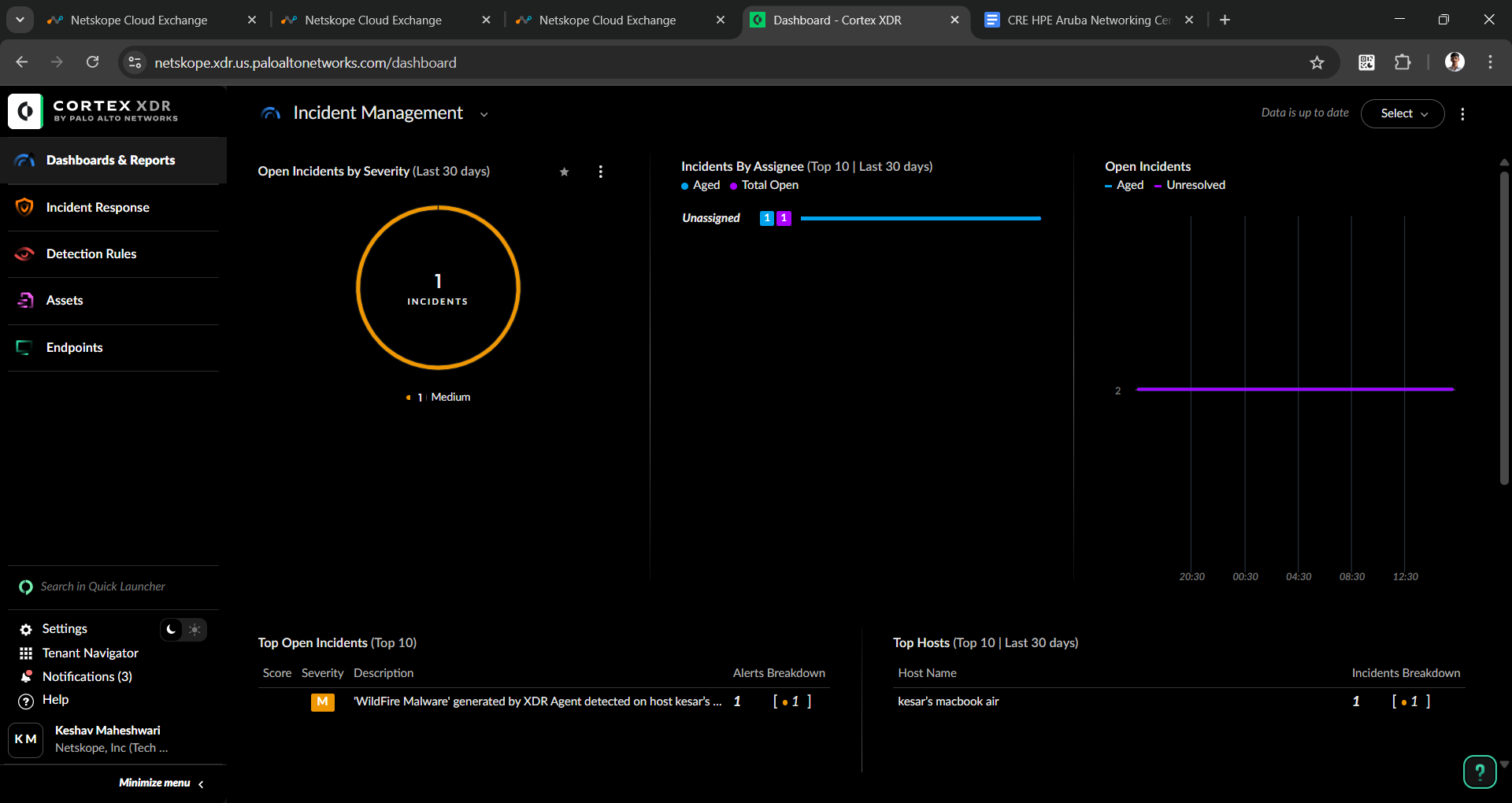
- Go to Settings > Configuration.
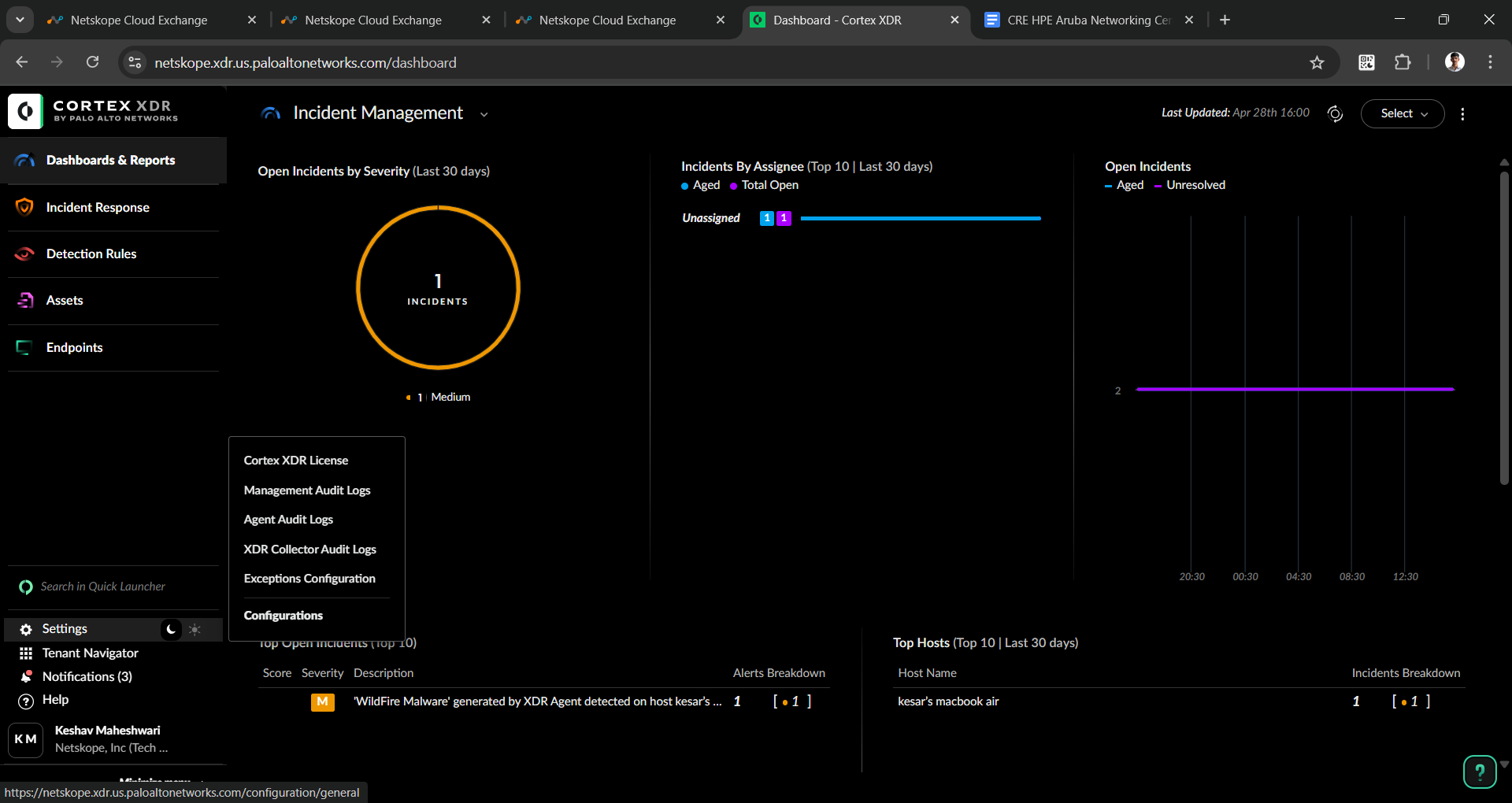
- Go to Roles under Access Management.
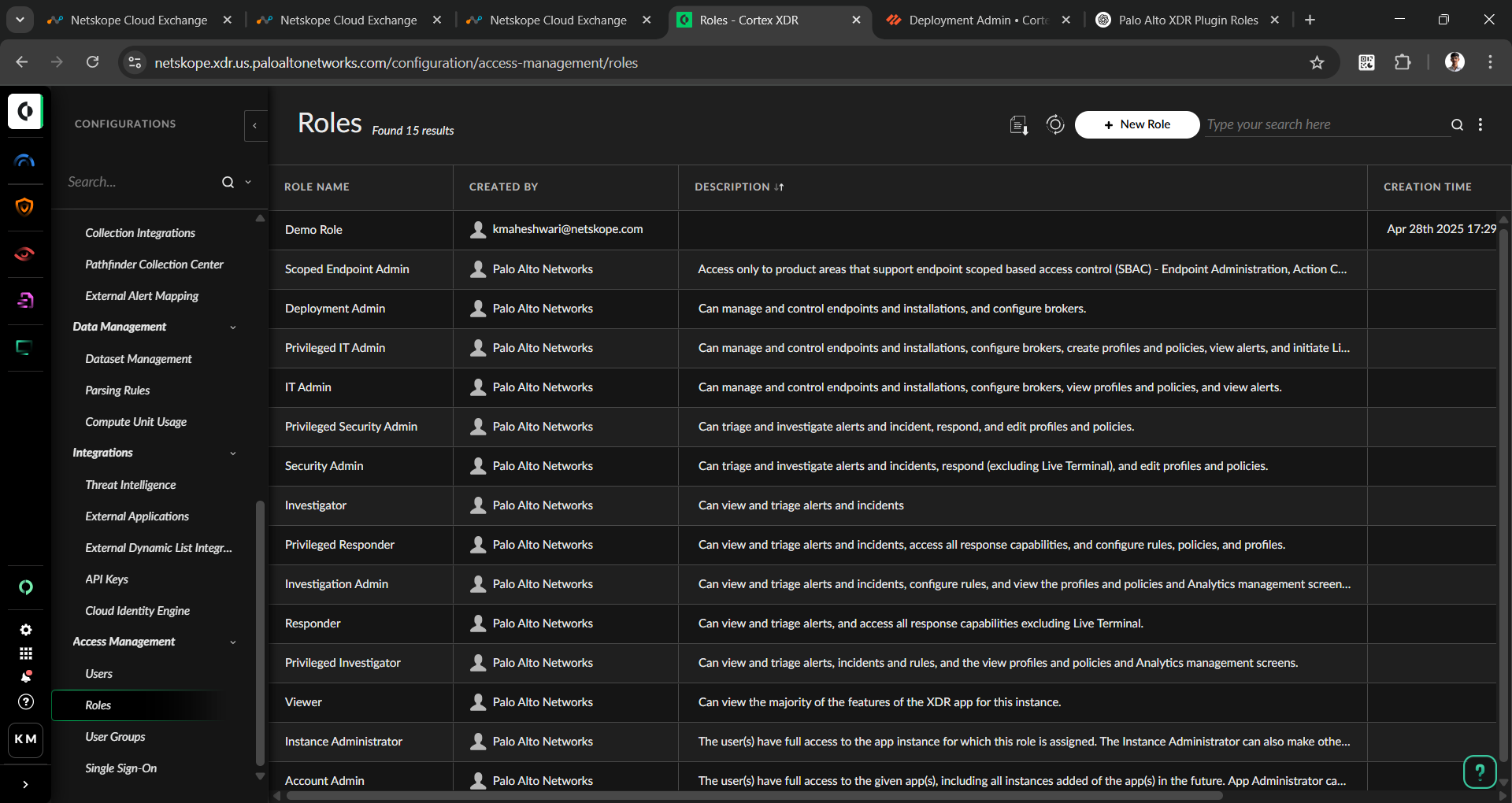
- Click + New Role, and enter a Role Name, Description, and select the required permissions. For the minimum requirement of the API Key Role, refer to Permissions.
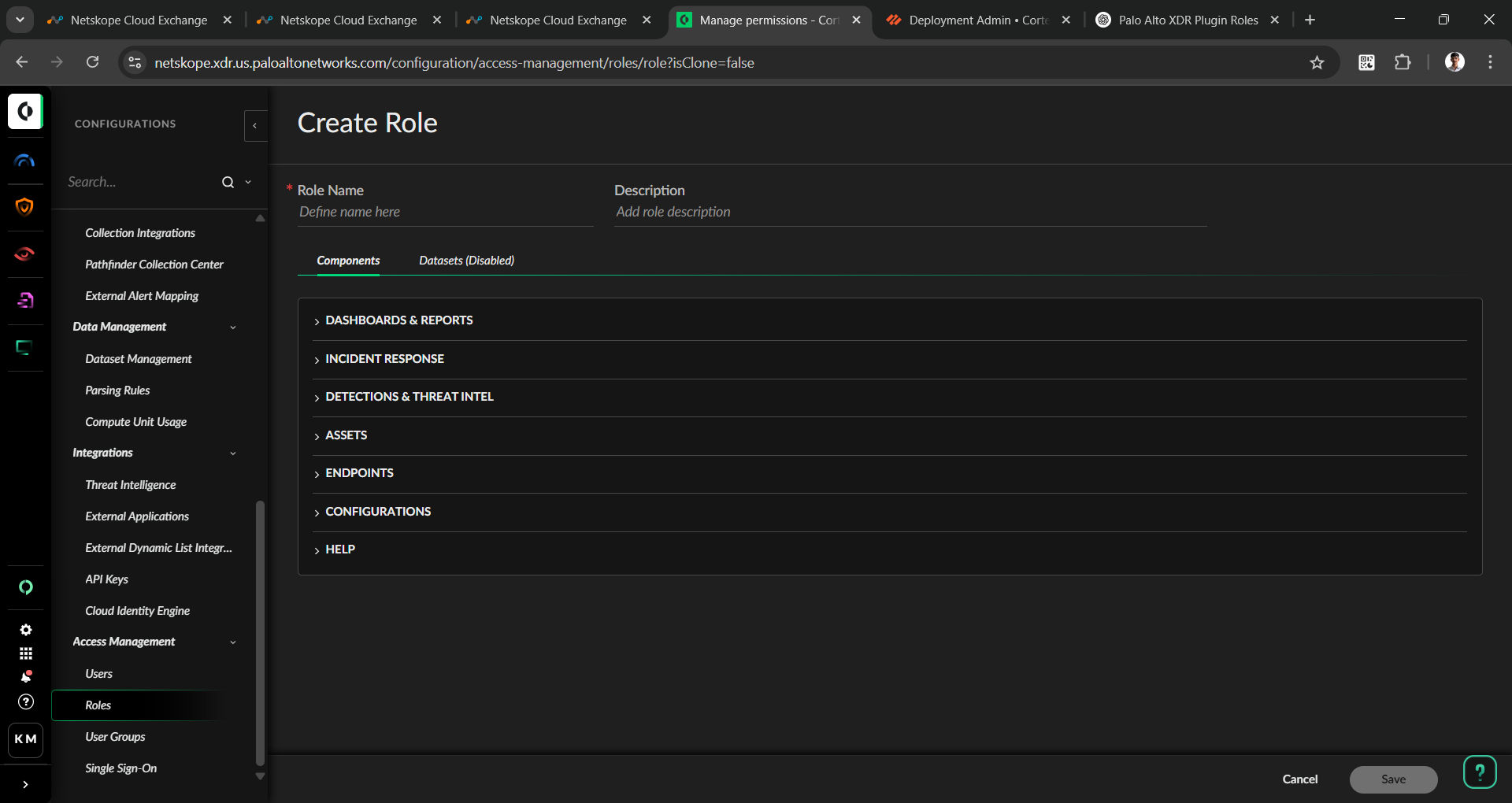
- Click Save.
To get your API Base URL, API Key ID, and API Key:
- Go to API Keys under Integrations.
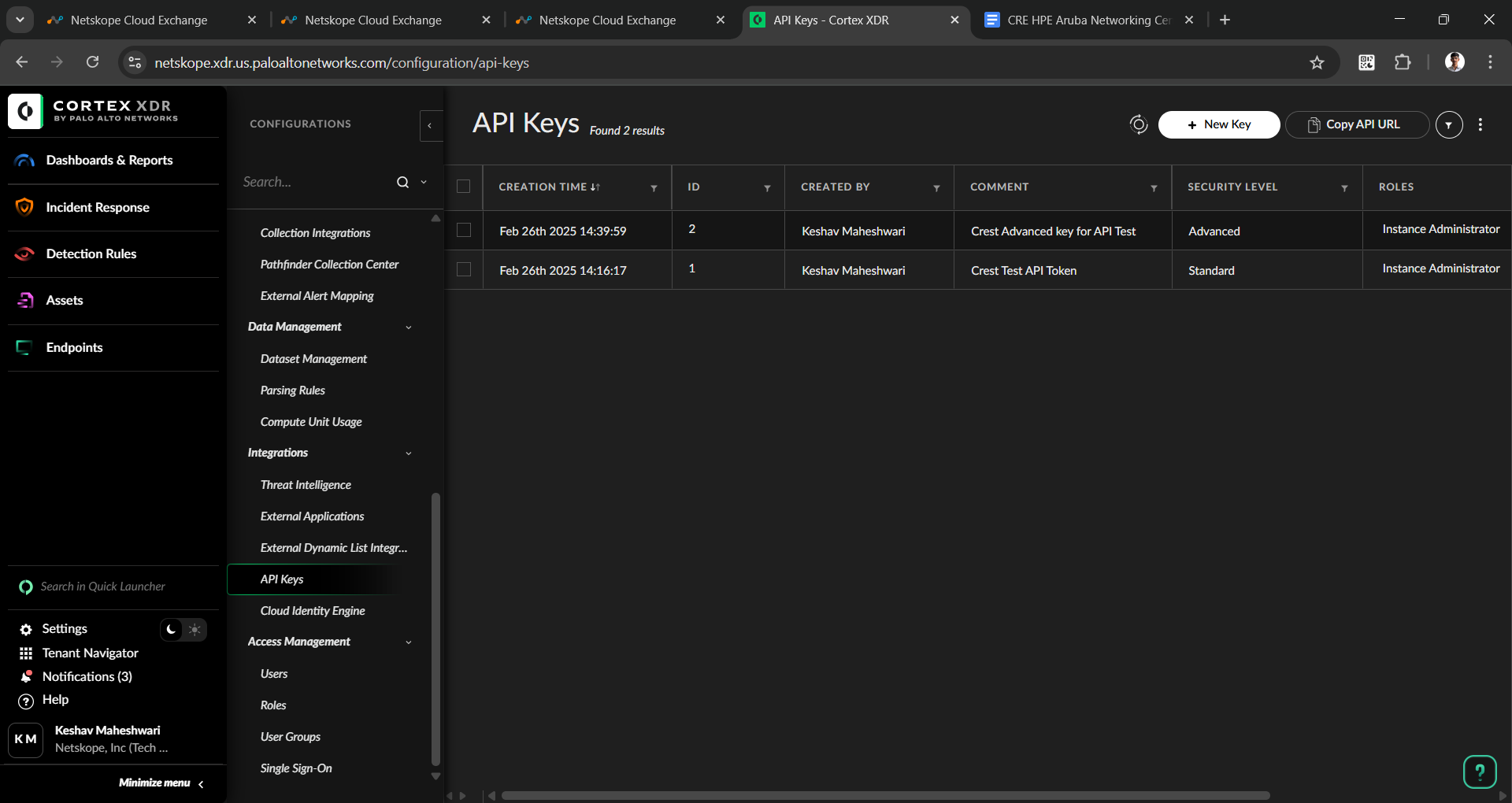
- Click Copy API URL to get the API Base URL.
- Click + New Key and add the Security level, Role, and Expiration Date fields.
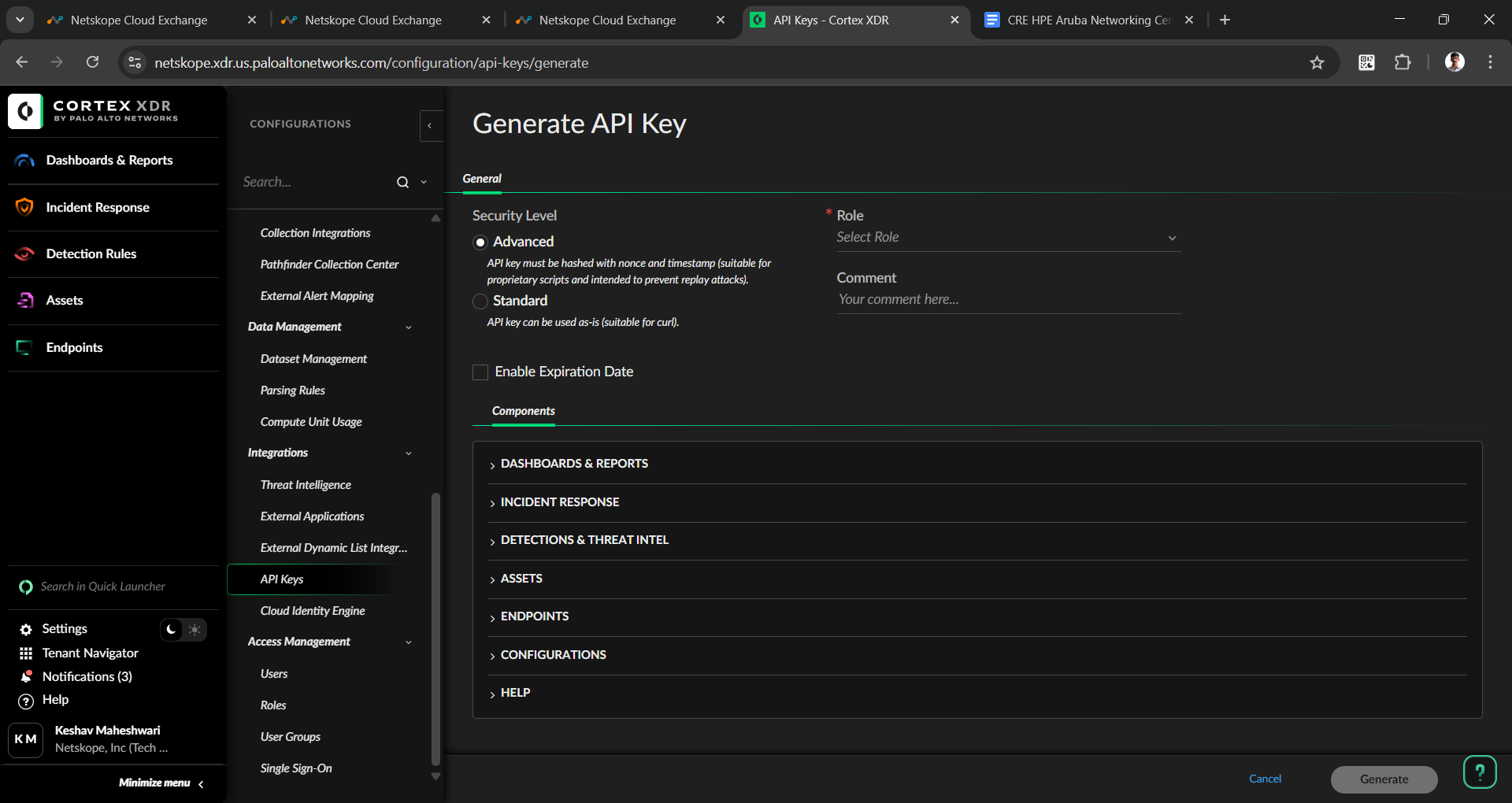
- Clicking Generate and copy the API Key and API Key ID.
Configure the Palo Alto Networks Cortex XDR Plugin
- In Cloud Exchange, go to Settings > Plugins. Search for and select the Palo Alto Networks Cortex XDR v1.0.0 (CRE) plugin box.
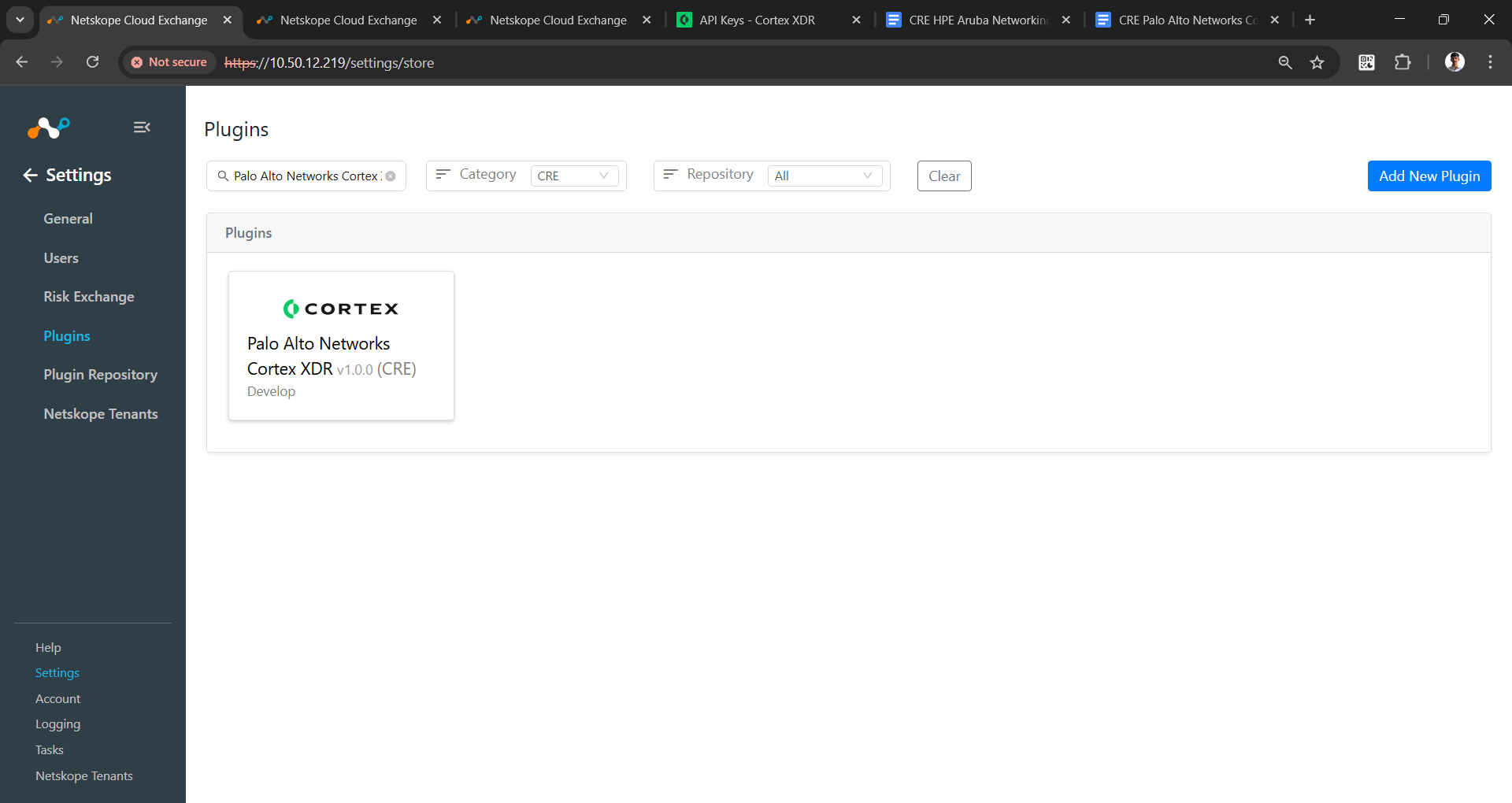
- Add a plugin configuration name, and change the sync interval if needed.
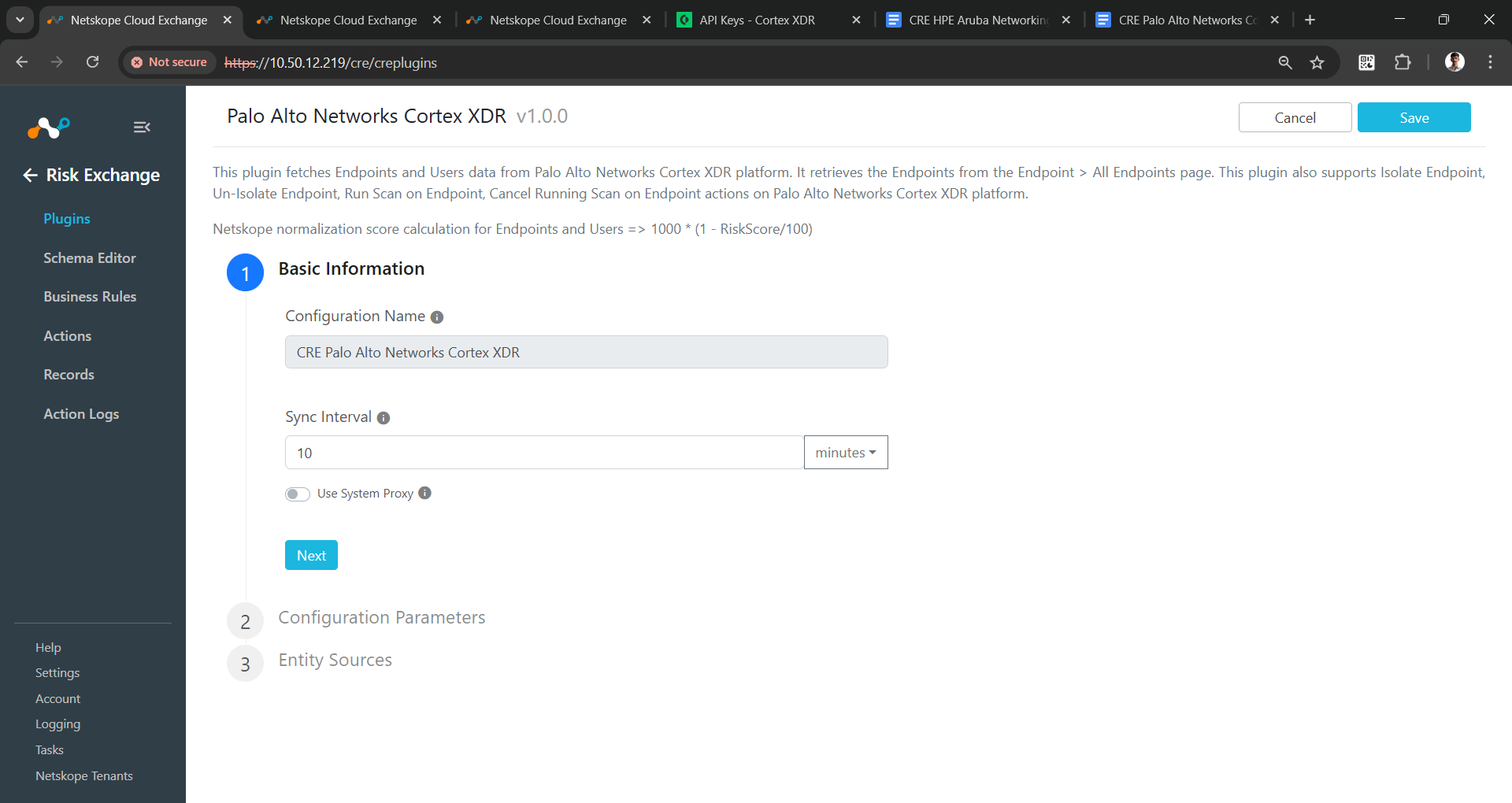
- Click Next and enter the configuration parameters:
- API Base URL: The API Base URL of your Palo Alto Networks Cortex XDR tenant. For example: https://api-<tenant-name>.xdr.<region>.paloaltonetworks.com.
- API Key ID: The API Key ID you copied previously.
- API Key: The API Key you copied previously.
- Authentication Method: Select the authentication method chosen while creating the API Key.
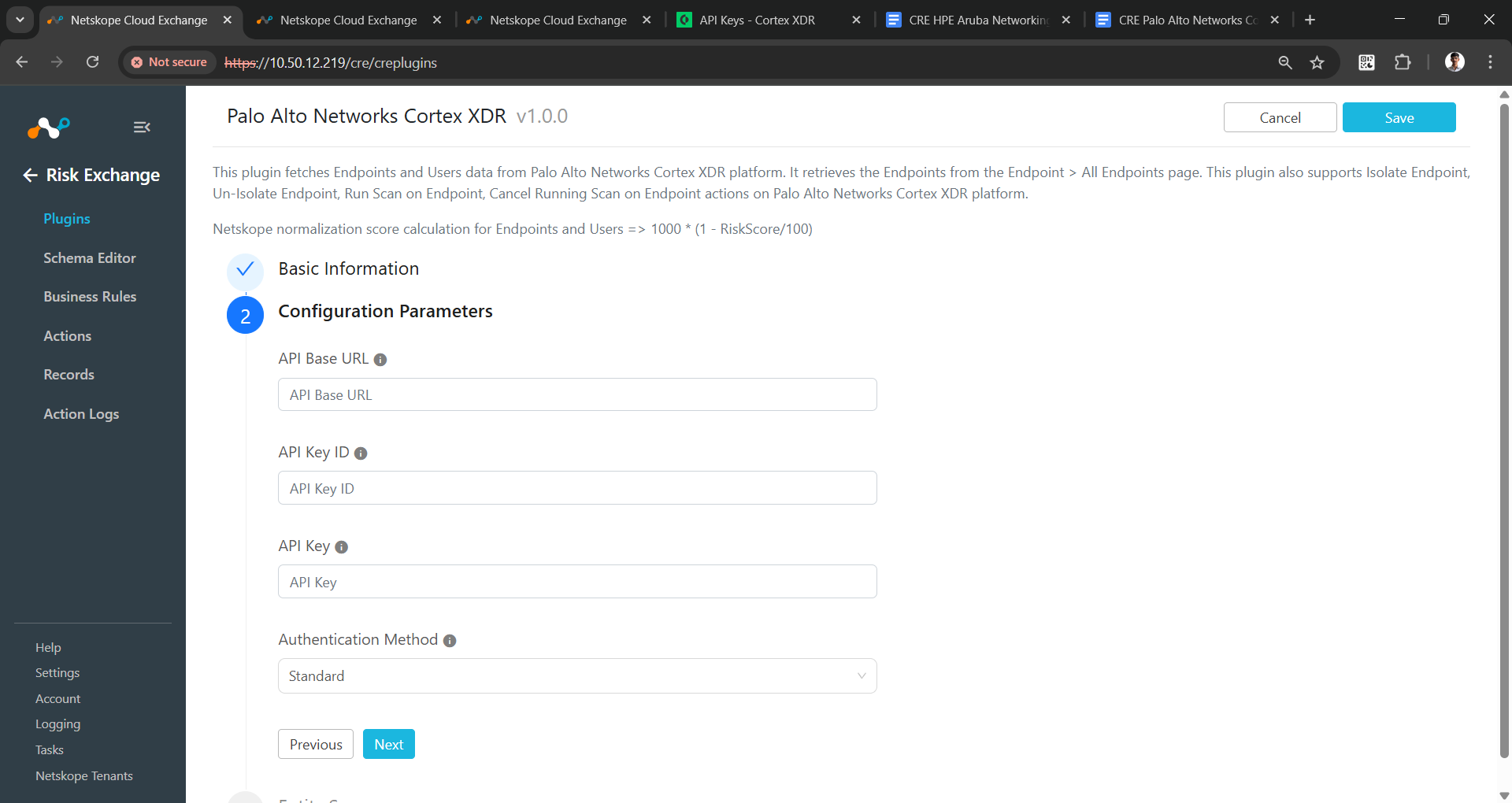
- Click Next. Select the Entity from the Entity dropdown. The Entity fields can be created from the Schema Editor page, or click + Add Field from the field dropdown. Provide the field mapping. For the suggested mappings, refer to Mappings.
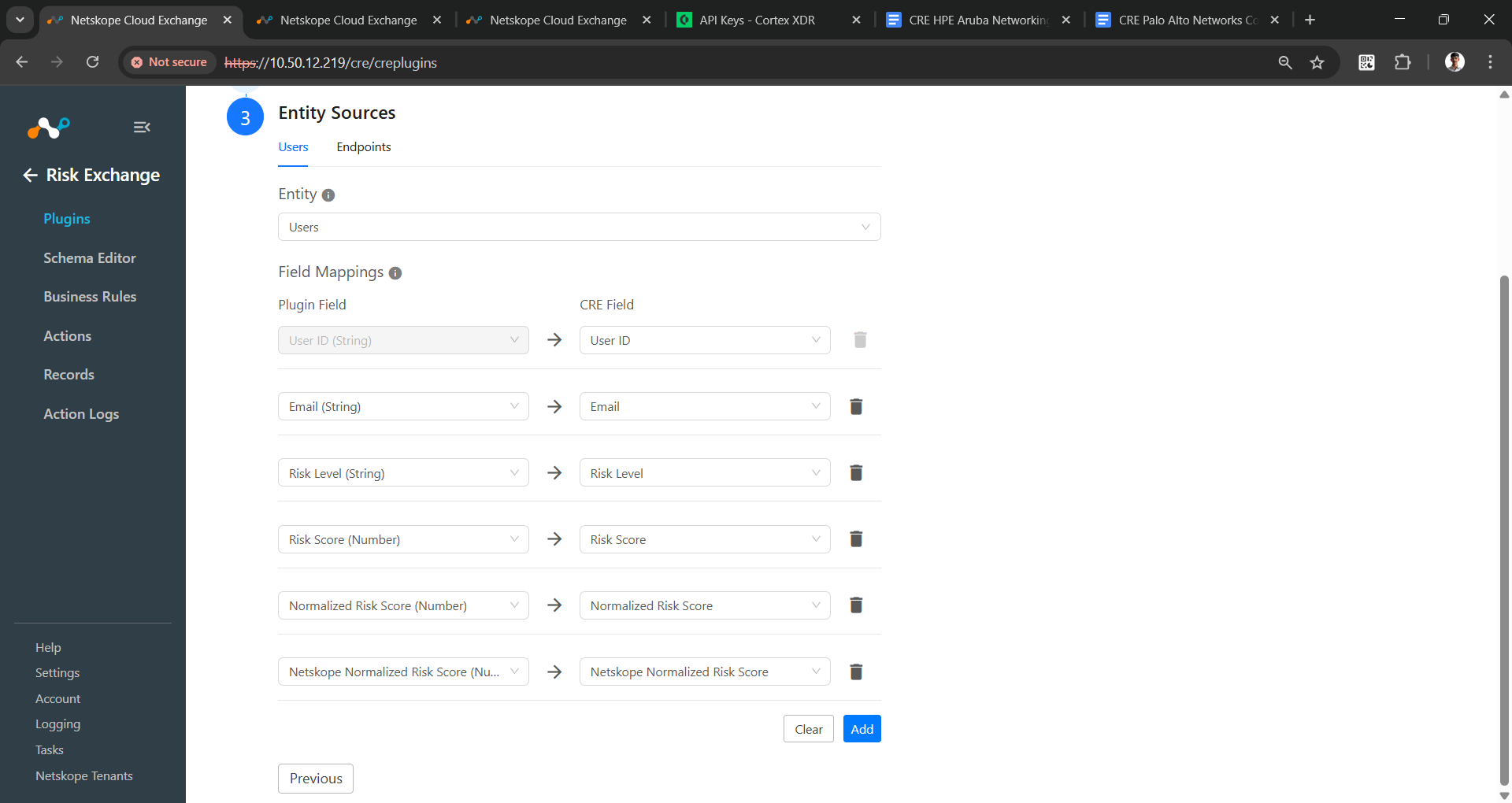
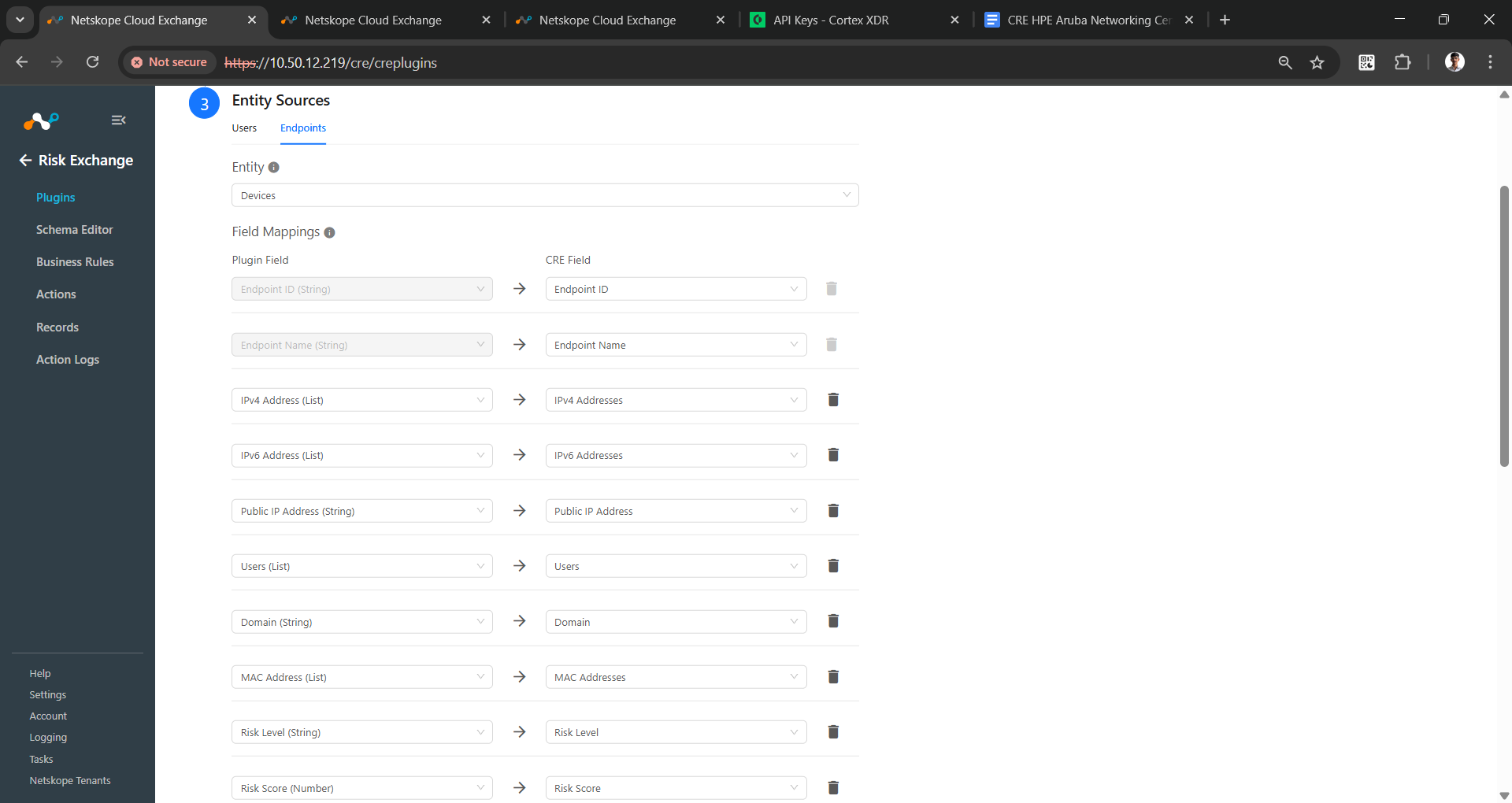
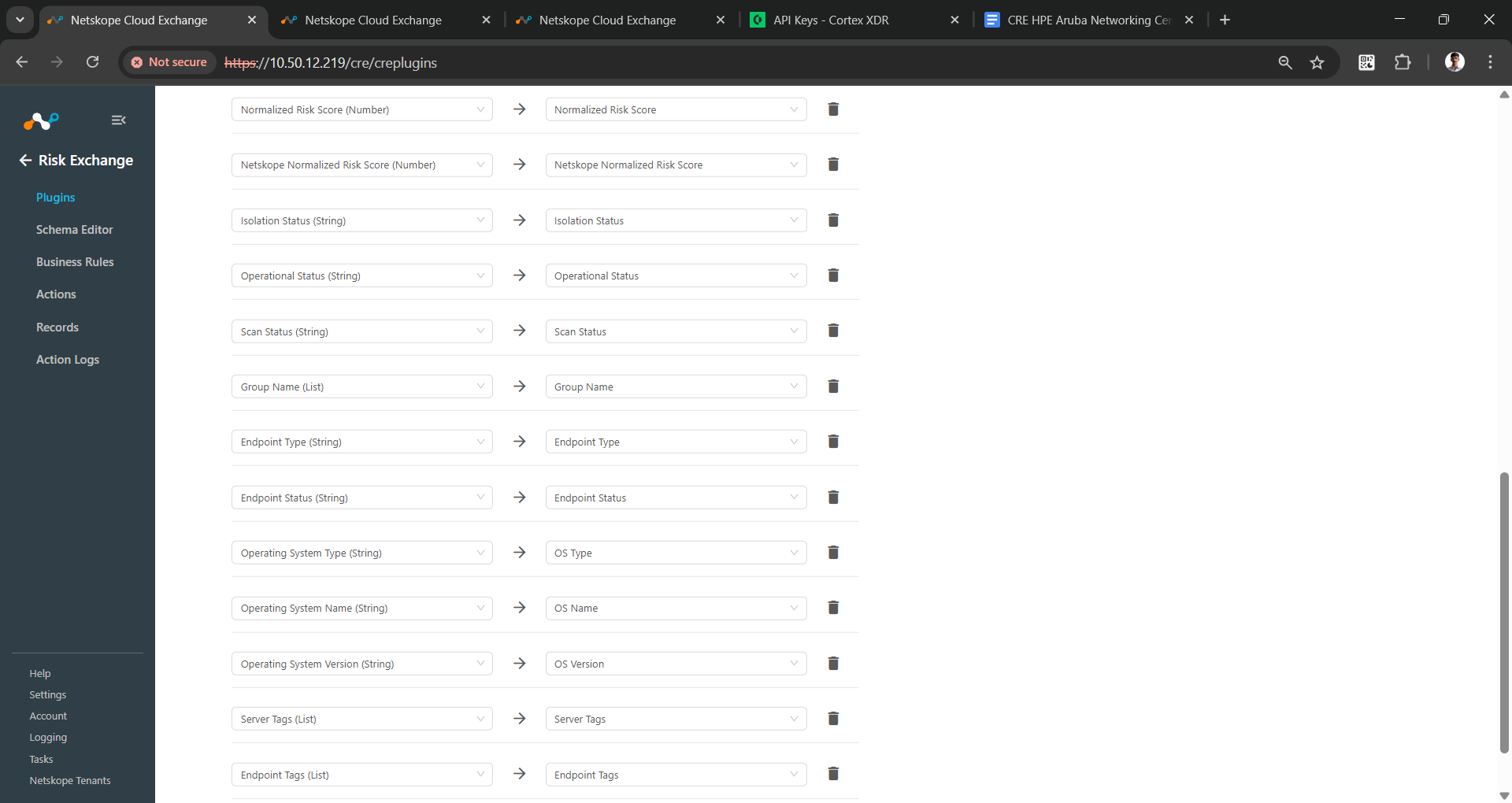
- Click Save.
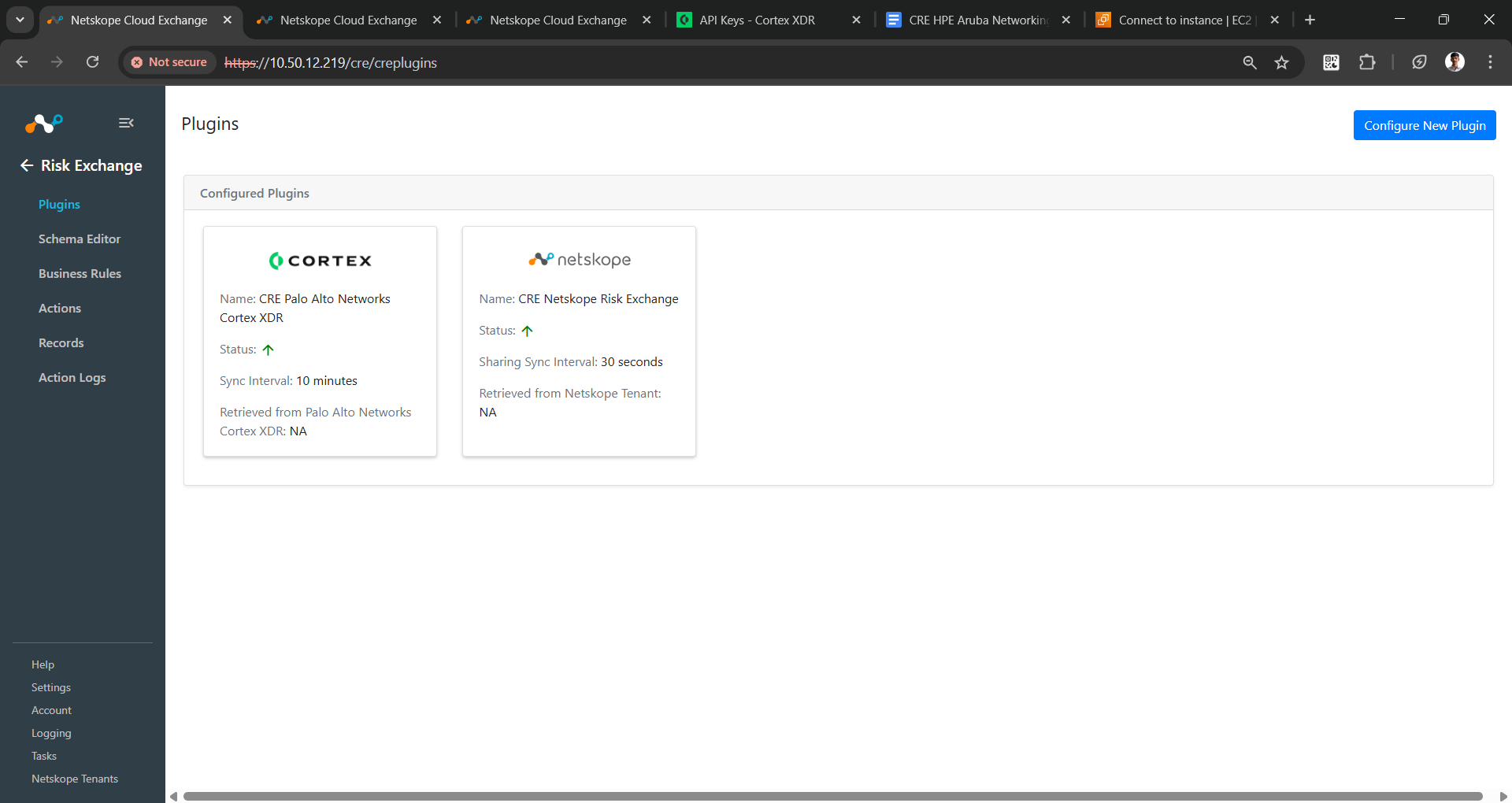
Add a Risk Exchange Business Rule for Palo Alto Networks Cortex XDR
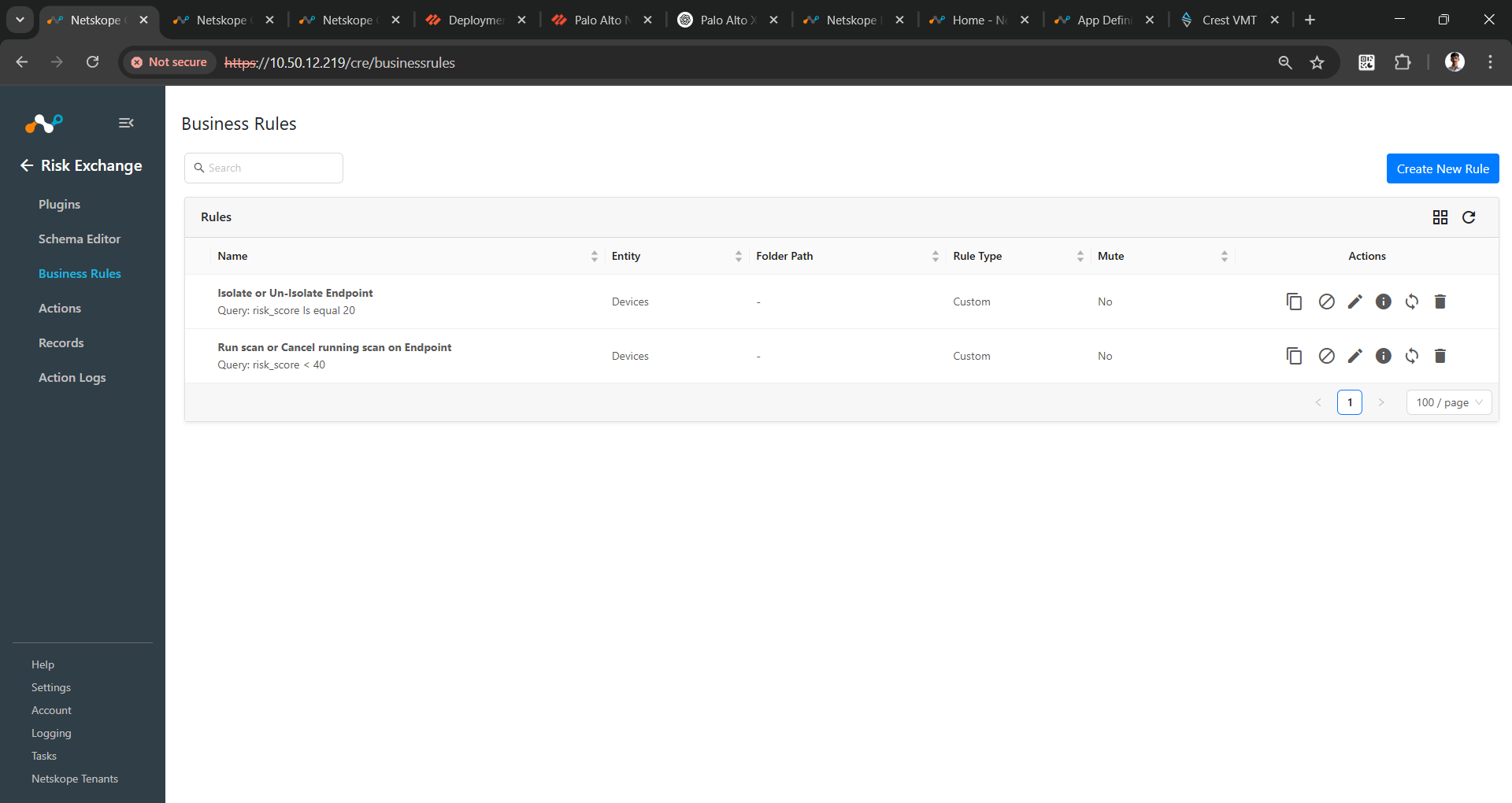
- In Risk Exchange, go to Business Rules.
- Click Create New Rule in the top right corner.
- Enter a Rule Name. Select the Entity Fields use to configure for the Palo Alto Networks Cortex XDR plugin, and configure the query based on your requirements. Click Save.
Add Risk Exchange Actions for Palo Alto Networks Cortex XDR
The Palo Alto Networks Cortex XDR plugin supports these actions for Endpoints:
- Isolate Endpoint will isolate the endpoint on Palo Alto Networks Cortex XDR.
- Un-isolate Endpoint will un-isolate the endpoint on Palo Alto Networks Cortex XDR.
- Run Scan on Endpoint will start scanning the endpoint on Palo Alto Networks Cortex XDR.
- Cancel Running Scan on Endpoint will stop running scans on the endpoint on Palo Alto Networks Cortex XDR.
- No Action will not perform any action on Users/Endpoints.
Note that you can perform the Netskope related actions on the Users and Endpoints pulled from Palo Alto Networks Cortex XDR. Refer to Risk Exchange in order to configure the actions and their validations.
To configure these actions, follow the steps in the appropriate section.
Isolate Endpoint
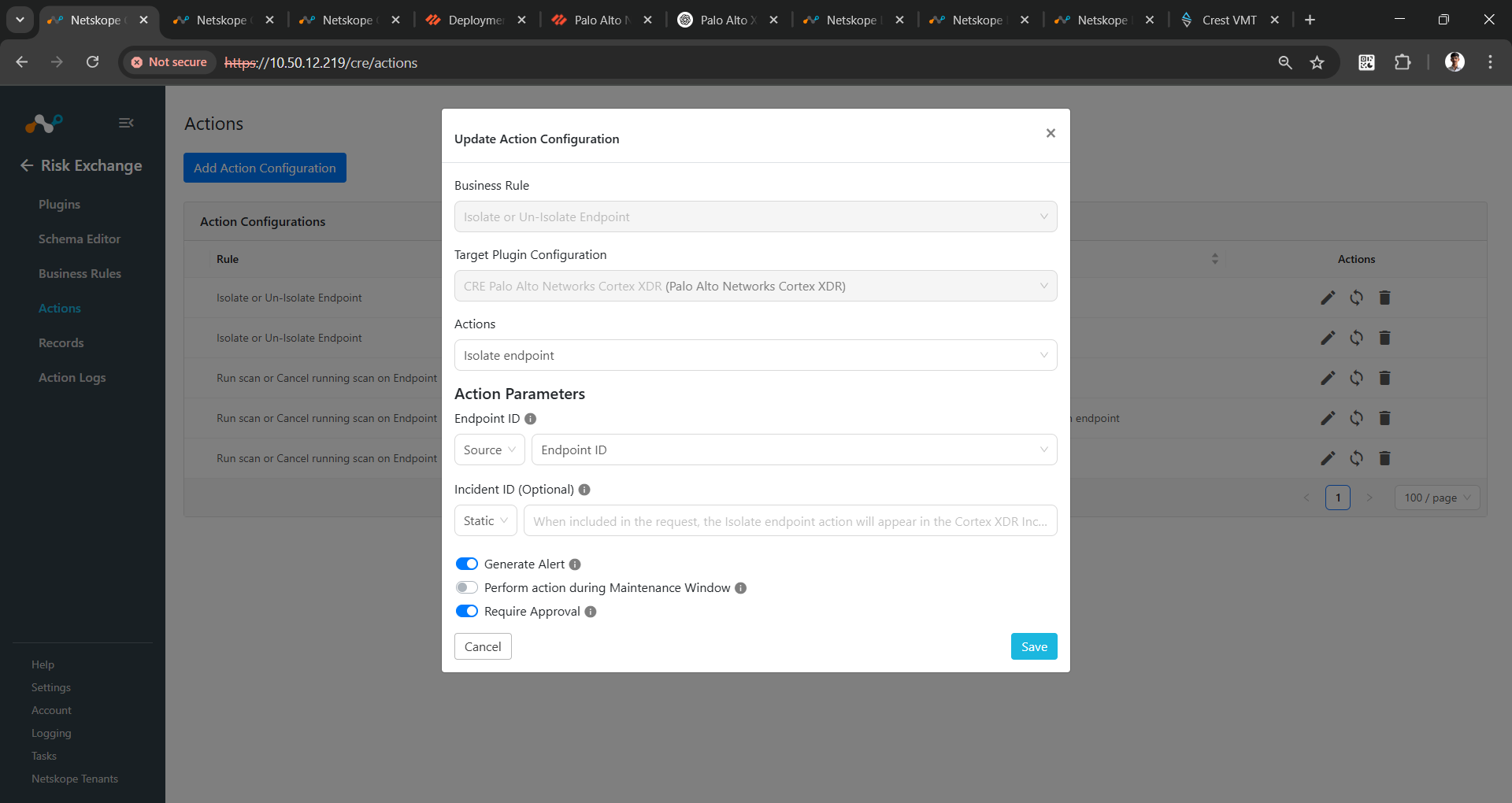
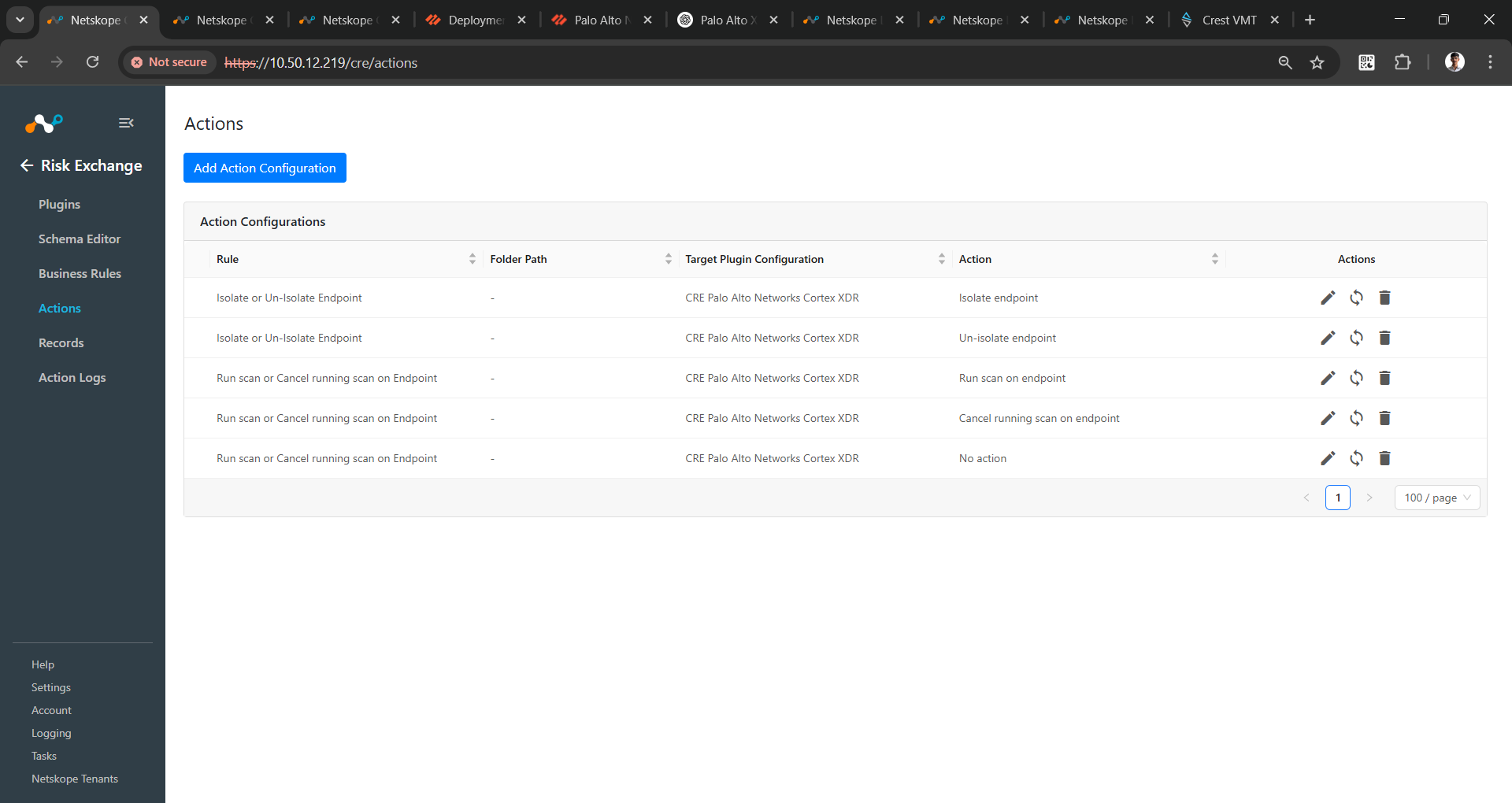
- In Risk Exchange, go to Actions and click Add Action Configuration.
- Select a Business Rule, and for Target Plugin Configuration, select your configured plugin.
- In the Actions dropdown, select Isolate Endpoint.
- For Action Parameters, select the option for Endpoint ID, if users need to filter out endpoints using business rules.
- Provide a static Incident ID, which can be created for an Incident on Palo Alto Networks Cortex XDR Incident ViewTimeline tab.
- Enable the Require Approval toggle if Approval is needed before performing action on the users.
- Click Save.
Un-isolate Endpoint
- In Risk Exchange, go to Actions and click Add Action Configuration.
- Select a Business Rule, and for Target Plugin Configuration, select your configured plugin.
- In the Actions dropdown, select Un-isolate Endpoint.
- For Action Parameters, select the option for Endpoint ID, if users need to filter out endpoints using business rules.
- Provide a static Incident ID, which can be created for an Incident on Palo Alto Networks Cortex XDR Incident ViewTimeline tab.
- Enable the Require Approval toggle if Approval is needed before performing action on the users.
- Click Save.
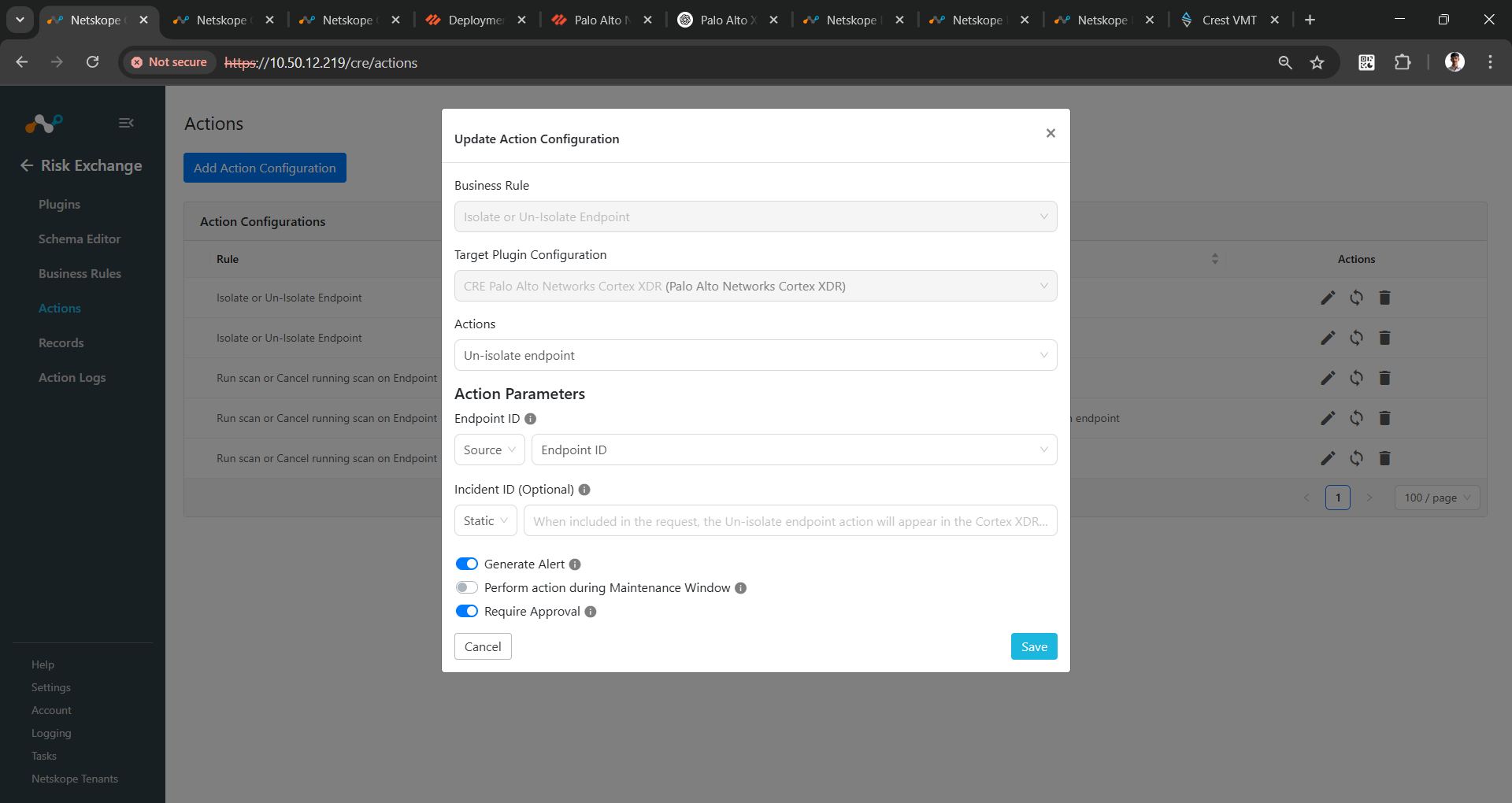
Run a Scan on an Endpoint
- In Risk Exchange, go to Actions and click Add Action Configuration.
- Select a Business Rule, and for Target Plugin Configuration, select your configured plugin.
- In the Actions dropdown, select Run Scan on Endpoint.
- For Action Parameters, select the option for Endpoint ID, if users need to filter out endpoints using business rules.
- Provide a static Incident ID, which can be created for an Incident on Palo Alto Networks Cortex XDR Incident ViewTimeline tab.
- Enable the Require Approval toggle if Approval is needed before performing action on the users.
- Click Save.
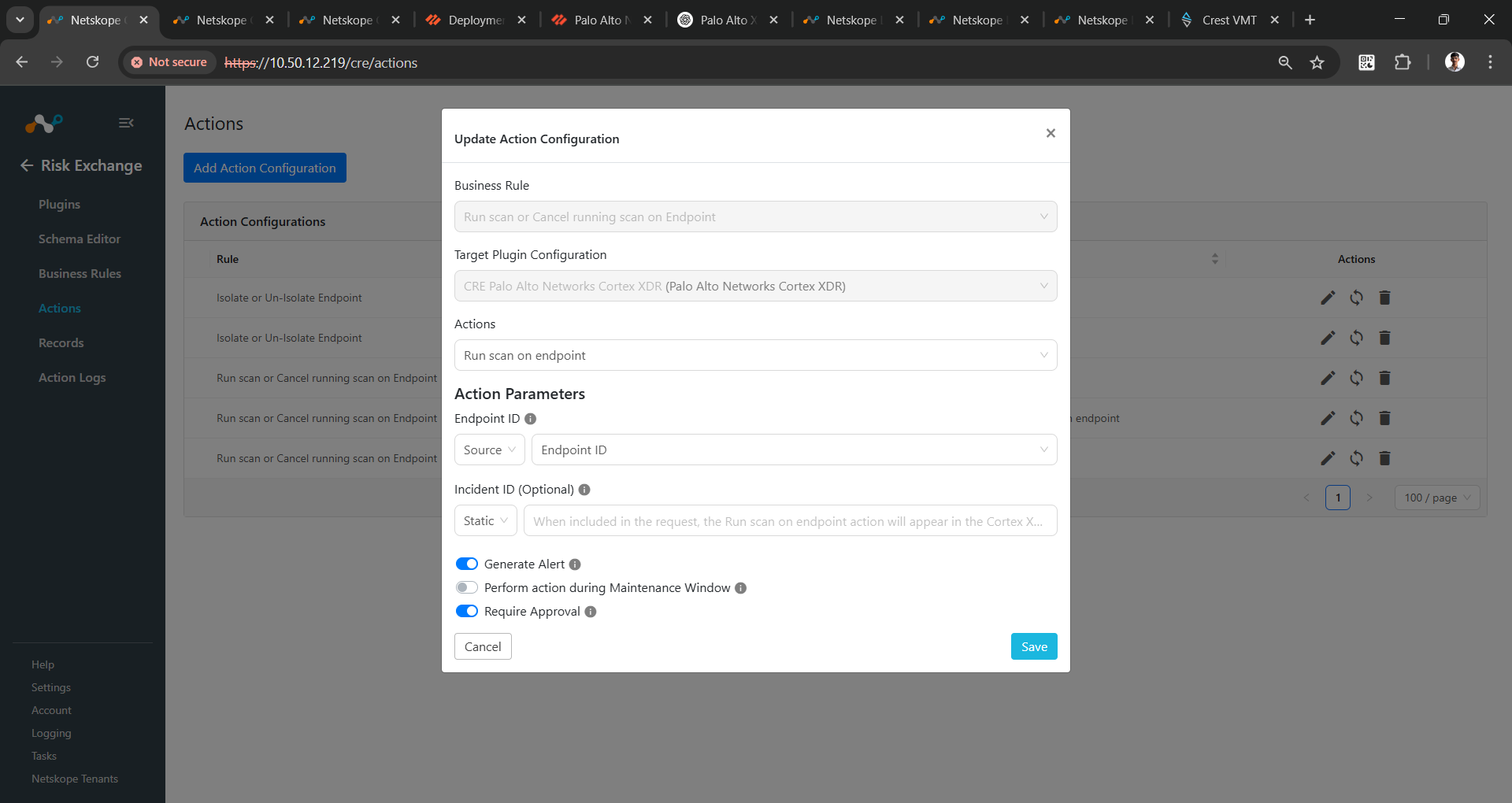
Cancel Running a Scan on an Endpoint
- In Risk Exchange, go to Actions and click Add Action Configuration.
- Select a Business Rule, and for Target Plugin Configuration, select your configured plugin.
- In the Actions dropdown, select Cancel Running Scan on Endpoint.
- For Action Parameters, select the option for Endpoint ID, if users need to filter out endpoints using business rules.
- Provide a static Incident ID, which can be created for an Incident on Palo Alto Networks Cortex XDR Incident ViewTimeline tab.
- Enable the Require Approval toggle if Approval is needed before performing action on the users.
- Click Save.
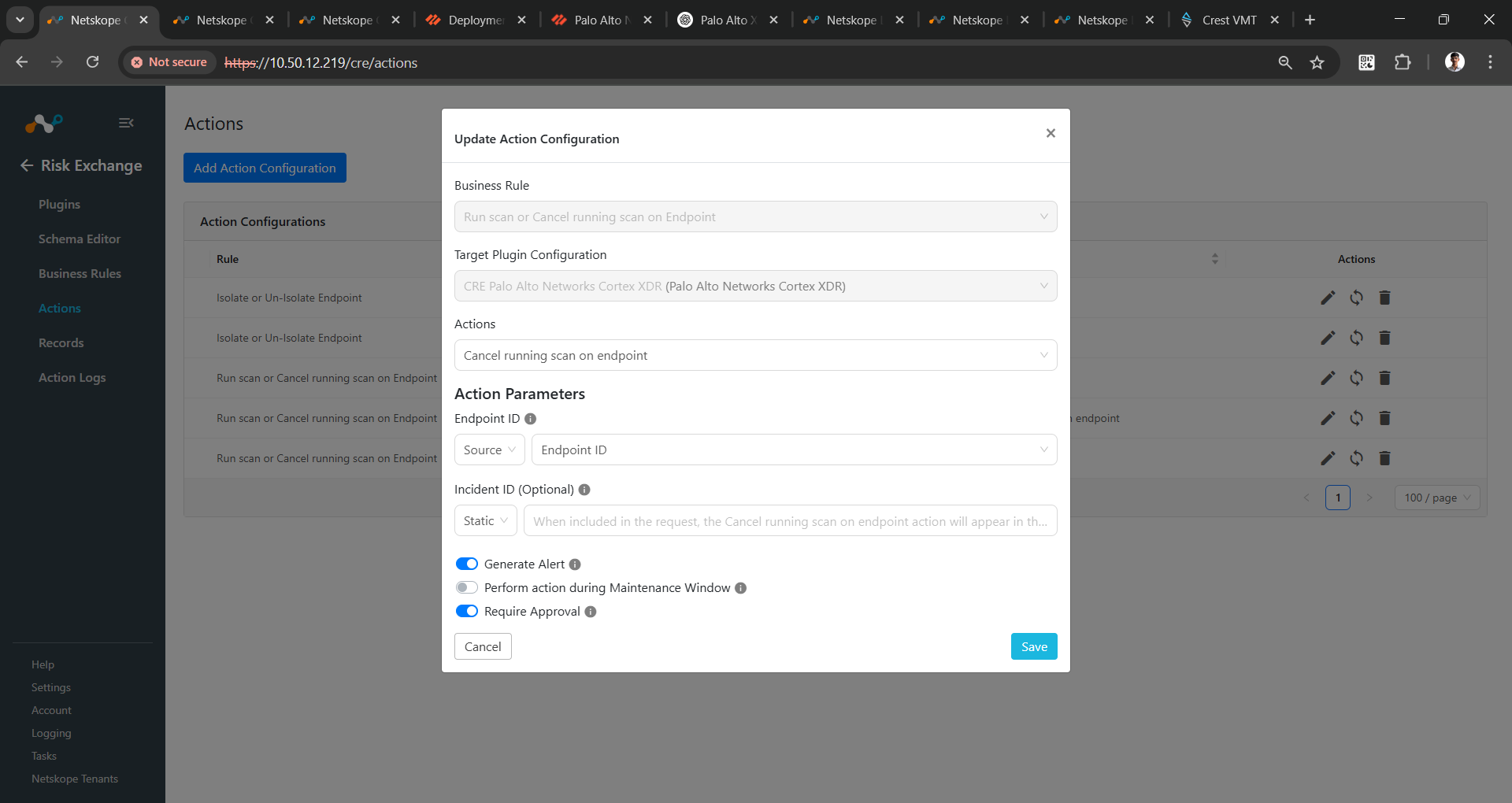
No Action
- In Risk Exchange, go to Actions and click Add Action Configuration.
- Select a Business Rule, and for Target Plugin Configuration, select your configured plugin.
- In the Actions dropdown, select No Actions and enable the “Generate Alert” toggle button to generate alerts in the Ticket Orchestrator.
- Enable the Require Approval toggle if Approval is needed before performing action on the users.
- Click Save.
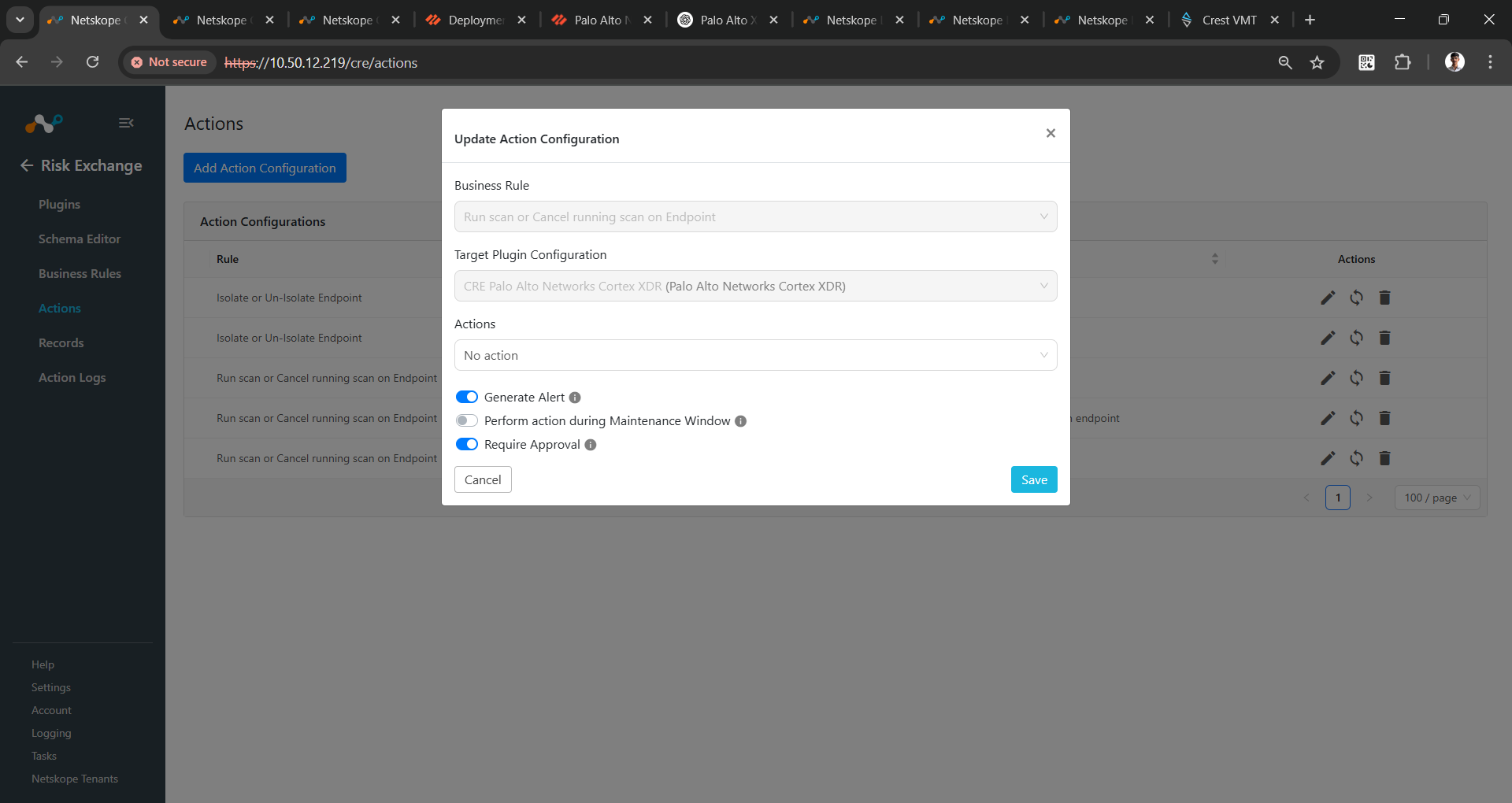
The Palo Alto Networks Cortex XDR plugin supports following actions for Users: No Action will not perform any action on Users.
Validate the Palo Alto Networks Cortex XDR Plugin
Validate in Palo Alto Networks Cortex XDR
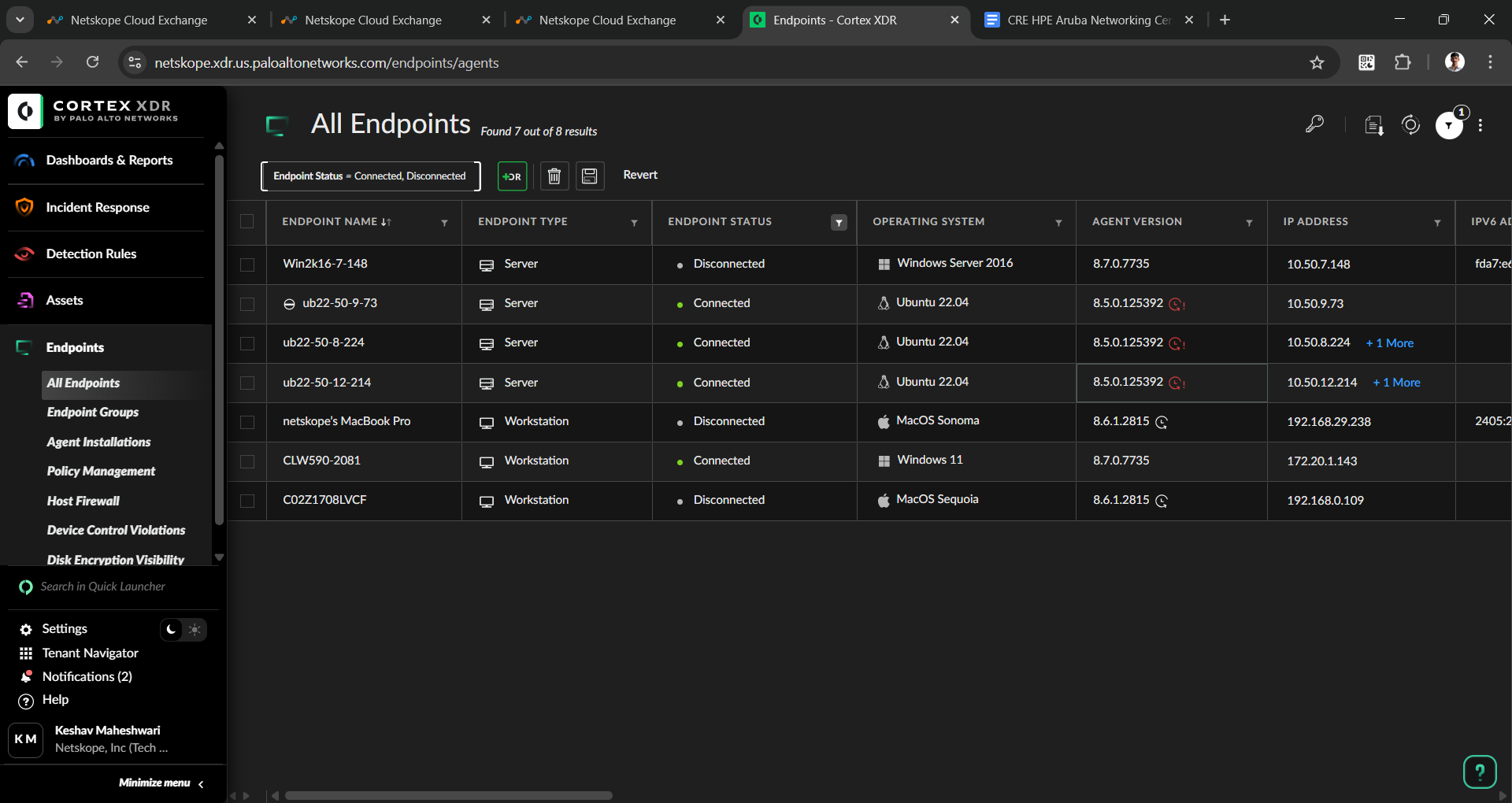
We pull Users and Endpoints from Palo Alto Networks Cortex XDR. The Endpoints are pulled from the Endpoint > All Endpoints page.
The logs for all the performed actions can be seen in the Incident Response > Response > Action Center page.
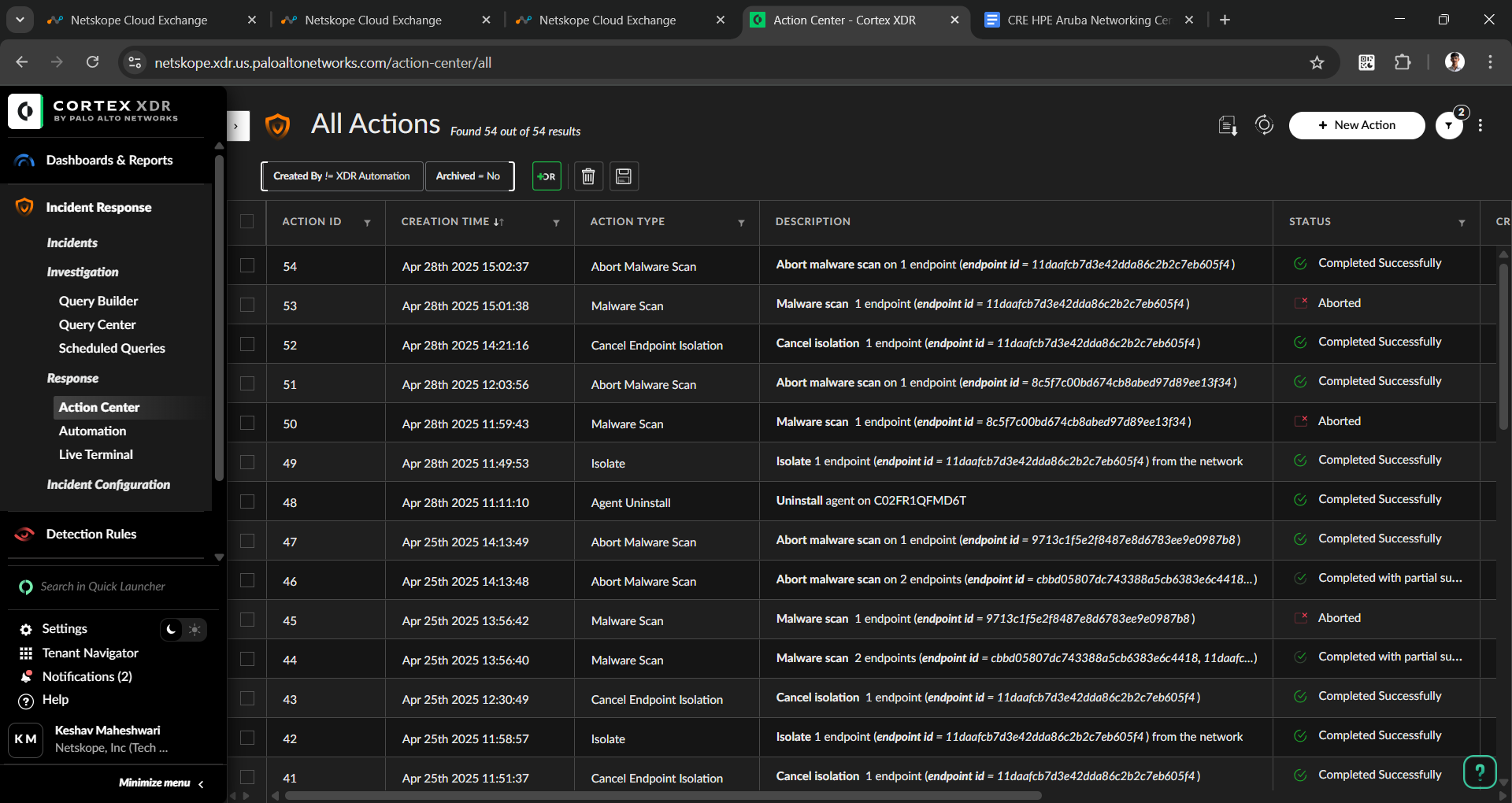
Note for Un-isolate endpoint, Run scan on endpoint, and Cancel Run scan on endpoint actions, Cancel Isolation, Malware scan, and Abort Malware scan, are the respective labels on the Palo Alto Networks Cortex XDR platform.
Validate in Cloud Exchange
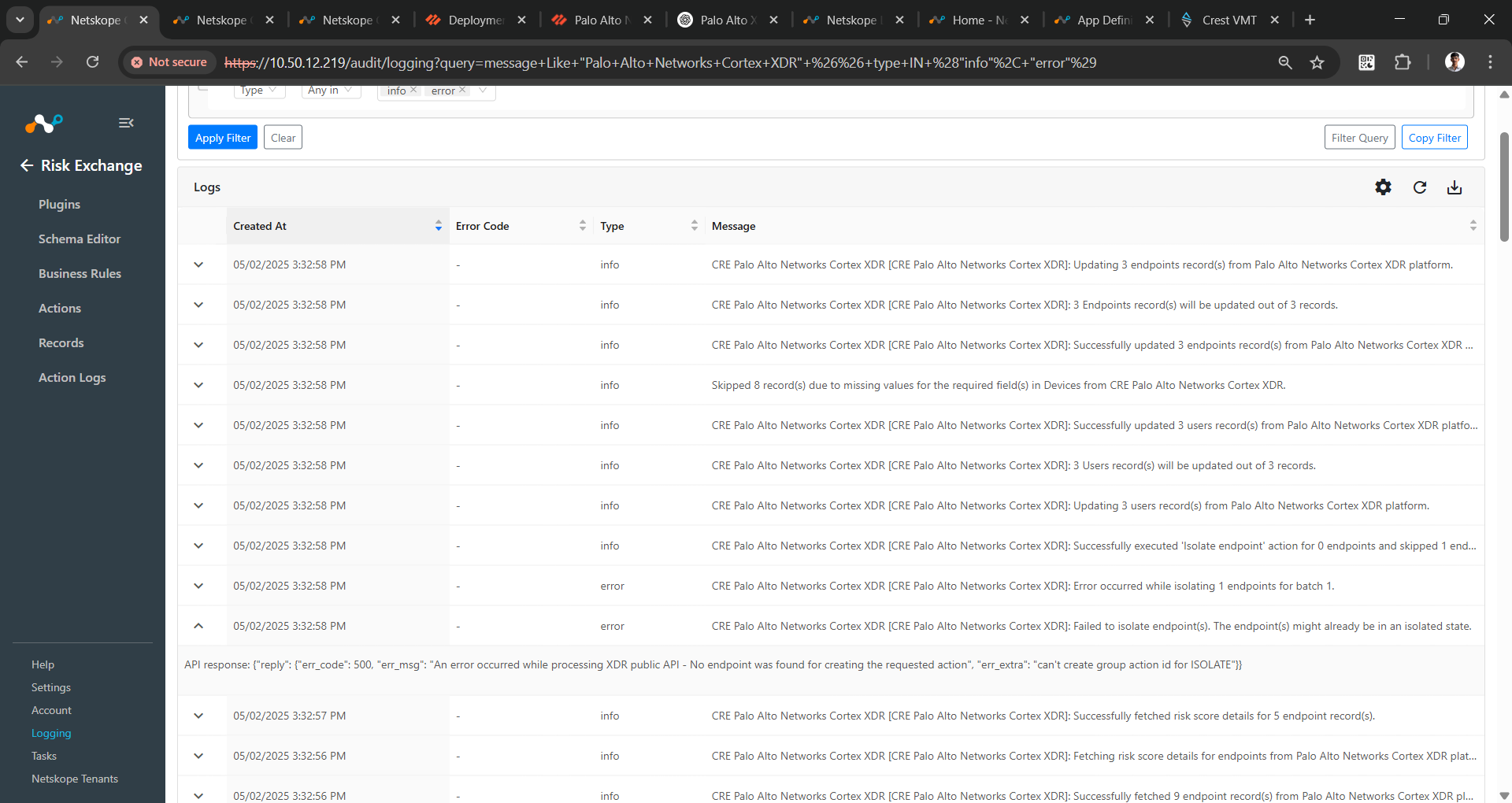
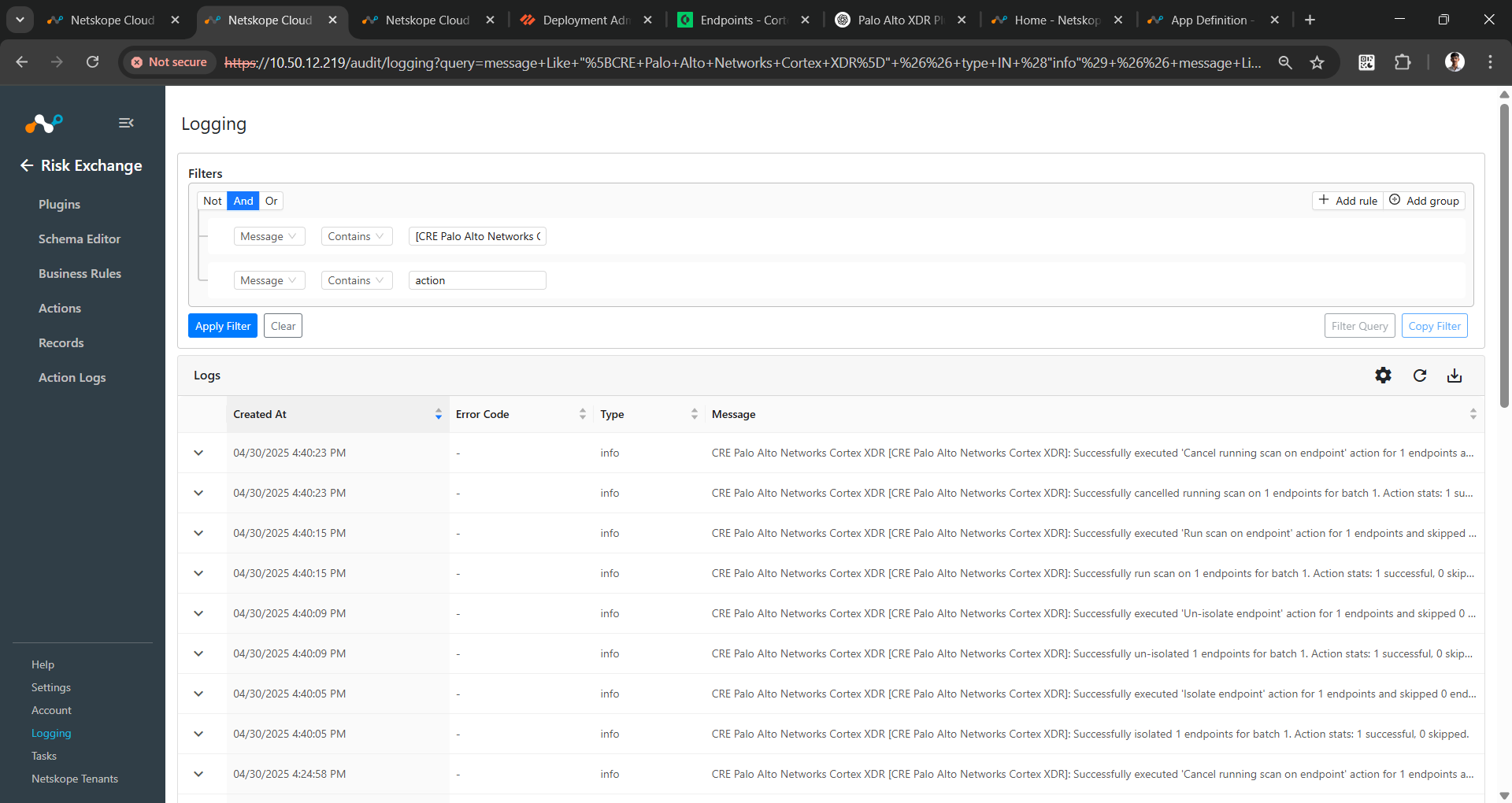
To verify the Users and Endpoints pulled from Palo Alto Networks Cortex XDR, go to Logging and search for the logs from the Palo Alto Networks Cortex XDR plugin. You can search with a query like message Like “CRE Palo Alto Networks Cortex XDR”
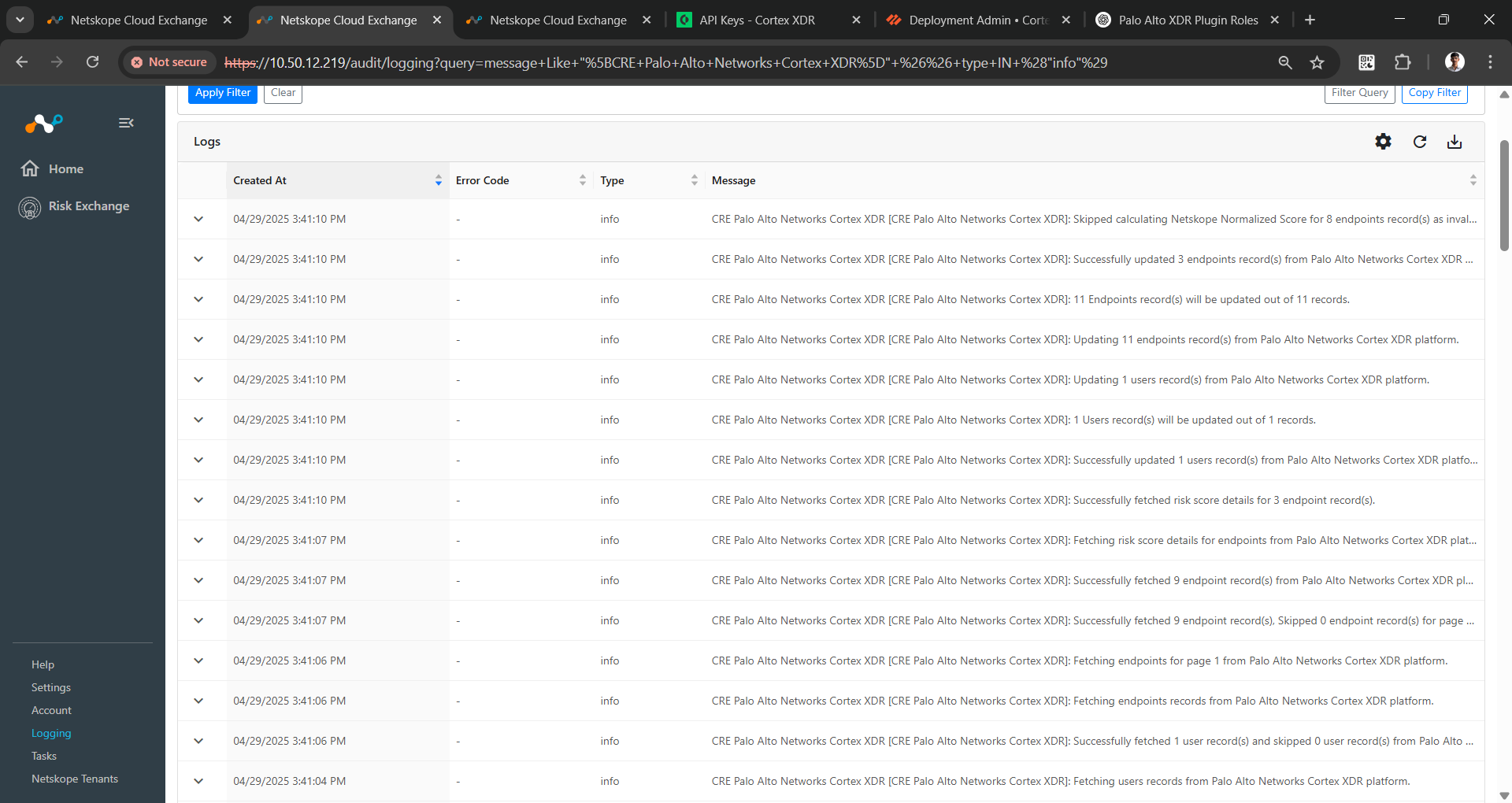
To check the execution of actions, check the logs.
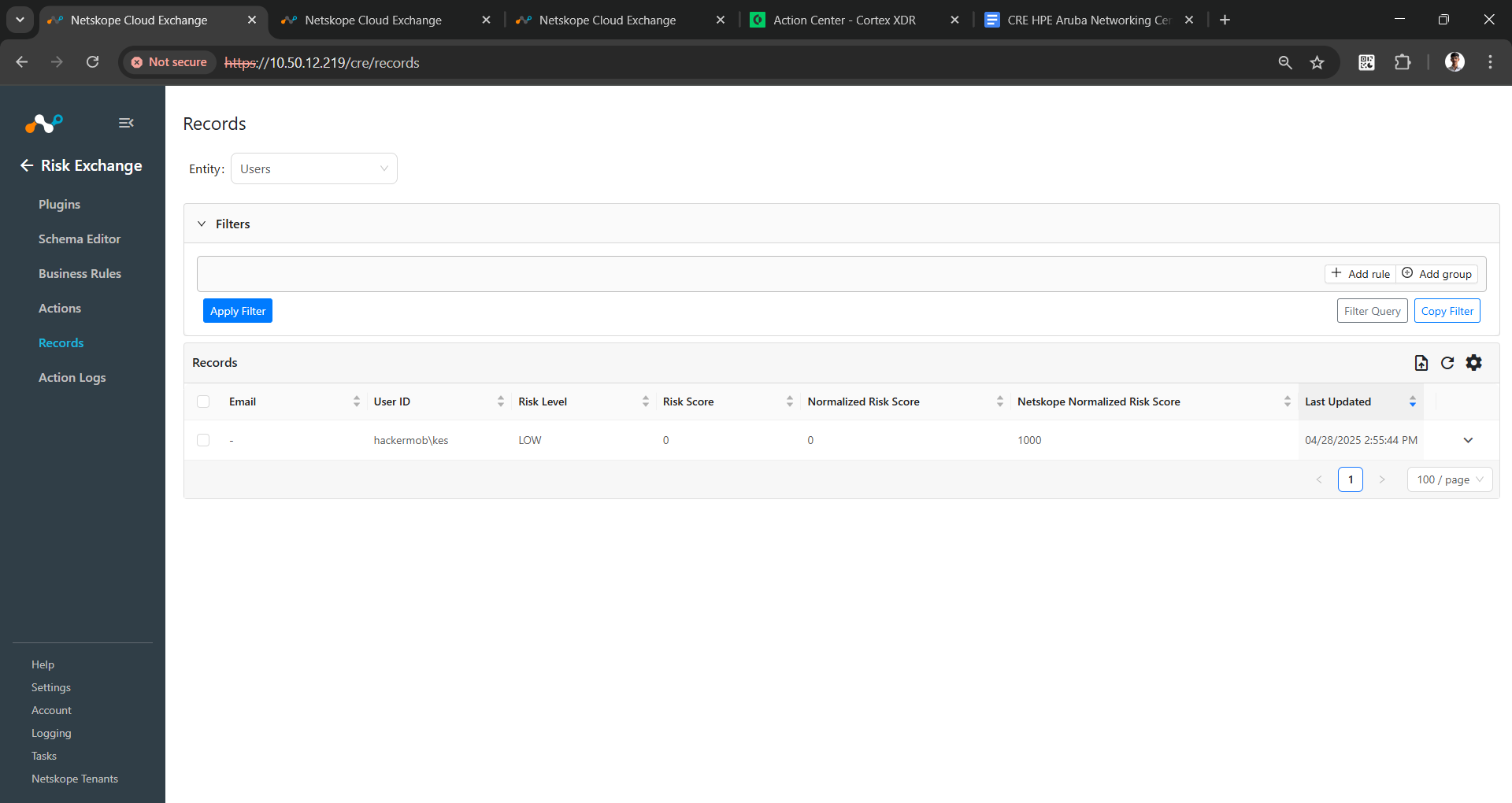
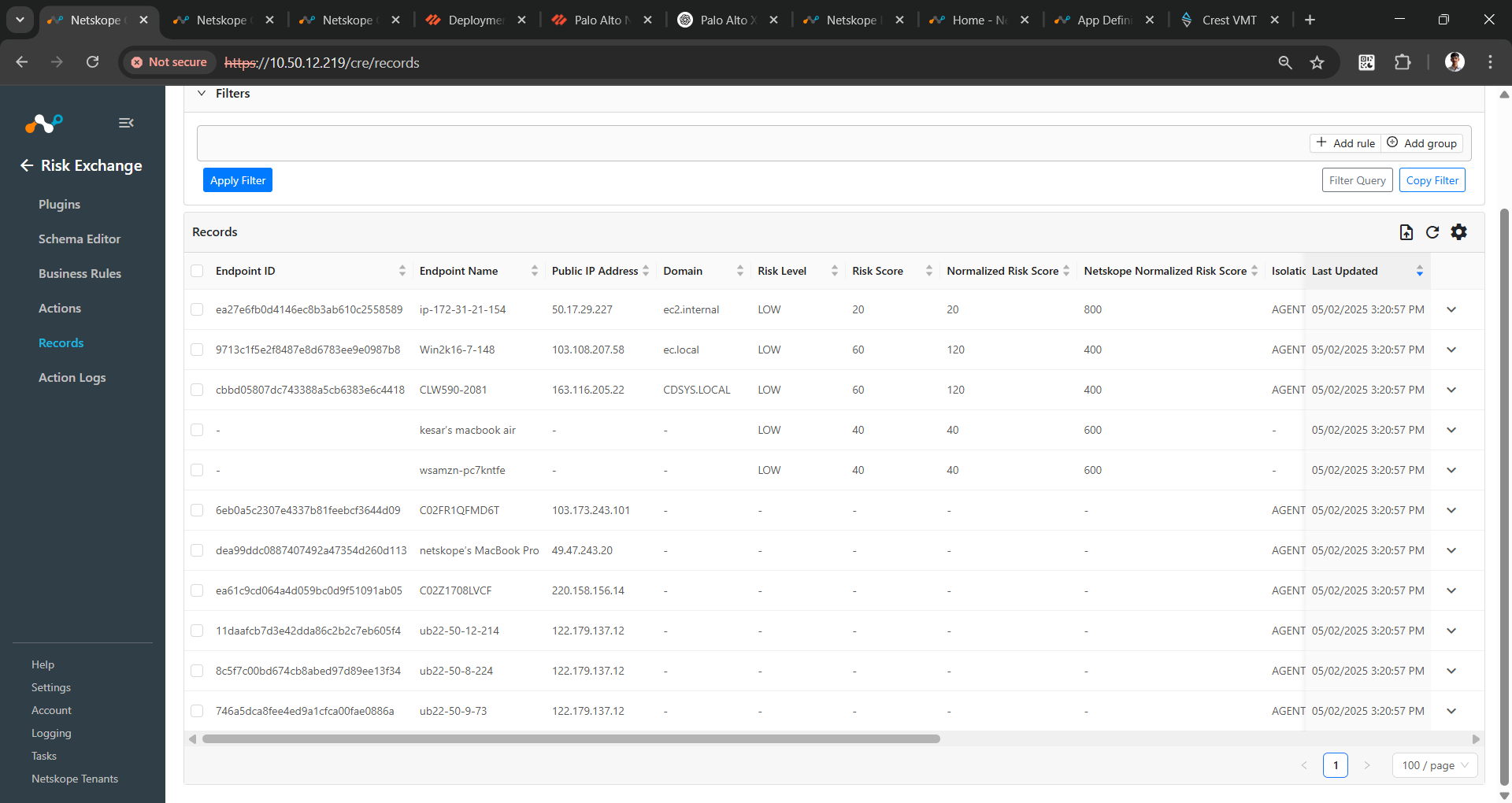
To check the records pulled and stored in Risk Exchange, go to Records. Select the entity that you used while adding the mappings in the plugin configuration.
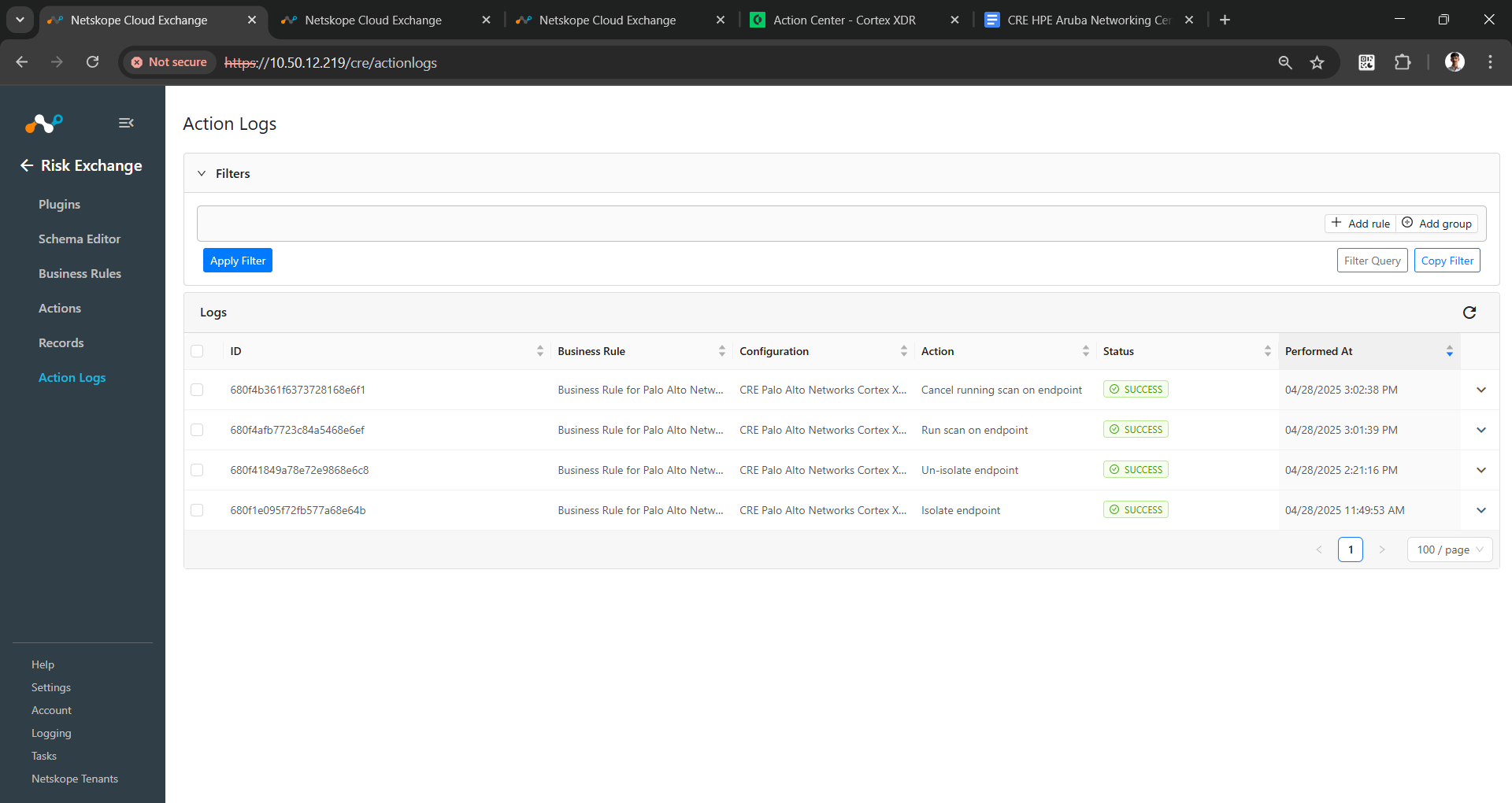
Also, you can verify the Action logs for performed actions.
Troubleshooting the Palo Alto Networks Cortex XDR Plugin
Receiving error in the plugin workflow
CRE Palo Alto Networks Cortex XDR [configuration_name]: Validation error occurred, Received exit code 401, Unauthorized, Verify API Key and API Key ID provided in the configuration parameters.
What to do: Verify the API Key and API Key ID for Palo Alto Networks Cortex XDR.
Endpoints are not pulled from Palo Alto Networks Cortex XDR
If no data for the Endpoints are pulled, it might be due to one of these reasons:
- No Endpoint data is available on the platform to pull
- Mapping is not added in the plugin
What to do:
- Go to Palo Alto Networks Cortex XDR and check if the Endpoints are available to pull from the Endpoint > All Endpoints page.
- Edit the plugin configuration and check the Entity Source page, there should be some fields mapped in order to pull the same.
Unable to perform action on Palo Alto Networks Cortex XDR
If the Endpoint fails to perform any of the actions, it might be due to one of these reasons:
- The Endpoint does not exist on Palo Alto Networks Cortex XDR
- Due to an API Limitation in Palo Alto Cortex XDR. If one of the following scenarios occur, you will not be able to perform these actions:
- If endpoint is already isolated and we perform Isolate Endpoint action on the same endpoint
- If endpoint is already un-isolated and we perform Un-isolate Endpoint action on the same endpoint
- If scan is already running and we perform Run Scan on Endpoint action on the same endpoint
- If scan in not running on endpoint and we perform Cancel Running Scan on Endpoint action on the same endpoint
Netskope Normalized Score is not calculated
If the Netskope Normalized Score is not calculated for any of the records, it might be due to the record not having any of the required fields. If so, tt will not calculate the Netskope Normalized Score for that record.
Known Behavior
It has been noticed that, if any of the actions performed twice on the same endpoint, the API is giving error code 500, and we will not be able to perform the action a second time.