

This guide outlines the steps to create an IAM role in AWS, grant the minimum required permissions to read secrets from AWS Secrets Manager, and configure the credentials used to authenticate. The collected values map directly to the AWS Secrets Manager provider fields in the Cloud Exchange Secrets Manager UI.
Click play to watch a video.
Create an IAM Role
Begin by creating an IAM role in the AWS account that holds the secrets. This creates the Identity that Cloud Exchange will use.
Use the official AWS Guide for this step: Create an IAM role.
Grant Access to Secrets Manager (Least Privilege)
After the identity exists, grant it permission to read secrets. Use a customer managed policy that allows only secretsmanager:GetSecretValue, which allows reading secret values, but not creating, updating, or deleting them.
- Go to the IAM console.
- In the left menu, select Policies.
- Click Create policy and select the JSON tab.
- Paste the following policy, replacing
<region>,<account-id>, and<secret-name>with the values for the environment.{
"Version": "2012-10-17",
"Statement": [
{
"Effect": "Allow",
"Action": "secretsmanager:GetSecretValue",
"Resource": [
"arn:aws:secretsmanager:<region>:<account-id>:secret:<secret-name>-*",
"arn:aws:secretsmanager:<region>:<account-id>:secret:netskope-ce-validation-probe*"
]
}
]
} - Click Next, enter a policy name (like Netskope CE Secrets Read), and click Create policy.
- Go to Roles and select the role created in Part 1.
- Click Add permissions and select Attach policies.
- Select the policy created above and click Add permissions.
kms:Decrypt on that key.Create a secret on AWS Secrets Manager
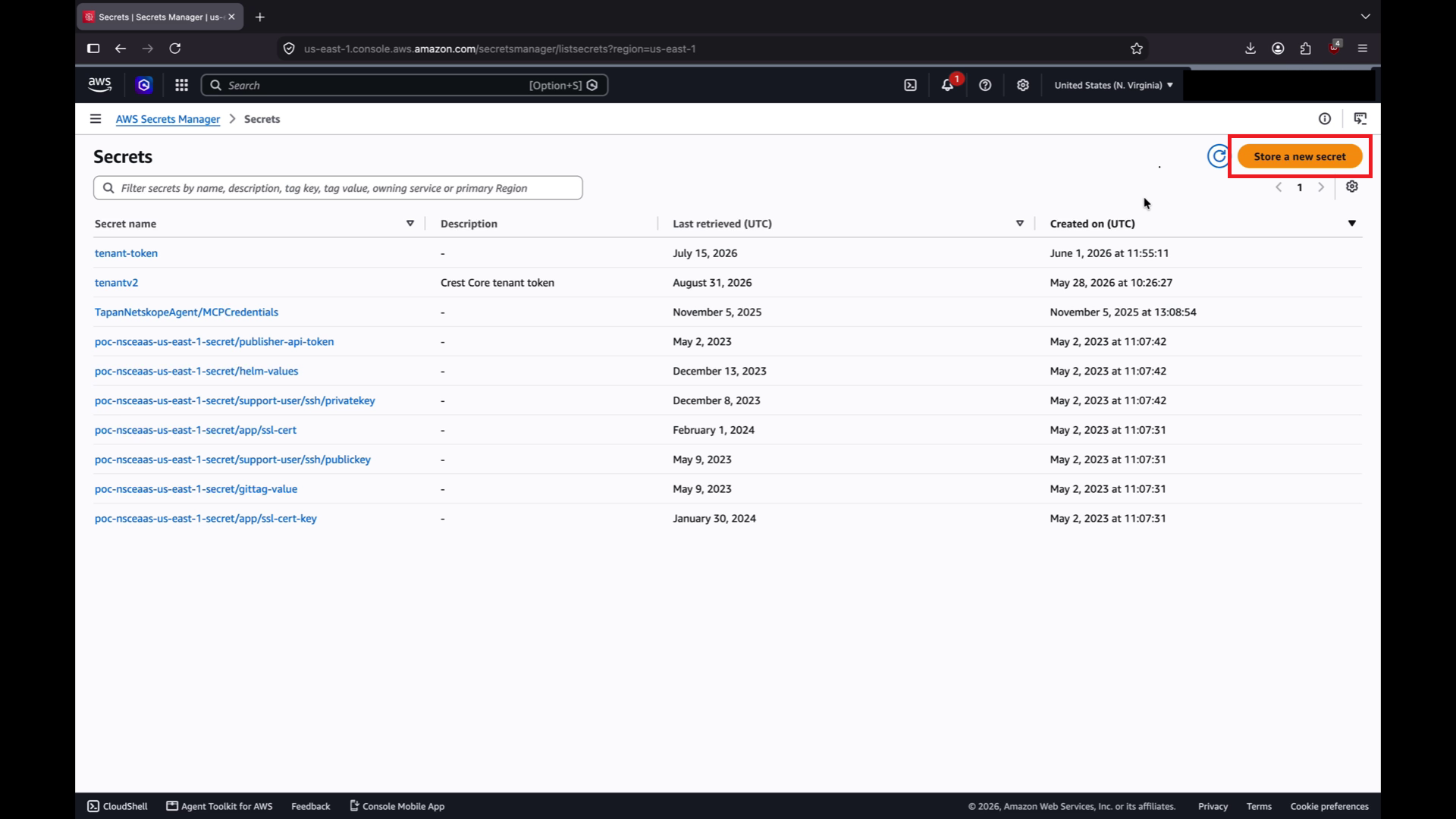
- Sign into your AWS console and select AWS Secrets Manager service. Then click on Store a new Secret button.
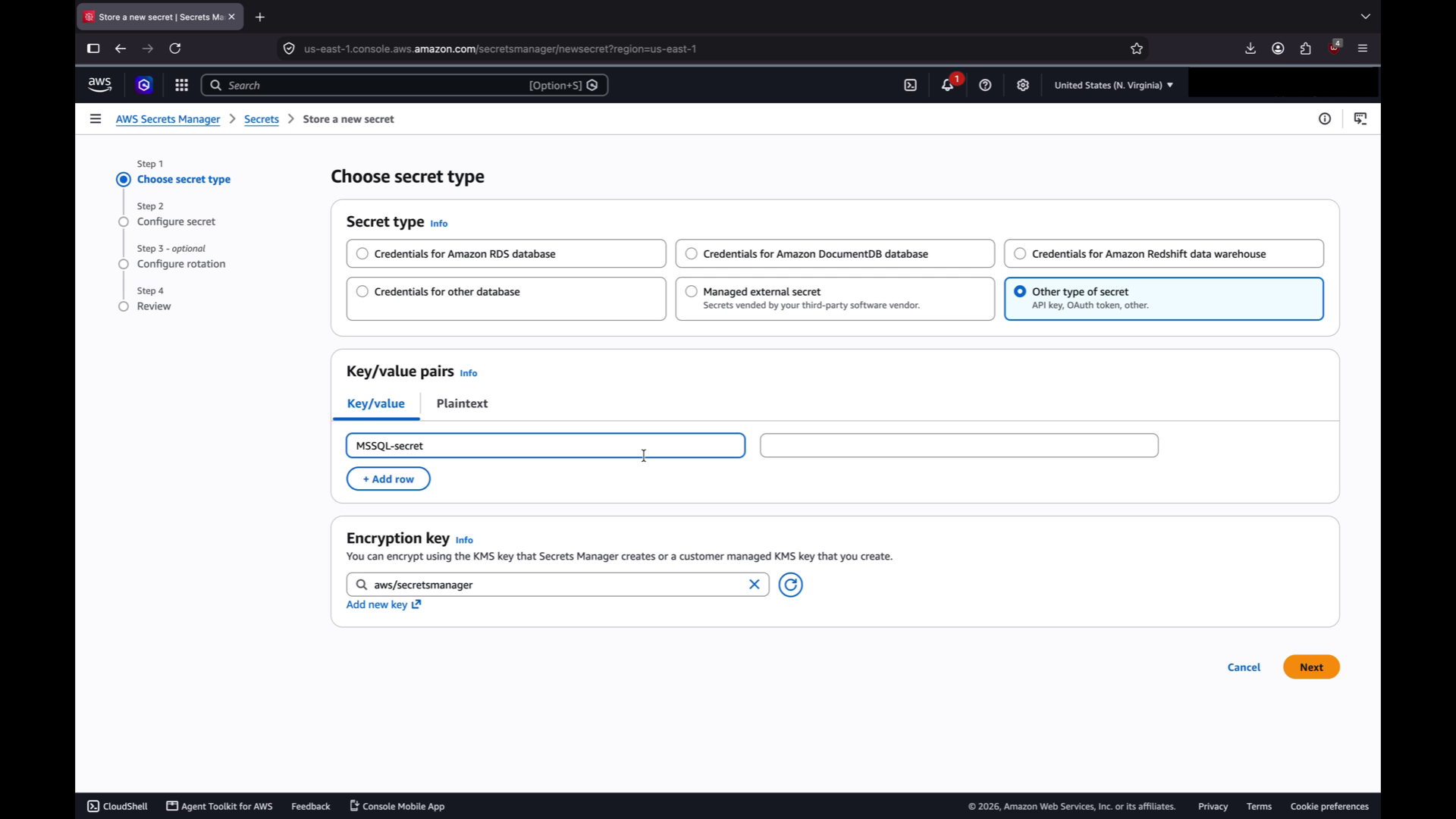
- For secret type, choose Other type of secret. In Key/Value pairs section, enter the Secret Key and Secret value. This Secret Key would be used during plugin configuration. Click Next to proceed.
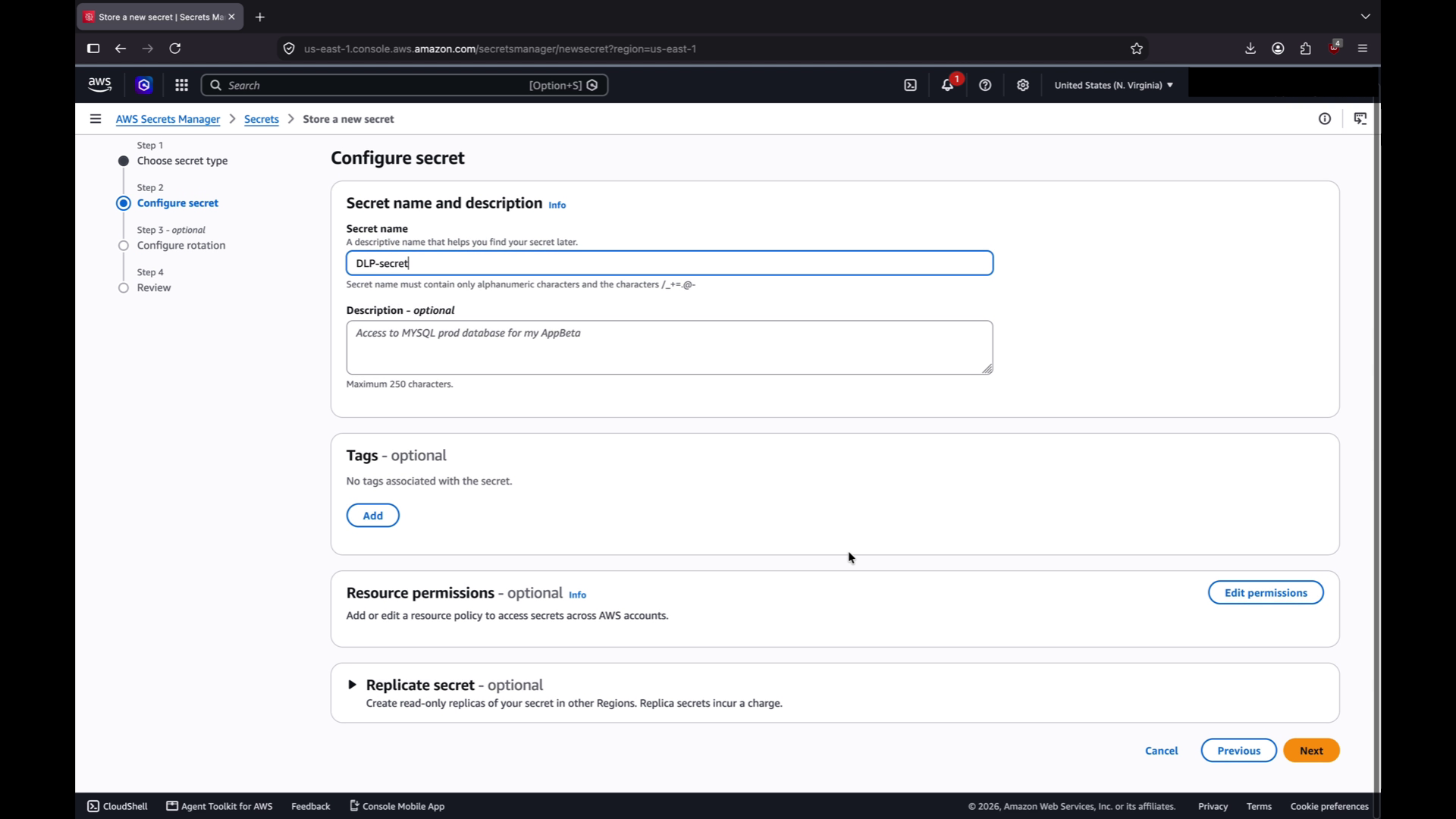
- Enter Secret Name in Secret Name and Description section. This Secret Name would be used during plugin configuration. Click Next to proceed.
- Optionally, setup rotation if required and then click Next to proceed.
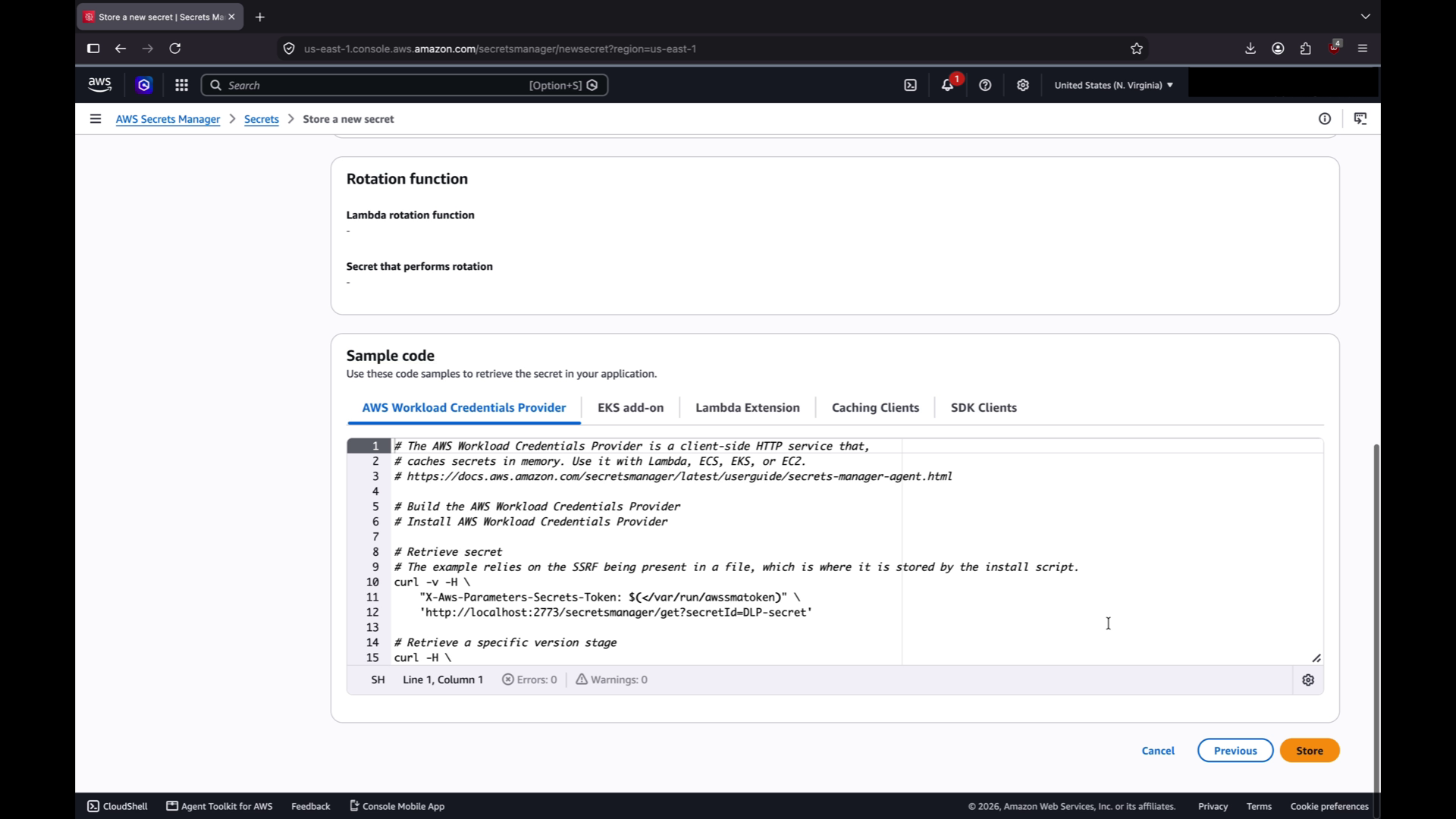
- Finally, review the secret and click Store to store the secret.
Configure Authentication Credentials
Choose one of the following options to authenticate. These values populate the Authentication Method, Region, and credential fields in the Secrets Manager UI.
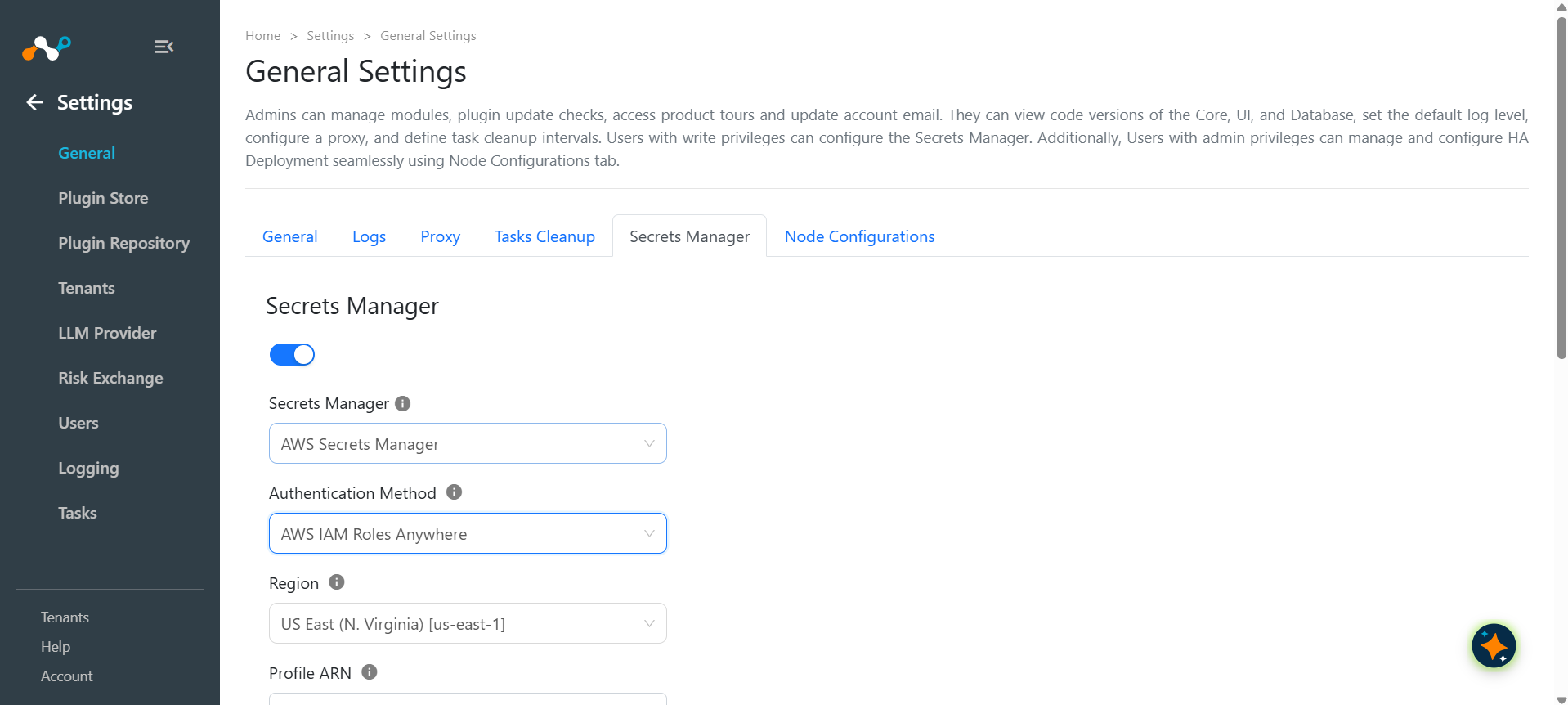
Option A: Deployed on AWS (Instance or Task Role)
Use this option when Cloud Exchange runs on AWS infrastructure. Credentials are read from the default AWS credential chain, so no keys are entered in Cloud Exchange.
- Go to the EC2 console and select the instance that runs Cloud Exchange.
- Click Actions > Security > Modify IAM role.
- Select the role created in Part 1 and click Update IAM role.
- In Cloud Exchange, set Authentication Method to Deployed on AWS.
- Select the Region in which the secrets are stored.
Option B: AWS IAM Roles Anywhere (Certificate-based)
Use this option when Cloud Exchange runs outside AWS. Before proceeding, ensure the X.509 client certificate and its private key are available in PEM format.
- Go to IAM > Roles Anywhere in the AWS console.
- Click Create a trust anchor and upload the certificate authority (CA) that issued the client certificate.
- Record the Trust Anchor ARN.
- Click Create a profile, select the role created in Part 1, and click Create profile.
- Record the Profile ARN.
- Go to Roles, select the role, and open the Trust relationships tab.
- Click Edit trust policy, paste the following, and click Update policy.
{
  "Version": "2012-10-17",
  "Statement": [
    {
      "Effect": "Allow",
      "Principal": {
        "Service": "rolesanywhere.amazonaws.com"
      },
      "Action": [
        "sts:AssumeRole",
        "sts:TagSession",
        "sts:SetSourceIdentity"
      ]
    }
  ]
} - In Cloud Exchange, set Authentication Method to AWS IAM Roles Anywhere and enter the Profile ARN, Role ARN, Trust Anchor ARN, Certificate Body, and Private Key. Provide the Private Key Passphrase if the private key is encrypted.
Using AWS Secrets Manager’s Secrets in Configuration
After the AWS Secrets Manager is configured, the stored secrets can be used to configure plugins using the Secret ID and Secret Key.
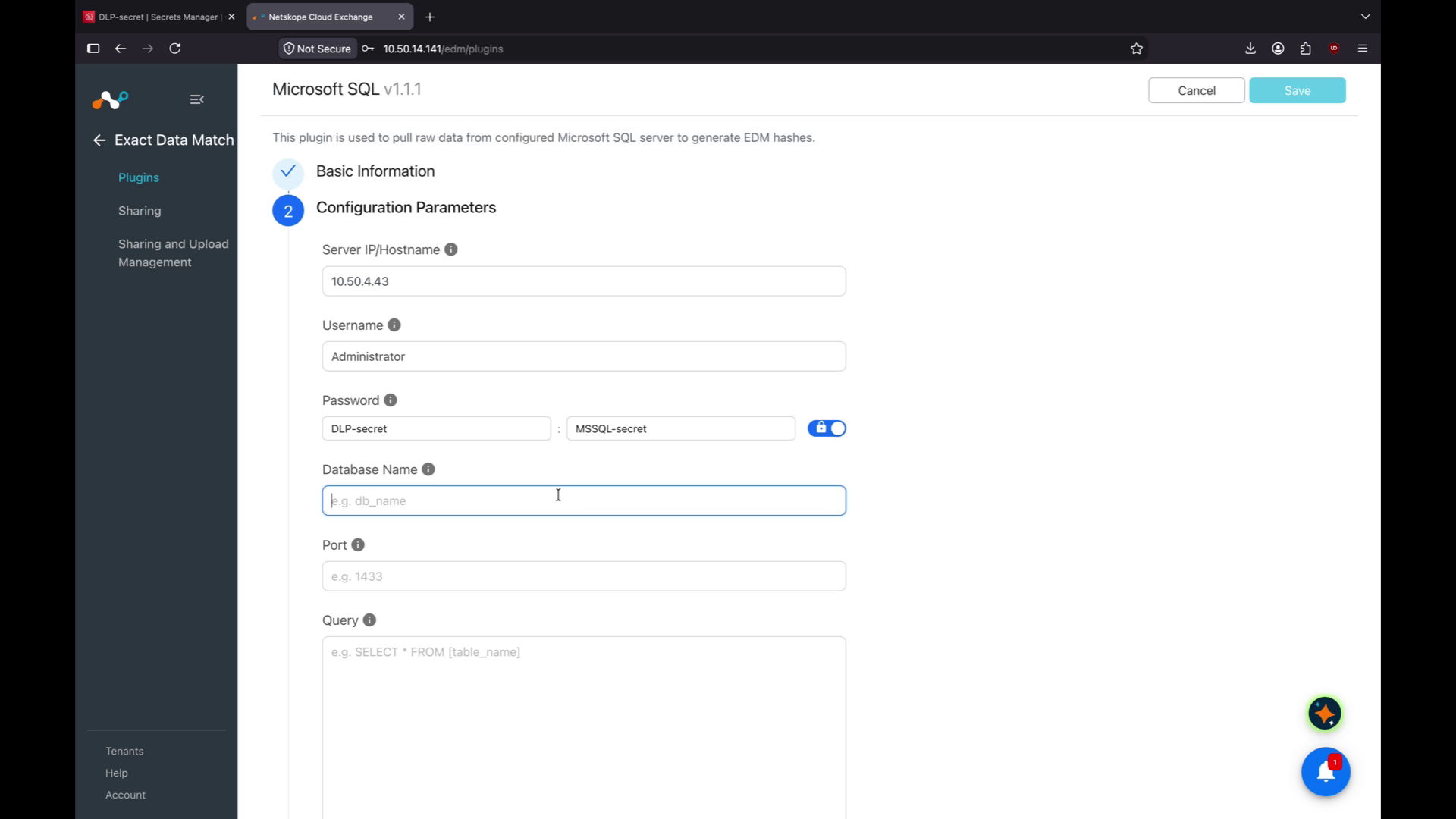
Summary of Required Configuration Params
When completed, the following parameters are required to configure the product:
| Parameter | Source |
|---|---|
| Authentication Method | Deployed on AWS (Option A) or AWS IAM Roles Anywhere (Option B) |
| Region | AWS Console > Secrets Manager > the region that holds the secret |
| Profile ARN | (If Option B) IAM > Roles Anywhere > Profiles > Profile ARN |
| Role ARN | (If Option B) IAM > Roles > Overview > ARN |
| Trust Anchor ARN | (If Option B) IAM > Roles Anywhere > Trust anchors > Trust Anchor ARN |
| Certificate Body | (If Option B) The PEM client certificate issued by the trust anchor CA. |
| Private Key | (If Option B) The PEM private key for the client certificate. |
| Private Key Passphrase | (If Option B & the private key is encrypted) The passphrase entered. |
| Secret ID | Secrets Manager > Secrets > Secret name column, or the secret ARN (used when referencing the secret inside CE plugin fields). |
| Secret Key | (Optional) The JSON key inside the secret value. Leave empty to use the full secret value. |