

The Private Access AIOps Agent:
- Generates Application Segments and Real-time policies.
- Audits existing Application Segments.
Generate Application Segments and Real-time Policies
Use the Private Access AIOps Agent to generate narrow Application Segments and associated Real-time policies for least privileged access.
Prerequisite
Baseline NPA Real-time policies to access Application Segments containing IP subnets or wildcard domains.
Procedure
- In your Netskope tenant, go to Settings > Security Cloud Platform > App Definition and click Private App Segments.
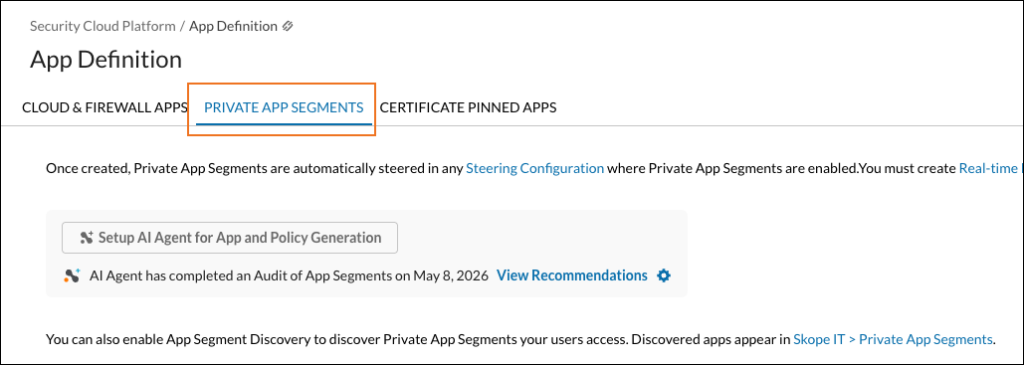
- Click Set Up App Segment Generation Agent.
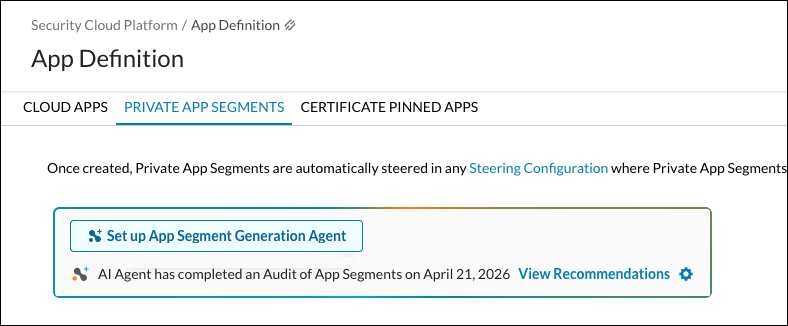
- On the Generate App Segments and Policies tab, click + Add New. Scope setup does not grant access. Ensure that a policy already exists to allow access from Source to Destinations specified in App Segments.

- Select a policy from the dropdown of existing NPA policies. The AIOps Agent will limit its generation Scope to Source and Destination criteria present in the selected policy.

- Click Create Scope.

- Enter and select these parameters:
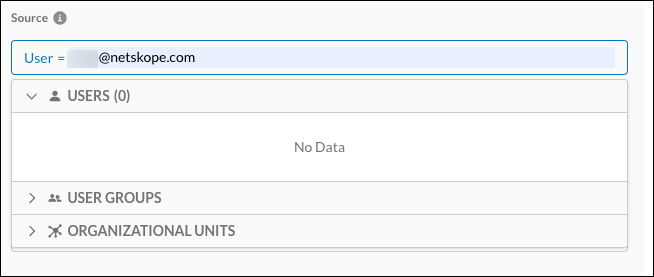
- Source: Entries are imported from the policy selected in the previous step. It is possible to remove entries.
Note
Source criteria specifies the users/AD groups that the NPA Agent should include for analysis. If the Source field is left blank, the Agent will consider the entire set of users who have access to the specified App Segments. Alternatively, a subset of AD groups corresponds to a more specific scope.
Adding source criteria that is not present in the original NPA policy is not recommended.
- App Segment: Entries are imported from the policy selected in the previous step. It is possible to remove entries.
Note
Adding an Application Segment that is not present in the original NPA policy is not recommended.
AI Agent will only evaluate Application Segments that have Access Method set to Client.

- Customized Name: Provide a text string. The AIOps Agent will add this string at the start of all Application Segments that are generated for this scope.

- Protocol & Port: By default, the AIOps agent will generate Application Segments to include all protocols and ports (1-65535). Optionally, if you want to limit the scope to a specific set of protocols and ports, select from them from the dropdown, or manually specify them using the Enter additional ports option.

- Policy Granularity: By default, the AIOps agent generates least privilege policies to cover an aggregated set of users or user groups. This is recommended for replacing a broad policy with a narrower one. Optionally, if you would like AIOps agent to generate a granular policy for each user or user group, enable the Least privilege policy for each user or user group option.

- Maximum User Count in Source Criteria: This field controls the maximum count of individual users that the AIOps agent should display in the Source criteria of the generated policy. If the count of observed users exceeds the specified value, the AIOps agent will instead use the closest Active Directory group as the Source criteria of the generated policy. The default and lowest value is 5 and the maximum value is 20.

- Source: Entries are imported from the policy selected in the previous step. It is possible to remove entries.
- Click Save.

- Specify the scopes for the AIOps agent to evaluate, and click Start Generation.

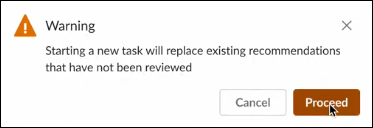
- Click Proceed.
- On the App Definition page, click Review Recommendations.
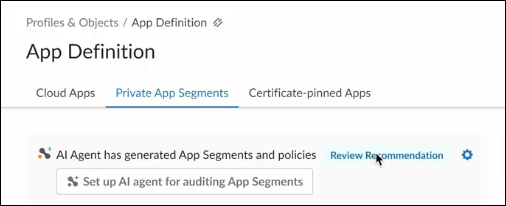
- App Segment: Entries are imported from the policy selected in the previous step. It is possible to remove entries.
- The AIOps Agent Recommendations page opens for the Scope just created and shows:
- The Scope name.
- The number of Generated Policies and Generated Application Segments, plus the number and percentage for each that Needs Review, are Approved, or Ignored.
- The current status of this scope (in this case, Needs Review)
- The name and details of the new Policy.
- The names and details of the new Application Segments.
- A Show Reasoning button that provides more specifics about the recommendations.
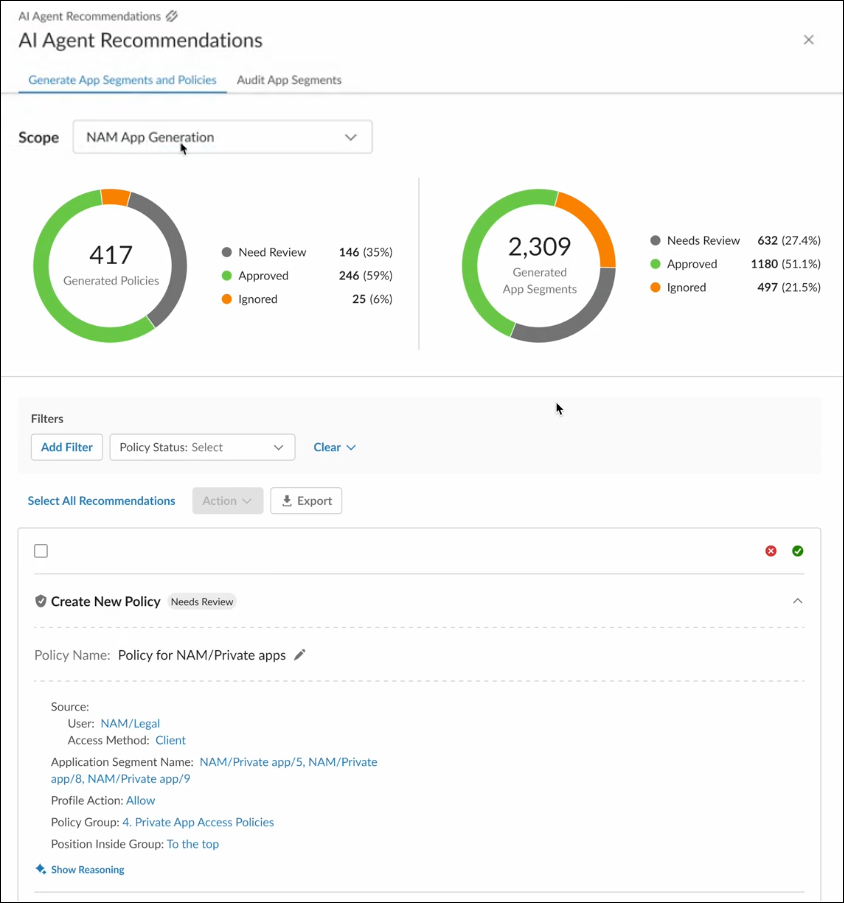
Source: The Source field represents the list of users, AD groups or OU that require access to the generated Application Segments.
Multiple entries in Source Group represent Active Directory groups and indicate that users across these AD groups have access to destinations present in the Application Segments.
- The AIOps Agent Recommendations page opens for the Scope just created and shows:
- Click on one of the new Application Segments to see its configuration details.
Note
In the generated Application Segment, AI Agent will include all the publishers from the top level App Segment that was specified in the Scope configuration, even if the additional Publishers did not connect users to applications during the time frame specified for generation.
Furthermore, Agent will exclude deleted Application Segments and policies for its analysis.AI Agent will exclude user activity to Applications, if the access was not successful. The unsuccessful attempt corresponds to Packets Received:0 in the Network Event for the requested Application.
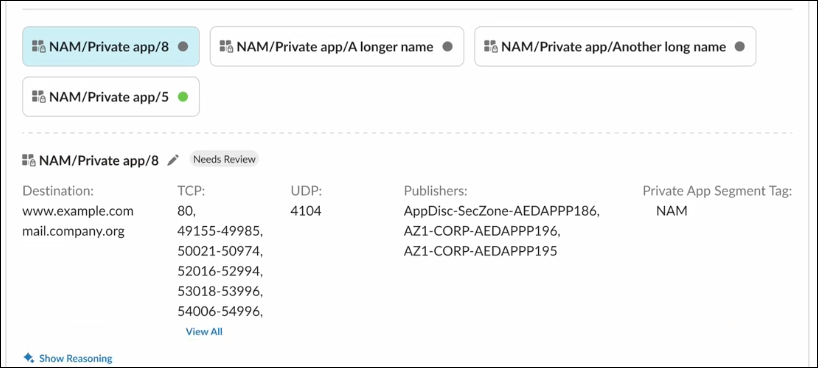
- To proceed with the recommended changes, click the green checkmark icon for the Policy. To ignore the recommendations, click the red x icon.

- Review the recommended changes, and then click Approve and Save.
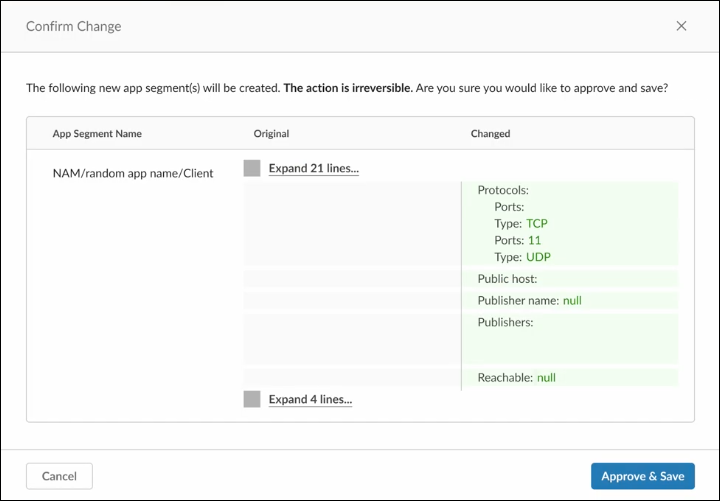
- Click Apply Changes.
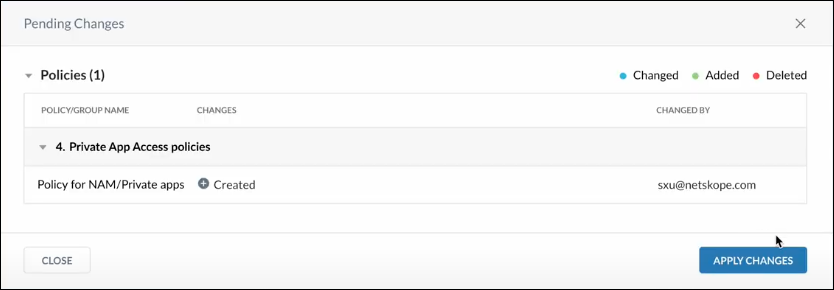


Go to the respective page to view the new Application Segments (Settings > Security Cloud Platform > App Definition > Private App Segments) and (Policies > Real-time Protection)
Audit Application Segments
Use the Private Access AIOps Agent to audit and get recommendations for existing Application Segments within the tenant. The AIOps Agent’s audit tasks include:
-
- Replacing broad network destinations and wildcard domains with narrower IP subnets or precise IP destinations and FQDNs in existing application definitions.
-
- Identifying and removing unused destinations and ports.
Procedure
-
-
In your Netskope tenant, go to Settings > Security Cloud Platform > App Definition and click Private App Segments.

-
Click Start Audit.
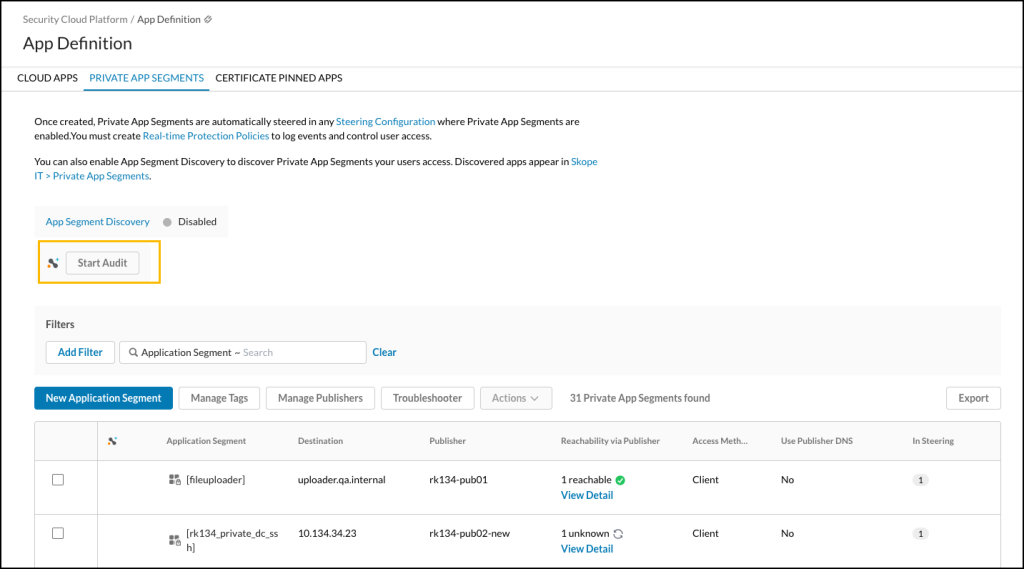
-
Click Run Analysis.
For tenants with AI Agent entitlement, the Agent will look back at data up to 12 months from the Analysis task initiation date.

-
The Audit Summary page opens.
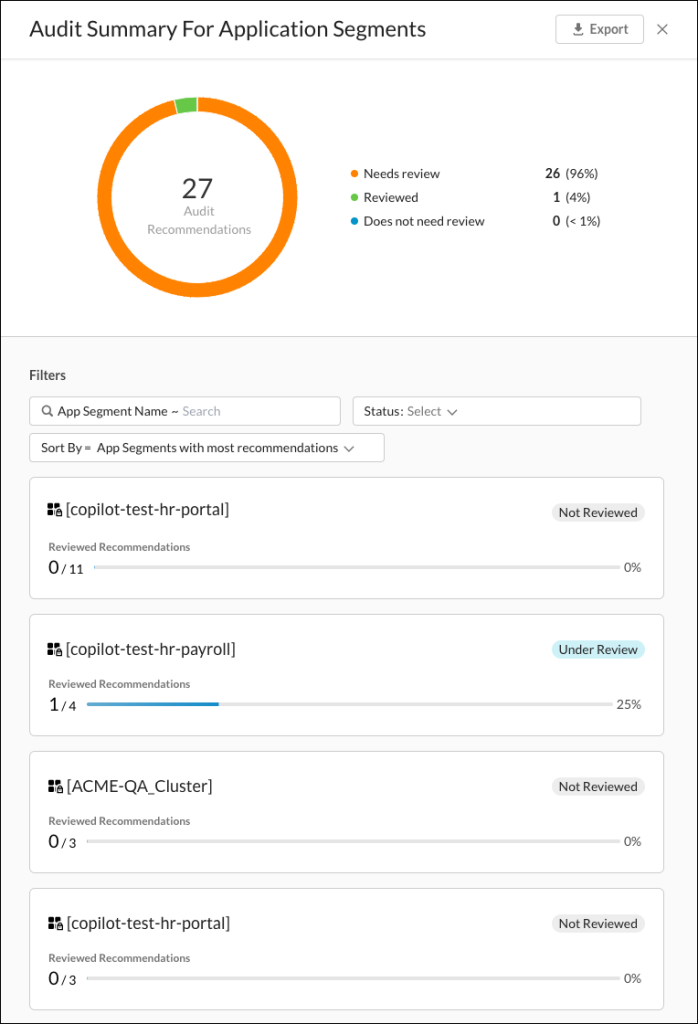
-
Click an Application Segment. Recommendations are shown in a table.

There are two tabs, Destinations and Ports.

-
You can perform these actions:
-
-
Approve: Performs the recommendation stated, like removing or replacing destinations and ports.

When you click Approve, a Confirm Change box opens. Review the change and click Approve & Save.

-
-
-
Ignore: Labels the recommendation as ignored, and no change is made.

In the event that you want to change this back, click Revert.

-
-
-
Preview: Provides specific details about the recommendation.

Review the changes and click Approve & Save (or Ignore to not make this change).

Confirm the changes and click Approve & Save again.

-
-
-
Edit notes: Opens the Notes for this recommendation so you can add pertinent information.

Enter the information you want add for this recommendation, and then click Save.

-
-
-


When you are finished, the Recommendation will show as Review Completed on the Audit Summary page. Incomplete Reviews show as Under Review.

After an Audit is performed, the Private App Segments App Definition page will show that there are recommendations to view and the day the Audit was performed.

Audit Summary Page Functions
When viewing audit summaries, you have these options:
-
-
Filters: You can search for an Private App Segment by name, sort by most or least recommendations, and see according to status.

-
-
-
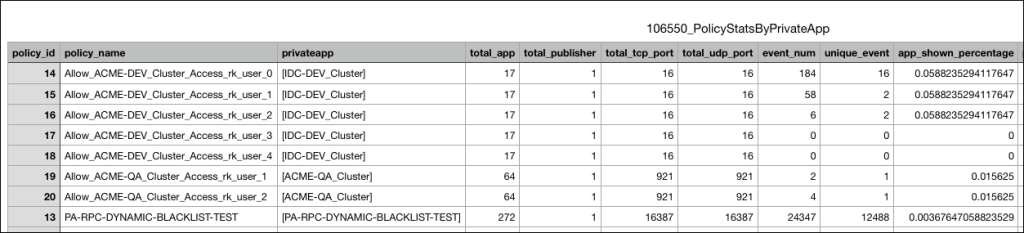
Export: Click Export to download a zip file with audit results in CSV files.

View the CSV files for detailed metrics.
-

Recommendations Page Functions
When viewing Recommendations, you can sort by Recommendation and Action Status.

Admin Notifications
To notify users about the changes, go to the Admin Notifications tab. This will send an email notification when the AI Agent has completed a task to all the users listed.

To add more recipients, click select and add them. When finished, click Save.