When you grant SaaS Security Posture Management (SSPM) access to SaaS app owners, you can scope what they see to only the app instances they manage. This feature extends Netskope’s role-based access control (RBAC) so a role’s visibility in SSPM is limited to the app instances you assign to it, rather than the entire tenant. Use it to apply least-privilege access when you need direct visibility into the posture data.
Prerequisites
Before you configure RBAC-based access control for SSPM instances, ensure you have:
- A Netskope tenant with SSPM enabled.
- Administrator access to create or edit roles under Administration > Administrators & Roles.
- At minimum, read access to the Policies page for any role that needs to view rule definitions from the Findings page.
Configuring RBAC-Based Access Control for SSPM Instances
Scope a role to specific SaaS app instances so its assigned administrators only see SSPM data for those instances.
To configure RBAC-based access control for SSPM instances:
-
Log in to your tenant.
-
Go to Settings > Administration > Administrators & Roles.
-
Click the Roles tab.
-
Click New.
-
In the New Role panel, enter a Role Name and an optional Role Short Description.
-
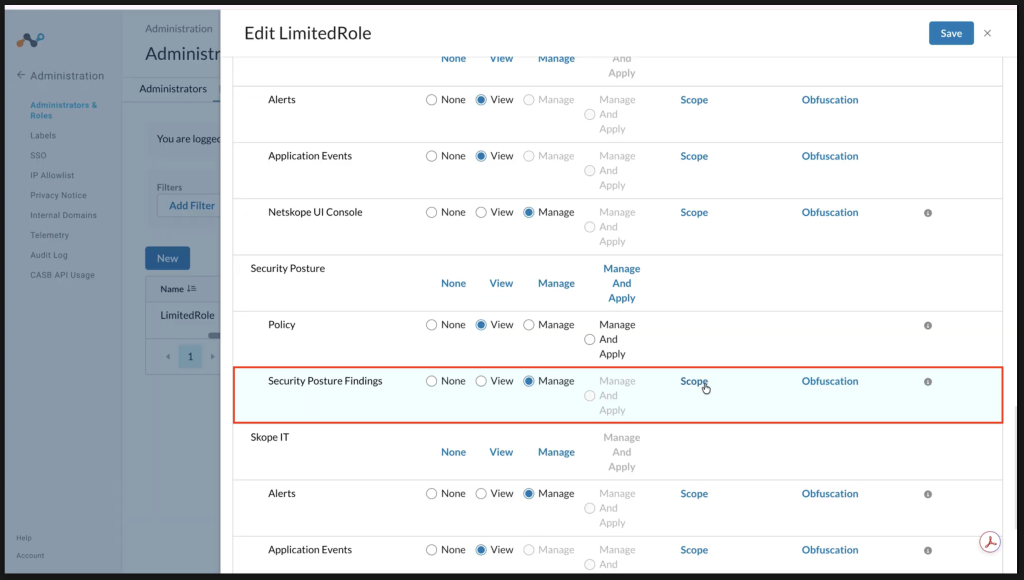
Under the Security Posture category, set the Security Posture Findings permission to View or Manage.
-
Click Scope next to the Security Posture Findings row.
-
In the App Instance field under Data Scope, select one or more SaaS app instances.
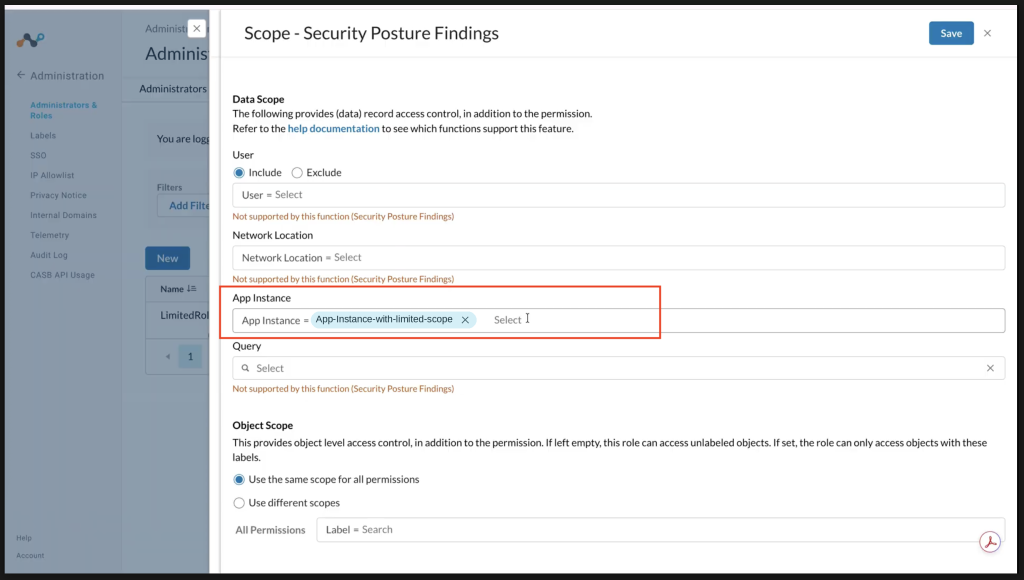 The SSPM only supports scoping by App Instance. The User, Network Location, and Query options in the Data Scope dialog do not apply to this permission.
 -
Click Save to close the scope dialog, then click Save again to save the role.
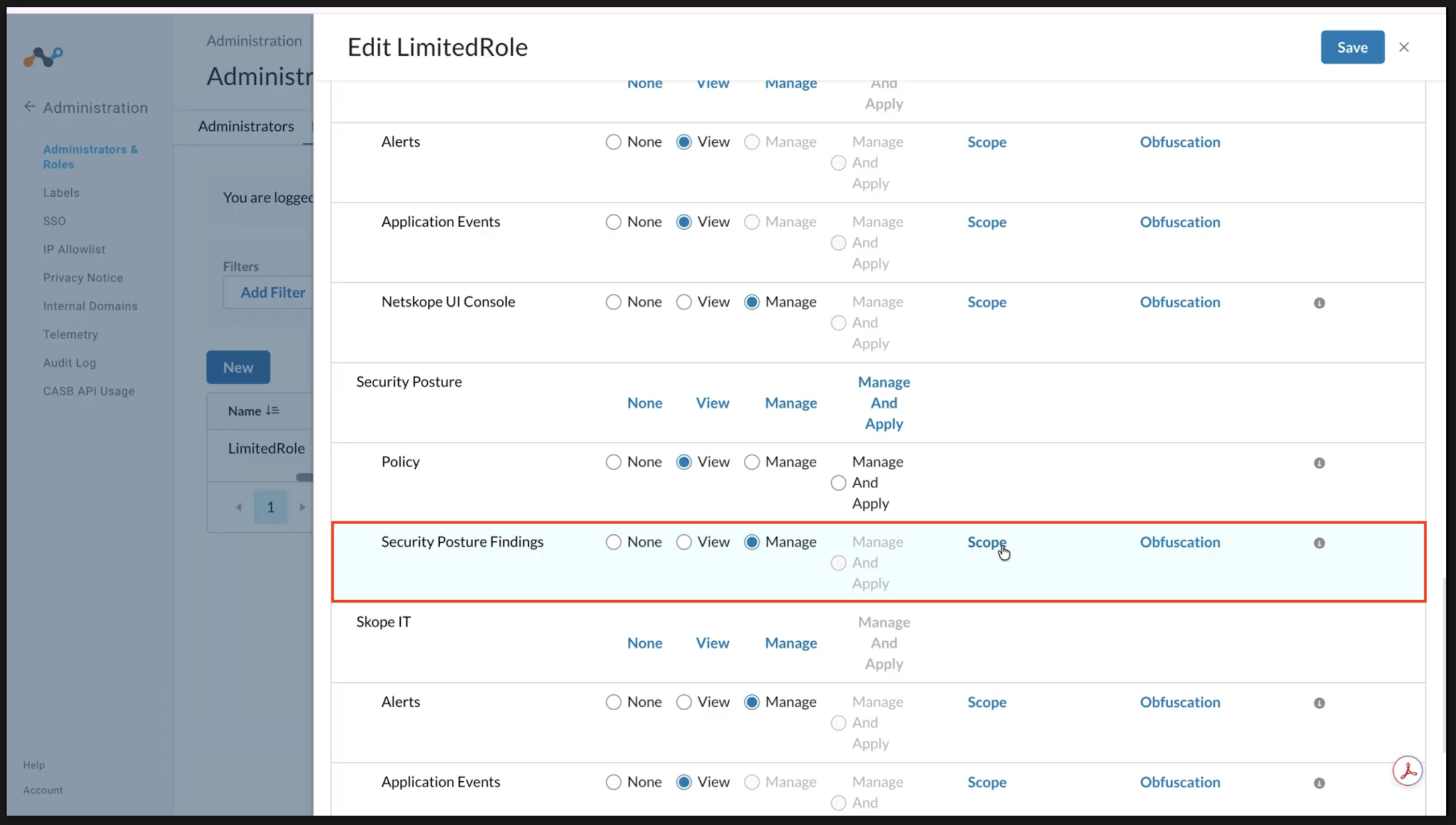
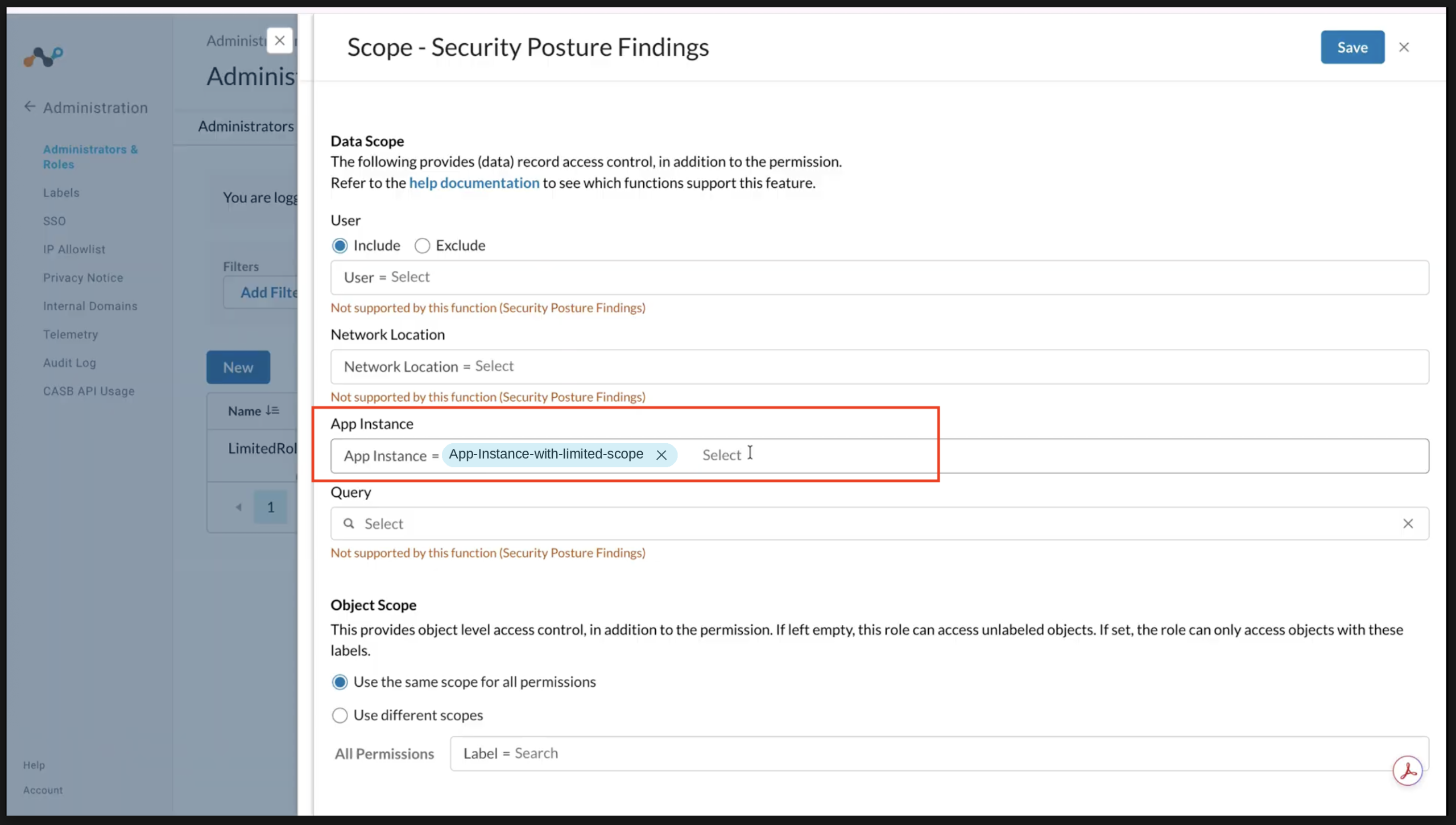
All users assigned to this role will have visibility limited to the selected app instances across the Overview, Apps, 3rd Party Apps, Users, and Findings pages.
Scope Limitations
The following do not change based on a role’s app instance scope:
-
The Apps Configured count on the Apps Overview page always shows the full tenant count.
-
Trends data is not filterable by instance.
-
The Policies/Rules configuration page and Configure App Access page are not scoped.
-
Scoping is applied at the app suite level. Granting access to one instance of a multi-app suite, such as AzureAD, also grants visibility into related apps in that suite, such as Intune.
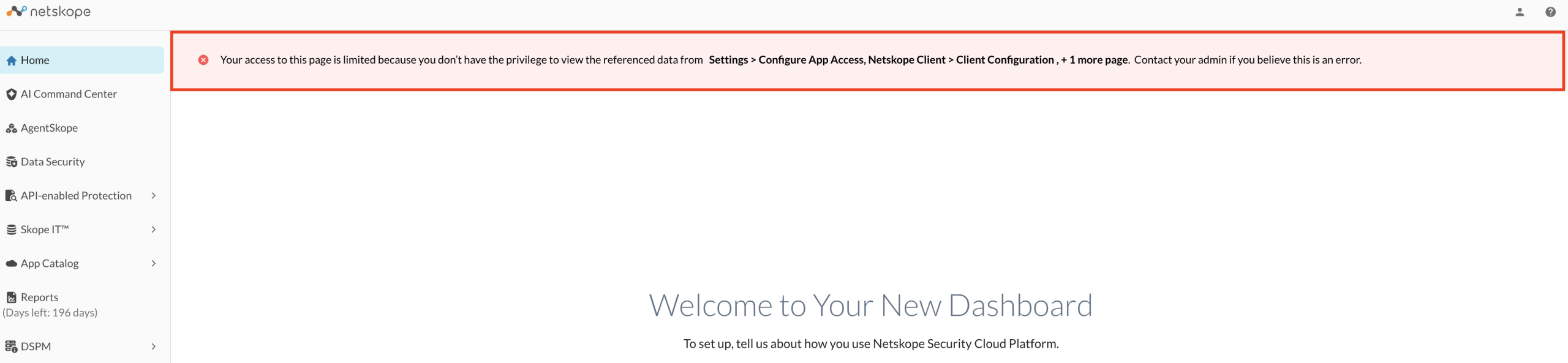
A role scoped narrowly to Security Posture Findings only may also see a general access-limited banner on the Home dashboard if it lacks other permissions, such as Configure App Access. This is standard RBAC behavior and not specific to this feature.