

AI Gateway uses DLP On Demand (DLPoD) to detect and redact sensitive information in LLM prompts and responses before sending them to upstream AI providers or returning them to clients. It replaces sensitive information with a placeholder, ensuring data like credit card numbers, PII never leave your environment as plain text.
Example
| Direction | Content |
|---|---|
| Original prompt | Credit card John Smith 5115-0018-0060-6500 2/28/2025 123 |
| After redaction | Credit card John XXXXX XXXX-XXXX-XXXX-XXX X/XX/XXXX 123 |
Before you start
Before enabling content redaction, ensure these requirements are met:
| Requirement | Details |
|---|---|
| DLP On Demand version | Version 138 or later. |
| AI Gateway version | AI Gateway 1.6 or later |
| DLP license | Advanced DLP (DLP-L3) |
| DLP entities configured | Configure redaction at the entity level in your DLP profiles. See DLP Entity for configuration details. |
How Redaction Works
When a DLP policy with Redact Sensitive Data enabled matches traffic, AI Gateway sends the prompt or response to DLPoD for inspection. DLPoD detects sensitive data per your DLP profiles and returns a redacted version, which AI Gateway forwards instead of the original. The LLM provider receives a clean prompt; the client receives a clean response.
The redaction method (mask, FPE, or hash) depends on your DLP entity configuration. See DLP Entity.
Configure Redact Sensitive Data in a DLP Policy
The Redact Sensitive Data checkbox appears when you select Monitor as the action in a DLP policy. Redaction lets traffic proceed, replacing sensitive content before forwarding.
- Log in to the Netskope tenant UI and go to Policies > AI Gateway.
- Click the DLP tab, then click New Policy.
- Set the match criteria — Token Group, AI Provider and Model, and Activity. Select Prompt and/or Response to specify which direction to redact.
- Under Profile, select the DLP profile with redaction configured for the entities you want to protect.
- Under Action, select Monitor.
- Select the Redact Sensitive Data checkbox.
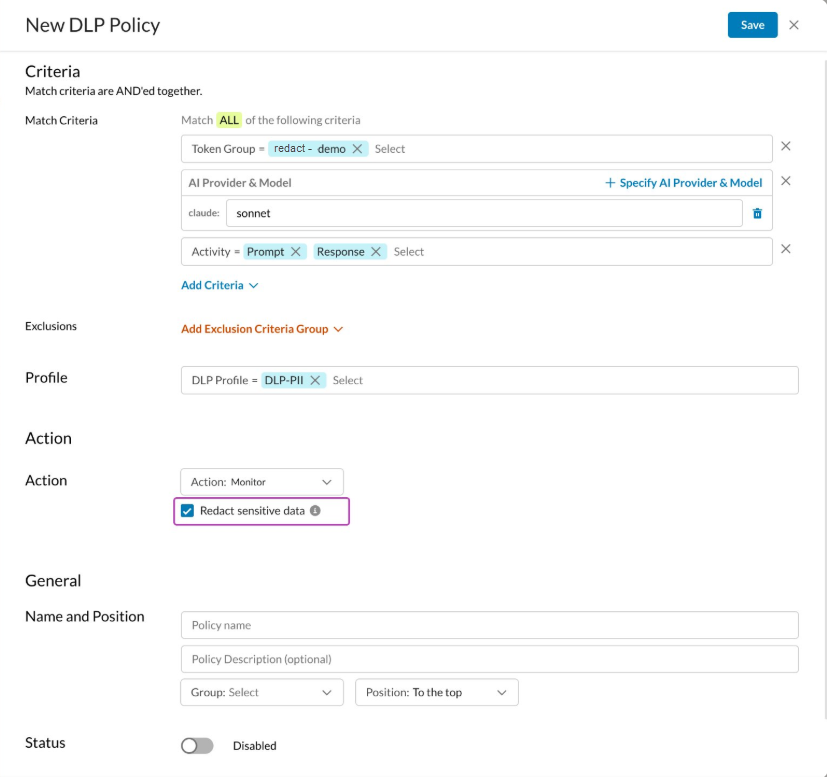
- Set the Content Redaction Failure behavior:
- Monitor (default) — if redaction fails, allow the traffic and log the failure.
- Block — if redaction fails, drop the connection.
- Enter a policy name and description, select the policy group and position, then click Save and apply changes.
Redaction Failure Behavior
If you enable Redact Sensitive Data, but AI Gateway cannot complete redaction, it performs the configured fallback action.
| Fallback Action | Behavior |
|---|---|
| Monitor (default) | AI Gateway forwards traffic without redacting it and logs a redaction status of Failed (Fall-back Action: Monitor) in Skope IT. |
| Block | AI Gateway drops the connection and returns an error to the client. |
Monitoring Redaction Activity in AI Gateway Events
AI Gateway records the redaction outcome in Skope IT > AI Gateway Events. Each event matched by a DLP policy with redaction enabled includes two redaction status fields — one for the prompt and one for the response:
| Field | Tracks |
|---|---|
| Redaction Status (Prompt) | Redaction outcome for the prompt |
| Redaction Status (Response) | Redaction outcome for the response |
Each field displays one of the following values:
| Status value | Meaning |
|---|---|
| Successful | Redaction was applied. Forwarded content has sensitive data replaced. |
| Failed (Fall-back Action: Monitor) | Redaction failed. AI Gateway forwarded the traffic without redacting it. |
| Failed (Fall-back Action: Block) | Redaction failed. AI Gateway dropped the connection. |
| N/A – No entities found | DLP found no matches for the configured profiles. Content was not redacted. |