

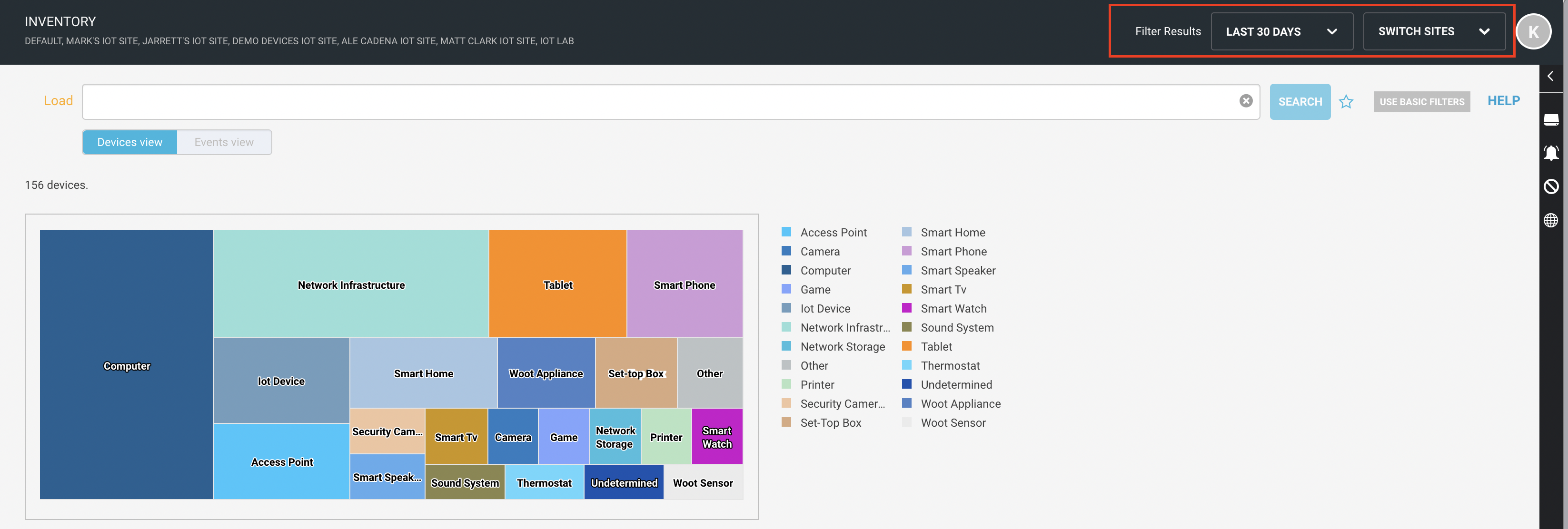
Device Intelligence provides reporting features to generate reports with a detailed device summary in excel and CSV format. These report filters can be manipulated by selecting or deselecting the sites, by selecting the time duration from the top right of the screen, or by filtering the search results.
 |
Generate a Report
Follow the procedure to generate the report:
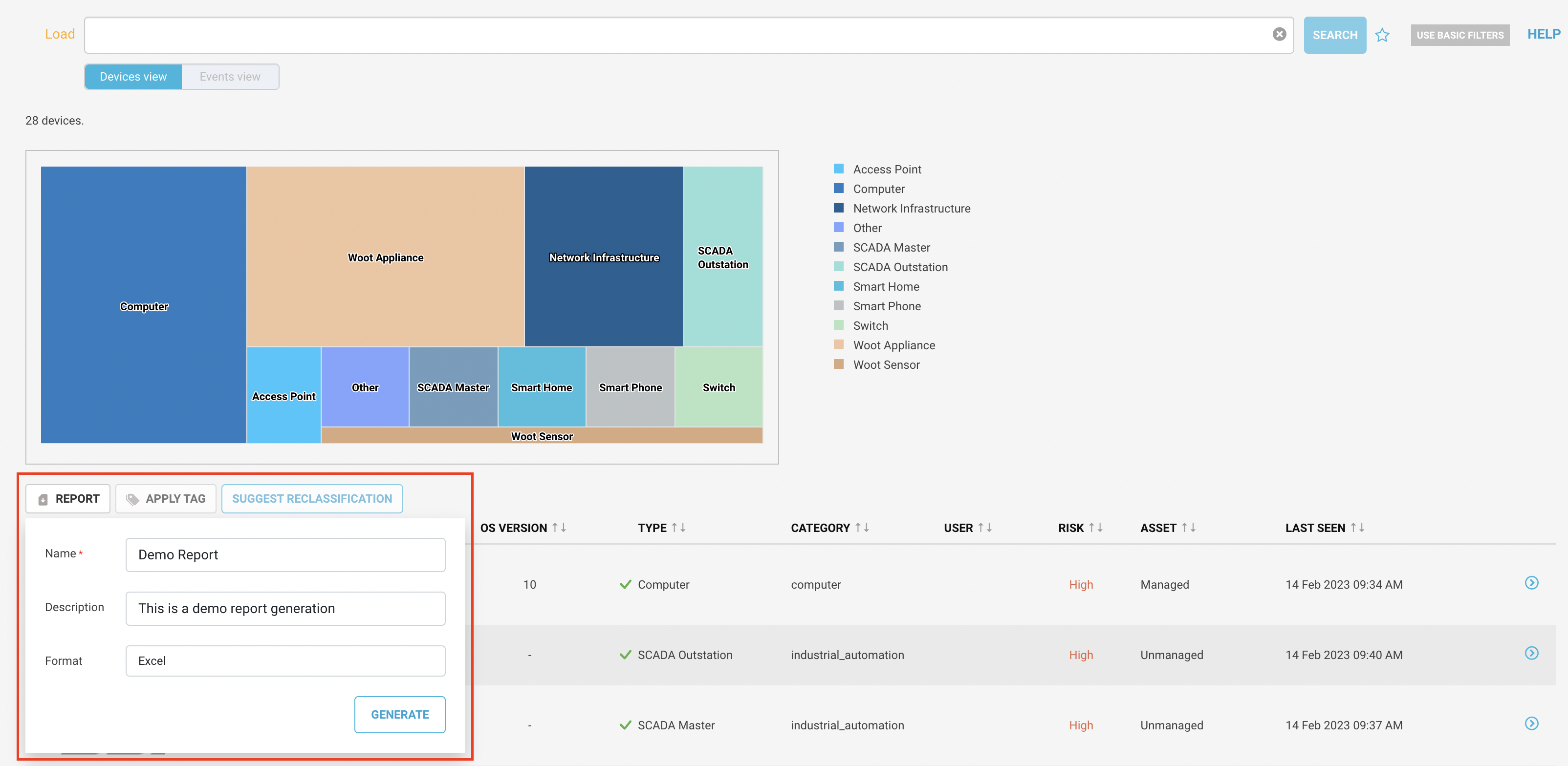 |
- Navigate to the Inventory menu.
- Click the Report button below the device chart. A new pop up appears.
- Give a name to the report.
- Add a description of the report.
- Choose the report format as excel or CSV.
- Click the Generate button. You will see a note at the left bottom of the screen when the report is generated.
Download a Report
Follow the procedure to download the generated report:
 |
- Navigate to the Reporting > Reports menu. You can see a list of all the reports generated on the appliance so far.
- Find the report you generated and click the Download link button. Device Intelligence will download the report in the format specified while generating the report.
Note
If the Download button is not active, means the report is still in progress. You can see the report status in the status field.
- Open the downloaded report locally.
Tip
You can delete the report in the Reporting > Reports menu. Click on the bin button to delete a specific report.