

-
Login to the Okta Admin Console and navigate to Applications > Applications
-
Click on Create App Integration and Select SAML 2.0 App and select Next.
-
Configure “App Name” and click on Next button.
-
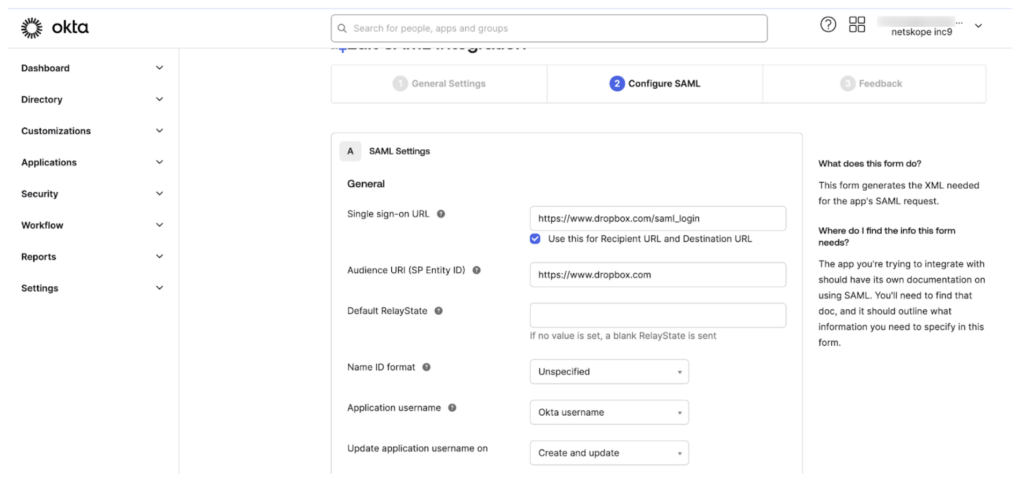
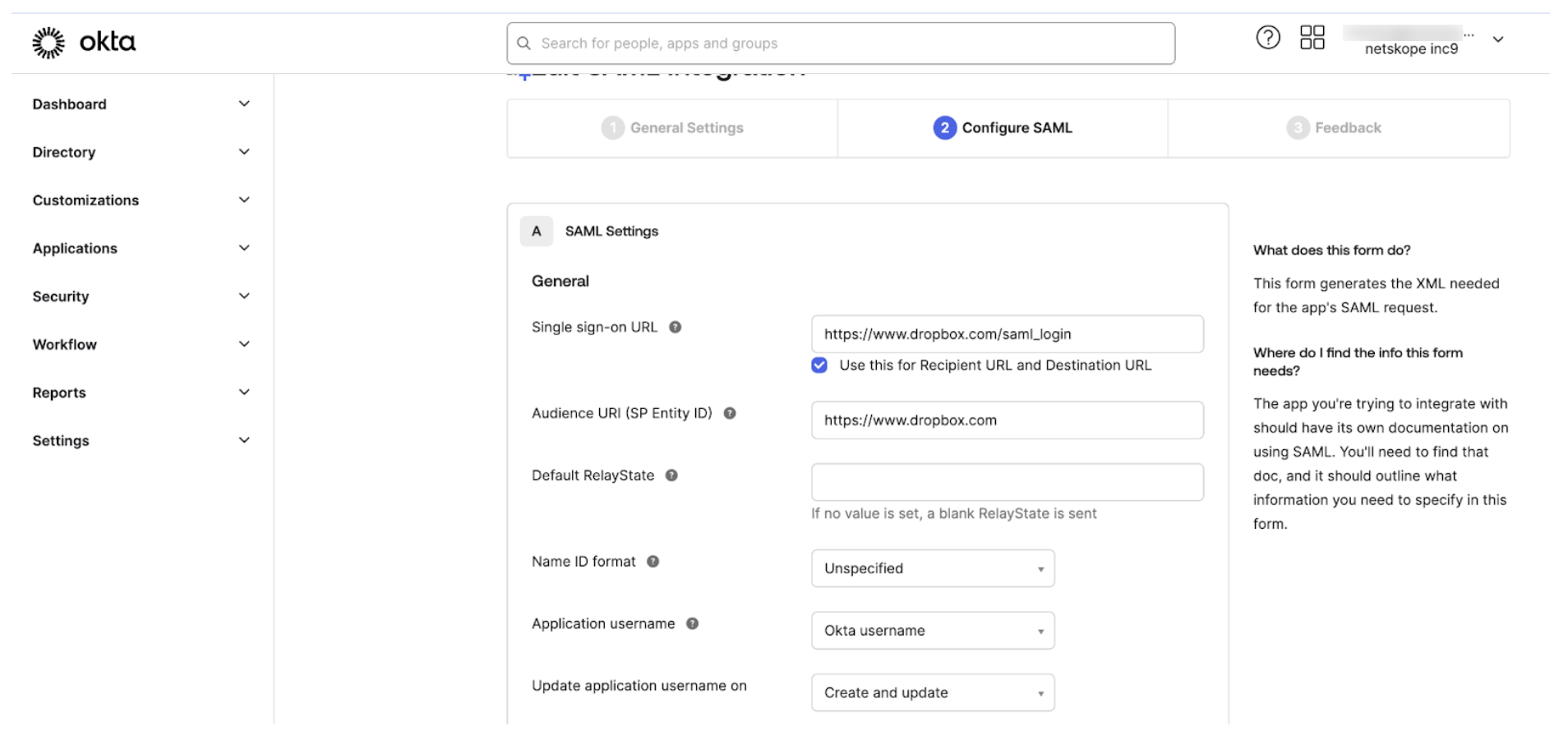
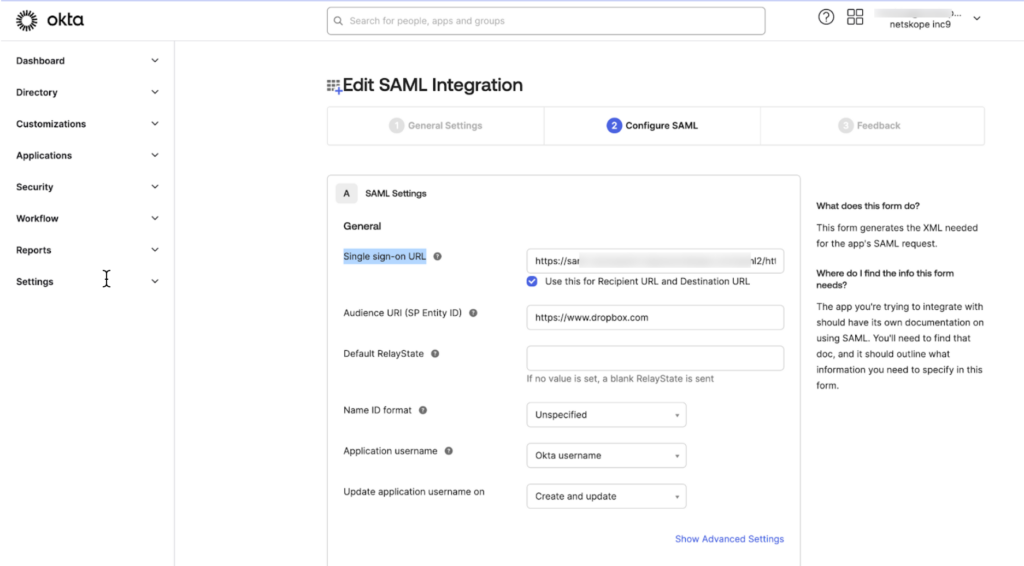
In SAML settings Single sign-on URL field, enter
https://www.dropbox.com/saml_loginand check the Use this for Recipient URL and Destination URL. -
Configure “https://www.dropbox.com” in the Audience URI (SP Entity ID) field and finish the setup.
-
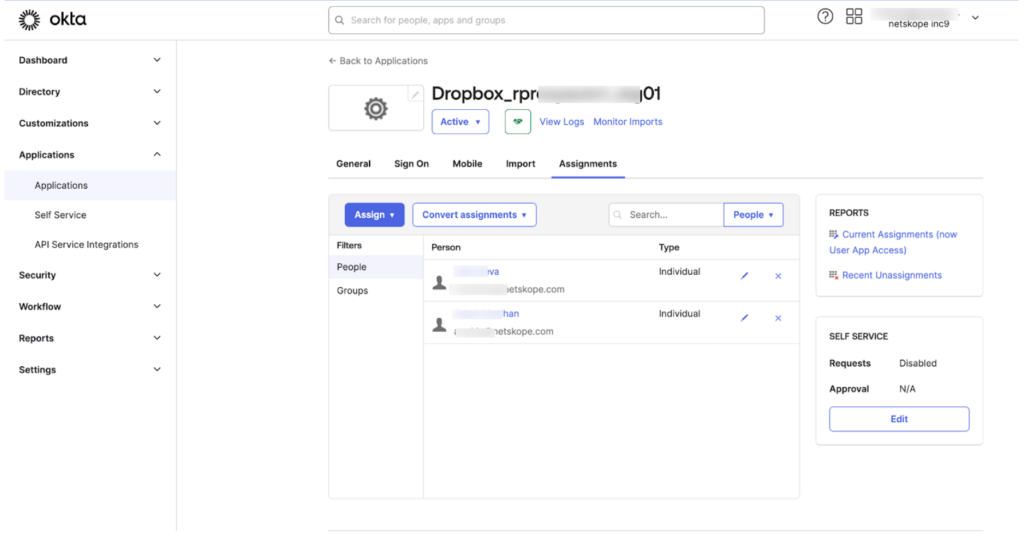
Assign users to the Dropbox SAML application.
-
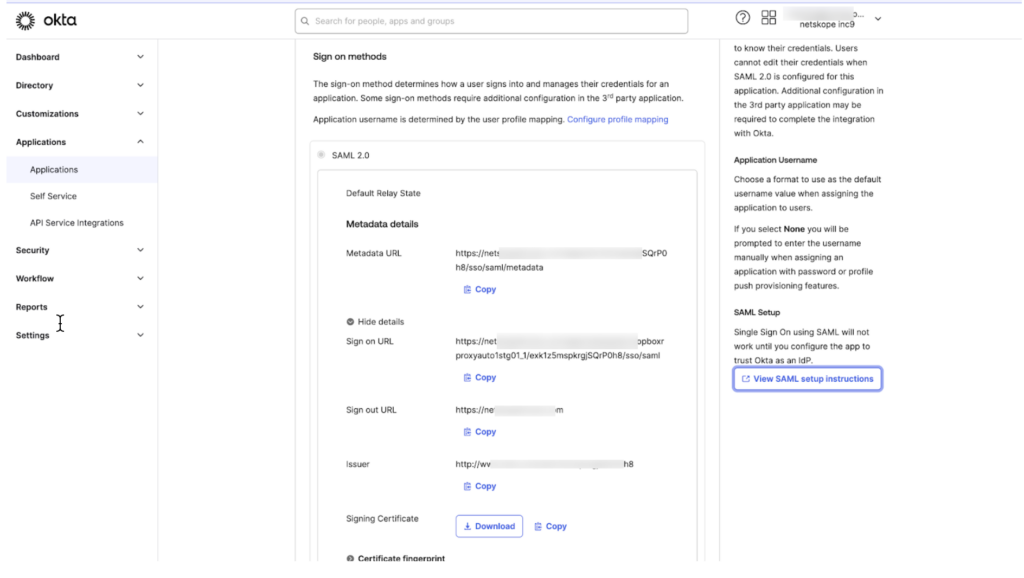
From the Sign-In Options page, select SAML 2.0 and View SAML Setup Instructions.
-
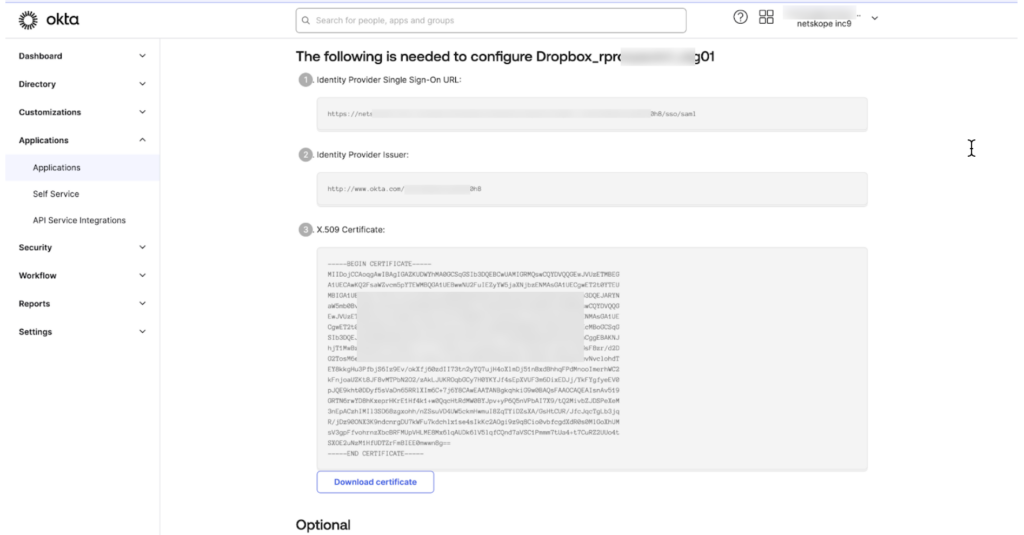
Another page should open in a separate browser tab called How to Configure SAML 2.0 for Dropbox.
-
Open a new browser tab and login to the Dropbox for Business application.
-
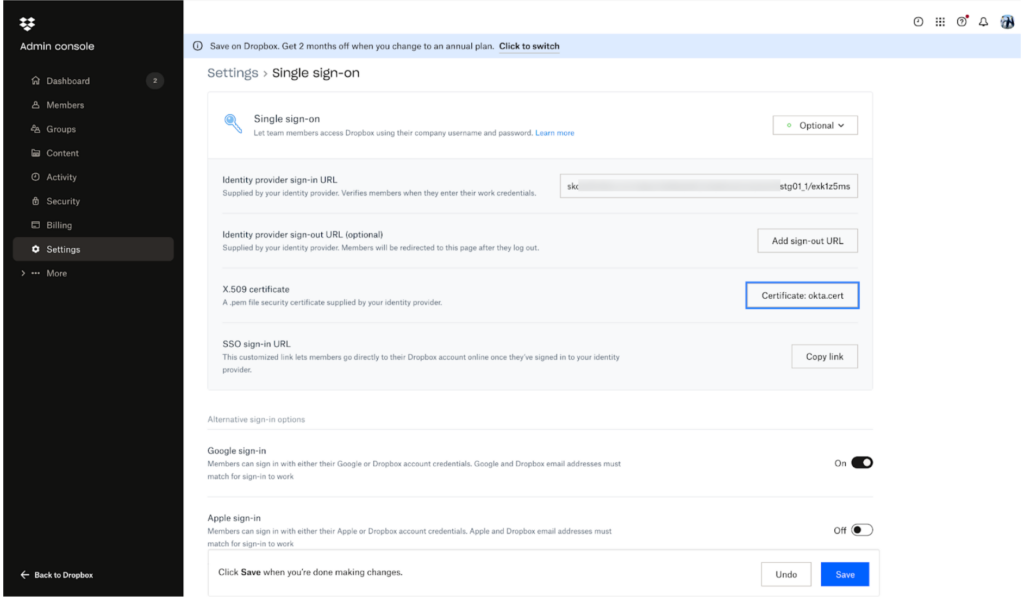
Navigate to the Admin Console and select Settings > Single-SignOn
-
Under Identity provider sign-in URL, copy and paste the Okta Sign-in URL from the How to Configure SAML 2.0 for Dropbox Okta instructions.
-
Download the Okta Certificate from the How to Configure SAML 2.0 for Dropbox instructions and upload into the X.509 certificate field in Dropbox.
-
Click the Save button to save the changes.
-
Test that Okta integration is working properly by opening a new browser window in incognito mode. Navigate to dropbox.com and input the onboarded user email address, the password field should disappear and Single sign-on enabled should appear. Click continue and you should be redirected to Okta for authentication, which should grant access to Dropbox.


Integration with Netskope Reverse Proxy
-
Login to Netskope Tenant webUI. Navigate to Settings -> Security Cloud Platform -> Reverseproxy -> SAML.
-
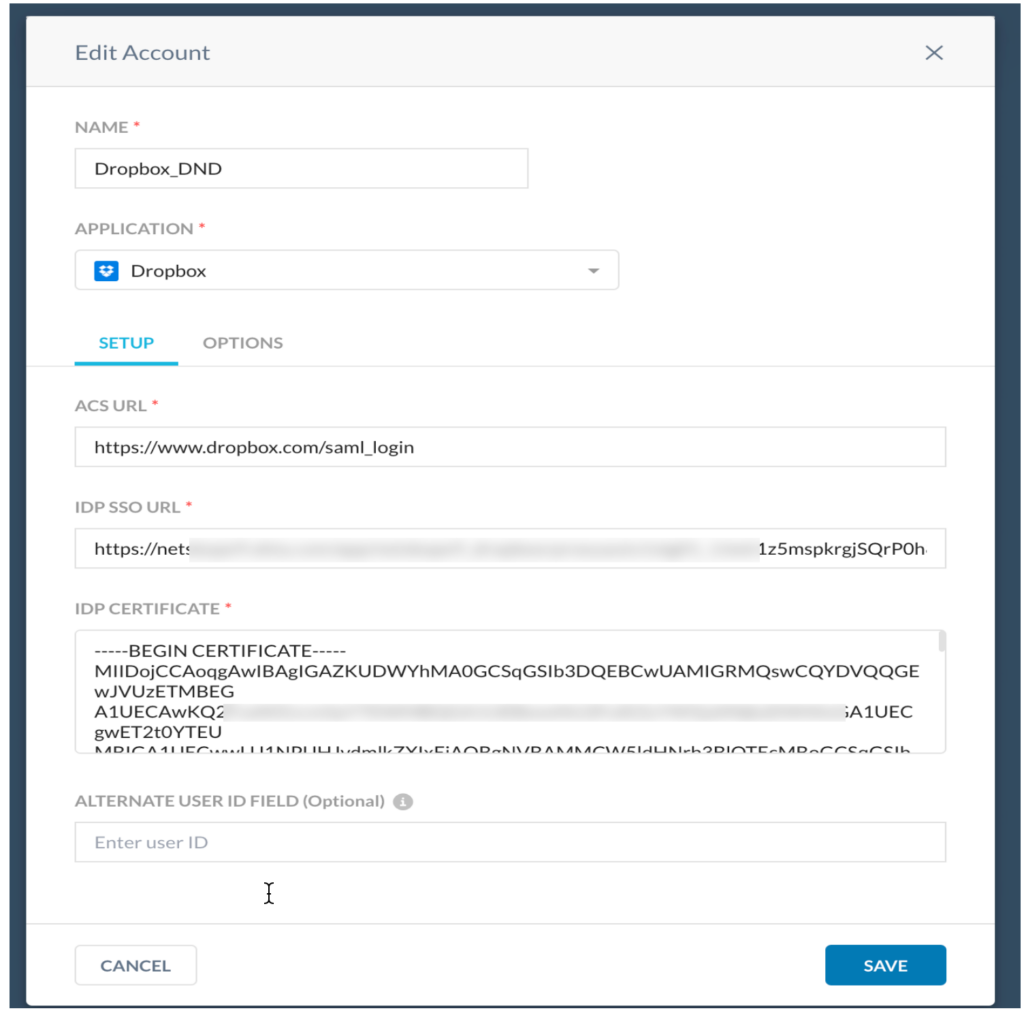
Add an account by selecting the Dropbox application as shown in the screenshot.
-
Enter the following values:
-
Name: Name of the Dropbox account.
-
ACS URL: https://www.dropbox.com/saml_login
-
IDP URL: Okta Login URL copied from “View Setup Instructions”.
-
IDP Certificate: Okta x509 certificate
-
-
Save the configuration.
-
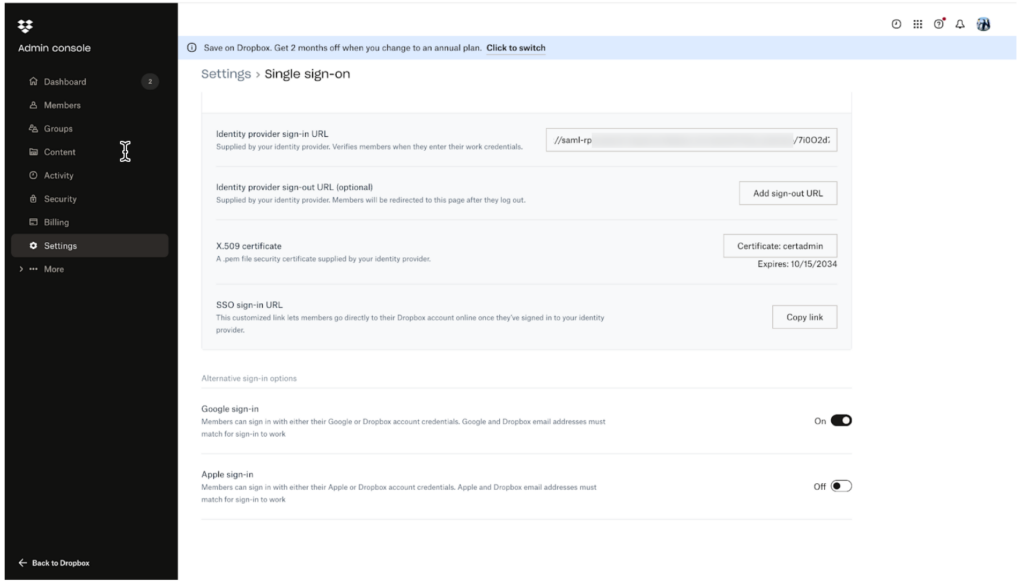
Copy SAML Proxy IdP URL and the Certificate values from Netskope settings to configure in Dropbox SSO settings.
-
In Okta Dropbox SAML application settings, update Single sign-on URL with SAMLProxy ACS URL.
-
To enable SP initiated flow, we need to configure the below backend flag on SAMLproxy. Raise an OPS ticket for the same.
http://dpmgmtsvc:80/saml/config/template/6151 -H 'content-type:application/json' -d '{"enable_sp_to_idp": [730]} ' -
Enable the Emergency Bypass option in Netskope SAMLproxy Dropbox application settings and test the SSO flow with SP Initiated and IdP Initiated.
-
Once the SSO flow is successful, disable the Emergency Bypass option and run the SSO flow which should go via Reverseproxy.


