

Overview
For Data Stores that don’t provide native query logs, you can supply the Netskope DSPM application with custom query logs to take advantage of our Data-in-Use Monitoring capability. By supplying Netskope DSPM with custom query logs saved in a S3 bucket, you now have the flexibility to:
- Onboard and connect a new S3 Account if your query logs do not reside in the same account as your Data Stores.
- Configure the indices or keys in any order and provide Netskope DSPM with the necessary CSV/JSON mapping.
Prerequisites:
Access to the S3 bucket(s) is required for Netskope DSPM to ingest the custom query logs. You would need to create a custom IAM policy for the same and attach it to the IAM role that has been created and assigned to your Netskope DSPM instance.
Instructions
Create IAM Policy for S3 Buckets
- Open IAM Console and navigate to Policies section under Access Management section on the left menu bar. Click on the Create Policy button and move to the JSON tab as shown below.

- Replace the entire Line 3 i.e. “Statement”: [] with the contents as below
"Statement": [
  {
   "Effect": "Allow",
   "Action": [
			"s3:GetBucketTagging",
			"s3:ListBucketVersions",
			"s3:GetBucketLogging",
			"s3:ListBucket",
			"s3:GetAccelerateConfiguration",
			"s3:GetBucketVersioning",
			"s3:GetBucketAcl",
			"s3:GetBucketNotification",
			"s3:GetObject",
			"s3:GetBucketCORS",
			"s3:GetObjectTagging",
			"s3:GetBucketLocation",
			"s3:GetObjectVersion"
			],
			"Resource": [
				"arn:aws:s3:::bucket_name/*",
				"arn:aws:s3:::bucket_name"
			]
		}
	]
3. on Next twice and in the Review Policy page provide the inputs as below and then click Create Policy

Attach Policy to the Netskope DSPM Role
Click to navigate to the Role section in IAM Console and search for Netskope One DSPMRole in the search box on the right. Click the hyperlink to move to the Permissions tab of Netskope One DSPMRole. Click Add Permissions button and select Attach policies

In the next page in the search box type Netskope One DSPM_S3-QueryLogs , select the radio button and click Attach Policies.

Here are samples of how a custom query log file may appear:
"alice","dev","SELECT * FROM users","2021-05-20 00:00:15.67","public","200"
"bob","dev","SELECT * FROM users LIMIT 50","2021-05-20 00:01:20.05",,
"charlie","dev","SELECT * FROM users WHERE firstname = 'Robert'","2021-05-20 00:03:25.05",,
"daniel","dev","SELECT\n""firstname"",\n""lastname""\nFROM ""users""","2021-05-20 00:05:40.59",,
{"username":"alice","database":"dev","query":"SELECT * FROM users","timestamp":"2021-05-23 00:00:15.67","schema":"public","rows":305}
{"username":"bob","database":"dev","query":"SELECT * FROM USERS LIMIT 123","timestamp":"2021-05-23 00:01:20.53"}
{"username":"charlie","database":"dev","query":"SELECT *  FROM users","timestamp":"2021-05-23 00:05:15.67"}
Follow the instructions in the next section to map your requisite query log format in Netskope DSPM.
Mapping Custom Query Logs Within Netskope DSPM
While connecting to the Data Stores in the Select Capabilities tab you can specify the following inputs after selecting Custom Query Log option under the Data-in-use monitoring section. Based on the Netskope DSPM capability to support for the Data Store the option for Data-in use monitoring would be enabled/disabled.
| Field | Value | Highlight Color | Illustration |
|---|---|---|---|
| Select the Log format | CSV | Black |  |
| S3 Bucket | Provide the S3 bucket name where your query logs resides or will reside. Make sure that you have provided the requite IAM permissions for Netskope DSPM to access | Blue | |
| Select Account (Existing) | Select from the dropdown list the appropriate AWS account where the S3 bucket containing the query logs resides | Green | |
| Select Account (New S3 Account) | Use this option to connect to a new AWS account if the query logs are not stored in the same project as the Data Store you are connecting to | Purple |  |
| Prefix | Optional | None |
Refer to the following illustration to help mapping the custom query log index or key values to the correct Netskope DSPM fields.
| Highlight Color | Log Format | Mapping By | Example Mapping Index |
|---|---|---|---|
| Blue | CSV | Index position | |
| Red | JSON | Key position |  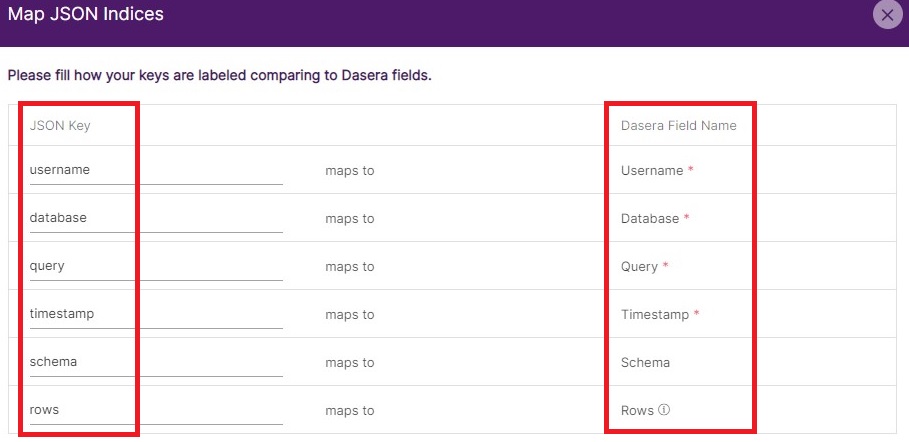 |
Once the mapping is successful you will receive a message highlighted in green accordingly as shown below:
| Highlight text color | Log Format | Example |
|---|---|---|
| Green | CSV | Index position |
| Green | JSON | Key position |
Press the Continue button to onboard the Data Store. Once the onboarding is completed you can visit the Privilege Analysis menu section and start to analyze the queries fired by the DB users connecting to the Data Store.