

The Enhanced SAML Authentication feature introduces granular, service-specific control over authentication policies across different Netskope services. This replaces the legacy global SAML configuration model with a flexible, standards-compliant architecture tailored to enterprise security requirements.
Beginning with Netskope Client R134 and the Next Generation (NG) WebUI, administrators can configure Usage Profiles and Force Authentication to establish granular, service-specific authentication policies across services—such as enforcing mandatory step-up re-authentication for Private Access while preserving seamless Single Sign-On (SSO) for general web browsing. This capability provides:
-
Service-Specific Usage Profiles: Dedicated profiles for Internet Security, Cloud Firewall, Private Access (NPA), Borderless WAN (BWAN), and their respective re-authentication scenarios.
-
SAML 2.0 ForceAuthn Standard: Modern, standards-compliant re-authentication that instructs Identity Providers (IdPs) to enforce fresh verification regardless of active SSO sessions.
-
Automated Identity Hints: Streamlined login pre-population using login_hint and domain_hint parameters extracted from enrolled client certificates.
Before Configuring SAML Settings for Authentication
Review the system requirements and operational guidelines before configuring SAML settings for forward proxy authentication.
Requirements and Prerequisites
| Component | Requirement Specification |
|---|---|
| Netskope Tenant | Release R134 or later; Next Generation (NG) WebUI enabled. |
| Netskope Client | Version R134 or later installed on endpoints (Windows and macOS). Compatible client required for Borderless WAN. |
| Identity Provider (IdP) | Must support SAML 2.0 ForceAuthn specification and recognize login_hint / domain_hint query parameters. |
| Client Certificates | Enrolled client certificates must contain the user's email address or UPN within the Subject field to enable identity pre-population. |
Important Notes
-
Admin vs. Non-Admin Scope: Instructions in this section apply only to non-admin end users. To configure SSO for administrator access, refer to the Single Sign On for Administrators guide.
-
Partial Configuration (R121+): As of R121, IdP accounts can be partially configured and saved to retrieve the ACS URL and Netskope metadata, allowing easier setup in your third-party IdP.
-
REST API Provisioning: Creating and managing IdP accounts programmatically is supported via REST API v2. For endpoint and payload details, refer to the REST API v2 Configuration Reference section below.
Key Features and Capabilities
These enhancements are supported on tenants running Netskope Release R134 or later with SAML REST API v2 access enabled. Note that feature rollout across tenant environments is executed in a phased manner.
-
Service-Specific Usage Profiles – Administrators can assign specific usage profiles to SAML Forward Proxy IdP accounts, allowing decoupled authentication workflows across disparate Netskope access methods. Benefits include:
-
Applying strict security policies (such as mandatory step-up Multi-Factor Authentication) for sensitive Private Access applications.
-
Maintaining frictionless, single-sign-on access for general web browsing via Internet Security / Cloud Firewall.
-
Decoupling initial client enrollment policies from recurring re-authentication policies.
Usage Profile Description and Scope Internet Security / Cloud Firewall / Private Access Governs client enrollment and initial authentication for Secure Web Gateway (SWG), Cloud Firewall (CFW), and Netskope Private Access (NPA). Borderless WAN Handles client enrollment and authentication flows for Netskope Borderless WAN endpoints. Private Access Re-Authentication Applies to subsequent, step-up verification when users access sensitive NPA applications subject to re-authentication policies. Borderless WAN Re-Authentication Applies to subsequent verification for active Borderless WAN sessions requiring renewed credentials.
-
-
Standards-Compliant SAML ForceAuthn – Netskope now leverages the industry-standard SAML 2.0 ForceAuthn attribute, replacing the legacy browser cookie-clearing workaround. When enabled, Netskope includes ForceAuthn=”true” in the SAML AuthnRequest payload. This explicitly instructs the upstream Identity Provider to challenge the user for active credentials, regardless of any existing, valid SSO session at the IdP.
-
Interoperability: Natively supported by major enterprise IdPs including Microsoft Entra ID, Okta, and PingFederate.
-
Predictability: Eliminates inconsistent browser cache/cookie behavior during re-authentication cycles.
-
Security Compliance: Ensures step-up verification and MFA policies are reliably triggered for restricted resources.
-
-
Login Hint and Domain Hint Pre-population – To optimize user experience during mandatory re-authentication challenges, Netskope forwards identity context directly to the Identity Provider:
-
login_hint Parameter: Passed in authentication requests to supported IdPs (e.g., Okta, PingFederate) to pre-fill the username or email field.
-
domain_hint Parameter: Forwarded to Microsoft Entra ID SAML endpoints to bypass redundant tenant discovery and direct users immediately to their corporate sign-in page.
-
Certificate Extraction: The Netskope Client automatically extracts the user identity (email or User Principal Name) from the enrolled client certificate’s Subject field.
-
Supported Platforms: Available on Netskope Client for Windows and macOS during Private Access and Borderless WAN re-authentication workflows.
-
Get Netskope SAML Settings
-
Log in to the Netskope WebUI
-
Go to Settings > Security Cloud Platform and click SAML under Forward Proxy.
When configuring a Netskope app in the IdP, use the metadata and certificate from Settings > Administration > SSO page in Netskope WebUI. -
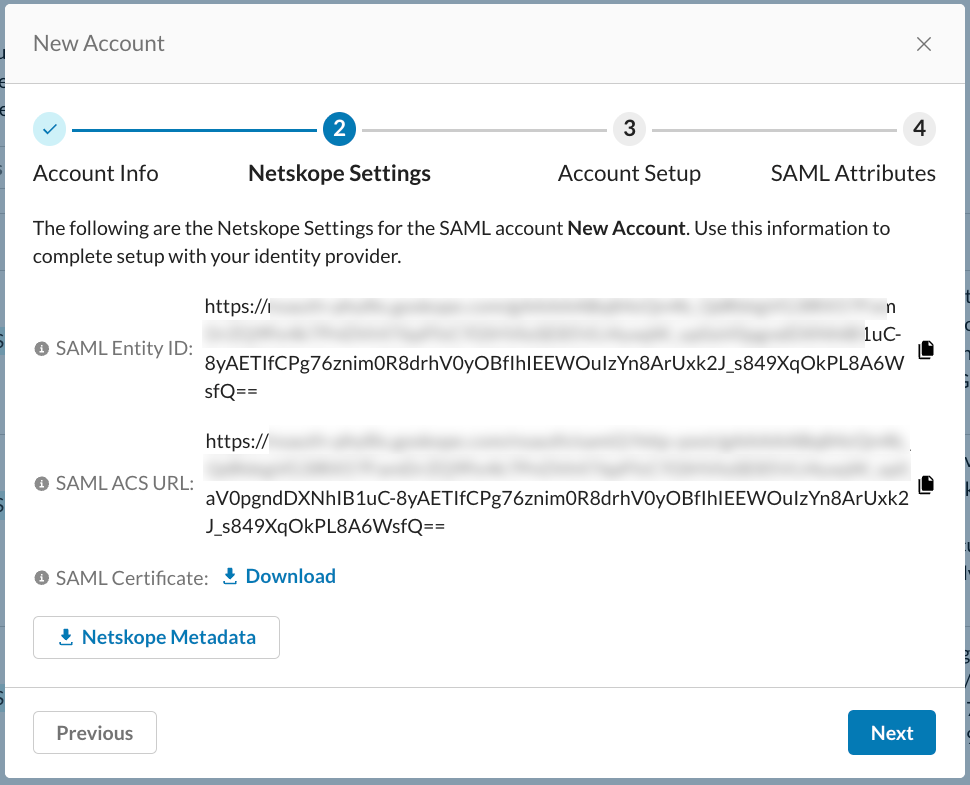
If the IdP account is already created, then in that IdP Account click Netskope Settings and copy the following:
For more information in creating an IdP account in Netskope, see the Adding a New Forward Proxy IdP Service section.-
SAML Entity ID
-
SAML Proxy ACS URL:
-
Download CERTIFICATE
-
Adding a New Forward Proxy IdP Service
To add a new IdP as an authentication service, do the following:
-
Go to Settings > Security Cloud Platform > SAML (in Forward Proxy).
-
Click the NEW ACCOUNT button. In the New Account pop-up window, configure:
-
Name: Provide a name to identify the IdP service.
-
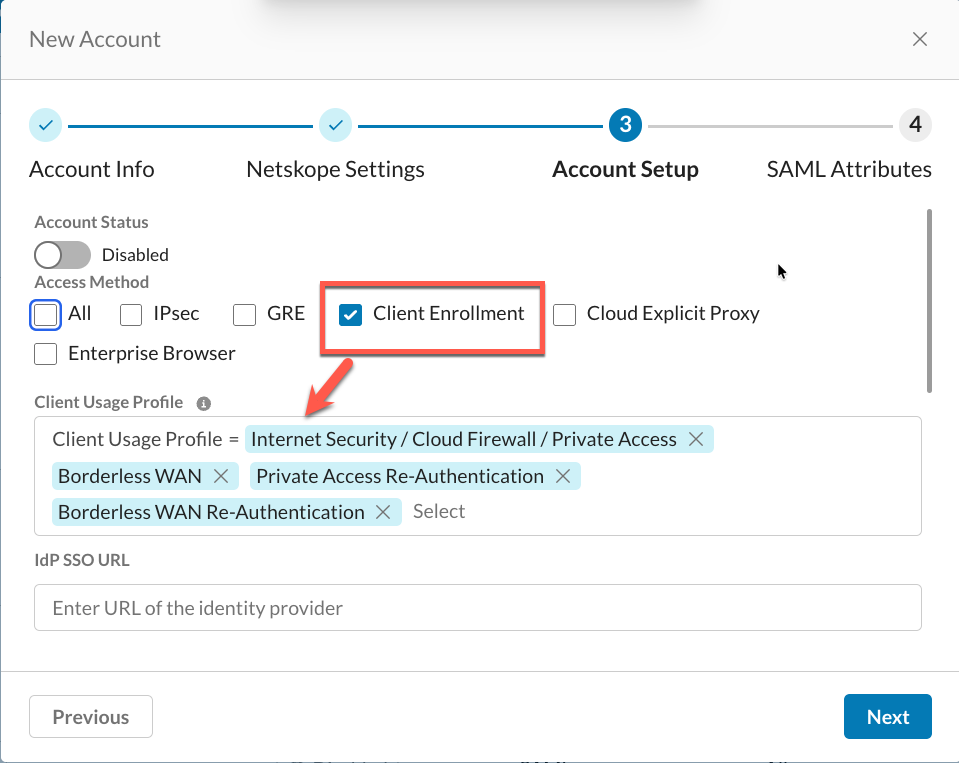
Access Method: Select the access method that will use this IdP service
-
All – To use the IdP service for all access methods.
-
IPSec – Select this option to use the IdP service for IPsec access methods. For granular control, you can enable the IdP service for all tunnels or specific tunnels.
-
GRE – To use the IdP service for GRE access methods. For granular control, you can enable the IdP service for all tunnels or specific tunnels.
-
Client Enrollment – To use the IdP service for client enrollment and authentication workflows.
-
Cloud Explicit Proxy – To use the IdP service when the access method is via Netskope Proxy.
-
-
Usage Profiles (Applicable when Client Enrollment or All is selected): Select the service-specific profiles to assign to this IdP account. By default, all four profiles are selected:
-
Internet Security / Cloud Firewall / Private Access: Governs client enrollment and initial authentication for SWG, CFW, and NPA.
-
Borderless WAN: Handles client enrollment and initial authentication flows for Borderless WAN endpoints.
-
Private Access Re-Authentication: Applies to subsequent step-up verification when users access sensitive NPA applications subject to re-authentication policies.
-
Borderless WAN Re-Authentication: Applies to subsequent verification for active Borderless WAN sessions requiring renewed credentials.
At least one usage profile must remain selected when Client Enrollment is enabled. You cannot save an account with all profiles cleared. -
-
IdP Configuration: In the Setup tab, configure the IdP parameters:
-
IDP SSO URL: The URL used to redirect the user to the IdP site for authentication.
-
IDP Entity ID: A globally unique name for the SAML entity (IdP or SP).
-
IDP Certificate: Upload the X.509 certificate from the third-party IdP to validate the signature of the SAML assertion.
-
SAML Binding Method: Select between HTTP Post and HTTP Redirect.
-
Alternate User Id Field: By default, Netskope looks at the NameID field in the SAML assertion. If using another attribute, enter the SAML attribute name.
-
Select the Status toggle to enable or disable the IdP service.
-
-
-
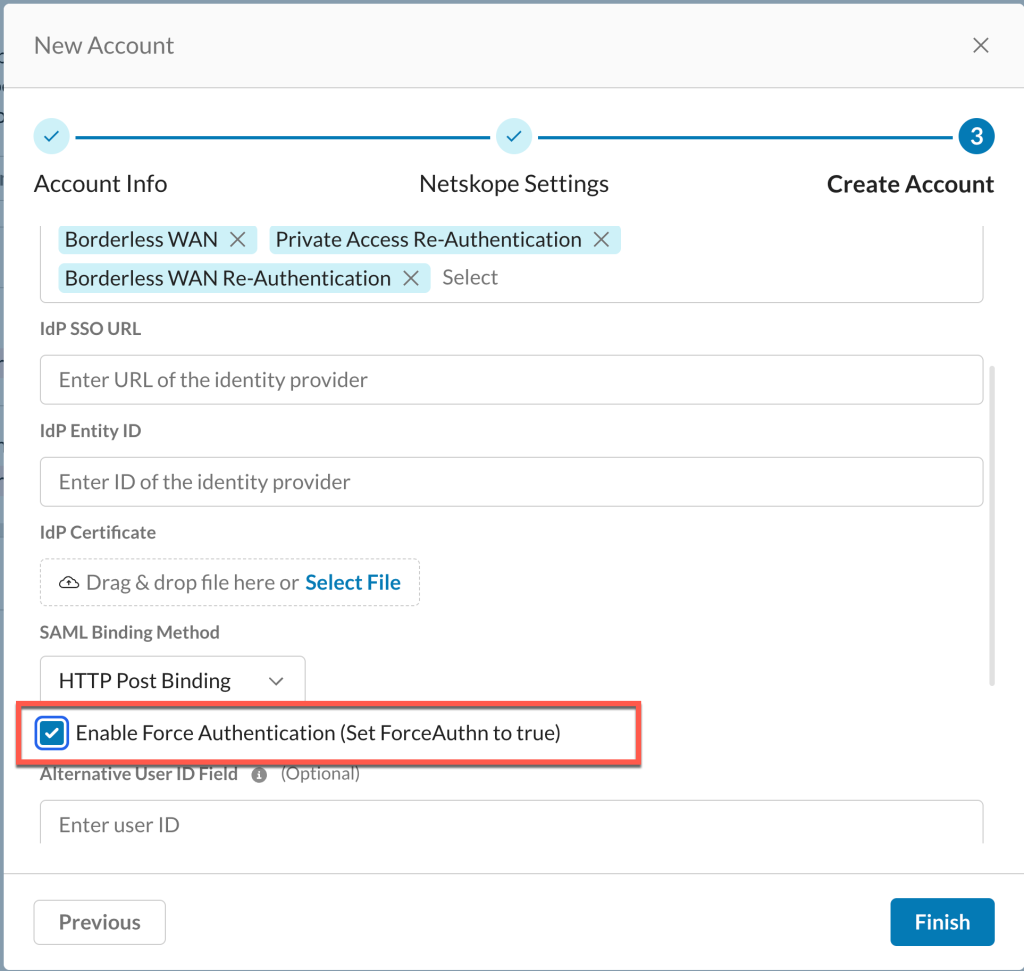
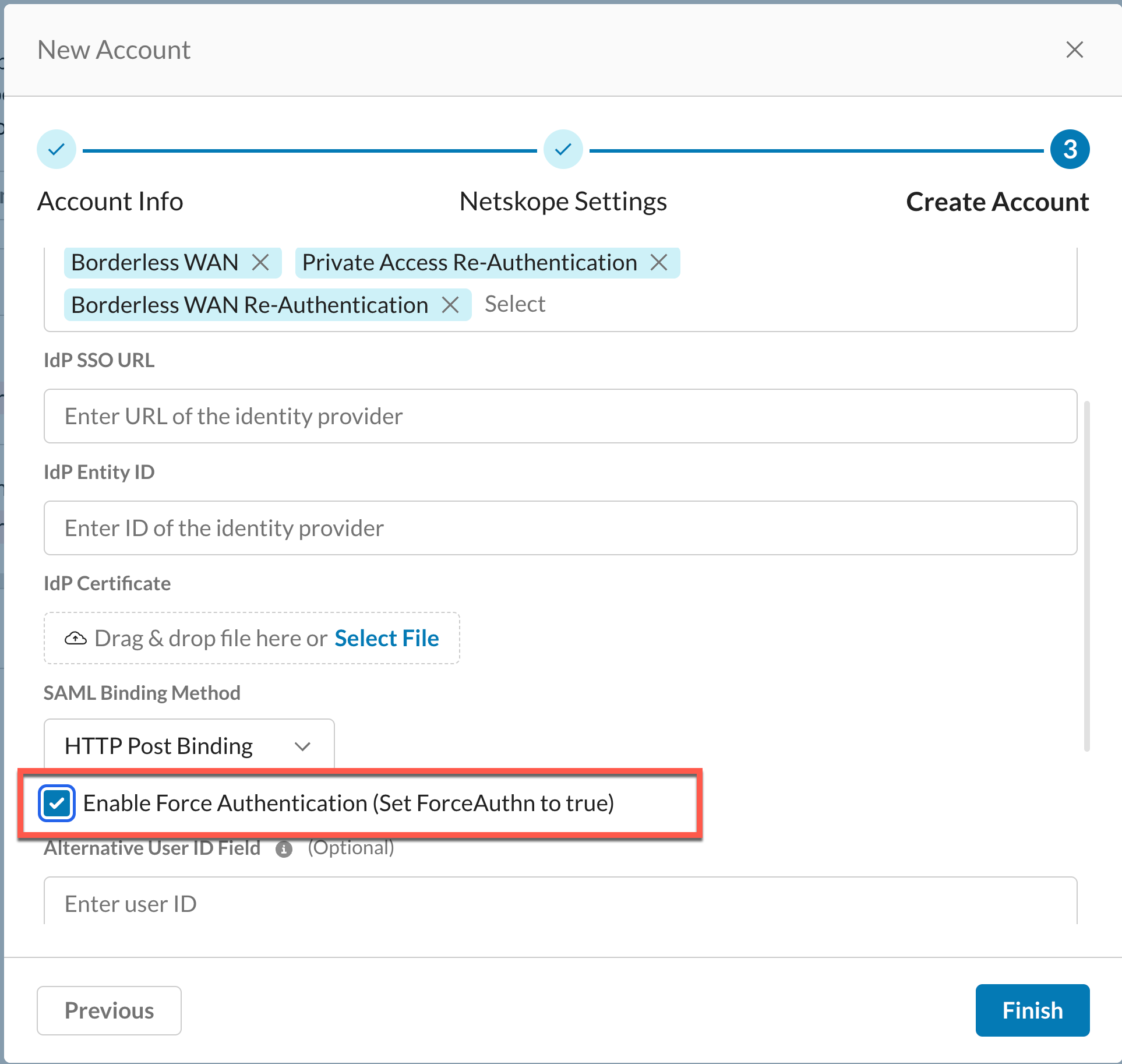
Options tab. (Force Authentication & Granular Controls). These are optional settings.
-
Force Authentication: Select to Enabled (ON). This instructs the IdP to challenge the user for active credentials again, even if an active SSO session already exists. When enabled, Netskope includes ForceAuthn=”true” in the SAML AuthnRequest payload. This replaces legacy browser cookie-clearing workarounds and ensures strict MFA compliance for re-authentication workflows.
-
Network Location & Domain Matching: Specify granular controls so the IdP is matched only when specific criteria (network location, authentication domain) are met.
-
-
Click SAVE.
Example Deployment Configurations
Authentication requirements differ across customer environments and security postures. Administrators can configure multiple SAML IdP accounts to support tailored workflows:
-
Example Configuration A: General Client Enrollment and Browsing
-
Force Authentication: Unchecked (Disabled)
-
Assigned Client Usage Profiles: Internet Security / Cloud Firewall / Private Access, Borderless WAN
-
Workflow: Allows users to leverage active corporate SSO sessions for daily web access and initial tunnel connection without unnecessary sign-in prompts.
-
-
Example Configuration B: Dedicated High-Assurance Re-Authentication
-
Force Authentication: Checked (Enabled)
-
Assigned Client Usage Profiles: Private Access Re-Authentication, Borderless WAN Re-Authentication
-
Workflow: Enforces fresh credential entry and step-up MFA whenever access policies require re-authentication for protected internal services.
-
Adding a New Forward Proxy IdP Service with the REST API
SAML Forward Proxy IdP accounts can be created and managed programmatically using Netskope REST API v2 endpoints:
-
API Endpoint:
/api/v2/infrastructure/samlforwardproxyidpaccount(supportingGET,POST,PATCH, andDELETEmethods). -
Access Method & Profiles: In the REST API, client profiles are defined by extending the
accessMethodarray rather than using a separateusageProfileskey. Supported profile and access method values include:-
“ipsec-gateway”
-
“gre-gateway”
-
“client-enrollment”
-
“bwan”
-
“npa-reauth”
-
“bwan-reauth”
-
“enterprise-browser”
-
“Explicit”
-
“All”
-
-
Force Authentication Parameter: Pass
"enableForceAuthn": true(orfalse) in the payload to control SAML ForceAuthn behavior.
Forward Proxy Global Settings
Administrators can use this page to configure user authentication settings. You can enable cookie surrogate, modify the authentication refresh interval, and modify the user authentication domain refresh interval. In addition, you can bypass specific domains and web categories for which authentication is not required.
Using IP Surrogate
IP surrogate is enabled by default for SAML forward proxy authentication. The Netskope service maps users to private IP addresses for user-based or group-based policy evaluations. User to private IP address mapping expires based on the configured authentication refresh interval setting.
Using Cookie Surrogate
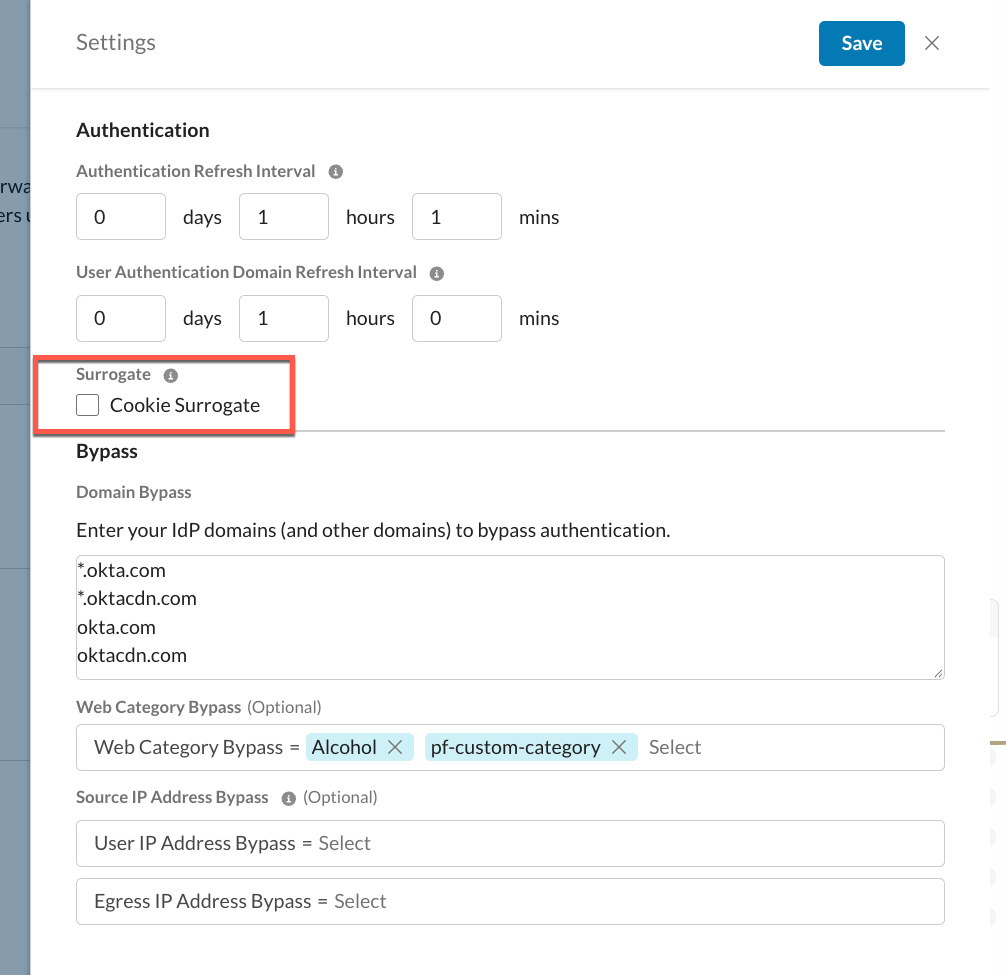
A cookie surrogate is useful in cases where users are behind a NAT device and the Netskope Security Cloud Platform sees the same IP for all the users that are behind NAT. When this feature is enabled, the cookie surrogate resolves this by using a cookie to fetch user identity. For this purpose, enter the private IP address of the NAT.
To use a cookie surrogate, go to Settings > Security Cloud Platform > Forward Proxy > SAML and click Settings. In the Settings pop-up, select the Cookie Surrogate checkbox to enable, and then enter the source IP address (like 1.1.1.1) or subnet (like 1.1.1.0/24) for the cookie surrogate in the Source IP Addresses text field.
Cookie Surrogate for Desktop Applications
Native apps on a desktop that do not honor cookie redirects, or background traffic from a browser such as .js and .css that do forward cookies or support redirects, may not have user identity available. When user identity is unavailable:
-
Policies that are user specific for access to specific apps, instances, or SSL decryption, etc., will not be enforced.
-
Events (Application/Page) will not show user information, but will show the IP address of the user.
-
With cookie surrogate, IdP authentication will happen for each browser instance because it is cookie dependent.
-
Device information is not supported with cookie surrogate.
-
Remediate actions include bypassing authentication for problematic domains.
Limitations with the IPSec/GRE Cookie Surrogate
Depending on the website’s structure and its Cross-Origin Resource Sharing (CORS) policy, there may be scenarios where the nspatoken cookie is either omitted or cannot be transmitted as part of the request. During user authentication, Netskope establishes the user’s identity by setting and receiving the nspatoken cookie between the Netskope service and the user’s browser. If the nspatoken is absent in the browser’s subsequent requests, Netskope will block the connection as it relies on the token to validate the user session and authorize communication.
Refresh Interval Settings
In the Settings pop-up, in the Authentication tab, you can configure the Authentication Refresh Interval and User Authentication Domain Refresh Interval.
Authentication Refresh Interval
This option applies to both IP surrogate and the cookie surrogate token. To refresh the authentication token after a specified length of time, enter the days and hours for the Authentication Refresh Interval. The default value is 7 days, the minimum is 1 hour, and the maximum is 180 days.
For IPSec, GRE, or EPoT deployments, you can run the following POST request from the end device to force expiration of a specific user-to-IP mapping for IP surrogate behind the tunnel:
curl -X POST -H "X-NS-REMOVE-AUTH-ENTRY: 1" -H "Content-Type: application/json" -d "{"comment": "<enter your comment>"}" https://nsauth-<enter your tenant>.goskope.com/
When IP surrogate is removed for the inline user, an audit event is generated. This activity is listed as “Removed Auth Entry” followed by your comment in the curl command. Go to Settings > Administration > Audit Logs to view audit events.
User Authentication Domain Refresh Interval
If you set up the user authentication domain for IdP selection, you can control how frequently users are prompted to enter their email. Enter the days and hours for the User Authentication Domain Refresh Interval. This feature is optional; the default is 7 days, the minimum is 1 hour, and the maximum is 180 days.
Bypass Settings
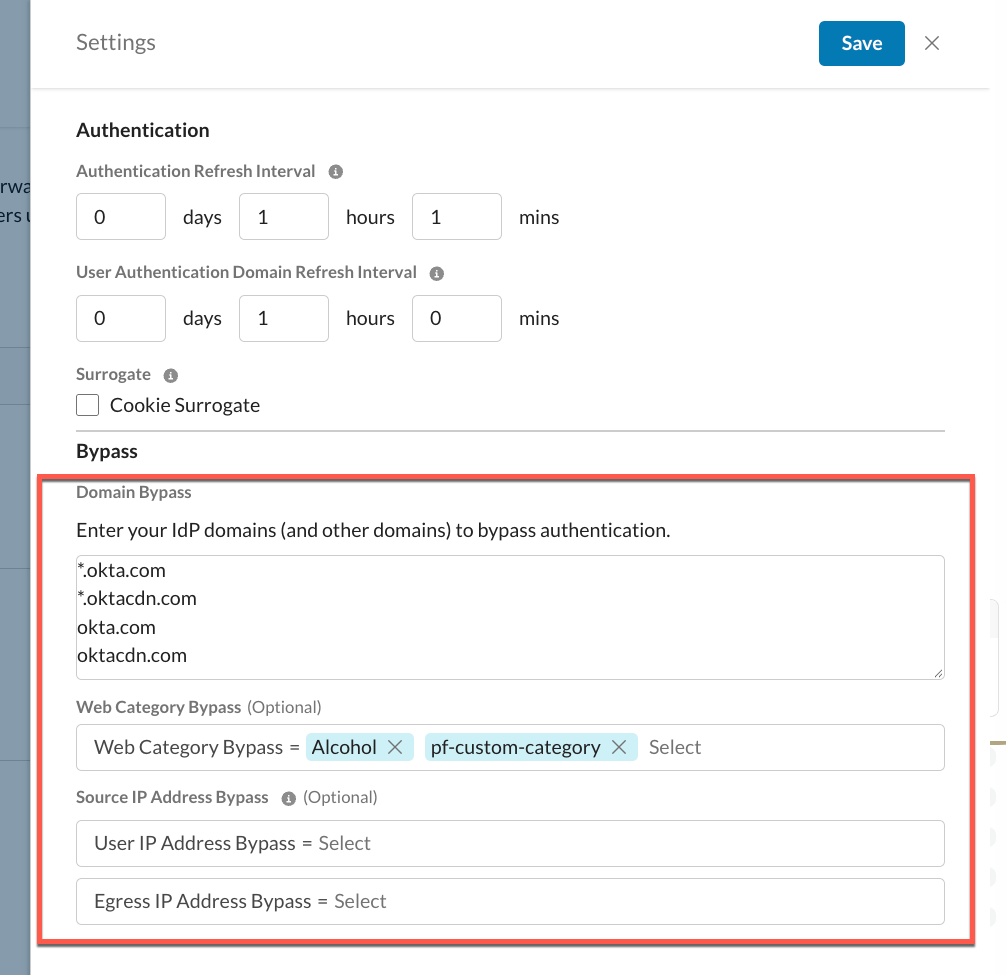
You can specify domains, web categories, and network IP addresses for which user authentication is not required. To specify authentication bypass settings, go to Settings > Security Cloud Platform > Forward Proxy > SAML and click Settings.
Domain Bypass
Click to add comma-separated URLs to bypass. When finished, click Save.
Web Category Bypass
Click to add add comma-separated URLs to bypass. When finished, click Save.
Source IP Address Bypass
Click to edit and search for source networks. For each of the networks found, you can choose to bypass based on User IPs or Egress IPs (just one, not both). Enter the IP address, IP address range, or CIDR netmask in the text field. Click the  icon to add multiple network locations. After adding the network locations, click Save.