

Release Notes
1.0.0 (Requires minimum Cloud Exchange version 6.1.0)
Added
- Initial release.
- Log Types: Alerts, Events, WebTx
- Format Types: JSON, CEF
This document explains how to configure the SentinelOne Singularity Data Lake v1.0.0 plugin with the Log Shipper module of the Netskope Cloud Exchange platform. This plugin supports the ingestion of:
- Alerts (DLP, Malware, Policy, Compromised Credential, Malsite, Quarantine, Remediation, Security Assessment, Watchlist, UBA, CTEP, Device, Content)
- Events (Page, Application, Audit, Infrastructure, Network, Incident, Endpoint, Client Status)
- WebTx.
Data is ingested into SentinelOne Singularity Data Lake using the HTTP Event Collector (HEC) API. JSON logs are sent to the HEC event endpoint. and CEF logs are sent to the HEC raw endpoint.
Prerequisites
To complete this configuration, you need:
- A Netskope tenant (or multiple, for example, production and development/test instances).
- A Netskope Cloud Exchange tenant with the Tenant plugin and Log Shipper plugin already configured.
- The AWS Log Streaming plugin and Azure Log Streaming plugin already configured, for ingesting alerts, events and WebTx from the Netskope Log Streaming plugin.
- A SentinelOne Singularity Data Lake instance with access to the API Keys section.
- A Log Access Write Key generated in Singularity Data Lake.
- Connectivity to the following hosts:
- US: https://ingest.us1.sentinelone.net
- Canada: https://ingest.ca1.sentinelone.net
- Germany: https://ingest.eu1.sentinelone.net
- Singapore: https://ingest.ap1.sentinelone.net
- India: https://ingest.aps1.sentinelone.net
- Australia: https://ingest.apse2.sentinelone.net
- For Secret Manager configuration, refer to this documentation. To set up Azure Key Vault Secrets Manager, refer to this documentation.
SentinelOne Singularity Data Lake Plugin Support
This plugin supports the ingestion of Netskope Alerts, Events, and WebTx. into SentinelOne Singularity Data Lake using the HTTP Event Collector (HEC) API. JSON logs are sent to the HEC event endpoint and CEF logs are sent to the HEC raw endpoint.
| Data Type | Support |
|---|---|
| Events | Yes — Page, Application, Audit, Infrastructure, Network, Incident, Endpoint, Client Status |
| Alerts | Yes — DLP, Malware, Policy, Compromised Credential, Malsite, Quarantine, Remediation, Security Assessment, Watchlist, UBA, CTEP, Device, Content |
| WebTx | Yes |
| Cloud Exchange Logs | No |
Permissions
This permission is needed for the plugin configuration: Log Access Write Key with write access to the HEC ingest endpoint.
API Details
List of APIs Used
| API Endpoint | Method | Use Case |
|---|---|---|
| {hec_base_url}/services/collector/event | POST | Send JSON-format logs (Alerts, Events, WebTx) |
| {hec_base_url}/services/collector/raw | POST | Send CEF-format logs (Alerts, Events, WebTx) |
POST /services/collector/event
Endpoint: POST {hec_base_url}/services/collector/event
Request Headers:
| Key | Value |
|---|---|
| Authorization | Bearer {api_token} |
| Content-Type | application/json |
| Content-Encoding | gzip |
| User-Agent | netskope-ce-7.0.0-cls-sentinelone-singularity-data-lake-1.0.0 |
Request Body
{ “time”: 1700000000.123, “event”: { “…netskope fields…” }, “host”: “Netskope Cloud Exchange”, “sourcetype”: “json”, “source”: “Netskope Logs” }{ “time”: 1700000000.123, “event”: { “…netskope fields…” }, “host”: “Netskope Cloud Exchange”, “sourcetype”: “json”, “source”: “Netskope Logs” }
Sample Response
{“text”: “Success”, “code”: 0}
POST /services/collector/raw
Endpoint: POST {hec_base_url}/services/collector/raw
Request Headers
| Key | Value |
|---|---|
| Authorization | Bearer {api_token} |
| Content-Type | text/plain |
| Content-Encoding | gzip |
| User-Agent | netskope-ce-7.0.0-cls-sentinelone-singularity-data-lake-1.0.0 |
Query Parameters
| Parameter | Description |
|---|---|
| sourcetype | Parser name (from Parser field, or cef by default) |
| serverHost | Source value (from Source field, default Netskope Cloud Exchange) |
| dataSource.vendor | Fixed value: Netskope |
| dataSource.name | Fixed value: Netskope Cloud Exchange |
| dataSource.category | Fixed value: security |
| source | Log File Name (omitted when empty) |
Request Body
CEF:0|Device Vendor|Device Product|Device Version|Event Class ID|Name|Severity|key=value key=value …
CEF:0|Device Vendor|Device Product|Device Version|Event Class ID|Name|Severity|key=value key=value …
Sample Response
{“text”: “Success”, “code”: 0}
Performance Matrix
This performance reading was conducted on a Large Stack in Cloud Exchange with these VM specifications. These readings are added with the consideration that it will ingest around 10k Netskope alerts/events in 2 seconds to the SIEM.
| Description | Specification |
|---|---|
| Stack details | Size: Large RAM: 32 GB CPU: 16 Cores |
| Alerts/Events ingested to SIEM | ~200K EPM |
| WebTx (via Netskope LogStreaming) ingested to SIEM (uncompressed) | ~200K EPM |
User Agent
netskope-ce-7.0.0-cls-sentinelone-singularity-data-lake-1.0.0
Workflow
- Get your Singularity Data Lake Log Access Write Key.
- Configure the SentinelOne Singularity Data Lake plugin.
- Configure a Log Shipper Business Rule.
- Configure Log Shipper Log Delivery.
- Validate the Singularity Data Lake plugin.
Watch a Video
Click play to watch a video.
Get your Singularity Data Lake API Token (Write Key)
To configure the plugin, you need a Log Access Write Key from Singularity Data Lake. This key lets the plugin send (write) data to Singularity Data Lake. Follow these steps to generate the key.
-
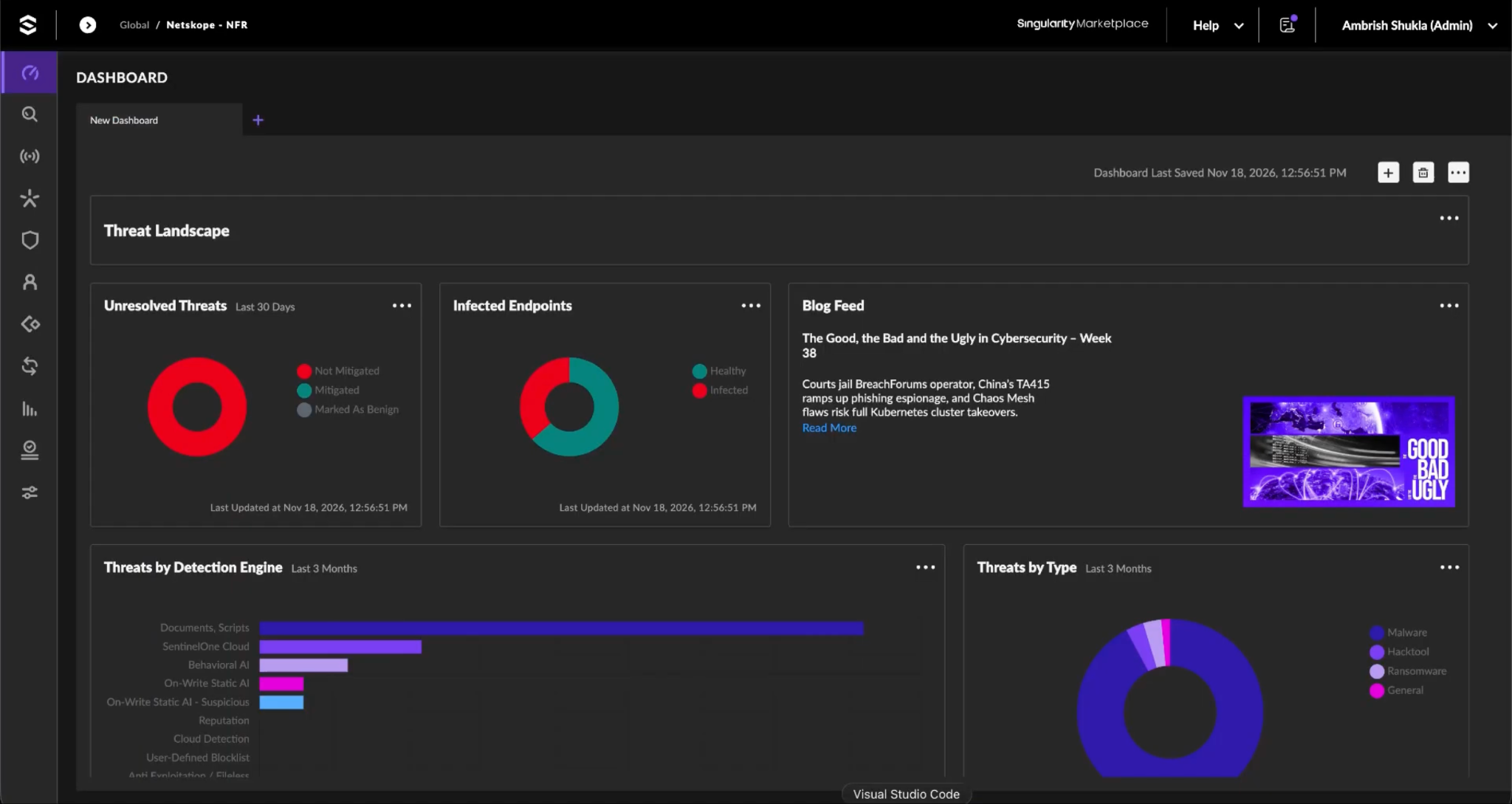
Log in to your SentinelOne platform as an Admin user.
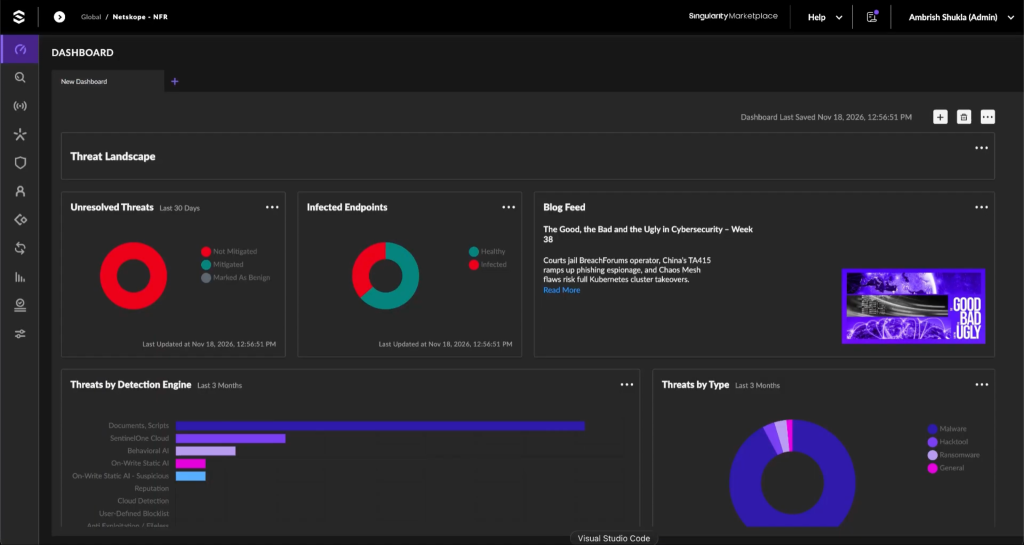
-
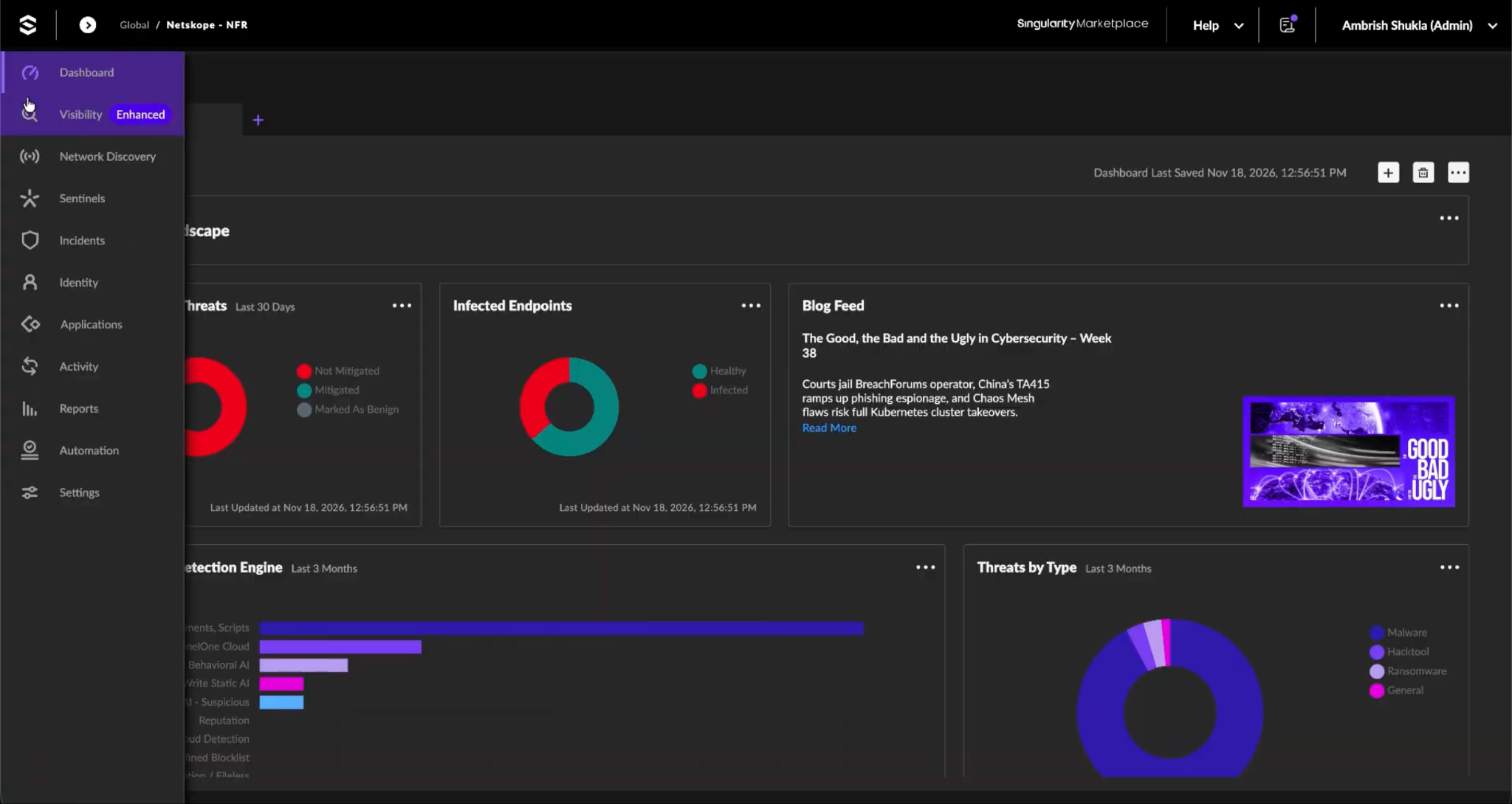
Hover over the SentinelOne logo in the left panel to open the navigation panel, and click Visibility. You will be redirected to the Singularity Data Lake console.
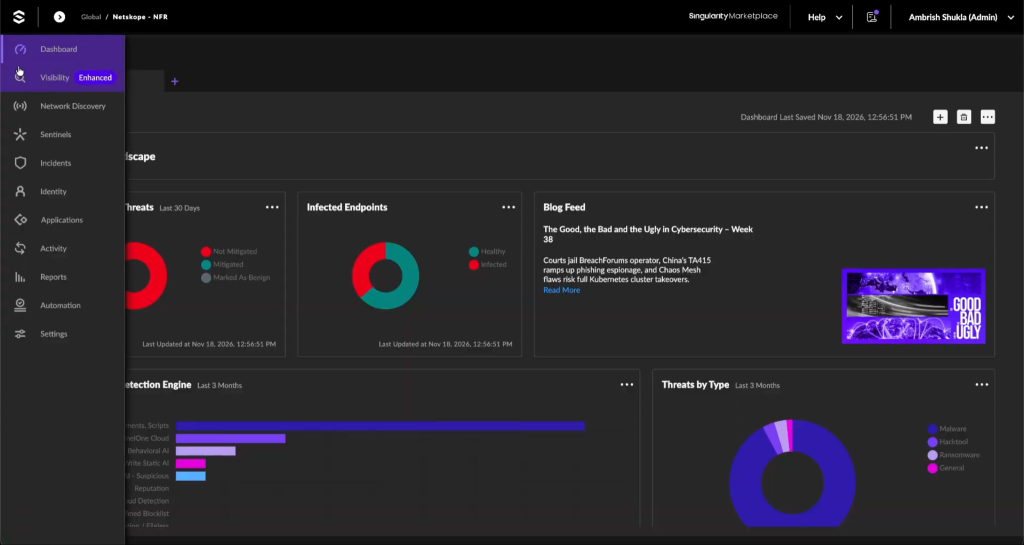
-
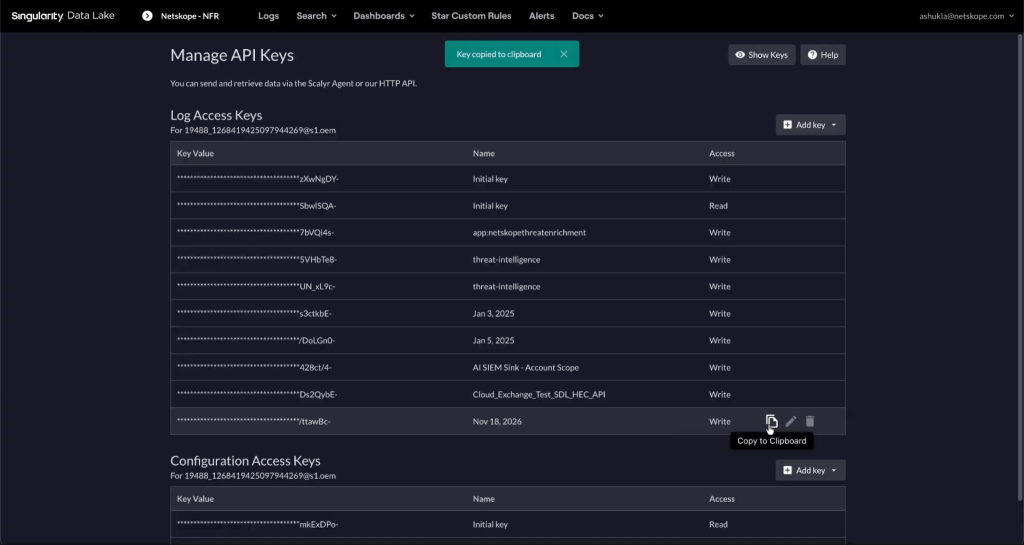
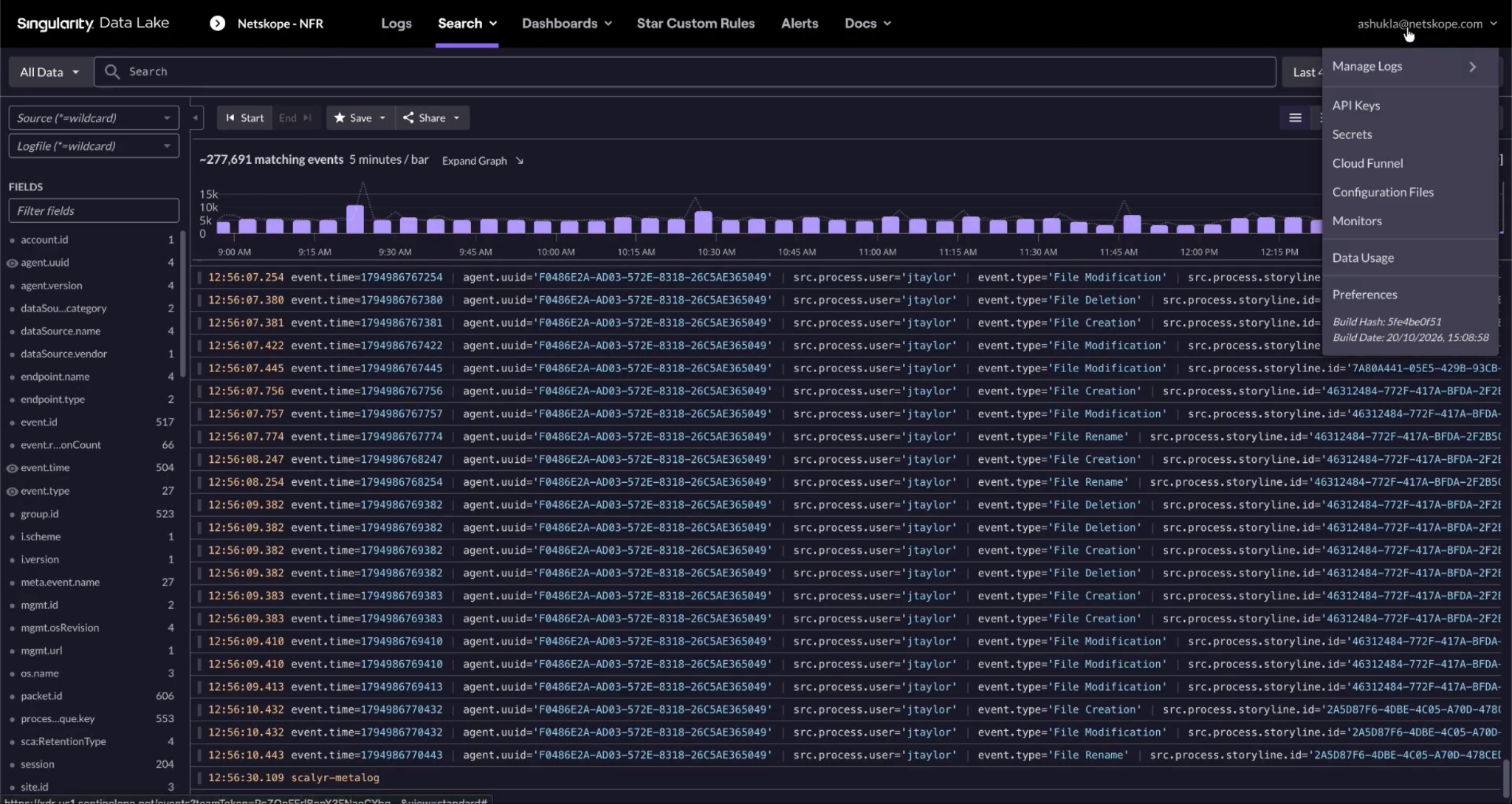
Click your username/email in the top right corner and click API Keys.
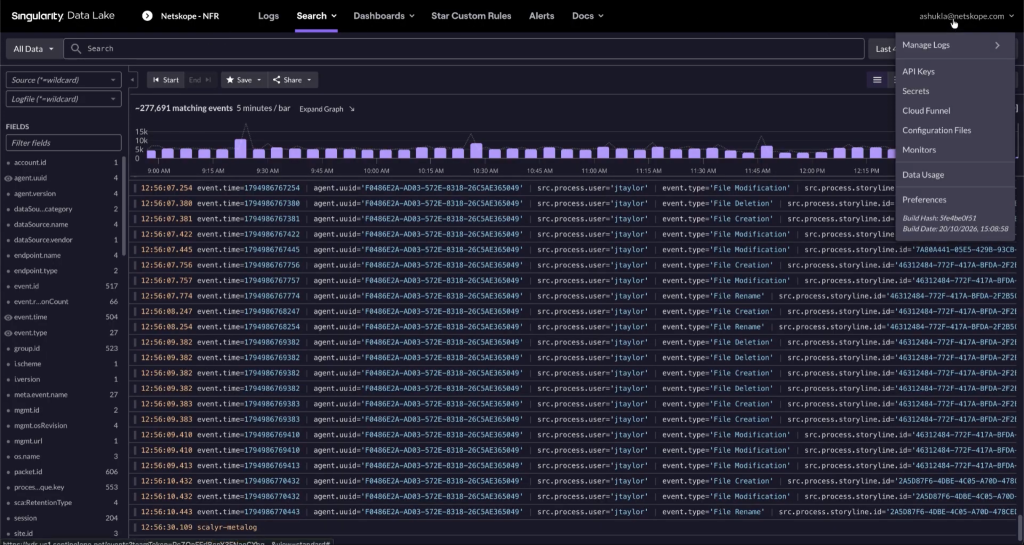
-
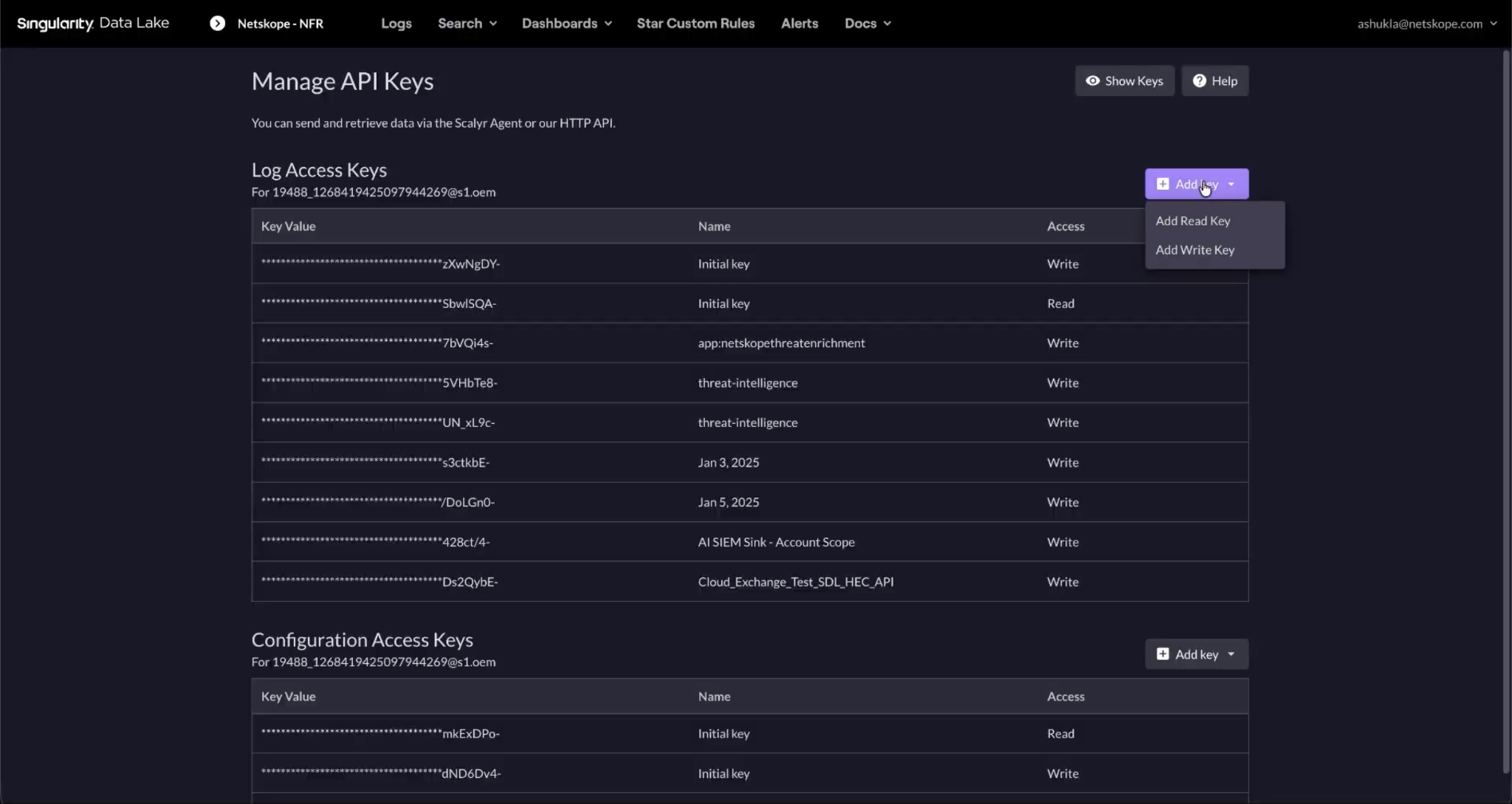
In the Log Access Keys section, click Add Key > Add Write Key.
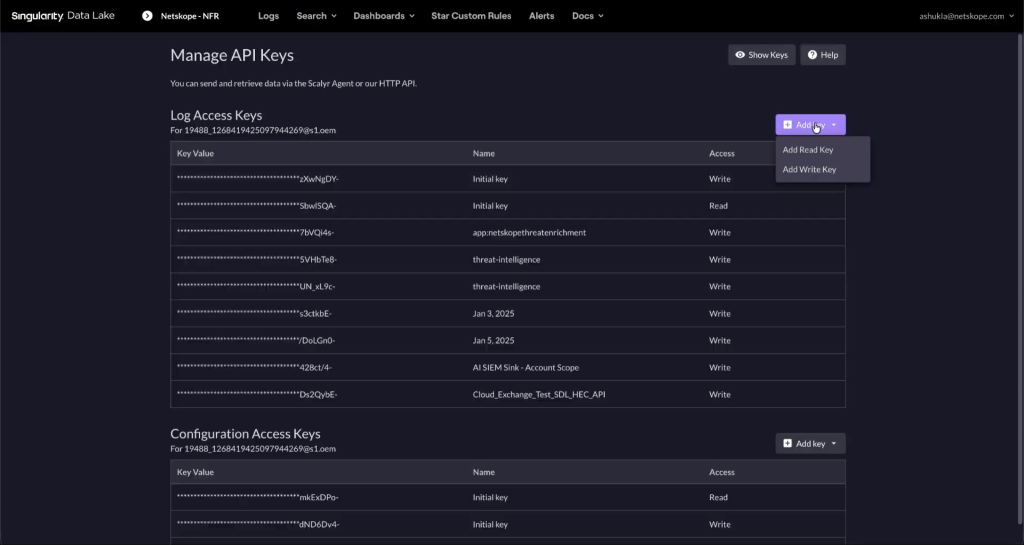
-
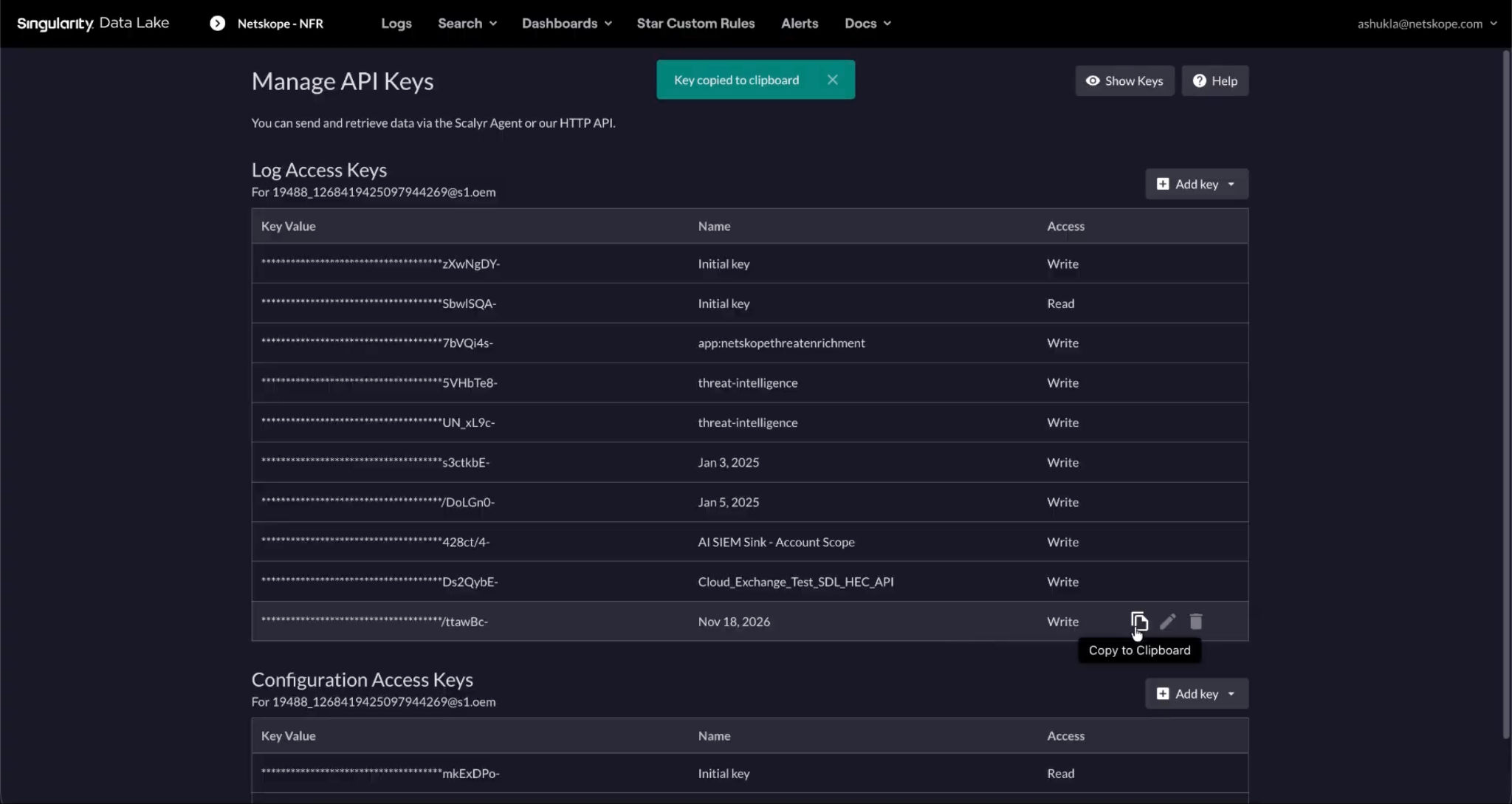
A new Write Key will be generated. Click Copy to Clipboard next to the key, or click Show Keys to view and copy it. Save the key in a secure location.
-
(Optional) Hover over the newly created key and click the Edit icon to give it an identifiable name (for example, Netskope CE Write Key), and then click Save.
Make sure you select Add Write Key and not Add Read Key. A Read Key only allows querying data and cannot be used to ingest data into Singularity Data Lake. If the API Keys option or the Add Write Key option is not visible, you do not have enough permissions. Contact your SentinelOne Admin to grant the required access or to generate the key for you.In some console versions, the API Keys page is under Policy & Settings > Singularity Data Lake > API Keys.
Configure the SentinelOne Singularity Data Lake Plugin
-
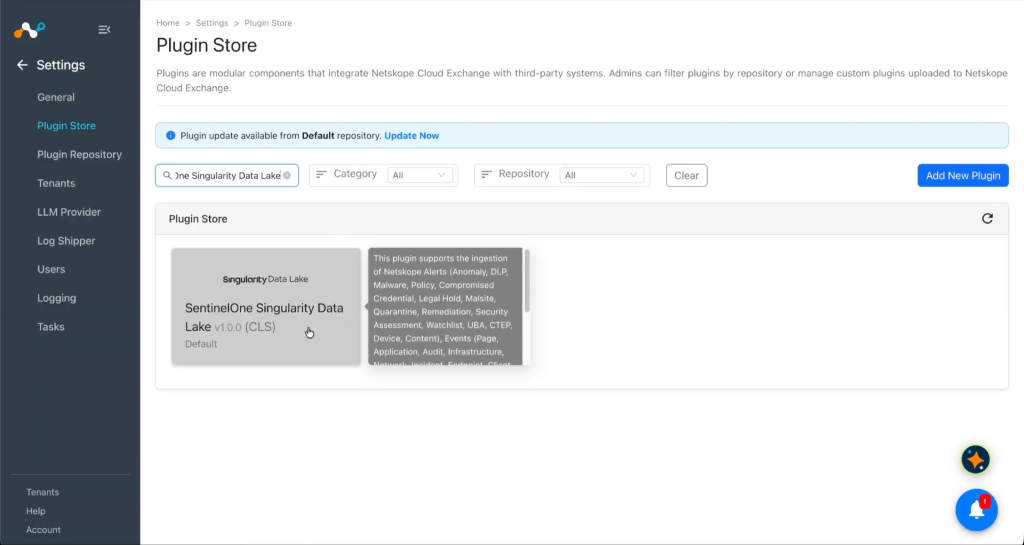
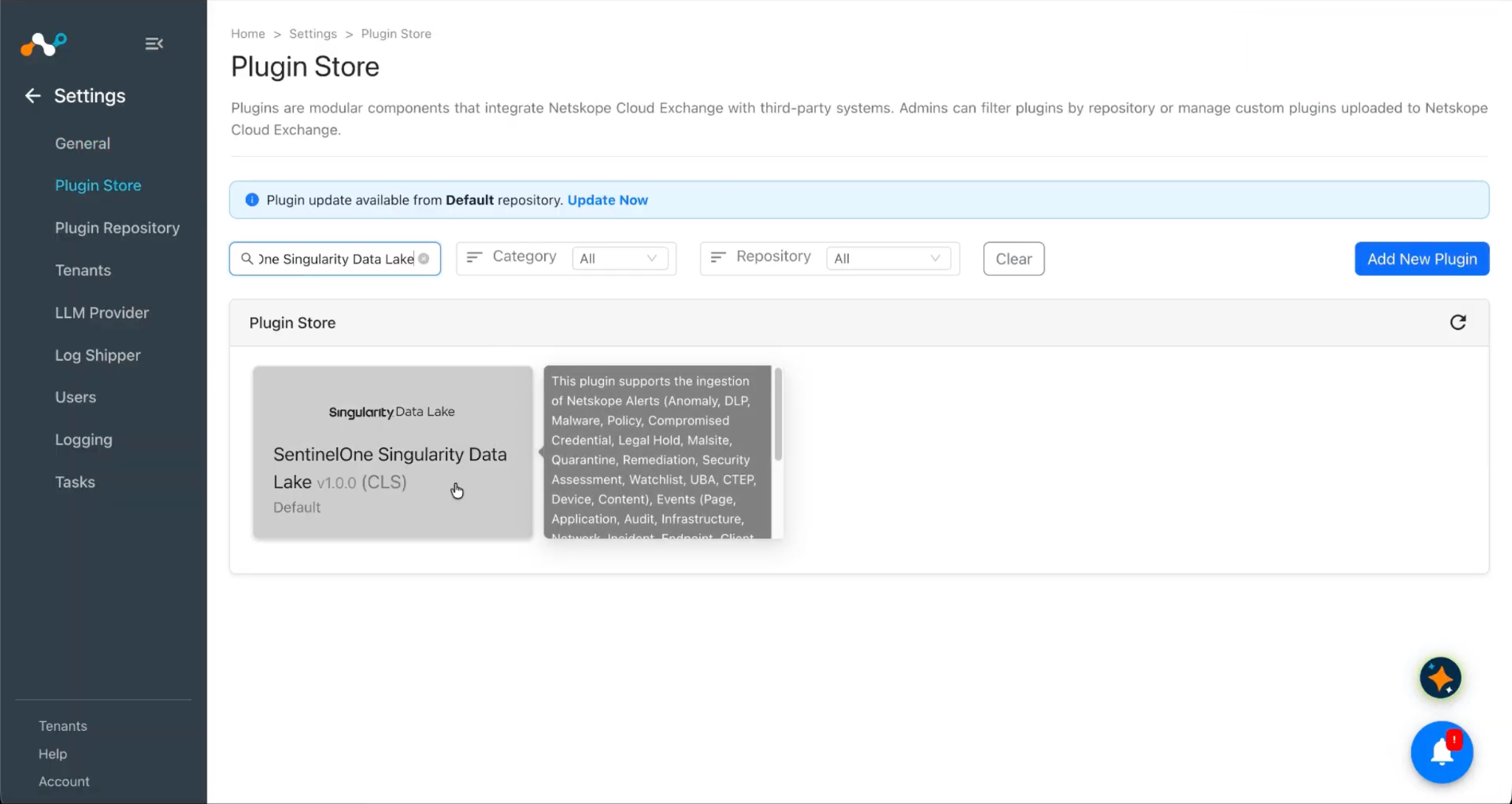
In Cloud Exchange, go to Settings > Plugin Store. Search for and select the SentinelOne Singularity Data Lake v1.0.0 (CLS) plugin.
-
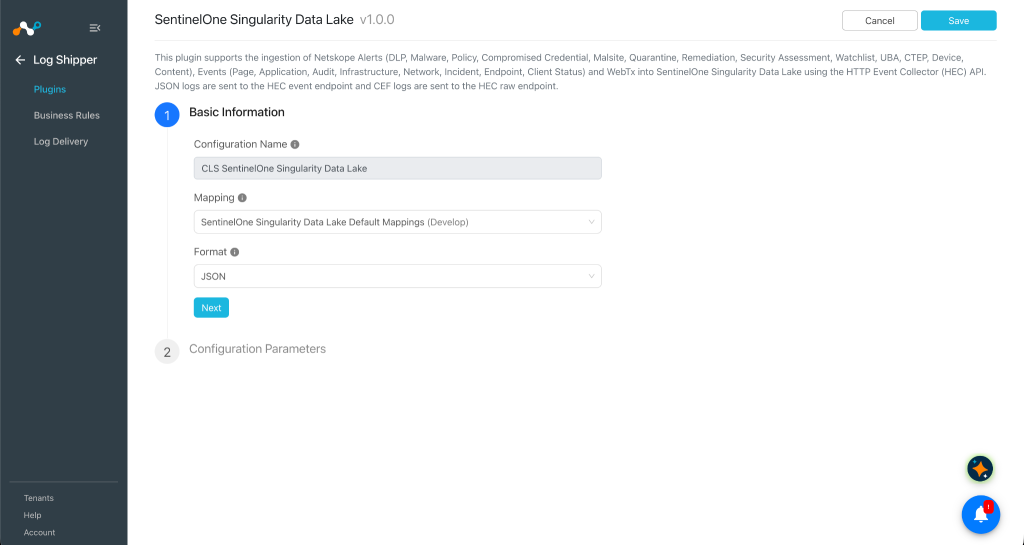
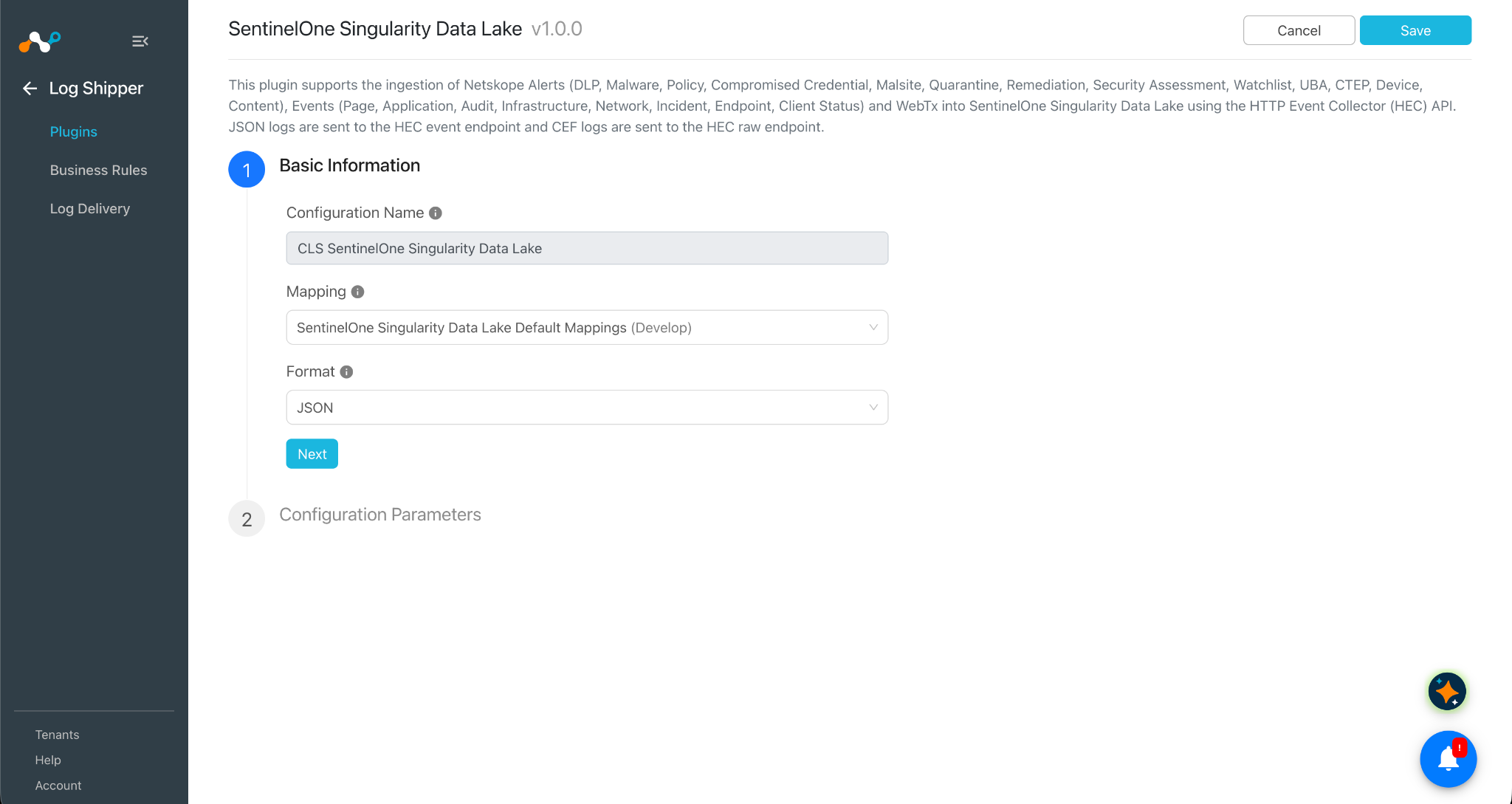
Enter a plugin configuration name, and make sure you have the SentinelOne Singularity Data Lake Default Mappings selected. If you want to share the data in JSON format, change the Format setting to JSON.
-
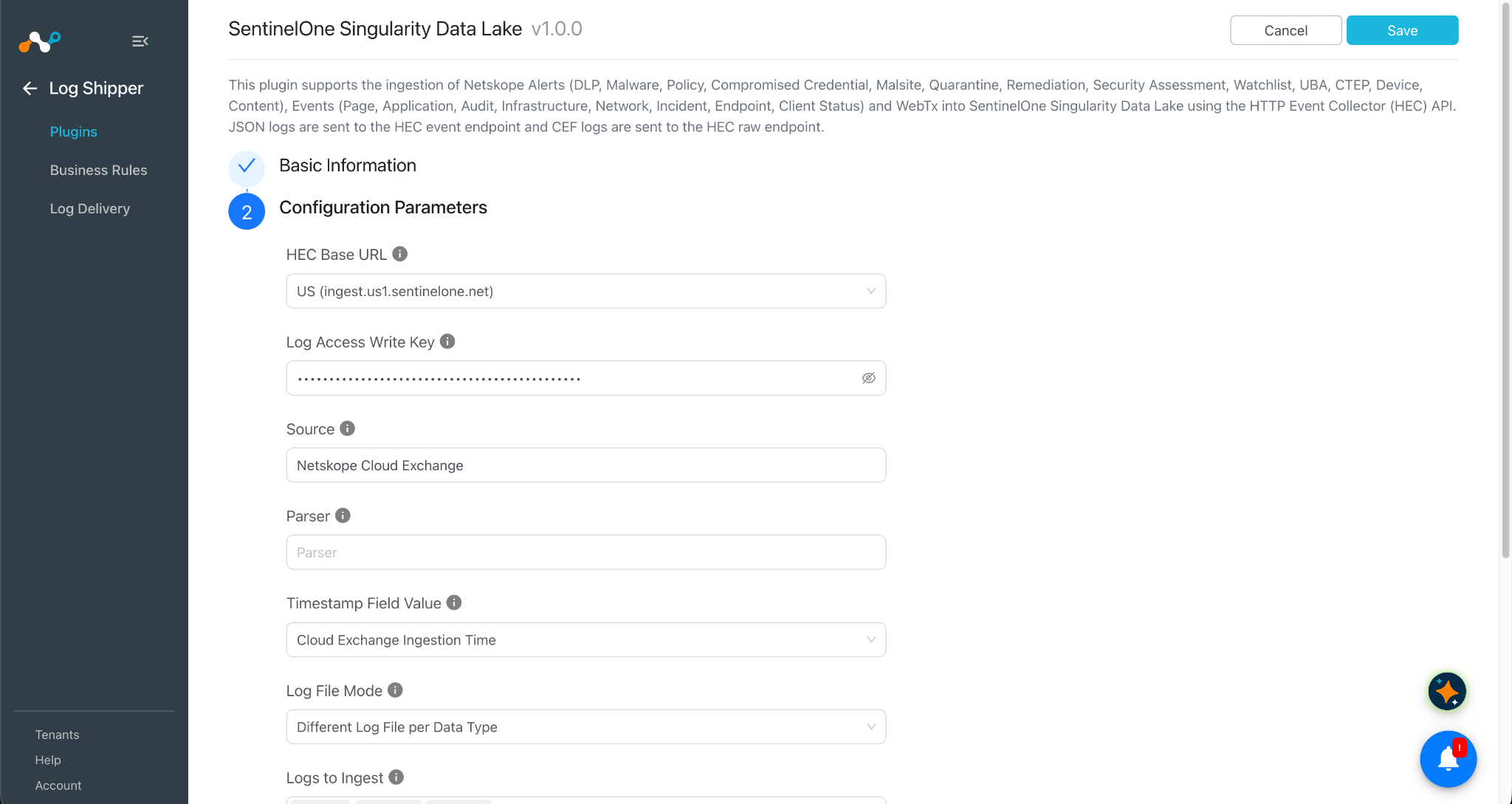
Click Next and enter the Configuration Parameters:
- HEC Base URL: HEC ingestion host of your Singularity Data Lake datacenter. Select Custom URL. If your datacenter is not listed, for example US GCP (NA4) or Saudi Arabia (ME1), use the ingest host, not the xdr console host. Options: US (ingest.us1.sentinelone.net), Canada (ingest.ca1.sentinelone.net), Germany (ingest.eu1.sentinelone.net), Singapore (ingest.ap1.sentinelone.net), India (ingest.aps1.sentinelone.net), Australia (ingest.apse2.sentinelone.net), Custom URL.
- Custom HEC Base URL: Required only when HEC Base URL is a Custom URL. Enter the HTTPS Base URL with no path. For example,
https://ingest.<datacenter>.sentinelone.net. - Log Access Write Key: The Singularity Data Lake Log Access Write Key obtained previously.
- Source: Name of this Cloud Exchange deployment. Shown under the Sources tab in Singularity Data Lake Event Search.
- Parser: Name of a parser from User > Manage Logs > Parsers in Singularity Data Lake. Leave empty to use
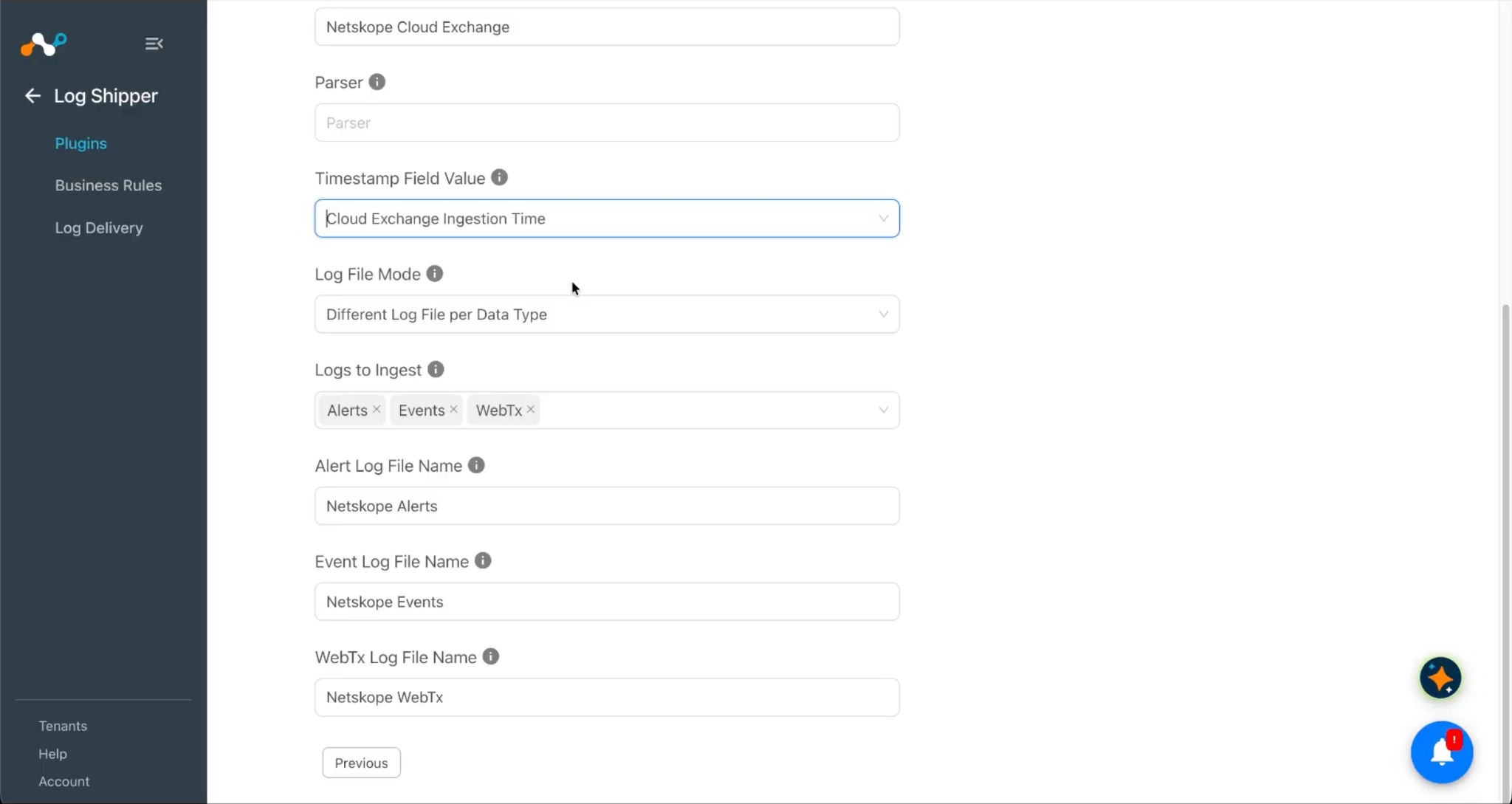
jsonfor JSON logs andceffor CEF logs. JSON logs are parsed automatically. For CEF logs, enter the name of a CEF parser that exists in Singularity Data Lake. - Timestamp Field Value: The time used as the event time of a JSON log in Singularity Data Lake. Netskope Event Time uses the time the activity happened, so search by time match of the Netskope timeline. Cloud Exchange Ingestion Time uses the time Cloud Exchange sent the log, which keeps a backfill of older data inside the Singularity Data Lake retention window; logs older than that window are accepted but never become searchable. Both times are always added to the log as
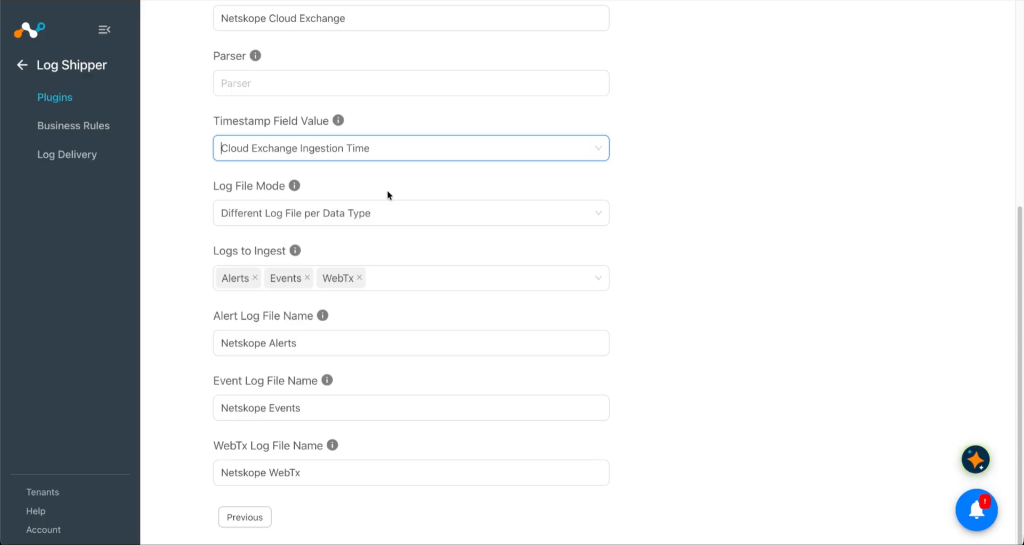
netskope_event_timeandnetskope_ce_ingestion_time, whichever option is selected. - Log File Mode: Single Log File sends Alerts, Events, and WebTx under one Log File name. Different Log File per Data Type gives each data type its own Log File name, so you can filter the Log Files in Singularity Data Lake by data type.
- Logs to Ingest: Which data types this configuration sends when Log File Mode is Different Log File per Data Type. A data type that is not selected here is not sent at all.
- Log File Name: Log File name for Alerts, Events and WebTx. Shown under the Log Files tab in Singularity Data Lake Event Search.
- Alert Log File Name: Log File name for Netskope Alerts. Shown under the Log Files tab in Singularity Data Lake Event Search. Leave it empty to send Alerts with no Log File name.
- Event Log File Name: Log File name for Netskope Events. Shown under the Log Files tab in Singularity Data Lake Event Search. Leave it empty to send Events with no Log File name.
- WebTx Log File Name: Log File name for Netskope WebTx. Shown under the Log Files tab in Singularity Data Lake Event Search. Leave it empty to send WebTx with no Log File name.
The Timestamp Field Value setting does not apply to CEF logs. CEF logs always use the ingestion time as the HEC envelope timestamp.The Log File Name value
scalyris reserved by Singularity Data Lake. Using it will cause validation to fail.When CEF format is selected, do not enterjsonor_jsonas the Parser name. These parsers cannot read CEF-formatted logs. Enter a CEF parser name from Singularity Data Lake, or leave the field empty to use the defaultcefparser.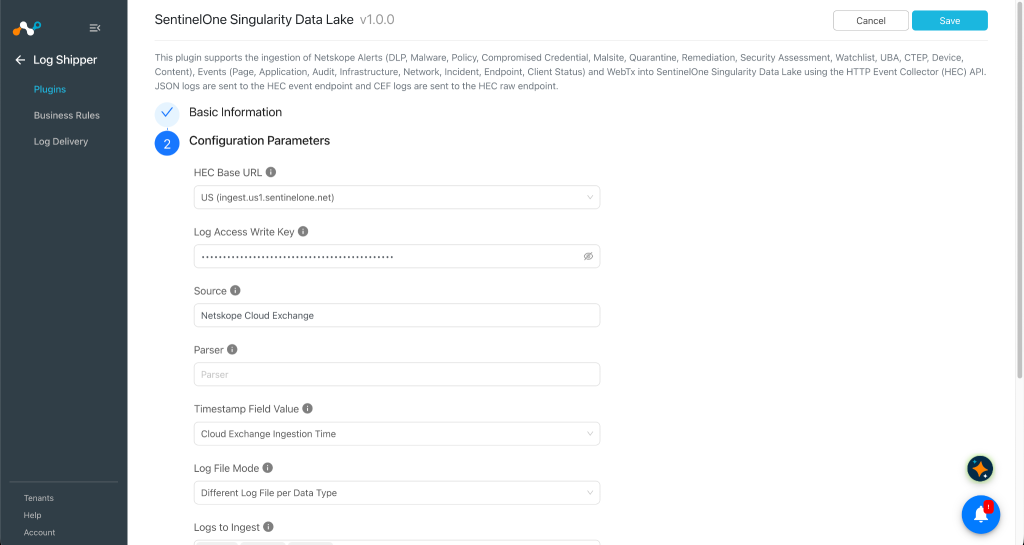
-
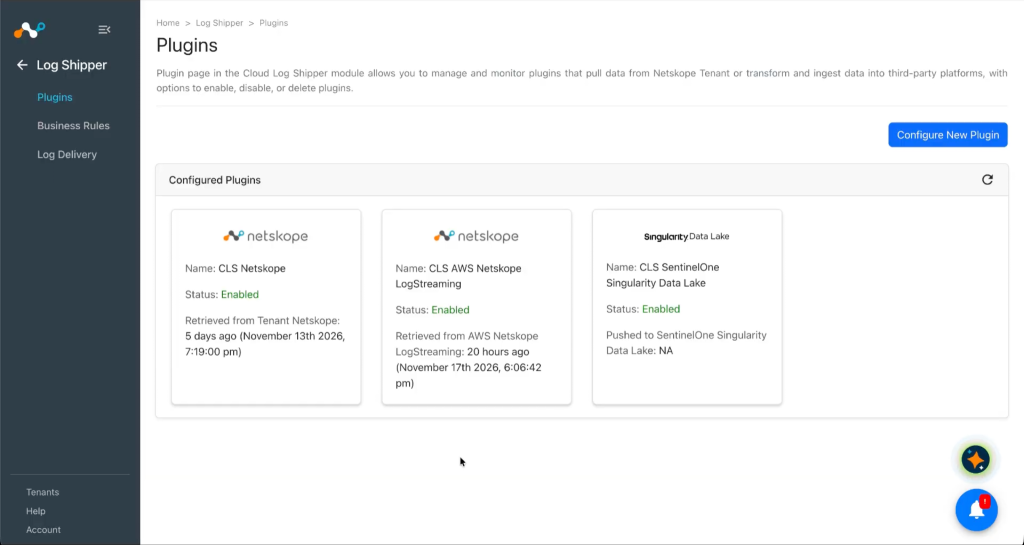
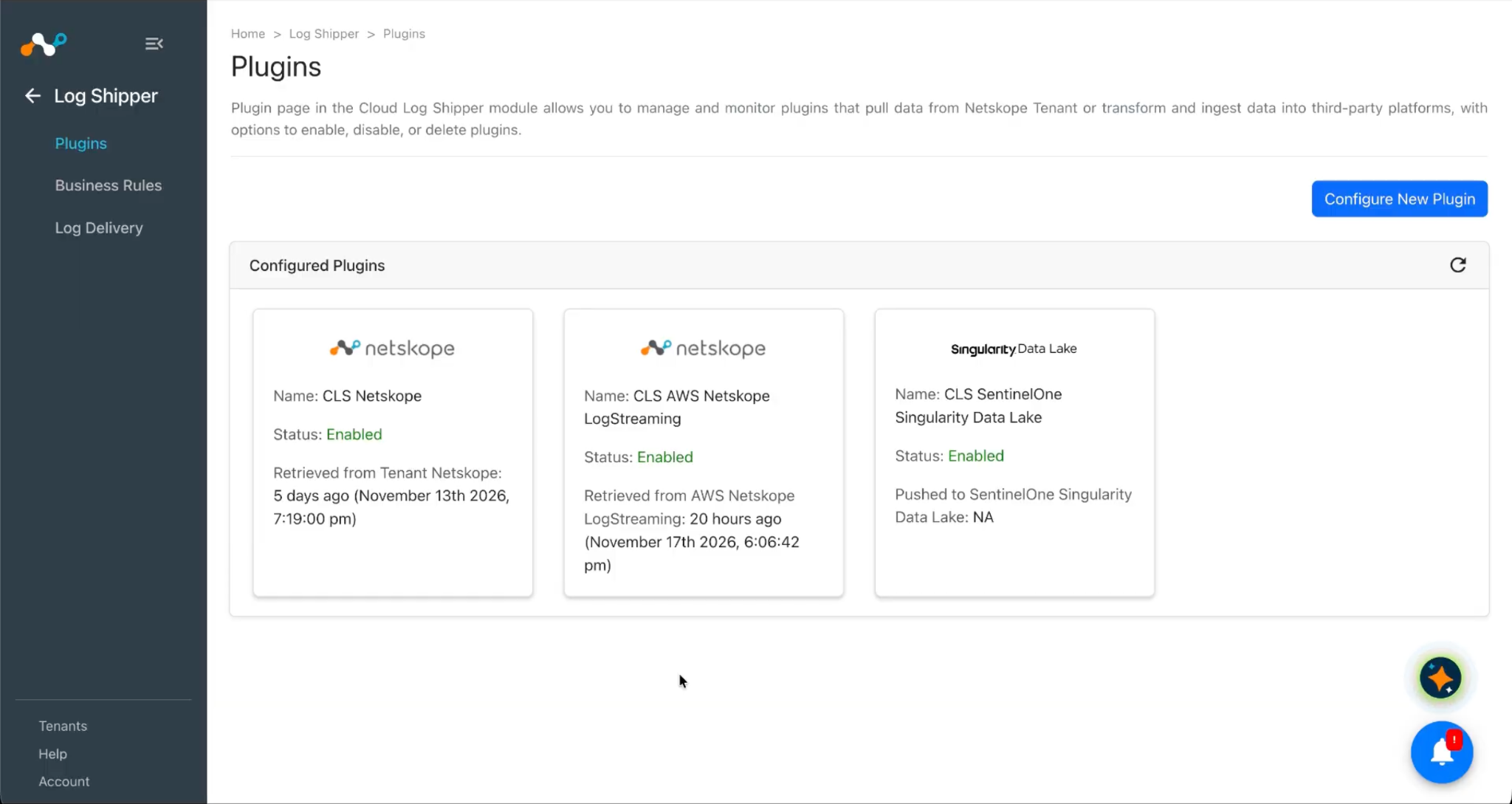
Click Save.
Configure a Log Shipper Business Rule for SentinelOne Singularity Data Lake
-
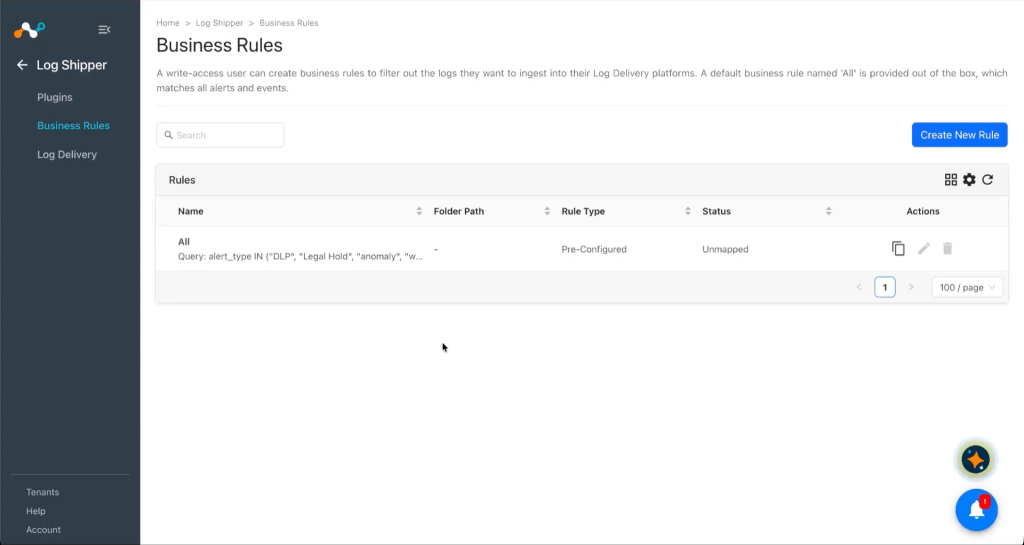
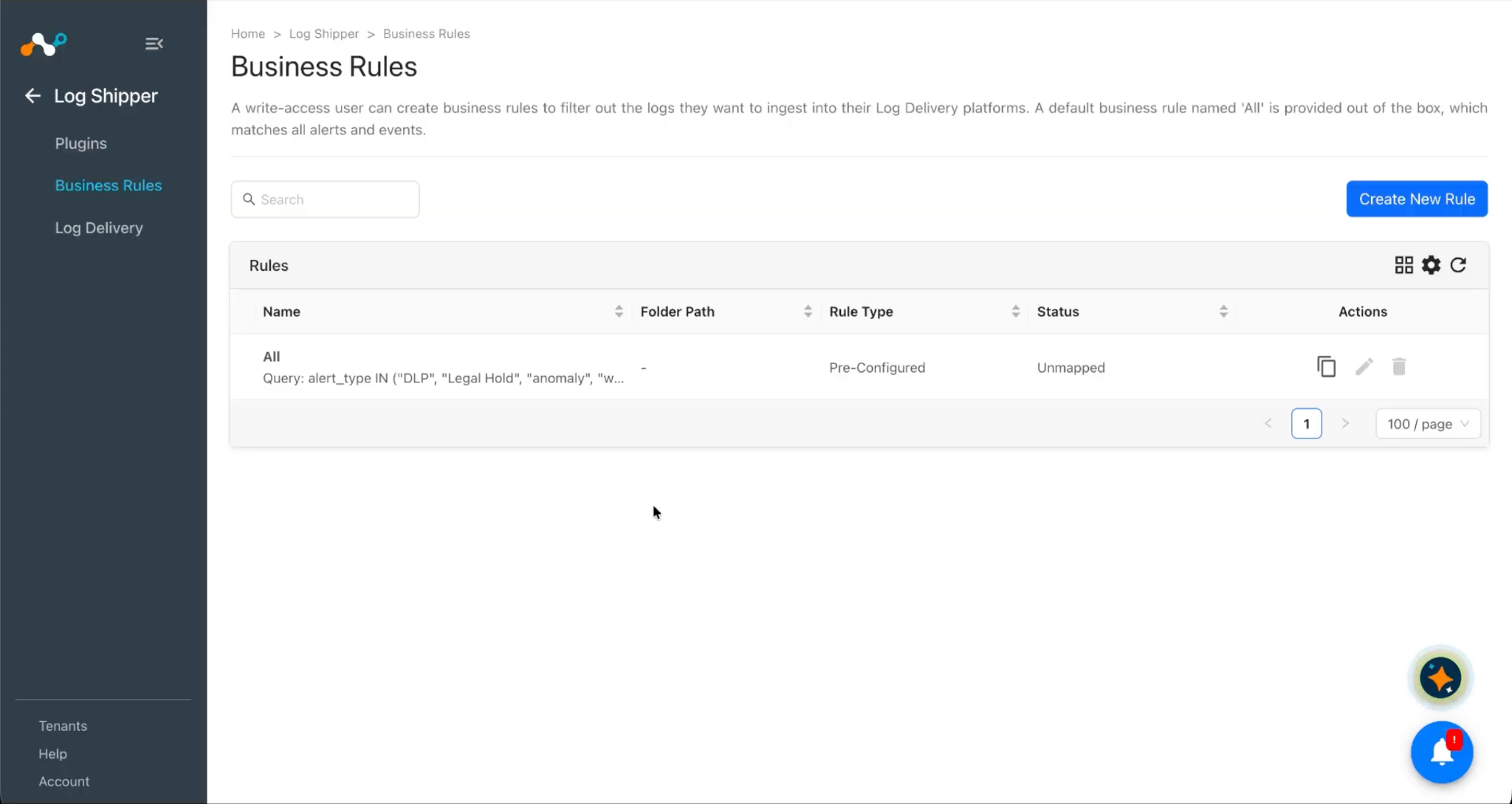
In Log Shipper, go to Business Rules and click Add Business Rule.
-
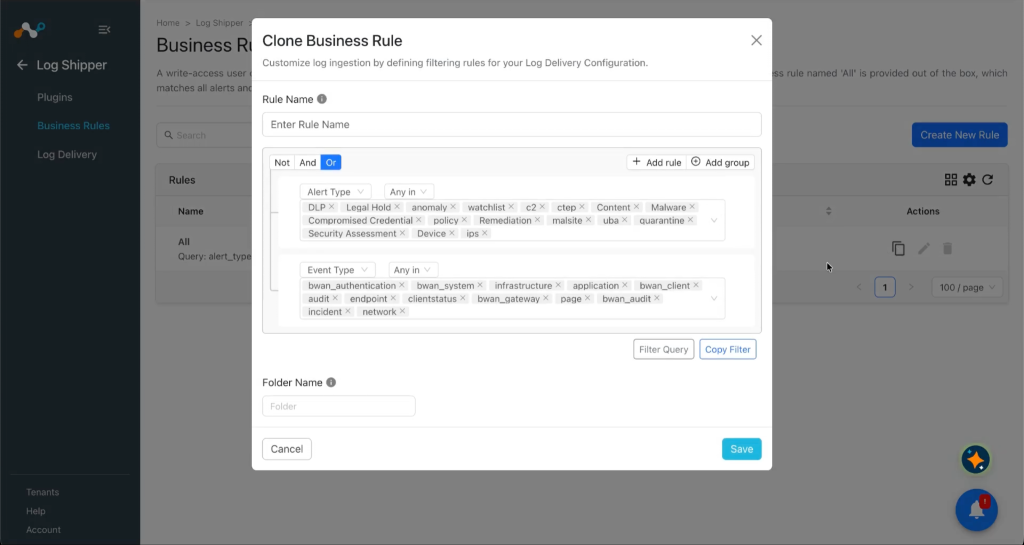
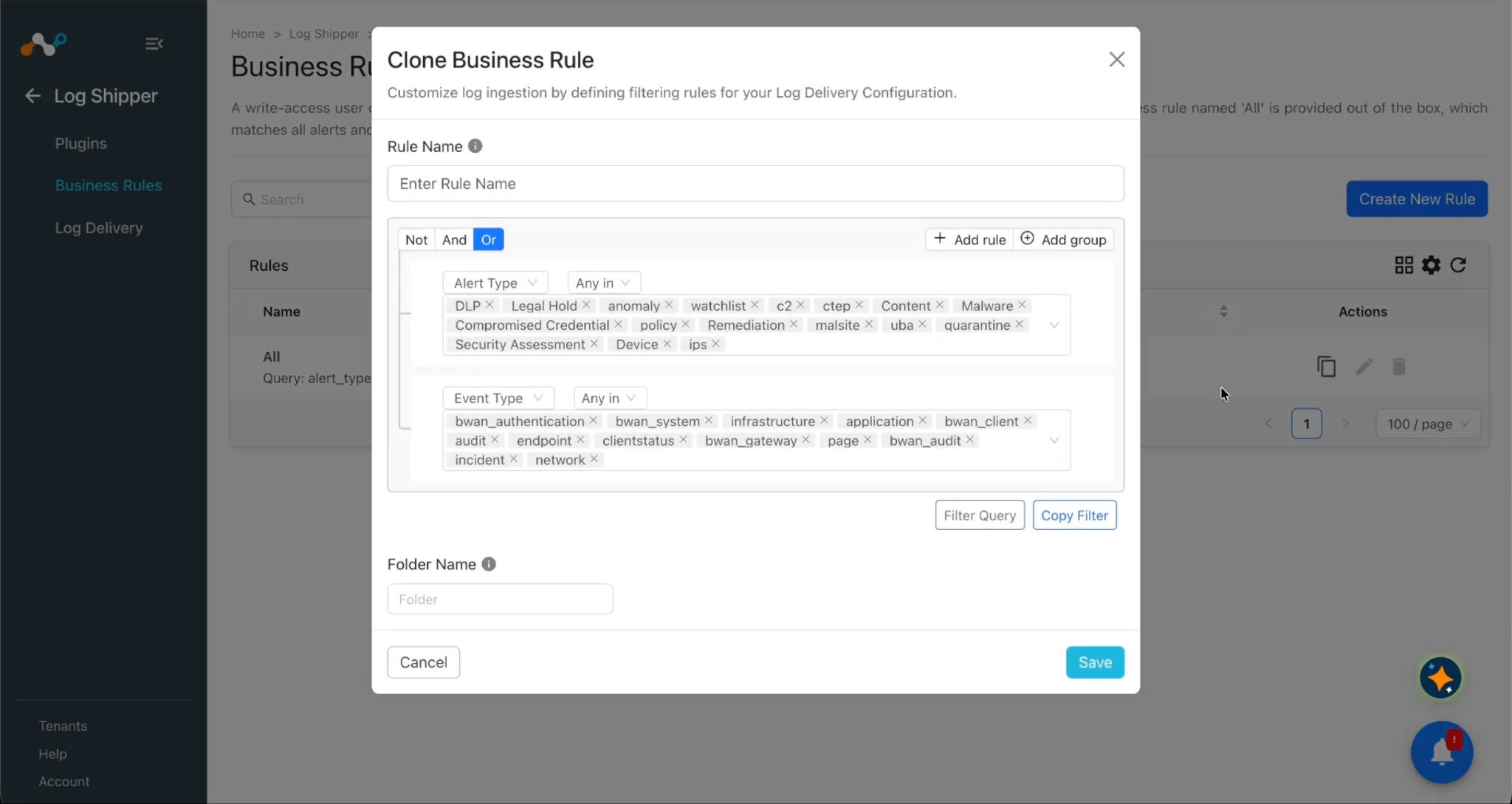
By default, there’s a business rule that filters all alerts and events. If you want to filter out any specific type of alert or event, click Create New Rule and configure a new business rule by adding the rule name and filter(s).
-
Click Save.
Configure Log Shipper Log Delivery for the SentinelOne Singularity Data Lake Plugin
-
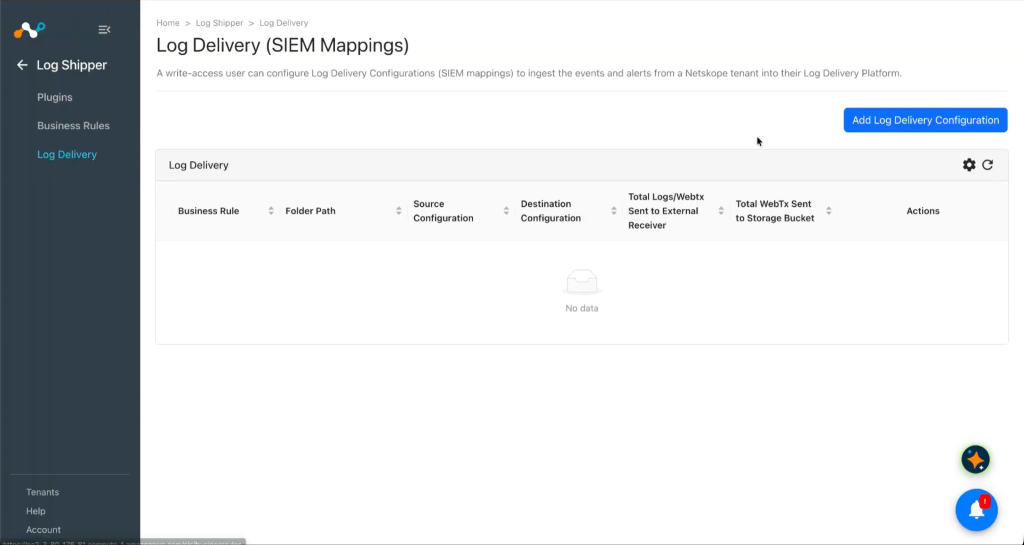
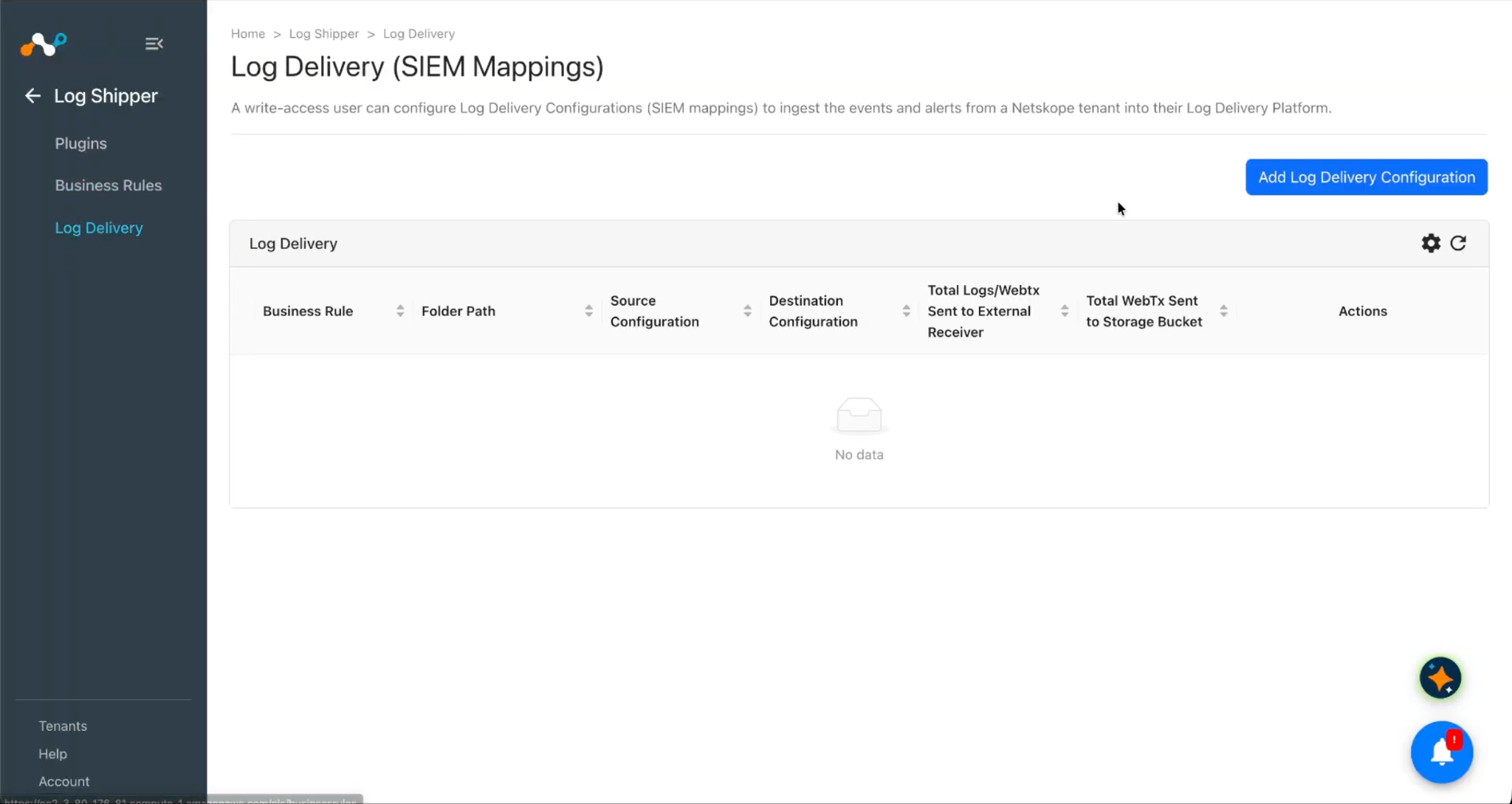
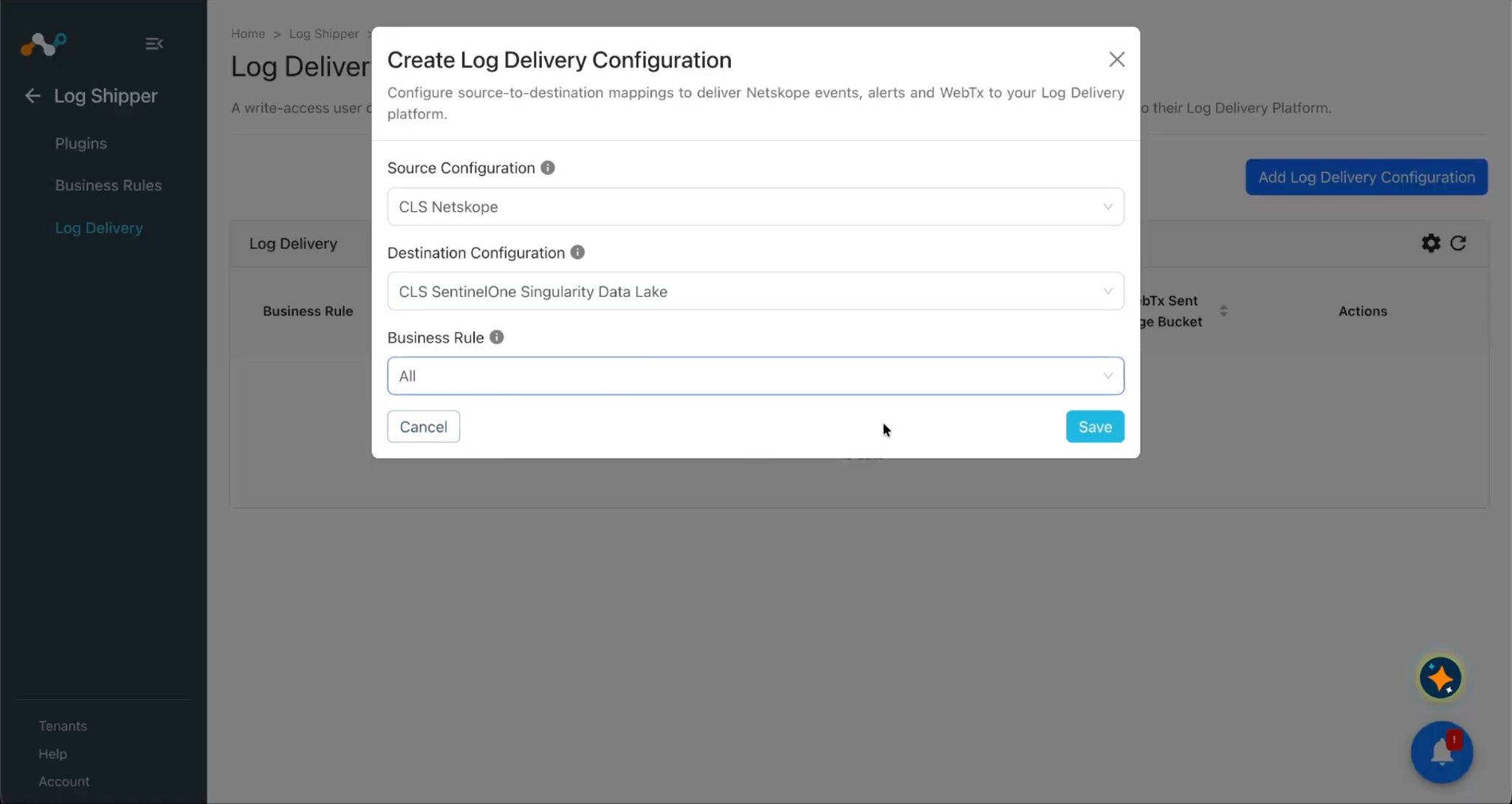
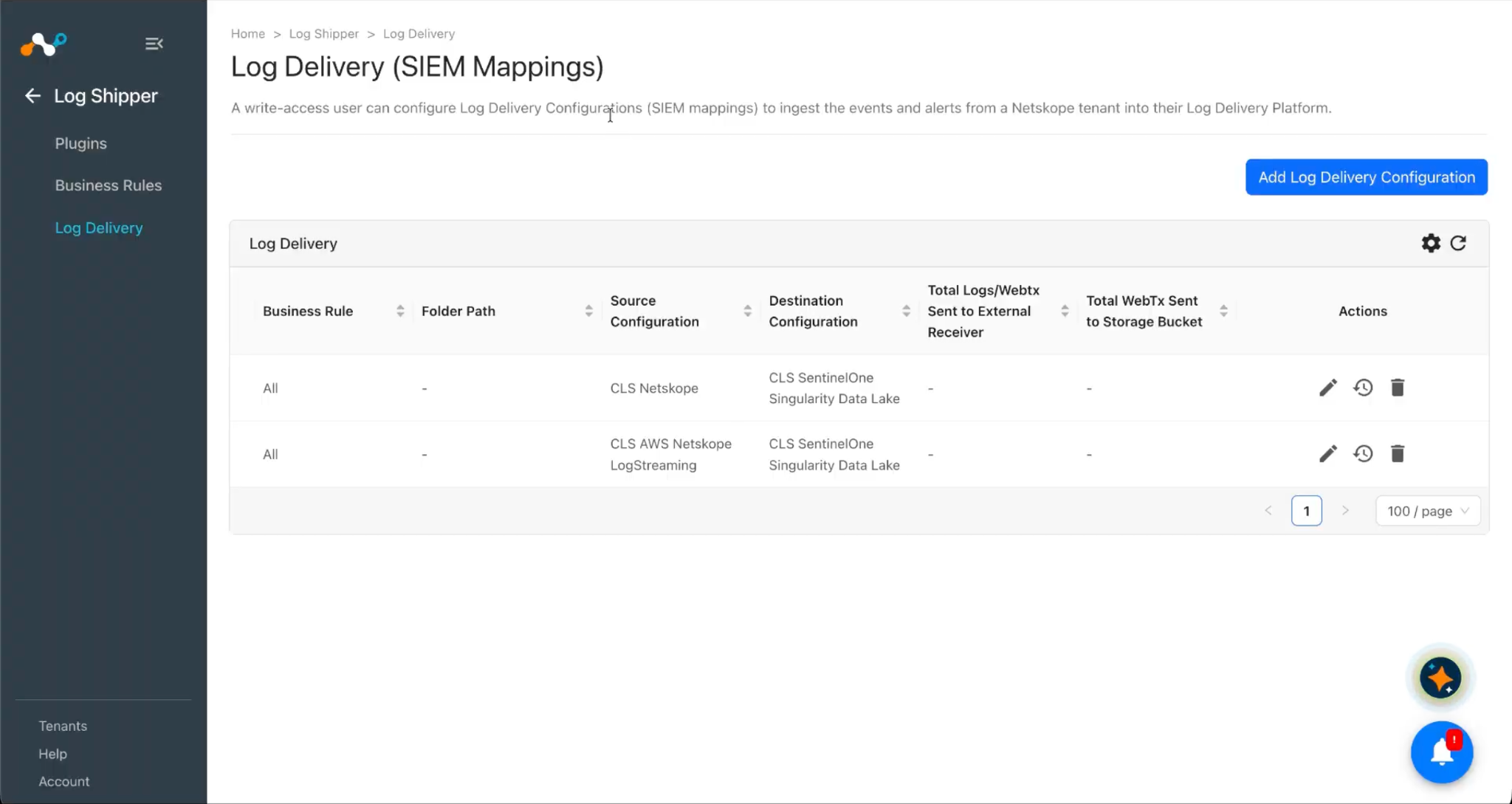
In Log Shipper, go to Log Delivery and click Add Log Delivery Configuration.
-
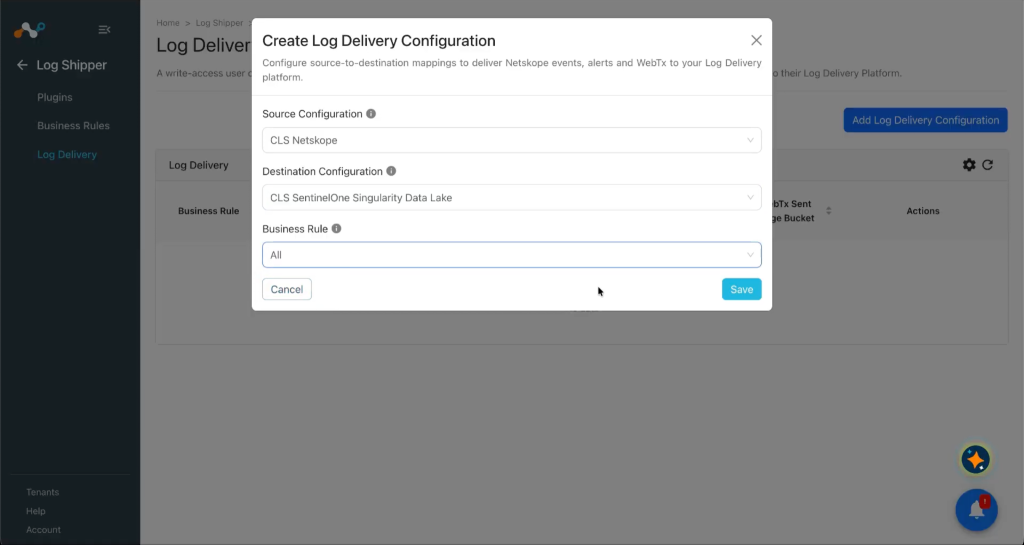
Select a Source Configuration, Destination Configuration, and Business Rule.
-
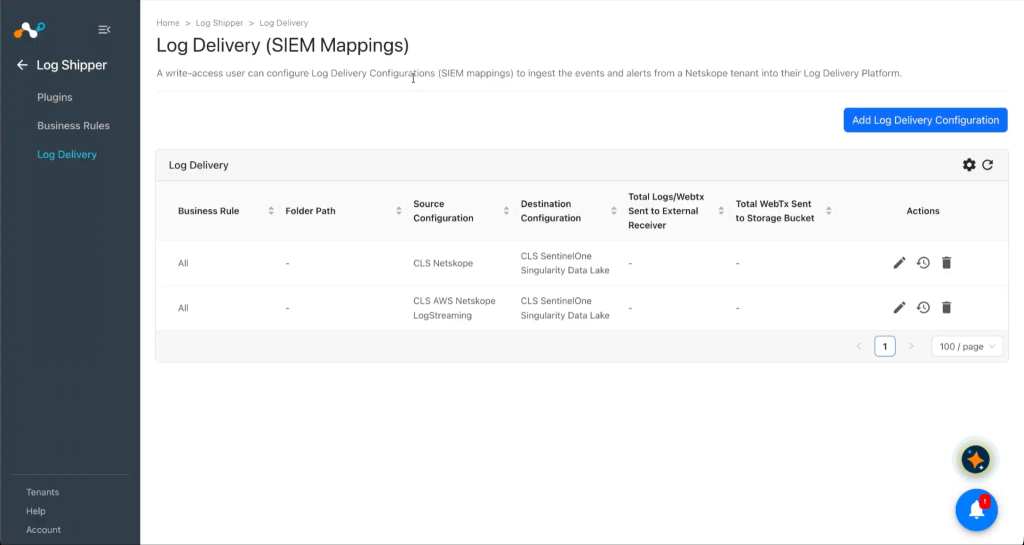
Click Save.
Validate the SentinelOne Singularity Data Lake Plugin
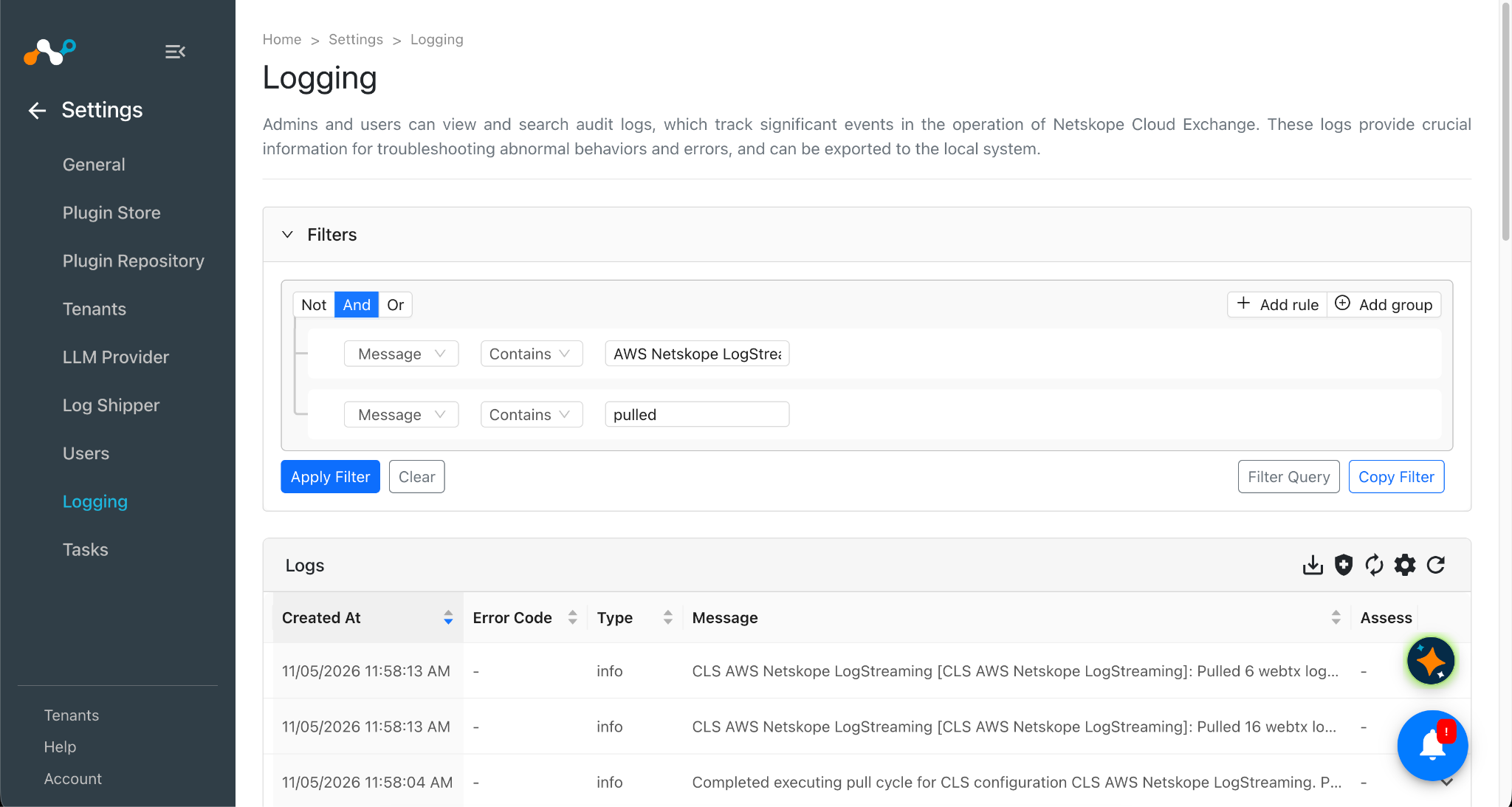
Validate the Pull
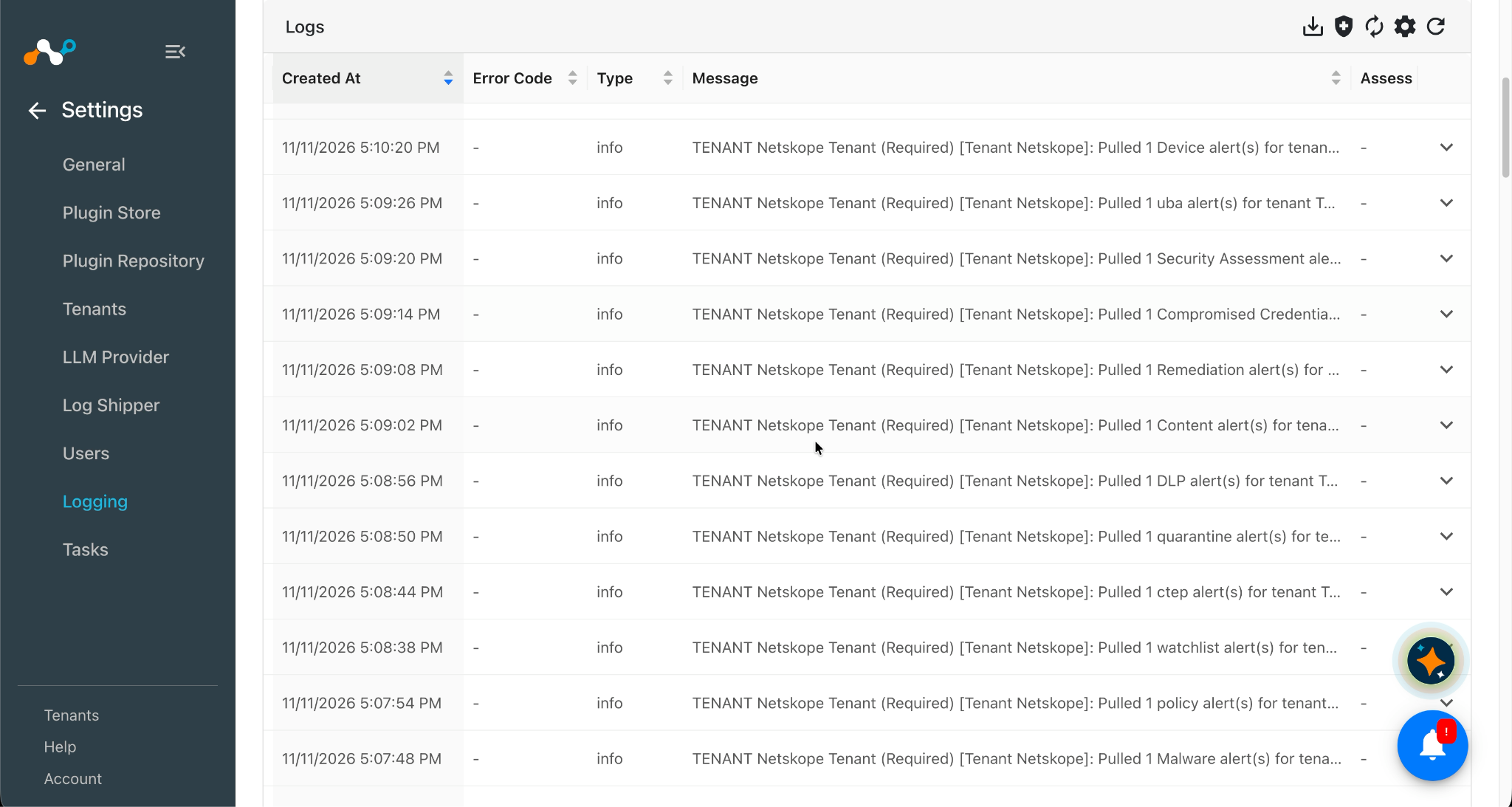
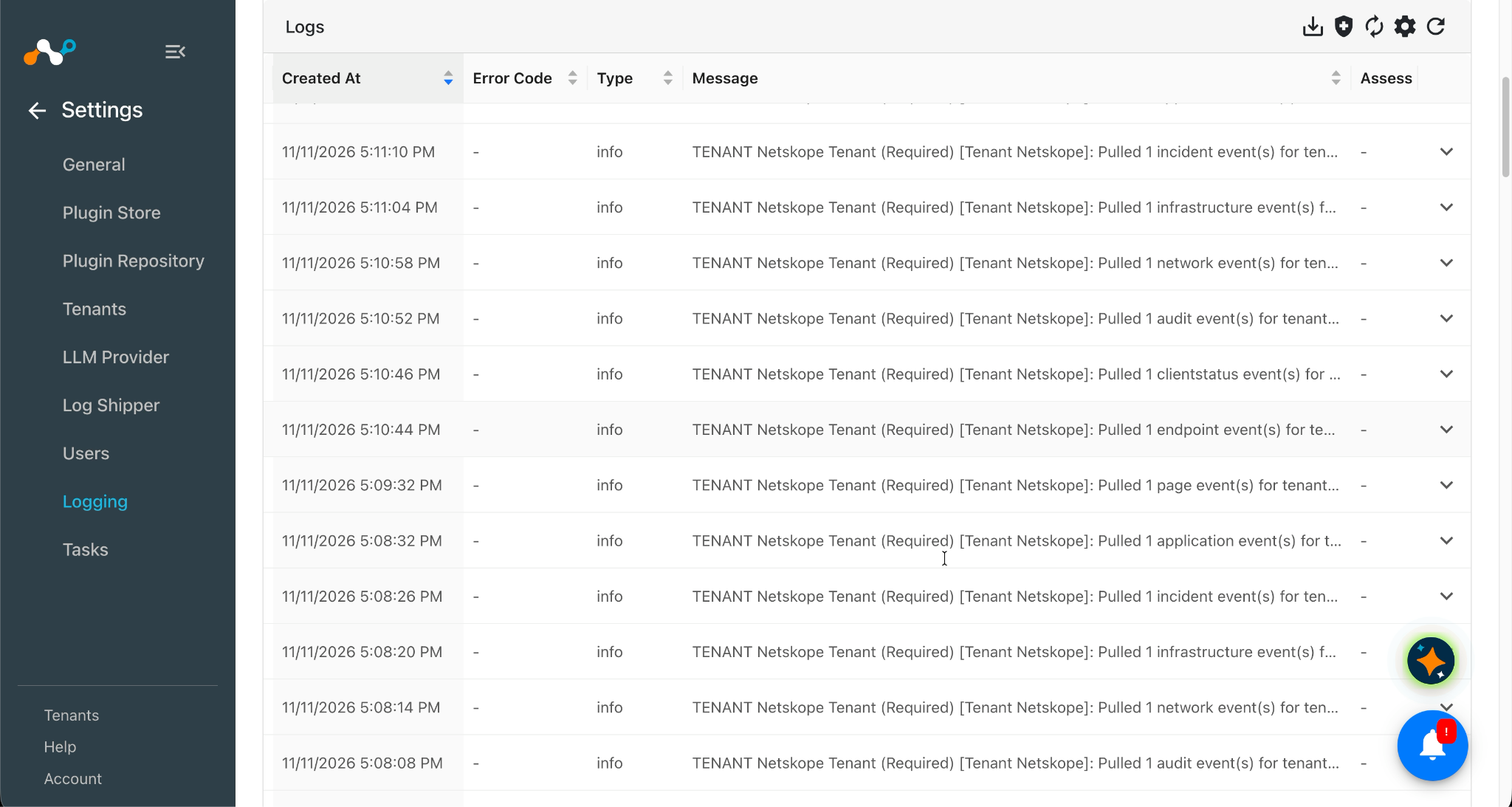
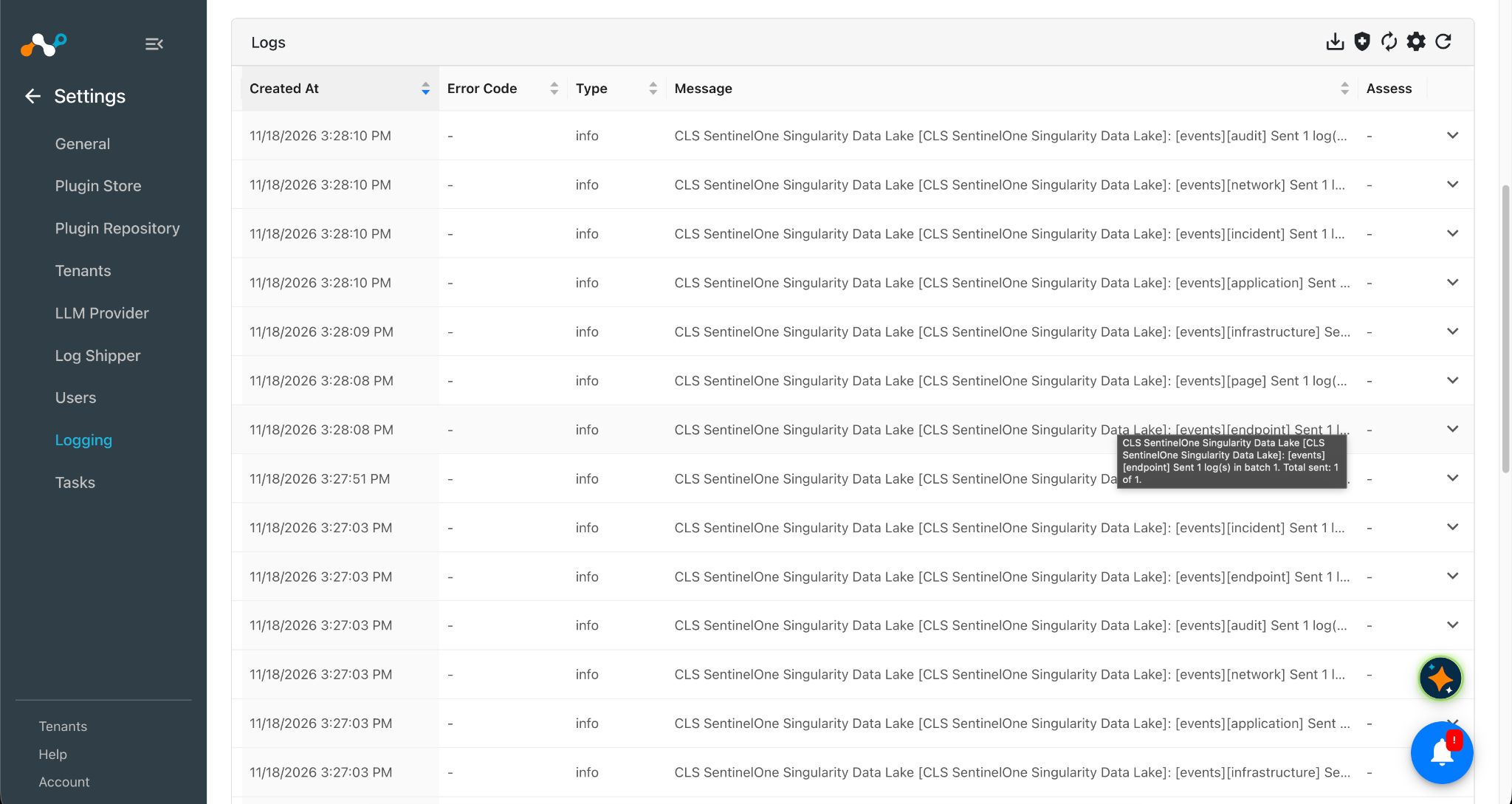
In Cloud Exchange, go to Logging and search for the pulled logs.
Validate the Push
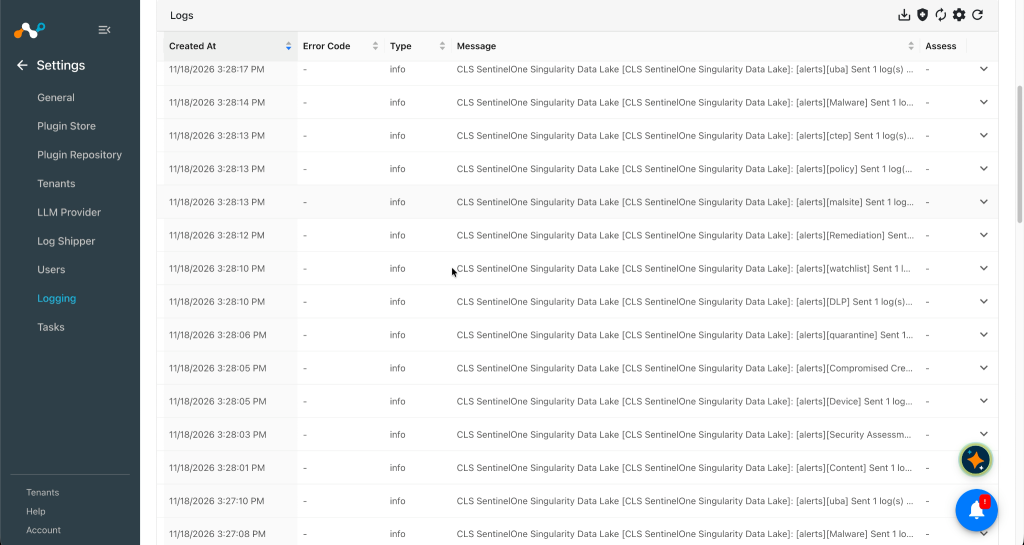
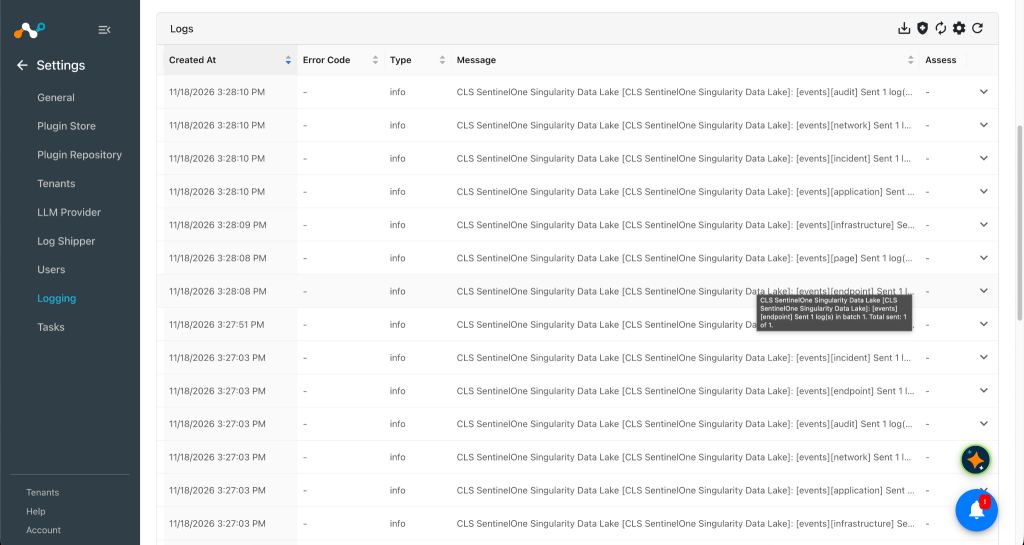
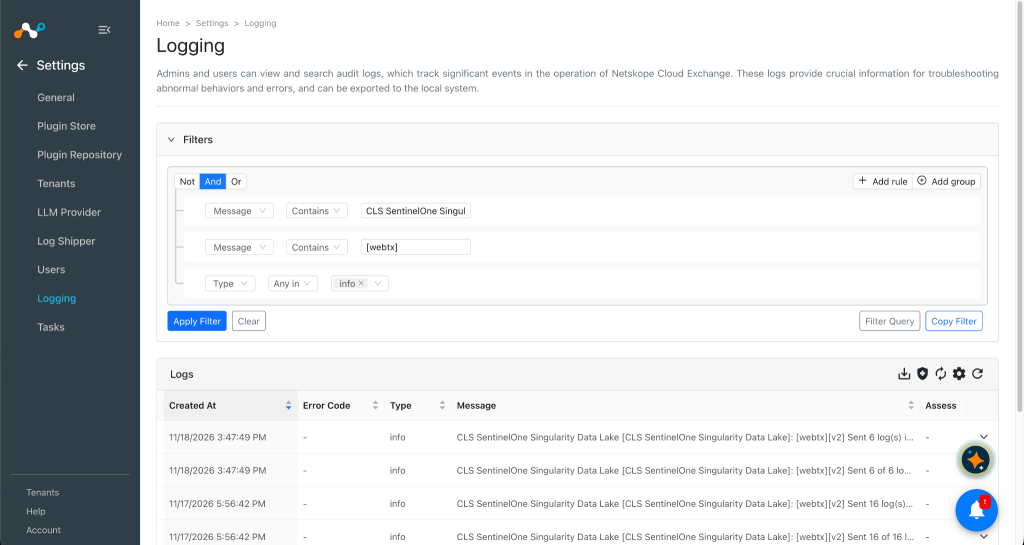
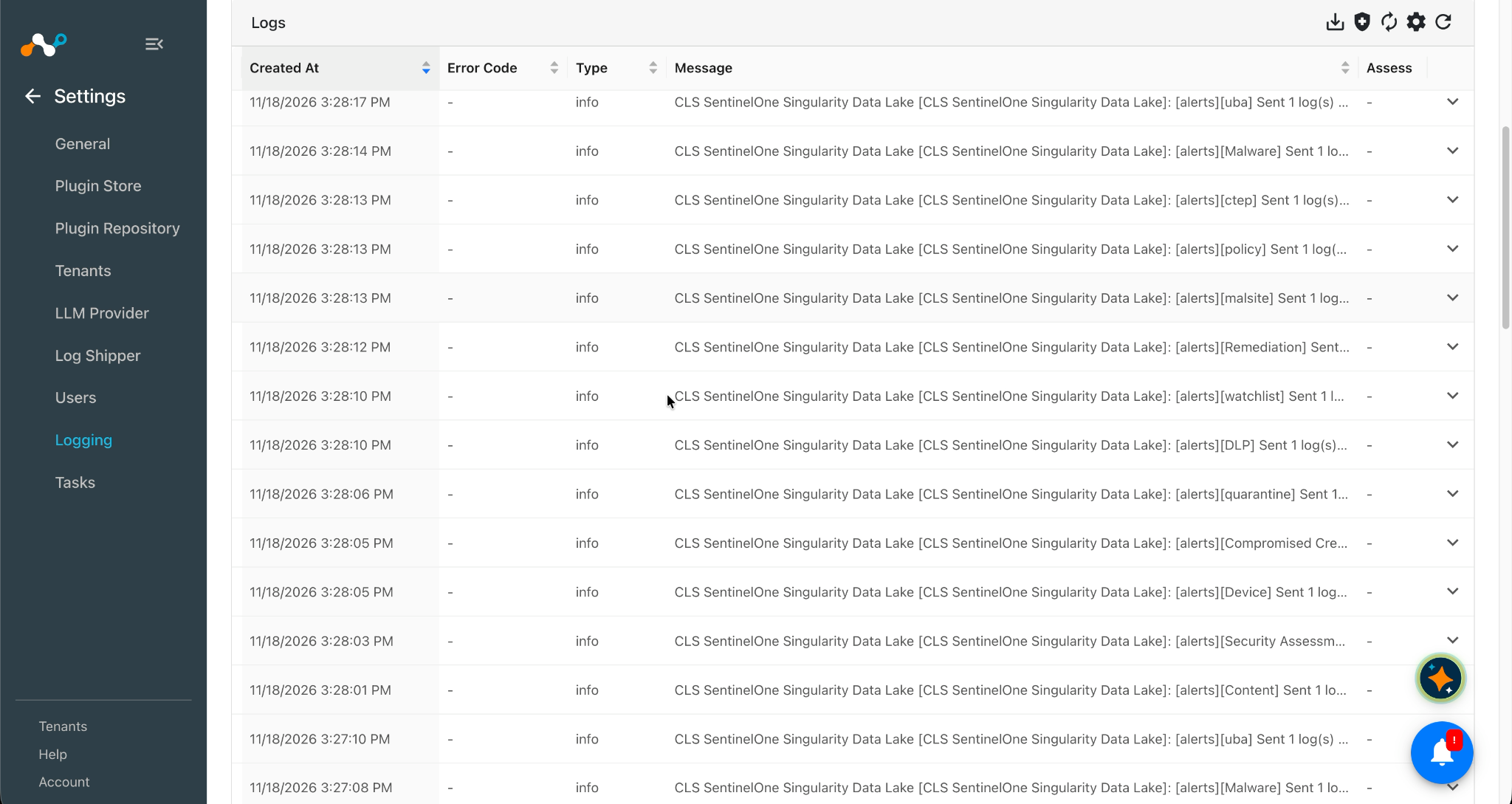
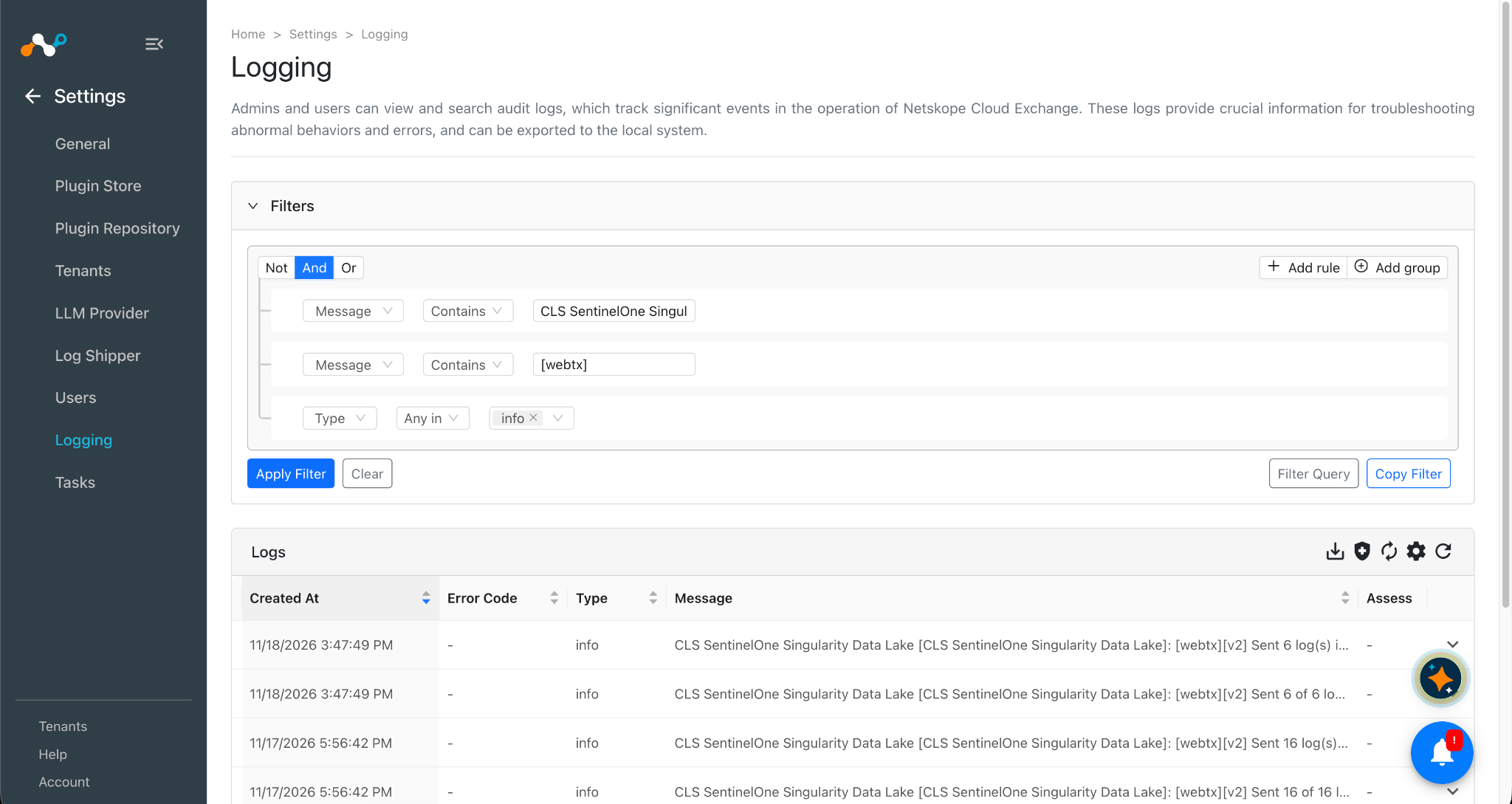
-
To validate the push in Cloud Exchange, go to Settings > Logging and filter by the SentinelOne Singularity Data Lake plugin configuration name.
-
To validate the push in SentinelOne Singularity Data Lake:
- Log in to Singularity Data Lake and go to Event Search.
- In the Sources tab, verify that the Source value configured in the plugin (default: Netskope Cloud Exchange) appears.
- In the Log Files tab, verify that the Log File Name configured in the plugin (default: Netskope Logs) appears.
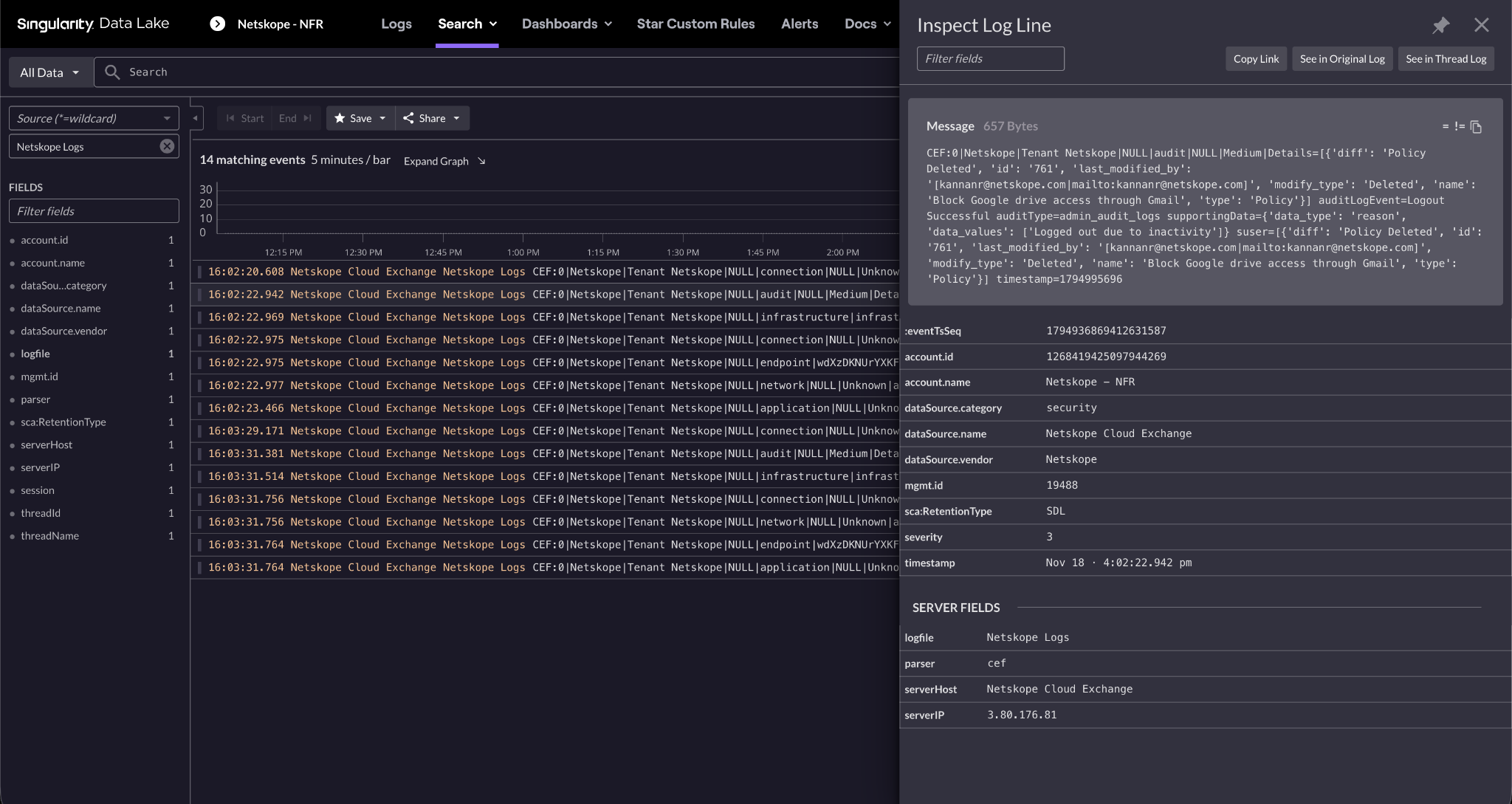
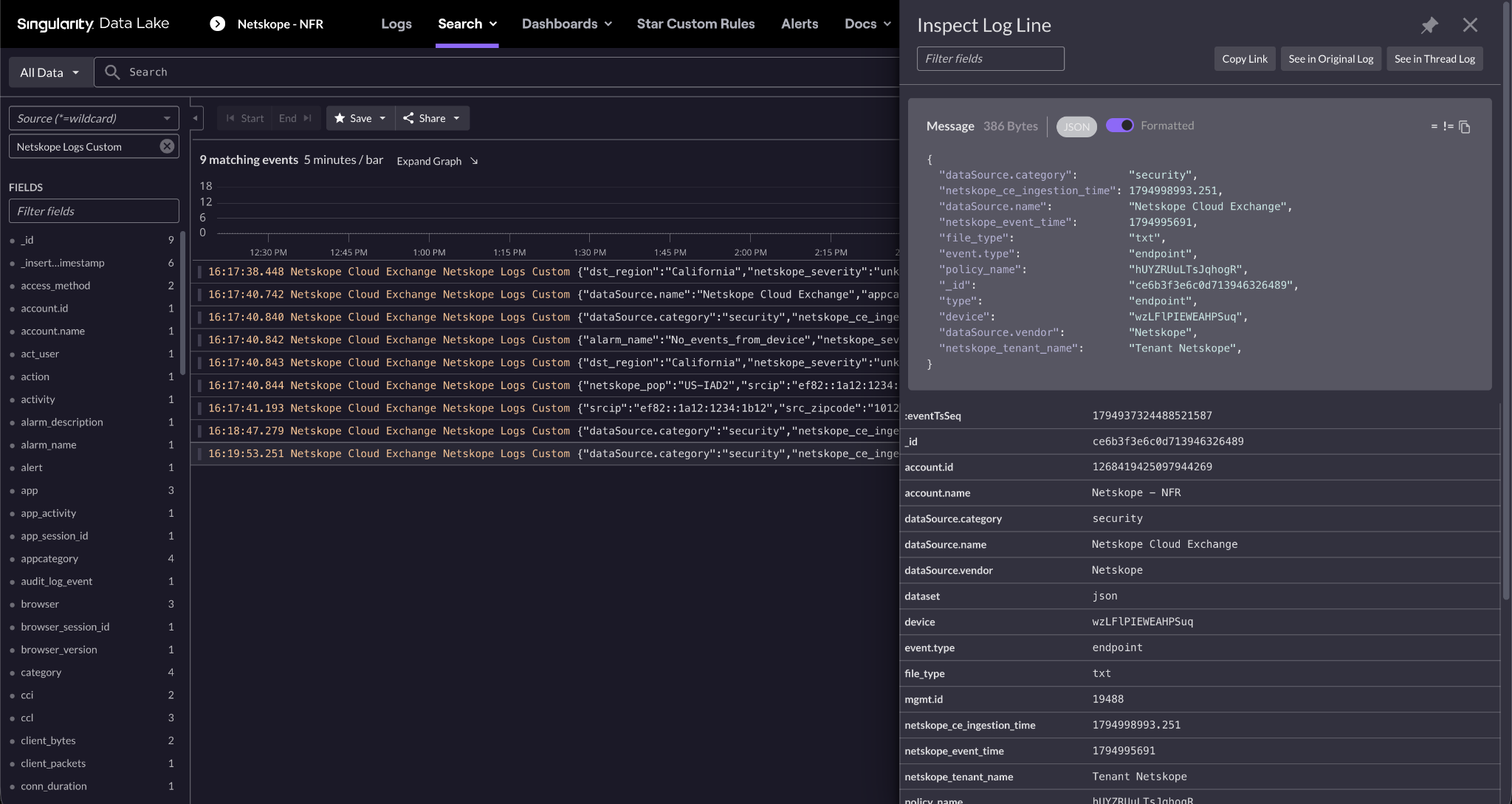
- Search for events and confirm that Netskope Alerts, Events, and WebTx records are visible.
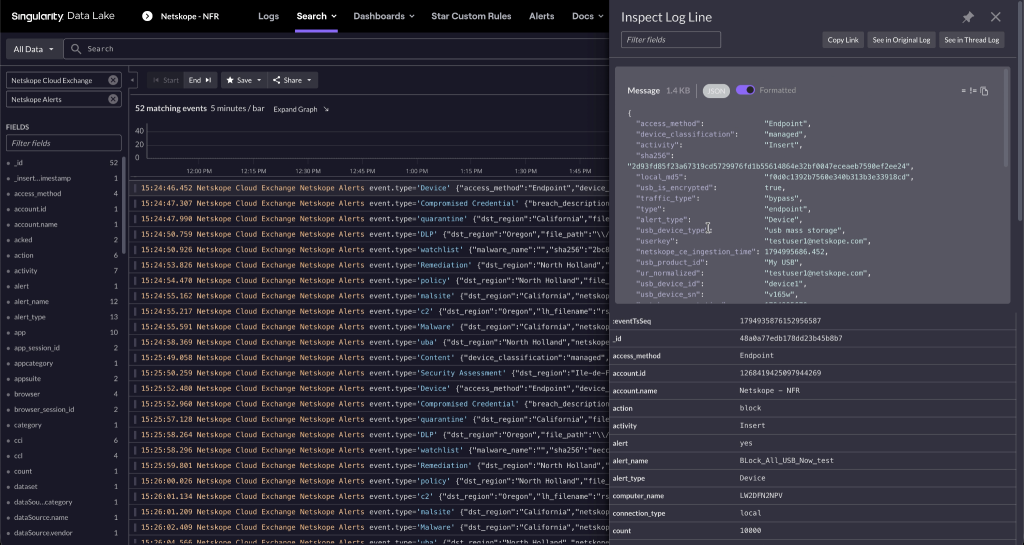
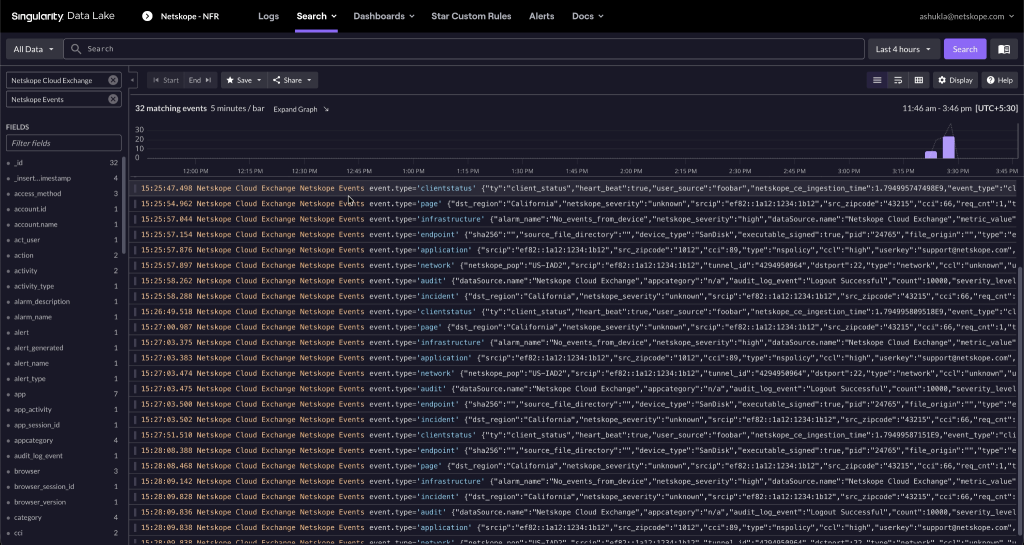
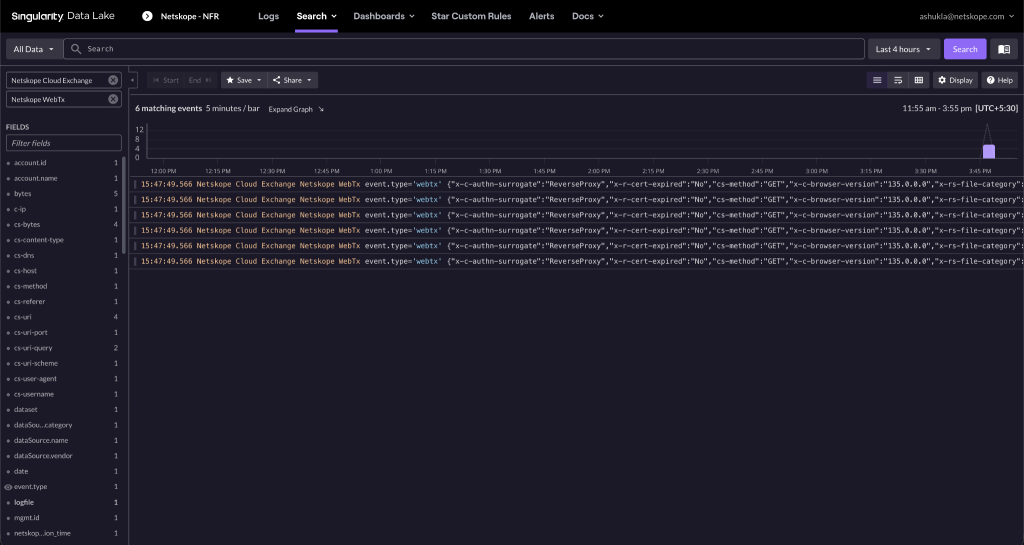
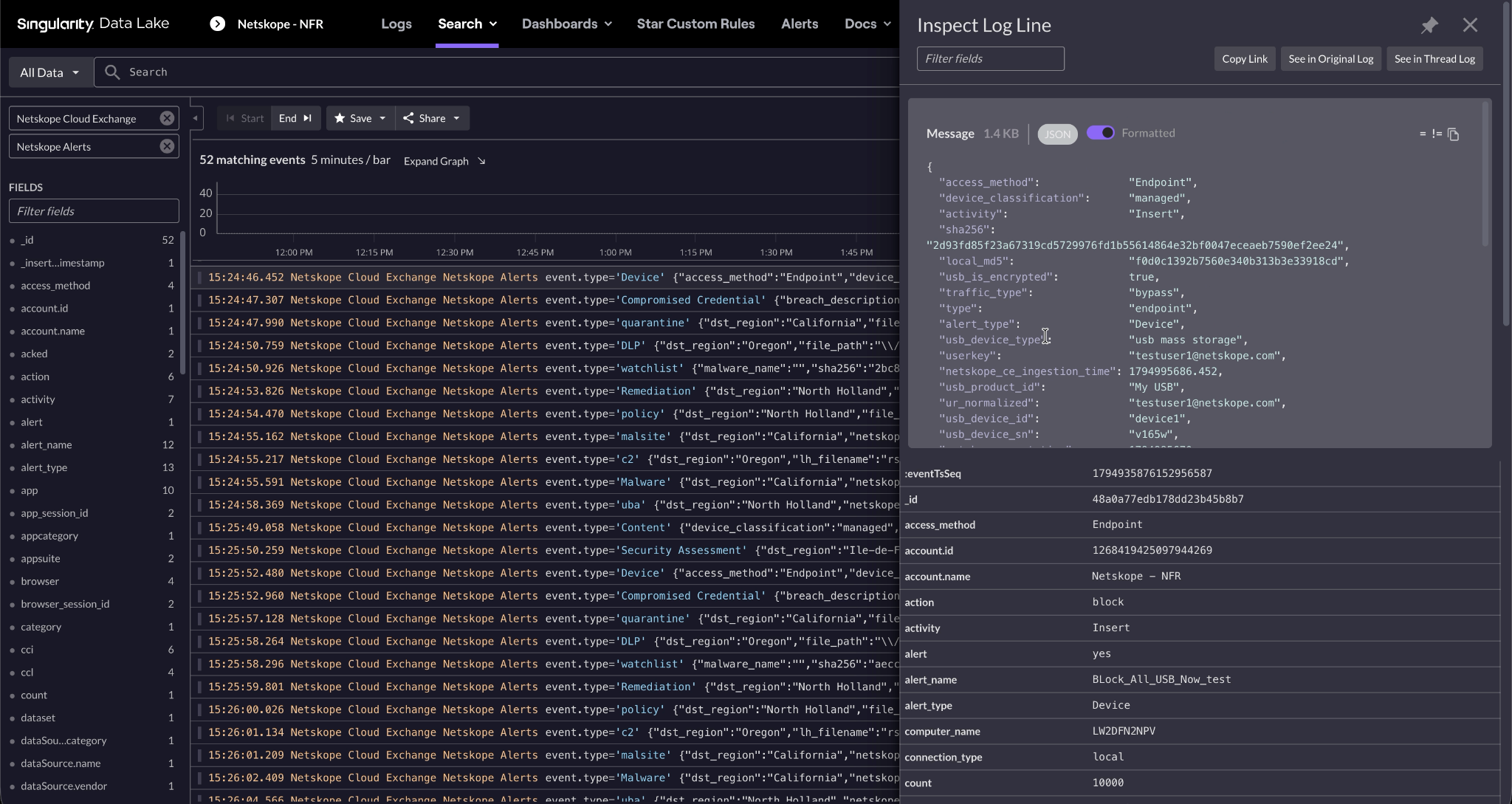
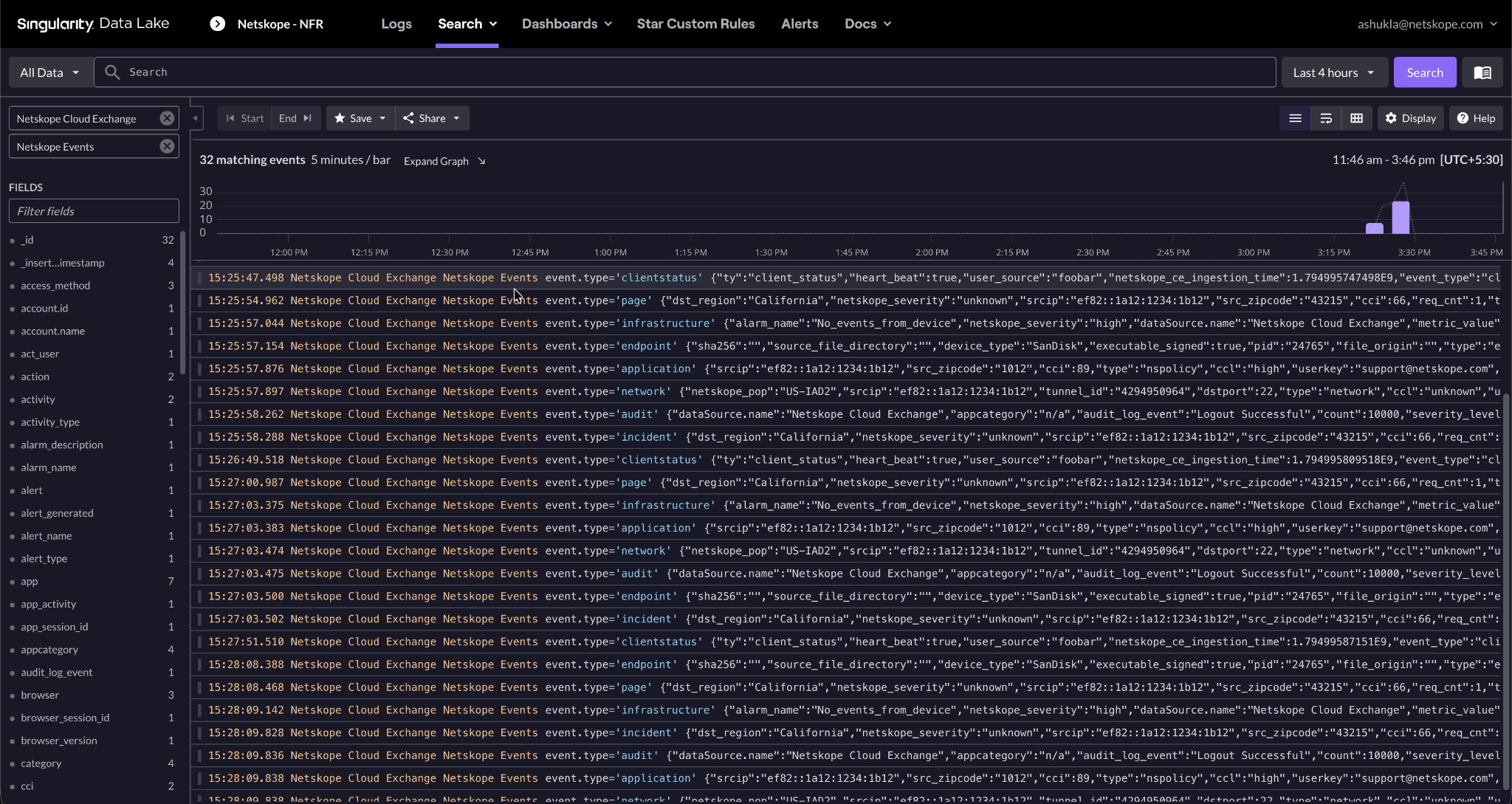
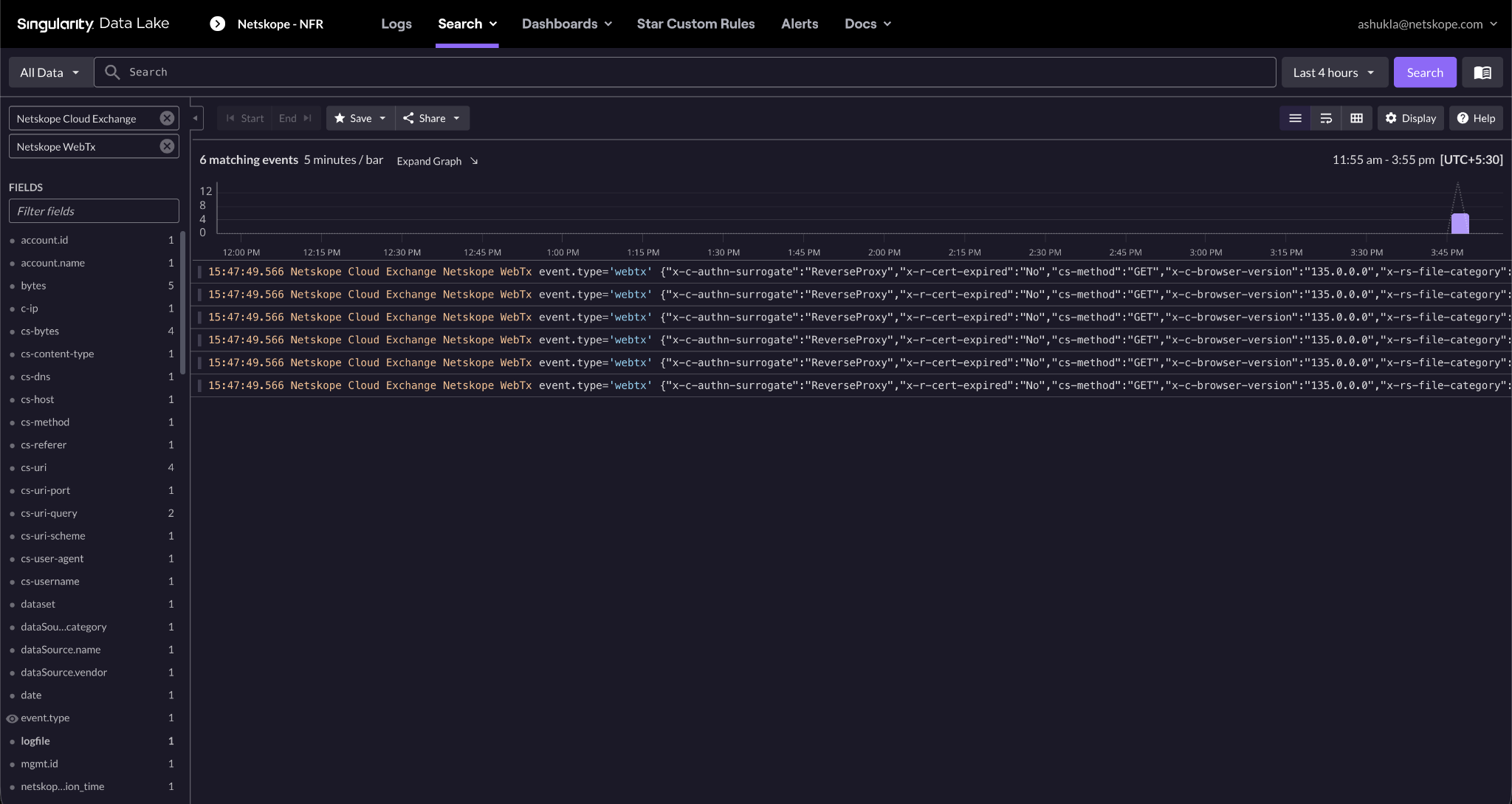
If you have ingested in Single Log File or in CEF format, it can be searched in same way by searching the Log file:
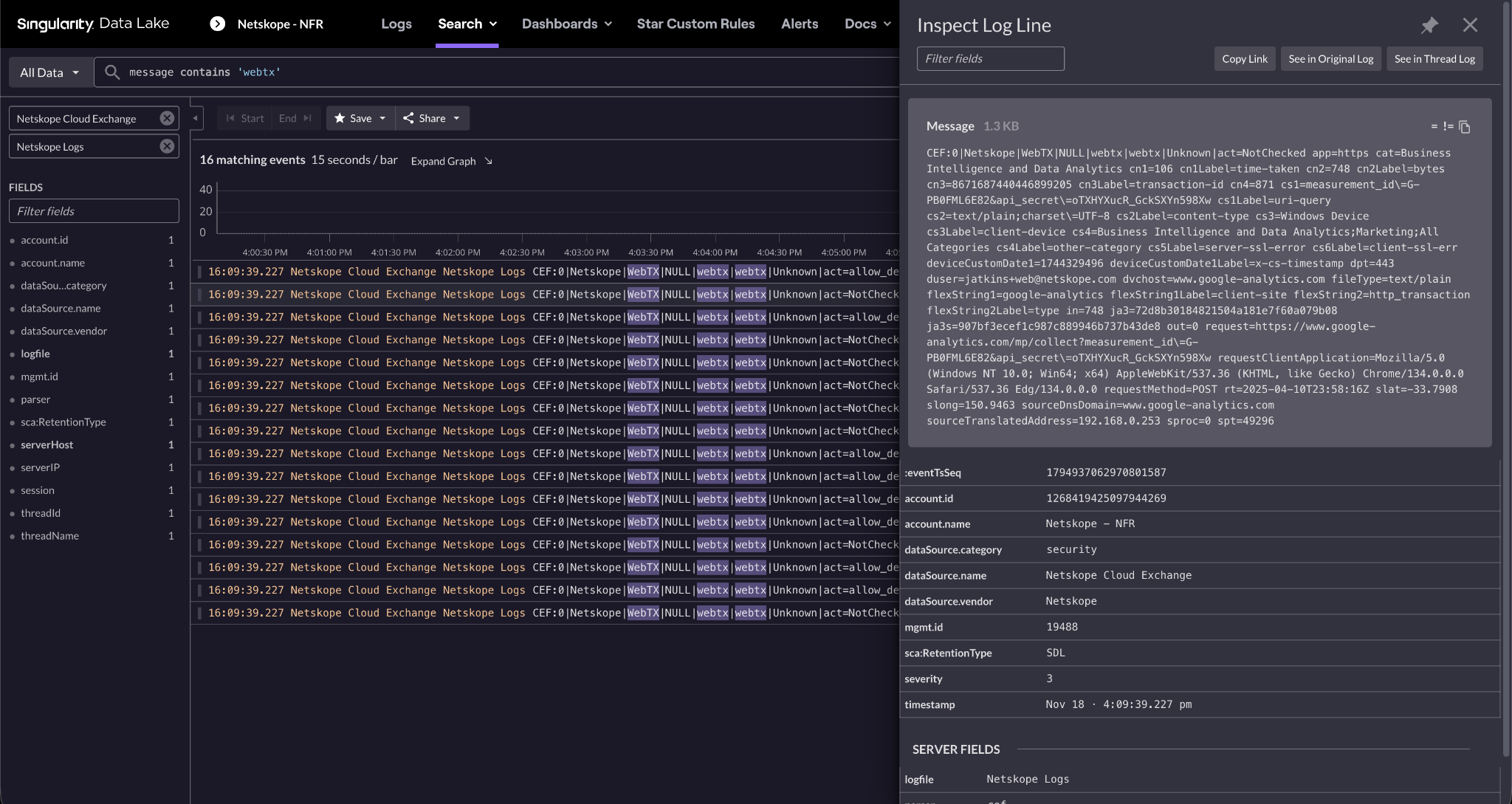
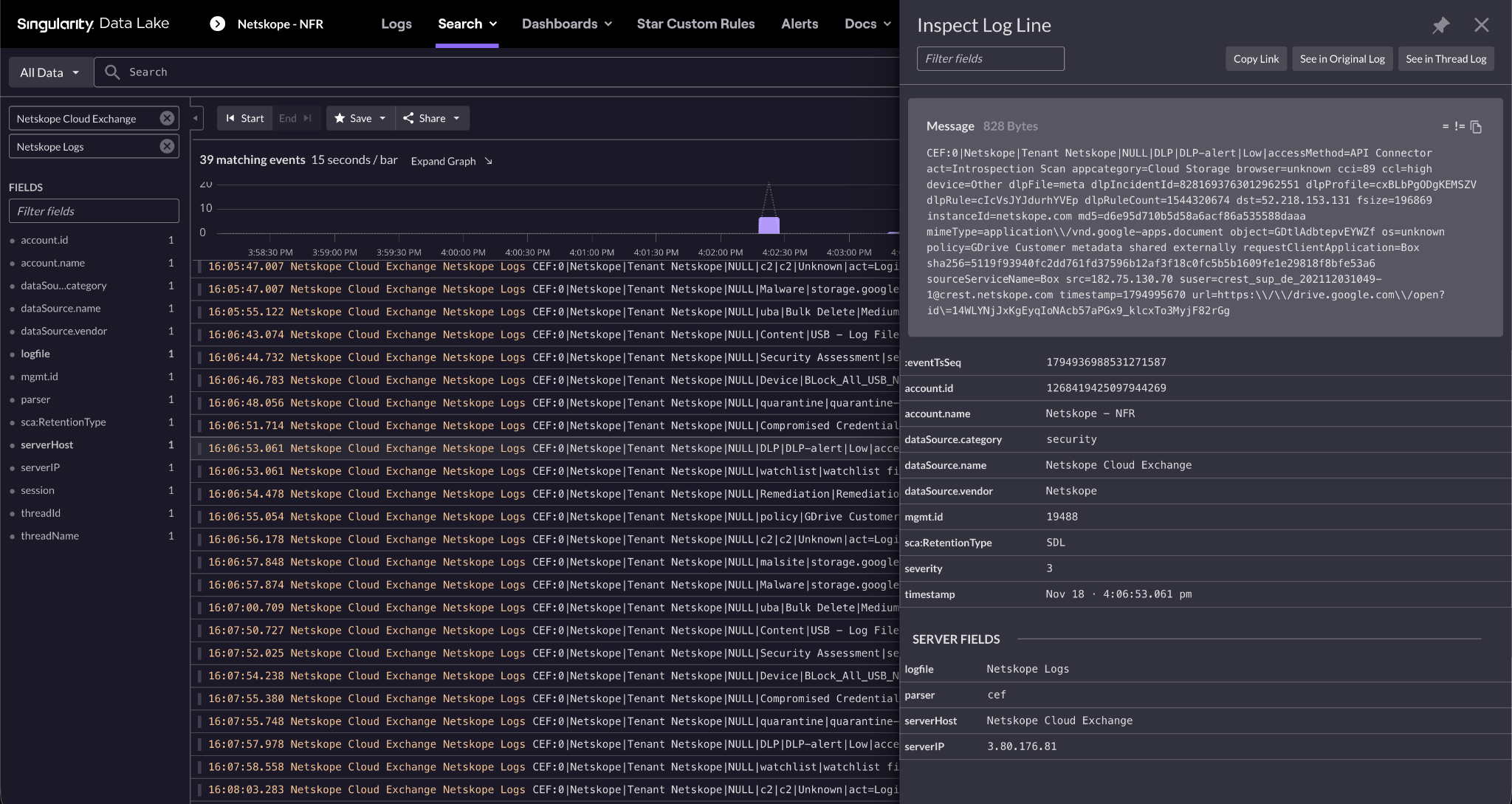
If you have provided custom mapping in JSON format with only some of the fields selected, it will look something like this:
Troubleshooting the SentinelOne Singularity Data Lake Plugin
Validation Fails While Saving the Plugin Configuration
If the user encounters a validation failure while saving the SentinelOne Singularity Data Lake plugin configuration, it could be due to one of these reasons:
- The key provided is not a Log Access Write Key, or the key is incorrect, revoked or does not have write access (HTTP 400, 401 or 403).
- The HEC Base URL is incorrect, for example the xdr console host was used instead of the ingest host, or the Custom HEC Base URL does not start with https:// or includes a path (HTTP 404).
- Cloud Exchange cannot reach the HEC ingest host because of firewall, proxy or network issues, or a TLS inspection proxy is presenting its own certificate.
- The mapping file under Settings > Log Shipper > Mapping is missing or invalid, or CEF is selected but the mapping has no CEF mapping for any data type.
- The Parser field contains json or _json, which cannot read CEF logs.
- The Log File Name is set to scalyr, which is reserved by Singularity Data Lake.
What to do:
-
Make sure the key is a Log Access Write Key. If needed, go to API Keys > Log Access Keys > Add Write Key in Singularity Data Lake and generate a new one.
-
Make sure the HEC Base URL is the ingest host of your datacenter as an https URL with no path, for examplehttps://ingest.us1.sentinelone.net.
-
Check the firewall rules, proxy settings, and network connectivity from Cloud Exchange to the ingest endpoint. If a proxy inspects TLS traffic, add its CA certificate to Cloud Exchange.
-
Go to Settings > Log Shipper > Mapping and fix the mapping or reset it to the default. If CEF is selected, make sure the mapping has a CEF mapping for at least one data type.
-
For CEF logs, enter the name of a CEF parser from User > Manage Logs > Parsers in Singularity Data Lake, or leave the Parser field empty to use the default cef parser.
-
Use a Log File Name other than scalyr.
-
Check the Cloud Exchange logs for the detailed error message, then save the configuration again.
Some Logs Are Not Sent
If you find that some logs are not sent and the Cloud Exchange logs show one of these messages:
- The mapping has no JSON entry for this data type and subtype. Skipped {N} log(s). They were not sent. (or the same message for CEF)
- One log is too large to send, even on its own. It was not sent.
It could be due to one of the following reasons:
- The mapping file does not contain an entry for the data type or subtype being pushed.
- A single log, after transformation, is larger than the size limit and cannot be sent in any batch.
What to do:
-
Go to Settings > Log Shipper > Mapping and add the missing entry for the data type or subtype, or reset the mapping to the default.
-
If a log is too large, check the source data for a very large field and exclude it from the mapping if it is not needed.
The Push Fails
If the user finds that a push did not complete, and the Cloud Exchange logs show one of these messages:
- Could not send batch {N}. {M} of {T} log(s) were sent before this.
- SentinelOne Singularity Data Lake returned HTTP status 429 (Too many requests) while sending {N} log(s)… Gave up after 4 attempts.
- SentinelOne Singularity Data Lake asked to wait {N} seconds while sending… That is longer than the 120 second limit, so the logs were not sent.
- SentinelOne Singularity Data Lake did not accept batch {N}. It said: ‘{reason}’.
It could be due to one of the following reasons:
- A network error, HTTP error or Singularity Data Lake error stopped the push.
- Singularity Data Lake returned a rate-limit or server error on every retry, or asked Cloud Exchange to wait longer than 120 seconds.
- Singularity Data Lake did not accept the batch, usually because of an incorrect HEC Base URL or an invalid Log Access Write Key.
What to do:
-
Check the error message in the Cloud Exchange logs for more detail.
-
Check that the HEC Base URL is correct and that the Log Access Write Key is valid.
-
If the issue recurs, check the volume of logs being sent and the Singularity Data Lake service status.
Logs that were already sent are removed from the queue. Cloud Exchange retries the remaining logs automatically in the next cycle.
Logs Are Not Visible in Singularity Data Lake
If the plugin shares logs successfully but some or all logs are not visible in Singularity Data Lake Event Search, it could be due to one of these reasons:
- The logs are outside the selected time range. CEF logs use the time they were delivered, not the Netskope event time.
- The log timestamps are older than the Singularity Data Lake data retention window.
- The data is being searched under the wrong tab. The Source name appears under the Sources tab, and the Log File name appears under the Log Files tab.
- A custom mapping has a field named logfile, which causes Singularity Data Lake to drop the entire log without any error.
What to do:
-
Select a wider time range in Event Search.
-
Check your retention period under Log Ingestion & Usage > SDL Data Retention. To backfill older data, select Cloud Exchange Ingestion Time as the Timestamp Field Value.
-
Search under both the Sources and Log Files tabs.
-
Go to Settings > Log Shipper > Mapping and make sure no field is mapped to a reserved Singularity Data Lake name such as logfile.
Known Behaviors
- Reserved Netskope field names are prefixed in JSON mode. The fields severity, site, time, and timestamp collide with Singularity Data Lake system attributes and are renamed to netskope_severity, netskope_site, netskope_time, and netskope_timestamp respectively before sending.
- Logs older than the SDL retention window are accepted but not searchable. When Timestamp Field Value is set to Netskope Event Time, logs whose event time predates the Singularity Data Lake retention window are accepted by the HEC endpoint and return 200 Success, but they will never appear in Event Search results.
- Source configuration not found for tenant name. If the source configuration for a Netskope tenant cannot be found in Cloud Exchange at transform time, logs are still sent but without the netskope_tenant_name field. A warning is logged.
- Singularity Data Lake accepts logs older than its data retention window, but those logs never become searchable, and no error is returned. You can check your retention period in the Singularity Data Lake console under Log Ingestion & Usage > SDL Data Retention.
Limitation
CEF logs in one batch share the same event time. Singularity Data Lake applies one event time to all CEF logs sent in a single request, which is the time the request arrives. A historical pull in CEF format therefore appears bunched at the delivery time instead of spread across the original time period, and time-range searches for the original incident time can miss these logs. The original Netskope event time is still kept in the log as the timestamp field (rt for WebTx). To get per-log event time, create a CEF parser in Singularity Data Lake that maps the timestamp field to the event time, and enter its name in the plugin’s Parser parameter. Alternatively, use JSON format, which carries a per-log event time.