

The ‘Personal Folder’ share feature allows you to share a Reports (New Experience) folder or individual dashboard(s) with a group or individual users. This feature is helpful for example, if your executive team requires a specific dashboard that only they should see and a small group of users or a single user will need to edit in addition to view the data. Optionally, you can use the ‘Share with Executives’ feature but the data cannot be edited, only viewed by your executives.
Folder owners have the following option to manage access:
-
Folder owners can share their Personal folders with users
-
Folder owners can share their Personal subfolders with users
-
Folder owners can move their shared folders to other subfolders.
To share a folder navigate to Reports > Folders > Personal.
Sharing Folders
-
Navigate to New > New Folder. Add or import your dashboards to this new folder.

or
-
If the folder already exists, hover over the folder name and click the ellipses at the end of the folder you want to share.

-
The ‘Manage Access’ window displays. From this window, folder owners can share with other users from any folder or subfolder they own. Note, the users must exist in your organization and RBAC privileges supercede any selection you make here. In addition, to share access for a personal folder, the target user must have visited the Advanced Analytics interface at least once to be searchable in the Manage Access window.
-
Optionally, select ‘The same users as the parent folder’ to extend the folder access to the parent folder users. The parent folder name is highlighted in blue after the selection.
-
Optionally, select ‘A custom list of users’ to extend folder access to specific users in your organization. Note, the users must exist in your organization and RBAC privileges supercede any selection you make here. For example, if the user only has ‘View’ access for their RBAC privileges, the only option visible here is ‘View’ for that particular user.
-
Click Save.
The recipient will see the folder(s) in their Group page. Navigate to Reports > Folders > Group.
Moving Folders
To move a folder navigate to Reports > Folders > Personal or Group.
-
Hover over the folder name and click the ellipses at the end of the folder you want to move.

-
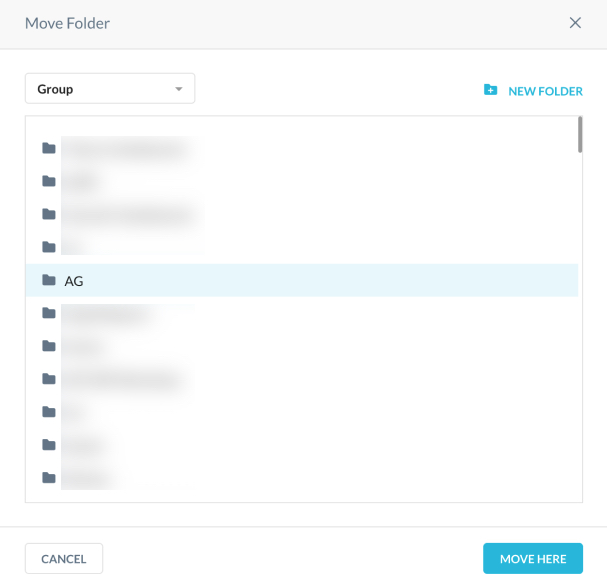
The ‘Move Folder’ window displays. From this window, folder owners can move the selected folder to another ‘Group; folder or subfolder. Click the Group dropdown to see the list of available folders or subfolders. Note, RBAC privileges apply. If you do not have access to a folder or subfolder, you will not see it in this dropdown list and the folders/subfolders must exist in your account.
Highlight the folder or subfolder.
-
Click Move Here.
The recipient will see the folder(s) in their Group page. Navigate to Reports > Folders > Group.