

This document explains how to configure the SMB File Share v1.0.0 plugin with the Custom File Classification (CFC) module of the Netskope Cloud Exchange platform. This plugin is used to pull images or zip files from provided directories present on a remote SMB server. The plugin supports the SMB protocol version from SMB 2.0.2 to SMB 3.1.1.
Prerequisites
To complete the configuration, you need:
- A Netskope tenant (or multiple, for example, production and development/test instances) that is already configured in Cloud Exchange.
- A Custom File Classifier on your Netskope tenant.
- A Netskope Cloud Exchange tenant with the Tenant plugin and Custom File Classification plugin already configured.
- Server with SMB setup and access with SSH service enabled to pull files.
SMB File Share Plugin Support
This plugin is used to pull images or zip files from provided directories present on a remote SMB server. The plugin supports the SMB protocol version from SMB 2.0.2 to SMB 3.1.1.
| Feature | Support |
|---|---|
| Pull | Yes (.bmp, .dib, .jpeg, .jpg, .jpe, .jp2, .png, .webp, .avif, .pbm, .pgm, .ppm, .pxm, .pnm, .pfm, .sr, .ras, .tiff, .tif, .exr, .hdr, .pic, .zip, .tgz) |
| Push | No |
Note
We have validated pulling following types of files: .bmp, .dib, .jpeg, .jpe, .jp2, .png, .webp, .sr, .ras, .tiff, .tif, .exr, .hdr, .pic, .zip
Permissions
This permission is needed for the plugin configuration: SSH User should have read access for the provided files.
API Details
List of Libraries Used
This plugin uses Python libraries to establish secure connections to Linux servers and transfer files via SMB protocol.
Library: smbclient – SMB file sharing library for Python
Usage: smbclient is a Python library that enables interaction with SMB network shares, allowing applications to access remote file systems as if they were local. The plugin uses smbclient to establish secure connections to shared folders on remote servers, authenticate using credentials, and perform file operations such as reading, writing, uploading, and downloading files. smbclient provides high-level abstractions for file handling along with support for authentication, session management, and seamless integration with SMB protocol features.
Create SSH Client Connection
From ..lib import smbclient
Create SFTP Client
smbclient.register_session(
server,
username=configuration.get("smb_username"),
password=configuration.get("smb_password"),
port=configuration.get("smb_port", 445))
Download CSV File from Linux Server
with smbclient.open_file(
remote_file_unc_path,
"rb"
) as remote_file:
with open(image_file_path, "wb") as file_object:
shutil.copyfileobj(remote_file, file_object)
Check File Existence and Permissions
try:
    file_stat = sftp_client.stat(self.csv_file_path)
    file_size = file_stat.st_size
    file_permissions = file_stat.st_mode
except FileNotFoundError:
    # Handle file not found error    pass
Close Connections
smbclient.reset_connection_cache()
Performance Matrix
Here is the performance reading conducted for fetching and storing 10K Files metadata ( ~5.4 MB each file size and total file size is ~52.5 GB) on a Large Cloud Exchange instance with these specifications.
| Description | Specification |
|---|---|
| Stack details | Size: Large RAM: 32 GB CPU: 16 Cores |
| Files metadata fetched from SMB File Share | ~ 159,000 MB/hour ~ 29,500 Files/Hour (each file of ~5.4 MB) |
Note
For CE instance disk space, refer to this documentation.
Workflow
- Get a shared path from the SMB Server.
- Configure the SMB File Share CFC plugin.
- Configure a Business Rule for SMB File Share.
- Configure Sharing for SMB File Share.
- Validation for SMB File Share CFC Plugin.
Watch a Video
Click here to watch a video.
Get Shared Directory from the SMB Server
SMB Server hosted in Windows
-
Run PowerShell as Administrator.
-
Run this command in the PowerShell:
Get-SmbShare
Example Output:
Name	ScopeName	    Path
—--	 	---------		----
ADMIN$	*		        C:\Windows
C$		*         		C:\
MyShare	*         		C:\SMBShare
What It Means:
- Name: Share name
- Path: Actual folder location
- Shares ending with $ (like C$, ADMIN$) are hidden administrative shares
SMB Server hosted in Linux
-
Samba shares are defined inside
/etc/samba/smb.conf -
In Linux terminal, run:
testparm -s -
Look for sections like:
[shared]
path = /srv/samba/shared -
Every section below [global] is a shared folder.
[Documents]
    path = /home/devuser/docs
This means:
- Share name: Documents
- Actual folder:
/home/devuser/docs
SMB Server hosted in Isilon
-
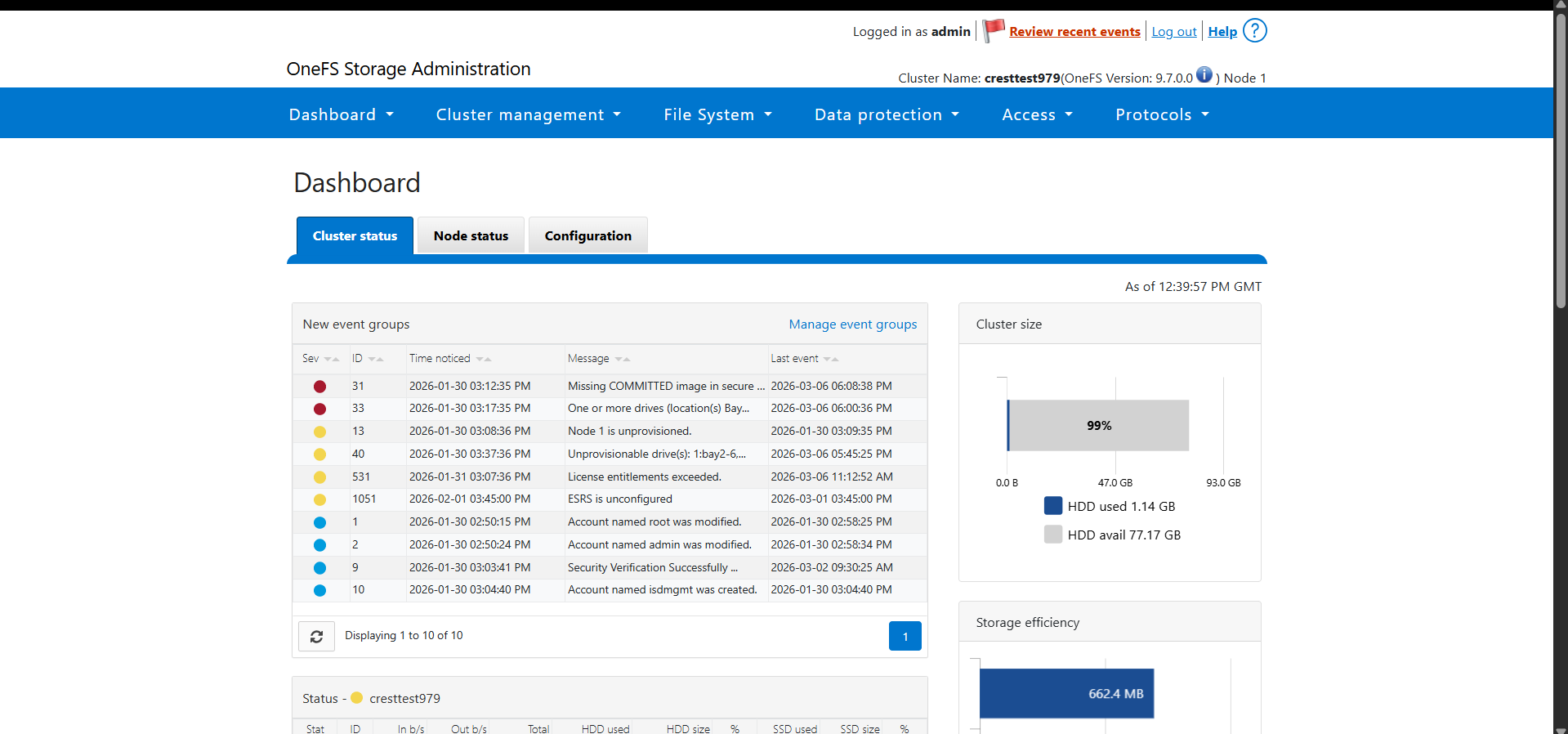
Log in to the OneFS Web UI.
-
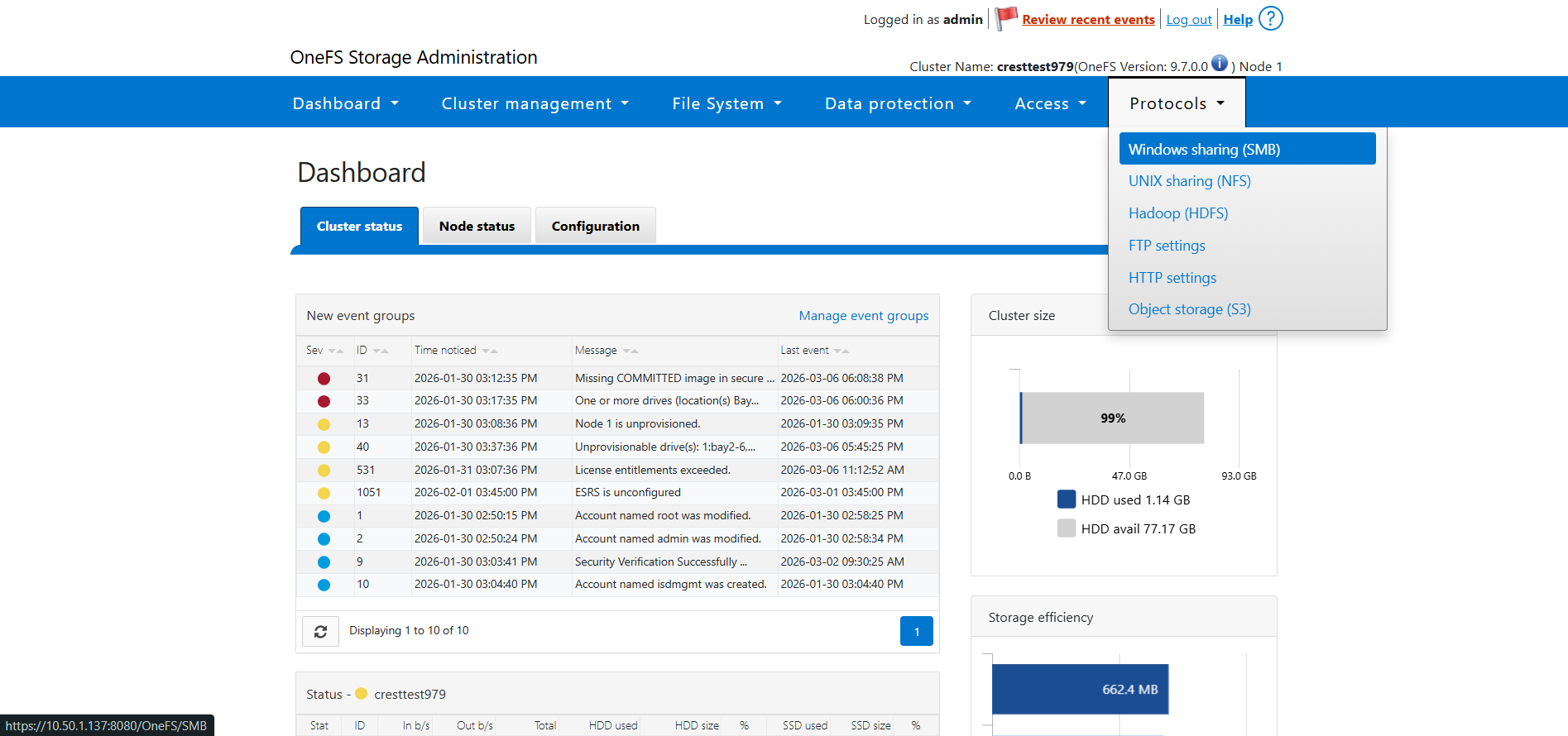
Go to Protocols and select SMB.
-
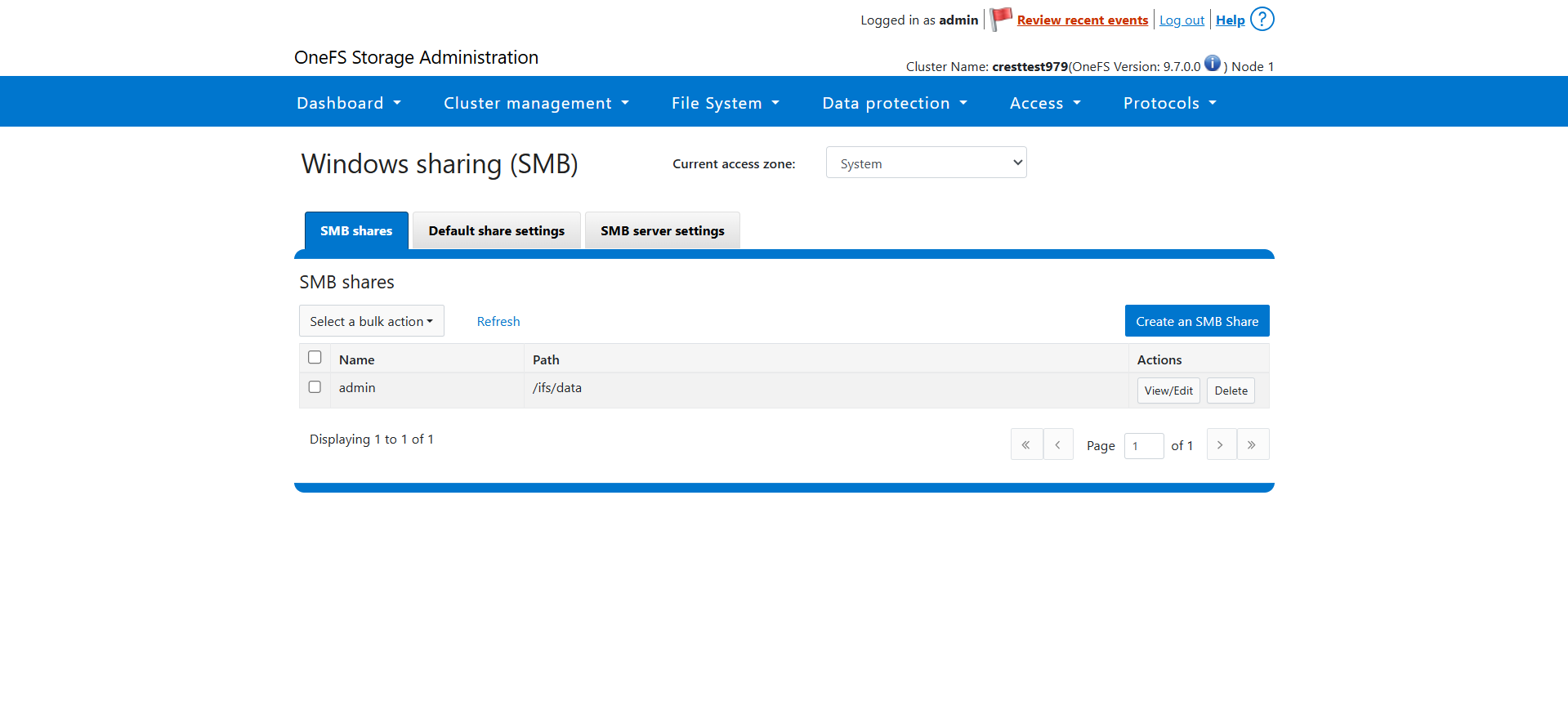
Open the Shares section.
-
You will see a list of configured SMB shares.
-
Look at the Path column. This shows the actual filesystem directory (usually under
/ifs) that is shared via SMB.Example table:
Share Name		Path
test-share		/ifs/data/test
Finance /ifs/data/finance -
The Path value (
/ifs/...) is the directory being shared.
Setup for Kerberos when using a Domain Name/FQDN instead of an IP Address
-
Install Kerberos Utilities Inside Core Container
- Access the core container:
docker exec -it -u0 <core-container> bash
- Install Kerberos packages.
- Ubuntu/Debian: apt update && apt install -y krb5-user smbclient
- RHEL/CentOS: yum install -y krb5-workstation samba-client
-
Configure Kerberos (krb5.conf)
- Create or update: /etc/krb5.conf
- Add realm configuration:
[realms]
   EXAMPLE.COM = {
       kdc = dc01.example.com
       admin_server = dc01.example.com
   }

[domain_realm]
   .example.com = EXAMPLE.COM
   example.com = EXAMPLE.COM
Note
- Realm must usually be uppercase.
- KDC should point to the domain controller.
- DNS resolution must work correctly inside the container.
- Replace these values:
Placeholder Replace With EXAMPLE.COM Your AD/Kerberos realm dc01.example.com Your Domain Controller / KDC hostname example.com Your domain -
Update the docker-compose.yml file.
- Edit the docker-compose.yml file and add extra_hosts in core service:
services:

 core:

   extra_hosts:

     - "<domain/FQDN>:<IP>"
-
Restart Cloud Exchange, and then configure the plugin with a domain name/FQDN of your SMB Server.
sudo ./stop && sudo ./start
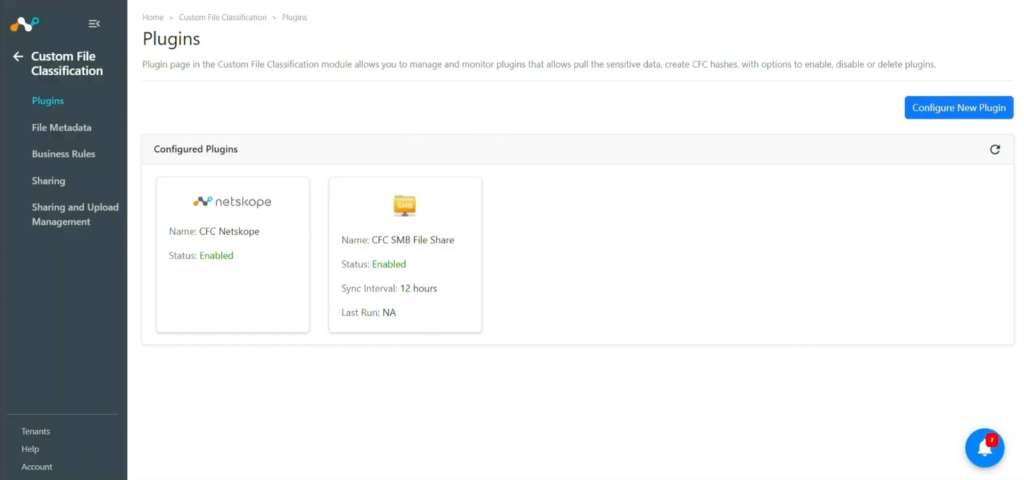
Configure the SMB File Share CFC Plugin
-
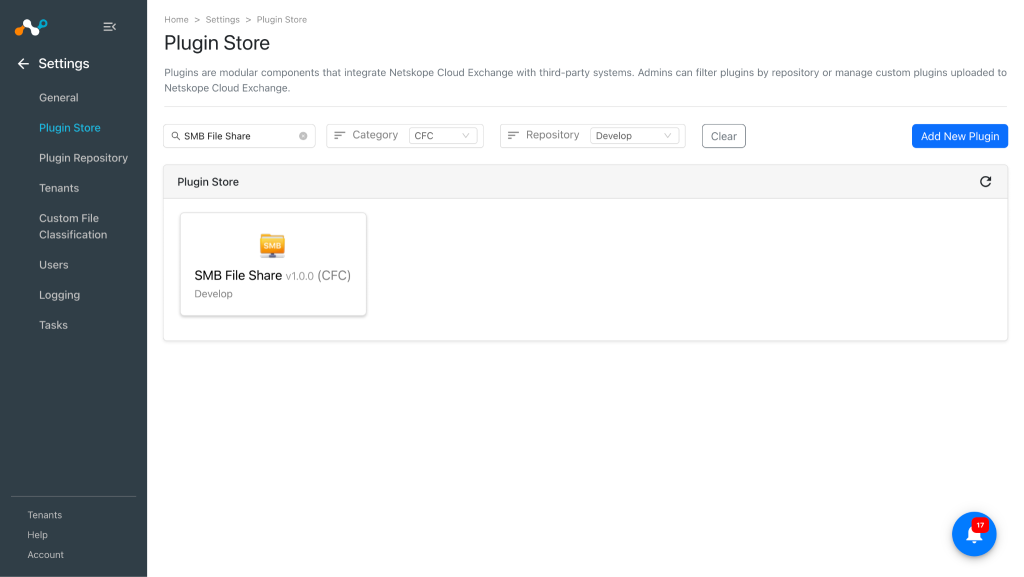
In Cloud Exchange, go to Settings > Plugin Store.
-
Search for and select the SMB File Share v1.0.0 (CFC) plugin.
-
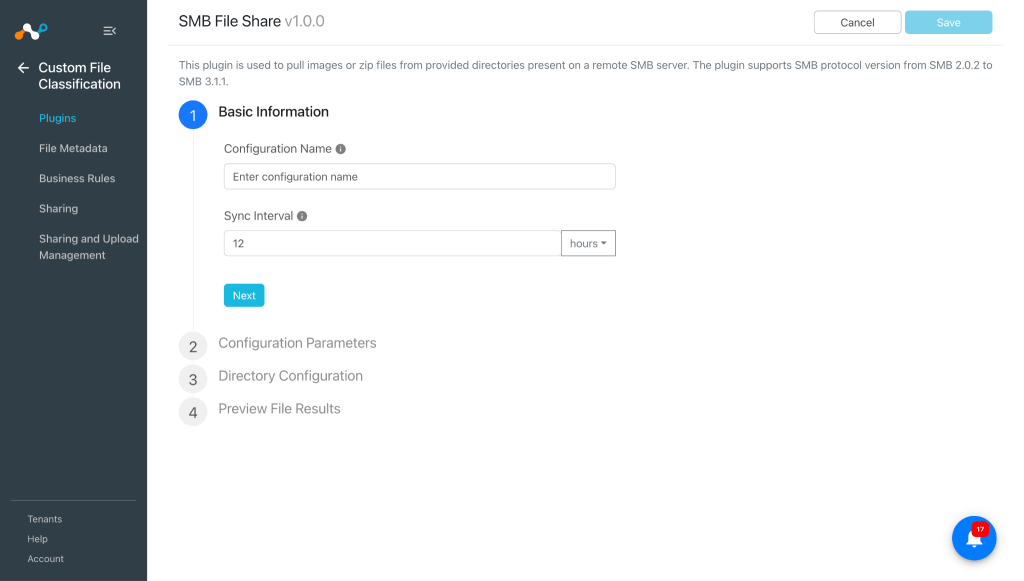
Enter the Basic Information:
- Configuration Name: Enter a name appropriate for your integration.
- Sync Interval: Interval to pull the data from plugin source. We recommend keeping it longer than 12 hours. (Default: 12 hours)
-
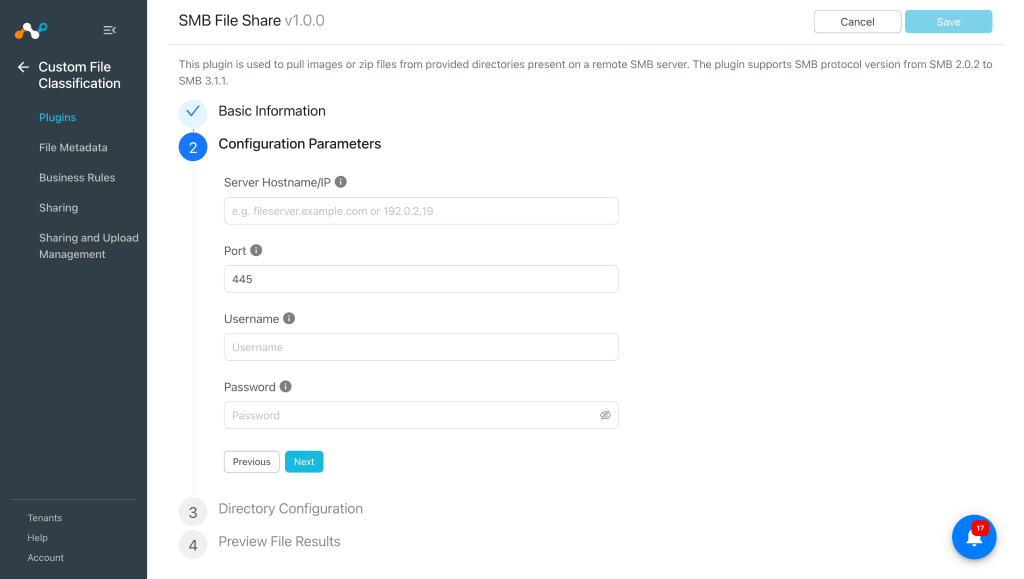
Click Next and enter the Configuration Parameters:
- Server IP/Hostname: Hostname or IP address of the SMB server from which the files are to be pulled.
- Username: Username of the remote machine which has read access to shared directories.
- Password: Password for the provided username.
- Port: TCP port for SMB connection (default 445).
-
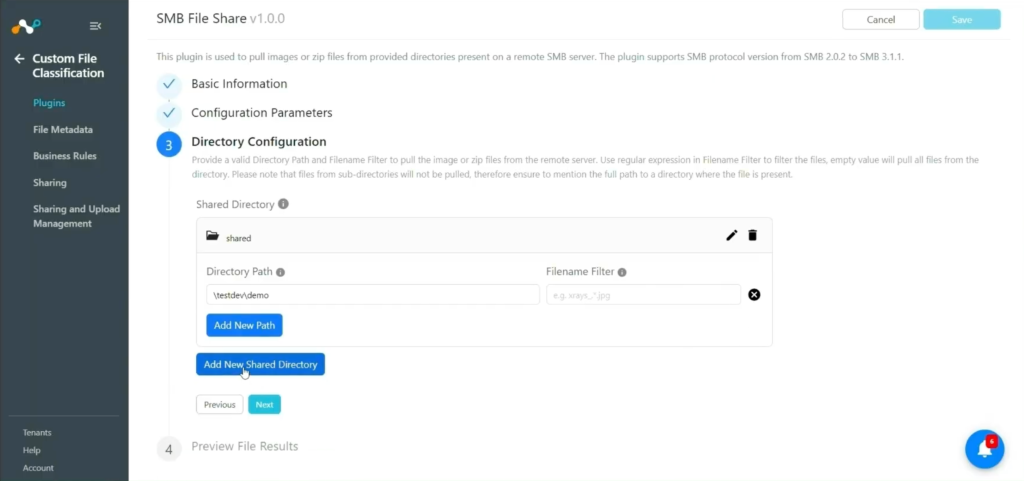
Click Next and enter the Directory Configuration parameters:
You can add multiple directories in the SMB File Share Plugin.
- Shared Directory: Name of the shared directory. Ensure that this directory name is present in the Network Path of the shared directory.
- Directory Path: Path of the directory from which the files are to be pulled. This path must be relative to the shared directory.
- Filename Filter: Regular expression that filters the files to be pulled based on their filenames. Ensure that the filter is a valid regular expression. If left empty, all files from the directory will be retrieved.
- Empty value, pull all the files from directory.
- The filter will only pull the images stored immediately in the directory.
-
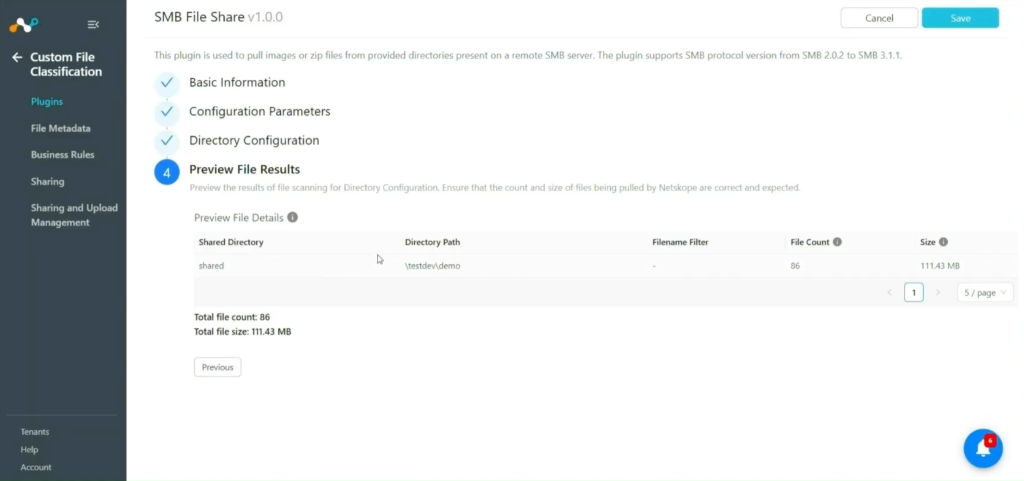
Click Next and preview file scanning results for the configured directory. Ensure that the file count and size of files being pulled up by the plugin are correct and do not exceed the total file count limit (10,000) and total file size limit (~78.125 GB).
-
Click Save.


Configure a CFC Business Rule for SMB File Share
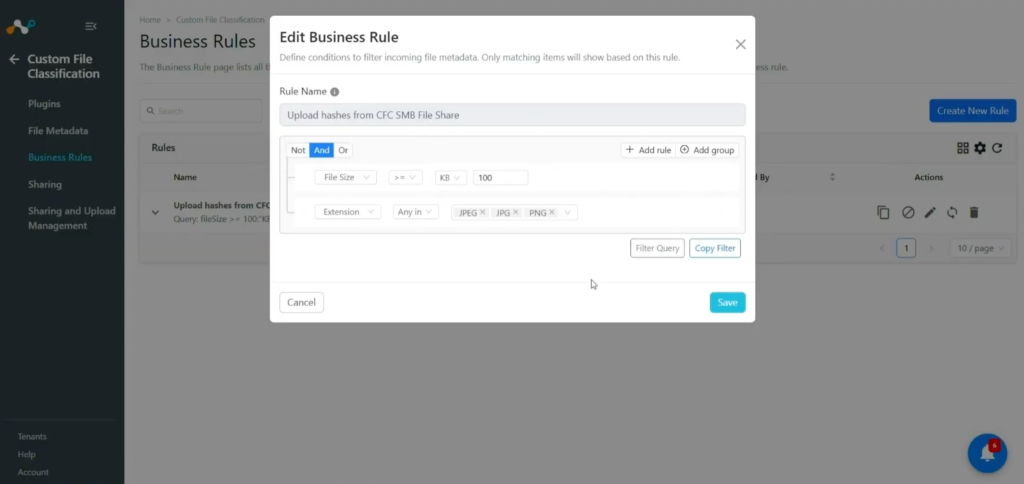
Custom File Classification module requires business rules to share file data to the Netskope Tenant. A user can add rules to filter files by name, size, extension, source, etc. Multiple rules can be grouped together for advanced filtering.
-
Go to Custom File Classification > Business Rules.
-
Click Create New Rule and enter these parameters:
- Rule Name: A unique name for the business rule.
- Rule: Set a filter based on conditions to make a group of files.
- Folder Name: Provide a folder or sub-folder name to group multiple business rules. It will help to see a structured list of business rules in the table.
-
Click Save.

Configure Risk Exchange Sharing for SMB File Share
-
Go to Custom File Classification > Sharing.
-
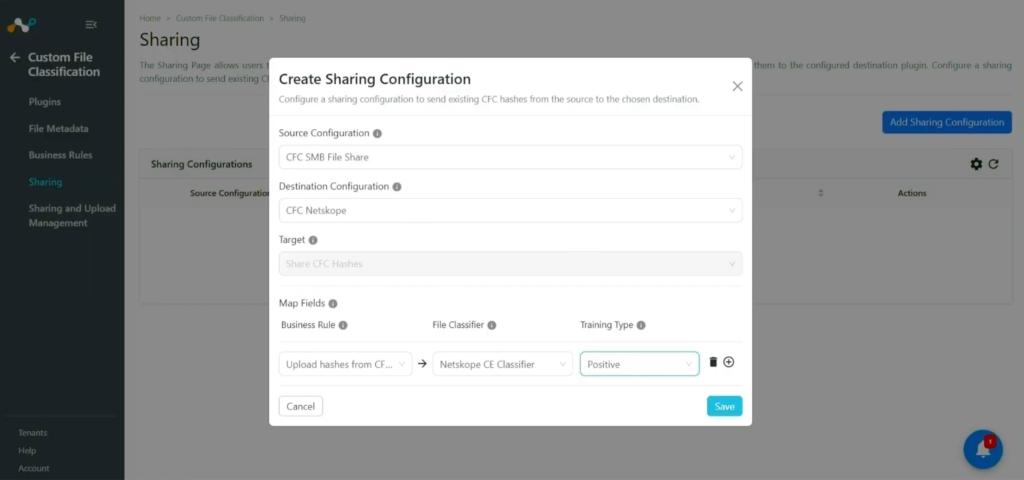
Click Add Sharing Configuration and select the SMB File Share CFC plugin as the Source Configuration.
-
Select the Netskope CFC plugin as the Destination Configuration.
-
The Target will be selected by default, based on the Destination Configuration.
-
Select a Mapping for Business Rule, File Classifier, and Training Type. A user can map multiple business rules in one sharing. The File Classifier lists only custom file classifiers created on the Netskope Tenant.
-
Click Save.

Sync or Delete a Sharing Configuration
- Sync the sharing configuration by clicking on the synchronization icon. This starts the sharing process immediately, without waiting for the actual event to be triggered.
- Delete the sharing configuration by clicking on the garbage-can icon.
Note
If multiple Destination Configurations use the same Source Configuration, clicking Sync on one will start syncing for all of them. This happens because they all share the same source.
Validate the SMB File Share CFC Plugin
Note
Cloud Exchange only stores sensitive pulled data temporarily until the hash generation and upload process is completed. After that, the stored files are automatically removed.
Validate the Pull
After the Sharing is configured, you should wait until the next plugin lifecycle run of the configured SMB File Share CFC plugin gets executed successfully.
Validate the SMB File Share Plugin status on the Sharing and Upload Management page. Go to Custom File Classification > Sharing and Upload Management.
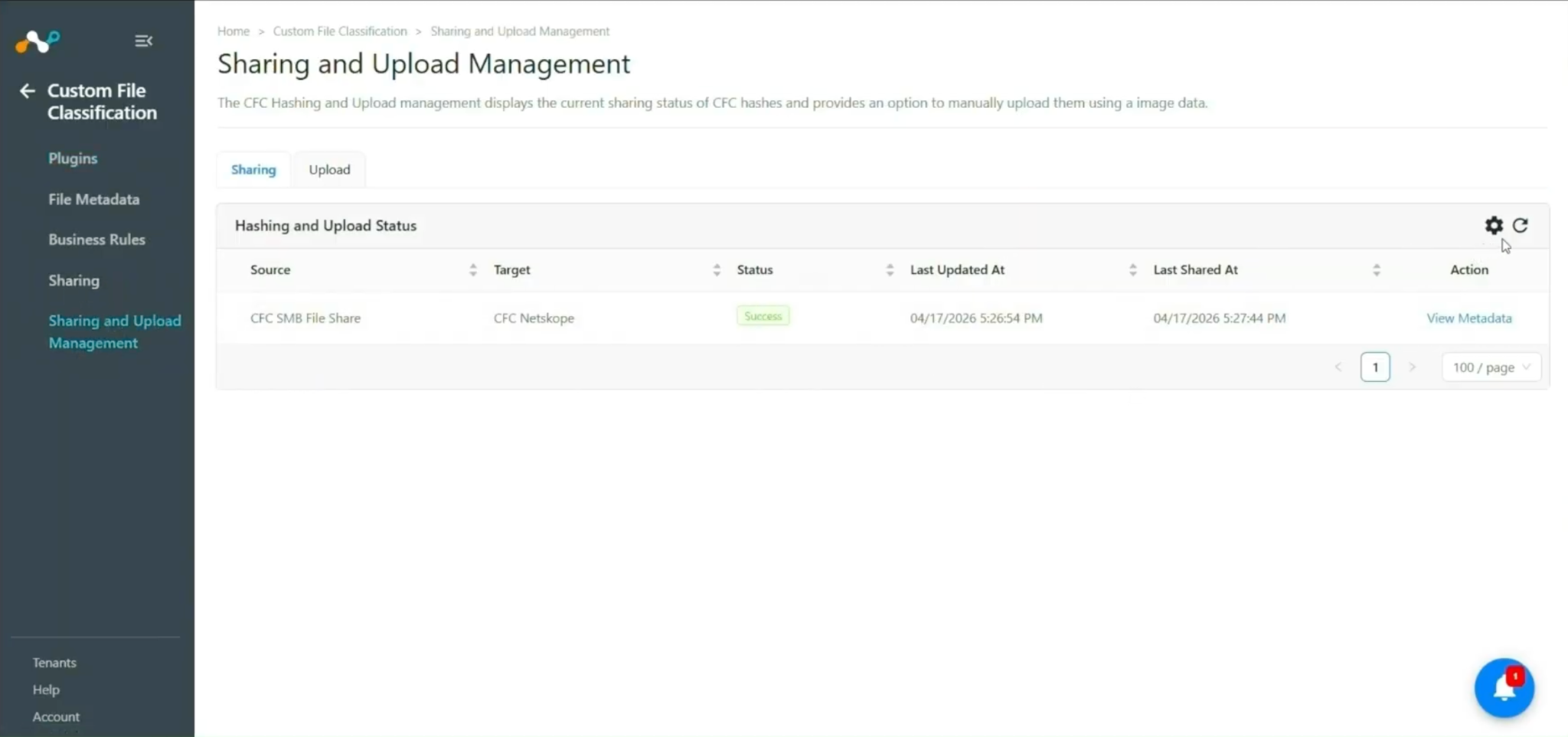
The status of the Sharing configuration can be:
- Scheduled: This represents that the sharing is configured, but it is still in the queue and waiting to run for the first time.
- Generating Hash: This represents that the process of generating a hash is in progress.
- Uploading Hash: This represents that the hash is generated successfully, and the process of sharing it to the configured destination is in progress.
- Completed: This indicates that the generated hash is successfully shared with the destination configuration.
- Failed: Indicates that the process failed in either pulling data, hashing data, or uploading the hash.
Clicking View Metadata will redirect you to the Files Metadata page.
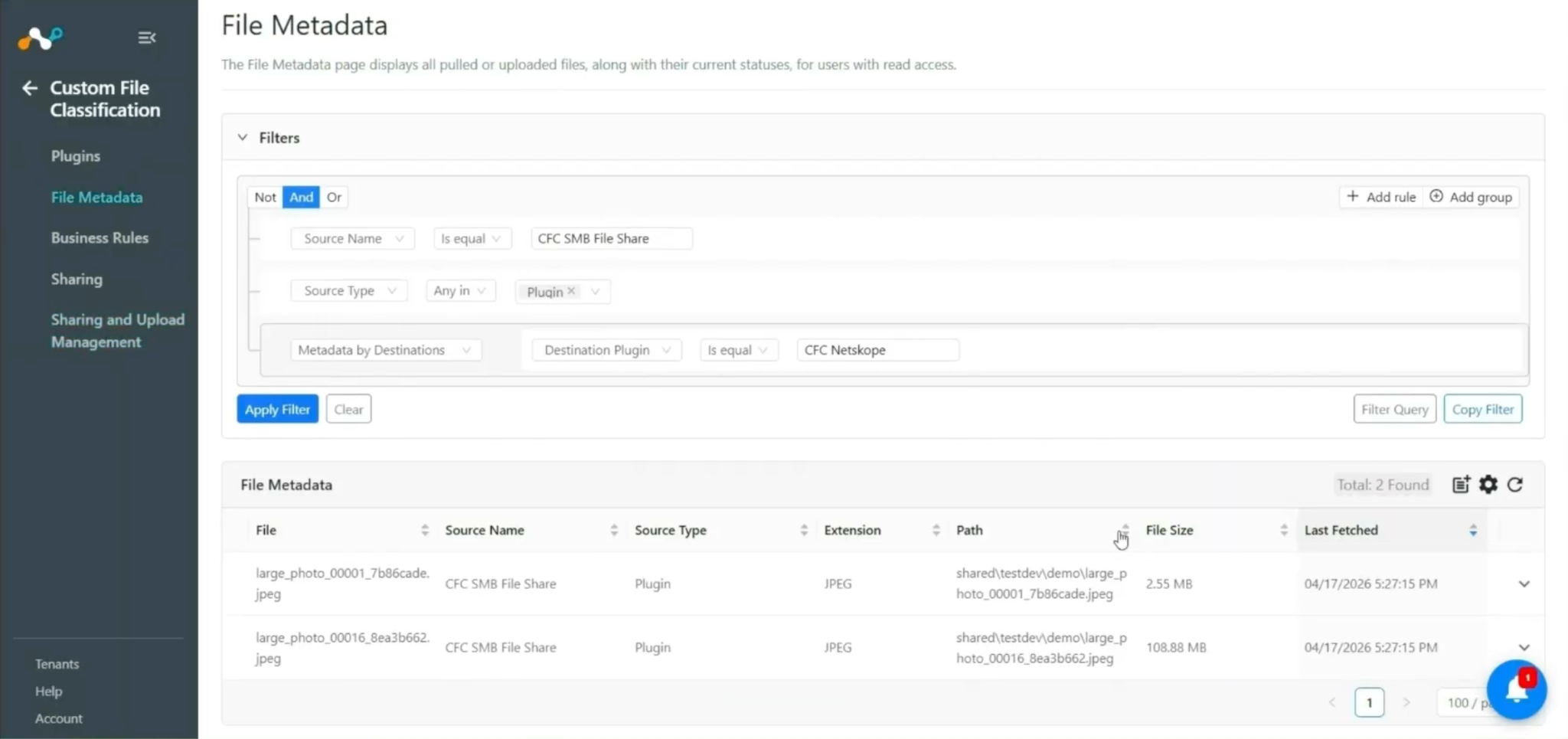
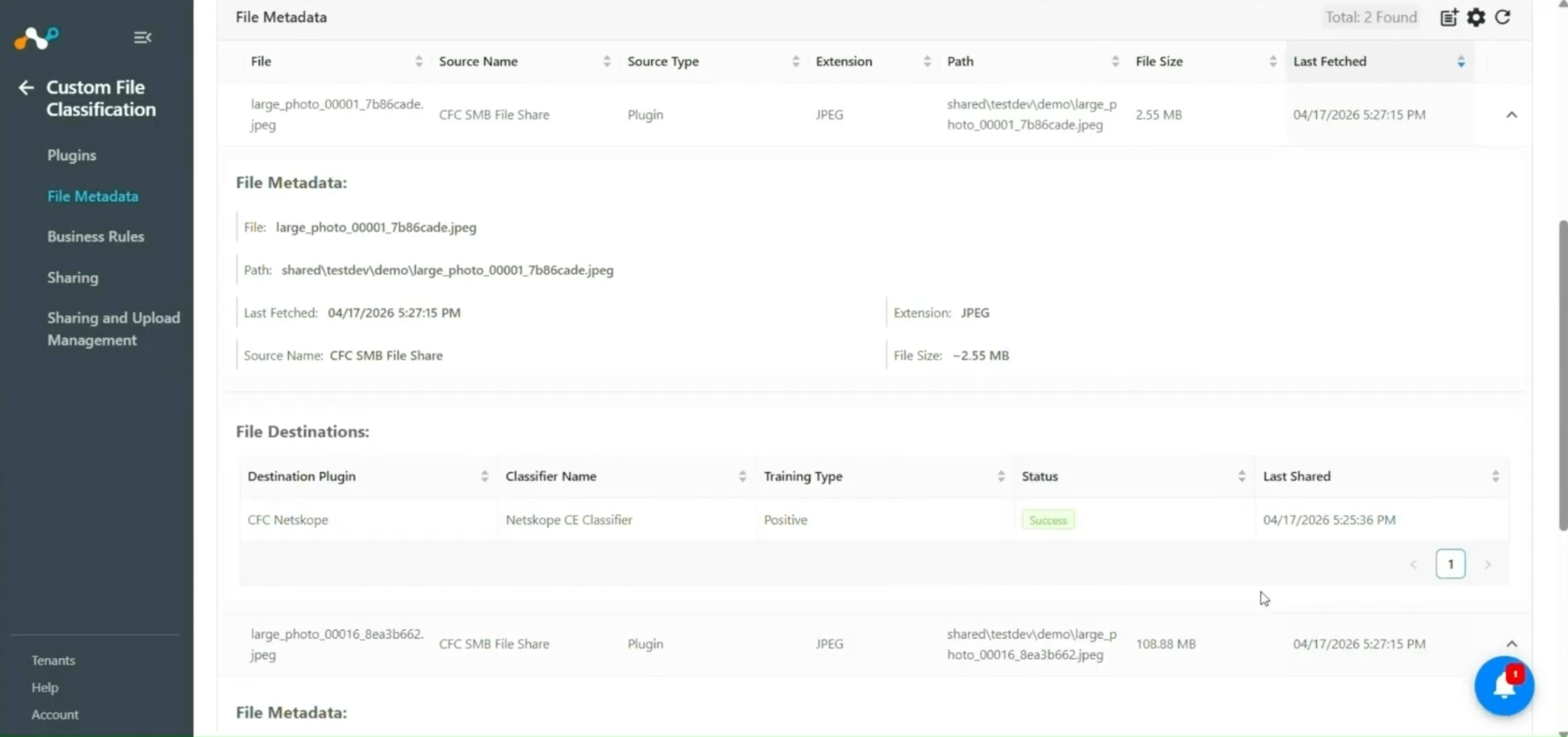
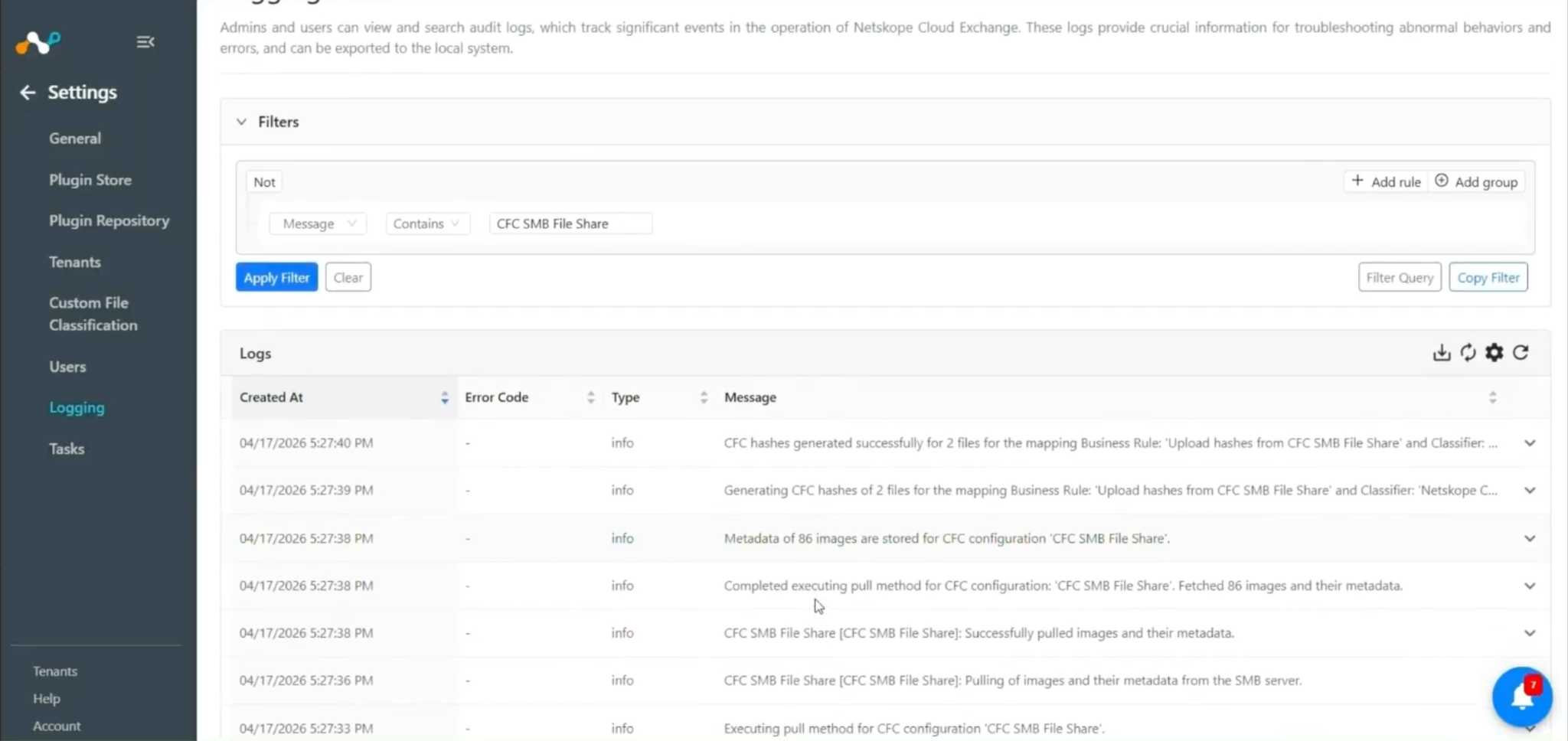
Pulling can be verified on Logging page in CE:
Validate Sharing on the Netskope Tenant
-
Log in to your Netskope Tenant.
-
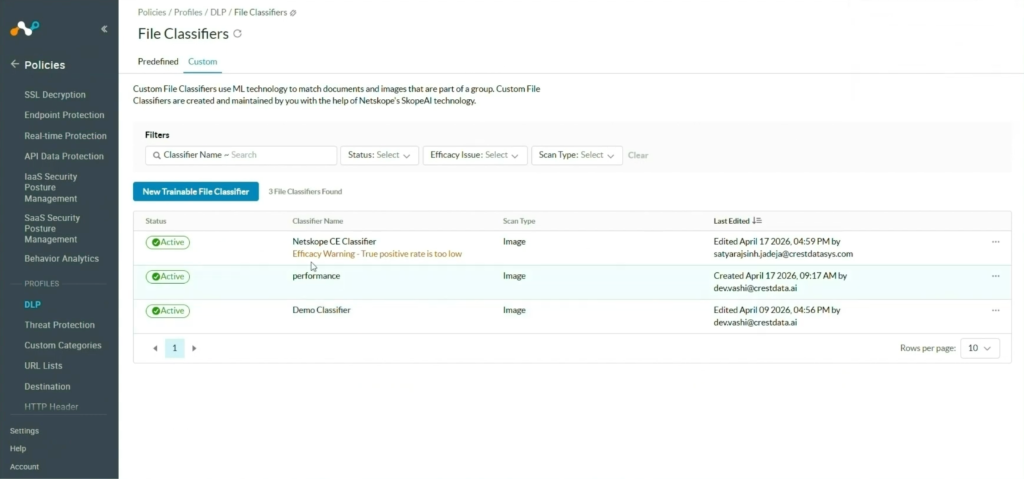
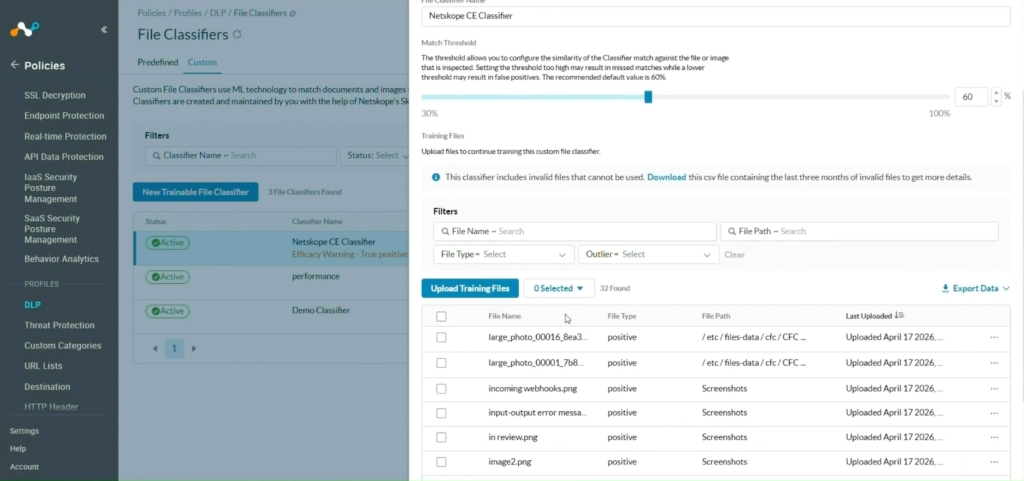
Go to Policies > DLP > File Classifiers.

-
Select the Classifier that you have selected during the sharing configuration, you will see the file hashes received here:


Troubleshooting the SMB File Share Plugin
Unable to configure the SMB File Share CFC Plugin
Issue: If the user is unable to configure the SMB File Share CFC plugin, it may be due to one of these reasons:
- Incorrect credentials were provided.
- The user doesn’t have permission to read the file.
- Incorrect hostname/server IP.
- The provided port value is disabled on the Server.
- Incorrect directory path.
What to do: To solve these issues:
- Make sure to provide the correct credentials.
- Make sure that the user has the required permissions to read the file.
- Make sure that the correct hostname/ server IP is provided.
- Make sure that the port is enabled and in listening mode.
- Make sure you have the image file data in the provided path.