

With version 139.0.0, administrators can select one or more devices and remove them, either through the UI or through API. Removing a device also un-enrolls the Netskope Client on the affected user’s machine. This gives a direct, self-service way to keep the device list accurate and to respond quickly when a device must lose access.
– Ensure your administrator role includes rights to manage the Devices page. Only administrators with these rights can perform the remove operation.
– Supported OS: Windows, macOS
This feature helps you in the following scenarios:
-
A user leaves the organization. Remove the relevant devices so they no longer appear on the Devices page.
-
A device changes hands. When a laptop moves from one user to another, remove the stale entry tied to the previous user.
-
Off-boarded users leave empty device entries. When you remove users from the tenant, their device entries show – in place of the username. Filter for these entries and remove them in bulk.
Configuration
This section describes how an administrator configures and performs the device removal in the Netskope tenant webUI.
-
In the Netskope tenant webUI, go to Settings > Security Cloud Platform > Netskope Client > Devices.
-
Select one or more devices that you want to remove.
-
Click Delete from the dropdown. If you want to remove only a specific device, click the ellipsis(…) for that device and select Delete.

-
In the confirmation window, select Delete to confirm the removal.
The removal process might take a few minutes to complete.
-
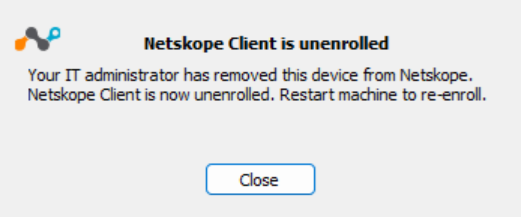
Once removed, the system now displays a pop-up Netskope Client is unenrolled. For example, the pop-up displayed for:
IDP enrolled devices

UPN and Email enrolled devices
To remove devices through the Netskope Client REST API, use the update and delete operations exposed in API version 2. To view the API documentation, go to Settings > Tools > Rest API V2 > API Documentation on the webUI and check the APIv2 endpoint /datasearch/delete/clientstatus.
After you confirm the removal:
-
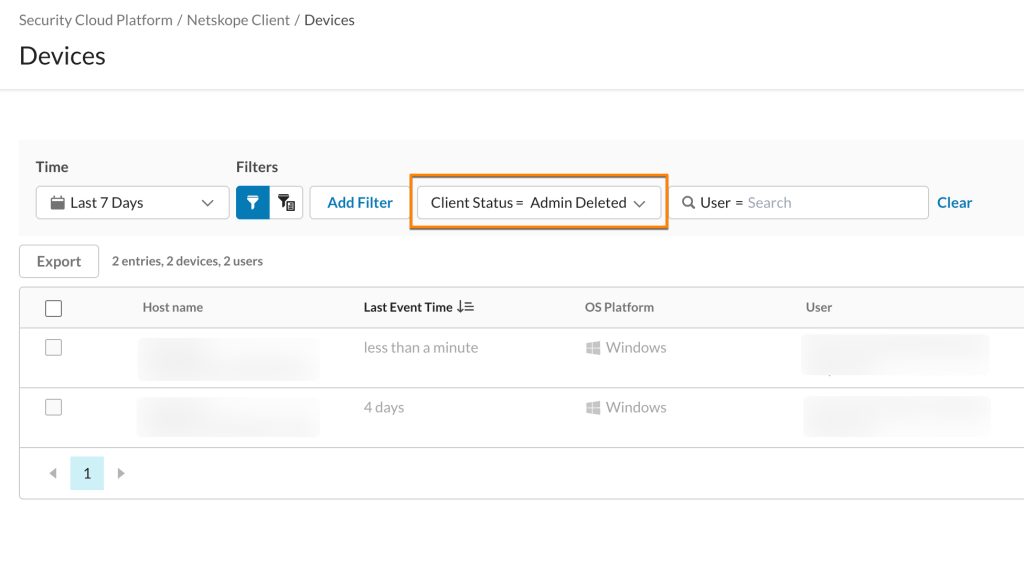
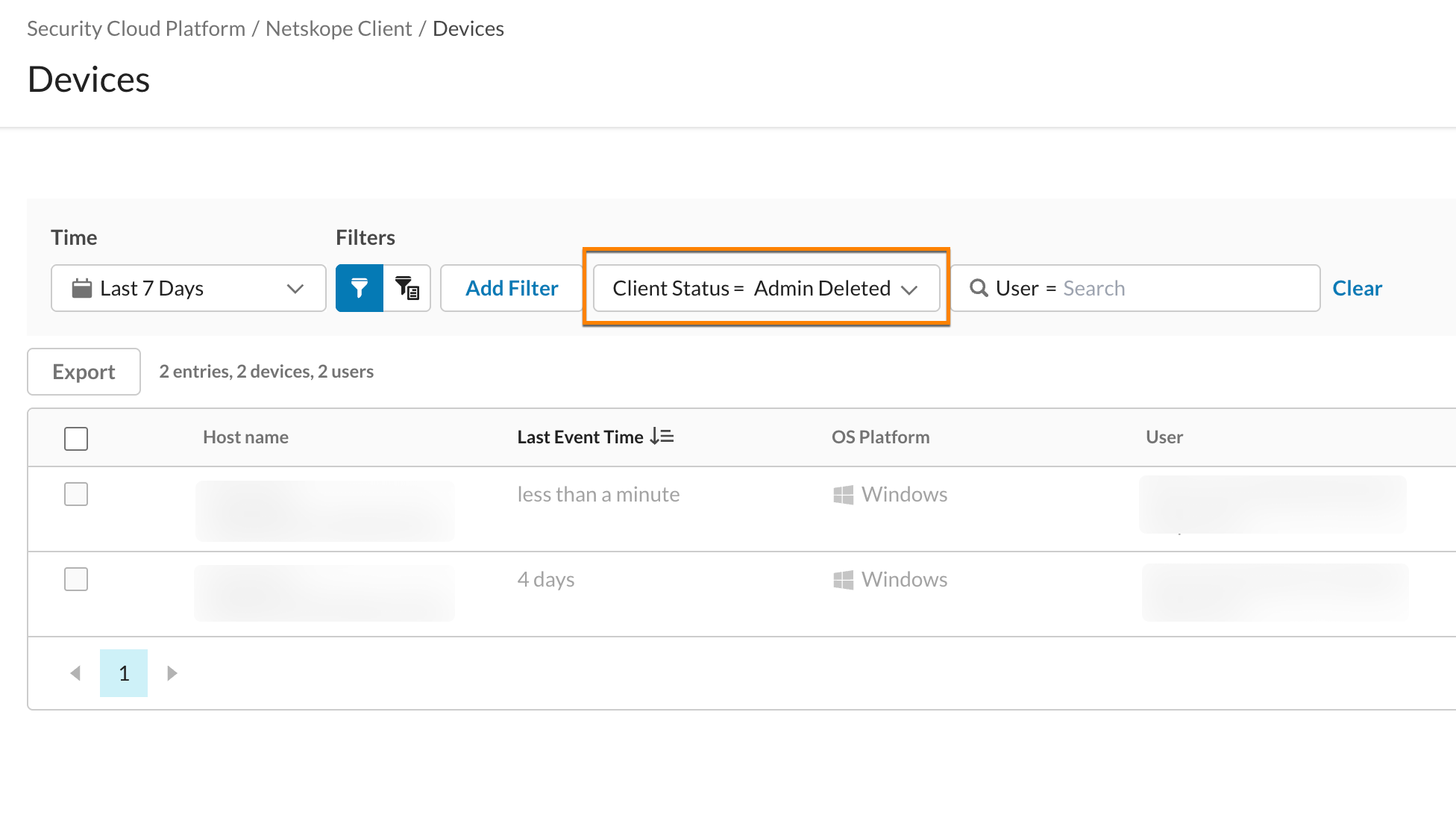
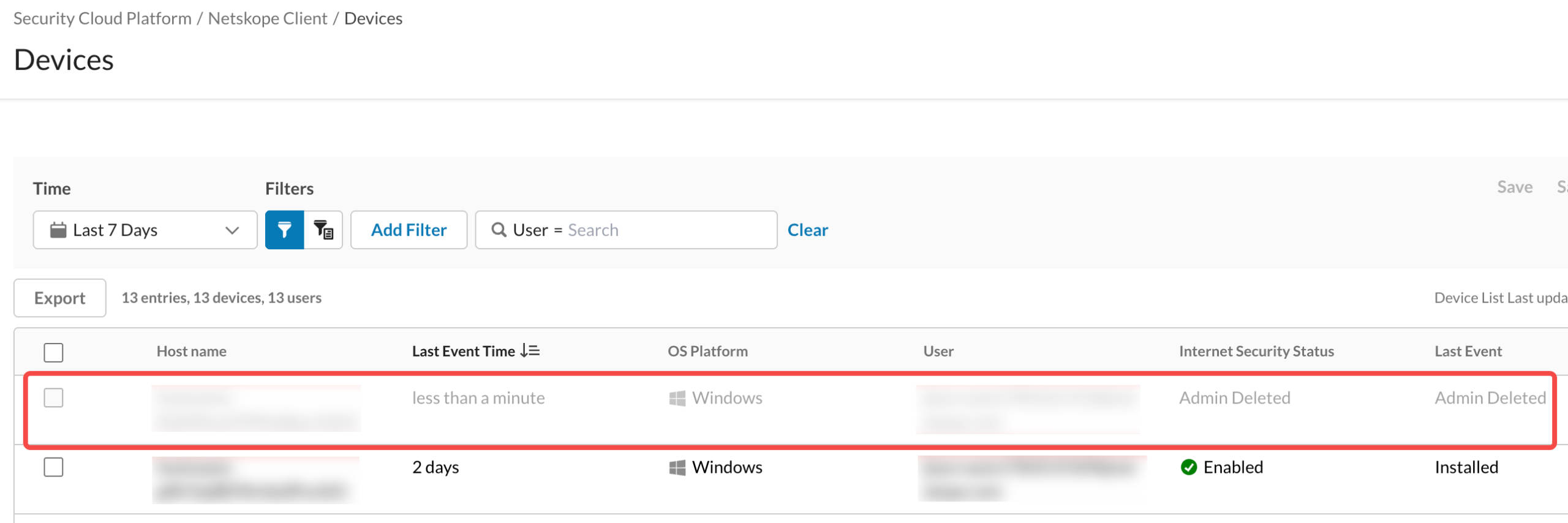
The device is soft removed. The entry no longer appears in the default view but remains available when you apply a filter to show removed devices. This preserves event logs for audit and forensic purposes.
-
Soft-removed devices are permanently deleted after 30 days.
-
Audit logs record the device remove operation.
-
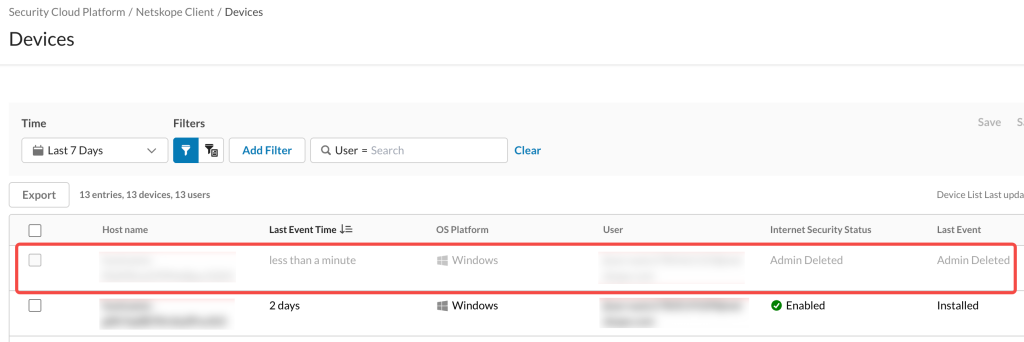
The device event log shows the state Admin Deleted and the tunnel status as disabled, after the Netskope Client reports its un-enrollment status back to the tenant.
-
For Linux, Android, and iOS devices deleted from the webUI, no re-enrollment is required for the users. If the user continues to use the Client application, the device reappears on the Devices webUI and starts capturing new events after the device removal.
If the device is offline when you trigger the removal, the Netskope Client queries the tenant for status updates at regular intervals (~five minutes) and completes the removal once the device comes online. For example, Netskope Client performed a query at 10 AM. Next query by the Client will happen at 10:05 AM.
-
The admin deletes the device from the UI at 10:01 AM.
-
Between 10:01 – 10:04 AM the device will remain active and the device will log all events the device generates.