

Release Notes
2.2.0 (Requires minimum Cloud Exchange version 6.1.0)
Added
- Added configuration parameters Exclude Timestamp Field and Exclude Log Source Identifier Field for JSON-formatted data.
- Added the CEF and JSON format options.
- Added connection timeout and retry handling for data ingestion.
- Added resolutions to the error logs.
Changed
- Renamed the plugin from Secureworks to Sophos Fusion.
- Updated the default mappings.
- Added the syslog header to JSON-formatted data.
- Changed warning logs to debug logs.
Fixed
- Fixed TLS protocol support for Python 3.12 and later by replacing the removed ssl.wrap_socket() with SSLContext.
- Fixed data loss when ingestion to Sophos Fusion fails.
- Fixed mapping of nested fields.
2.1.0
Added
- Added support for the webtx JSON format to send specific fields to the SIEM platform.
2.0.0
Added
- Added support for the incident event type (requires CE 4.1.0).
- Added support for the ctep alert type (requires CE 4.2.0).
- Added support for WebTx format 3.
Changed
- Changed error logs to warning logs when a single field is skipped.
Fixed
- Fixed the JSON format of raw data.
Removed
- Removed the priority from the Syslog message for the logs that are not transformed to CEF.
1.0.0
Added
- Initial release.
This document explains how to configure the Sophos Fusion v2.2.0 plugin with the Log Shipper module of the Netskope Cloud Exchange platform. This plugin supports ingestion of:
- Alerts (DLP, Malware, Policy, Compromised Credential, Malsite, Quarantine, Remediation, Security Assessment, Watchlist, UBA, CTEP, Device, Content)
- Events (Page, Application, Audit, Infrastructure, Network, Incident, Endpoint, Client Status)
- WebTx and Logs (Debug, Information, Error, Warning).
The data will be ingested in Sophos Fusion platform over Syslog. This plugin supports ingestion in CEF and JSON format.
Prerequisites
To complete this configuration, you need:
- A Netskope tenant (or multiple, for example, production and development/test instances).
- A Netskope Cloud Exchange tenant with the Tenant plugin and Log Shipper plugin already configured.
- The AWS Log Streaming plugin and Azure Log Streaming plugin already configured, for ingesting alerts, events and WebTx from the Netskope Log Streaming plugin.
- A Sophos Fusion instance with an account.
- A Syslog collector on the Sophos Fusion platform configured to receive data on the selected server, port, and protocol.
- For Secret Manager configuration, refer to this documentation. To set up Azure Key Vault Secrets Manager, refer to this documentation.
Sophos Fusion Plugin Support
This plugin supports ingestion of Alerts, Events, WebTx and Logs. The data will be ingested in Sophos Fusion platform over Syslog. This plugin supports ingestion in CEF and JSON format.
| Data Type | Support |
|---|---|
| Events | Yes – Page, Application, Audit, Infrastructure, Network, Incident, Endpoint, Client Status |
| Alerts | Yes – DLP, Malware, Policy, Compromised Credential, Malsite, Quarantine, Remediation, Security Assessment, Watchlist, UBA, CTEP, Device, Content |
| WebTx | Yes |
| Cloud Exchange Logs | Yes – Debug, Information, Error, Warning |
API Details
The plugin uses Python’s built-in logging module (logging.handlers.SysLogHandler, extended with ssl for the TLS protocol) to push the data to the Syslog collector over UDP, TCP or TLS.
Library: logging
This module defines functions and classes which implement a flexible event-logging system for applications and libraries.
The key benefit of having the logging API provided by a standard library module is that all Python modules can participate in logging, so your application log can include your own messages integrated with messages from third-party modules.
Refer to the official documentation for more information on the logging library.
https://docs.python.org/3/library/logging.html
List of Methods Used
Method: logging.getLogger(name=None)
Return a logger with the specified name or, if the name is None, return a logger which is the root logger of the hierarchy.
All calls to this function with a given name return the same logger instance. This means that logger instances never need to be passed between different parts of an application.
Method: setLevel(level)
Sets the threshold for this logger to level. Logging messages that are less severe than the level will be ignored; logging messages that have a severity level or higher will be emitted by whichever handler or handlers service this logger, unless a handler’s level has been set to a higher severity level than the level.
Method: handlers
The list of handlers is directly attached to this logger instance.
- Method: addHandler(hdlr)
- Adds the specified handler hdlr to this logger.
- Method: removeHandler(hdlr)
- Removes the specified handler hdlr from this logger.
Performance Matrix
This performance reading was conducted on a Large Stack in Cloud Exchange with these VM specifications. These readings are added with the consideration that it will ingest around 10k Netskope alerts/events in 2 seconds to the SIEM.
| Description | Specification |
|---|---|
| Stack details | Size: Large, RAM: 32 GB, CPU: 16 Cores |
| Alerts/Events ingested to SIEM | ~ 200K EPM |
| WebTx (via Netskope LogStreaming) ingested to SIEM (uncompressed) | ~ 170K EPM |
Workflow
- Configure a Syslog Collector on Sophos Fusion.
- Configure the Sophos Fusion plugin.
- Configure a Business Rule.
- Configure Log Delivery.
- Validate the plugin.
Watch a Video
Click play to watch a video.
Create a Data Collector on Sophos Fusion
Follow the steps in the Sophos Data collectors documentation to review the prerequisites and network requirements.
-
Log in to Sophos Fusion as an Admin or Super Admin.
-
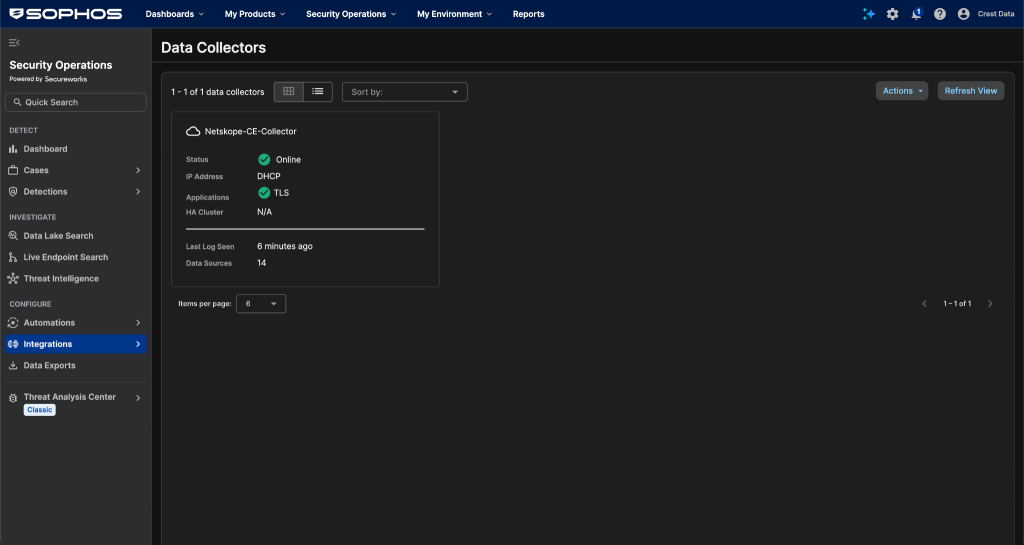
Go to Security Operations > Integrations > Data Collectors.
-
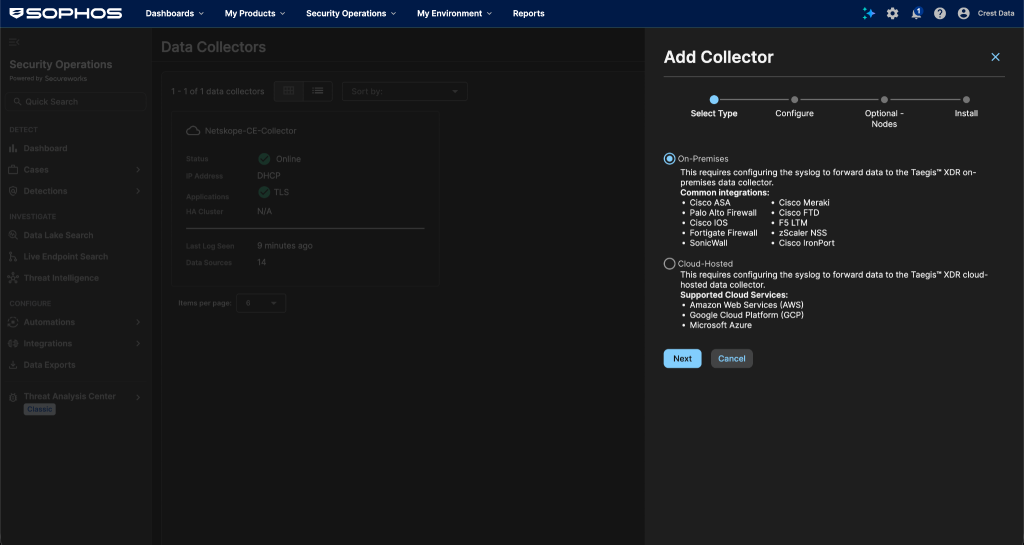
Click Actions > Add Collector.
-
Select the deployment type and click Next:
- Select On-Premises for VMware ESXi, Microsoft Hyper-V or Nutanix.
- Select Cloud-Hosted for AWS, Azure or GCP.
-
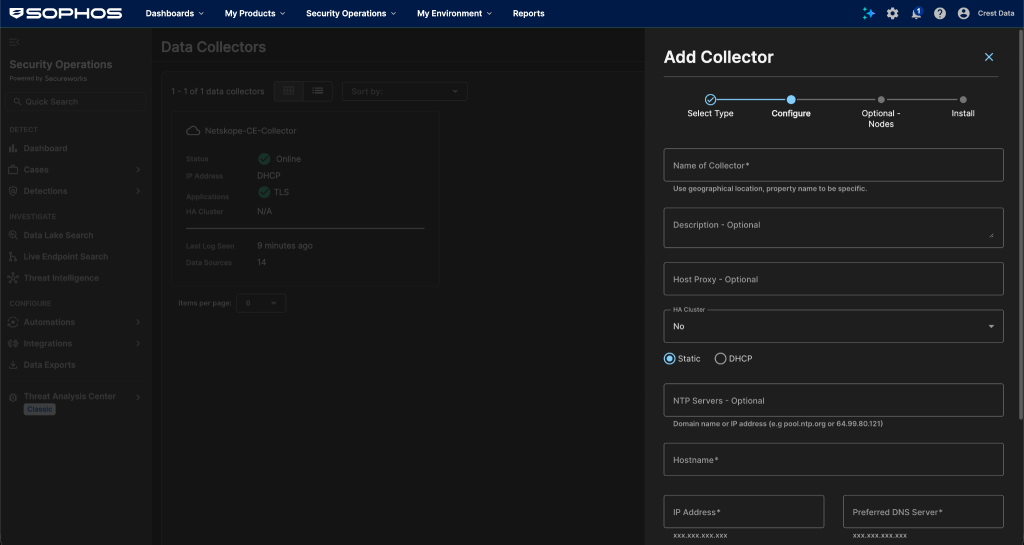
Enter the collector Name and Hostname. Optionally, add a Description, a Host Proxy and NTP servers.
-
Select the network configuration, either DHCP or Static. For Static, enter the IP address, subnet mask, gateway and DNS servers. Set the static IP now, because it is built into the collector’s configuration image.
-
Click Create Collector.
-
Download the ISO (the collector’s configuration) and the OVA (the VM image). For Hyper-V, Sophos provides a VHD package instead of an OVA, and for Nutanix it provides QCOW2 files.
-
Create the VM in your hypervisor from the downloaded image, but don’t power it on yet. Note that the VM requires at least 4 vCPUs at 2 GHz, 8 GB RAM, a 20 GB system disk and a 200 GB data disk.
-
Upload the ISO to your datastore and attach it to the VM’s CD-ROM drive. On VMware, go to Edit Settings > CD/DVD Drive > Datastore ISO File.
-
Power on the VM.
-
Make sure the required ports are open in your firewall:
- Outbound TCP/443 from the collector to your region’s Sophos XDR collector endpoint.
- UDP and TCP/53 from the collector to your DNS servers.
- UDP/123 from the collector for NTP.
- 514/UDP or 601/TCP from the devices sending syslog to the collector.
-
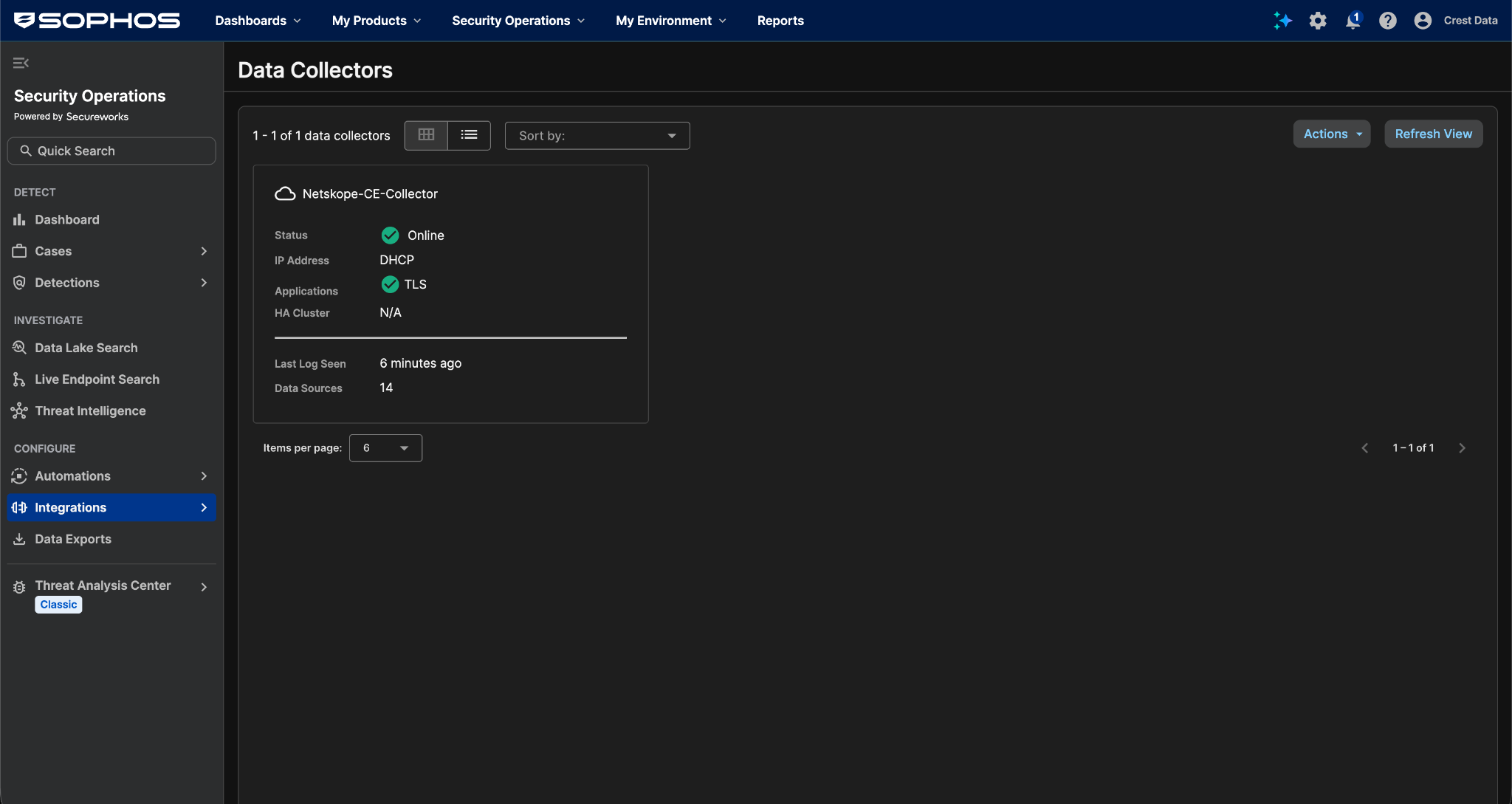
Go back to Security Operations > Integrations > Data Collectors and wait until the collector status shows Ready. Then detach the ISO from the VM.
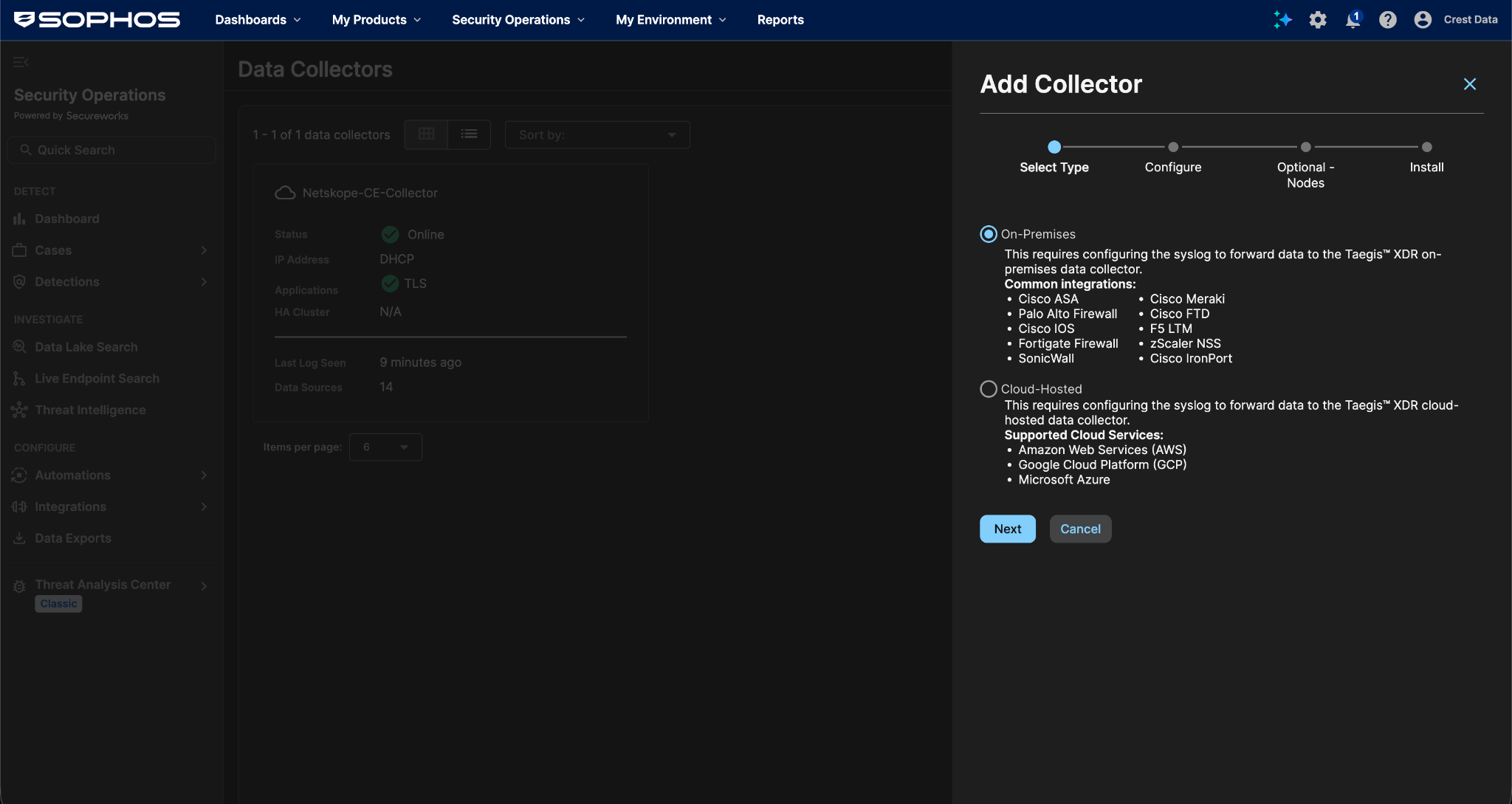
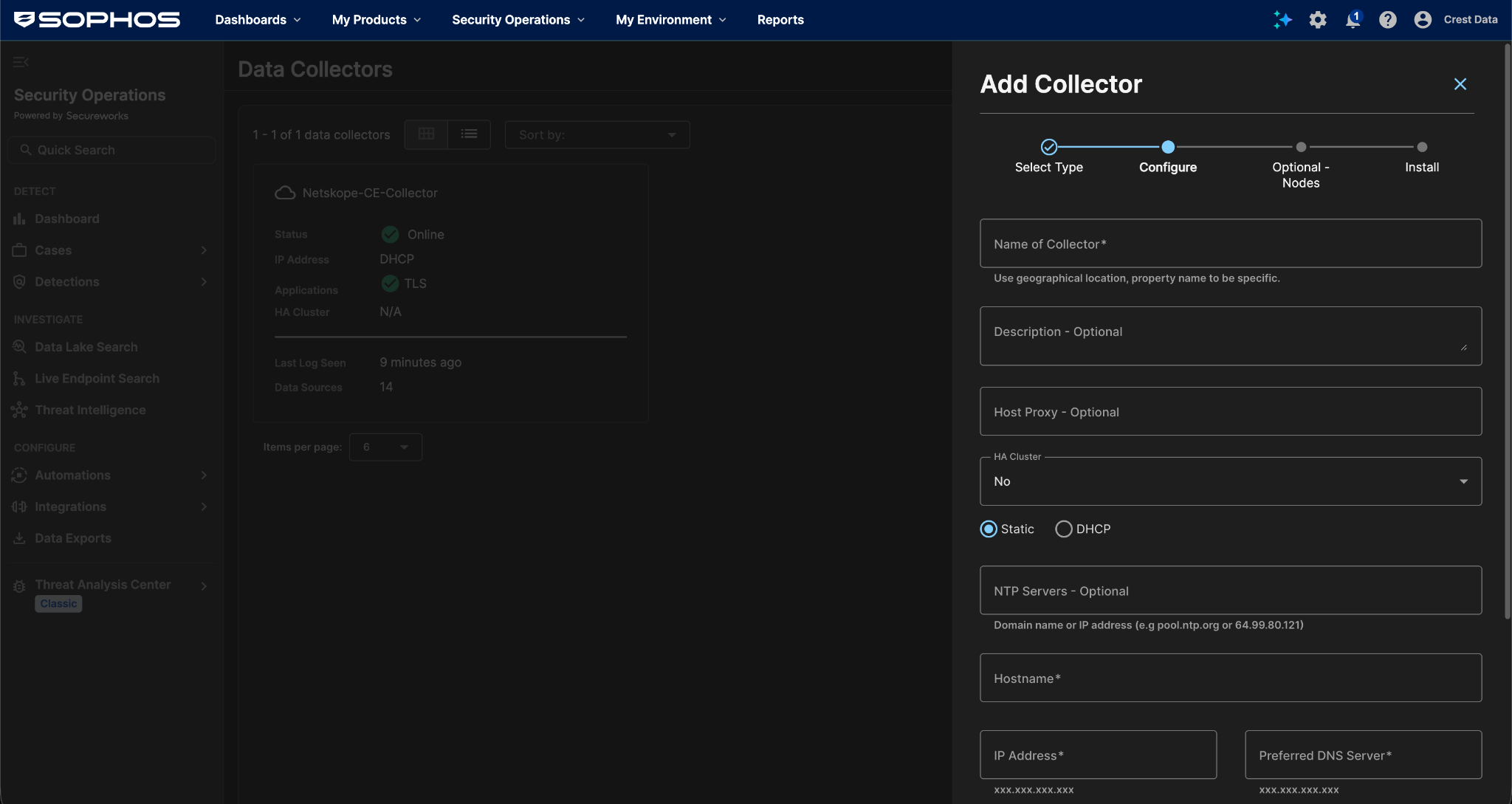
If you chose Cloud-Hosted in step 4, deploy using the platform’s template in place of steps 8 to 11. For AWS, use the CTPxCollectorDnsName value from the CloudFormation stack’s Outputs as the syslog destination.
Configure the Sophos Fusion Plugin
-
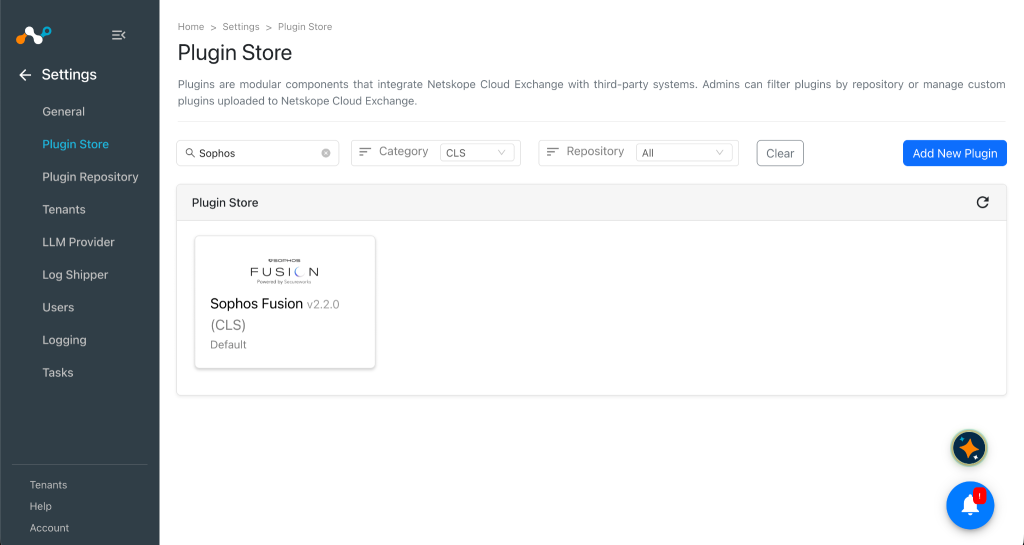
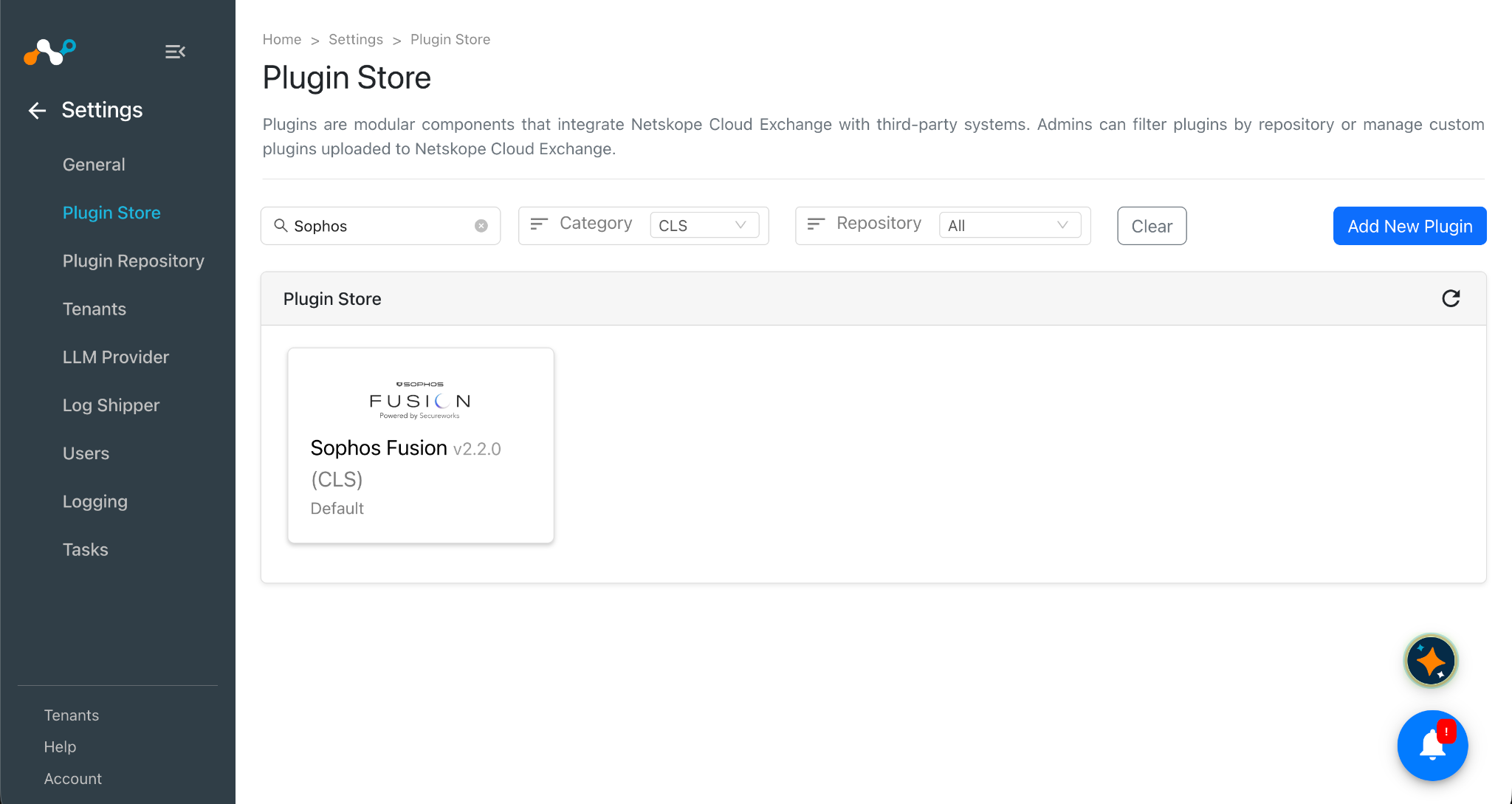
In Cloud Exchange, go to Settings > Plugin Store. Search for and select the Sophos Fusion v2.2.0 (CLS) plugin.
-
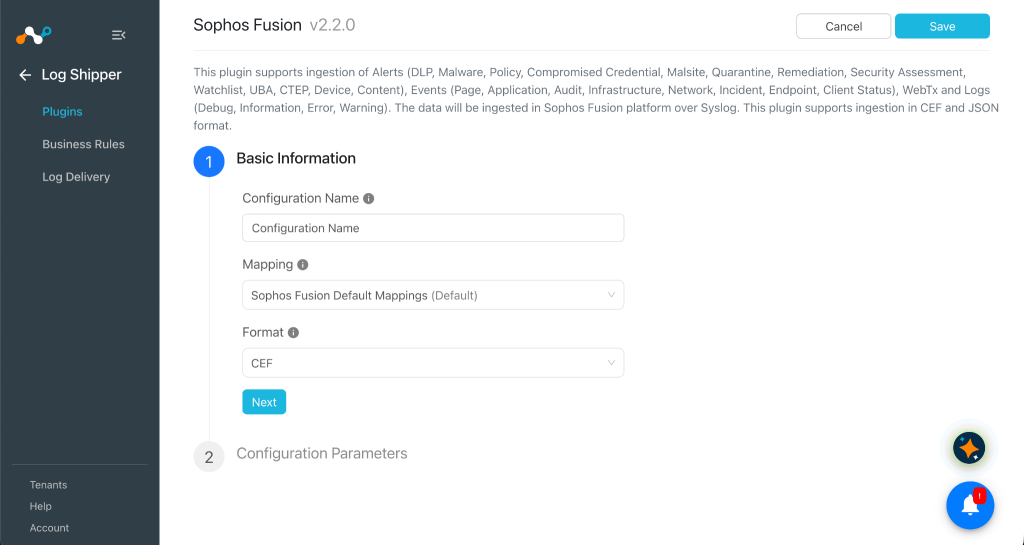
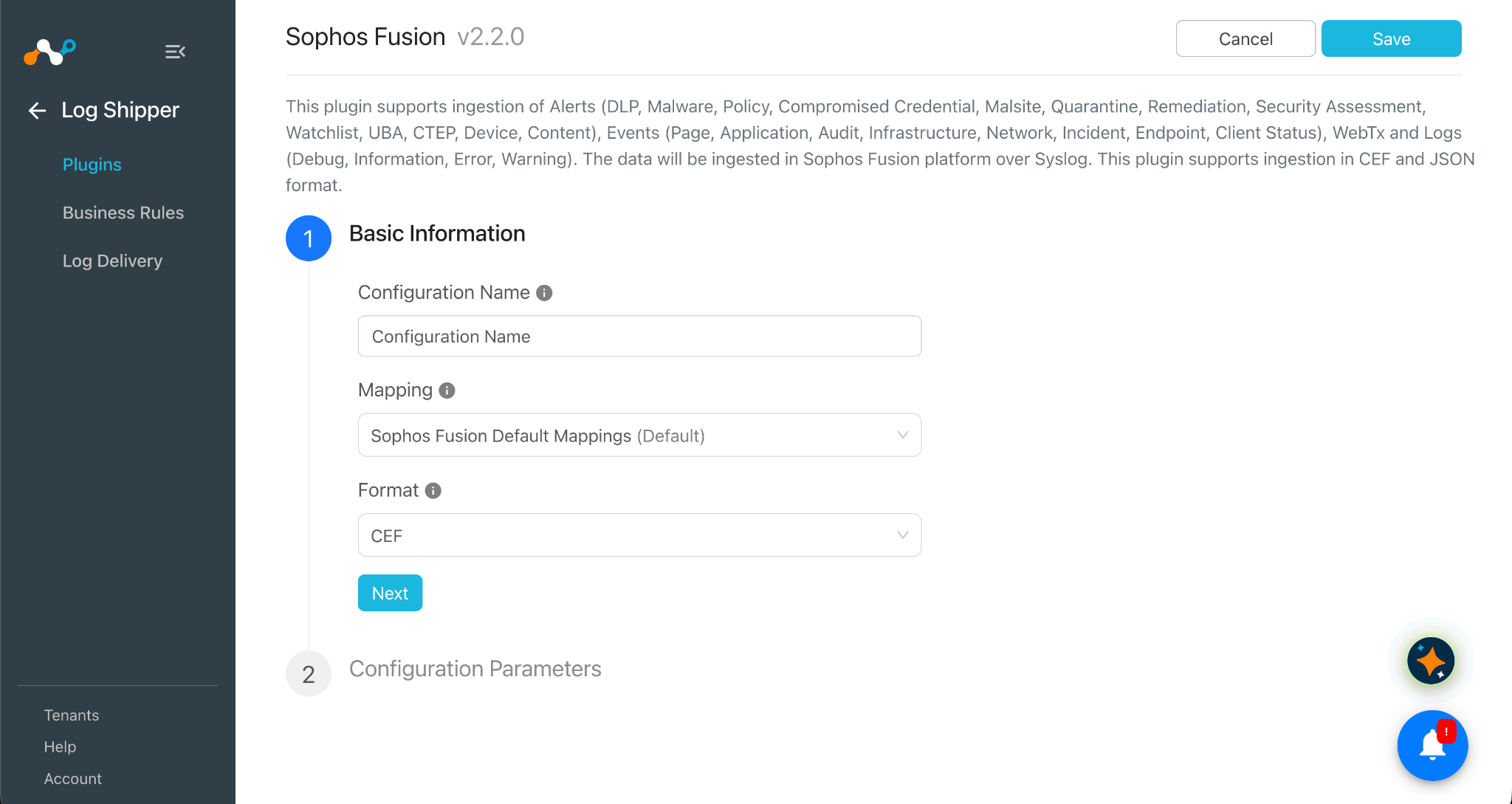
Enter a plugin configuration name, and make sure you have the Sophos Fusion Default Mappings selected. If you want to share the data in JSON format, change the Format setting to JSON.
-
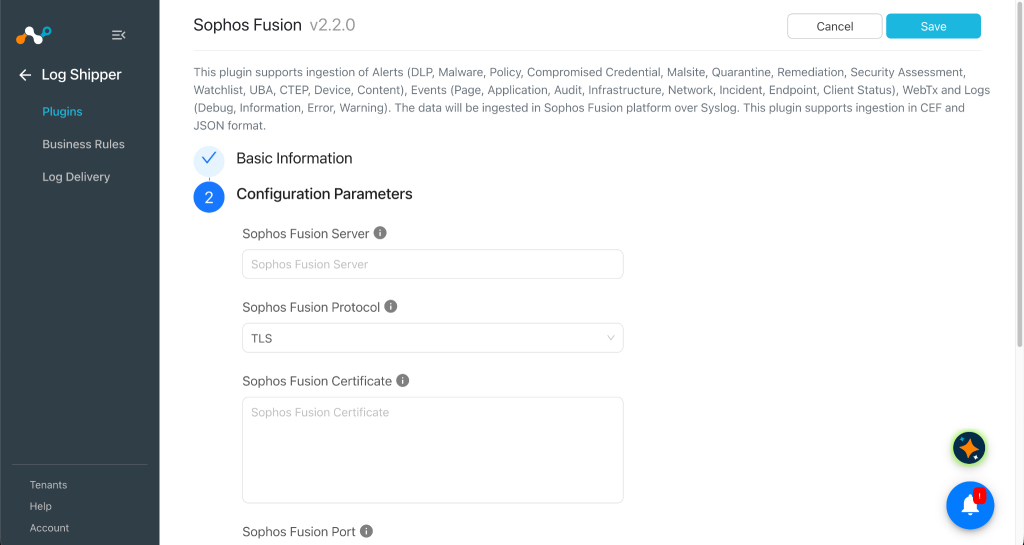
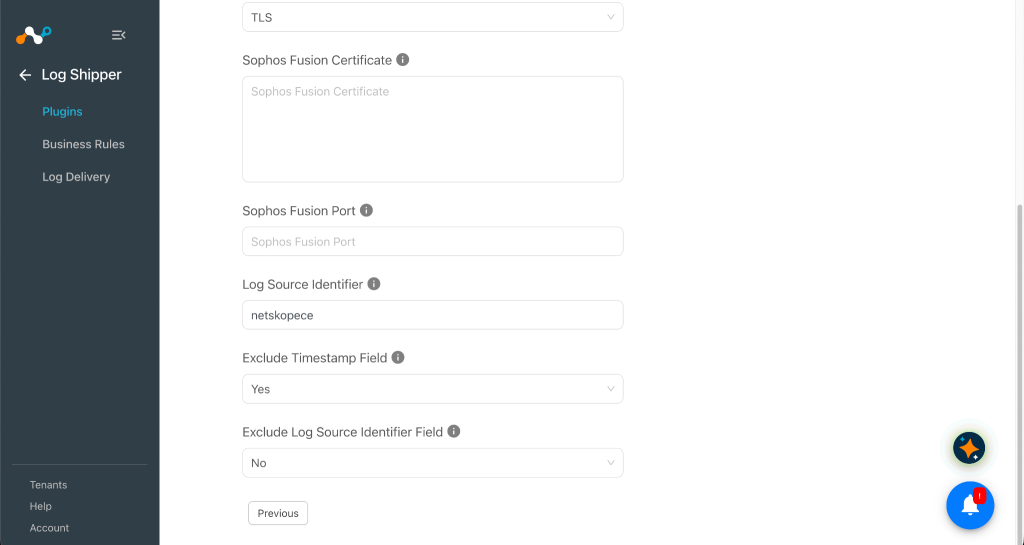
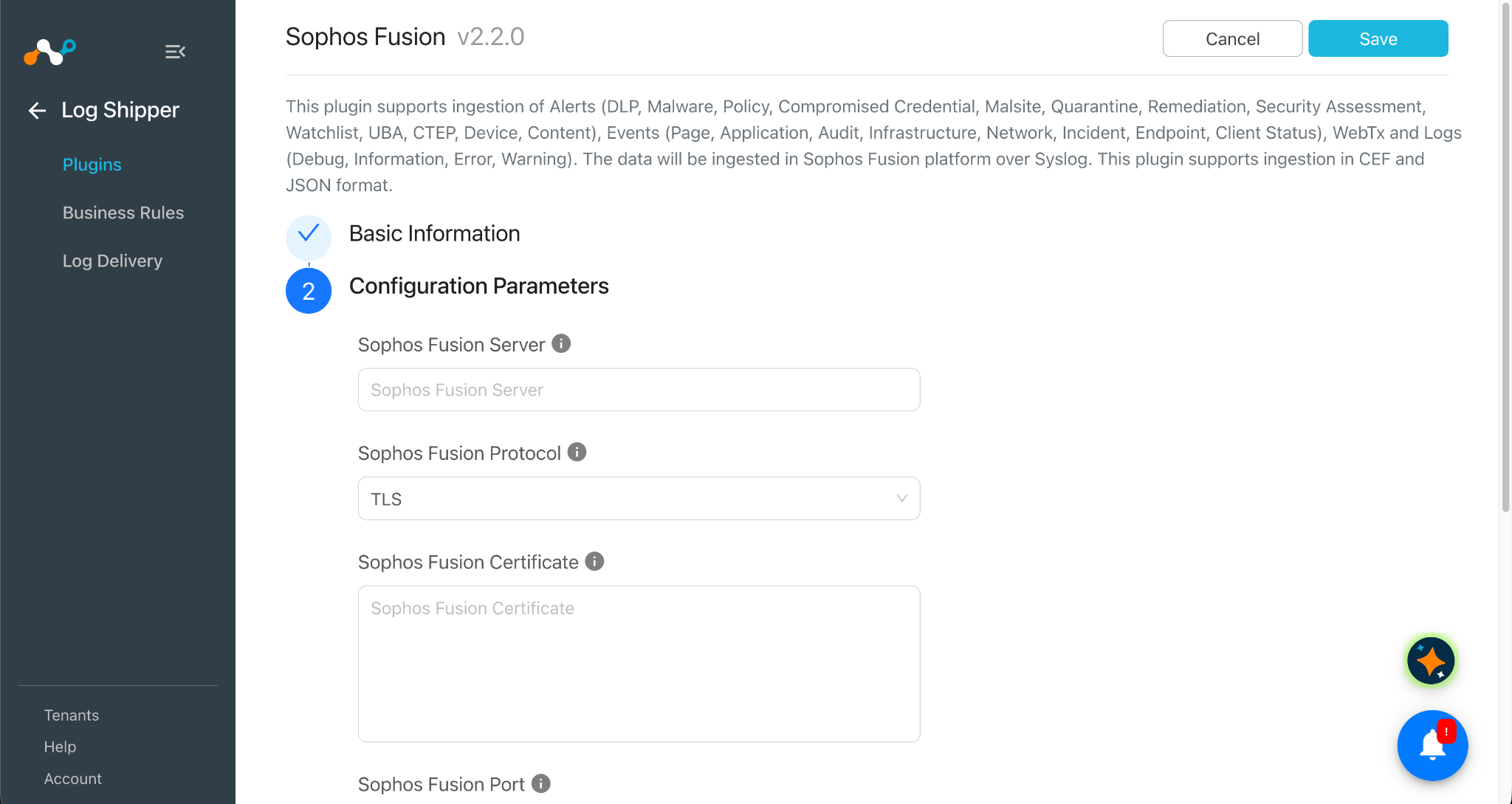
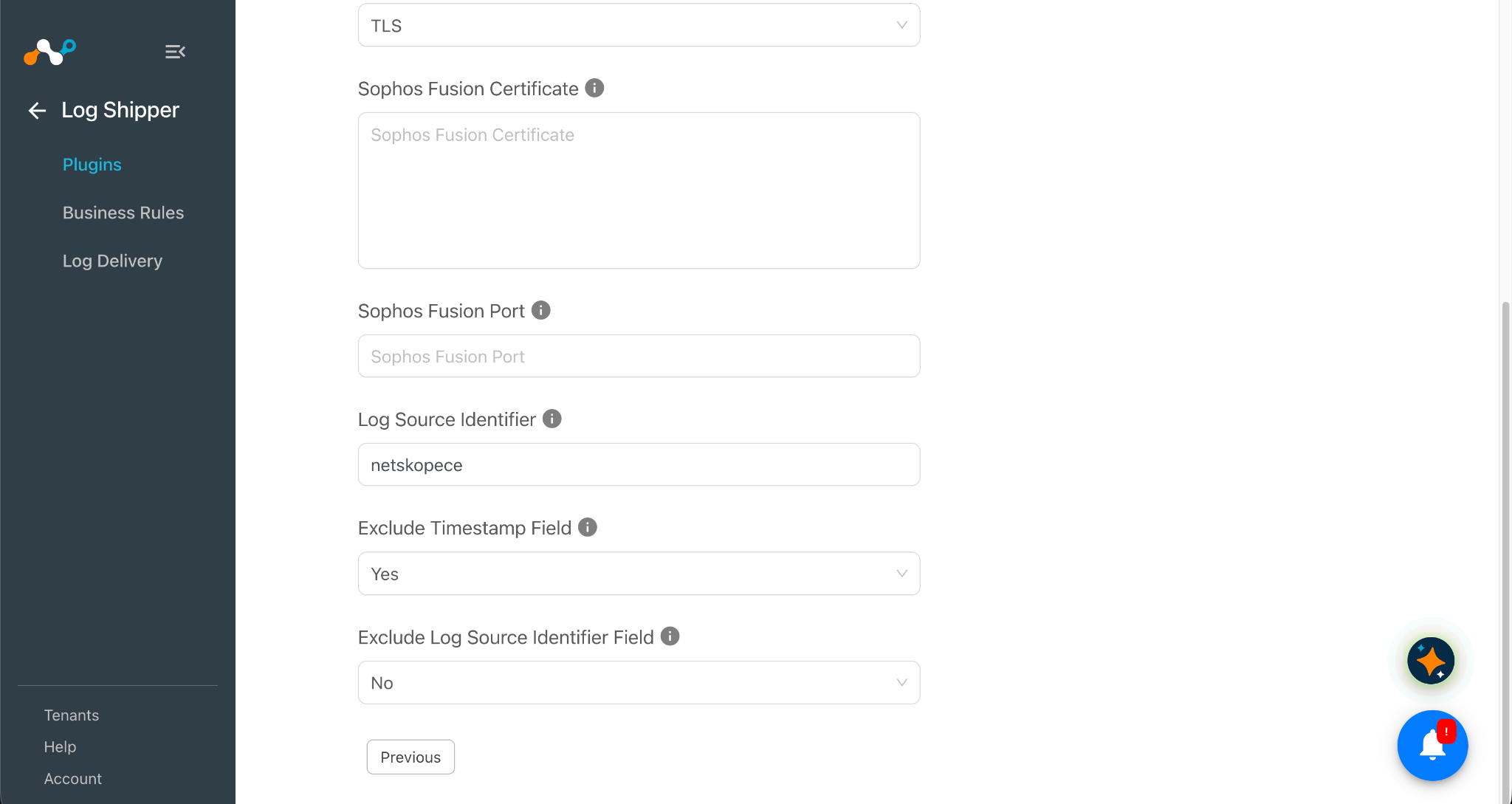
Click Next and enter the Configuration Parameters:
- Sophos Fusion Server: IP address/FQDN of Sophos Fusion server in which data will be ingested.
- Sophos Fusion Protocol: Protocol to be used while ingesting data. Allowed values: TLS, UDP, TCP.
- Sophos Fusion Certificate: PEM-encoded CA certificate including the BEGIN and END lines. Required only when the Sophos Fusion Protocol is set to TLS.
- Sophos Fusion Port: Port of the Sophos Fusion server. Valid range is 1 to 65535.
- Log Source Identifier: This will be added as prefix to all the logs. Whitespace is not allowed.
- Exclude Timestamp Field: Select Yes to ingest the data without the timestamp field. This option is only applicable to JSON-formatted data.
- Exclude Log Source Identifier Field: Select Yes to ingest the data without the Log Source Identifier field. This option is only applicable to JSON-formatted data.
- The Sophos Fusion Certificate is required only when the Sophos Fusion Protocol is set to TLS.
- The Exclude Timestamp Field and Exclude Log Source Identifier Field settings are only applicable to JSON-formatted data.
-
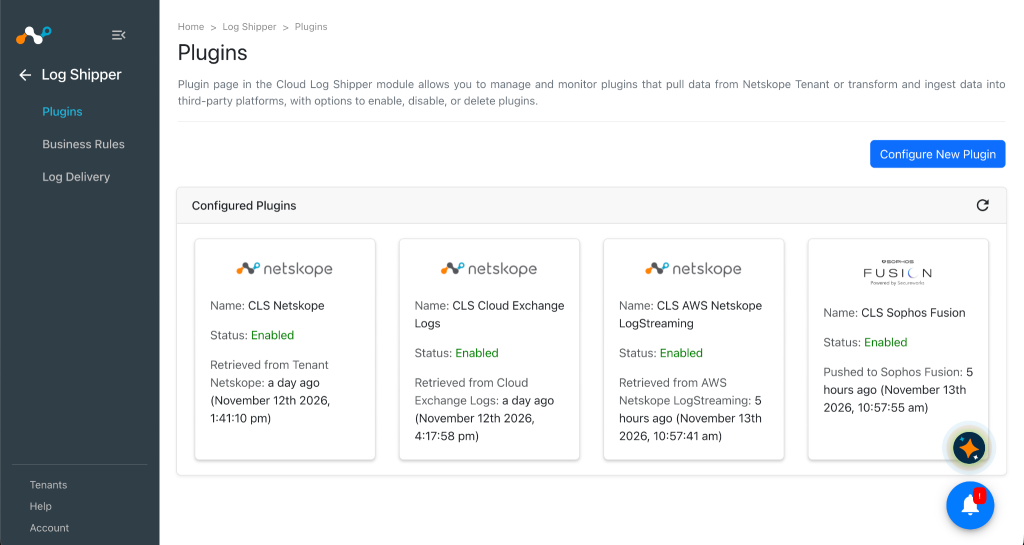
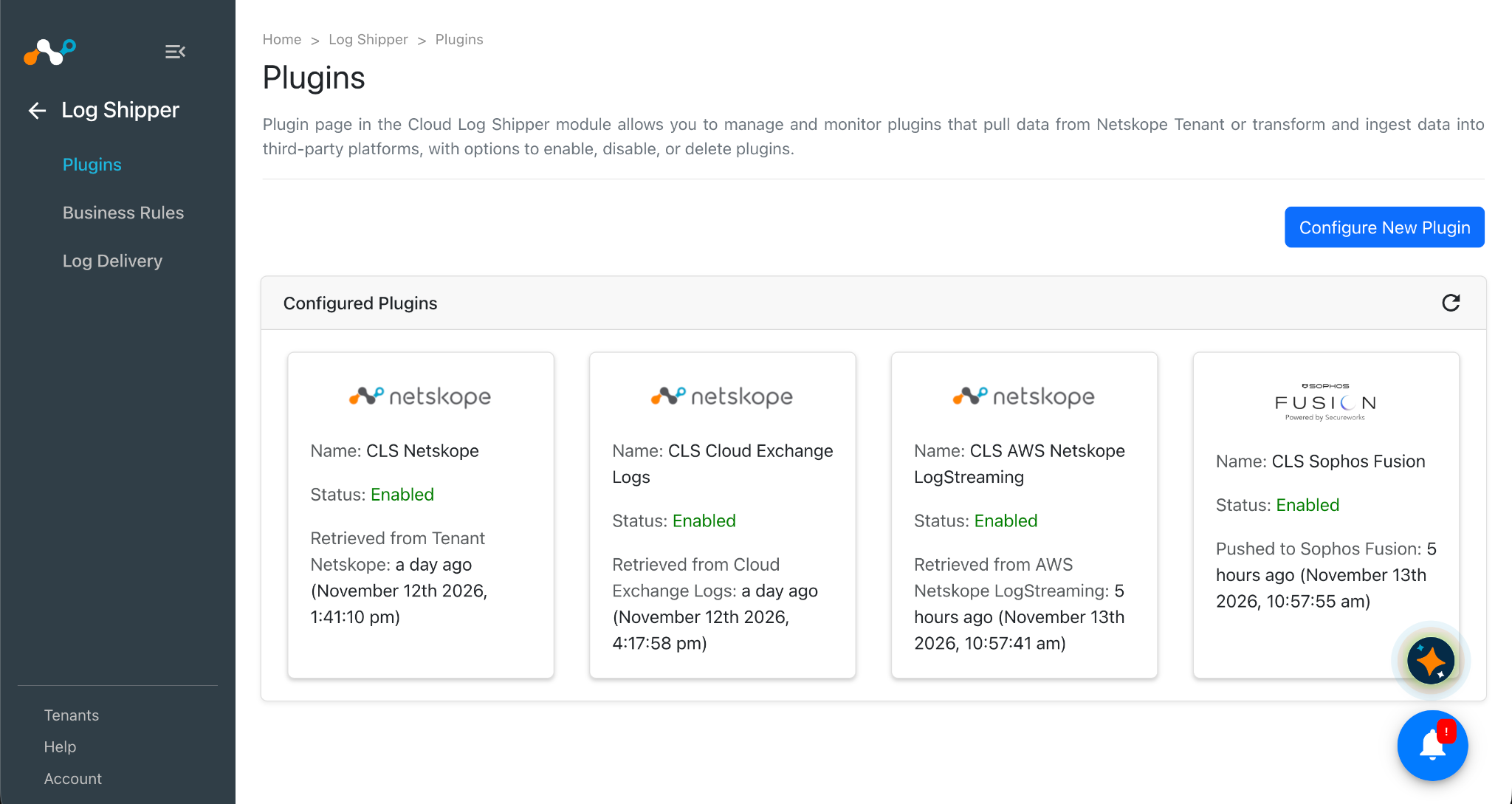
Click Save.
Configure a Log Shipper Business Rule for Sophos Fusion
-
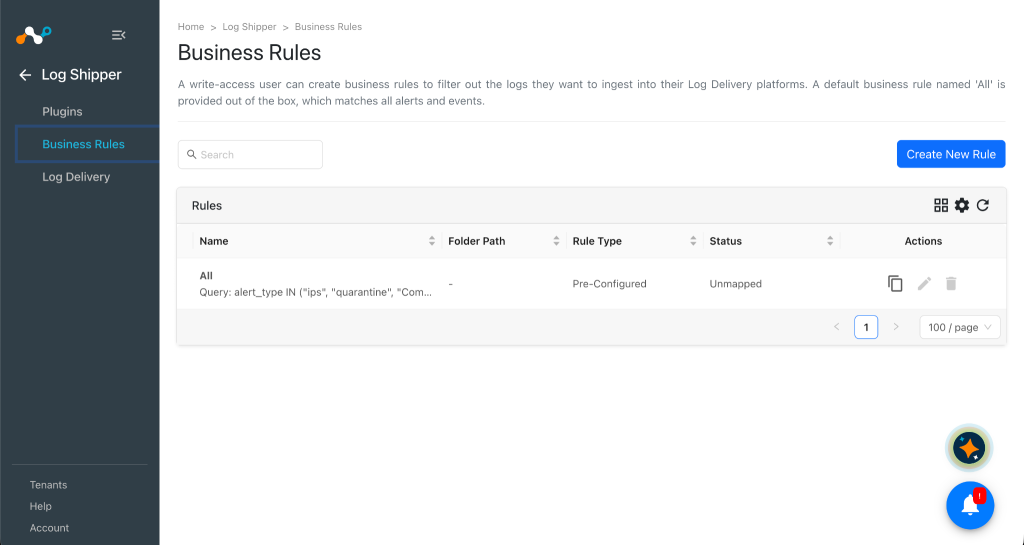
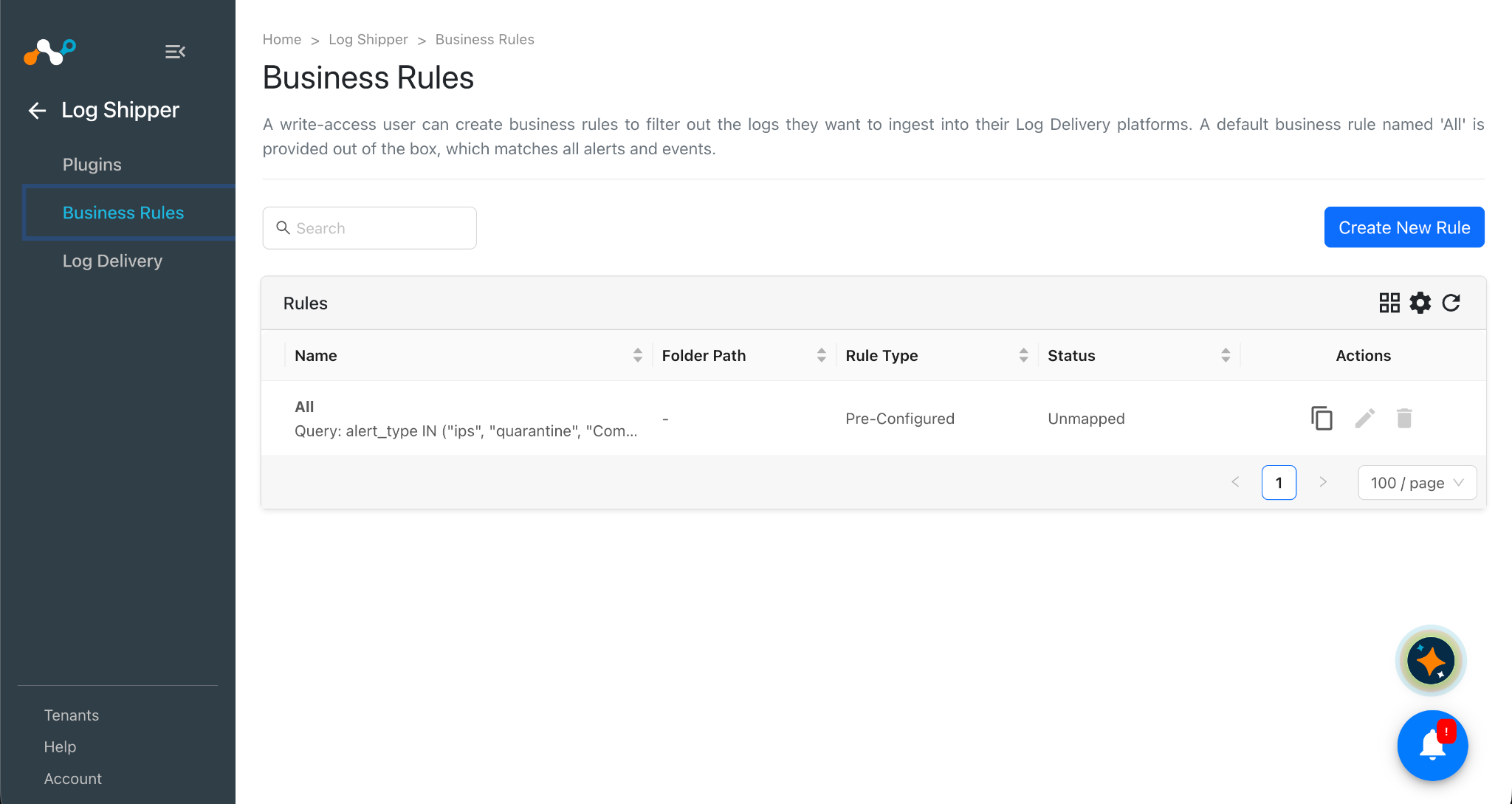
By default, there’s a business rule that filters all alerts and events. If you want to filter out any specific type of alert or event, click Create New Rule and configure a new business rule by adding the rule name and filter(s).
-
Click Save.
Configure Log Shipper Log Delivery for Sophos Fusion
-
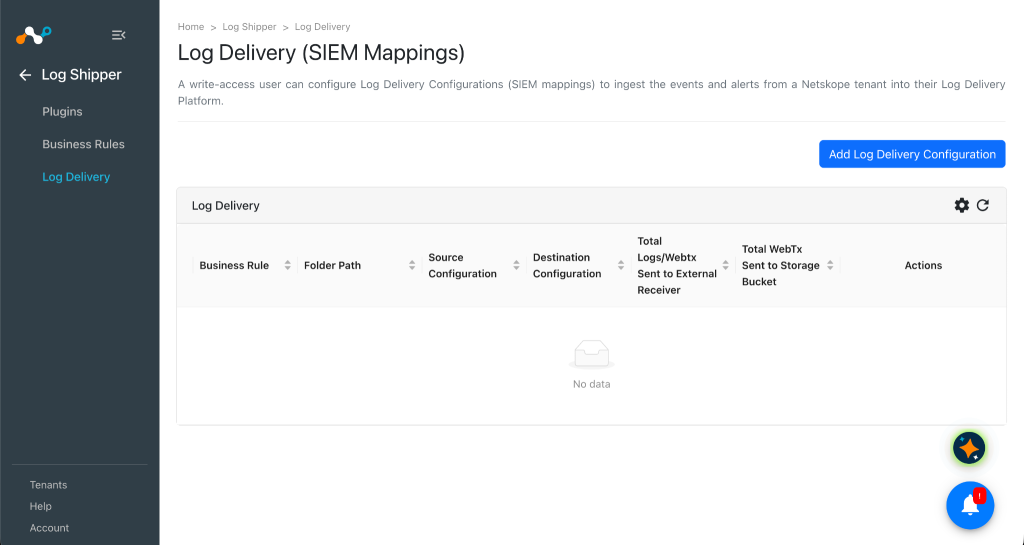
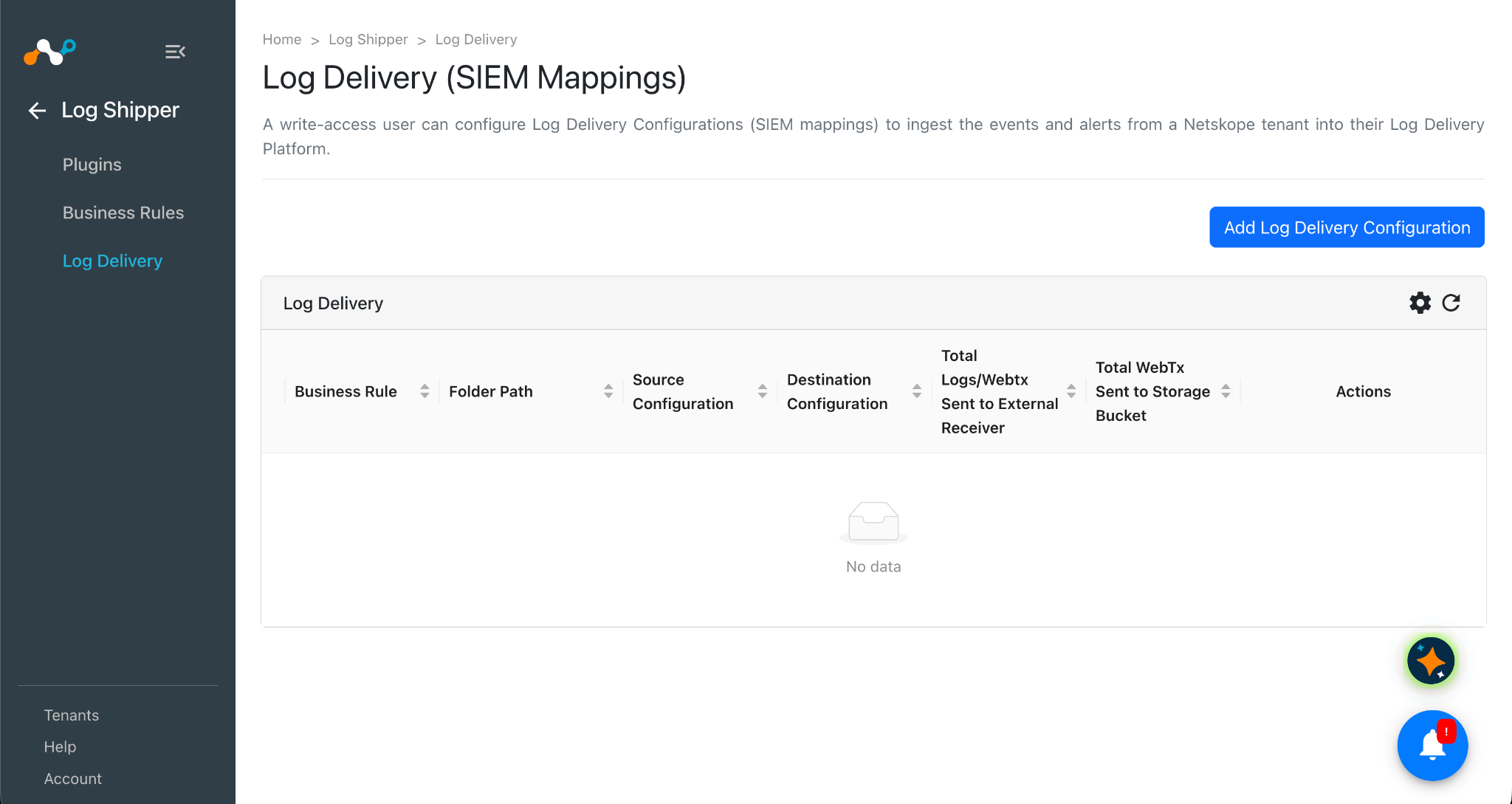
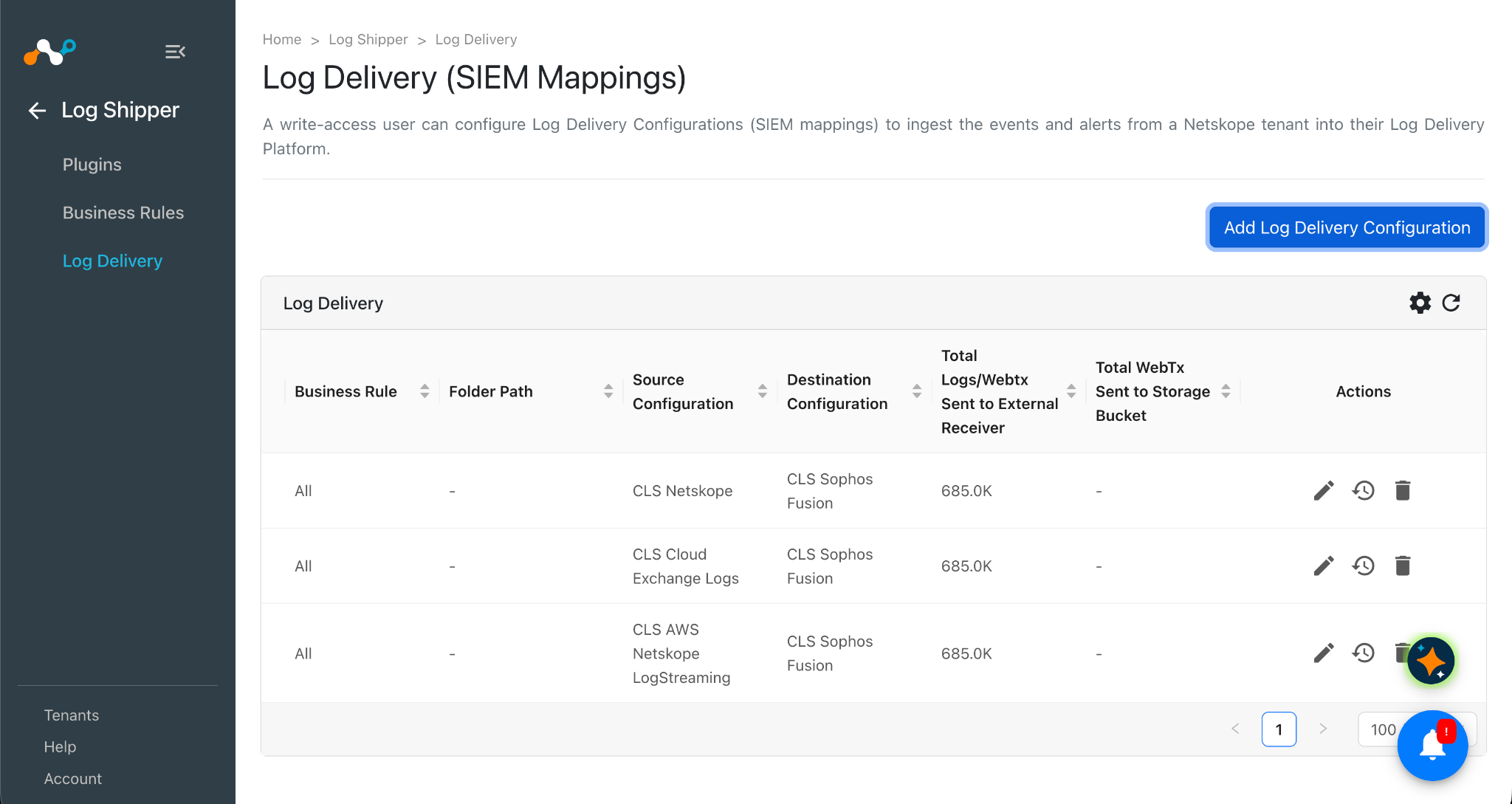
In Log Shipper, go to Log Delivery and click Add Log Delivery Configuration.
-
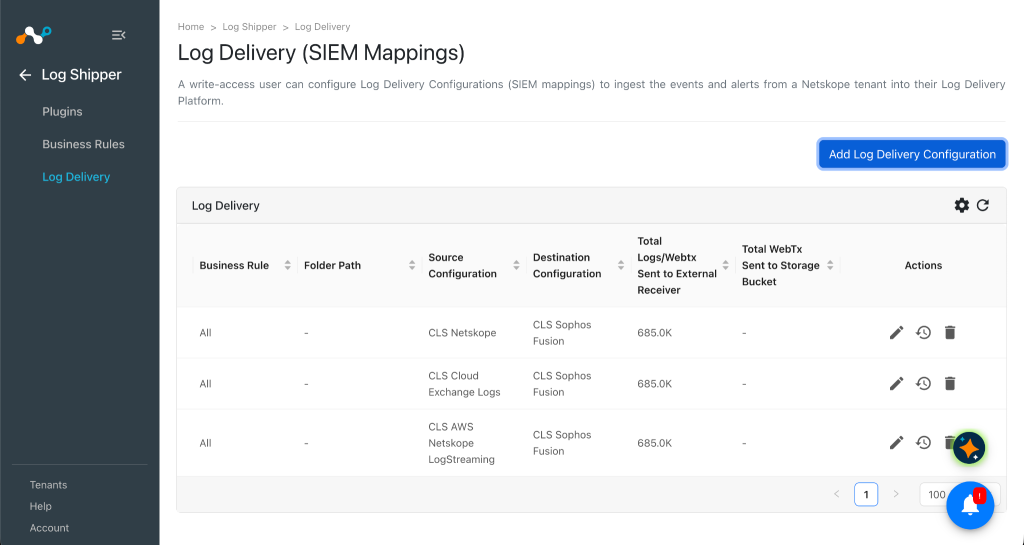
Select a Source Configuration, Destination Configuration, and Business Rule.
-
Click Save.
Validate the Sophos Fusion Plugin
Validate the Pull
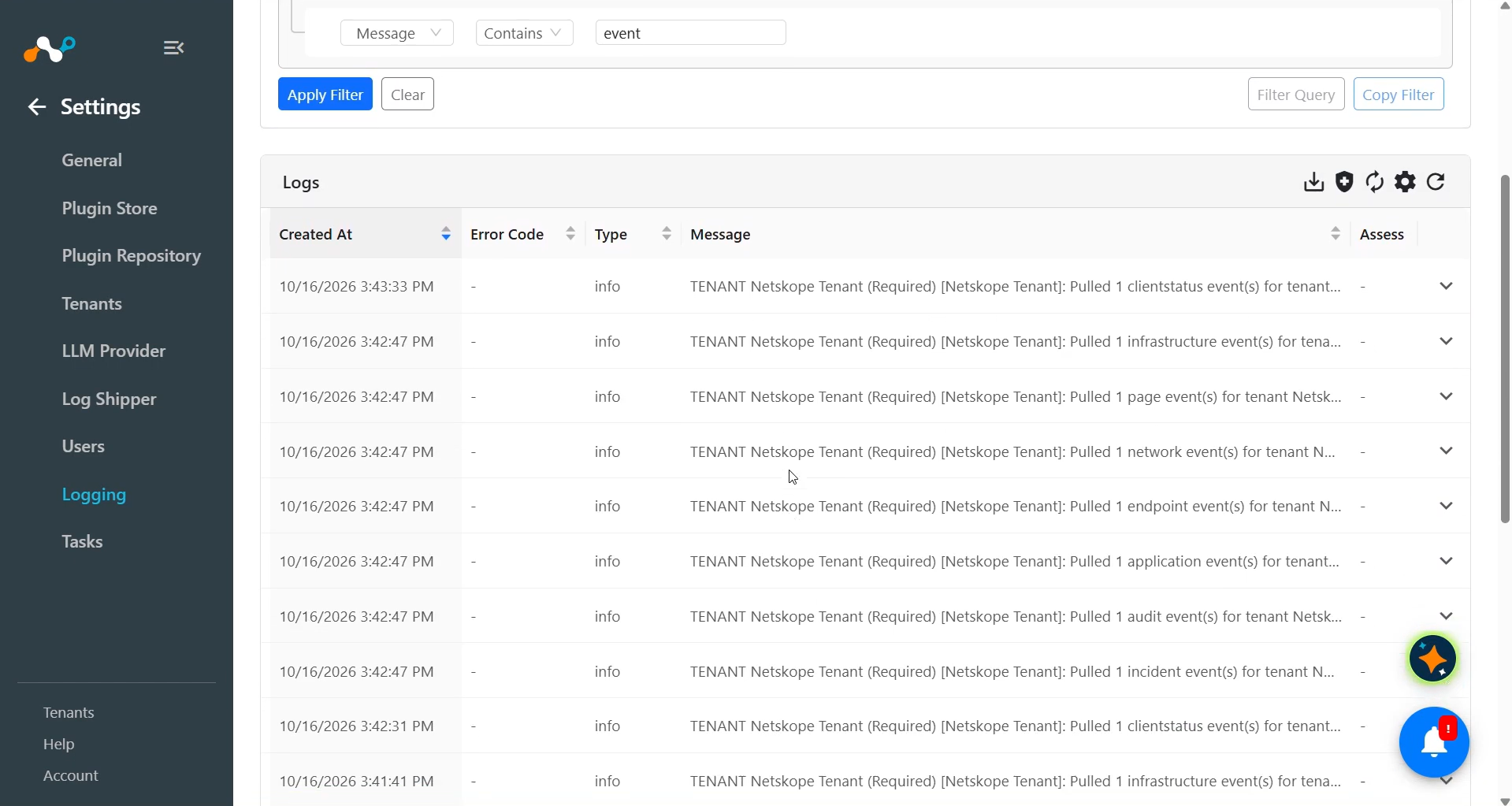
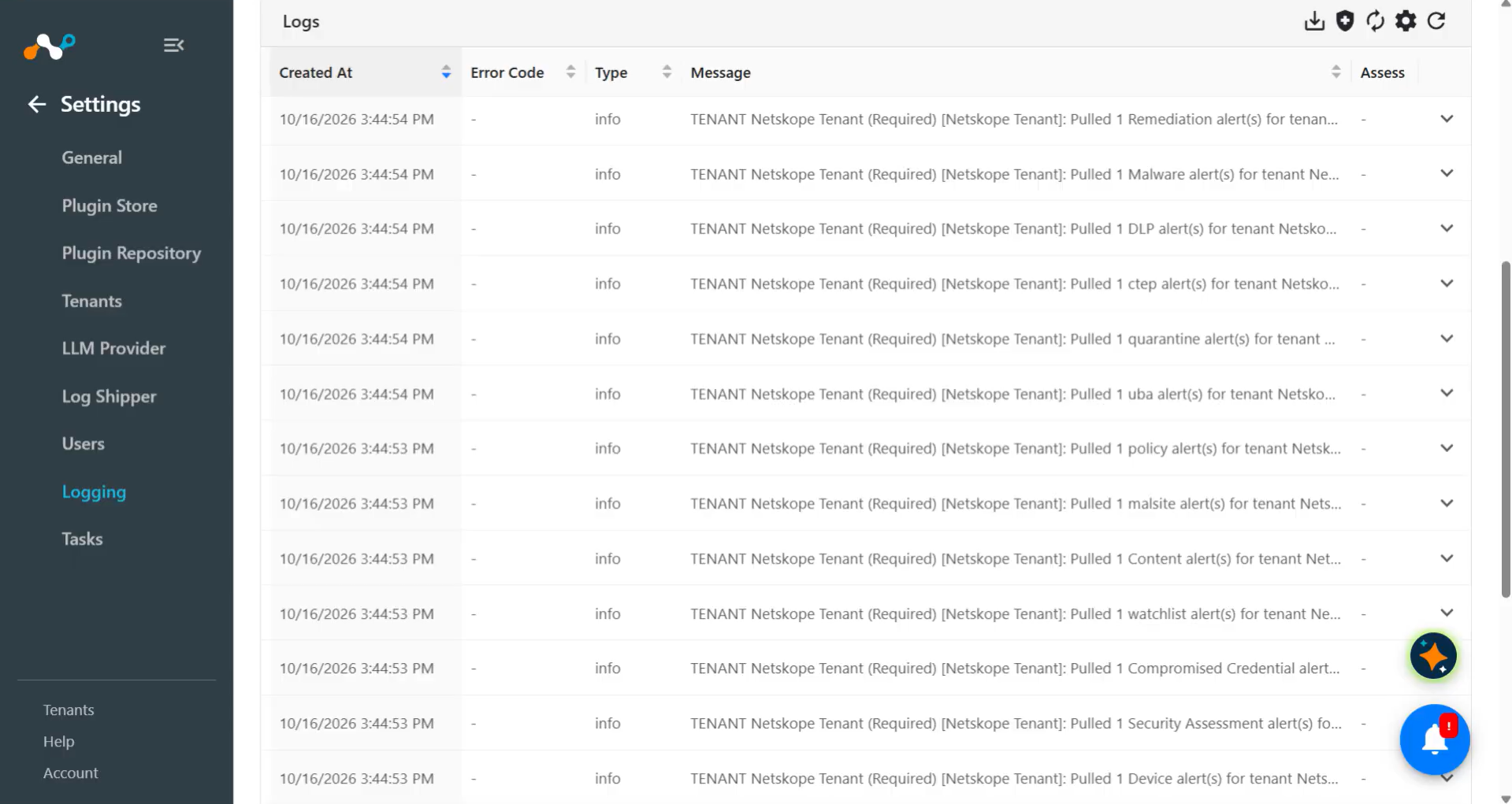
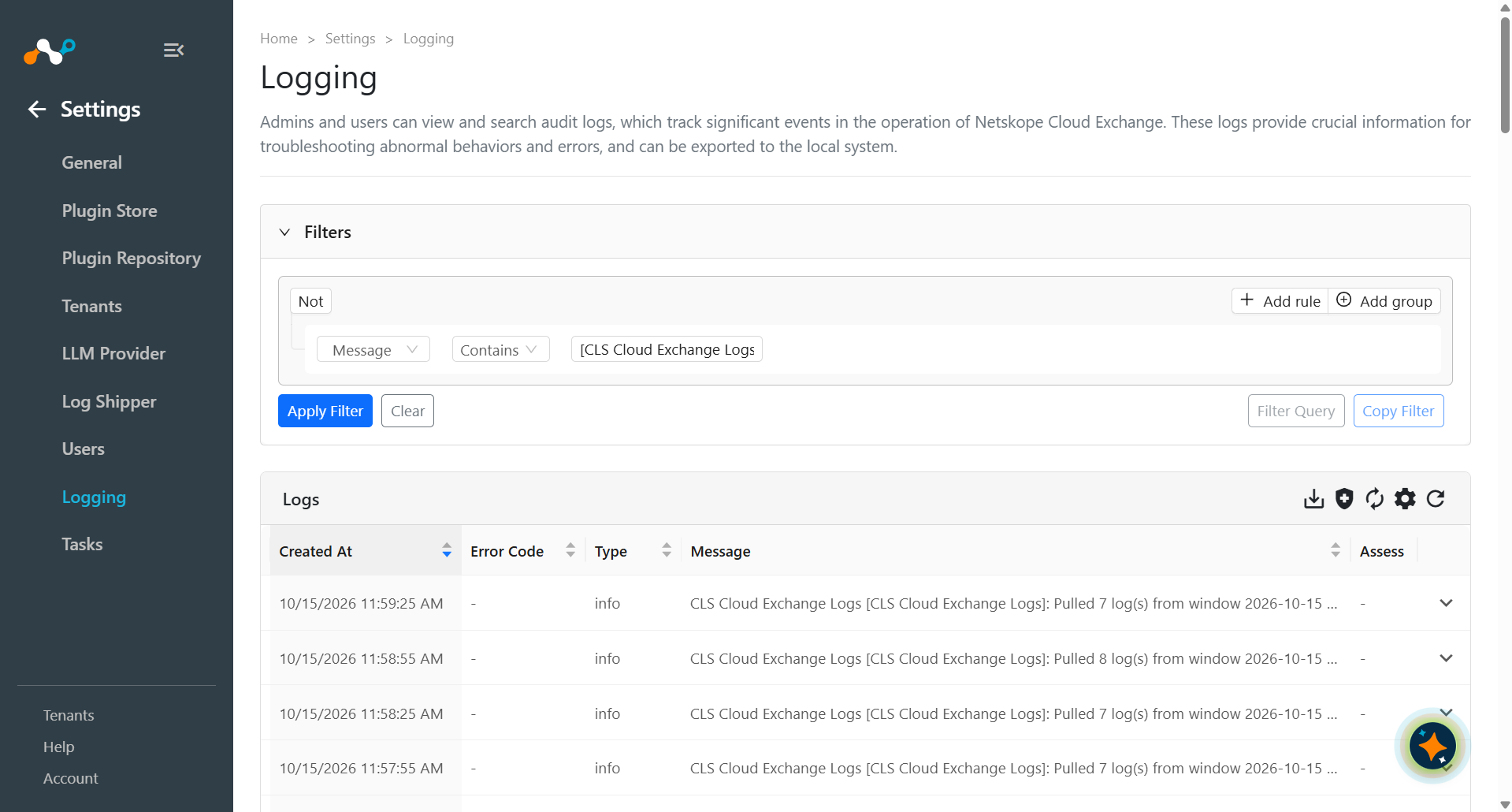
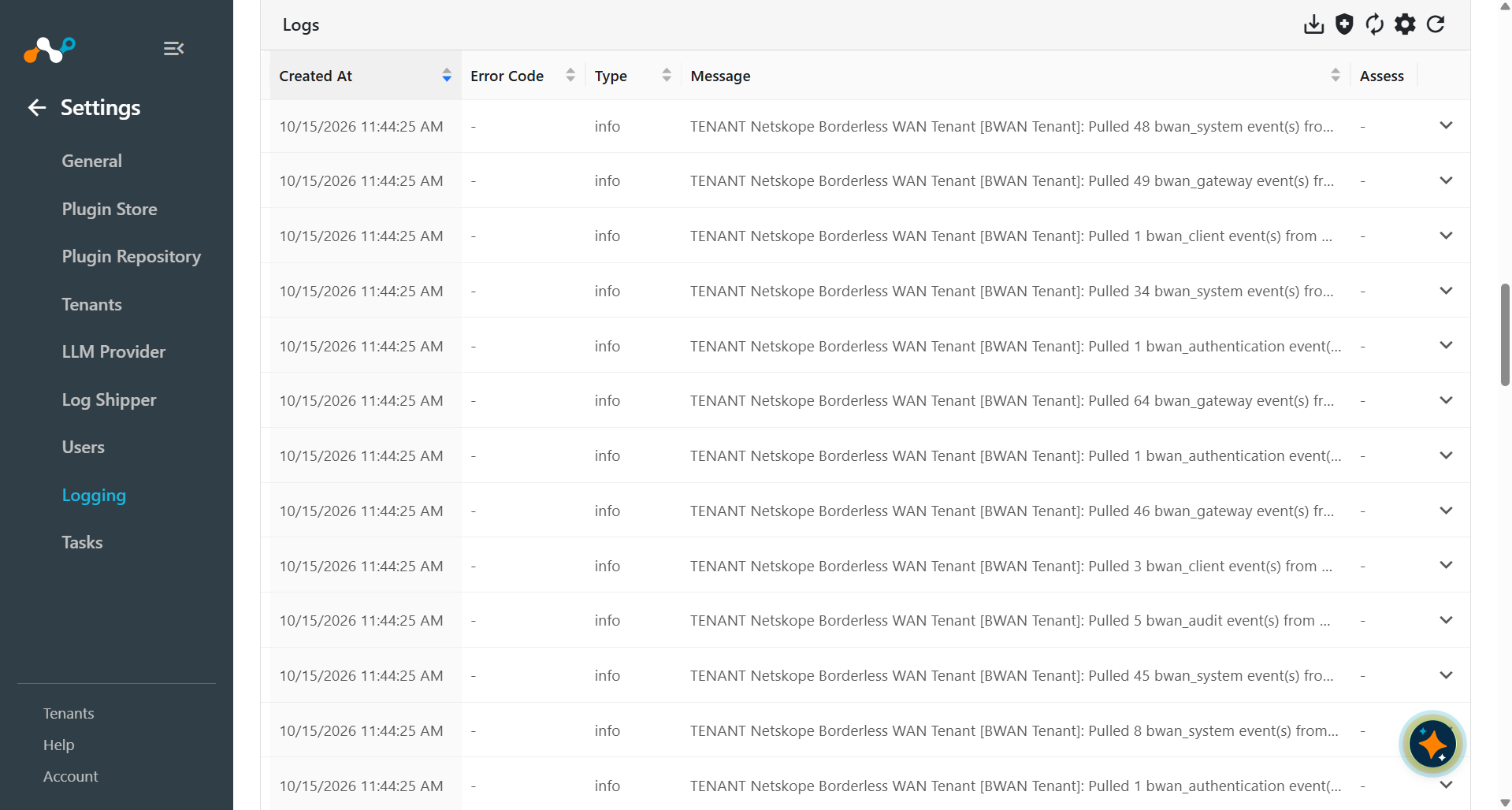
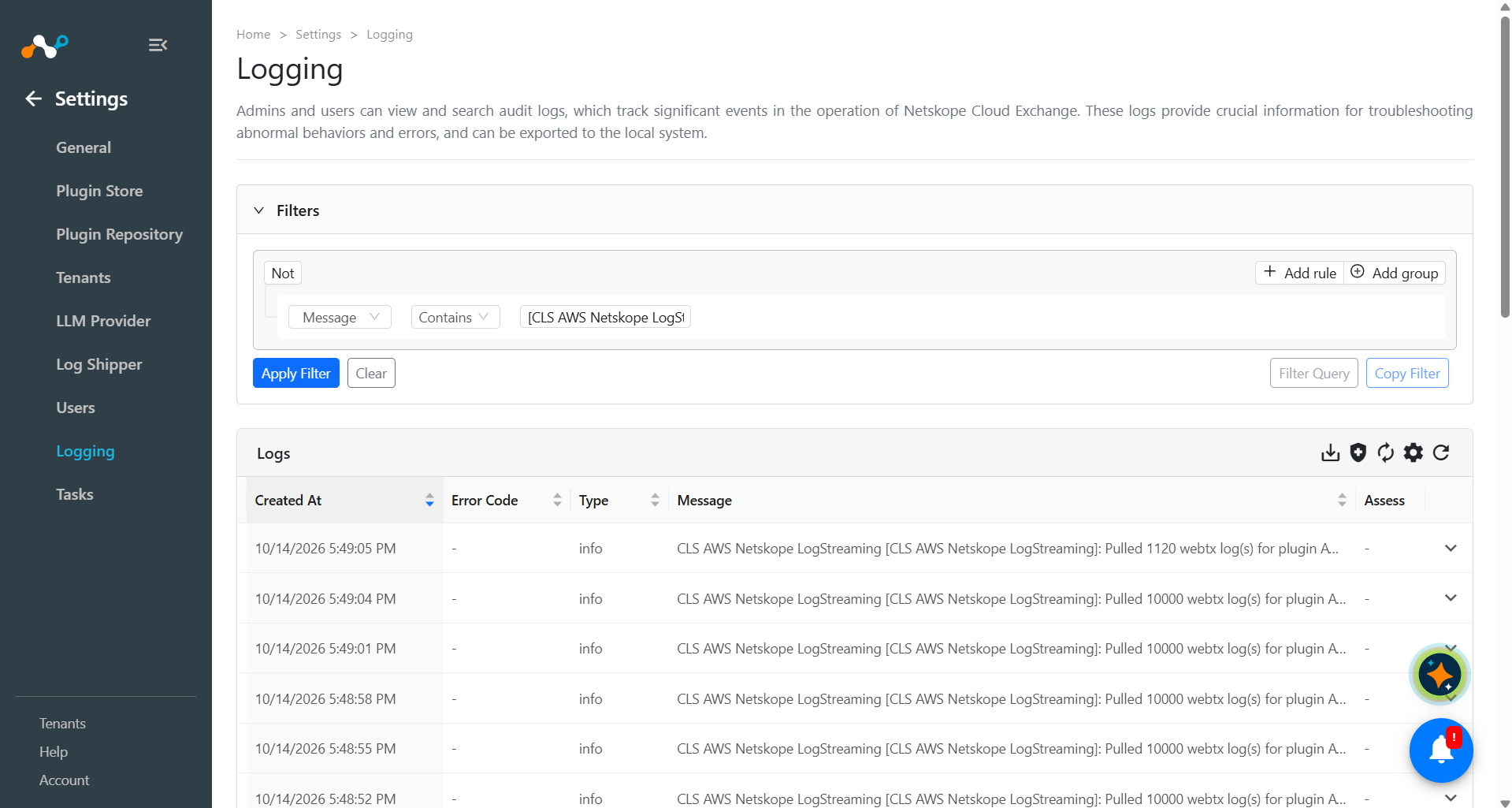
To validate the pulling of Events, Alerts, logs, BWAN events and WebTx from the Cloud Exchange tenant:
Go to the Logging in Cloud Exchange and search for the pulled logs.
Validate the Push
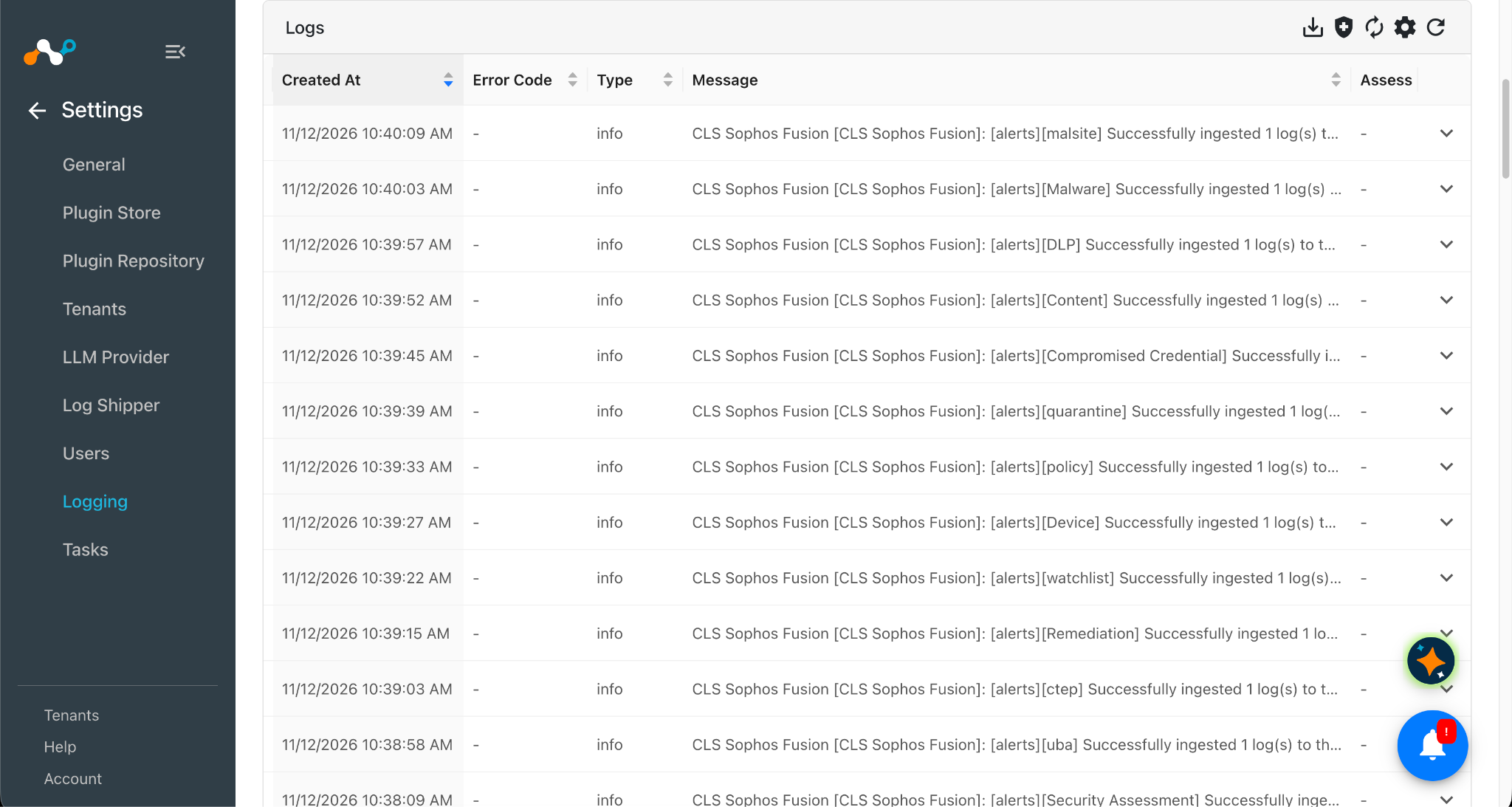
To validate the plugin workflow in Cloud Exchange, go to Logging and search for ingested Events and Alerts with the filter: message contains “ingested”.
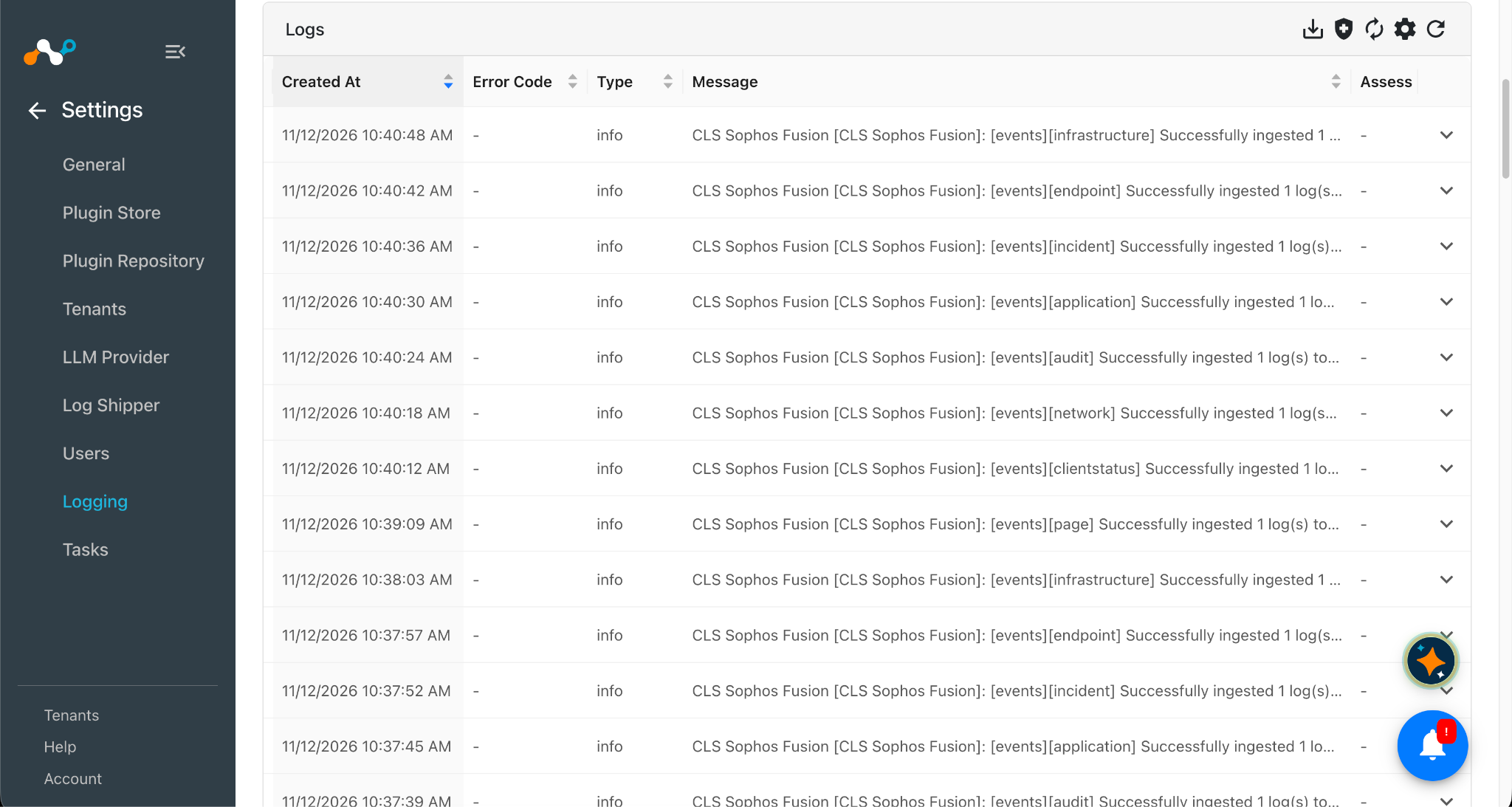
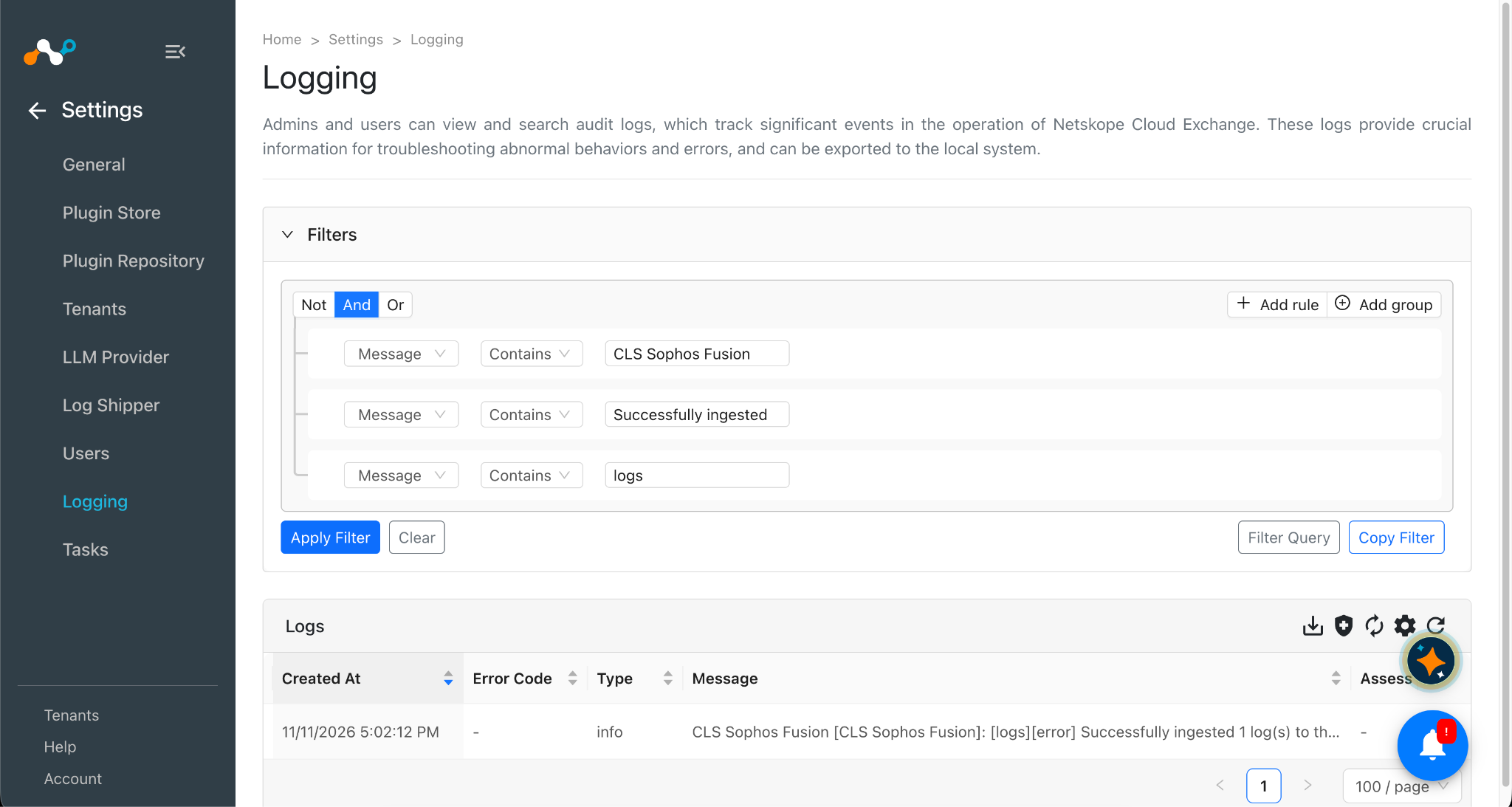
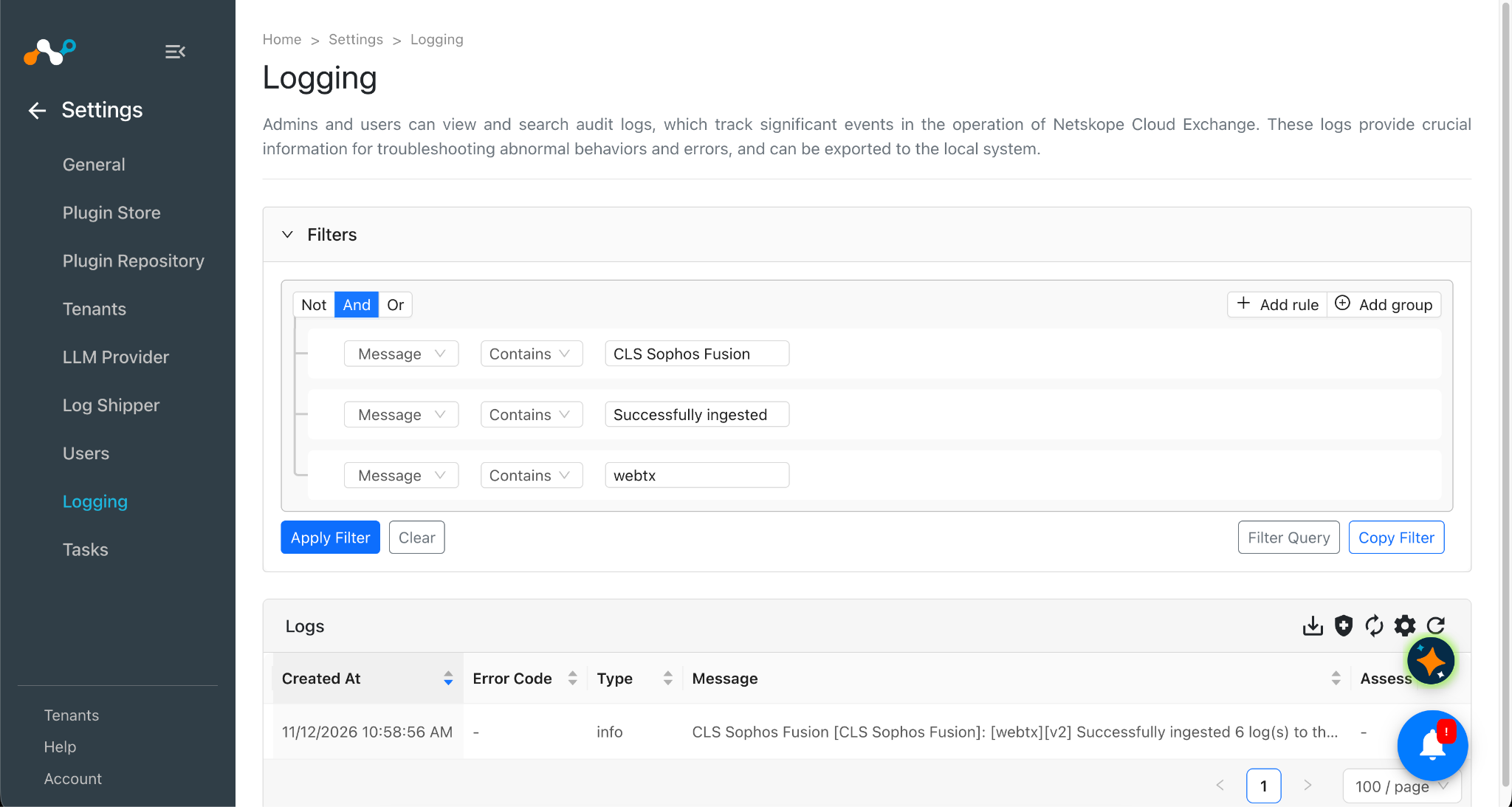
To validate the push on Sophos Fusion:
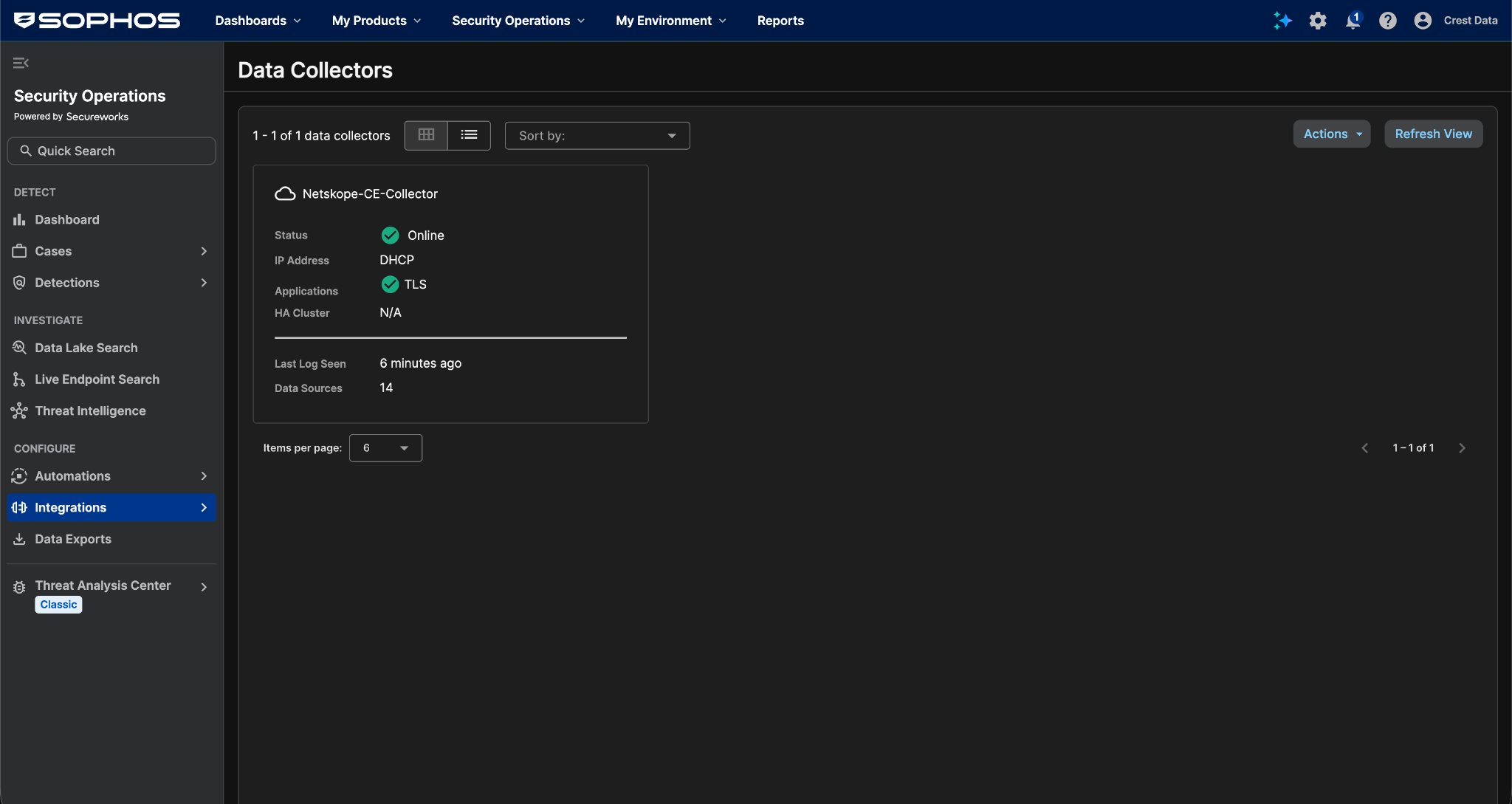
- Log in to the Sophos Fusion console of the tenant that owns the data collector.
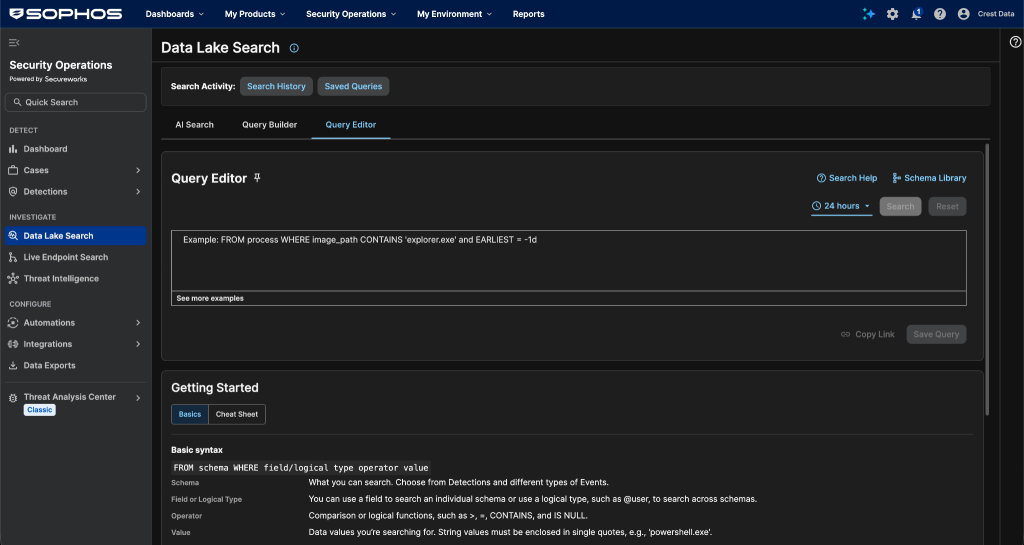
- Go to Security Operations > Integrations > Data Collectors and open the collector that receives data from the CE host. Under Health, confirm that the CE host’s IP address appears in the syslog source table with recent activity.
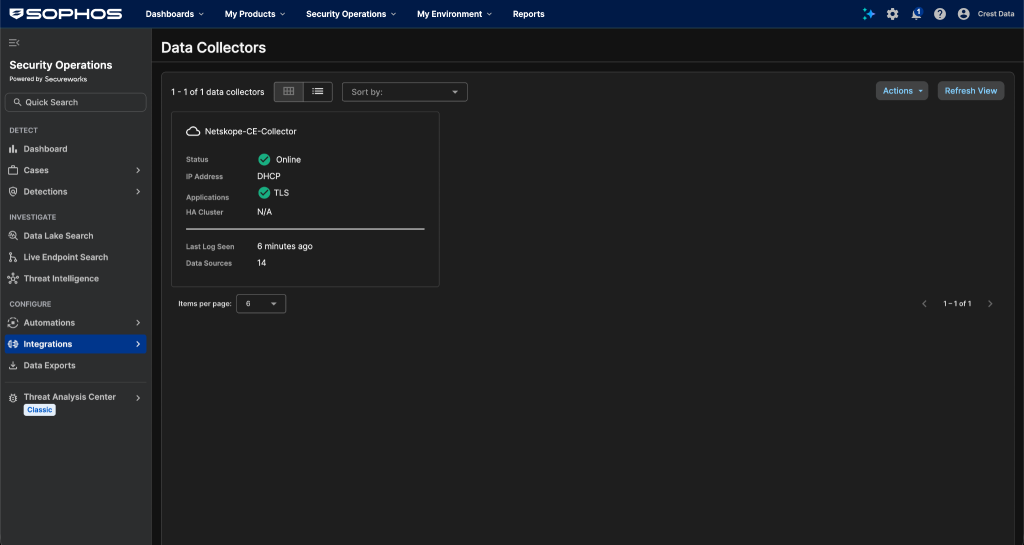
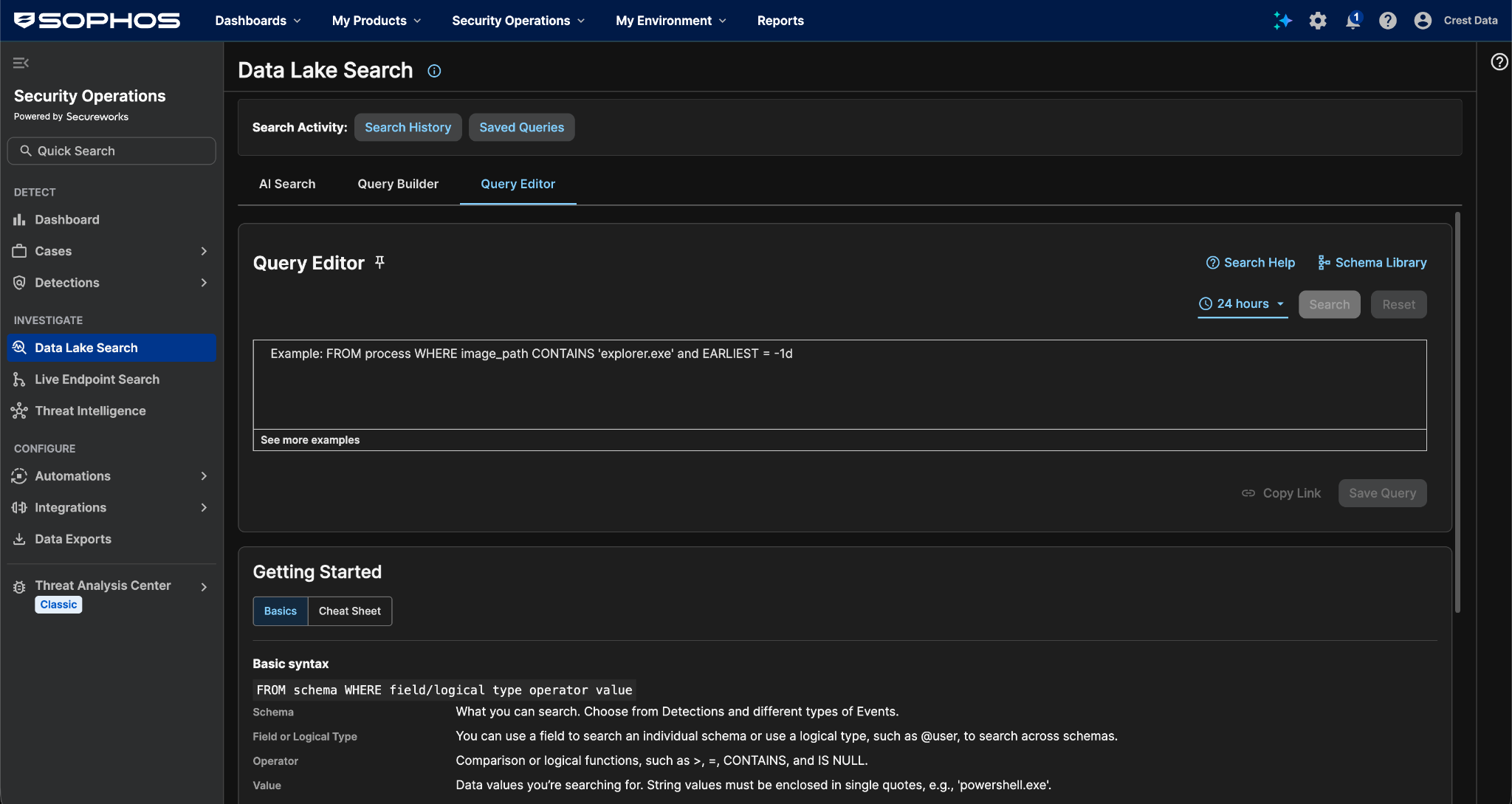
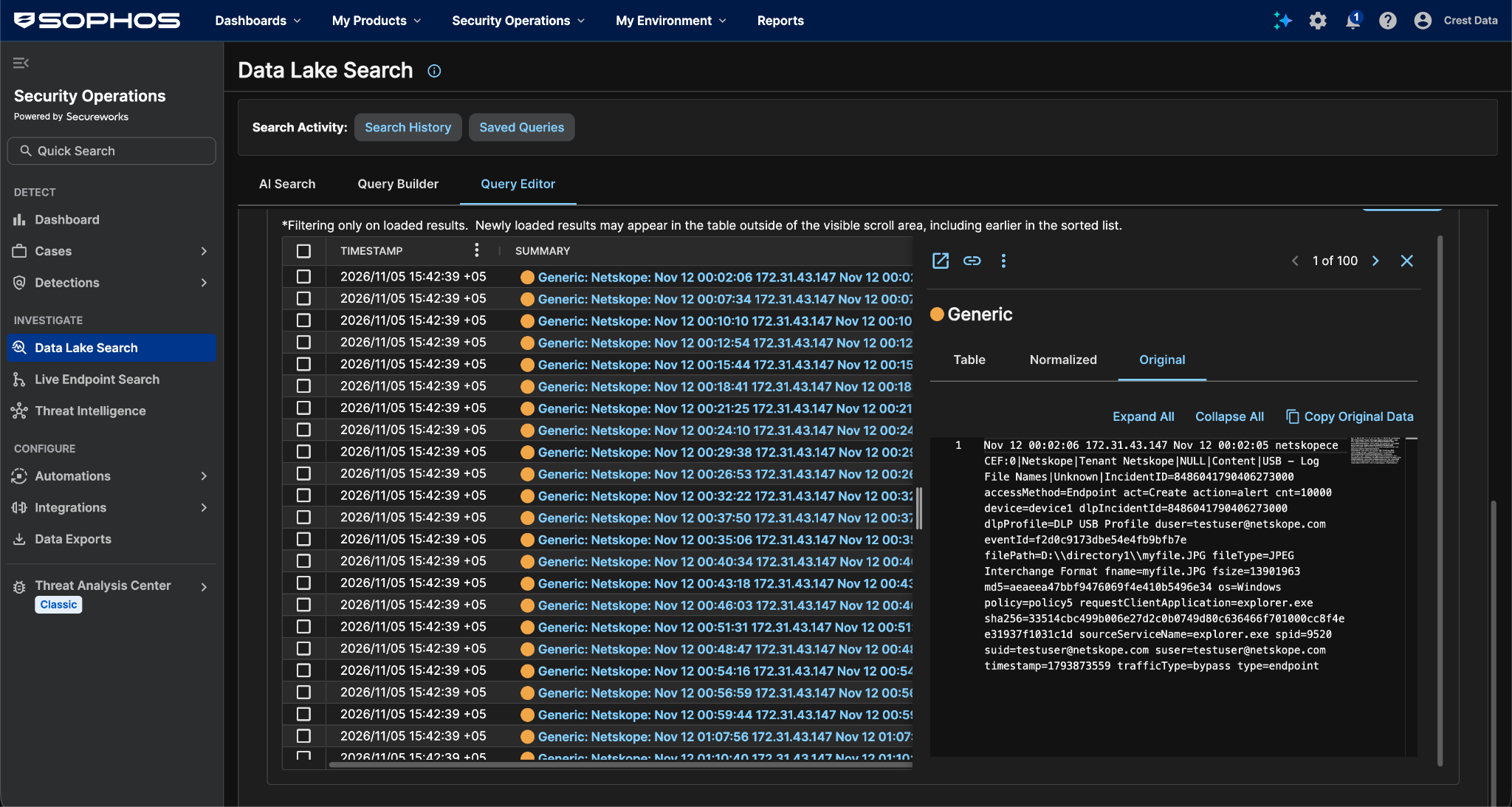
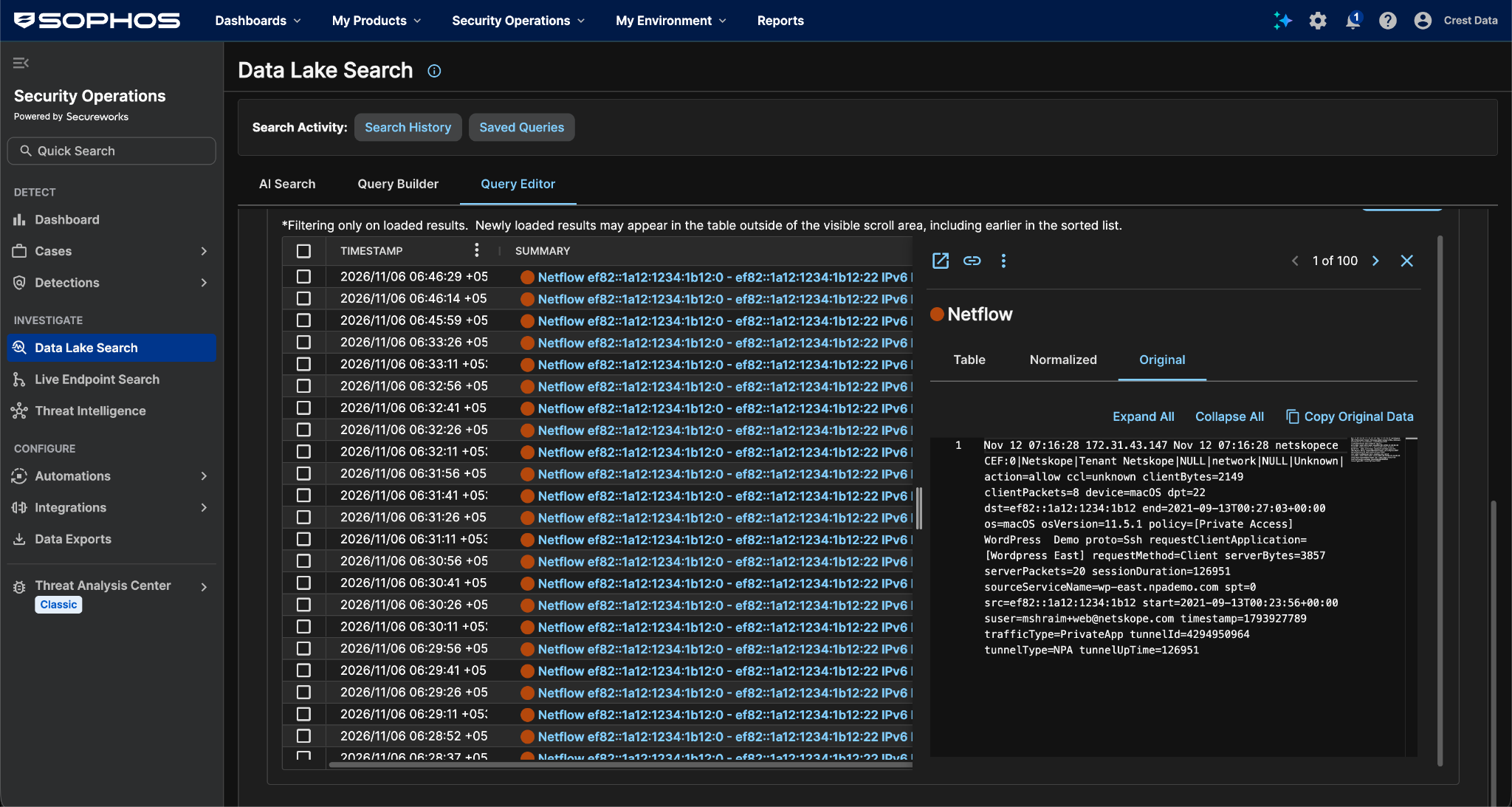
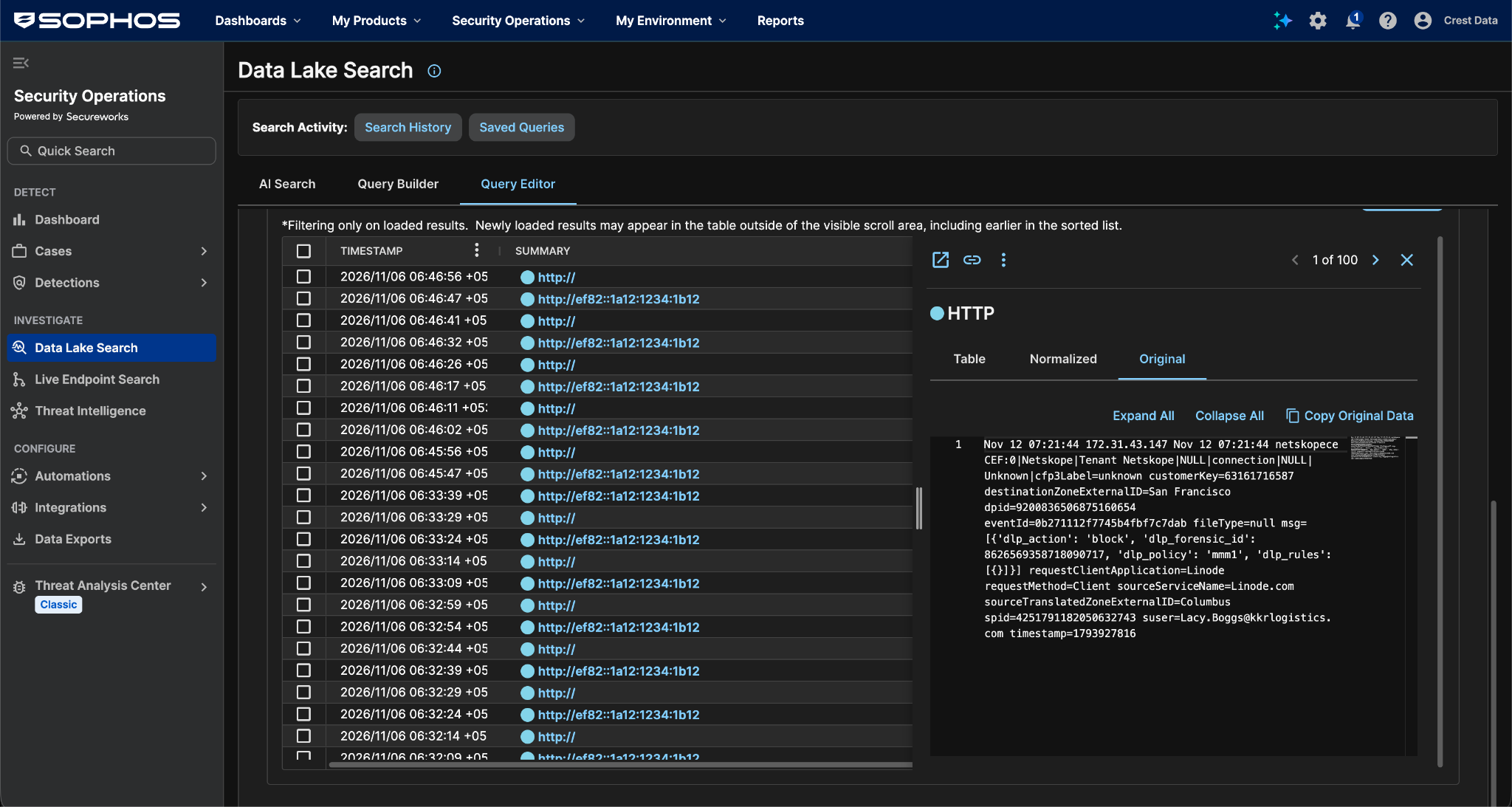
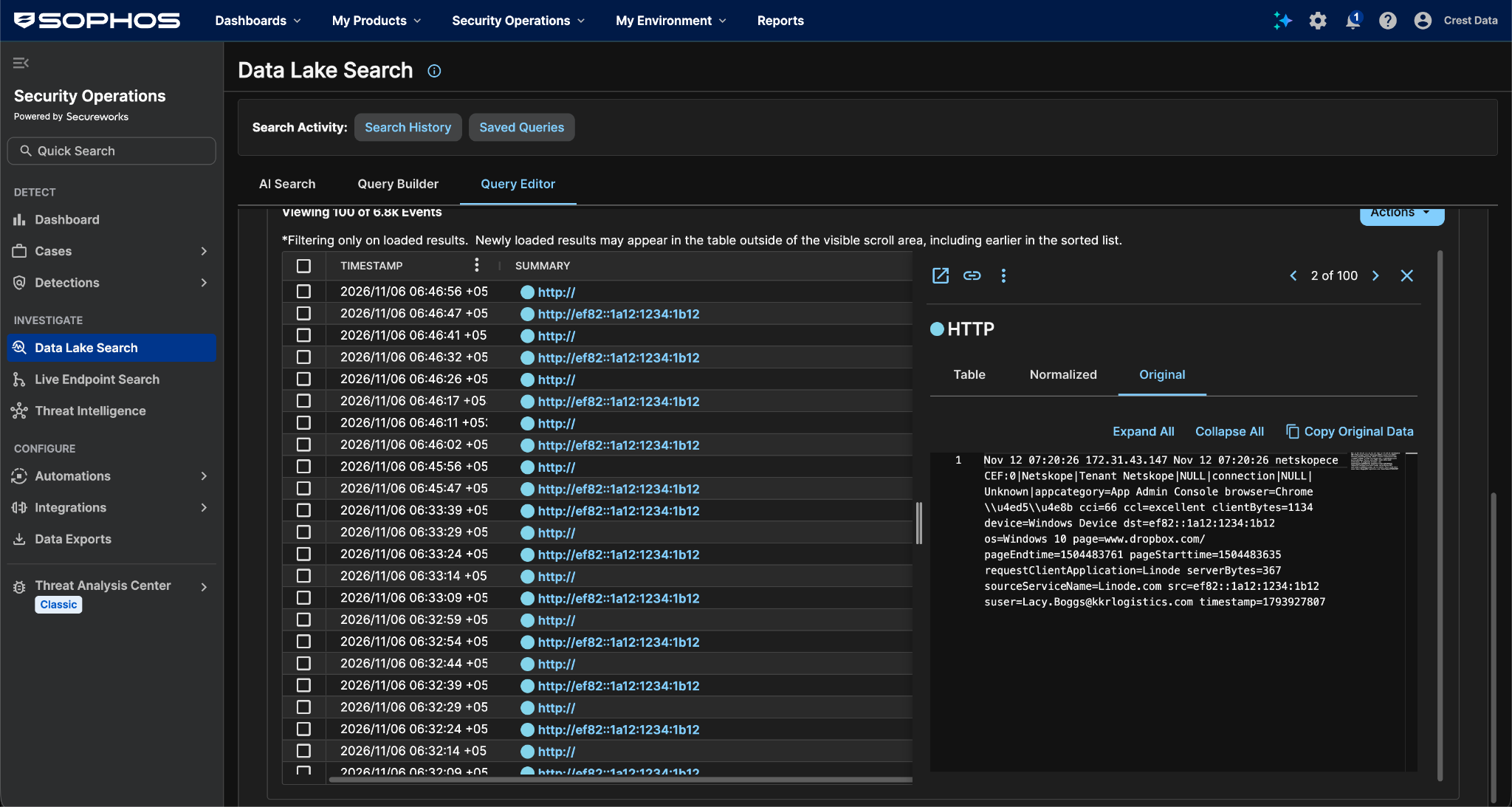
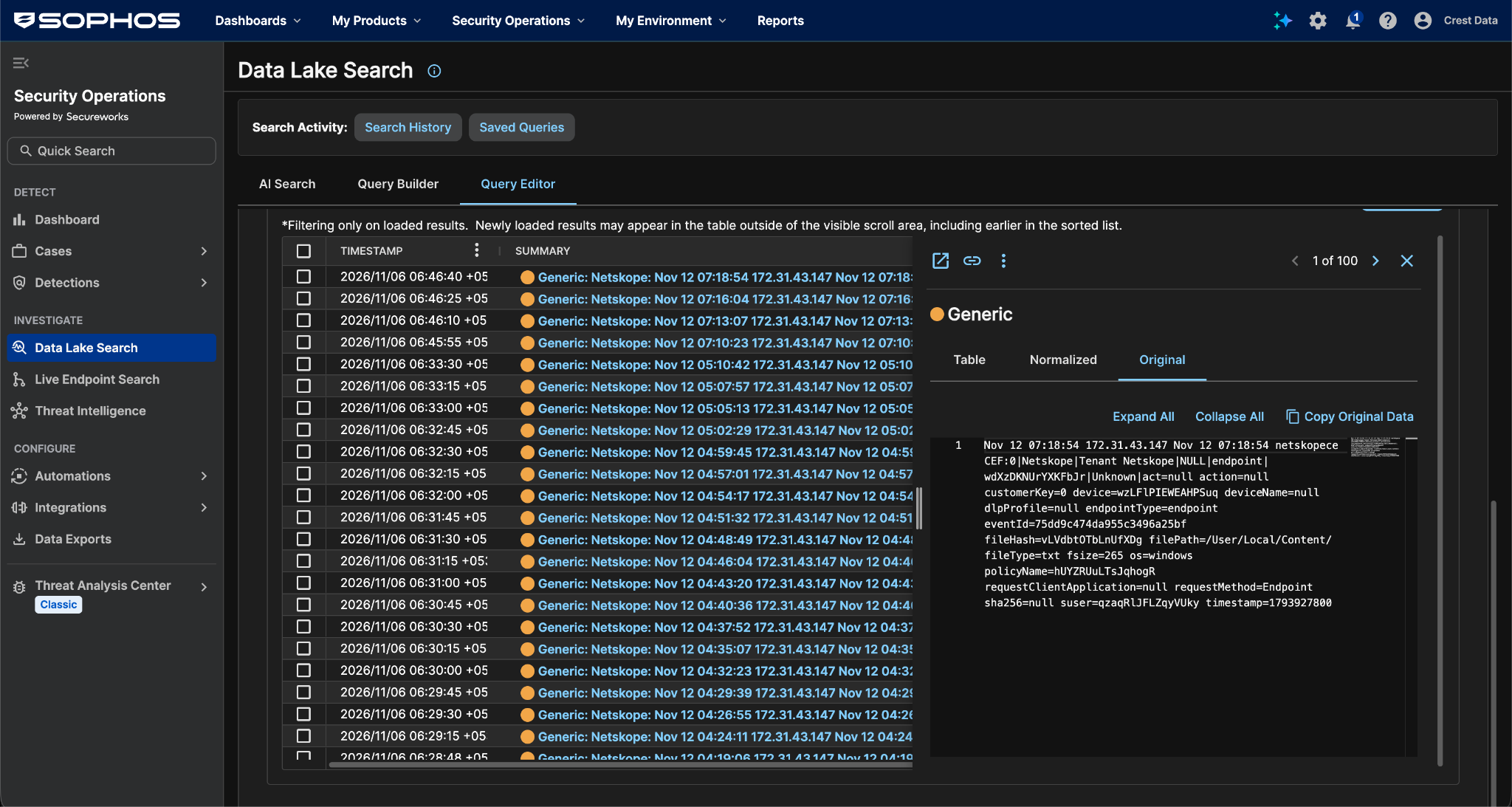
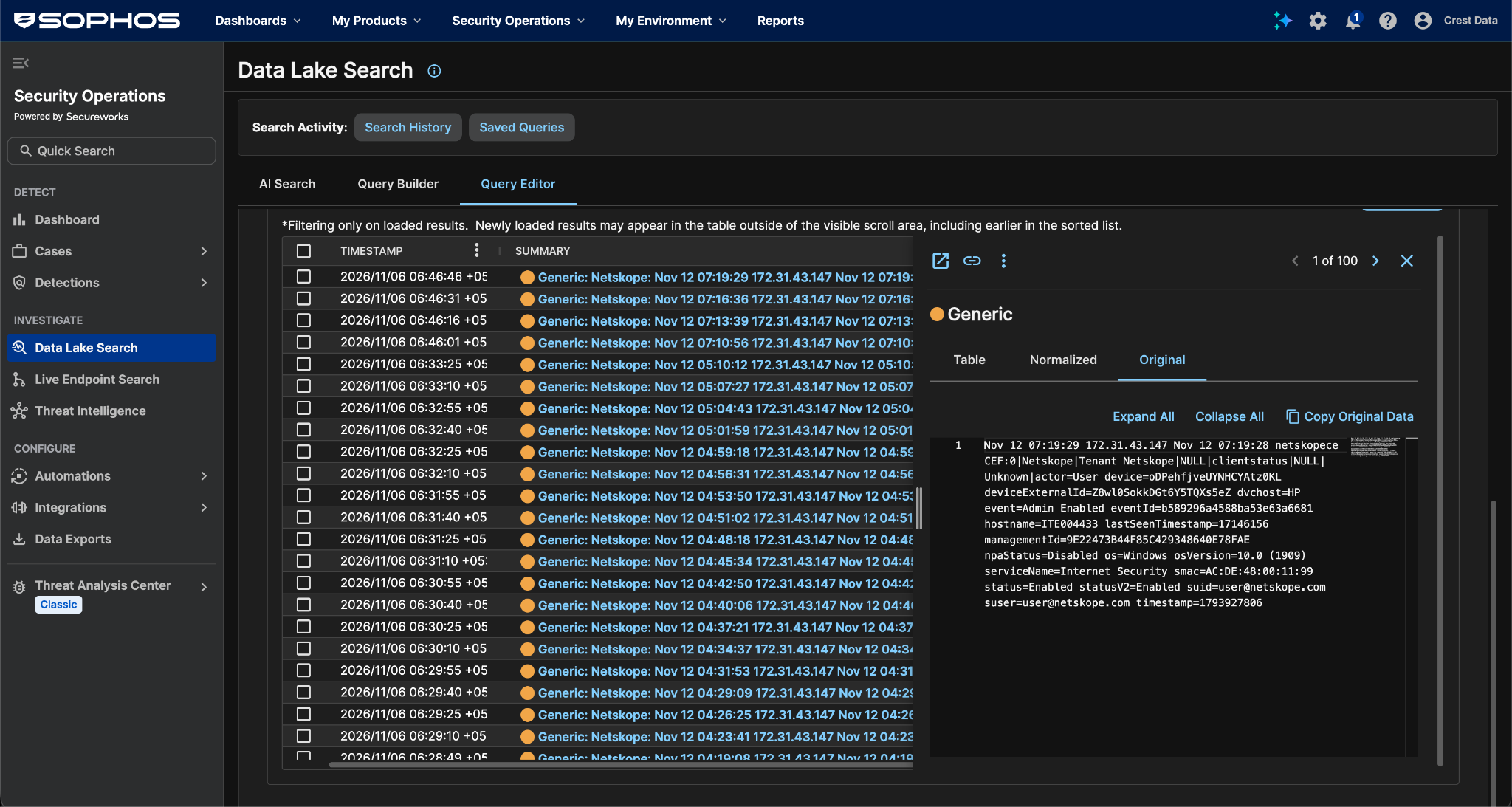
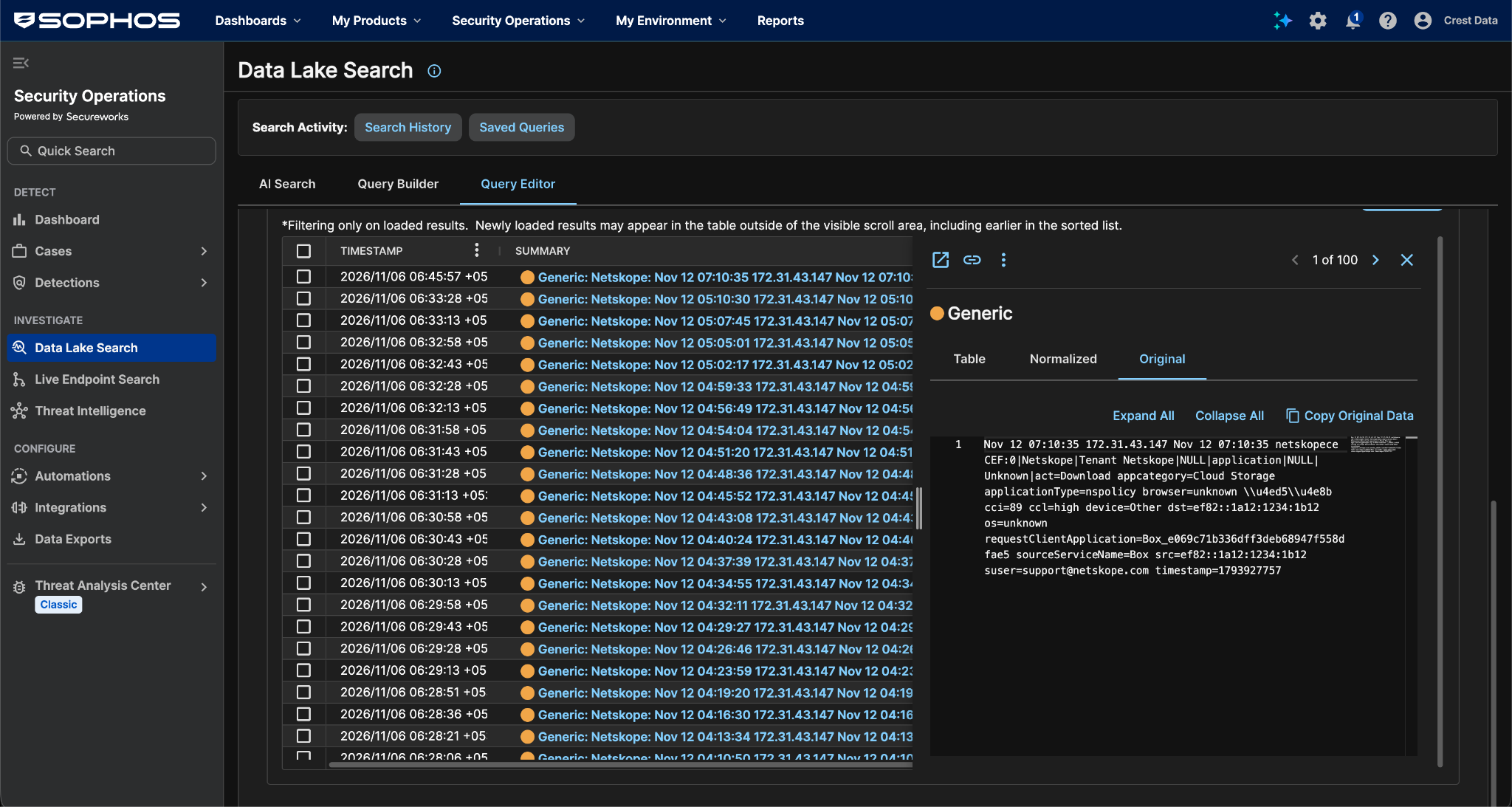
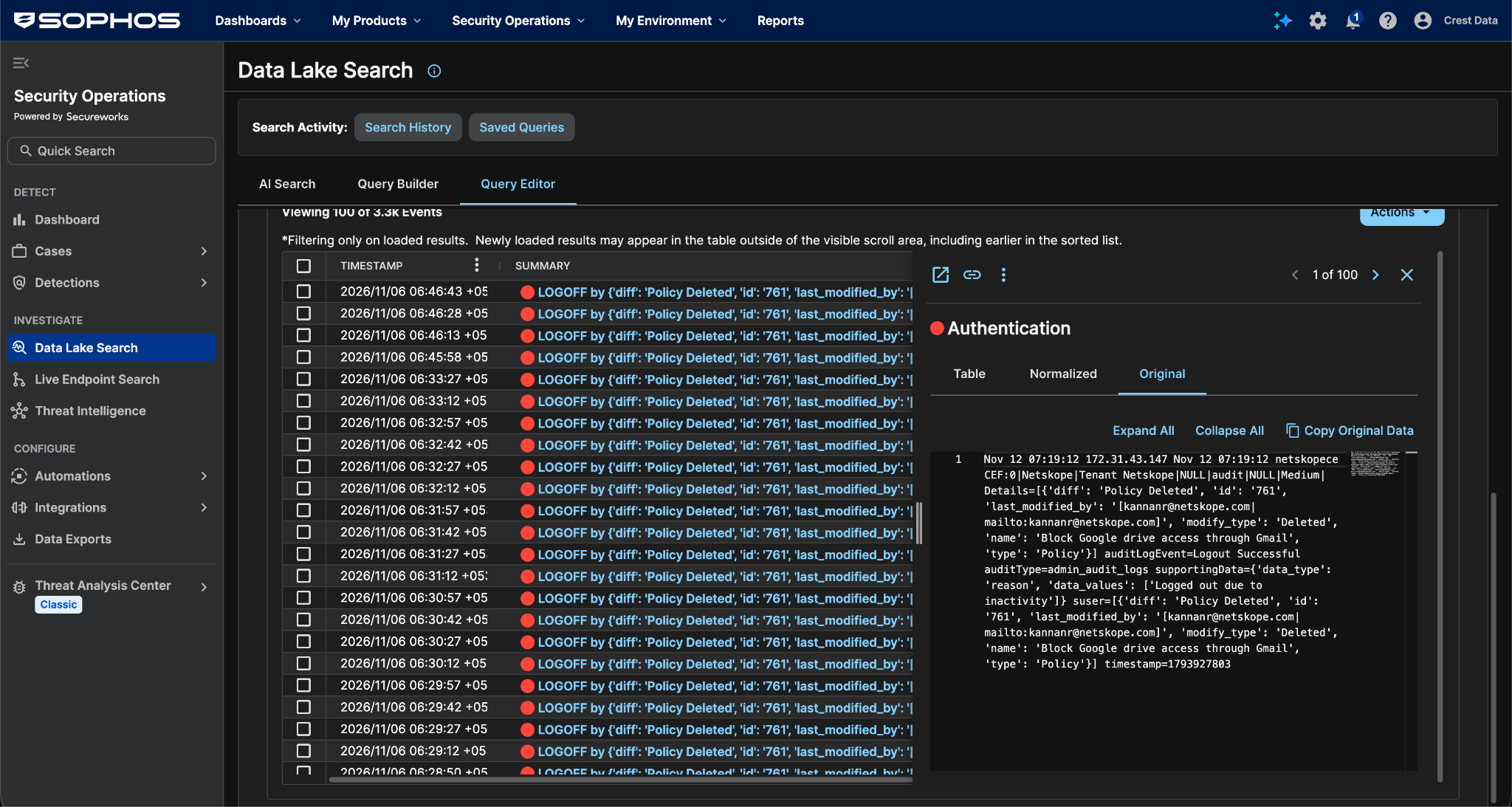
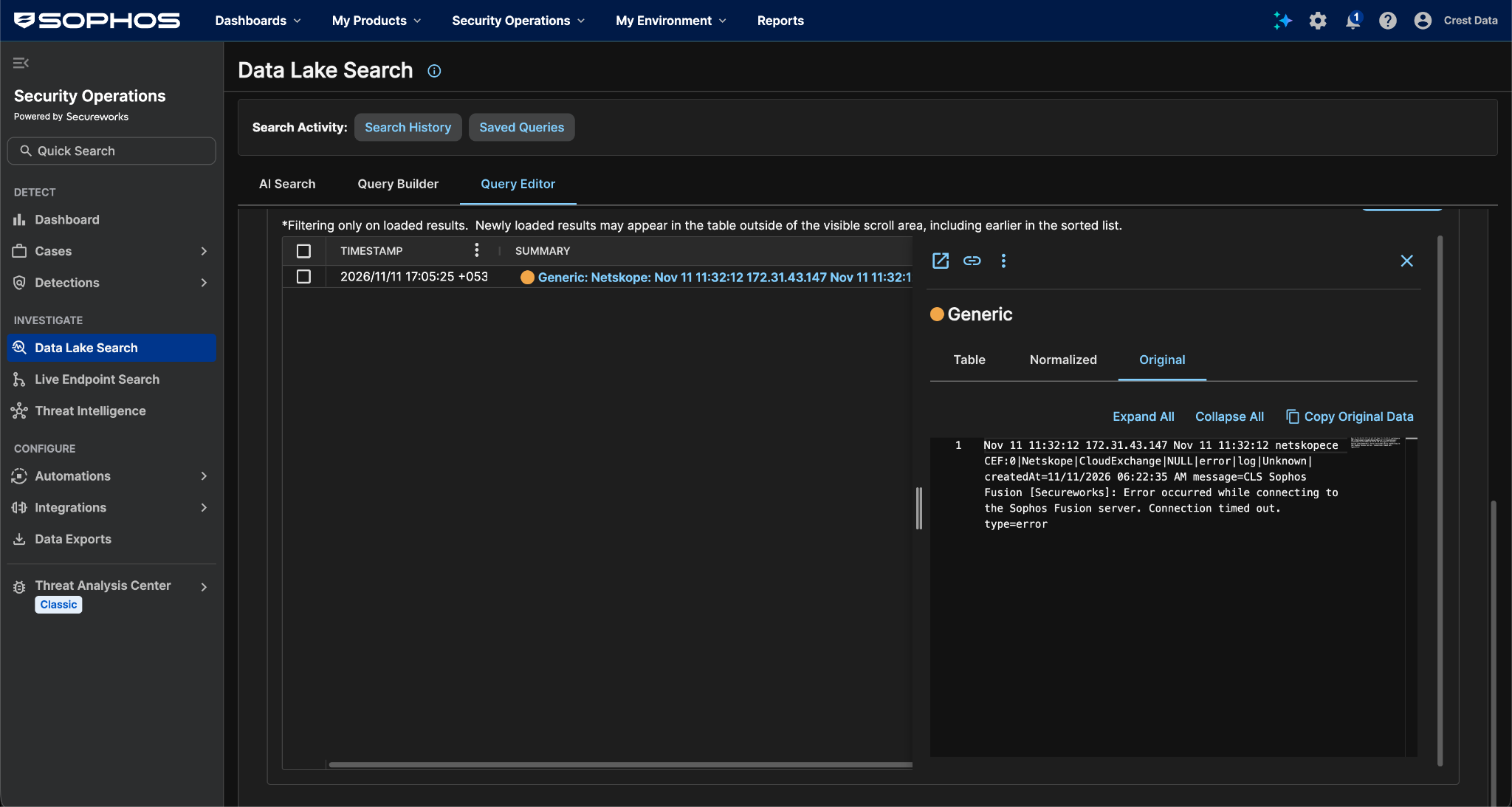
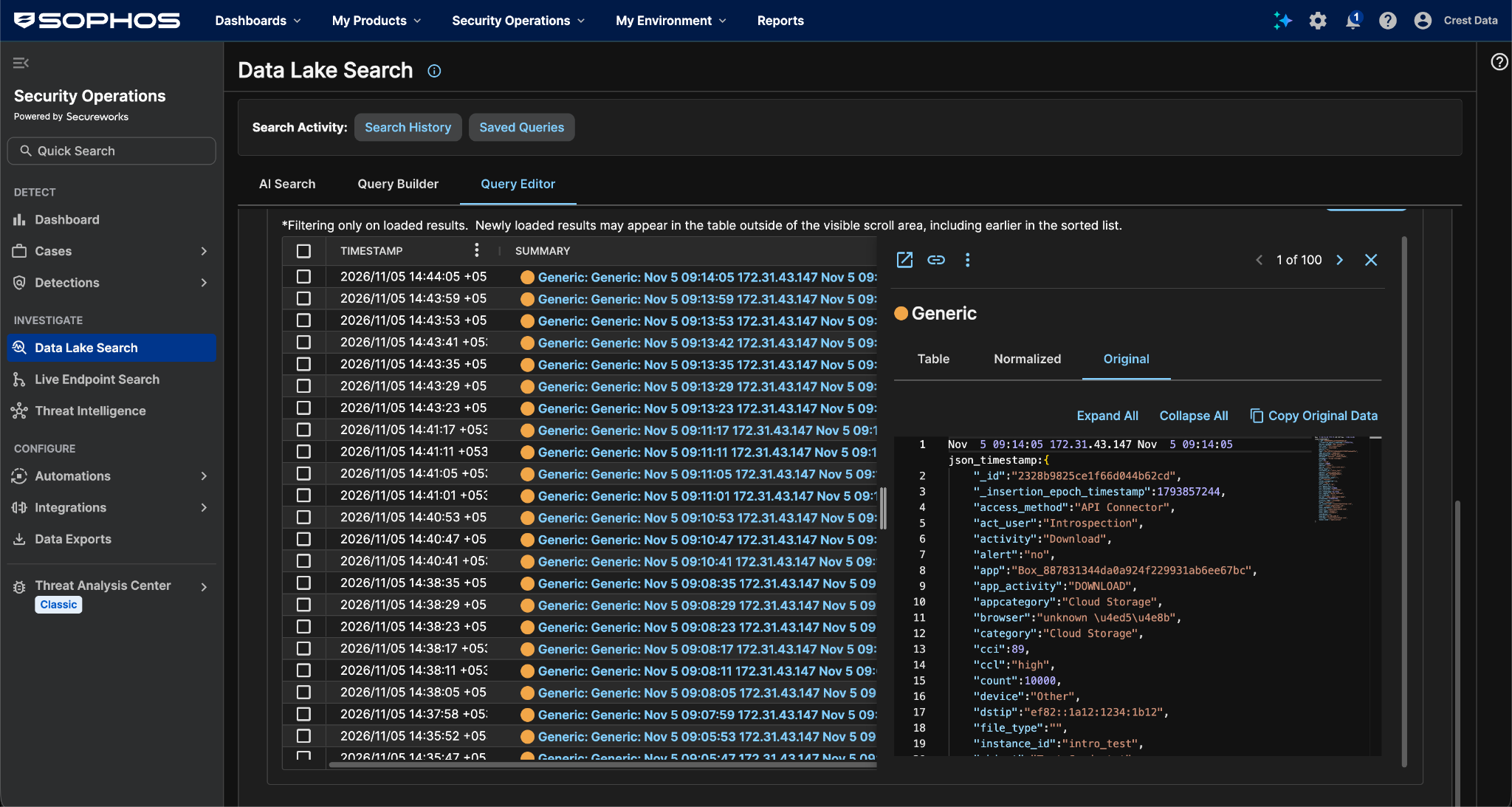
- Go to Security Operations > Data Lake Search and select Query Editor.
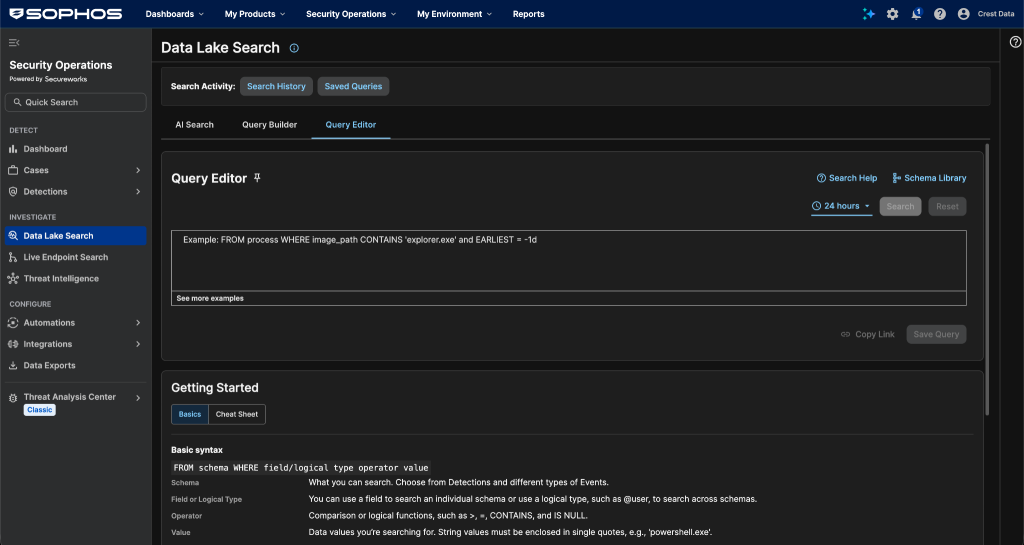
- Enter a query for the Log Source Identifier (default netskopece): @raw contains ‘netskopece’ To search only the unparsed messages, use: from generic where original_data contains ‘netskopece’
- Set the date and time range to cover the CE push, then click Search.
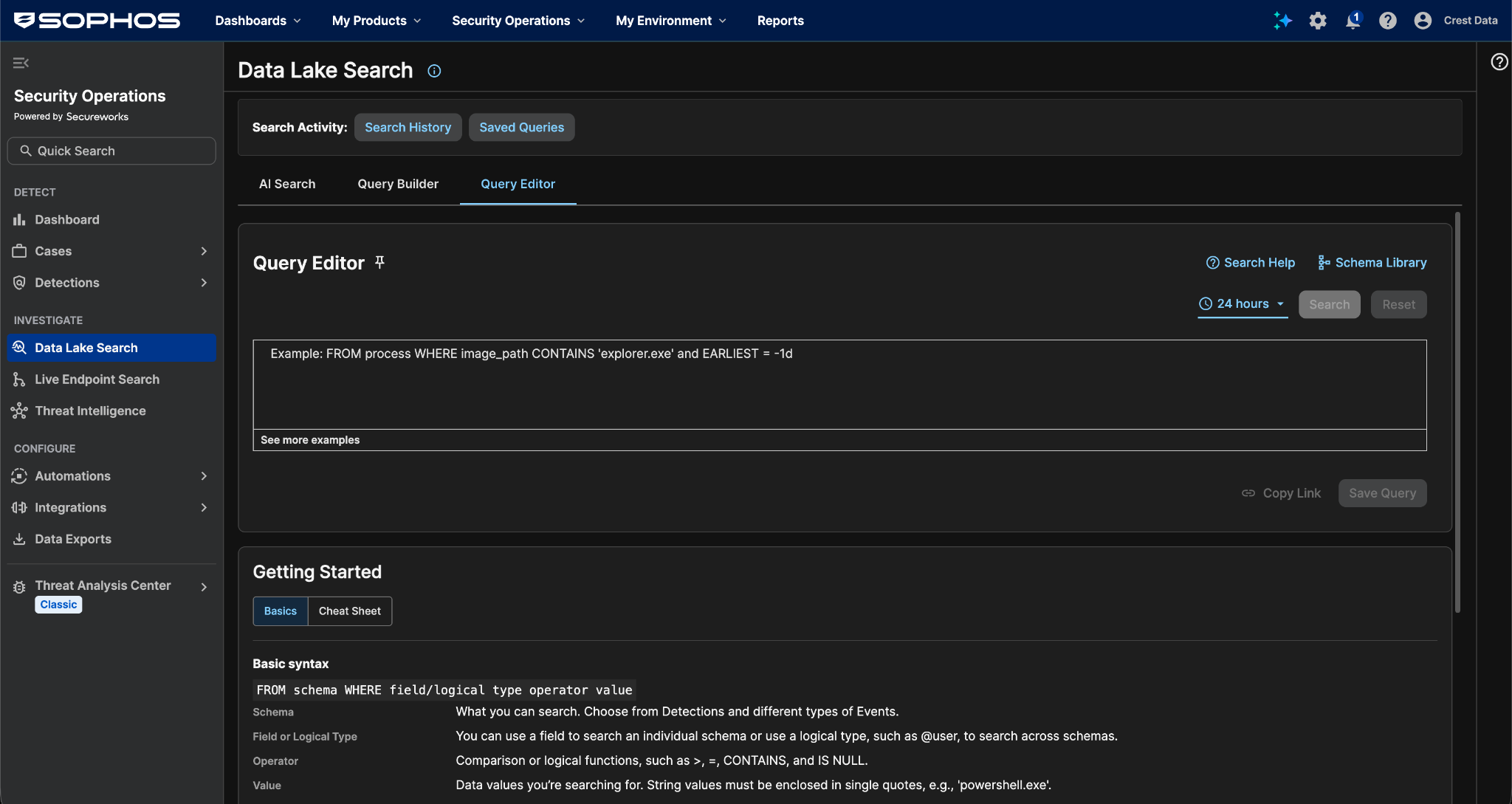
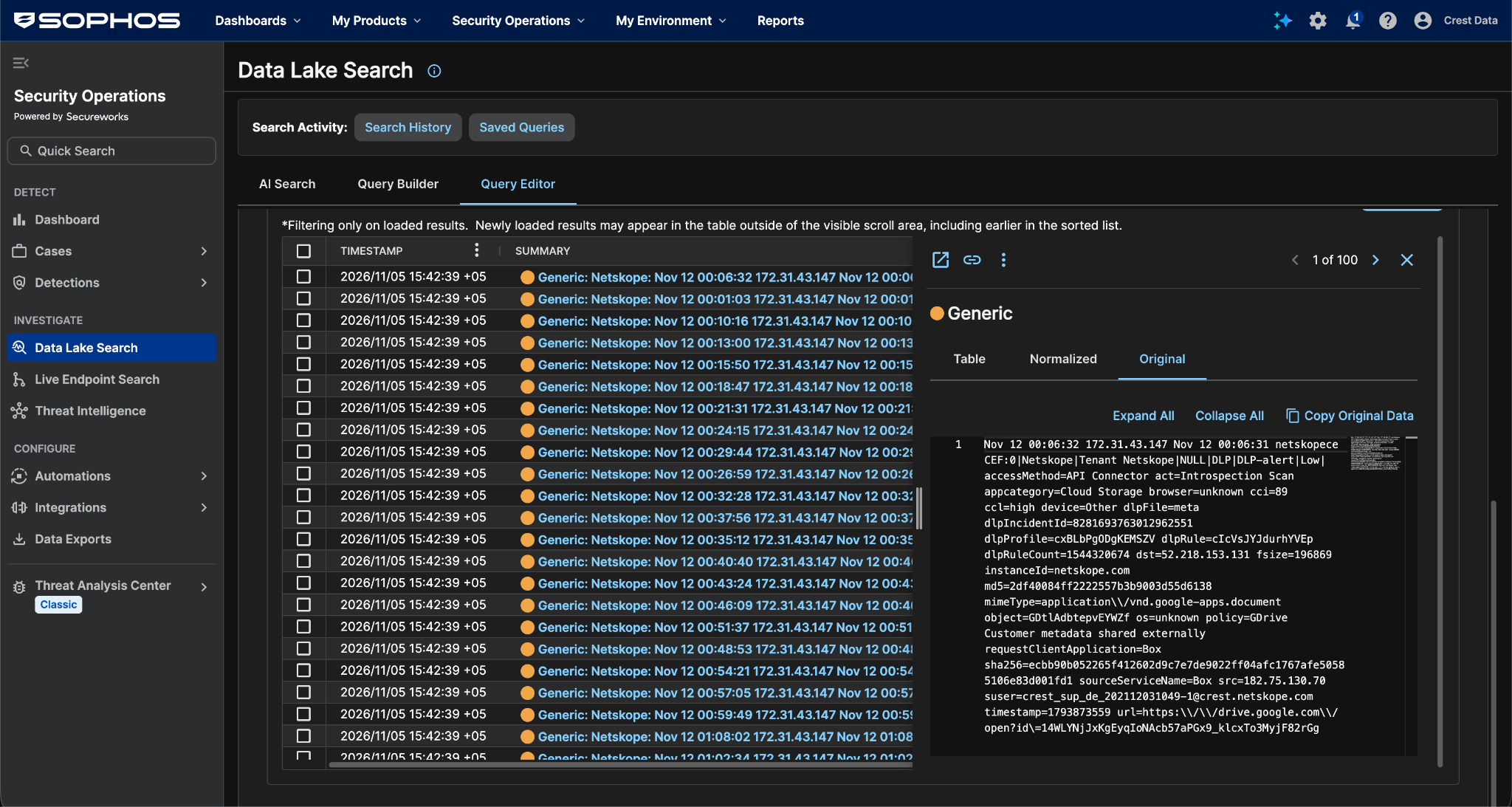
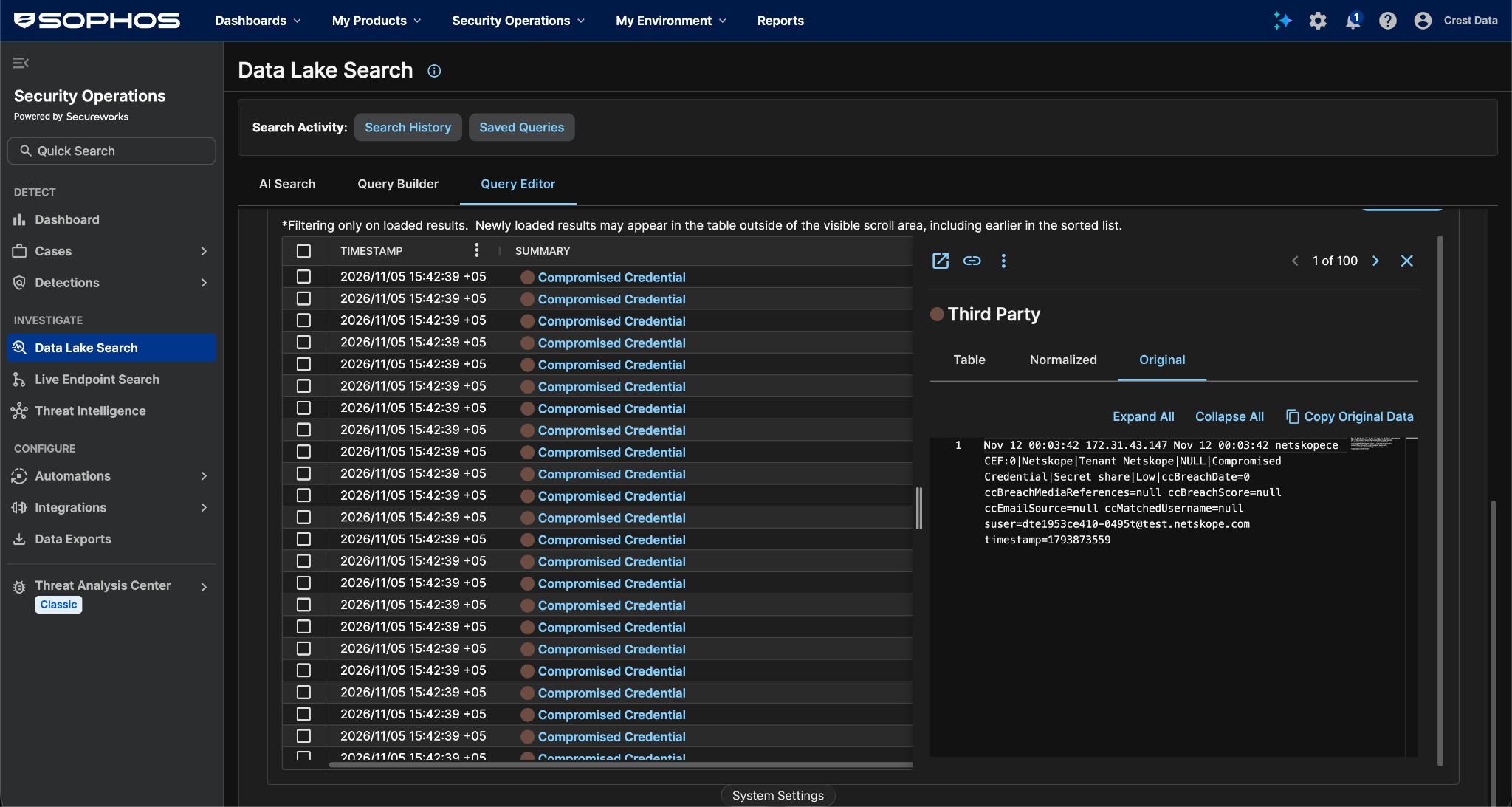
Here are examples of ingested Alerts:
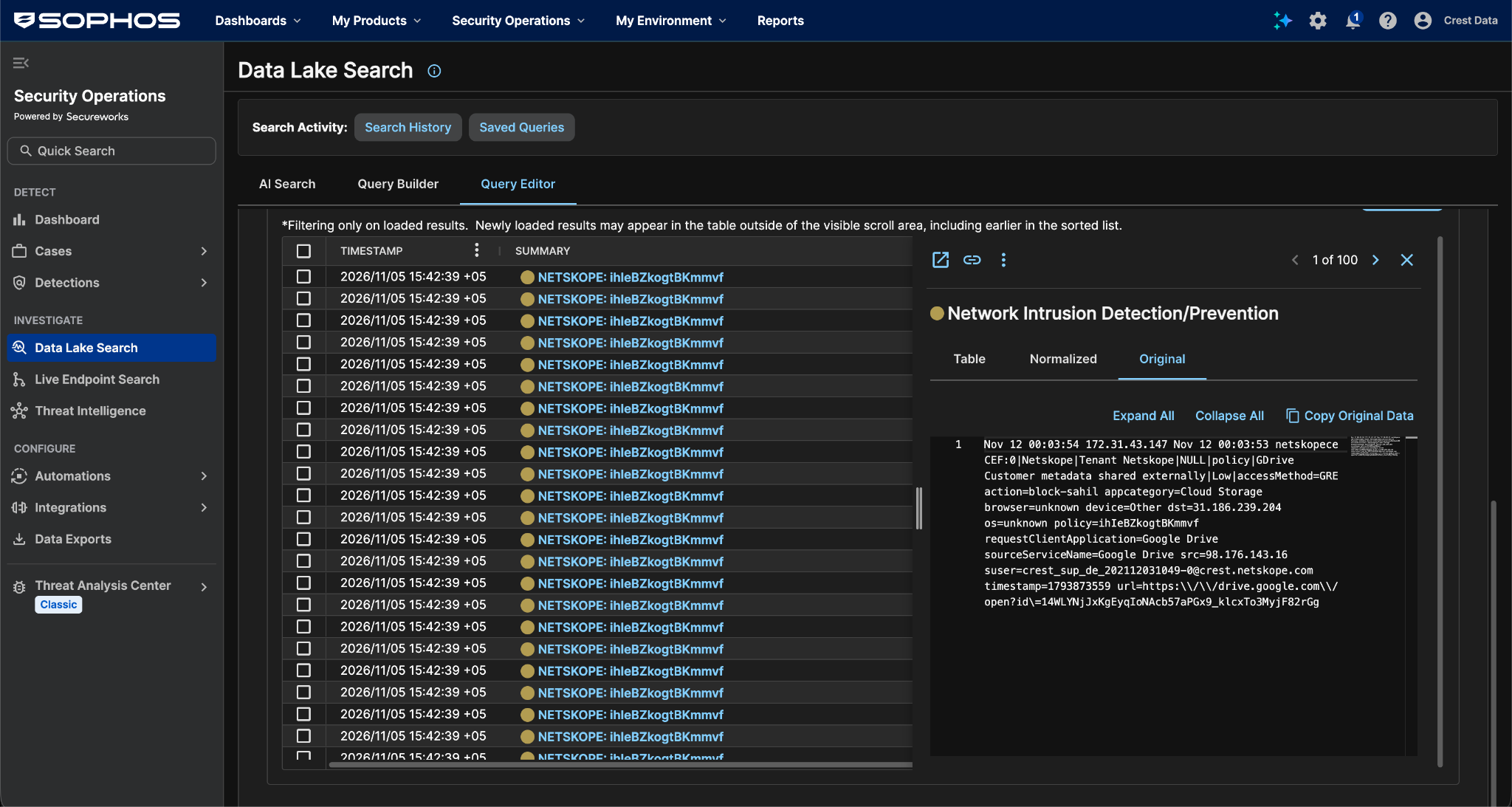
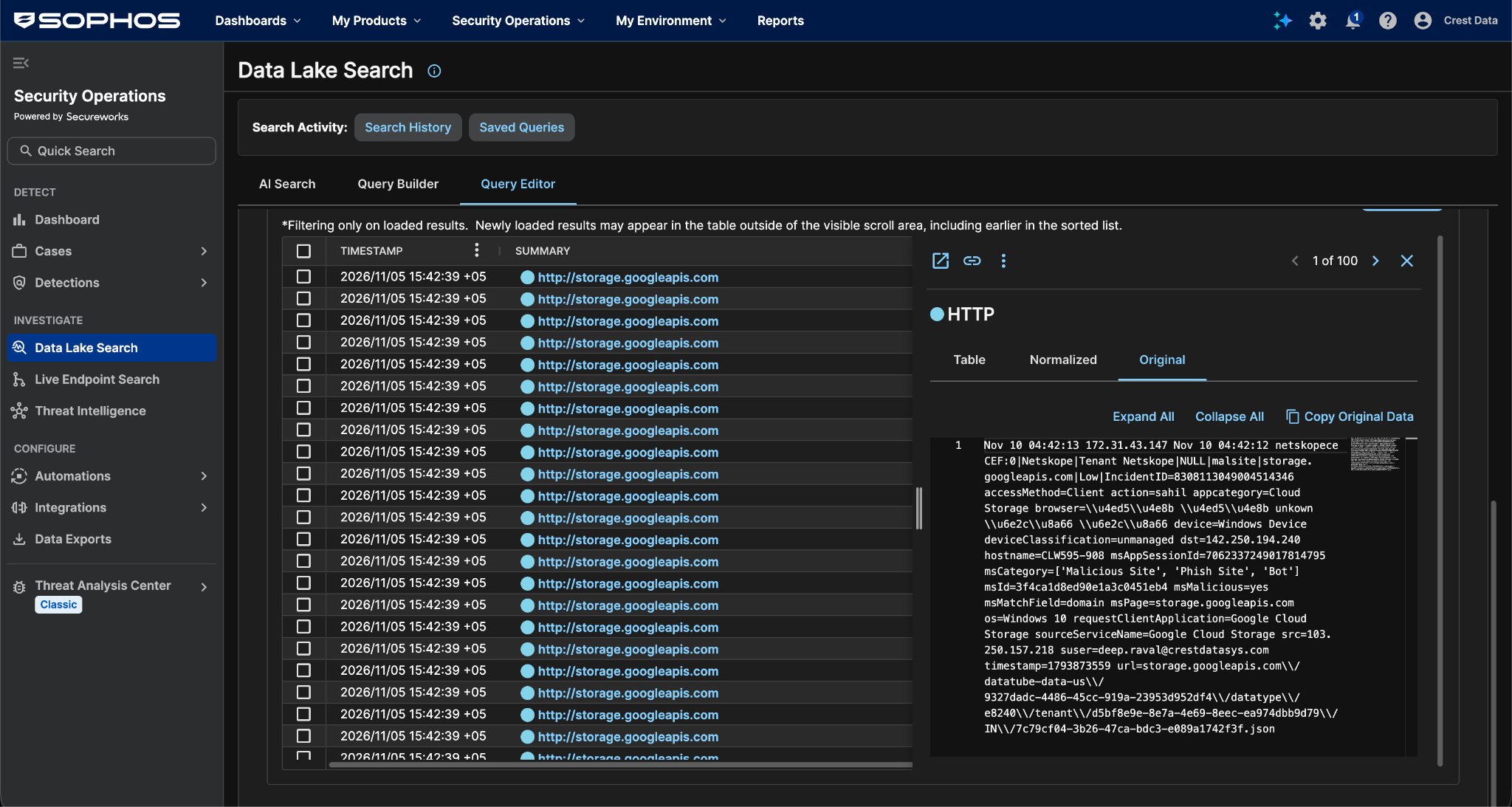
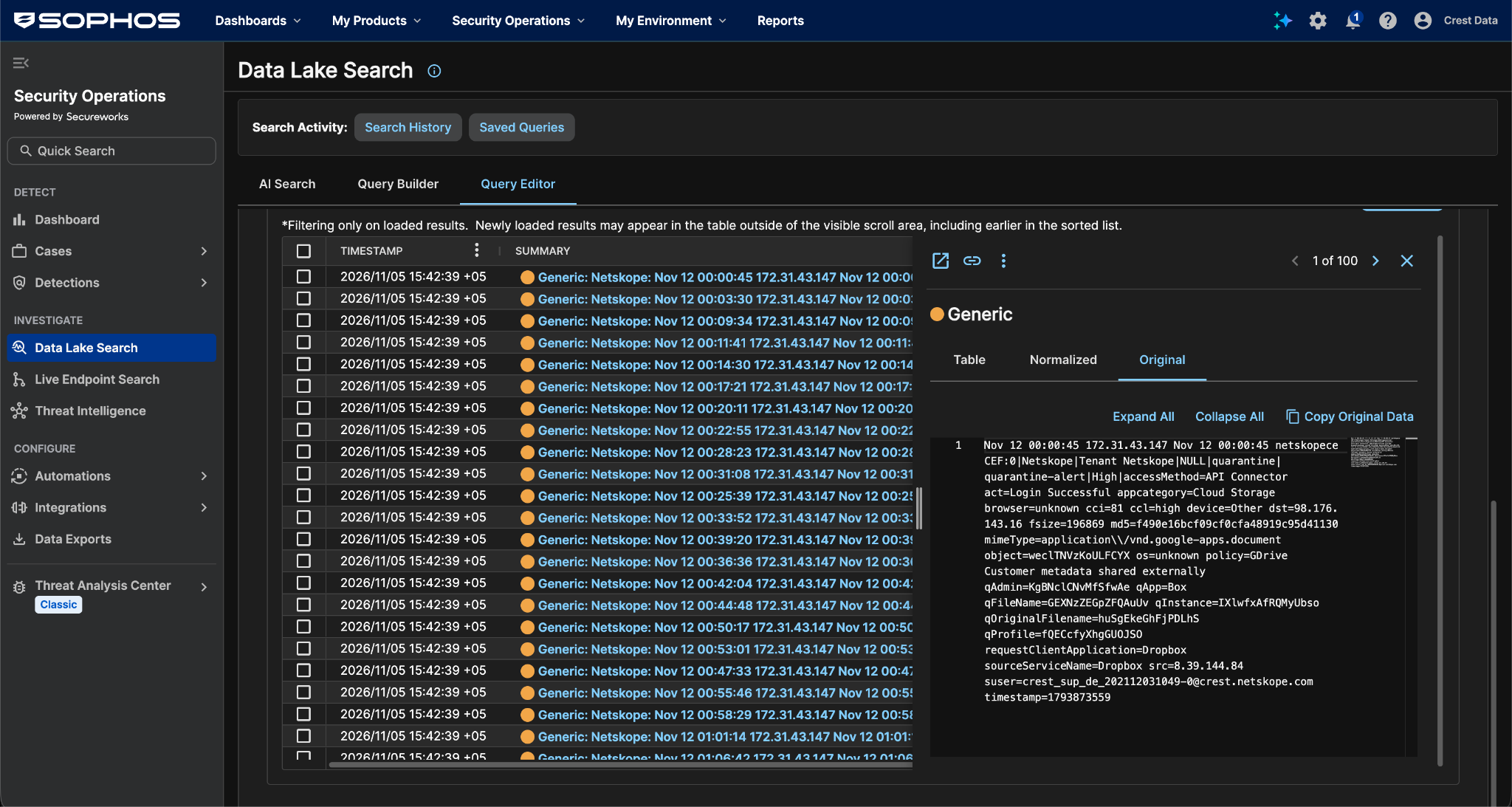
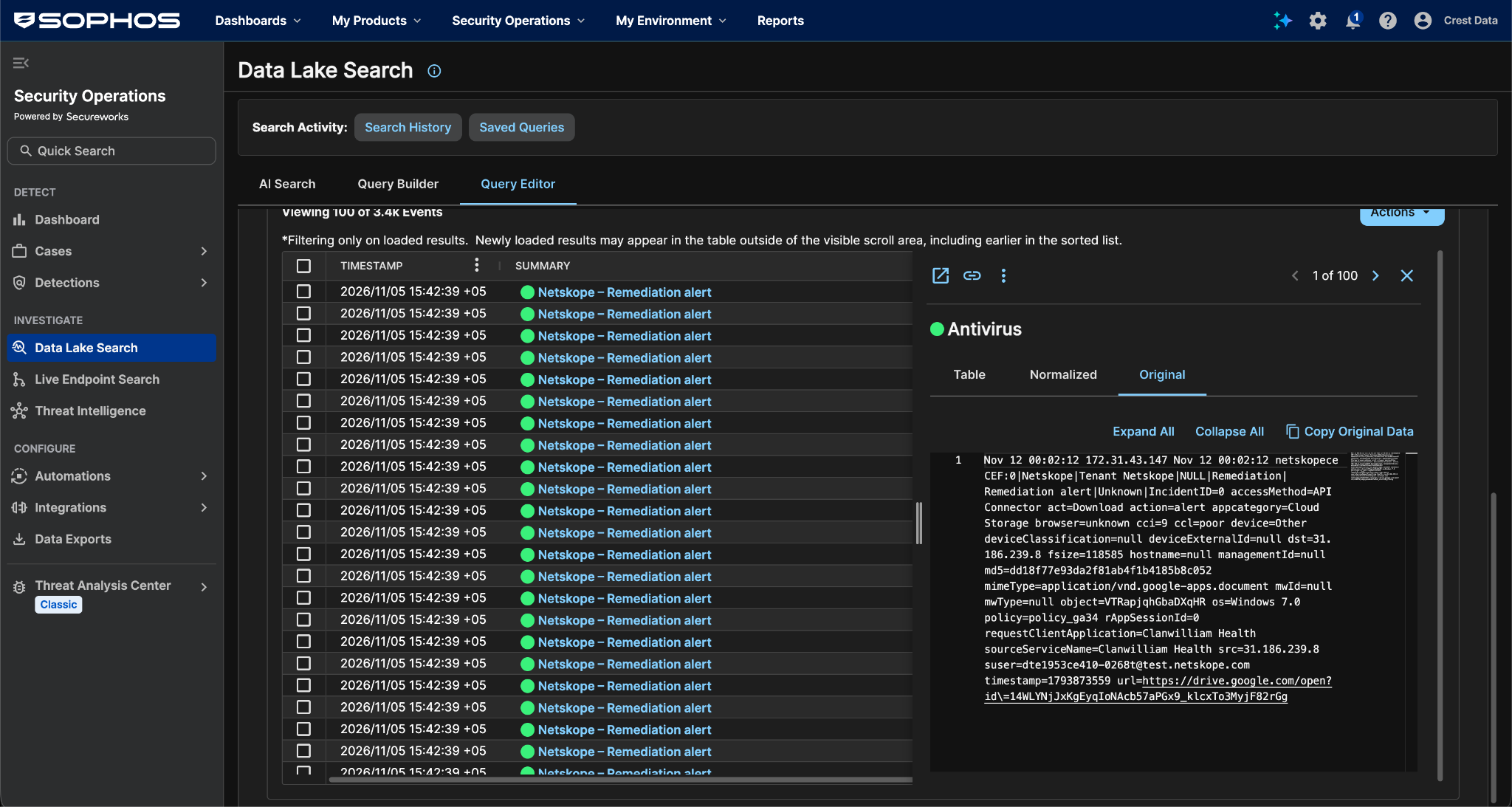
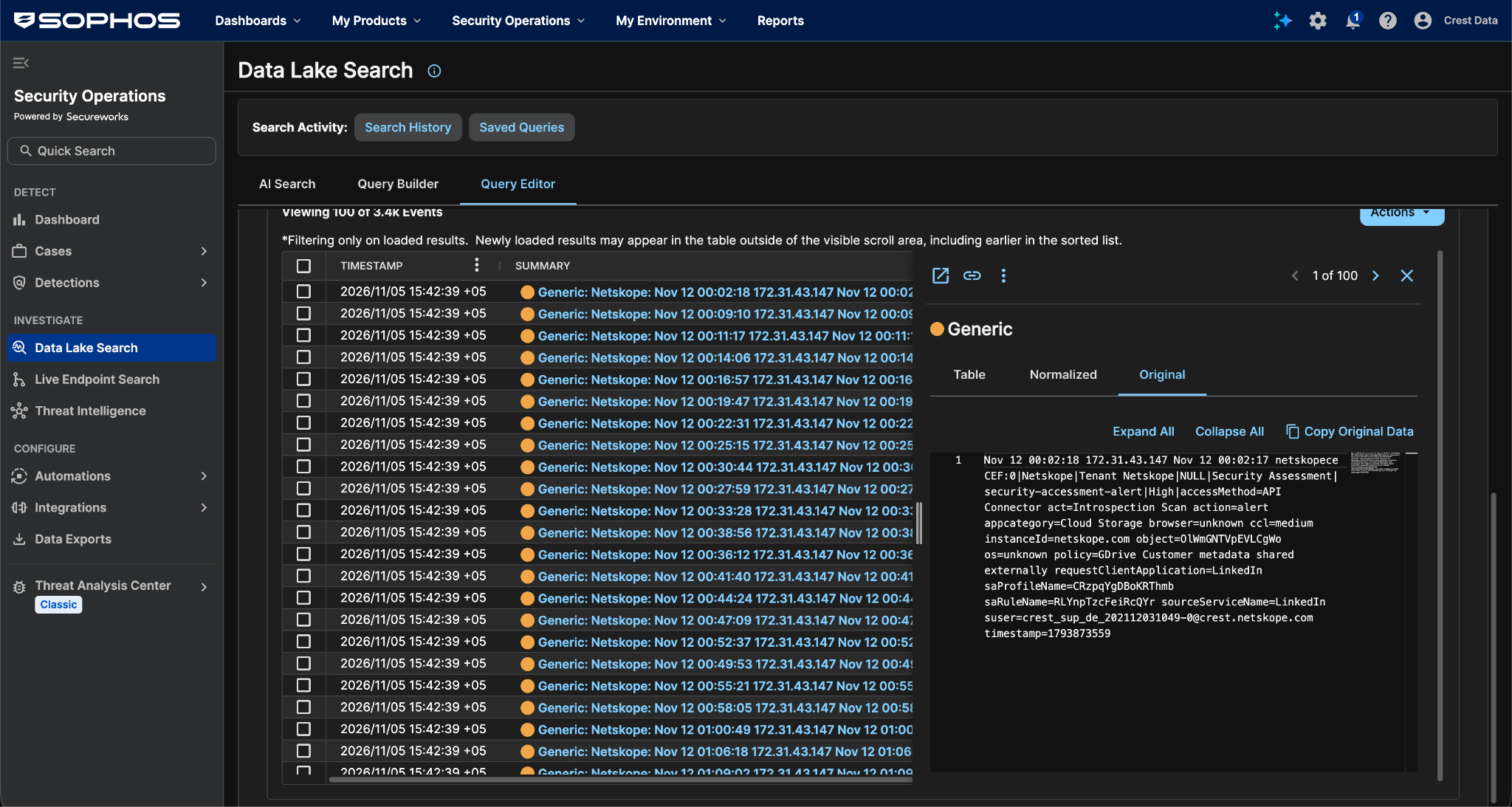
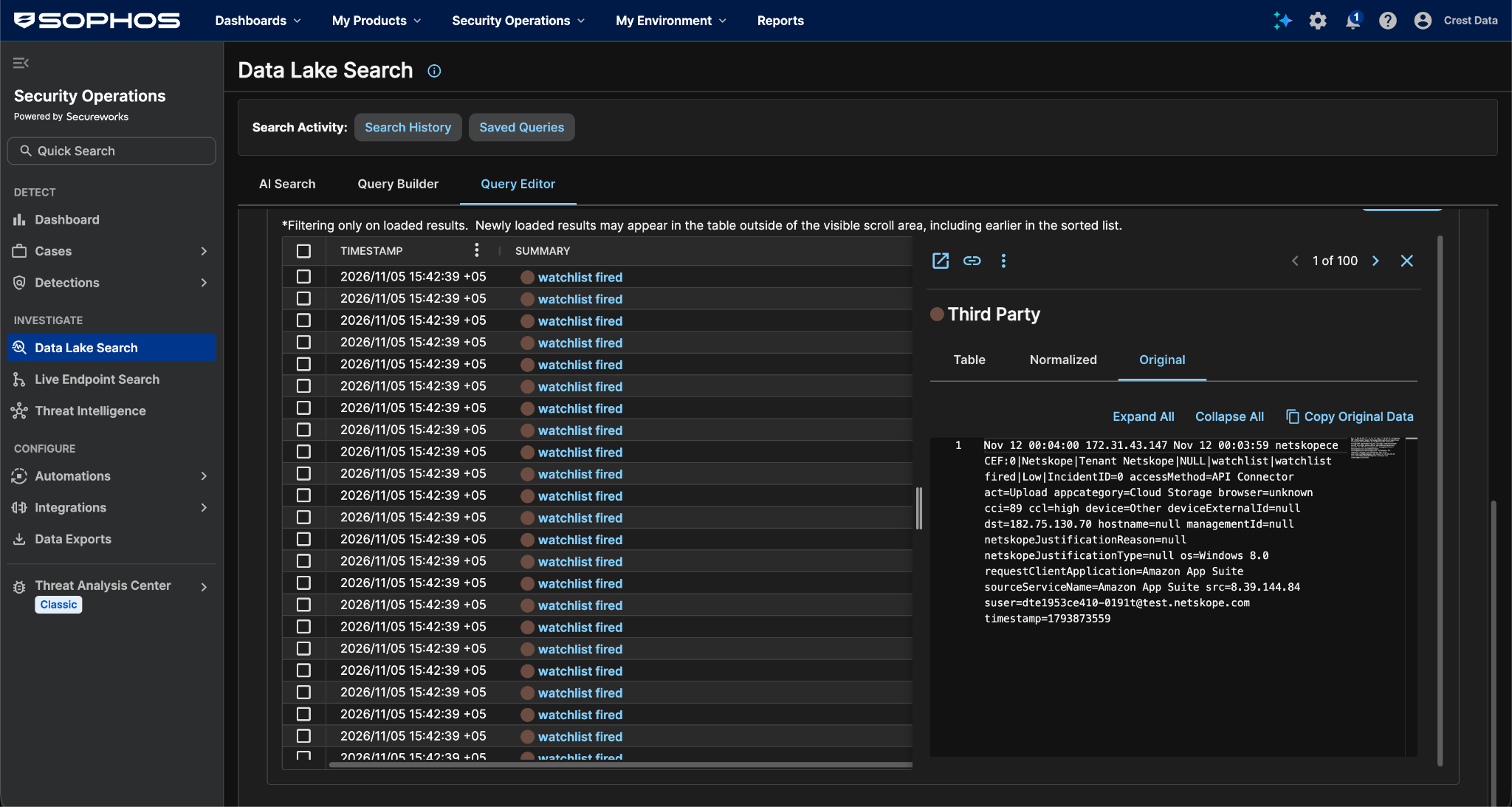
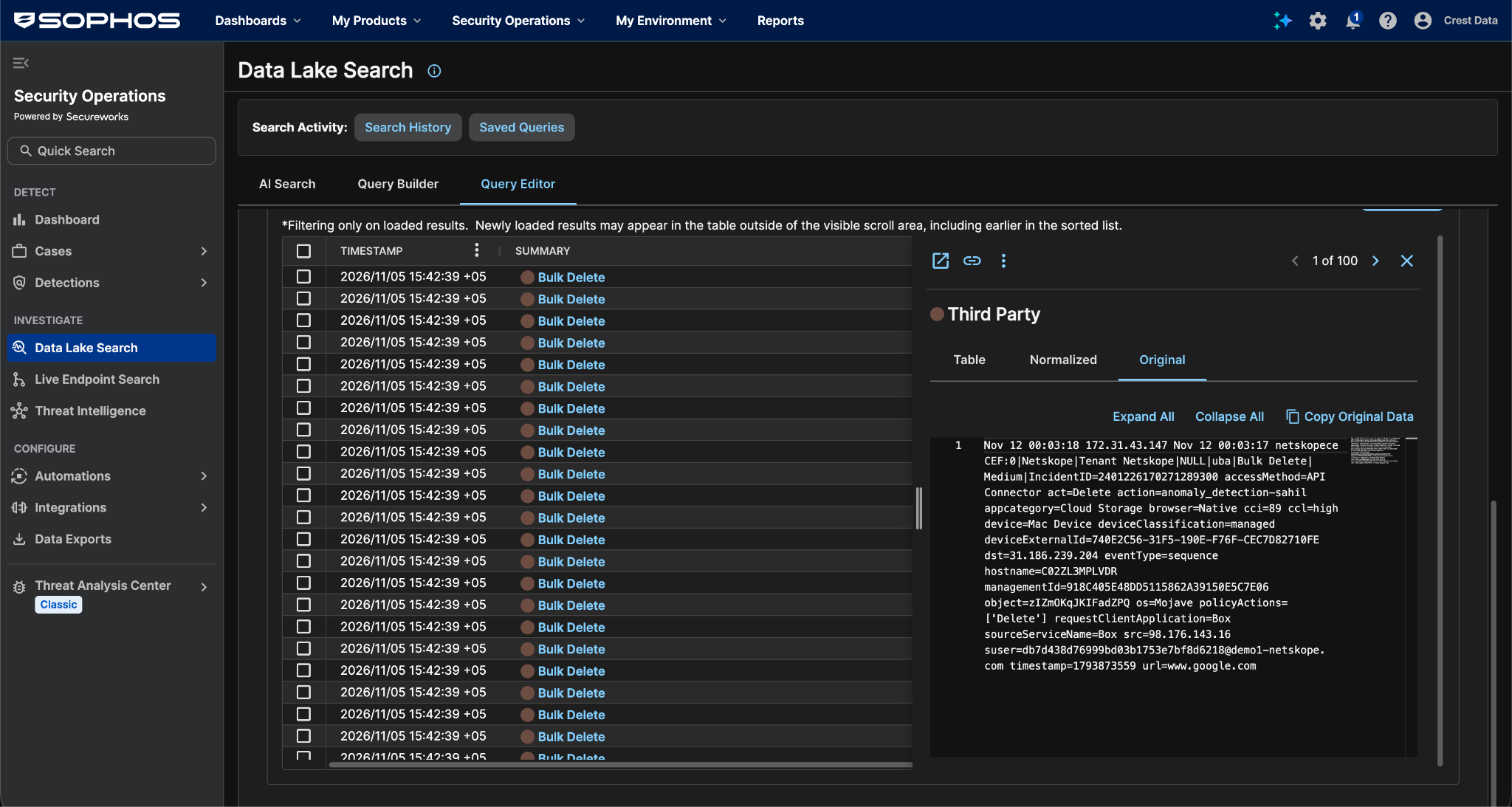
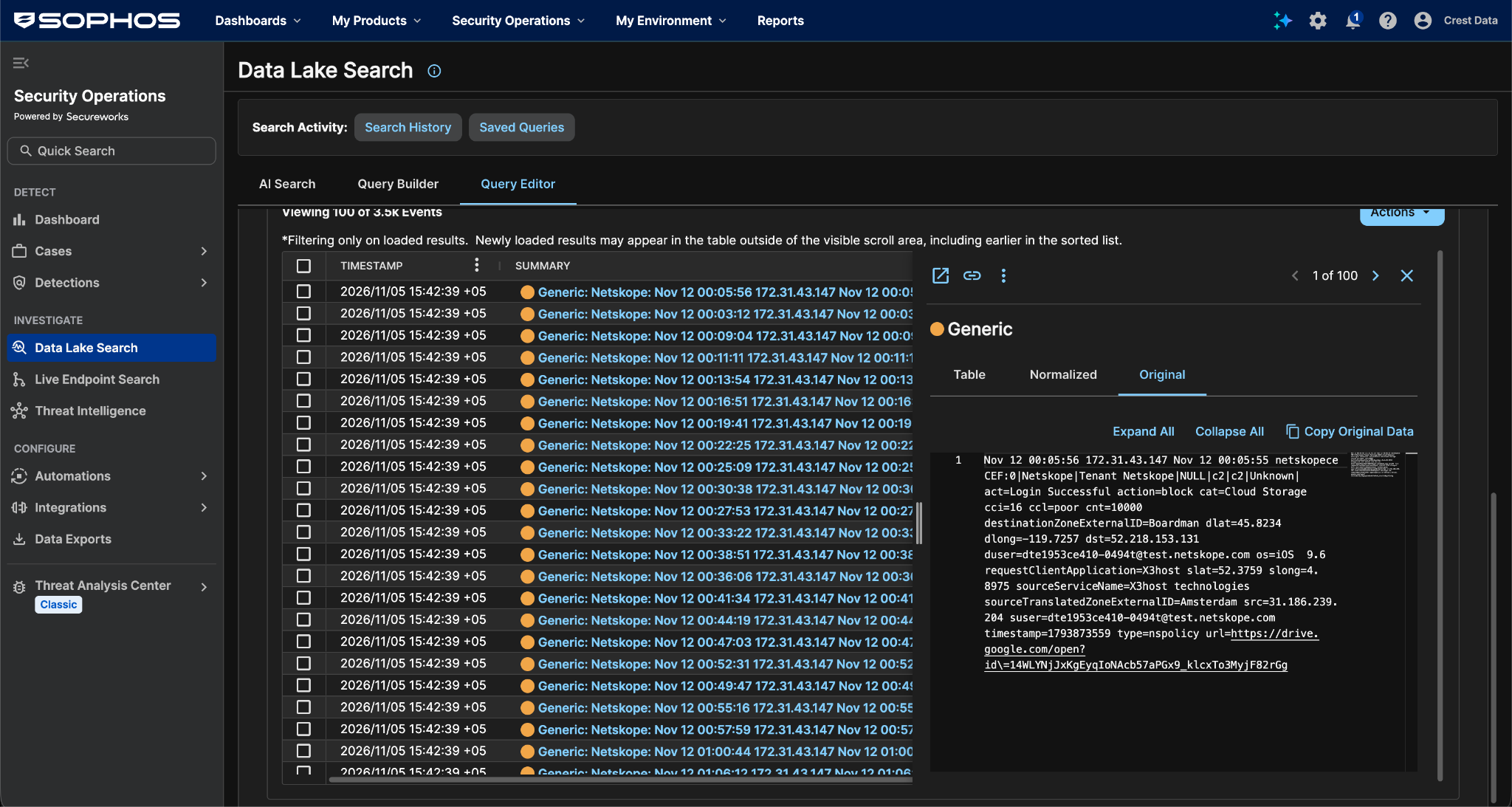
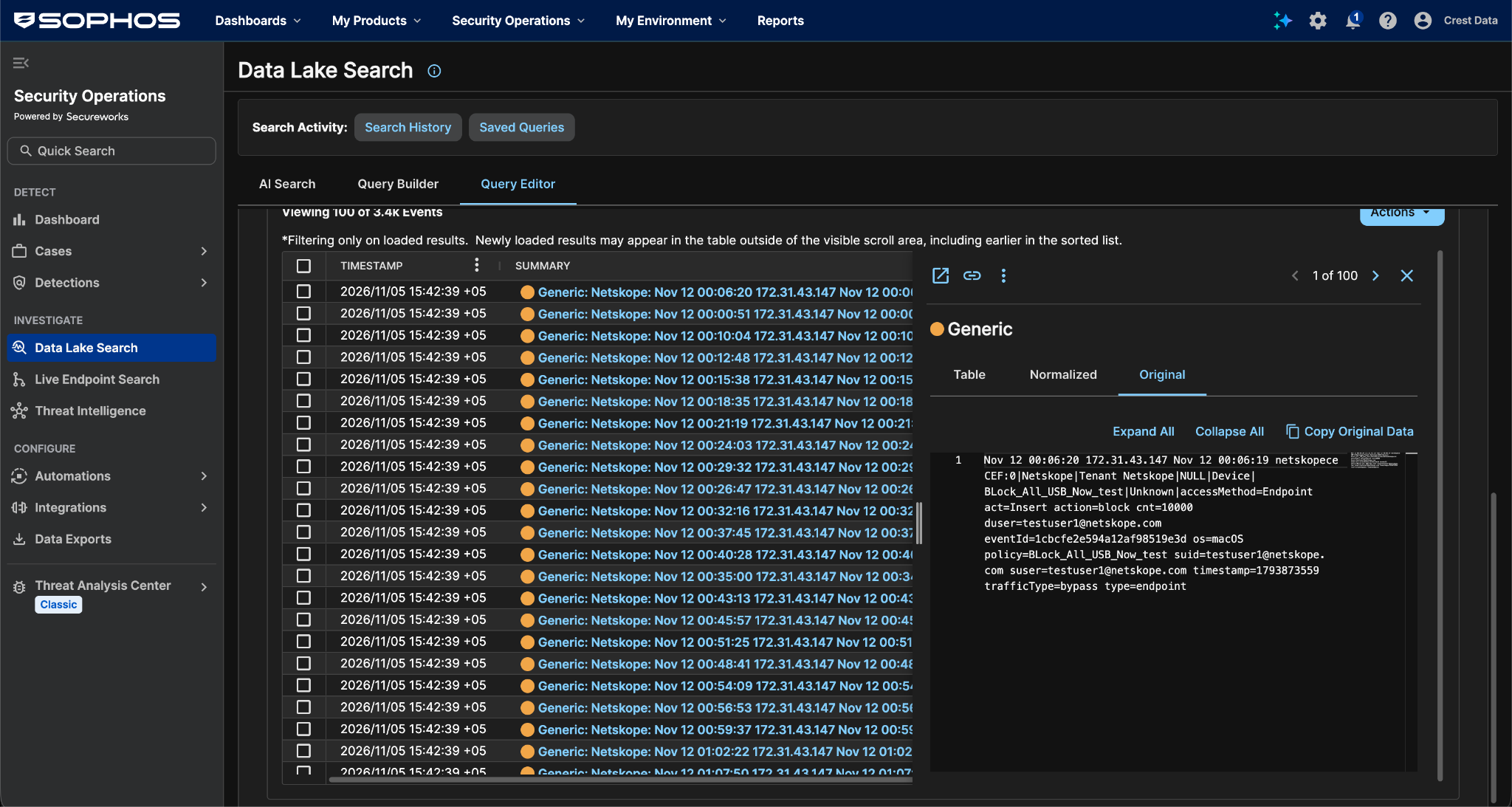
Here are examples of ingested Events:
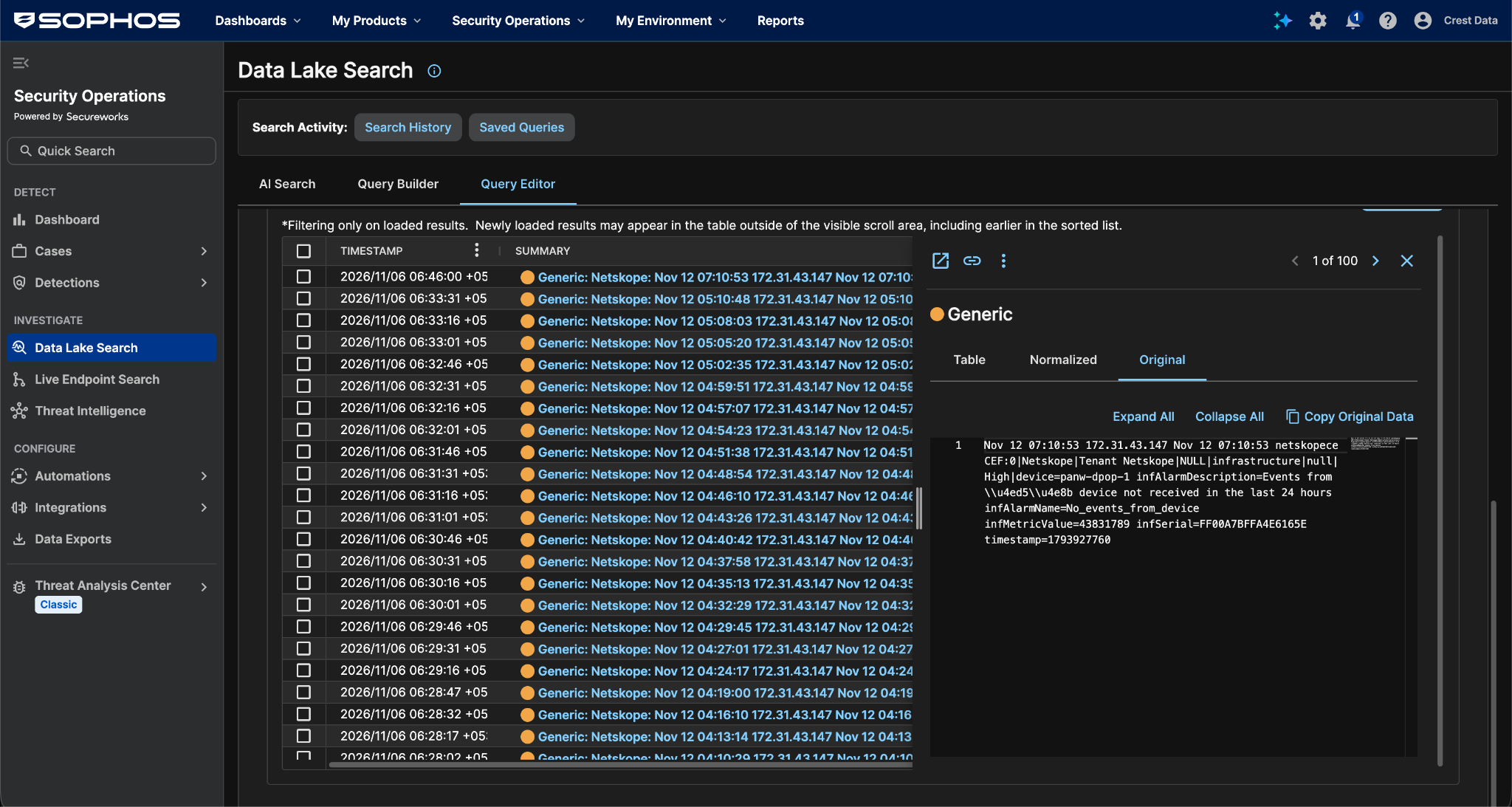
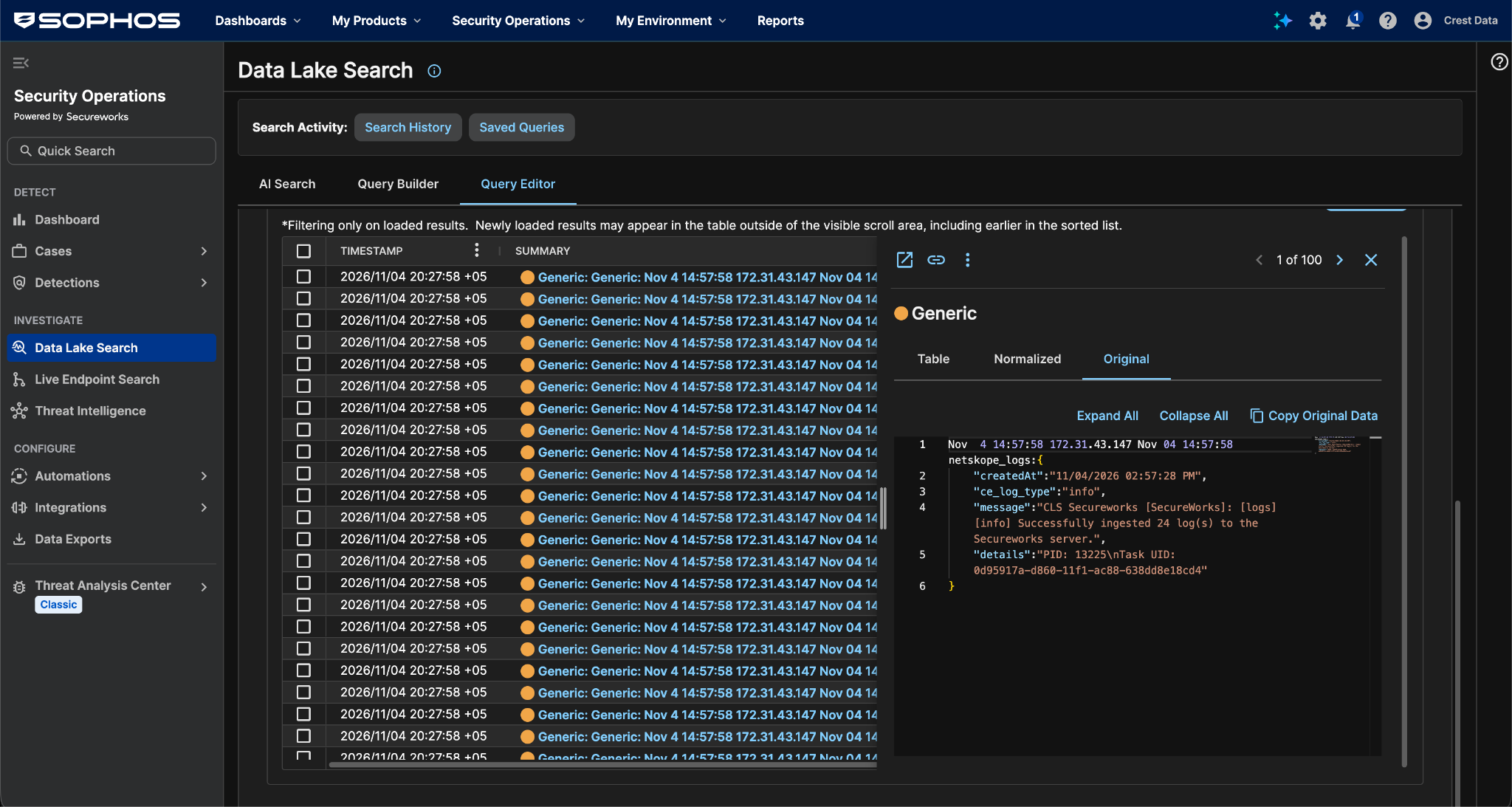
This is how Syslog for CE Logs looks from the plugin to Sophos Fusion:
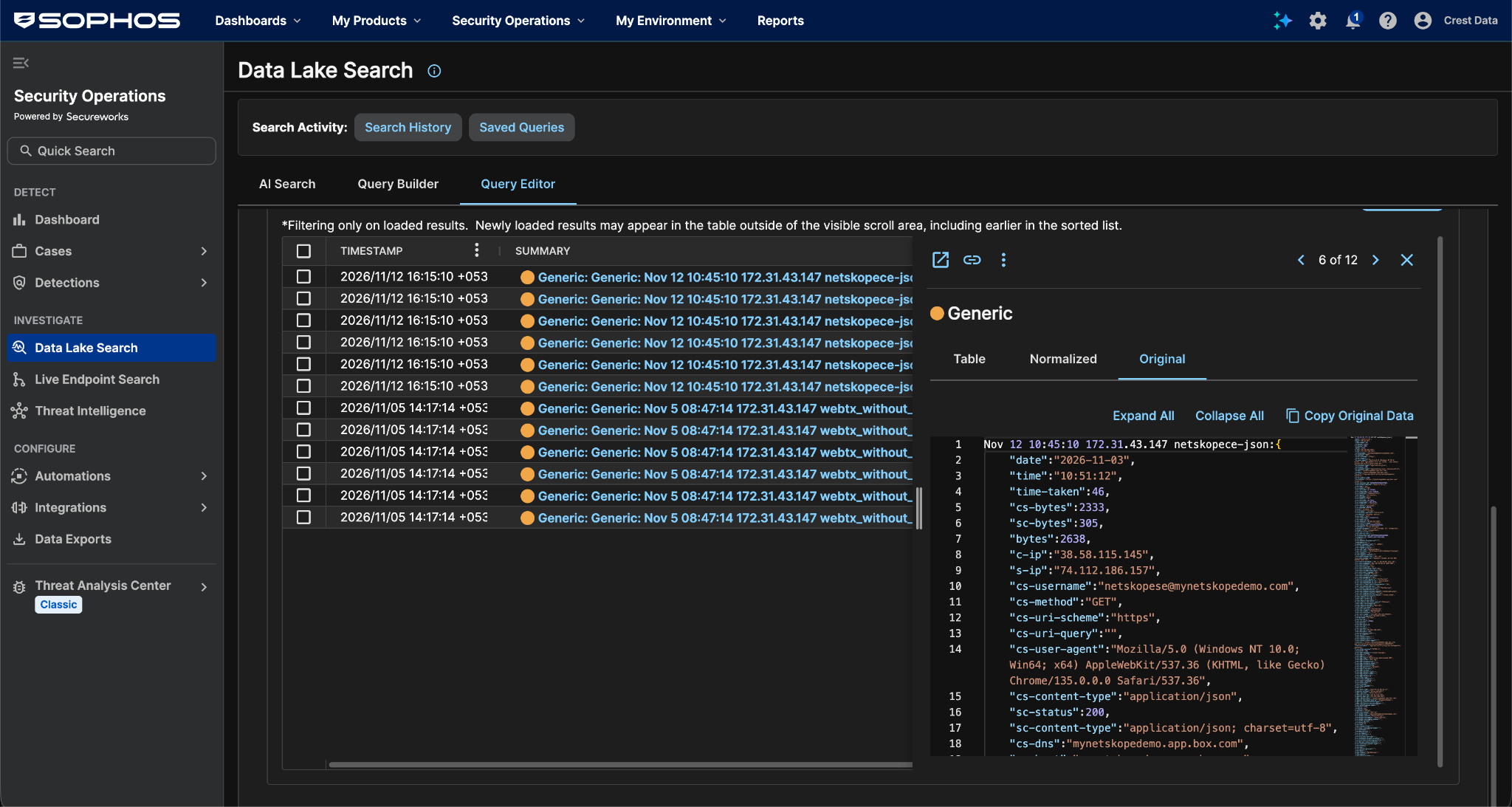
This is how data looks when shared in JSON from the plugin to Sophos Fusion:
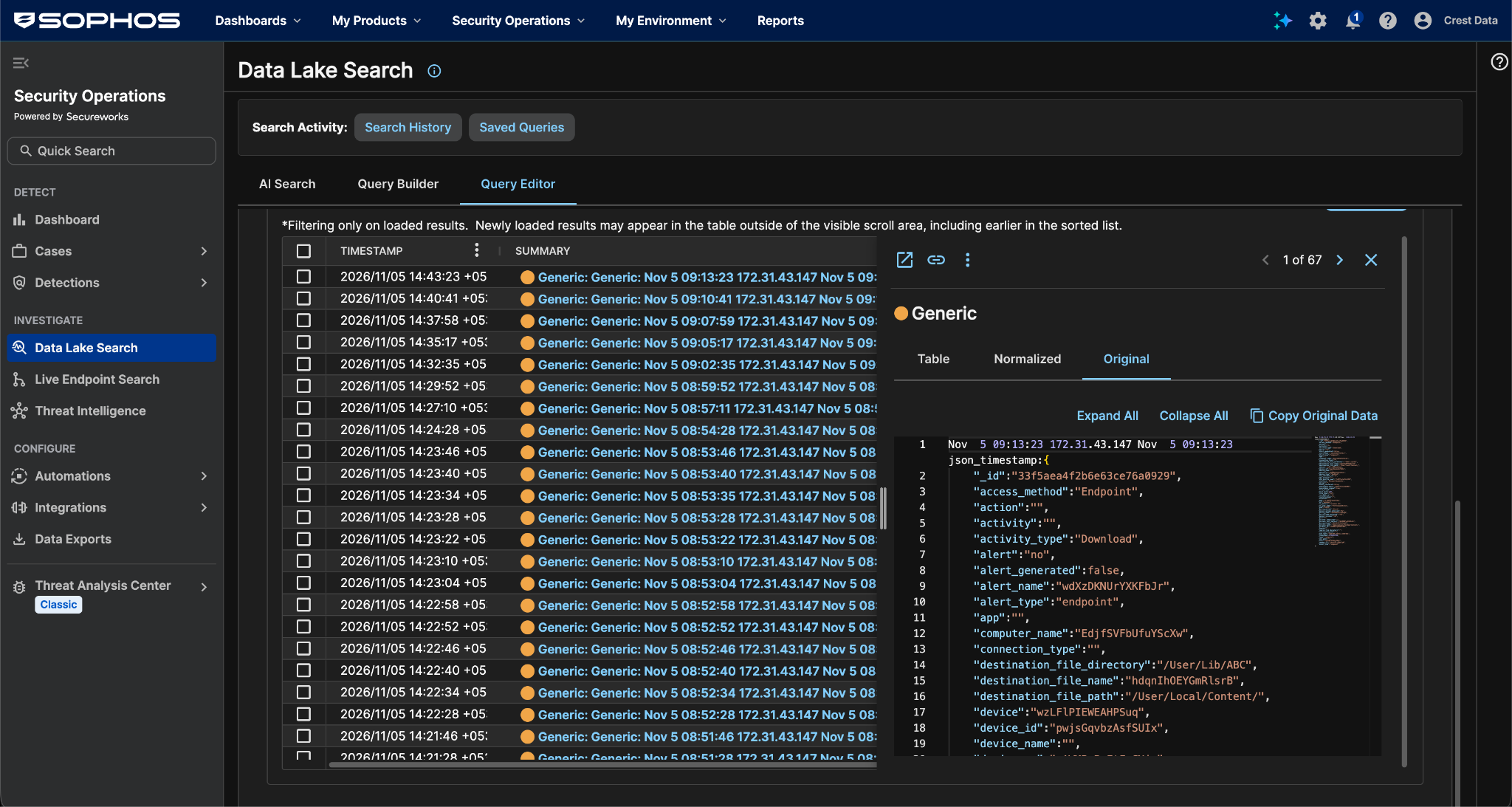
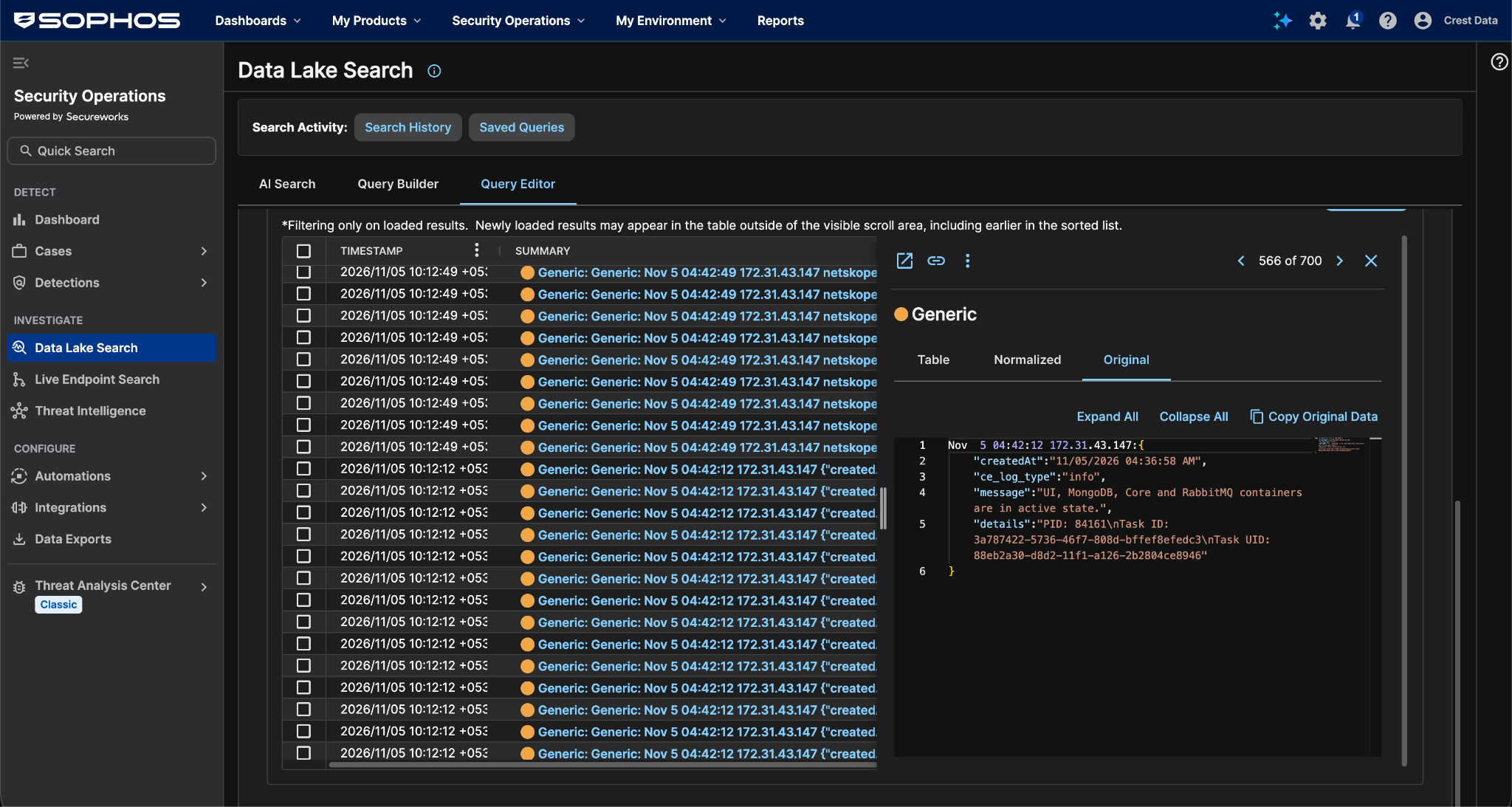
Sample ingested data without Log source identifier:
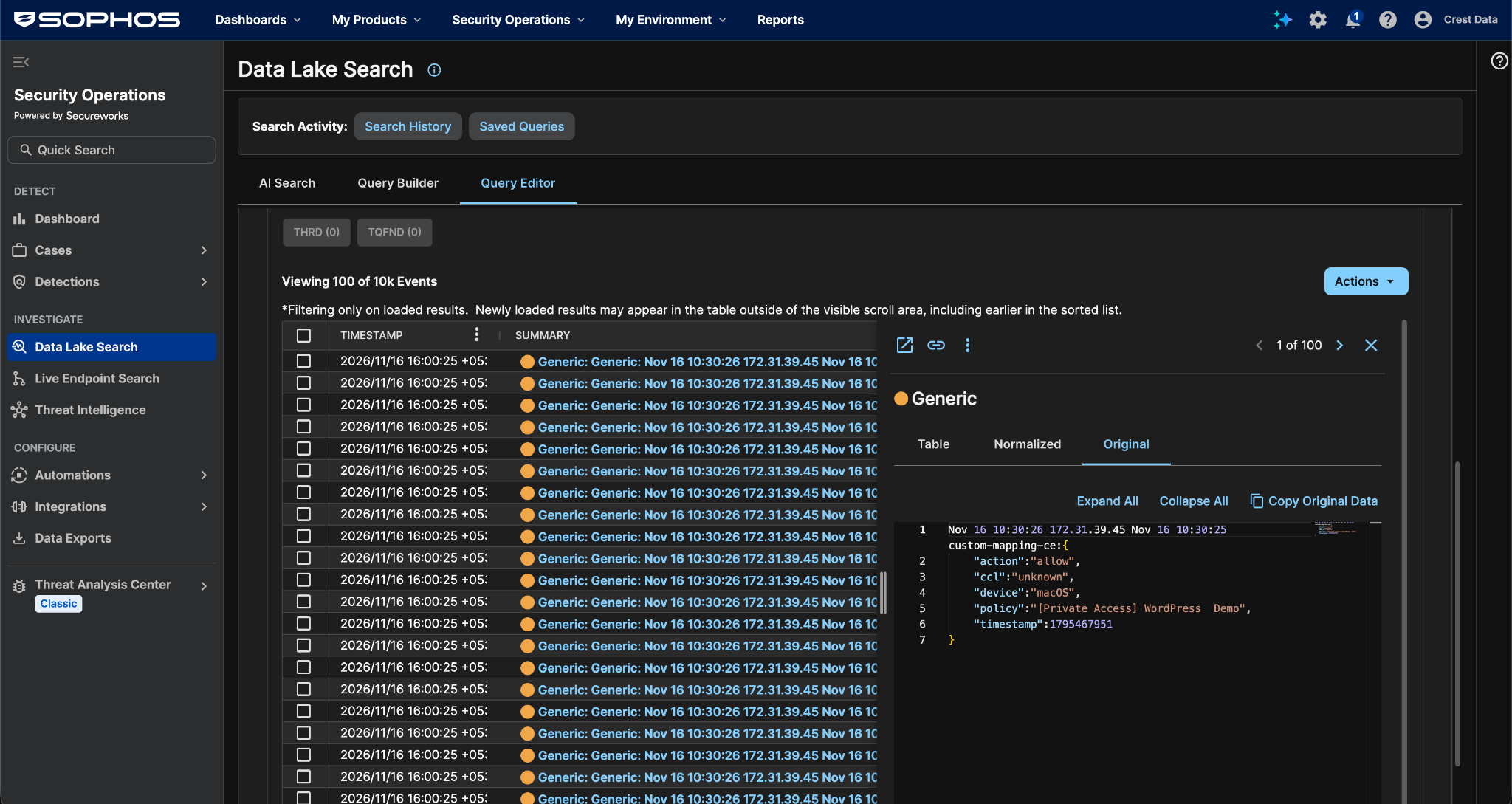
Sample ingested data in JSON format with custom mapping having only selected fields:
Troubleshooting the Sophos Fusion Plugin
Certificate Not Loaded
If you see this Error while loading the Sophos Fusion Certificate, it could be due to one of these reasons:
- The certificate is not complete PEM text.
- The BEGIN and END lines are missing from the certificate.
What to do: Ensure that the Sophos Fusion Certificate is the complete PEM-encoded certificate, including the BEGIN and END lines.
Server Certificate Verification Failed
If you see tis Error while verifying the Sophos Fusion server certificate, it could be due to one of these reasons:
- The configured CA certificate did not sign the Sophos Fusion server certificate.
- The server certificate has expired.
What to do: Ensure that the Sophos Fusion Certificate is the certificate of the Sophos Fusion server or of the CA that signed it, and that it has not expired.
Connection Timed Out
If you see this Error while connecting to the Sophos Fusion server, it could be due to one of these reasons:
- A firewall is blocking the configured port.
- The Sophos Fusion server is unreachable or down.
What to do: Ensure that the Sophos Fusion Server and Sophos Fusion Port are reachable from Cloud Exchange.
Connection Refused
If you sees Error while connecting to the Sophos Fusion server, it could be due to no Syslog collector is listening on the configured port with the selected protocol.
What to do: Ensure that the Sophos Fusion server is listening on the Sophos Fusion Port with the selected Sophos Fusion Protocol.
Server Name Resolution Failed
If you see this Error while resolving the Sophos Fusion Server ‘<server>‘, it could be due to one of these reasons:
- The configured server name is not a valid IP address or FQDN.
- DNS resolution from the CE host is failing.
What to do: Ensure that the Sophos Fusion Server is a valid IP address or FQDN that Cloud Exchange can resolve.
Validation Passes for UDP but No Data Arrives
If you configured the plugin with UDP, but no data arrives on Sophos Fusion, it could be due to one of these reasons:
- UDP validation only resolves the server name and does not confirm reachability of the port.
- The configured port or firewall rule is incorrect.
What to do:
- Verify that the Sophos Fusion server is listening on the configured UDP port.
- Check that the firewall allows UDP traffic from the CE host to the Sophos Fusion server on the configured port.
Data Ingestion Failed
If the user sees Error occurred while ingesting data to the Sophos Fusion server. <n> log(s) failed to be ingested, it could be due to the Sophos Fusion server becoming unreachable during the push, and all three send attempts failed.
What to do: Ensure that the Sophos Fusion server is reachable and accepting data on the configured Sophos Fusion Port.
Oversized UDP Records Skipped
If you see this Error while ingesting <n> log(s) larger than the UDP limit. They were skipped and it could be due to one or more records exceeding the 65507-byte UDP payload limit, which cannot be sent over UDP.
What to do: Change the Sophos Fusion Protocol from UDP to TCP or TLS to avoid the UDP payload size limit.
Mapping File Validation Error
If you see this Error while validating mappings, it could be due to one of these reasons:
- The mapping file is not valid JSON.
- Required fields such as delimiter, cef_version, or taxonomy are missing from the mapping file.
- A CEF header or extension entry has an unsupported transformation or missing required fields.
What to do:
- Ensure that the mapping file is valid JSON and conforms to the required schema.
- Verify that the delimiter, cef_version, and taxonomy fields are present, and that taxonomy contains at least alerts or events.
Receiving error when saving plugin and logs are not ingested over TLS on Cloud Exchange 7.0.0
If log ingestion fails for a Log Shipper (CLS) configuration that uses the TLS protocol, and the Cloud Exchange logs show the following error, it could be due to the reason below.
AttributeError: module ‘ssl’ has no attribute ‘wrap_socket’
- Cloud Exchange 7.0.0 runs on Python 3.12, which removed the ssl.wrap_socket() method. Rapid7 plugin versions earlier than v3.2.0 still use this method and can’t open a TLS connection.
Plugins configured with the TCP or UDP protocol are not affected.
To resolve this issue, follow these steps:
- Check whether the plugin configuration uses the TLS protocol. If it doesn’t, no action is needed.
- Update the Rapid7 plugin to v3.2.0 or later. This version replaces ssl.wrap_socket() with SSLContext and supports TLS on Python 3.12 and later.
- After updating, check that the Rapid7 Protocol is set to TLS and a valid Rapid7 Certificate is provided, then save the configuration.
Downstream Searches, Parsers or Dashboards Break After Upgrading to Sophos Fusion 2.2.0
Version 2.2.0 of the Sophos Fusion plugin (formerly Secureworks) updates the default mappings (Sophos Fusion Default Mappings, version 3.2.0). After upgrading from 2.1.0, downstream logic in a SIEM, parser, dashboard or saved search may break if it depends on any changed field. The user might see these issues:
- Searches or rules on a field return no results or an empty field.
- Timestamps are missing, unparsed or in a different format.
- Values such as source IP, destination IP, user, URL or location look different.
- New fields or event types appear that the parser does not expect.
This could be due to one of these reasons:
- CEF extension keys were renamed, for example IncidentId is now IncidentID.
- The source field of a mapped field changed for plugin logs or WebTx v2, so the value comes from a different field.
- The data type of a field changed, for example timestamp changed from Integer to Time Stamp.
- New alert, event and log types and new fields were added.
- A custom mapping file overrides these fields, or an older mapping is still attached.
What to do:
- Go to Settings > Log Shipper > Log Delivery and make sure the mapping in use is Sophos Fusion Default Mappings. If a custom mapping is used, compare it against the changes below.
- Replace the old key names with the new ones in downstream parsers, rules and queries (Table 1).
- Re-validate logic that depends on the changed source fields (Table 2).
- Update timestamp parsing and any time-based queries for the changed data types (Table 3).
- If the parser uses a strict schema, allow the new fields and types (Table 4).
- Check the Cloud Exchange logs and a sample of the shipped data, then run the downstream search again.
Table 1: Renamed CEF Extension Keys
The source field and type are unchanged. Only the key name in the output changed.
| Old Key (2.1.0) | New Key (2.2.0) | Affected Types |
|---|---|---|
| IncidentId | IncidentID | All alerts. Events: application, audit, infrastructure, network, page |
| NetskopeJustificationReason | netskopeJustificationReason | All alerts. All events, including incident |
| NetskopeJustificationType | netskopeJustificationType | All alerts. All events, including incident |
| event_type | eventType | uba alerts |
| md5_list | md5List | uba alerts |
| policy_actions | policyActions | uba alerts |
| policy_name | policyName | uba alerts |
| uba_ap1, uba_ap2 | ubaAp1, ubaAp2 | uba alerts |
| uba_inst1, uba_inst2 | ubaInst1, ubaInst2 | uba alerts |
Table 2: Changed Source Fields
Plugin logs (error, info, warning):
| Output Field | Old Source | New Source |
|---|---|---|
| type (extension) | type | ce_log_type |
| Device Event Class ID (header) | type (default NULL) | ce_log_type (default APPLICATION_LOGS) |
WebTx v2:
| Extension Key | Old Source Field | New Source Field |
|---|---|---|
| cs4 | x-other-category | x-policy-categories |
| dlat | x-s-latitude | x-r-latitude |
| dlong | x-s-longitude | x-r-longitude |
| dst | s-ip | x-policy-dst-ip |
| duser | cs-username | x-c-authn-user |
| request | cs-uri | x-cs-url |
| sourceDnsDomain | cs-dns | cs-host |
| sourceTranslatedAddress | x-cs-tunnel-src-ip | x-cs-src-ip |
| src | c-ip | x-policy-src-ip |
Table 3: Changed Data Types
| Change | Fields | Affected Types |
|---|---|---|
| Integer to Time Stamp | timestamp | All alerts except content and device. Events: application, audit, incident, infrastructure, network, page |
| Integer to Time Stamp | ccBreachDate | Compromised Credential alerts |
| String to Time Stamp | lhModified | Legal Hold alerts |
| String to Time Stamp | pageStarttime, pageEndtime | page events |
| Integer to String | networkSessionId | network events |
Known Behaviors
- UDP delivers no delivery confirmation. If the Sophos Fusion server is unreachable, records sent over UDP are lost silently without an error being reported by the plugin.
- We have seen that some data takes some time to be reflected on the platform.