SOTI MobiControl is a commonly used Mobile Device Management (MDM) solution across industries such as retail, manufacturing, and warehousing. It supports multiple operating systems and device types. Its core capability focuses on managing industrial Android devices.
This article provides instructions to install the Netskope Client on macOS devices using SOTI MobiControl.
Prerequisites
-
Administrators must possess proficient working knowledge of SOTI MobiControl.
-
Administrators must review Netskope Client Client Enrollment Methods to understand the Client User Enrollment methods available for their environment.
-
Import users into the Netskope tenant – see Provisioning Users for Netskope Client.
-
Download Netskope Root and Tenant Certificates and ensure the certificates are available when needed.
Create a Soti MobiControl Profile
A profile primarily serves as a container for applying device settings and applications to your device. To learn more, view Profiles. It is possible to create multiple profiles and assign them to different devices and device groups. To learn more, view Add Profiles.
To create a SOTI MobiControl profile:
-
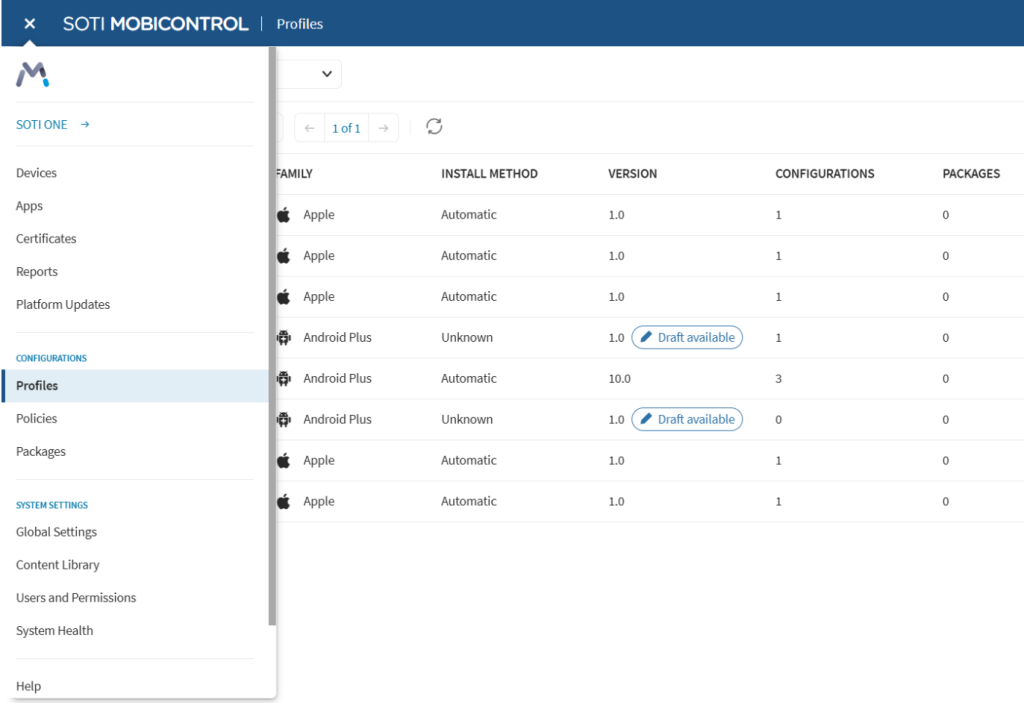
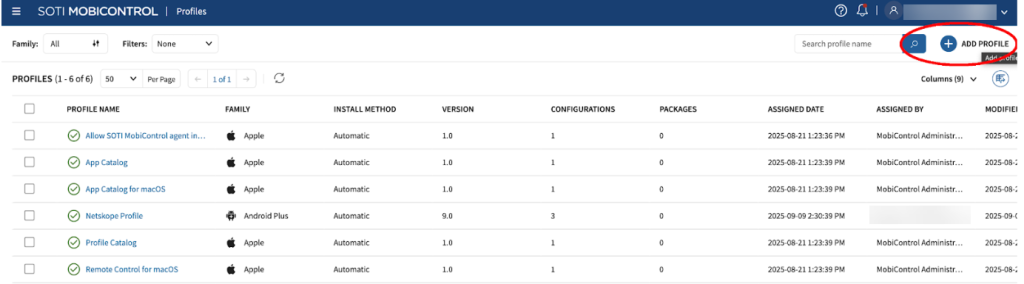
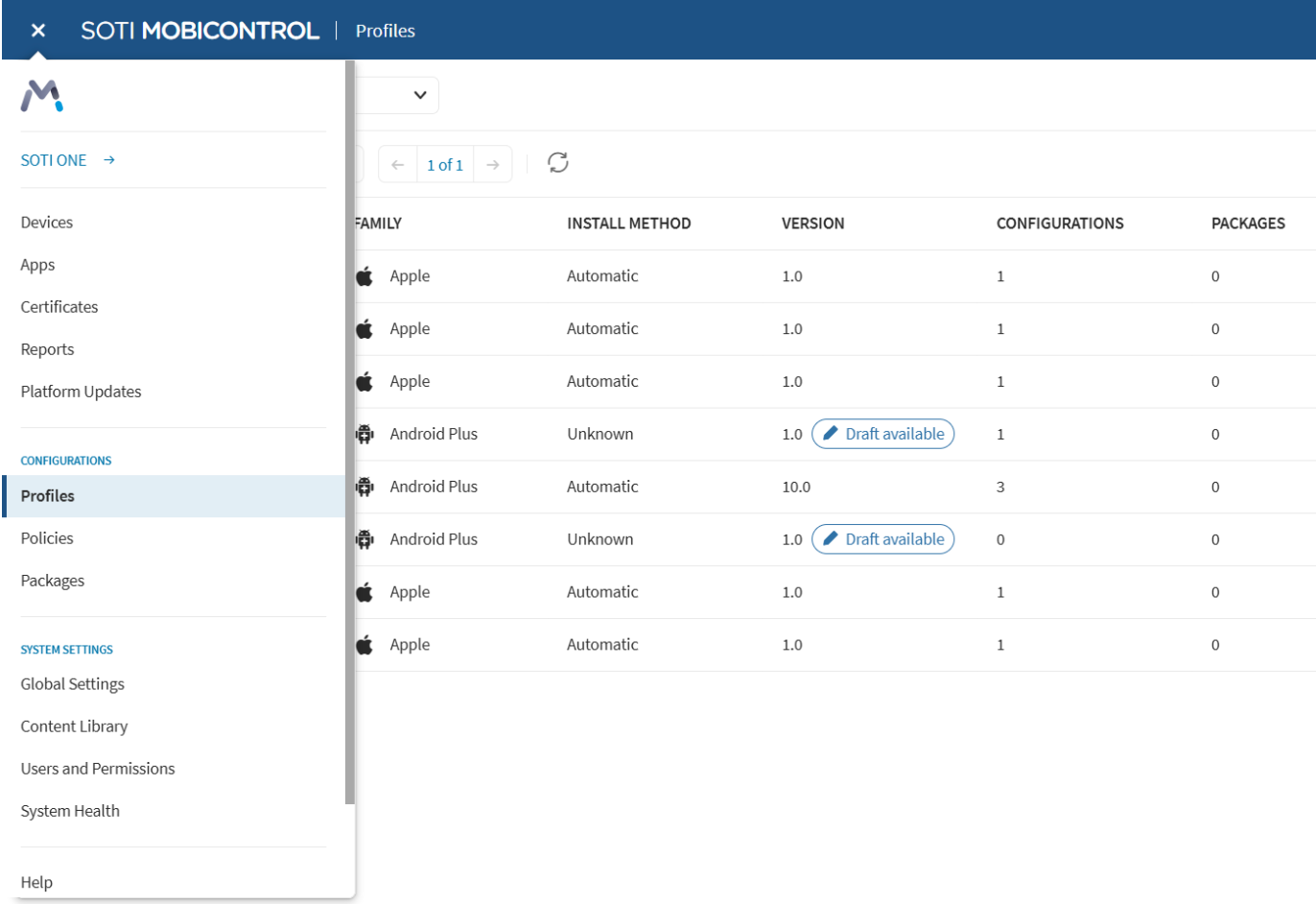
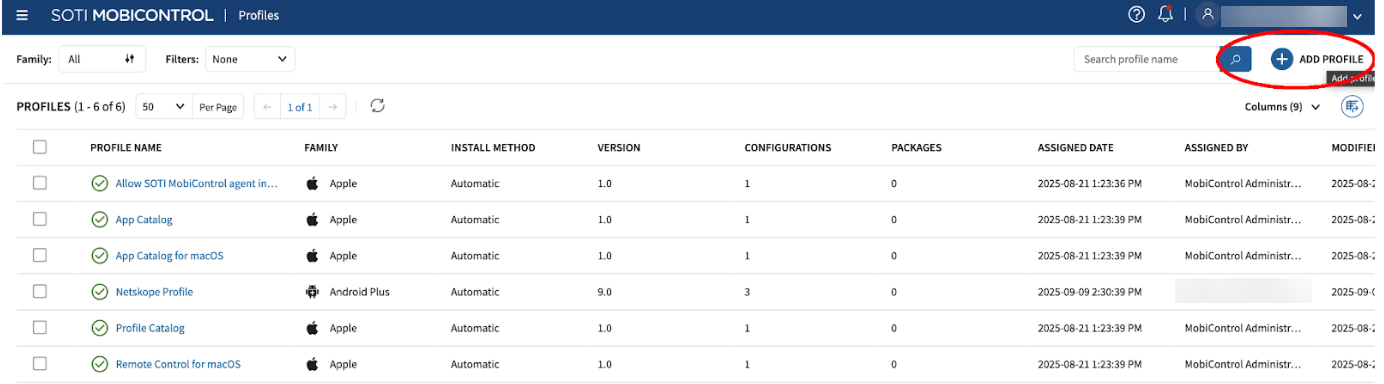
In the Soti MobiControl console, from the left-pane select Profiles.
-
In Profiles, click Add Profile.
-
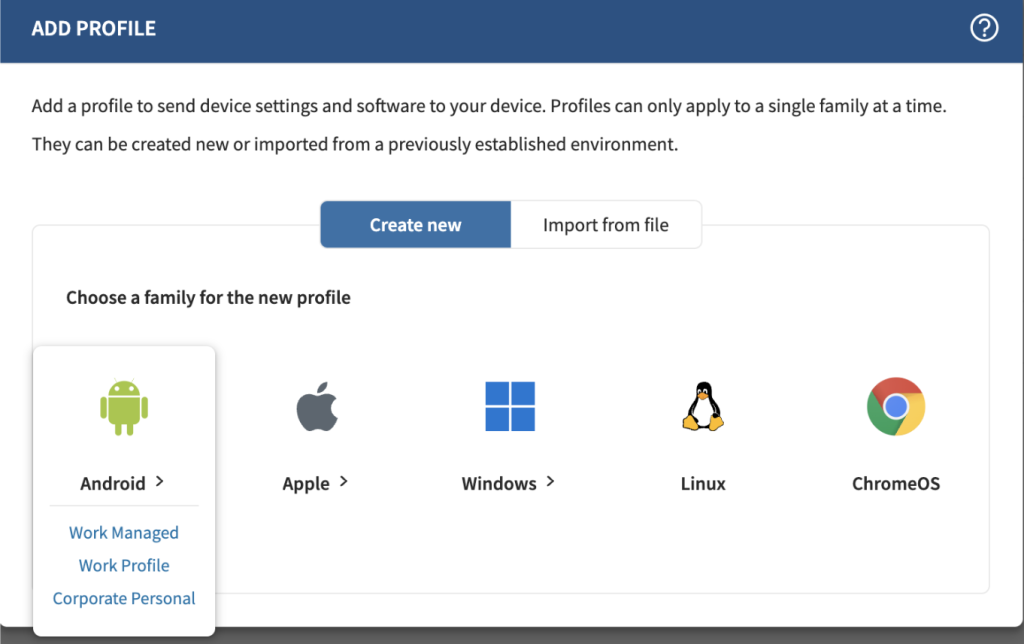
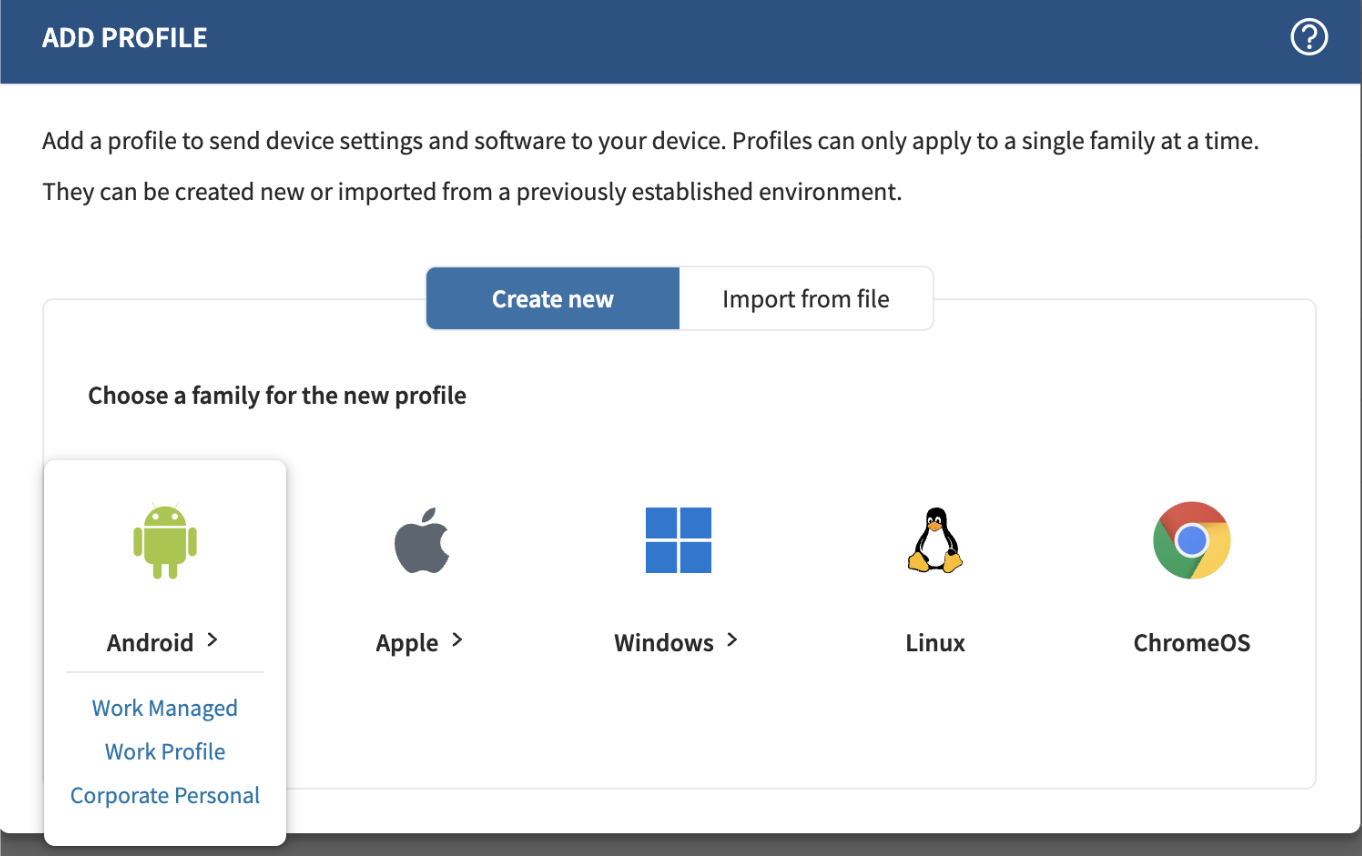
In Add Profile, select the desired Android enrollment mode under the Create new tab. This document proceeds with the Android > Work Managed profile.
-
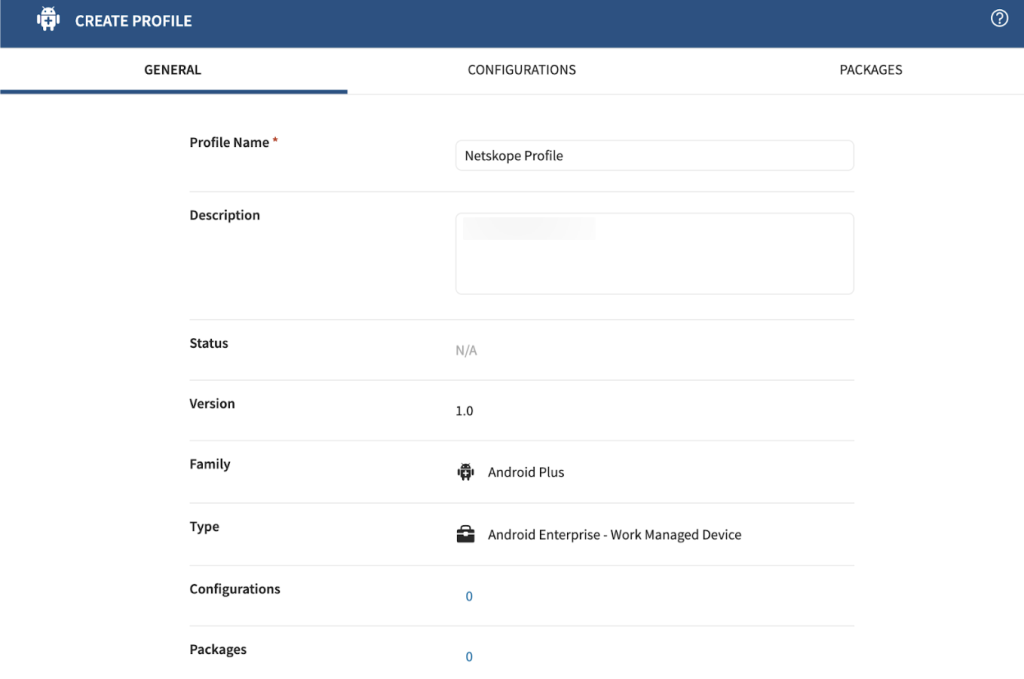
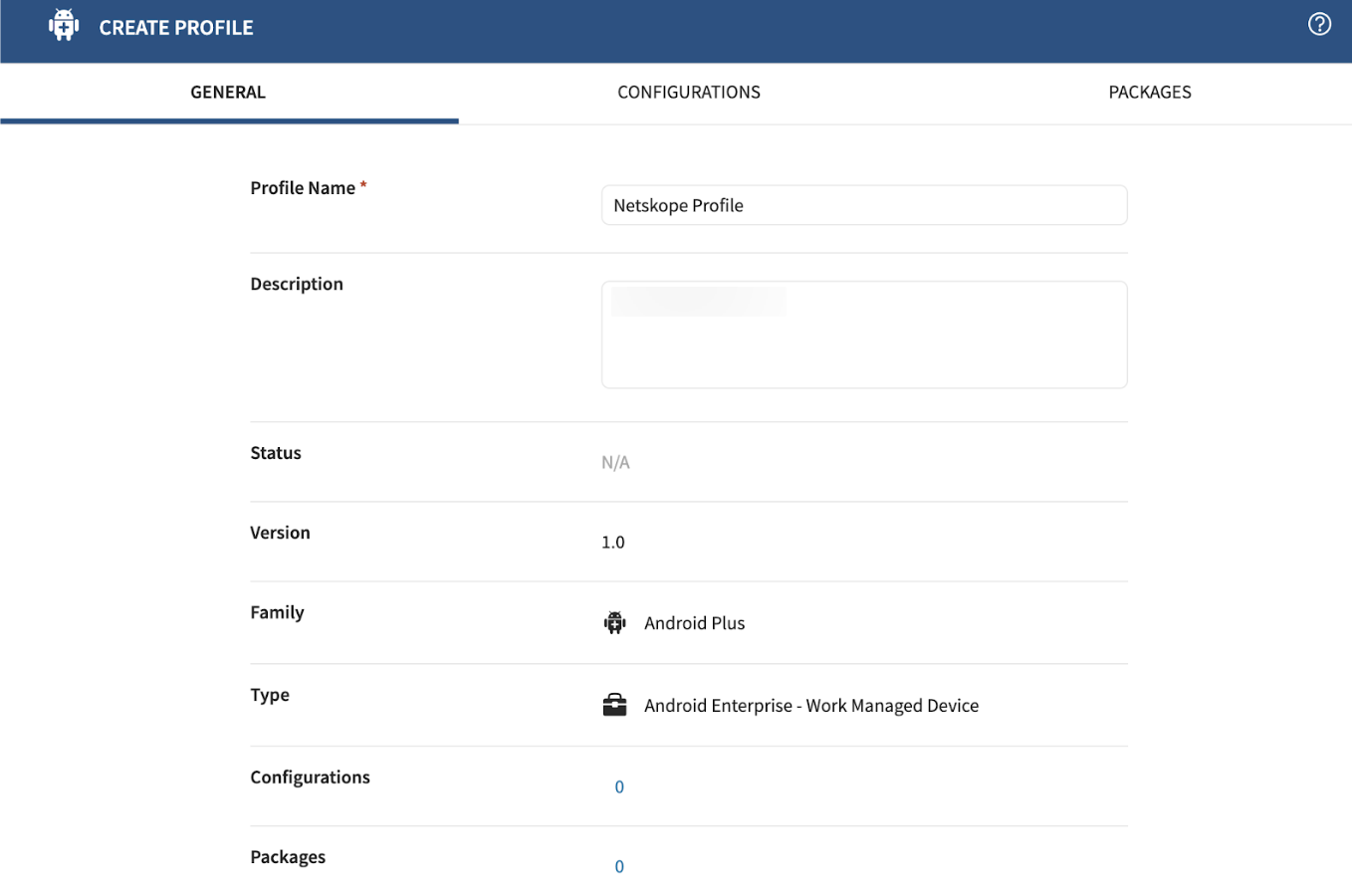
In Create Profile, click the General tab and enter the following:
-
Profile Name: Enter the profile name. For example, Netskope Profile
-
Description: Add some details to describe this profile.
-
-
Click Save.
Profile Configuration
Using profile configurations, you can add the required configurations and assign them to your device settings. To learn more, view Profile Configurations. In this document, Netskope adds profile configurations for Certificates, Authentication, and Feature Control.
To add profile configurations:
-
In SOTI MobiControl, navigate to Profiles.
-
In Profiles, click Add Profiles.
-
Choose an existing profile name and click Edit.
-
In the Edit Profile screen, perform the instructions in the following sections:
Add Certificates
Certificates is a security profile configuration mainly used to install Netskope root and intermediate certificates in your device.
To add Netskope root and intermediate certificates:
-
Click the Configurations tab.
-
Click + to add new Profile Configuration.

-
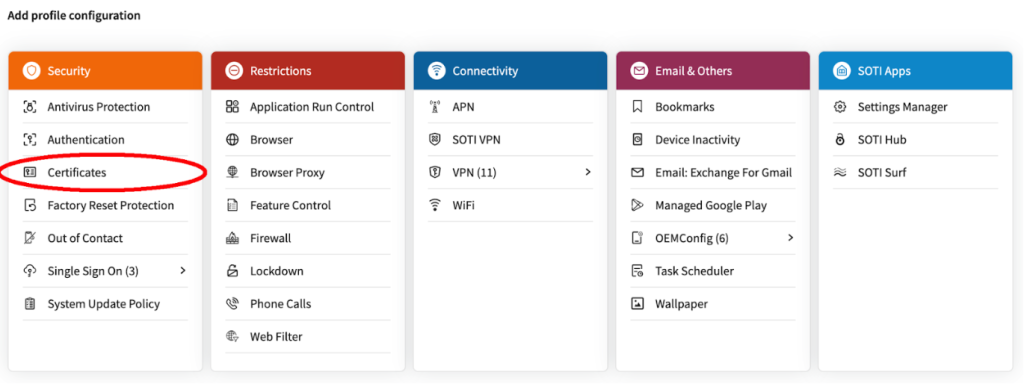
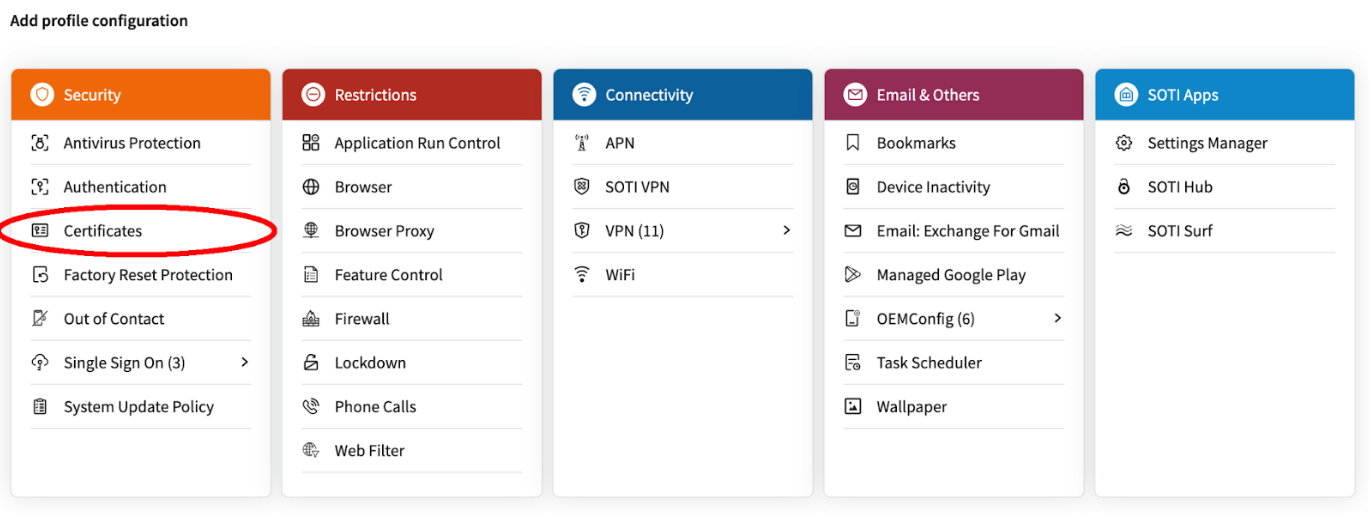
In Add profile configuration, select Security > Certificates.
-
In Certificates, browse and import the root and intermediate Netskope certificates. To upload the Netskope root certificate, click the button to the right of the Certificate field.
-
Browse and upload the root certificate.
-
Click Import.
-
Repeat the same procedure to upload the Netskope Intermediate Certificate.
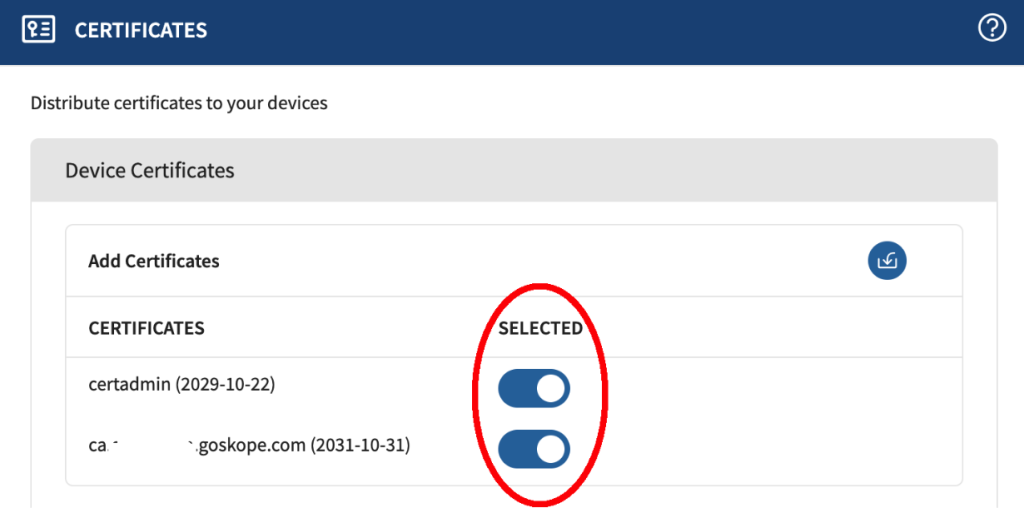
Ensure to enable Netskope Root and Intermediate certificates in the profile.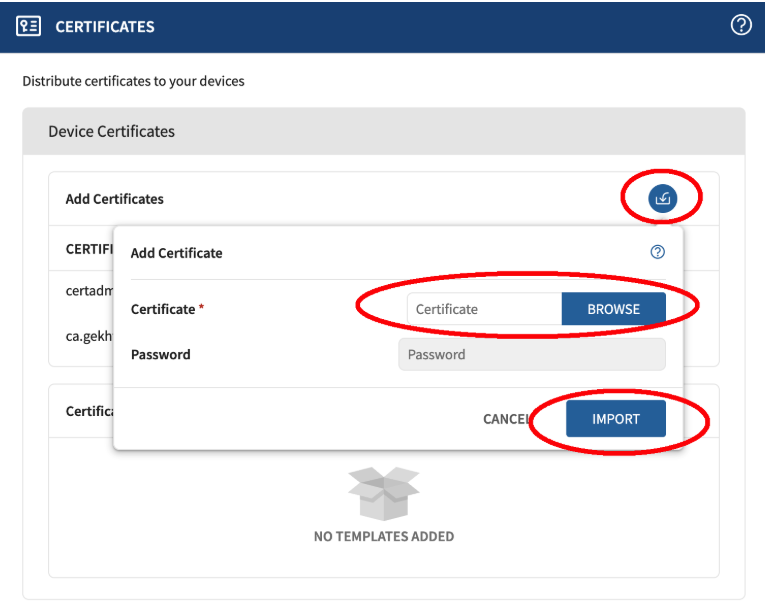
-
Click Save.
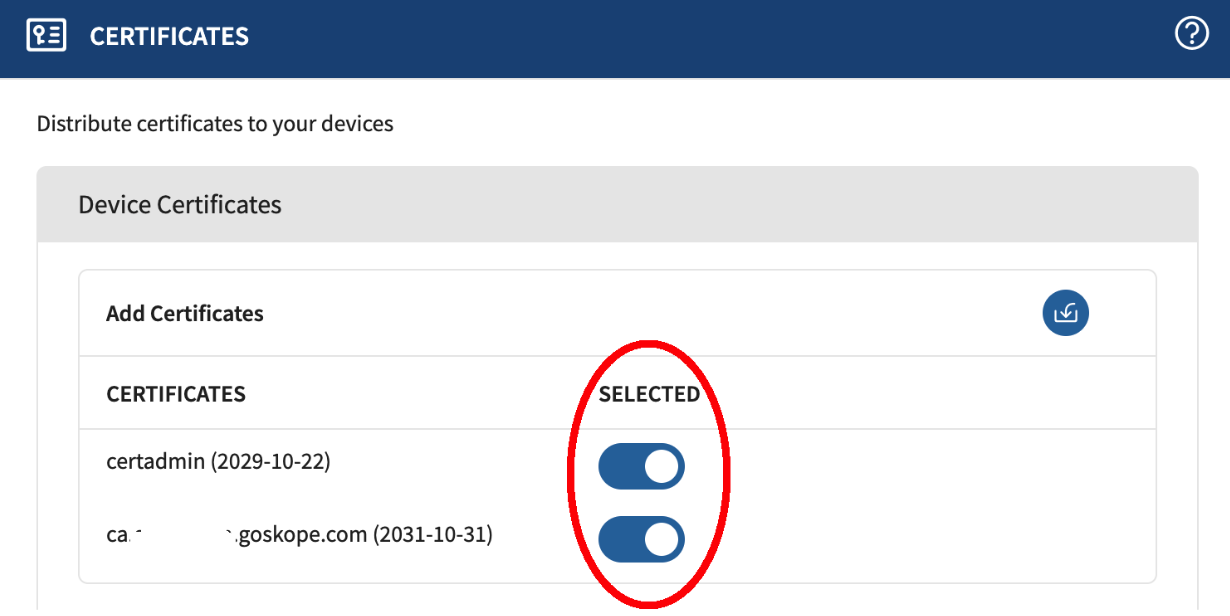
The Configurations tab displays the newly added certificate details

Add Authentication Policy
SOTI MobiControl requires an Authentication policy to push certificates. Add authentication policies to set a username and password for your device. To learn more, view Authentication.
To add an authentication policy:
-
Click the Configurations tab.
-
Click + to add new Profile Configuration.
-
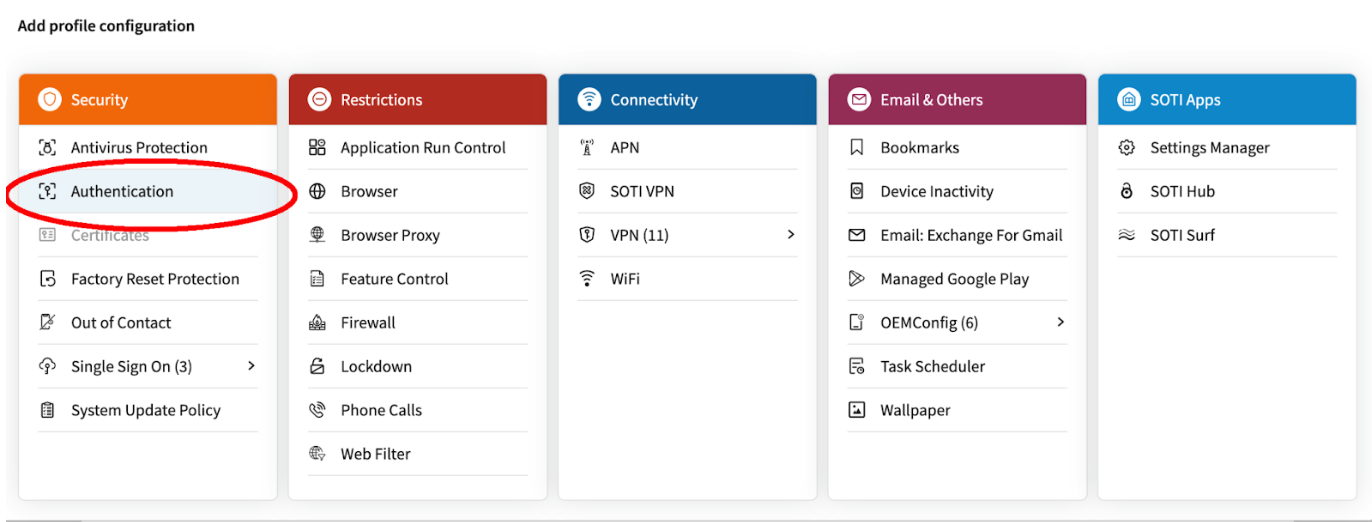
In Add profile configuration, click Security > Authentication.
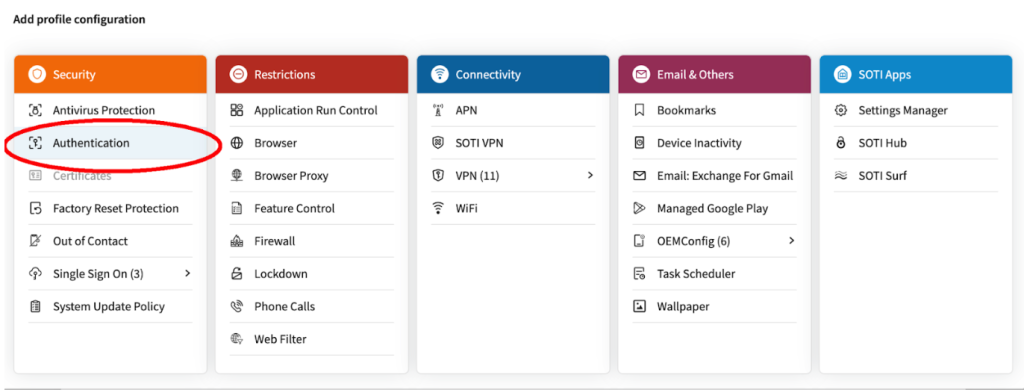
-
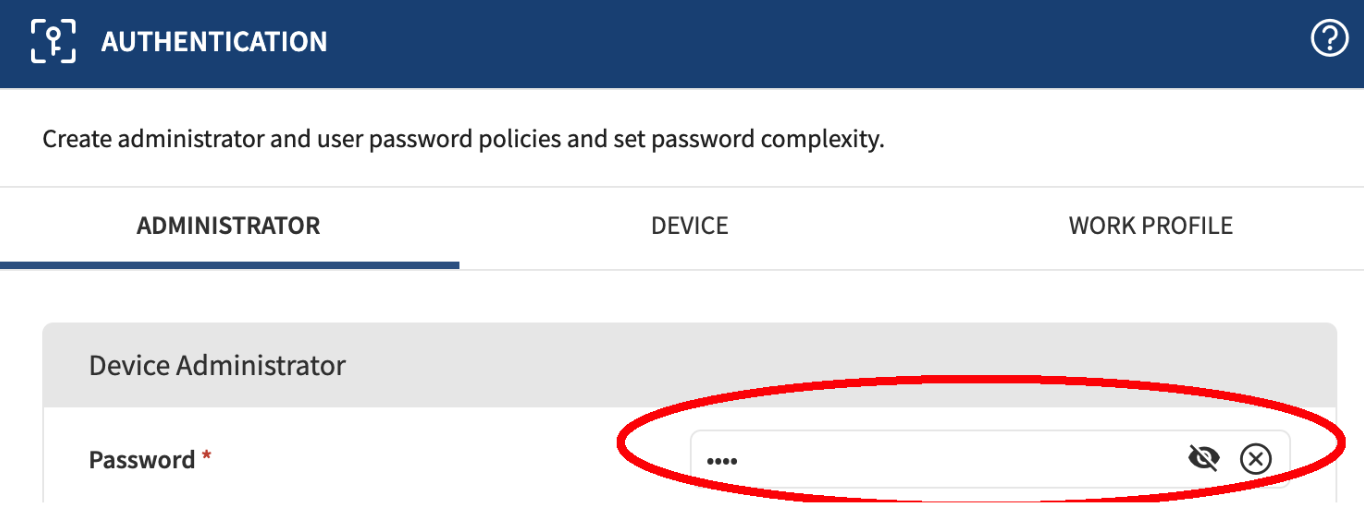
Under the Administrator tab, set a Password (required).
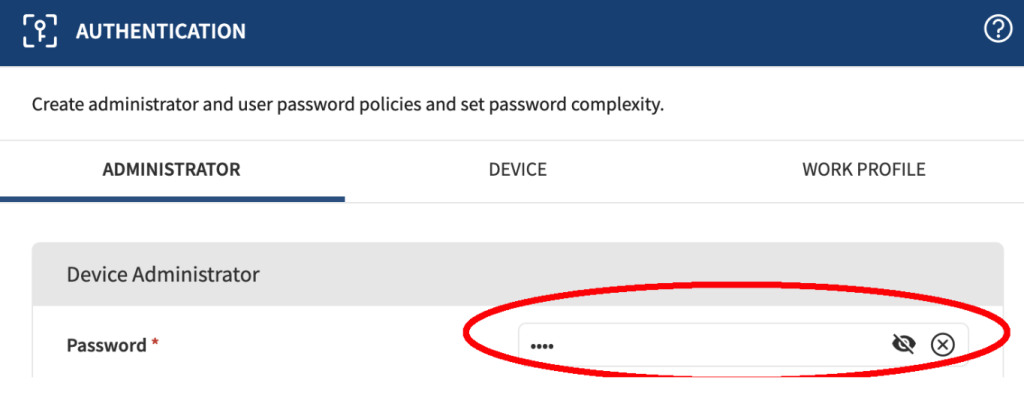 Other options are optional and not related to Netskope deployment.
 -
Click Save.
The profile configuration section displays the newly added authentication profile details.
Configure VPN Settings
The Netskope deployment requires a VPN configuration associated with the Netskope Client. Configure VPN settings using the Feature Control option in Restrictions. To learn more, view Feature Control.
To add VPN settings:
-
Click the Configurations tab.
-
Click + to add new Profile Configuration.
-
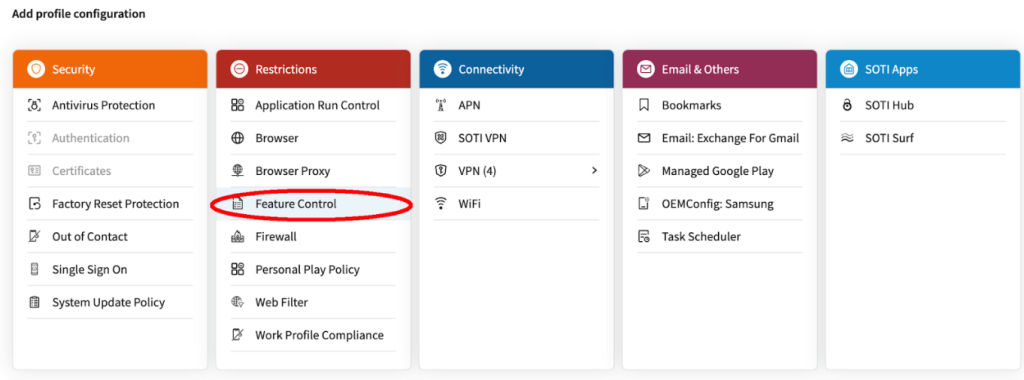
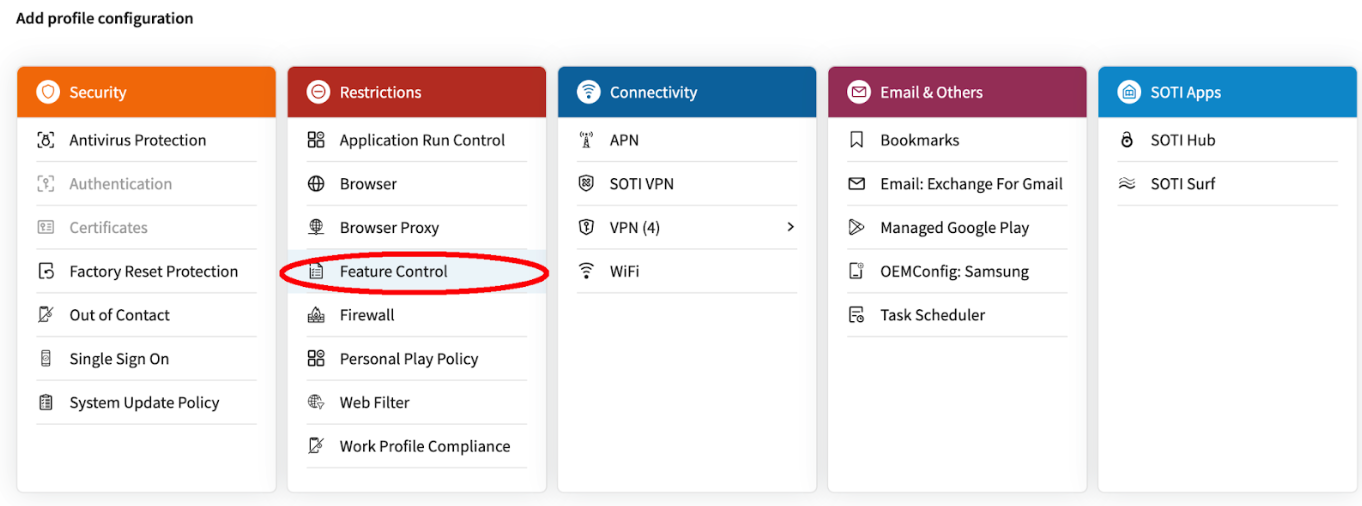
In Add profile configuration, click Restrictions > Feature Control.
-
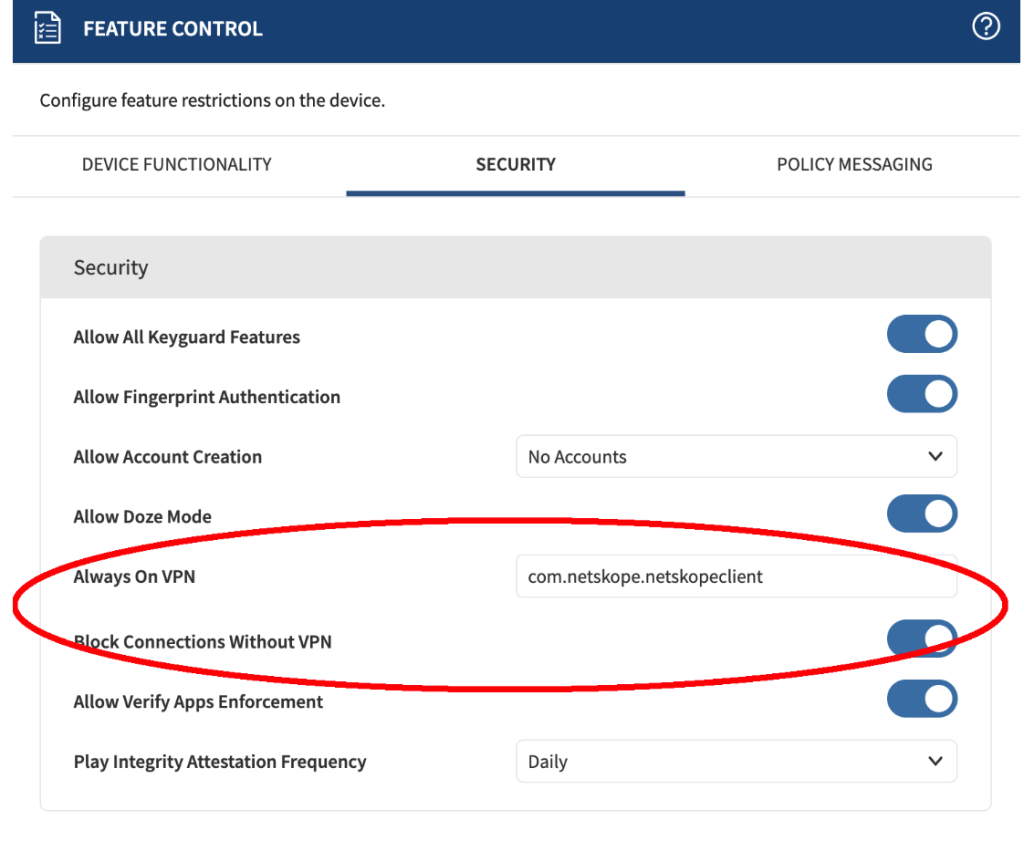
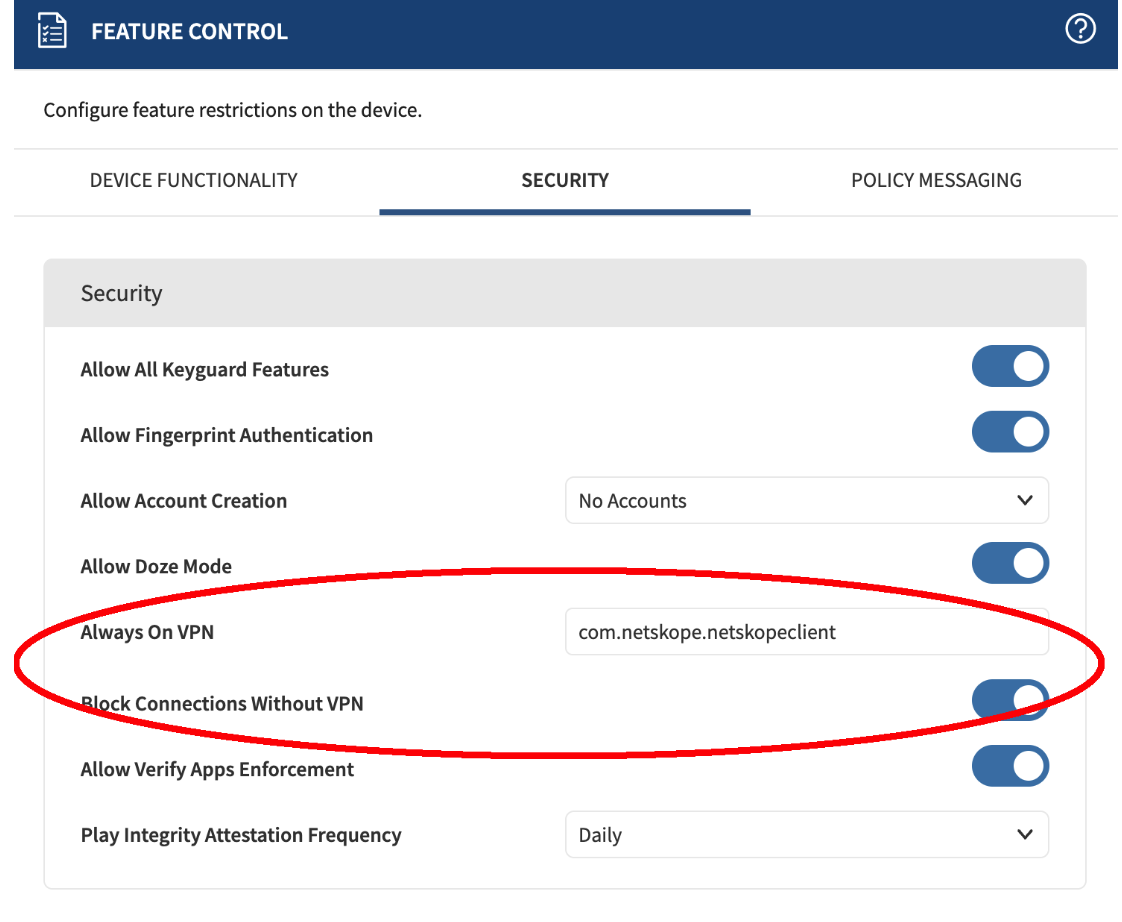
On the Security tab, set Always-On VPN to
com.netskope.netskopeclient.Enable Block Connections Without VPN if there are lockdown deployments where fail close capabilities are required.
-
Click Save.
Save and Assign
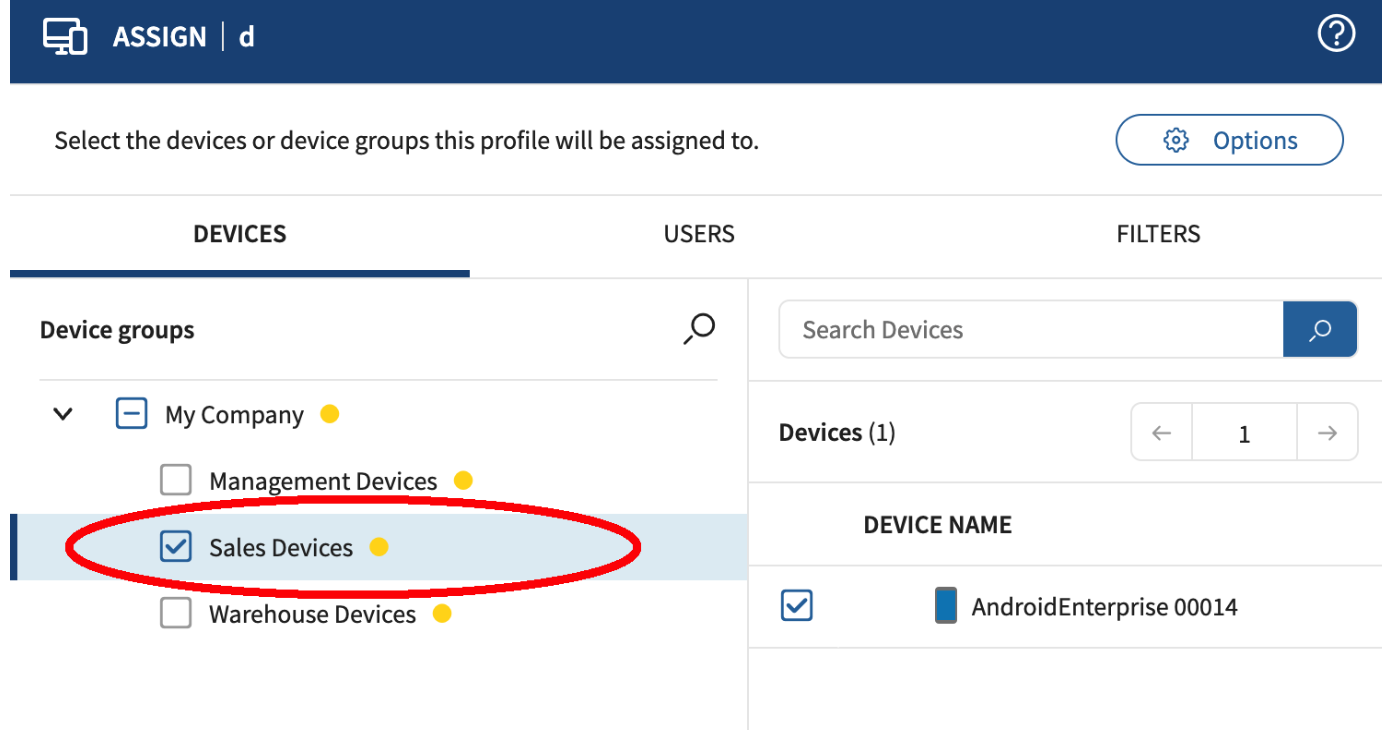
Once you add the required profile configurations, click Save and Assign the profile to the required user or device group.
Distribute and Configure the Netskope Client
In this section, you can refer to the instructions to choose and distribute Netskope Client application for your users. The distribution is mainly done through the app policies in SOTI MobiControl. To learn more, view App Policies.
To add an app policy:
-
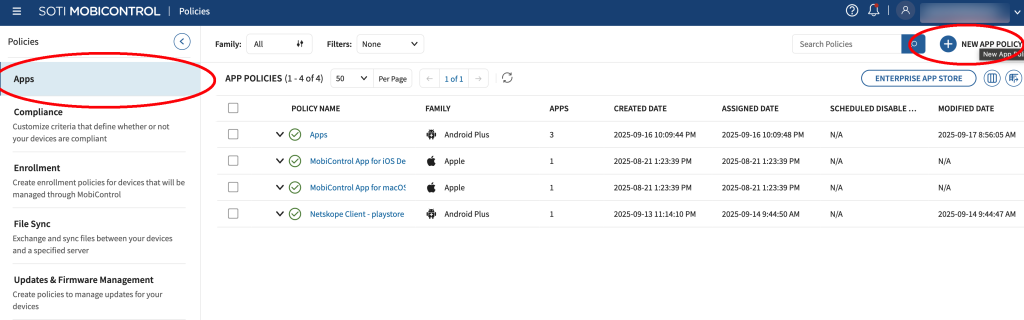
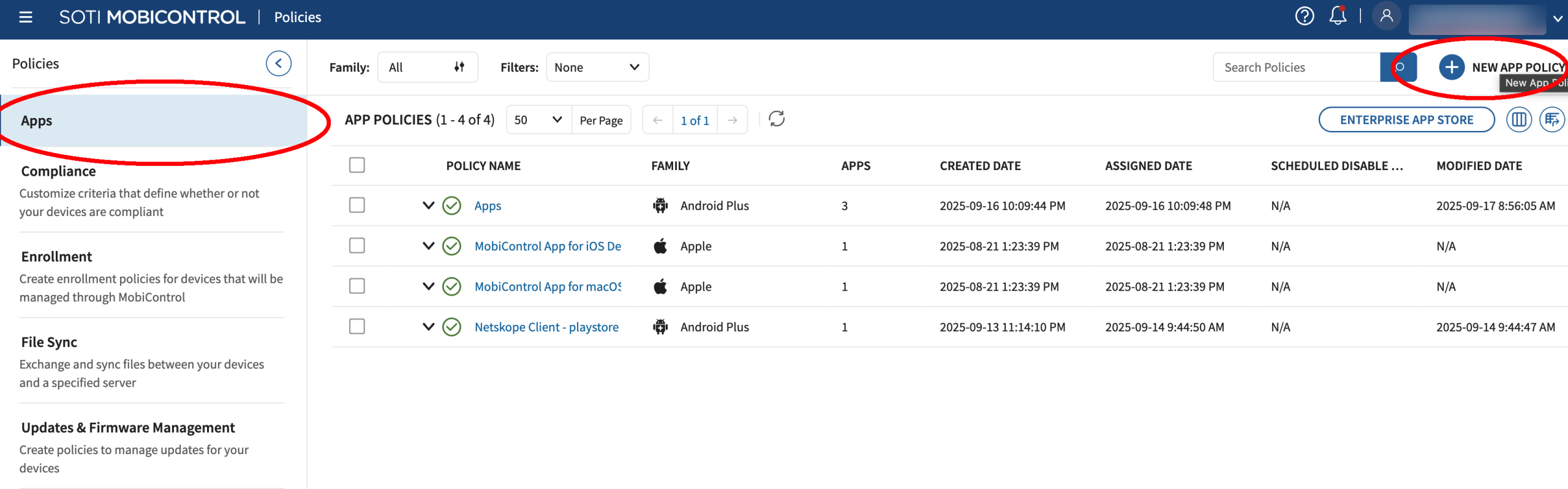
In SOTI MobiControl, from the left-pane, click Policies.
-
In Policies, click Apps > New App Policy.
-
In Create App Policy, select Android > Android Enterprise.
-
In the General tab, provide the policy name.
-
In the Apps tab, click Apps > Add New.
-
In Select Apps, perform the following:
-
Select Managed Google Play in App Source.
-
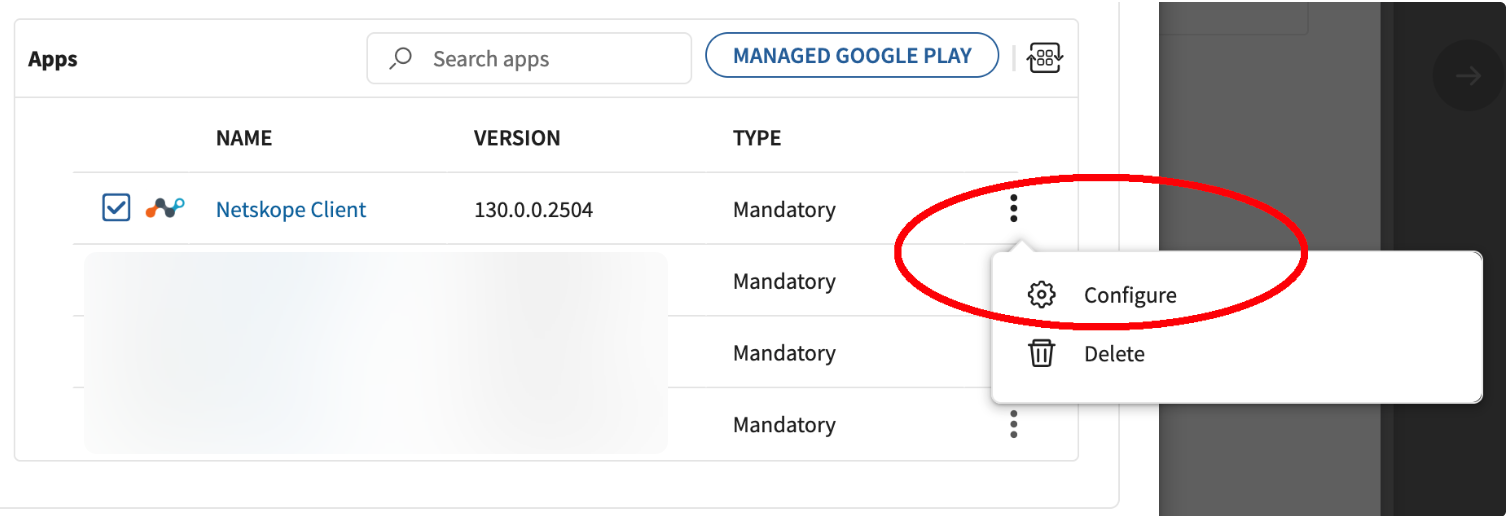
In the Apps section, search and locate Netskope Client.
-
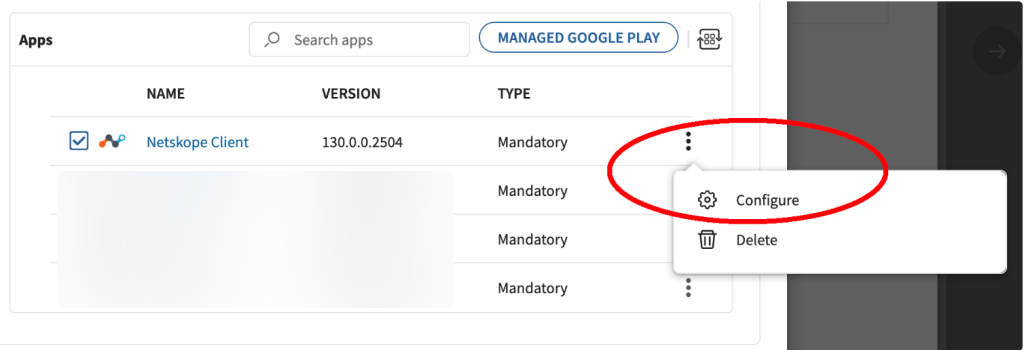
Click the three dots next to the Netskope Client app and click Configure.
-
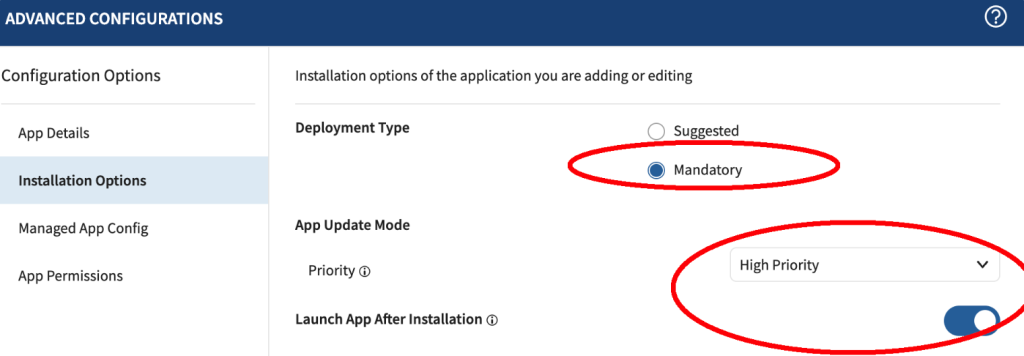
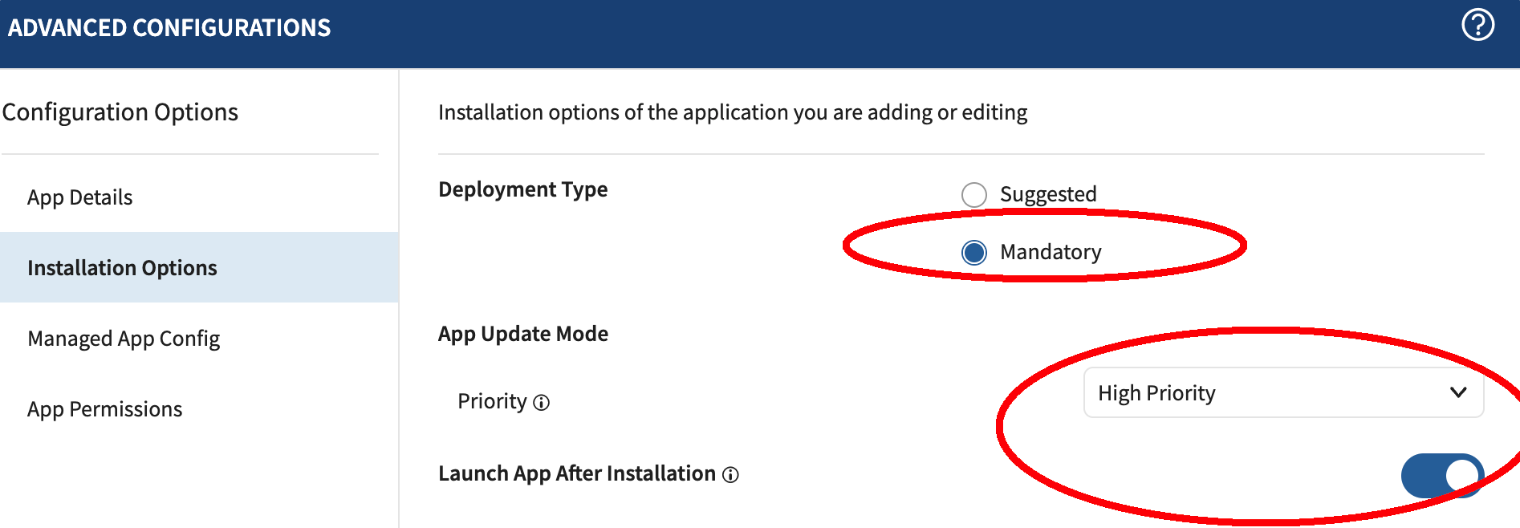
In Advanced Configurations, click Installation Options and choose the following:
-
Deployment Type: Mandatory
-
Priority: High Priority
-
Launch App After Installation: Toggle to enable this option.
-
-
Click Managed App Config under Configuration Options.
-
Toggle to enable the option Enable Managed App Config and enter the following values:
Use the following app configuration for UPN enrollment.-
User Email Address
-
If a user identity is bound to the device in Soti, set the value to
%ENROLLEDUSER_EMAIL%. -
If a service account is used for Netskope enrollment, configure it as a Custom Attribute, set the value to
%CustomAttr:NETSKOPE%or another custom attribute name.
-
-
host: addon-<tenant>.goskope.com
-
token: ORG-ID token value
-
ns_mdm_check: Managed config token value (if configured)
-
enrollencryptiontoken: Secure enrollment encryption token value (if configured)
-
enrollauthtoken: Secure enrollment auth token value (if configured)
Refer to Netskope Deployment Options to identify values needed for deployment.
-
-
Click Save.
-
-
Click Add to close the Select App window.
-
Click Save and Assign.
-
In Assign, select the appropriate group for assignment.
-
Click Assign.
Configure a SOTI MobiControl Custom Attribute
Custom attributes are typically required when you enroll devices without user affinity. In such cases, Netskope service accounts map to device groups in Soti MobiControl and follow business logic, such as store or office numbers.
Create a Custom Attribute
This section describes how to create a custom attribute in SOTI MobiControl.
To create a custom attribute:
-
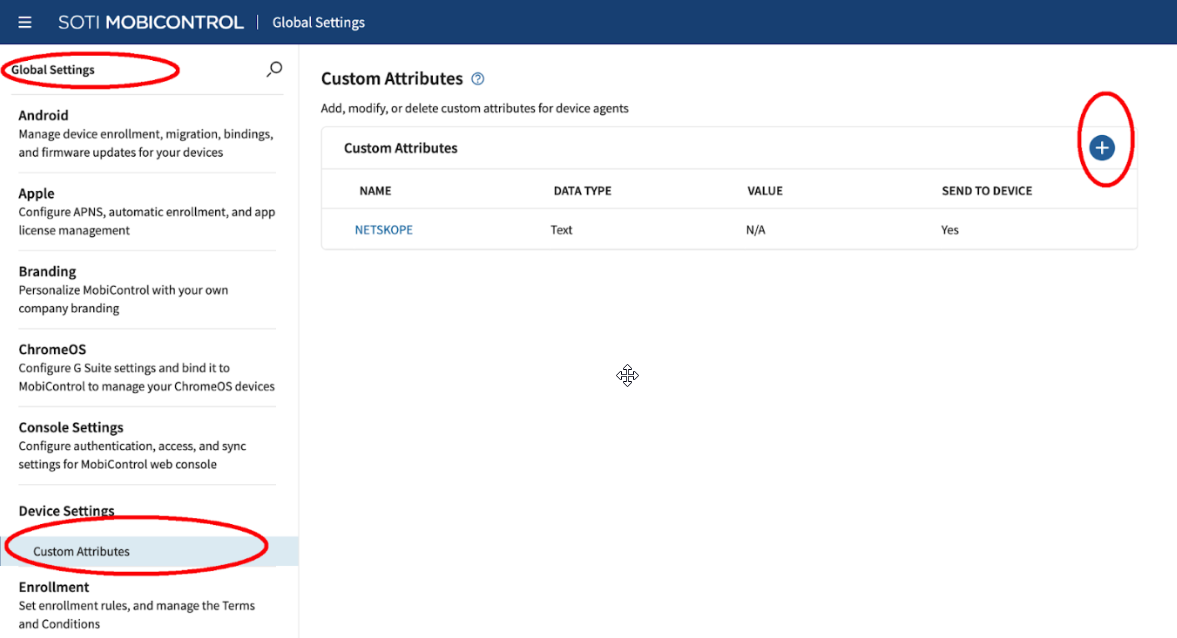
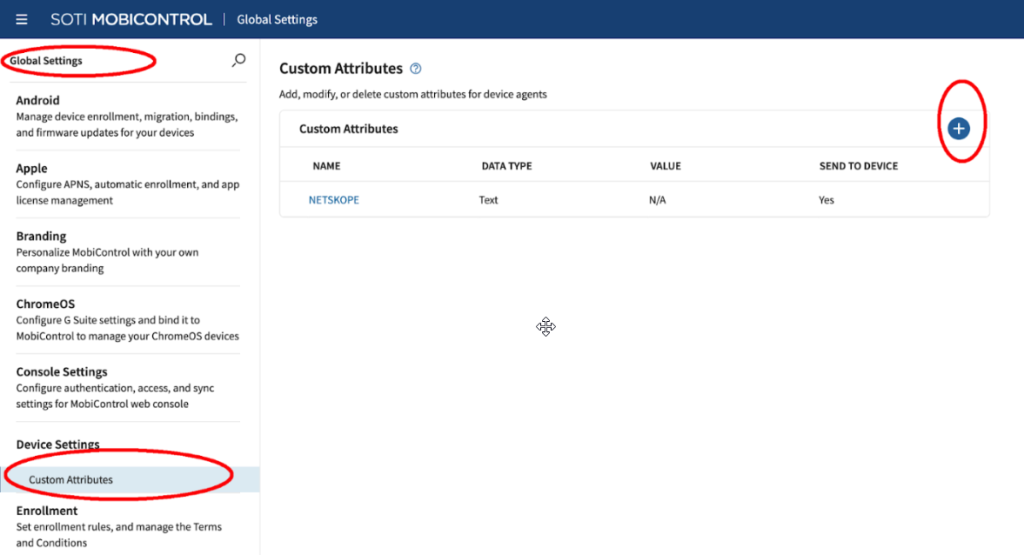
In the SOTI MobiControl, select Global Settings > Device Settings.
-
Select Custom Attributes under Device Settings.
-
In Custom Attributes, click + to add a new attribute.
-
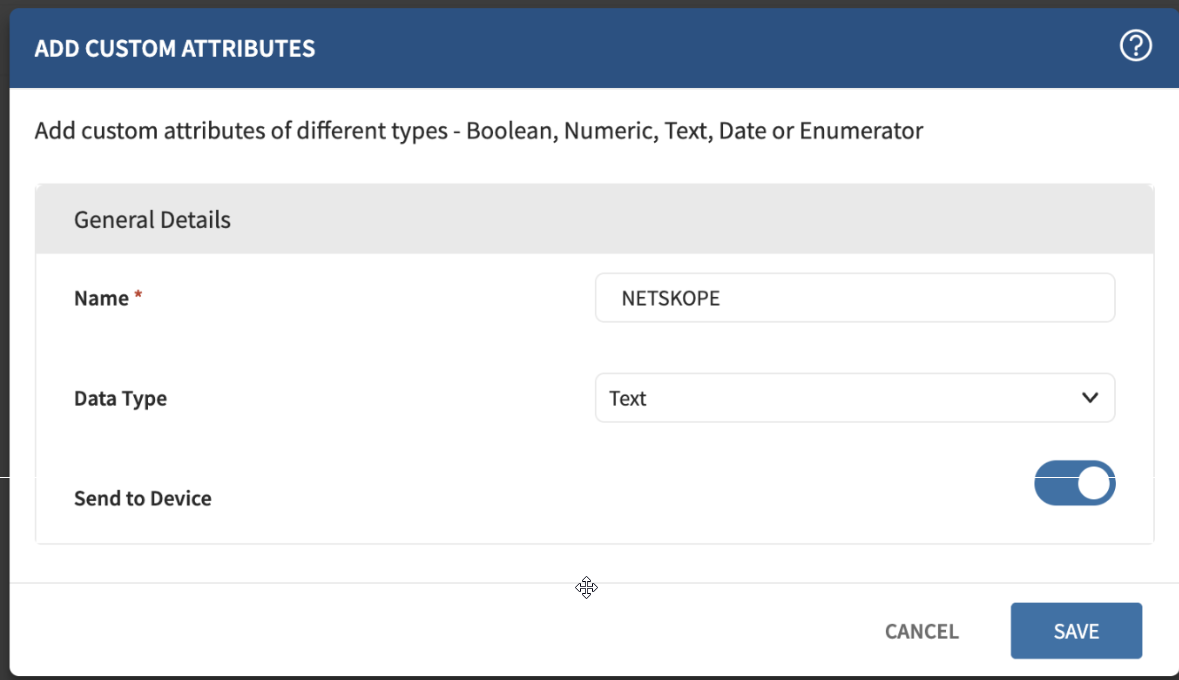
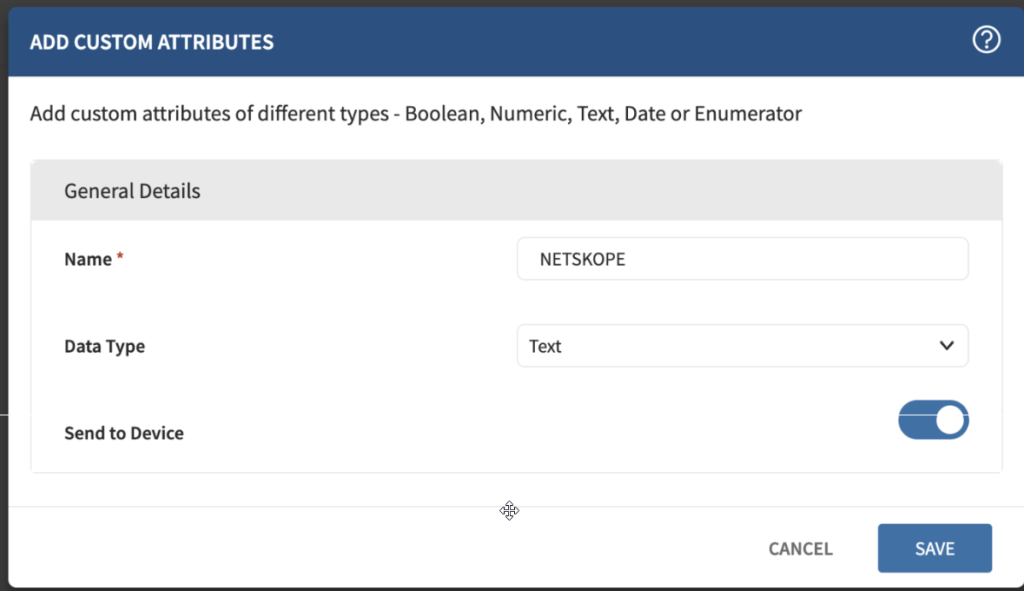
In the Add Custom Attributes window, configure the following:
-
Name: NETSKOPE
-
Data Type: Text
-
Data Type: Text
-
-
Click Save.
-
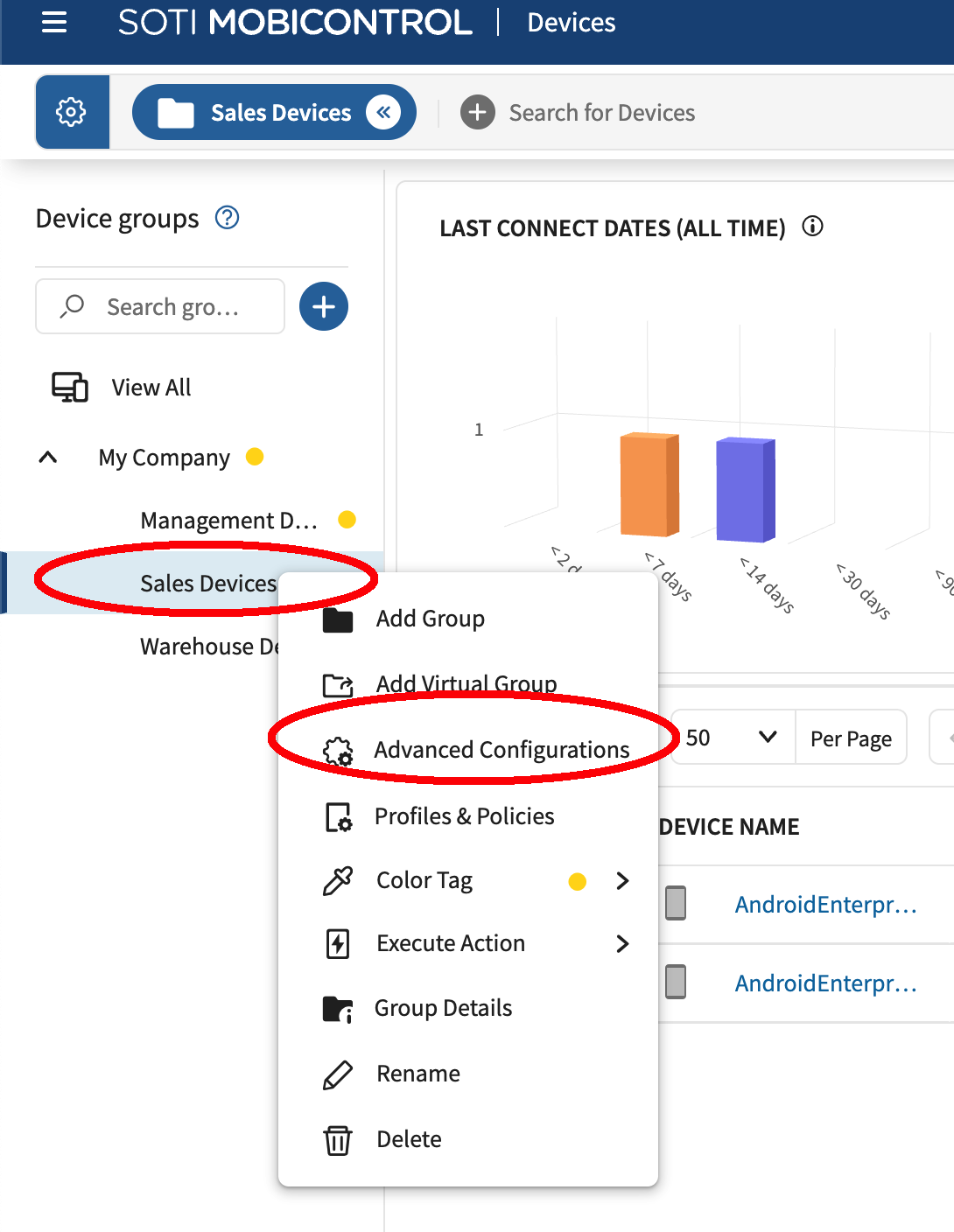
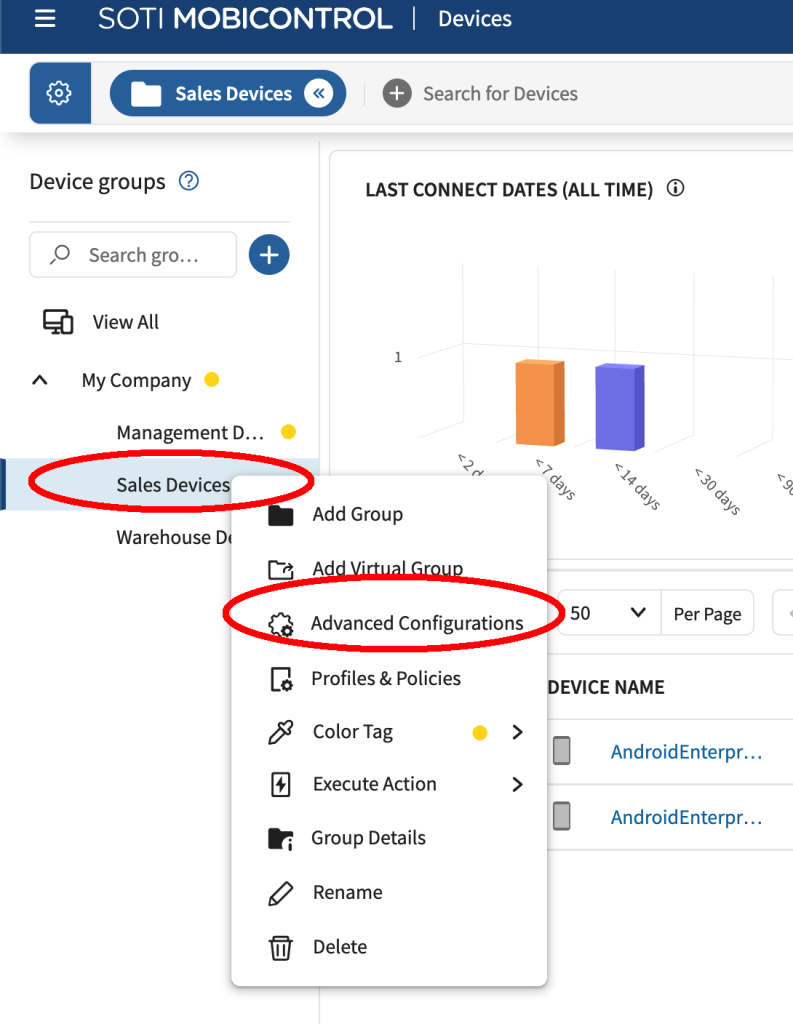
Navigate to Devices > select the relevant device group.
-
Right-click and select Advanced Configuration.
-
In the Group Details tab, select Edit, and enter the value of the custom attribute for the device group.
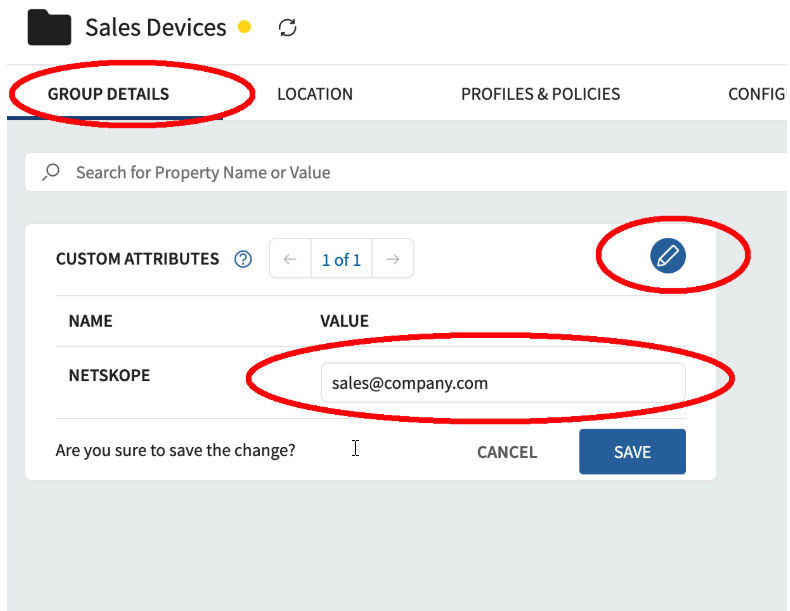 The service account must be provisioned in Netskope.