

Source criteria determine which users, devices, and connection conditions a Private App Access policy applies to. Configure them in the Source section of the Real-time Protection policy editor.
A policy must match its configured source conditions as well as its destination before its action can apply. For example, a policy for the Finance group, Client access, and the Netherlands requires all three conditions. Adding a country does not replace the user or access-method requirement.
For the complete policy workflow, see Private App Segment Policy Management.
Available Criteria
| Criterion | Purpose | Configuration Considerations |
|---|---|---|
| User | Scope the policy to users, user groups, or organizational units. | The default is All Users. Select a subset to limit the policy’s scope. |
| Access Method | Identify how users connect to the private application. | Select the method supported by the application and profile. |
| Source IP (Egress) | Match the public source IP address from which the connection reaches Netskope. | Select network location objects containing the relevant public addresses or networks. |
| Source Country | Match the country associated with the connection’s egress IP address. | Select Matches or Does Not Match, then the countries. |
| OS | Restrict the policy to specified operating systems. | Use for Client access. Per-app periodic authentication requires Windows and/or macOS. |
| Device Classification | Match the device classification used by your organization. | Use for Client access. Browser Access is treated as unmanaged in this policy workflow. |
| User Confidence | Match a User Confidence Index (UCI) threshold. | Requires Advanced UEBA. See User Confidence for configuration and current availability. |
The shared policy editor can display criteria that are unavailable for the selected policy type or access method. A disabled option does not indicate support for that combination. For this workflow, use Source IP (Egress) for the connection’s public address; do not substitute the disabled Source IP option for an endpoint’s local address.
Select Users, Groups, or Organizational Units
- Click the User field.
- Expand User, User Group, or Organizational Unit.
- Search for and select the identities to include.
- Review the selections before saving the policy.
Use a group or organizational unit when access should follow your directory membership. Confirm that the identity used to access the private application is the identity represented in the selected user or group.
Select an Access Method
Select Client for connections made through the Netskope Client. Select Browser Access for a private application configured for browser-based access.
The access method affects which other controls can be configured:
- Threat Protection requires Client access.
- DLP supports Client and Browser Access, subject to the inspection limitations described in Profiles and Actions.
- Per-app periodic authentication requires Client access on Windows or macOS.
- For the current User Confidence access-method requirements, see User Confidence for Private App Segments.
Configure separate policies when the access methods require different criteria or controls.
Configure Source IP (Egress)
Use Source IP (Egress) to restrict access to connections from specified public networks, such as a corporate internet gateway.
The egress address can belong to a NAT gateway, proxy, or other intermediary. It is not necessarily the address assigned to the user’s device on its local network.
- Create or review the network location objects under Policies > Profiles > Network.
- In the policy editor, click Add Criteria > Source IP (Egress).
- Select Matches to include the selected network locations, or Does Not Match to match connections outside them.
- Select the required network location objects.
- Verify the result using the public address seen by Netskope for a test connection.
For example, an allow policy that matches a corporate egress network grants access only when the user also satisfies the other conditions. A connection outside that network does not match this policy; its result depends on the other applicable policies.
Configure Source Country
Source Country uses the country associated with the egress IP address in Netskope’s geolocation data. It does not determine the user’s nationality or use the device’s GPS location. A proxy or centralized egress service can affect the country that Netskope observes.
- Click Add Criteria > Source Country.
- Select Matches or Does Not Match.
- Search for and select the required countries.
- Save the policy and apply changes.
- Test from a connection that matches the selection and one that does not.

If Source IP (Egress) and Source Country are configured together, both conditions must be satisfied. If a country is unexpected, check the connection’s observed egress address before changing the policy. Contact Netskope Support if the geolocation mapping needs investigation.
Configure Device Criteria
Click Add Criteria > OS to select the operating systems to which the policy applies. Click Add Criteria > Device Classification to select the required device classifications.
Device classification reflects the tenant’s configured classification rules. Verify that the test device receives the expected classification before using it to troubleshoot a policy match. A device’s ownership alone does not establish which custom classification it receives.
User Confidence
User Confidence adds user risk to the policy’s source criteria. Netskope Advanced UEBA provides a User Confidence Index (UCI) score from 0 to 1000. Lower values indicate greater user risk. Use the condition to limit access to sensitive private applications to users who meet the selected confidence threshold.
Confidence Comparisons
| Comparison | Threshold | Matching score values |
|---|---|---|
| Less Than | 351 (Poor rating) | 0–350 |
| Less Than | 651 (Poor and Moderate rating) | 0–650 |
| More Than | 350 (Good and Moderate rating) | 351–1000 |
| More Than | 650 (Good rating) | 651–1000 |
The comparison determines whether the condition matches. The policy’s action determines what happens to matching access. For example, More Than with 650 (Good rating) in an allow policy permits access only when the user’s score exceeds 650 and the remaining policy criteria also match.
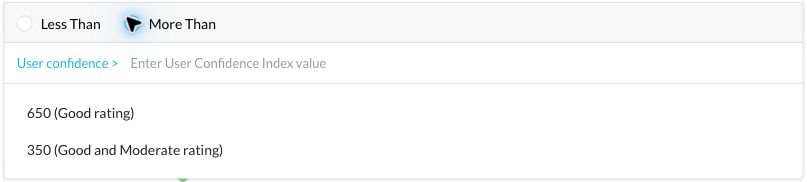
Add the Criterion
- In the Source section, click Add Criteria > User Confidence.
- Select Less Than or More Than.
- Select one of the displayed thresholds. For example, select More Than, then 650 (Good rating).
- Review the other source criteria, destination, and policy action. Save the policy and apply changes using the policy creation procedure.
The UCI condition is combined with the policy’s other conditions. A high UCI score does not override an unmatched user, access method, country, or device requirement. Conversely, a nonmatching UCI condition does not guarantee that access is blocked if another applicable policy permits it.
Score Availability and Validation
When no UCI record is available for a user, the documented default score is 1000. Verify the user’s identity and score information in Advanced UEBA; a score of 1000 alone does not prove that the user’s activity has been evaluated.
Test scores on both sides of the configured threshold and review other policies that could grant access to the same application. The User Confidence Guide for Private Apps Segments describes the current update behavior, limitations, and pilot validation steps.
Validate Source Matching
Test one condition at a time. Confirm the user’s group membership, access method, operating system, device classification, observed egress address, and any UCI requirement that the policy uses.
Test nonmatching conditions as well as successful access. A failed match to one policy does not by itself block a connection if another applicable policy permits it. Review broad allow policies and overlapping application scope when validating restrictions.