

The Cloud Exchange has recently introduced support for additional Single Sign-On (SSO) options. This new functionality allows Netskope Support to efficiently troubleshoot your environments with the new SSO options. By leveraging these SSO options, our Support engineers can access customer environments without requiring their login credentials, ensuring a more secure and streamlined troubleshooting experience.
If Cloud Exchange is deployed on-premises, you may need to grant Support access to your instance to configure additional SSO options. This ensures a smooth configuration process, and enables Support to efficiently troubleshoot any issues. Netskope recommends that you provide detailed instructions or remote access to their instance to facilitate the configuration process.
Configure SSO in Cloud Exchange
- Log in to Cloud Exchange.
- Go to Settings > Users > SSO Configurations.

- Enable the SSO toggle.
- Make a note of these SSO Configurations.
Cloud Exchange Field Example (http://10.50.3.24/) Service Provider Entity ID http://10.50.3.24/api/metadata?sre=trueService Provider ACS URL http://10.50.3.24/api/ssoauth?acssre=trueService Provider SLS URL http://10.50.3.24/api/slslogoutYou need to add
sreas additional parameters in value. - Copy these variables. You need to add all these variables in the
docker-compose.ymlfile.Environment Variables Description SRE_IDP_IDENTITY_ID Identity Provider Issuer ID SRE_IDP_SSO_URL Identity Provider single sign on URL. SRE_IDP_SLO_URL Identity Provider single logout URL. SRE_IDP_X509_CERT Public x509 Certificate - Run these commands to set environment variables.
- Go into the existing
ta_cloud_exchangedirectory. - Stop the CE containers.
$ ./stop - Open the
ymlfile to set up environment variables.Linux:
$ vi docker-compose.ymlRedhat:
$ sudo vi podman-compose.yml - Put the environment variables into core service in the
ymlfile.core: index.docker.io/%24%7BCORE_TAG%7D
image: index.docker.io/${CORE_TAG}
environment:
–
SRE_IDP_IDENTITY_ID=<value>–
SRE_IDP_SSO_URL=<value>–
SRE_IDP_SLO_URL=<value>–
SRE_IDP_X509_CERT=<value> - Save the file.
- Go into the existing
- Start the CE Services:
$ ./start
The Netskope Support now has the ability to access your Cloud Exchange through the /netskopesso endpoint using SSO.
Configure Force Authentication
- Go to Settings > Users > SSO Configurations.
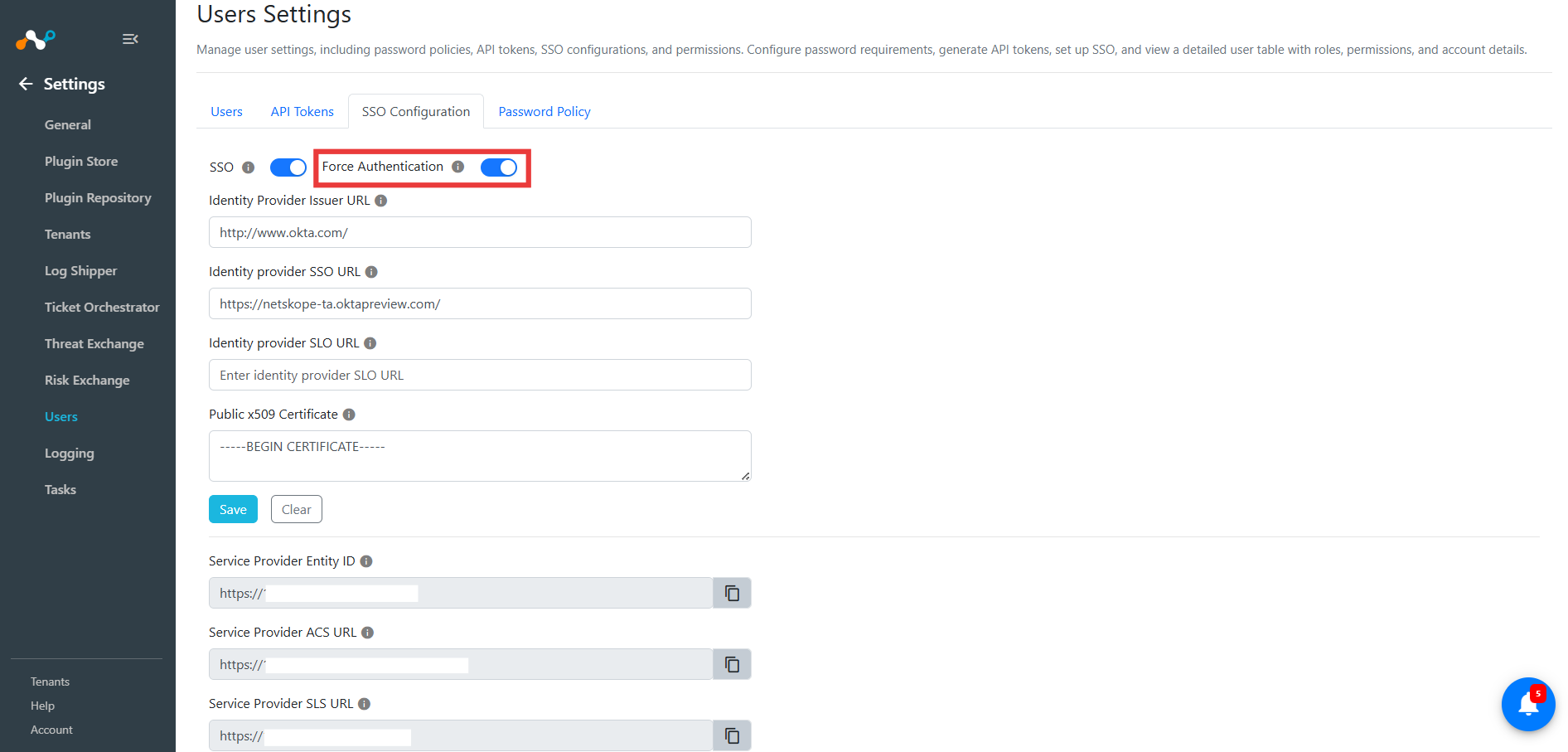
- If toggle is enabled, the user will be forced to re-authenticate on every login of Cloud Exchange, even if they have a valid session.