

This document explains how to configure the Tanium v1.0.1 plugin with the Log Shipper module of the Netskope Cloud Exchange platform. This plugin is used to fetch devices from Home > Total Endpoints and their respective risk scores from Modules > Benchmark > Tanium Risk Score 2.0 > Endpoints by Risk Score page in the Tanium platform. This plugin does not support performing any actions on devices.
Netskope normalization score calculation => (1000 – (Tanium Risk Score)).
Prerequisites
- A Netskope tenant (or multiple, for example, production and development/test instances).
- A Netskope Cloud Exchange tenant with the Tenant plugin and Risk Exchange plugin already configured.
- API BASE URL and API Token for Tanium.
- Connectivity to the following host: https://*-api.titankube.com/.
Tanium Plugin Support
Tanium supports pulling of devices from Home > Total Endpoints and their respective risk scores from Modules > Benchmark > Tanium Risk Score 2.0 > Endpoints by Risk Score page.This plugin does not support performing any actions on devices.
| Type of Data Pulled | Actions |
|---|---|
| Devices | No actions |
Mappings
Mapping will be used to view the pulled devices and their respective details. Mapped fields during plugin configuration will be visible on the Records page once the data is pulled. Below is the suggested mapping that can be used while configuring the plugin.
Pull Mapping for Devices
| Plugin Field | Expected Datatype | Suggested Field Name | Suggested Aggregate Strategy |
|---|---|---|---|
| Device ID | String | Device ID | Unique |
| Device Name | String | Device Name | Overwrite |
| Computer ID | String | Computer ID | Overwrite |
| System ID | String | System ID | Overwrite |
| Domain Name | String | Domain Name | Overwrite |
| Serial Number | String | Serial Number | Overwrite |
| Manufacturer | String | Manufacturer | Overwrite |
| IP Address | String | IP Address | Overwrite |
| IP Addresses | List | IP Addresses | Overwrite |
| Mac Addresses | List | Mac Addresses | Overwrite |
| Device User Name | String | Device User Name | Overwrite |
| Device User Email | String | Device User Email | Overwrite |
| OS | String | OS | Overwrite |
| OS Platform | String | OS Platform | Overwrite |
| OS Generation | String | OS Generation | Overwrite |
| Risk Score | Number | Risk Score | Overwrite |
| Risk Score Level | String | Risk Score Level | Overwrite |
| Asset Criticality | String | Asset Criticality | Overwrite |
| Installed Applications | List | Installed Applications | Overwrite |
| Netskope Normalized Score | Number | Netskope Normalized Score | Overwrite |
Note
- To merge records from multiple plugins you need to choose some unique and common fields between all the plugins.
- For Example: To merge records from CRE Netskope, CRE Tanium and CRE CrowdStrike plugins under a single entity, users can make Device Serial Number as a unique field that is common in all three of the plugins.
Normalized Score Calculation
The expected score type on Tanium is in range 0 to 1000. Netskope normalization score calculation => (1000 – (Tanium Risk Score)).
Permissions
You need these roles:
- Benchmark User
- Reporting User
- Interact Basic User
- Gateway User
- Criticality User
API Details
List of APIs Used
| API Endpoint | Method | Use Case |
|---|---|---|
| /plugin/products/gateway/graphql | POST | Fetch Devices |
Fetch Devices
API Endpoint: <Base URL>/plugin/products/gateway/graphql
Method: POST
Headers
| Key | Value |
|---|---|
| session | <API Token> |
Body (GraphQL Query):
{
   "query": 'query getEndpoints($after: Cursor, $first: Int) { \
   endpoints(after: $after, first: $first) \
   { edges { node {    id    name    computerID    systemUUID \
   domainName    serialNumber    manufacturer    ipAddress    ipAddresses \
   macAddresses    primaryUser {        name        email    } \
   os {        name        platform        generation    } \
   sensorReadings(sensors: [{name: "Risk Vectors", \
   columns: ["Endpoint Score", "Risk Score", "Asset Criticality"]}]) { \
   columns {   name   values   }   } \
   installedApplications {        name    }    }    } \
   pageInfo{    hasNextPage    hasPreviousPage    startCursor \
   endCursor } totalRecords } }',
   "variables": {"first": 5000 }
}
Sample API Response
{
    "data": {
        "endpoints": {
            "edges": [
                {
                    "node": {
                        "id": "4",
                        "name": "WSAMZN-PUEBFH69.hackermob.in",
                        "computerID": "3429974394",
                        "systemUUID": "EC29BA4F-1A49-4580-B6DD-4CDD5AED6B3C",
                        "domainName": "hackermob.in",
                        "serialNumber": "ec29ba4f-1a49-4580-b6dd-4cdd5aed6b3c",
                        "manufacturer": "Amazon EC2",
                        "ipAddress": "172.31.81.62",
                        "ipAddresses": [
                            "fe80::2aa2:67c1:e472:9327",
                            "fe80::39b1:40ee:229:3300",
                            "172.31.81.62",
                            "198.19.214.180"
                        ],
                        "macAddresses": [
                            "12:04:20:3D:A2:79",
                            "12:FD:6E:FF:F9:D5"
                        ],
                        "primaryUser": {
                            "name": "Error: No inventory has been collected",
                            "email": ""
                        },
                        "os": {
                            "name": "Windows Server 2019 Datacenter",
                            "platform": "Windows",
                            "generation": "Windows Server 2019"
                        },
                        "sensorReadings": {
                            "columns": [
                                {
                                    "name": "Asset Criticality",
                                    "values": [
                                        "High"
                                    ]
                                },
                                {
                                    "name": "Risk Score",
                                    "values": [
                                        "0"
                                    ]
                                },
                                {
                                    "name": "Endpoint Score",
                                    "values": [
                                        "Low"
                                    ]
                                }
                            ]
                        },
                        "installedApplications": [
                            {
                                "name": "Windows Driver Package - Amazon.com, Inc. or its affiliates. (AWSDOD_KMDOD) Display  (02/08/2024 16.5.12.937)"
                            },
                            {
                                "name": "Windows Driver Package - Amazon Web Services, Inc. (AWSVirtualCamera) Media  (07/05/2024 1.0.17.0)"
                            },
                            {
                                "name": "Windows Driver Package - Nice s.r.l. dcvwscrd ActivityMonitor  (02/10/2021 11.26.41.336)"
                            },
                            {
                                "name": "Windows Driver Package - Amazon.com, Inc. or its affiliates. (WUDFRd) Display  (04/02/2024 1.0.208.0)"
                            },
                            {
                                "name": "Mozilla Firefox (x64 en-US)"
                            },
                            {
                                "name": "Mozilla Maintenance Service"
                            },
                            {
                                "name": "AWS PV Drivers"
                            },
                            {
                                "name": "Tanium Client 7.6.4.2086"
                            },
                            {
                                "name": "WSP"
                            },
                            {
                                "name": "AWS Tools for Windows"
                            },
                            {
                                "name": "Netskope Client"
                            },
                            {
                                "name": "Amazon SSM Agent"
                            },
                            {
                                "name": "Microsoft Visual C++ 2015-2022 Redistributable (x64) - 14.38.33135"
                            },
                            {
                                "name": "aws-cfn-bootstrap"
                            }
                        ]
                    }
                }
            ],
            "pageInfo": {
                "hasNextPage": false,
                "hasPreviousPage": false,
                "startCursor": "MTQ4NDgzNTow",
                "endCursor": "MTQ4NDgzNTow"
            },
            "totalRecords": 1
        }
    }
}
Performance Matrix
Below performance readings are conducted on a Large CE Stack with these VM specifications by pulling 500K Device records from the Tanium plugin.
| Description | Specification |
|---|---|
| Stack details | Size: Large RAM: 32 GB CPU: 16 Cores |
| Time take to store the pulled Device records with the Risk Scores | ~ 29 mins |
User Agent
netskope-ce-6.0.0-cre-tanium-v1.0.1
Workflow
- Create a user on Tanium.
- Create an API token on Tanium.
- Configuring the Tanium plugin.
- Add a Business Rule.
- Add an Action.
- Validate the plugin.
Watch a Video
Click play to watch a video:
Create a User on Tanium
- Log in to your Tanium platform.
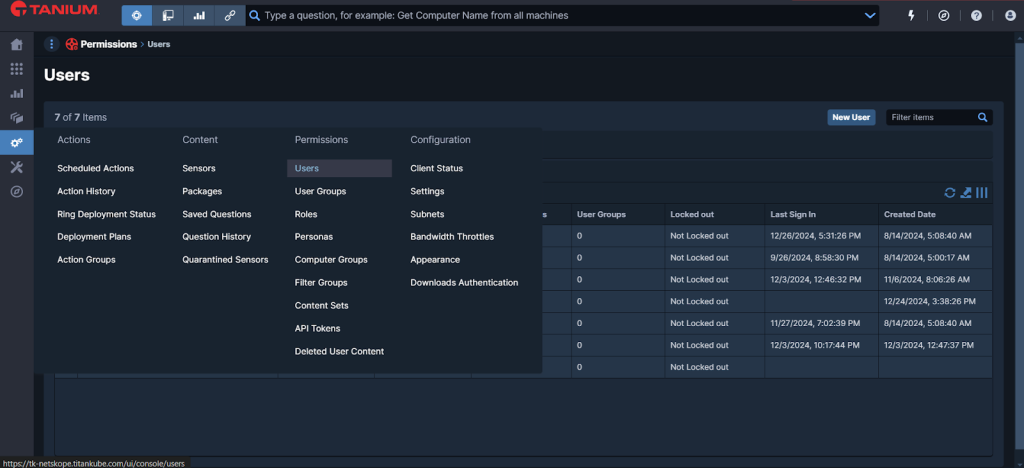
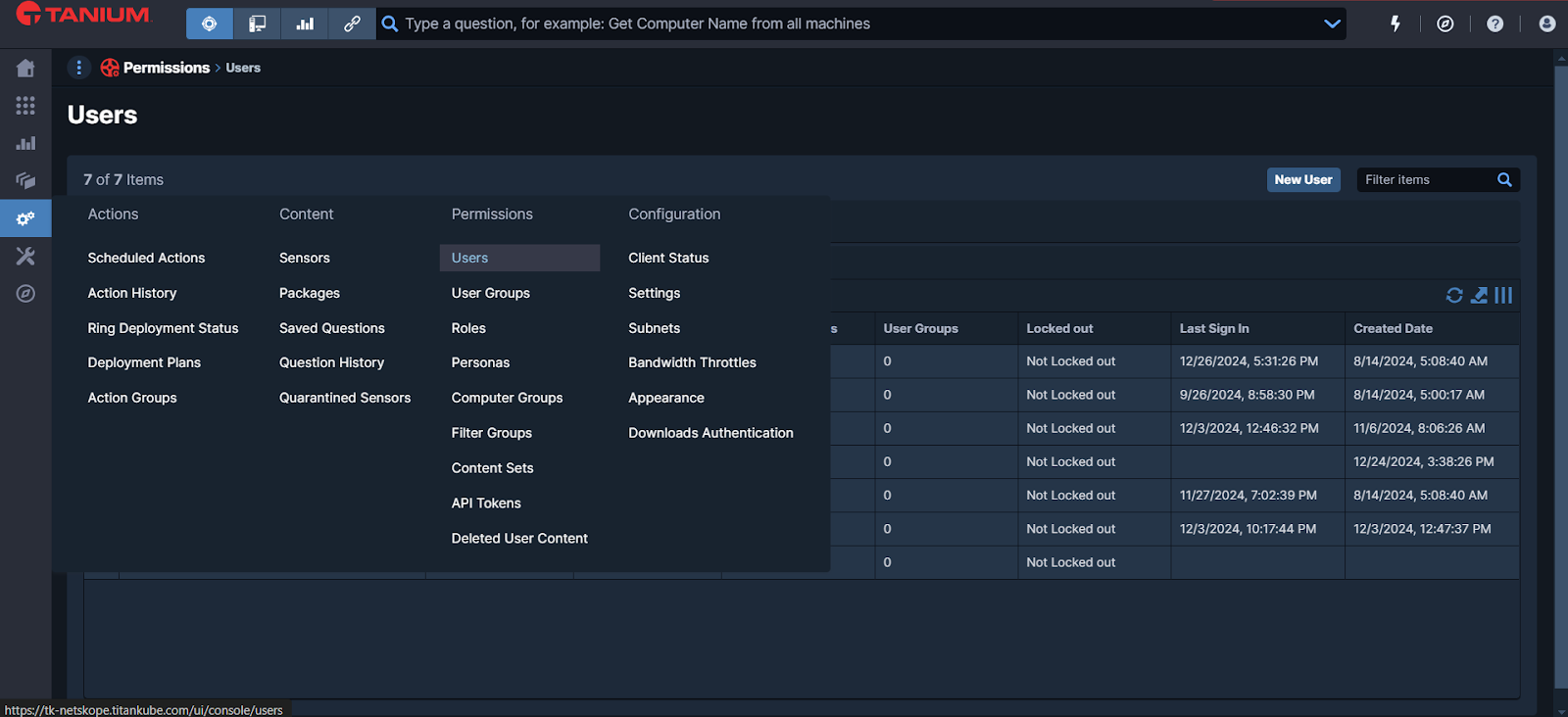
- Go to Administration > Permissions > Users from the left panel.
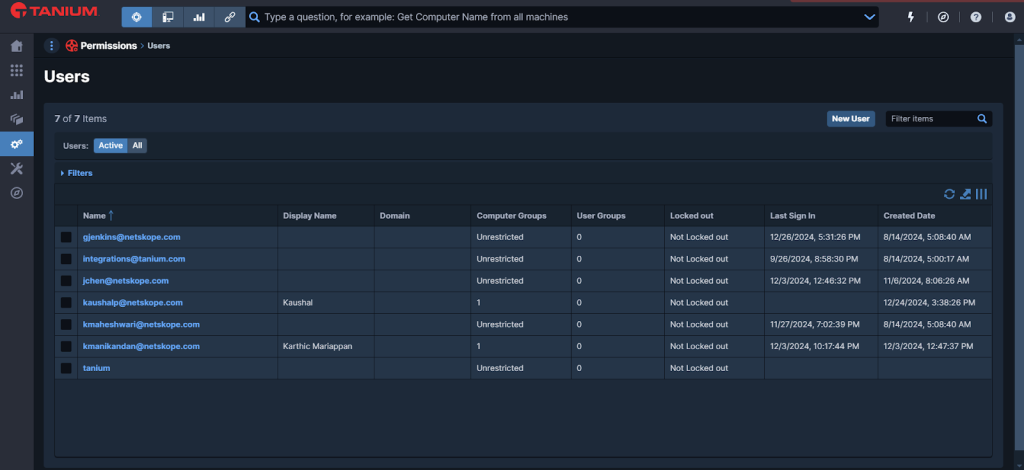
- Click New User.

- Enter a User Name and Display Name.
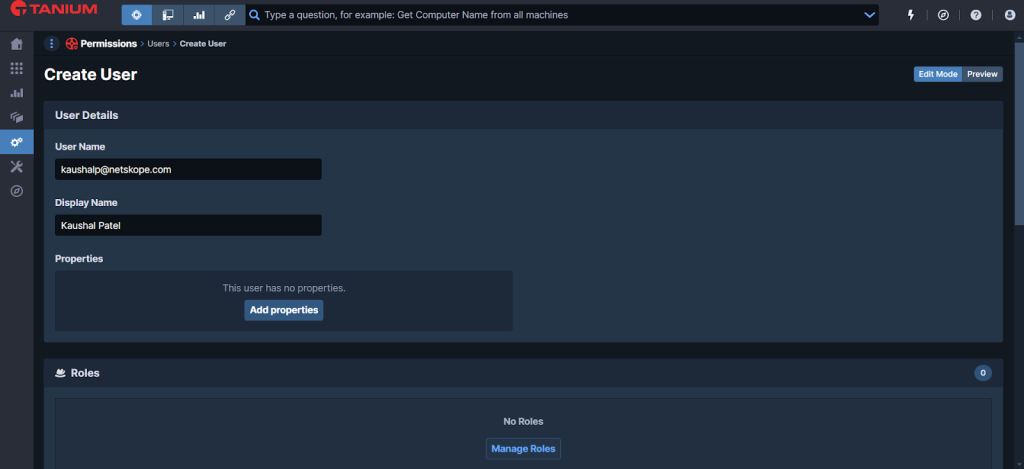

- Scroll down, click Roles > Manage Roles and add these roles:
- Benchmark User
- Reporting User
- Interact Basic User
- Gateway User
- Criticality User
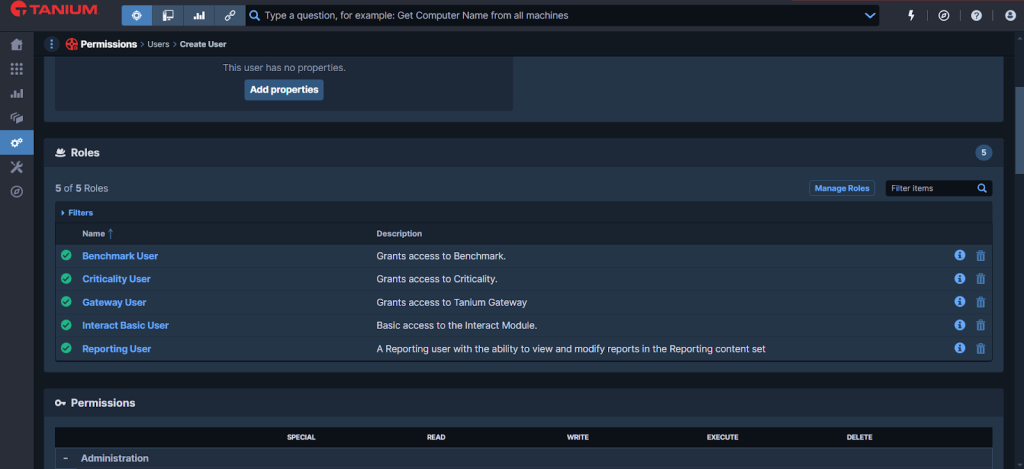

- Scroll down and click Computer Groups > Manage Computer Groups, and then select All Computers.
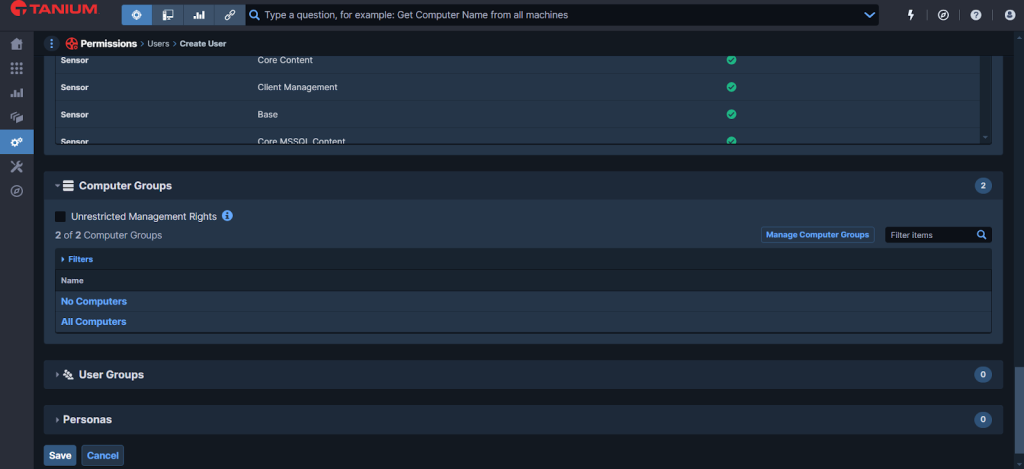

- Click Save.
Create an API token on Tanium
- Log in to your Tanium platform.
- Go to Administration > API Tokens from the left panel.
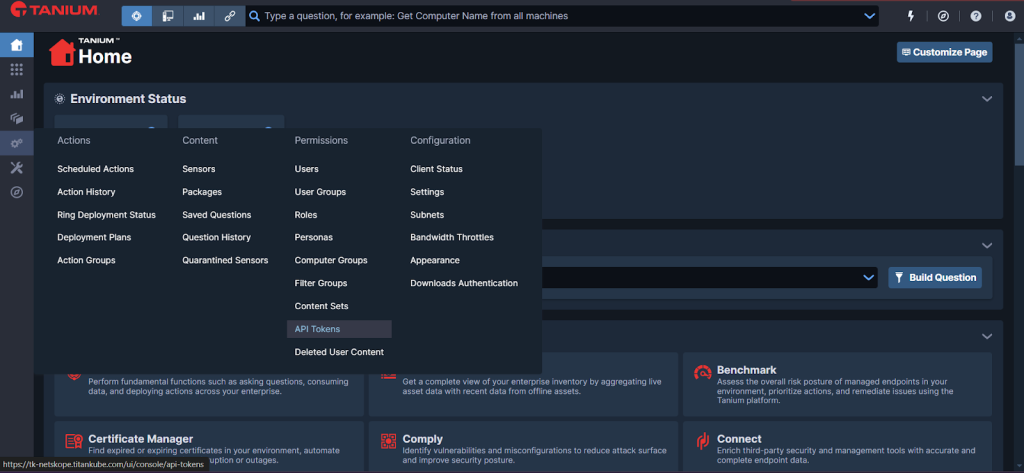

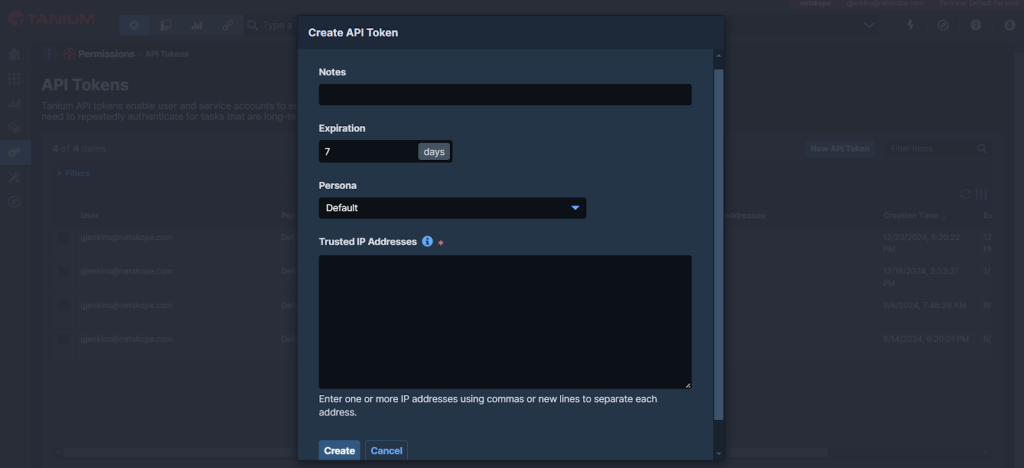
- Click New API Token.
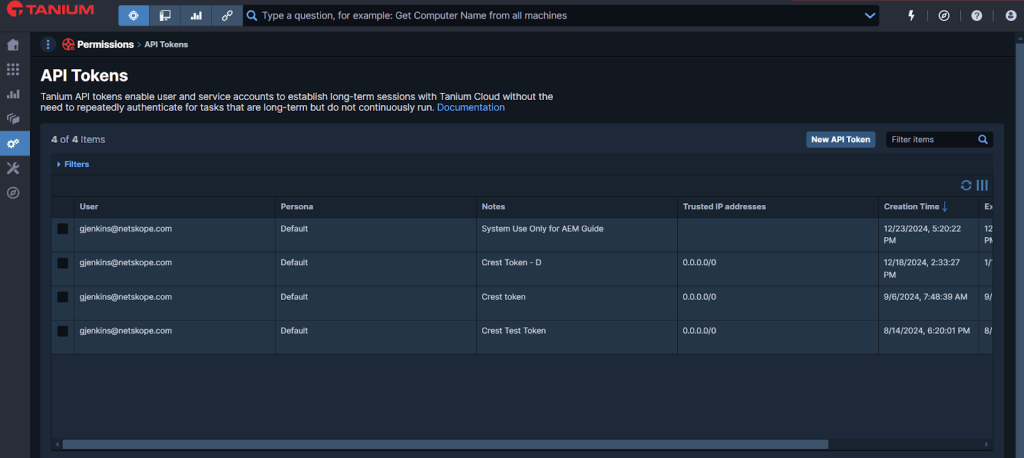

- Enter the required parameters and click Create.
Note
Set Expiration as per the requirement. Specify an IP address to allow access from a particular machine, or use a general IP to enable access from any source.

- Click Yes in the Confirm Your Action prompt.
- Copy the Token from the View API Token tab and save it. It will be used while configuring the Tanium plugin.
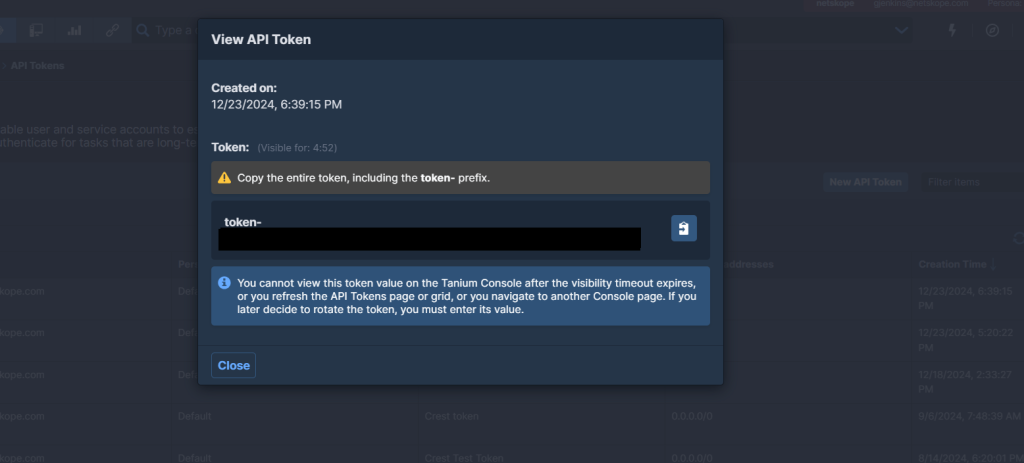

- Click Close.
Configure the Tanium Plugin
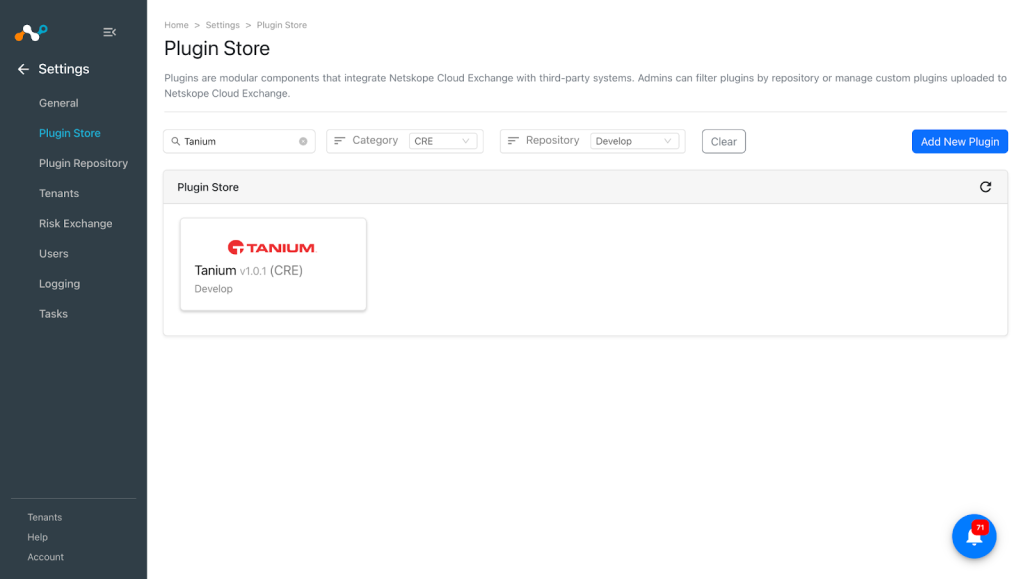
- In Cloud Exchange, go to Settings > Plugin Store. Search for and select the Tanium v1.0.1 (CRE) plugin box.

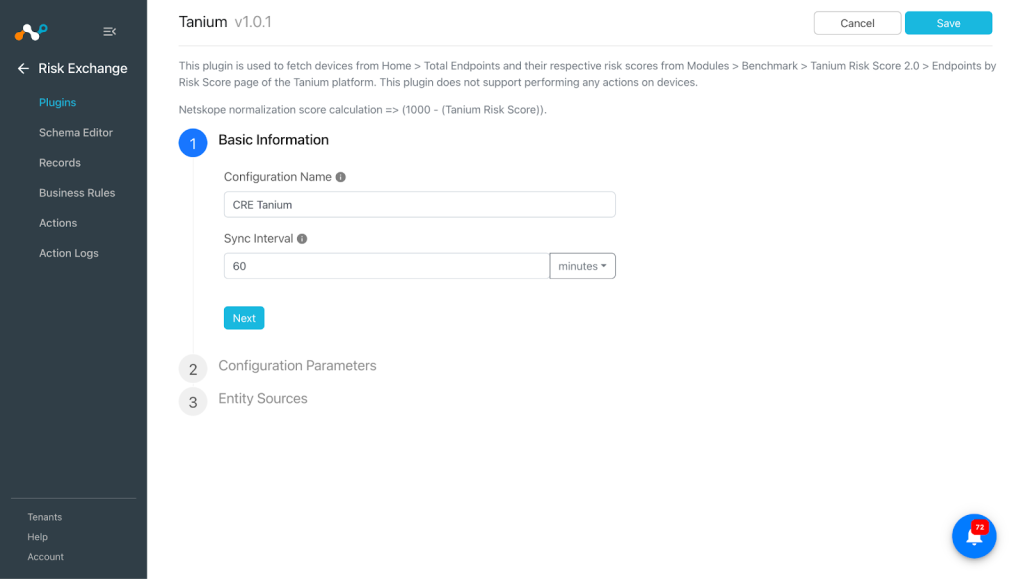
- Enter the Basic Information:
- Configuration Name: Enter a name for the configuration.
- Sync Interval: Interval to fetch data from this plugin source.

- Click Next and enter the plugin Configuration Parameters:
- API Base URL: API Base URL of Tanium instance. e.g. https://*-api.titankube.com. Learn more
- API Token: API Key generated from the Tanium instance. API Key can be generated from Administration > API Tokens > New API Token.
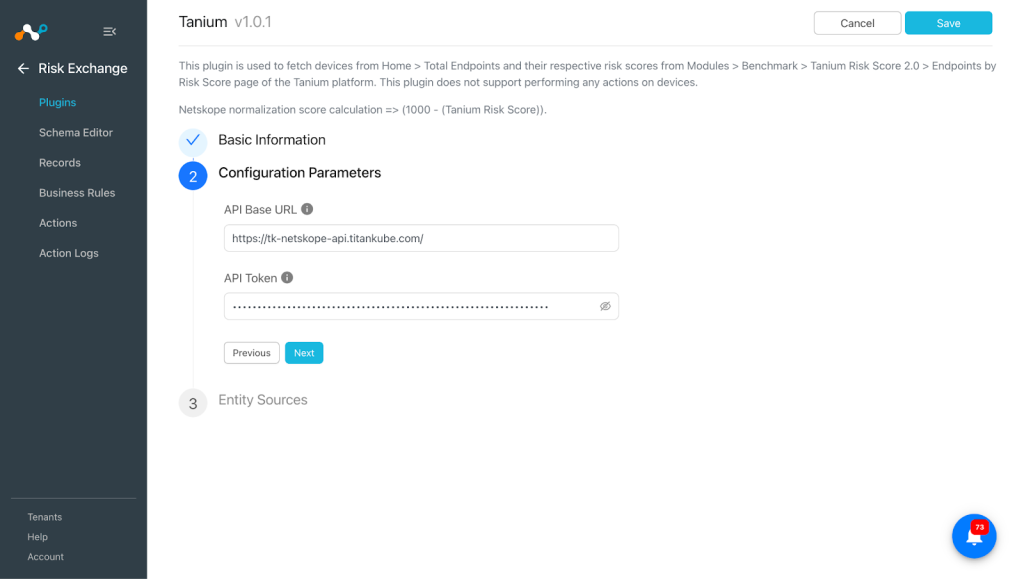

- Click Next and select an Entity from the Entity dropdown.
The Entity fields can be created from the Schema editor page or using the + Add Field option from the field dropdown.
Provide the field mapping. For the suggested mapping please refer to the Mappings section.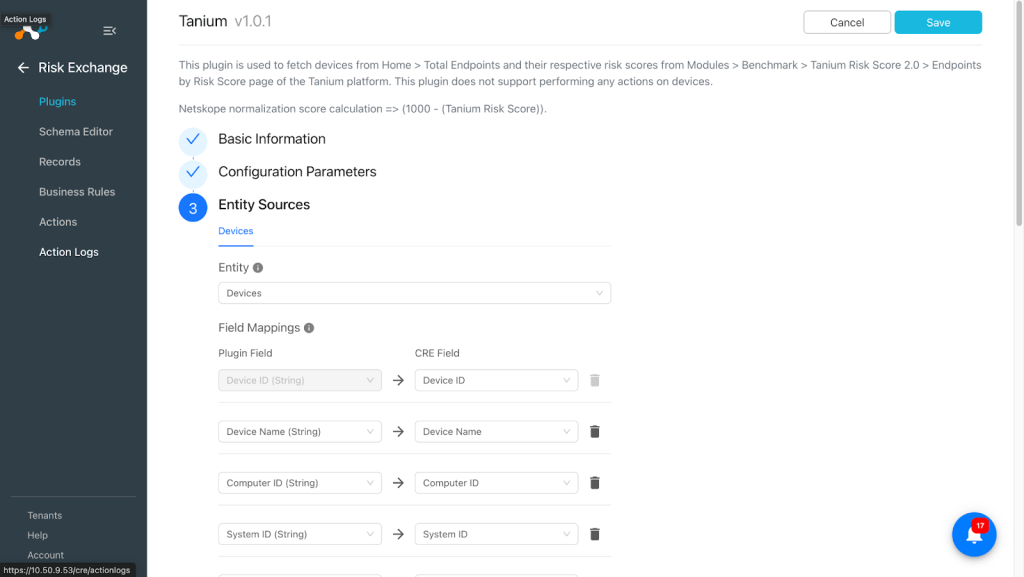
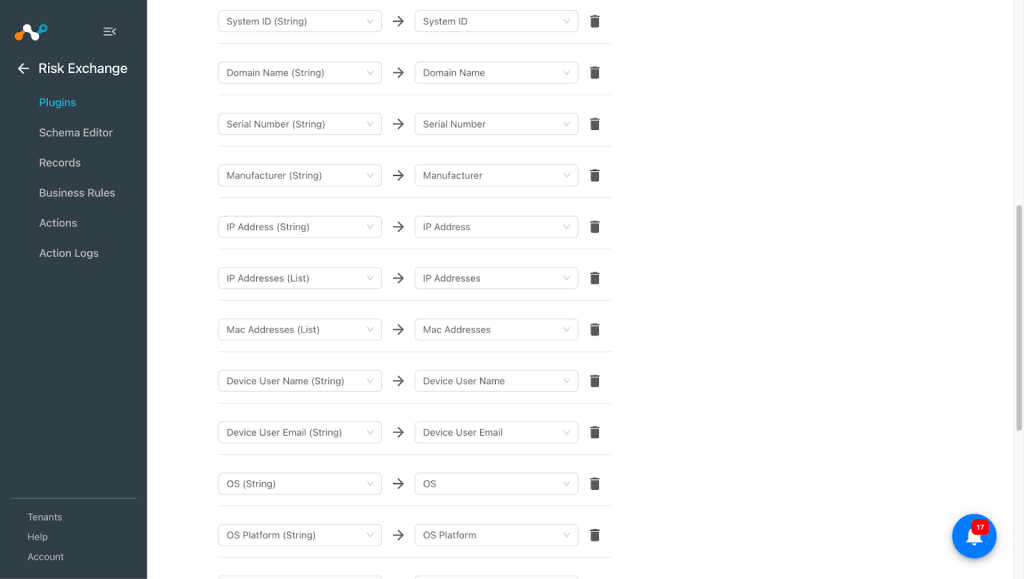
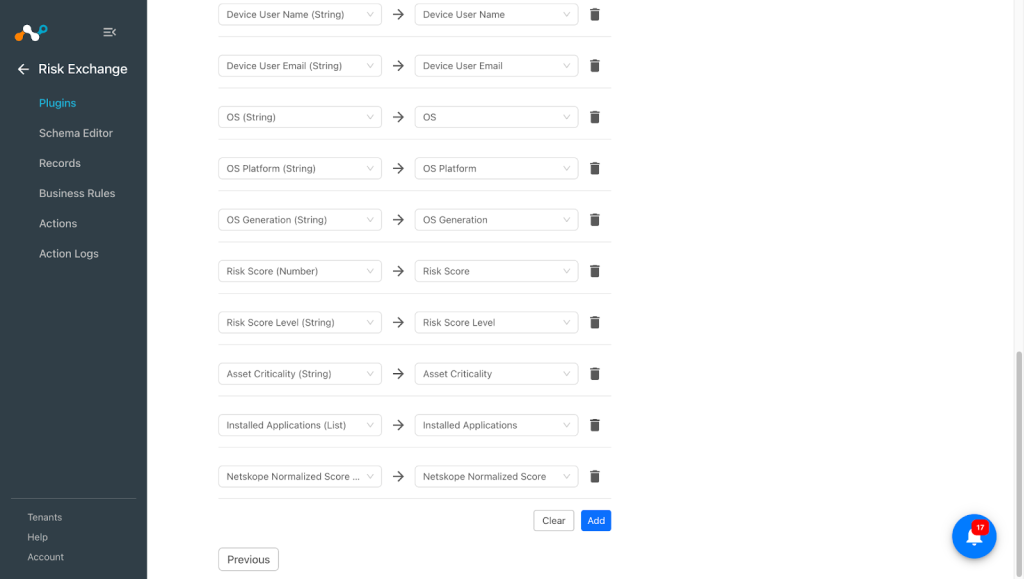


- Click Save.
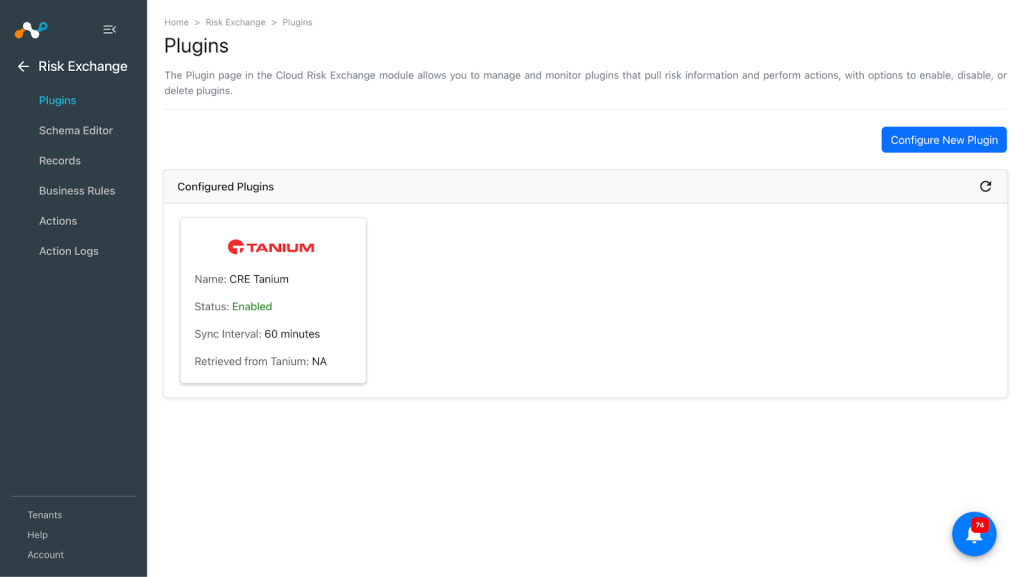

Add a Risk Exchange Business Rule for Tanium
Use a Business Rule to filter the devices.
- Go to Risk Exchange > Business Rule and click Create New Rule.
- Select the business rule, Entity, and provide the filter per your requirements to perform Actions.
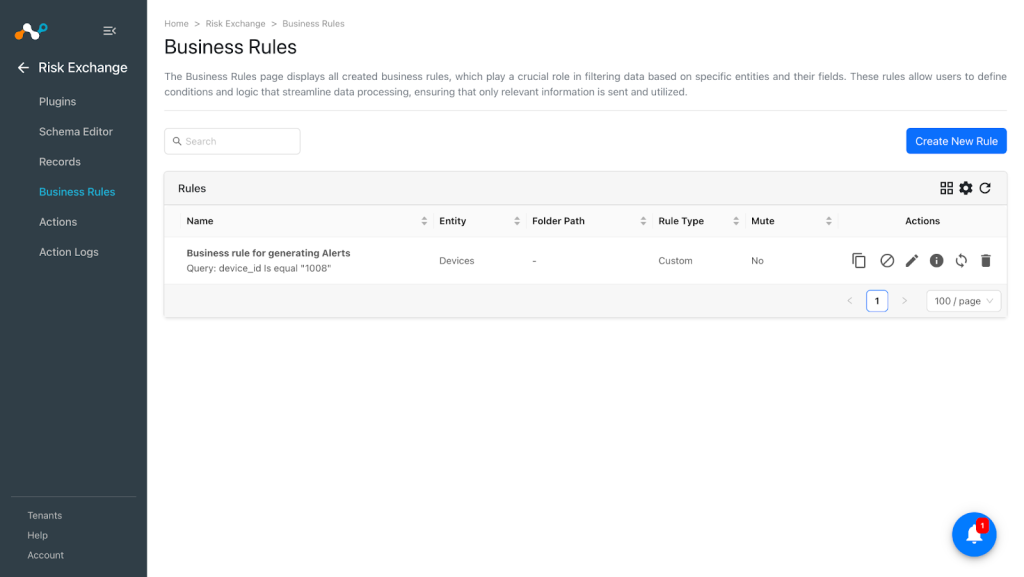

- Click Save.
Add an Risk Exchange Action for Tanium
Tanium only supports the No Action action.
No Action
This action will not perform any kind of action. You can use this action to generate the UBA alerts in the Ticket Orchestrator module.
- Go to Risk Exchange > Actions and click Add Action Configuration.
- Select a Business Rule, Configuration (plugin), and Action (No action).
- Click Save.
Note that Generate Alert must be enabled while creating the Action to generate Alerts in Ticket Orchestrator > Alerts, and the Ticket Orchestrator module must be enabled.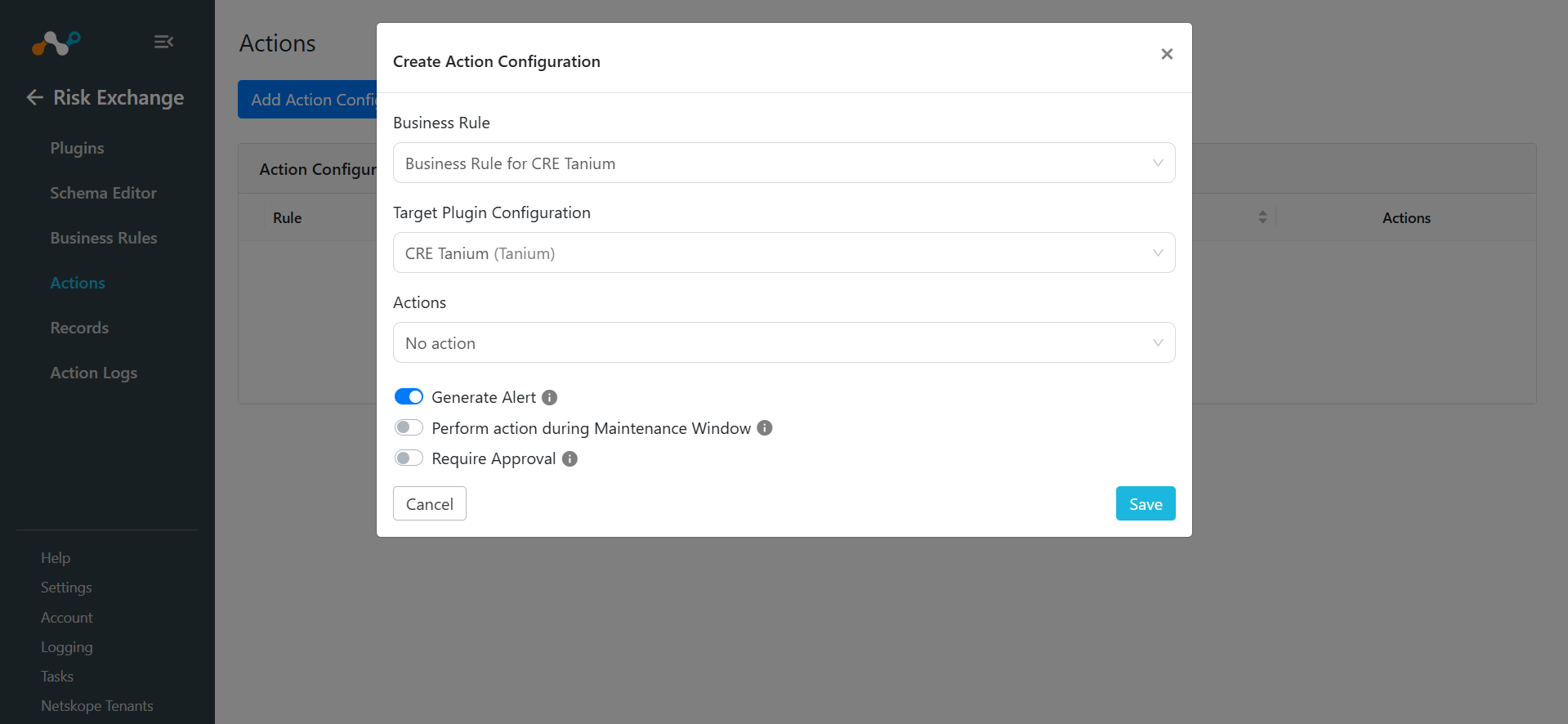
You can perform the Add host to Private App on the devices pulled from Tanium on the Netskope Tenant.
Validate the Tanium Plugin
Validate in Cloud Exchange
To validate the Device records pulled from Tanium, go to Logging and search for logs pulled from the CRE Tanium plugin.
Example: message Like “CRE Tanium”

To check the pulled data, go to Records and select the type of Entity you used while configuring the Tanium plugin. Check the pulled records.

Check for the logs from Logging for the CRE Tanium plugin for the actions performed.

Note that If the Require Approval toggle is enabled while configuring the action, make sure to provide the approval from the Action Log page shown below by selecting the pending approval entries and selecting the Required Approval toggle.

Validate in Tanium
Devices are pulled from Home > Total Endpoints in Tanium.


To view the details and validate them on Cloud Exchange, click on the Computer icon next to the Computer Name and click View Details.


Search for the Risk and Compliance – All Endpoint Risk Scores report.

Troubleshooting the Tanium Plugin
Receiving error in the plugin workflow
- Getting the error:
CRE Tanium [configuration_name]: Validation error occurred, Received exit code 401, Unauthorized, Verify API Token provided in the configuration parameters.
What to do: Verify the API Token for Tanium. For reference, go to Create an API token on Tanium.
- Getting the error:
CRE Tanium [configuration_name]: Unable to establish connection with Tanium platform. Proxy server or Tanium server is not reachable. Error: HTTPSConnectionPool(host='tk-netskope-api.titankube.', port=443): Max retries exceeded with url: /plugin/products/gateway/graphql (Caused by NewConnectionError('<urllib3.connection.HTTPSConnection object at 0x7fc57a7e19a0>: Failed to establish a new connection: [Errno -2] Name or service not known'))
What to do: Verify the API Base URL for Tanium platform for reference; refer to prerequisites for details.
Devices are not pulled from Tanium
If no data for the Device is pulled, it might be due to either:
- No device is available on the platform to pull.
- Mapping is not added in the plugin.
What to do:
- Go to Tanium and check if the devices are available to pull from the Home > Total Endpoints page.
- Edit the plugin configuration and check the Entity Source page, there should be some fields mapped in order to pull the same.