Threat hunting makes additional detections available that Netskope hasn’t or won’t deploy yet for network threat blocking because the detection is likely to alert on non-malicious traffic. These detections are a source of insight into network traffic to investigate suspicious behavior, which supports threat hunting and response and investigation use cases.
You can view the available threat hunting detections based on your enabled traffic types. Click Configure in IPS to modify this setting.

Detection Configuration
In the Detection Configuration tab, you can manually enable or disable threat hunting detections in alert or block mode on a case by case basis. If you enable threat hunting mode, some high-fidelity detections might be enabled by default, and lower-fidelity detections might be disabled by default.
To enable or disable threat hunting detections:
-
Go to Settings > Threat Protection > Threat Hunting.
-
Under Detection Configuration, search for a threat hunting detection by its Detection Name or Detection ID.
-
Click
 for the threat hunting detection you want to overwrite the default behavior for.
-
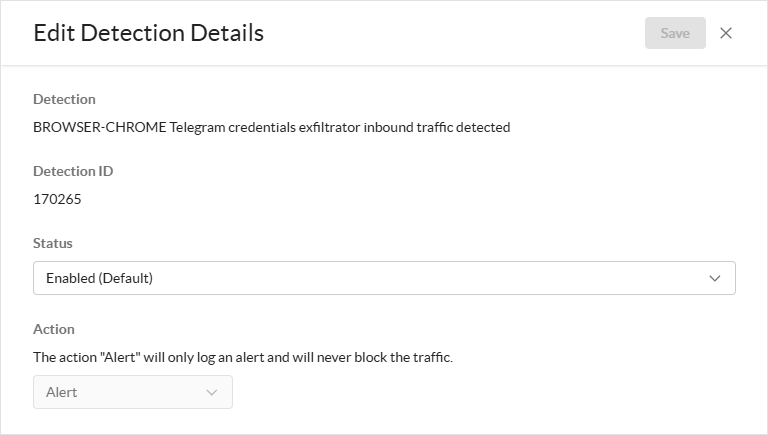
In the Edit Detection Details window:
-
Detection: The threat hunting detection you are modifying the default behavior for. You can’t modify this field.
-
Detection ID: The ID of the threat hunting detection. You can’t modify this field.
-
Status: Choose to enable or disable the threat hunting detection.
-
Action: Choose one of the following actions.
-
Alert: Netskope allows the detected traffic and generates an alert in Skope IT.
-
Block: Netskope blocks the detected traffic.
-
-
-
Click Save.
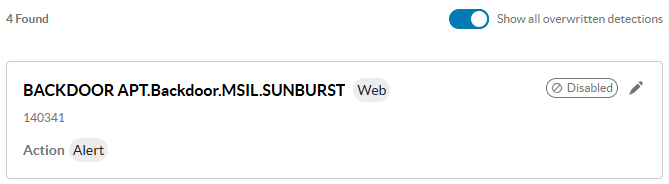
You can click Show all overwritten detections to only display the detections you’ve edited.
Module Detection
In the Module Detection tab, you can enable or disable detection modules, which provide detection based on behavioral techniques including machine learning and advanced analytics that detect network anomalies.
-
Beacon Detection: Enable to identify evasive Command and Control (C2) beaconing, which traditional defenses often miss, by analyzing network traffic for anomalies indicative of beaconing and focusing on behavior rather than static detections for early compromise detection.
The default action is Alert. You can’t modify this setting.
-
HTML Smuggling Detection: Enable to prevent HTML smuggling attacks and detect embedded malicious payloads inside HTML/JS files.
The default action is Alert. You can’t modify this setting.

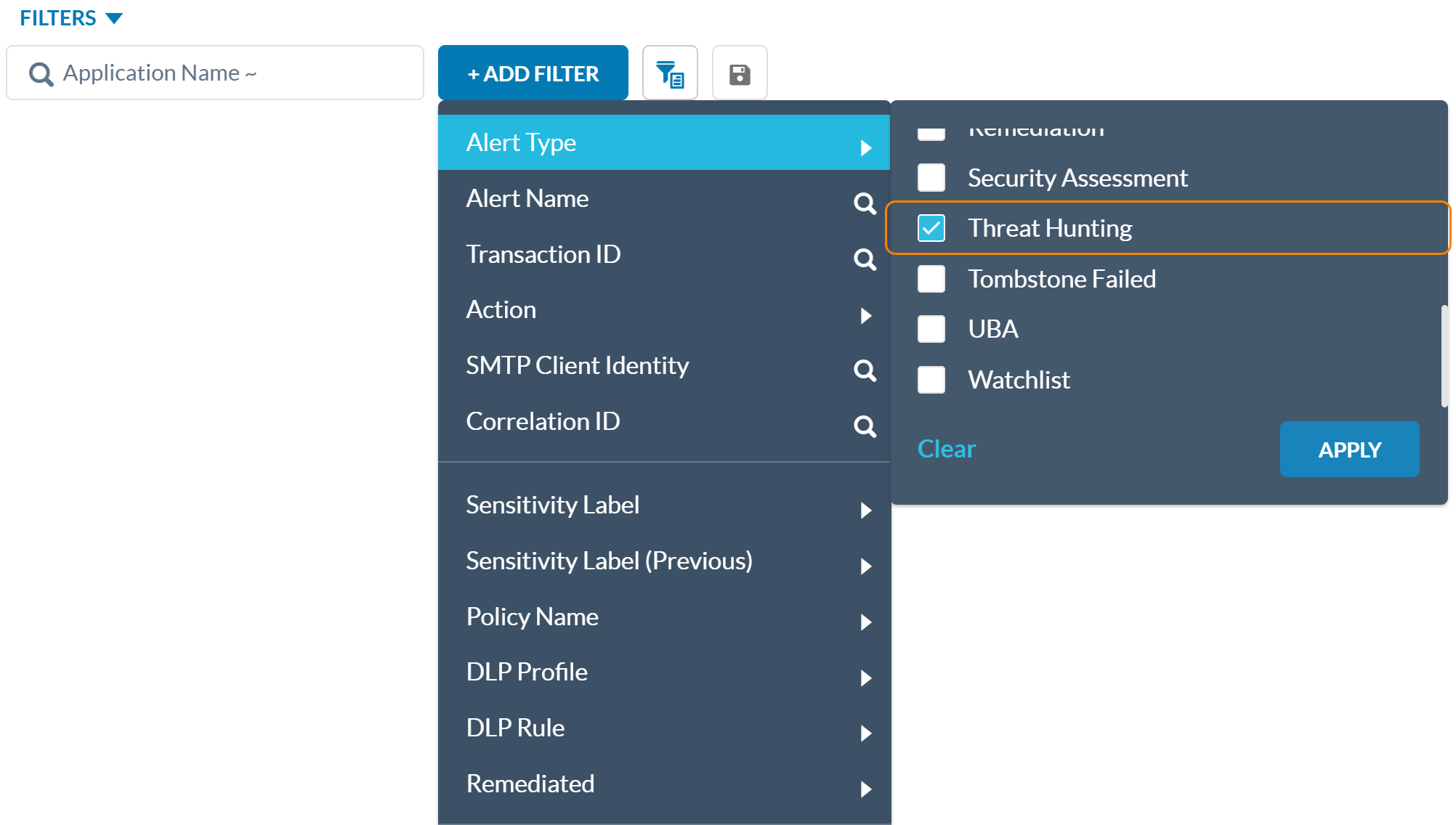
Viewing Threat Hunting Alerts
You can view threat hunting detections on the Skope IT Alerts page (Skope IT > Alerts). To view them, select Threat Hunting for the Alert Type filter.