

Release Notes
2.0.0 (Required minimum CE version for this is 6.1.0)
Added
- Added support for new data regions with custom region configuration option.
- Added new configuration parameters Base URL for custom region, Enable Push Retraction and Retraction Interval (in days).
- Added support for pull and push retraction.
- Added resolution for error logs.
Fixed
- Updated indicator type mapping to correctly distinguish IPv4, IPv6, and Domain.
- Updated retry handling to rely on the Retry-After header.
Changed
- Updated plugin logo.
1.0.2
Fixed
- Fixed Bugs in Push Functionality.
1.0.1
Added
- Added user-agent string to API.
Changed
- Changed name to Trend Micro Vision One.
1.0.0
Added
- Initial Release.
This document explains how to configure the TrendAI Vision One v2.0.0 plugin with the Threat Exchange module of the Netskope Cloud Exchange platform. This plugin is used to pull Domains, File SHA-256, IP address (IPv4, IPv6) and URLs from the TrendAI Vision One > Threat Intelligence > Suspicious Object Management > Suspicious Object List. This plugin allows sharing of Domains, File SHA-256, IP address (IPv4, IPv6) and URLs to TrendAI Vision One’s Suspicious Object List or Exception List. This plugin supports pull retraction of indicators from the Suspicious Object List, and push retraction of shared indicators from both the Suspicious Object List and Exception List.
Prerequisites
To complete this configuration, you need:
- A Netskope tenant (or multiple, for example, production and development/test instances).
- A Netskope Cloud Exchange tenant with the Tenant plugin and Threat Exchange plugin already configured.
- A TrendAI Vision One instance with an account.
- A File Profile on your Netskope tenant.
- A URL List on your Netskope tenant.
- A Destination Profile on your Netskope tenant.
- A Private App on your Netskope tenant.
- A DNS Profile on your Netskope Tenant.
- Trend Vision One Portal
- Australia (api.au.xdr.trendmicro.com)
- Canada (api.ca.xdr.trendmicro.com)
- European Union (api.eu.xdr.trendmicro.com)
- India (api.in.xdr.trendmicro.com)
- Indonesia (api.id.xdr.trendmicro.com)
- Japan (api.jp.xdr.trendmicro.com)
- Middle East & Africa (api.mea.xdr.trendmicro.com)
- Singapore (api.sg.xdr.trendmicro.com)
- South Africa (api.za.xdr.trendmicro.com)
- United Kingdom (api.uk.xdr.trendmicro.com)
- United States (api.xdr.trendmicro.com)
- Custom Region
TrendAI Vision One Plugin Support
This plugin is used to pull Domains, File SHA-256, IP address (IPv4, IPv6) and URLs from the TrendAI Vision One > Threat Intelligence > Suspicious Object Management > Suspicious Object List. This plugin allows sharing of Domains, File SHA-256, IP address (IPv4, IPv6) and URLs to TrendAI Vision One’s Suspicious Object List or Exception List. This plugin supports pull retraction of indicators from the Suspicious Object List, and push retraction of shared indicators from both the Suspicious Object List and Exception List.
| Fetched Indicator Types | Shared Indicator Types |
|---|---|
| Domain, URL, SHA256, IPv4, IPv6 | Domain, URL, SHA256, IPv4, IPv6 |
IoC Retraction
This plugin supports pull retraction of Suspicious Object List indicators no longer active in TrendAI Vision One, and push retraction of CE-retracted indicators from both the Suspicious Object List and Exception List.
| Type | Description |
|---|---|
| IoC Retraction (Pull) | Yes — Indicators are retracted based on the Retraction Interval (in days) configuration parameter; indicators absent from the re-queried active set are marked retracted in CE. |
| IoC Retraction (Push) | Yes — When Enable Push Retraction is set to Yes, CE-retracted indicators are deleted from both the TrendAI Vision One Suspicious Object List and Exception List. |
IoC Source Labeling
The plugin tags all indicators pushed from CE with the label Shared by Netskope Cloud Exchange in the description field, preventing these indicators from being re-imported as new threat intelligence on subsequent pull cycles.
| Type | Description |
|---|---|
| IoC Source Labelling | Supported (Shared by Netskope Cloud Exchange | <source_plugin>) |
Mappings
Severity Mappings
| Netskope Severity | TrendAI Vision One Severity |
|---|---|
| low | low |
| medium | medium |
| high | high |
| critical | high |
| unknown | – |
Pull Indicators Mappings
| Netskope Fields | TrendAI Vision One Observable Fields |
|---|---|
| value | Value under key named by indicator type |
| type | type |
| comments | description |
| lastSeen | lastModifiedDateTime |
| severity | riskLevel |
Push Indicators Mappings
| TrendAI Vision One Observable Field | Netskope Indicator Field |
|---|---|
<resolved type> | type + value |
| description | – |
| riskLevel | severity |
Permissions
Below are the permissions needed for the plugin.
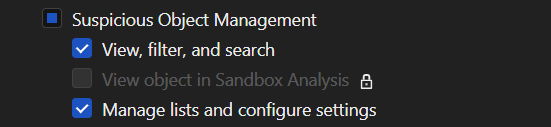
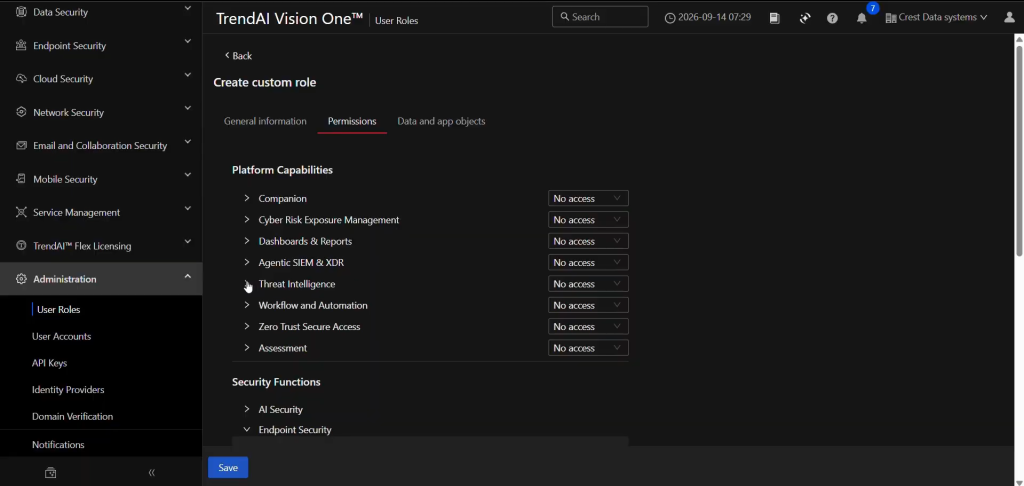
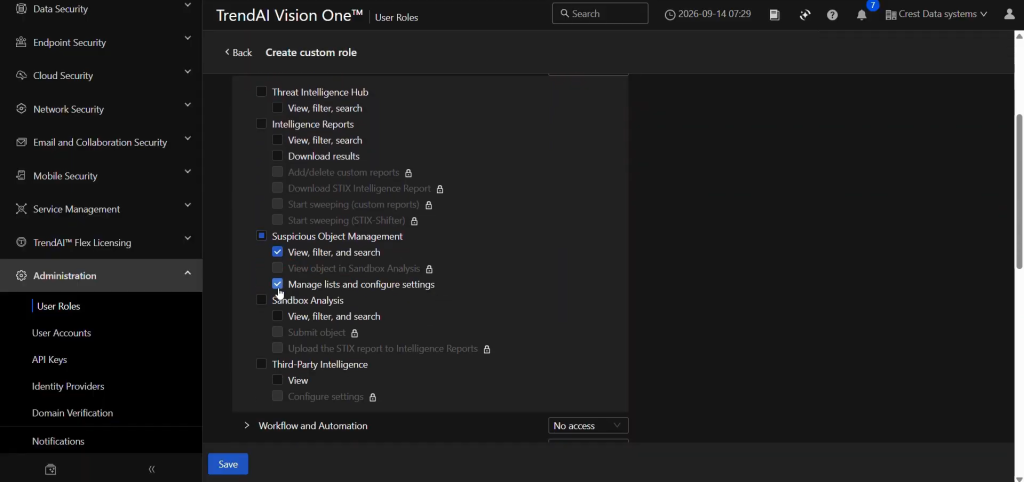
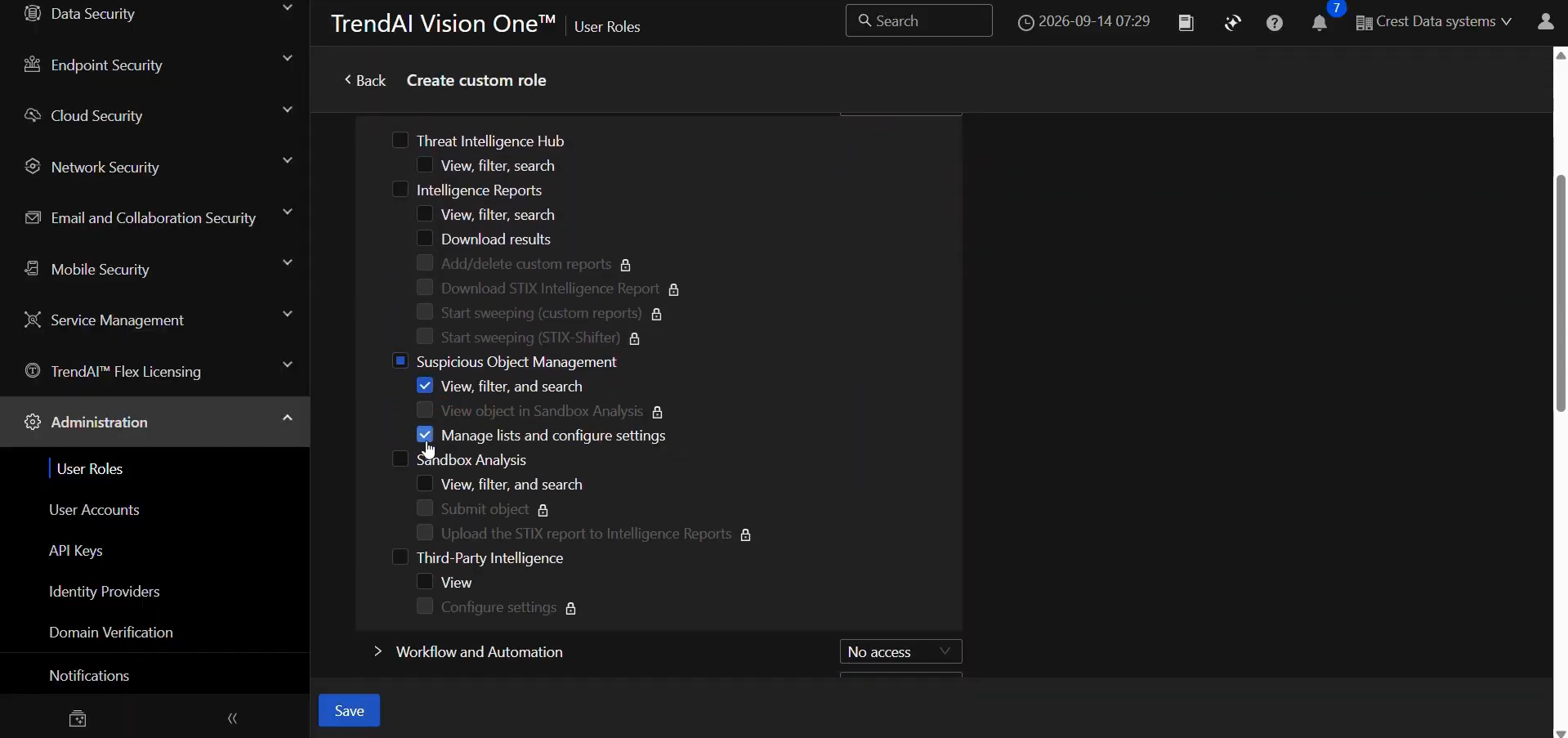
Threat Intelligence > Suspicious Object Management.
| View, filter, search | Yes |
| Manage lists and configure settings | Yes |
API Details
List of APIs Used
| API Endpoint | Method | Use Case |
|---|---|---|
| /v3.0/threatintel/suspiciousObjects | GET | Pull indicators from Suspicious Object List |
| /v3.0/threatintel/suspiciousObjects | POST | Push indicators to Suspicious Object List |
| /v3.0/threatintel/suspiciousObjectExceptions | POST | Push indicators to Exception List |
| /v3.0/threatintel/suspiciousObjects/delete | POST | Delete indicators from Suspicious Object List (push retraction) |
| /v3.0/threatintel/suspiciousObjectExceptions/delete | POST | Delete indicators from Exception List (push retraction) |
Pull indicators from Suspicious Object List
Endpoint: GET /v3.0/threatintel/suspiciousObjects
Request Headers
| Key | Value |
|---|---|
| Authorization | Bearer {token} |
| Content-Type | application/json |
| Accept | application/json |
Query Parameters
| Parameter | Description |
|---|---|
| startDateTime | Start of the query window (format: YYYY-MM-DDTHH:MM:SSZ) |
| endDateTime | End of the query window (format: YYYY-MM-DDTHH:MM:SSZ) |
| top | Number of results per page (max 200) |
Sample Response
{
  "items": [
    {
      "type": "url",
      "url": "https://example.com/malicious",
      "description": "Detected by Trend Vision One",
      "riskLevel": "high",
      "lastModifiedDateTime": "2026-08-30T09:12:44Z"
    }
  ],
  "nextLink": "https://api.xdr.trendmicro.com/v3.0/threatintel/suspiciousObjects?..."
}
Push indicators to Suspicious Object List
Endpoint: POST /v3.0/threatintel/suspiciousObjects
Request Headers
| Key | Value |
|---|---|
| Authorization | Bearer {token} |
| Content-Type | application/json |
| Accept | application/json |
Request Body
[
  {
    "url": "https://example.com/malicious",
    "description": "Shared by Netskope Cloud Exchange",
    "riskLevel": "high"
  }
]
Sample Response (Status Code: 207):
[
  {
    "status": 201
  }
]
Push indicators to Exception List
Endpoint: POST /v3.0/threatintel/suspiciousObjectExceptions
Request Headers
| Key | Value |
|---|---|
| Authorization | Bearer {token} |
| Content-Type | application/json |
| Accept | application/json |
Request Body
[
  {
    "url": "https://example.com/exception",
    "description": "Shared by Netskope Cloud Exchange"
  }
]
Sample Response (Status Code: 207)
[
  {
    "status": 201
  }
]
Delete indicators from Suspicious Object List (push retraction)
Endpoint: POST /v3.0/threatintel/suspiciousObjects/delete
Request Headers
| Key | Value |
|---|---|
| Authorization | Bearer {token} |
| Content-Type | application/json |
| Accept | application/json |
Request Body
[
  {
    "url": "https://example.com/malicious"
  }
]
Sample Response (Status Code: 207)
[
  {
    "status": 204
  }
]
Delete indicators from Exception List (push retraction)
Endpoint: POST /v3.0/threatintel/suspiciousObjectExceptions/delete
Request Headers
| Key | Value |
|---|---|
| Authorization | Bearer {token} |
| Content-Type | application/json |
| Accept | application/json |
Request Body
[
  {
    "url": "https://example.com/exception"
  }
]
Sample Response (Status Code: 207)
[
  {
    "status": 204
  }
]
Performance Matrix
This reading is conducted on a Large CE Stack with these specifications by pulling and pushing 100k IoCs.
| Description | Specification |
|---|---|
| Stack Size | Size: Large, RAM: 32 GB, Core: 16 |
| Indicators fetched from Trend Vision One | ~35k per min |
| Indicators shared with Trend Vision One | ~12k per min |
User Agent
netskope-ce-7.0.0-cte-trendai-vision-one-v2.0.0
Workflow
- Configure a Role and generate API Token in TrendAI Vision One.
- Configure the TrendAI Vision One plugin.
- Configure a Business Rule for TrendAI Vision One.
- Configure Sharing for TrendAI Vision One.
- Validate the TrendAI Vision One plugin.
Watch a Video
Click play to watch a video.
Configure a Role and generate API Token in TrendAI Vision One
-
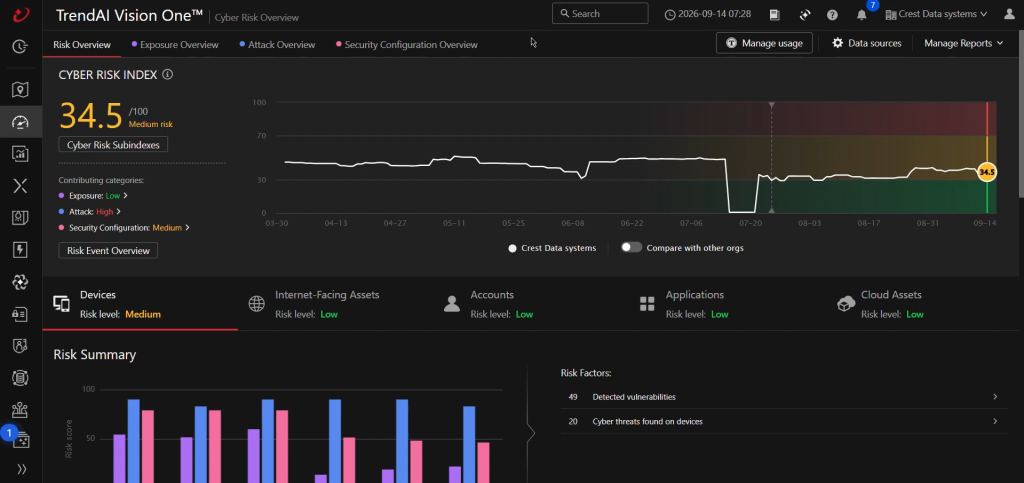
Log in to the Trend Vision One Portal.
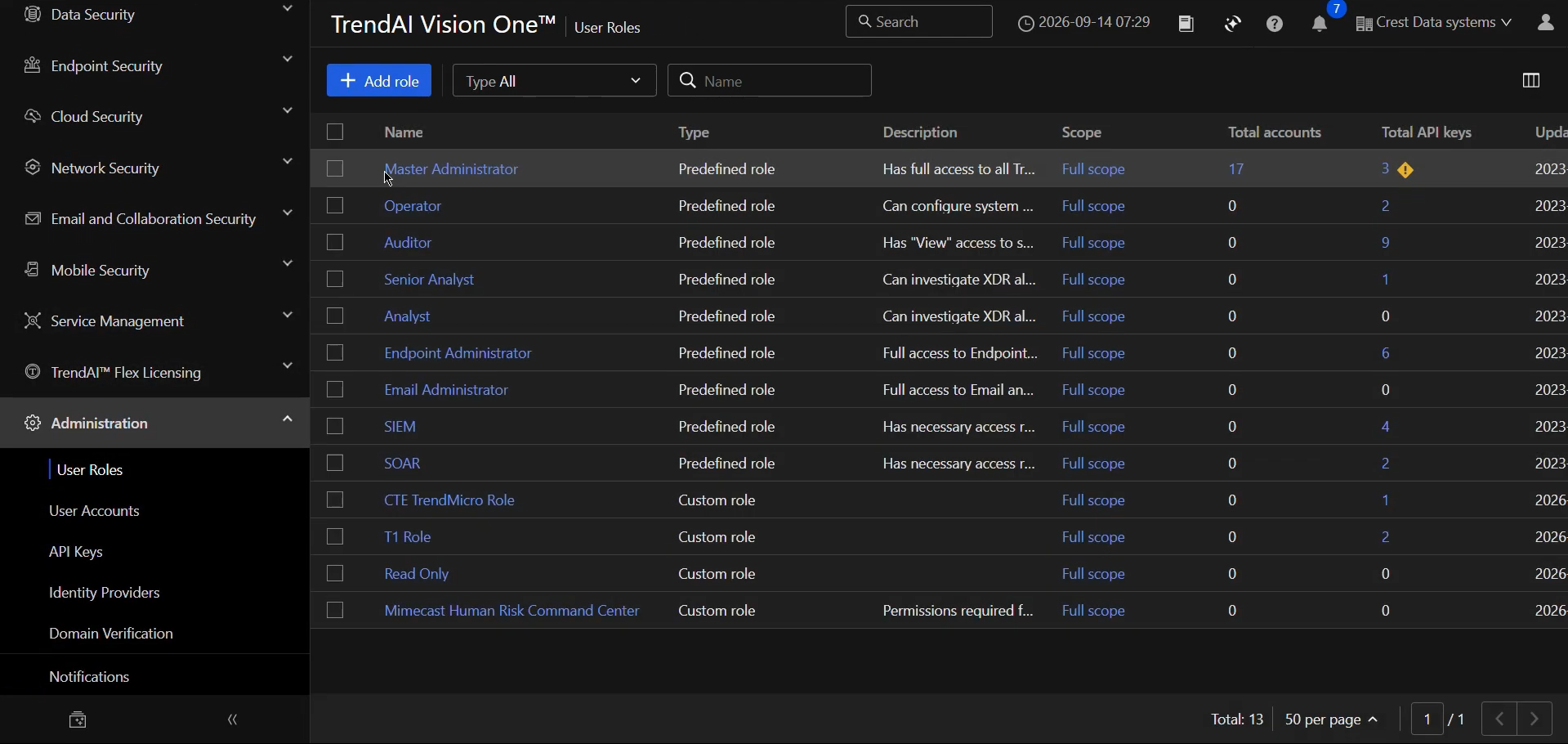
-
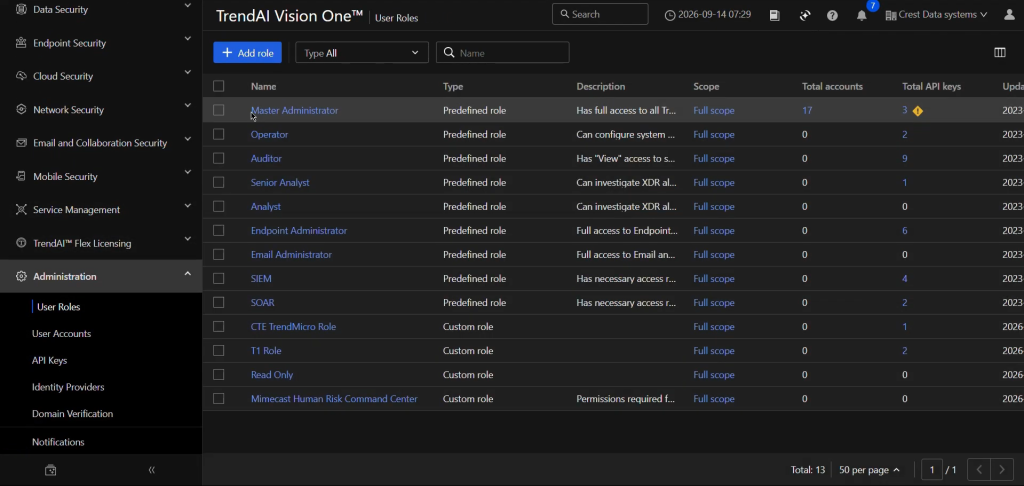
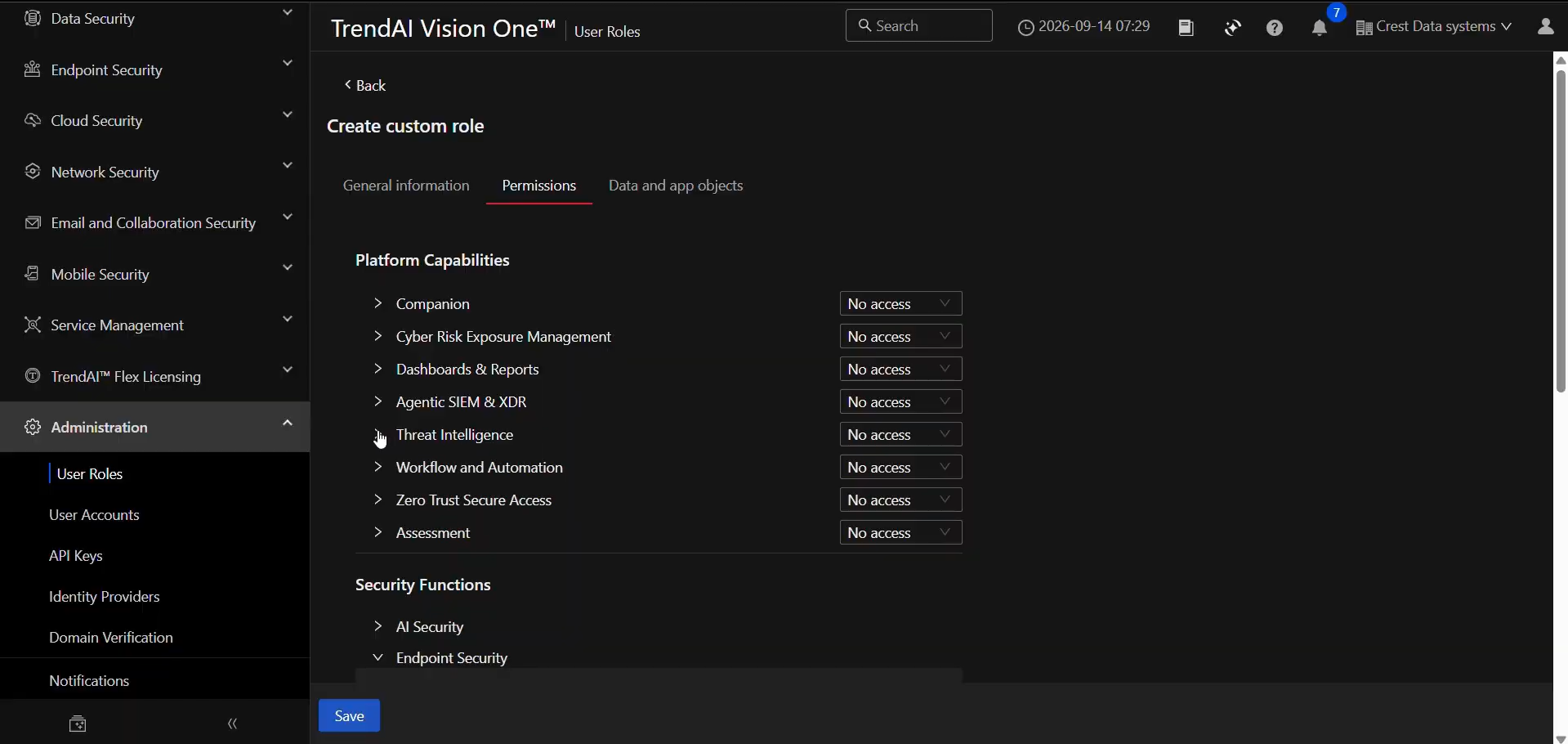
Go to Administration > User Roles.
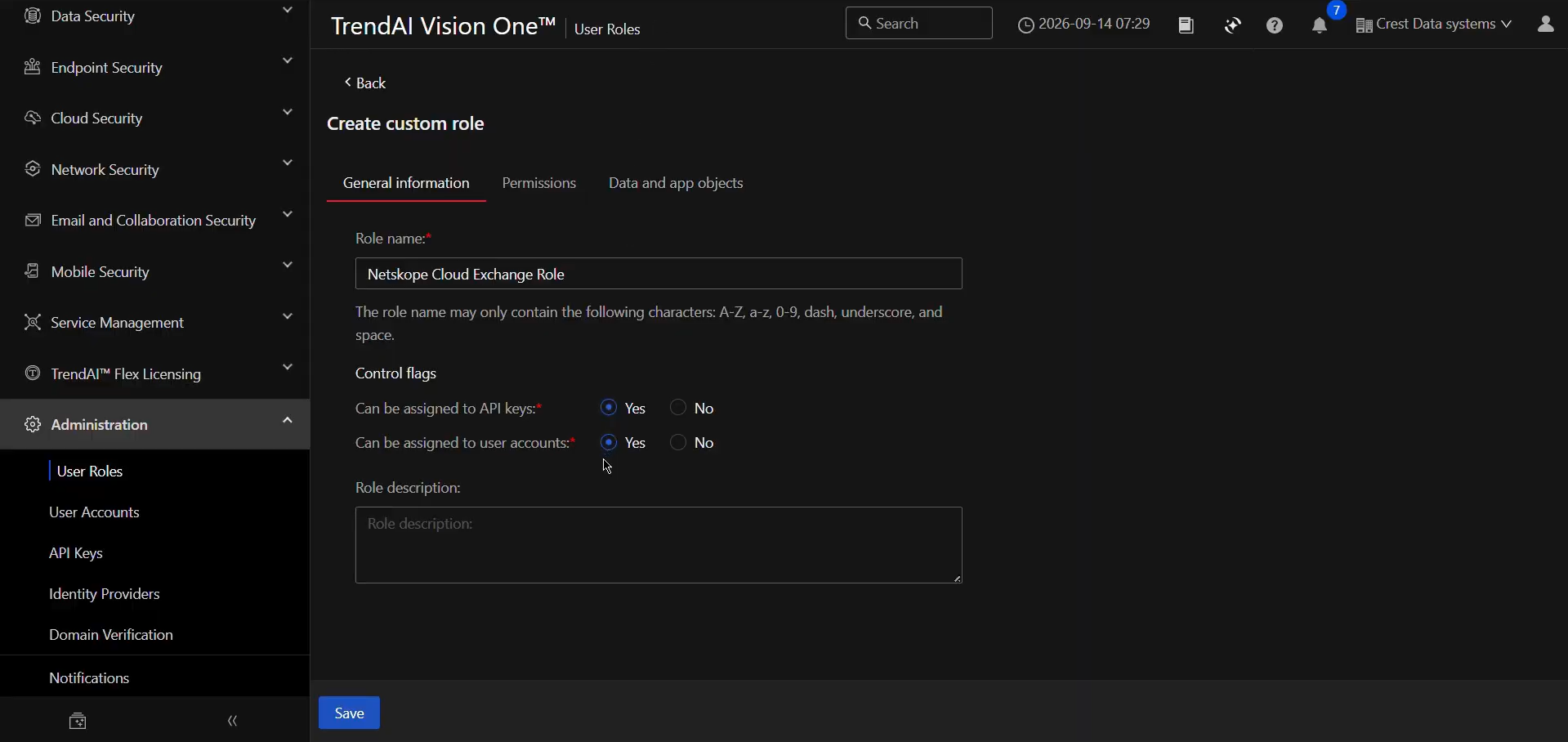
-
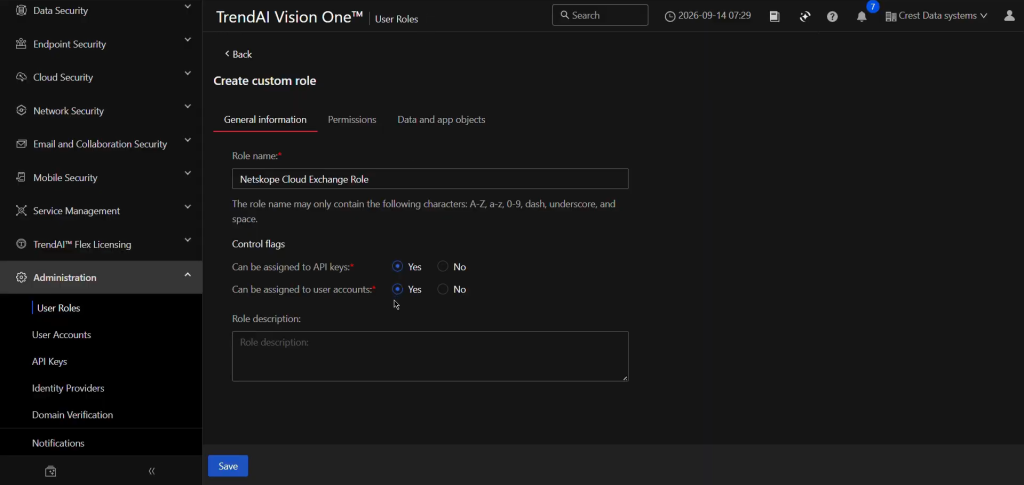
Click Add role, enter a Role name, and select Yes for both of the options for Control flags.
-
Go to the Permissions tab, select the needed permissions, and click Save.
-
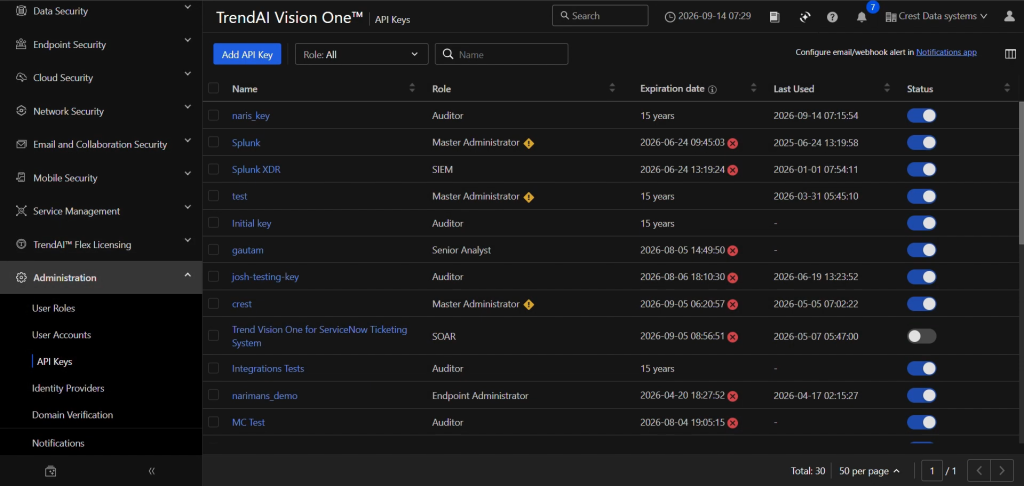
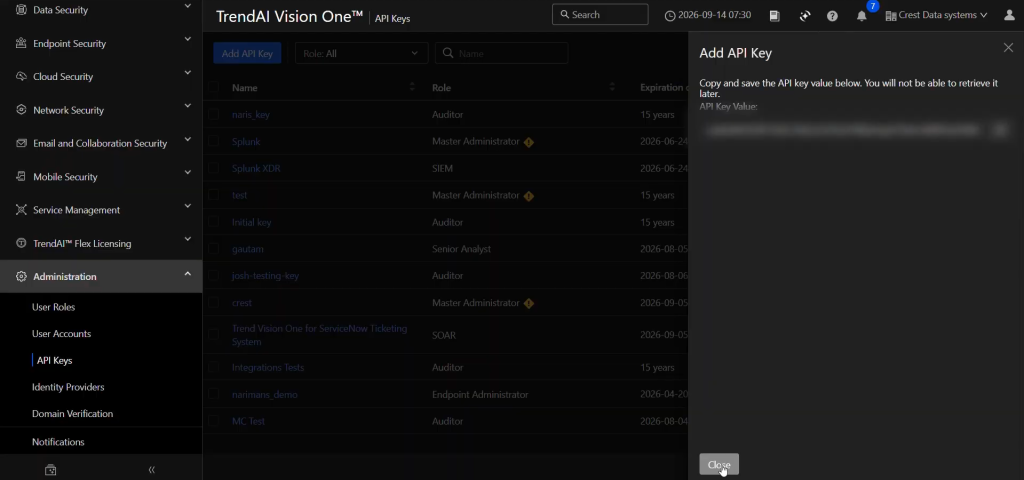
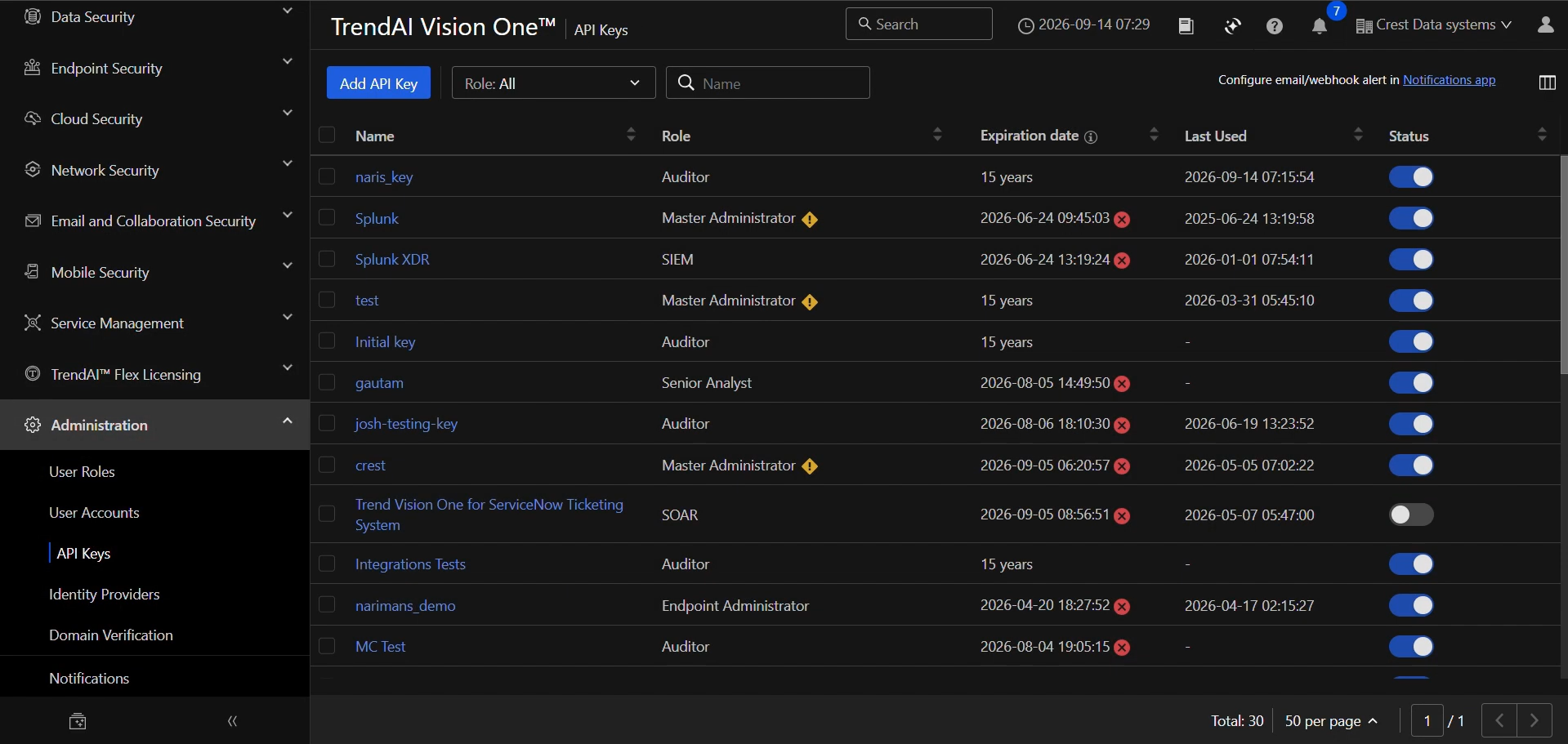
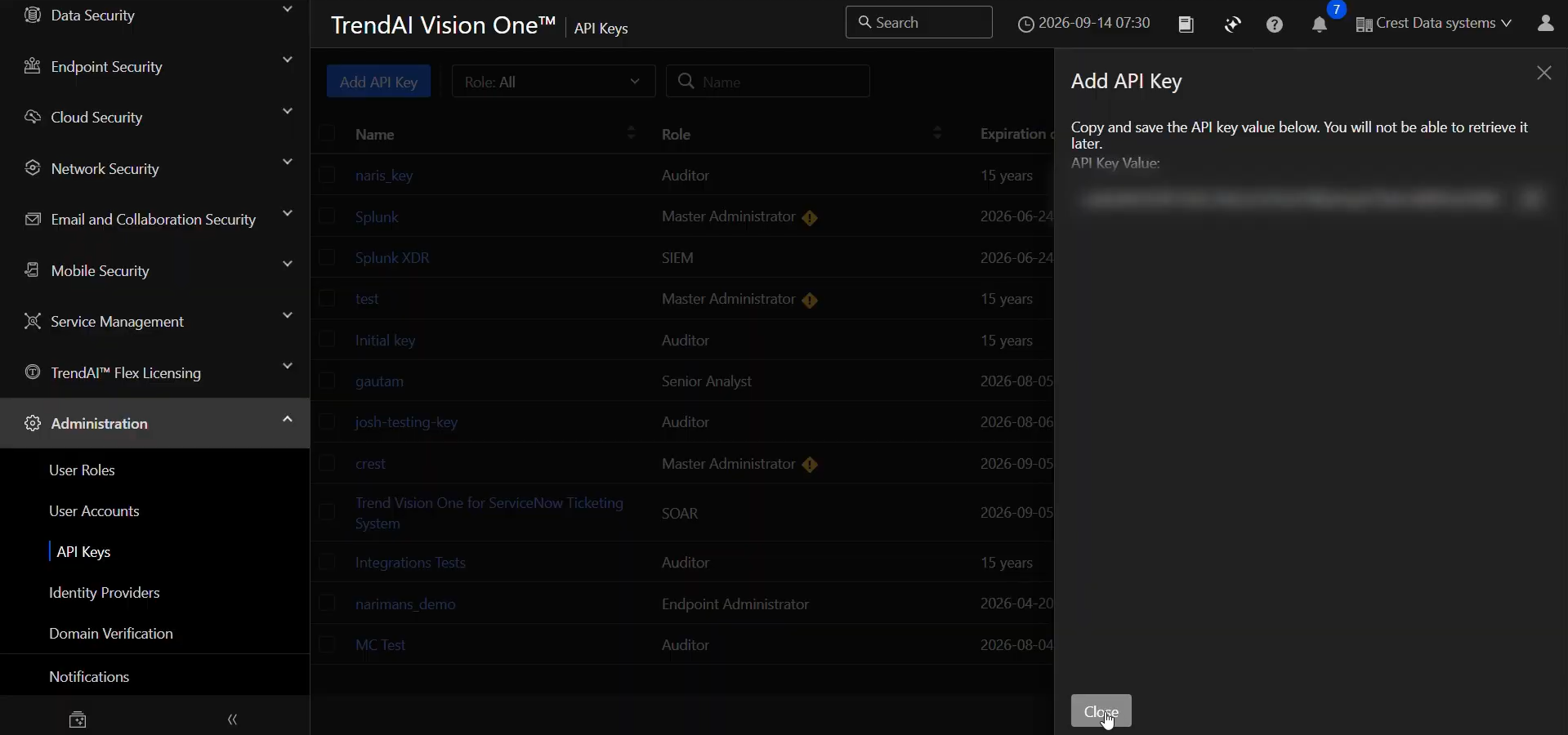
Go to Administration > API Keys.
-
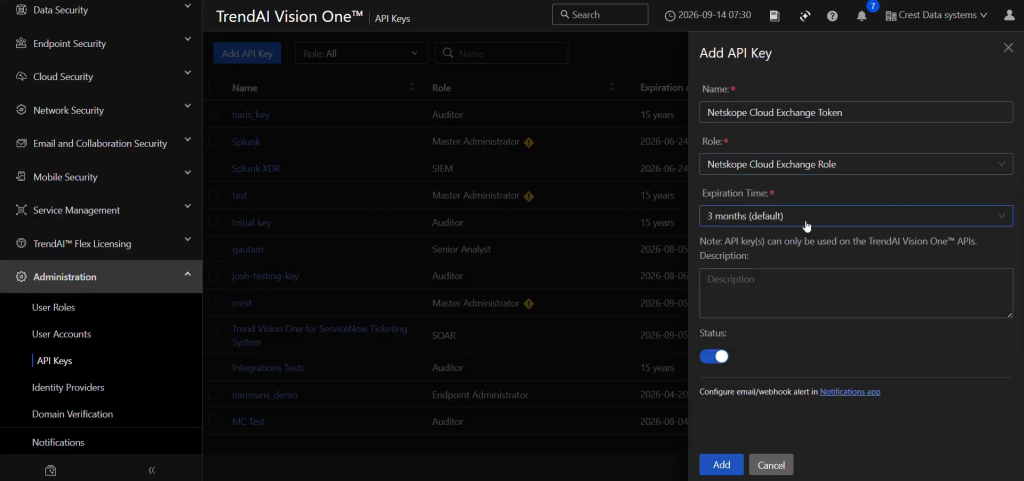
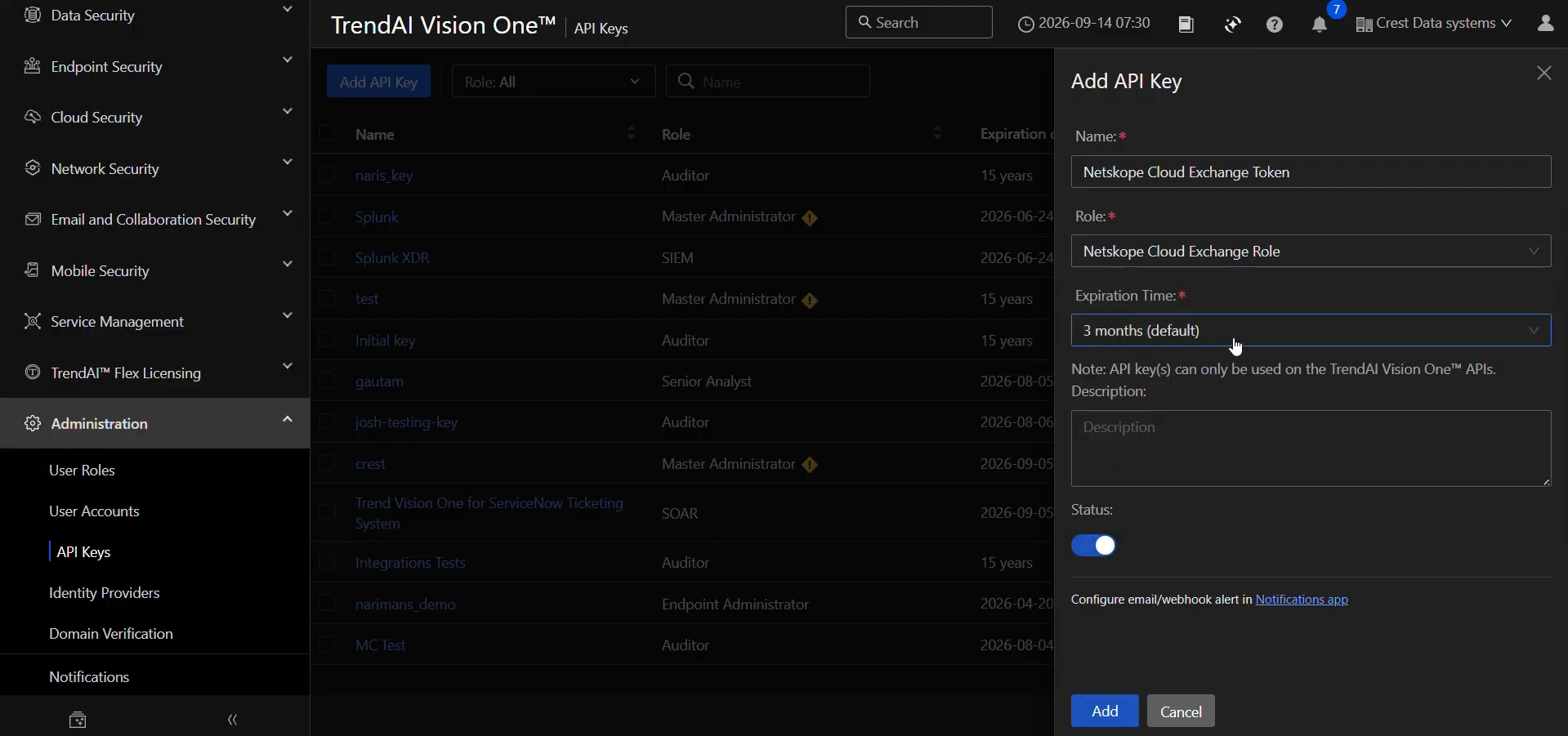
Click Add API Key, enter a Name, the Role you just created, and an Expiration Time for the API Key.
-
Click Add, and copy the Authentication Token for use in the plugin configuration.
Configure the TrendAI Vision One Plugin
-
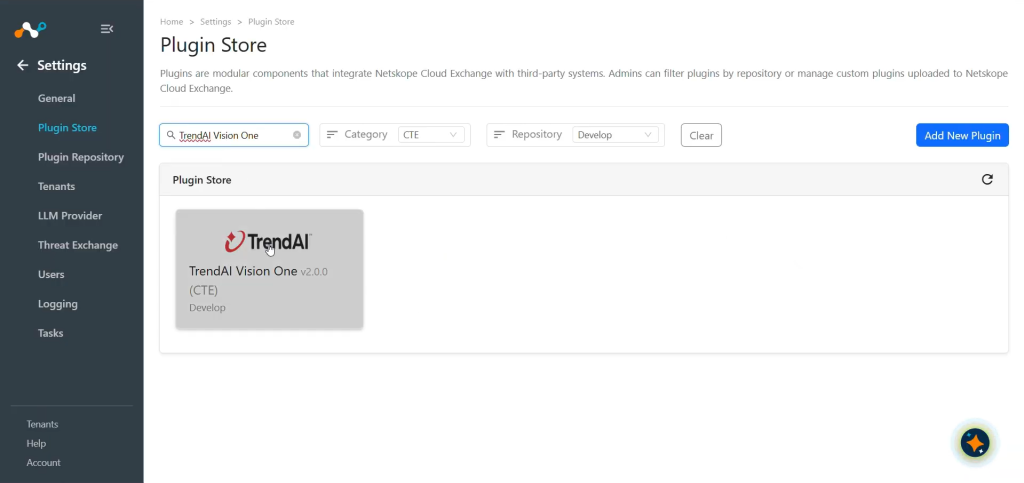
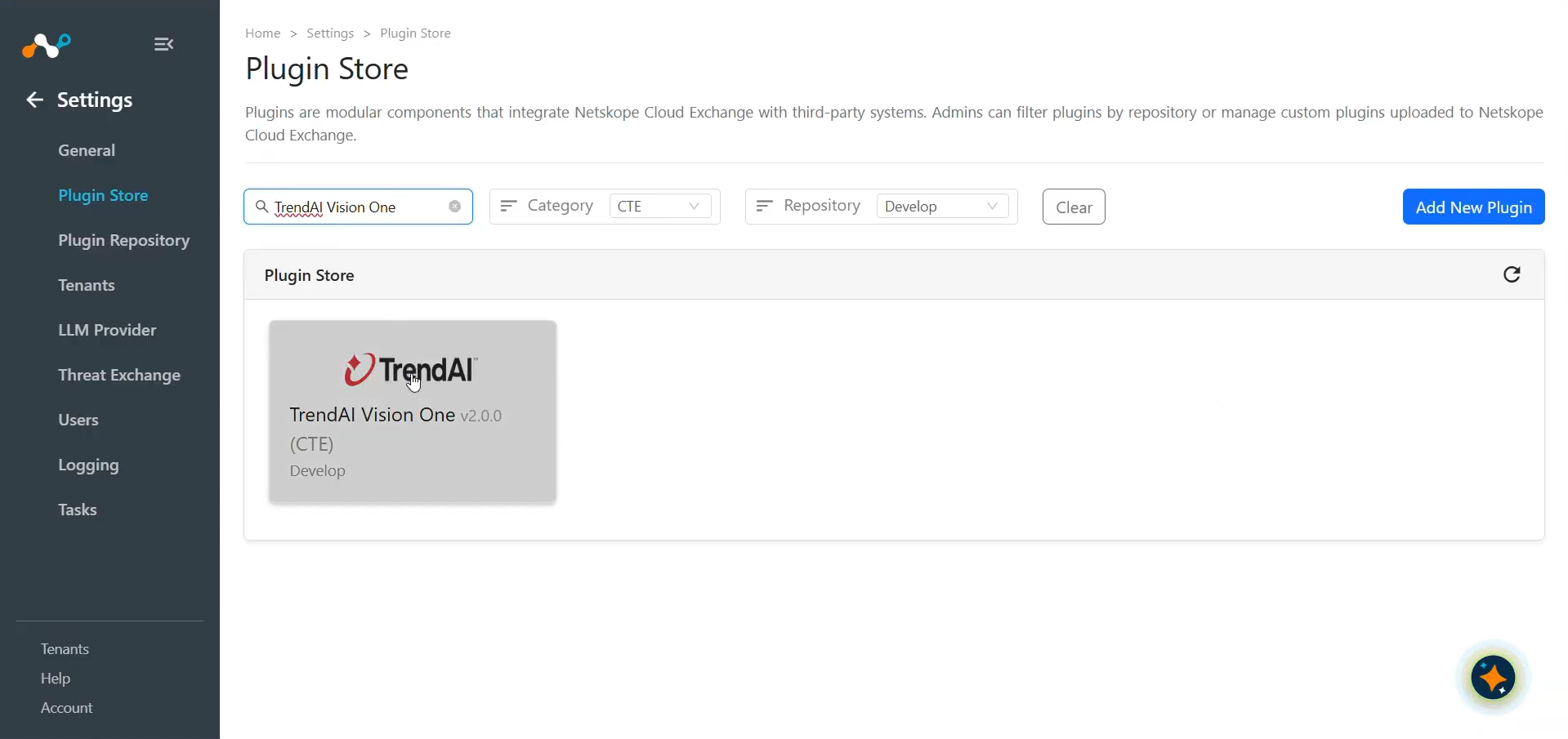
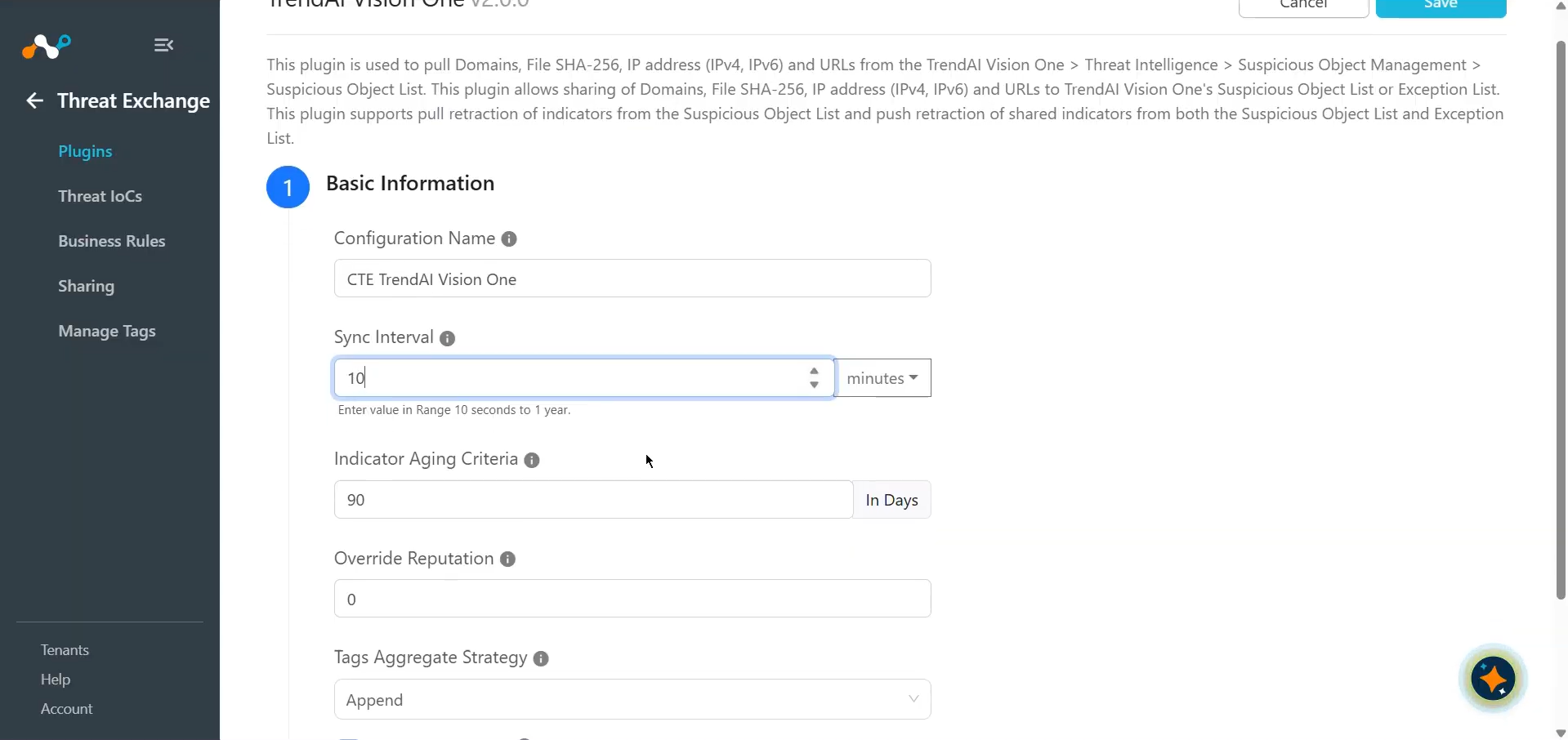
In Cloud Exchange, go to Settings > Plugin Store. Search for and select the TrendAI Vision One v2.0.0 (CTE) plugin.
-
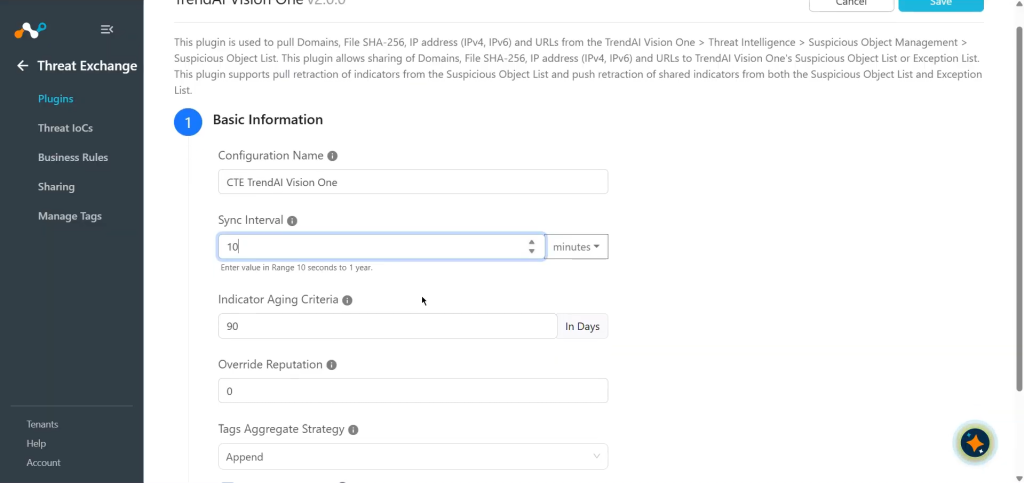
Enter the Basic Information:
- Configuration Name: Plugin configuration name.
- Sync Interval: Interval to fetch data from this plugin and share data to this plugin from other sources.
- Aging Criteria: Expire indicators after specific time.
- Override Reputation: Set value to override reputation of indicators received from this configuration. Leave empty to keep default.
- Tags Aggregate Strategy: Choose whether to append new tags to existing IoC(s) or overwrite them. This configuration parameter determines how tags are stored for indicators pulled for this configuration.
- Enable SSL Validation: Enable SSL certificate verification.
-
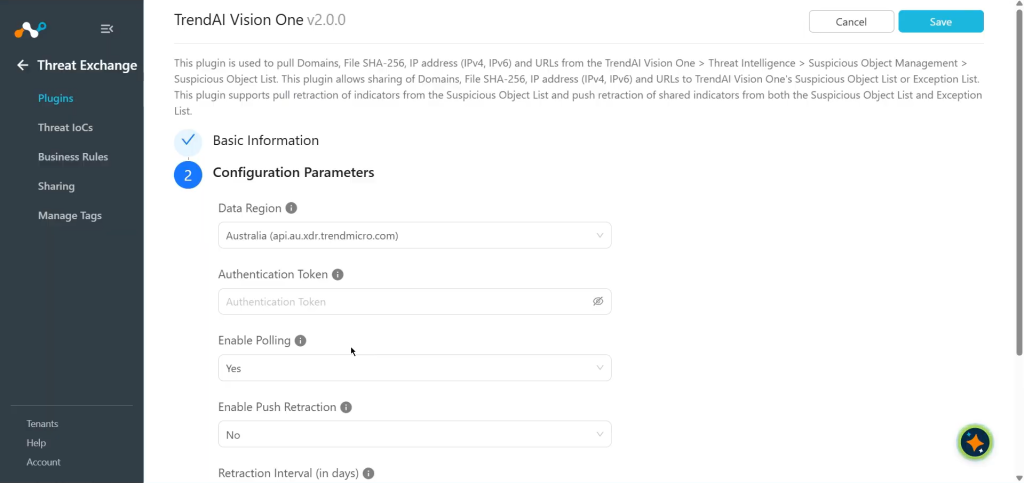
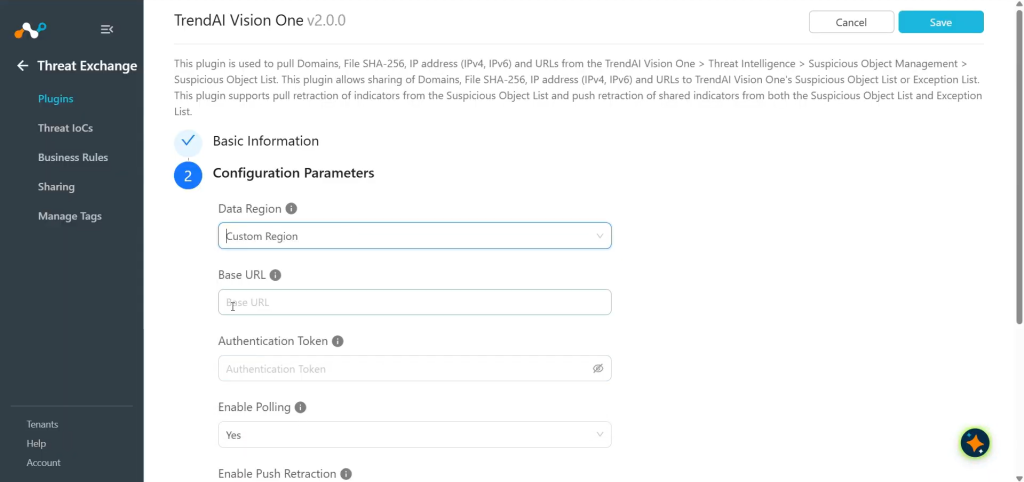
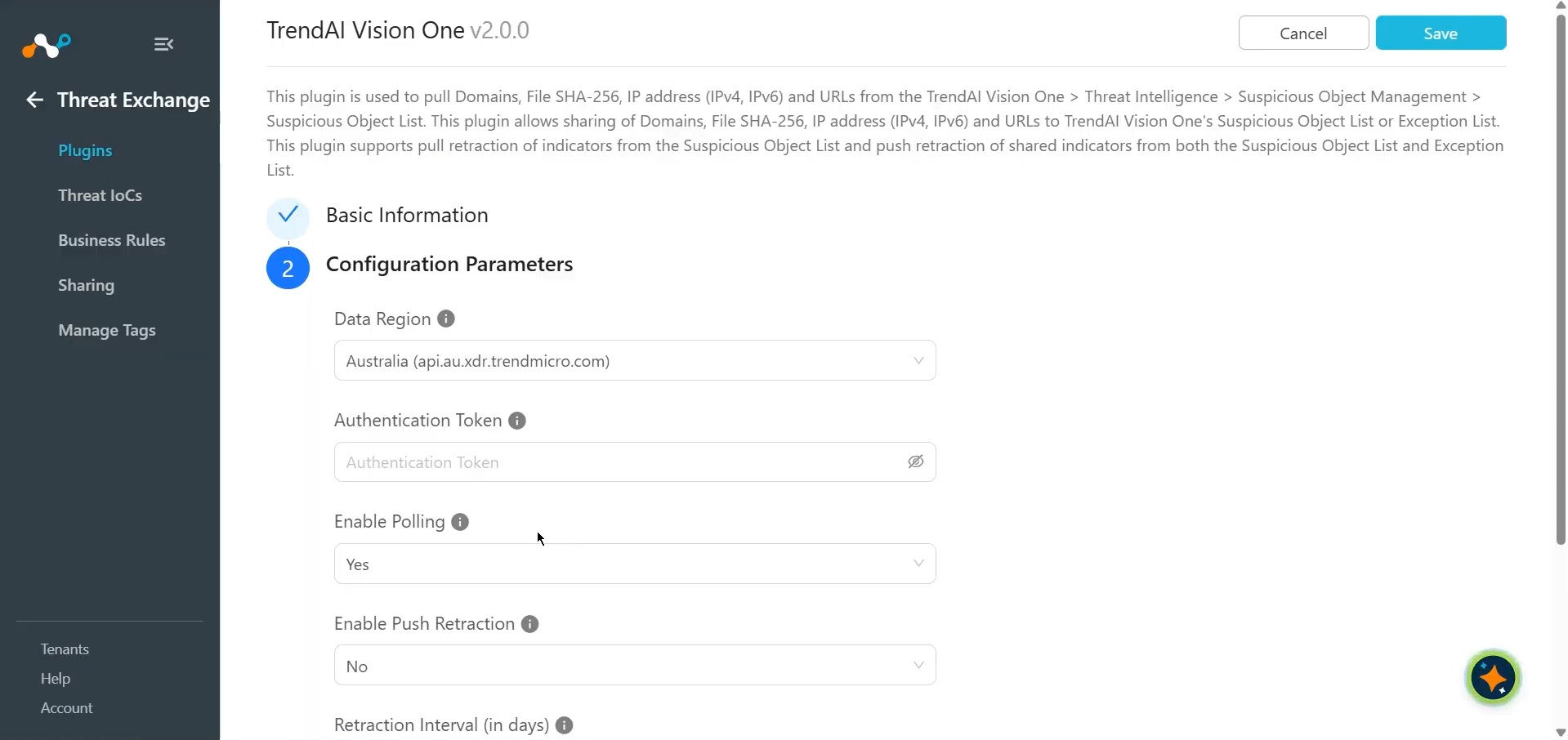
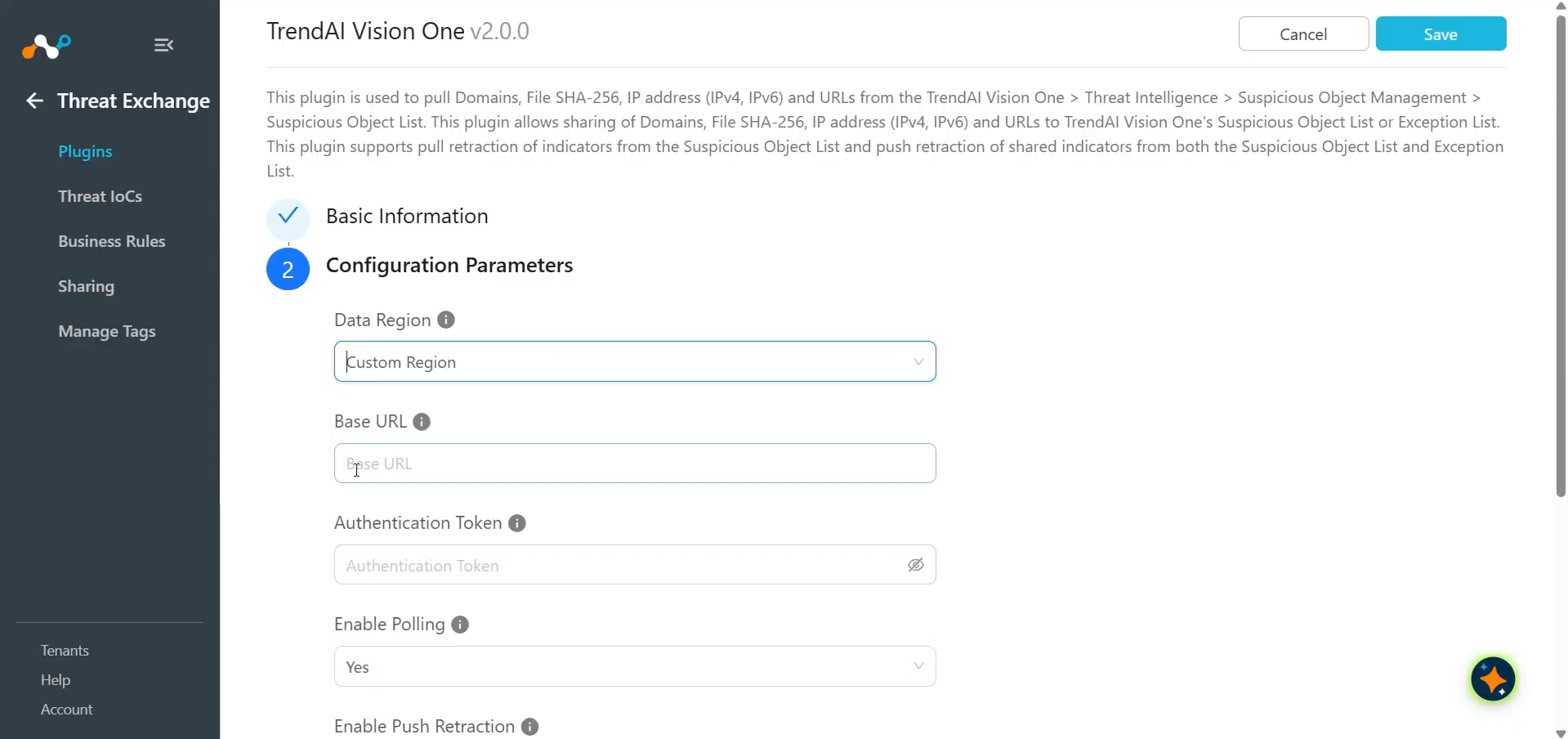
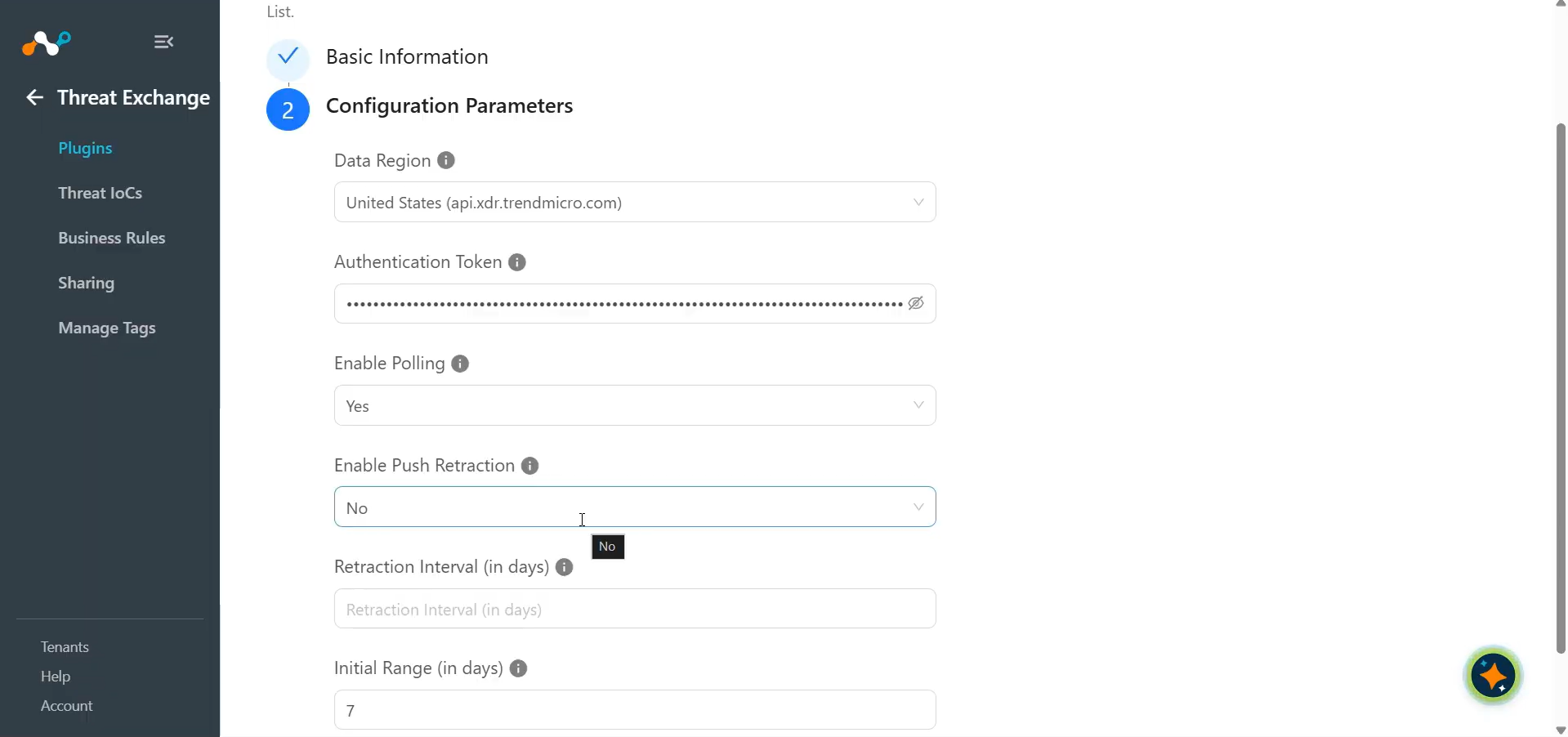
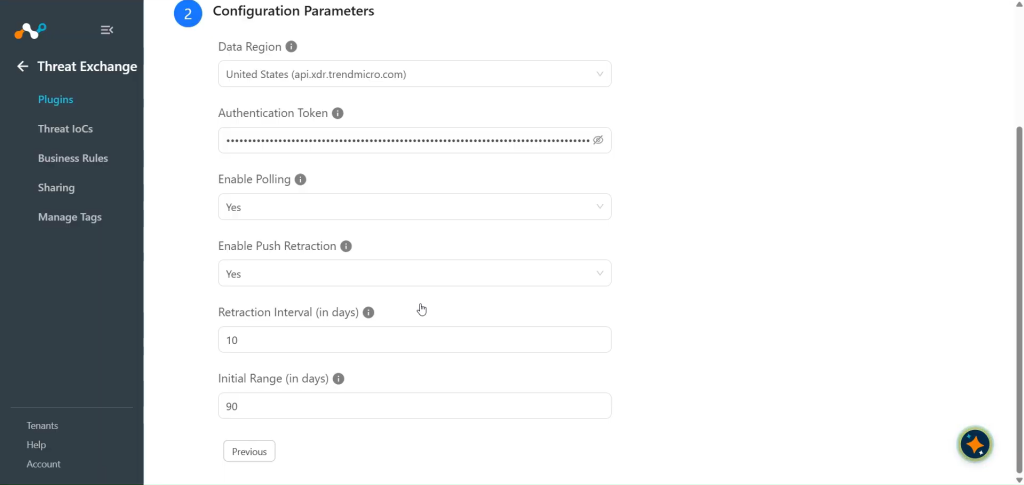
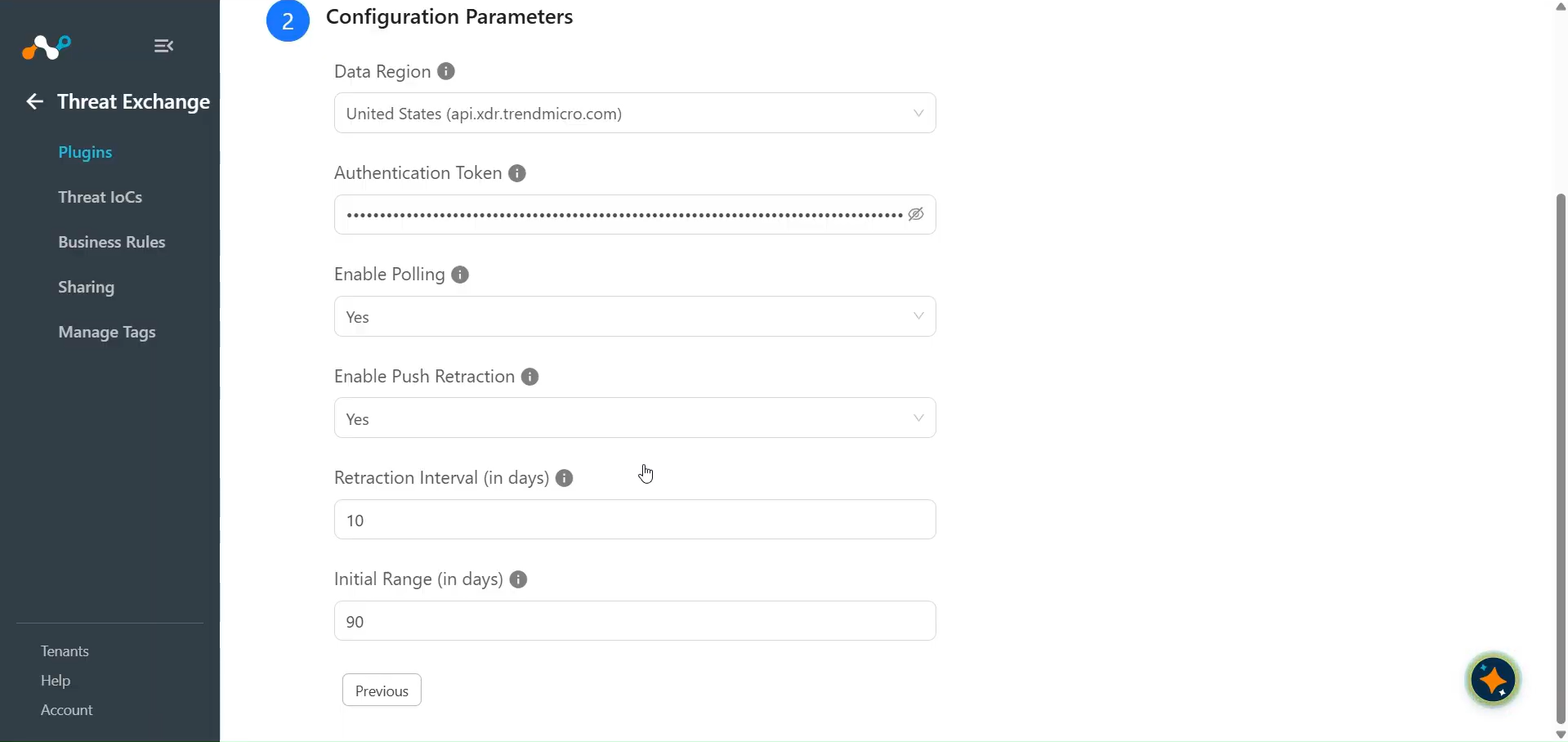
Click Next and enter the Configuration Parameters:
- Data Region: Select the data region from which you want to pull your data. Select Custom Region to provide your own Base URL.
- Base URL: Base URL of your TrendAI Vision One API host, for example
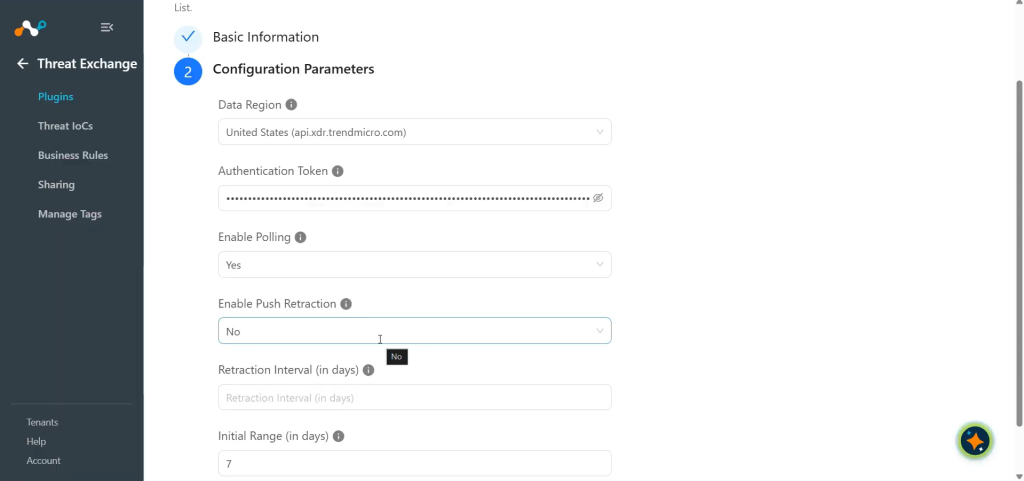
https://api.xdr.trendmicro.com. - Authentication Token: Authentication Token to access TrendAI Vision One APIs.
- Enable Polling: Enable/Disable polling data from TrendAI Vision One. Disable if you only need to push indicators to TrendAI Vision One.
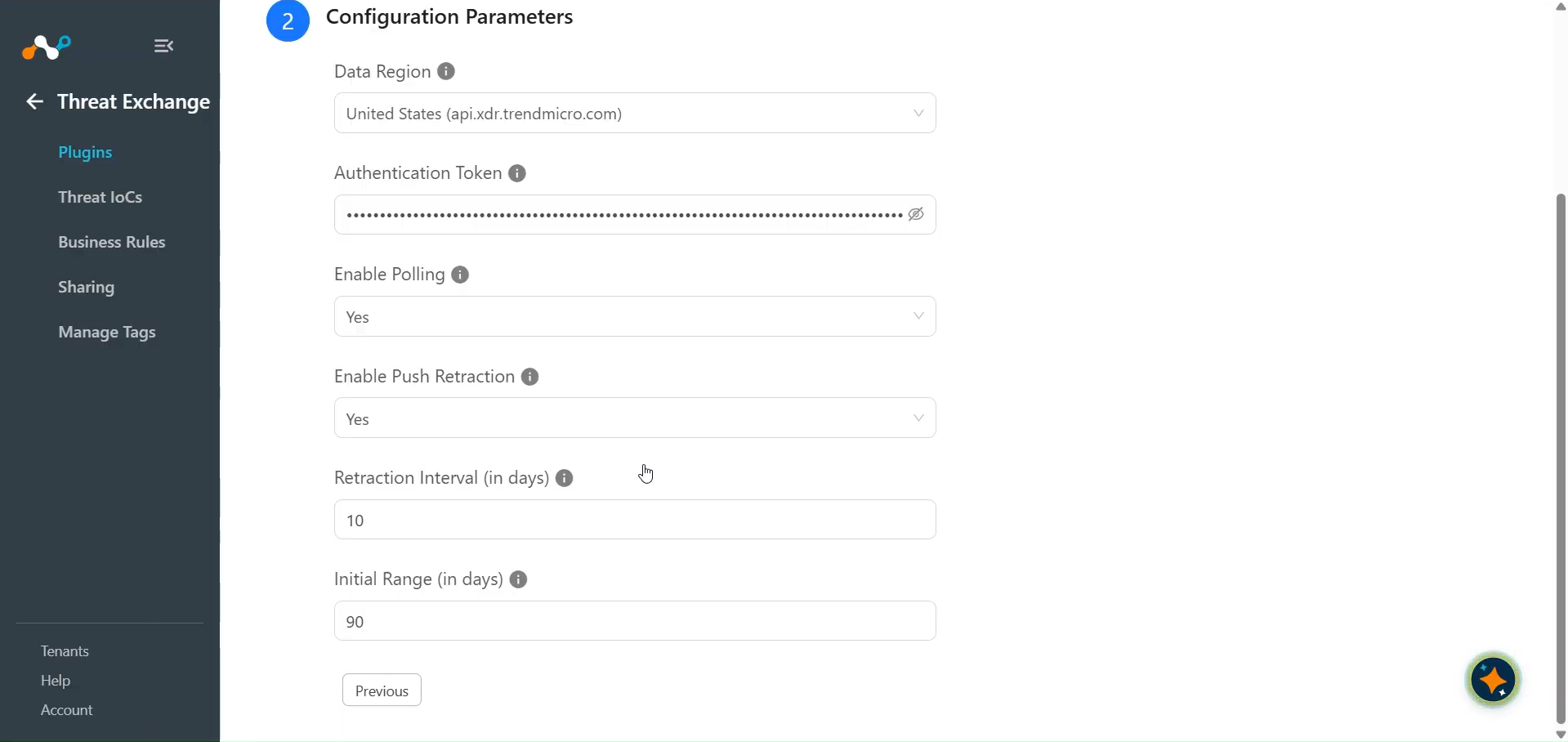
- Enable Push Retraction: Enable/Disable push retraction of indicator(s) for Trend Vision One. When enabled, indicator(s) marked as retracted in Netskope Cloud Exchange that were previously shared to TrendAI Vision One will be deleted from both the Suspicious Object List and the Exception List.
- Retraction Interval (in days): Days to re-query for pull retraction of Suspicious Object List indicators (1–365). Number of days to use as the retraction interval for Trend Vision One indicator(s) pull retraction. This parameter applies only when IoC(s) Retraction is enabled in Threat Exchange Settings. Value must be between 1 and 365.
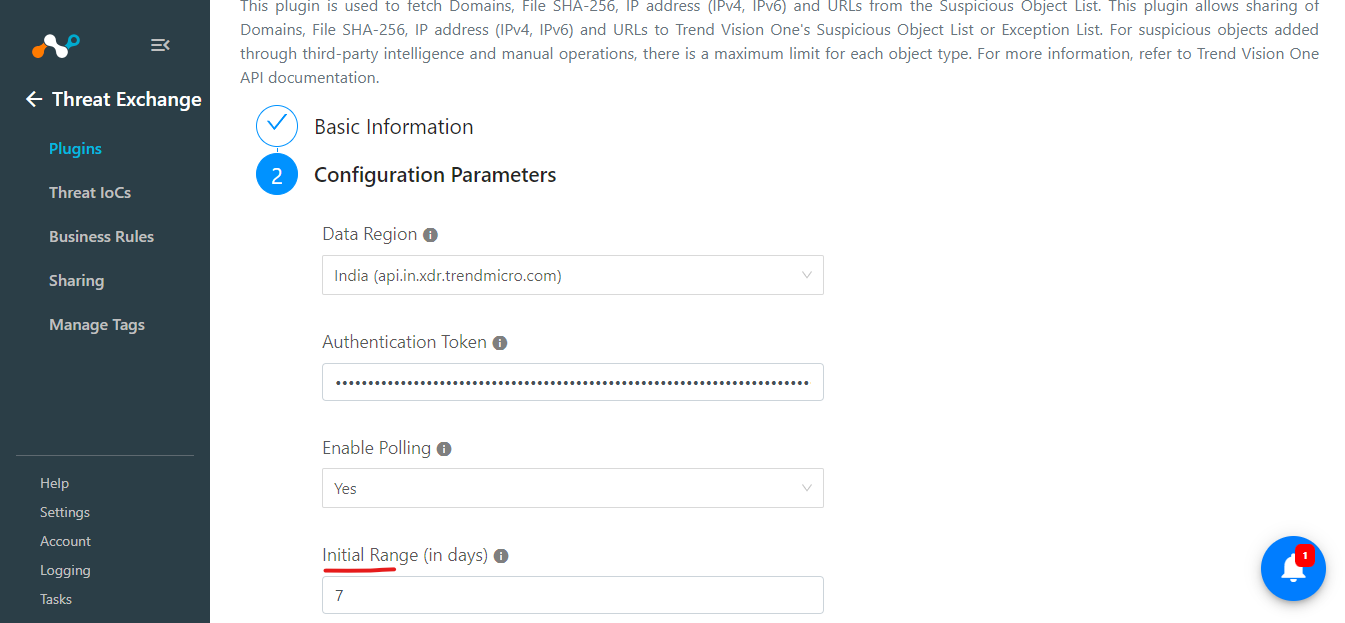
- Initial Range (in days): Number of days to pull the data for the initial run. Value must be between 1 and 365.
-
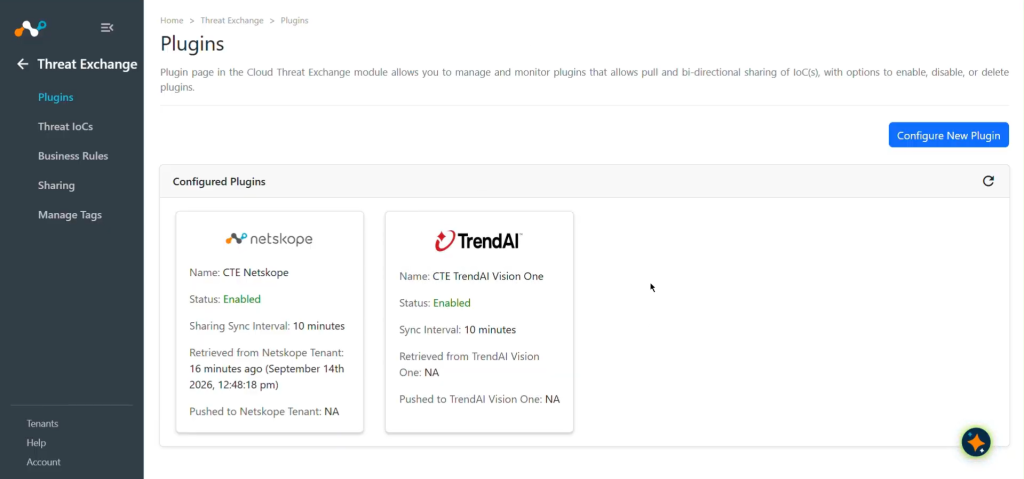
Click Save.
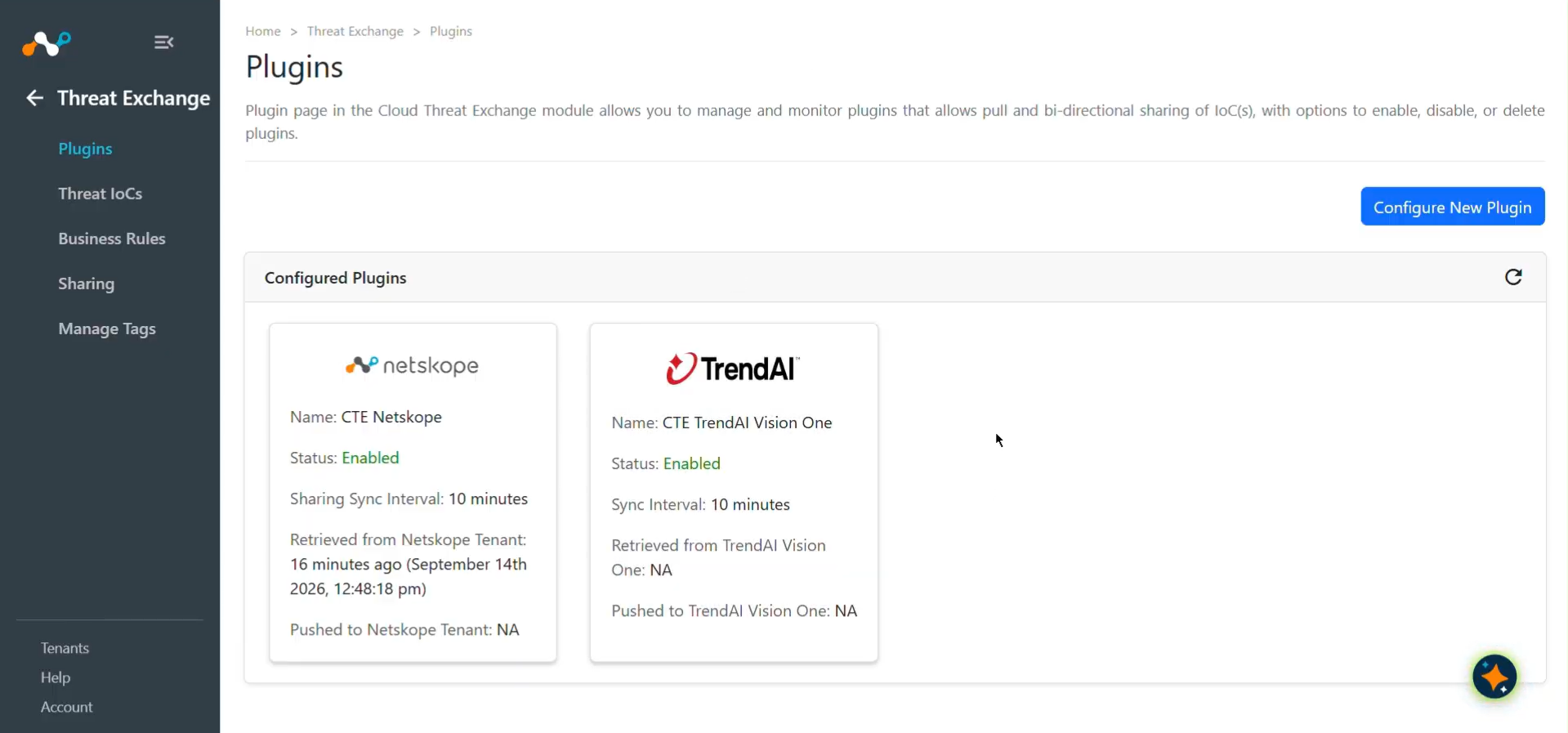
Configure a Threat Exchange Business Rule for TrendAI Vision One
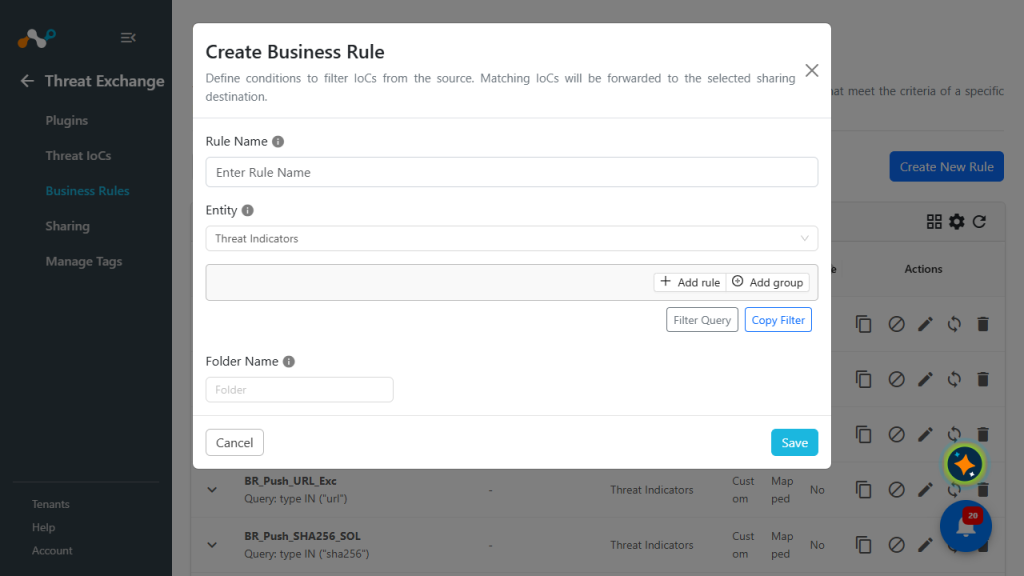
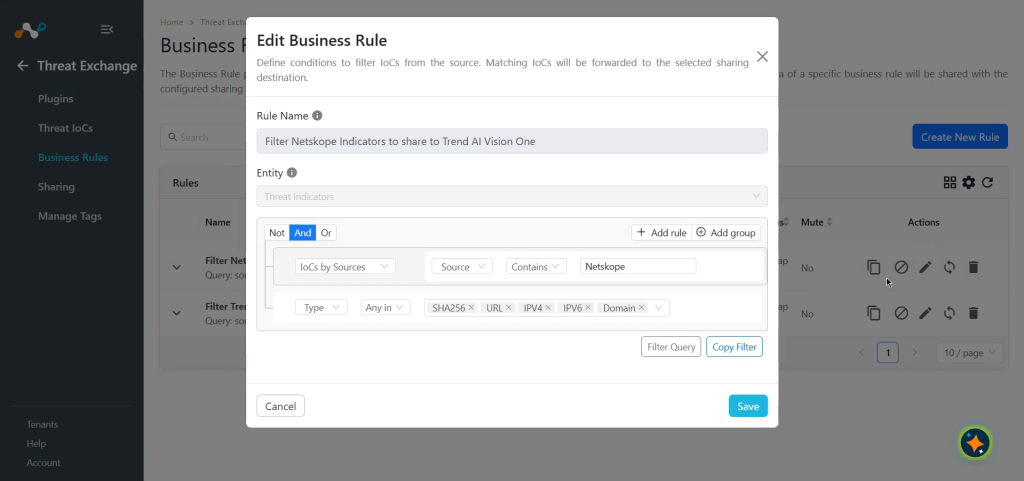
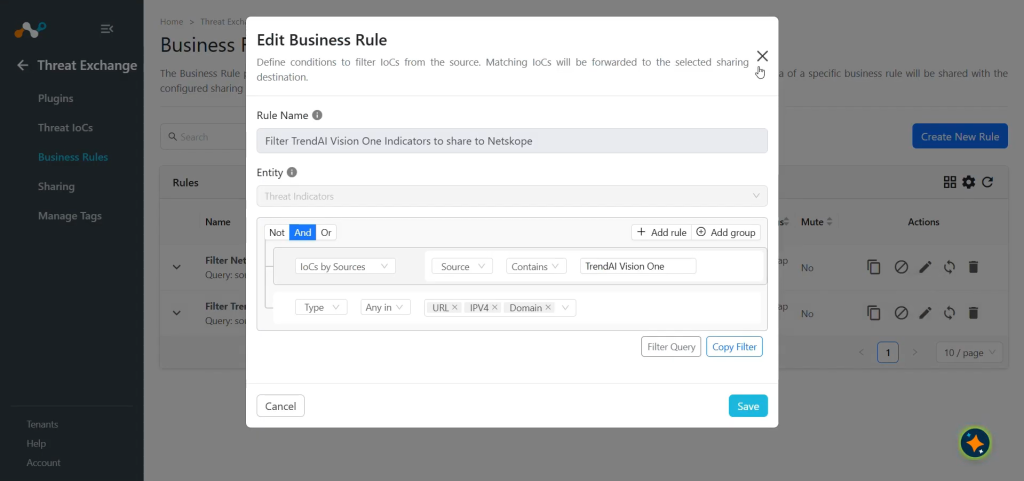
To share indicators fetched from the TrendAI Vision One to the Cloud Exchange platform, you need to have a business rule that will filter out the indicators that you want to share. To configure a business rule:
-
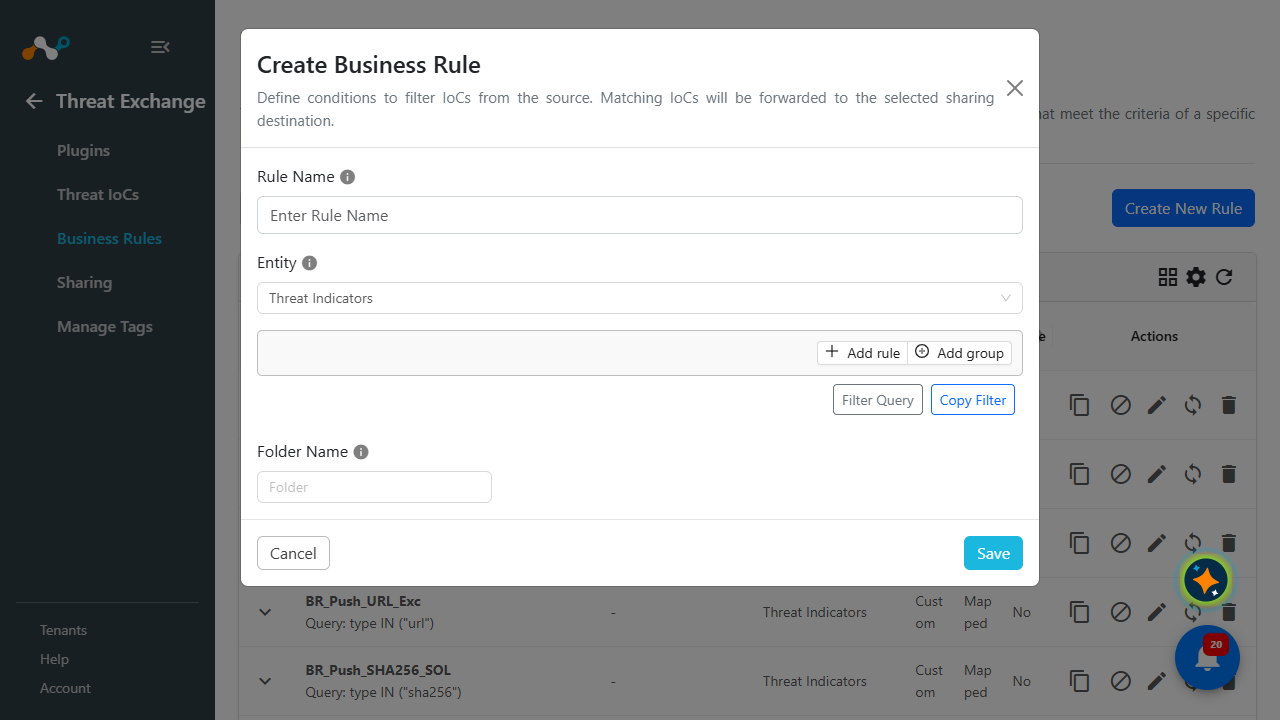
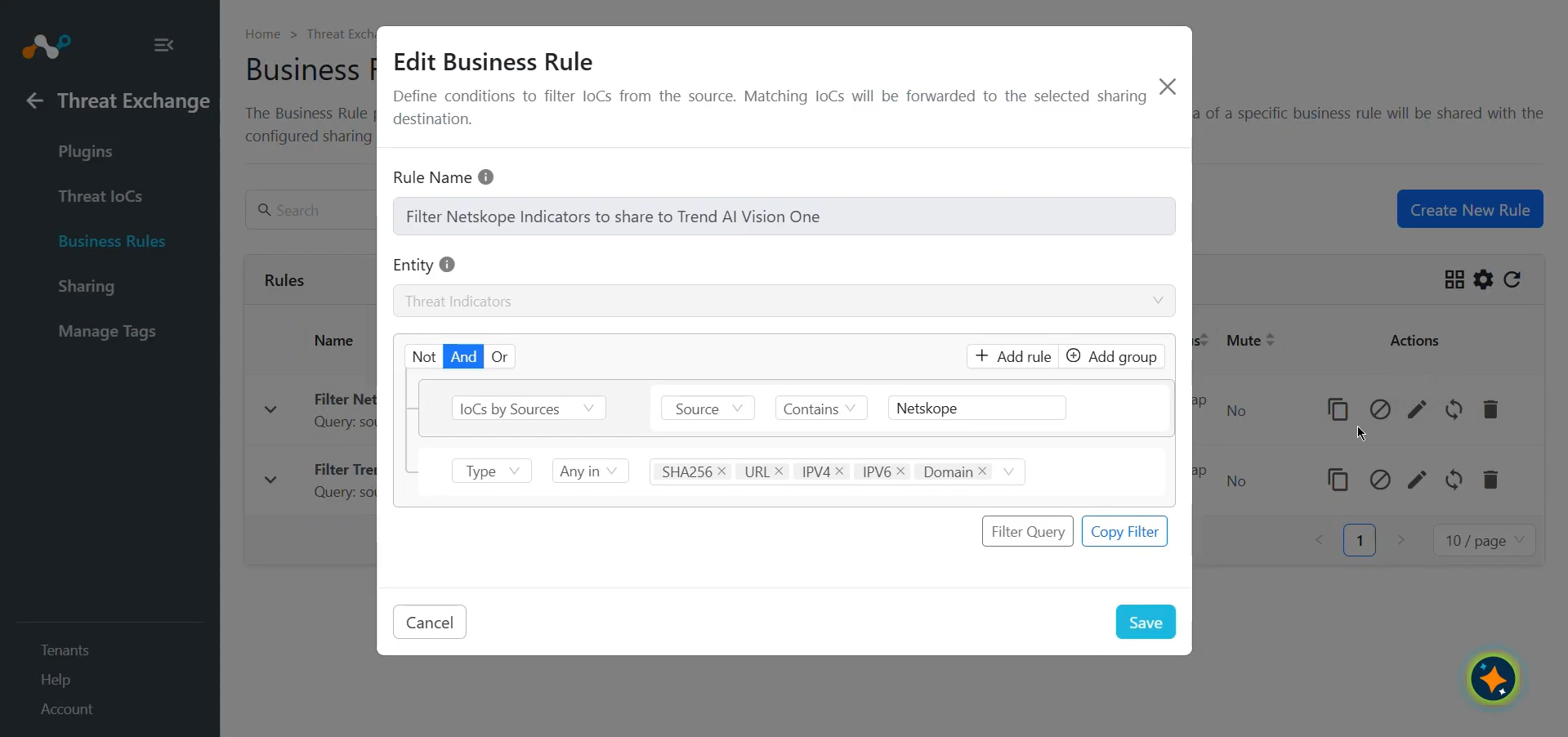
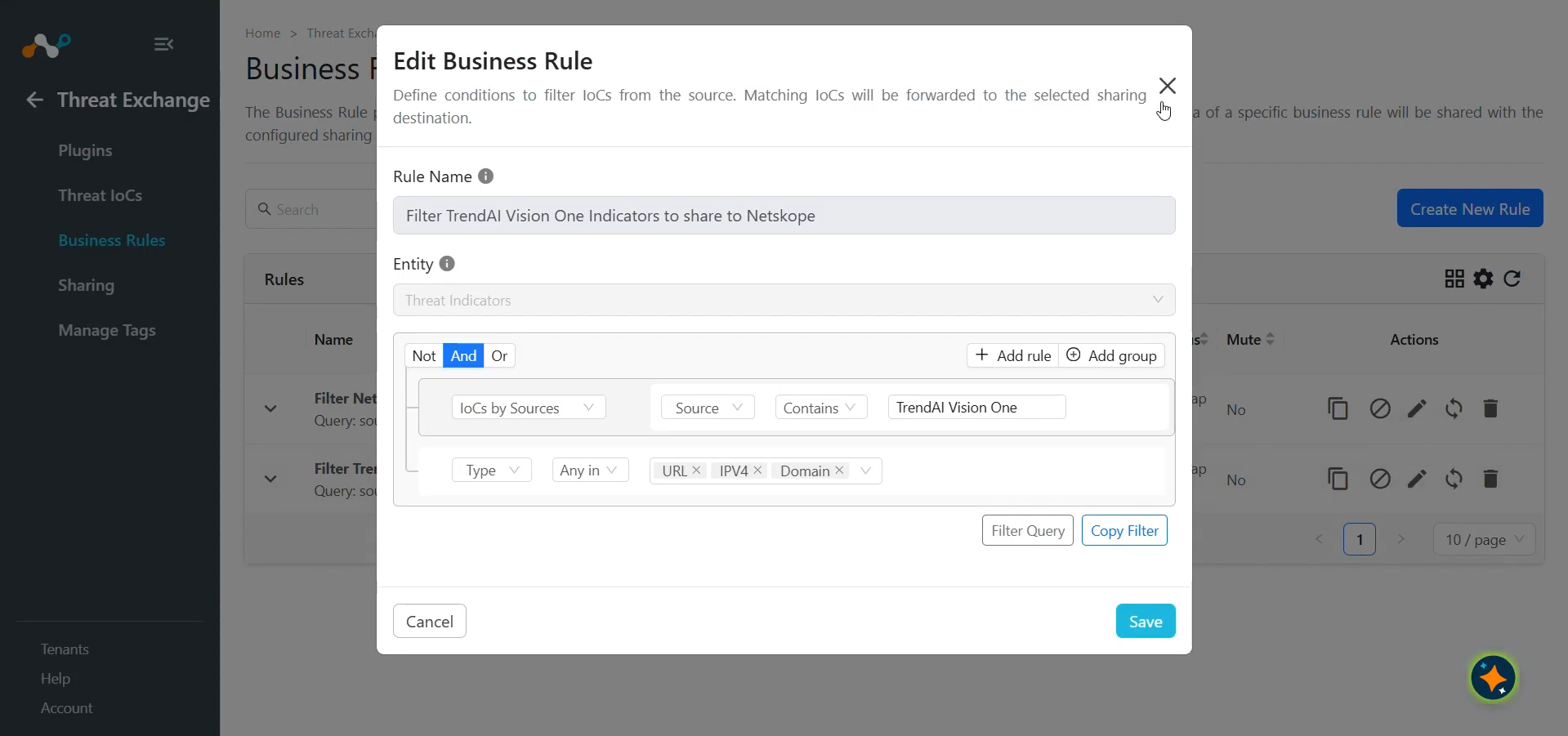
In Threat Exchange, go to Business Rules and click Create New Rule.
-
Add the filter(s) per your requirements in the rule, and then click Save.
Configure Sharing for Netskope and TrendAI Vision One
To share IoCs from the TrendAI Vision One to the Cloud Exchange platform:
-
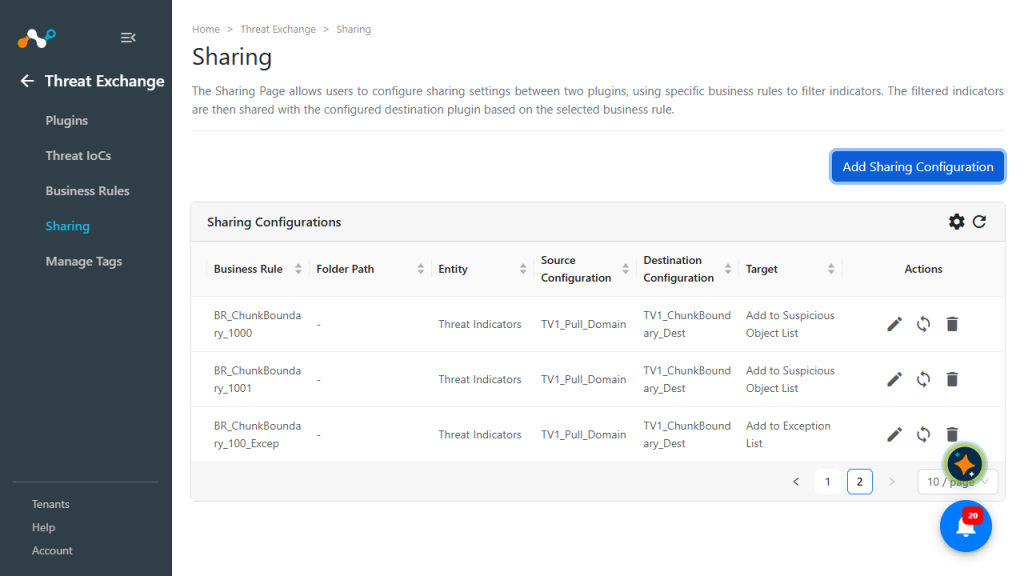
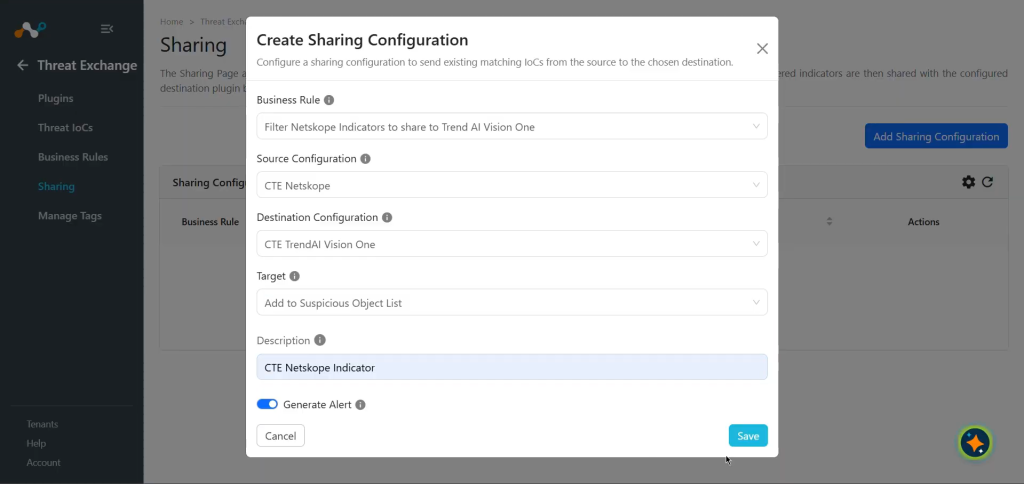
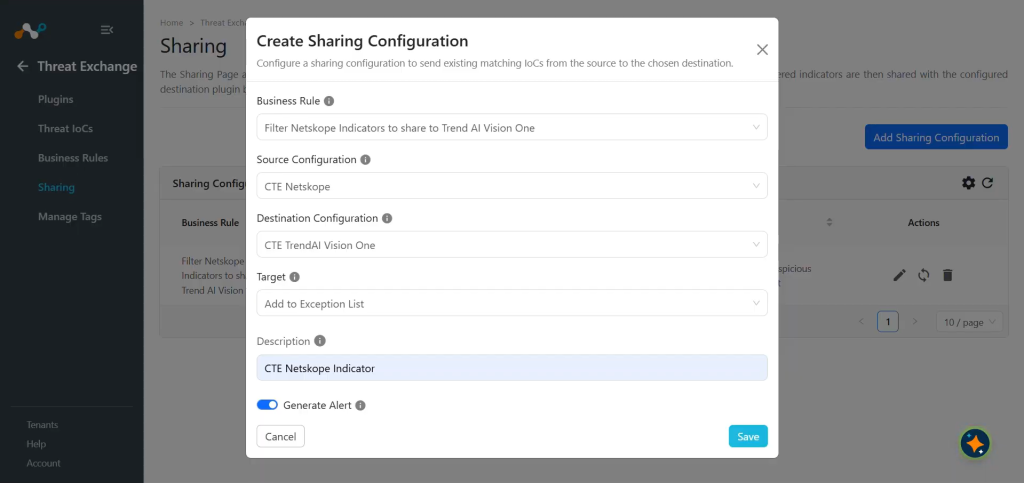
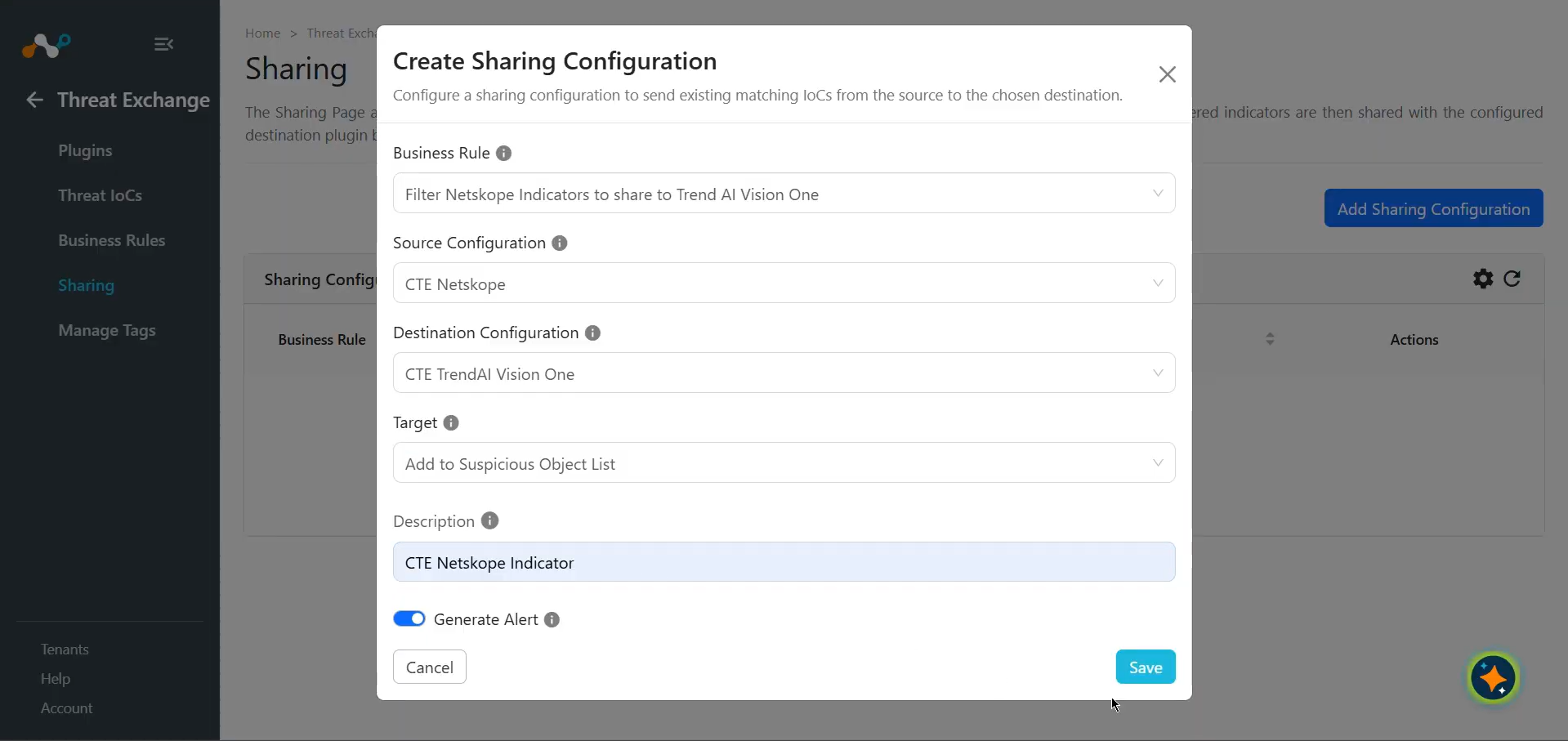
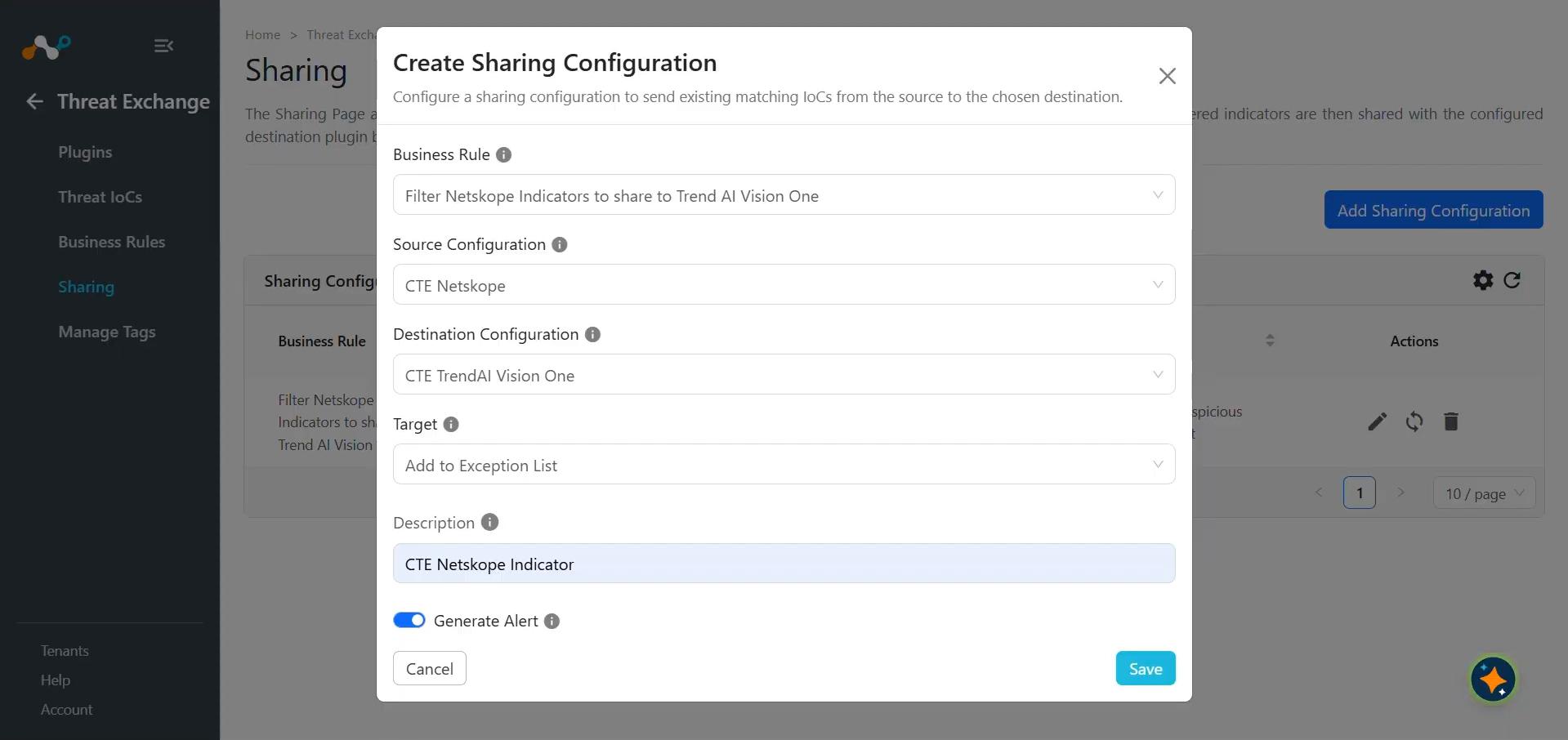
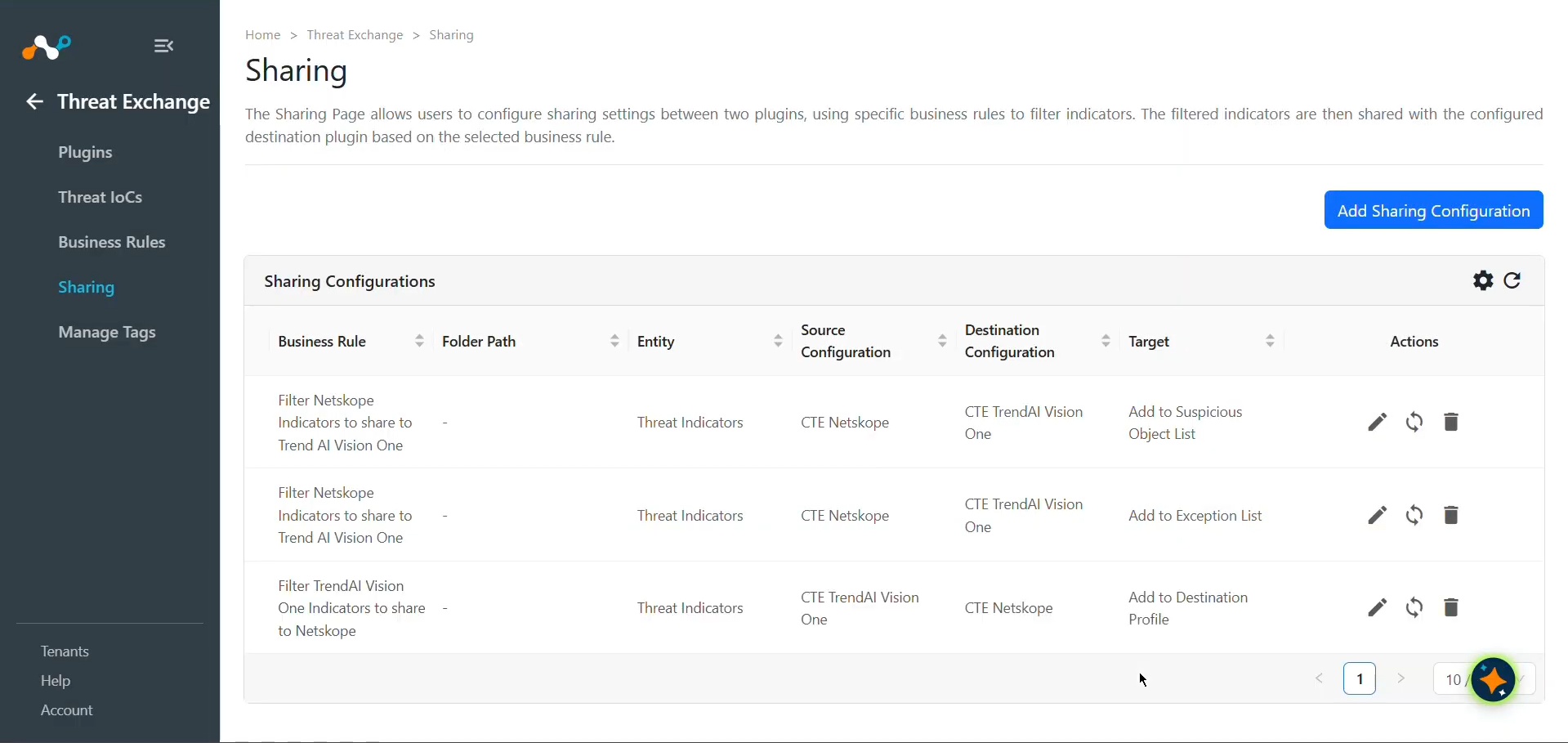
In Threat Exchange, go to Sharing and click Add Sharing Configuration.
-
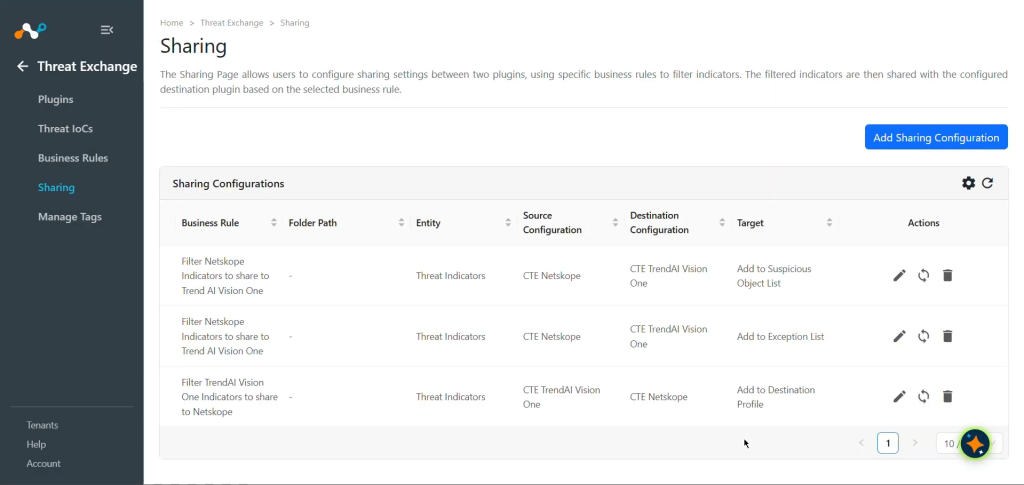
Select your Source Configuration (CTE Netskope), Business Rule, Destination Configuration (CTE TrendAI Vision One), and Target.
-
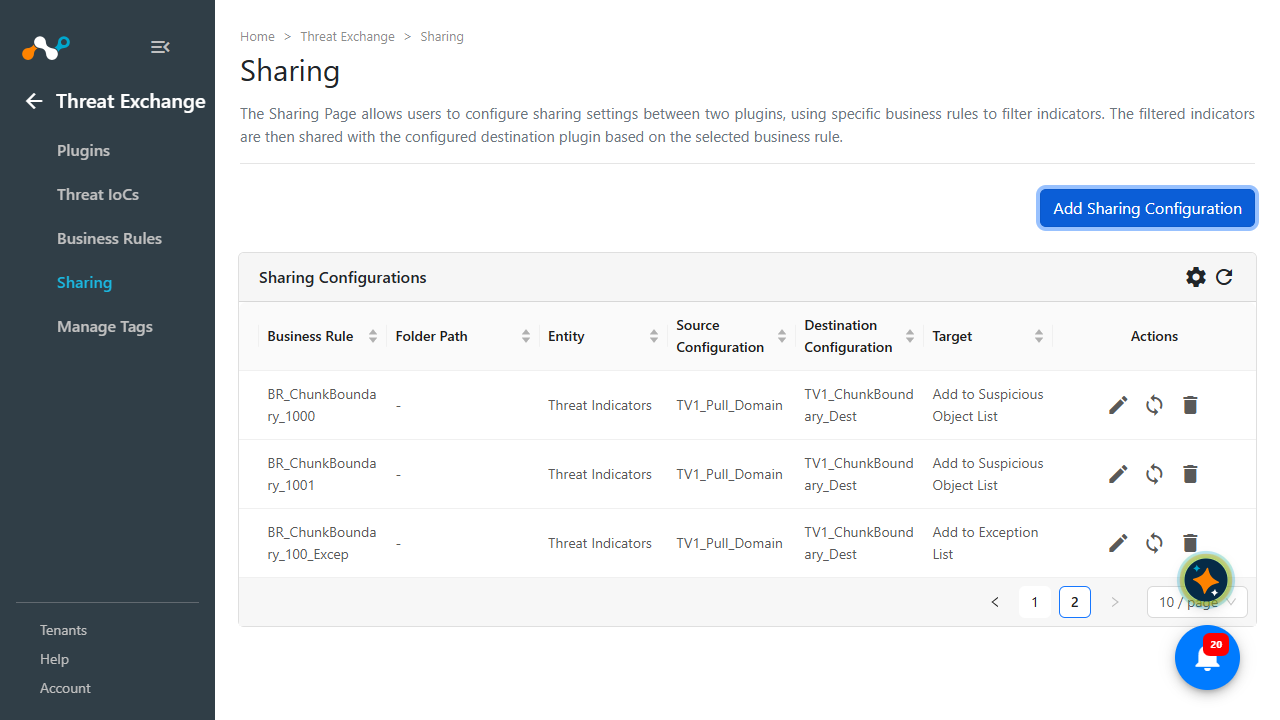
Click Save.
Enable IoC Retraction
-
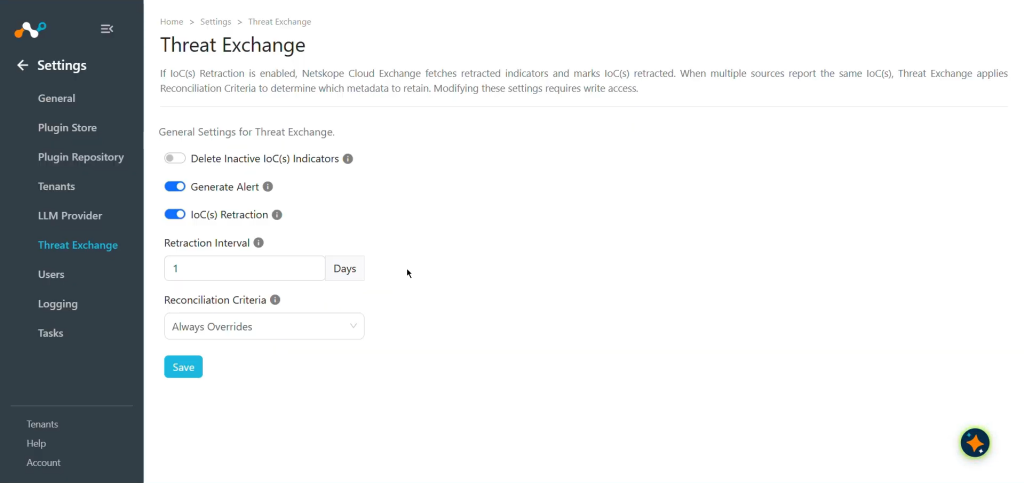
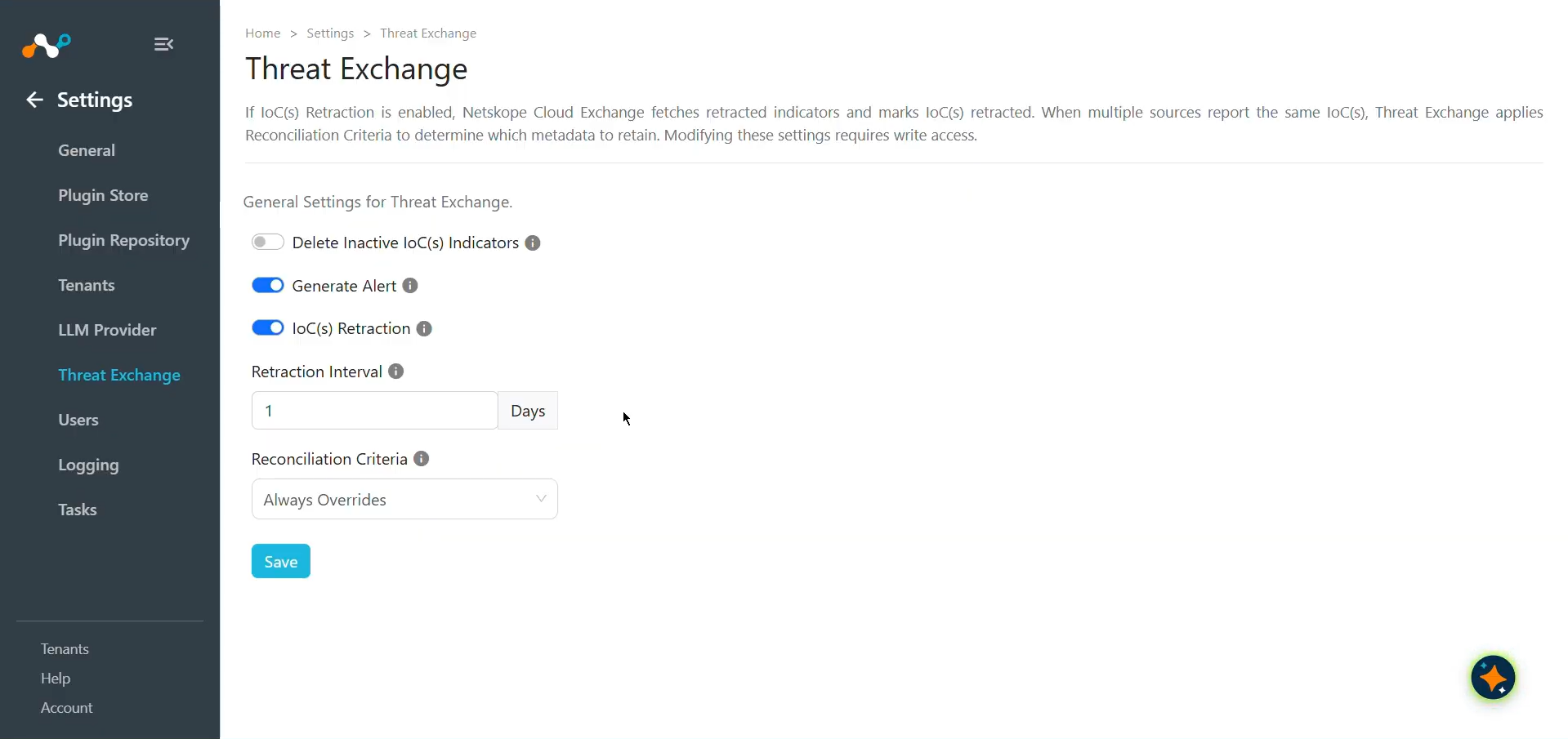
In Cloud Exchange, go to Settings > Threat Exchange.
-
Enable IoC Retraction.
-
Ensure the Retraction Interval (in days) parameter is configured in the TrendAI Vision One plugin configuration for pull retraction, and select Yes in Enable Push Retraction for push retraction.
Validate the TrendAI Vision One Plugin
Validate the Pull
Data from Trend Vision One is pulled from the Threat Intelligence > Suspicious Object Management > Suspicious Object List.
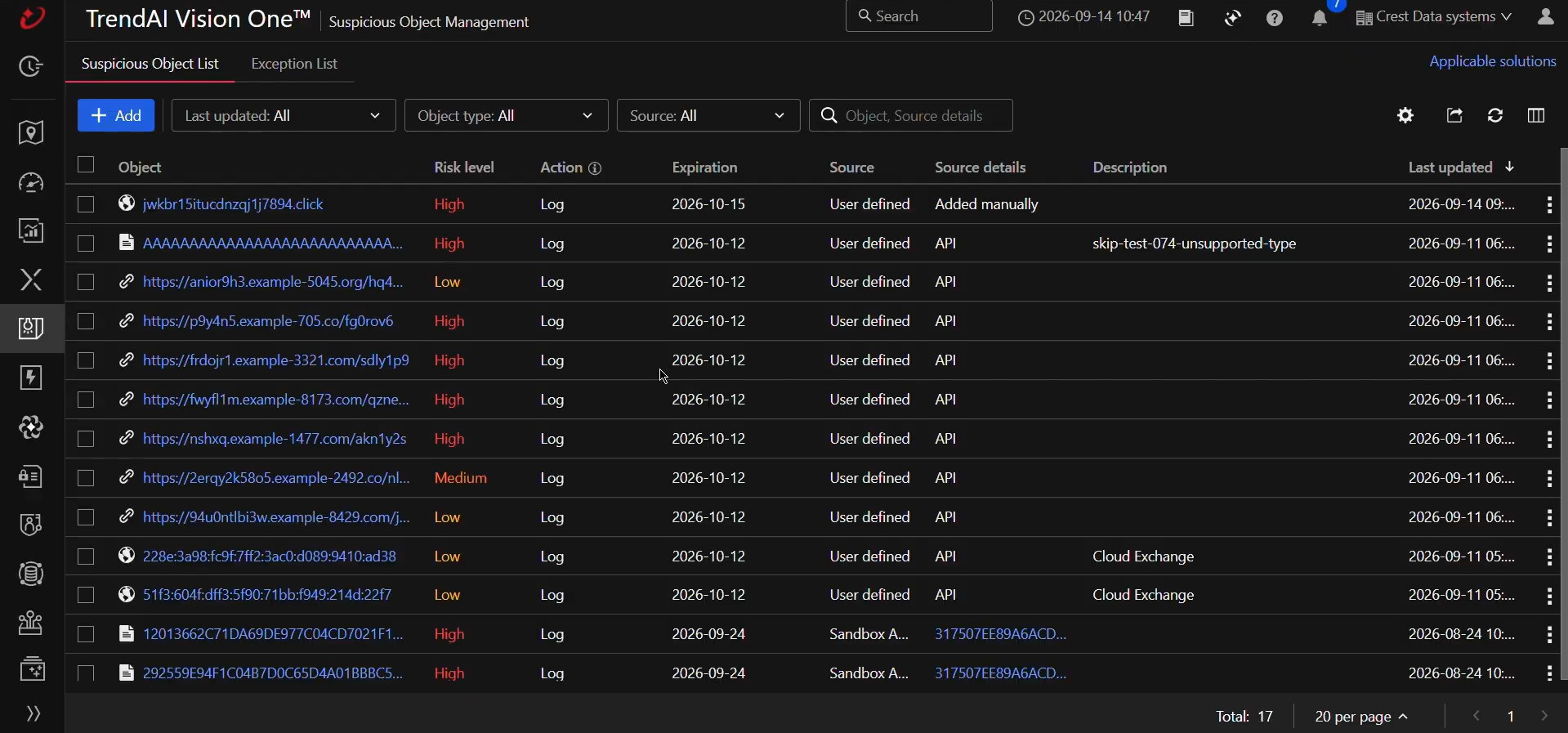
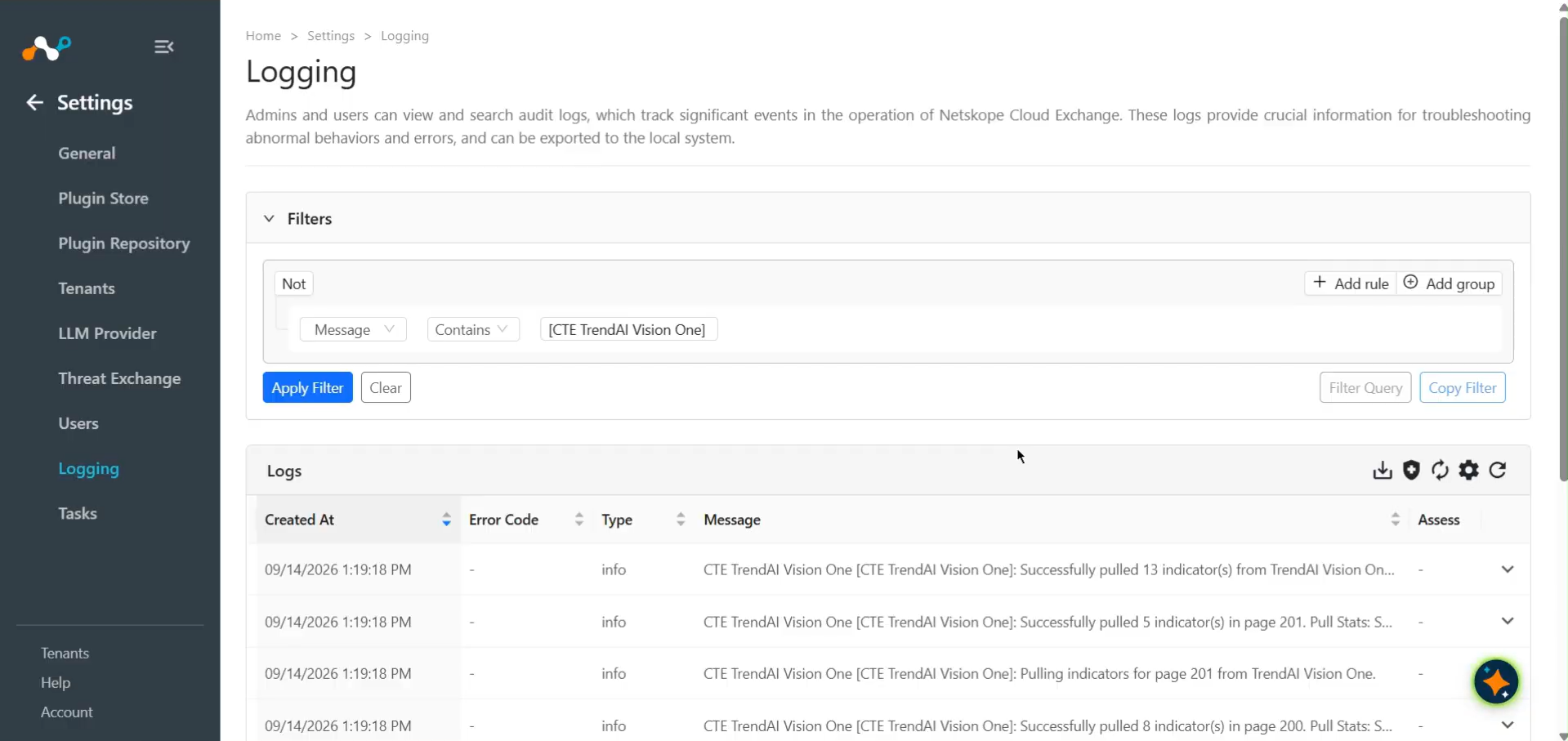
To verify pulled logs on Cloud Exchange, go to Logging and search logs from the TrendAI Vision One plugin.
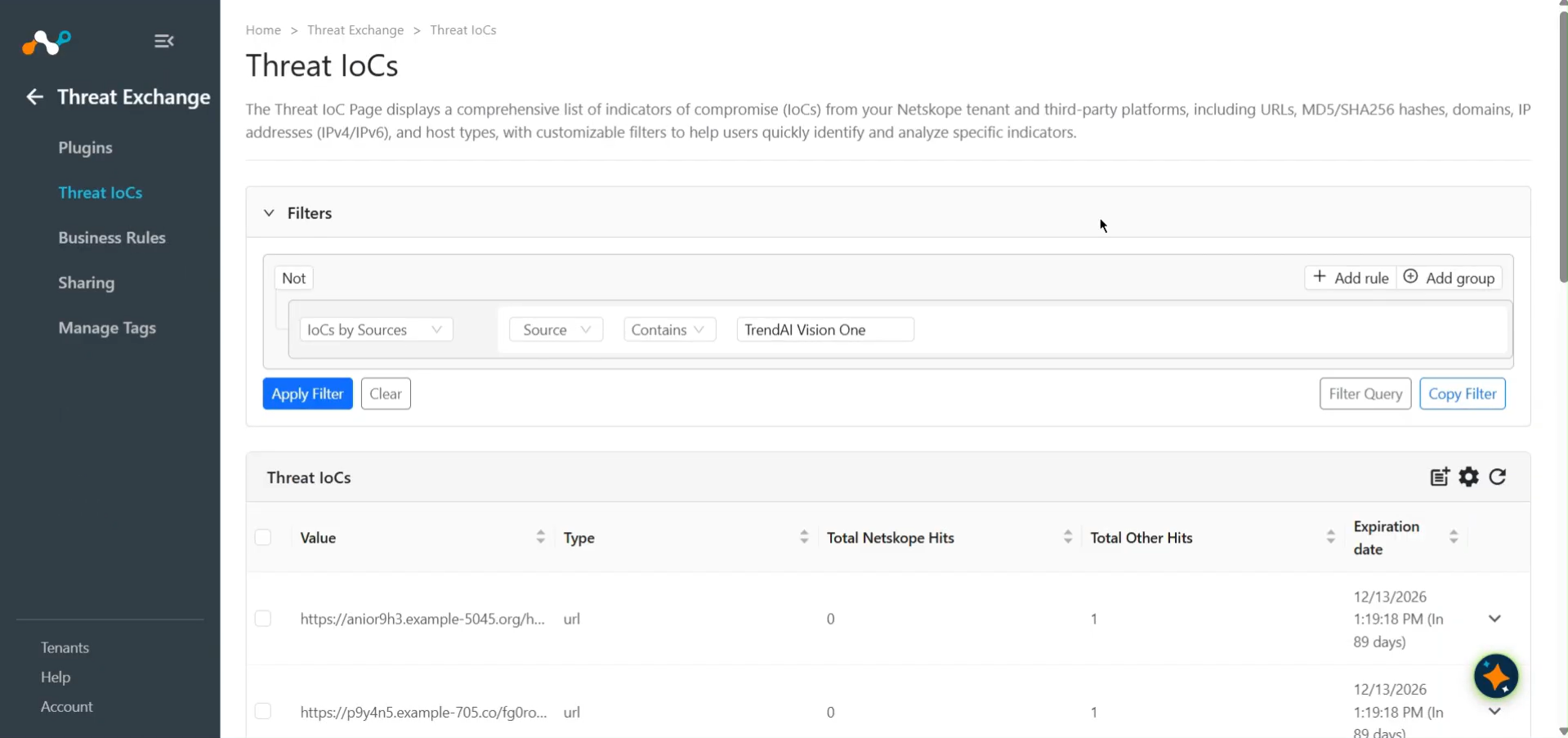
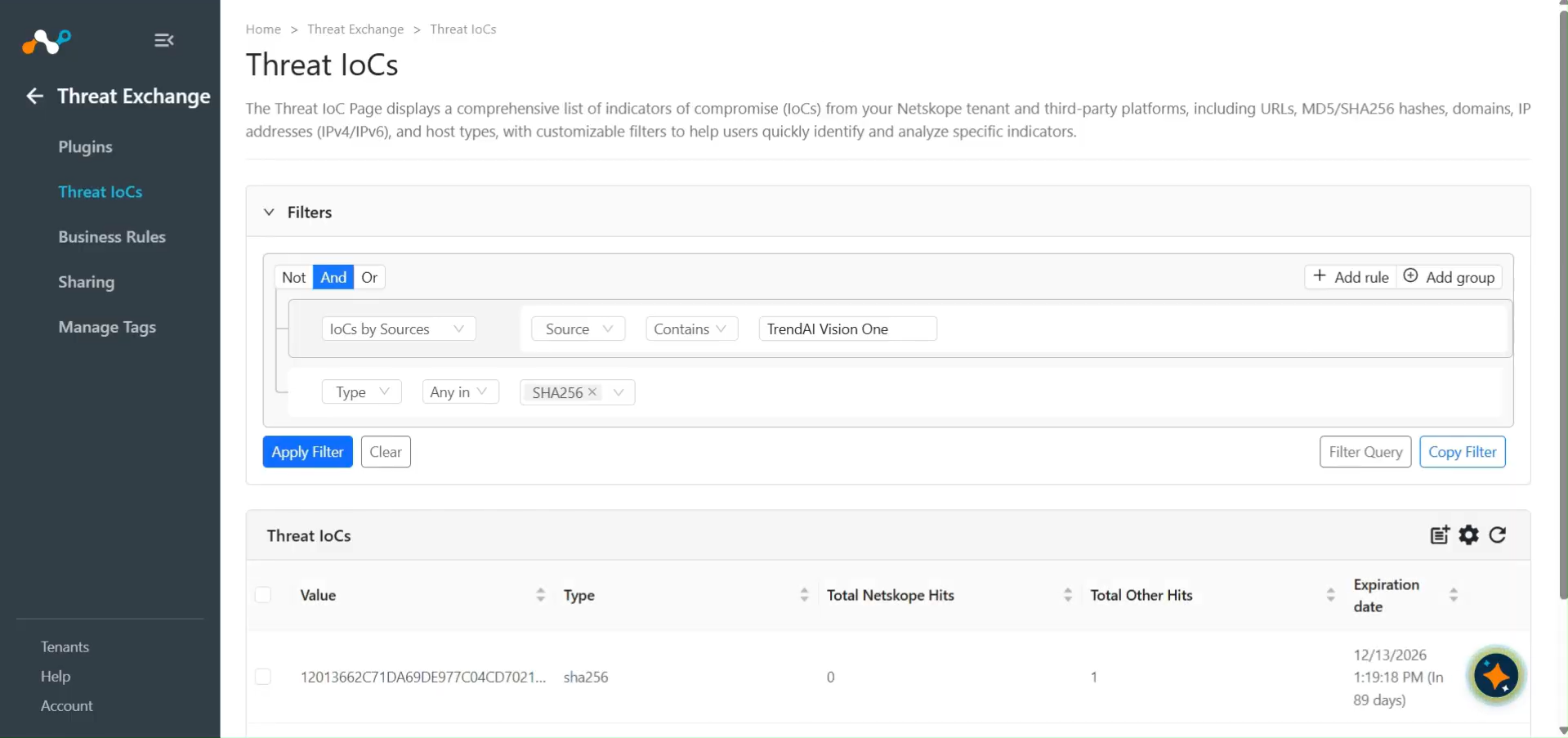
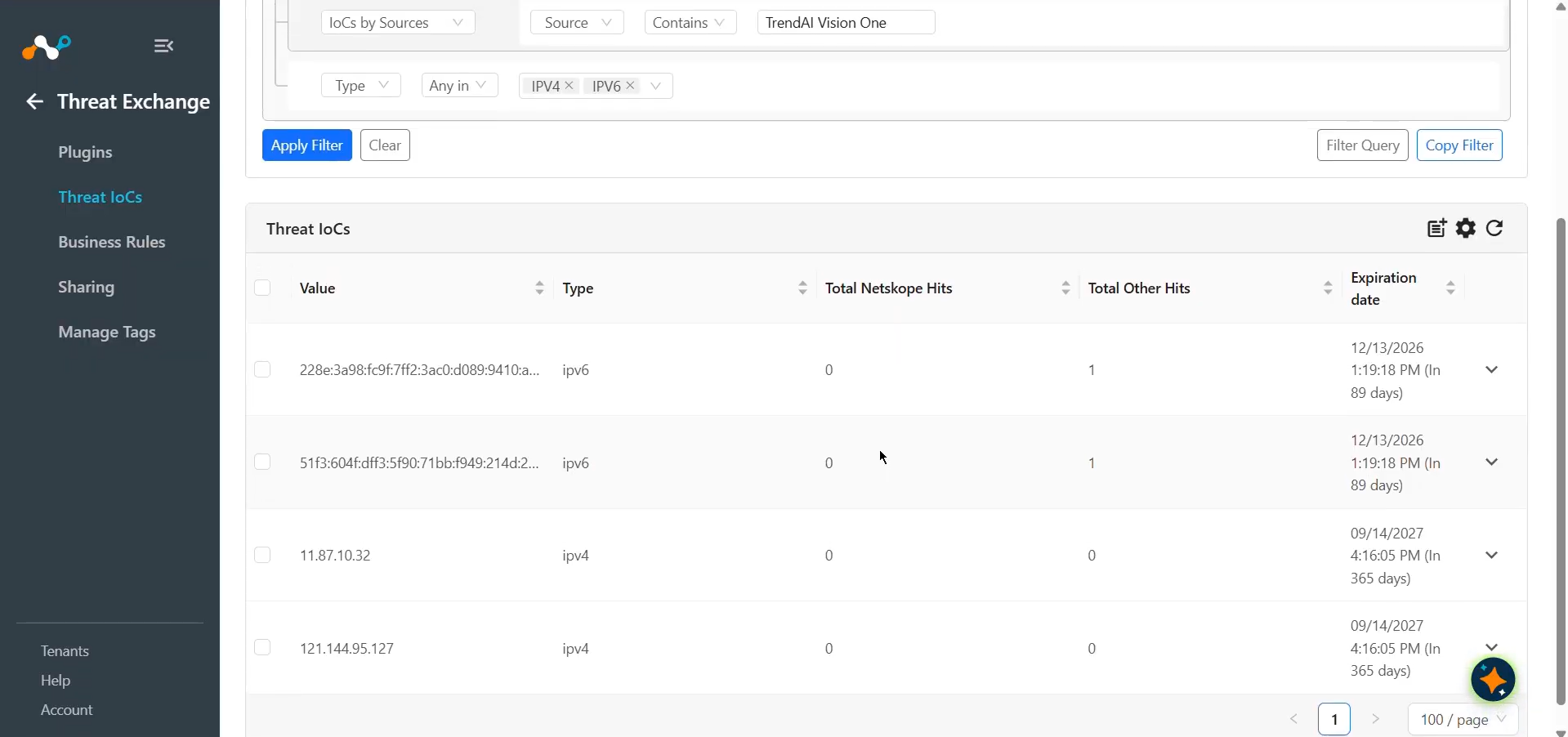
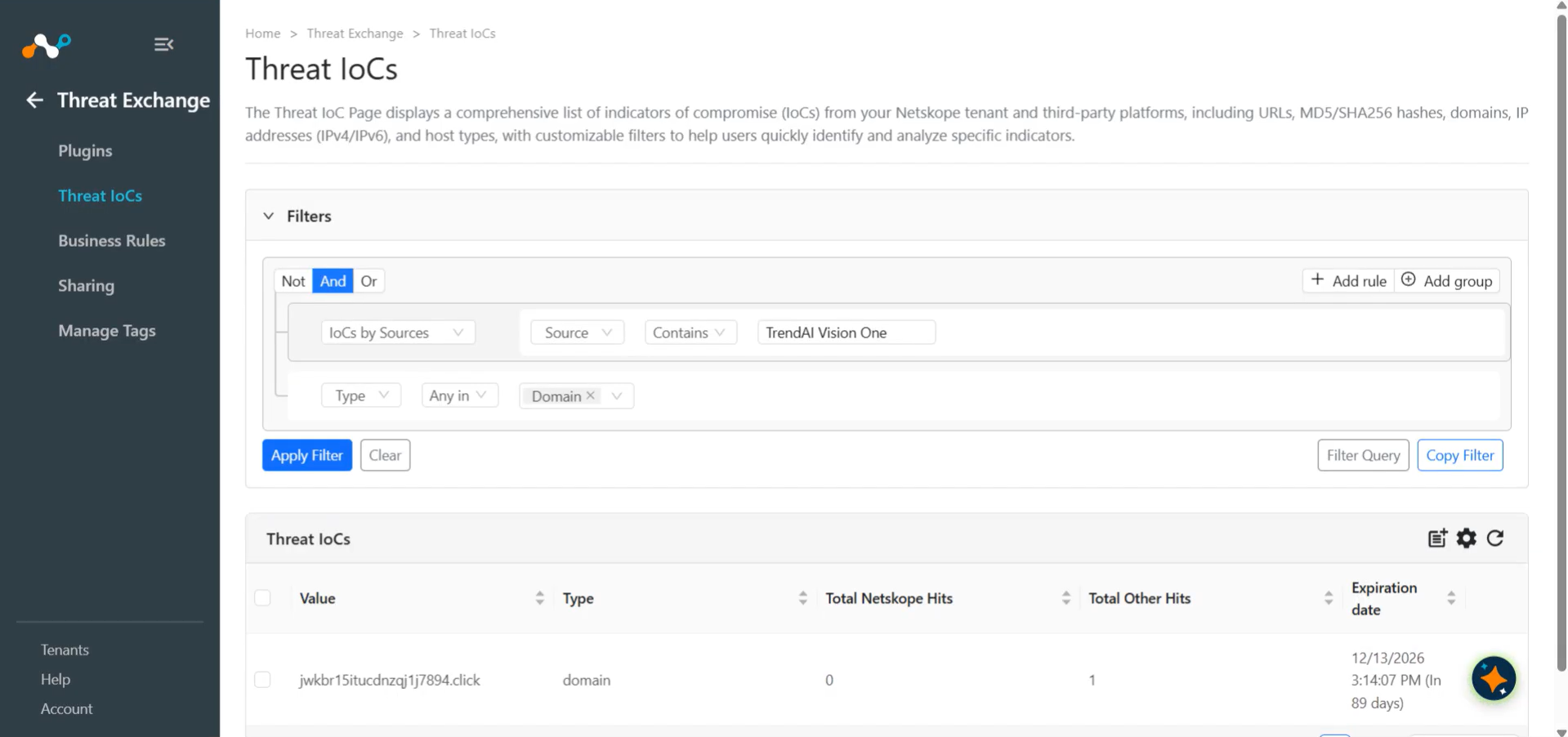
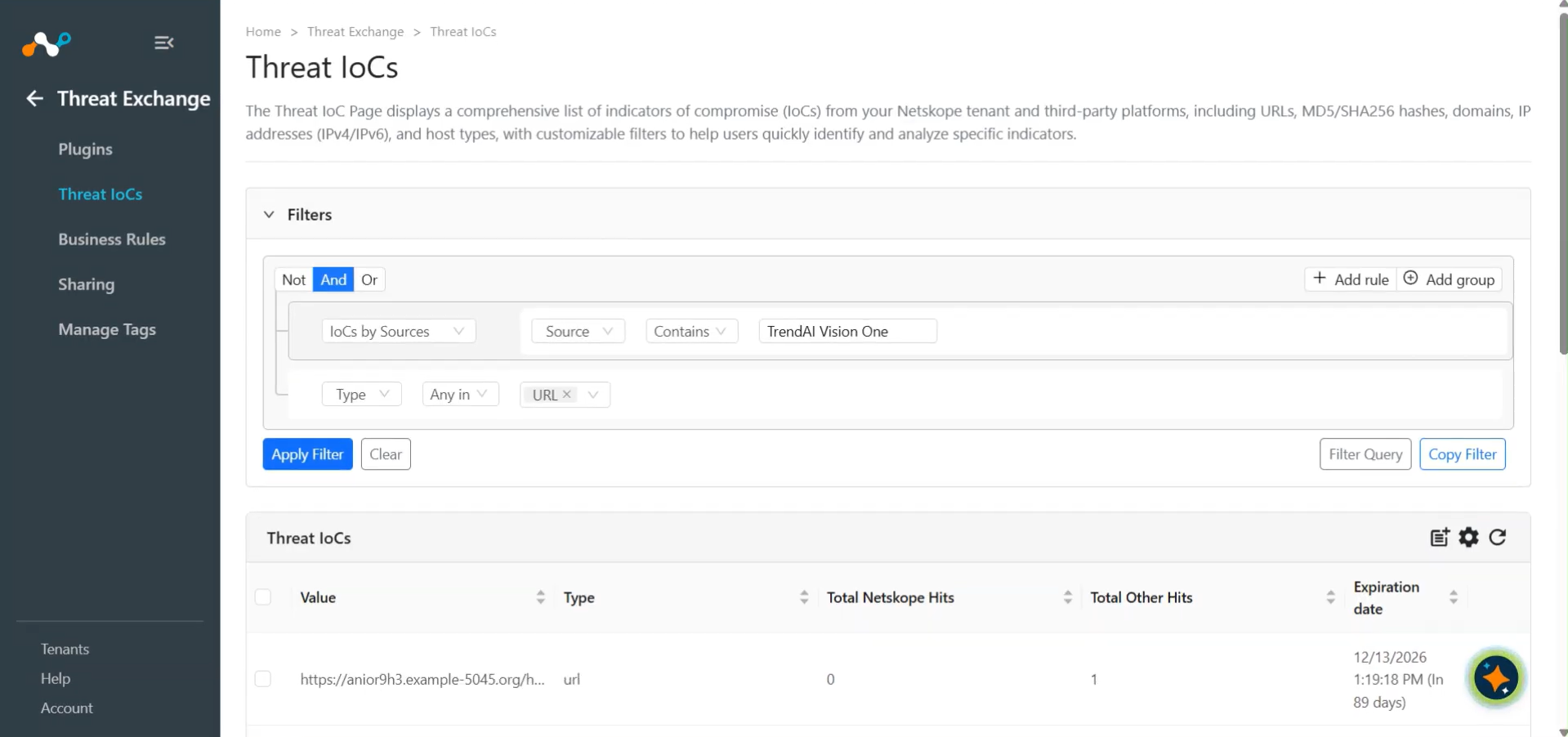
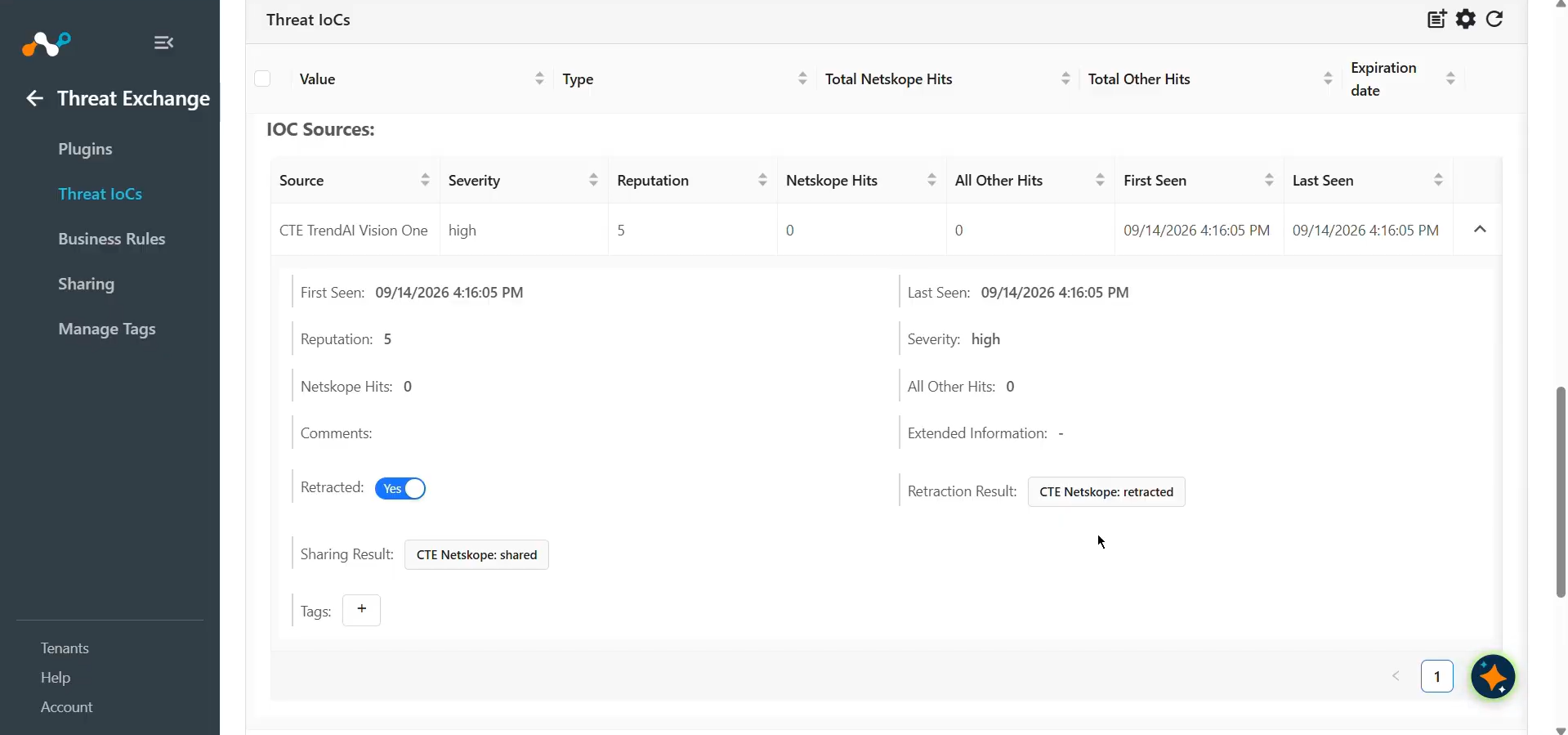
Pulled data will be listed on the Threat IoCs page. You can filter the IoCs pulled from the platform using the filter: sources.source Like “<plugin configuration name>”.
Validate the Pull Retraction
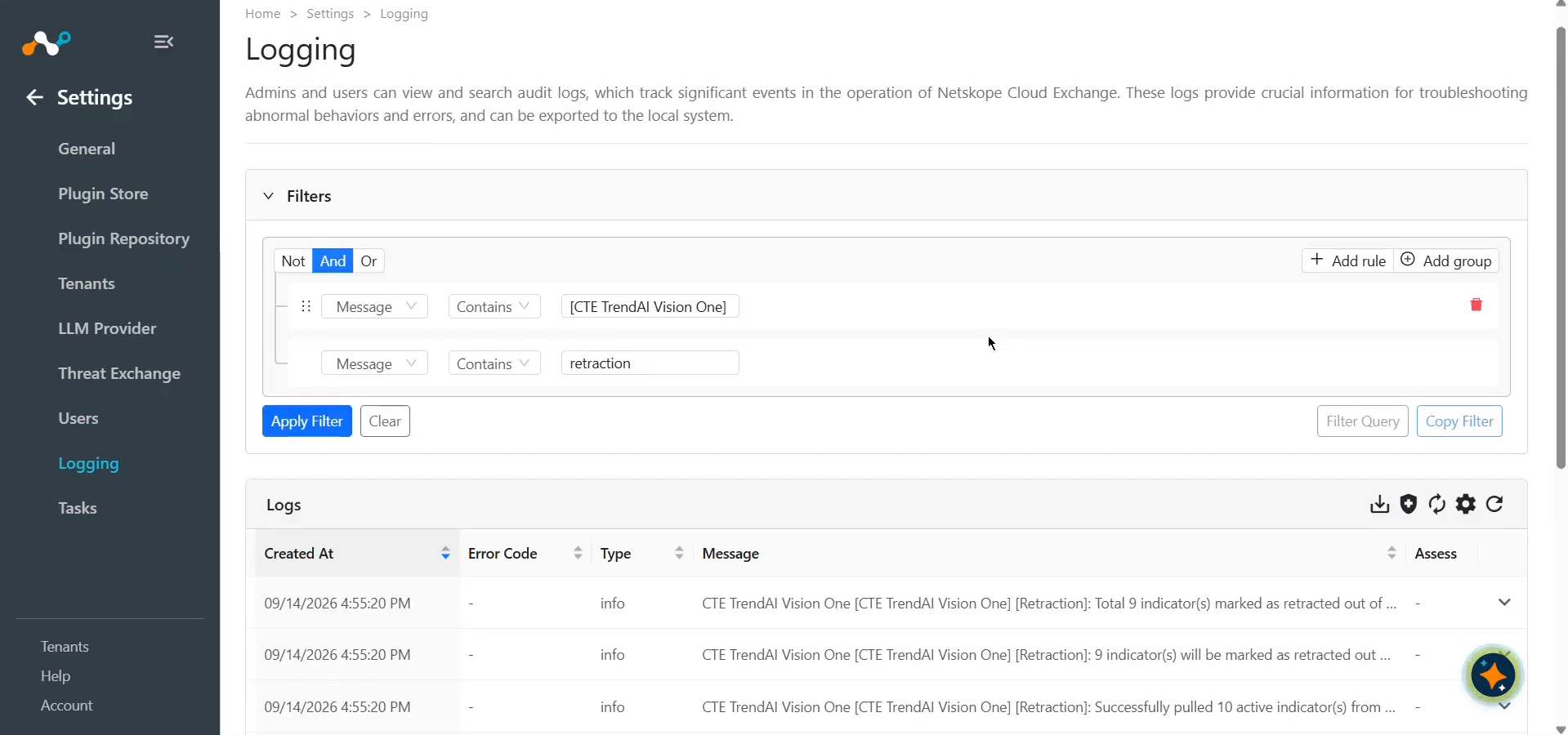
You can filter the logs related to retraction by using the filter: message Contains “[Retraction]”.
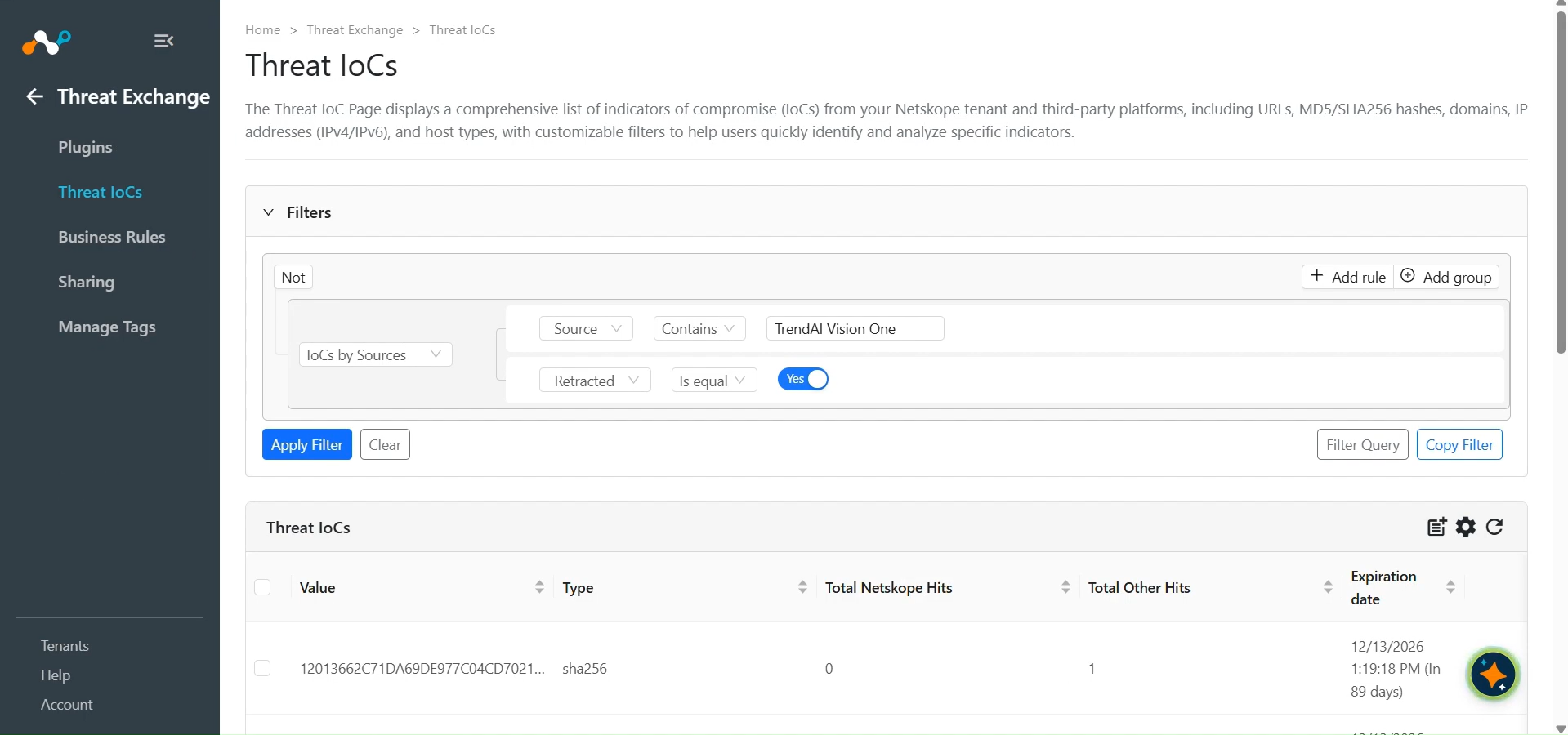
To validate the retracted IoCs on the Threat IoCs page, apply the filter: Retracted Is equal Yes, along with the source filter for the plugin configuration name.
Validate the Push
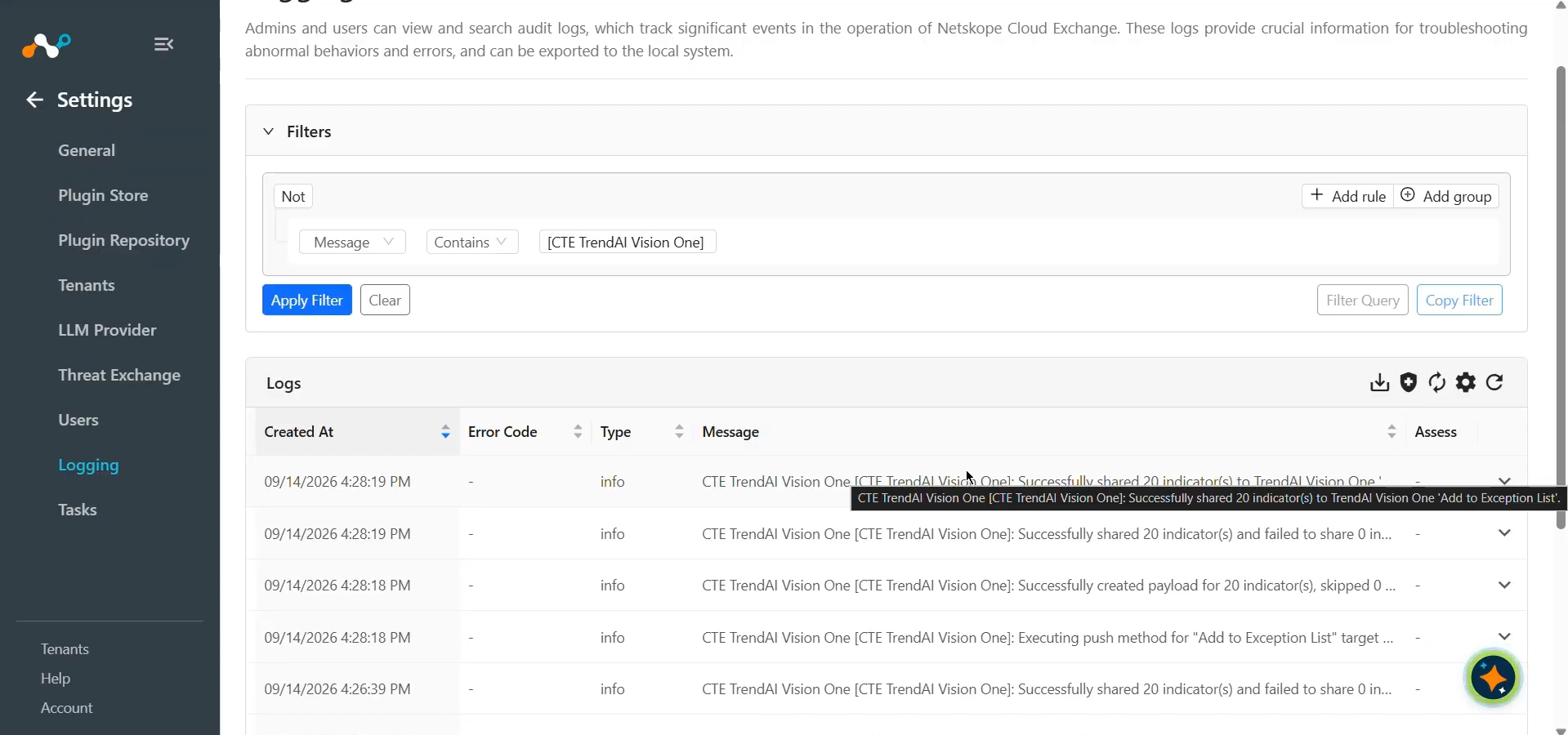
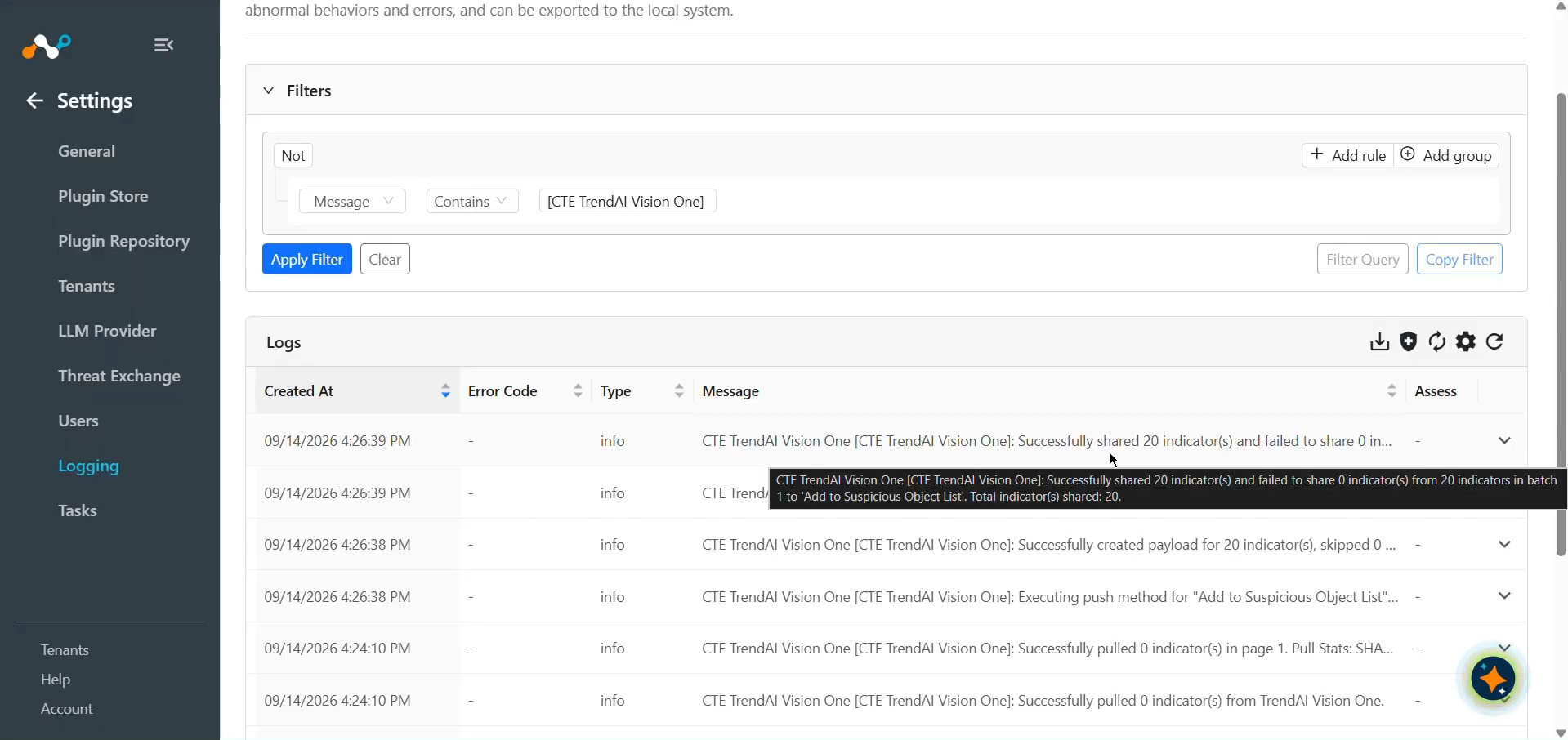
Indicators pushed from Cloud Exchange can be checked from Logging. Search filter to check the IoCs pushed to Trend Vision One platform.
Log in to the Trend Vision One Portal and go to Threat Intelligence > Suspicious Object Management to verify that pushed indicators appear in the Suspicious Object List with the correct description and risk level.
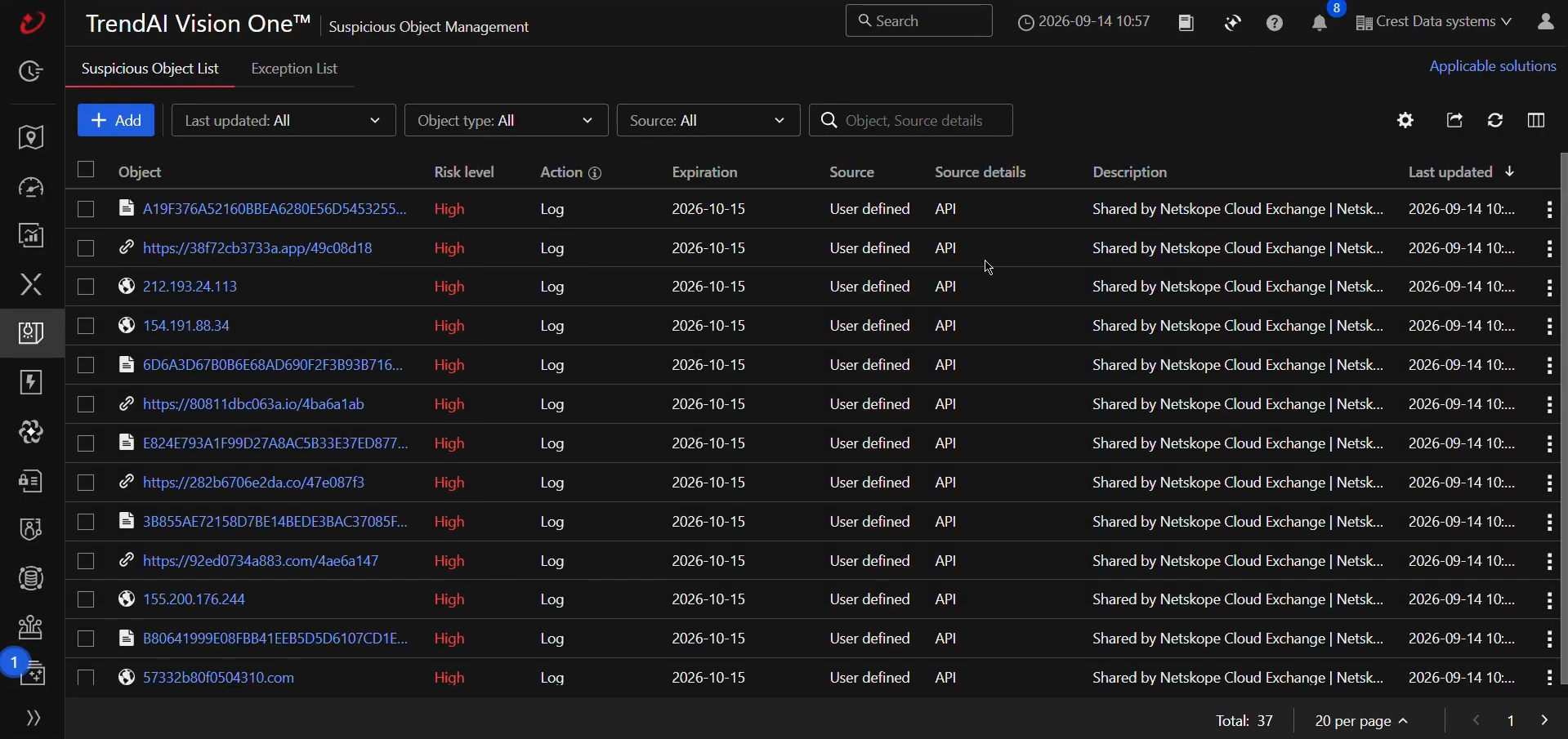
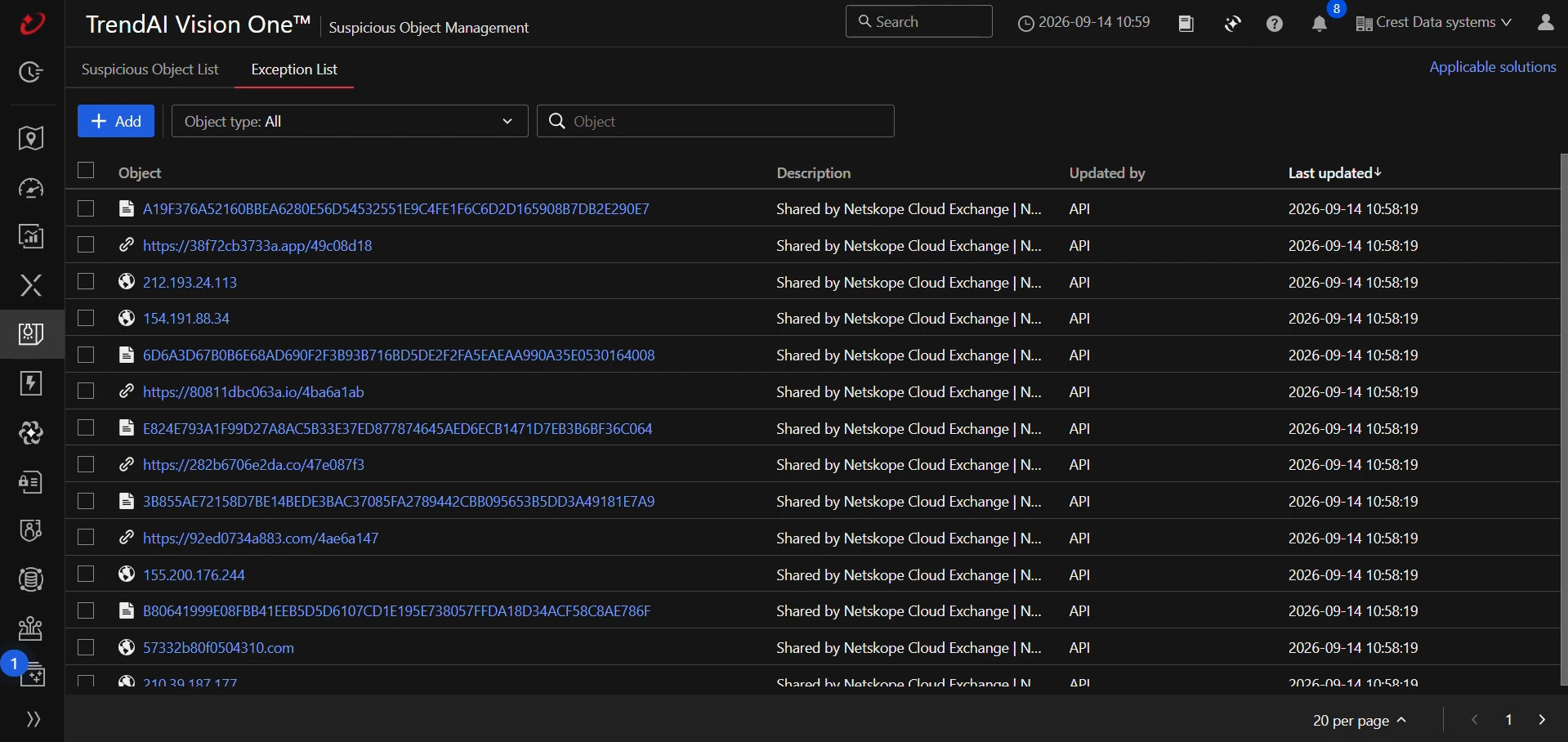
If push to Exception List is configured, verify that the pushed indicators appear in the Exception List with the correct description.
Validate the Push Retraction
Confirm that Enable Push Retraction is set to Yes in the TrendAI Vision One plugin configuration.
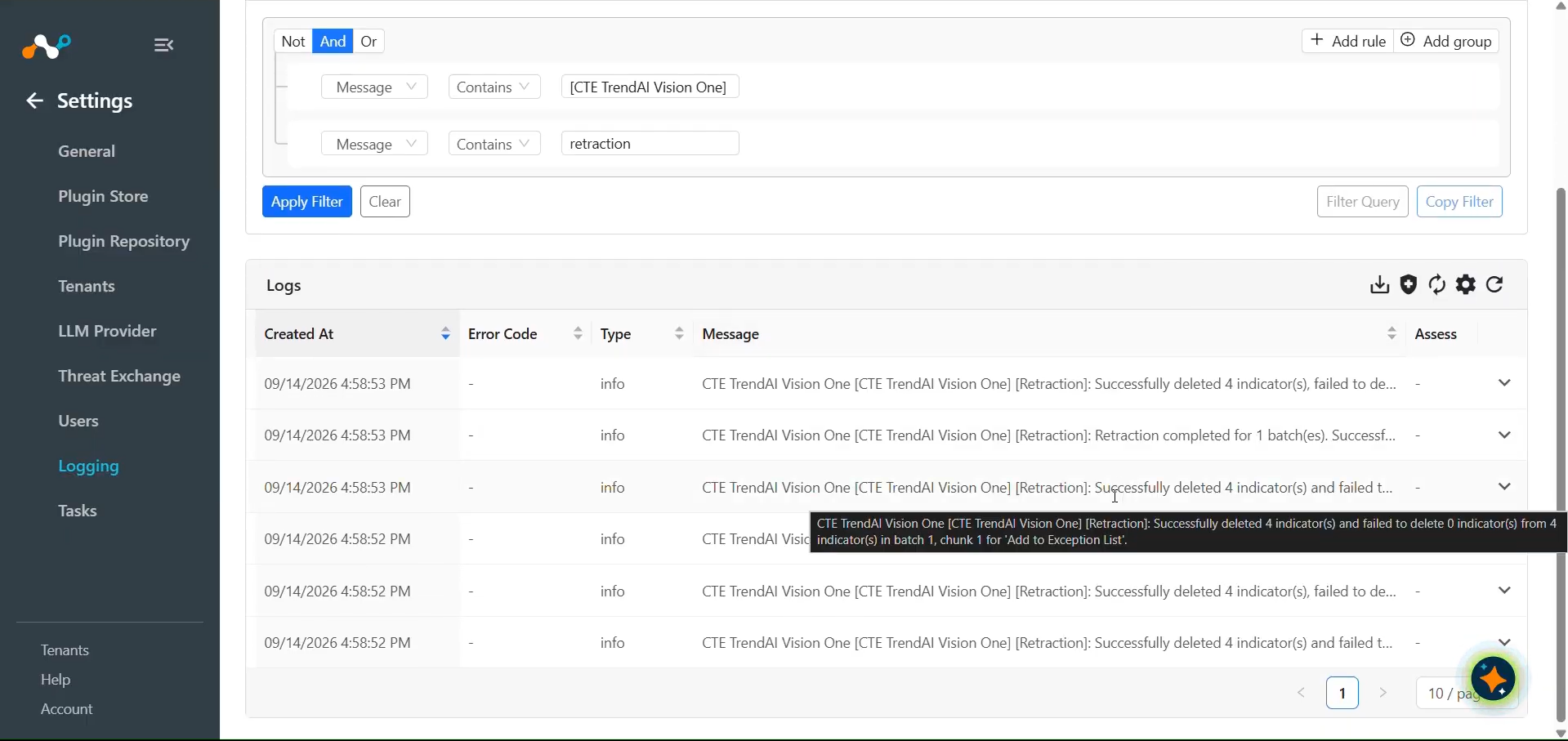
Verify the logs for retracted indicators on Suspicious Object List and Exception List.
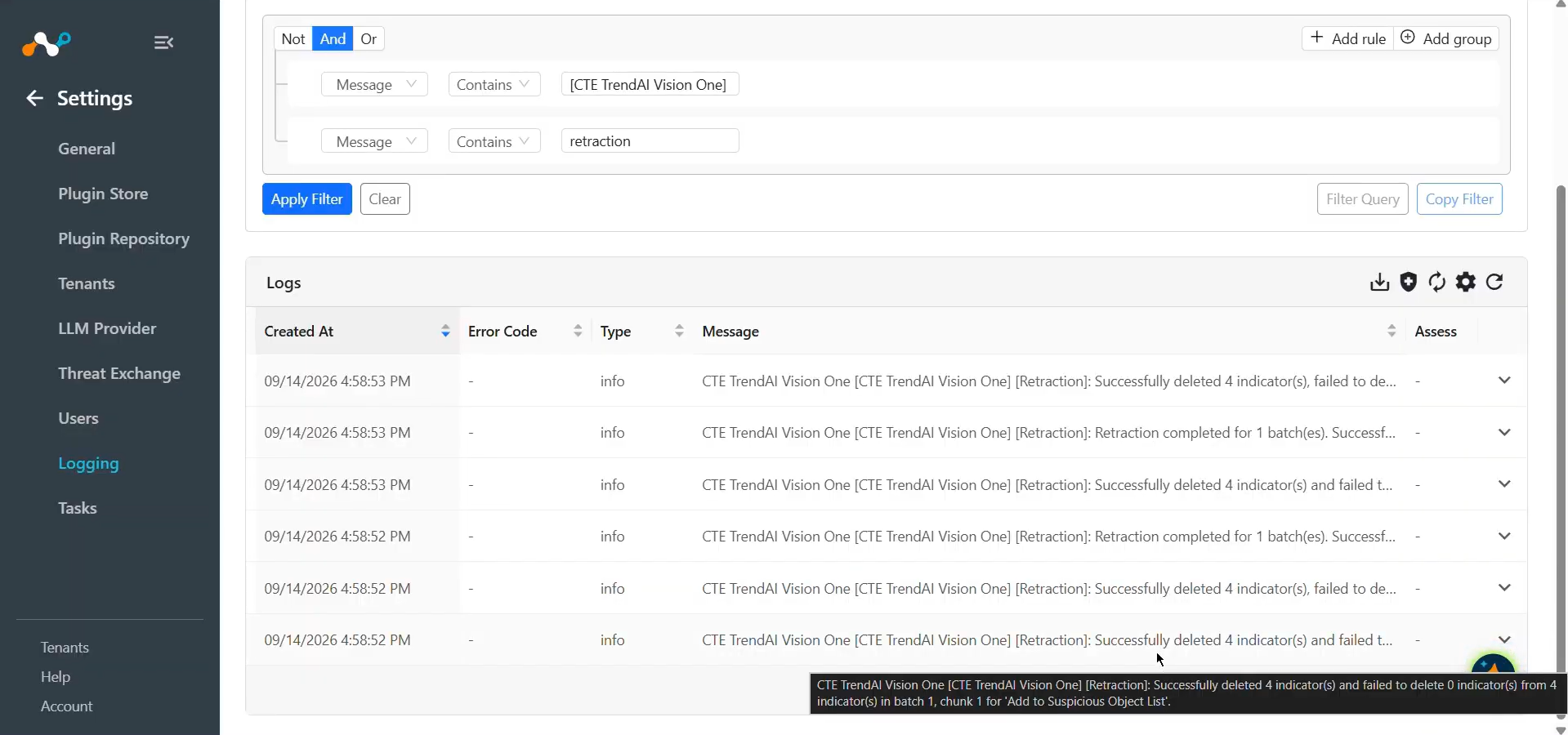
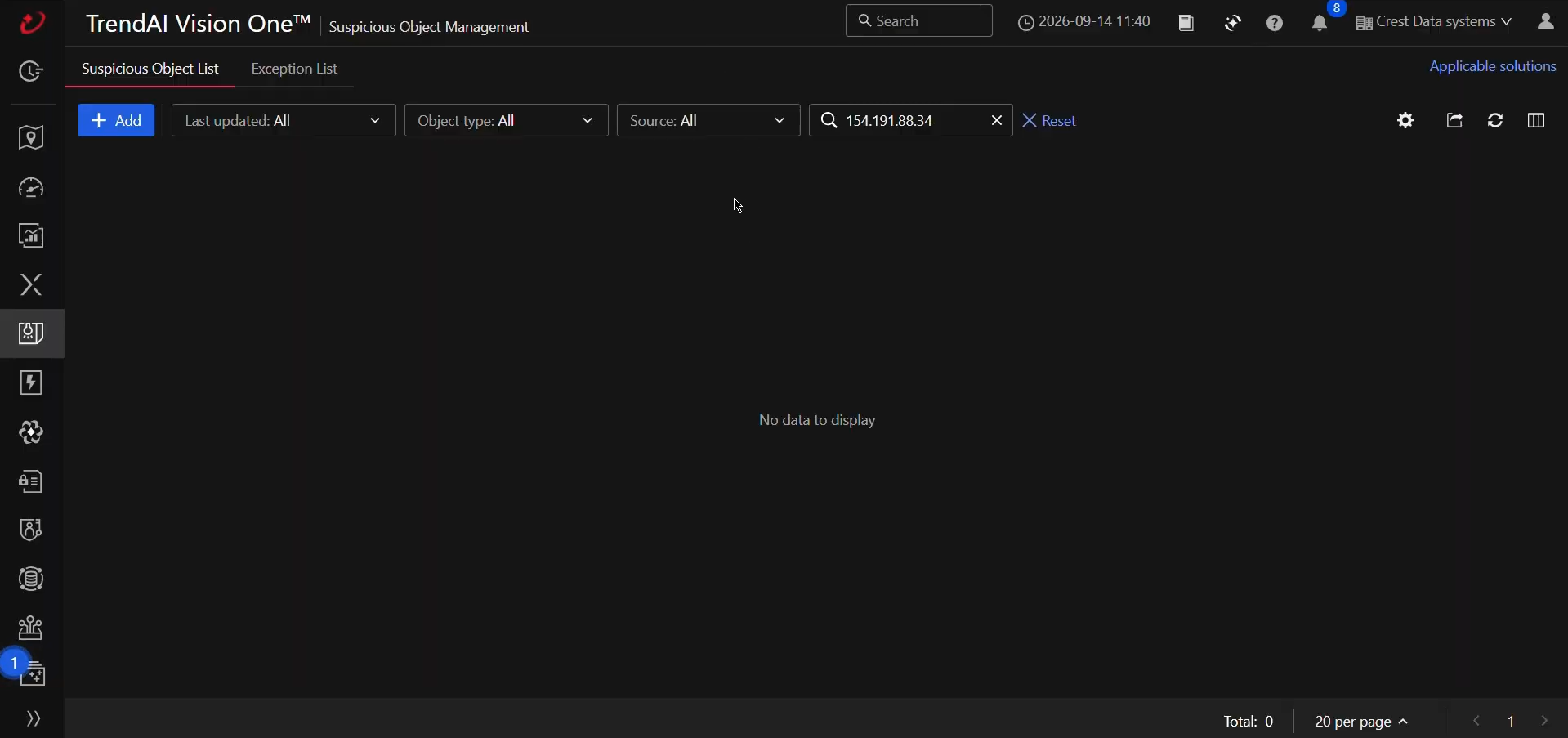
Verify that the retracted indicator has been removed from the Suspicious Object List.
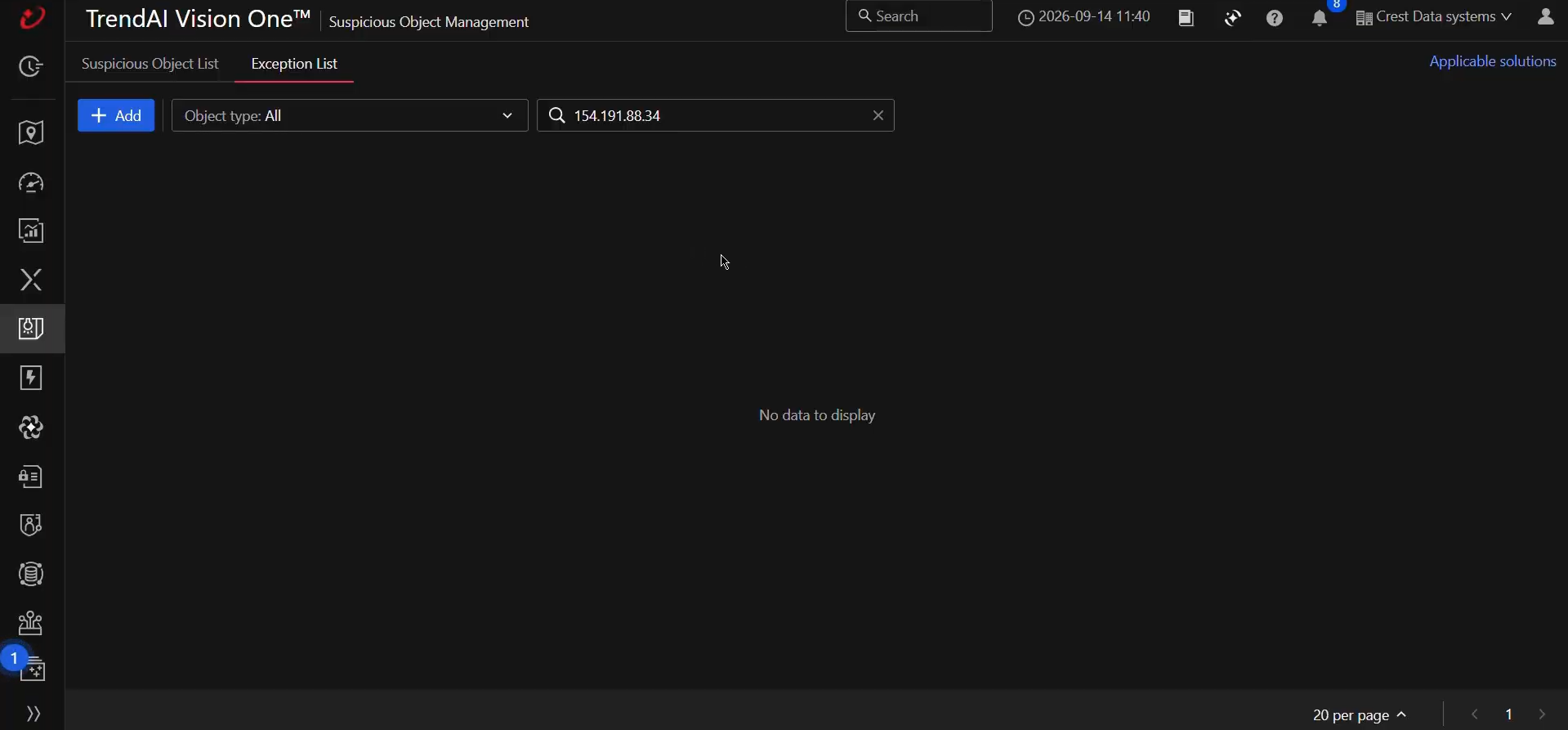
Verify that the retracted indicator has also been removed from the Exception List.
Troubleshooting the TrendAI Vision One Plugin
Indicators are not pulled from the Trend Vision One platform
After the plugin configuration, if the IoCs are not pulled from the platform, it might be due to one of the following.
- IOCs are not available on the platform to pull
- IOCs are not available for the given time range
- Insufficient permission provided for the API Token
- Available IOCs are pushed from CE
What to do: Identity your root cause from above and follow below steps to resolve the issue.
No IoCs are available on the platform to pull
Check if the IoCs are available on the platform to pull. If available, check the resolution for the next point.
IoCs are not available for the given time range
If the IoCs are available on the platform to pull, but the plugin has not pulled the IoCs in Cloud Exchange, check the number of days mentioned in the initial range parameter of the plugin configuration. On the Trend Vision One platform, check if you have data for the given time range.
Available IoCs are pushed from Cloud Exchange
If the IoCs are available on the platform and yet not pulled, check the description of the IoCs. IoCs that are shared from Cloud Exchange will have a default description, like Created from Netskope CTE.
And those IoCs will not be pulled back in Cloud Exchange.
Unable to push IOCs to Trend Vision One
If you are not able to push the IoCs on the platform and receiving error while pushing, it might be due to either:
- Insufficient permission for the API Key (Authentication token)
- Platform has reached it limit for IoCs
What to do: Identify the reason for IoCs not being pushed. Check if the User has sufficient permissions. If sufficient permissions are added and the IoCs are still not pushed, check the count of each type of IoCs that you are trying to push on Trend Vision One to check if the limit exceeded for the IoCs.
Authentication Token is Invalid or Unauthorized
If the plugin fails to connect to TrendAI Vision One during validation, it could be due to one of the following reasons:
- The Authentication Token is invalid or expired.
- The Authentication Token lacks the required Suspicious Object List or Exception List permissions.
What to do:
- Go to Administration > API Keys in the Trend Vision One Portal.
- Verify that the API key is active and has not expired.
- Ensure the key has the required Threat Intelligence — Suspicious Object List (Read) and Suspicious Object List (Write/Delete) permissions, and Exception List (Write/Delete) permissions if push or push retraction is configured.
Data Region or Base URL is Incorrect
If the plugin returns an error indicating that the Data Region or Base URL could not be reached during validation, it could be due to one of the following reasons:
- The selected Data Region does not match your TrendAI Vision One account region.
- The custom Base URL is incorrect or unreachable.
What to do:
- Verify the correct Data Region for your TrendAI Vision One account.
- If using Custom Region, ensure the Base URL uses the
https://scheme and points to a reachable TrendAI Vision One API host.
Limitation
Observed that we are only able to push 10K IoCs of each type on the Trend Vision One’s Suspicious Object List page, and around ~5400 IoCs in total on the Exception List page.
