

Overview
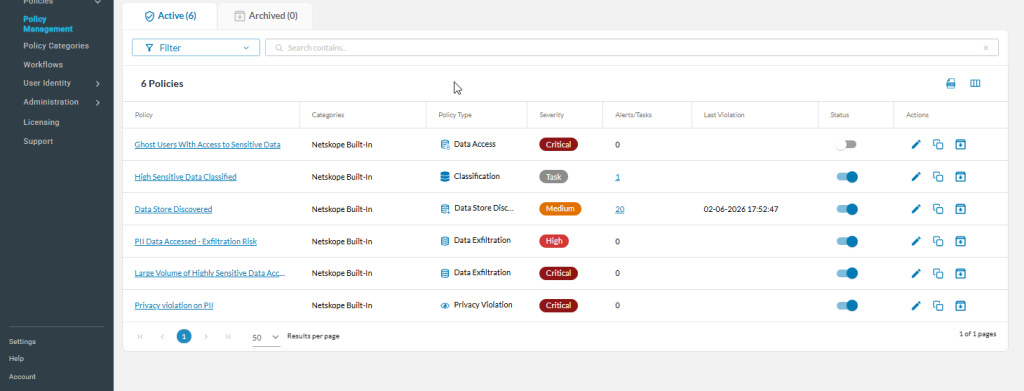
Use the Policies > Policy Management page to monitor active policies, review their severity, and investigate associated alerts. This central dashboard provides a high-level view of your data security posture and allows you to manage policy configurations.

Policy Dashboard Insights
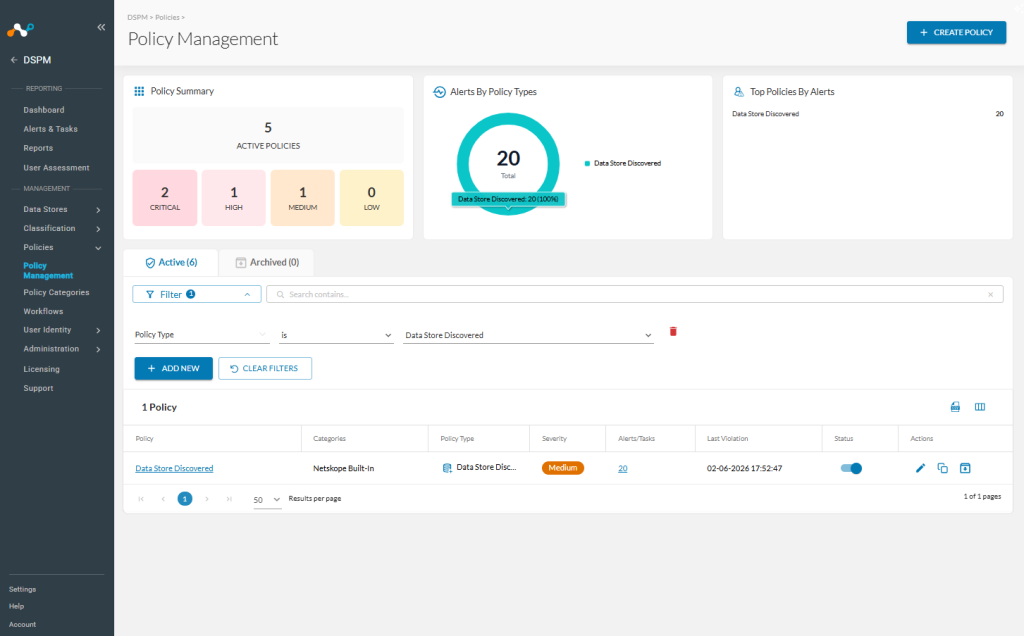
The top section of the page displays interactive charts that visualize your current policy landscape. You can interact with these charts to filter the data displayed in the main table.
-
Top Policies By Alerts: Lists specific policies ranked by the volume of alerts they have triggered.
-
Policy Summary: Displays the total count of active policies grouped by severity (Critical, High, Medium, Low). Click on any number to filter the list below for that specific severity level.
-
Alerts by Policy Types: A circle graph representing the volume of alerts generated by each policy type. The largest slice represents the type generating the most noise. Click a color slice to filter the list by policy type.


Drill Down into Details
The main table provides granular details for investigation:
-
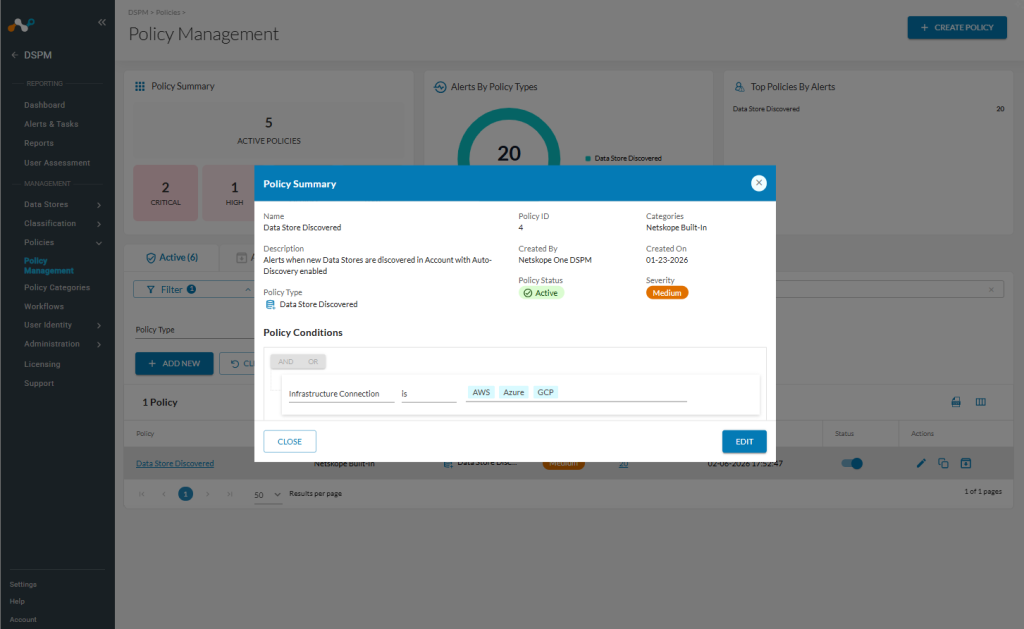
View Policy Logic: Click the Policy Name in the far-left column to open the policy editor in read-only mode or to modify conditions.
-
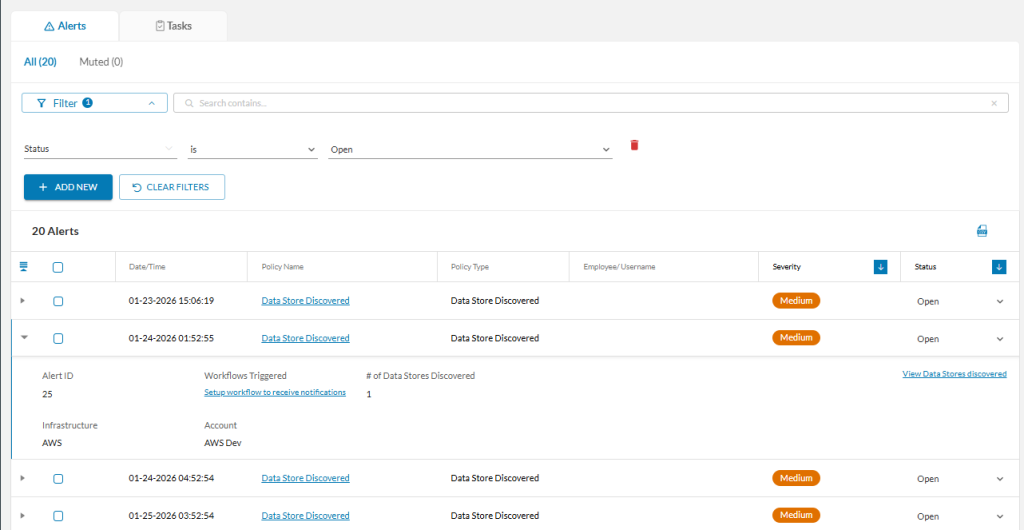
Investigate Alerts: Click the hyperlinked number in the Alerts column to jump directly to a filtered view of the specific alerts generated by that policy.


Manage Policies
You can perform the following actions on any policy listed in the Active tab. Locate the Actions column on the far right of the table:
| Action | Icon / Control | Description |
|---|---|---|
| Change Status | Status Toggle | Switch the toggle Off (left) to disable a policy that is generating false positives. Switch it On (right) to re-enable it. |
| Edit | Pencil Icon | Opens the policy editor. You can modify the policy type, name, description, severity, categories, and logic conditions. |
| Copy | Copy Icon | Creates a duplicate of the policy. The name defaults to “Copy of [Original Name]”. All logic is pre-populated. Note: Rename the policy before saving to avoid confusion. |
| Archive | Archive Box Icon | Moves the policy to the Archived tab. Prerequisite: You must Disable a policy before the Archive icon becomes available. |
View Archived Policies
To view policies that are no longer active:
- Click the Archived tab (located next to the Active tab at the top of the table).
- Review the list of historical policies.
Archived policies cannot be re-enabled directly. However, you can use the Copy icon to duplicate an archived policy and save the new version as an Active policy.