

This document explains how to configure the Vectra AI v1.0.0 plugin with the Threat Exchange module of the Netskope Cloud Exchange platform. This plugin is used to pull IoCs of the type URLs (IPv4 Addresses and Domains) from the Detections on Vectra AI. This plugin does not support sharing of indicators to Vectra AI.
Prerequisites
- A Netskope tenant (or multiple, for example, production and development/test instances).
- A URL List configured on the Netskope tenant.
- A Netskope Cloud Exchange tenant with the Tenant plugin and Threat Exchange plugin already configured.
- Connectivity to the following host: Vectra Portal URL.
Example: https://<account_id>.cc1.portal.vectra.ai.
Vectra AI Plugin Support
The Vectra AI plugin fetches IOCs of the type of URL (IPv4 Addresses and Hostname) from the Vectra AI platform. This plugin does support the sharing of indicators.
| Fetched Indicator Types | Shared Indicator Types |
|---|---|
| IPv4, Domains | Not Supported |
Mappings
Pull Mappings
| Netskope CE Fields | Vectra Fields |
|---|---|
| value | src_host.ip (IPv4) OR src_account.name (Domain) |
| type | type |
| reputation | certainty // 10 |
| comments | summary.description |
| firstSeen | first_timestamp |
| lastSeen | last_timestamp |
| tags | tags |
| extendedInformation | {vectra_url}/detections/{detection_id} |
Permissions
- Role: Read-Only
- Permission: View – Detections
API Details
List of APIs Used
| API Endpoint | Method | Use Case |
|---|---|---|
| /oauth2/token | POST | Generate access token |
| /api/v3.4/detections | POST | Pull indicators from detections |
Generate Access Token
API Endpoint: https://<account_id>.cc1.portal.vectra.ai/oauth2/token
Method: POST
Request Headers
| Key | Value |
|---|---|
| Authorization | Basic <client_id:client_secret_key> |
| Content-Type | application/x-www-form-urlencoded |
| User-Agent | netskope-ce-5.1.0-cte-vectra-ai-v1.0.0 |
Request Body
{"grant_type": "client_credentials"}
Sample API Response
{
    "access_token": "Z0FBQUFBQm54VWxBdVc…",
    "expires_in": 21600,
    "refresh_expires_in": 86400,
    "refresh_token": "eyJzdWIiOiAiNzRjNDZiZ…..",
    "token_type": "Bearer"
}
Pull indicators from detections
API Endpoint: https://<account_id>.cc1.portal.vectra.ai/api/v3.4/detections
Method: GET
Request Headers
| Key | Value |
|---|---|
| Authorization | Bearer <Access Token> |
| User-Agent | netskope-ce-5.1.0-cte-vectra-ai-v1.0.0 |
Request Parameters
| Key | Value |
|---|---|
| type | account host |
| state | active inactive ignored ignored for all |
| detection_category | command,reconnaissance,lateral,exfiltration,info |
| certainty_gte | 50 |
| page | 1 |
| page_size | 500 |
| ordering | last_timestamp |
| last_timestamp_gte | 2025-02-28T10:40:06Z |
Sample API Response
{
    "count": 12,
    "next": null,
    "previous": null,
    "results": [
        {
            "summary": {
                "app_names": [
                    "Thunder Jaw Backdoor"
                ],
                "description": "This account has granted excessive or risky access to a third-party cloud application, which may allow malicious activities to be performed on behalf of this account."
            },
            "is_triaged": true,
            "triage_rule_id": 48,
            "certainty": 0,
            "detection_url": "https://308714519558.cc1.portal.vectra.ai/api/v3.4/detections/172",
            "id": 172,
            "filtered_by_rule": false,
            "note": "Endace link: [click here](https://endace.example.com/vision2/v1/pivotintovision/?datasources=tag%3Aall&title=Vectra172&start=1735914347000&end=1735918307000&ip=None&tools=trafficOverTime_by_app%2Cconversations_by_ipaddress)",
            "src_ip": null,
            "note_modified_by": "API Client 0f9bd9c6",
            "first_timestamp": "2023-09-22T19:52:22Z",
            "detection_type": "Azure AD Suspicious OAuth Application",
            "is_targeting_key_asset": false,
            "is_custom_model": false,
            "url": "https://308714519558.cc1.portal.vectra.ai/api/v3.4/detections/172",
            "state": "active",
            "threat": 0,
            "data_source": {
                "type": "o365",
                "connection_name": "M365-Fictotech",
                "connection_id": "nmz7j2ai"
            },
            "sensor": "nmz7j2ai",
            "assigned_date": null,
            "last_timestamp": "2025-03-01T21:41:22Z",
            "detection_category": "command_and_control",
            "groups": [],
            "is_marked_custom": true,
            "tags": [
                "Endace",
                "testdev"
            ],
            "note_modified_timestamp": "2025-01-15T18:24:30Z",
            "custom_detection": "AI-Filtered",
            "src_host": null,
            "type": "account",
            "description": null,
            "filtered_by_ai": true,
            "created_timestamp": "2023-09-22T20:36:10Z",
            "filtered_by_user": false,
            "detection": "Azure AD Suspicious OAuth Application",
            "sensor_name": "Vectra X",
            "notes": [
                {
                    "id": 9920,
                    "date_created": "2025-01-15T18:24:30Z",
                    "date_modified": null,
                    "created_by": "api_client_0f9bd9c6140a47298bbde23c5be0dbd4",
                    "modified_by": null,
                    "note": "Endace link: [click here](https://endace.example.com/vision2/v1/pivotintovision/?datasources=tag%3Aall&title=Vectra172&start=1735914347000&end=1735918307000&ip=None&tools=trafficOverTime_by_app%2Cconversations_by_ipaddress)"
                }
            ],
            "src_account": {
                "id": 18,
                "name": "O365:adam_admin@fictotech.com",
                "url": "https://308714519558.cc1.portal.vectra.ai/api/v3.4/accounts/18",
                "threat": 0,
                "certainty": 0,
                "privilege_level": null,
                "privilege_category": null
            },
            "assigned_to": null,
            "investigation_pivot_link": null,
            "grouped_details": [
                {
                    "app_name": "Thunder Jaw Backdoor",
                    "scope": "Mail.Read User.Read offline_access openid profile",
                    "user_type": "Unknown",
                    "last_timestamp": "2025-03-01T21:41:22Z"
                },
                ...
            ]
        },
        {
            "summary": {
                "dst_ips": [],
                "num_sessions": 0,
                "bytes_sent": 0,
                "bytes_received": 0,
                "description": "This host communicated with an external destination using HTTPS where another protocol was running over the top of the session. The host appeared to be under the control of the external destination."
            },
            "is_triaged": false,
            "triage_rule_id": null,
            "certainty": 5,
            "detection_url": "https://308714519558.cc1.portal.vectra.ai/api/v3.4/detections/34794",
            "id": 34794,
            "filtered_by_rule": false,
            "note": null,
            "src_ip": "192.168.49.140",
            "note_modified_by": null,
            "first_timestamp": "2025-02-28T19:16:06Z",
            "detection_type": "Hidden HTTPS Tunnel",
            "is_targeting_key_asset": false,
            "is_custom_model": false,
            "url": "https://308714519558.cc1.portal.vectra.ai/api/v3.4/detections/34794",
            "state": "active",
            "threat": 5,
            "data_source": {
                "type": "Unknown sensor type",
                "connection_name": "Unknown sensor name",
                "connection_id": "w4ftj0a8"
            },
            "sensor": "w4ftj0a8",
            "assigned_date": null,
            "last_timestamp": "2025-03-02T18:44:28Z",
            "detection_category": "command_and_control",
            "groups": [],
            "is_marked_custom": false,
            "tags": [],
            "note_modified_timestamp": null,
            "custom_detection": null,
            "src_host": {
                "id": 976,
                "ip": "192.168.49.140",
                "name": "IP-192.168.49.140",
                "url": "https://308714519558.cc1.portal.vectra.ai/api/v3.4/hosts/976",
                "is_key_asset": false,
                "groups": [
                    {
                        "id": 43,
                        "name": "Test-24",
                        "description": "Host",
                        "last_modified": "2025-01-23T09:47:11Z",
                        "last_modified_by": "API Client ec19d574",
                        "type": "host"
                    },
                    {
                        "id": 11,
                        "name": "TEST RENAME-Test",
                        "description": "Executive Machines, created by Cognito",
                        "last_modified": "2024-12-11T09:41:31Z",
                        "last_modified_by": "API Client 25cb417a",
                        "type": "host"
                    }
                ],
                "threat": 61,
                "certainty": 31
            },
            "type": "host",
            "description": null,
            "filtered_by_ai": false,
            "created_timestamp": "2025-02-28T19:42:26Z",
            "filtered_by_user": false,
            "detection": "Hidden HTTPS Tunnel",
            "sensor_name": "EDR Sensor",
            "notes": [],
            "src_account": null,
            "assigned_to": null,
            "investigation_pivot_link": null,
            "grouped_details": []
        },
        ...
    ]
}
Performance Matrix
Here are the performance reading conducted for fetching and pushing 100K IOCs in each plugin lifecycle on a Large CE instance with these specifications.
| Description | Specification |
|---|---|
| Stack details | Size: Large RAM: 32 GB CPU: 16 Cores |
| Indicators fetched from Vectra AI | ~25k per minute |
User Agent
netskope-ce-5.1.0-cte-vectra-ai-v1.0.0
Workflow
- Get your Vectra AI Credentials.
- Configure the Vectra AI plugin.
- Add a Business Rule.
- Add a Sharing Configuration.
- Validate the plugin.
Click play to watch a video.
Get your Vectra AI Credentials
- In Vectra AI, go to Manage > API Clients and click Add API Client.
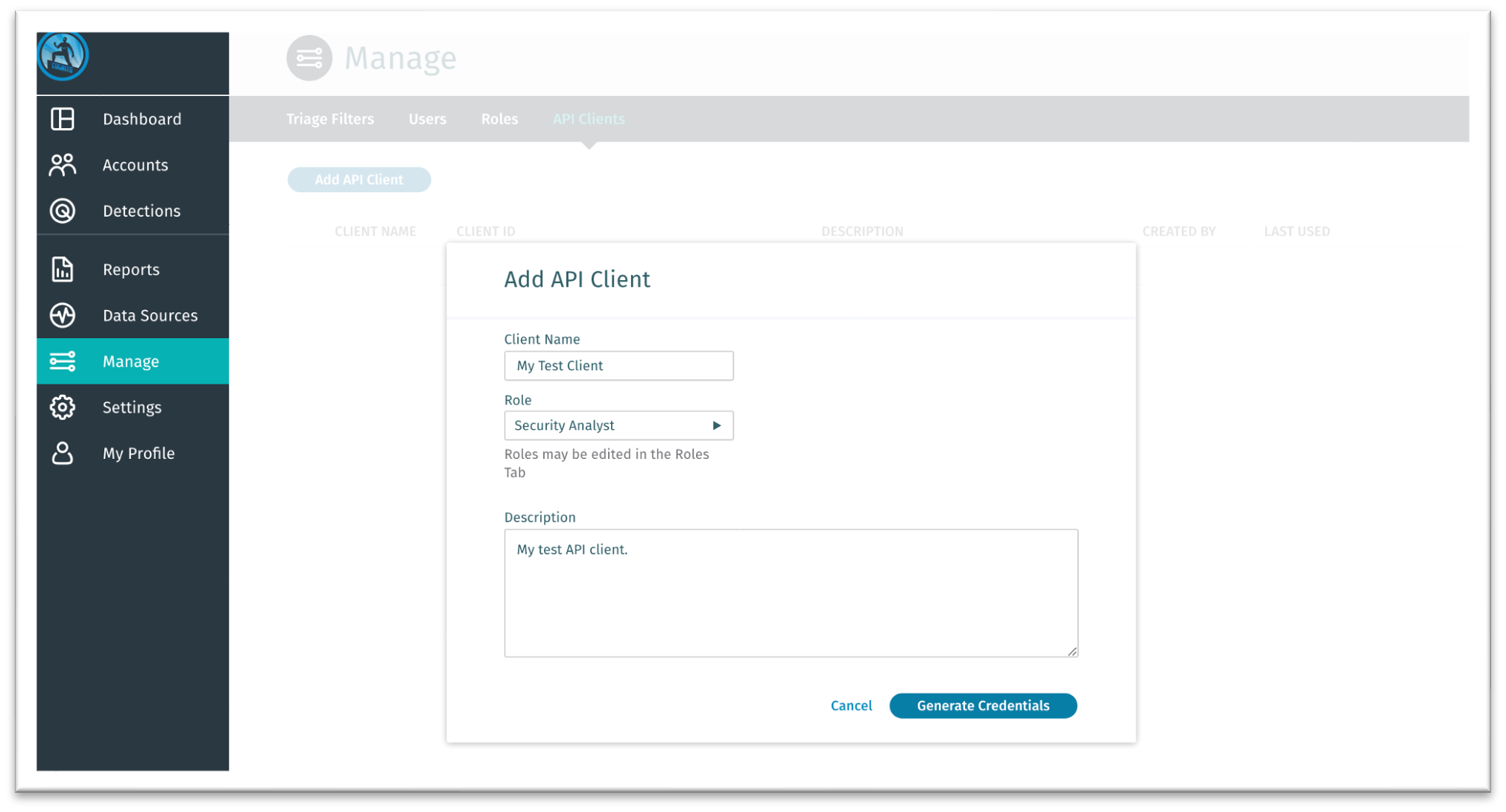
- Create a new API Client with these parameters:
- Role: The role maps the API Client to a set of permissions, similar to the way a Detect UI user would be assigned a role. The role must be one of the following:
- Read-Only
- Restricted Admin
- Security Analyst
- Settings Admin
- Auditor
- Name: Enter a name to identify this client (up to 256 characters).
- Description: Enter a description to identify this client (up to 2048 characters).
- Role: The role maps the API Client to a set of permissions, similar to the way a Detect UI user would be assigned a role. The role must be one of the following:
- When finished, click Generate Credentials to get your client credentials.
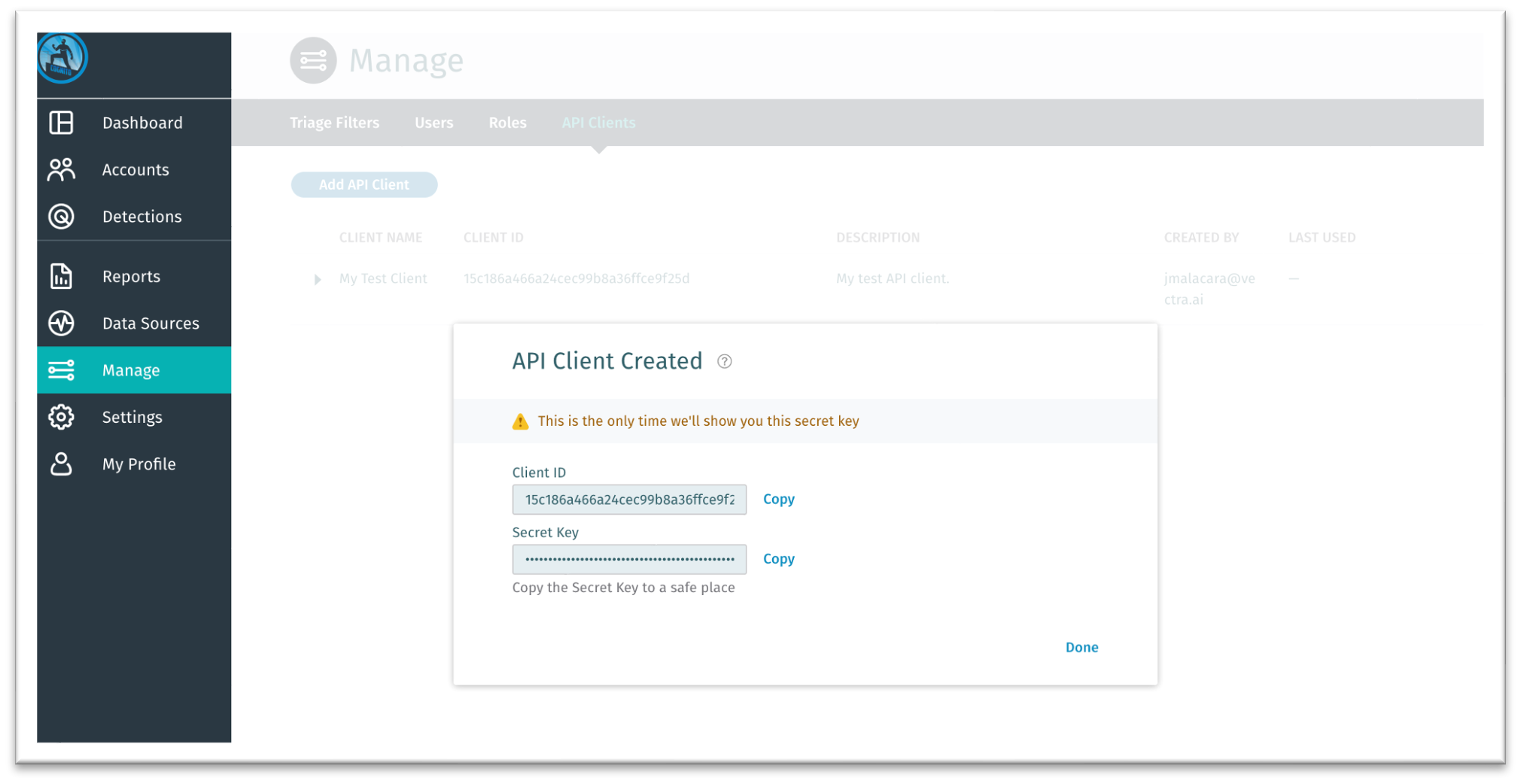
- Be sure to copy your Client ID and Secret Key for safekeeping. You will need these to configure the Vectra AI plugin.
Configure the Vectra AI Plugin
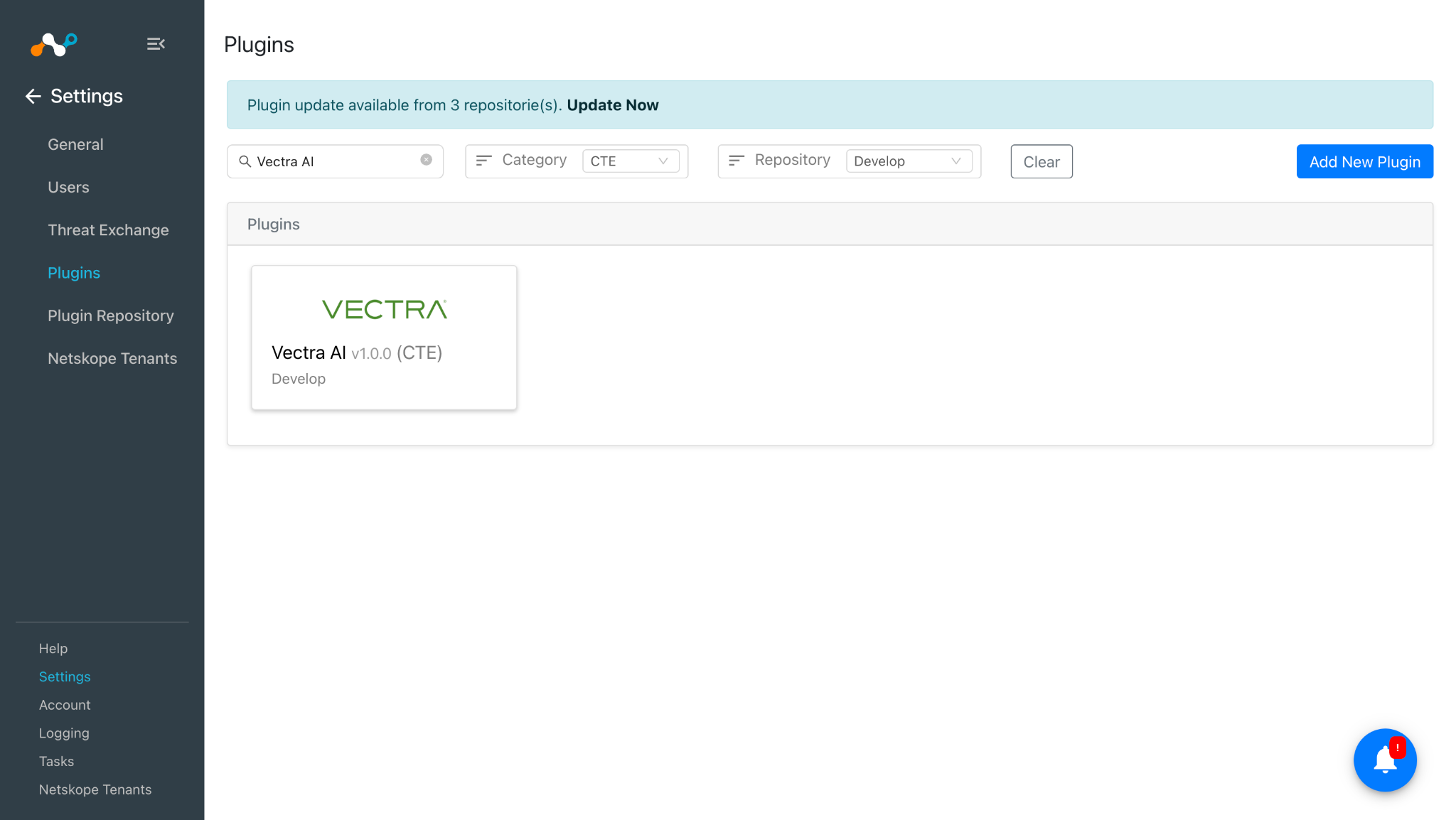
- In Cloud Exchange, go to Settings > Plugins.
- Search for and select the Vectra AI v1.0.0 (CTE) plugin box.
- Enter these values:
- Configuration Name: Plugin configuration name.
- Sync Interval: Interval to fetch data from this plugin.
- Aging Criteria: Expire indicators after specific time. (Default: 90)
- Override Reputation: Set a value to override the reputation of indicators received from this configuration. (Default: 5)
- Tags Aggregate Strategy: Choose whether to append new tags to existing IoC(s) or overwrite them. This parameter determines how tags are stored for indicators pulled for this configuration.
- Enable SSL Validation: Enable SSL Certificate validation.
- Use System Proxy: Enable if the proxy is required for communication.
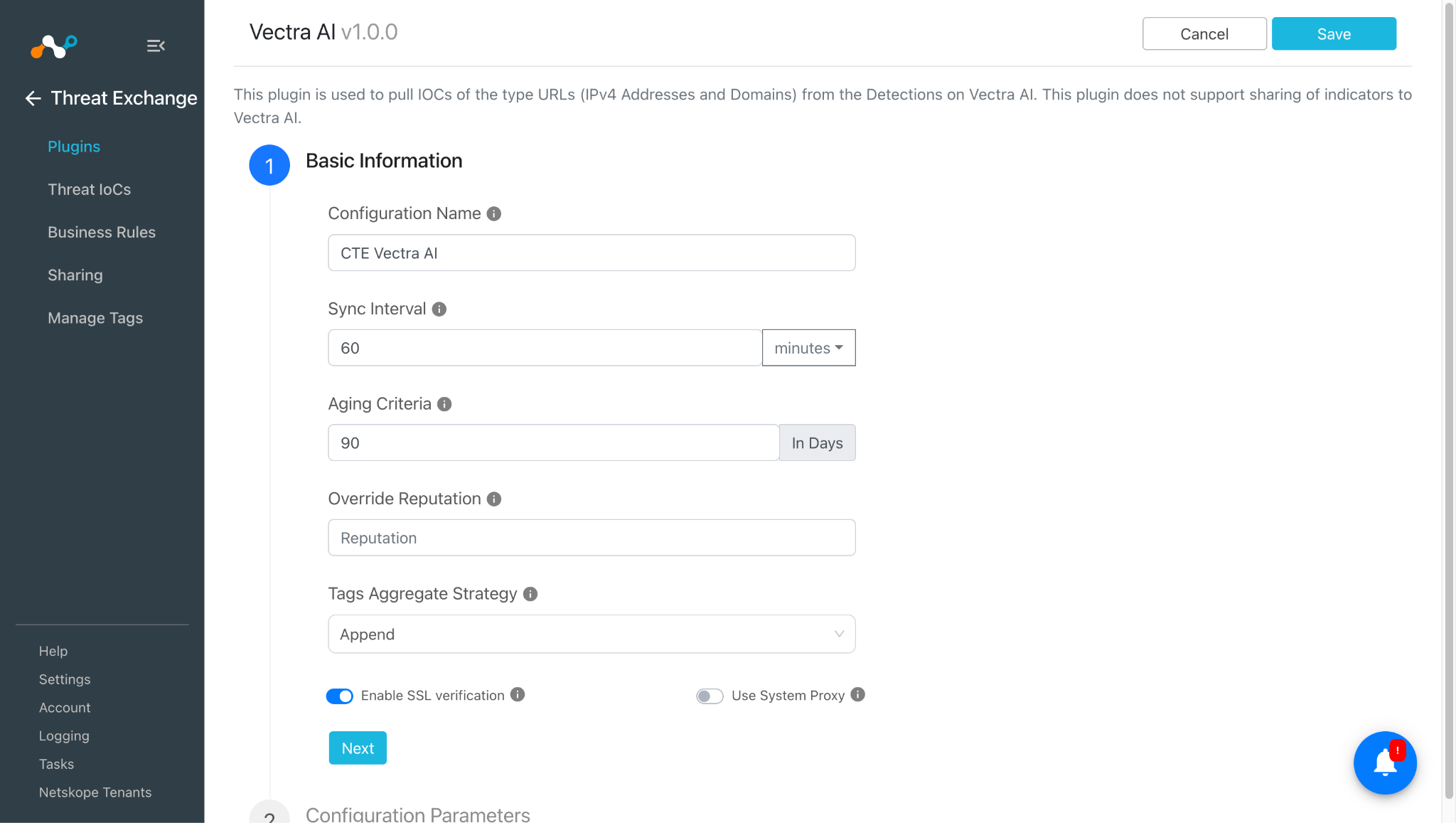
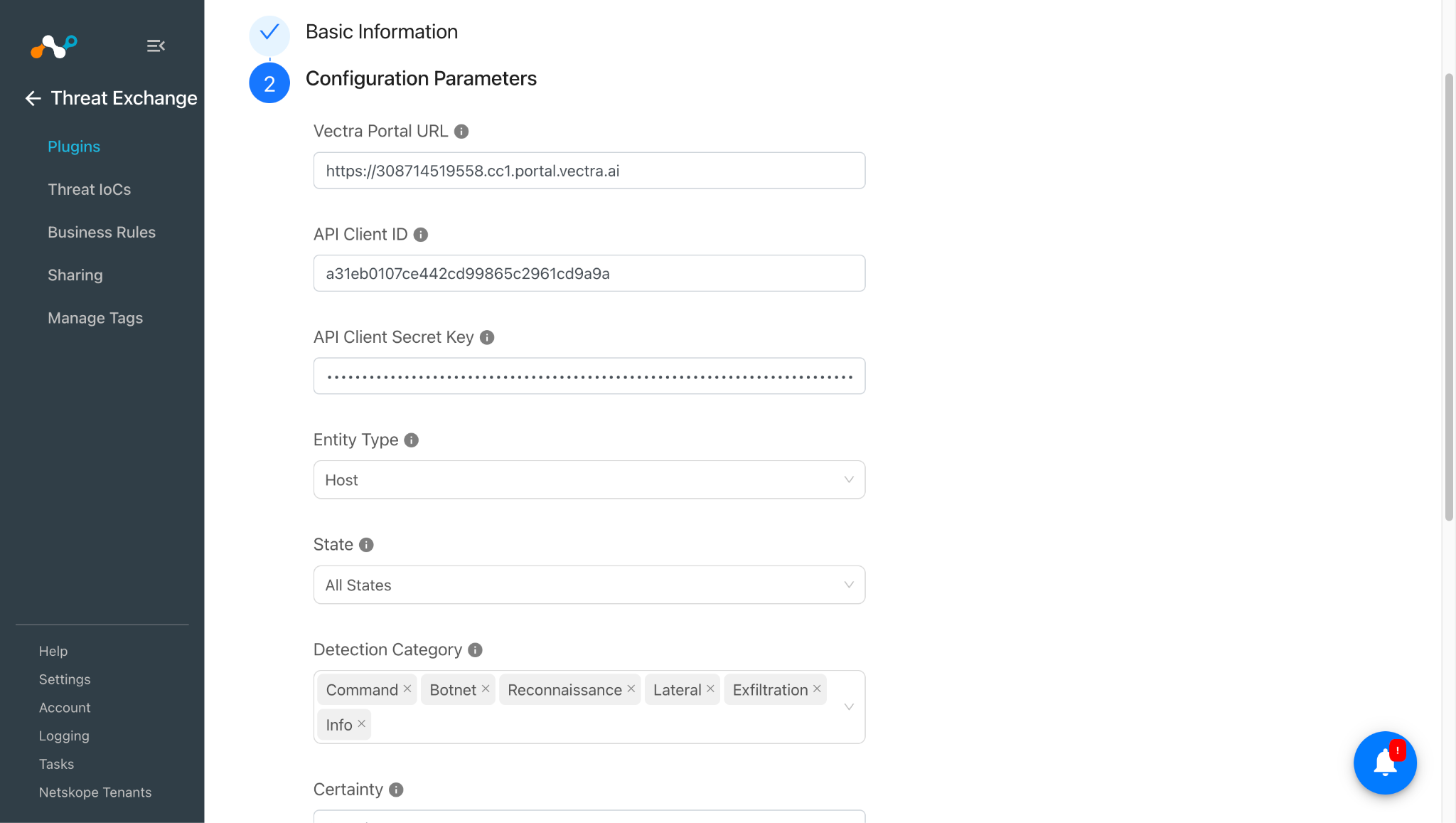
- Click Next. Enter these values:
- Vectra Portal URL: Your Vectra Portal URl.
Example: https://<account_id>.cc1.portal.vectra.ai - API Client ID: Your Vectra AI API Client ID.
- API Client Secret Key: Your Vectra AI API Client Secret Key.
- Entity Type: Indicators will be pulled based on the selected entity type of the detections. Account type to pull domains and Host type to pull IP addresses from Detections. Select All Entity Types to fetch indicators from both entity types of the detections.
- State: Indicators will be pulled based on the selected state of the detections. Select All States to fetch indicators from all states of the detections.
- Detection Category: Indicators from only specified Detection Categories will be fetched. Indicators from all detection categories will be fetched except Info category if Detection Category is empty.
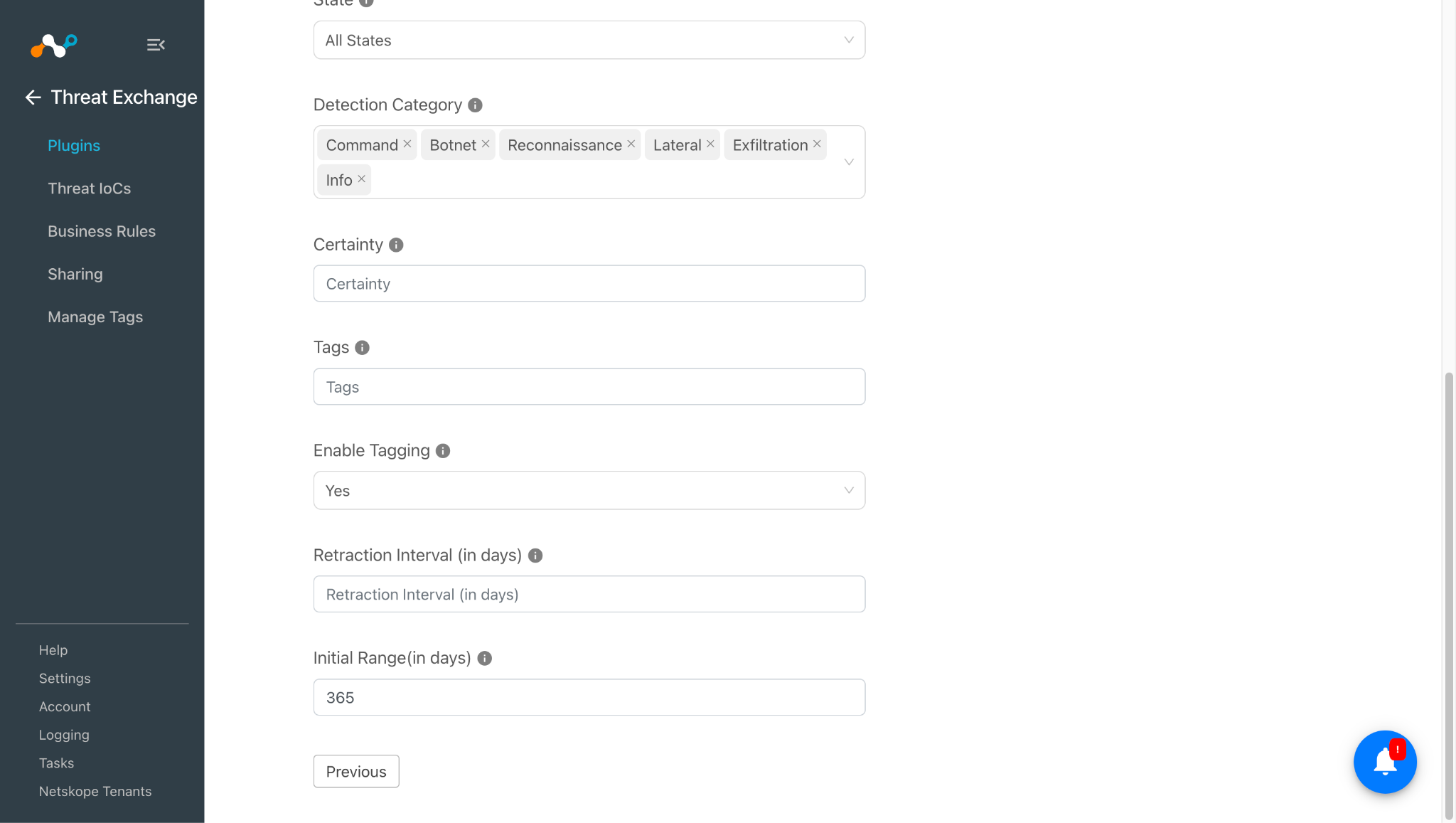
- Certainty: Indicators from detection greater than or equal to specified certainty will be fetched. The allowed value should be greater than or equal to 0.
- Tags: Indicators from detection with specified comma separated tags will be fetched. Keep empty to fetch indicators from all detections. (Ex. ABC,XYZ)
- Enable Tagging: Enable/Disable tagging functionality.
- Retraction Interval (in days): Retraction Interval days to run IoC(s) retraction for Vectra AI indicators. Note that this parameter will only be considered if IoC(s) Retraction is enabled in Threat Exchange settings. This parameter is applicable only for Netskope CE version 5.1.0.
- Initial Range (in days): Number of days to pull the data for the initial run.
- Vectra Portal URL: Your Vectra Portal URl.
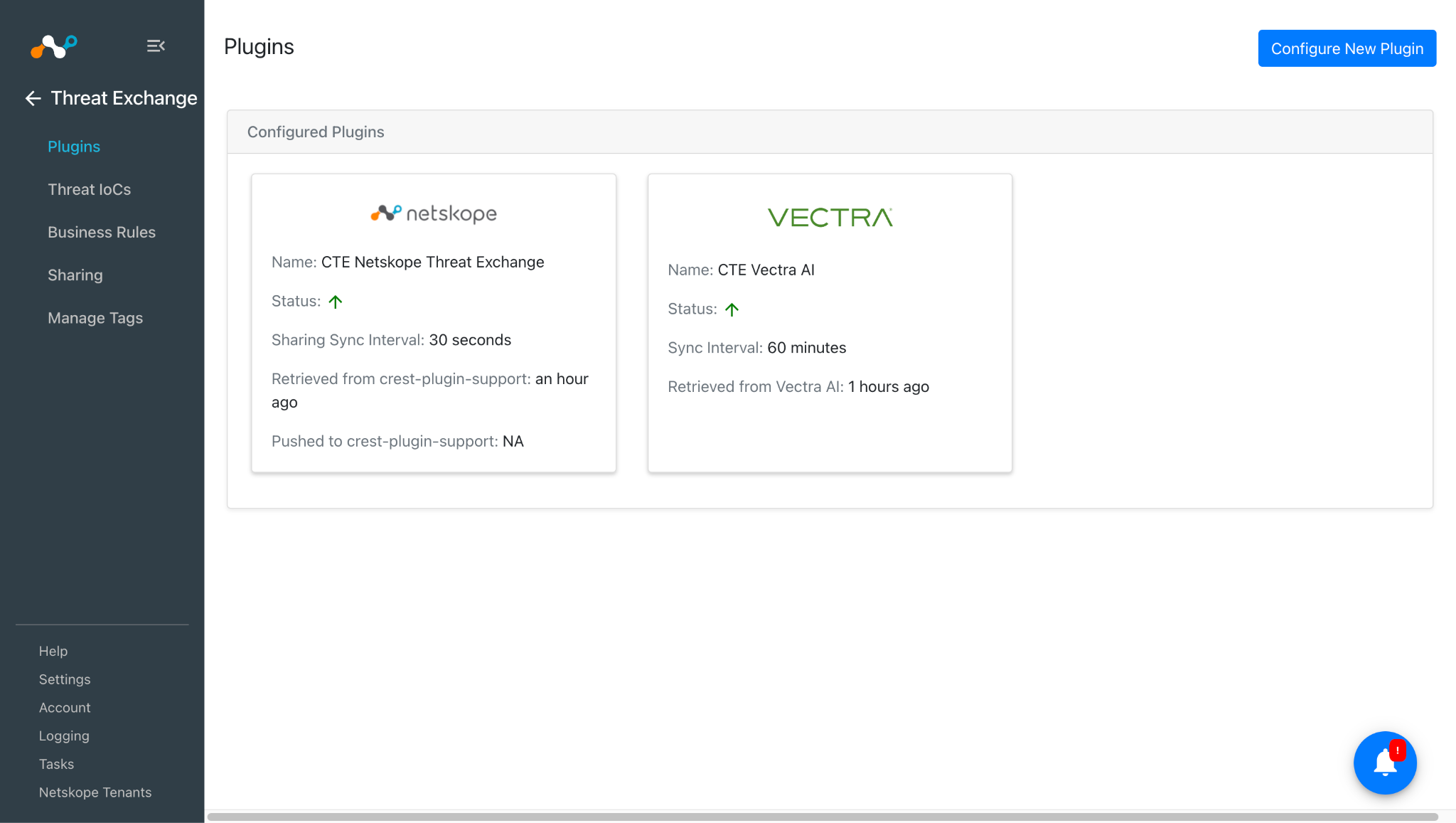
- Click Save.
Configure a Threat Exchange Business Rule for Vectra AI
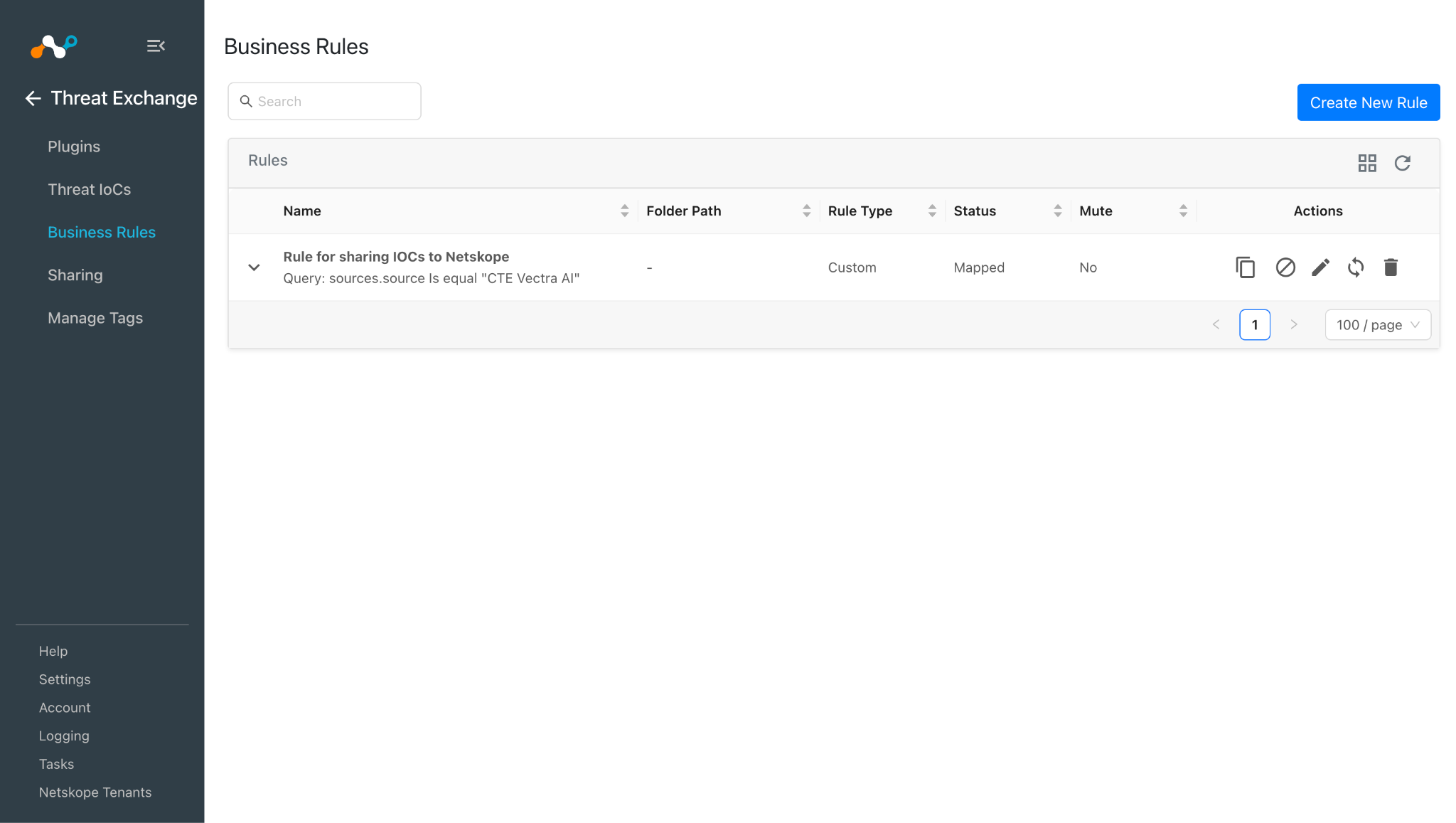
To share indicators fetched from the Vectra AI to Cloud Exchange, you need a business rule that will filter out the indicators that you want to share. To configure a business rule:
- Go to Threat Exchange > Business Rule and click Create New Rule.
- Add the filter according to your requirement in the rule, and then click Save.
Configure Threat Exchange Sharing for Vectra AI
To share IoCs from Vectra AI to Netskope Cloud Exchange:
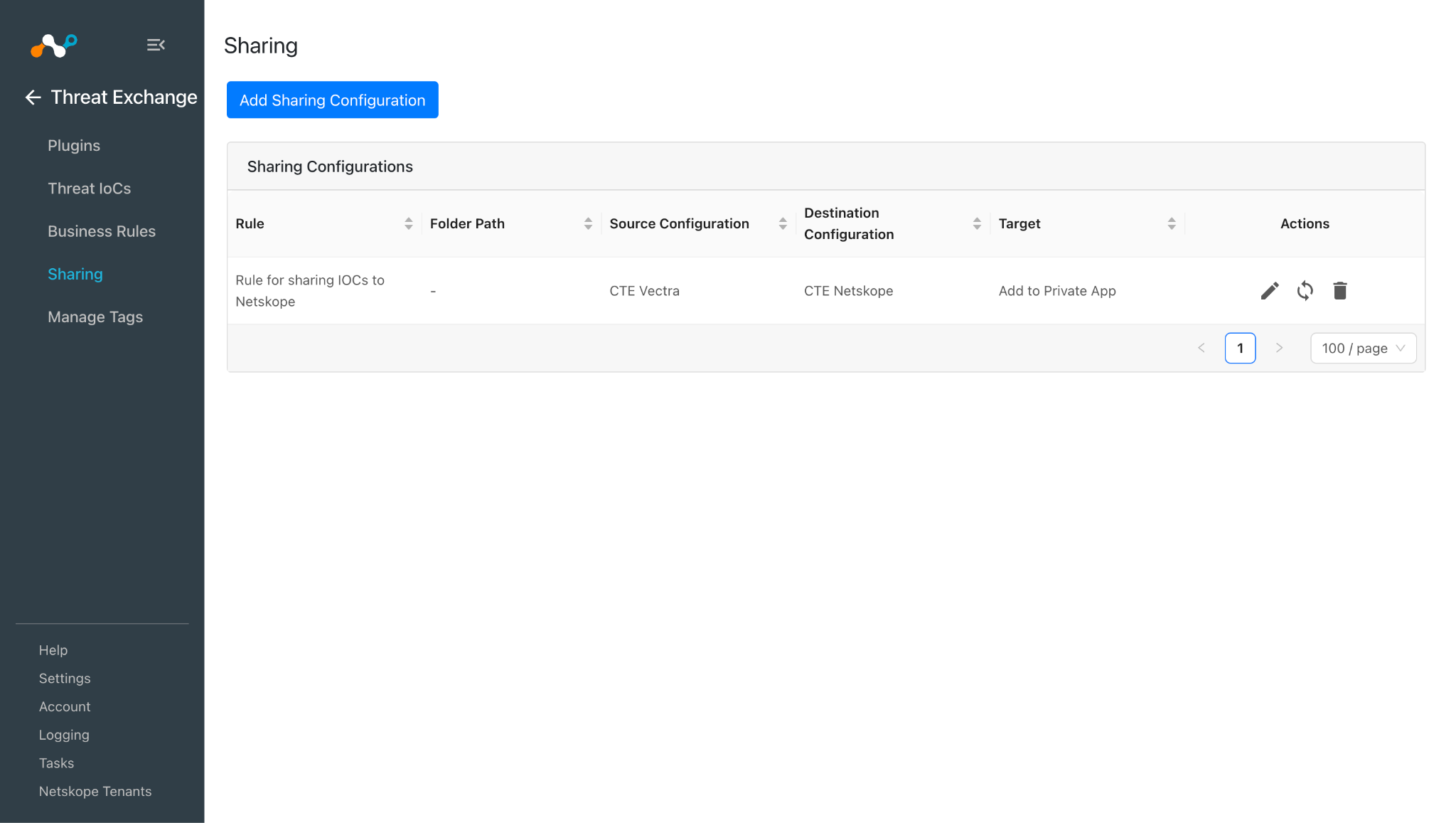
- Go to Threat Exchange > Sharing and click Add Sharing Configuration.
- Select your Source Configuration (CTE Vectra AI), a Business Rule, the Destination Configuration (CTE Netskope), and Target.
- Click Save.
Validate the Vectra AI
Validate the Pull
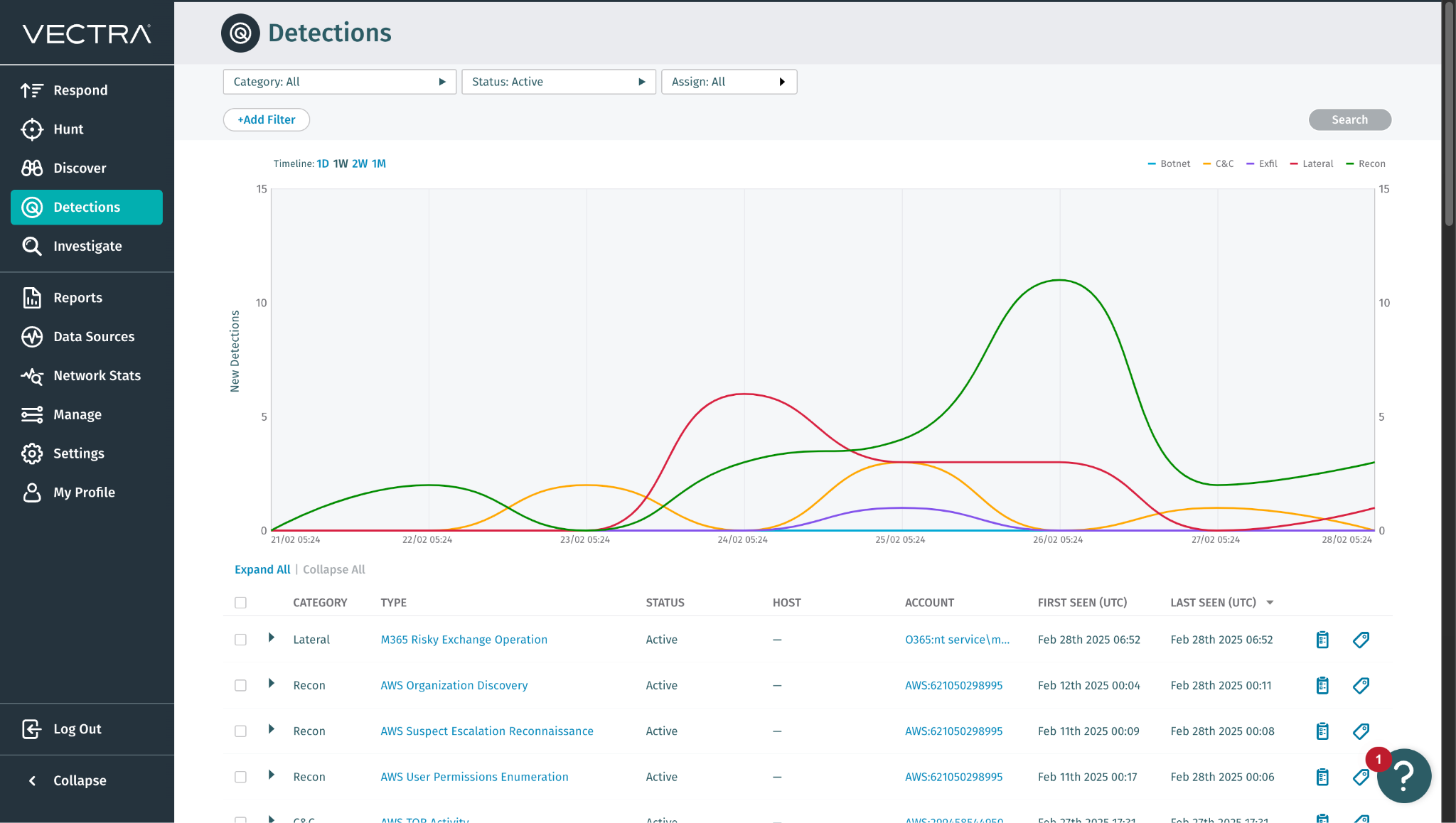
To verify the data available for pulling on Vectra AI, follow below Steps.
Log in to Vectra AI and go to Detections.
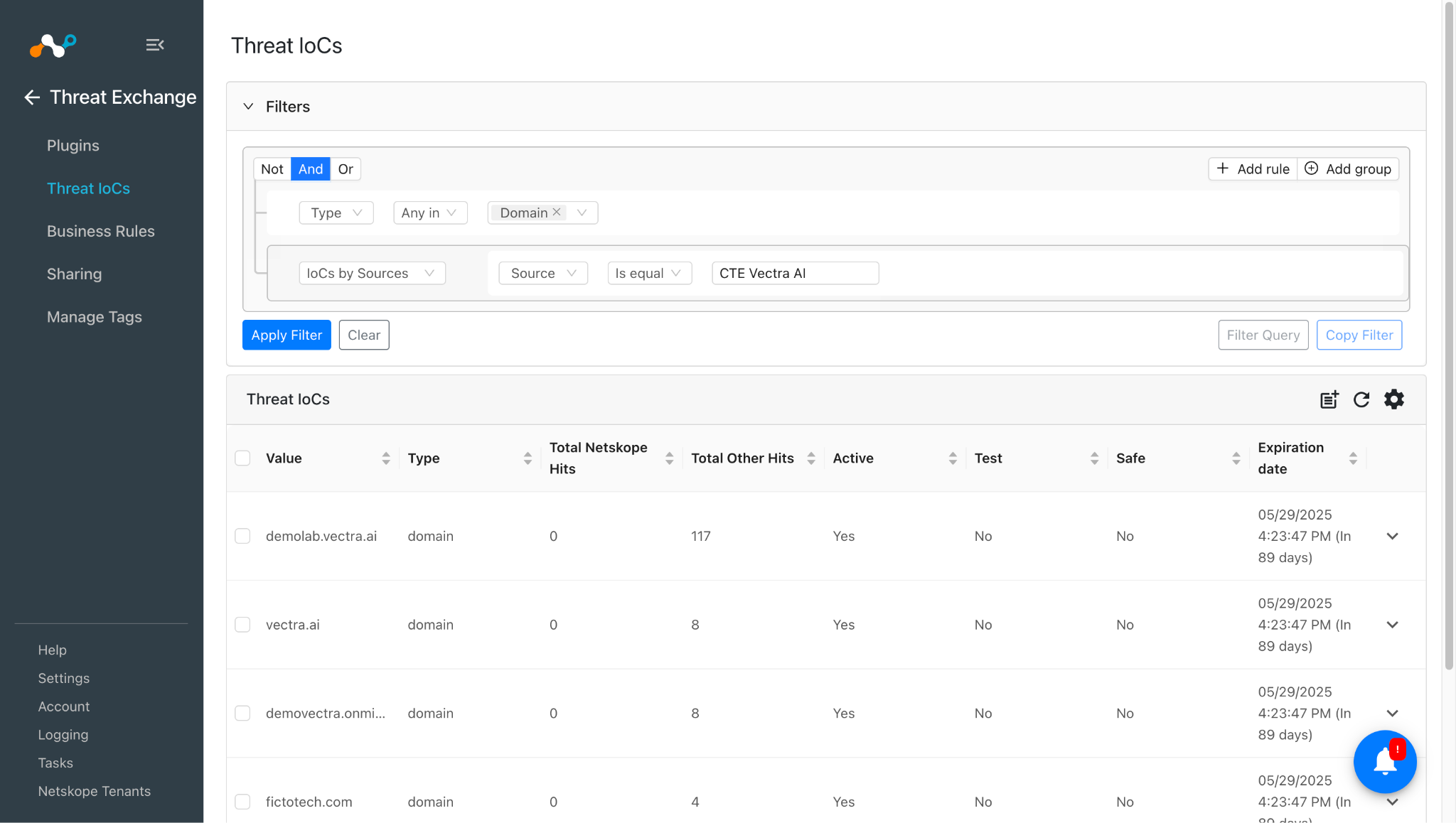
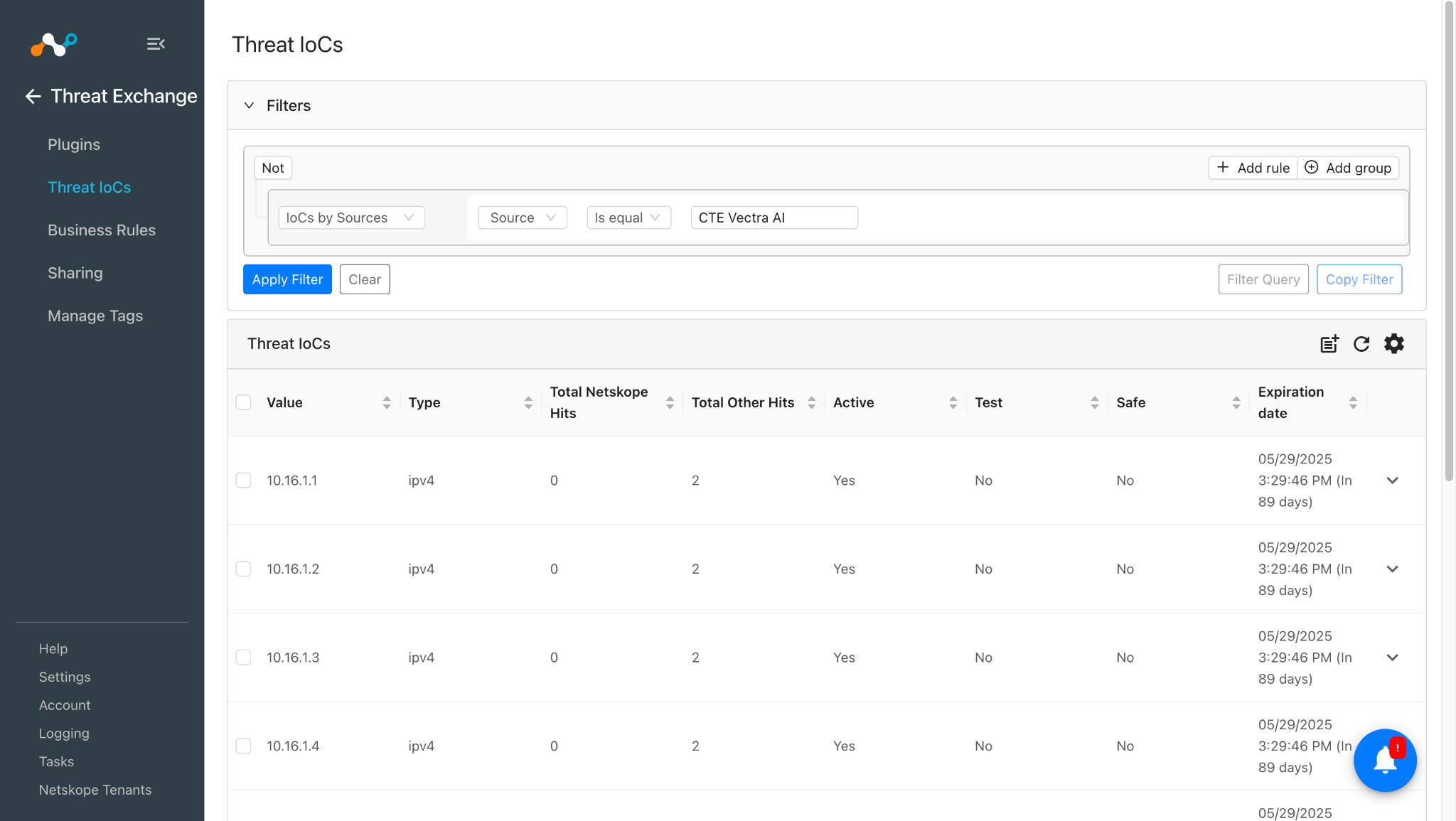
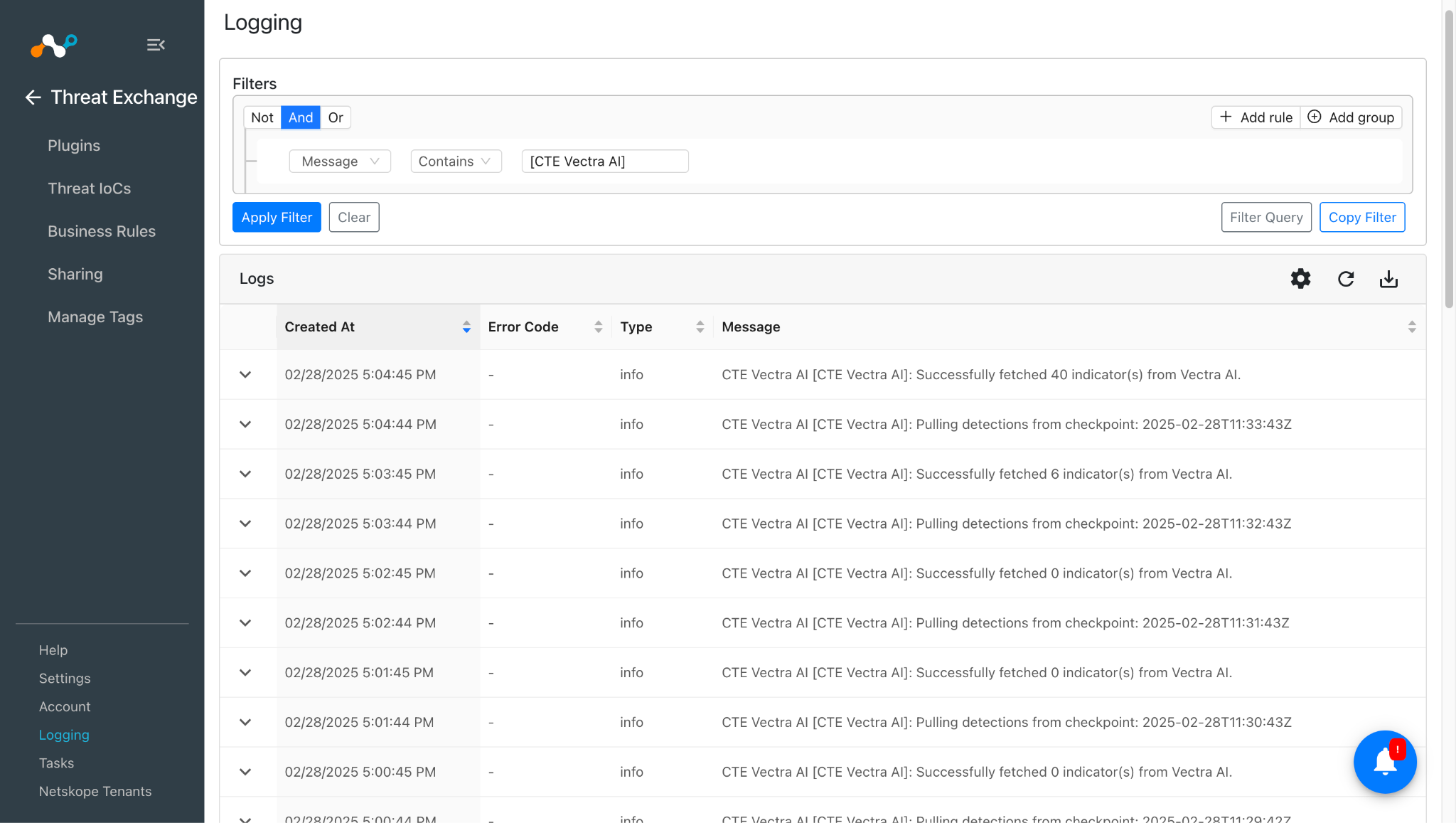
Pulled data will be listed on the Threat IoCs page. You can filter the IoCs pulled from the platform using the filter: sources.source Like “<plugin configuration name>”.
To verify pulled logs in Cloud Exchange, go to Logging and search logs from the CTE Vectra AI plugin.
Validate the Pull Retraction
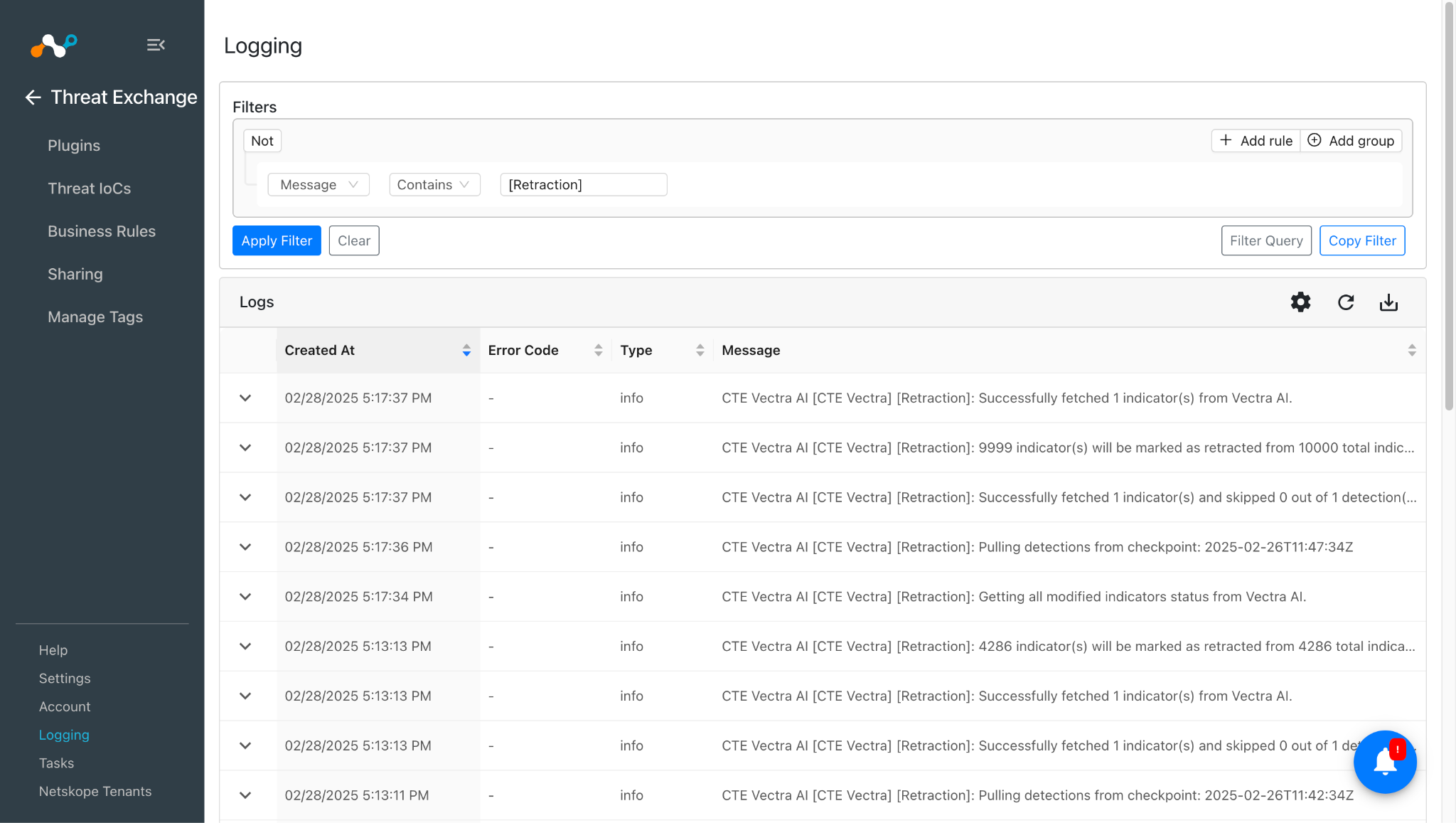
You can filter the logs related to retraction by using the filter: sources.source Like “[Retraction]”.
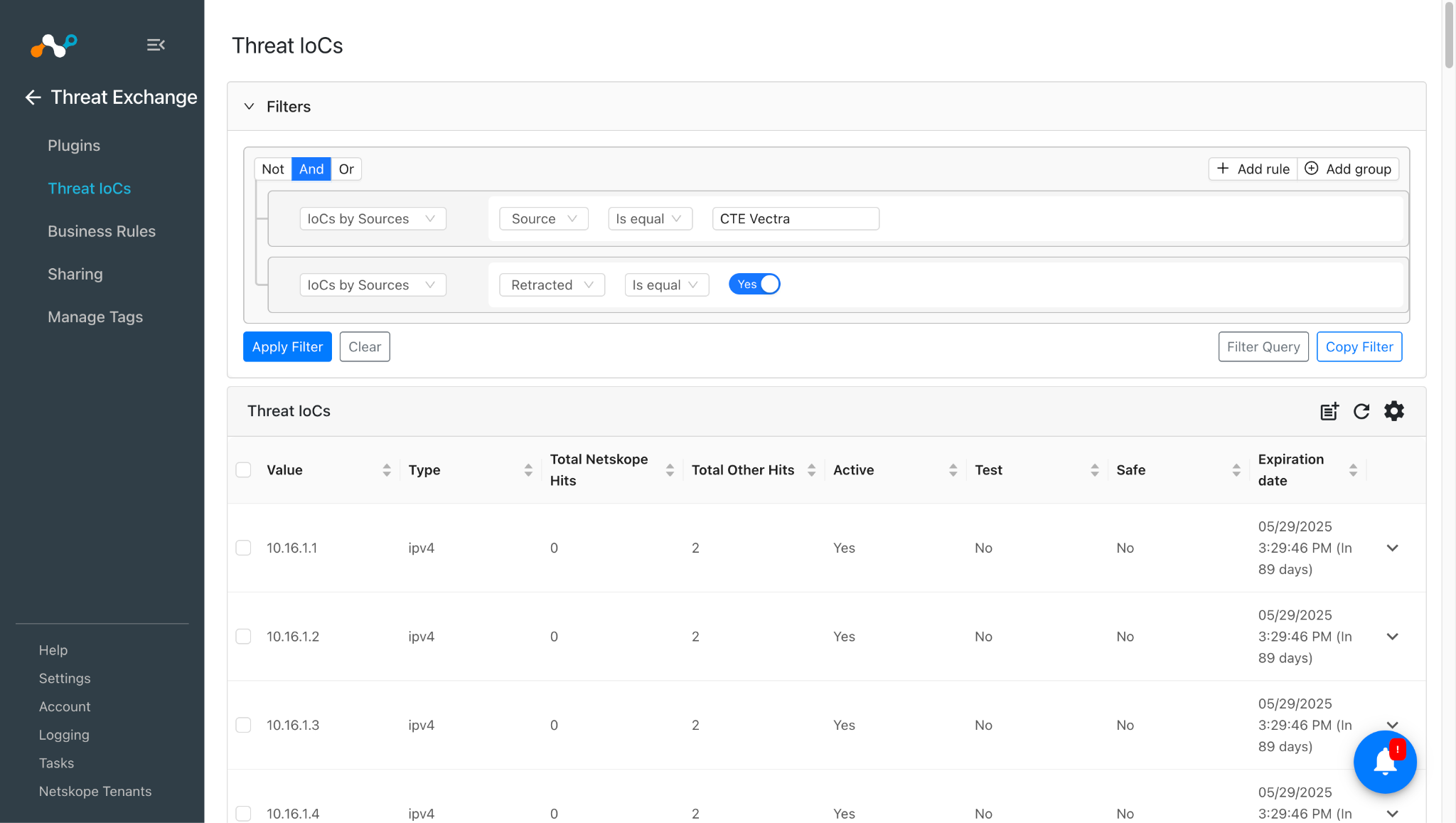
You can validate the retracted IoCs on the Threat IoCs page:
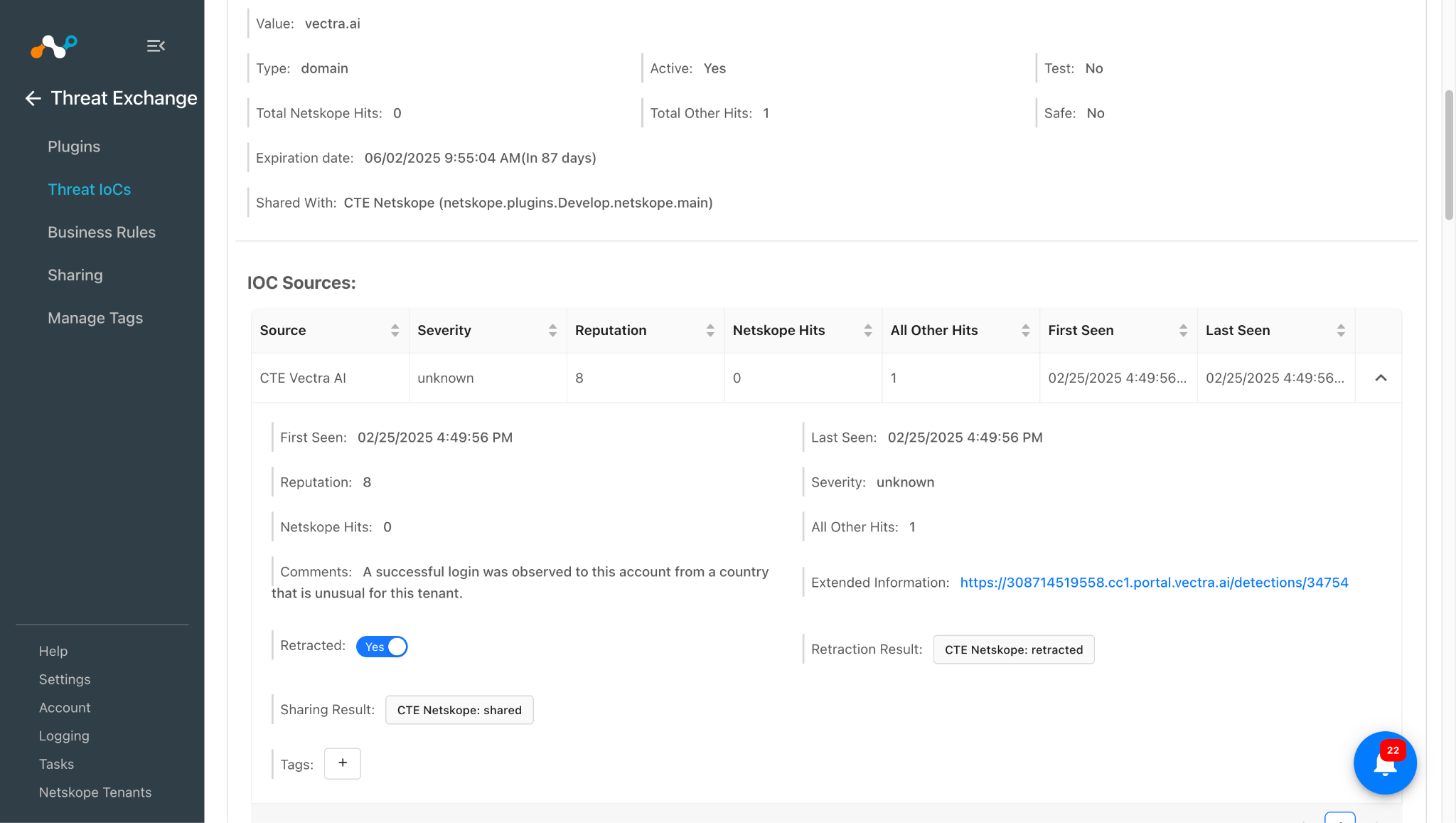
Note that when the IoCs shared from Vectra AI to Third Party will be retracted, it will be marked as “<plugin-config-name>: retracted” in the Retraction Result. If they are not deleted from the 3rd-party plugin, the Retraction Result will be pending.
Validate the Push Retraction
Push is not supported for Vectra. To push IoCs from Vectra AI to Netskope, or to see the IoC retraction workflow, refer to IoC Retraction.
IoCs pulled from Vectra AI were shared to a URL list Vectra-demo on the Netskope Tenant.
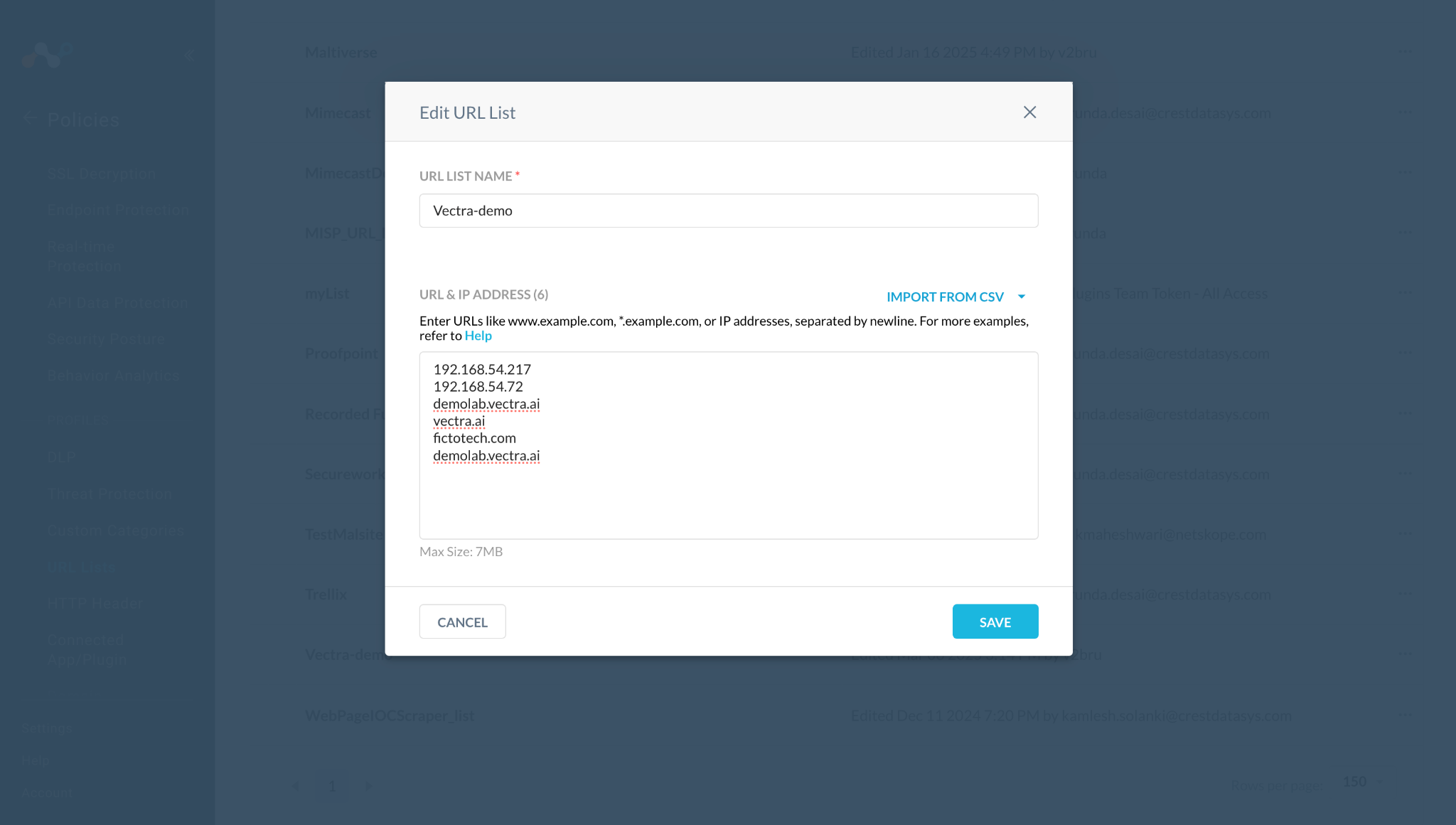
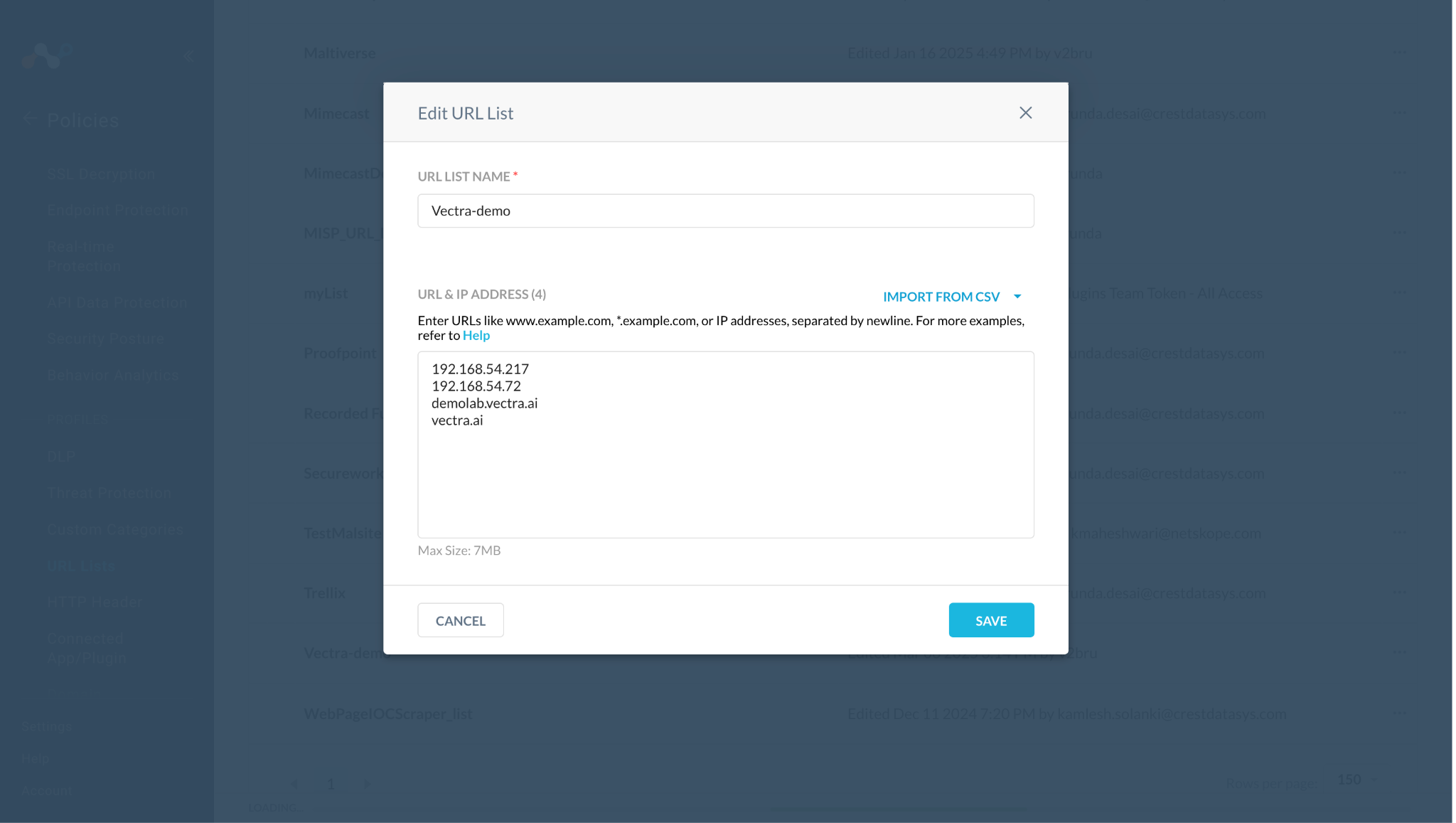
If any of the shared IoCs are marked as retracted in Cloud Exchange, it will be deleted from the Netskope tenant as well.
Here you can see the IoCs that were marked Retracted “Yes” and were also deleted from the URL list on the Netskope tenant.
Troubleshooting
Unable to pull IoCs from the Vectra AI platform
After the plugin configuration, if the IoCs are not pulled from the platform, it might be due to one of these reasons:
- No IOCs are available on the platform to pull
- IOCs are not available for the given time range or do not match the configuration parameters.
What to do: Identity your root cause from above and follow below steps to resolve the issue.
No IoCs are available on the platform to pull
Check if the IoCs are available on the platform to pull. If available, check the resolution for the next point.
IoCs are not available for the given time range
If the IoCs are available on the platform to pull, but the plugin has not pulled the IoCs in Cloud Exchange, check the number of days mentioned in the initial range parameter of the plugin configuration. On the Vectra AI platform, check if you have data for the given time range.
If the data is still available for the given time range, it might be that the IoCs for the provided filter in the plugin configuration are not available, so check the values from the plugin configuration parameter, and then filter the same on the Vectra AI platform.
Unable to configure the Vectra AI plugin
This might be due to invalid credentials for Vectra AI in the configuration.
What to do: Follow the steps in the Configure the Vectra AI Pluging section.
Known Behavior
Rate Limit issue:
While testing the plugin we encountered the below errors multiple times while configuring the plugin, pulling detections and execution of the retraction task.
| 03/03/2025 2:07:05 PM | – | error | CTE Vectra AI [CTE Vectra AI]: Received exit code 429, API rate limit exceeded while generating authentication token from Vectra AI. Retrying after 30 seconds. 3 retries remaining. |