

Identity is the new perimeter, and ensuring a strong identity posture is paramount to securing your SaaS Apps. One of the identities is Users, another being 3rd Party Apps.
The Users page offers a single, consolidated view of all users across your connected SaaS apps. It helps you distinguish user types, understand their access levels, and identify users with potentially risky permissions. This enables faster, more informed risk analysis and smoother collaboration with your SaaS app administrators.
You can use this page to:
- Get a single-pane view of all users, their app usage, and access patterns.
- Distinguish between internal, external, administrator, and unknown users.
- Analyze permissions, privileges, and risky access across SaaS apps.
- View user status, group memberships, and login activity.
- Identify and prioritize users with high-risk or unusual access.
- Support security teams and app administrators in making informed decisions.
To view user details, log in to your Netskope tenant and navigate to API-Enabled Protection > Security Posture SaaS > Users.

Scheduled jobs run once per day at different times for each SaaS application to update user-related information. The most recent update time is shown in the Data last updated field on the top right side of the page. Because these jobs run daily, user counts may temporarily differ between the Inventory and Users pages.
User Metrics:
- Users: Displays the count of unique users who have access to the SaaS App. The weekly trend chart shows changes over the past 7 days. Hover over the chart to see specific dates and times.
- Administrators: Displays the number of administrator users. Administrators are the users with elevated permissions to manage settings, users, and configurations within the system.
- Privileged Users: Displays the number of privileged users.
- User Groups: Displays the total number of user groups the user belongs to. Click the number to view the User Group Side Panel.
- User Type: Categorizes users as Internal, External, or Unknown. Hover over the user type bar chart to see the status.
- Internal Users: Users who are part of the organization and have authenticated access.
- External Users: Users who are not part of the organization but may have limited or guest access.
- Unknown Users: Users whose type cannot be determined due to missing source information.
- Administrators: Categorizes admins as Internal, External, or Unknown. Hover over the type bar chart to see the status. Click the user count to open the User Details Panel.
-
User: Displays the user’s email address. If unavailable, it shows the Username + Netskope user ID combination.
-
App: Shows the total number of apps the user has access to. Hover over the number to view the list of apps.
-
Instances: Displays the number of instances the user has access to.
-
User Groups: Displays the number of user groups the user belongs to. Click the number to view the User Group Panel.
-
Privileged Permissions: Displays the number of privileged permissions assigned to the user.
-
User Type: Displays the user’s type across different instances, along with their respective counts.
Example: Administrator (1), Internal (1) means
Administrator (1): The user has one administrator role.
Internal (1): The user is classified as an internal user (part of the organization).
If a user has multiple roles, the numbers in brackets reflect the count of each assigned role.
-
User Status: Displays the user’s status (Enabled, Disabled, or Unknown), with the count in brackets showing the number of statuses assigned.
Example: Enabled (1) means
Enabled (1): The user is currently active with one enabled status.
In some cases, users may have multiple statuses (e.g., “Disabled (1), Enabled (1)”), and the numbers help differentiate them.
-
Last Login: Displays the app name and timestamp of the user’s most recent login. If the user has never accessed any supported apps, this field remains empty.
User Details Panel
Click the user’s name in the table to open the User Details Panel, which provides the following information:

Metrics:
-
Apps: Displays the total number of apps the user has access to. Hover over the number to view the list of apps.
-
User Groups: Displays the number of user groups the user belongs to. Click the number to view the User Group Panel details for the selected user.
Details Table:
-
App/Instance: Displays the app and instance name the user has access to.
-
User Name/ID: Displays the username and Netskope user ID for the selected app.
-
User Role: Displays the user role of the instance. Click the user role to view the list of assigned roles in the User Role Panel.
-
User Group: Displays the list of groups the user belongs to within the app.
-
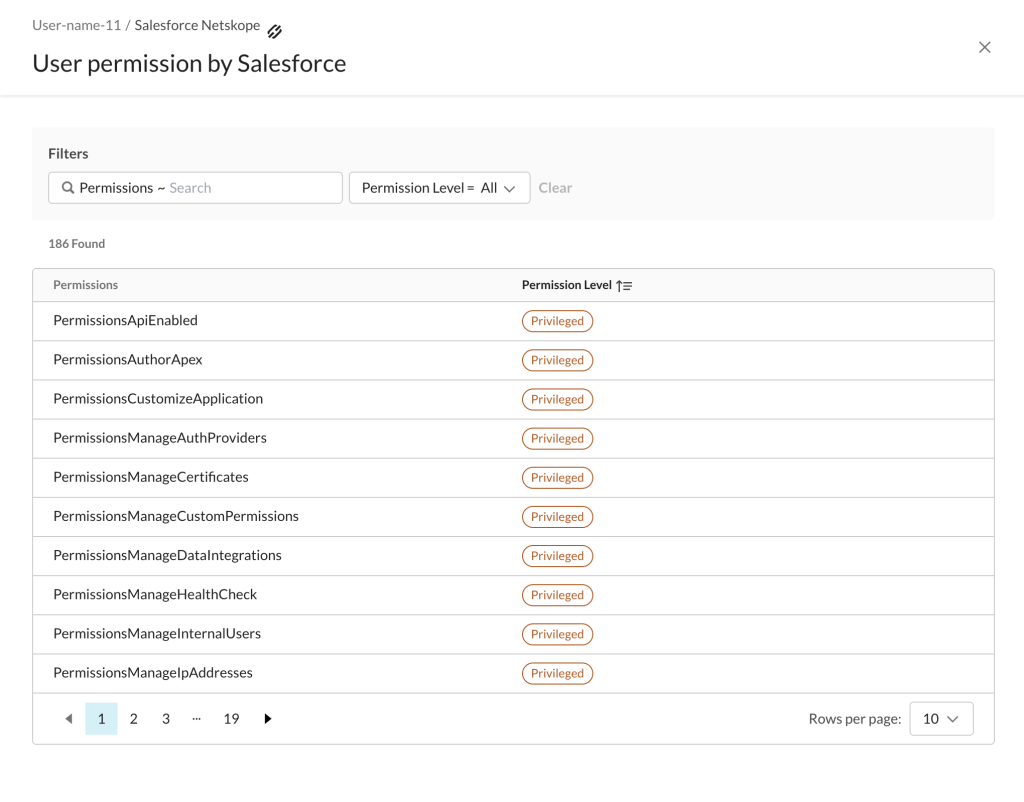
User Permissions: Displays the number of permissions assigned to the user by the instance. Click on the count to drill down and view the list of permissions.
-
User Type: Categorizes the user as Administrator, Internal, External, or Unknown.
-
Privileged Permissions: Displays the number of privileged permissions assigned to the user for the App/Instance. Click on the Privileged Permission count to see the list of permissions.
-
User Status: Displays the user’s status (Enabled, Disabled, or Unknown).
-
Account Creation Time: Displays the timestamp when the user account was created.
-
Last Login Time: Displays the timestamp of the user’s most recent login to the instance.

User Role Panel
Click the user role in User Details Panel to view the list of assigned roles in the User Role Panel. The panel provides a list of roles assigned to the user.

User Group Panel
Click the user group count in the User metrics to open the User Groups Panel. The panel provides the following details:

-
App/Instance: Displays the names of the app and instances the user has access to.
-
Group Name: Displays the name of the group within the instance.
-
Subgroups: Displays the number of subgroups within this group. Click the count to explore subgroups.
-
Users: Displays the number of users in the group.