

This document will provide the technical documentation that will be required to configure the Wiz v2.0.0 plugin with the Cloud Risk Exchange module of the Netskope Cloud Exchange platform. This plugin fetches Applications and Workloads from the Wiz platform. This plugin does not support performing any actions on the Applications and Workloads.
Prerequisites
To complete this integration, you need:
- A Netskope tenant (or multiple, for example, production and development/test instances).
- A Netskope Cloud Exchange tenant with the Tenant plugin and Risk Exchange plugin already configured.
- Wiz platform credentials (Base URL, Token URL, Client ID, Client Secret) for API Authentication.
- Connectivity to the following hosts: https://api.<region>.app.wiz.io.
Wiz Plugin Support
This plugin fetches Applications and Workloads from Wiz Platform.
| Type of Data Pulled | Actions |
|---|---|
| Applications, Workloads | No Action |
Mappings
Mapping will be used to view the pulled applications/workloads and their respective details. Mapped fields during plugin configuration will be visible on the Records page once the data is pulled. Below is the suggested mapping that should be used while configuring the plugin.
Pull Mappings for Applications
| Plugin Field | Expected Datatype | Suggested Field Name | Suggested Field Action |
|---|---|---|---|
| Application ID |
String |
Wiz Application ID |
Unique |
|
Subscription External ID |
String |
Wiz Subscription External ID |
Overwrite |
|
Subscription ID |
String |
Wiz Subscription ID |
Overwrite |
|
Application Name |
String |
Wiz App Name |
Overwrite |
|
Cloud Platform |
String |
Wiz App Cloud Platform |
Overwrite |
|
Cloud Provider URL |
String |
Wiz App Cloud Provider URL |
Overwrite |
|
Creation Date |
Date |
Wiz App Creation Date |
Overwrite |
|
First Seen |
Date |
Wiz App First Seen |
Overwrite |
|
Last Seen |
Date |
Wiz App Last Seen |
Overwrite |
Pull Mappings for Workloads
|
Plugin Field |
Expected Datatype |
Suggested Field Name |
Suggested Field Action |
|---|---|---|---|
|
Workload ID |
String |
Wiz Workload ID |
Unique |
|
Name |
String |
Wiz Workload Name |
Overwrite |
|
Type |
String |
Wiz Workload Type |
Overwrite |
|
IP Addresses |
List |
Wiz Workload IP Addresses |
Overwrite |
|
Region |
String |
Wiz Workload Region |
Overwrite |
|
Cloud Platform |
String |
Wiz Workload Cloud Platform |
Overwrite |
|
Cloud Provider URL |
String |
Wiz Workload Cloud Provider URL |
Overwrite |
|
Status |
String |
Wiz Workload Status |
Overwrite |
|
Subscription Name |
String |
Wiz Subscription Name |
Overwrite |
|
Subscription External ID |
String |
Wiz Subscription External ID |
Overwrite |
|
Subscription ID |
String |
Wiz Subscription ID |
Overwrite |
|
OS |
String |
Wiz Workload OS |
Overwrite |
|
Tags |
List |
Wiz Workload Tags |
Overwrite |
|
Vulnerability Name |
String |
Wiz Vulnerability Name |
Overwrite |
|
CVSS Severity |
String |
Wiz CVSS Severity |
Overwrite |
|
Vulnerability Score |
Number |
Wiz Vulnerability Score |
Overwrite |
|
Exploitability Score |
Number |
Wiz Exploitability Score |
Overwrite |
|
Severity |
String |
Wiz Severity |
Overwrite |
|
Impact Score |
Number |
Wiz Impact Score |
Overwrite |
|
Vulnerability Status |
String |
Wiz Vulnerability Status |
Overwrite |
|
EPSS Severity |
String |
Wiz EPSS Severity |
Overwrite |
|
EPSS Percentile |
Number |
Wiz EPSS Percentile |
Overwrite |
|
EPSS Probability |
Number |
Wiz EPSS Probability |
Overwrite |
|
CNA Score |
Number |
Wiz CNA Score |
Overwrite |
Permissions
Required Scopes:
- read:resources
- read:vulnerabilities
API Details
List of APIs used
|
API Detail |
Method |
Endpoint |
API Scope |
|---|---|---|---|
|
Get auth token |
POST |
/oauth/token |
None |
|
Fetch Applications |
POST |
/graphql |
– |
|
Fetch Workloads |
POST |
/graphql |
Get auth token
API endpoint: <Token URL>/oauth/token
Method: POST
Headers
|
Key |
Value |
|---|---|
|
accept |
application/json |
|
content-type |
application/x-www-form-urlencoded |
|
User-Agent |
netskope-ce-6.0.1-cre-wiz-v2.0.0 |
Body:
{
      "grant_type": "client_credentials",
      "audience": "wiz-api",
      "client_id": client_id,
      "client_secret": client_secret,
}
Sample API Response
{
    "access_token": "eyJraWQiOiJEXC9ZNE1HUWE1UD….",
    "refresh_token": "eyJjdHkiOiJKV1QiLCJM8D3lHiLgKNu50A….",
    "expires_in": 86400,
    "token_type": "Bearer"
}
Fetch Applications
API endpoint: <Base URL>/graphql
Method: POST
Headers
|
Key |
Value |
|---|---|
|
Authorization |
Bearer <Bearer Token> |
|
Accept |
application/json |
|
User-Agent |
netskope-ce-6.0.1-cre-wiz-v2.0.0 |
Body(GraphQL Query):
{
   "query": "query Table($first: Int, $after: String, \
   $filterBy: CloudResourceV2Filters) {    cloudResourcesV2(      \
   first: $first      after: $after      filterBy: $filterBy    ) \
   {      nodes {        id        name             type         \
   cloudAccount {            externalId            id        }    \
   graphEntity {            properties            firstSeen        \
   lastSeen        }      }      pageInfo {        hasNextPage      \
   endCursor      }    }  }",
   "variables":{"first":500,"filterBy":{"type":{"equals":["BUCKET"]}}}
}
Sample API Response
{
    "data": {
        "cloudResourcesV2": {
            "nodes": [
                {
                    "id": "3d42d73c-91f2-5a42-9392-5a7efd509ce0",
                    "name": "ai-agent-demo-ct-logs-984186218765-us-east-2",
                    "type": "BUCKET",
                    "cloudAccount": {
                        "externalId": "984186218765",
                        "id": "12327889-2de2-581a-9263-24f9d2172a05"
                    },
                    "graphEntity": {
                        "properties": {
                            "_vertexID": "3d42d73c-91f2-5a42-9392-5a7efd509ce0",
                            "accessibleFrom.internet": false,
                            "atRestEncryption": true,
                            "cloudPlatform": "AWS",
                            "cloudProviderURL": "https://console.aws.amazon.com/s3/buckets/ai-agent-demo-ct-logs-984186218765-us-east-2?region=us-east-2",
                            "creationDate": "2026-01-28T12:40:02Z",
                            "dataRiskScore": 4,
                            "deploymentCoverage_cloudEvents_deploymentStatus": "NotCovered",
                            "deploymentCoverage_cloudEvents_isLastSeenInTheLastDay": false,
                            "deploymentCoverage_cloudEvents_isLastSeenInTheLastWeek": false,
                            "encrypted": true,
                            "encryptedAtRest": true,
                            "encryptionAlgorithms": "AES256",
                            "encryptionInTransit": false,
                            "externalId": "ai-agent-demo-ct-logs-984186218765-us-east-2",
                            "fullResourceName": null,
                            "hasSensitiveData": true,
                            "isPublic": false,
                            "loggingEnabled": false,
                            "maxExposureLevel": 0,
                            "name": "ai-agent-demo-ct-logs-984186218765-us-east-2",
                            "nativeType": "bucket",
                            "numAddressesOpenForHTTP": 0,
                            "numAddressesOpenForHTTPS": 0,
                            "numAddressesOpenForNonStandardPorts": 0,
                            "numAddressesOpenForRDP": 0,
                            "numAddressesOpenForSSH": 0,
                            "numAddressesOpenForWINRM": 0,
                            "openToAllInternet": false,
                            "providerUniqueId": "arn:aws:s3:::ai-agent-demo-ct-logs-984186218765-us-east-2",
                            "publicExposure": "PublicExposureInvalid",
                            "region": "us-east-2",
                            "regionLocation": "US",
                            "regionType": "BucketRegionTypeMultiRegion",
                            "resourceGroupExternalId": null,
                            "retentionPeriod": 0,
                            "sizeBytes": 280836,
                            "sizeGiB": 0,
                            "status": "Active",
                            "subscriptionExternalId": "984186218765",
                            "tags": {
                                "Name": "AI Agent Demo CloudTrail Bucket",
                                "Purpose": "Demo"
                            },
                            "updatedAt": "2026-01-29T20:56:09Z",
                            "versioningEnabled": false,
                            "webHostingEnabled": false,
                            "zone": null
                        },
                        "firstSeen": "2026-01-28T16:49:05.791776Z",
                        "lastSeen": "2026-01-29T20:56:07Z"
                    }
                }
            ],
            "pageInfo": {
                "hasNextPage": true,
                "endCursor": "eyJmaWVsZHMiOlt7IkZp….."
            }
        }
    }
}
Fetch Workloads
API endpoint: <Base URL>/graphql
Method: POST
Headers
|
Key |
Value |
|---|---|
|
Authorization |
Bearer <Bearer Token> |
|
Accept |
application/json |
|
User-Agent |
netskope-ce-6.0.1-cre-wiz-v2.0.0 |
Body(GraphQL Query):
{
   "query": "query VulnerabilityFindingsPage($filterBy: VulnerabilityFindingFilters, \
   $first: Int, $after: String) \
   {    vulnerabilityFindings(        filterBy: $filterBy      \
   first: $first        after: $after    ) \
   {        nodes {            id            name           score            \
   exploitabilityScore            severity            impactScore            \
   status            cnaScore                \
   epssSeverity            epssPercentile            epssProbability         \
   CVSSSeverity            vulnerableAsset \
   {                ... on VulnerableAssetBase {                    \
   id                    type                    name                    \
   region                    cloudProviderURL                    \
   cloudPlatform                    status                    \
   subscriptionName           subscriptionExternalId           \
   subscriptionId                  tags                }                \
   ... on VulnerableAssetVirtualMachine {                    \
   operatingSystem                    \
   ipAddresses                }            }        }        \
   pageInfo {            hasNextPage            endCursor        }    }}",
   "variables":{"first":500,"filterBy":{"updatedAt":{"after":"2026-01-21T09:21:43Z"}}}
}
Sample API Response
{
    "data": {
        "vulnerabilityFindings": {
            "nodes": [
                {
                    "id": "cbd8a235-da44-50d2-b794-8f95148627df",
                    "name": "CVE-2022-34903",
                    "score": 6.5,
                    "exploitabilityScore": 2.2,
                    "severity": "MEDIUM",
                    "impactScore": 4.2,
                    "status": "OPEN",
                    "epssSeverity": "HIGH",
                    "epssPercentile": 84.7,
                    "epssProbability": 2.4,
                    "cnaScore": 0,
                    "firstDetectedAt": "2022-12-07T02:29:45.544923Z",
                    "lastDetectedAt": "2026-01-28T18:50:51Z",
                    "description": "The package `gnupg2` version `2.0.22-5.amzn2.0.4` was detected in `YUM package manager` on a container image running `Amazon 2 (Karoo)` is vulnerable to `CVE-2022-34903`, which exists in versions `< 2.0.22-5.amzn2.0.5`.\n\nThe vulnerability was found in the [Official Amazon Linux Security Advisories](https://alas.aws.amazon.com/AL2/ALAS-2022-1834.html) with vendor severity: `Medium` ([NVD](https://nvd.nist.gov/vuln/detail/CVE-2022-34903) severity: `Medium`).\n\nThis vulnerability has a known exploit available. Source: [VulnCheck](http://www.openwall.com/lists/oss-security/2022/07/02/1).\n\nThe vulnerability can be remediated by updating the package to version `2.0.22-5.amzn2.0.5` or higher, by adding the following command to the Dockerfile: `RUN yum update gnupg2`.",
                    "CVEDescription": "GnuPG through 2.3.6, in unusual situations where an attacker possesses any secret-key information from a victim's keyring and other constraints (e.g., use of GPGME) are met, allows signature forgery via injection into the status line.",
                    "CVSSSeverity": "MEDIUM",
                    "vulnerableAsset": {
                        "id": "8b7026d8-6ab4-5519-9e09-2dee699bb572",
                        "type": "CONTAINER_IMAGE",
                        "name": "602401143452.dkr.ecr.us-east-1.amazonaws.com/amazon-k8s-cni@3b6db8b6",
                        "region": "us-east-1",
                        "cloudProviderURL": null,
                        "cloudPlatform": "AWS",
                        "status": "Active",
                        "subscriptionName": null,
                        "subscriptionExternalId": "602401143452",
                        "subscriptionId": "e644fdd8-9970-56a4-b285-44072d60a153",
                        "tags": {}
                    }
                }
            ],
            "pageInfo": {
                "hasNextPage": true,
                "endCursor": "eyJmaWVsZHMiOlt7IkZpZWx…."
            }
        }
    }
}
Performance Matrix
These performance readings were conducted on a Large Cloud Exchange Stack with these VM specifications by pulling 500k Applications/Workloads record each from the Wiz plugin.
| Description | Specification |
|---|---|
| Stack details | Size: LargeRAM: 32 GBCPU: 16 Cores |
| Time taken to store the pulled Application records. | ~ 25 minutes |
| Time taken to store the pulled Workload records. | ~ 25 minutes |
User Agent
netskope-ce-6.0.1-cre-wiz-v2.0.0
Workflow
- Get your Client ID and Client Secret.
- Configure the Wiz plugin.
- Configure a Business Rule.
- Configure Actions.
- Validate the plugin.
Watch a Video
Click play to watch a video.
Get your Client ID and Client Secret
Contact Wiz Support team to obtain the Client ID and Client Secret.
Configure the Wiz Plugin
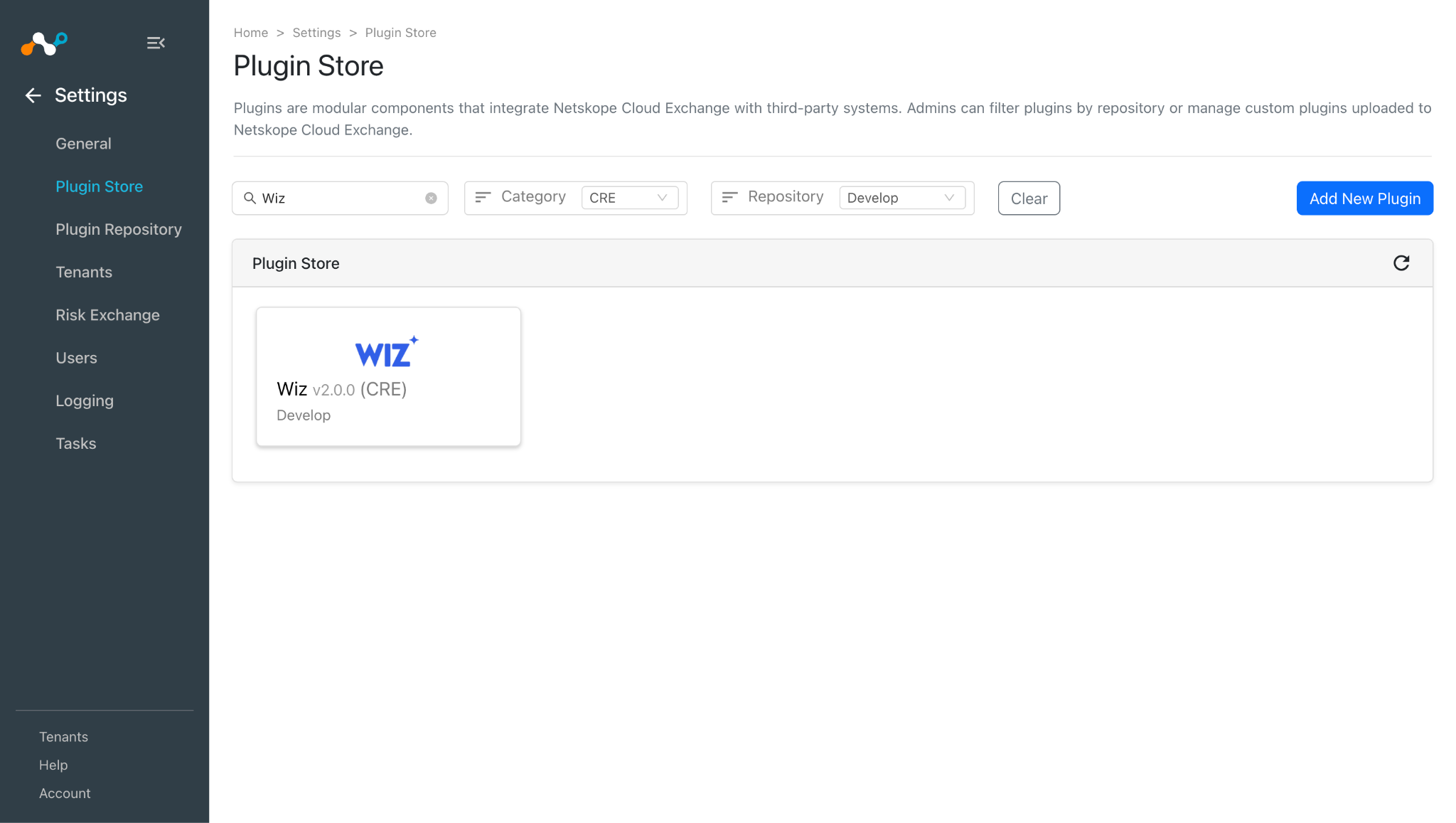
- In Cloud Exchange, go to Settings > Plugin Store. Search for and select the Wiz v2.0.0 (CRE) plugin box.
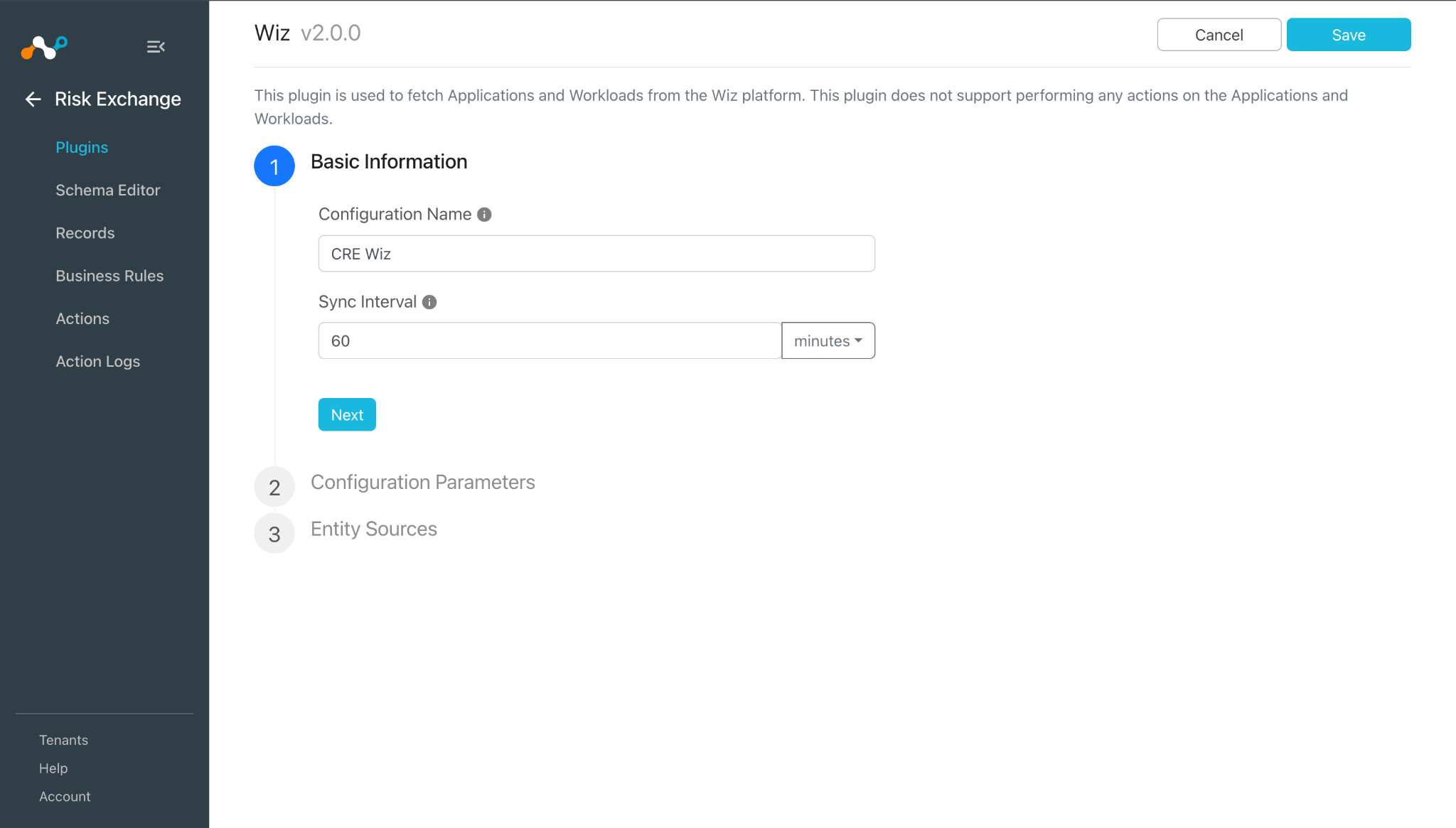
- Add a configuration name and change the sync interval if needed.
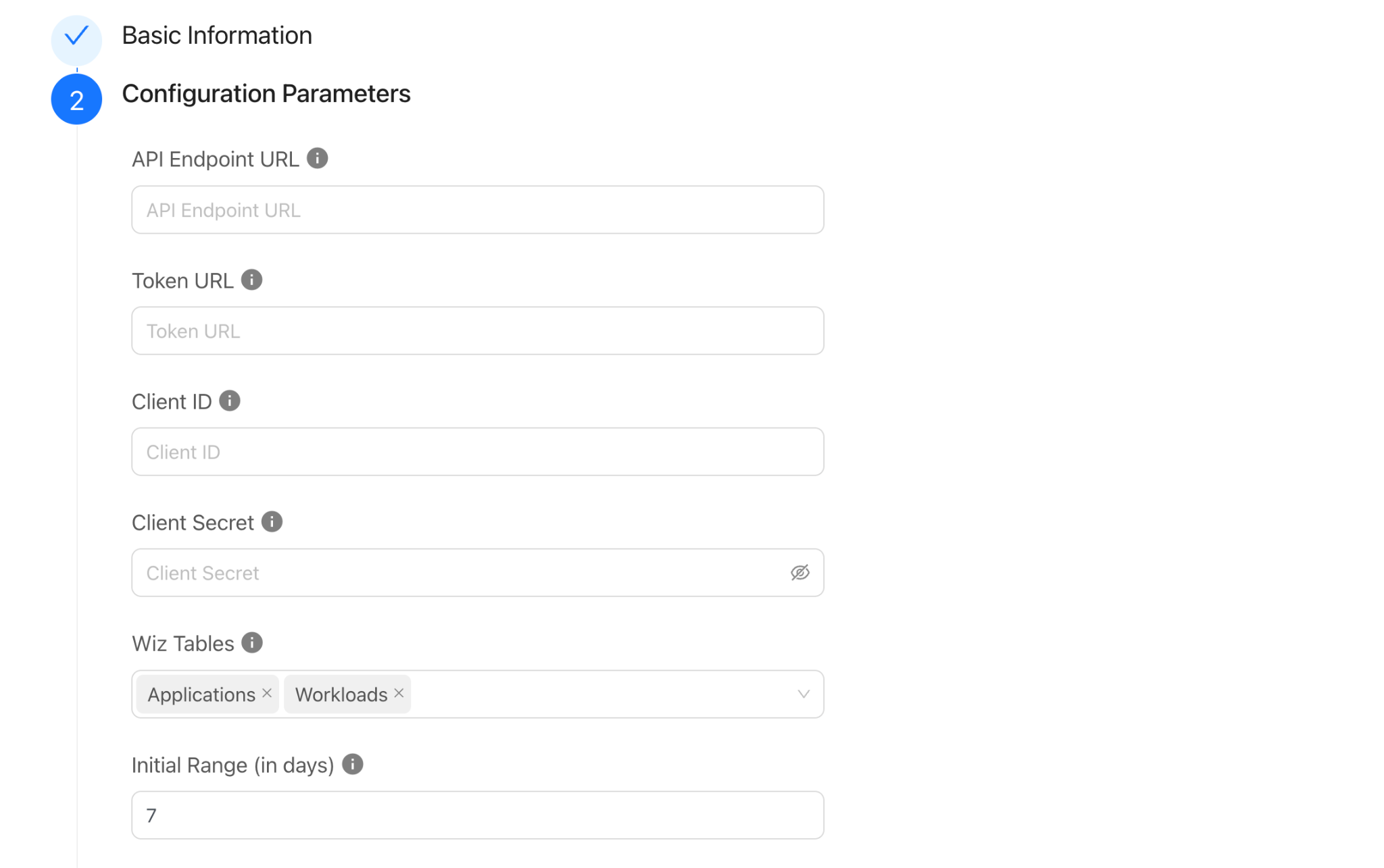
- Click Next and enter the Configuration Parameters:
- API Endpoint URL: API Endpoint URL for Wiz platform based on Tenant type.
Example: https://api.<TENANT_DATA_CENTER>.<ENVIRONMENT>. - Token URL: Token URL for Wiz platform based on Tenant type to generate the auth token.
Example: https://auth.app.wiz.io. - Client ID: Client ID of Wiz platform.
- Client Secret: Client Secret of Wiz platform.
- Wiz Tables: Select the Wiz tables to fetch data from. By default, it will only have Applications selected. To map fields under Workloads Entity, users can select Workloads.
- Initial Range(in days): Number of days to pull the Workloads data for the initial run. Value must be from 0 to 2^62. Note this initial range is not applicable for Applications Entity.
- API Endpoint URL: API Endpoint URL for Wiz platform based on Tenant type.
- Click Next and select the Applications Entity from the Entity dropdown. Provide the field mapping per your requirements.
Note If you are not able to see the Workloads Tab on Entity Sources page then click on Previous button and navigate to Configuration Parameters page, verify Wiz Tables field has the Workloads selected and then Navigate back to Entity Sources page.
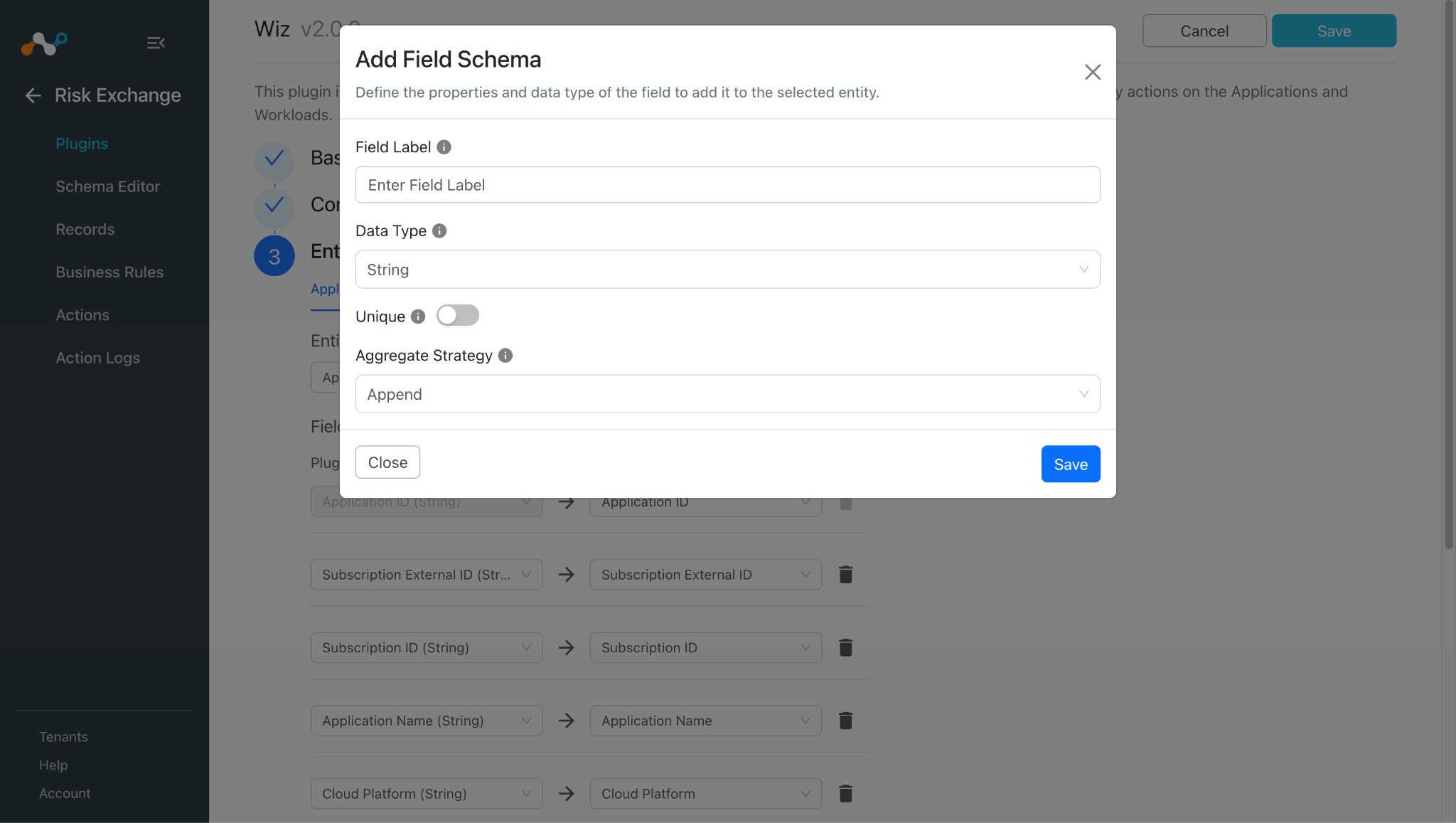
- To create a new field, click + Add Field.
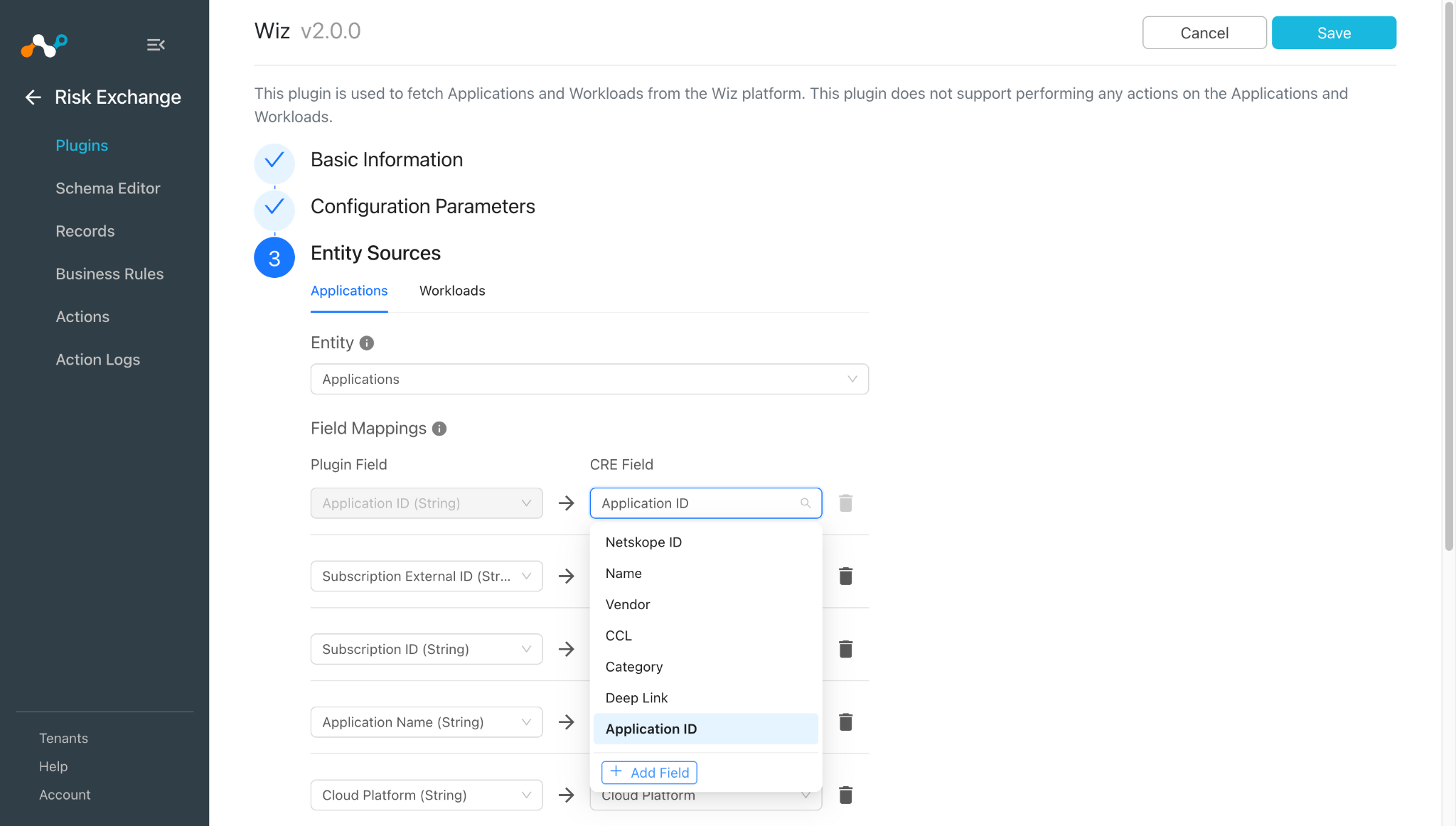
- Provide the Field Label, Data Type, and Aggregate Strategy per your requirements, and then click Save.
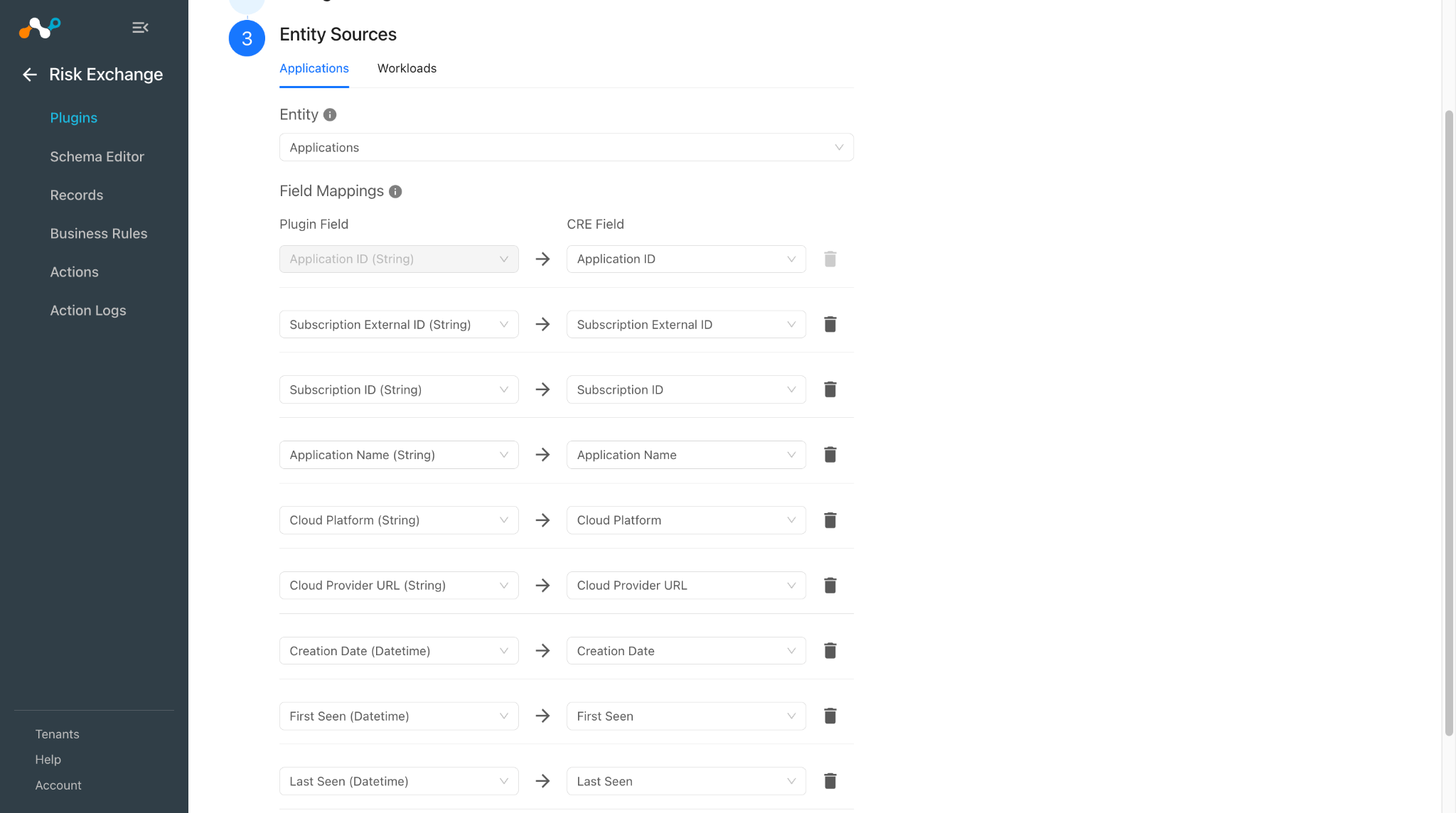
- Similarly, map the fields for the Workload entity, if you want to pull the Workloads.
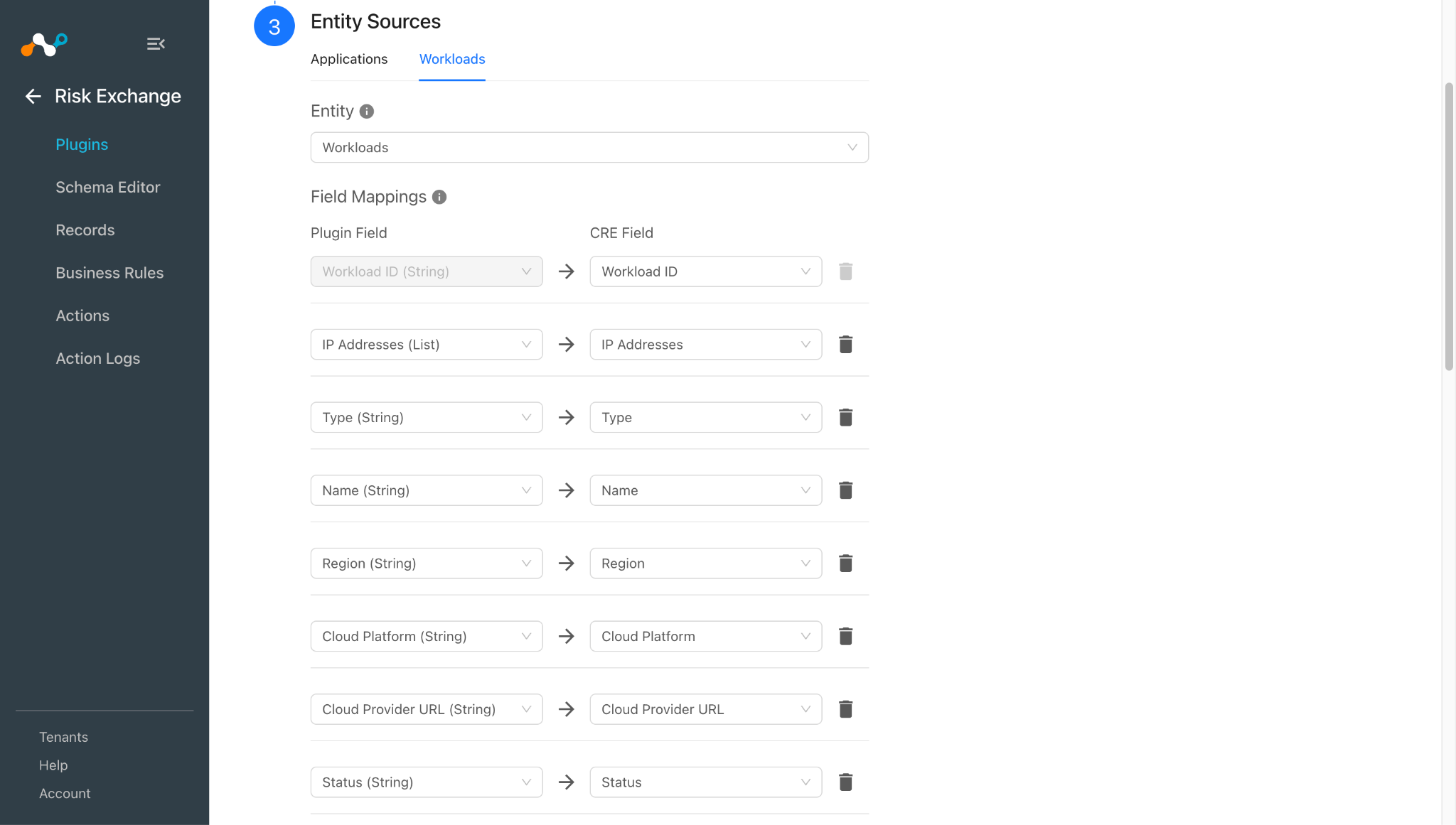
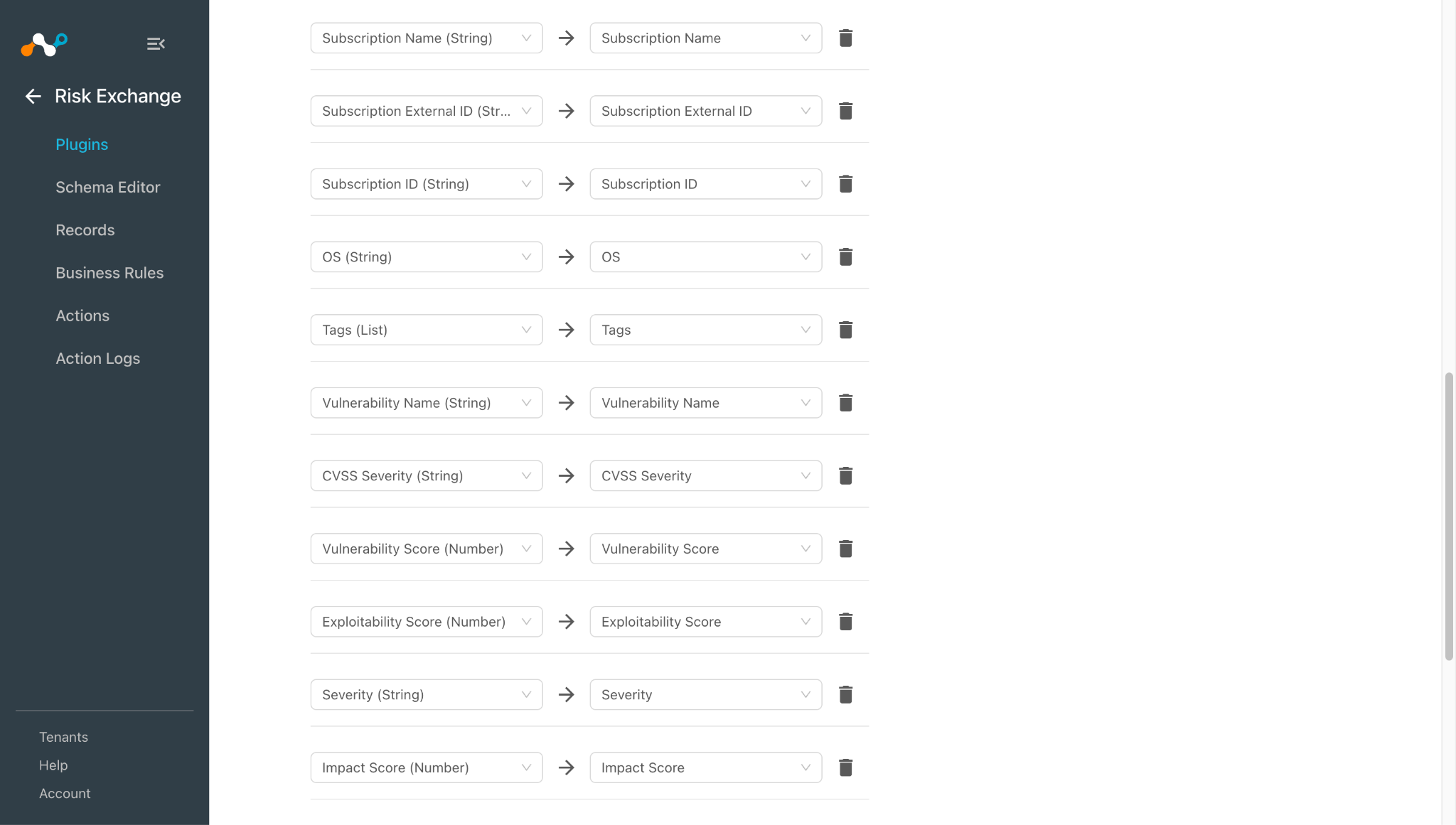
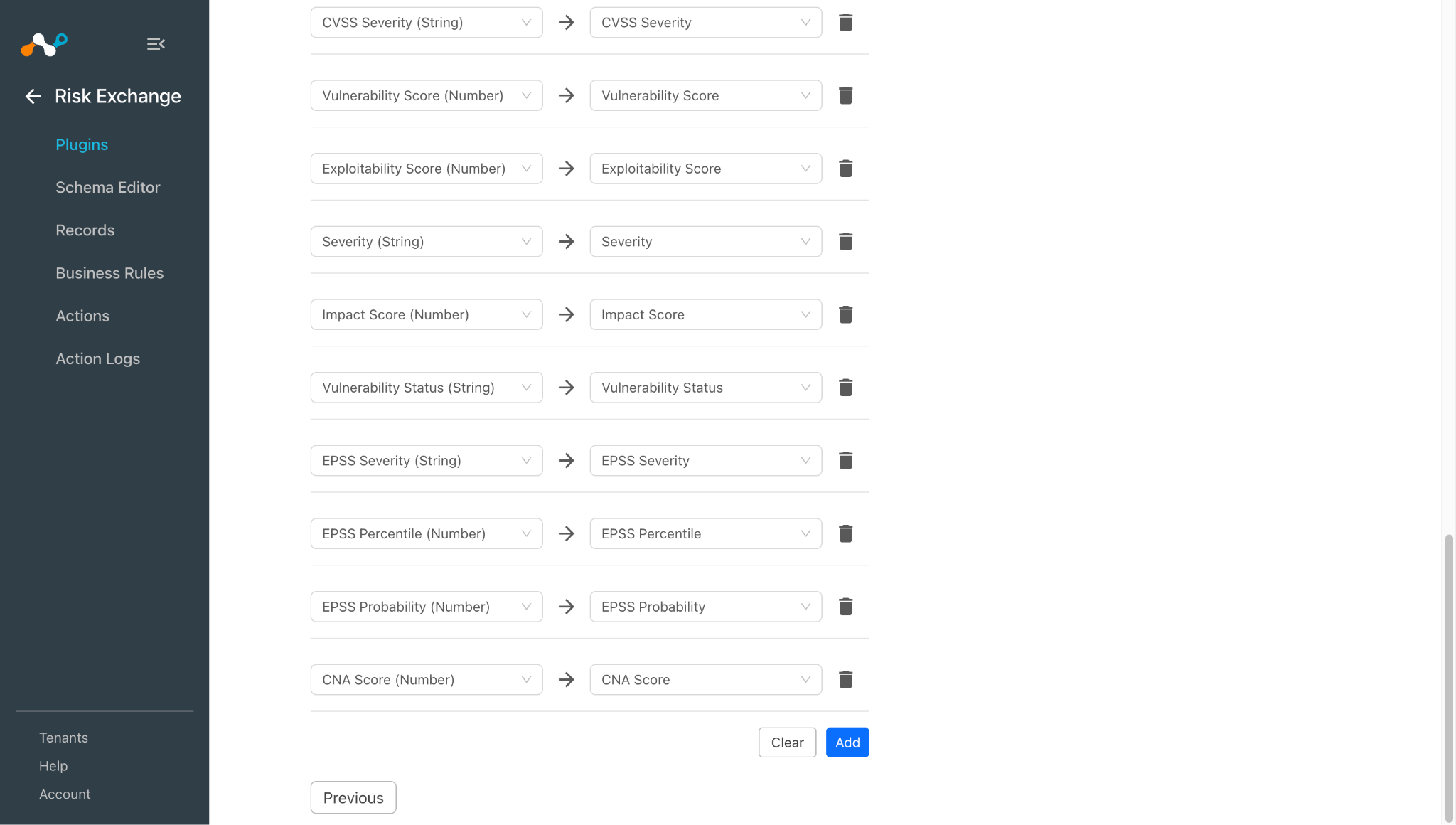
Note
- Application ID field will be required to pull the Applications.
- Workload ID field will be required to pull the Workloads.
- Refer to the Mappings section before configuring the plugin.
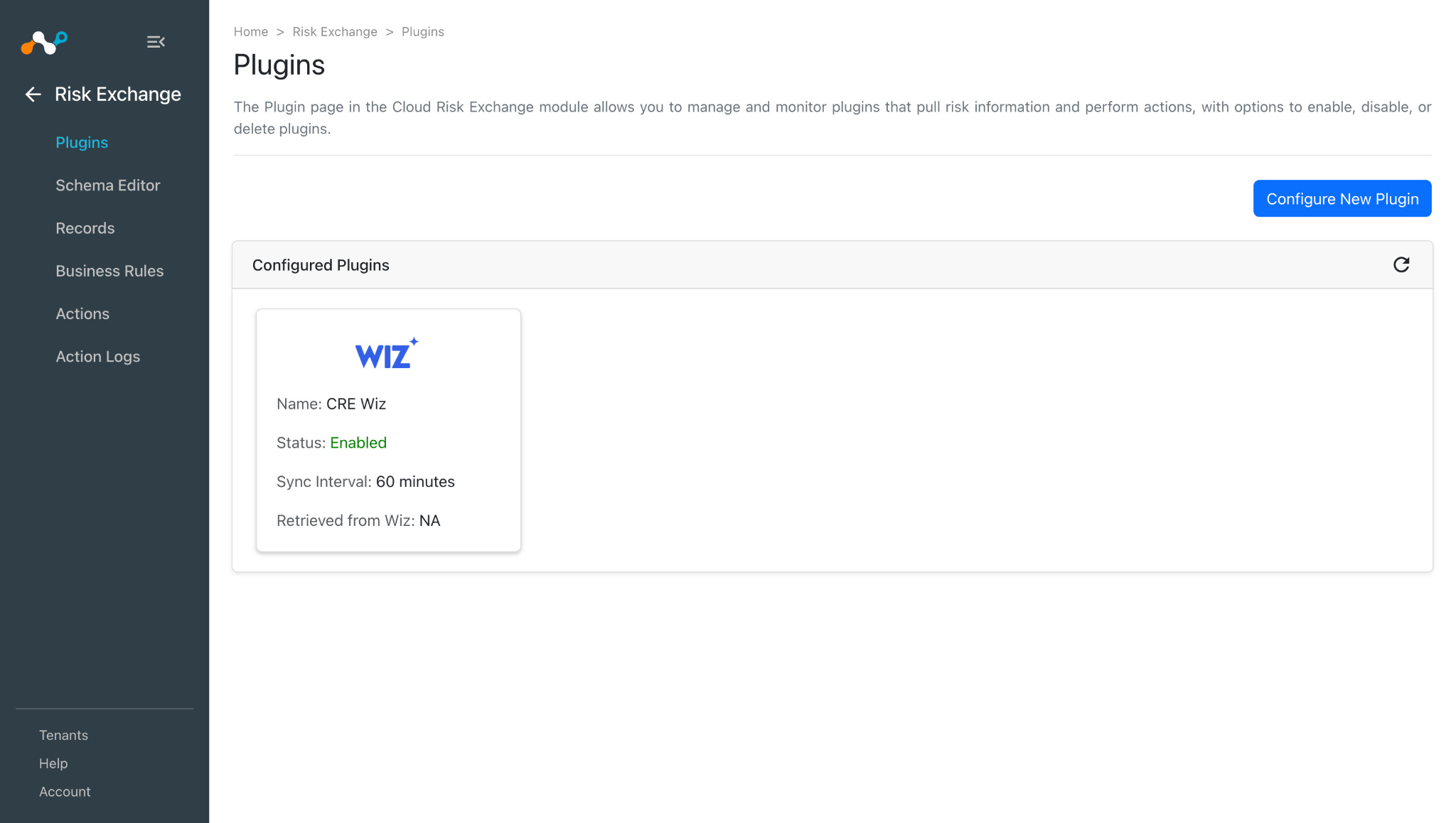
- Scroll up and Click on Save to configure the plugin.
Add a Risk Exchange Business Rule for Wiz
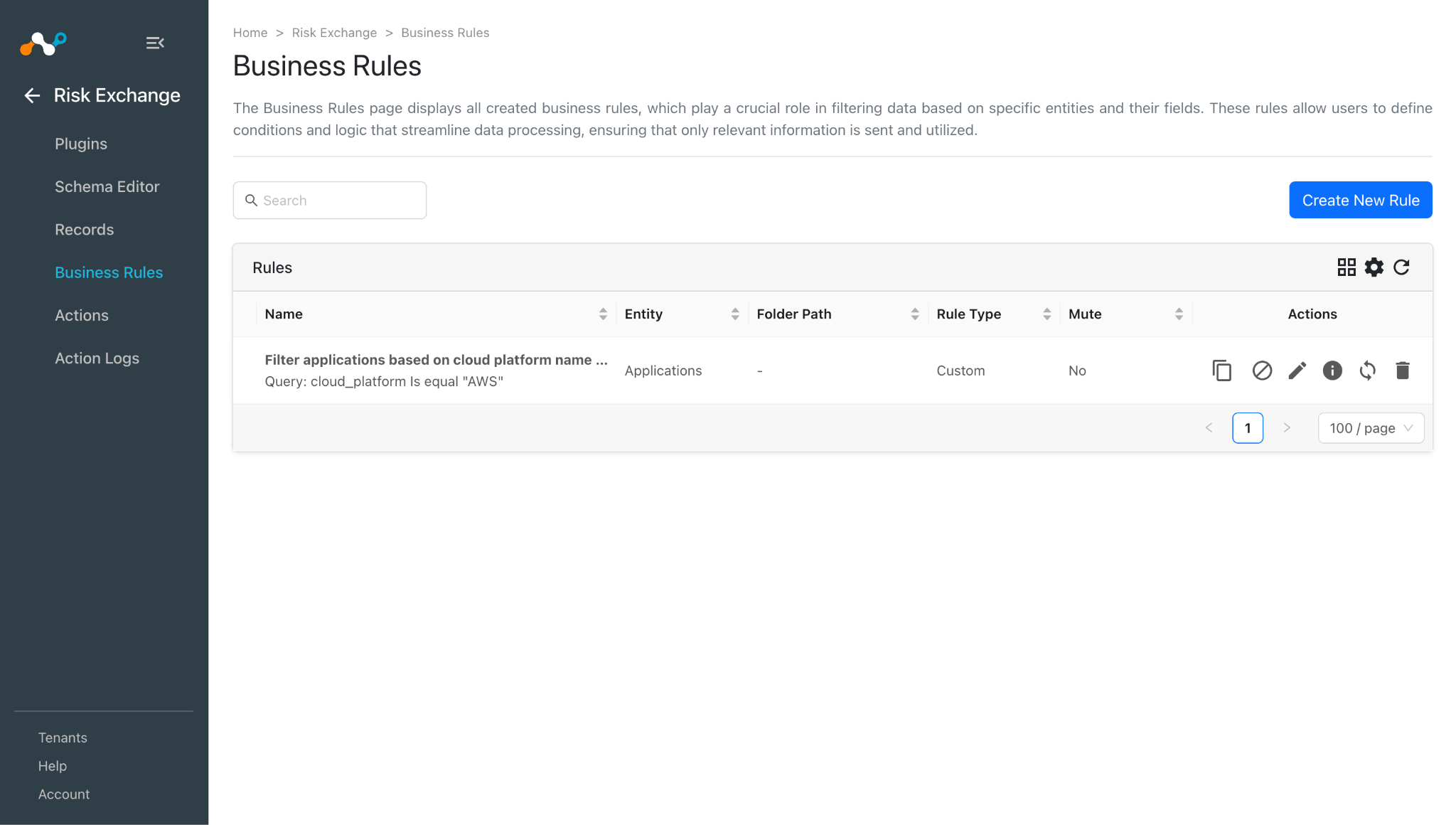
- In Risk Exchange, go to Business Rules and click Create New Rule.
- Enter the Rule Name. Select the Entity for the fields configured for the Wiz plugin, and configure the query based on your requirements. The below example filters all the xyz fetched from the Wiz plugin.
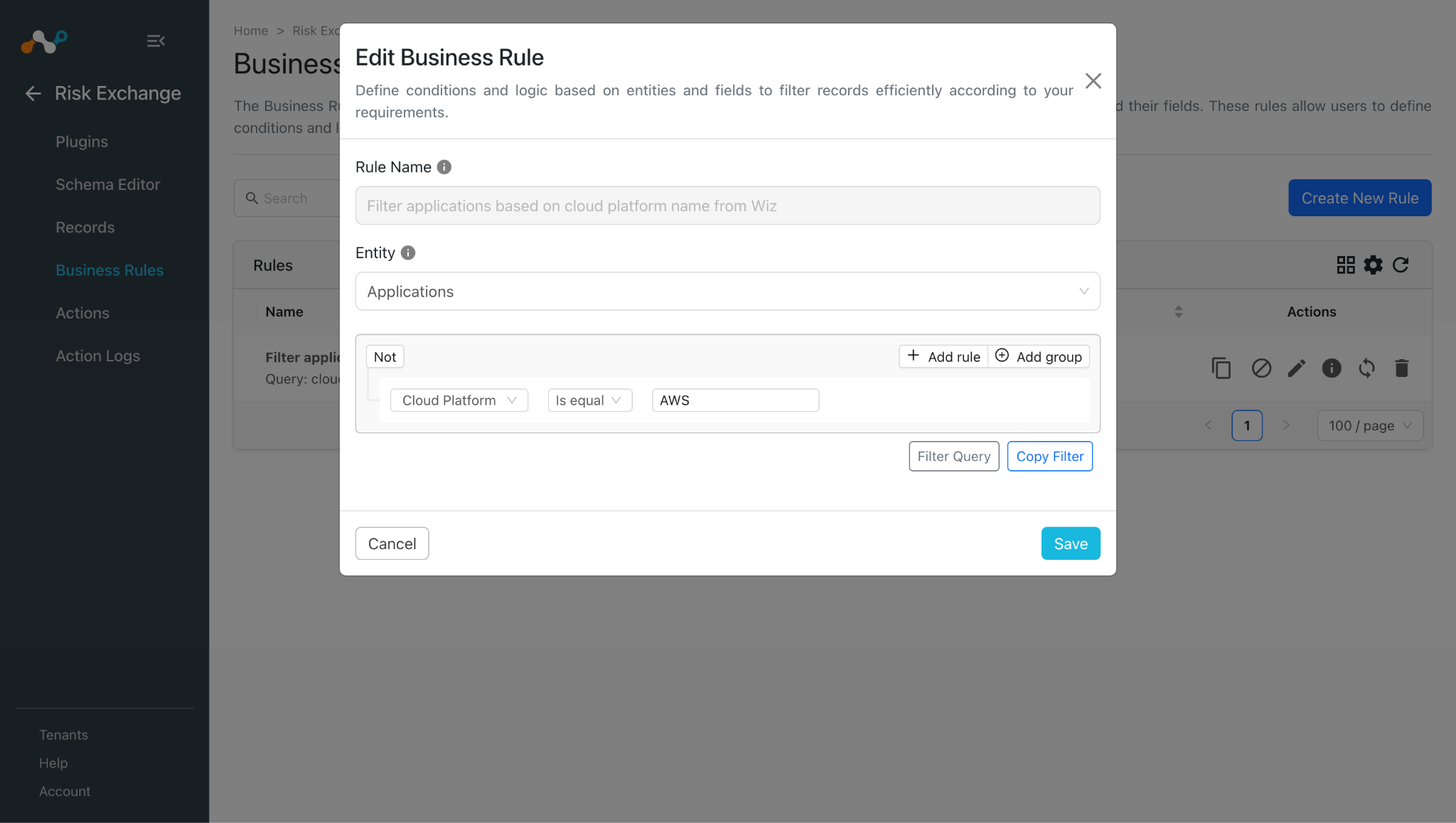
- Click Save.
Add Risk Exchange Actions for Wiz
CRE Wiz supports the following action type:
No Action
No action will be performed for this action. Users can generate UBA alerts in Ticket Orchestrator by using this action and enabling the Generate Alerts toggle.
Note You can perform the actions on the applications/workloads pulled from Wiz on the Netskope Tenant, for performing the related actions on Netskope refer to the Netskope Risk Exchange plugin guide.
Steps to configure the Action
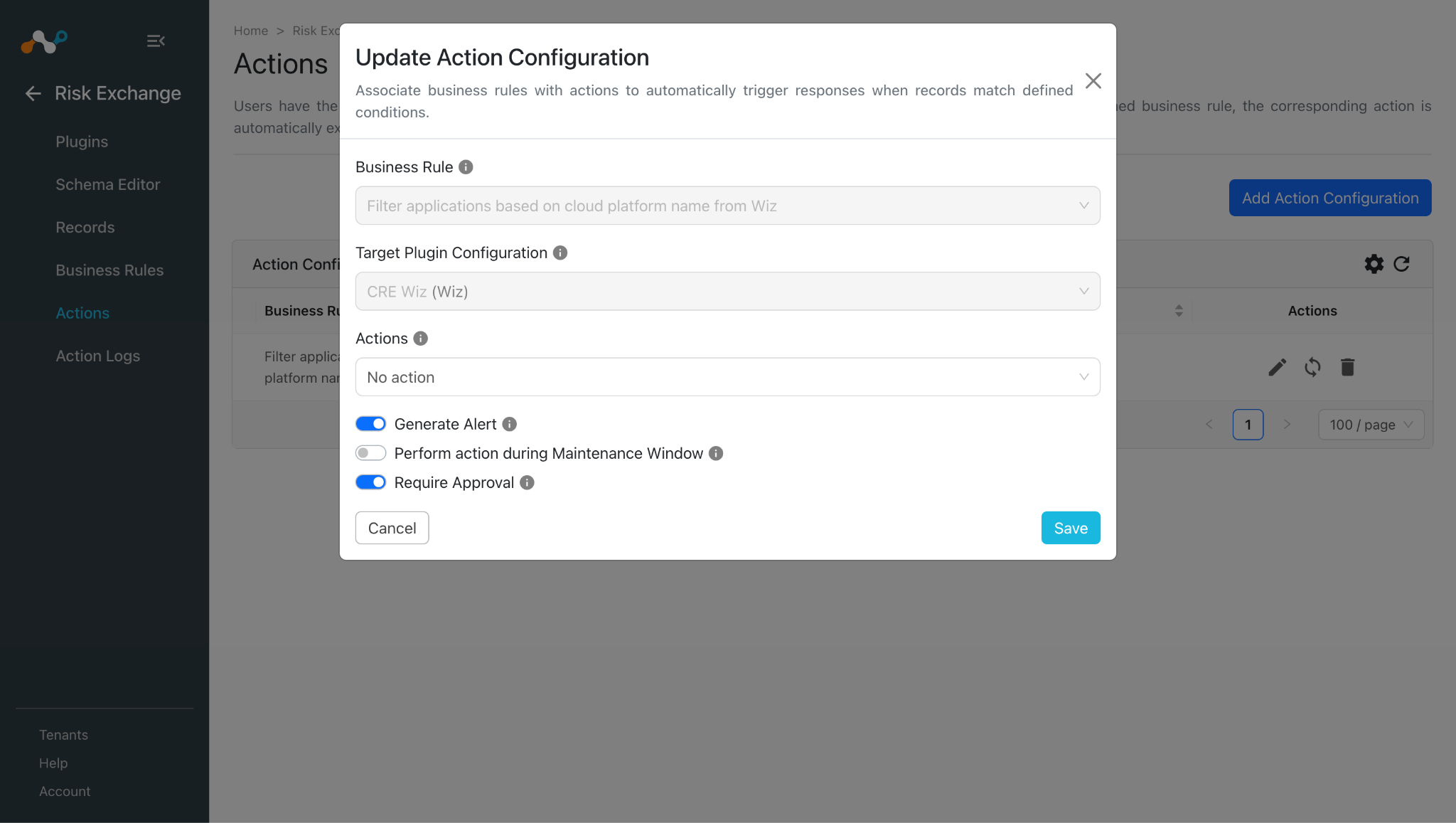
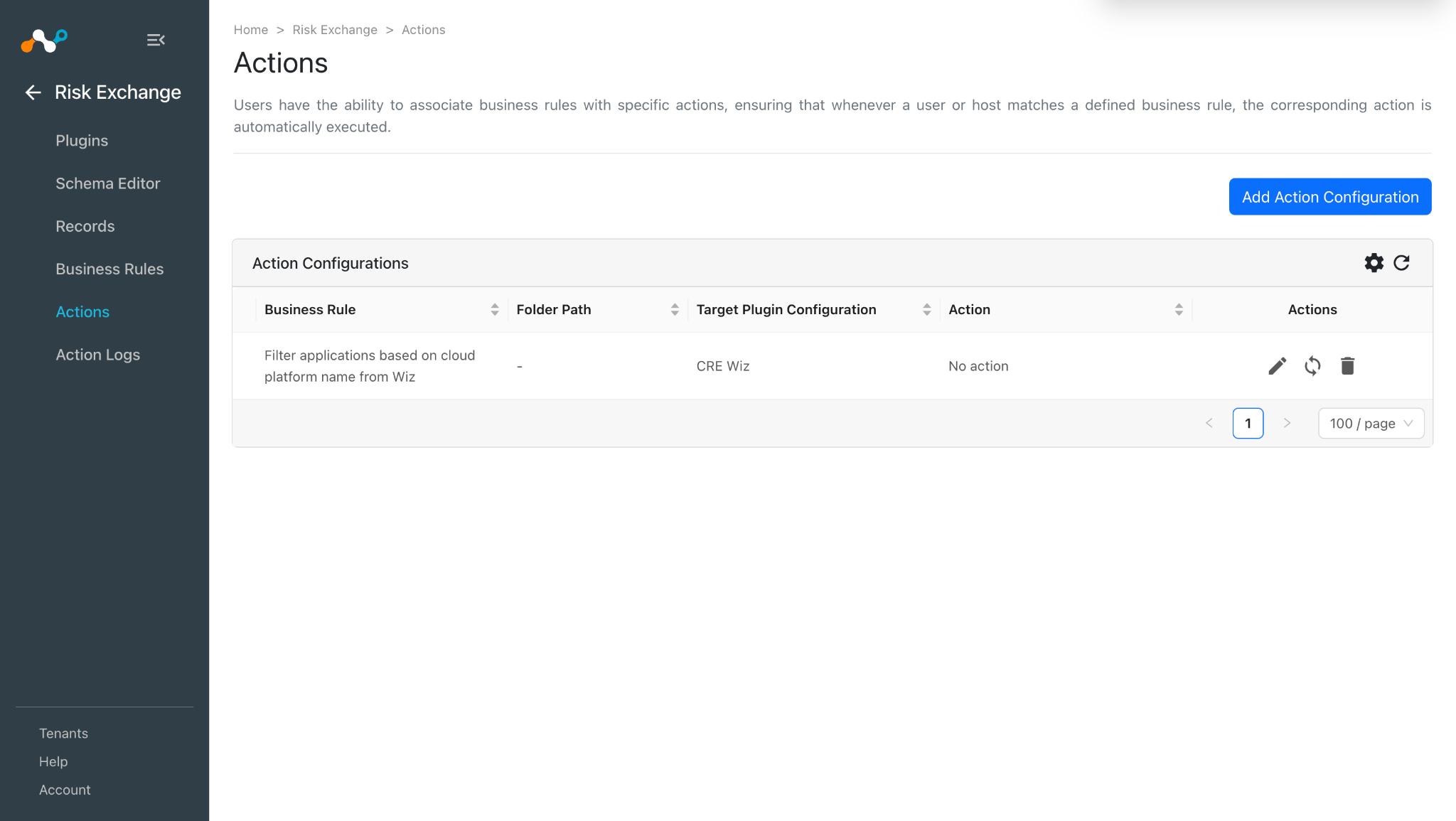
- In Risk Exchange, go to Actions and click Add Action Configuration.
- Select the required Business Rule, Configuration, and Action from their respective dropdowns.
- Enable the Require Approval toggle if Approval is needed before performing action on the pulled records.
- Click Save.
Validate the Wiz Plugin
Validate in Cloud Exchange
To validate the pulling:
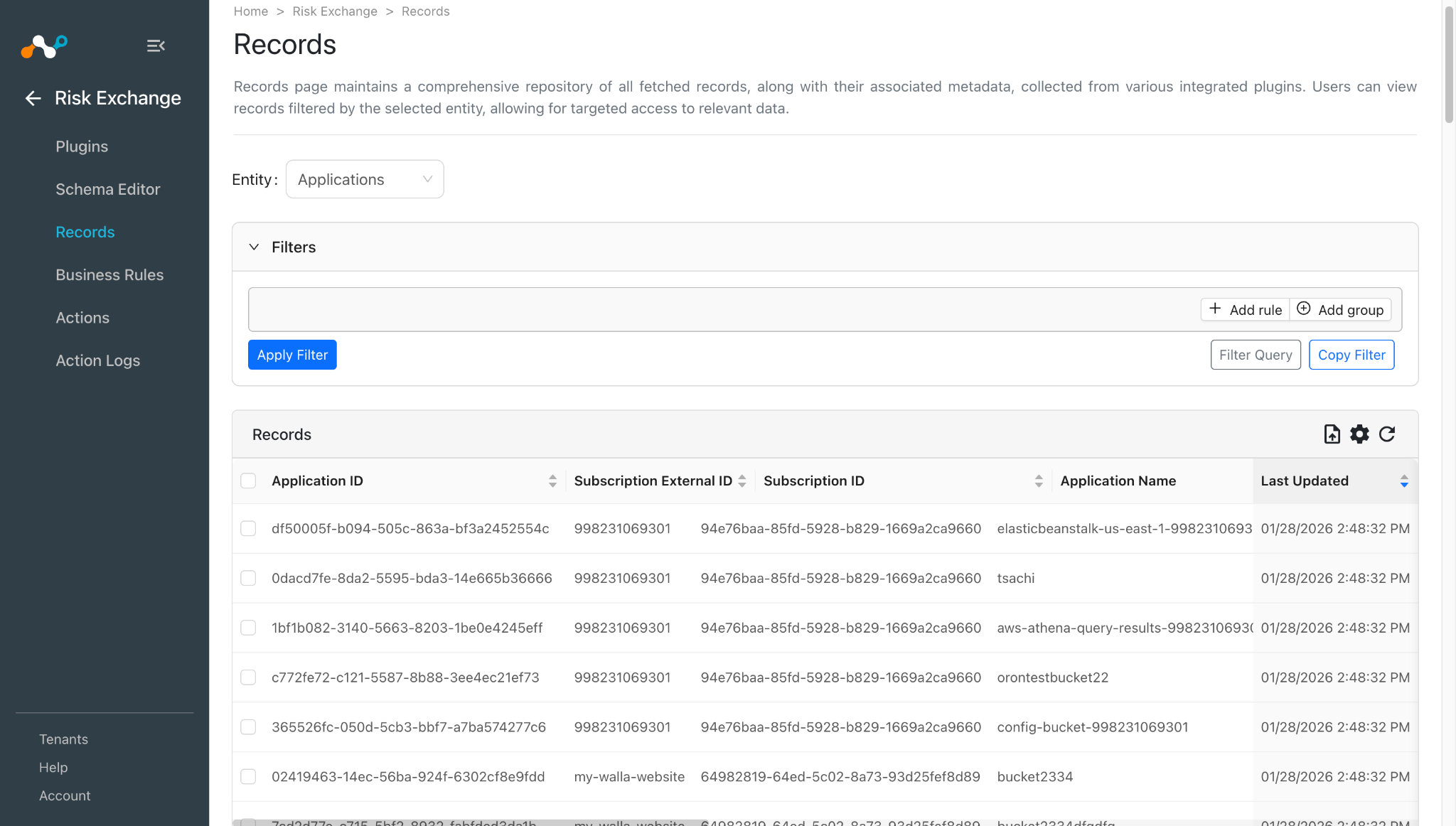
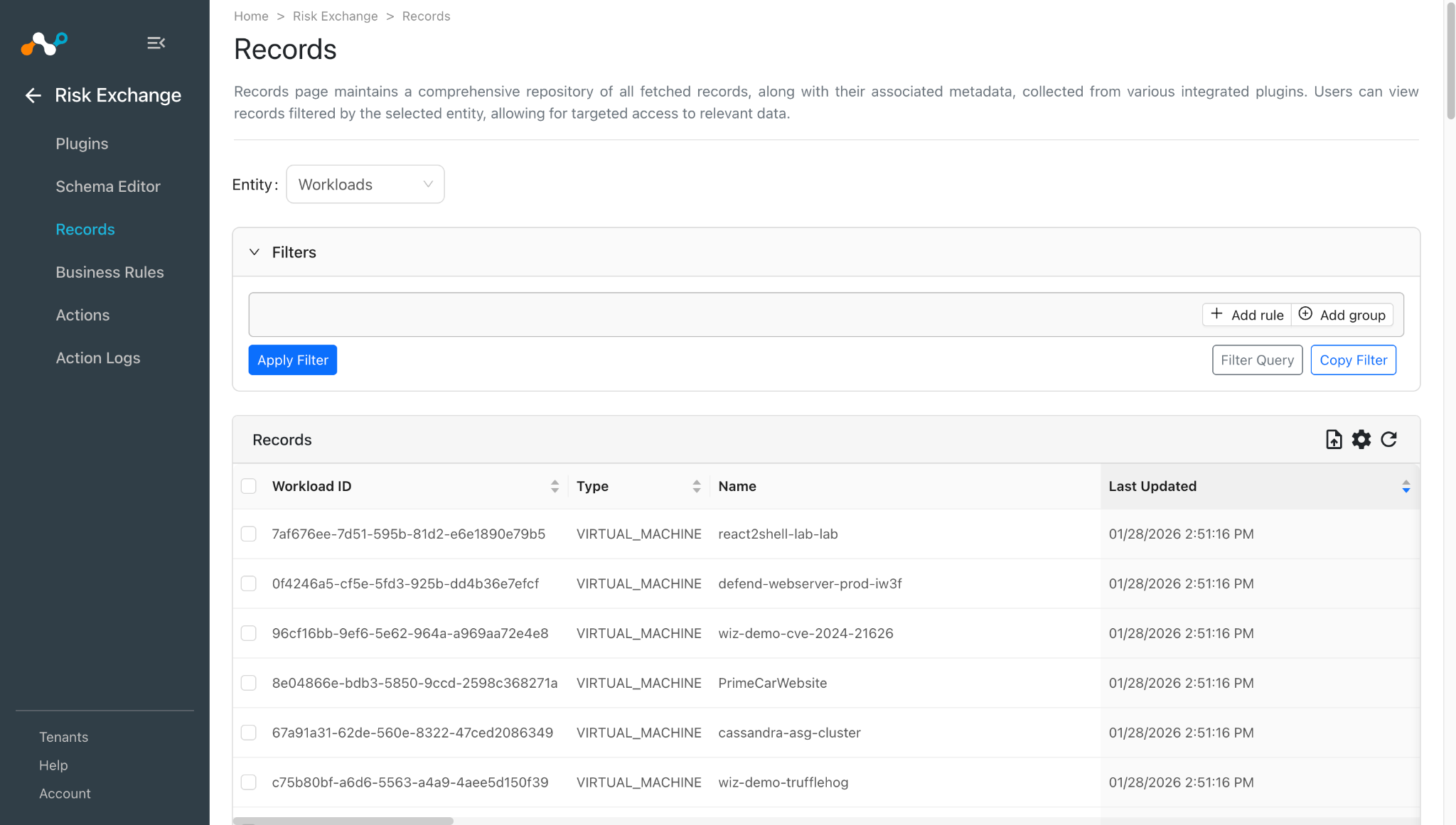
- In Risk Exchange, go to Records. Select the Entity that was selected while configuring the field mappings to view the pulled records.
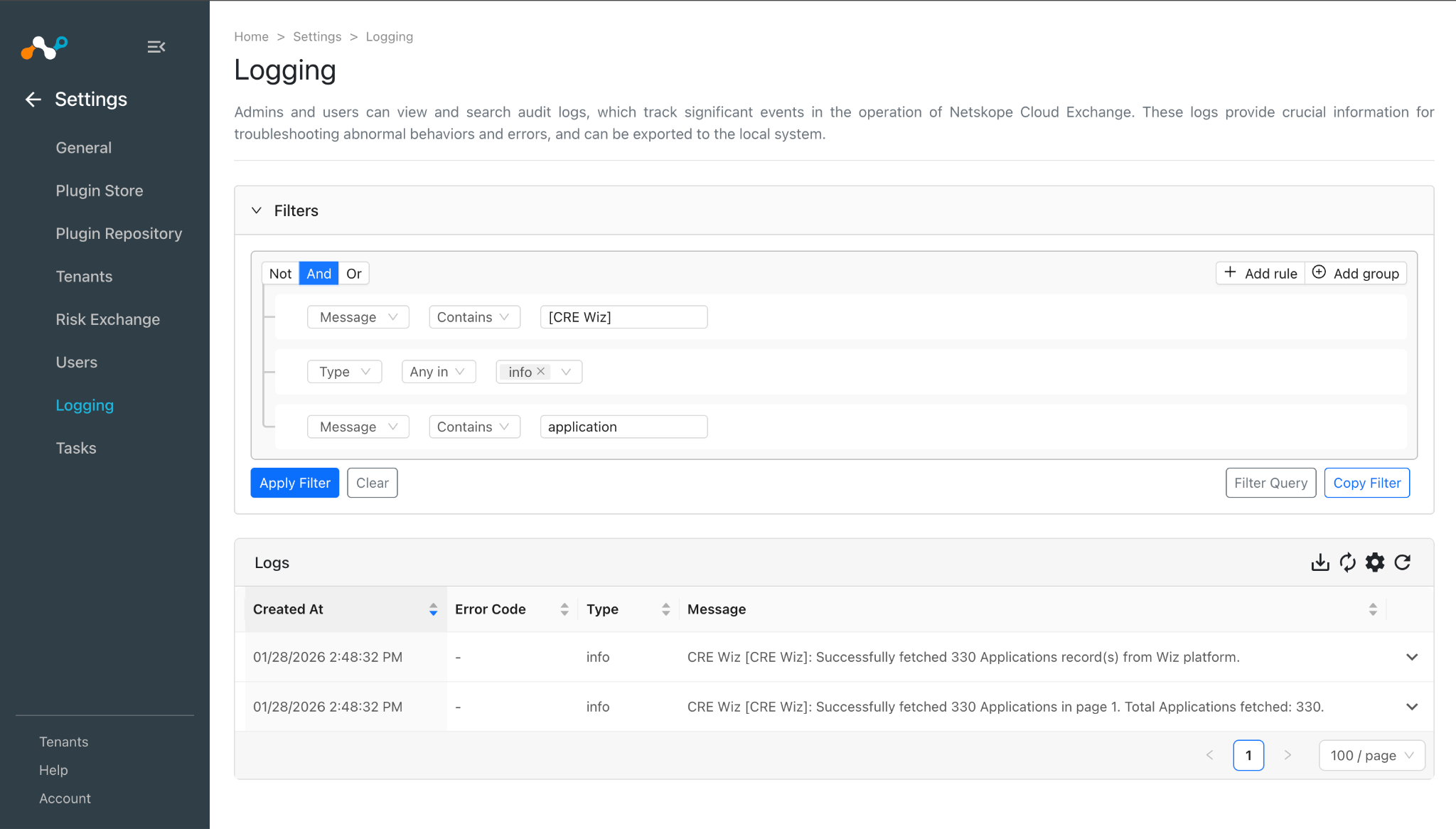
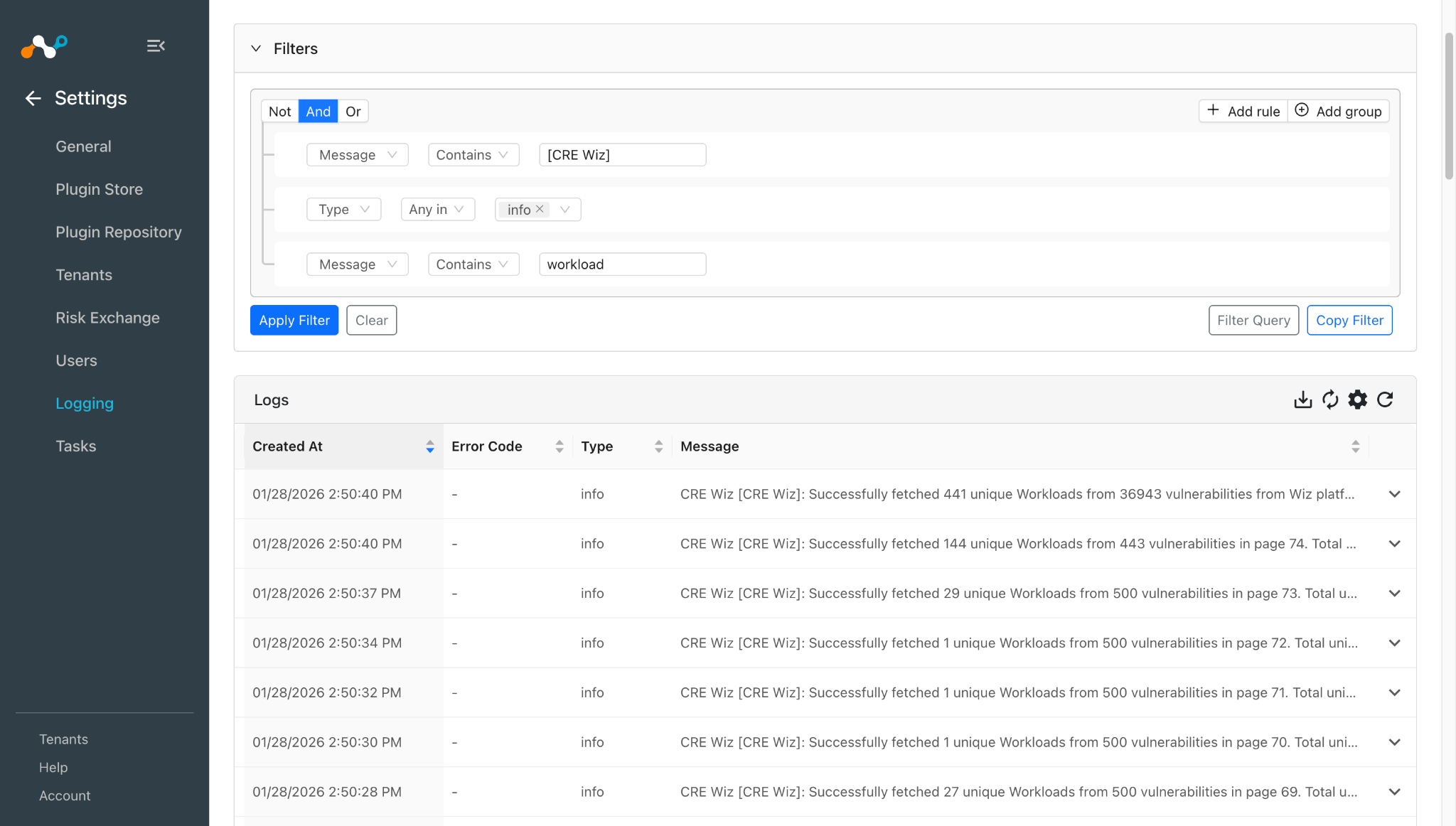
- Go to Logging and search for the logs related this plugin.
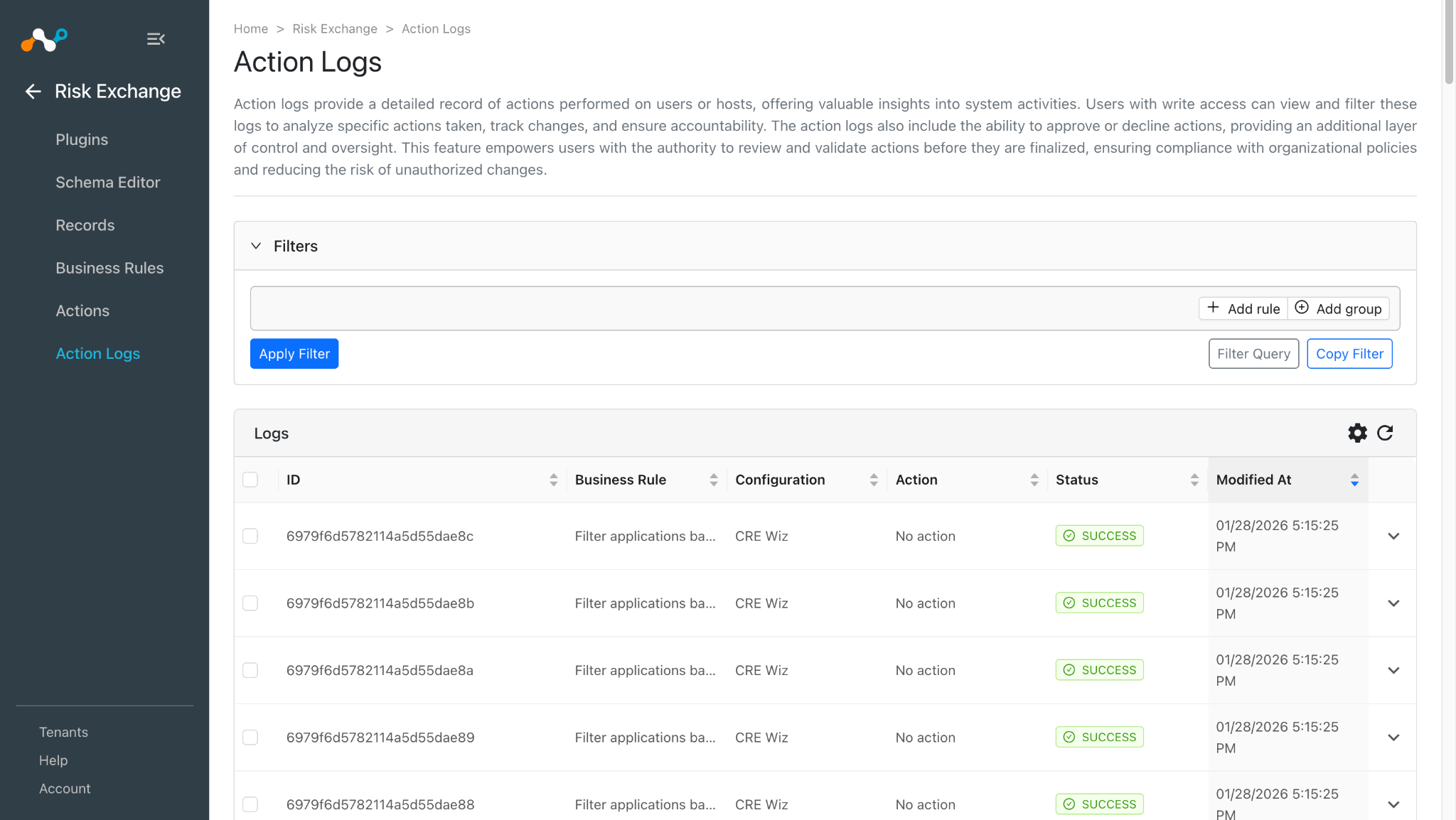
- When a user matches one of the configured business rules, the configured action will be performed on the user. This can be seen in Risk Exchange at Action Logs.
Troubleshooting the Wiz Plugin
Unable to configure the Wiz plugin.
If you are unable to configure the CRE Wiz plugin, it could be due to one of these reasons:
- Provided Incorrect Client ID and/or Client Secret.
- Provided Credentials don’t have sufficient permissions.
- Provided Token URL or Base URL that is invalid or incorrect.
What to do:
- To get the Client ID and Client Secret follow the Wiz documentation.
- To provide proper permissions to the configuration parameter, refer to the Wiz Documentation.
- Ensure your credentials are valid for provided Base URL and Token URL.
Unable to pull applications/workloads
If you are unable to pull applications/workloads from the CRE Wiz plugin, it could be due to one of these reasons:
- No applications/workloads present on the Wiz platform.
- An error is received while pulling an application from the platform.
- Mapping is not added while configuring the plugin in the entity source page.
What to do:
- Check on the Wiz platform if applications exist or not.
- Receiving 500 error: The server might be down, wait for a while and check later.
- Receiving 403 error: The plugin configuration parameter does not have sufficient permissions or the credentials no longer exist. Verify the permission for the Client ID and Client Secret.
- Receiving 401 error: The provided credentials while configuring the plugin no longer exist. Verify credentials and edit the plugin configuration with valid credentials if required.
- If there is no error in the logs, it might be the case that the applications are not available on the Platform to pull. Check the applications available on Wiz and confirm the same.
- For Applications, make sure that the mapping is added under Applications Entity and the mandatory “Application ID” field is mapped while configuring the plugin and for Workloads, make sure that the mapping is added under Workloads Entity and the mandatory “Workload ID” field is mapped while configuring the plugin .
Unable to View application/workload details on the Records page
If you are unable to view application/workload details on the record table, it could be due to one of the below-mentioned reasons.
- Mapping for all the Wiz fields is not provided while configuring the CRE Wiz plugin.
- Pulled applications/workloads are displayed in a row with comma separated values.
What to do:
- Make sure to provide the needed mapping while configuring the plugin.
- Make sure that the fields created in an entity are according to the Mapping.
Unable to find Workload Entity Source while configuring the plugin
If you are unable to find Workload Entity Source while configuring the plugin, it may be due to an incorrect value in Wiz Tables field in the Configuration Parameters.
What to do:
- Go to the Configuration Parameters.
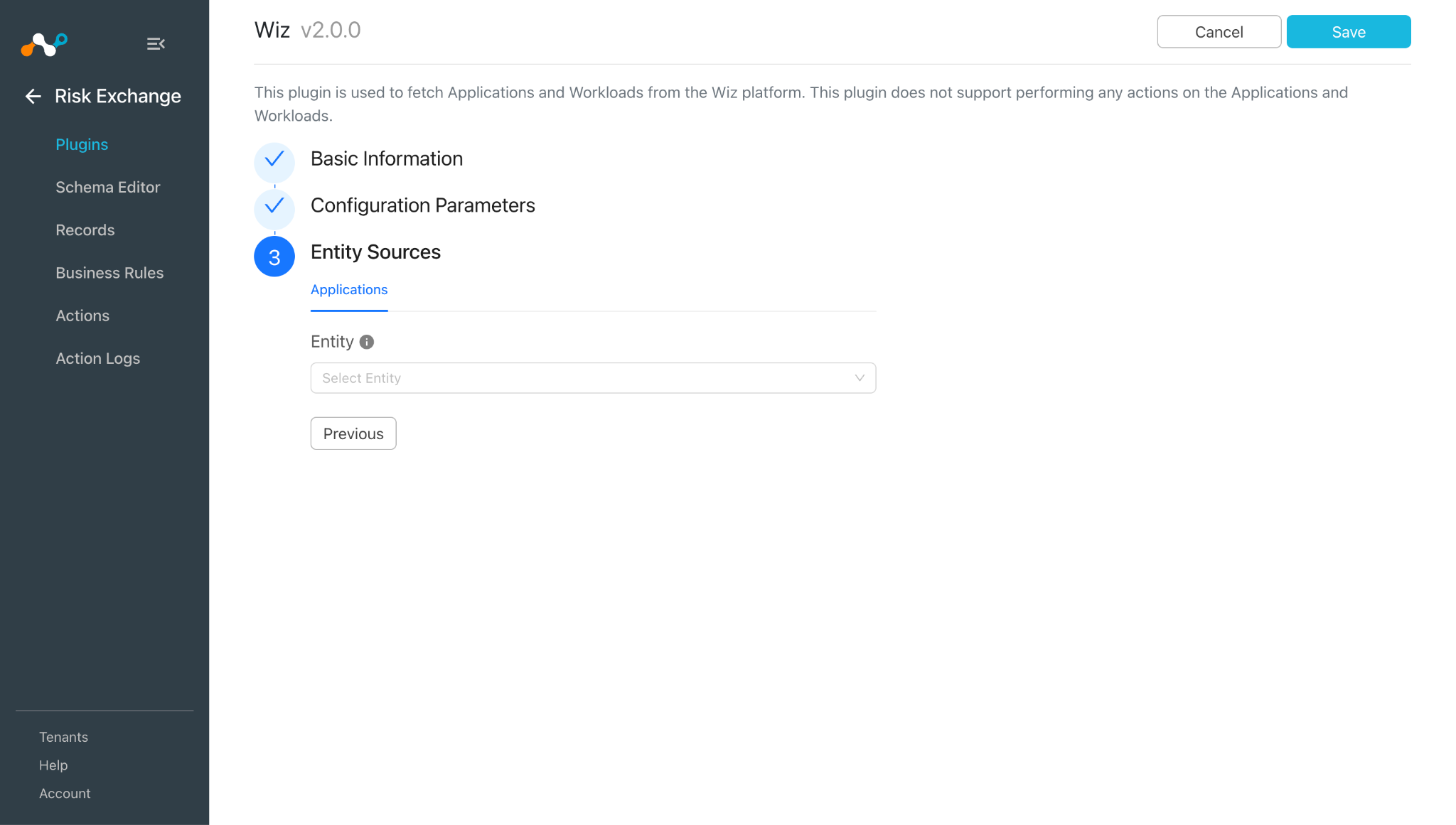
- Verify if Workloads is added under Wiz Tables field.
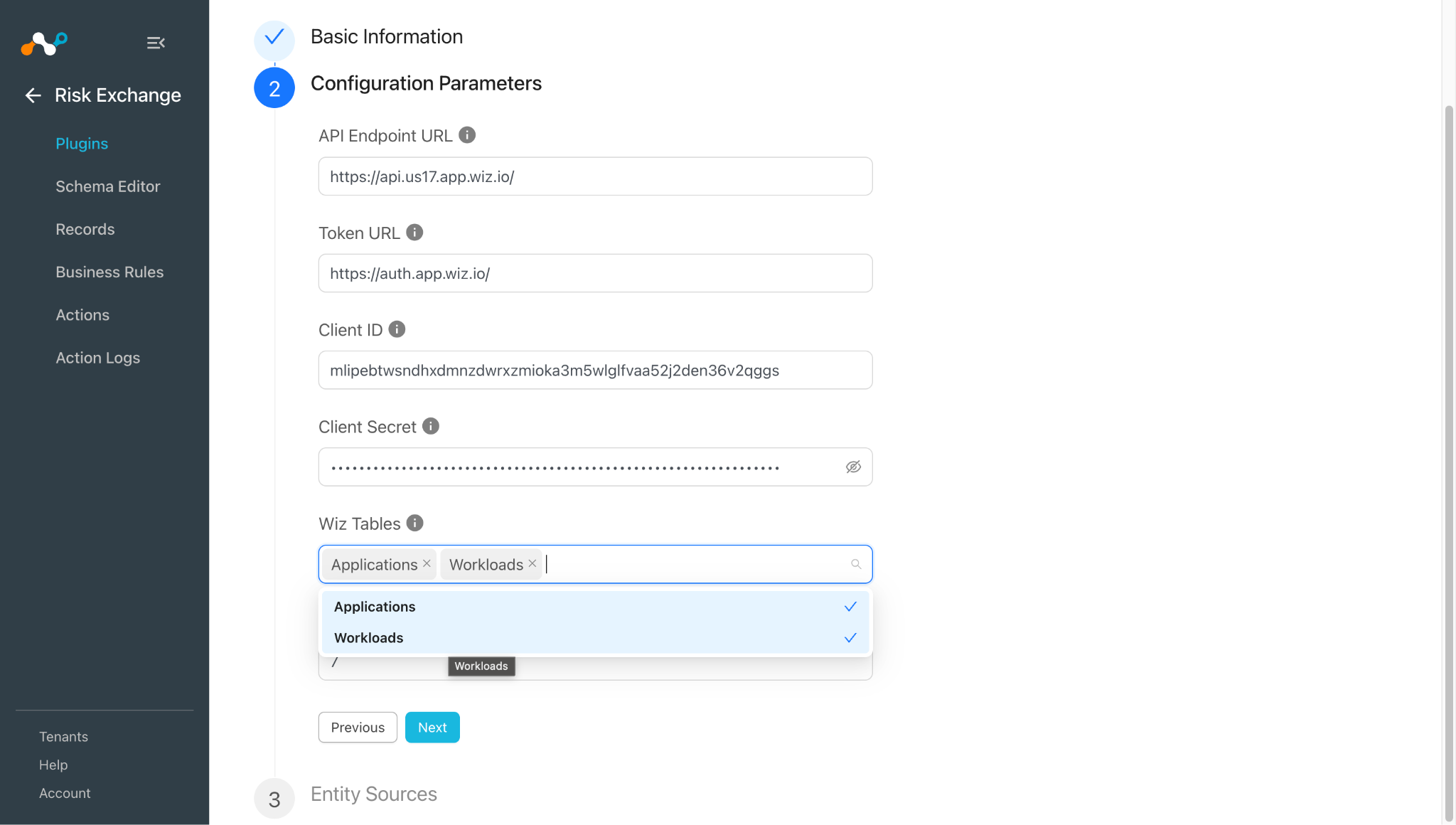
- Click Next, and then click Save.
Getting error while enabling the plugin after plugin upgrade
If user have upgraded to Wiz v2.0.0 from older plugin version and used Skip while upgrading the plugin then they might observe below error:
01/29/2026 10:21:11 AM - error CRE Wiz [CRE Wiz]: Validation error occurred. 'Wiz Tables' is a required configuration parameter.
What to do:
- In Risk Exchange go to Plugins.
- Edit the Wiz plugin configuration that you want to enable.
- Click Next and go to the Configuration Parameters page.
- Click Save to store the values of Wiz Tables and Initial Range (in days) fields.
- Now enable the plugin.