

This document describes the available deployment methods and user enrollment options when installing the Netskope Client on iOS devices.
Supported Versions
Refer to Netskope Client Supported OS and Platform for more details on the supported iOS versions.
Download Client Packages
You can download Netskope Client installers from Download Netskope Client and Scripts.
Client Installation Methods
You can install Netskope Client in iOS using one of the following methods:
Email Invite
Deployments through an email invite is a two step process:
- iOS Profile link: This installs tenant certificates on the device. They are necessary for SSL Decrypt related functionality. This profile contains only certificates.
- iOS Client link: Helps to find the Client in the App Store and enroll it after installation.
– If you are unable to see the link to download Netskope Client for iOS in the email invite, use the default email template that includes the link to download Netskope Client for iOS.
After you receive the email:
- Check your email from Netskope Onboarding and click iOS Profile to install the profile with certificates to your iOS device.

- Click Allow for the pop-up This website is trying to download a configuration profile. Do you want to allow this?

- Close the pop-up after the profile is downloaded.
- In your iOS device, go to Settings app > General and tap Profile Downloaded. The profile consists of the root and tenant certificates.

- Tap Install in the upper-right corner. Follow the installation instructions displayed on the screen.
- Go to Settings > General > About > Certificate Trust Settings.
- Tap to enable the option Enable Full Trust to Root Certificates.

- Click Continue to close the warning.
- Click the iOS Client link in the email invite.

- This opens a page with two links and perform the following steps:

- Click Install to download Netskope Client from Apple Store to iOS devices. Perform the following instructions:
- Click Allow to add VPN configurations.

- Wait for the Client enrollment.
- Click Allow to add VPN configurations.
- Click Download iOS configurations to complete the enrollment process.
- Follow the enrollment steps as displayed on your screen.
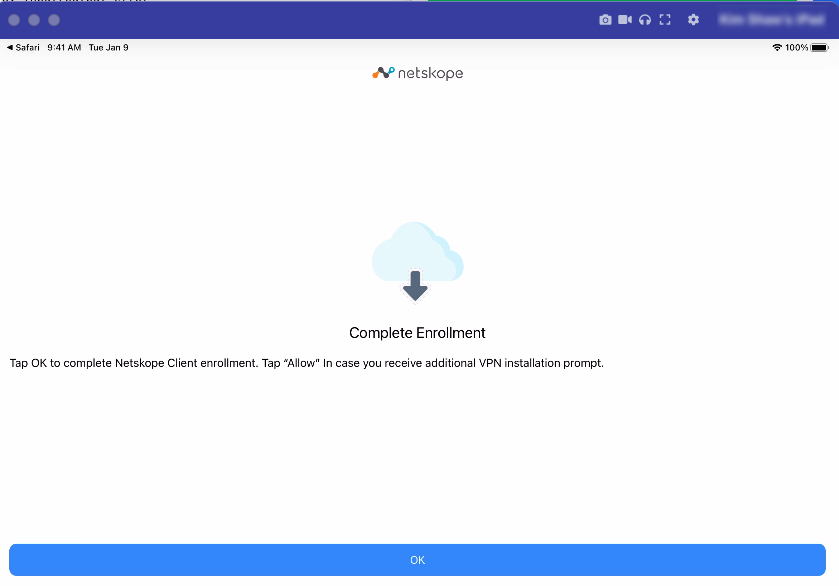
- Click Install to download Netskope Client from Apple Store to iOS devices. Perform the following instructions:
- After completing the enrollment steps, go to VPN & Device Management.
- Check whether VPN displays the Connected status to ensure the successful installation of the iOS configuration profile.

MDM Deployment Methods
Netskope offers support for a wide range of MDM solutions. For MDM-specific instructions on deploying the Netskope Client, see Netskope Client Deployment Options.
Enrollment Workflow in iOS for IDP mode
The following section describes the user enrollment workflow while using IDP.
After installing the Client, perform the following steps to authenticate:
-
Open the installed Netskope Client application.
-
The application will initiate a secure browser session redirecting to the Identity Provider (IdP) login page.

-
In Username, enter the IdP registered email address.
-
In Password, enter the IdP registered password.
-
Click Sign In to authenticate. Complete the multi-factor authentication, if prompted.
After the successful authentication, the portal displays a confirmation message stating Authentication successful. Configuration will automatically be downloaded. You are being redirected.

Click the Download iOS Configurations link on the page if the automatic redirection does not occur.
-
Once the configuration profile downloads, the screen displays Enrollment successful and the Client is enabled.

Verify Client Enrollment
After Client deployment and user enrollment is complete, you can verify the iOS Client installation status on your iOS device and in the Netskope account.
On your iOS device,
- Verify the Netskope Client’s tunnel status on the Client app home page.

- Verify the configuration details are correct on the Client app Configuration page.

In your Netskope Admin console,
-
Log into your Netskope Admin Console with administrator credentials.
-
Go to Settings > Security Cloud Platform > Devices.
-
The Devices page displays device hostnames and user emails associated with completed Netskope Client deployments.
Netskope Client Uninstallation
To uninstall Netskope Client on an iOS device:
- Tap and hold the Netskope Client icon.
- A pop-up is displayed. Tap Remove App.

The Netskope Client application is removed successfully.
User Alerts for iOS
The Netskope Client for iOS includes user coaching capabilities, enabling administrators to provide real-time education to employees regarding security policies. This feature allows for timely alerts, such as notifying users when they attempt to access risky websites or utilize applications that are not approved.
Key Aspects of User Alerts
-
Netskope provides real-time coaching through a pop-up message to inform and educate users about policy violations. This occurs when a user attempts actions such as uploading data to an unsanctioned application or accessing prohibited websites.
-
Administrators have the capability to set up real-time policies requiring users to provide justification for their actions.
-
Coaching promotes compliance and lowers IT support inquiries by explaining the rationale behind a blocked site, thereby mitigating security risks.
Setting Up User Alert Policies
Policies are defined using a set of variables. These variables define the criteria for detecting policy violations. Use real-time policies to create rules for certain actions such as accessing prohibited websites or uploading data to an unsanctioned application, and so on. In the event of any such action, a notification appears immediately on the device alerting the user of the policy violation. The user can go to the Netskope Client app to provide necessary justification within the app.
To learn more, view Best Practices for User Alert Policies.
User Notifications for End-User
Once the policy is set and the user perform the blocked actions, the user coaching notification is displayed on the screen.

SSL Inspection for iOS
SSL/TLS inspection is a foundational capability that enables Netskope to perform efficient threat and data protection services. Netskope performs SSL inspection and serves as a Man-in-the-Middle. In order to establish trust between source applications and Netskope it is required to install CA certificates into appropriate OS stores. To learn more, view Certificates for SSL/TLS Inspection.
SSL decryption policies allow you to specify the traffic you want to leave encrypted and not further analyzed by Netskope via the Real-time Protection policies. To learn more, view SSL Decryption. You can also configure specific steering configurations required for SSL decryption. To learn more about the steering configurations, view Certificate Pinned Applications.
The administrator can enforce the following deployment modes for personal and corporate owned iOS devices:
- Per App VPN
- On Demand VPN
The Per App VPN is suitable for personal or BYOD devices. Netskope steers traffic only from the managed applications administered through MDMs in a device.

For corporate devices, Netskope recommends On Demand VPN as it steers all traffic from the device. However organizations can use Per App VPN for corporate devices for better navigation around SSL inspection challenges.

Best Practices For Per App And On demand VPN
It is a best practice in both Per App and On Demand VPN to control application inventory and test SSL inspection compatibility before introducing a new application. The ability to install arbitrary apps with personal Apple ID in corporate devices can significantly increase operational costs on maintaining SSL inspection exemption policies. Apps must be vetted beforehand and they can be used for deployment using MDM (optional) after making the required configurations.
Best Practices For Per App VPN With Safari
- Disable Safari on corporate devices and rely on a managed browser associated with Per App VPN.
- For BYOD – keep Safari in personal space, deploy a managed browser and associate it with Per App VPN. Enforce device restrictions policies on MDM that controls data movement from managed to unmanaged apps.

Multilingual Support For iOS
Netskope supports the following language for Netskope Client on iOS:
-
English
-
French (Canada)
This helps French-speaking users understand Netskope Client menus and notifications. To display end-user Netskope Client notifications and menus in French (Canada), modify your language and region settings on the iOS device. To learn more about how to change your language settings on iOS devices, view Change the language your iPhone uses (Apple Support).
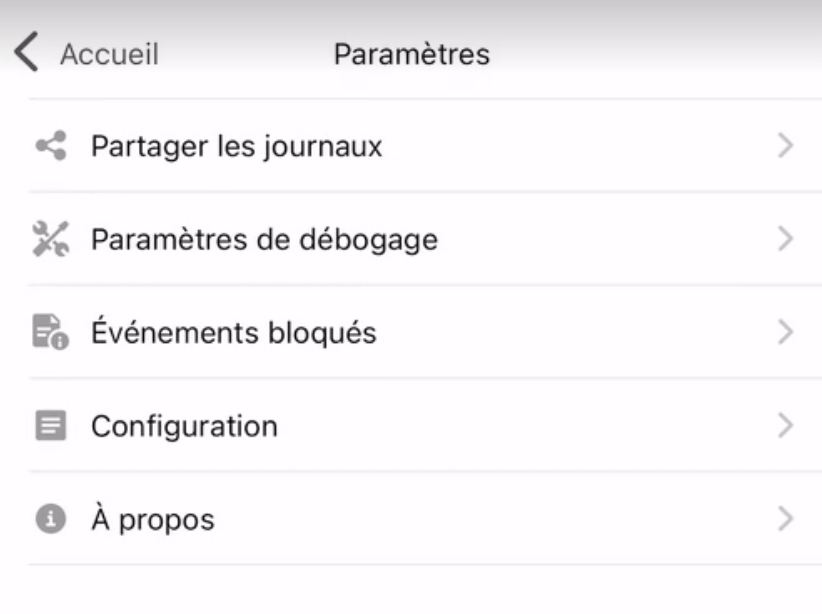
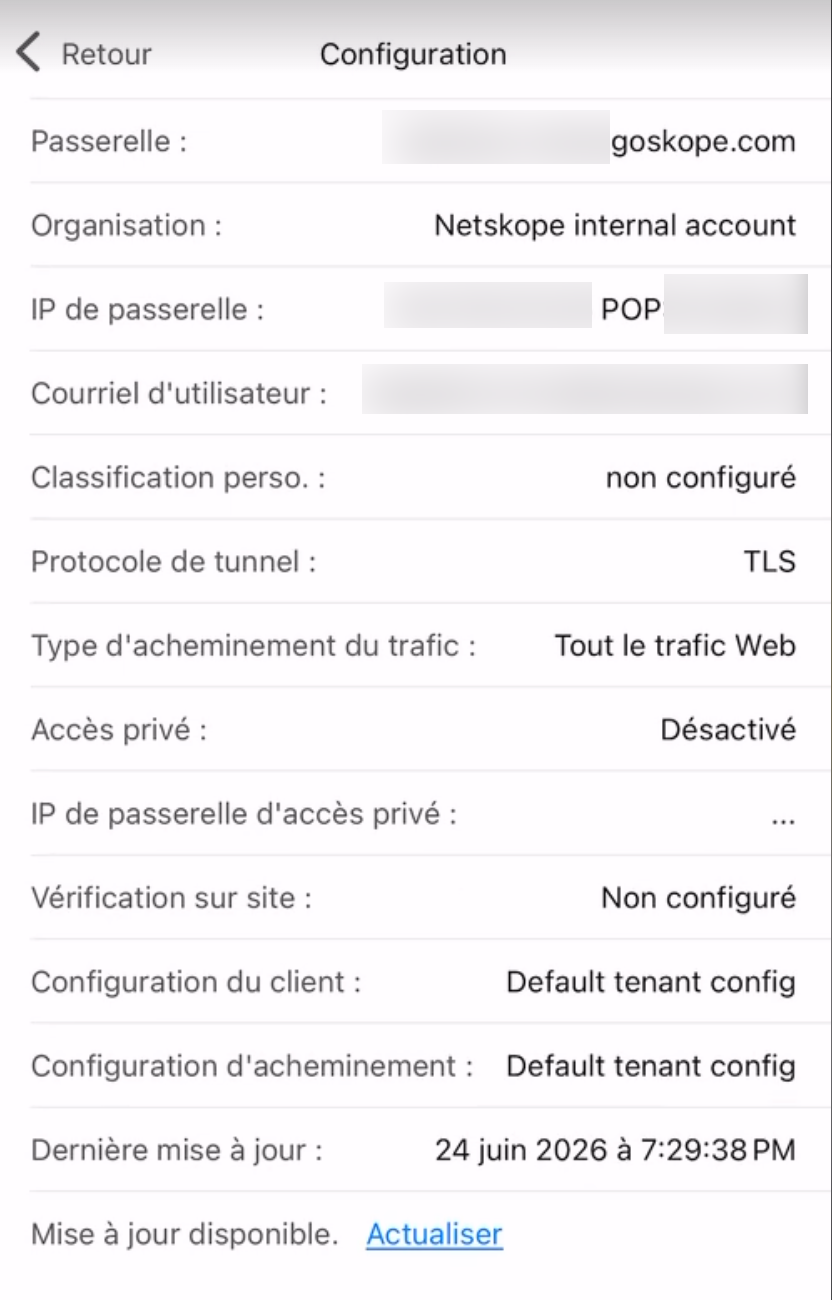
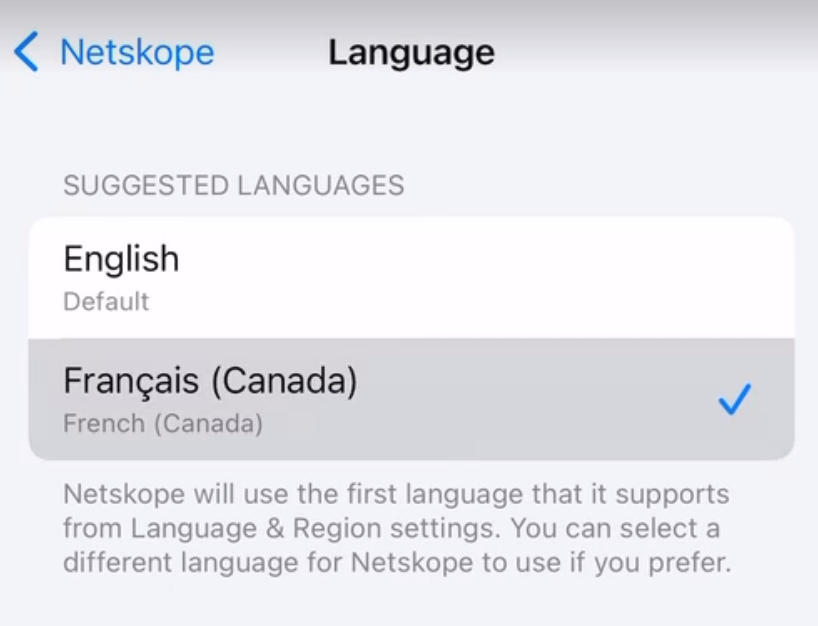
With version 140.0.0, Netskope allows displaying the Netskope Client UI, onboarding flow, and notifications for iOS in French (Canada), independent of the device’s primary display language. To configure, on your iOS device:
-
Go to Settings > General > Language & Region and add French (Canada) to your Preferred Languages.
-
Go to Settings > Netskope > Language and select French (Canada).
Share Logs From iOS App
This section explains how to collect logs for Netskope Client for iOS using an iOS app.
Log Collection Before Enrollment
The Netskope Client for iOS app now includes a diagnostic log sharing feature that lets end user or administrators export logs anytime, even during enrollment failures or configuration delays, without IT or MDM administrator assistance.
To share logs while the enrollment is in progress on your iOS device:
-
Tap the Share icon.

-
The screen displays the following message “Collecting logs. Please wait”.

-
Save logs to the desired location.
Log Collection After Enrollment
To share logs after the enrollment process on your iOS device:
-
On your iOS device, go to the Netskope Client app home page.
-
Tap the Settings icon.

-
On the Settings screen, tap Share Log.

-
You can now share logs to the desired location as displayed on your screen.


DNS Traffic Behavior with Netskope Client
If traffic steering is configured as:
-
All Traffic or Web Traffic: Netskope Client parses both DNS-over-TCP port 53 and DNS-over-UDP port 53.
-
Cloud Apps or Per-app VPN: Netskope Client parses DNS-over-UDP port 53. It resets DNS-over-TCP port 53 to enforce iOS to use DNS-over-DNS port 53.
-
Netskope Private Access (NPA): Netskope Client parses DNS-over-UDP port 53 only.
-
Drops specific DNS query type (TYPE_SVCB, DNS_RESOLVER_ARPA)
-
Drops IPv6 DNS queries.
-
Limitations
The following are expected limitations pertaining to the Netskope Client for iOS:
- The VPN logo is visible on the status bar of your iOS device. This is an iOS limitation.
- Per-app VPN and Global VPN coexistence is not supported.
- NPA does not support UDP-based private apps, Secure DNS, DoH and DoT.