

This document explains how to configure the Scality plugin with the Log Shipper module of the Netskope Cloud Exchange platform. This plugin is used to send Alerts (Anomaly, DLP, Malware, Policy, Compromised Credential, Legal Hold, Malsite, Quarantine, Remediation, Security Assessment, Watchlist, UBA and CTEP), Events (Page, Application, Audit, Infrastructure, Network, Incident and Endpoint) and WebTx[via Netskope LogStreaming] logs to the Scality platform. To access the plugin, you would need the credentials of Scality. Note that this plugin is designed to send raw (JSON) logs to Scality.
Prerequisites
- A Netskope tenant (or multiple, for example, production and development/test instances).
- A Netskope Cloud Exchange tenant with the Tenant plugin and Log Shipper plugin already configured.
- A Netskope Cloud Exchange tenant with the AWS Netskope Log Streaming or Azure Netskope Log Streaming plugin already configured (for pulling WebTx from the Netskope Log Streaming plugins).
- Your Scality instance URL, Access Key, Secret Access Key, and Scality Bucket Name.
- A Scality instance and Bucket access.
- Scality bucket permissions for the user.
- ListBucket
- CreateBucket
- ListAllMyBuckets
- GetBucketPolicy
- GetBucketPublicAccessBlock
- PutEncryptionConfiguration
- PutBucketPublicAccessBlock
- PutBucketPolicy
Scality Plugin Support
Scality plugin is used to ingest Netskope Events, Netskope Alerts, Web transaction data (via Netskope LogStreaming) to a Scality Bucket.
| Data Type | Support |
|---|---|
| Events | Yes |
| Alerts | Yes |
| WebTx | Yes (via Netskope Log Streaming) |
Note
- CLS WebTX based on Google Pub Sub Lite is deprecated. Please refer to Netskope Product EOL/EOS Announcements – Netskope Knowledge Portal
- For ingesting WebTX logs to your Log delivery destinations like SIEM, SOAR, XDR, Data Lake, use the AWS Netskope Log Streaming or Azure Netskope Log Streaming plugin.
- The ingestion of Endpoint event type is supported from Cloud Exchange version 5.1.0.
Permissions
Scality bucket permissions to the user to send Events, Alerts, and Web transaction logs to buckets.
API Details
List of APIs Used
This plugin uses Python libraries to create file objects in Scality
Library: The AWS SDK for Python (Boto3)
Usage: The AWS SDK for Python (Boto3) to create, configure, and manage AWS services, such as Amazon Elastic Compute Cloud (Amazon EC2) and Amazon Simple Storage Service (Amazon S3). The SDK provides an object-oriented API as well as low-level access to AWS services.
Create the Client
s3_client = boto3.client(
                "s3",
                aws_access_key_id=self.scality_public_key,
                aws_secret_access_key=self.scality_private_key,
                aws_session_token=self.scality_session_token,
                endpoint_url=endpoint_url
                config=Config(proxies=self.proxy, user_agent=self.useragent),
            )
Create a Bucket
bucket = s3_client.create_bucket(
                        Bucket=bucket_name,
                        CreateBucketConfiguration=location,
                    )
Upload a File into the Bucket
s3_client.upload_file(
                file_name,
                bucket_name,
                object_name,
            )
Get an AWS Resource
s3_resource = boto3.resource(
                "s3",
                aws_access_key_id=self.scality_public_key,
                aws_secret_access_key=self.scality_private_key,
                endpoint_url=endpoint_url
                config=Config(proxies=self.proxy, user_agent=self. user-agent),
            )
Workflow
- Create a Scality Bucket.
- Configure the Scality Plugin.
- Configure a Log Shipper Business Rule for Scality.
- Configure Log Delivery for Scality.
- Validate the plugin.
Click play to watch a video.
Create a Bucket
- Log to your Scality instance.

- Enter your credentials and login.
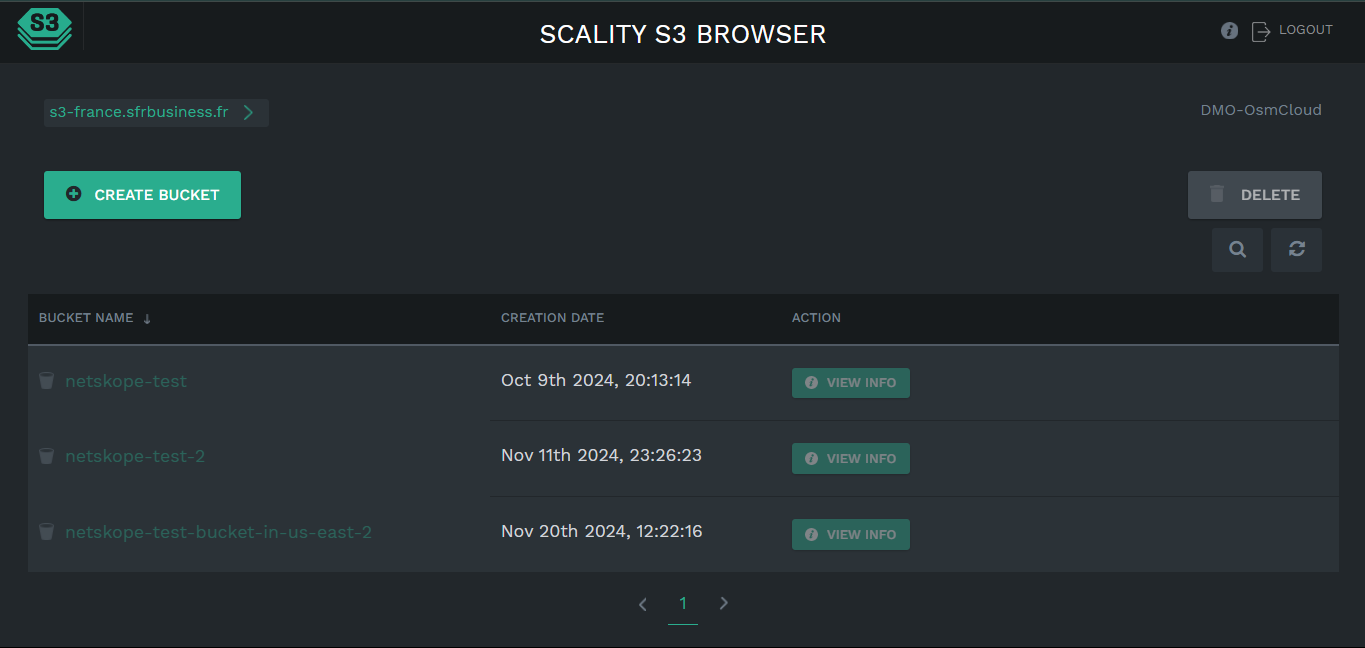
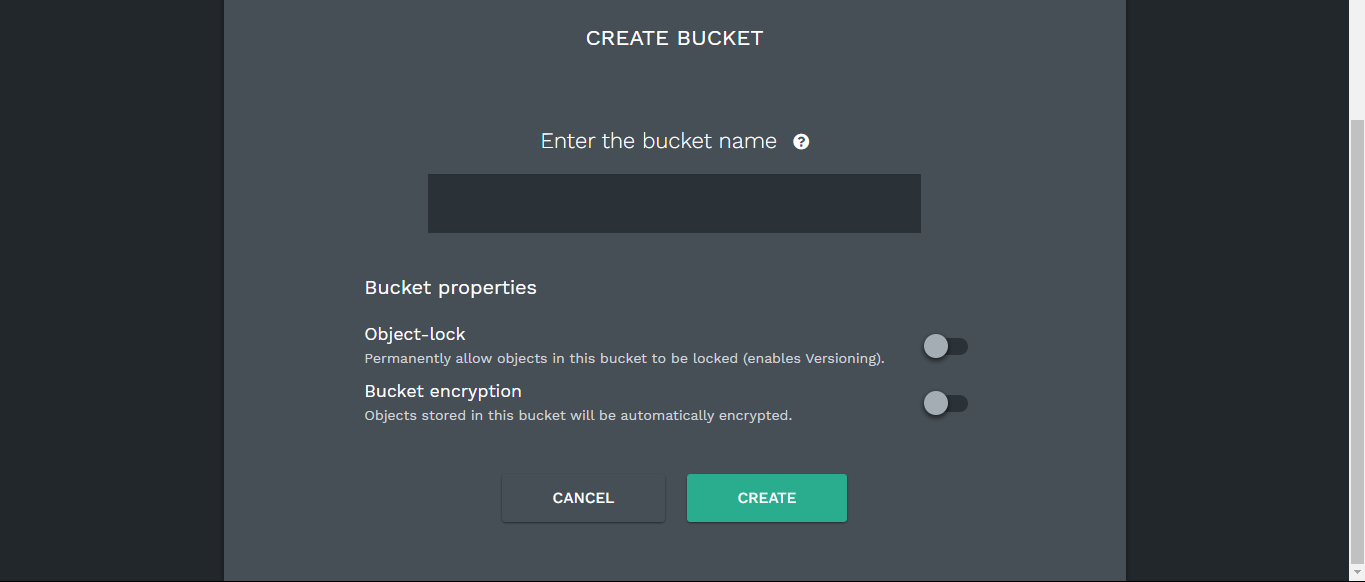
- Click Create Bucket and enter a bucket name in which you want to ingest your data.
Configure the Scality Plugin
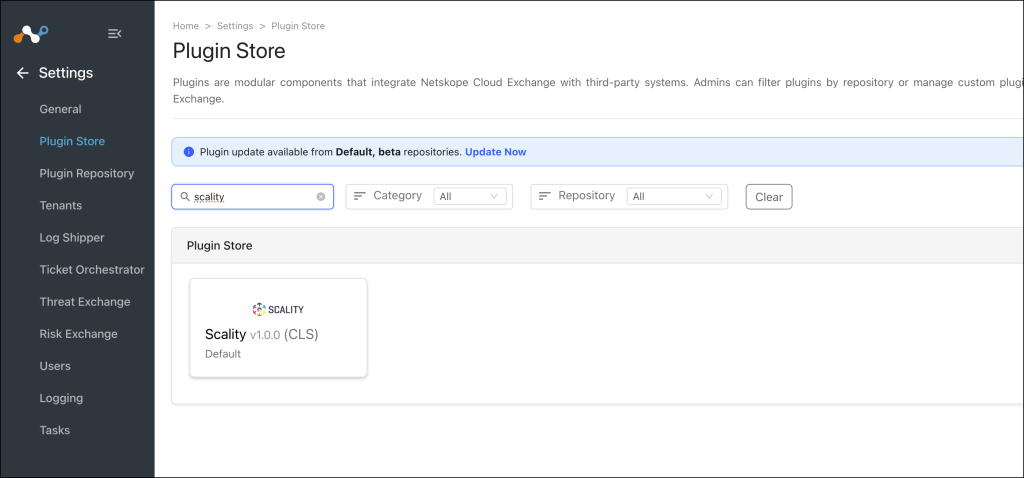
- In Cloud Exchange, go to Settings > Plugin Store. Search for and select the Scality v1.0.0 (CLS) plugin.
- Enter a Configuration Name, and make sure you have the Scality Default Mappings (recommended) file selected.
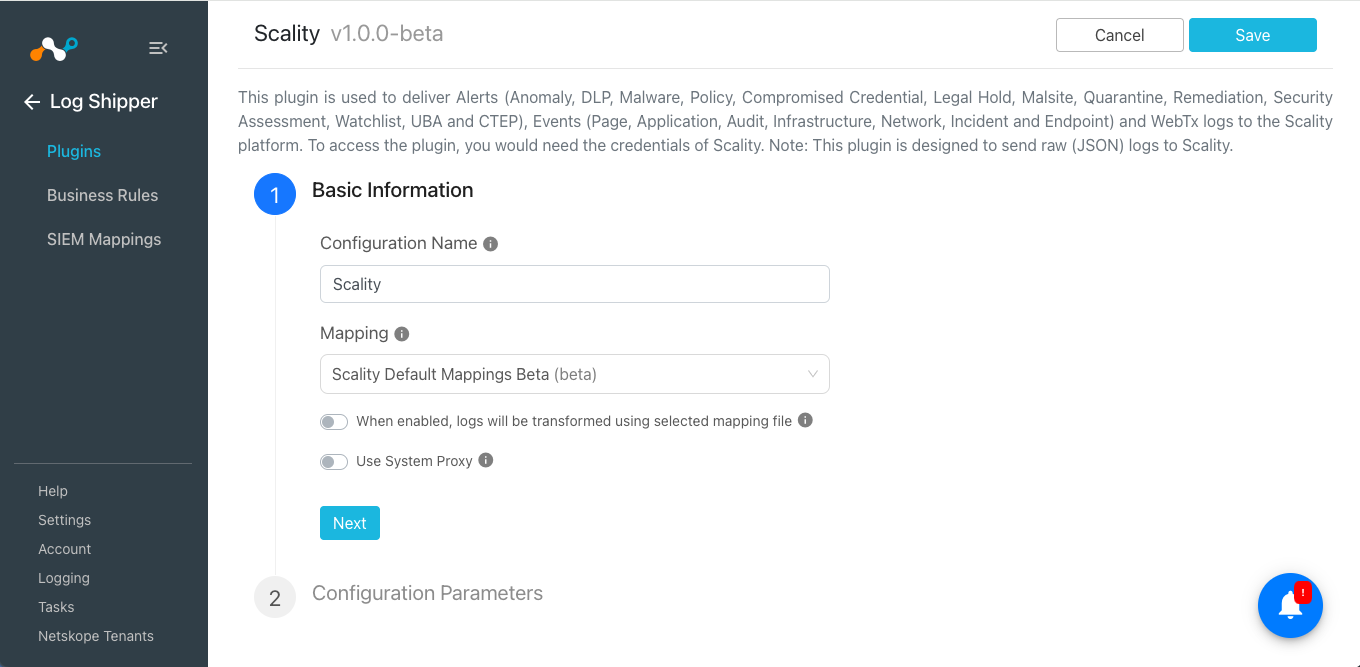
- Click Next and enter the Configuration Parameters:
- Scality Endpoint URL: Endpoint URL of your Scality instance (like https://s3-your.domain.com/)
- Access Key: Access Key for your Scality instance.
- Secret Access Key: Secret Access Key for your Scality instance.
- Scality Bucket Name: Scality Bucket Name in which the logs object will be stored. (Bucket will not be created if the bucket with the specified name does not exist on Scality.)
- Maximum File Size (in MBs): Maximum size of WebTx[via Netskope LogStreaming] data object to be stored in the bucket. (Value should be between 1 to 100.)
- Maximum Duration (in Seconds): Maximum duration after which the WebTx[via Netskope LogStreaming] data object should be stored in the bucket.

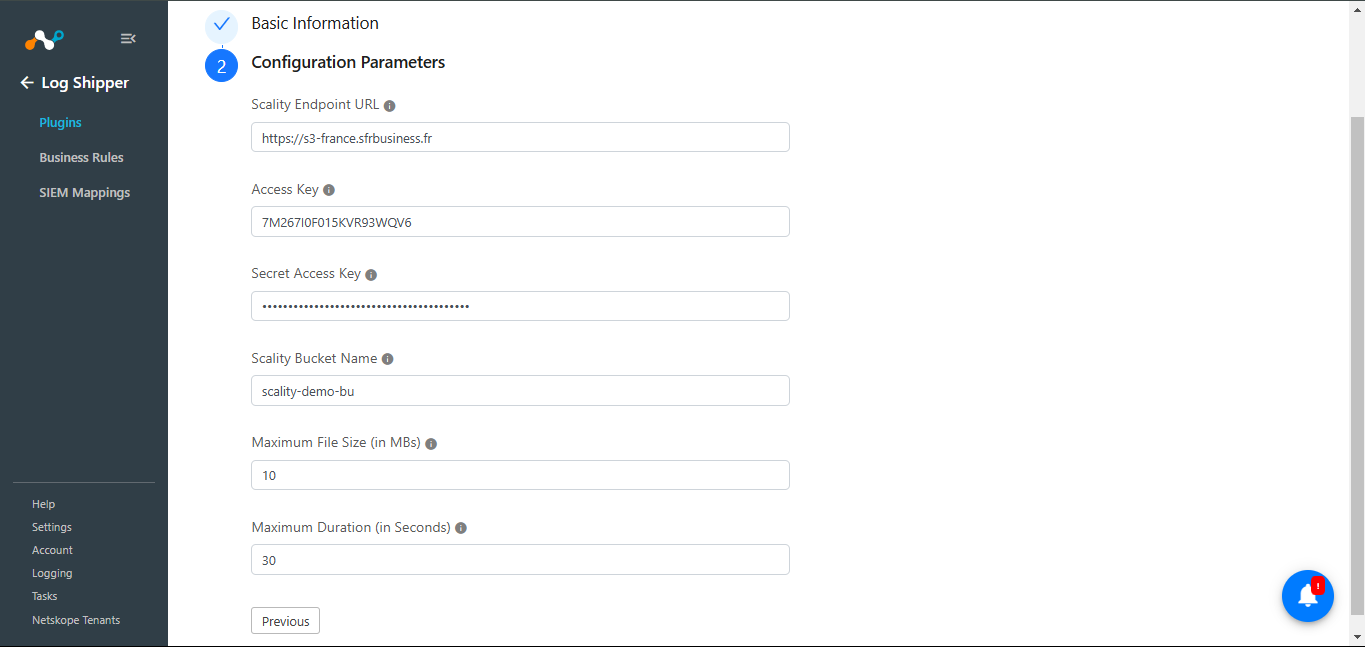
- Click Save. The new plugin will be available on the Log Shipper > Plugins page.
Configure a Log Shipper Business Rule for Scality
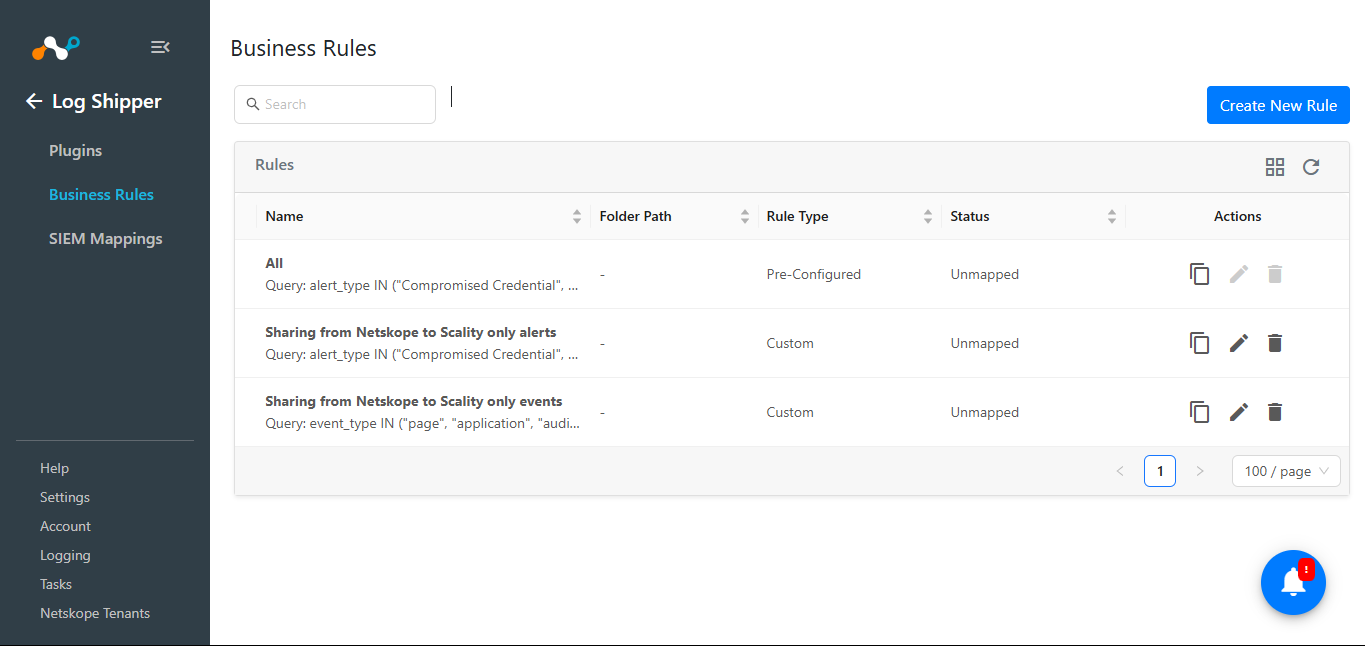
- In Log Shipper, go to Business Rules.
- By default, we have a business rule that filters all alerts and events. If you want to filter out any specific type of alert or event, click Create New Rule and configure a new business rule by adding a rule name and desired filters. When finished, click Save.
Configure Log Shipper Log Delivery for Scality
- Go to Log Shipper > Log Delivery and click Add Log Delivery Configuration.
- For alerts and events, select the Source plugin (Netskope CLS), Destination plugin (CLS Scality), your business rule, and then click Save.
- For WebTx, select the Source plugin (AWS Netskope Log Streaming or Azure Netskope Log Streaming), and Destination plugin (CLS Scality), your business rule, and then click Save.
- After the Log Delivery configuation is added, the data will start to be pulled from the Netskope tenant, transformed, and ingested into Scality.
Validate the Scality Plugin
Validate the Pull
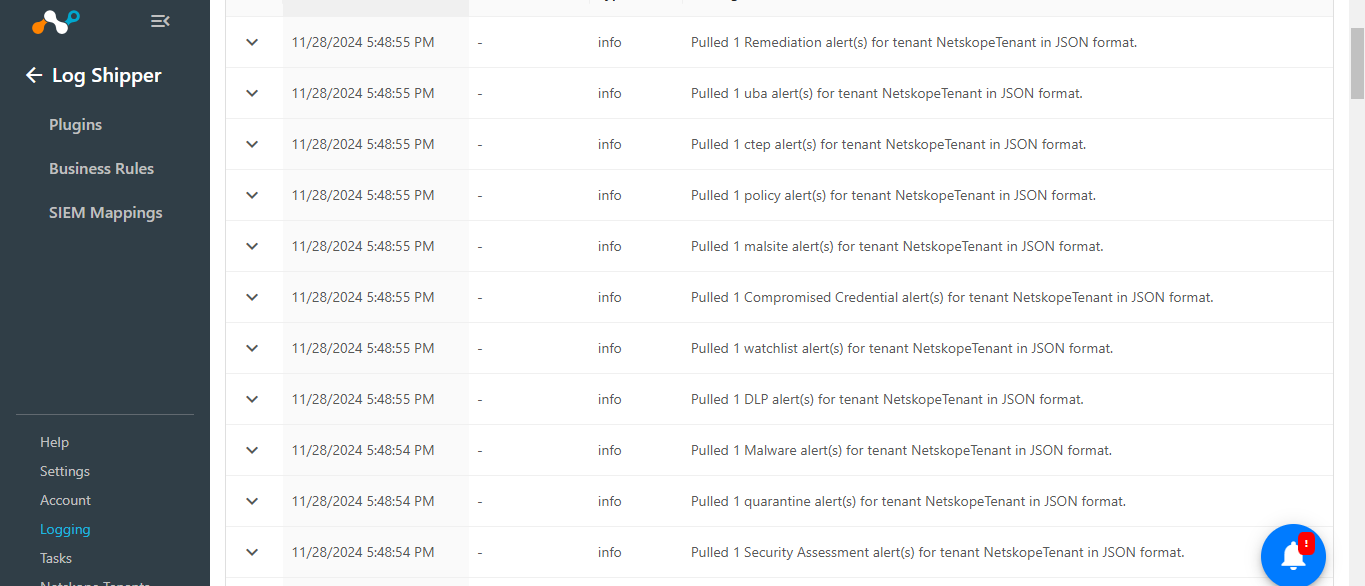
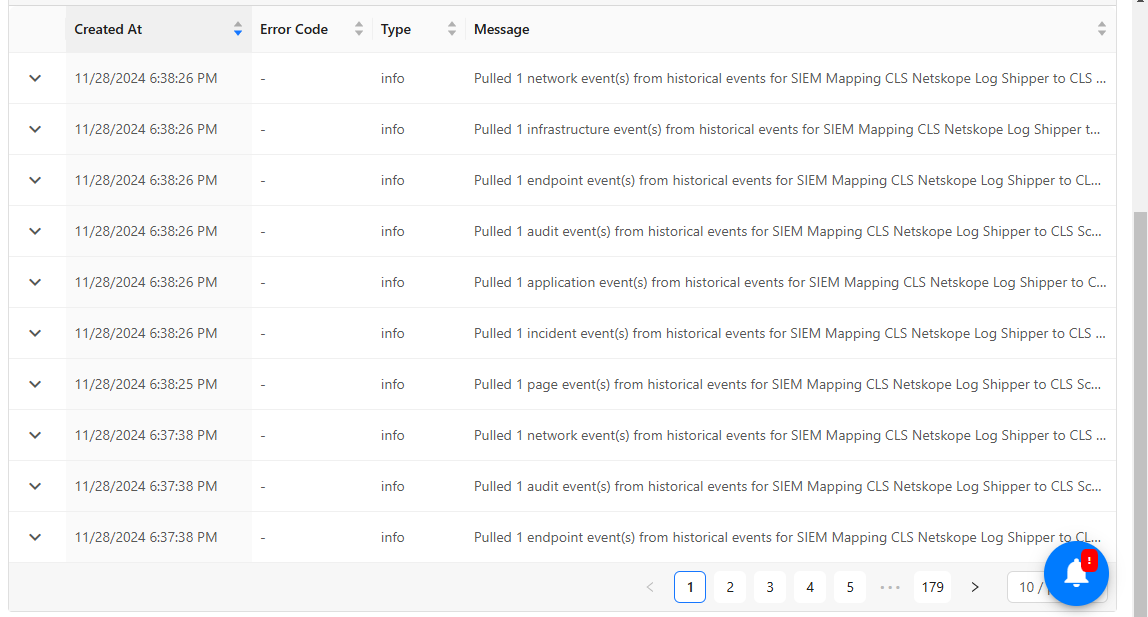
To validate the pulling of indicators from the Netskope tenant, go to Logging in Cloud Exchange and search for the pulled logs.
Validate the Push
To validate the plugin workflow in Cloud Exchange:
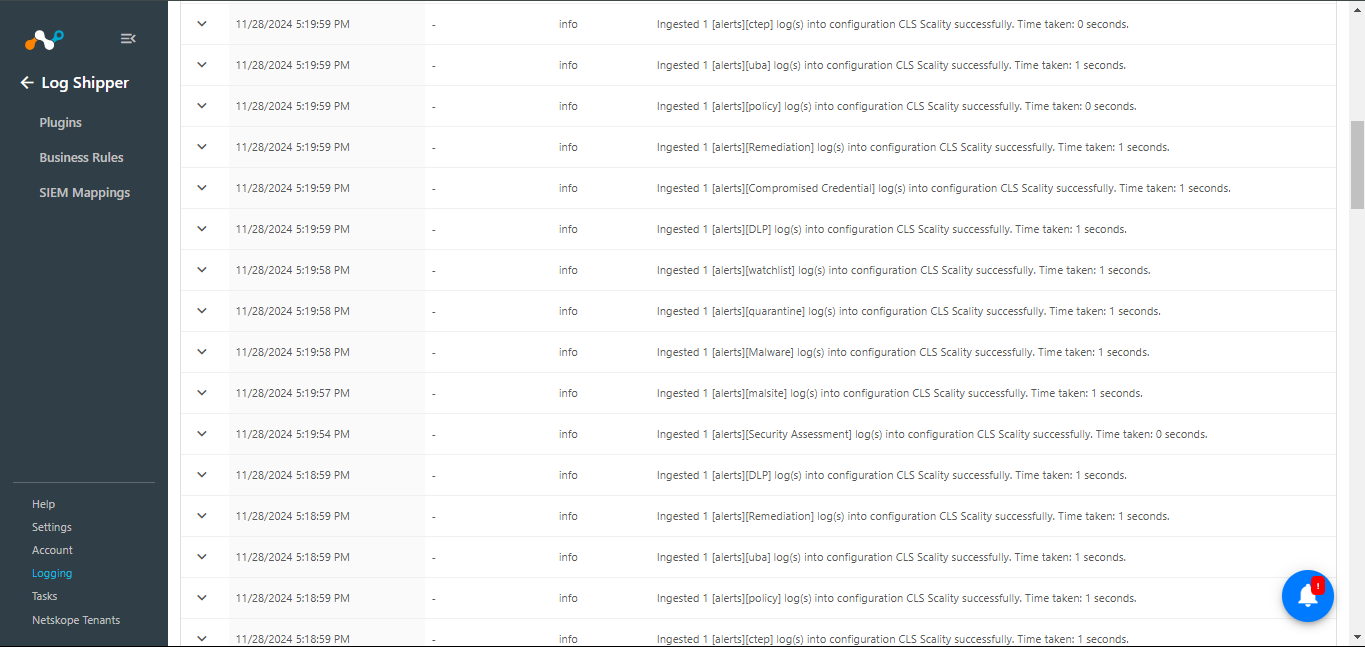
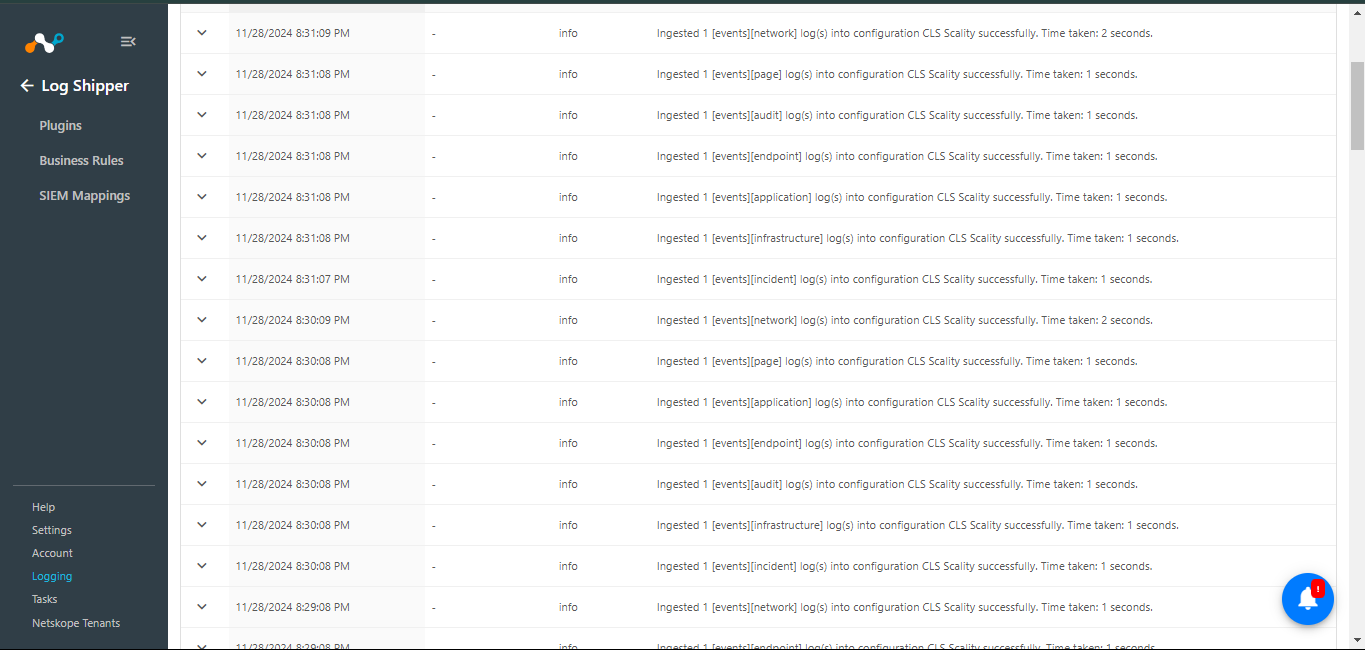
- Go to Logging and search for ingested Events, Alerts, and WebTx with the filter message contains ingested.
- The ingested logs will be filtered.
To validate the push on the Scality:
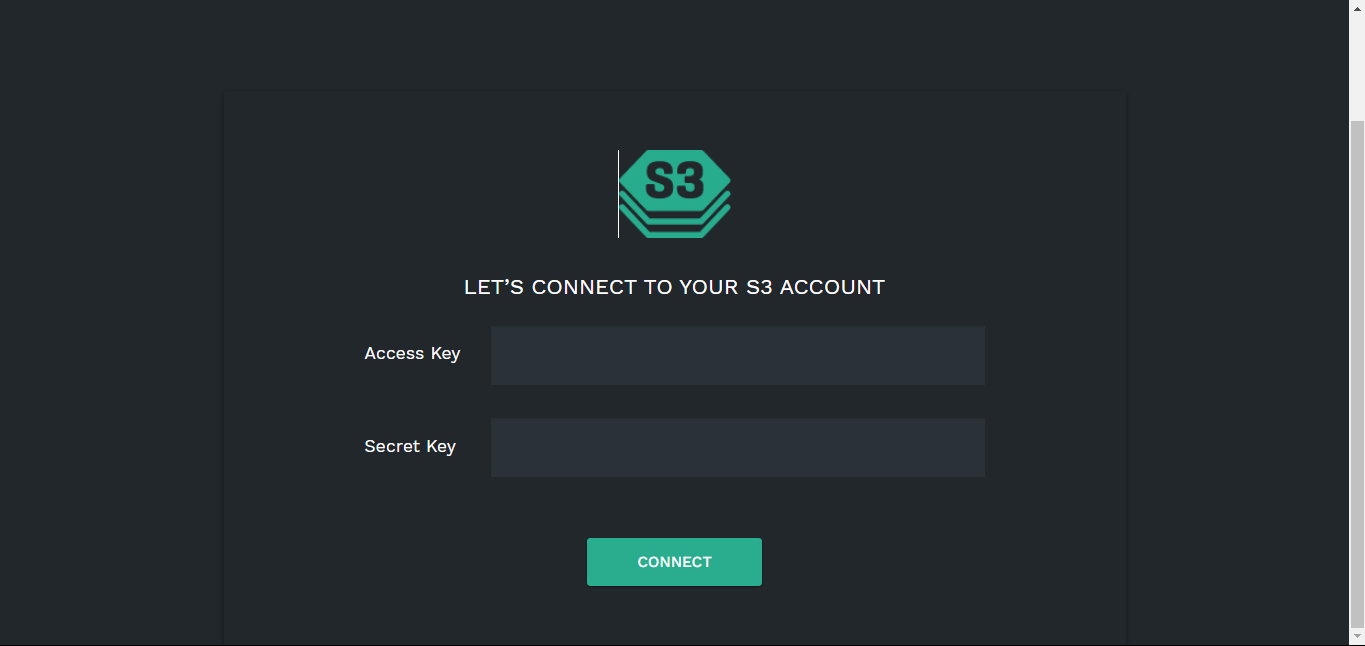
- Log in to Scality.
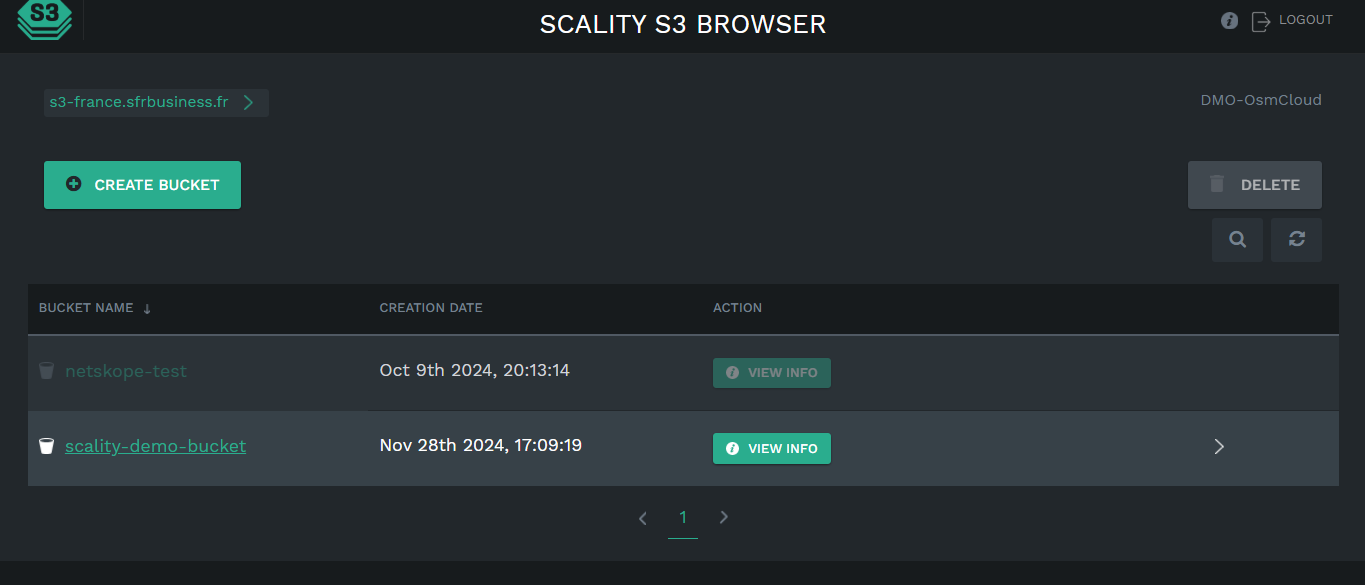
- Click on your bucket.
- Click the Alerts folder.
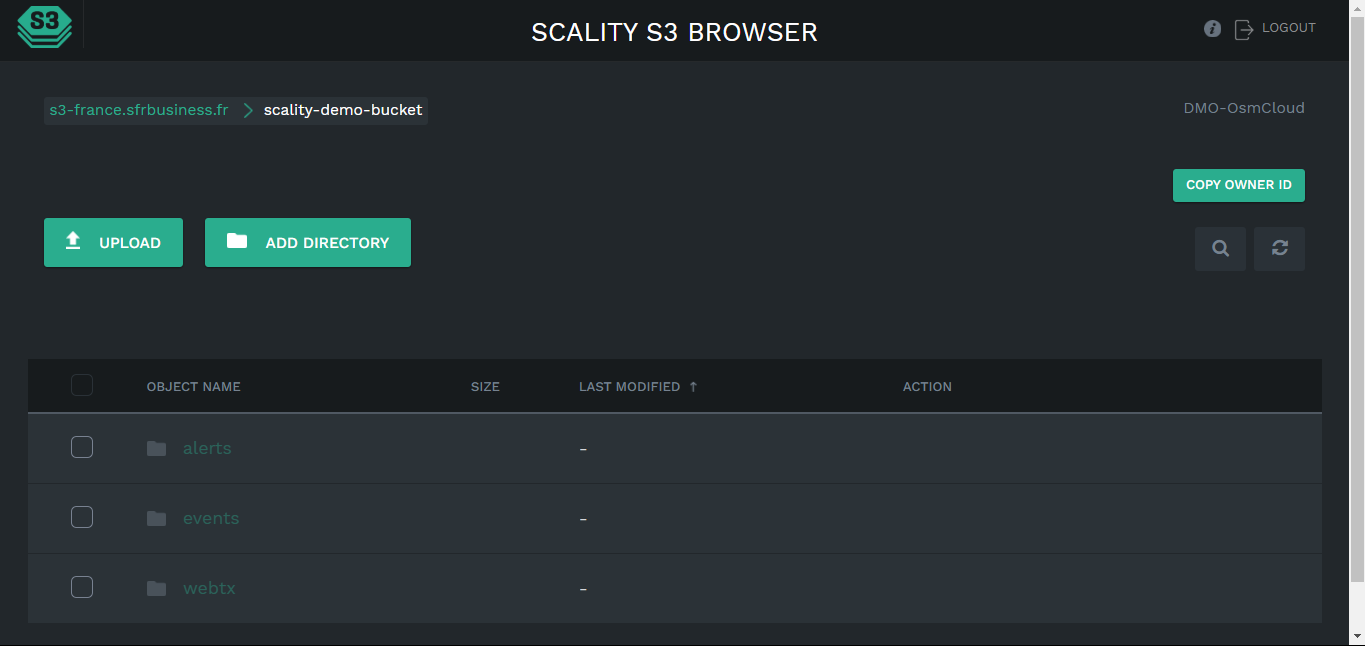
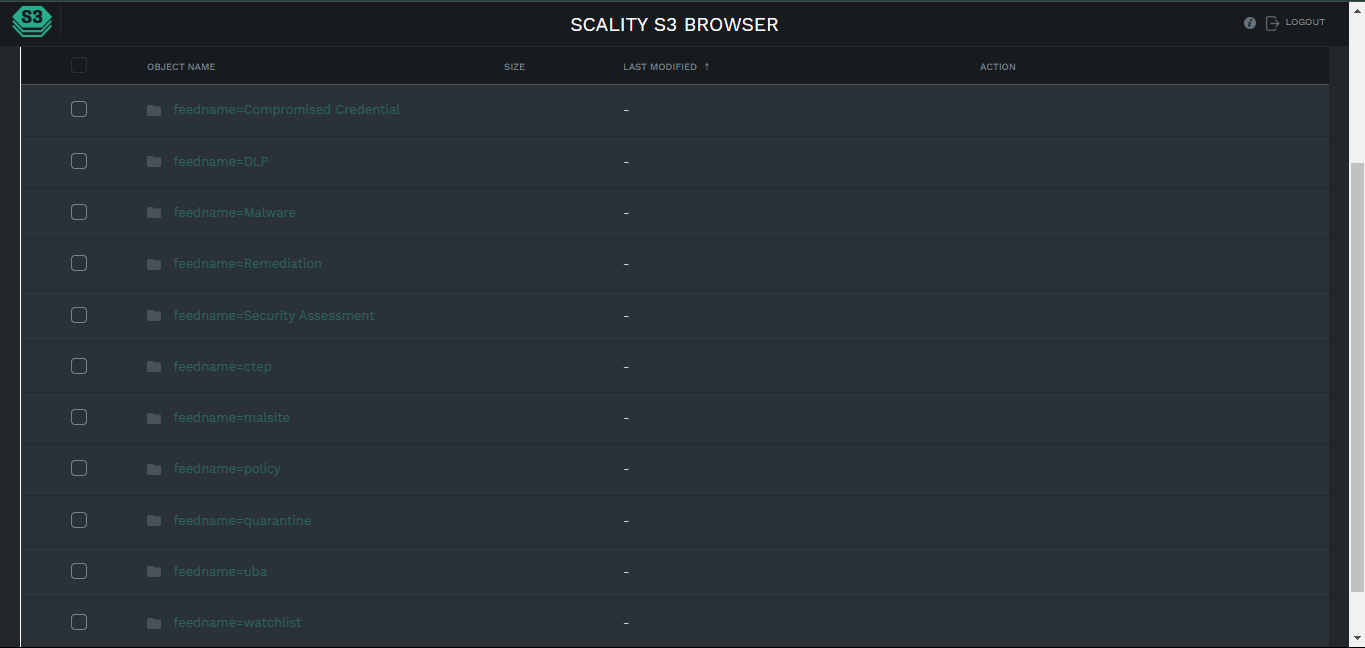
- Click on the Events folder.
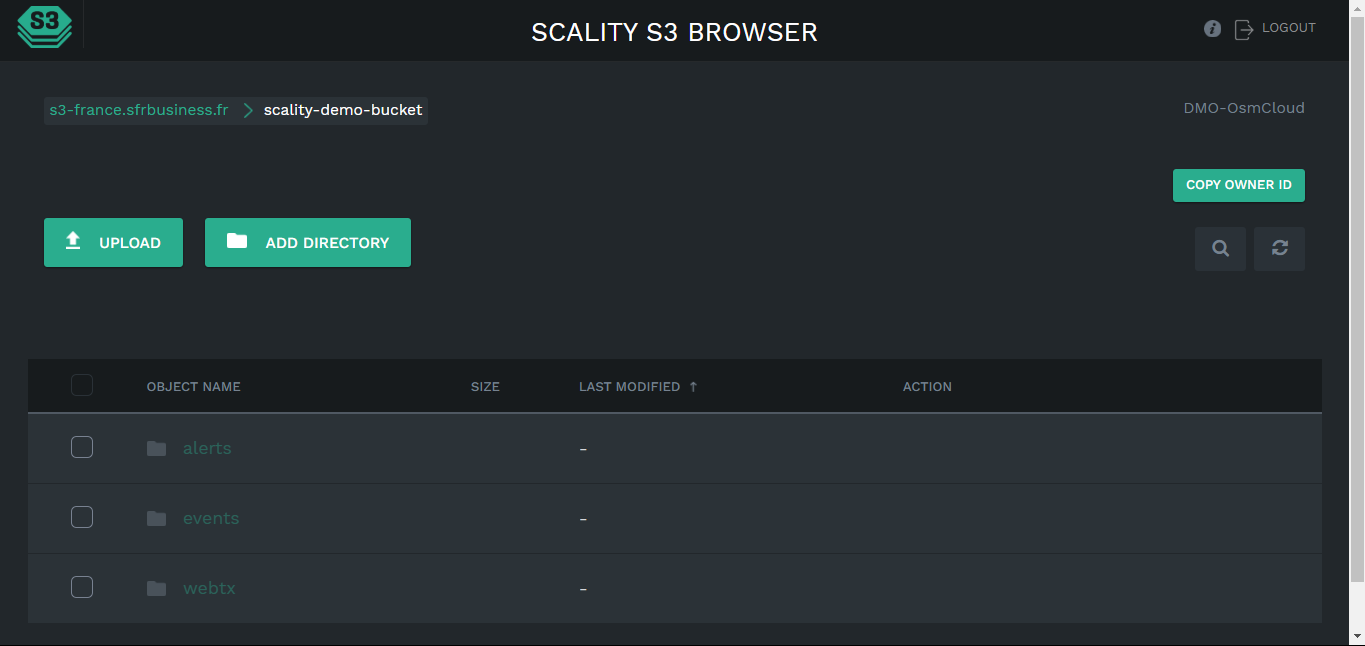
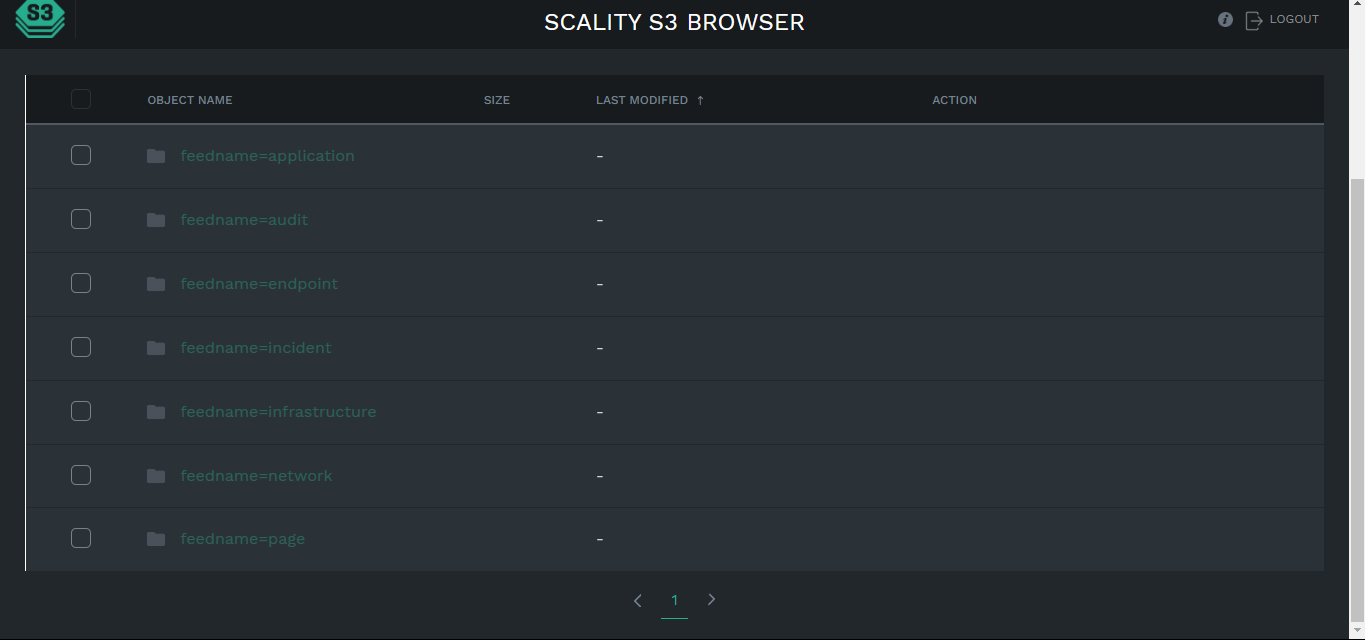
- Click on the WebTx folder.
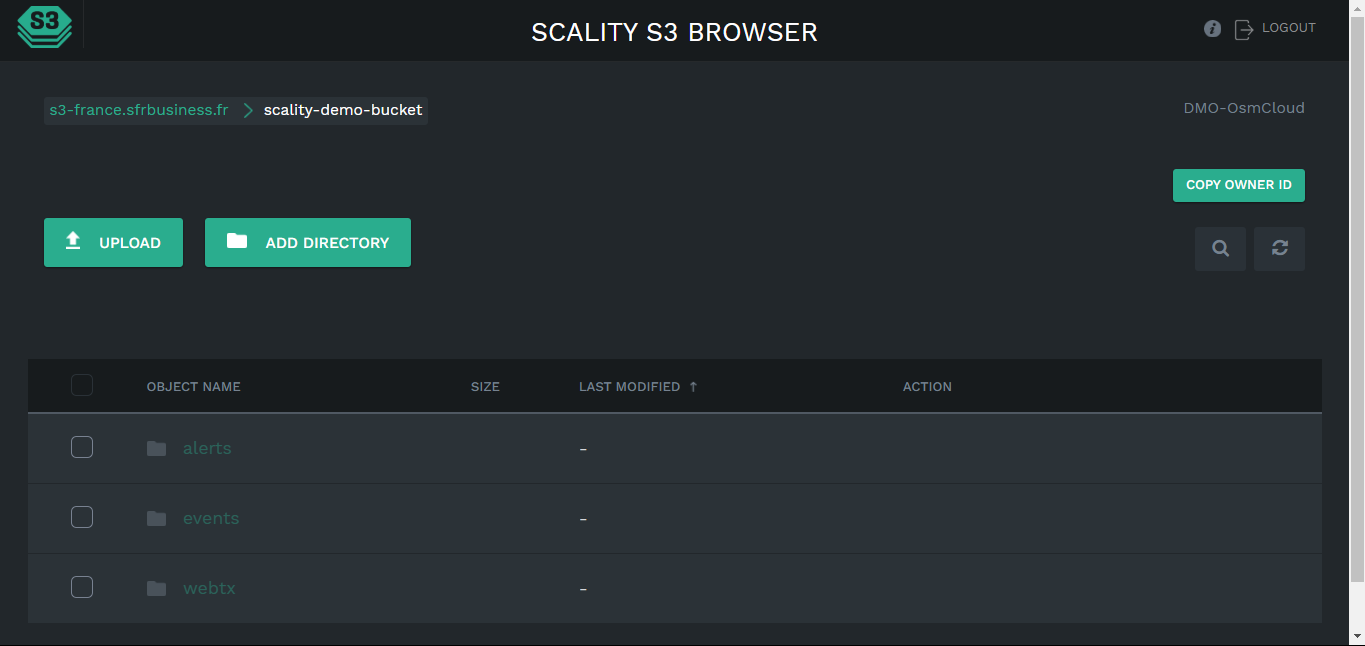
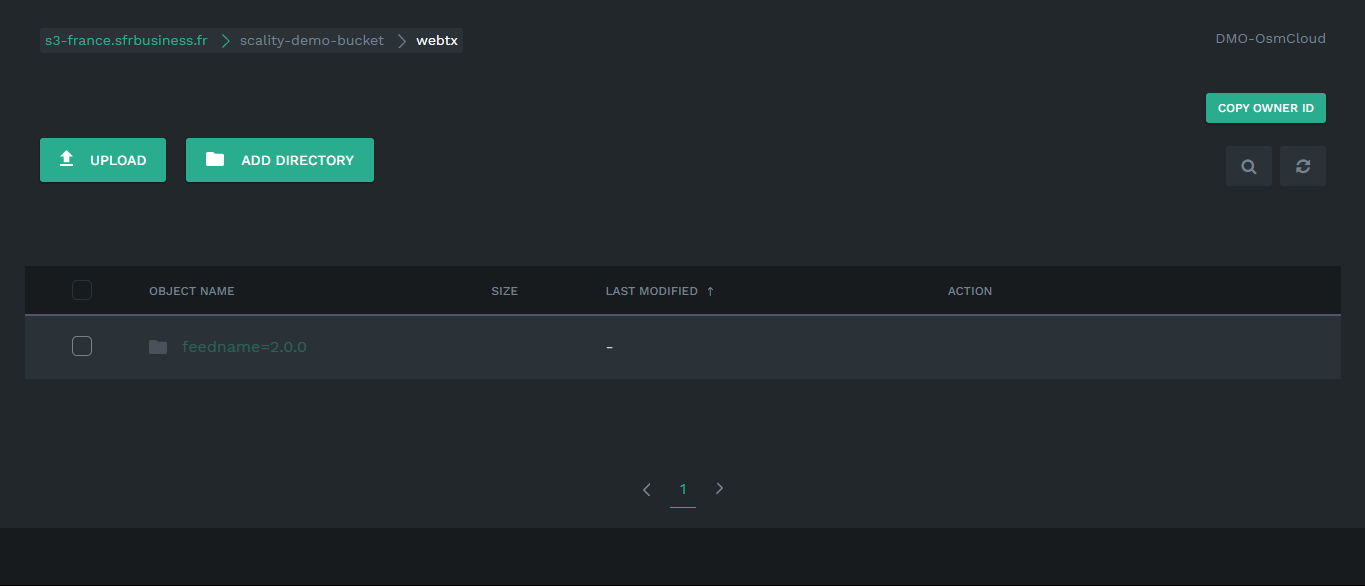
Note that:
- For alerts and events, the folder structure will be like Alerts/feedname/year/month/day/hour/filename.txt
- For WebTx, the folder structure will be like Alerts/feedname/year/month/day/hour/filename.gz
Example: demobucket/alerts/feedname=Malware/year=2023/month=11/day=30/hour=9/1701336881_139977276685128.txt
Troubleshooting the Scality Plugin
Facing issues while configuring the plugin
This error can occur during configuration if the Scality credentials or the bucket name is invalid.
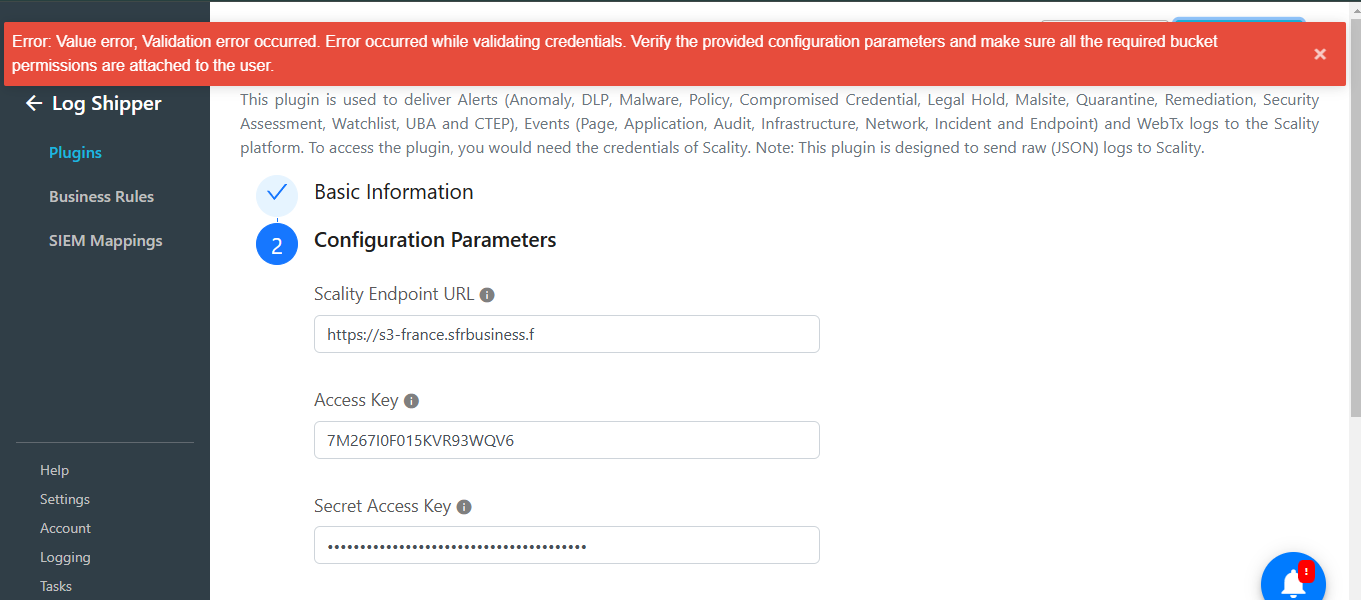
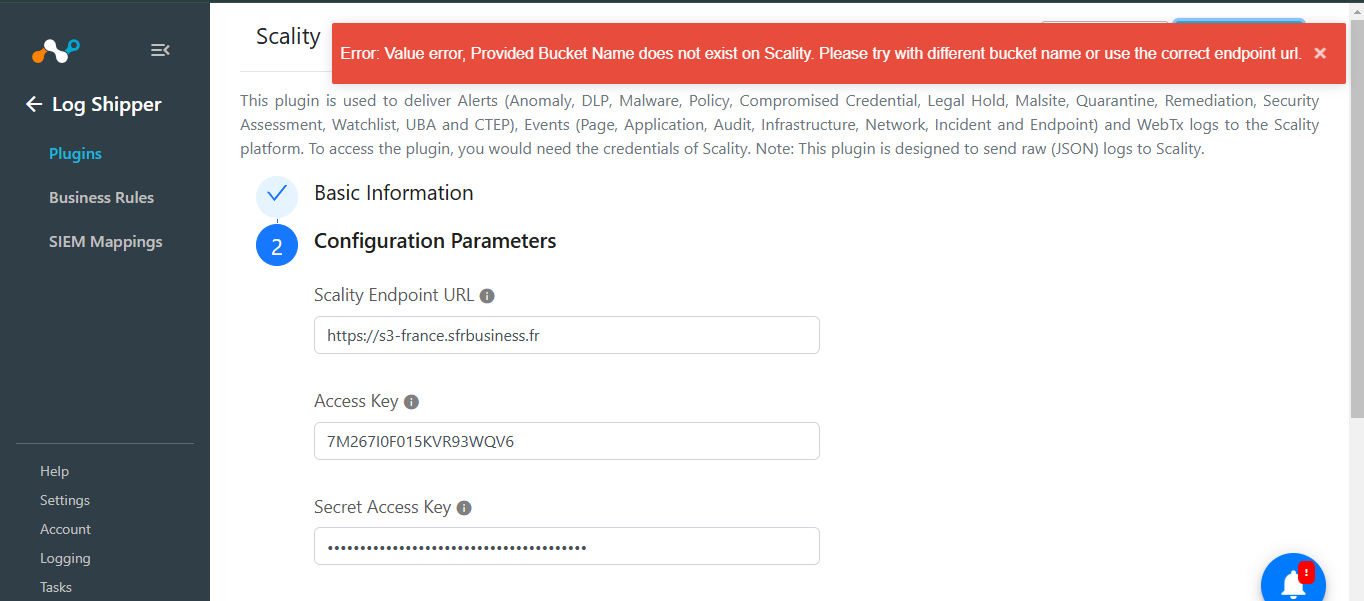
What to do:
- Make sure your Scality Endpoint URL, Access Key, and Secret Access Key are valid.
- Make sure that the bucket entered in the plugin exists on the Scality platform.