This document explains how to configure the SecLytics 1.0.0 plugin with the Threat Exchange module of the Netskope Cloud Exchange platform. This plugin fetches URL, IP, and CIDR indicators from the SecLytics Bulk API.
| Fetched Indicator Types | Shared Indicator Types |
|---|---|
| URL, IP, CIDR | Sharing not support. |
Prerequisites
To complete this configuration, you need:
- A Netskope tenant (or multiple, for example, production and development/test instances).
- A Secure Web Gateway subscription for URL sharing.
- A Netskope Cloud Exchange tenant with the Tenant plugin and Threat Exchange plugin already configured.
- Connectivity to the following host: https://api.seclytics.com/bulk.
Performance Matrix
| Data Pulled | Time Taken |
|---|---|
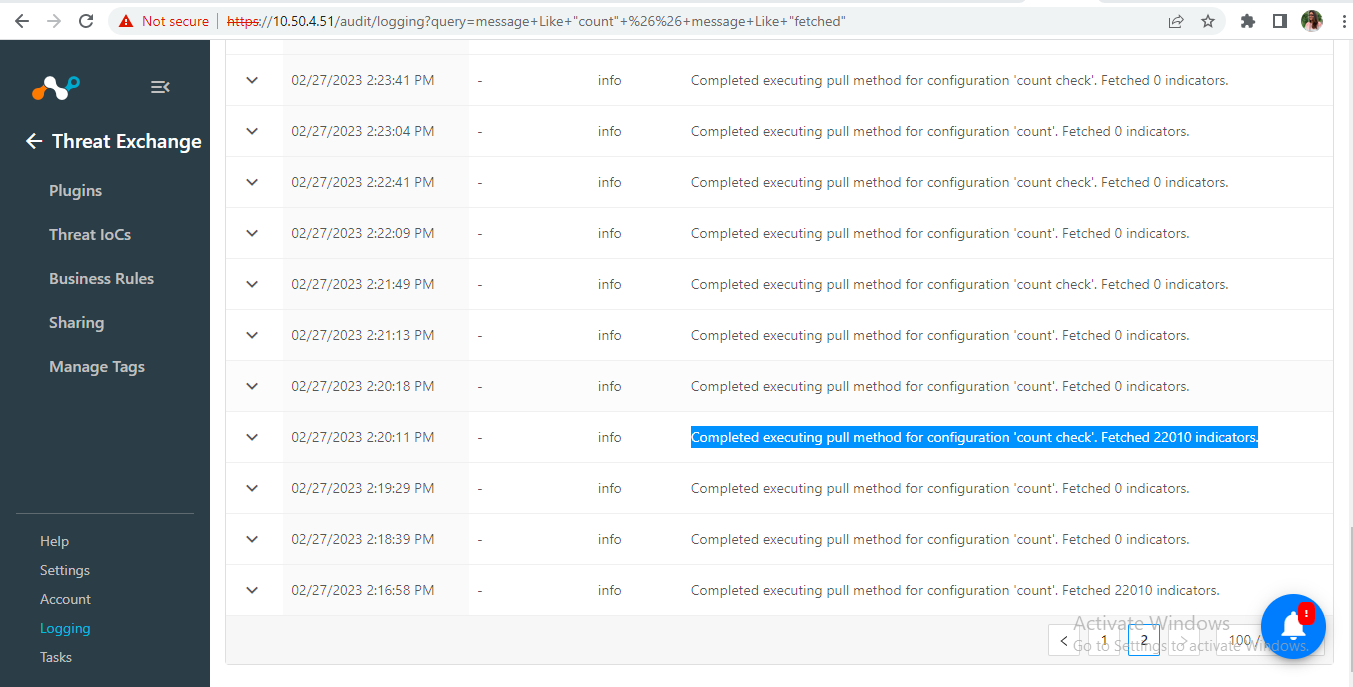
| 22010 | 41 seconds |
| 1212928 | 2 hours |
Workflow
- Get your Access token.
- Configure the SecLytics Plugin
- Validate the SecLytics plugin.
Click play to watch a video.
Get your Access Token
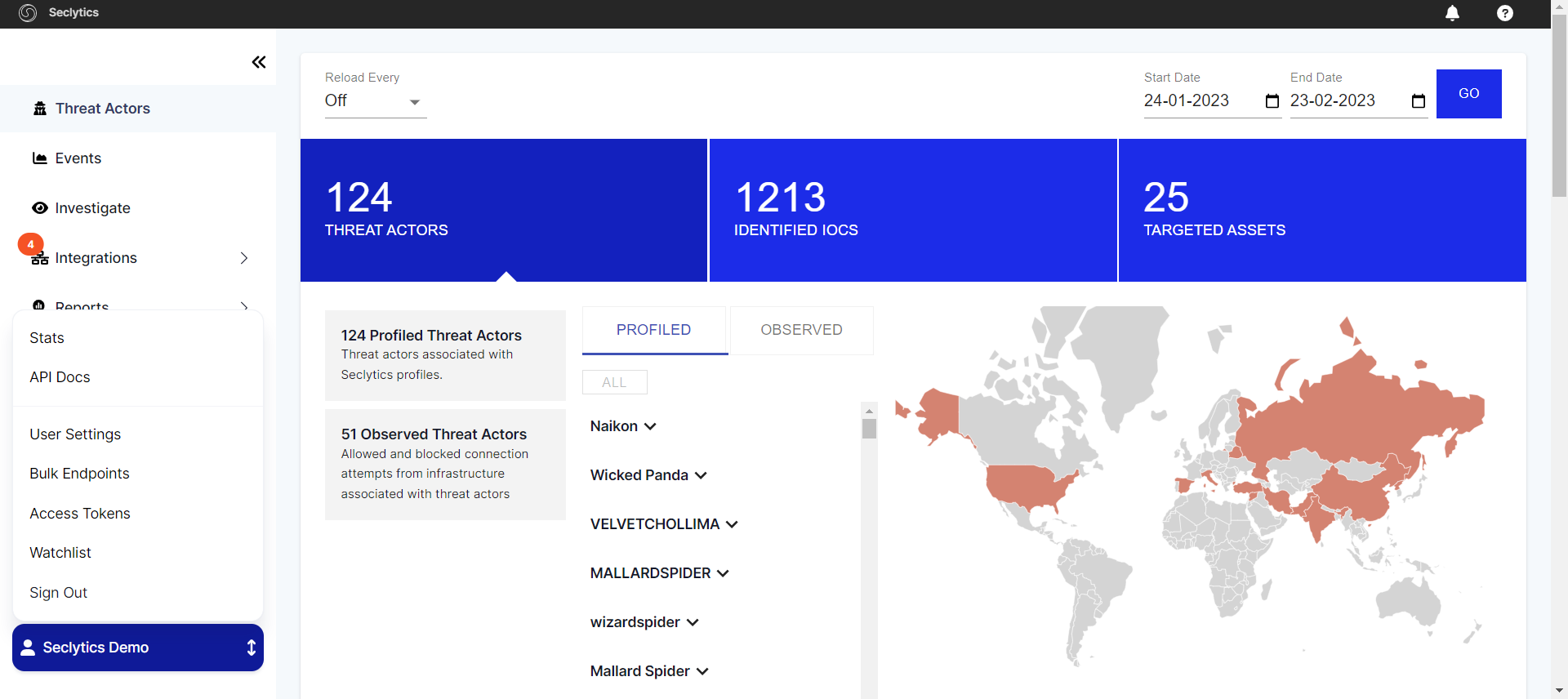
- Log in to your SecLytics platform. Go to SecLytics Demo > Access Token.
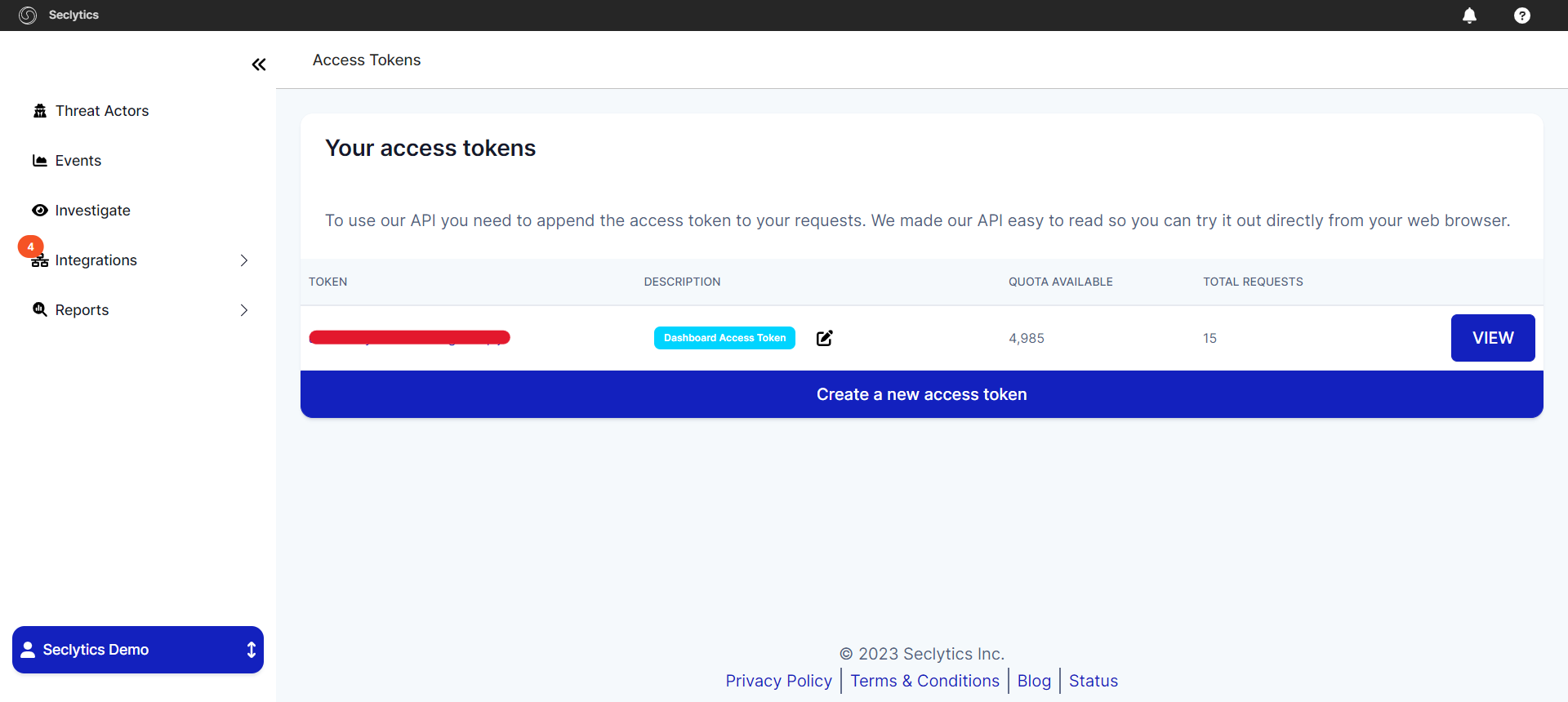
- Copy the Token value, or create a new token.
- The AccessToken should have permissions to these endpoints:
- bulk/url-dump-c.json.gz (for URL indicators).
- bulk/seen-predictions-dump-a.json.gz (for IP/CIDR indicators).
Configure the SecLytics Plugin
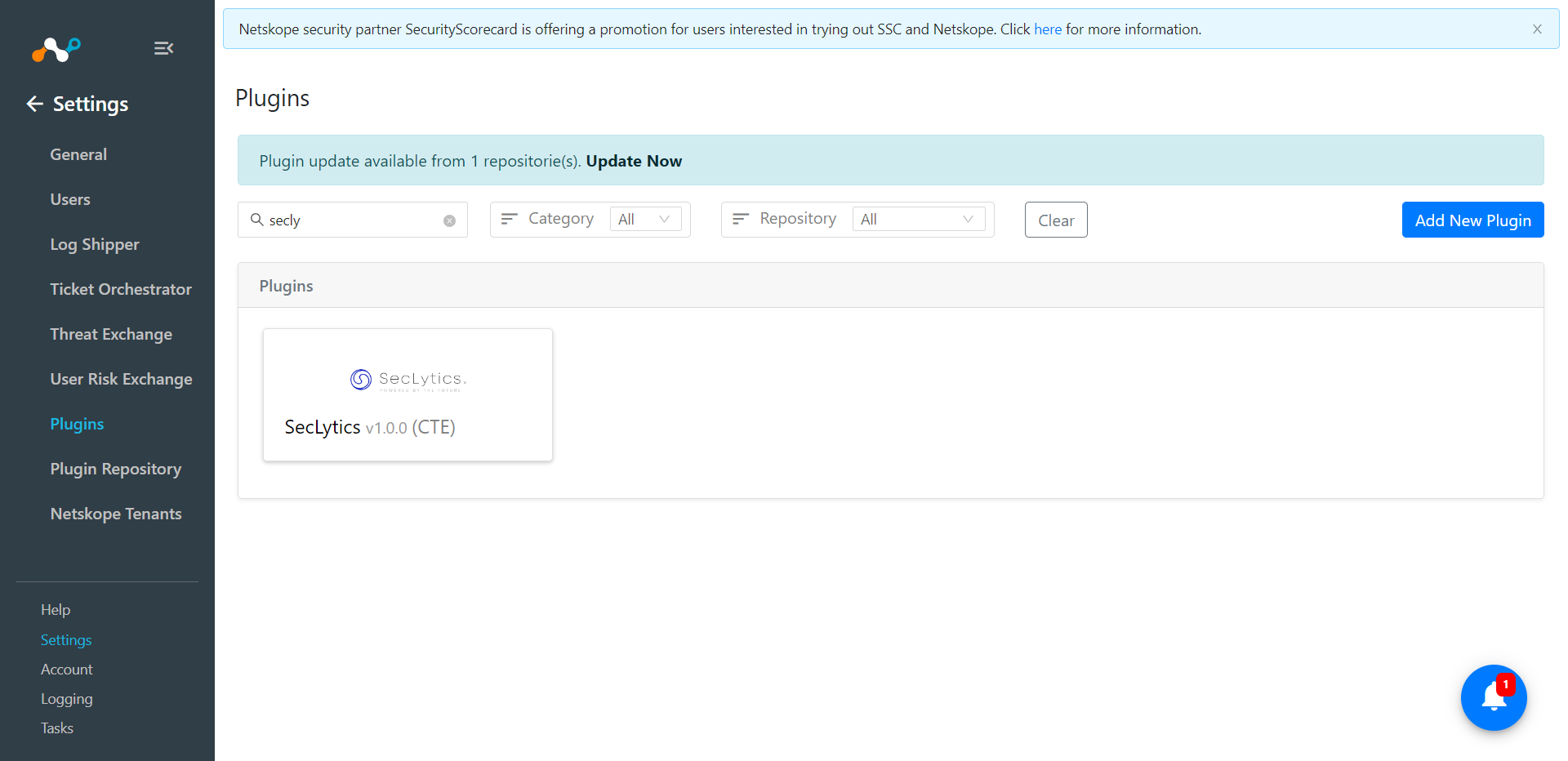
- Log in to Cloud Exchange and go to Settings > Plugins.
- Search for and select the SecLytics plugin box.
- Enter these values:
- Configuration Name: Unique name for the configuration.
- Sync Interval: Leave Default.
- Aging Criteria: Leave Default.
- Override Reputation: Leave Default.
- Enable SSL verification: Enable if SSL verification is required for communication.
- Use System Proxy: Enable if proxy is required for communication
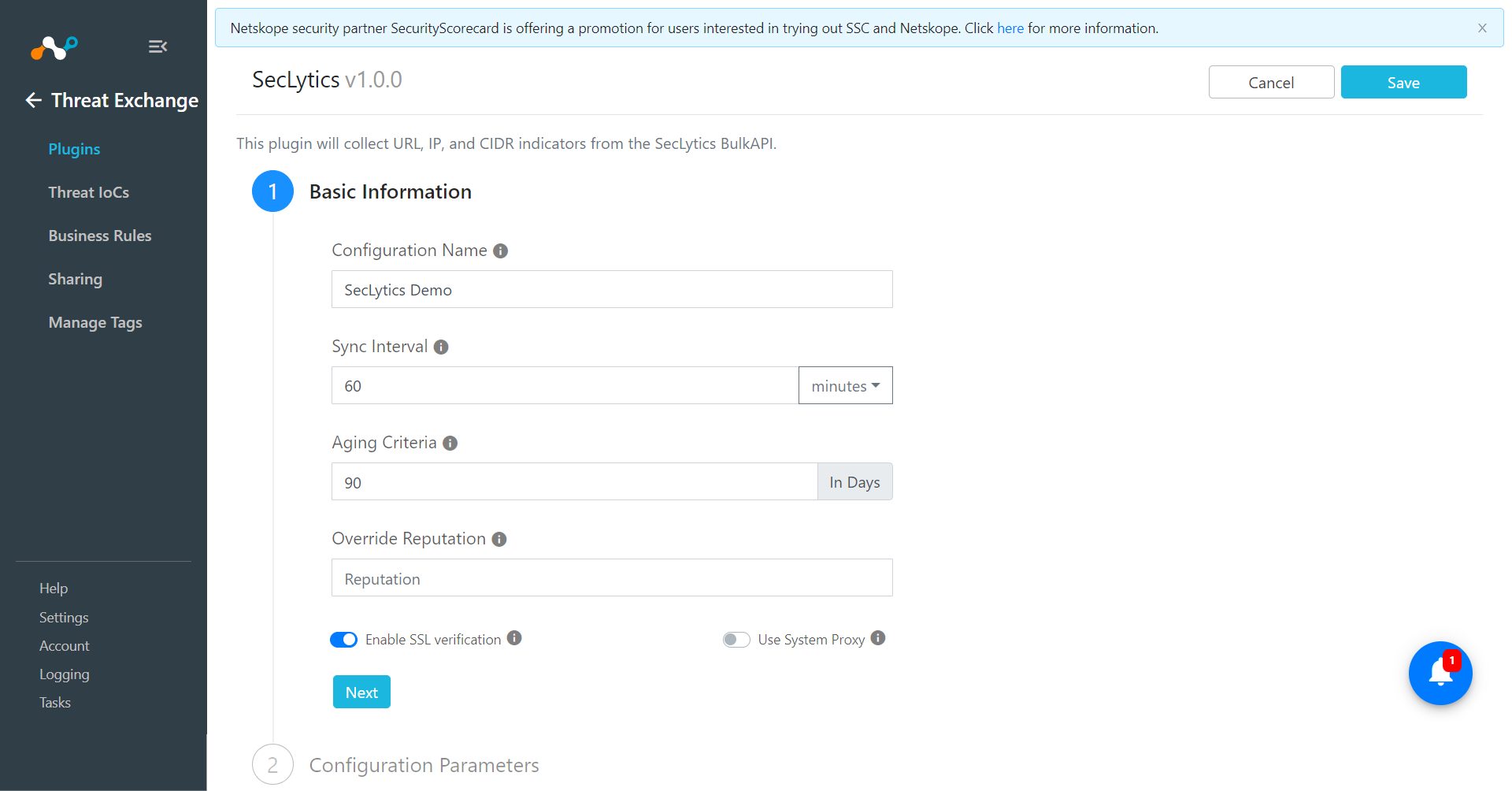
- Click Next. Enter these values:
- Custom Endpoint: SecLytics custom endpoint for REST APIs. Note that it is expected to use JSON path and not the CSV path for the custom endpoint.
- Type of Threat data: Type of threat data to fetch.
- Access token:SecLytics API token.
- Initial Range (in days): Initial range to fetch indicators.
- Severity: Severity of indicators to fetch the data.
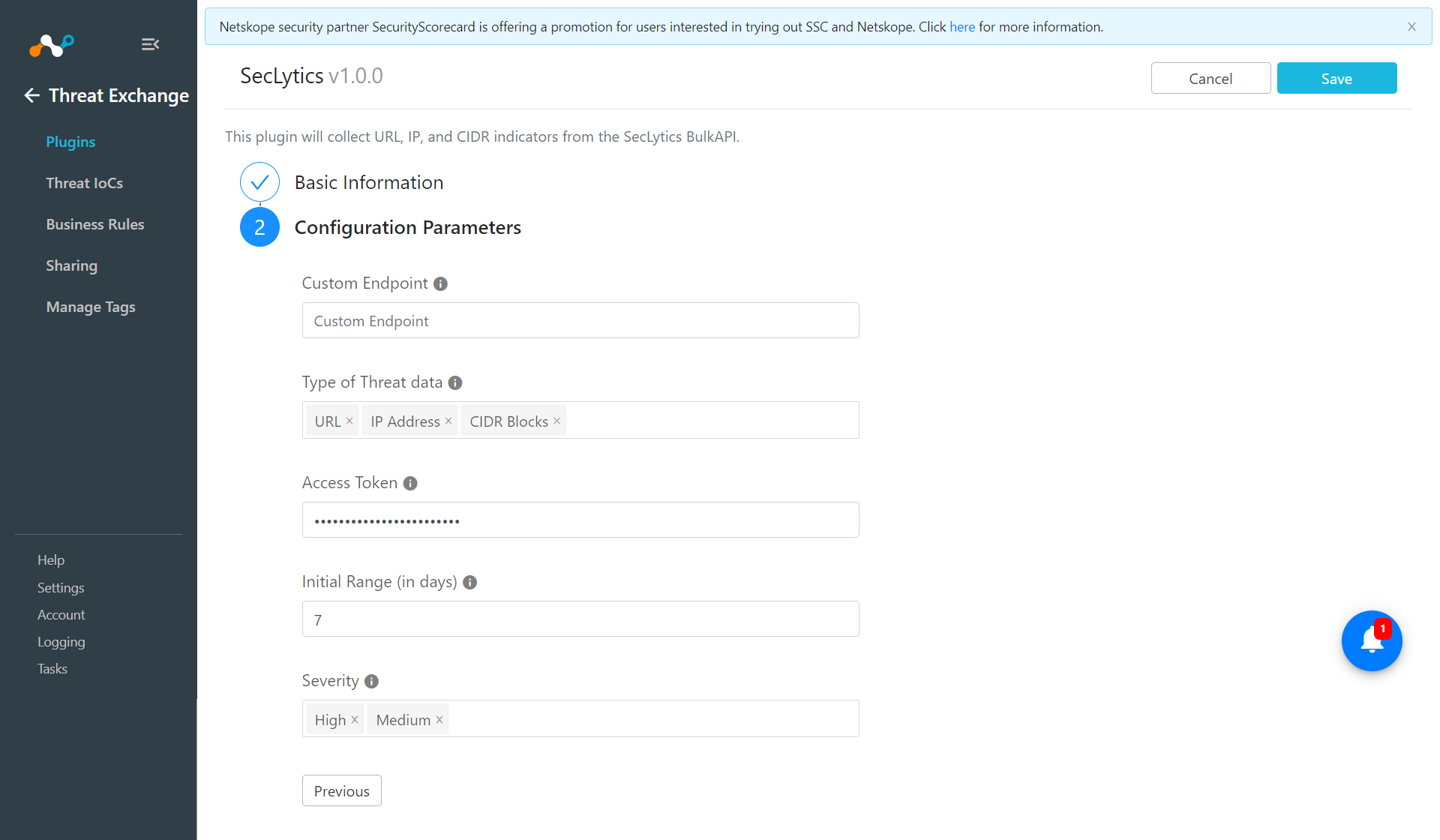
- Click Save.
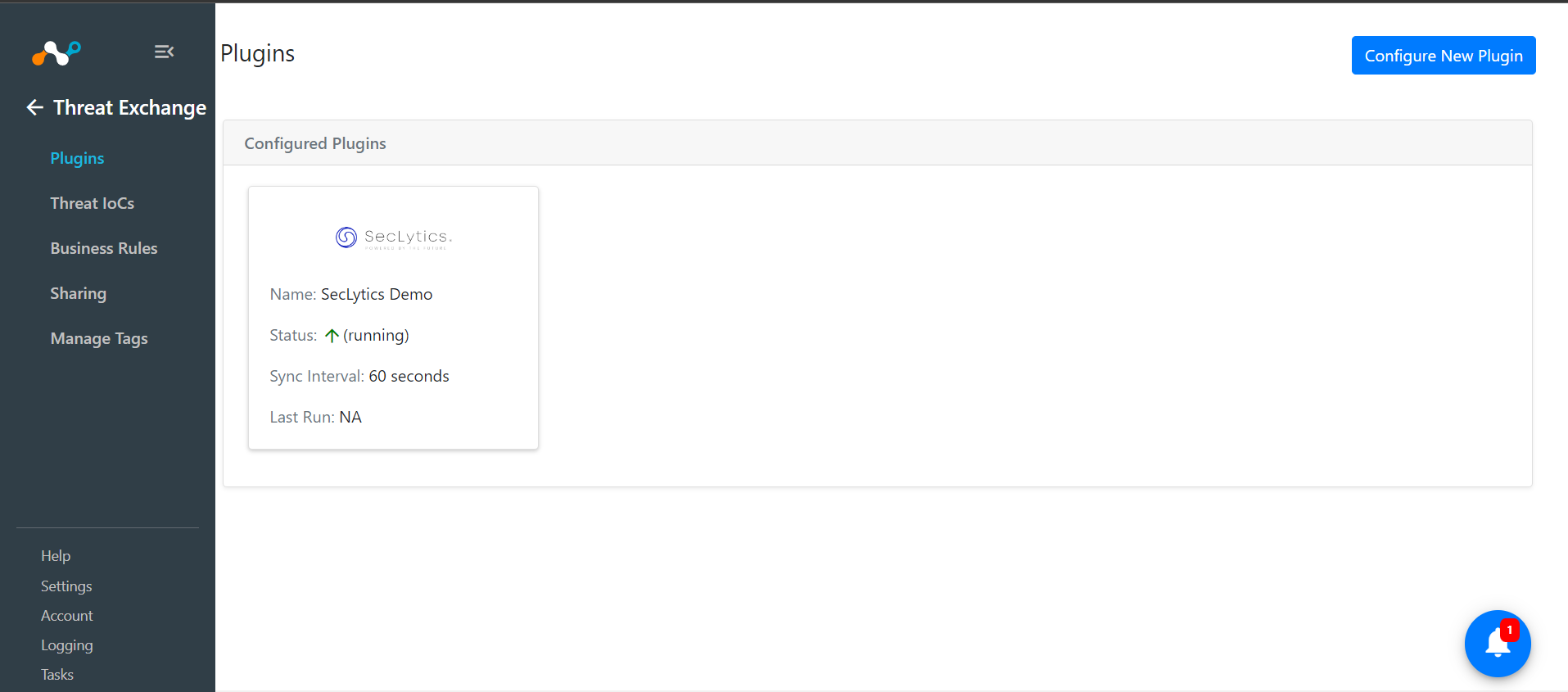
Validate the SecLytics Plugin
Validate in SecLytics
- Log in to SecLytics and click SecLytics Demo. Go to Bulk Endpoint.
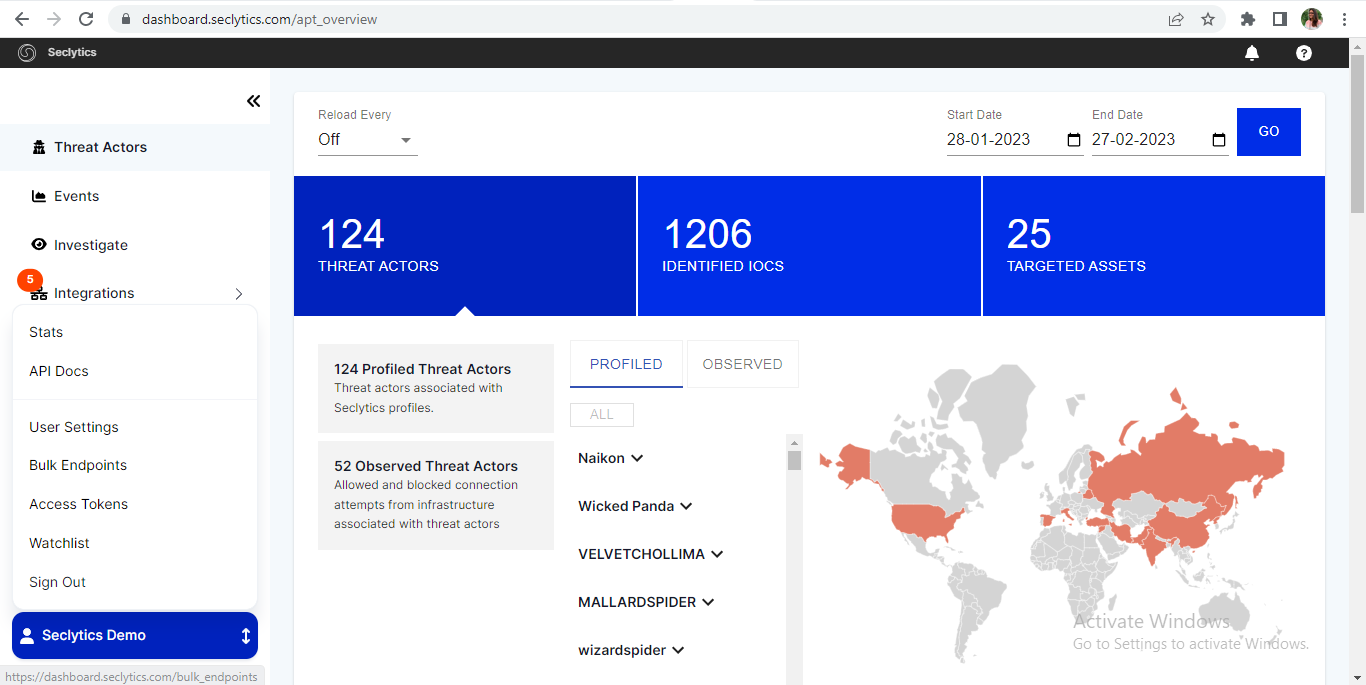
- Data is pulled from the paths available on the Bulk Endpoint page.
Validate in Netskope
- In Threat Exchange, go to Threat IoCs.
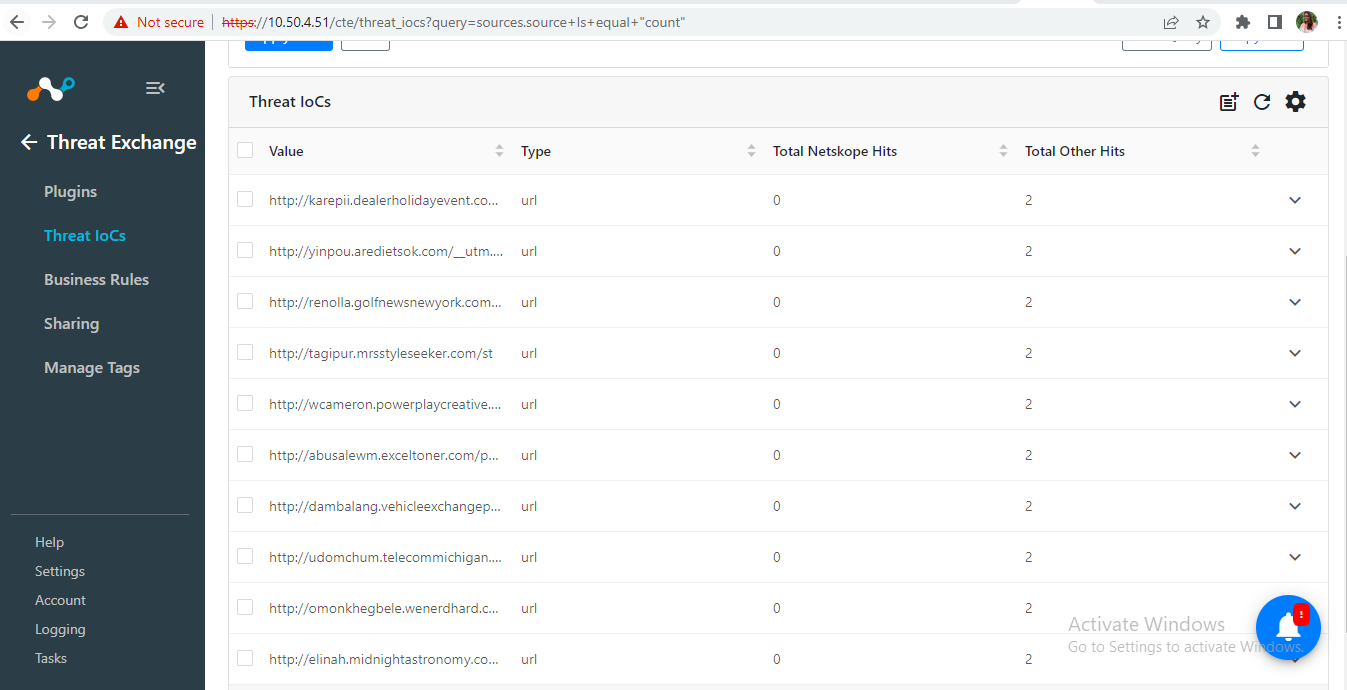
- If data is not being fetched from the platform, you can look at the logs in Cloud Exchange. In Cloud Exchange, go to Logging and look through the logs for errors.