

Conditions préalables
-
Compte Slack avec plan Enterprise Grid.
-
Un utilisateur ayant le rôle d'organisation ou de propriétaire principal.
-
Restez connecté à votre compte Slack Enterprise Grid en tant qu'organisation ou propriétaire principal dans un autre onglet.
Procedure
Pour autoriser Netskope à accéder à votre compte Slack Enterprise, suivez les étapes ci-dessous :
-
Connectez-vous à l’interface utilisateur du locataire Netskope et allez dans Settings > Configure App Access > Next Gen > Security Posture.
-
Select l'icône Slack Enterprise, puis cliquez sur Setup Instance. La fenêtre Setup Instance s'ouvre. Saisissez les informations suivantes :
-
Slack Org Owner Email: Enter the email address of the Slack organization owner.
-
Select la Security Scan Interval.
-
Instance Name: Saisissez le nom de l'instance de l'application SaaS. Cette étape est facultative et si elle est laissée vide, Netskope déterminera le nom de l'instance de l'application après l'octroi.
-
-
Cliquez sur Grant Access.

A new pop-up window opens asking you to authorize Netskope to access your Slack organization.
-
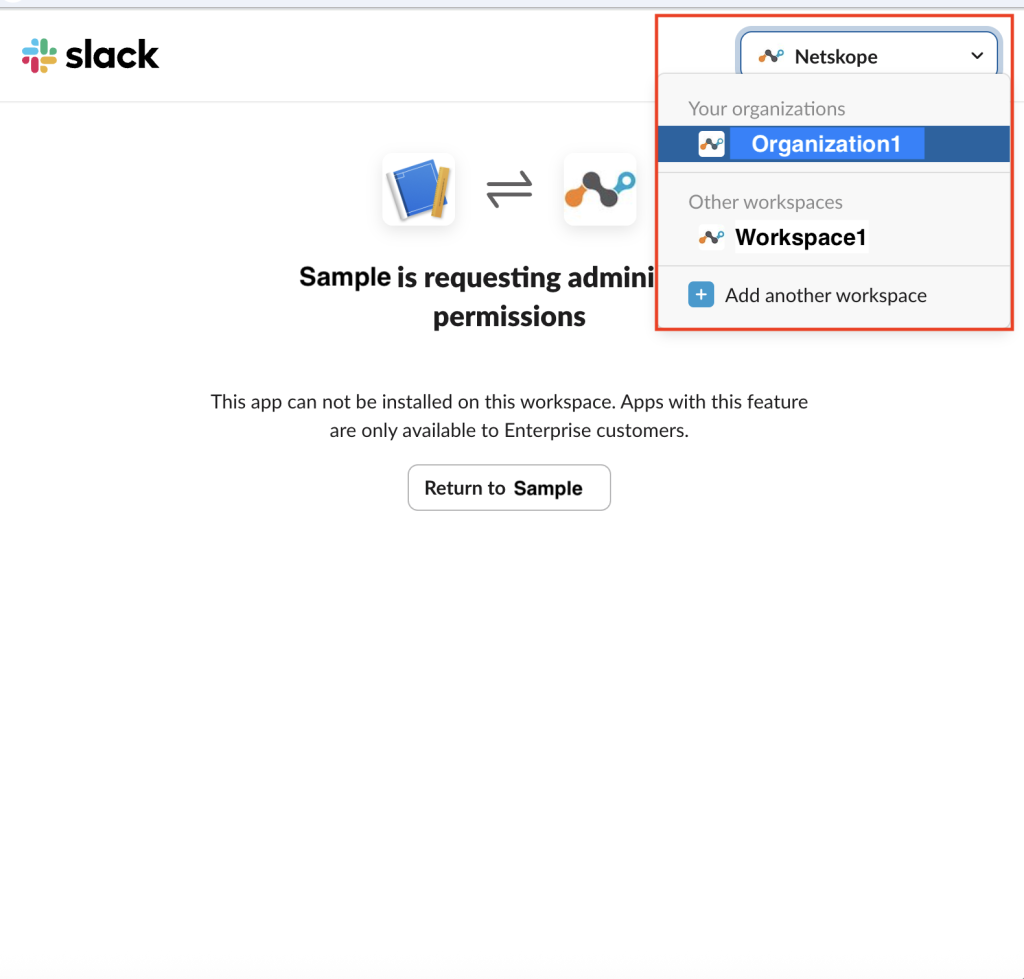
(Optional) If multiple accounts are linked to the Slack Org Owner Email entered in Step 2, you’ll see the following screen. Choose the correct Enterprise from the list.
-
Click Allow. Close the configuration results page once it opens. By enabling this, you grant access to the Slack scopes listed in Permissions Required for Slack Enterprise.

Actualisez votre navigateur et vous verrez l'instance.
Après avoir configuré Slack dans SSPM, une application au niveau de l’organisation est accordée dans Slack. Do not add a workspace level agent of this app, car cela couperait la connexion et provoquerait l’échec de l’intégration.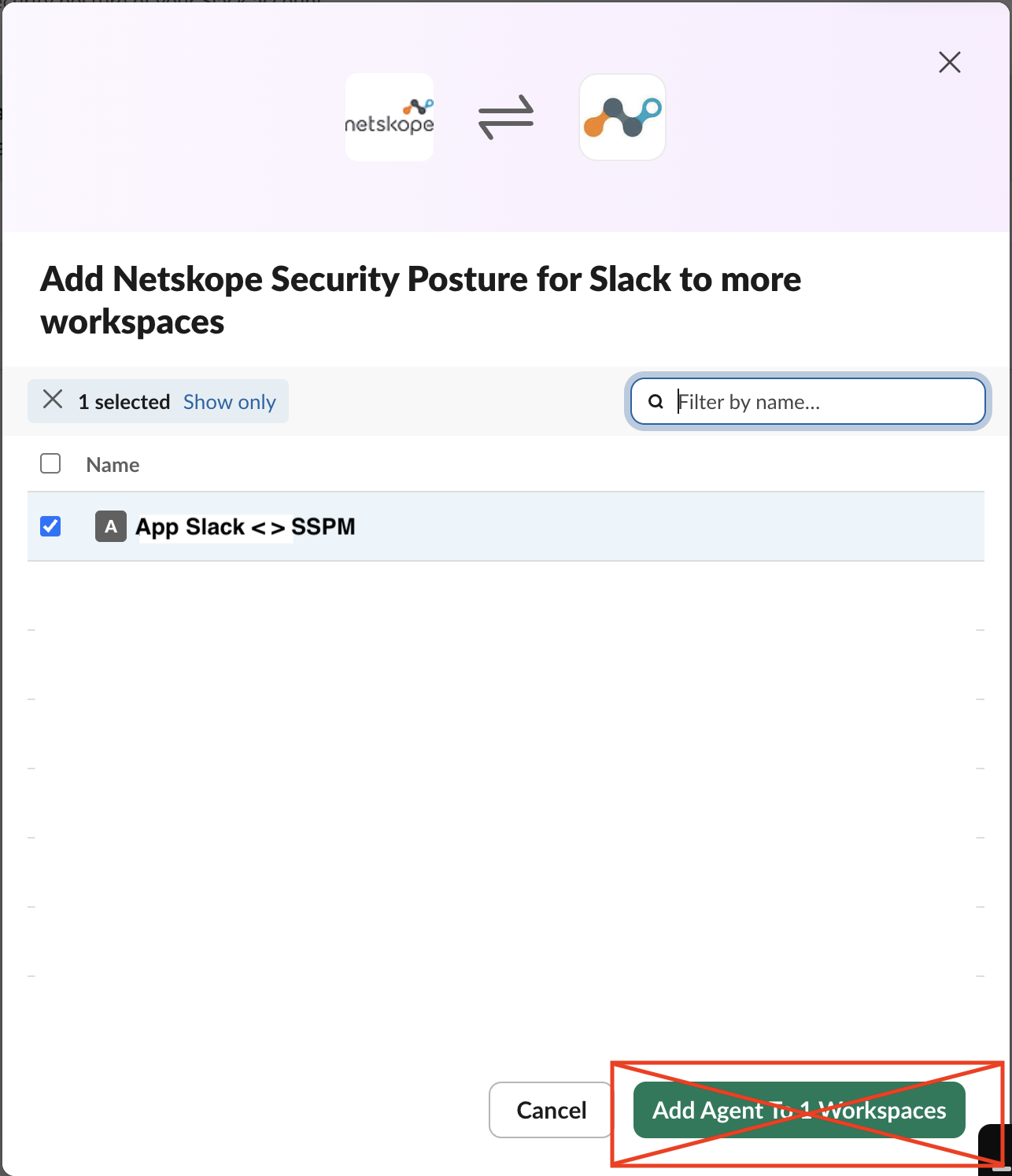
Références


