

Notes de mise à jour
1.0.0
Added
- Initial release with SMB2/SMB3 CSV ingestion.
This document explains how to configure the SMB File Share EDM plugin v1.0.0 with the Exact Data Match plugin of the Netskope Cloud Exchange platform. This plugin is used to fetch a CSV file from a remote SMB server (Windows or Samba) and to generate EDM hashes of the pulled CSV file. The plugin supports SMB protocol version from SMB 2.0.2 to SMB 3.1.1.
Conditions préalables
Pour compléter la configuration, vous devez
- Un locataire Netskope (ou plusieurs, par exemple des instances de production et de développement/test).
- Un locataire Netskope Cloud Exchange avec le plugin Tenant et le plugin Exact données Match déjà configurés.
- SMB server configured in Windows/Linux/Isilon instance with read access to the SMB Shared Directory and CSV files with appropriate data structure.
SMB File Share EDM Plugin Support
This plugin fetches data from a SMB server supporting SMB 2.0.2 to SMB 3.1.1 and generates Exact Data Match (EDM) hashes according to the defined plugin configurations.
| Fonction | Support |
|---|---|
| Pull | Oui |
| Push | Non |
SMB Server Permissions
| Type d'autorisation | Requirement |
|---|---|
| Accès SSH | Required |
| Accès en lecture au fichier | Required |
| Accès au partage de réseau | Required |
| Accès au port | 445(SMB) |
Autorisations requises
- Users should have read access to the shared folder and CSV file.
- Network connectivity to port 445.
- SMB service enabled on the server.
- Espace disque suffisant sur Cloud Exchange pour le traitement des fichiers temporaires.
Détails de l'API
List of Libraries Used to Access Remote SMB File Share
This plugin uses Python libraries and the SMB protocol stack to establish secure connections to Windows SMB servers and transfer CSV/TXT files by navigating shared directories.
Library: smbclient
Usage: smbclient is a high-level Python wrapper that provides simple file-system-like functions (register_session, stat, open_file, reset_connection_cache) to connect and interact with Windows SMB shared directories. The plugin uses smbprotocol.exceptions (SMBException, SMBResponseException) only for exception handling when SMB operations fail.
Register session (establish connection + auth)
from ..lib import smbclient

smbclient.register_session(
    server,
    username=username,
    password=password,
    port=port,
)
Build UNC and verify connection
unc_path = self._build_unc_path(
    server,
    directory_path,
    file_path,
)
smbclient.stat(unc_path)
Verify file exist
# Check if file exists
stat_result = smbclient.stat(unc_path)

# Check it's not a directory
if stat.S_ISDIR(stat_result.st_mode):
Download a CSV file via SMB
with smbclient.open_file(unc_path, mode="rb") as remote_file:
    with open(csv_file_path, "wb") as file_object:
        if record_count:
            # Partial file retrieval (for sample data)
            # +1 to include header row
            lines_to_read = record_count + 1
            for _ in range(lines_to_read):
                line = remote_file.readline()
                if not line:
                    break
                file_object.write(line)
        else:
            # Full file retrieval
            shutil.copyfileobj(remote_file, file_object)
Clean up sessions
smbclient.reset_connection_cache(fail_on_error=False)
Matrice de performance
Here is the performance reading conducted for fetching and sanitizing ~1M Rows (25 columns, per column ~50 characters long string, 1.3 GB size, Avg Column Uniqueness: ~96%, Avg Row Uniqueness: ~96%) CSV file on a Large CE instance with these specifications:
| Description | Spécifications |
|---|---|
| Détails de la pile | Taille : Grande RAM : 32 GB CPU : 16 cœurs |
| CSV data fetched from SMB File Share Without Sanitization | ~7K rows/sec |
Note
For CE instance disk space, refer to this documentation.
Workflow
- Get your server credentials and file paths.
- Configure the SMB File Share EDM Plugin.
- Configure sharing between SMB File Share EDM Plugin and Tenant.
- Validate the SMB File Share EDM Plugin.
Regardez une vidéo
Cliquer sur « play » pour regarder une vidéo.
Get a Shared Directory from the SMB Server
SMB Server hosted in Windows
- Run PowerShell as Administrator.
- Run command in the PowerShell:
Get-SmbShareExample Output:
Name	ScopeName	    Path
—--	 	---------		----
ADMIN$	*		        C:\Windows
C$		*         		C:\
MyShare	*         		C:\SMBShare
What It Means:
- Name → Share name
- Path → Actual folder location
- Shares ending with $ (like
C$,ADMIN$) are hidden administrative shares.
SMB Server hosted in Linux
- Les parts de samba sont définies à l’intérieur de
/etc/samba/smb.conf. - In Linux terminal, run:
testparm -s
- Look for sections like:
[shared]
path = /srv/samba/shared - Every section below [global] is a shared folder.
[Documents]
    path = /home/devuser/docs
What it means:
- Share name → Documents
- Actual folder →
/home/devuser/docs
SMB Server hosted in Isilon
- Log in to OneFS.
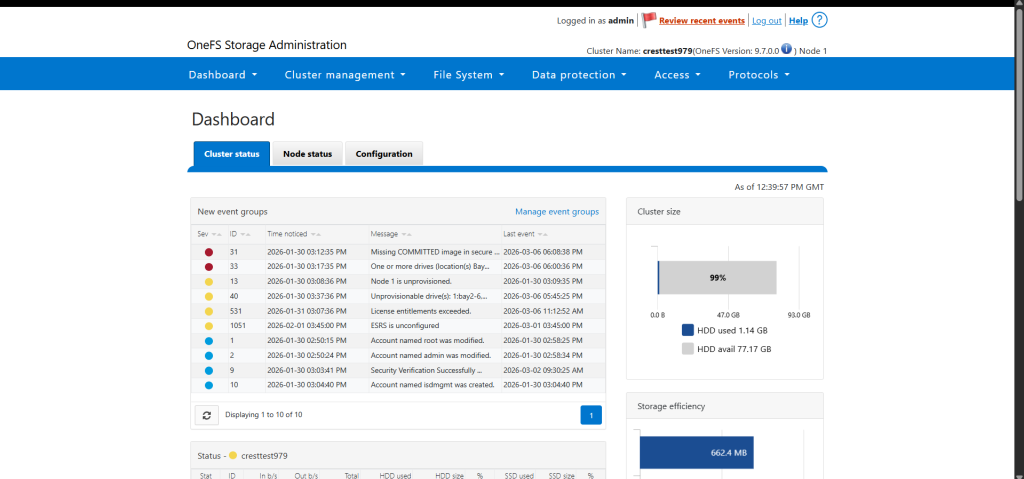
- Allez dans Protocols et sélectionnez SMB.
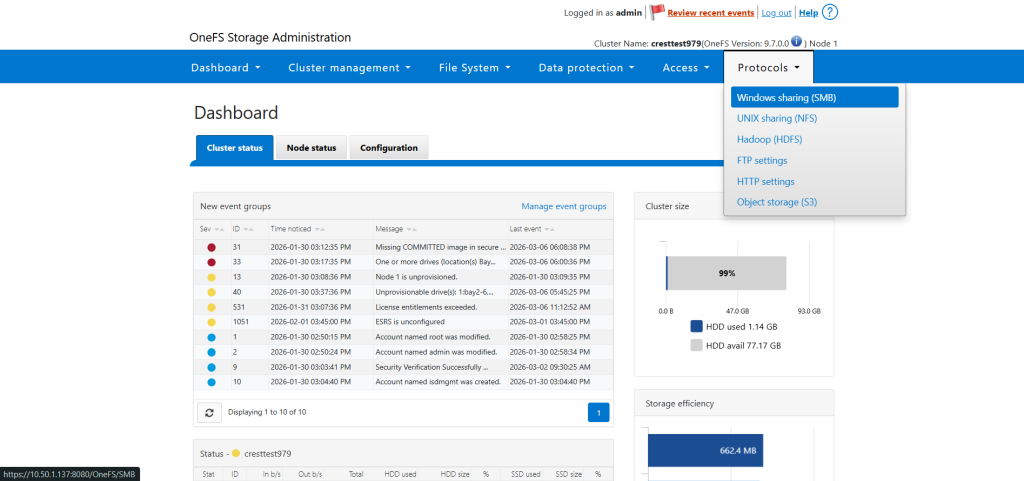
- Open the Shares Section.
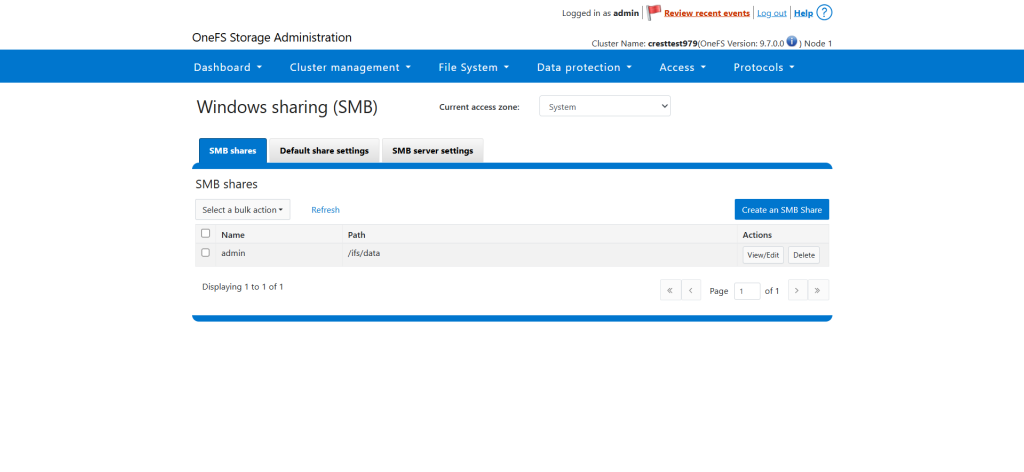
- You will see a list of configured SMB shares.
- Look at the Path column. This shows the actual filesystem directory (usually under /ifs) that is shared via SMB.
Example table:
Share Name		Path
test-share		/ifs/data/test
Finance /ifs/data/finance - The Path value (
/ifs/...) is the directory being shared.


Setup for kerberos when using domain name/FQDN instead of an IP address
- Install Kerberos Utilities Inside Core Container.
- Access the core container:
docker exec -it -u0 <core-container> bash
- Installez les packages Kerberos.
Ubuntu/Debian:apt update && apt install -y krb5-user smbclient
- RHEL/CentOS:
yum install -y krb5-workstation samba-client
- Configurez Kerberos : (
krb5.conf). - Create or update:
/etc/krb5.conf - Add realm configuration:
[realms]
   EXAMPLE.COM = {
       kdc = dc01.example.com
       admin_server = dc01.example.com
   }

[domain_realm]
   .example.com = EXAMPLE.COM
   example.com = EXAMPLE.COM
Note
- Realm must usually be uppercase.
- KDC should point to the domain controller.
- DNS resolution must work correctly inside the container.
- Replace these values:
Placeholder Replace With EXAMPLE.COM Your AD/Kerberos realm dc01.example.com Your Domain Controller / KDC hostname example.com Your domain
- Mettez à jour le
docker-compose.yml. - Edit
docker-compose.ymland add extra_hosts in core service:services: core: extra_hosts: - "<domain/FQDN>:<IP>"
- Restart Cloud Exchange, and configure the plugin with domain/FQDN of your SMB Server.
sudo ./stop && sudo ./start
Configure the SMB File Share EDM Plugin
- Connectez-vous à Cloud Exchange et accédez à Settings > Plugin Store.
- Recherchez et sélectionnez la case du plugin SMB File Share EDM v1.0.0 .
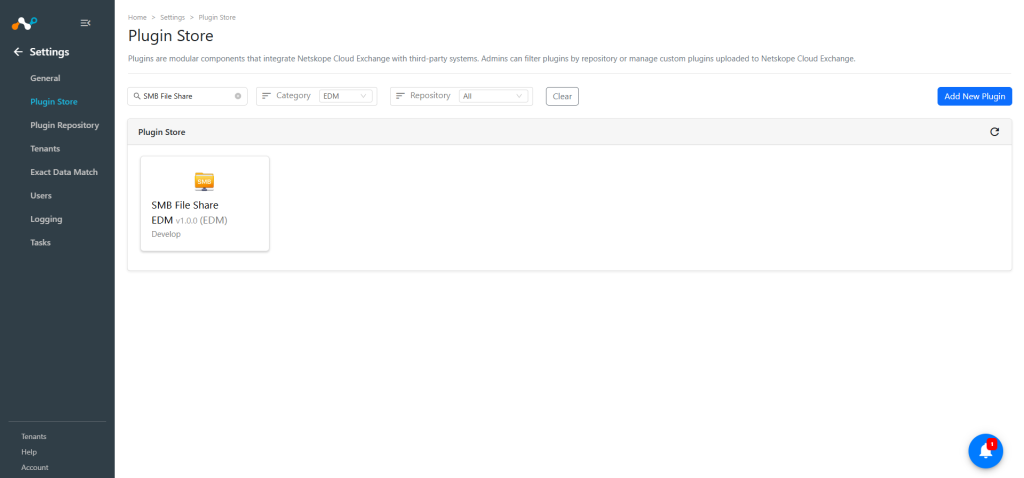
- Saisissez les informations de base :
- Configuration Name: Enter a name appropriate for your integration.
- Sync Interval: Adjust Sync Interval as per your requirement. (Default: 12 hours).
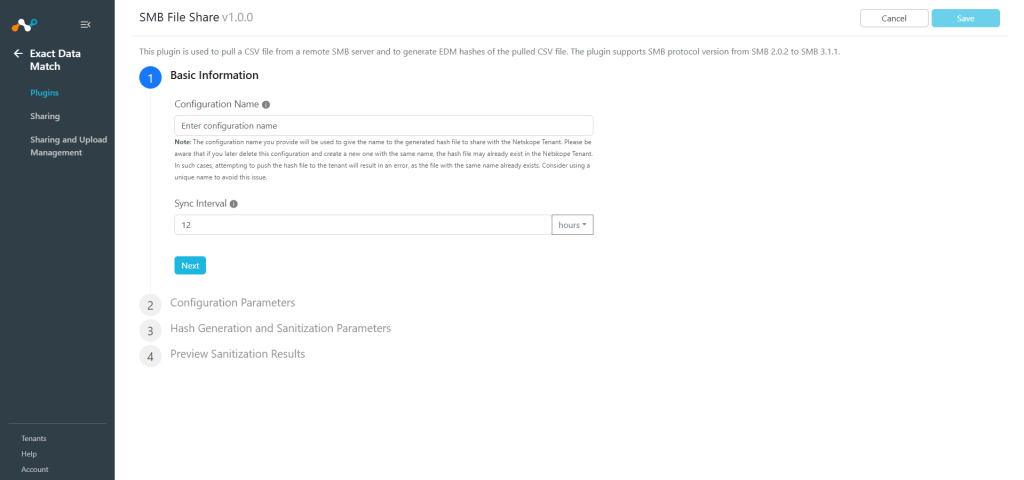
Note
Le nom de configuration que vous fournissez sera utilisé pour donner un nom au fichier de hachage généré à partager avec le locataire Netskope. Sachez que si vous supprimez ultérieurement cette configuration et en créez une autre à l'adresse New avec le même nom, le fichier de hachage peut déjà exister dans le locataire Netskope. Dans ce cas, la tentative de transfert du fichier de hachage vers le locataire entraînera une erreur, car le fichier portant le même nom existe déjà. Envisagez d'utiliser un nom unique pour éviter ce problème.
- Click Next and enter the Configuration Parameters:
- SMB Server Hostname/IP: Nom d'hôte ou adresse IP du serveur SMB à partir duquel le fichier CSV doit être extrait.
- Port: TCP port for SMB connection (default 445).
- Username: Username with read access to the shared directory.
- Password: Password for the provided username.
- Share Directory Name: Le nom de l’action SMB. Par exemple, Si le chemin complet de l’UNC est '\serveur\partage\chemin\file.csv', entrez 'partager'. Pour cela, suivez les étapes fournies dans Obtenir un annuaire partagé depuis le serveur SMB.
- CSV File Path: Fournissez un nom de fichier CSV ou un chemin du fichier CSV par rapport au nom du répertoire de partage. Par exemple, Si le chemin complet de l’UNC est '\serveur\partage\file.csv', entrez 'chemin\file.csv'. N’utilisez que les barres obliques inverses (\). Note : Seuls les fichiers .csv/.txt avec un maximum de 25 colonnes sont pris en charge. Pour cela, suivez les étapes fournies dans Obtenir un annuaire partagé depuis le serveur SMB.
- Delimiter: Single character delimiter used in the CSV/TXT file (e.g. comma, pipe, semicolon).
- Remove Quotes: Mark as checked if your CSV encloses fields in double quotes, especially when values contain commas. Quoted fields will be parsed as single columns. Improper quote placement may cause rows to be skipped.
Note
By default, quotes are treated as literal text. Enable Remove Quotes toggle if your CSV uses double quotes to encapsulate fields that contain commas (like
"123 ABC Street, Suite 100"). This ensures the field is treated as a single column. Note that this mode requires strict CSV formatting. If a field starts with a quote, any character, including a space, following the closing quote but preceding the comma (like"Word",) will cause the row to be skipped.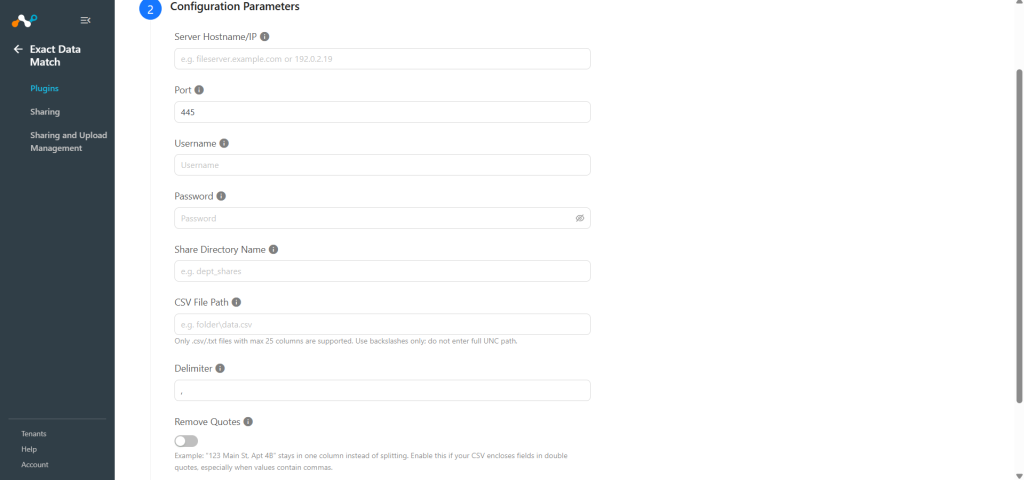
- Click Next and enter the Hash Generation and Sanitization Parameters.
Select les options appropriées pour les opérations d'assainissement et de génération de hachage :
- Sanitization (Name Column): Sanitize the content by checking the Name Column checkbox. (Default: Unchecked). The Sanitization Process performs the following actions:
- One character: The cell will be marked as invalid if it contains only one character.
- Digits: Cells containing digits will be marked as invalid.
- Stopwords: Les cellules correspondant à un mot stopword de la liste seront marquées comme invalides (cela ne fonctionne que si la case Supprimer les mots stopword est activée).
- Non-alphanumeric characters: Remove all special characters to validate the cell.
- La génération de hachages est divisée en deux parties :
- Normalization: Select the value from dropdown to normalize the data value. (Default: None)
- Create Dictionary: Select value from dropdown to create dictionary of unique values for selected field that can be used in DLP rule in netskope tenant. (Default: None)
- Remove Stopwords: Mark as checked if you want to remove certain stopwords as part of the sanitization process.(Default:Unchecked) Ensure that Name Column is checked for the applicable field to reflect the changes.
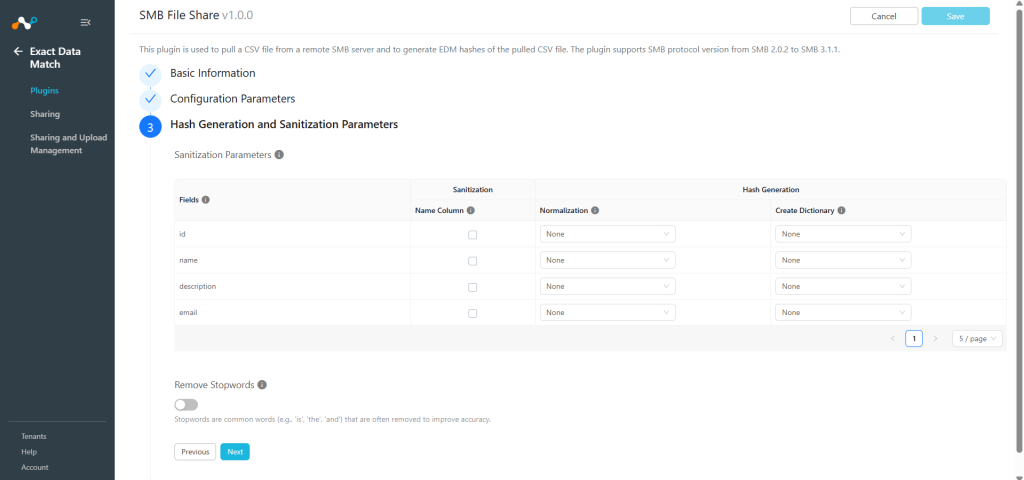
Note
- Paramètre de normalisation utilisateur permettant de normaliser les résultats obtenus. Par exemple, un numéro tel que 123-45-6789 ou 123 45 6789 sera traité comme 123456789. La normalisation des nombres ignore les caractères tels que les points, les tirets et les espaces. Une normalisation de chaîne ignore la sensibilité des lettres majuscules.
- N'utilisez l'option Créer un dictionnaire qu'en cas de nécessité, car cette opération est gourmande en ressources et peut avoir un impact sur les performances du système. Choisissez cette option de manière réfléchie pour une efficacité optimale.
- Sanitization (Name Column): Sanitize the content by checking the Name Column checkbox. (Default: Unchecked). The Sanitization Process performs the following actions:
- Cliquez Next. Prévisualisez le résultat de l'échantillon de désinfection en cliquant sur Preview Good File ou Preview Bad File.
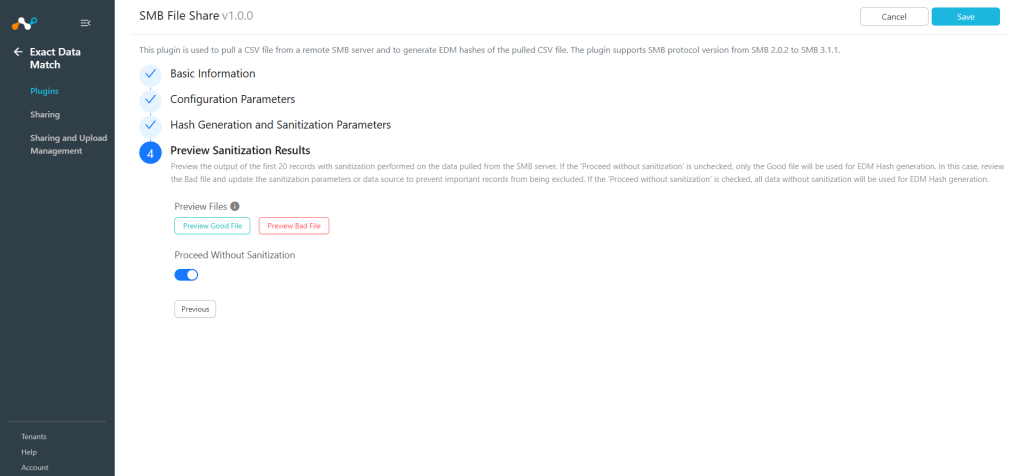
Note
If you are using the plugin with sanitization On, then the performance may be differ due to extra processing.
- Proceed without sanitization: Uncheck this option to proceed with sanitization. (Default: Checked)
Note
All the data will be under consideration for hash generation if this option is Unchecked; otherwise, only the Good File content will be part of the hash generation.
- Proceed without sanitization: Uncheck this option to proceed with sanitization. (Default: Checked)
- Cliquez Save. Vous serez redirigé vers la page « Correspondance exacte des données » > « Extensions » où vous pourrez voir votre extension configurée.
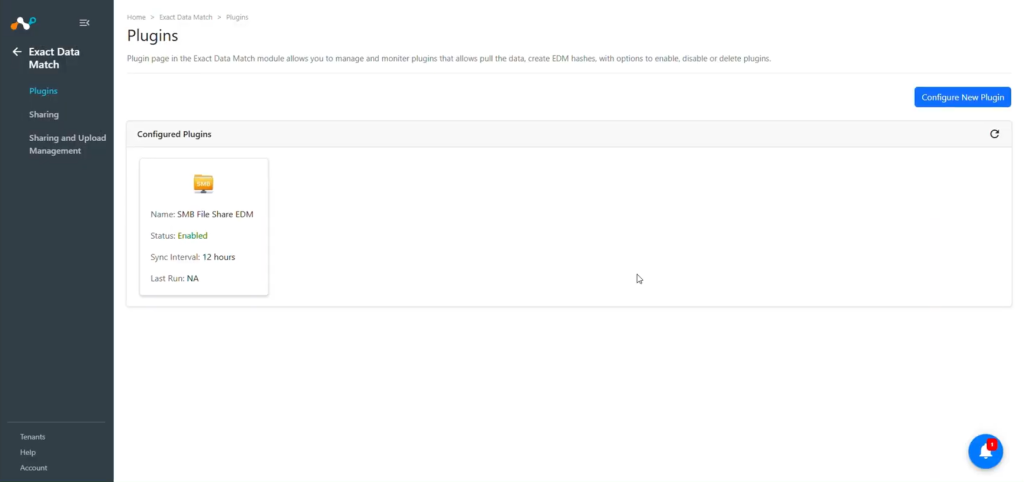


Configure an EDM Sharing Configuration for SMB File Share
Une configuration de partage est utilisée pour partager les hachages EDM générés avec la plate-forme de destination. Pour partager les hachages EDM avec votre locataire Netskope, créez une configuration de partage en suivant ces étapes :
- Allez à Exact Data Match > Sharing et cliquez sur Add Sharing Configuration.
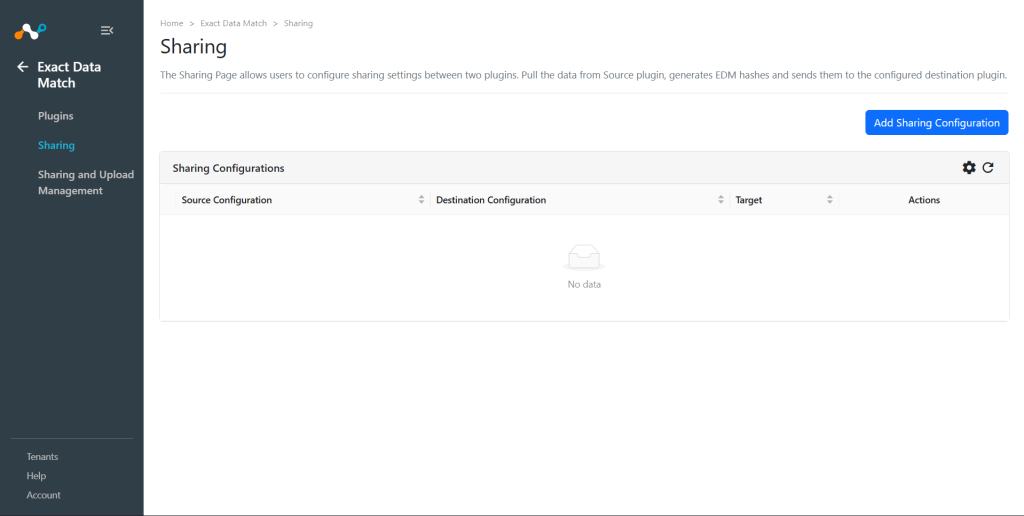
- Configurez les paramètres de partage :
- Source Configuration: Select the configured SMB File Share EDM plugin.
- Destination Configuration: Select une destination où EDM Hash sera partagé.
- Target: La valeur est automatiquement définie en fonction de la configuration de la destination sélectionnée.
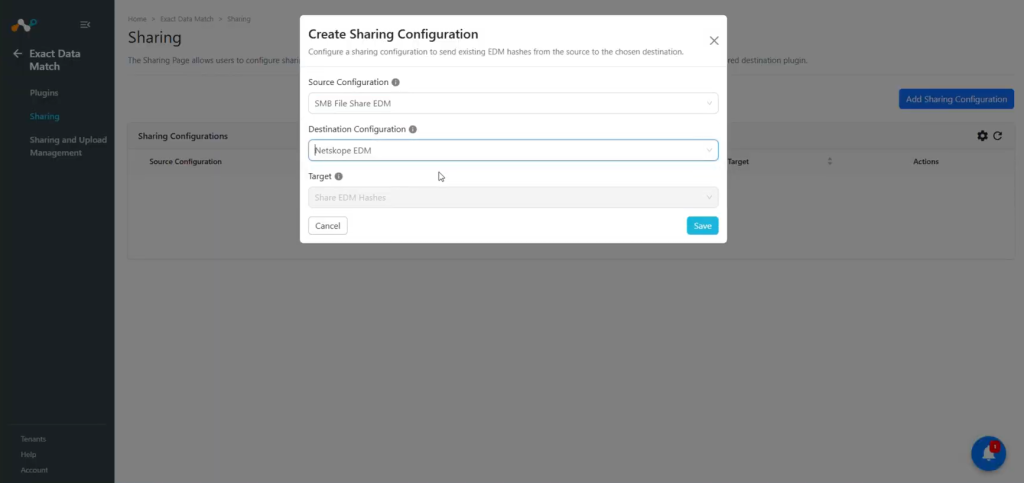
- Cliquez sur Save.


Validate the SMB File Share EDM Plugin
Note
Cloud Exchange ne stocke que temporairement les fichiers CSV de données tirées sensibles jusqu'à ce que le processus de génération de hachage et de téléchargement soit terminé. Ensuite, les fichiers stockés sont automatiquement supprimés.
Valider dans Cloud Exchange
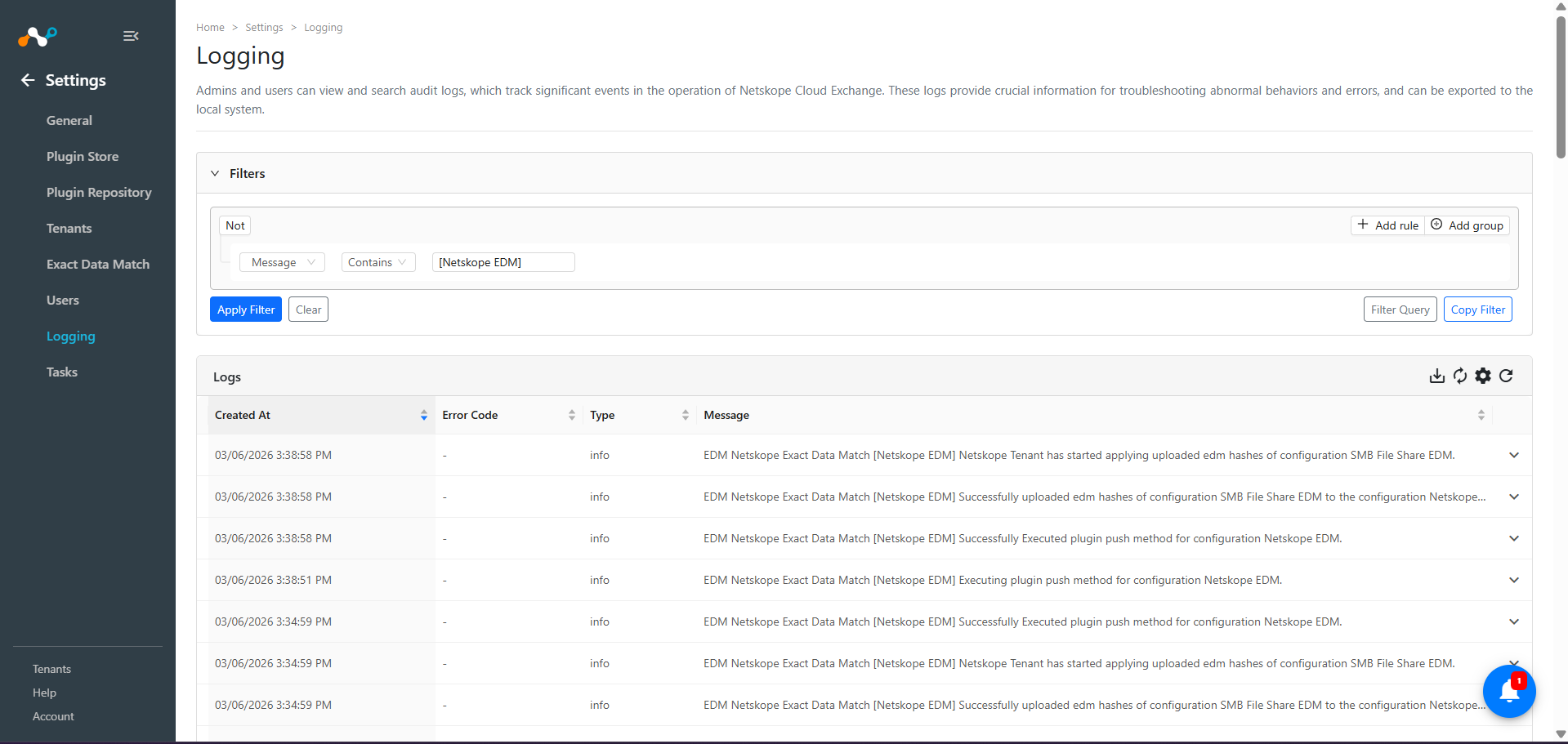
To validate the pulling of the configured plugin in Cloud Exchange, go to Settings > Logging and search for the SMB File Share EDM plugin logs.
You can verify the plugin operation from the logs available at Logging in Cloud Exchange:
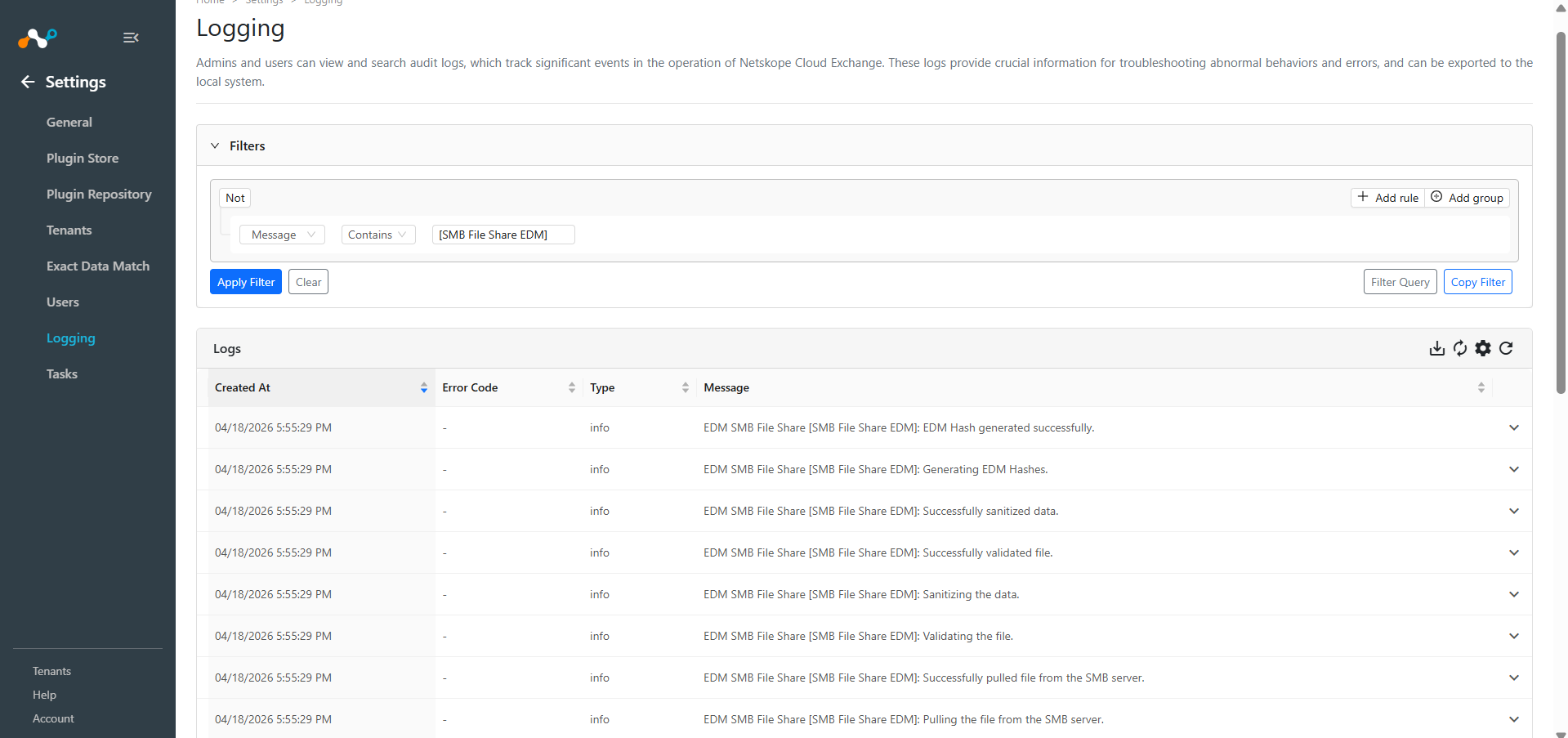
Les valeurs d'état sont les suivantes :
- Scheduled: Indicates that the sharing has been configured, and the pull and push operations are waiting in the queue for processing.
- Generating Hash: Indicates that the hash generation process has started. This stage includes fetching > validating > sanitization (if enabled) > generating hash.
- Uploading Hash: Indicates that uploading the hash to the destination configuration has started.
- Upload Completed: Indique que les hachages sont téléchargés dans la configuration de destination.
- Checking Apply Status: Checking the apply status of hashes to the destination configuration.
- Apply In Progress: The hash process has started and is in progress on the destination.
- Completed: Indicates that the hash file has been pushed successfully to the destination configuration.
- Failed: Indicates that the final result of the action has failed to execute. The actions are Generating Hash/Uploading Hash/Checking Apply Status.
Shared EDM hashes can be verified from the logs available at Logging in Cloud Exchange:
Validate on the Netskope Tenant
Pour garantir la transmission des hachages de GED au locataire Netskope à partir du site Cloud Exchange:
- In the Netskope Tenant, go to Policies > DLP.
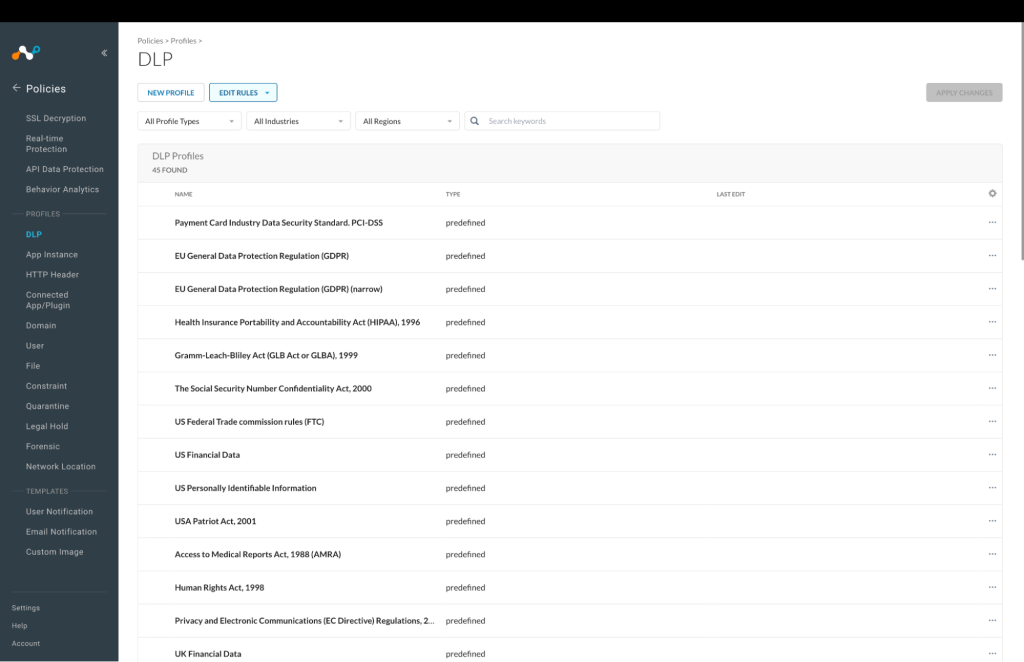
- Cliquez sur Edit Rules et sélectionnez Data Loss Prevention.
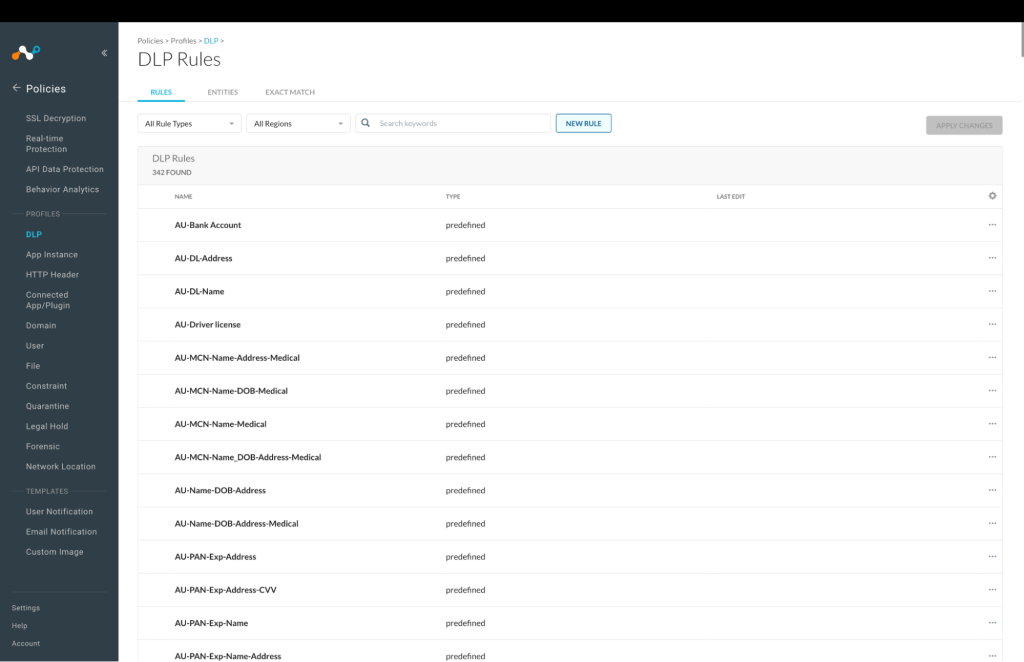
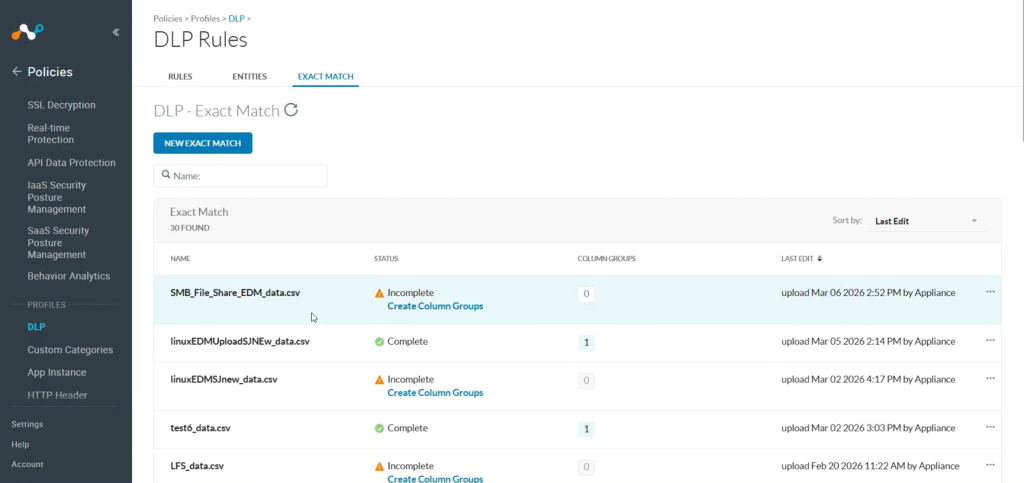
- On the Exact Match tab, a list of files is shown.


Troubleshooting the SMB File Share EDM Plugin
Unable to configure the SMB File Share EDM Plugin
If you are unable to configure the SMB File Share EDM plugin, it could be due to one of the following reasons:
- L'utilisateur n'a pas le droit de lire le fichier CSV.
- Nom d'hôte/adresse IP du serveur incorrects.
- The port is disabled or blocked on the server.
- Network connectivity issues between Cloud Exchange and server.
- The configured SMB server is of version lower than SMB 2.0.2.
What to do:
- Verify credentials are correct.
- Check file permissions on the server.
- Ensure the SSH service is running.
- Verify network connectivity.
- Verify the SMB version configured in the instance, and if it is lower than SMB 2.0.2, upgrade it to version between SMB 2.0.2 to SMB 3.1.1.
Fichier CSV introuvable ou accès refusé
Si vous recevez des messages d'erreur concernant un fichier non trouvé ou un accès refusé :
What to do:
- Vérifiez que le chemin d'accès au fichier CSV est correct et que le fichier existe.
- Assurez-vous que l'utilisateur dispose des droits de lecture pour le fichier.
- Vérifiez que le fichier n'est pas verrouillé par un autre processus.
La génération de hachage échoue ou prend trop de temps
Si la génération de hachage échoue ou si les performances sont médiocres :
What to do:
- Vérifiez l'espace disque disponible sur Cloud Exchange (assurez-vous d'avoir au moins 2x la taille du fichier CSV).
- Réduisez la taille du fichier CSV ou divisez-le en plusieurs fichiers plus petits.
- Désactivez l'assainissement s'il n'est pas nécessaire pour améliorer les performances.
- Surveillez les ressources du système pendant le traitement.
Comportements connus
- L'assainissement peut réduire la vitesse de traitement d'environ 65% mais améliore la qualité des données.
- La création de dictionnaires est gourmande en ressources et ne doit être utilisée qu'en cas de nécessité.
- Le plugin crée des fichiers temporaires pendant le traitement qui sont automatiquement nettoyés.
- Des dépassements de délai de connexion SSH peuvent se produire avec des fichiers très volumineux ; envisagez d'augmenter les valeurs de délai.
- L'utilisation de la mémoire augmente avec la taille du fichier CSV ; surveillez les ressources du système pendant le traitement de fichiers volumineux.
Limites
Each Netskope tenant has a limit of handling up to 5 staging files. If this maximum limit is reached, you may encounter the following error while sharing hashes:
EDM Netskope Exact Data Match [EDM Netskope] Received exit code 400, Error occurred while uploading edm hashes of configuration Linux EDM to the configuration EDM Netskope.
To resolve this error, you have to delete the existing files from staging.