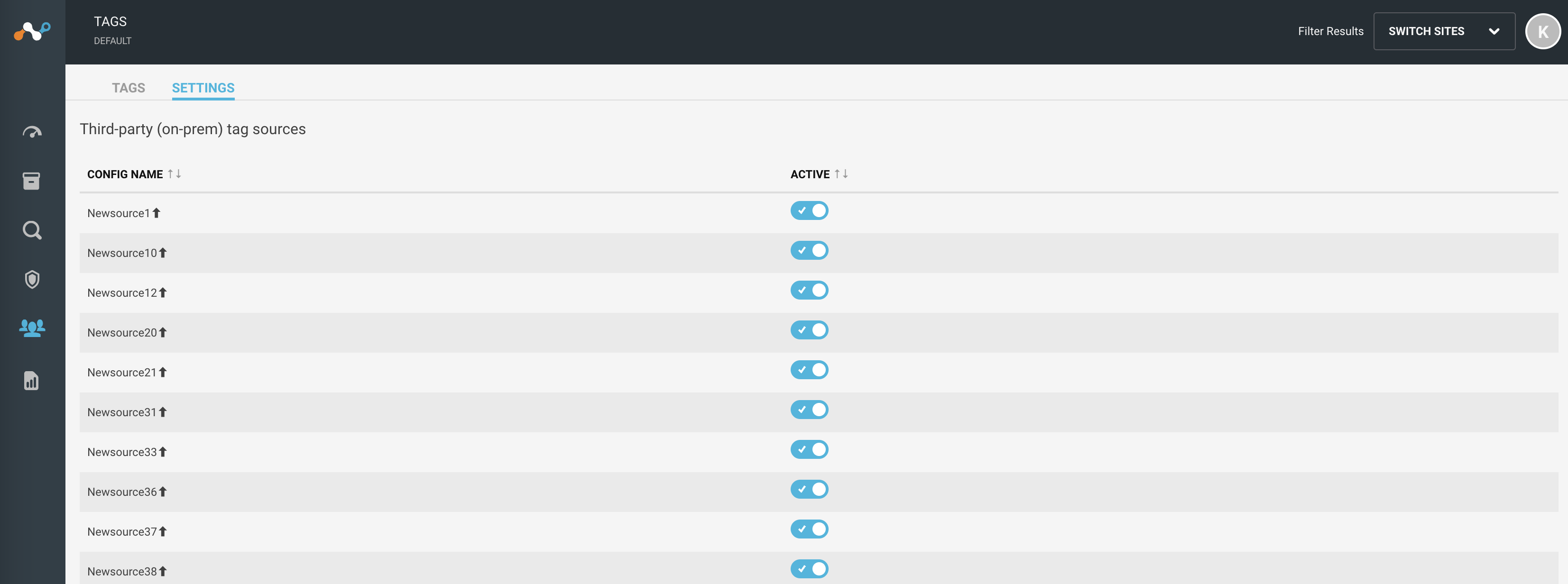
Dans Device Intelligence les utilisateurs peuvent créer des étiquettes et des groupes personnalisés pour bien organiser leurs périphériques. Vous pouvez créer des balises manuellement ou les importer à partir d'intégrations tierces.
Create a New Manual Tag
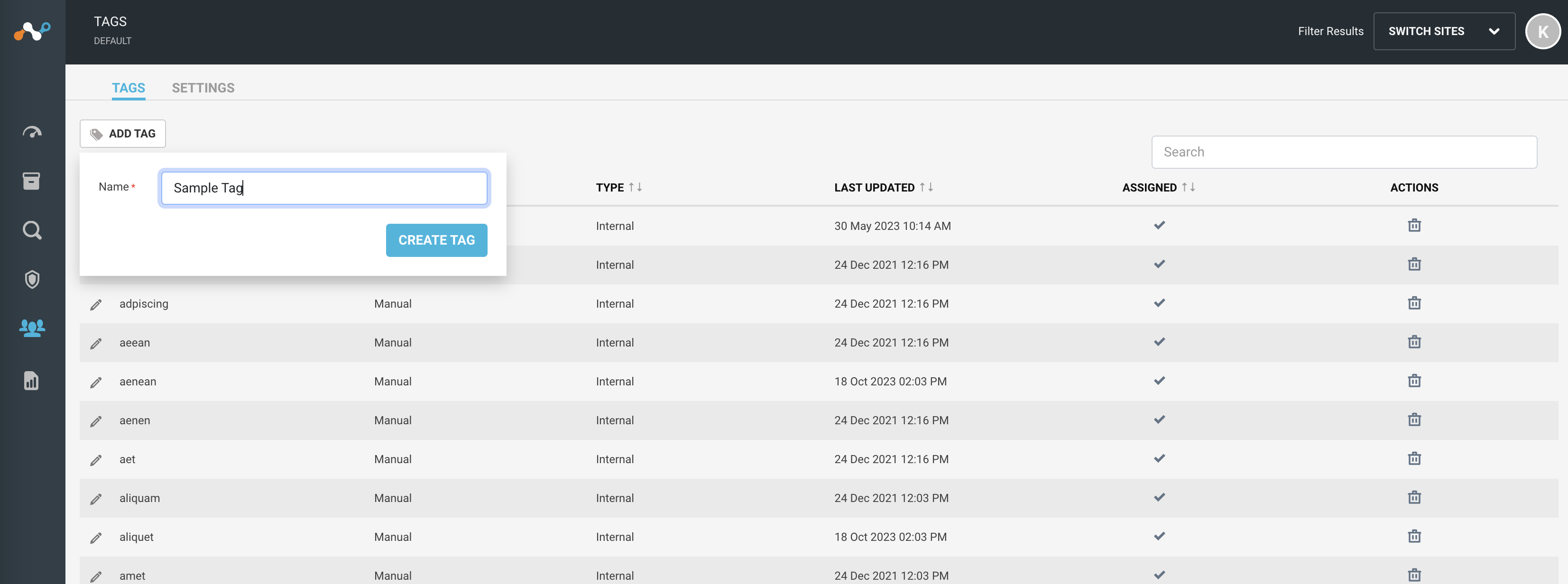
Vous pouvez créer manuellement une New étiquette dans Device Intelligence. Vous pouvez attacher des étiquettes au périphérique pour faciliter sa localisation. Suivez la procédure pour créer une New étiquette manuelle :
- Naviguez vers le menu Manage > Tags . Vous verrez une liste de tags.
- Click on the Add Tag button at the top.
- Donnez un nom unique à l’étiquette.
- Click Create Tag button.
Modifier l’étiquette existante
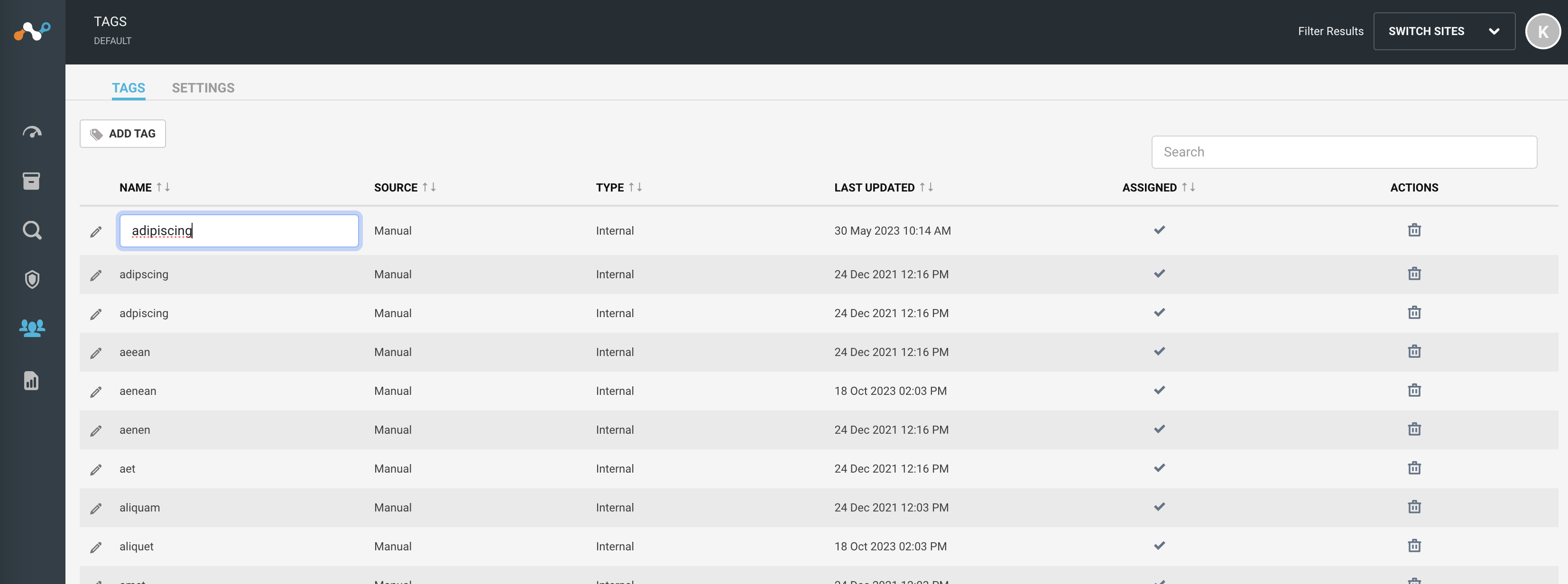
You can edit and delete any existing tag. Follow the procedure to edit any existing tag:
- Naviguez vers le menu Manage > Tags . Vous verrez une liste de tags.
- Click on the pencil icon beside the existing tags from the list of tags.
- Vous pouvez modifier le champ nom du tag.
- Click Save Tag.
Note
Click the Delete icon to delete the selected tag. You can not delete imported or external tags.
Créez un groupe New
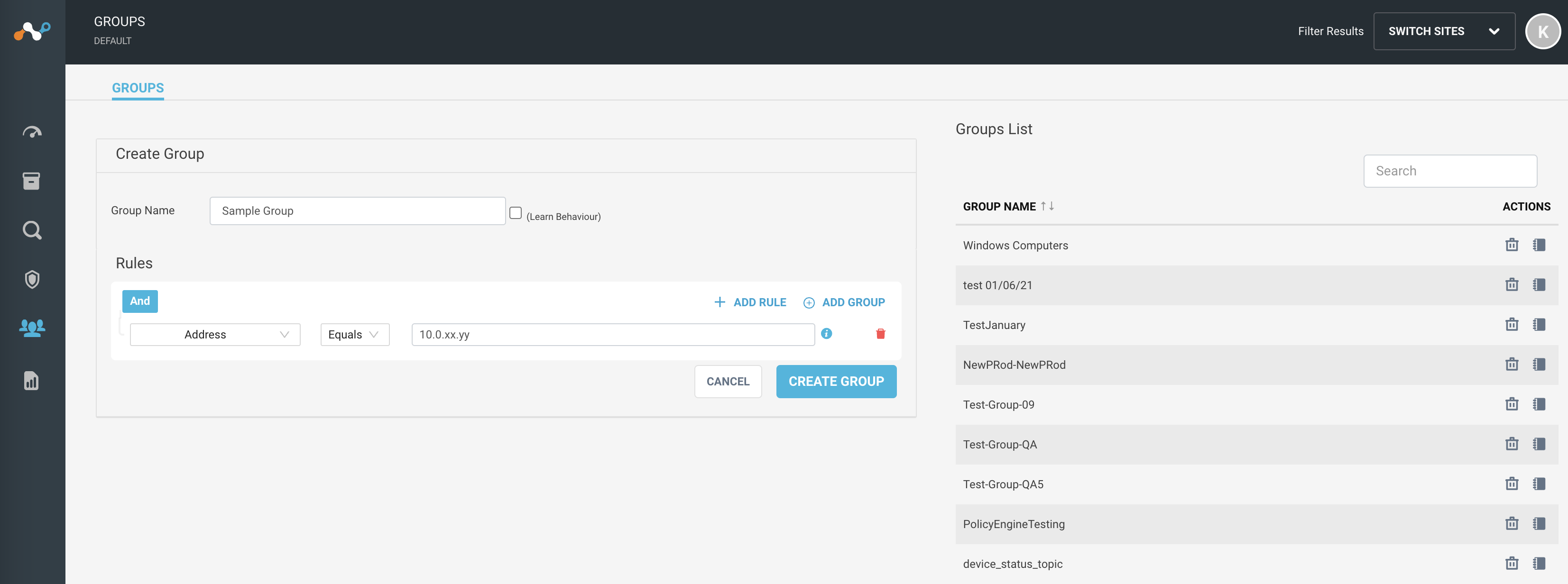
You can create a new group manually in the appliance. You can attach groups to the devices. Follow the procedure to create a new group:
- Naviguez jusqu'au menu Manage > Groups .
- In the Groups tab, you will see the Create Group window.
- Donnez un nom unique au groupe.
- Ajoutez des règles pour le groupe en utilisant les combinaisons « et » et « ou ».
- Click Create Group button.
Note
Click the Cancel button to forbid the action.
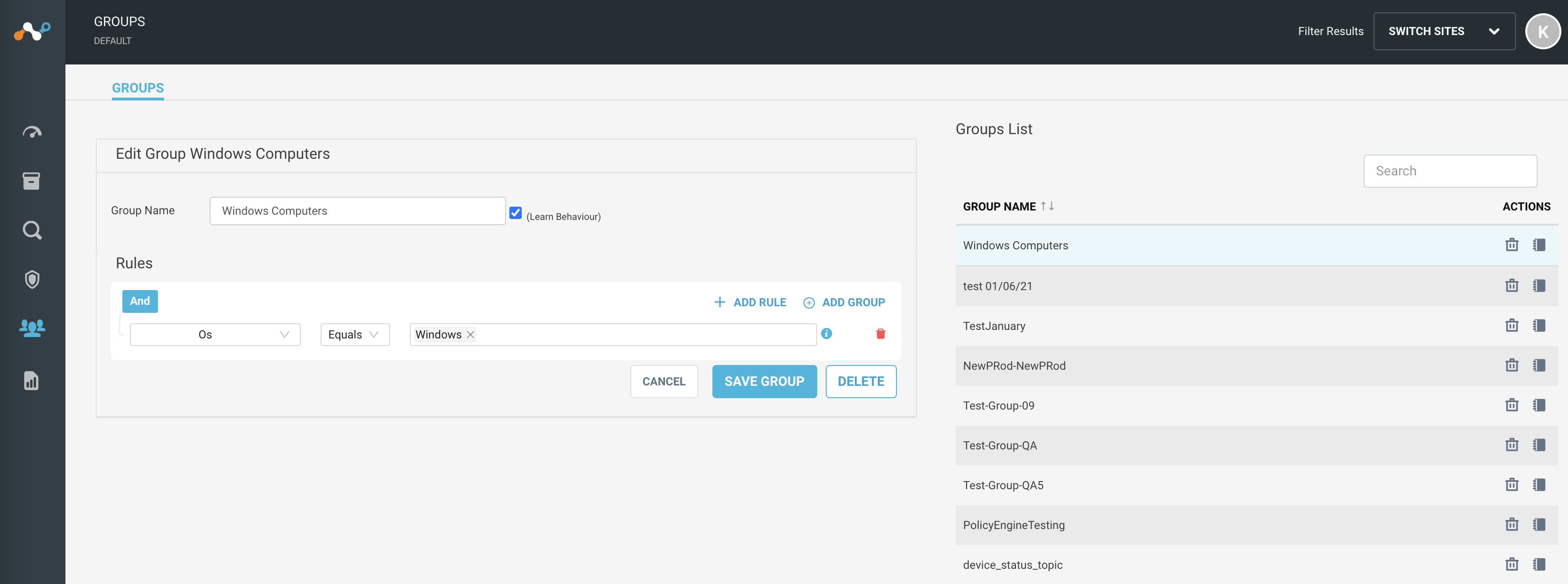
Modifier le groupe existant
Vous pouvez modifier et supprimer n’importe quel groupe existant. Suivez la procédure pour modifier tout groupe existant :
- Naviguez jusqu'au menu Manage > Groups .
- In the Groups tab, select an existing group from the Groups List on the right side pane.
Note
To see the devices satisfying the rule of a group, click on the notebook icon to show the devices.
- You can edit the group name and rules.
- Click Save Group to keep the changes.
Note
Click the Cancel button to forbid the action. Click the Delete button to delete the selected group.
Intégration des tags
Naviguez vers Manage > Tagsonglet Paramètres pour configurer des intégrations tierces afin d’extraire des tags pouvant être utilisés pour taguer périphérique. Les tags extraits d’intégrations tierces ne peuvent pas être modifiés. Vous pouvez activer et désactiver les intégrations de tags pour démarrer et mettre en pause/arrêter de retirer les tags des intégrations.