Overview
This article details the functionality of the Netskope DSPM Classification Management page. We recommend reading more about Netskope DSPM’s approach to Classification Management before proceeding.
Review Classifications
Pour consulter la classification de vos données par Netskope DSPM, rendez-vous sur Classification > Classification Management dans le menu de navigation de gauche.
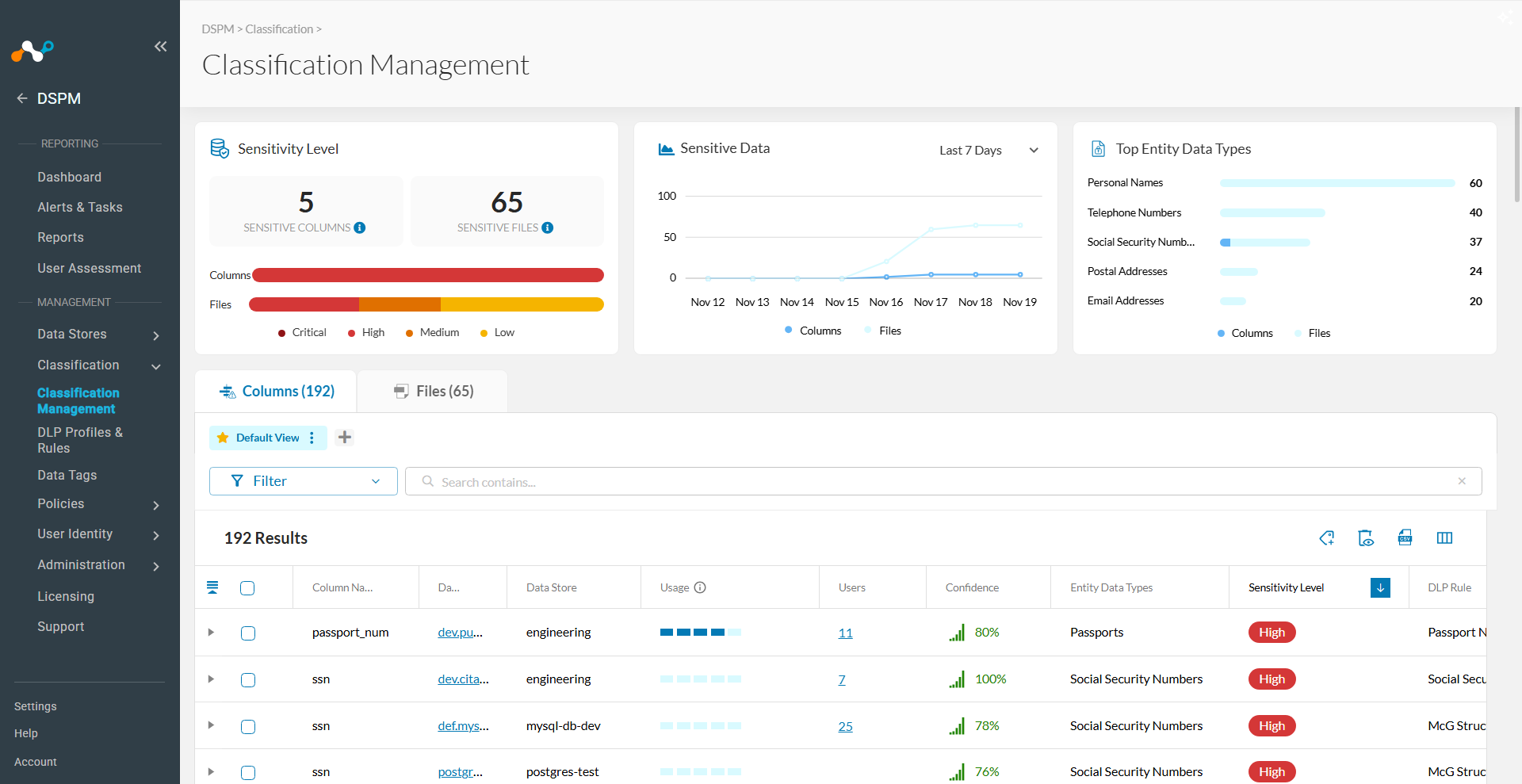
The dashboard at the top of the page provides a high-level summary of your data stores, displaying:
- A summarized view of sensitive fields/files and their sensitivity levels.
- A trend graph showing the growth of sensitive data over time.
- A donut chart breaking down all highly-sensitive fields and files.
Utiliser des filtres
You can narrow down the list view at the bottom of the page using the following filtering methods:
- Quick Filters: Cliquez sur n'importe quel chiffre affiché dans le tableau de bord pour filtrer automatiquement la liste.
- Custom Filters: Cliquez sur le bouton Filter pour créer votre propre vue en utilisant une combinaison des noms de colonnes et de leurs valeurs ou plages associées.
- Clear Filters: Cliquez sur le dustbin icon à côté d’une condition individuelle pour la retirer, ou cliquez sur Clear Filters pour supprimer toutes les conditions et restaurer la liste complète.
Manage Saved Views
Each saved view is a custom configuration of displayed columns and applied filters. You can use them to switch contexts quickly (e.g., researching high-severity fields vs. reviewing unverified classifications) or to repeatedly export specific CSV reports.
Il existe deux types de vues :
- Default View: Affiche les colonnes les plus importantes sans appliquer de filtre.
- Saved Views: Private, user-created views that enforce your specific filters and column layouts.
Saved views appear as clickable boxes within a view ribbon. The currently active view is highlighted in light purple.


How to Manage Your Views
First, configure your desired filters, sorting, and column displays. The “Unsaved Changes” label will appear. From the view ribbon, you can perform the following actions:
Create a New View
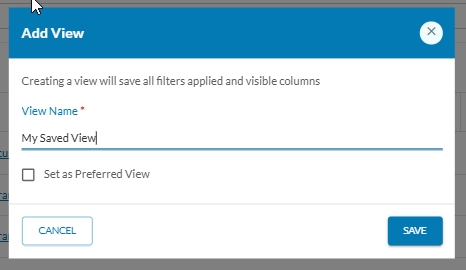
- Cliquez sur le bouton Add (
+). - In the modal, enter a unique name.
- (Optionnel) Vérifiez Set as Preferred View, et cliquez sur Save.
Update an Existing View
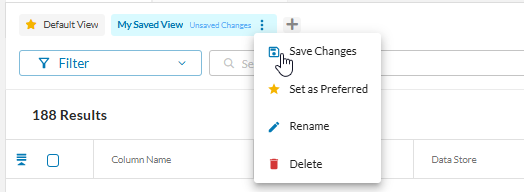
- Select the view.
- Adjust your filters/columns.
- Cliquez sur context menu icon (⋮), puis sélectionnez Save Changes.
Rename a View
- Select the view
- Cliquez sur context menu icon (⋮), puis sélectionnez Rename.
- Mettez à jour le nom et cliquez sur Save.
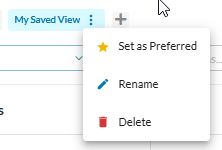
Change the Preferred View
- Select the desired view
- Click the context menu icon (⋮)
- Select Set as Preferred.
Delete a View
- Select the view
- Cliquez sur context menu icon (⋮), puis sélectionnez Delete.
Review Individual Fields
-
If the classification is correct: Cliquez sur l’icône Mark as Reviewed dans la colonne Action. Le bouton devient vert, indiquant aux autres utilisateurs que cette classification a été vérifiée et que toute alerte associée est probablement exacte.
-
If the classification is incorrect: Cochez la case à côté du champ. Utilisez les options du menu déroulant pour ajuster le type, les étiquettes, le niveau de sensibilité et le statut de révision. Cochez la case Reclassify on Next Scan et cliquez sur Save. Le système mettra à jour la classification lors de la prochaine analyse.

-
Bulk Edit: Select multiple rows to tag, review, and reclassify them simultaneously.
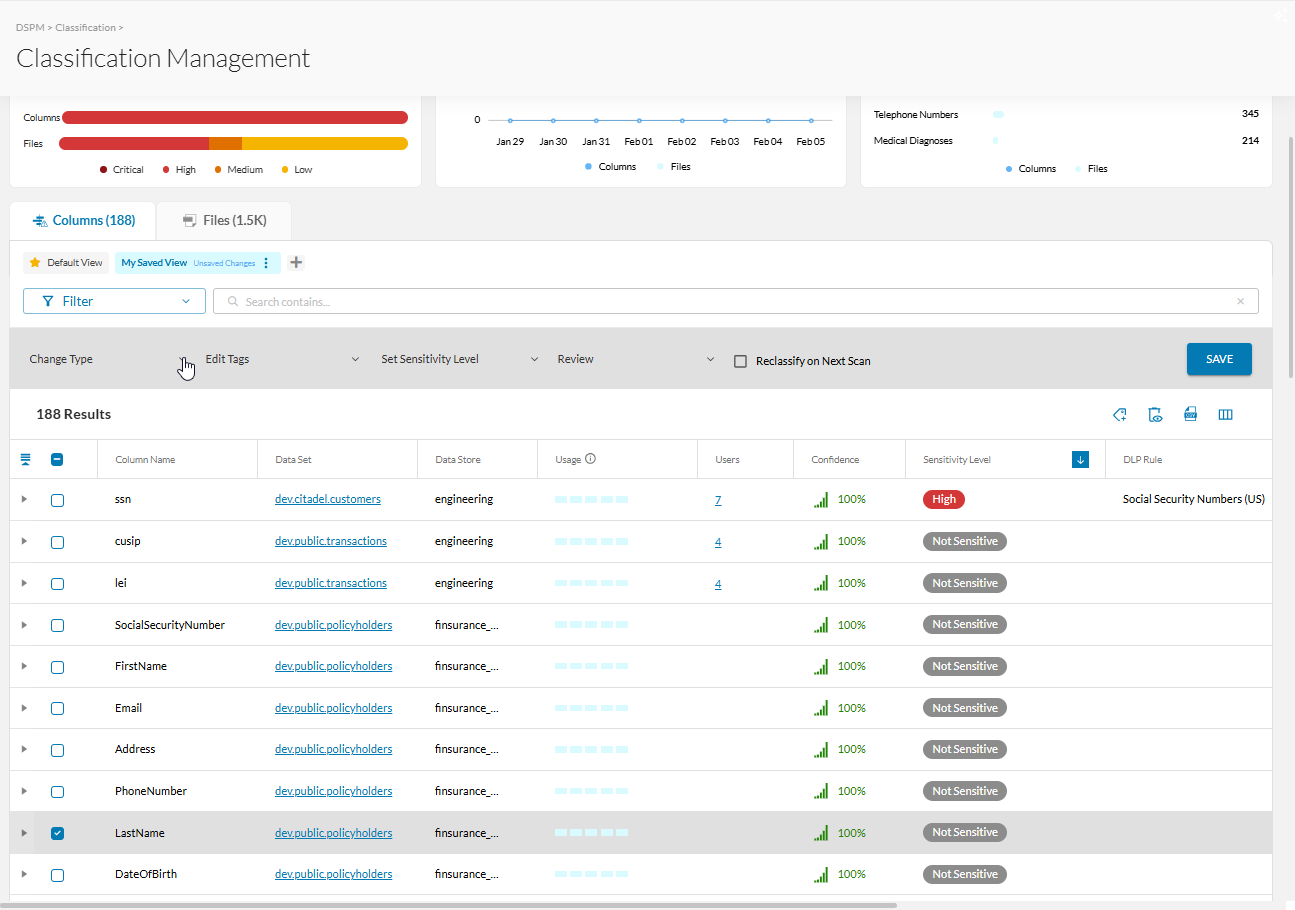
Note on Empty Data: If there are no data samples available for classification, Netskope DSPM will mark the field as “Not Sensitive.” Hover over the supplementary tooltip for more information.
Review Individual Files
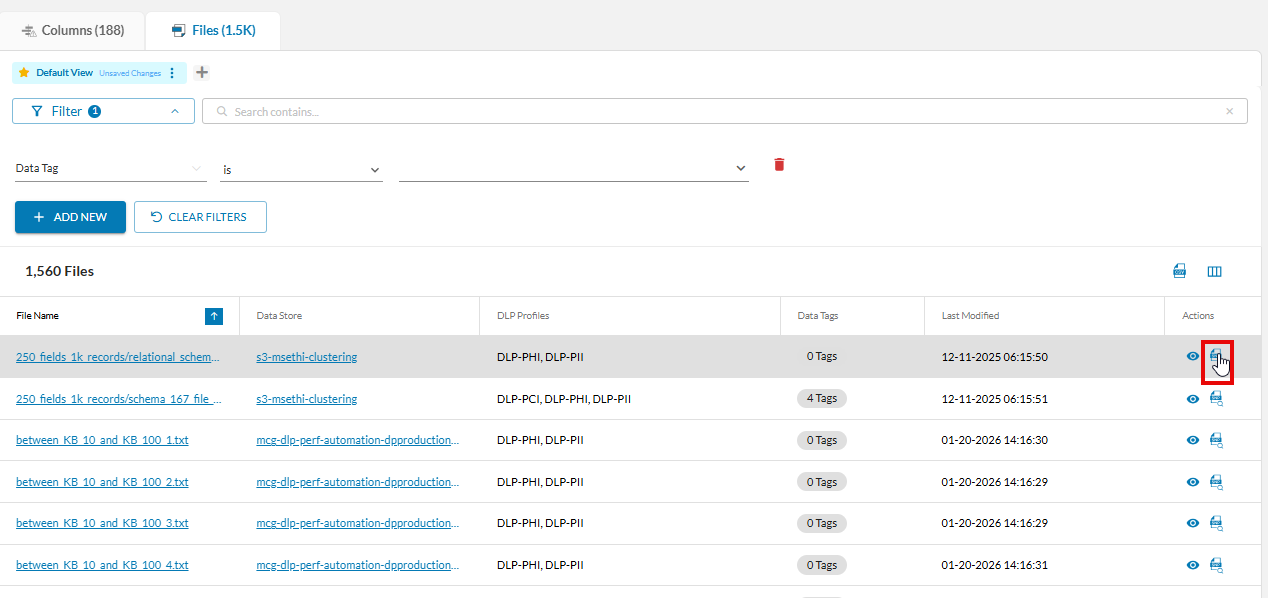
On the Files tab, you can see all Entity Data Types Netskope DSPM has detected within files across connected data stores, including their respective data store names, sensitivity levels, data tags, and occurrence counts. Use the filters to glean more insight based on these column headers.
If you have DSPM > Sampling permission set to View or Manage, the Actions column will display with a Get Snippets icon.
Fetching File Snippets
Lors de la récupération d'extraits, vous pouvez sélectionner des profils DLP (Prévention des pertes de données) spécifiques à analyser. La sélection de profils spécifiques réduit le temps de récupération et améliore la réactivité du système, en particulier dans les environnements comportant un grand nombre de règles.
- Click the Get Snippets icon next to the file you want to inspect.
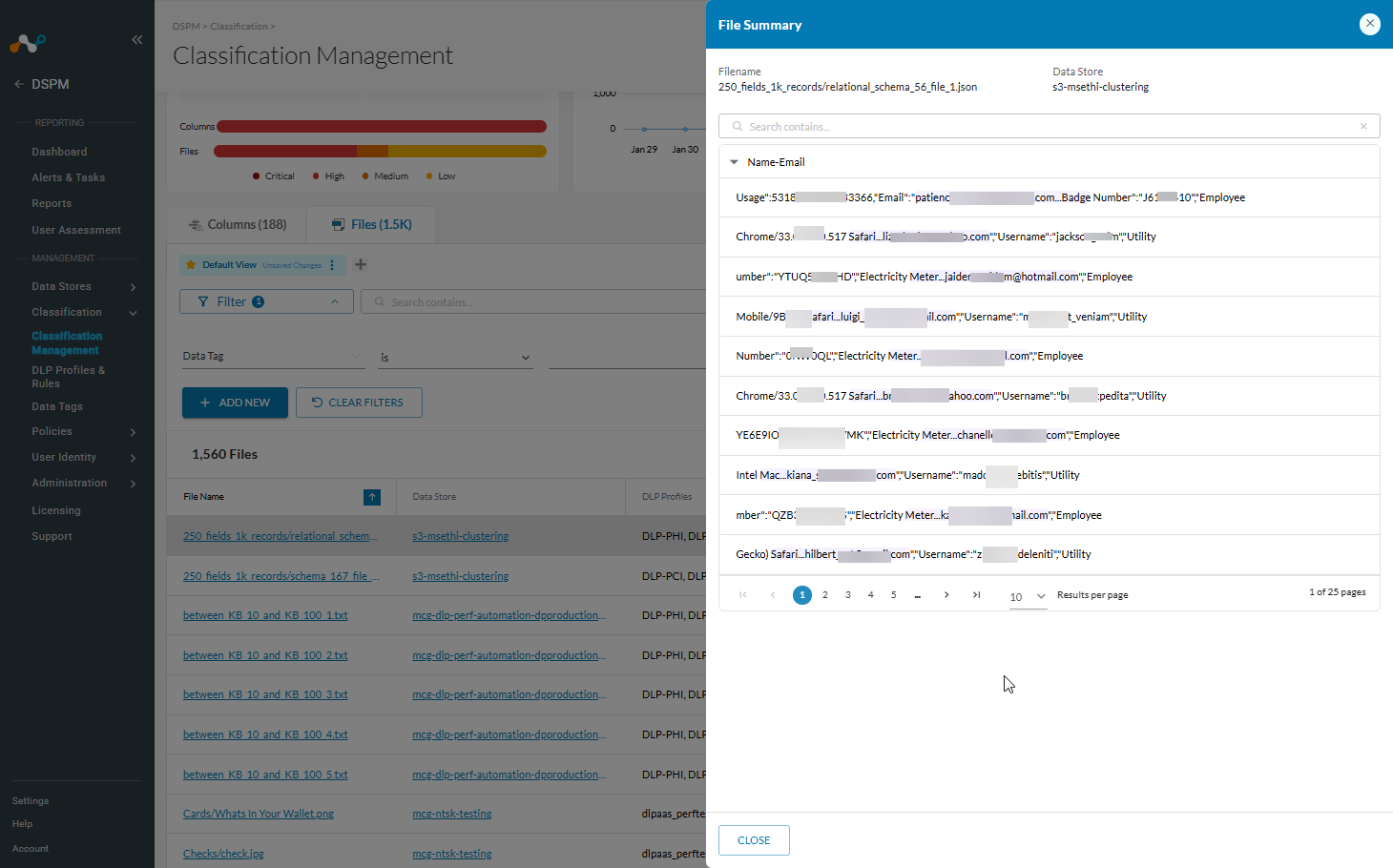
- In the snippets drawer, select the specific DLP Profiles you want to include in the fetch. The system lets you choose from the profiles that originally classified the file or the current DSPM Discovery Profile.
- Start the snippet fetch.
Netskope DSPM retrieves and displays the file data classified under your selected profiles, grouped by DLP Profile or DLP Rule. The matching data highlights in purple alongside its surrounding context.
Be aware that the returned snippets might not meet your expectations if:
-
You changed the selected DLP Rules since the last scan.
-
The file contents changed and no longer match the selected DLP Rules.
If you inspect an archive file, an additional control lists the archive’s individual contents. Select this to limit the classifications to just that file.
Use External Tags
Netskope DSPM supports ingesting tags from GCP Policy Taxonomies and Snowflake tags. If you have any GCP Projects or Snowflake Data Stores configured to ingest tags, any object-to-tag associations we discover will be regularly synced to their equivalent Netskope DSPM Classification Fields.
These associations cannot be changed within Netskope DSPM. Please update your configurations within the appropriate cloud platform console if you need to add, edit, or delete them. To learn more, visit our Data Tags article.
View User Access Information
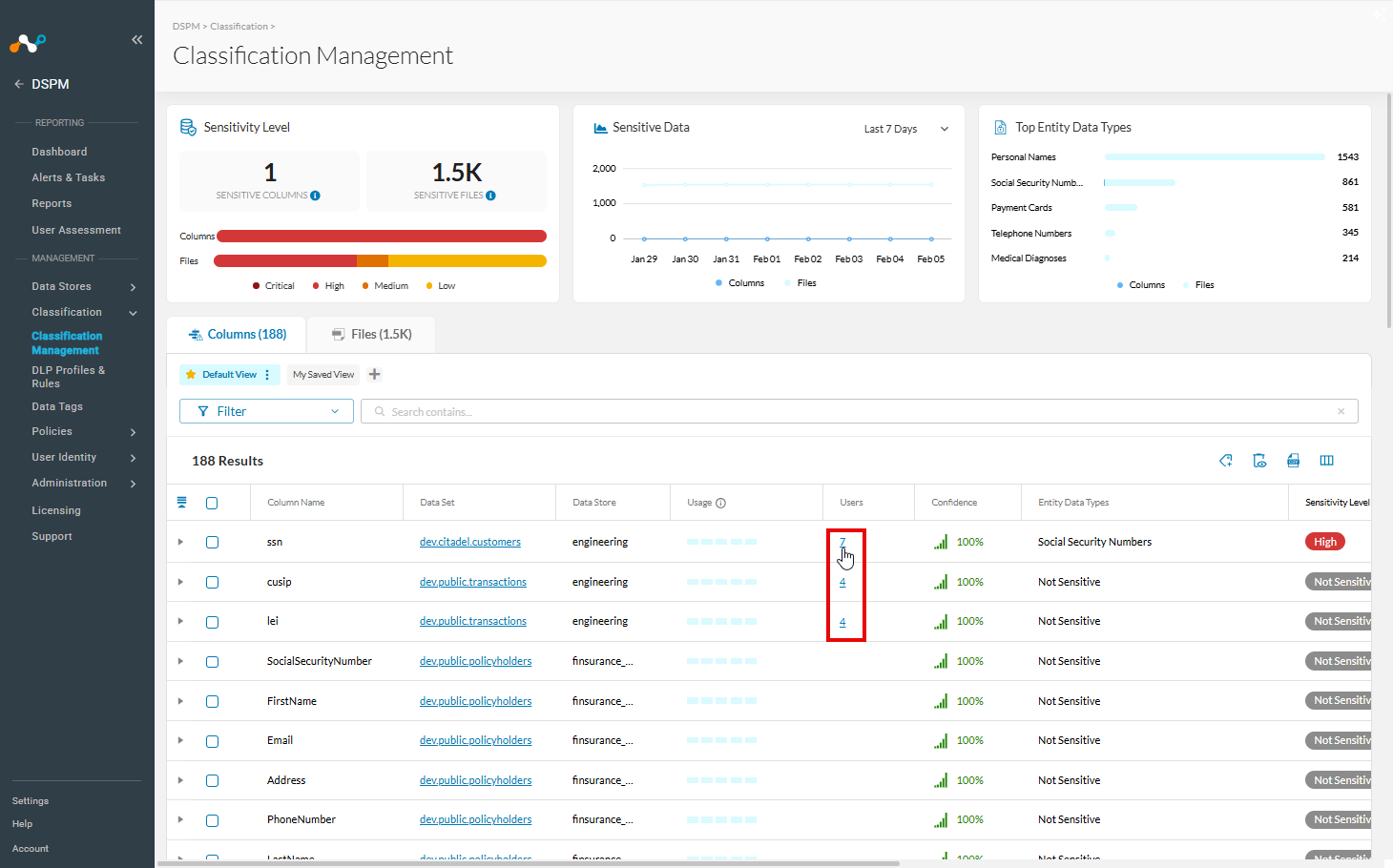
Netskope DSPM displays the number of users accessing specific fields. Clicking on this count displays additional user information to help you analyze access control.