

Privileged Remote Access (PRA) enables secure, clientless browser access to RDP and SSH applications with policy-based session governance and just-in-time credential injection.
Use PRA to:
- Provide administrators and third parties with controlled RDP/SSH access without a VPN client.
- Record privileged sessions for audit and compliance.
- Inject vaulted credentials so end users never see passwords or keys.
Conditions préalables
- Netskope Private Access is enabled in your tenant.
- Target RDP and SSH applications are defined as private app segments in NPA.
- Les politiques de protection en temps réel (RTP) sont configurées pour autoriser l'accès à ces segments d'application privés.
How PRA Works
- RTP policies decide whether a user can access a private app segment (allow/deny).
- PRA policies apply session-level controls to sessions that are already allowed.
- PRA can:
- Record or not record sessions for specific users/groups and apps/tags.
- Inject credentials for specific users/groups and apps/tags.
- Both RTP and PRA policies are evaluated in their own policy lists.
Access decision: RTP policy
Session governance: PRA policy (session recording and credential injection)
Configure PRA Policies
- Va sur Policies > Private Access > Privileged Remote Access Control.
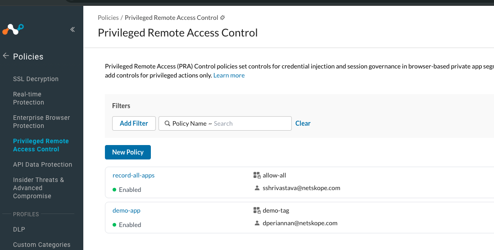
- Create a PRA Policy
- Click New Policy. You are prompted to choose a policy type:
- Session Governance: Gestion des sessions RDP/SSH privilégiées. Utilisez ce type pour contrôler si les sessions sont enregistrées.
- Credential Injection: Activer l'injection d'identifiants RDP/SSH privilégiés. Utilisez ce type pour injecter des informations d'identification stockées dans les sessions.
- Under Criteria (all criteria sections are AND’ed together):
- Source: Select les utilisateurs ou les groupes.
- Destination: Select les segments/balises d'application privée .
- Sous Action:
- For a Session Governance policy: toggle Record Session on or off.
- For a Credential Injection policy: select the Credential Object to inject.
- Sous General:
- Saisissez un Name et Description facultatif.
- Set Policy Position to control evaluation order.
- Set Status to Enabled.
Configure Credential Objects
Before you can configure credential injection in a PRA policy, you must create one or more credential objects. A credential object stores the privileged RDP or SSH credentials in the Netskope Vault so they can be automatically injected into sessions.
Create a Credential Object
- Allez sur Policies > Profiles > Privileged Remote Access Control Credentials.
- Click New Credential. A side panel opens with the following fields:
- Credential Object Name (required): A descriptive name for this credential (for example, Windows Admin RDP or Linux Root SSH).
- Description (facultatif) : Contexte supplémentaire concernant la certification.
- Vault: Select Netskope (default).
- Type: Choisissez RDP ou SSH:
If RDP is selected:
-
- Username (obligatoire)
- Password (obligatoire, masqué avec bouton afficher/masquer)
- Domain (optional)
If SSH is selected, choisissez une méthode d’authentification :
-
- Password: Entrer Username (obligatoire) et Password (obligatoire, masqué).
- Private Key: Entrez Username (obligatoire), collez ou téléchargez le Private Key et entrez éventuellement un Passphrase.
- Click Save. The credential object appears in the credentials listing table.
Edit a Credential Object
- On the Privileged Remote Access Control Credentials page, locate the credential card.
- Cliquez sur le menu à trois points (⋮) de la carte et sélectionnez Edit.
- Mettez à jour les champs si nécessaire et cliquez Save.
Delete a Credential Object
- Cliquez sur le menu à trois points (⋮) sur la carte d'identification et sélectionnez Delete.
- Confirm the deletion.
Note: You cannot delete a credential object that is currently linked to a PRA policy. Remove the credential from any associated policies before deleting it.
Verify PRA Behavior
- Use the configured access method (for example, Browser Access or Enterprise Browser) to launch the RDP/SSH app.
- Verify the user successfully reaches the target app.
- If recording is enabled, check for any recording indicator in the session UI.
- If credential injection is enabled, verify the session establishes without the user manually entering credentials (when configured that way).
- Validation
- Allez sur Events > Network Events.
- Filter for PRA-related events.
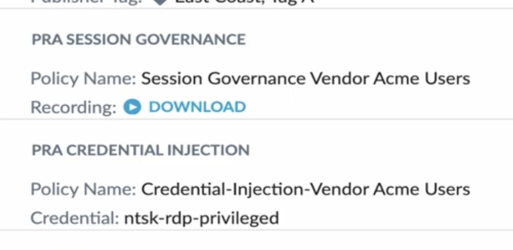
- Open the event for the test session and confirm:
- The action reflects the expected PRA policy.
- A recording download is available when session recording is enabled (after processing completes).
FAQs
Does PRA policy replace existing RTP access policy?
No, RTP policies continue to control allow/deny decisions; PRA policies add session-level controls on top of already-allowed sessions.
Can I apply both recording and credential injection to the same app segment?
Yes, you can configure separate policies for the same app segment: one for session governance to enforce recording and another for credential injection.
Do users ever see the injected credentials?
No, credentials are not exposed to end users.