

DLPスキャンおよび脅威対策(マルウェアスキャン)のためにAzureのBlobストレージを構成するには、サブスクリプション所有者またはグローバル管理者としてAzureポータルにログインし、以下のタスクを構成する必要があります。
Microsoft Entra ID アプリケーションを作成する
Microsoft Entra ID アプリケーションを作成するには、以下の手順に従ってください。
- portal.azure.comにログインしてください。
- ナビゲート先 All services > Identity > Microsoft Entra ID
- App registrationsをクリックしてください。

- + New registrationをクリックして、以下の詳細を入力してください。
- Nameアプリケーション名を入力してください。
- Supported account types: デフォルトの選択をAccounts in this organizational directory onlyのままにします。
- Redirect URL (optional)ここは空欄のままにしてください。
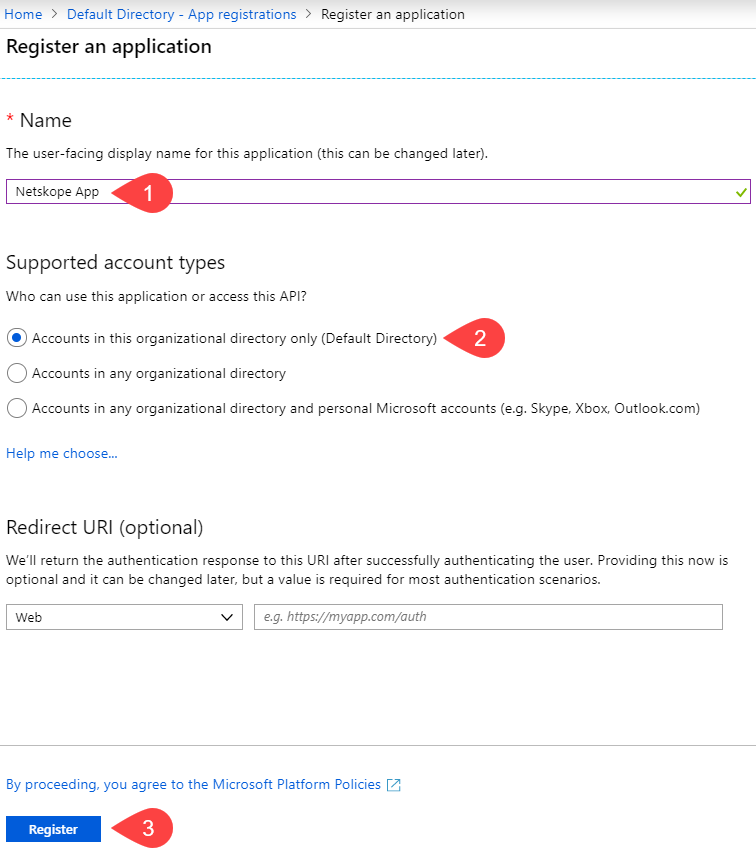
- Registerをクリックしてください。
詳細については、こちらのMicrosoft Azureのドキュメントを参照してください。
アプリケーションIDとディレクトリIDを取得します。
Microsoft Entra ID アプリケーションを登録すると、ページは Microsoft Entra ID アプリケーションOverviewページにリダイレクトされます。Application (client) IDとDirectory (tenant) IDをメモしてください。

注記
これらの値は、Netskope UIでAzureアプリケーションインスタンスを設定する際に必要になります。
AzureEventGridSecureWebhookSubscriber ロールを作成します
Netskopeインスタンスに対してJWTトークンの検証を許可する、事前定義済みのAzureロールAzureEventGridSecureWebhookSubscriberを作成します。このロールは、手順 1で作成したアプリケーションの Microsoft Entra ID クレデンシャルを使用して、JWT トークンを検証します。
AzureEventGridSecureWebhookSubscriberロールを作成するには、
azure_webhook_role.ps1スクリプトをローカルにコピーしてください。# NOTE: Before run this script ensure you are logged in Azure by using "az login" command. $webhookAppObjectId = "[REPLACE_WITH_YOUR_ID]" $eventSubscriptionWriterAppId = "[REPLACE_WITH_YOUR_APPLICATION_ID]" # Start execution try { # Creates an application role of given name and description Function CreateAppRole([string] $Name, [string] $Description) { $appRole = New-Object Microsoft.Open.AzureAD.Model.AppRole $appRole.AllowedMemberTypes = New-Object System.Collections.Generic.List[string] $appRole.AllowedMemberTypes.Add("Application"); $appRole.AllowedMemberTypes.Add("User"); $appRole.DisplayName = $Name $appRole.Id = New-Guid $appRole.IsEnabled = $true $appRole.Description = $Description $appRole.Value = $Name; return $appRole } # Creates Azure Event Grid Azure AD Application if not exists $eventGridAppId = "4962773b-9cdb-44cf-a8bf-237846a00ab7" # You don't need to modify this id $eventGridRoleName = "AzureEventGridSecureWebhookSubscriber" # You don't need to modify this role name $eventGridSP = Get-AzureADServicePrincipal -Filter ("appId eq '" + $eventGridAppId + "'") if ($eventGridSP -match "Microsoft.EventGrid") { Write-Host "The Azure AD Application is already defined.`n" } else { Write-Host "Creating the Azure Event Grid Azure AD Application" $eventGridSP = New-AzureADServicePrincipal -AppId $eventGridAppId } # Creates the Azure app role for the webhook Azure AD application $app = Get-AzureADApplication -ObjectId $webhookAppObjectId $appRoles = $app.AppRoles Write-Host "Azure AD App roles before addition of the new role..." Write-Host $appRoles if ($appRoles -match $eventGridRoleName) { Write-Host "The Azure Event Grid role is already defined.`n" } else { Write-Host "Creating the Azure Event Grid role in Azure AD Application: " $webhookAppObjectId $newRole = CreateAppRole -Name $eventGridRoleName -Description "Azure Event Grid Role" $appRoles.Add($newRole) Set-AzureADApplication -ObjectId $app.ObjectId -AppRoles $appRoles } Write-Host "Azure AD App roles after addition of the new role..." Write-Host $appRoles # Creates the user role assignment for the app that will create event subscription $servicePrincipal = Get-AzureADServicePrincipal -Filter ("appId eq '" + $app.AppId + "'") $eventSubscriptionWriterSP = Get-AzureADServicePrincipal -Filter ("appId eq '" + $eventSubscriptionWriterAppId + "'") if ($null -eq $eventSubscriptionWriterSP) { Write-Host "Create new Azure AD Application" $eventSubscriptionWriterSP = New-AzureADServicePrincipal -AppId $eventSubscriptionWriterAppId } try { Write-Host "Creating the Azure AD Application role assignment: " $eventSubscriptionWriterAppId $eventGridAppRole = $app.AppRoles | Where-Object -Property "DisplayName" -eq -Value $eventGridRoleName New-AzureADServiceAppRoleAssignment -Id $eventGridAppRole.Id -ResourceId $servicePrincipal.ObjectId -ObjectId $eventSubscriptionWriterSP.ObjectId -PrincipalId $eventSubscriptionWriterSP.ObjectId } catch { if( $_.Exception.Message -like '*Permission being assigned already exists on the object*') { Write-Host "The Azure AD Application role is already defined.`n" } else { Write-Error $_.Exception.Message } Break } # Creates the service app role assignment for Event Grid Azure AD Application $eventGridAppRole = $app.AppRoles | Where-Object -Property "DisplayName" -eq -Value $eventGridRoleName New-AzureADServiceAppRoleAssignment -Id $eventGridAppRole.Id -ResourceId $servicePrincipal.ObjectId -ObjectId $eventGridSP.ObjectId -PrincipalId $eventGridSP.ObjectId # Print output references for backup Write-Host ">> Webhook's Azure AD Application Id: $($app.AppId)" Write-Host ">> Webhook's Azure AD Application ObjectId Id: $($app.ObjectId)" } catch { Write-Host ">> Exception:" Write-Host $_ Write-Host ">> StackTrace:" Write-Host $_.ScriptStackTrace }- Azureポータルにログインしてください。Microsoft Entra ID アプリケーション管理者ロールでログインするか、Microsoft Entra ID の Webhook アプリのサービス プリンシパルの所有者である必要があります。これらはAzureによって定義された標準ロールです。
詳細については、https://docs.microsoft.com/en-us/azure/active-directory/roles/permissions-reference#all-roles を参照してください。
- Azure ポータルの左側のナビゲーション バーで、 Cloud Shellボタンをクリックし、 PowerShellを選択します。
- 使う Azure PowerShell を開いて、スクリプト内のパラメータを
azure_webhook_role.ps1開いて更新してください。$webhookAppObjectId = "REPLACE_WITH_OBJECT_ID_OF_APPLICATION" $eventSubscriptionWriterAppId = "[REPLACE_WITH_YOUR_APPLICATION_ID]" Refer to Get the Application ID and Directory ID $webhookAadTenantId = "REPLACE_WITH_YOUR_TENANT_ID"
- 以下のコマンドを入力して、Microsoft Entra ID アカウントをテナント ID に接続し、スクリプト
azure_webhook_role.ps1を実行します。Connect-AzureAD -TenantId $webhookAadTenantId ./azure_webhook_role.ps1

AzureEventGridSecureWebhookSubscriber役割は、Azure アプリの登録ページで確認できます。この役割はデフォルトで有効になっています。
認証キーを取得する
認証キーを取得するには、以下の手順に従ってください。
- Microsoft Entra ID アプリケーションページの左側のナビゲーションバーで、 Certificates & secretsをクリックします。
- Client secretsの下で+ New client secretをクリックし、以下の詳細を入力してください。
- Description: キーのデスク リプションを提供します。
- Expiresキーの有効期間を設定します。
- Addをクリックしてください。

- 設定変更を保存したら、 Client secretsの下にあるキー値(シークレットIDではない)をコピーしてください。

重要
このページを離れるとキー値にアクセスできなくなるため、必ずキー値をコピーしてください。Netskope UIでAzureアプリケーションインスタンスを設定する際に、キー値が必要になります。
詳細については、こちらのMicrosoft Azureのドキュメントを参照してください。
Microsoft Entra IDアプリケーションに役割を割り当てる
注記
Netskopeは、このMicrosoft Entra IDアプリケーションからアクセス可能なすべてのサブスクリプションをスキャン用に設定します。Microsoft Entra ID アプリケーションがスキャン対象とするサブスクリプションのみに限定されるようにしてください。
役割を割り当てるには、以下の手順に従ってください。
- portal.azure.comにログインしてください。
- All services > General > Subscriptionsへ移動してください。

- Subscriptionsページで、リストから該当する購読プランをクリックしてください。
- 複数のサブスクリプションを設定する場合は、それらを管理グループにグループ化し、管理グループ内で役割を割り当ててください。管理グループに新しいサブスクリプションを追加すると、Netskopeは自動的にそのサブスクリプションを検出し、設定に従ってスキャンを実行します。
- Access control (IAM)をクリックしてください。
- + Add > Add role assignmentをクリックしてください。
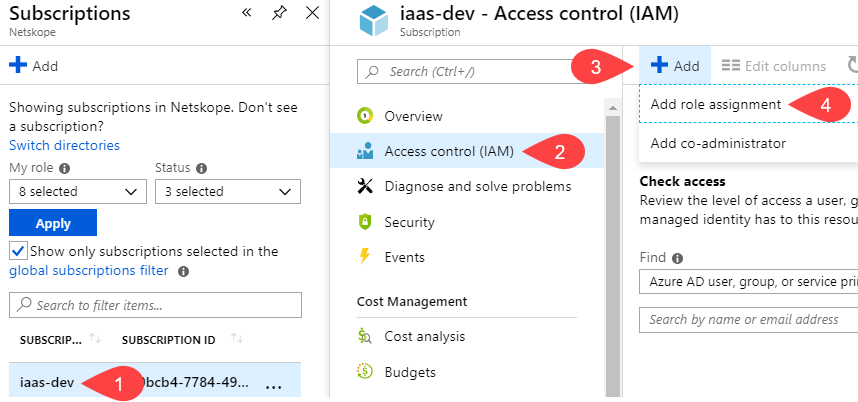
ステップ 3/4: データ保護のための Azure アクセス許可の割り当てで指定された役割とアクセス許可を割り当てます。
詳細については、こちらのMicrosoft Azureのドキュメントを参照してください。