A write-access user can manage Risk Exchange schemas and their fields.
View Risk Exchange Entities
View and edit any of the created entities and their fields.
- Go to Risk Exchange > Schema Editor.
- A list of all the available fields in the selected entity will be displayed.
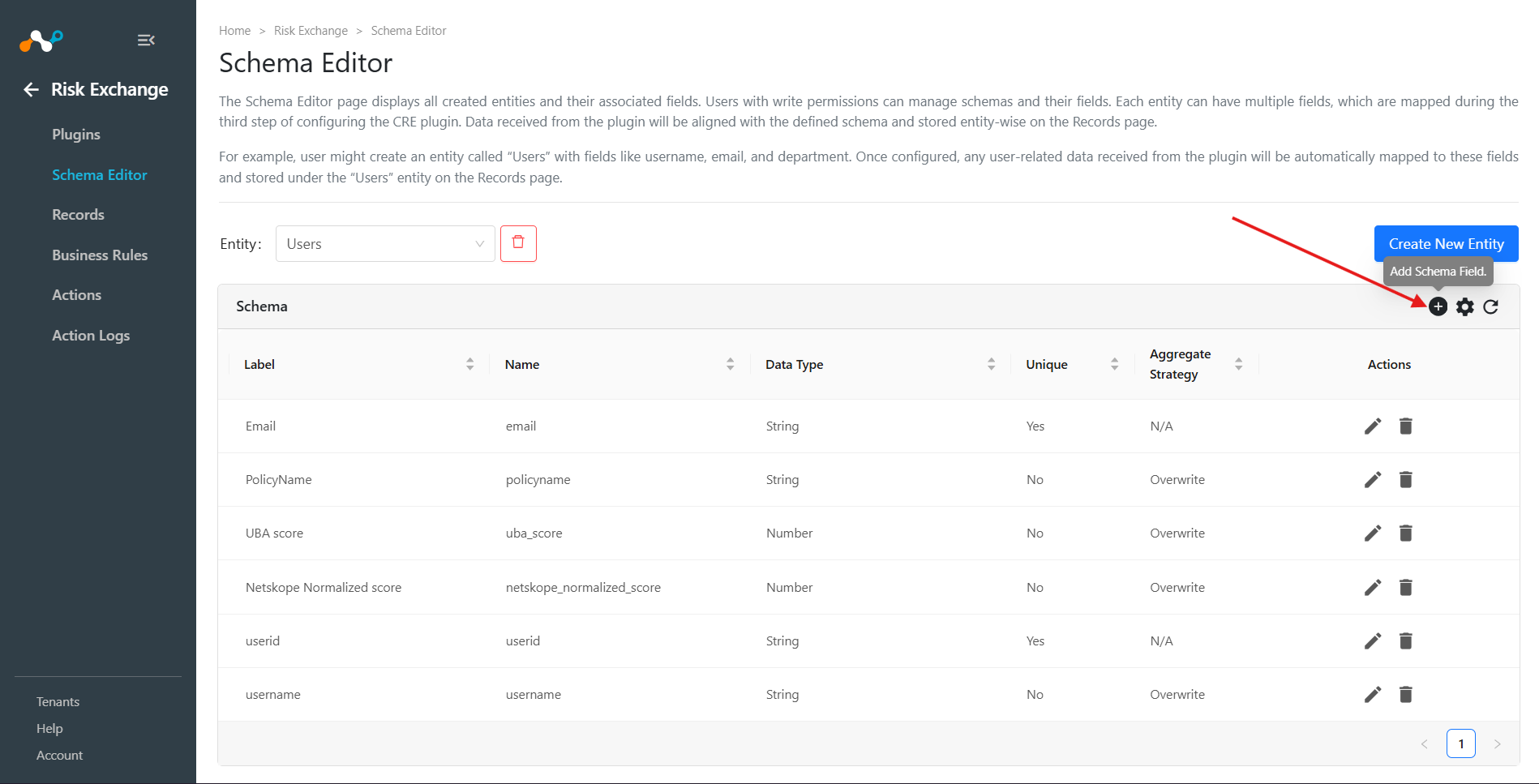
Create New Fields
A write-access user can create Risk Exchange entity fields. The supported data types for the fields are:
- String: For text-based values.
- Number: For numeric values.
- Boolean: For
trueorfalsevalues. - List: For a list of values.
- Calculated: For values that are computed from a mathematical expression involving other numeric fields.
- Datetime: For date and time values.
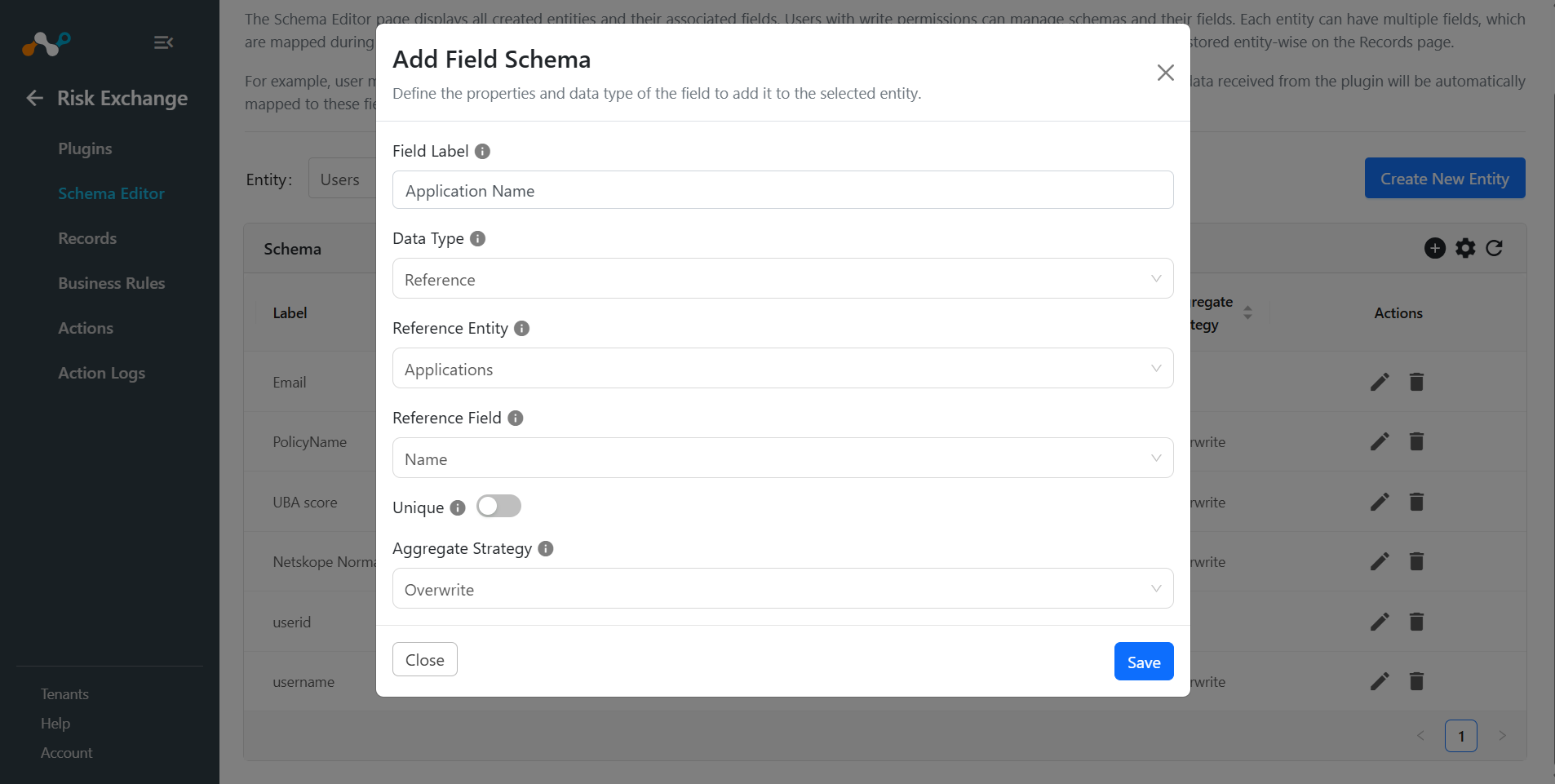
- Reference: To link to a unique field in another entity.
- Value Map String: To map string values from a selected field to new string values.
- Value Map Number: To map number values from a selected field to new number values.
- Range Map: To map a range of numbers to a specific value.
String Field Normalization
For String fields, you can optionally configure normalization to store a consistent value when source plugins provide the same value in different formats (for example, user emails with different letter cases).
- Supported normalization types:
- None (default): Stores values as received.
- Lowercase: Converts values to lowercase before storing.
- Uppercase: Converts values to uppercase before storing.
- Titlecase: Converts values to title case format before storing.
- Storage behavior:
- Risk Exchange stores one normalized value for matching and deduplication.
- Risk Exchange also preserves plugin-specific original values to support downstream plugin-specific update and action workflows.
- Important notes:
- Normalization applies only to
Stringfields. - After a normalized field is created, changing its normalization type is not supported.
Appendaggregate strategy is not supported for normalized string fields.
- Normalization applies only to
Boolean Field Type
A boolean field can be used to store true or false values for an entity.
- Boolean fields are stored and displayed as boolean values.
- Boolean fields do not support aggregate strategy.
- During CSV import, accepted values are
trueandfalse(case-insensitive). - Boolean fields can be used in record filters and business rules where a true/false condition is required.
Filtering Mappings
When working with Value Map String, Value Map Number, or Range Map fields, you can filter the list of mappings to easily view their status.
- Unmapped Fields: Shows only the values that have not yet been mapped.
- All Fields: Displays all available mappings.
- Mapped Fields: Shows only the values that have been mapped.
Field Properties
When creating or editing a field, you can configure the following properties:
- Unique: Enable this toggle to ensure that each record has a distinct value for this field. If multiple fields are marked as unique, their combination must be unique for each record.
- Aggregate Strategy: This property defines how to handle new values when a record is updated. The available strategies are:
- Append: Adds the new value to the existing value.
- Overwrite: Replaces the existing value with the new value.
Aggregate Strategy does not apply to Boolean fields.
Calculated Field Type
A calculator field can be used to create a single numeric value by using one or more numeric fields in a mathematical expression.

Value Map String Field Type
A value map string field can be used to convert string values to other string values. When you select a field to map, the system automatically fetches the existing values for that field, making it easier to define the mappings.
Value Map Number Field Type
A value map number field can be used to convert string values to numeric values. When you select a field to map, the system automatically fetches the existing values for that field, making it easier to define the mappings.

Range Map Field Type
A range map field can be used to convert a numerical range into a string value.

Reference Field Type
The Reference field type allows you to link an entity to another entity by referencing a unique field. This creates a relationship between the two entities, allowing you to access related data.