

This document explains how to configure the SentinelOne v1.4.0 plugin with the Threat Exchange module of the Netskope Cloud Exchange platform. This plugin fetches IoCs of type SHA256 and MD5 file hash from the Incidents page in SentinelOne. This plugin supports sharing SHA256, MD5, URL, IPv4, IPv6 and DNS(Domain, Hostname, and FQDN) to Threat Intelligence.
Note that the indicators shared via Cloud Exchange won’t be shown on SentinelOne. One can verify the shared IoCs via endpoint: <SentinelOne Base URL>/web/api/v2.1/threat-intelligence/iocs.
Prerequisites
To complete this configuration, you need:
- A Netskope tenant (or multiple, for example, production and development/test instances).
- A File Profile configured on your Netskope tenant.
- A Netskope Cloud Exchange tenant with the Tenant plugin and Threat Exchange plugin already configured.
- A SentinelOne API Account or Global account.
- Connectivity to the following host: SentinelOne platform.
For example: https://usea1-partners.sentinelone.net.
SentinelOne Plugin Support
This plugin fetches IoCs of type SHA256 and MD5 file hash from the Incidents page in SentinelOne. This plugin supports sharing SHA256, MD5, URL, IPv4, IPv6 and DNS(Domain, Hostname, and FQDN) to Threat Intelligence.
| Fetched Indicator Types | Shared Indicator Types |
|---|---|
| SHA256, MD5 | SHA256, MD5, URL, IPv4, IPv6, DNS(Domain, Hostname, and FQDN) |
Mappings
Pull Mappings
| Cloud Exchange Fields | SentinelOne Fields |
|---|---|
| value | fileSha256 |
| comments | classification, confidenceLevel, engines |
| firstSeen | createdAt |
| lastSeen | updatedAt |
| tags | analystVerdictDescription |
| extraInformation | {SentinelOne_URL}/analyze/threats/{id}/overview |
Push Mappings
| Cloud Exchange Fields | SentinelOne Fields |
|---|---|
| value | value |
| type | type |
| value | externalId |
| firstseen | creationTime |
| expireAt | validUntill |
| comments | description |
Permissions
Here are the permissions needed for the successful execution of the plugin.
- Accounts: view
- Groups: view
- Roles: view
- Sites: view
- Endpoint threats: view, Fetch Threat File
- Threat Intelligence: view, Manage
API Details
List of APIs used
| API Endpoint | Method | Use Case |
|---|---|---|
| /web/api/v2.1/sites | GET | Fetch Site IDs. |
| /web/api/v2.1/threats | GET | Fetch Indicators and check for modified Indictators. |
| /web/api/v2.1/threat-intelligence/iocs | POST | Push Indicators. |
| /web/api/v2.1/threat-intelligence/iocs | DELETE | Delete Indicators. |
Fetch Site IDs
API Endpoint: https://<SENTINEL TENANT>/web/api/v2.1/sites
Method: GET
Headers
| Key | Value |
|---|---|
| Authorization | ApiToken <TOKEN> |
| User Agent | netskope-ce-6.0.1-cte-sentinelone-v1.4.0 |
Parameters
| Key | Value |
|---|---|
| name | Site Name |
Sample API Response
{
    "data": {
        "allSites": {
            "activeLicenses": 7,
            "totalLicenses": 25
        },
        "sites": [
            {
                "accountId": "1268419425097944269",
                "accountName": "Netskope",
                "activeLicenses": 7,
                "createdAt": "2021-10-17T02:02:58.519858Z",
                "creator": "Sandeep Minhas",
                "creatorId": "1170348439571106212",
                "description": null,
                "expiration": null,
                "externalId": "97e5ca8f-5ad4-cb4a-7ef8-9d27a2557175",
                "healthStatus": true,
                "id": "1268419425114721486",
                "isDefault": true,
                "licenses": {
                    "bundles": [
                        {
                            "displayName": "Core",
                            "majorVersion": 1,
                            "minorVersion": 6,
                            "name": "core",
                            "surfaces": [
                                {
                                    "count": 25,
                                    "name": "Total Agents"
                                }
                            ],
                            "totalSurfaces": 25
                        }
                    ],
                    "modules": [
                        {
                            "displayName": "Ranger",
                            "majorVersion": 1,
                            "name": "ranger"
                        }
                    ],
                    "settings": [
                        {
                            "displayName": "365 Days",
                            "groupName": "malicious_data_retention",
                            "setting": "365 Days",
                            "settingGroup": "malicious_data_retention",
                            "settingGroupDisplayName": "Malicious Data Retention"
                        },
                        {
                            "displayName": "Available",
                            "groupName": "marketplace_access_status",
                            "setting": "Available",
                            "settingGroup": "marketplace_access_status",
                            "settingGroupDisplayName": "Marketplace Access"
                        },
                        {
                            "displayName": "Account",
                            "groupName": "account_level_ranger",
                            "setting": "Account",
                            "settingGroup": "account_level_ranger",
                            "settingGroupDisplayName": "Ranger Consolidation Level"
                        }
                    ]
                },
                "name": "Default site",
                "registrationToken": "eyJ1cmwiOiAiaHR0cHM6Ly91c2VhMS1wYXJ0bmVycy5zZW50aW5lbG9uZS5uZXQiLCAic2l0ZV9rZXkiOiAiYjVjYTA0ZDVlYjc0MjA0MyJ9",
                "siteType": "Paid",
                "sku": "Core",
                "state": "active",
                "suite": "Core",
                "totalLicenses": 25,
                "unlimitedExpiration": true,
                "unlimitedLicenses": false,
                "updatedAt": "2024-01-23T12:37:22.573745Z"
            }
        ]
    },
    "pagination": {
        "nextCursor": null,
        "totalItems": 1
    }
}
Fetch Indicators and check for Modified Indicators
API Endpoint: https://<SENTINEL TENANT>/web/api/v2.1/sites
Method: GET
Headers
| Key | Value |
|---|---|
| Authorization | ApiToken <TOKEN> |
| User Agent | netskope-ce-6.0.1-cte-sentinelone-v1.4.0 |
Parameters
| updatedAt__gte | 2023-02-02T08:30:37.680000Z |
| updatedAt__lte | 2023-02-09T08:47:37.680000Z |
| analystVerdicts | true_positive,suspicious,false_positive,undefined |
| limit | 100 |
| siteIds | 1268419425114721486 |
{
  "data": [
    {
      "agentDetectionInfo": {
        "accountId": "1268419425097944269",
        "accountName": "Netskope",
        "agentDetectionState": "full_mode",
        "agentDomain": "NETSKOPE",
        "agentIpV4": "10.0.2.82,198.19.83.174",
        "agentIpV6": "",
        "agentLastLoggedInUpn": null,
        "agentLastLoggedInUserMail": null,
        "agentLastLoggedInUserName": "",
        "agentMitigationMode": "detect",
        "agentOsName": "Windows Server 2016 Datacenter",
        "agentOsRevision": "14393",
        "agentRegisteredAt": "2024-01-11T09:37:33.558245Z",
        "agentUuid": "919bda8871934b289fcd3f0b1ee3b2b6",
        "agentVersion": "23.3.3.264",
        "assetVersion": "264",
        "cloudProviders": {
          "AWS": {
            "awsRole": null,
            "awsSecurityGroups": [
              "Workspace"
            ],
            "awsSubnetIds": [
              "subnet-0b0533f1bb462f7bf",
              "subnet-0216a3836557c718f"
            ],
            "cloudAccount": "517168379634",
            "cloudImage": "ami-0fbea36fd7bd4f5fe",
            "cloudInstanceId": "i-036e160c50b977ee7",
            "cloudInstanceSize": "t3.medium",
            "cloudLocation": "ap-southeast-1",
            "cloudNetwork": "vpc-0fc65d8a5f3774876",
            "cloudTags": [
              "Endpoint does not have sufficient permissions to fetch tags"
            ]
          }
        },
        "externalIp": "18.140.109.245",
        "groupId": "1268419425123110095",
        "groupName": "Default Group",
        "siteId": "1268419425114721486",
        "siteName": "Default site"
      },
      "agentRealtimeInfo": {
        "accountId": "1268419425097944269",
        "accountName": "Netskope",
        "activeThreats": 0,
        "agentComputerName": "WSAMZN-FE0FUJ90",
        "agentDecommissionedAt": true,
        "agentDomain": "NETSKOPE",
        "agentId": "1860065221432363061",
        "agentInfected": false,
        "agentIsActive": false,
        "agentIsDecommissioned": true,
        "agentMachineType": "server",
        "agentMitigationMode": "detect",
        "agentNetworkStatus": "connected",
        "agentOsName": "Windows Server 2016 Datacenter",
        "agentOsRevision": "14393",
        "agentOsType": "windows",
        "agentUuid": "919bda8871934b289fcd3f0b1ee3b2b6",
        "agentVersion": "23.3.3.264",
        "groupId": "1268419425123110095",
        "groupName": "Default Group",
        "networkInterfaces": [
          {
            "id": "1860065221499471932",
            "inet": [
              "198.19.83.174"
            ],
            "inet6": [

            ],
            "name": "Ethernet 3",
            "physical": "06:36:49:72:4c:84"
          },
          {
            "id": "1860065221482694715",
            "inet": [
              "10.0.2.82"
            ],
            "inet6": [

            ],
            "name": "Ethernet 4",
            "physical": "06:29:ab:f6:cd:3e"
          }
        ],
        "operationalState": "na",
        "rebootRequired": false,
        "scanAbortedAt": null,
        "scanFinishedAt": null,
        "scanStartedAt": "2024-01-11T09:39:41.493730Z",
        "scanStatus": "started",
        "siteId": "1268419425114721486",
        "siteName": "Default site",
        "storageName": null,
        "storageType": null,
        "userActionsNeeded": [

        ]
      },
      "containerInfo": {
        "id": null,
        "image": null,
        "isContainerQuarantine": null,
        "labels": null,
        "name": null
      },
      "ecsInfo": {
        "clusterName": null,
        "serviceArn": null,
        "serviceName": null,
        "taskArn": null,
        "taskAvailabilityZone": null,
        "taskDefinitionArn": null,
        "taskDefinitionFamily": null,
        "taskDefinitionRevision": null,
        "type": null,
        "version": null
      },
      "id": "1860067293510813906",
      "indicators": [
        {
          "category": "Abnormalities",
          "description": "The Entry point for this binary is an RWX section. It might contain self-modifying code",
          "ids": [
            32
          ],
          "tactics": [

          ]
        },
        {
          "category": "Abnormalities",
          "description": "This binary has an RWX section. It might contain self-modifying code",
          "ids": [
            33
          ],
          "tactics": [

          ]
        },
        {
          "category": "General",
          "description": "This binary imports debugger functions",
          "ids": [
            6
          ],
          "tactics": [

          ]
        }
      ],
      "kubernetesInfo": {
        "cluster": null,
        "controllerKind": null,
        "controllerLabels": null,
        "controllerName": null,
        "isContainerQuarantine": null,
        "namespace": null,
        "namespaceLabels": null,
        "node": null,
        "nodeLabels": null,
        "pod": null,
        "podLabels": null
      },
      "mitigationStatus": [

      ],
      "threatInfo": {
        "analystVerdict": "undefined",
        "analystVerdictDescription": "Undefined",
        "automaticallyResolved": true,
        "browserType": null,
        "certificateId": "",
        "classification": "Malware",
        "classificationSource": "Static",
        "cloudFilesHashVerdict": null,
        "collectionId": "1860067293544368339",
        "confidenceLevel": "suspicious",
        "createdAt": "2024-01-11T09:41:40.575731Z",
        "detectionEngines": [
          {
            "key": "pre_execution_suspicious",
            "title": "On-Write Static AI - Suspicious"
          }
        ],
        "detectionType": "static",
        "engines": [
          "On-Write DFI - Suspicious"
        ],
        "externalTicketExists": false,
        "externalTicketId": null,
        "failedActions": false,
        "fileExtension": "EXE",
        "fileExtensionType": "Executable",
        "filePath": "\\Device\\HarddiskVolume2\\Users\\mrai\\Downloads\\wildfire-test-pe-file (2).exe",
        "fileSize": 55296,
        "fileVerificationType": "NotSigned",
        "identifiedAt": "2024-01-11T09:41:39.995000Z",
        "incidentStatus": "resolved",
        "incidentStatusDescription": "Resolved",
        "initiatedBy": "agent_policy",
        "initiatedByDescription": "Agent Policy",
        "initiatingUserId": null,
        "initiatingUsername": null,
        "isFileless": false,
        "isValidCertificate": false,
        "macroModules": null,
        "maliciousProcessArguments": null,
        "md5": null,
        "mitigatedPreemptively": false,
        "mitigationStatus": "not_mitigated",
        "mitigationStatusDescription": "Not mitigated",
        "originatorProcess": "msedge.exe",
        "pendingActions": false,
        "processUser": "NETSKOPE\\mrai",
        "publisherName": "",
        "reachedEventsLimit": false,
        "rebootRequired": false,
        "rootProcessUpn": null,
        "sha1": "c216b4134e0bd47a048699c6d961be65ef5672b3",
        "sha256": null,
        "storyline": "4C7C7E773CBBC497",
        "threatId": "1860067293510813906",
        "threatName": "wildfire-test-pe-file (2).exe",
        "updatedAt": "2024-02-10T10:10:28.751389Z"
      },
      "whiteningOptions": [
        "hash",
        "path"
      ]
    }
  }
],
"pagination": {
  "nextCursor": "eyJpZF9jb2x1bW4iOiAiVGhyZWF0Vmlldy5pZCIsICJpZF92YWx1ZSI6IDE5MTk2MDc5NzI5NTA1NDcxNjMsICJpZF9zb3J0X29yZGVyIjogImFzYyIsICJzb3J0X2J5X2NvbHVtbiI6ICJUaHJlYXRWaWV3LnNpdGVfaWQiLCAic29ydF9ieV92YWx1ZSI6IDEyNjg0MTk0MjUxMTQ3MjE0ODYsICJzb3J0X29yZGVyIjogImFzYyJ9",
  "totalItems": 71
}
}
Push Indicators
API Endpoint: https://<SENTINEL TENANT>/web/api/v2.1/sites
Method: POST
Headers:
| Key | Value |
|---|---|
| Authorization | ApiToken <TOKEN> |
| User Agent | netskope-ce-6.0.1-cte-sentinelone-v1.4.0 |
Parameters
| Key | Value |
|---|---|
| name | SITE NAME |
Body
| Key | Value |
|---|---|
| value | 5cd04805f9753ca08b82e88c27bf5426d1d356bb26b281885573051048911367 |
| type | sha256 |
| source | Netskope CE | <Source Plugin Name> |
| externalId | value |
| method | EQUALS |
| creationTime | 2024-03-28T18:01:52.751130Z |
| validUntil | 2025-03-28T18:01:52.751130Z |
| description | This is an test indicator. |
{
    "data": [
        {
            "value": "27e13bc0fea2b1181b5fe763880262a65b9b9c4dd60533b933fe2e9d50fb84a5",
            "type": "SHA256",
            "source": "Netskope CE | MISP",
            "description": "This is a test indicator.",
            "method": "EQUALS",
            "externalId": "27e13bc0fea2b1181b5fe763880262a65b9b9c4dd60533b933fe2e9d50fb84a5",
            "creationTime": "2024-03-28T18:01:52.751130Z",
            "validUntil": "2025-03-28T18:01:52.751130Z"
        }
    ],
    "filter": {}
}
Sample API Response
{
    "data": [
        {
            "batchId": "atmtn00000001b533e1b531f362cc40dcb066",
            "category": [],
            "creationTime": "2024-03-28T18:01:52.751130Z",
            "creator": "tanushree.kurup@crestdatasys.com",
            "description": "This is a test indicator.",
            "externalId": "27e13bc0fea2b1181b5fe763880262a65b9b9c4dd60533b933fe2e9d50fb84a5",
            "intrusionSets": [],
            "metadata": "",
            "method": "EQUALS",
            "mitreTactic": [],
            "reference": [],
            "scope": "account",
            "scopeId": "1268419425097944269",
            "source": "Netskope CE | MISP",
            "threatActors": [],
            "type": "SHA256",
            "updatedAt": "2024-12-02T15:31:15.710467Z",
            "uploadTime": "2024-12-02T15:30:24.310837Z",
            "uuid": "07ca58e55bbc1e9505fdb03fdc8b463a",
            "validUntil": "2025-03-28T18:01:52.751130Z",
            "value": "27e13bc0fea2b1181b5fe763880262a65b9b9c4dd60533b933fe2e9d50fb84a5"
        }
    ]
}
Delete/Retract Indicators
API Endpoint: /web/api/v2.1/threat-intelligence/iocs
Method: DELETE
Headers
| Key | Value |
|---|---|
| Authorization | ApiToken <TOKEN> |
Body
| Key | Value |
|---|---|
| filter.value | 164a6e6f39e8c707269c7e5d934d6a0d |
Example
{
	"filter": {
        "value": "164a6e6f39e8c707269c7e5d934d6a0d"
    }
}
Sample API Response
{
    "data": {
        "affected": 1
    }
}
Performance Matrix
Here is the performance reading conducted for fetching and pushing 100K IoCs on a Large Cloud Exchange instance with these specifications.
| Description | Specification |
|---|---|
| Stack details | Size: Large RAM: 32 GB CPU: 16 Cores |
| Indicators fetched from SentinelOne | ~35k per minute |
| Indicators shared with SentinelOne | ~50k per minute |
User Agent
netskope-ce-6.0.1-cte-sentinelone-v1.4.0
Workflow
- Add roles to a user.
- Get your SentinelOne Management URL and API token.
- Configure the SentinelOne Plugin.
- Configure a Business Rule for SentinelOne.
- Configure Sharing for SentinelOne.
- Validate the SentinelOne Plugin.
Watch a Video
Click play to watch a video.
Add Roles to a User
To configure the SentinelOne plugin the user should have specific roles added. Follow these steps to add the necessary roles to your user.
- Log in to your SentinelOne platform as an Admin user.
- Go to Settings > Users > Roles > Actions > New Role.
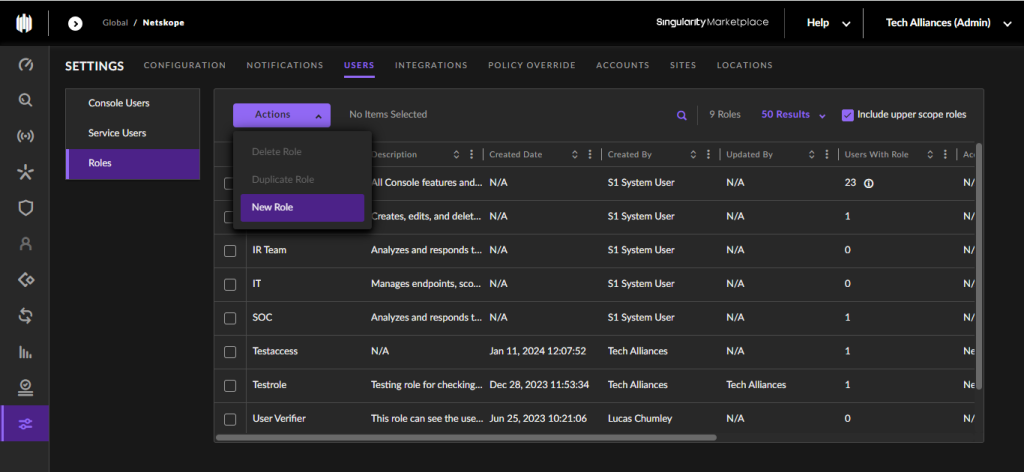
- Ent a Role Name and description, and add these Roles.
- Accounts: view
- Groups: view
- Roles: view
- Sites: view
- Endpoint threats: view, Fetch Threat File
- Threat Intelligence: view, Manage
- Click Save. Your Role will be added, If the user already has some roles assigned make sure it has all these roles added to the existing roles.
- If your user has no roles assigned to them, add the newly added roles to your user by following the next steps.
- Go to Console User and click on your user Email. A popup box will open. Click Actions > Change Scope of Access.
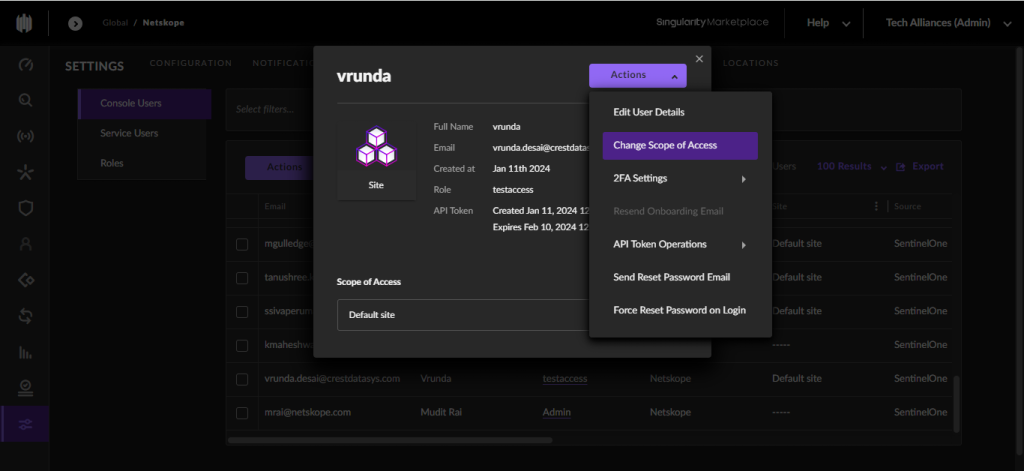
- Select the Role name created in the above steps and click Save.
- Give the user permission to generate an API token.


Creating a new User in SentinelOne
- First log in to an Admin account and go to Settings in the left panel.
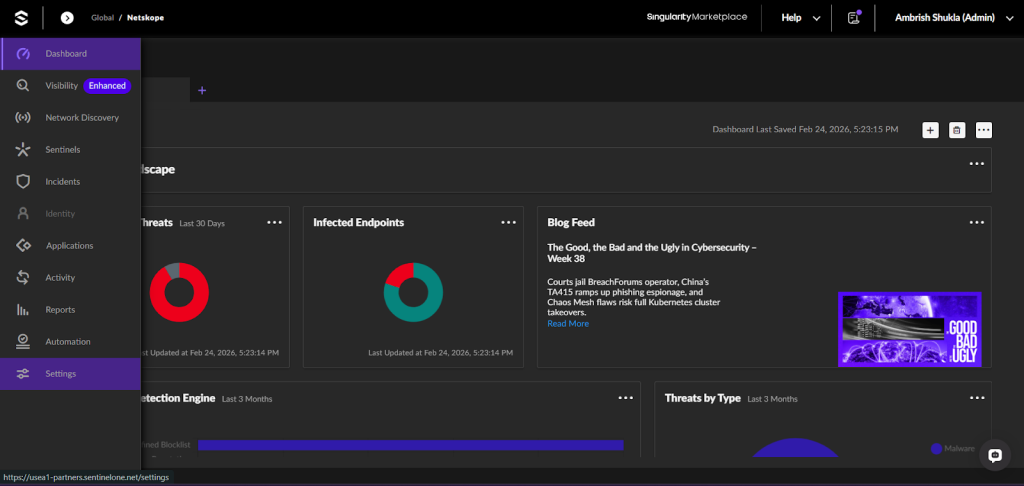
- Go to Users > Actions > Add a new User.
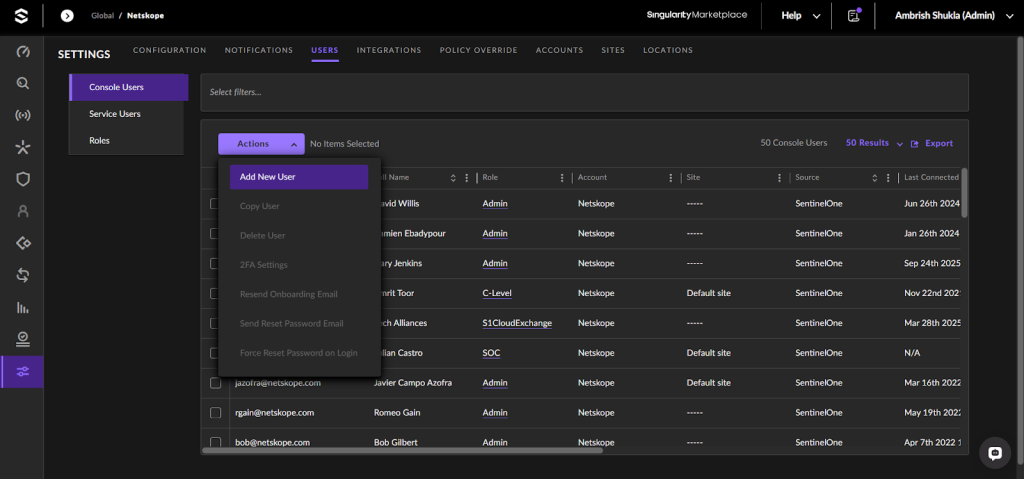
- It will ask for Fullname and Email Address.
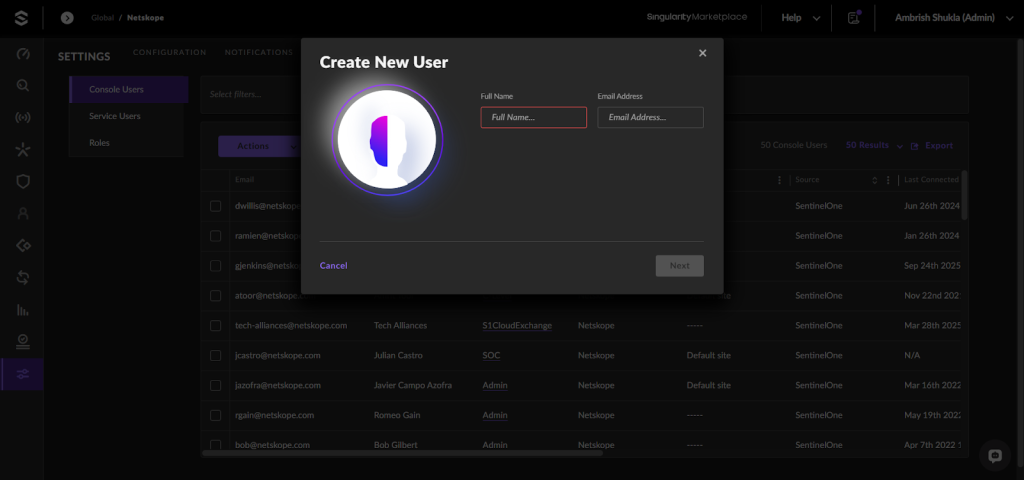
Note
Give a unique Email Address that does not exist in the instance.
- Select the Scope of Access as Account, and select the role created in Adding Roles to the User.
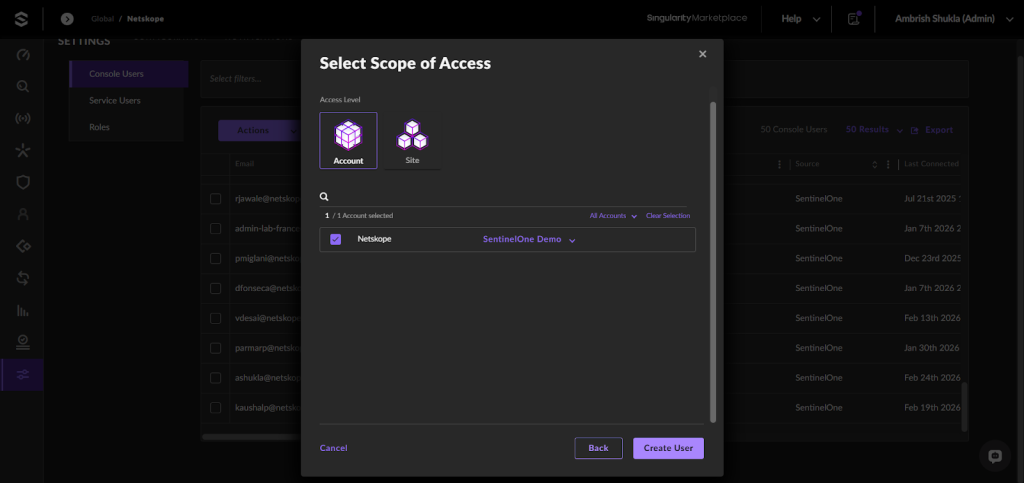
- Now it will send an Authentication email on the given Email Address.
- Click on the link in the email to log in with that user.


Get your Management URL and API Token
- Login to your SentinelOne platform.
- Click on your username in the top right corner, and click My User.
- Click Actions > Api Token Operations > Regenerate API Token (generate if not already generated). Save the token once generated since it will only be visible once.
As for the URL, use the SentinelOne platform URL as your Management URL for configuring the plugin.

Configure the SentinelOne Plugin
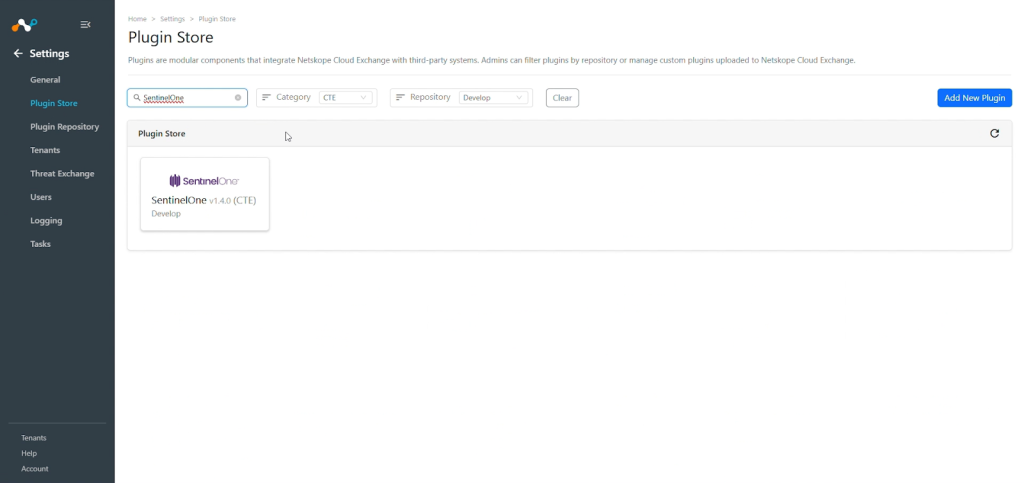
- In Cloud Exchange, go to Settings > Plugin Store.
- Search for and select the SentinelOne v1.4.0 (CTE) plugin.
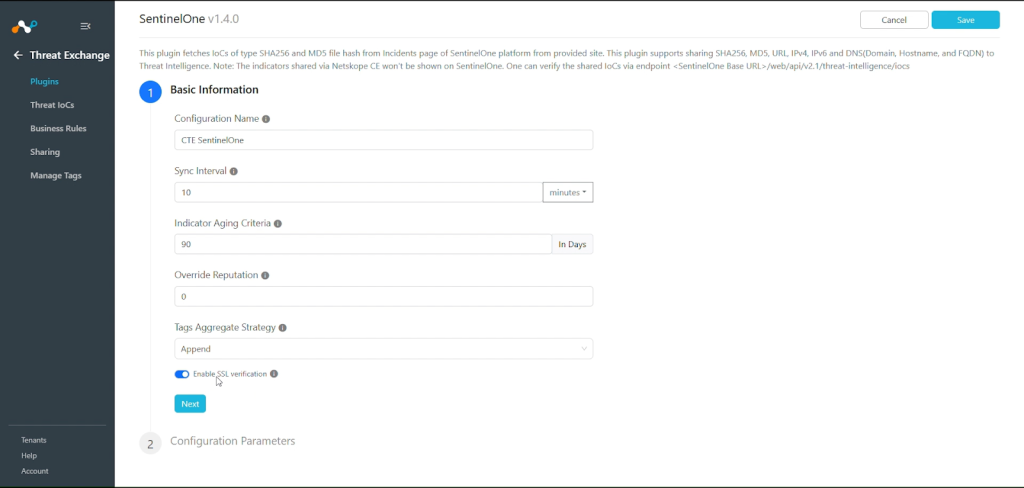
- Enter the Basic Information:
- Configuration Name: Unique name for the configuration.
- Sync Interval: Interval to fetch data from this plugin source.
- Aging Criteria: Expiry time of the plugin in days. (Default: 90)
- Override Reputation: Set a value to override the reputation of indicators received from this configuration.
- Tags Aggregate Strategy: Choose whether to append new tags to existing IoC(s) or overwrite them. This configuration parameter determines how tags are stored for indicators pulled for this configuration.
- Enable SSL Validation: Enable/Disable SSL Certificate validation based on your platform requirement.
- Use System Proxy: Enable if the proxy is required for communication.
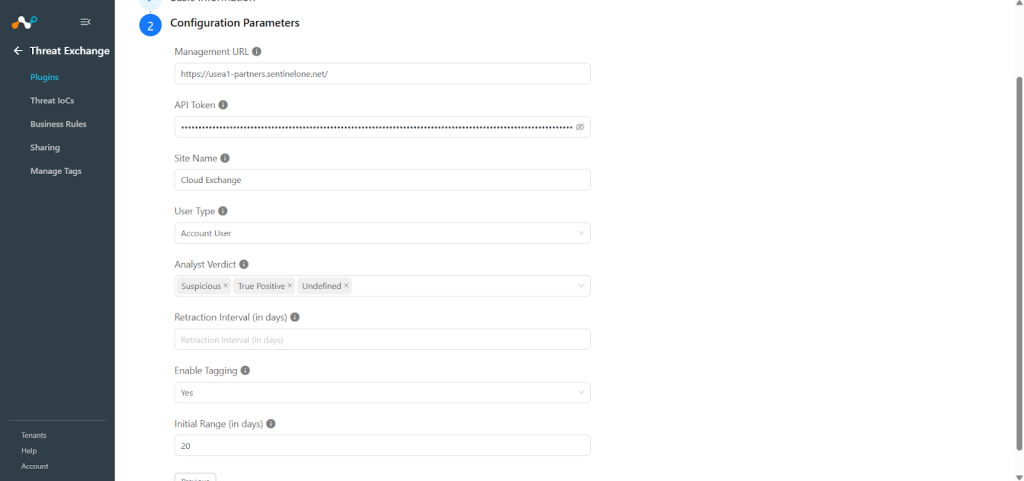
- Click Next and enter the Configuration Parameters:
- Management URL: The SentinelOne Management URL.
Example: https://user-partners.sentinelone.net. - API Token: API token to authenticate SentinelOne.
- Site name: Name of the site to fetch alerts from. Leave blank to fetch data from all sites.
- User Type: Select whether the API token provided is for a Global User or Account User.
- Analyst Verdict: Pull Indicators based on the Analyst Verdict field. The Indicators with the selected Analyst Verdicts will be fetched from the SentinelOne platform.
- Retraction Interval (in days): Retraction Interval days to run IoC(s) retraction for SentinelOne indicators. Note that this parameter will only be considered if IoC(s) Retraction is enabled in Threat Exchange Settings. Value must be from 1 to 2^62.
- Enable Tagging: Enable/Disable tagging functionality.
- Initial Range (in days): Number of days to pull the data for the initial run. Value must be from 0 to 2^62.
- Management URL: The SentinelOne Management URL.
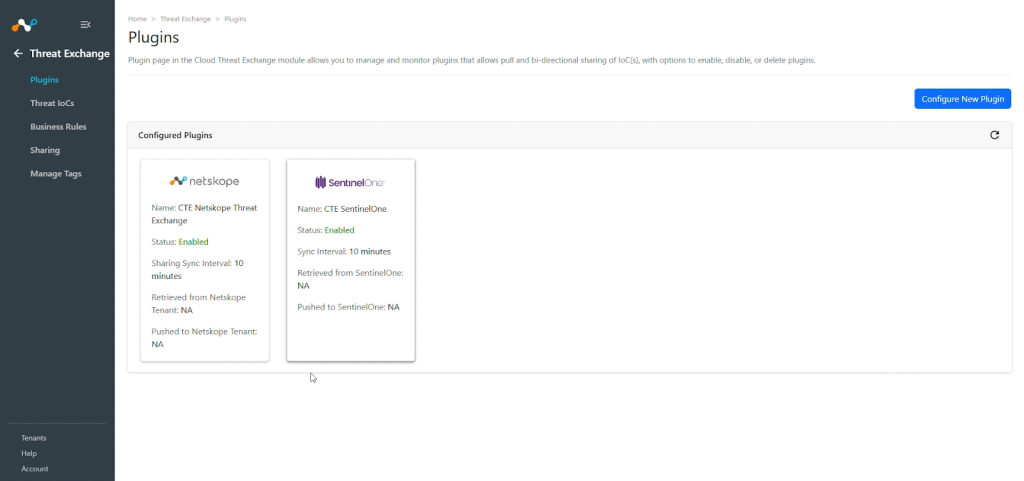
- Click Save.


Configure a Threat Exchange Business Rule for SentinelOne
To share indicators fetched from the SentinelOne to Cloud Exchange, you will need to have a business rule that will filter out the indicators that you want to share. To configure a business rule, follow these steps:
- In Threat Exchange, go to Business Rules and click Create New Rule.
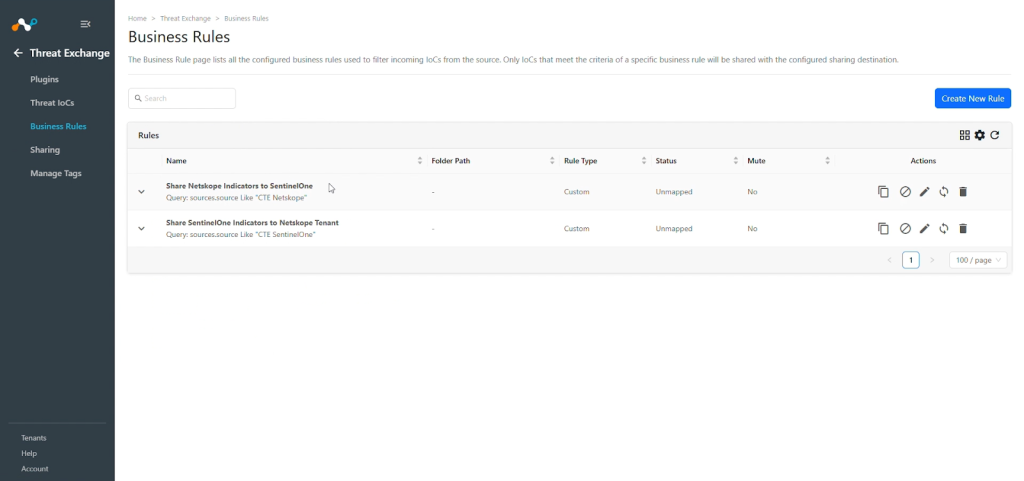
- Add a Rule name and your required filters for the IoCs you want to share, and then click Save.

Configure Sharing for Threat Exchange and SentinelOne
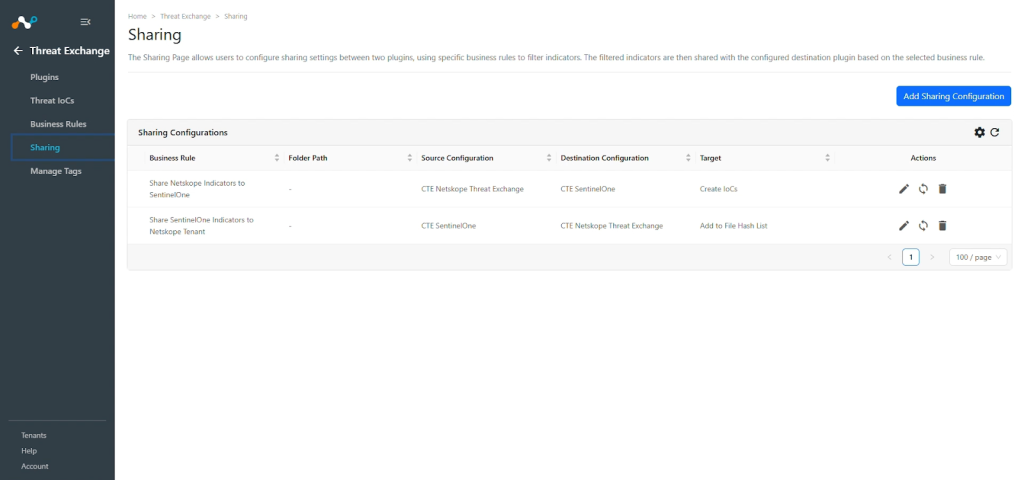
To share IoCs from the Cloud Exchange to the SentinelOne platform, or from SentinelOne to Netskope, follow these steps:
- In Threat Exchange, go to Sharing and click Add Sharing Configuration.
- Select your Source Configuration (Netskope CTE), Business Rule, Destination Configuration (SentinelOne), and Target.
- Click Save.
- Follow the same steps but vice versa for sharing SentinelOne IoCs to Netskope, select your Source Configuration as SentinelOne, Business Rule, Destination Configuration (Netskope CTE), and Target, and select the existing IoC List Name or create a new IoC list on the platform.
- Click Save.

Validate the SentinelOne Plugin
Validate the Pull
Based on the Plugin configuration Indicators will pull from the SentinelOne. Go Threat Exchange > Threat IoCs to view the received IoCs.
Example: Add a query on the Threat IoCs page like “sources.source Is equal “CTE SentinelOne” && type IN (“<IOC_TYPE>”)”.


You can also verify the indicators pulled in Cloud Exchange from the logs available at Logging.

In SentinelOne, go to Incidents from the left panel. Here in the Threats section, you can verify the indicators that are available for pull.

For verifying the Retracted IoCs from SentinelOne, check the logs for IoC Retraction example: message Like “CTE SentinelOne [CTE SentinelOne] [Retraction]:”


SentinelOne plugin also supports push retraction which means the IoCs from third party plugins that are shared to the SentinelOne plugin and later were marked as retracted in Cloud Exchange, then those IoCs will be automatically deleted from SentinelOne platform through push retraction. You can verify the same by observing the Retraction Result field, which says “<plugin configuration name>: retracted”.

When the IoCs shared from SentinelOne to Third Party are deleted from that platform, then it will be marked as “<plugin-config-name>: retracted” in the Retraction Result. If they are not deleted from the Third party then the Retraction Result will be pending.

Note
The plugin also supports retraction based on the Analyst Verdict field. If the Analyst Verdict of an indicator is updated and the new value is not included in the plugin configuration, that indicator will be marked as retracted.
IoCs pulled from SentinelOne were shared to a File Hash of a File named Sentinelone-demo on the Netskope Tenant.

If any of the shared IoCs are marked as retracted in Cloud Exchange, it would be deleted from the Netskope tenant as well. Here, you can see the IoCs which were marked Retracted = Yes in the retraction screenshot, were also deleted from the File Hash on the Netskope tenant.

Validate the Push
To verify sharing indicators, go to Threat Exchange > Threat IoCs. Expand one of the Source plugin IoCs and check the status of Shared with Parameter.

For more information go to Logging from the nav bar and check the plugins logs.

Note
The shared indicators to SentinelOne lack a UI dashboard for viewing. However, we can utilize the API to see the ingested indicators.
Sample CURL:
curl --location 'https://usea1-partners.sentinelone.net/web/api/v2.1/threat-intelligence/iocs?limit=1000' \--header 'Authorization: ApiToken TOKEN' \--header 'Content-Type: application/json'
Run the provided CURL command in the Postman or any other API platform to verify the shared indicators. Also, you can add a filter of value/type/source in the params.


Note
The IoCs of types domain, host name and FQDN in Cloud Exchange will be shared as DNS to the SentinelOne platform.
The source field will contain the source labeling of the source plugin.

Once the shared indicator is marked as retracted in the Cloud Exchange, it will also be retracted from the SentinelOne platform as this plugin also supports push retraction.
To verify the push retraction, go to Logging and apply filter as shown here:

You can also verify the retracted shared indicator at Threat IoCs.

After the retraction is completed, you can verify the retraction on SentinelOne by running the CURL command again with the indicator value.

Troubleshooting the SentinelOne Plugin
Unable to pull IoCs from the SentinelOne platform
After the plugin configuration, if the IoCs are not pulled from the platform, it might be due to one of the following.
- No IoCs are available on the platform to pull.
- IoCs are not available for the given time range or do not match the configuration parameters.
What to do: Identity your root cause from above and follow these steps to resolve the issue.
No IOCs are available on the platform to pull
Check if the IoCs are available on the platform to pull. If available, check the resolution for the next point.
IoCs are not available for the given time range
If the IoCs are available on the platform to pull, but the plugin has not pulled the IoCs in Cloud Exchange, check the number of days mentioned in the initial range parameter of the plugin configuration. On the SentinelOne platform, check if you have data for the given time range.
If the data is available for the given time range, it might be possible that the IoCs for the provided filter in the plugin configuration are not available, so check the values in the plugin Configuration Parameters, and filter the same on the SentinelOne platform.
Unable to push IoCs to the SentinelOne platform
If you are not able to share IoCs from Cloud Exchange to SentinelOne, that could be due to the user may not have required permissions.
What to do: Check if the permissions given to the user fulfills the required permissions.
Unable to verify shared IoCs on SentinelOne using the API provided in the plugin
If you have shared IoCs on SentinelOne, and trying to verify it using the API provided in the plugin, and getting the below response:
{
    "errors": [
        {
            "code": 4030010,
            "detail": "This page doesn't support multi-scopes users yet",
            "title": "Insufficient permissions"
        }
    ]
}
This might be due to the user whose token is being used has access to multiple site scopes, rather than being limited to a single application scope.
What to do: Update the user scope with the Application scope as given in Adding Roles to the User section.
False Positive IoCs fetched from the plugin
If False Positive indicators are being fetched by the plugin, it could be due to one of the following reasons:
- The configured plugin version is v1.3.0 or earlier
- If the plugin version is v1.4.0 or newer, the False Positive value may have been selected in the Analyst Verdict field.
What to do:
- If you are using plugin version v1.3.0 or earlier, upgrade to the latest version and ensure that the False Positive value is not selected in the Analyst Verdict field. Globally enable the Retraction toggle in the Threat Exchange settings and provide the values in the Retraction interval of the plugin.
- If the plugin is already upgraded, edit the plugin configuration and manually remove the False Positive value from the Analyst Verdict field.