

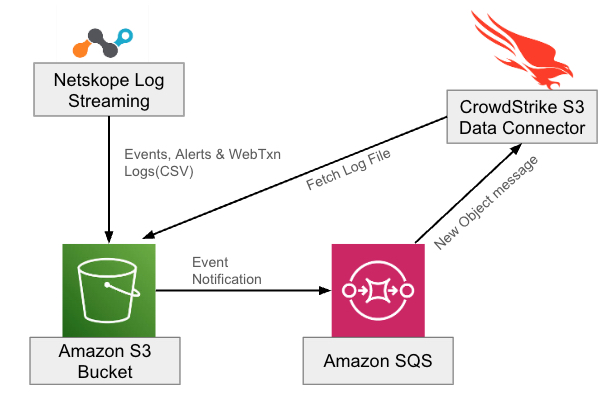
This document explains how to configure the AWS S3 bucket with the CrowdStrike S3 Data connector. The main purpose of this configuration is to stream the Web Transactions logs from an S3 bucket to the CrowdStrike NG-SIEM via their S3 Data connector.
Prerequisites
To complete this configuration, you need:
- A Netskope tenant with a Web Transaction events license.
- An AWS account.
- A CrowdStrike Falcon account.
Note
Any changes to the field configuration (like reducing fields in the Netskope Log streaming configuration) must also be reflected in the parser for Netskope Transaction Logs. Failure to update the parser will lead to a field mismatch.
Configuration
Amazon SQS Configuration
Create two SQS queues for the event notification configuration with the S3 bucket. One queue will be used for the Events & Alerts and the second queue will be used for the Web transaction logs.
Create the queue with the type as standard and keep all other configurations as default for the queue.


{
  "Version": "2012-10-17",
  "Statement": [
    {
      "Effect": "Allow",
      "Principal": {
        "Service": "s3.amazonaws.com"
      },
      "Action": "sqs:SendMessage",
      "Resource": "arn:aws:sqs:<AWSRegion>:<AccountID>:<SQSQueueName>"
    }
  ]
}
S3 Bucket Configuration
1. Select the bucket where you’re receiving the logs from the Netskope Log Streaming service.
The following is an example of the log file object.

2. Move to the properties of the bucket. Go to the event notification and add the configuration as shown below. Add the prefix and add the path of your folder where you’re receiving the logs. Select the Event type as All object create events.

3. Select the destination as the SQS queue and also specify the exact queue.

4. Create one more event notifications for the other type of logs. After queue configuration, your bucket event notification will look similar to the following example.

IAM Role Configuration
1. Add the Trust policy and add the external ID from the CrowdStrike S3 Data connector configuration.
ARN Value: Your IAM role name <ARNValue> depends on your CrowdStrike cloud:
- For US-1, enter arn:aws:iam::292230061137:role/crowdstrike-3pi-us1-connectors
- For US-2, enter arn:aws:iam::292230061137:role/crowdstrike-3pi-us2-connectors
- For EU-1, enter arn:aws:iam::292230061137:role/crowdstrike-3pi-eu1-connectors
{
    "Version": "2012-10-17",
    "Statement": [
        {
            "Effect": "Allow",
            "Principal": {
                "AWS": "<ARNValue>”
            },
            "Action": "sts:AssumeRole",
            "Condition": {
                "StringEquals": {
                    "sts:ExternalId": "44515bd2c1e44e029bb7d3b50ae2d845"
                }
            }
        }
    ]
}

2. Add the following permissions to the role.
For the Amazon SQS:
{
    "Version": "2012-10-17",
    "Statement": [
        {
            "Action": [
                "sqs:ReceiveMessage",
                "sqs:DeleteMessage",
                "sqs:GetQueueUrl",
                "sqs:GetQueueAttributes"
            ],
            "Resource": "arn:aws:sqs:<AWSRegion>:<AccountID>:<SQSQueueName>",
            "Effect": "Allow"
        }
    ]
}
For the AWS SQS bucket:
{
 "Version": "2012-10-17",
 "Statement": [
   {
     "Action": "s3:GetObject",
     "Resource": [
       "arn:aws:s3:::<S3Bucket>/<ObjectPrefix>/*"
     ],
     "Effect": "Allow"
   },
   {
     "Action": "s3:ListBucket",
     "Resource": [
       "arn:aws:s3:::<S3Bucket>"
     ],
     "Effect": "Allow"
   }
 ]
}
Your IAM role should look similar to the following example.

CrowdStrike Data Connector Configuration in Falcon NG-SIEM
S3 Data connector configuration
1. Navigate to data connector > data connections > click Add connection.

2. Select the AWS S3 Data connector from the list.

3. Provide the connection name, Vendor, Vendor Product, Data source configuration, Data Timezone, and Parser.

4. Click Manage configurations > Add configuration. Provide the details for the configuration:
- Name: Name of the configuration
- AWS Account ID: AWS Account ID of your account
- S3 Bucket Name: S3 Bucket where you receiving the logs
- Authentication Method: IAM Assume Role
- S3 object Prefix: Provide the folder name or the object prefix
- AWS Region: Region containing the S3 bucket and SQS Queue
- SQS Queue Name: Your SQS Queue Name
5. Click Save configuration.
Migration Steps to AWS S3 Data Connector for Transaction Logs
As you start to move away from the Netskope Transactions Logs Data connector to the AWS S3 connector, follow these instructions to migrate to Netskope Log Streaming for Web transaction logs to avoid having any data loss. Here is the migration guide to help you in that transition.
The old connector used the PubSub Lite model to fetch the Transaction Logs using the below connector.
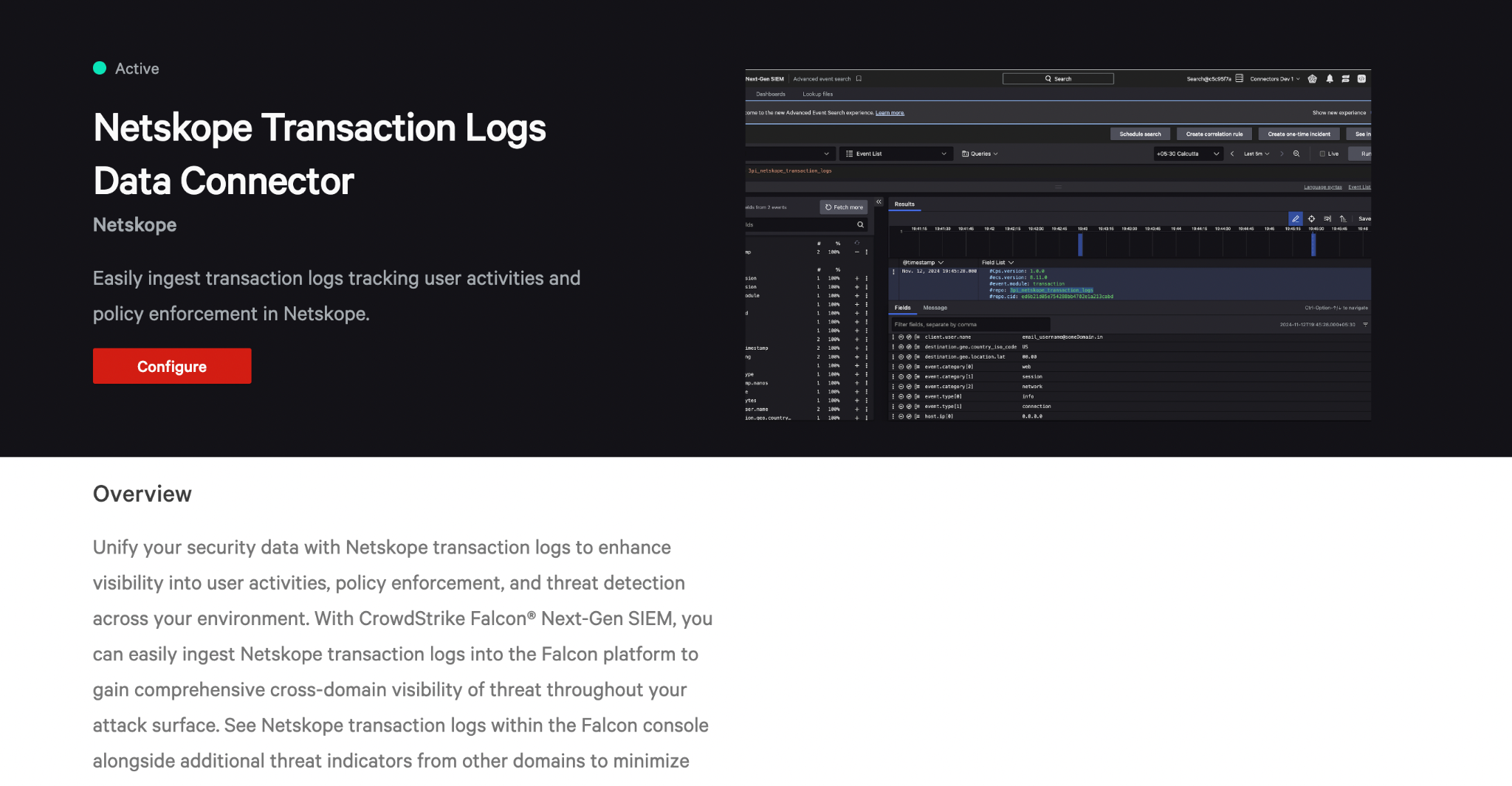
To safely migrate from the Netskope Transaction Logs Data Connector to the AWS S3 connector for Transaction Logs, you need to make sure to configure the AWS S3 connector with the correct parser.
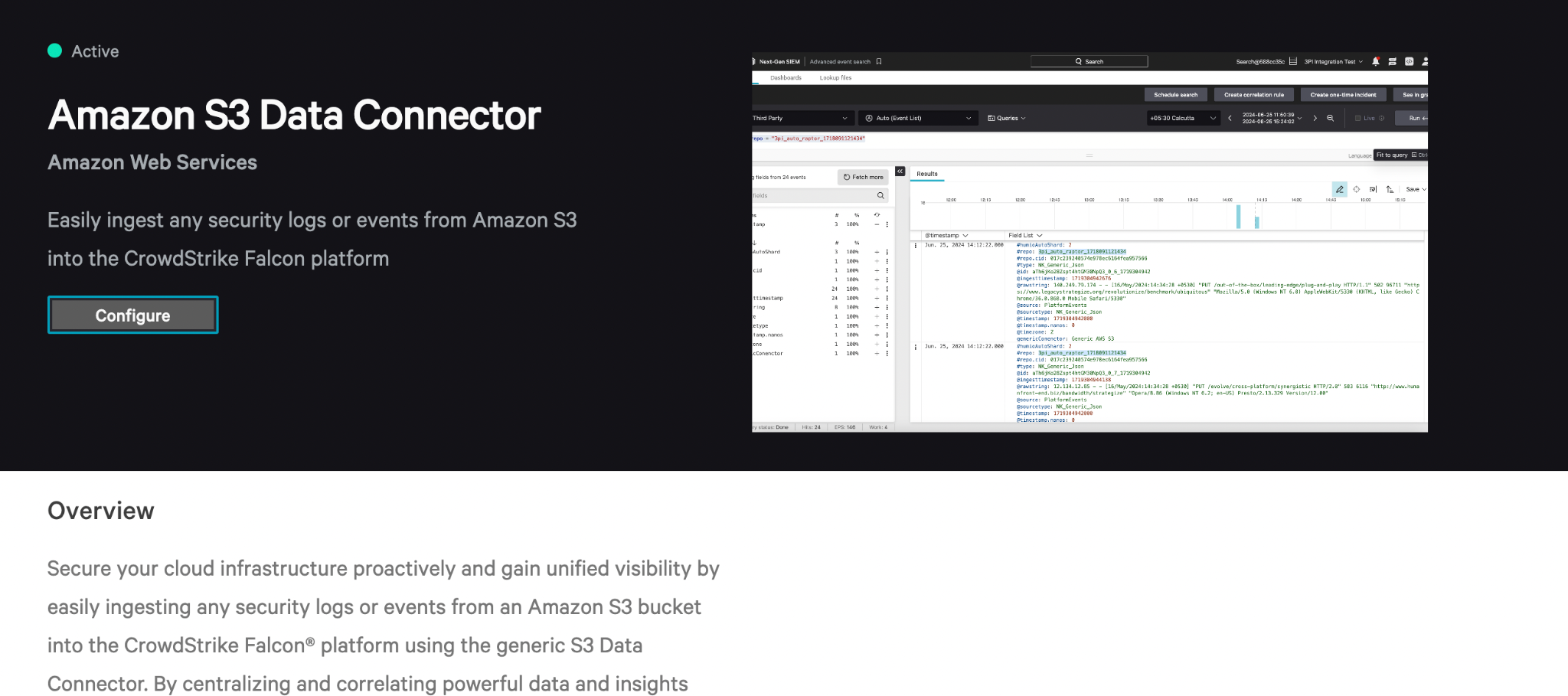
After you start receiving the logs from your AWS S3 connector configuration, make sure to disable the Netskope Transaction Logs Data connector.