

To configure Microsoft Copilot for the Next Generation API Data Protection, follow the instructions below.
Prerequisites
Before configuring Microsoft Copilot for Next Generation API Data Protection, review the prerequisites.
-
A global administrator account is required to grant access to Netskope. Post-grant, you can either delete or downgrade this account.
The way permissions work in Azure/Office 365 is that Netskope requires an administrator to grant enough privileges for Netskope to perform specific actions. Note that the Netskope app does not receive global admin permissions. It only receives permissions for the scope Netskope requests. -
You must turn on audit logging in Microsoft 365 admin center. To enable audit logging, follow the steps below:
-
Log in to https://purview.microsoft.com/.On the left navigation, click Solutions > Audit.
If auditing is not turned on for your organization, a banner is displayed prompting you to start recording user and admin activity.

-
Click the Start recording user and admin activity banner.
It may take up to 60 minutes for the change to take effect. After enabling, the first application event contents can take up to 12 hours to show up in Skope IT.
-
-
If you have guest or external users in your SaaS environment belonging to domains considered internal, you must set the appropriate internal domains for Netskope to classify exposure accurately. To set up internal domains, follow this article.
-
(Optional but recommended) To enable full DLP coverage, configure Microsoft 365 OneDrive for the Next Generation API Data Protection. Next Generation API Data Protection can scan file attachments used in Copilot prompts, including those generated by Copilot agent responses. These attachments are stored in OneDrive folders. However, because Microsoft does not provide webhook notifications for Copilot file attachments, Netskope cannot directly scan them. Setting up OneDrive scanning ensures these attachments are covered by DLP policies.
Configure Netskope to Access your Microsoft Copilot Account
To authorize Netskope to access your Microsoft Copilot account, follow the steps below:
-
Log in to the Netskope tenant UI and go to Settings > Configure App Access > Next Gen > CASB API.
-
Under Apps, select Microsoft Copilot and click Setup CASB API Instance.
The Setup Instance window opens.
-
Under Administrator Email, enter the email address of the user who will receive an email notification when a policy violation or event triggers. This step is optional.
-
Under Instance Name, enter a name of the SaaS app instance. This step is optional and if left blank, Netskope will determine the name of the app instance post grant.
-
Click Grant Access.
The Microsoft Login window opens.
-
Enter the global administrator username and password.
-
Keep Consent on behalf of your organization unchecked and Accept the permissions.
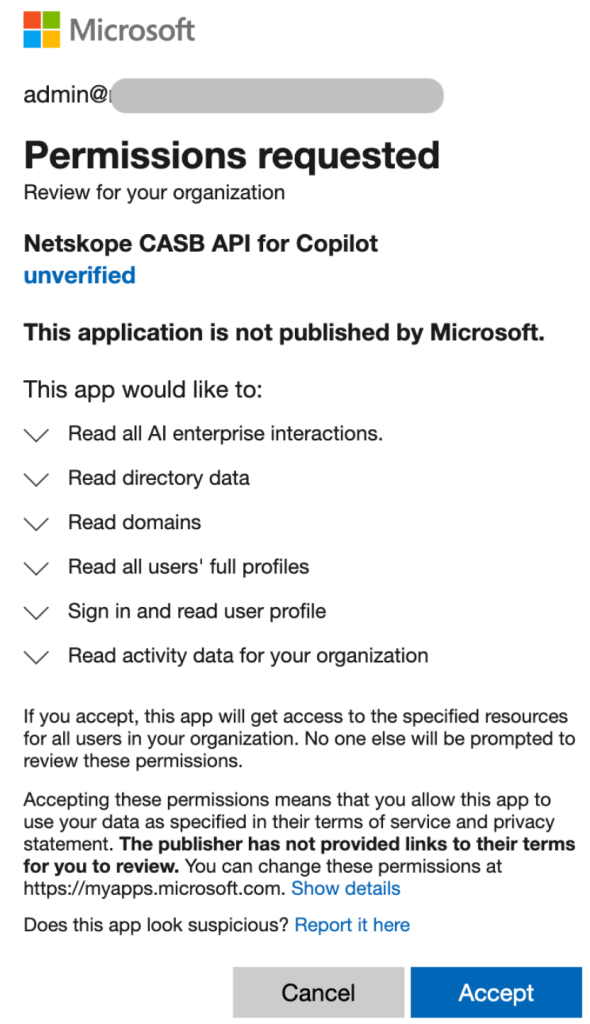 To understand the permissions in detail, see Justification for Permissions Requested.
 -
After accepting the permissions, you will be redirected to the successful result page. Click Close.
Refresh your browser, and you should see a green check icon next to the instance name.
Post grant, you can either delete or downgrade the global administrator account. To know more: Delete or Downgrade the Global Administrator Account.
You can view the Next Generation API Data Protection Inventory page to get deep insights on various entities on your Microsoft Copilot account. For more information on the Inventory page, see Next Generation API Data Protection Inventory.
You can receive audit events and standard user behavior analytic alerts in Skope IT. To know more: Next Generation API Data Protection Skope IT Events.
Next, you should configure a Next Generation API Data Protection policy. To do so, see Next Generation API Data Protection Policy Wizard.
Justification for Permissions Requested
| Permissions required by Netskope | Claim Value | Description | Purpose | Trade-off if not allowed |
|---|---|---|---|---|
| Read all AI enterprise interactions (Graph API) | AiEnterpriseInteraction.Read.All (Graph API) | Allows the app to read all AI enterprise interactions. | Allows Netskope to receive and process AI related interactions in the Copilot instance, such as user prompts and AI-generated responses. | Cannot monitor AI-related interactions in Microsoft Copilot. |
| Read directory data | Directory.Read.All (Graph API) | Allows the application to read data in your organization's directory such as users, groups, and applications. | Allows Netskope to read users, groups and apps data in the configured Copilot instance. | Cannot obtain user/group-related information and affects subsequent inventory and exposure computations. |
| Read domains | Domain.Read.All (Graph API) | Allows the app to read all domain properties without a signed-in user. | Allows Netskope to read the domain properties. | Required for sign-in workflows. |
| Read all users’ full profiles | User.Read.All (Graph API) | Allows the application to read user profiles in your organization’s directory. | Allows Netskope to read user profile data in the configured Copilot instance. | Cannot obtain user profile information and affects subsequent user exposure computations. |
| Sign in and read user profile | User.Read (Graph API) | Allows:
| Allows sign-in and to obtain information about signed-in users. | Required for sign-in workflows. |
| Read activity data for your organization | ActivityFeed.Read (Office 365 Management API) | Allows to retrieve information about user, administrator, system, and policy actions and events from Office 365 and Microsoft Entra activity logs via the Office 365 Management Activity API. | Allows Netskope to retrieve audit logs and events from Office 365 and Entra activity logs. | Cannot provide visibility via Skope IT application events and other UEBA capabilities. |