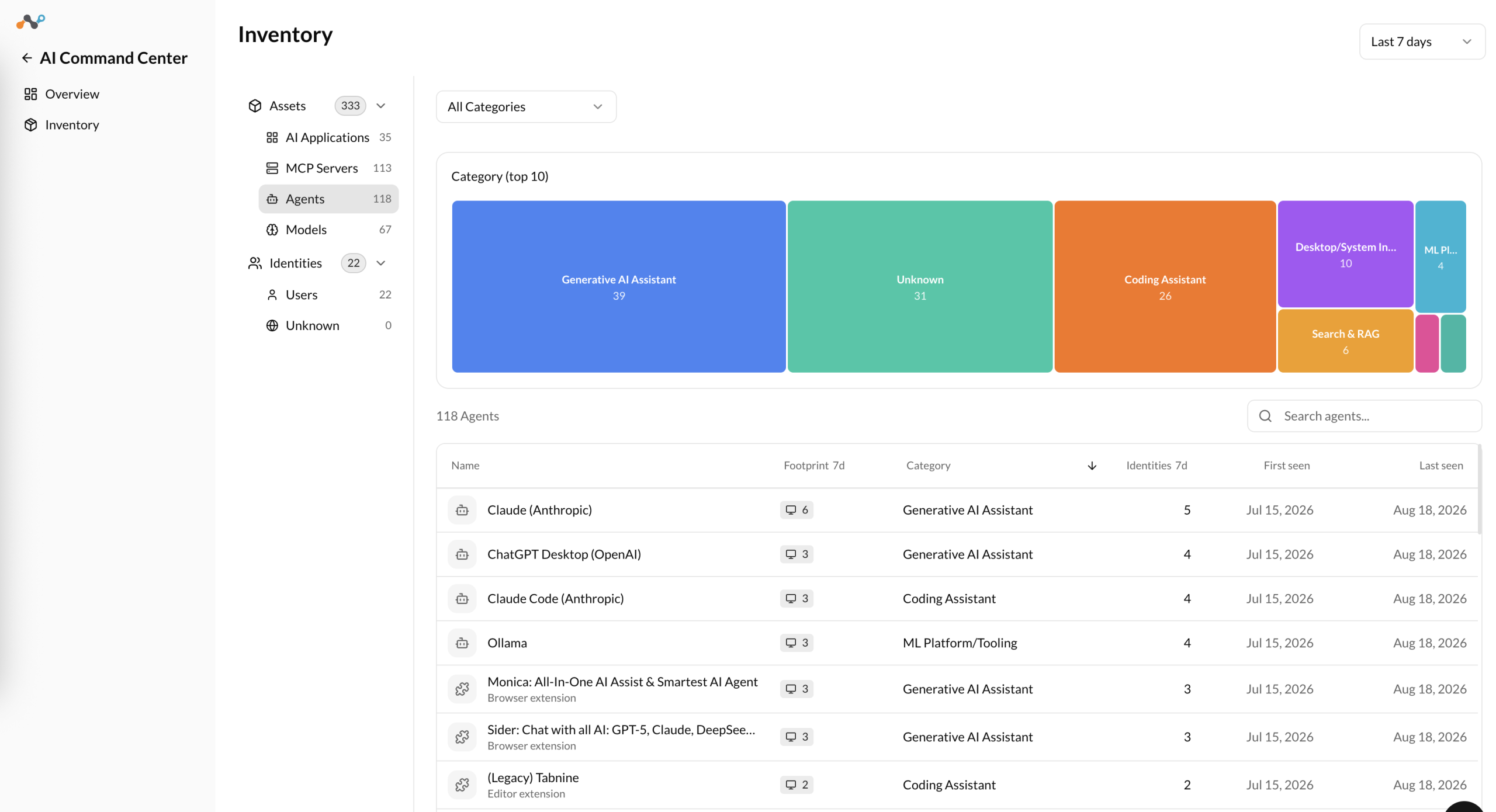
The Agents section provides visibility into AI agents discovered across your organization, such as browser extensions, editor extensions, and desktop extensions that use AI.
Source – Netskope Client
- Category (top 10) – A treemap showing the top 10 agent categories by count (for example, Browser Extension, Editor Extension, Desktop Extension, Agents). Click a category to filter the table.
- Framework (top 10) – A bar chart showing the top 10 frameworks. Click a framework to filter the table.
The following table displays a list of agents discovered in your environment with the following details:
- Name – Name of the AI agent, for example, IntelliCode, Amazon Q, Browser Copilot. A sublabel shows the agent type, for example, Editor extension or Browser extension.
- Footprint – Number of managed endpoints where this agent was detected. Hover over or click the footprint number to see more details. Available when Endpoint AI Discovery is enabled. For details on what Netskope Client discovers on the endpoint, see Assets Detected during AI Discovery.
- Category – Category of the agent, for example, Browser Extension, Editor Extension, Desktop Extension, Agents.
- Browser Extension: AI extensions installed in a web browser. Examples: Monica, Sider, Perplexity, ChatGPT, Copilot, Grammarly, Speechify, Merlin, LINER.
- Editor Extension: AI extensions installed in a code editor or IDE (VS Code, Cursor). Examples: GitHub Copilot, Codeium, CodeWhisperer, Tabnine, Claude Code, IntelliCode, Cline.
- Desktop Extension: standalone AI desktop applications. Examples: Claude Desktop, ChatGPT Desktop, Perplexity Desktop.
- Agents: autonomous or semi-autonomous AI processes that run independently. Examples: Microsoft Copilot, OpenClaw, Perplexity Comet AI Browser.
- Framework – Framework associated with the agent. Displays Unknown when the framework cannot be determined.
- #d Bytes – Volume of data the agent exchanged over its internet and local connections for the selected time range.
- #d Sessions – Number of sessions the agent opened over its internet and local connections for the selected time range.
- #d Identities – Number of unique identities associated with the agent for the selected time range.
- First Seen – Timestamp when the agent was first detected.
- Last Seen – Timestamp of the most recent detection.
Click any row to open the agent detail panel.
Agent Detail Panel
The agent detail panel shows what AI Command Center (AICC) knows about a single agent: where it runs, how much traffic it generates, which internet destinations and local models it reaches, and which identities use it. To open the panel, click any row in the agents table. The panel opens on the right side of the page. Click the close icon (X) at the top right of the panel to close it.
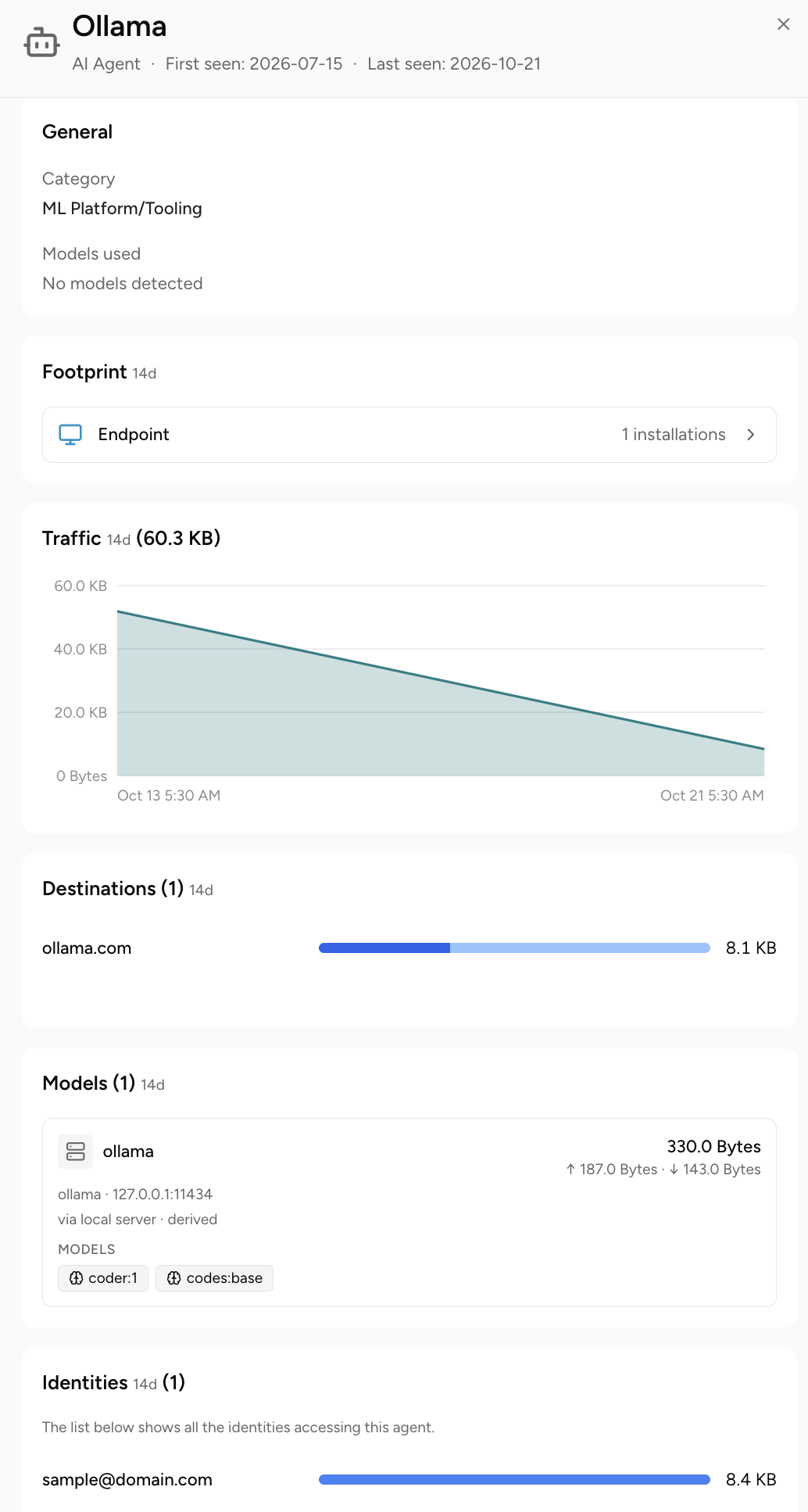
The layout of the panel depends on the agent type that appears below the agent name. For agents, such as AI Agent, the panel shows traffic details. For extensions, such as Desktop extension, the panel shows extension details. See Viewing Extension Details later on this page.
Panel Header
The header stays visible at the top of the panel as you scroll. It contains the following details:
-
Agent name – Name of the agent, with an icon that shows its type.
-
Agent type – Type of the agent, for example, AI Agent or Desktop extension.
-
First seen – Date when the agent was first detected.
-
Last seen – Date of the most recent detection.
General
The General card shows the identifying details of the agent. For an AI Agent, the card contains the following fields:
-
Category – Category of the agent, for example, Generative AI Assistant or Coding Assistant.
-
Framework – Framework associated with the agent, for example, claude-code.
-
Models used – Models that the agent used, displayed as tags. Displays No models detected when AICC finds none.
Footprint
The Footprint card shows where the agent runs. Rows are grouped by location. Endpoint appears first. Kubernetes Cluster and VM (virtual machine) appear under the Self-Hosted heading. Each row shows how many installations, pods, or instances AICC detected, and the card shows only the locations where AICC detected the agent. The label next to the card title shows the time range, for example, 7d.
- Endpoint – Number of installations on managed endpoints.
- Kubernetes Cluster – Number of pods where the agent runs.
- VM – Number of VM instances where the agent runs.
Click a row to open its list in the same panel. A breadcrumb at the top of the panel shows the agent name and the name of the list, for example, Claude > Endpoint. Click the agent name in the breadcrumb to return to the agent detail panel.
Endpoint Devices – The Endpoint list shows the managed endpoints where the agent is installed. A count above the list shows the total number of endpoint devices. Use the search box to find an endpoint. Use the All classifications dropdown to filter the list by device class. The list is sorted by Last seen, newest first, by default.
- Endpoint – Hostname of the endpoint. The identity associated with the endpoint appears below the hostname.
- Device – Device model and operating system version, for example, Apple MacBook Pro and macOS 15.1.0.
- Class – Classification of the device, for example, Managed.
- Last seen – Date when the agent was last detected on the endpoint.
VM Instances – The VM Instances list shows the virtual machines where the agent runs. A count above the list shows the total number of VM instances. Use the search box to find a VM instance. The footer shows how many instances are displayed and a Rows per page dropdown.
Kubernetes Clusters – The Kubernetes Cluster list shows the pods where the agent runs.
Viewing Agent Traffic
The Traffic, Destinations, and Models cards show the network traffic that an agent generates. Use them to see how much data the agent exchanges, which internet destinations it connects to, and which local models it reaches. These cards appear in the detail panel for AI Agent types.
Traffic – The Traffic card shows a chart of the data that the agent exchanged over the selected time range. The total volume appears next to the card title, for example, Traffic 7d (41.7 MB). Hover over the chart to see the traffic volume at a specific date and time. When the agent has no traffic, the card shows 0 B and the message No data available!
Destinations – The Destinations card lists the internet destinations that the agent connected to. The number next to the card title is the number of destinations. Each row shows the destination domain, a bar that compares the data volume across destinations, and the data volume. The list is ordered by data volume, highest first. When AICC observes no destinations, the card shows the message No destinations observed in this window.
Models – The Models card lists the local large language model (LLM) runners that the agent connected to on the same device, such as a runner that uses Ollama or vLLM. When AICC observes none, the card shows the message No local LLM runners observed in this window.
Viewing Agent Identities
The Identities card lists the identities that use the agent. The number next to the card title is the total number of identities. Each row shows an identity and a bar that compares the data volume that the identity generated through the agent. The card shows the identities with the highest traffic.
- View all (n) – Click to open the full list of identities in the same panel.
- Identity row – Click an identity to open its user detail panel. For details, see Users in AI Inventory.
The Identities list shows every identity that uses the agent. A count above the list shows the total number of identities. Use the search box to find an identity. The list is sorted by traffic, highest first, by default.
- Identity – Name or email address of the identity. The identity type appears below the name, for example, User.
- Traffic – Volume of data that the identity generated through the agent.
Viewing Extension Details
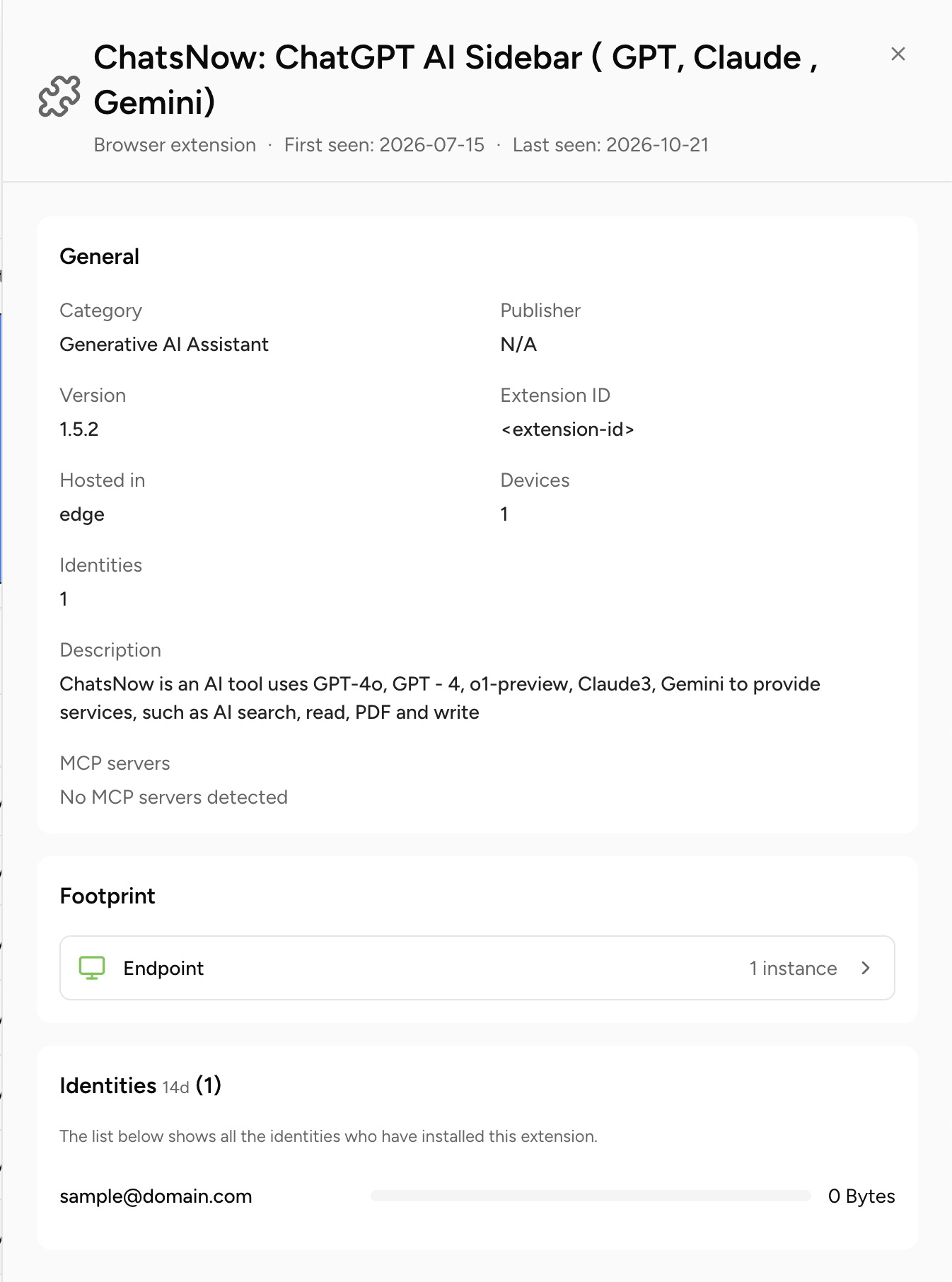
For extensions, such as Desktop extension, the detail panel shows details about the extension instead of traffic cards. The panel contains the General, Footprint, and Identities cards. The panel header has the same fields as the header for AI Agent types.
General
The General card for an extension contains the following fields:
- Category – Category of the extension, for example, Desktop/System Integration.
- Framework – Framework associated with the extension, for example, mcp-typescript-sdk.
- Publisher – Publisher of the extension. Displays N/A when the publisher is not available.
- Version – Version of the extension.
- Extension ID – Unique identifier of the extension.
- Author – Author of the extension.
- Hosted in – Location where the extension is hosted. Displays N/A when the location is not available.
- Devices – Number of devices where the extension is installed.
- Identities – Number of identities associated with the extension.
- Description – Description of the extension.
- MCP servers – Model Context Protocol (MCP) servers that the extension uses. Displays No MCP servers detected when AICC finds none.
Footprint
The Footprint card for an extension has a single Deployments row that shows the number of instances where the extension is deployed, for example, 58 instances. Click the row to open the list.
Identities
The Identities card for an extension lists the identities that installed the extension, with a bar and a data volume for each identity. Click an identity to open its user detail panel.